


 Скачать презентацию yright 2009 Rockwell Automation Inc All rights
45e4f751532c300136d952e71312e1eb.ppt
- Количество слайдов: 73
 yright © 2009 Rockwell Automation, Inc. All rights reserved. What are all these parameters? ? ? An Explanation of the XM 120/XM 121 Program Parameters.
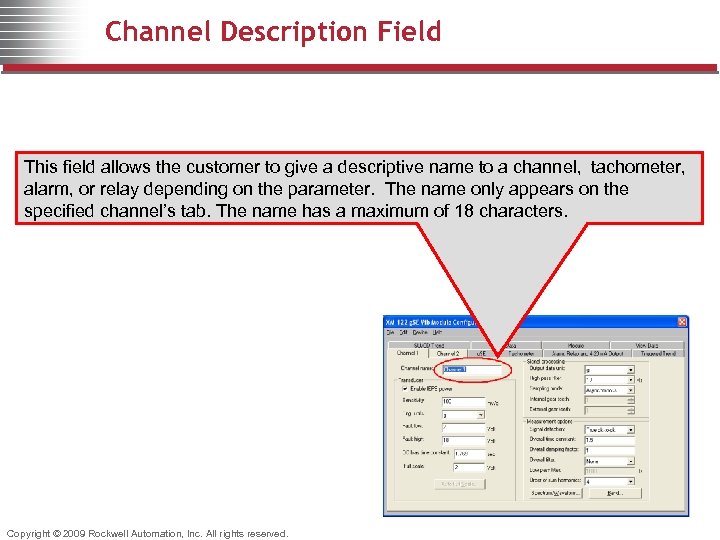 Channel Description Field This field allows the customer to give a descriptive name to a channel, tachometer, alarm, or relay depending on the parameter. The name only appears on the specified channel’s tab. The name has a maximum of 18 characters. Copyright © 2009 Rockwell Automation, Inc. All rights reserved.
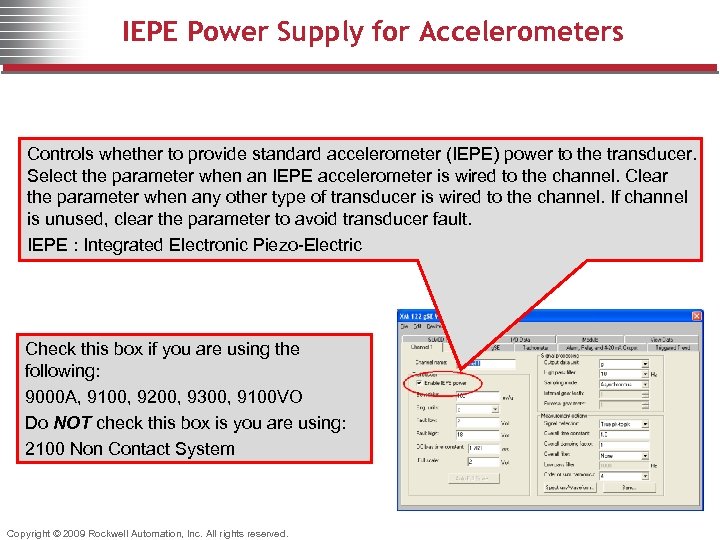 IEPE Power Supply for Accelerometers Controls whether to provide standard accelerometer (IEPE) power to the transducer. Select the parameter when an IEPE accelerometer is wired to the channel. Clear the parameter when any other type of transducer is wired to the channel. If channel is unused, clear the parameter to avoid transducer fault. IEPE : Integrated Electronic Piezo-Electric Check this box if you are using the following: 9000 A, 9100, 9200, 9300, 9100 VO Do NOT check this box is you are using: 2100 Non Contact System Copyright © 2009 Rockwell Automation, Inc. All rights reserved.
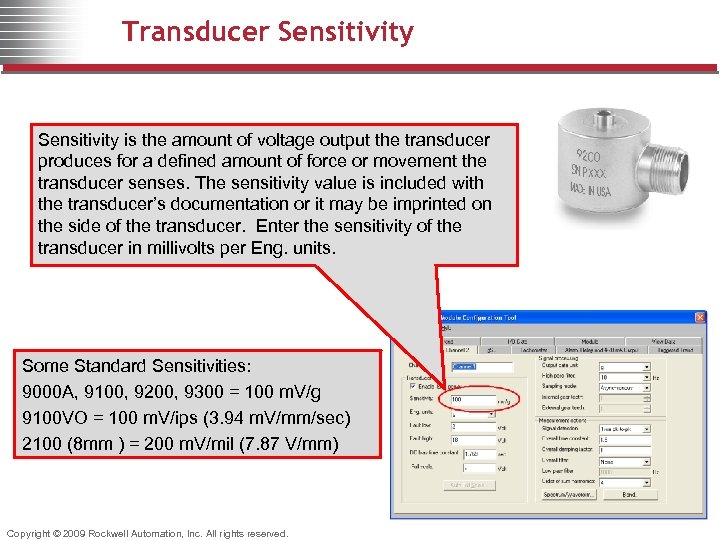 Transducer Sensitivity is the amount of voltage output the transducer produces for a defined amount of force or movement the transducer senses. The sensitivity value is included with the transducer’s documentation or it may be imprinted on the side of the transducer. Enter the sensitivity of the transducer in millivolts per Eng. units. Some Standard Sensitivities: 9000 A, 9100, 9200, 9300 = 100 m. V/g 9100 VO = 100 m. V/ips (3. 94 m. V/mm/sec) 2100 (8 mm ) = 200 m. V/mil (7. 87 V/mm) Copyright © 2009 Rockwell Automation, Inc. All rights reserved.
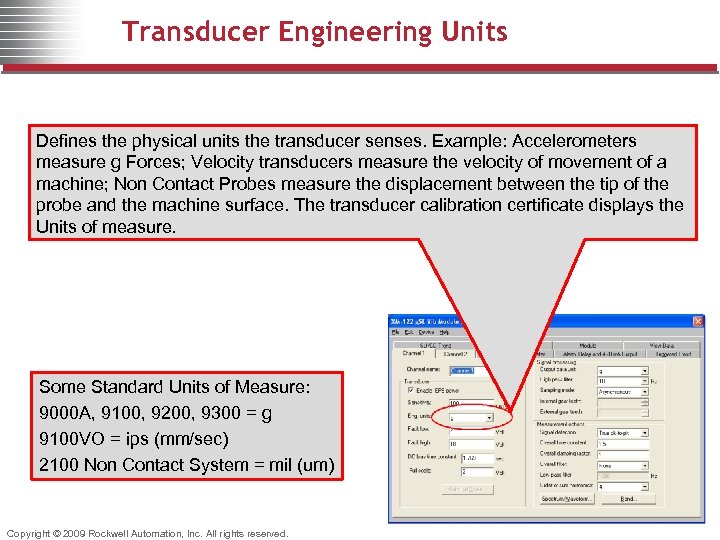 Transducer Engineering Units Defines the physical units the transducer senses. Example: Accelerometers measure g Forces; Velocity transducers measure the velocity of movement of a machine; Non Contact Probes measure the displacement between the tip of the probe and the machine surface. The transducer calibration certificate displays the Units of measure. Some Standard Units of Measure: 9000 A, 9100, 9200, 9300 = g 9100 VO = ips (mm/sec) 2100 Non Contact System = mil (um) Copyright © 2009 Rockwell Automation, Inc. All rights reserved.
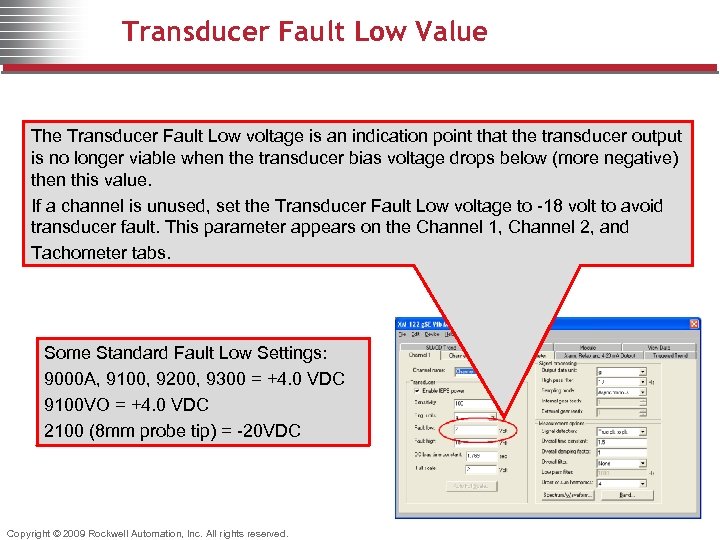 Transducer Fault Low Value The Transducer Fault Low voltage is an indication point that the transducer output is no longer viable when the transducer bias voltage drops below (more negative) then this value. If a channel is unused, set the Transducer Fault Low voltage to -18 volt to avoid transducer fault. This parameter appears on the Channel 1, Channel 2, and Tachometer tabs. Some Standard Fault Low Settings: 9000 A, 9100, 9200, 9300 = +4. 0 VDC 9100 VO = +4. 0 VDC 2100 (8 mm probe tip) = -20 VDC Copyright © 2009 Rockwell Automation, Inc. All rights reserved.
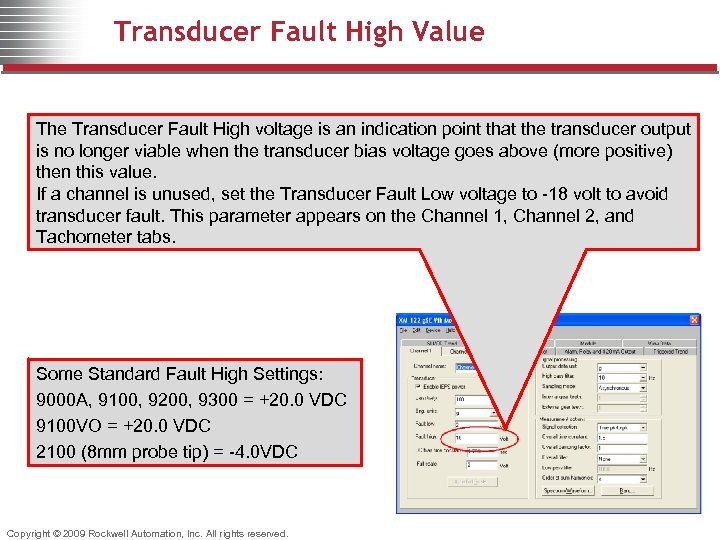 Transducer Fault High Value The Transducer Fault High voltage is an indication point that the transducer output is no longer viable when the transducer bias voltage goes above (more positive) then this value. If a channel is unused, set the Transducer Fault Low voltage to -18 volt to avoid transducer fault. This parameter appears on the Channel 1, Channel 2, and Tachometer tabs. Some Standard Fault High Settings: 9000 A, 9100, 9200, 9300 = +20. 0 VDC 9100 VO = +20. 0 VDC 2100 (8 mm probe tip) = -4. 0 VDC Copyright © 2009 Rockwell Automation, Inc. All rights reserved.
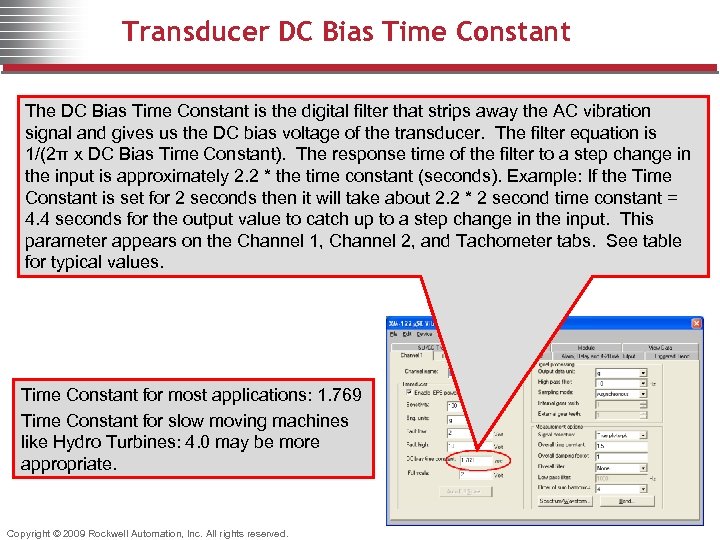 Transducer DC Bias Time Constant The DC Bias Time Constant is the digital filter that strips away the AC vibration signal and gives us the DC bias voltage of the transducer. The filter equation is 1/(2π x DC Bias Time Constant). The response time of the filter to a step change in the input is approximately 2. 2 * the time constant (seconds). Example: If the Time Constant is set for 2 seconds then it will take about 2. 2 * 2 second time constant = 4. 4 seconds for the output value to catch up to a step change in the input. This parameter appears on the Channel 1, Channel 2, and Tachometer tabs. See table for typical values. Time Constant for most applications: 1. 769 Time Constant for slow moving machines like Hydro Turbines: 4. 0 may be more appropriate. Copyright © 2009 Rockwell Automation, Inc. All rights reserved.
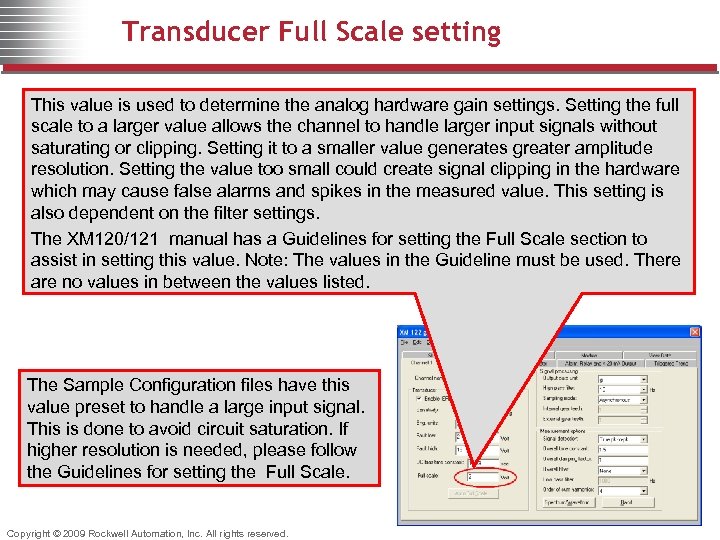 Transducer Full Scale setting This value is used to determine the analog hardware gain settings. Setting the full scale to a larger value allows the channel to handle larger input signals without saturating or clipping. Setting it to a smaller value generates greater amplitude resolution. Setting the value too small could create signal clipping in the hardware which may cause false alarms and spikes in the measured value. This setting is also dependent on the filter settings. The XM 120/121 manual has a Guidelines for setting the Full Scale section to assist in setting this value. Note: The values in the Guideline must be used. There are no values in between the values listed. The Sample Configuration files have this value preset to handle a large input signal. This is done to avoid circuit saturation. If higher resolution is needed, please follow the Guidelines for setting the Full Scale. Copyright © 2009 Rockwell Automation, Inc. All rights reserved.
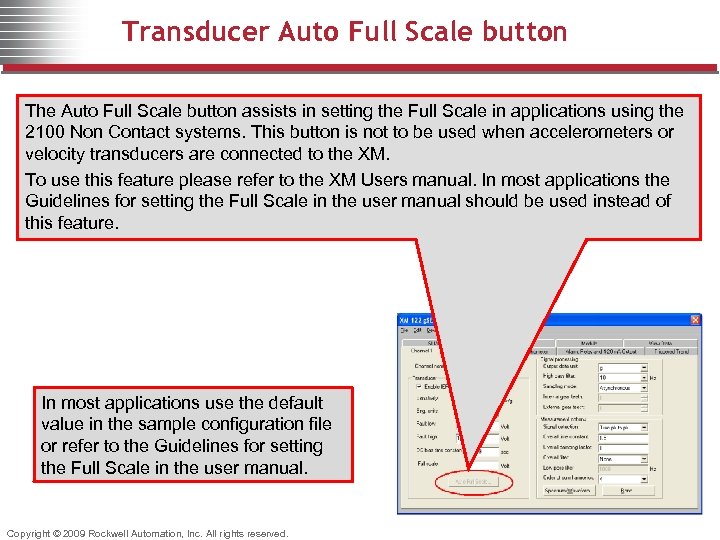 Transducer Auto Full Scale button The Auto Full Scale button assists in setting the Full Scale in applications using the 2100 Non Contact systems. This button is not to be used when accelerometers or velocity transducers are connected to the XM. To use this feature please refer to the XM Users manual. In most applications the Guidelines for setting the Full Scale in the user manual should be used instead of this feature. In most applications use the default value in the sample configuration file or refer to the Guidelines for setting the Full Scale in the user manual. Copyright © 2009 Rockwell Automation, Inc. All rights reserved.
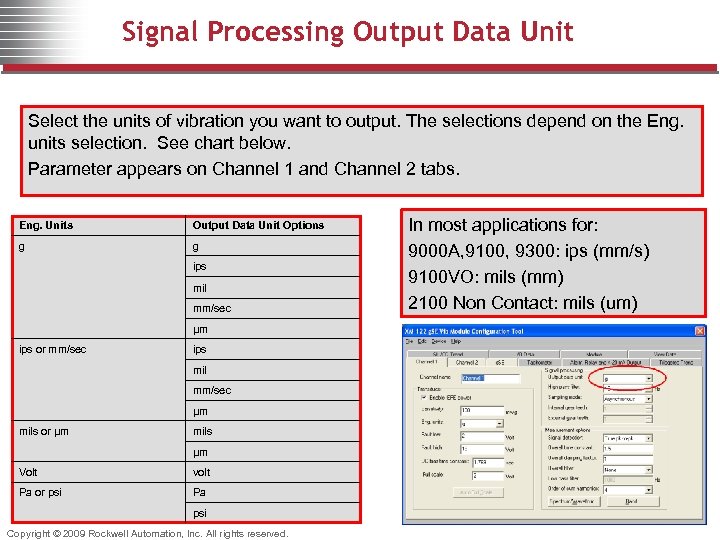 Signal Processing Output Data Unit Select the units of vibration you want to output. The selections depend on the Eng. units selection. See chart below. Parameter appears on Channel 1 and Channel 2 tabs. Eng. Units Output Data Unit Options g g ips mil mm/sec µm ips or mm/sec ips mil mm/sec µm mils or µm mils µm Volt volt Pa or psi Pa psi Copyright © 2009 Rockwell Automation, Inc. All rights reserved. In most applications for: 9000 A, 9100, 9300: ips (mm/s) 9100 VO: mils (mm) 2100 Non Contact: mils (um)
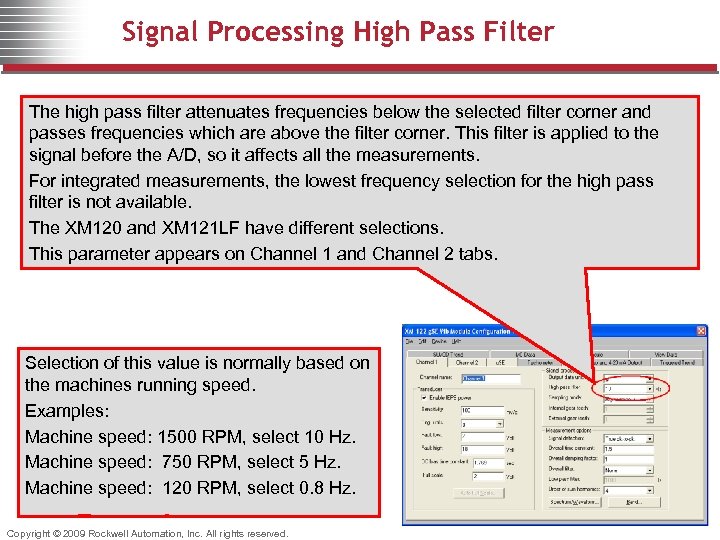 Signal Processing High Pass Filter The high pass filter attenuates frequencies below the selected filter corner and passes frequencies which are above the filter corner. This filter is applied to the signal before the A/D, so it affects all the measurements. For integrated measurements, the lowest frequency selection for the high pass filter is not available. The XM 120 and XM 121 LF have different selections. This parameter appears on Channel 1 and Channel 2 tabs. Selection of this value is normally based on the machines running speed. Examples: Machine speed: 1500 RPM, select 10 Hz. Machine speed: 750 RPM, select 5 Hz. Machine speed: 120 RPM, select 0. 8 Hz. Copyright © 2009 Rockwell Automation, Inc. All rights reserved.
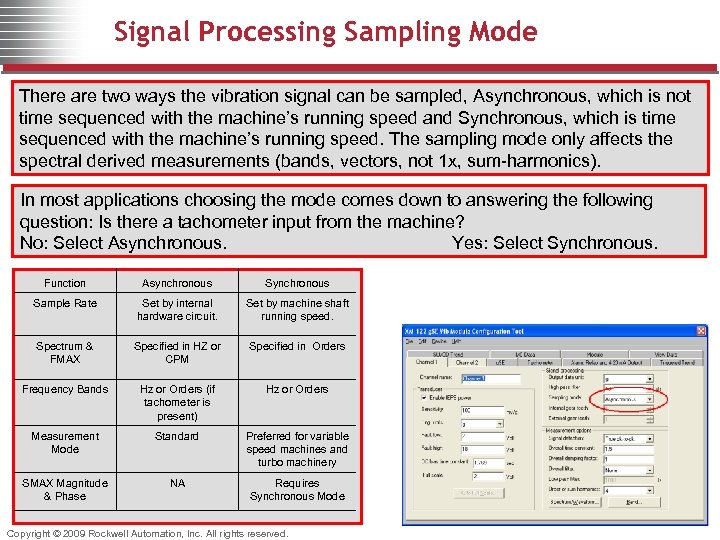 Signal Processing Sampling Mode There are two ways the vibration signal can be sampled, Asynchronous, which is not time sequenced with the machine’s running speed and Synchronous, which is time sequenced with the machine’s running speed. The sampling mode only affects the spectral derived measurements (bands, vectors, not 1 x, sum-harmonics). In most applications choosing the mode comes down to answering the following question: Is there a tachometer input from the machine? No: Select Asynchronous. Yes: Select Synchronous. Function Asynchronous Sample Rate Set by internal hardware circuit. Set by machine shaft running speed. Spectrum & FMAX Specified in HZ or CPM Specified in Orders Frequency Bands Hz or Orders (if tachometer is present) Hz or Orders Measurement Mode Standard Preferred for variable speed machines and turbo machinery SMAX Magnitude & Phase NA Requires Synchronous Mode Copyright © 2009 Rockwell Automation, Inc. All rights reserved.
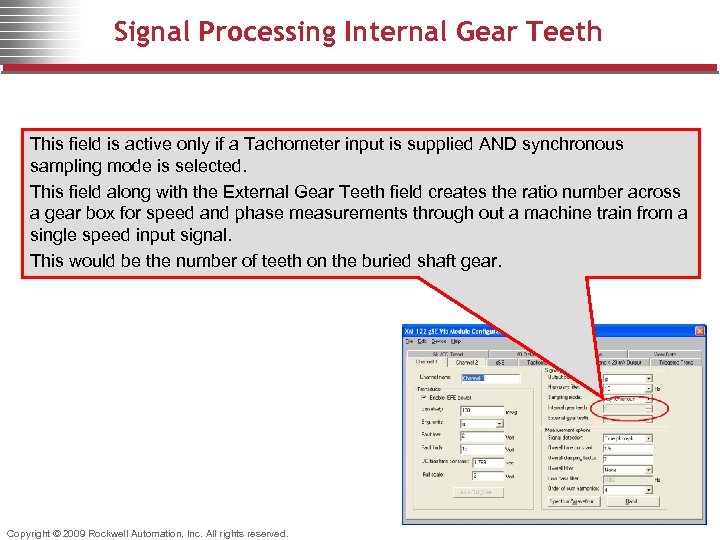 Signal Processing Internal Gear Teeth This field is active only if a Tachometer input is supplied AND synchronous sampling mode is selected. This field along with the External Gear Teeth field creates the ratio number across a gear box for speed and phase measurements through out a machine train from a single speed input signal. This would be the number of teeth on the buried shaft gear. Copyright © 2009 Rockwell Automation, Inc. All rights reserved.
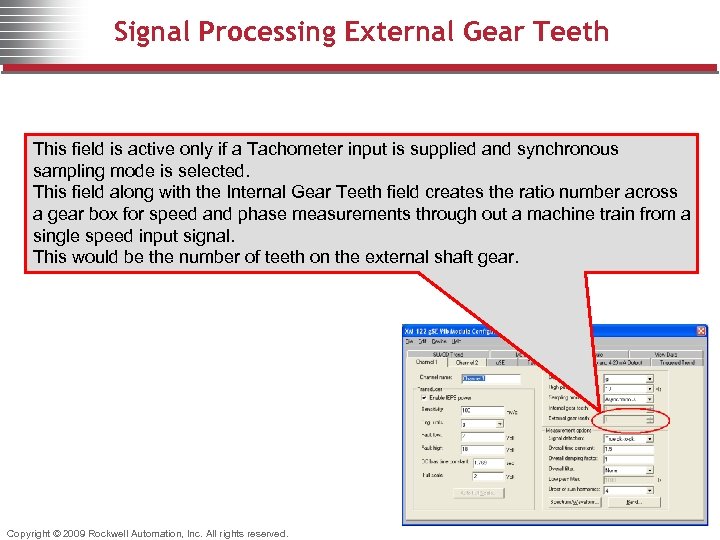 Signal Processing External Gear Teeth This field is active only if a Tachometer input is supplied and synchronous sampling mode is selected. This field along with the Internal Gear Teeth field creates the ratio number across a gear box for speed and phase measurements through out a machine train from a single speed input signal. This would be the number of teeth on the external shaft gear. Copyright © 2009 Rockwell Automation, Inc. All rights reserved.
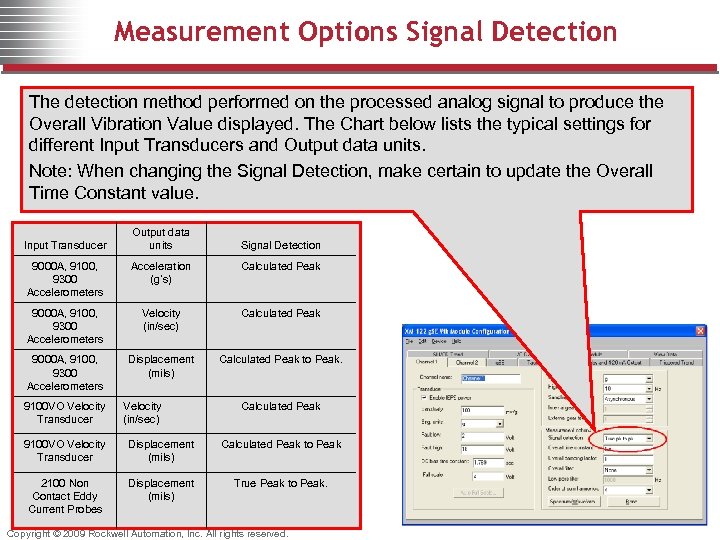 Measurement Options Signal Detection The detection method performed on the processed analog signal to produce the Overall Vibration Value displayed. The Chart below lists the typical settings for different Input Transducers and Output data units. Note: When changing the Signal Detection, make certain to update the Overall Time Constant value. Input Transducer Output data units Signal Detection 9000 A, 9100, 9300 Accelerometers Acceleration (g’s) Calculated Peak 9000 A, 9100, 9300 Accelerometers Velocity (in/sec) Calculated Peak 9000 A, 9100, 9300 Accelerometers Displacement (mils) Calculated Peak to Peak. 9100 VO Velocity Transducer Velocity (in/sec) Calculated Peak 9100 VO Velocity Transducer Displacement (mils) Calculated Peak to Peak 2100 Non Contact Eddy Current Probes Displacement (mils) True Peak to Peak. Copyright © 2009 Rockwell Automation, Inc. All rights reserved.
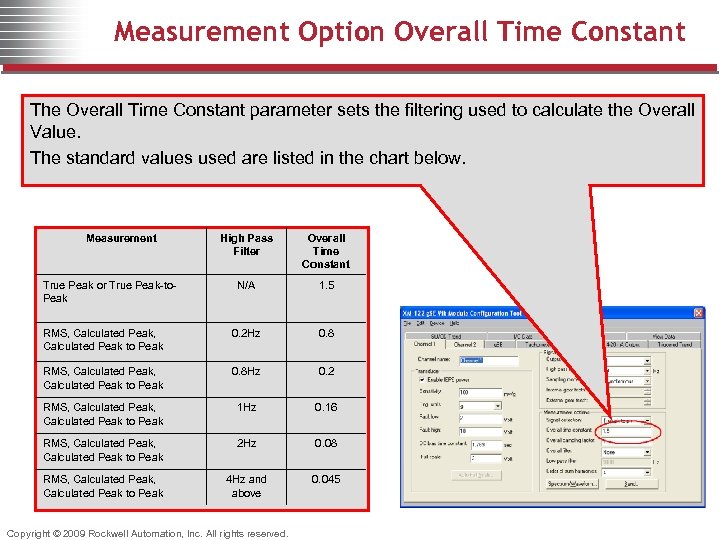 Measurement Option Overall Time Constant The Overall Time Constant parameter sets the filtering used to calculate the Overall Value. The standard values used are listed in the chart below. Measurement High Pass Filter Overall Time Constant N/A 1. 5 RMS, Calculated Peak, Calculated Peak to Peak 0. 2 Hz 0. 8 RMS, Calculated Peak, Calculated Peak to Peak 0. 8 Hz 0. 2 RMS, Calculated Peak, Calculated Peak to Peak 1 Hz 0. 16 RMS, Calculated Peak, Calculated Peak to Peak 2 Hz 0. 08 RMS, Calculated Peak, Calculated Peak to Peak 4 Hz and above 0. 045 True Peak or True Peak-to. Peak Copyright © 2009 Rockwell Automation, Inc. All rights reserved.
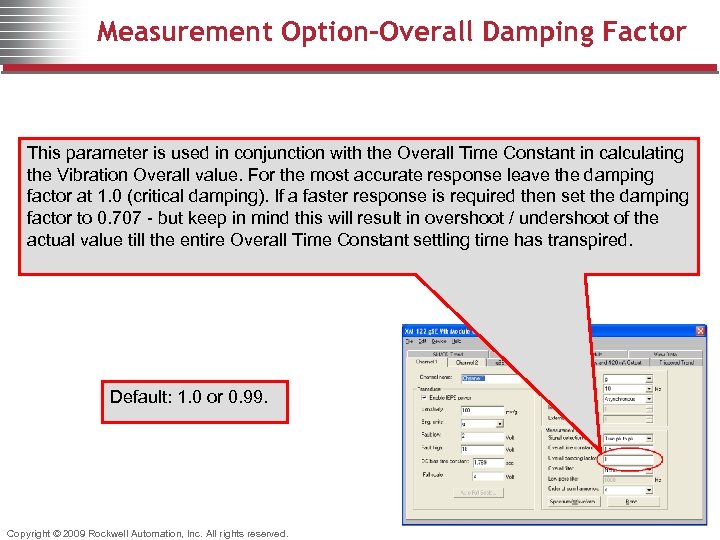 Measurement Option-Overall Damping Factor This parameter is used in conjunction with the Overall Time Constant in calculating the Vibration Overall value. For the most accurate response leave the damping factor at 1. 0 (critical damping). If a faster response is required then set the damping factor to 0. 707 - but keep in mind this will result in overshoot / undershoot of the actual value till the entire Overall Time Constant settling time has transpired. Default: 1. 0 or 0. 99. Copyright © 2009 Rockwell Automation, Inc. All rights reserved.
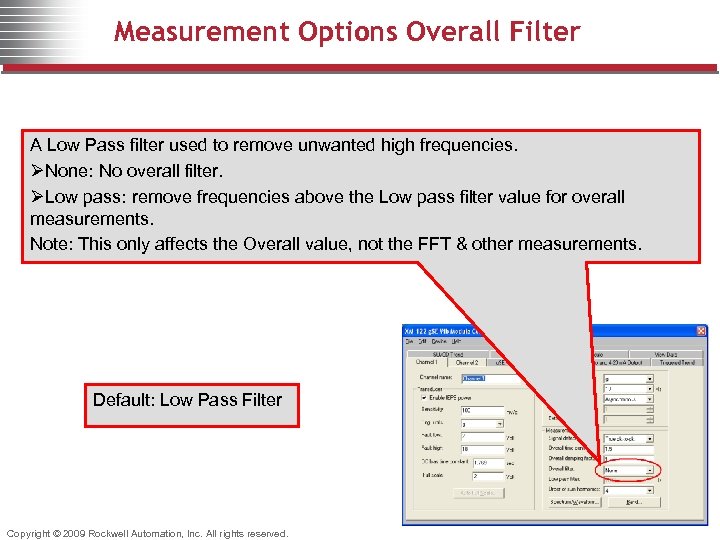 Measurement Options Overall Filter A Low Pass filter used to remove unwanted high frequencies. ØNone: No overall filter. ØLow pass: remove frequencies above the Low pass filter value for overall measurements. Note: This only affects the Overall value, not the FFT & other measurements. Default: Low Pass Filter Copyright © 2009 Rockwell Automation, Inc. All rights reserved.
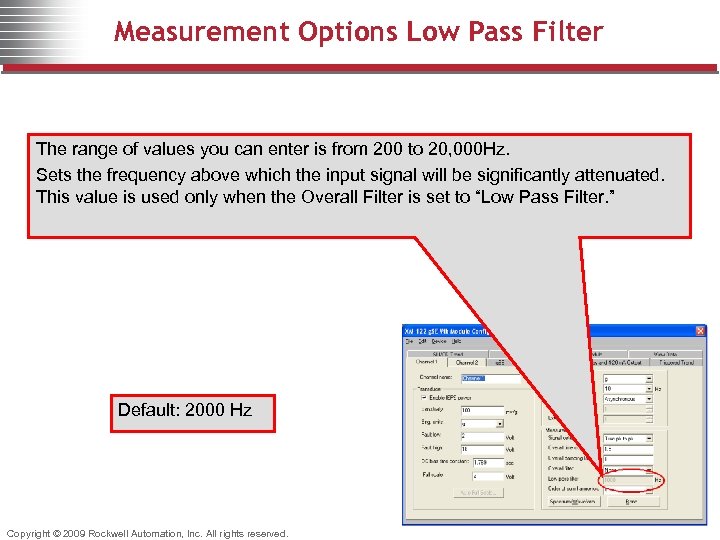 Measurement Options Low Pass Filter The range of values you can enter is from 200 to 20, 000 Hz. Sets the frequency above which the input signal will be significantly attenuated. This value is used only when the Overall Filter is set to “Low Pass Filter. ” Default: 2000 Hz Copyright © 2009 Rockwell Automation, Inc. All rights reserved.
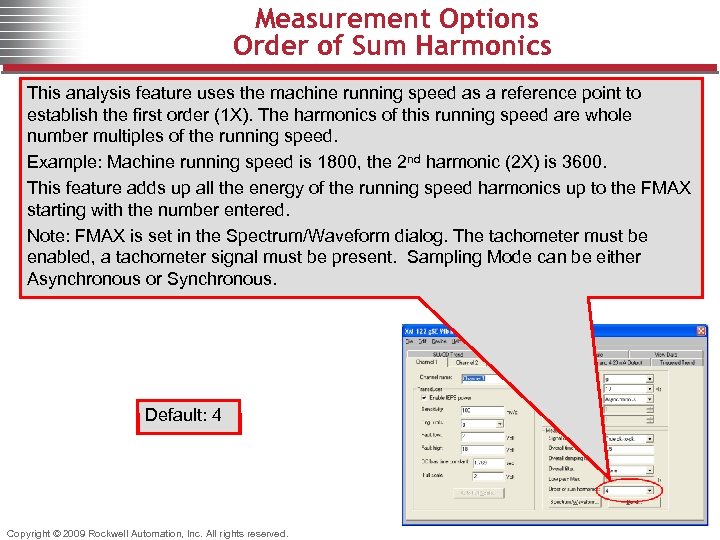 Measurement Options Order of Sum Harmonics This analysis feature uses the machine running speed as a reference point to establish the first order (1 X). The harmonics of this running speed are whole number multiples of the running speed. Example: Machine running speed is 1800, the 2 nd harmonic (2 X) is 3600. This feature adds up all the energy of the running speed harmonics up to the FMAX starting with the number entered. Note: FMAX is set in the Spectrum/Waveform dialog. The tachometer must be enabled, a tachometer signal must be present. Sampling Mode can be either Asynchronous or Synchronous. Default: 4 Copyright © 2009 Rockwell Automation, Inc. All rights reserved.
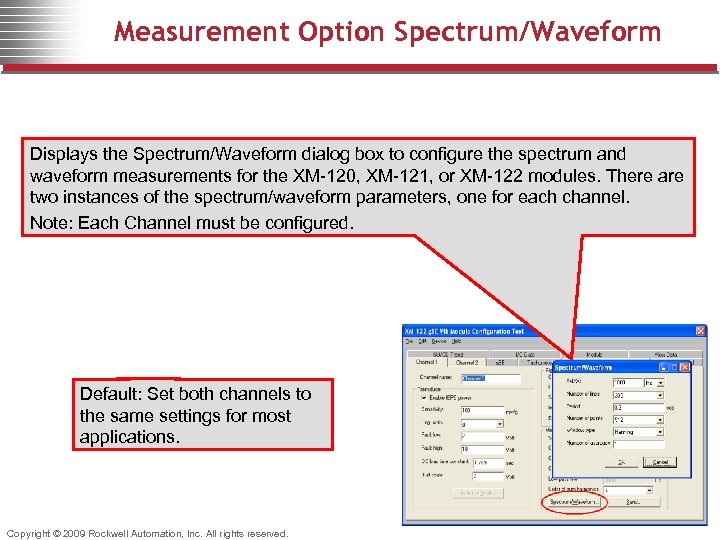 Measurement Option Spectrum/Waveform Displays the Spectrum/Waveform dialog box to configure the spectrum and waveform measurements for the XM-120, XM-121, or XM-122 modules. There are two instances of the spectrum/waveform parameters, one for each channel. Note: Each Channel must be configured. Default: Set both channels to the same settings for most applications. Copyright © 2009 Rockwell Automation, Inc. All rights reserved.
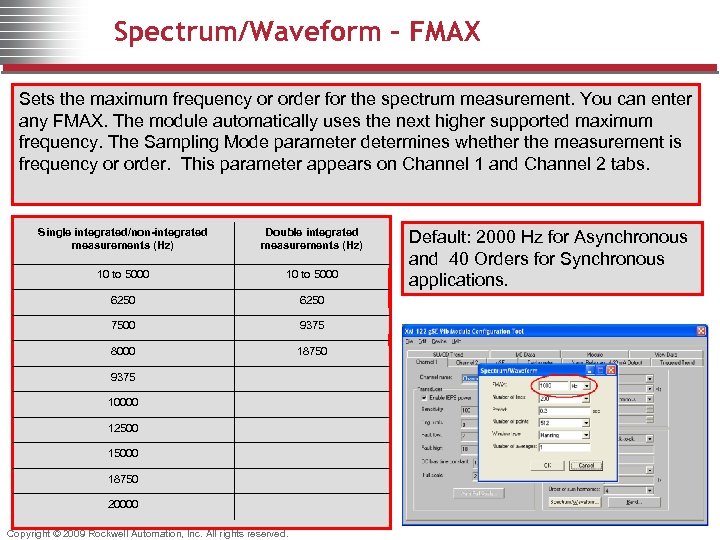 Spectrum/Waveform - FMAX Sets the maximum frequency or order for the spectrum measurement. You can enter any FMAX. The module automatically uses the next higher supported maximum frequency. The Sampling Mode parameter determines whether the measurement is frequency or order. This parameter appears on Channel 1 and Channel 2 tabs. Single integrated/non-integrated measurements (Hz) Double integrated measurements (Hz) 10 to 5000 6250 7500 9375 8000 18750 9375 10000 12500 15000 18750 20000 Copyright © 2009 Rockwell Automation, Inc. All rights reserved. Default: 2000 Hz for Asynchronous and 40 Orders for Synchronous applications.
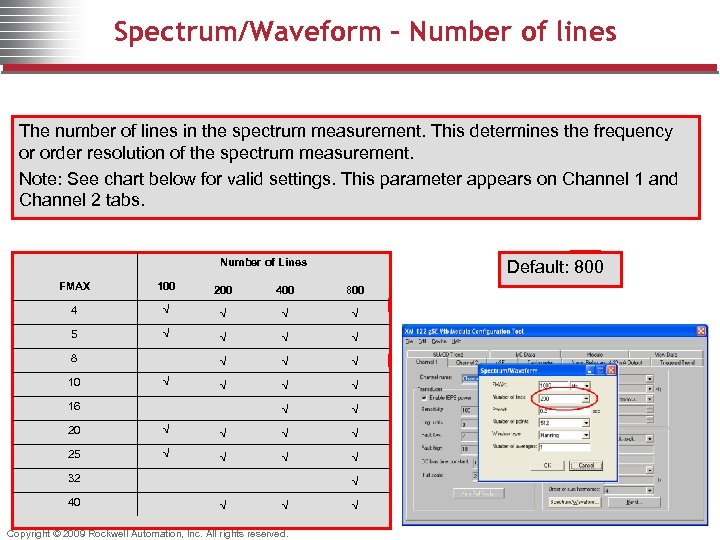 Spectrum/Waveform – Number of lines The number of lines in the spectrum measurement. This determines the frequency or order resolution of the spectrum measurement. Note: See chart below for valid settings. This parameter appears on Channel 1 and Channel 2 tabs. Number of Lines Default: 800 FMAX 100 200 400 800 4 √ √ 5 √ √ 8 √ √ √ 10 √ √ 16 √ √ 20 √ √ 25 √ √ 32 √ 40 √ √ √ Copyright © 2009 Rockwell Automation, Inc. All rights reserved.
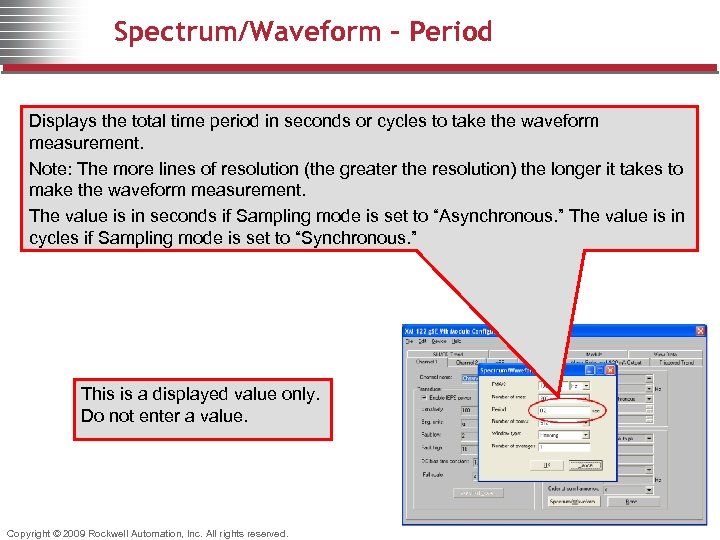 Spectrum/Waveform - Period Displays the total time period in seconds or cycles to take the waveform measurement. Note: The more lines of resolution (the greater the resolution) the longer it takes to make the waveform measurement. The value is in seconds if Sampling mode is set to “Asynchronous. ” The value is in cycles if Sampling mode is set to “Synchronous. ” This is a displayed value only. Do not enter a value. Copyright © 2009 Rockwell Automation, Inc. All rights reserved.
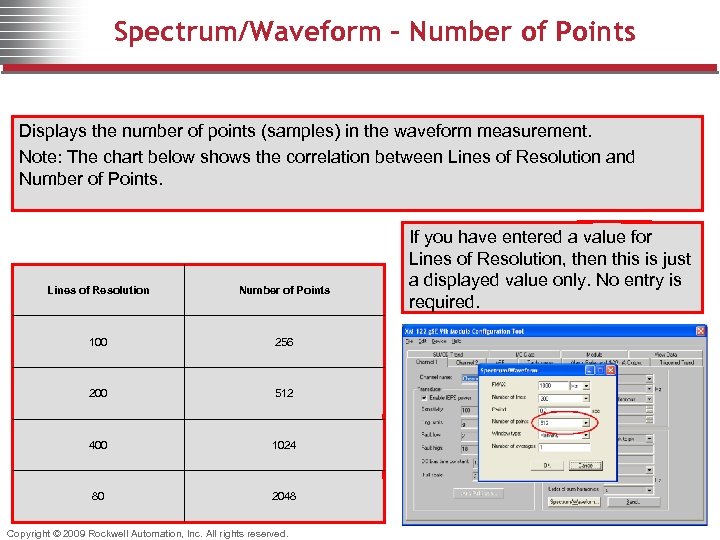 Spectrum/Waveform – Number of Points Displays the number of points (samples) in the waveform measurement. Note: The chart below shows the correlation between Lines of Resolution and Number of Points. Lines of Resolution Number of Points 100 256 200 512 400 1024 80 2048 Copyright © 2009 Rockwell Automation, Inc. All rights reserved. If you have entered a value for Lines of Resolution, then this is just a displayed value only. No entry is required.
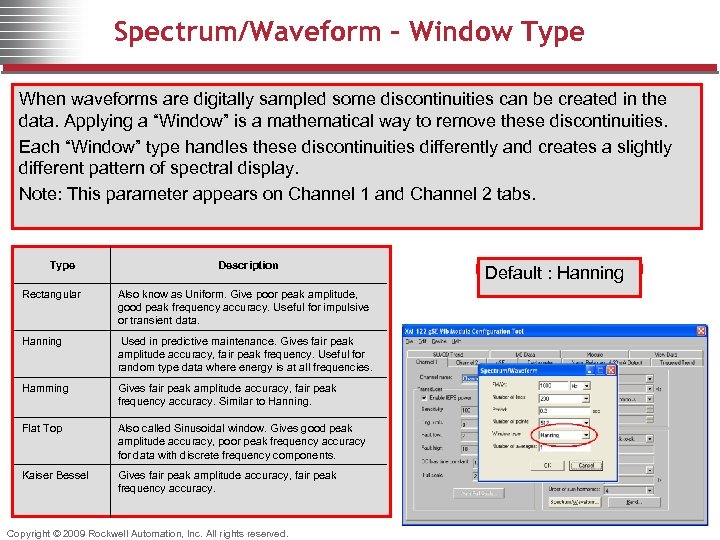 Spectrum/Waveform – Window Type When waveforms are digitally sampled some discontinuities can be created in the data. Applying a “Window” is a mathematical way to remove these discontinuities. Each “Window” type handles these discontinuities differently and creates a slightly different pattern of spectral display. Note: This parameter appears on Channel 1 and Channel 2 tabs. Type Description Rectangular Also know as Uniform. Give poor peak amplitude, good peak frequency accuracy. Useful for impulsive or transient data. Hanning Used in predictive maintenance. Gives fair peak amplitude accuracy, fair peak frequency. Useful for random type data where energy is at all frequencies. Hamming Gives fair peak amplitude accuracy, fair peak frequency accuracy. Similar to Hanning. Flat Top Also called Sinusoidal window. Gives good peak amplitude accuracy, poor peak frequency accuracy for data with discrete frequency components. Kaiser Bessel Gives fair peak amplitude accuracy, fair peak frequency accuracy. Copyright © 2009 Rockwell Automation, Inc. All rights reserved. Default : Hanning
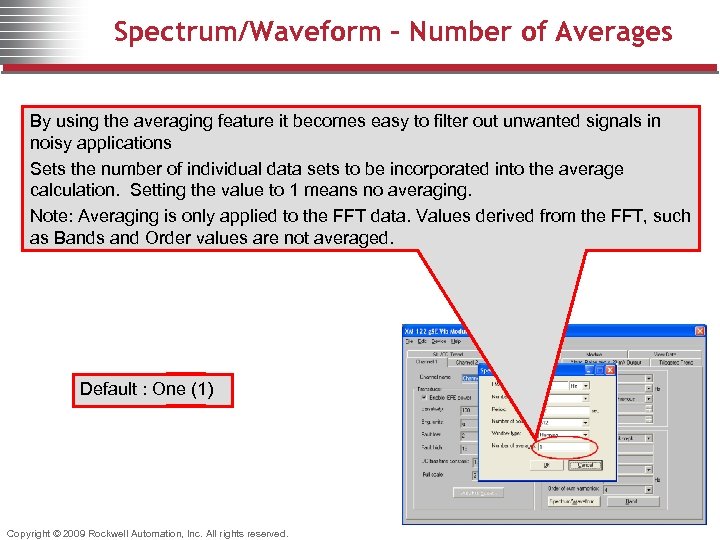 Spectrum/Waveform – Number of Averages By using the averaging feature it becomes easy to filter out unwanted signals in noisy applications Sets the number of individual data sets to be incorporated into the average calculation. Setting the value to 1 means no averaging. Note: Averaging is only applied to the FFT data. Values derived from the FFT, such as Bands and Order values are not averaged. Default : One (1) Copyright © 2009 Rockwell Automation, Inc. All rights reserved.
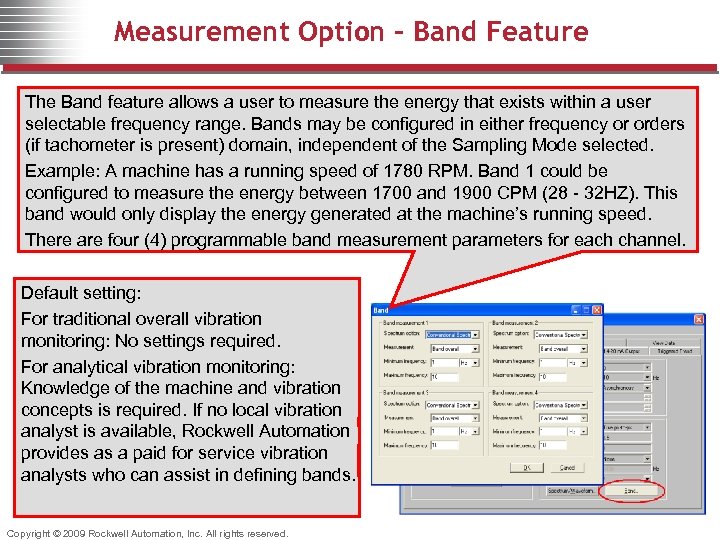 Measurement Option – Band Feature The Band feature allows a user to measure the energy that exists within a user selectable frequency range. Bands may be configured in either frequency or orders (if tachometer is present) domain, independent of the Sampling Mode selected. Example: A machine has a running speed of 1780 RPM. Band 1 could be configured to measure the energy between 1700 and 1900 CPM (28 - 32 HZ). This band would only display the energy generated at the machine’s running speed. There are four (4) programmable band measurement parameters for each channel. Default setting: For traditional overall vibration monitoring: No settings required. For analytical vibration monitoring: Knowledge of the machine and vibration concepts is required. If no local vibration analyst is available, Rockwell Automation provides as a paid for service vibration analysts who can assist in defining bands. Copyright © 2009 Rockwell Automation, Inc. All rights reserved.
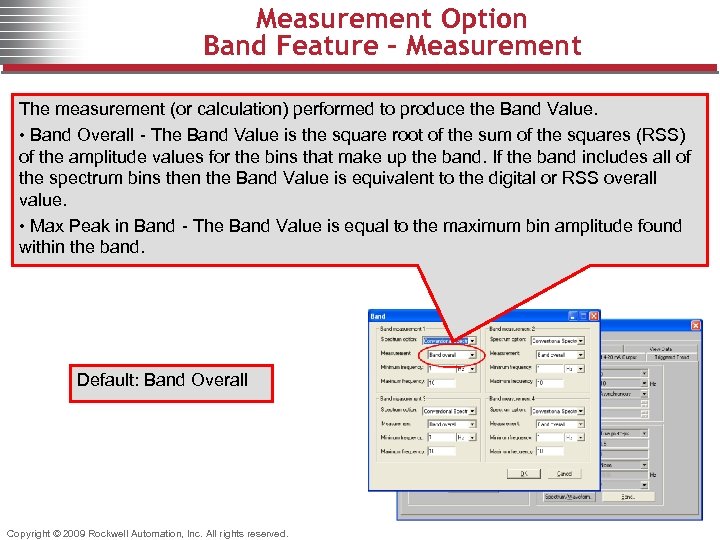 Measurement Option Band Feature - Measurement The measurement (or calculation) performed to produce the Band Value. • Band Overall - The Band Value is the square root of the sum of the squares (RSS) of the amplitude values for the bins that make up the band. If the band includes all of the spectrum bins then the Band Value is equivalent to the digital or RSS overall value. • Max Peak in Band - The Band Value is equal to the maximum bin amplitude found within the band. Default: Band Overall Copyright © 2009 Rockwell Automation, Inc. All rights reserved.
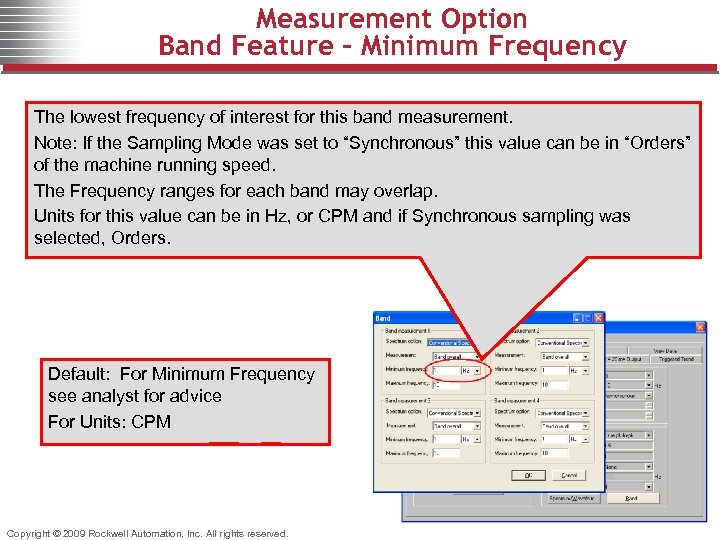 Measurement Option Band Feature - Minimum Frequency The lowest frequency of interest for this band measurement. Note: If the Sampling Mode was set to “Synchronous” this value can be in “Orders” of the machine running speed. The Frequency ranges for each band may overlap. Units for this value can be in Hz, or CPM and if Synchronous sampling was selected, Orders. Default: For Minimum Frequency see analyst for advice For Units: CPM Copyright © 2009 Rockwell Automation, Inc. All rights reserved.
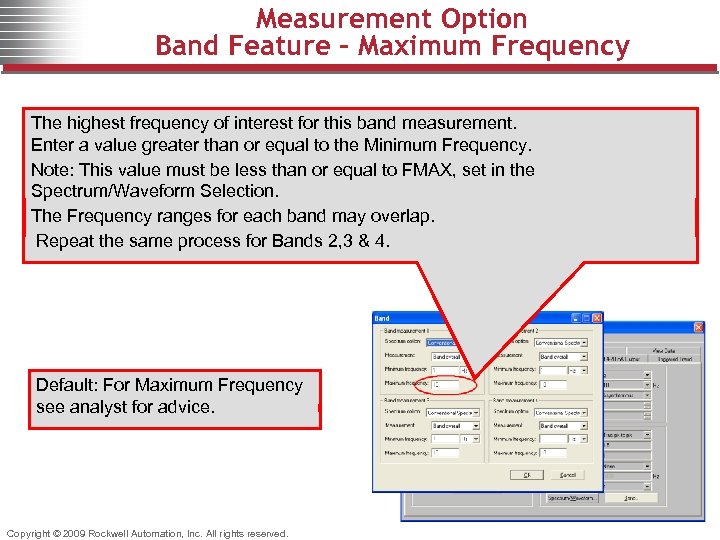 Measurement Option Band Feature - Maximum Frequency The highest frequency of interest for this band measurement. Enter a value greater than or equal to the Minimum Frequency. Note: This value must be less than or equal to FMAX, set in the Spectrum/Waveform Selection. The Frequency ranges for each band may overlap. Repeat the same process for Bands 2, 3 & 4. Default: For Maximum Frequency see analyst for advice. Copyright © 2009 Rockwell Automation, Inc. All rights reserved.
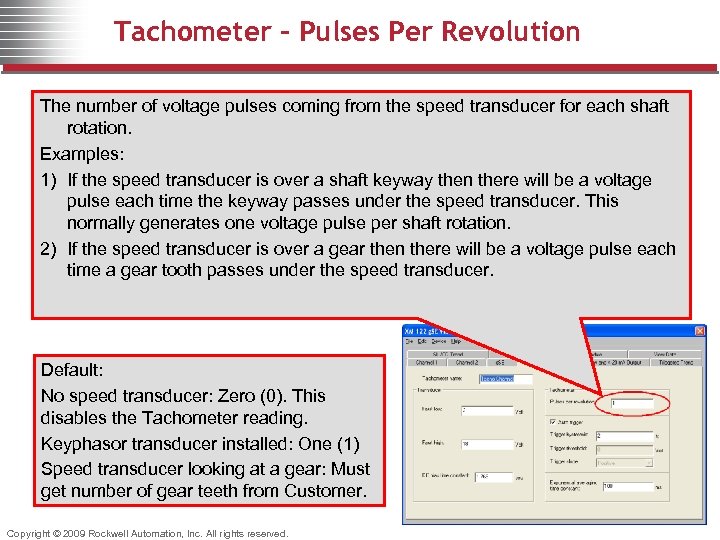 Tachometer – Pulses Per Revolution The number of voltage pulses coming from the speed transducer for each shaft rotation. Examples: 1) If the speed transducer is over a shaft keyway then there will be a voltage pulse each time the keyway passes under the speed transducer. This normally generates one voltage pulse per shaft rotation. 2) If the speed transducer is over a gear then there will be a voltage pulse each time a gear tooth passes under the speed transducer. Default: No speed transducer: Zero (0). This disables the Tachometer reading. Keyphasor transducer installed: One (1) Speed transducer looking at a gear: Must get number of gear teeth from Customer. Copyright © 2009 Rockwell Automation, Inc. All rights reserved.
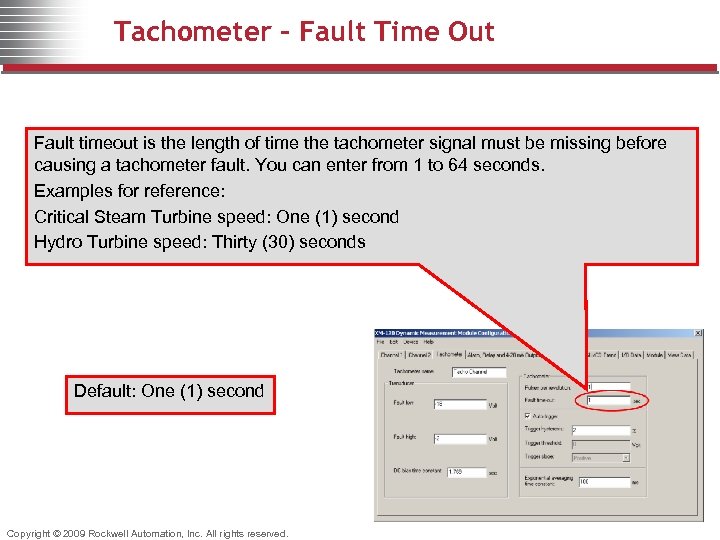 Tachometer – Fault Time Out Fault timeout is the length of time the tachometer signal must be missing before causing a tachometer fault. You can enter from 1 to 64 seconds. Examples for reference: Critical Steam Turbine speed: One (1) second Hydro Turbine speed: Thirty (30) seconds Default: One (1) second Copyright © 2009 Rockwell Automation, Inc. All rights reserved.
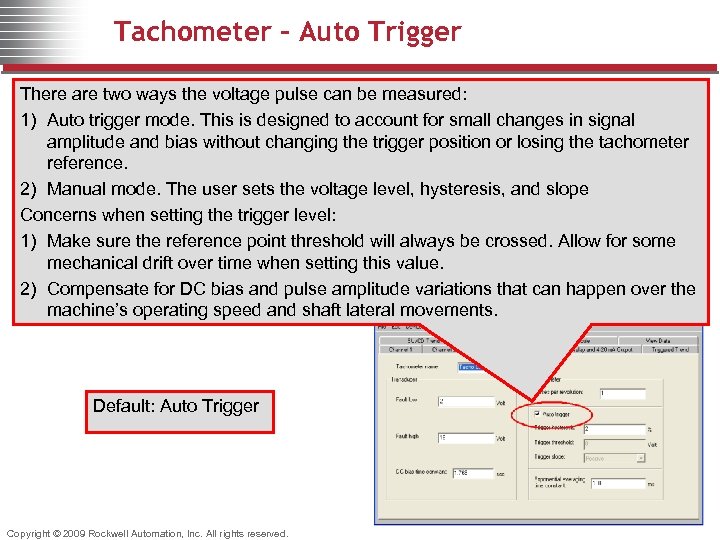 Tachometer – Auto Trigger There are two ways the voltage pulse can be measured: 1) Auto trigger mode. This is designed to account for small changes in signal amplitude and bias without changing the trigger position or losing the tachometer reference. 2) Manual mode. The user sets the voltage level, hysteresis, and slope Concerns when setting the trigger level: 1) Make sure the reference point threshold will always be crossed. Allow for some mechanical drift over time when setting this value. 2) Compensate for DC bias and pulse amplitude variations that can happen over the machine’s operating speed and shaft lateral movements. Default: Auto Trigger Copyright © 2009 Rockwell Automation, Inc. All rights reserved.
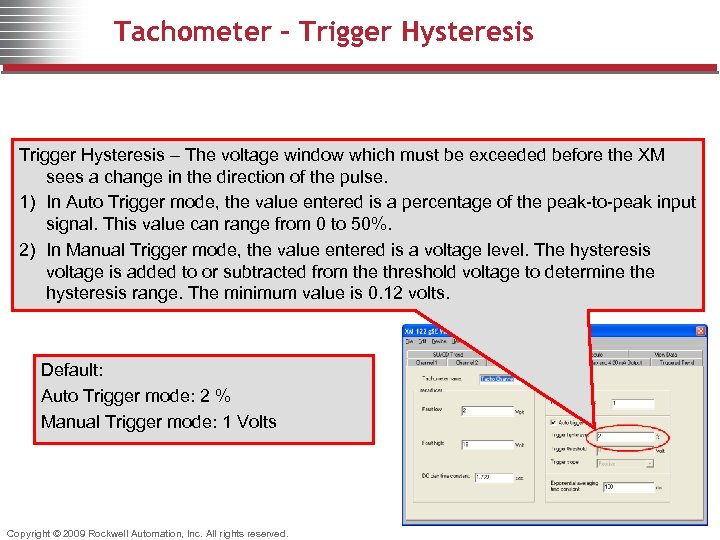 Tachometer – Trigger Hysteresis – The voltage window which must be exceeded before the XM sees a change in the direction of the pulse. 1) In Auto Trigger mode, the value entered is a percentage of the peak-to-peak input signal. This value can range from 0 to 50%. 2) In Manual Trigger mode, the value entered is a voltage level. The hysteresis voltage is added to or subtracted from the threshold voltage to determine the hysteresis range. The minimum value is 0. 12 volts. Default: Auto Trigger mode: 2 % Manual Trigger mode: 1 Volts Copyright © 2009 Rockwell Automation, Inc. All rights reserved.
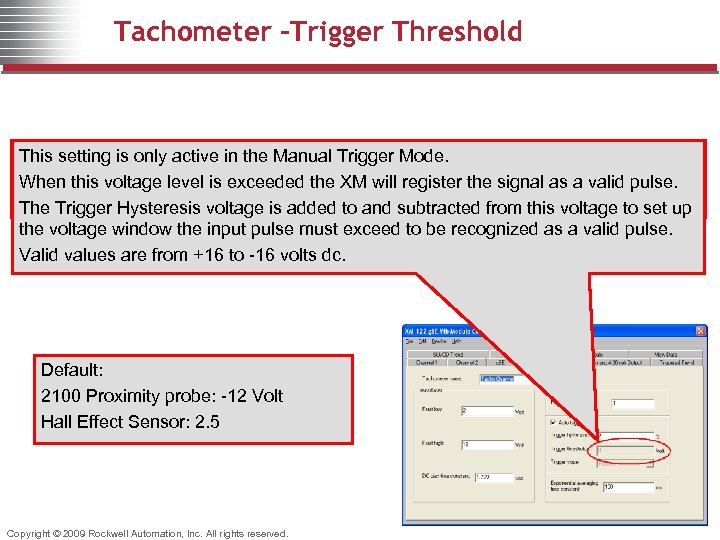 Tachometer –Trigger Threshold This setting is only active in the Manual Trigger Mode. When this voltage level is exceeded the XM will register the signal as a valid pulse. The Trigger Hysteresis voltage is added to and subtracted from this voltage to set up the voltage window the input pulse must exceed to be recognized as a valid pulse. Valid values are from +16 to -16 volts dc. Default: 2100 Proximity probe: -12 Volt Hall Effect Sensor: 2. 5 Copyright © 2009 Rockwell Automation, Inc. All rights reserved.
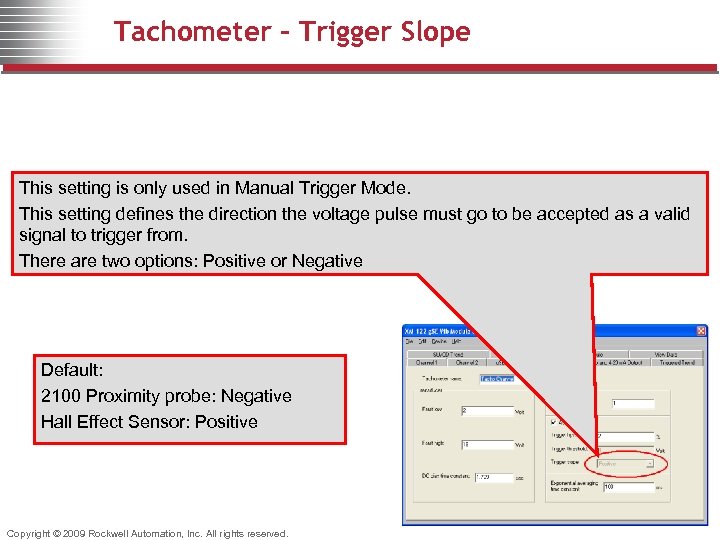 Tachometer – Trigger Slope This setting is only used in Manual Trigger Mode. This setting defines the direction the voltage pulse must go to be accepted as a valid signal to trigger from. There are two options: Positive or Negative Default: 2100 Proximity probe: Negative Hall Effect Sensor: Positive Copyright © 2009 Rockwell Automation, Inc. All rights reserved.
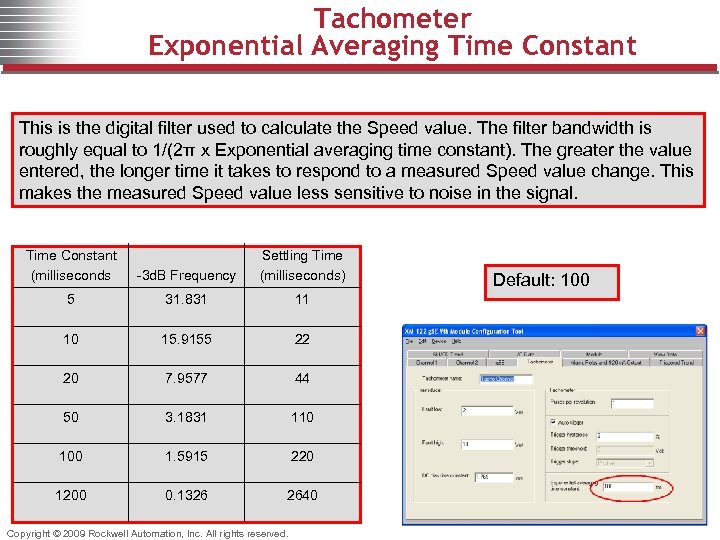 Tachometer Exponential Averaging Time Constant This is the digital filter used to calculate the Speed value. The filter bandwidth is roughly equal to 1/(2π x Exponential averaging time constant). The greater the value entered, the longer time it takes to respond to a measured Speed value change. This makes the measured Speed value less sensitive to noise in the signal. Time Constant (milliseconds -3 d. B Frequency Settling Time (milliseconds) 5 31. 831 11 10 15. 9155 22 20 7. 9577 44 50 3. 1831 110 100 1. 5915 220 1200 0. 1326 2640 Copyright © 2009 Rockwell Automation, Inc. All rights reserved. Default: 100
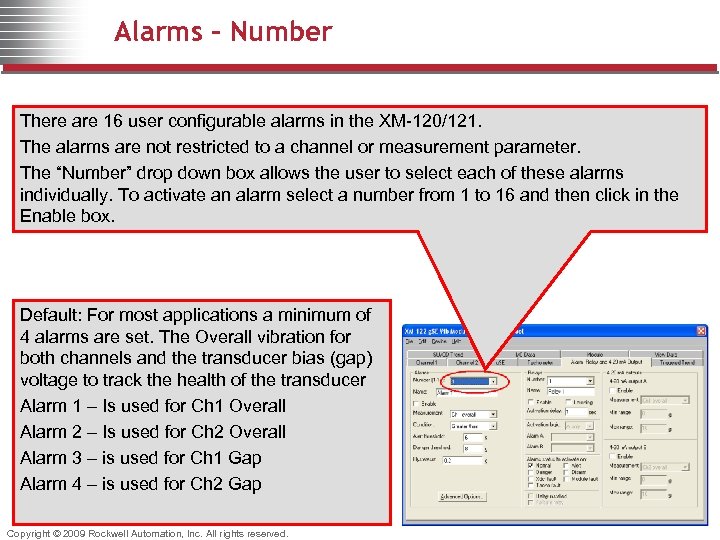 Alarms - Number There are 16 user configurable alarms in the XM-120/121. The alarms are not restricted to a channel or measurement parameter. The “Number” drop down box allows the user to select each of these alarms individually. To activate an alarm select a number from 1 to 16 and then click in the Enable box. Default: For most applications a minimum of 4 alarms are set. The Overall vibration for both channels and the transducer bias (gap) voltage to track the health of the transducer Alarm 1 – Is used for Ch 1 Overall Alarm 2 – Is used for Ch 2 Overall Alarm 3 – is used for Ch 1 Gap Alarm 4 – is used for Ch 2 Gap Copyright © 2009 Rockwell Automation, Inc. All rights reserved.
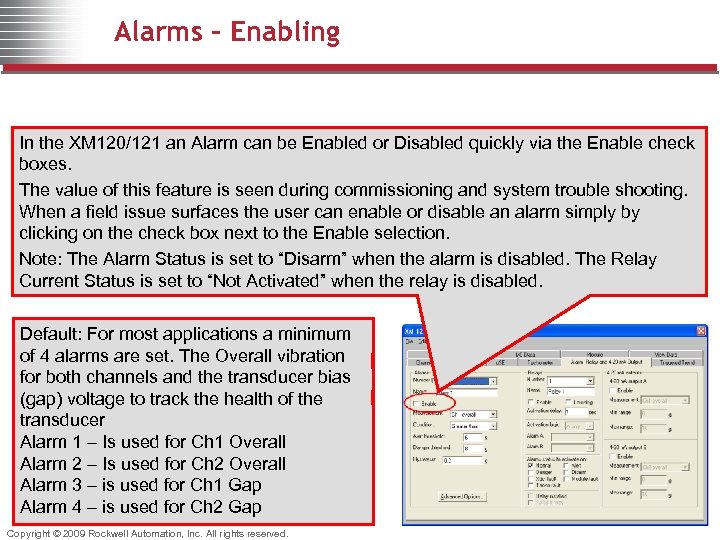 Alarms - Enabling In the XM 120/121 an Alarm can be Enabled or Disabled quickly via the Enable check boxes. The value of this feature is seen during commissioning and system trouble shooting. When a field issue surfaces the user can enable or disable an alarm simply by clicking on the check box next to the Enable selection. Note: The Alarm Status is set to “Disarm” when the alarm is disabled. The Relay Current Status is set to “Not Activated” when the relay is disabled. Default: For most applications a minimum of 4 alarms are set. The Overall vibration for both channels and the transducer bias (gap) voltage to track the health of the transducer Alarm 1 – Is used for Ch 1 Overall Alarm 2 – Is used for Ch 2 Overall Alarm 3 – is used for Ch 1 Gap Alarm 4 – is used for Ch 2 Gap Copyright © 2009 Rockwell Automation, Inc. All rights reserved.
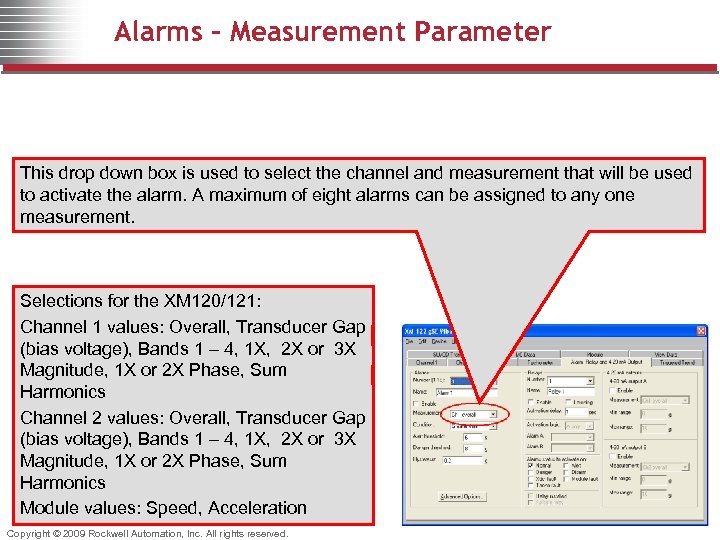 Alarms – Measurement Parameter This drop down box is used to select the channel and measurement that will be used to activate the alarm. A maximum of eight alarms can be assigned to any one measurement. Selections for the XM 120/121: Channel 1 values: Overall, Transducer Gap (bias voltage), Bands 1 – 4, 1 X, 2 X or 3 X Magnitude, 1 X or 2 X Phase, Sum Harmonics Channel 2 values: Overall, Transducer Gap (bias voltage), Bands 1 – 4, 1 X, 2 X or 3 X Magnitude, 1 X or 2 X Phase, Sum Harmonics Module values: Speed, Acceleration Copyright © 2009 Rockwell Automation, Inc. All rights reserved.
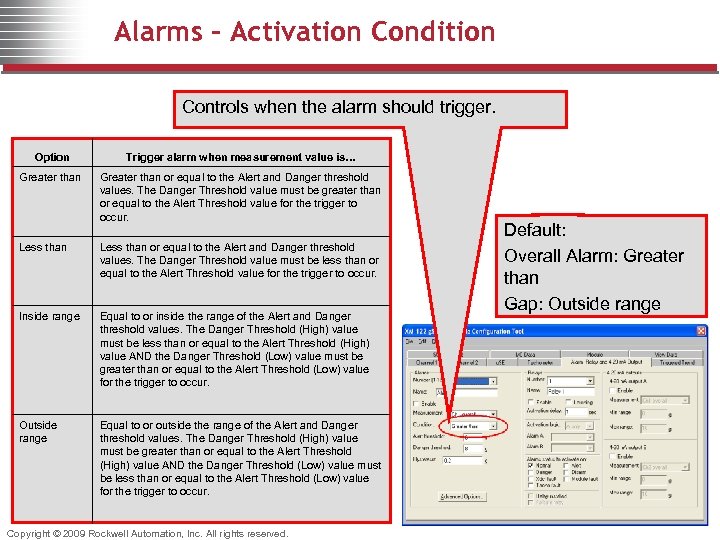 Alarms – Activation Condition Controls when the alarm should trigger. Option Trigger alarm when measurement value is… Greater than or equal to the Alert and Danger threshold values. The Danger Threshold value must be greater than or equal to the Alert Threshold value for the trigger to occur. Less than or equal to the Alert and Danger threshold values. The Danger Threshold value must be less than or equal to the Alert Threshold value for the trigger to occur. Inside range Equal to or inside the range of the Alert and Danger threshold values. The Danger Threshold (High) value must be less than or equal to the Alert Threshold (High) value AND the Danger Threshold (Low) value must be greater than or equal to the Alert Threshold (Low) value for the trigger to occur. Outside range Equal to or outside the range of the Alert and Danger threshold values. The Danger Threshold (High) value must be greater than or equal to the Alert Threshold (High) value AND the Danger Threshold (Low) value must be less than or equal to the Alert Threshold (Low) value for the trigger to occur. Copyright © 2009 Rockwell Automation, Inc. All rights reserved. Default: Overall Alarm: Greater than Gap: Outside range
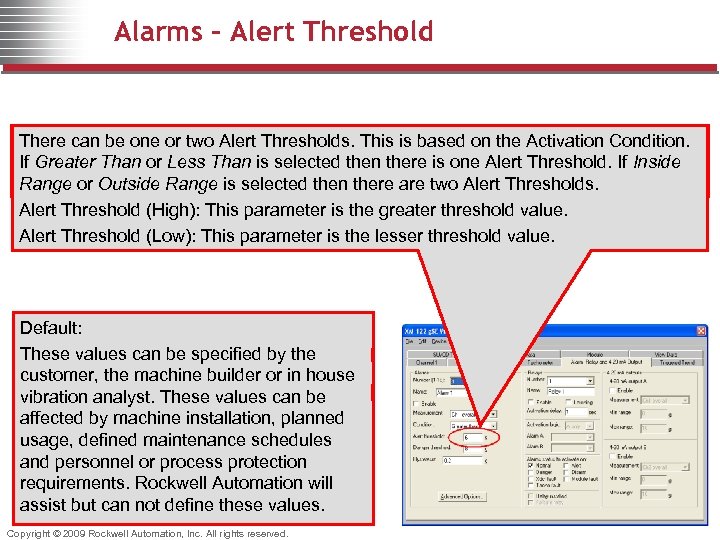 Alarms – Alert Threshold There can be one or two Alert Thresholds. This is based on the Activation Condition. If Greater Than or Less Than is selected then there is one Alert Threshold. If Inside Range or Outside Range is selected then there are two Alert Thresholds. Alert Threshold (High): This parameter is the greater threshold value. Alert Threshold (Low): This parameter is the lesser threshold value. Default: These values can be specified by the customer, the machine builder or in house vibration analyst. These values can be affected by machine installation, planned usage, defined maintenance schedules and personnel or process protection requirements. Rockwell Automation will assist but can not define these values. Copyright © 2009 Rockwell Automation, Inc. All rights reserved.
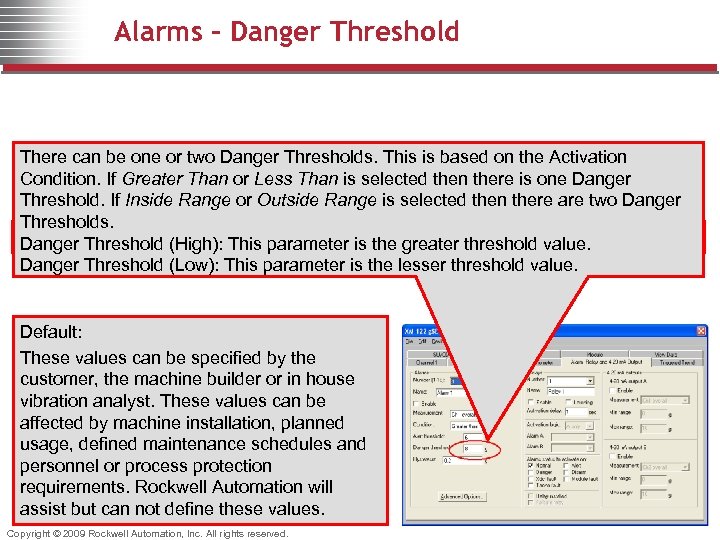 Alarms – Danger Threshold There can be one or two Danger Thresholds. This is based on the Activation Condition. If Greater Than or Less Than is selected then there is one Danger Threshold. If Inside Range or Outside Range is selected then there are two Danger Thresholds. Danger Threshold (High): This parameter is the greater threshold value. Danger Threshold (Low): This parameter is the lesser threshold value. Default: These values can be specified by the customer, the machine builder or in house vibration analyst. These values can be affected by machine installation, planned usage, defined maintenance schedules and personnel or process protection requirements. Rockwell Automation will assist but can not define these values. Copyright © 2009 Rockwell Automation, Inc. All rights reserved.
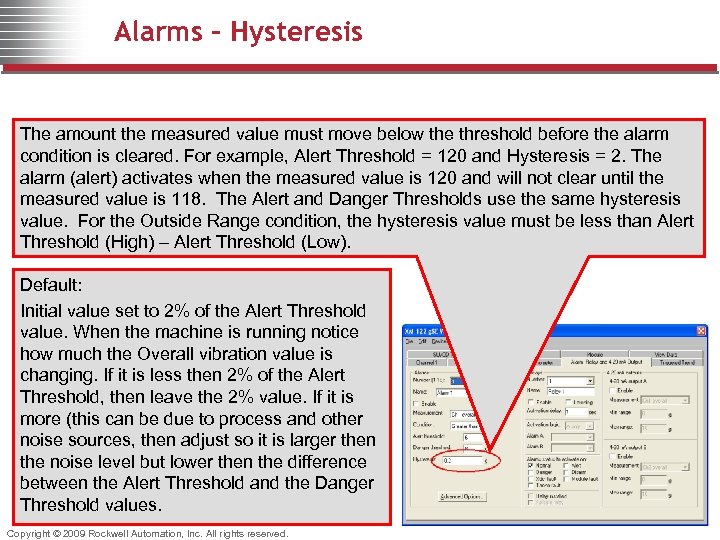 Alarms - Hysteresis The amount the measured value must move below the threshold before the alarm condition is cleared. For example, Alert Threshold = 120 and Hysteresis = 2. The alarm (alert) activates when the measured value is 120 and will not clear until the measured value is 118. The Alert and Danger Thresholds use the same hysteresis value. For the Outside Range condition, the hysteresis value must be less than Alert Threshold (High) – Alert Threshold (Low). Default: Initial value set to 2% of the Alert Threshold value. When the machine is running notice how much the Overall vibration value is changing. If it is less then 2% of the Alert Threshold, then leave the 2% value. If it is more (this can be due to process and other noise sources, then adjust so it is larger then the noise level but lower then the difference between the Alert Threshold and the Danger Threshold values. Copyright © 2009 Rockwell Automation, Inc. All rights reserved.
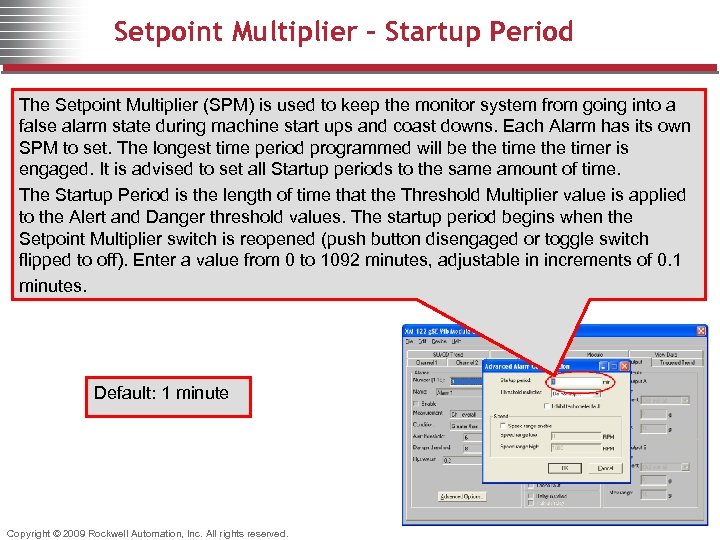 Setpoint Multiplier – Startup Period The Setpoint Multiplier (SPM) is used to keep the monitor system from going into a false alarm state during machine start ups and coast downs. Each Alarm has its own SPM to set. The longest time period programmed will be the timer is engaged. It is advised to set all Startup periods to the same amount of time. The Startup Period is the length of time that the Threshold Multiplier value is applied to the Alert and Danger threshold values. The startup period begins when the Setpoint Multiplier switch is reopened (push button disengaged or toggle switch flipped to off). Enter a value from 0 to 1092 minutes, adjustable in increments of 0. 1 minutes. Default: 1 minute Copyright © 2009 Rockwell Automation, Inc. All rights reserved.
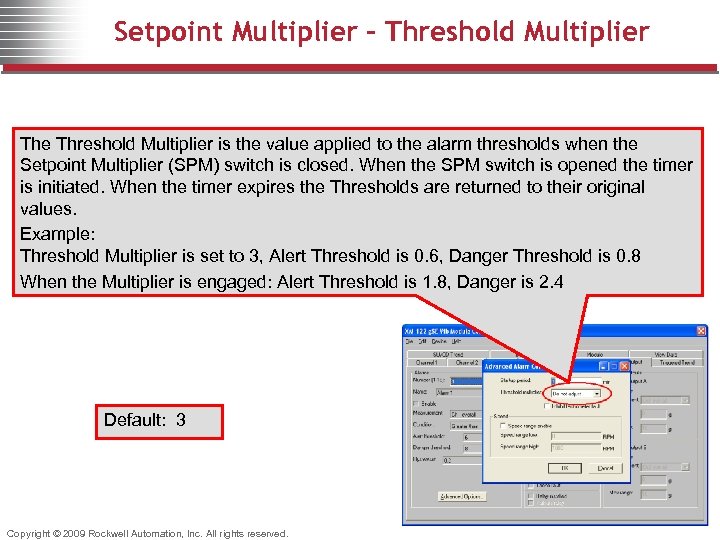 Setpoint Multiplier – Threshold Multiplier The Threshold Multiplier is the value applied to the alarm thresholds when the Setpoint Multiplier (SPM) switch is closed. When the SPM switch is opened the timer is initiated. When the timer expires the Thresholds are returned to their original values. Example: Threshold Multiplier is set to 3, Alert Threshold is 0. 6, Danger Threshold is 0. 8 When the Multiplier is engaged: Alert Threshold is 1. 8, Danger is 2. 4 Default: 3 Copyright © 2009 Rockwell Automation, Inc. All rights reserved.
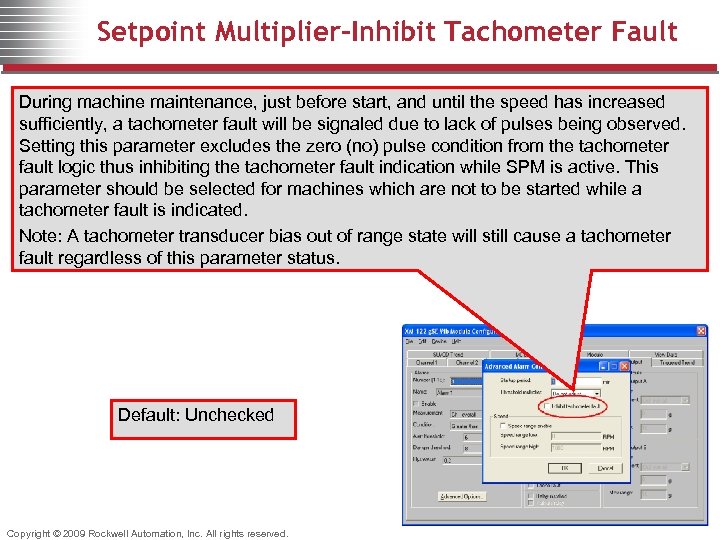 Setpoint Multiplier–Inhibit Tachometer Fault During machine maintenance, just before start, and until the speed has increased sufficiently, a tachometer fault will be signaled due to lack of pulses being observed. Setting this parameter excludes the zero (no) pulse condition from the tachometer fault logic thus inhibiting the tachometer fault indication while SPM is active. This parameter should be selected for machines which are not to be started while a tachometer fault is indicated. Note: A tachometer transducer bias out of range state will still cause a tachometer fault regardless of this parameter status. Default: Unchecked Copyright © 2009 Rockwell Automation, Inc. All rights reserved.
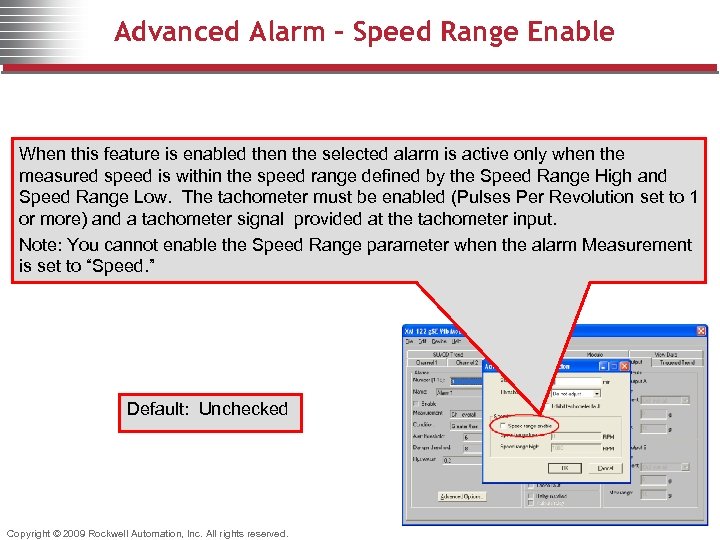 Advanced Alarm – Speed Range Enable When this feature is enabled then the selected alarm is active only when the measured speed is within the speed range defined by the Speed Range High and Speed Range Low. The tachometer must be enabled (Pulses Per Revolution set to 1 or more) and a tachometer signal provided at the tachometer input. Note: You cannot enable the Speed Range parameter when the alarm Measurement is set to “Speed. ” Default: Unchecked Copyright © 2009 Rockwell Automation, Inc. All rights reserved.
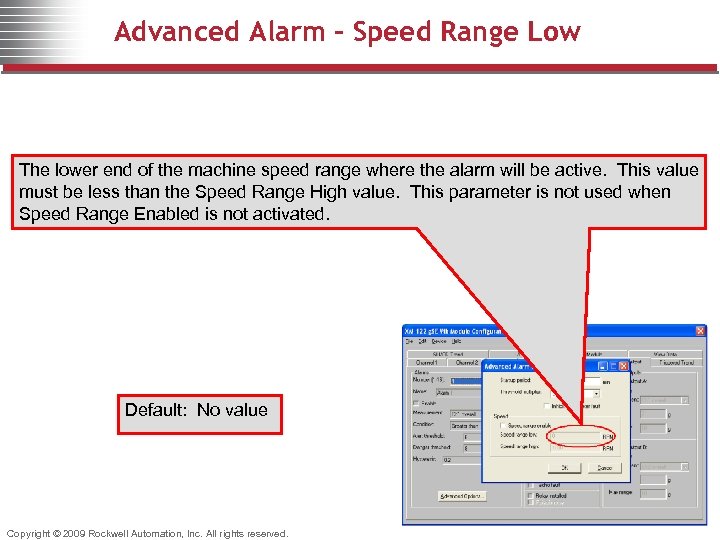 Advanced Alarm – Speed Range Low The lower end of the machine speed range where the alarm will be active. This value must be less than the Speed Range High value. This parameter is not used when Speed Range Enabled is not activated. Default: No value Copyright © 2009 Rockwell Automation, Inc. All rights reserved.
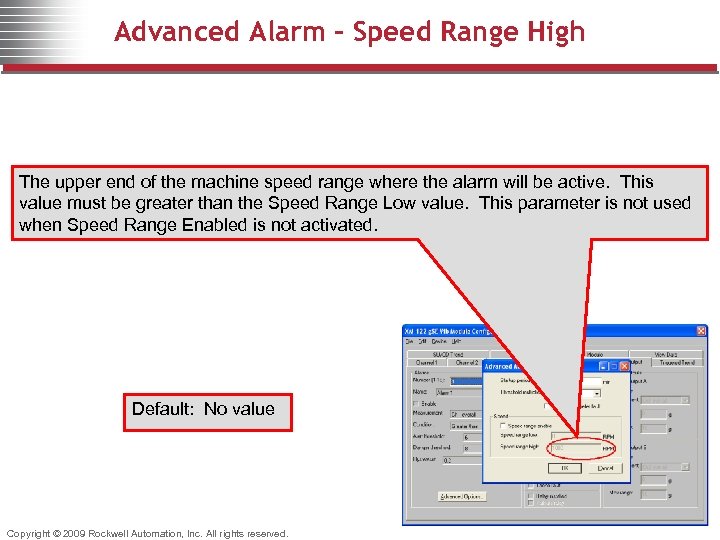 Advanced Alarm – Speed Range High The upper end of the machine speed range where the alarm will be active. This value must be greater than the Speed Range Low value. This parameter is not used when Speed Range Enabled is not activated. Default: No value Copyright © 2009 Rockwell Automation, Inc. All rights reserved.
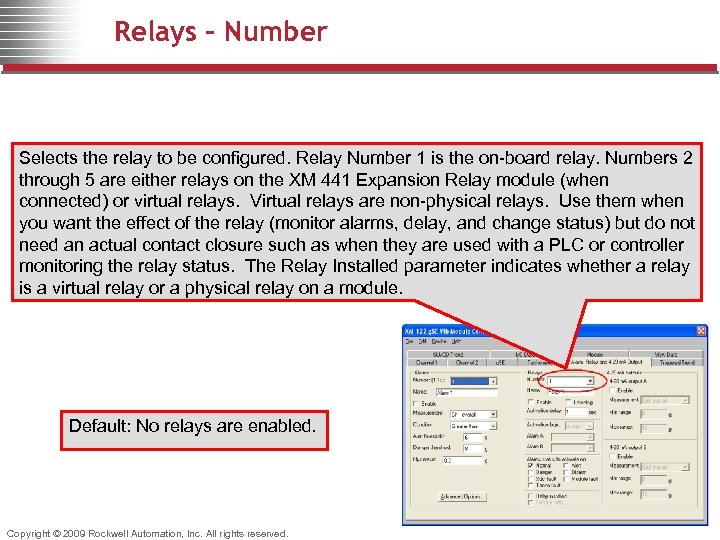 Relays - Number Selects the relay to be configured. Relay Number 1 is the on-board relay. Numbers 2 through 5 are either relays on the XM 441 Expansion Relay module (when connected) or virtual relays. Virtual relays are non-physical relays. Use them when you want the effect of the relay (monitor alarms, delay, and change status) but do not need an actual contact closure such as when they are used with a PLC or controller monitoring the relay status. The Relay Installed parameter indicates whether a relay is a virtual relay or a physical relay on a module. Default: No relays are enabled. Copyright © 2009 Rockwell Automation, Inc. All rights reserved.
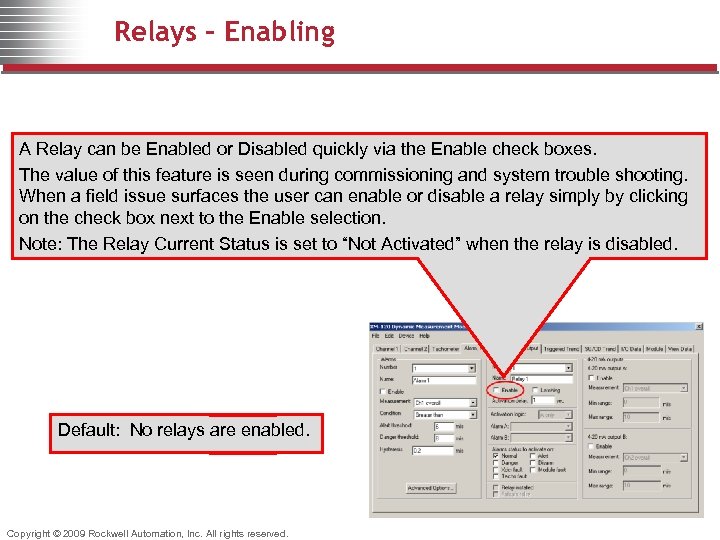 Relays - Enabling A Relay can be Enabled or Disabled quickly via the Enable check boxes. The value of this feature is seen during commissioning and system trouble shooting. When a field issue surfaces the user can enable or disable a relay simply by clicking on the check box next to the Enable selection. Note: The Relay Current Status is set to “Not Activated” when the relay is disabled. Default: No relays are enabled. Copyright © 2009 Rockwell Automation, Inc. All rights reserved.
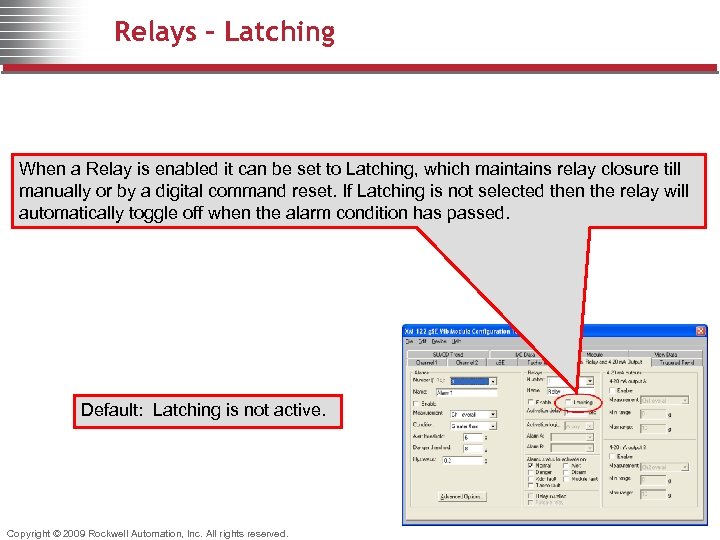 Relays - Latching When a Relay is enabled it can be set to Latching, which maintains relay closure till manually or by a digital command reset. If Latching is not selected then the relay will automatically toggle off when the alarm condition has passed. Default: Latching is not active. Copyright © 2009 Rockwell Automation, Inc. All rights reserved.
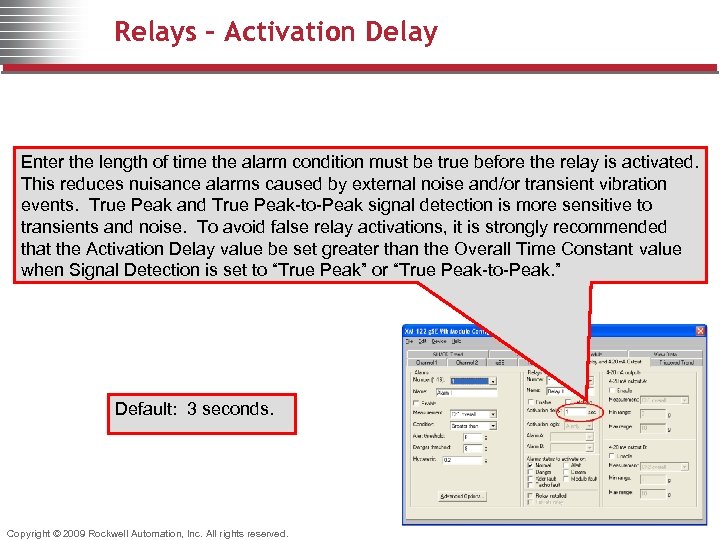 Relays – Activation Delay Enter the length of time the alarm condition must be true before the relay is activated. This reduces nuisance alarms caused by external noise and/or transient vibration events. True Peak and True Peak-to-Peak signal detection is more sensitive to transients and noise. To avoid false relay activations, it is strongly recommended that the Activation Delay value be set greater than the Overall Time Constant value when Signal Detection is set to “True Peak” or “True Peak-to-Peak. ” Default: 3 seconds. Copyright © 2009 Rockwell Automation, Inc. All rights reserved.
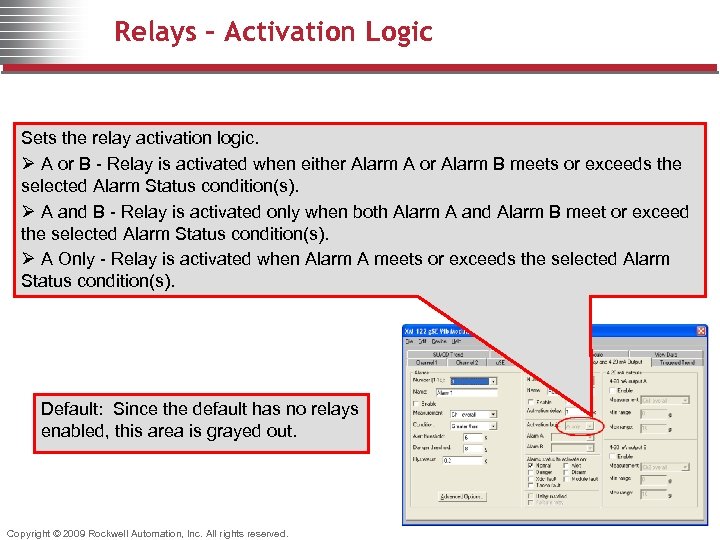 Relays – Activation Logic Sets the relay activation logic. Ø A or B - Relay is activated when either Alarm A or Alarm B meets or exceeds the selected Alarm Status condition(s). Ø A and B - Relay is activated only when both Alarm A and Alarm B meet or exceed the selected Alarm Status condition(s). Ø A Only - Relay is activated when Alarm A meets or exceeds the selected Alarm Status condition(s). Default: Since the default has no relays enabled, this area is grayed out. Copyright © 2009 Rockwell Automation, Inc. All rights reserved.
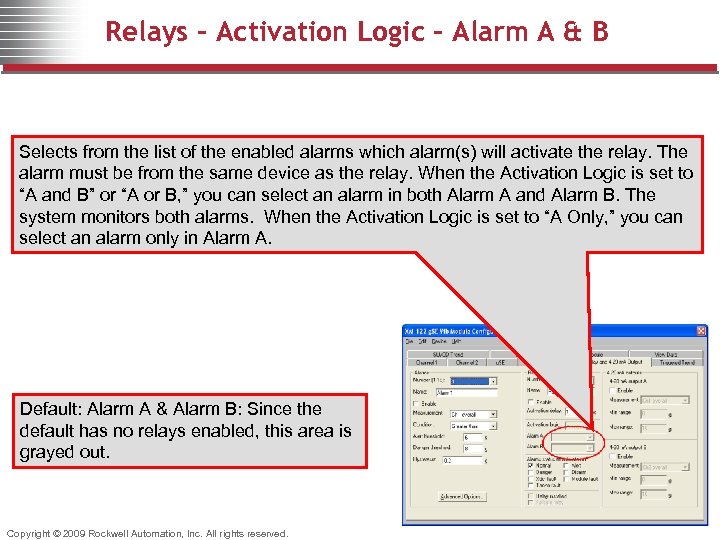 Relays – Activation Logic – Alarm A & B Selects from the list of the enabled alarms which alarm(s) will activate the relay. The alarm must be from the same device as the relay. When the Activation Logic is set to “A and B” or “A or B, ” you can select an alarm in both Alarm A and Alarm B. The system monitors both alarms. When the Activation Logic is set to “A Only, ” you can select an alarm only in Alarm A. Default: Alarm A & Alarm B: Since the default has no relays enabled, this area is grayed out. Copyright © 2009 Rockwell Automation, Inc. All rights reserved.
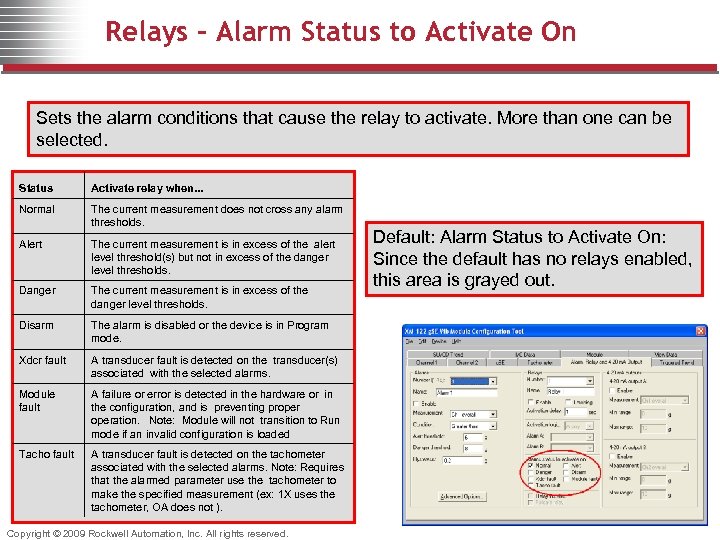 Relays – Alarm Status to Activate On Sets the alarm conditions that cause the relay to activate. More than one can be selected. Status Activate relay when. . . Normal The current measurement does not cross any alarm thresholds. Alert The current measurement is in excess of the alert level threshold(s) but not in excess of the danger level thresholds. Danger The current measurement is in excess of the danger level thresholds. Disarm The alarm is disabled or the device is in Program mode. Xdcr fault A transducer fault is detected on the transducer(s) associated with the selected alarms. Module fault A failure or error is detected in the hardware or in the configuration, and is preventing properation. Note: Module will not transition to Run mode if an invalid configuration is loaded Tacho fault A transducer fault is detected on the tachometer associated with the selected alarms. Note: Requires that the alarmed parameter use the tachometer to make the specified measurement (ex: 1 X uses the tachometer, OA does not ). Copyright © 2009 Rockwell Automation, Inc. All rights reserved. Default: Alarm Status to Activate On: Since the default has no relays enabled, this area is grayed out.
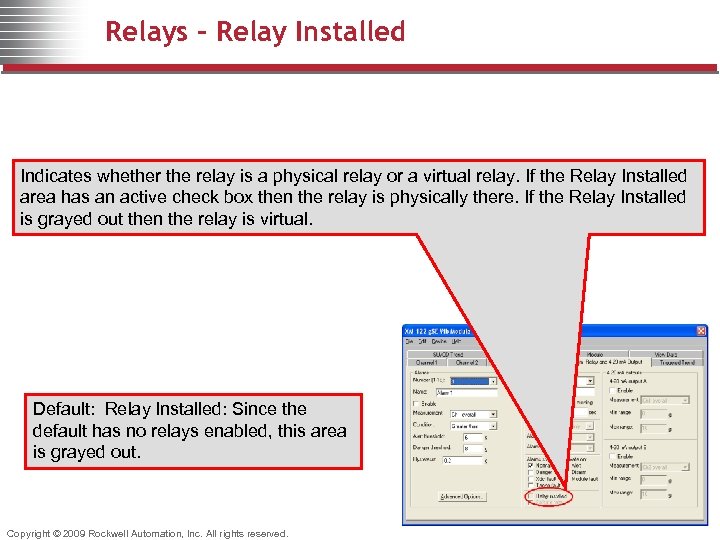 Relays – Relay Installed Indicates whether the relay is a physical relay or a virtual relay. If the Relay Installed area has an active check box then the relay is physically there. If the Relay Installed is grayed out then the relay is virtual. Default: Relay Installed: Since the default has no relays enabled, this area is grayed out. Copyright © 2009 Rockwell Automation, Inc. All rights reserved.
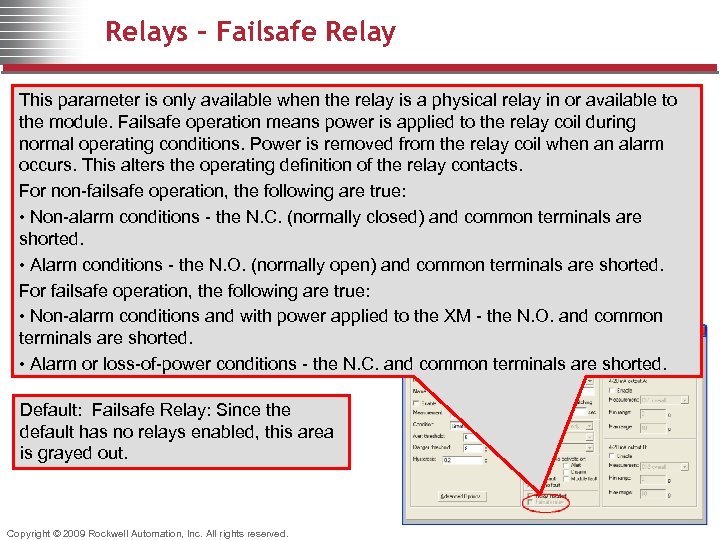 Relays – Failsafe Relay This parameter is only available when the relay is a physical relay in or available to the module. Failsafe operation means power is applied to the relay coil during normal operating conditions. Power is removed from the relay coil when an alarm occurs. This alters the operating definition of the relay contacts. For non-failsafe operation, the following are true: • Non-alarm conditions - the N. C. (normally closed) and common terminals are shorted. • Alarm conditions - the N. O. (normally open) and common terminals are shorted. For failsafe operation, the following are true: • Non-alarm conditions and with power applied to the XM - the N. O. and common terminals are shorted. • Alarm or loss-of-power conditions - the N. C. and common terminals are shorted. Default: Failsafe Relay: Since the default has no relays enabled, this area is grayed out. Copyright © 2009 Rockwell Automation, Inc. All rights reserved.
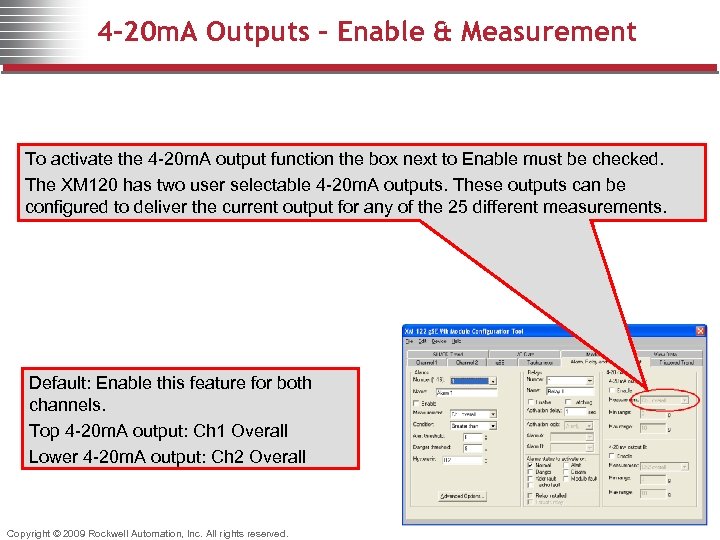 4 -20 m. A Outputs – Enable & Measurement To activate the 4 -20 m. A output function the box next to Enable must be checked. The XM 120 has two user selectable 4 -20 m. A outputs. These outputs can be configured to deliver the current output for any of the 25 different measurements. Default: Enable this feature for both channels. Top 4 -20 m. A output: Ch 1 Overall Lower 4 -20 m. A output: Ch 2 Overall Copyright © 2009 Rockwell Automation, Inc. All rights reserved.
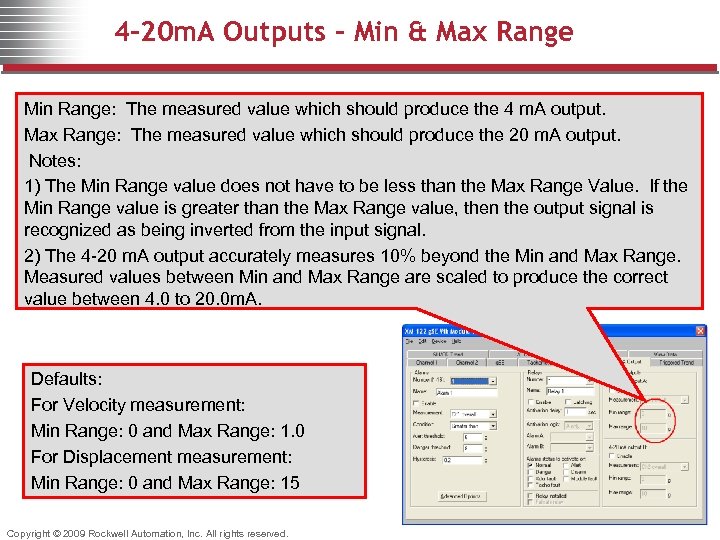 4 -20 m. A Outputs – Min & Max Range Min Range: The measured value which should produce the 4 m. A output. Max Range: The measured value which should produce the 20 m. A output. Notes: 1) The Min Range value does not have to be less than the Max Range Value. If the Min Range value is greater than the Max Range value, then the output signal is recognized as being inverted from the input signal. 2) The 4 -20 m. A output accurately measures 10% beyond the Min and Max Range. Measured values between Min and Max Range are scaled to produce the correct value between 4. 0 to 20. 0 m. A. Defaults: For Velocity measurement: Min Range: 0 and Max Range: 1. 0 For Displacement measurement: Min Range: 0 and Max Range: 15 Copyright © 2009 Rockwell Automation, Inc. All rights reserved.
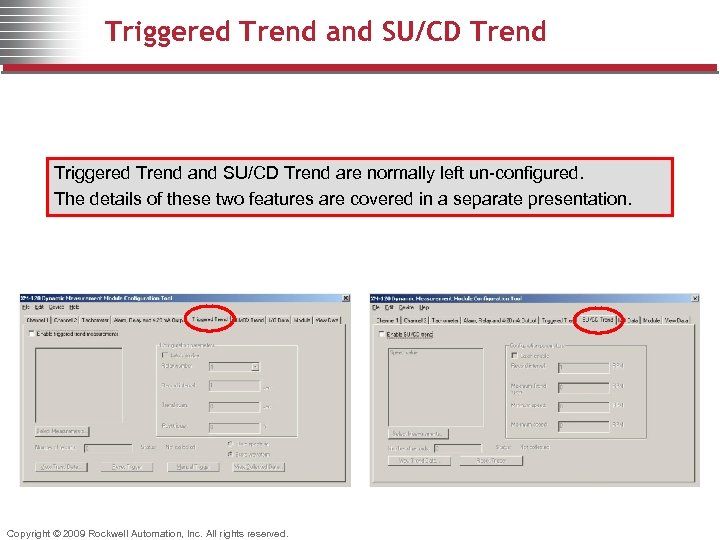 Triggered Trend and SU/CD Trend are normally left un-configured. The details of these two features are covered in a separate presentation. Copyright © 2009 Rockwell Automation, Inc. All rights reserved.
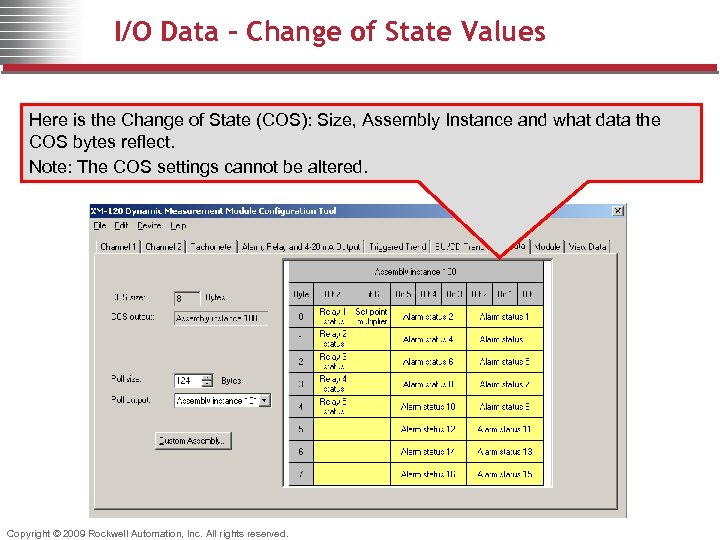 I/O Data – Change of State Values Here is the Change of State (COS): Size, Assembly Instance and what data the COS bytes reflect. Note: The COS settings cannot be altered. Copyright © 2009 Rockwell Automation, Inc. All rights reserved.
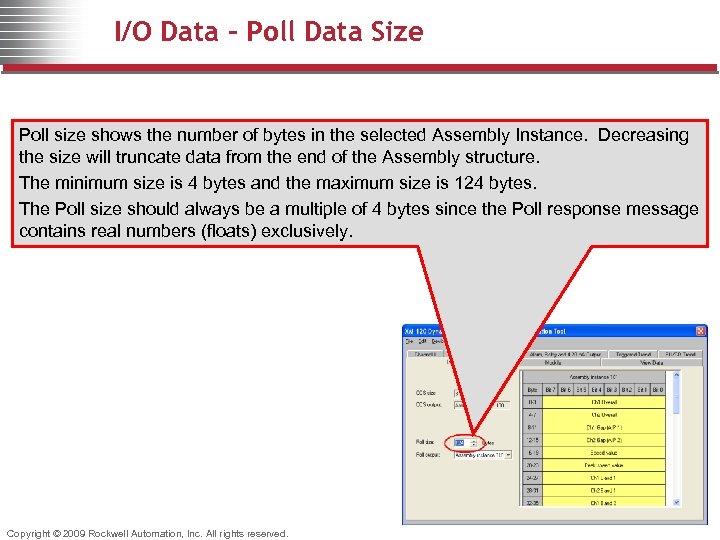 I/O Data – Poll Data Size Poll size shows the number of bytes in the selected Assembly Instance. Decreasing the size will truncate data from the end of the Assembly structure. The minimum size is 4 bytes and the maximum size is 124 bytes. The Poll size should always be a multiple of 4 bytes since the Poll response message contains real numbers (floats) exclusively. Copyright © 2009 Rockwell Automation, Inc. All rights reserved.
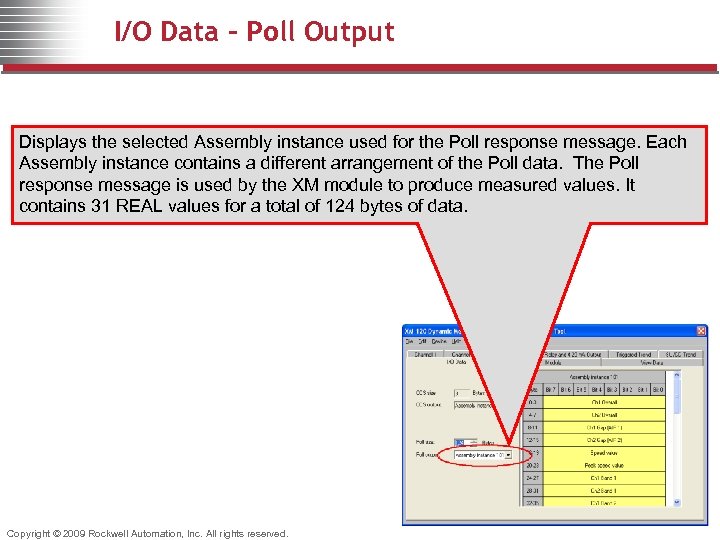 I/O Data - Poll Output Displays the selected Assembly instance used for the Poll response message. Each Assembly instance contains a different arrangement of the Poll data. The Poll response message is used by the XM module to produce measured values. It contains 31 REAL values for a total of 124 bytes of data. Copyright © 2009 Rockwell Automation, Inc. All rights reserved.
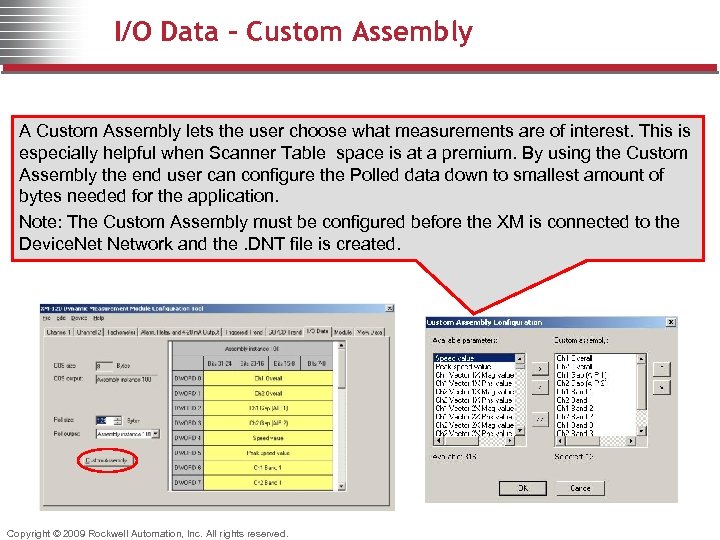 I/O Data – Custom Assembly A Custom Assembly lets the user choose what measurements are of interest. This is especially helpful when Scanner Table space is at a premium. By using the Custom Assembly the end user can configure the Polled data down to smallest amount of bytes needed for the application. Note: The Custom Assembly must be configured before the XM is connected to the Device. Network and the. DNT file is created. Copyright © 2009 Rockwell Automation, Inc. All rights reserved.
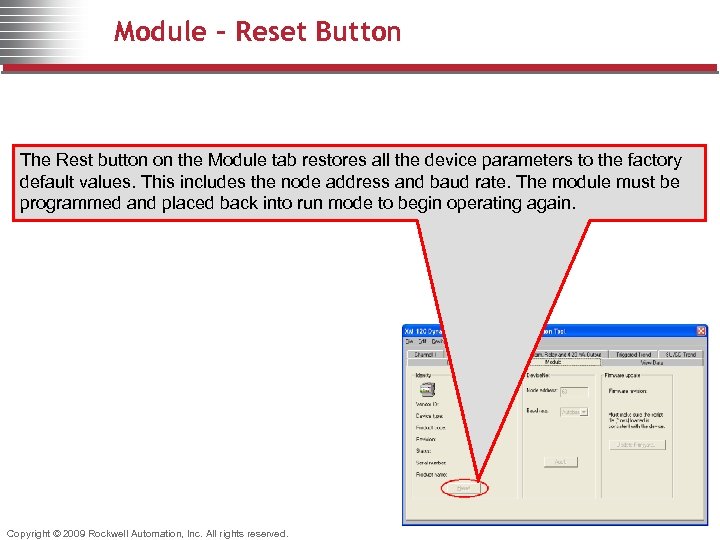 Module – Reset Button The Rest button on the Module tab restores all the device parameters to the factory default values. This includes the node address and baud rate. The module must be programmed and placed back into run mode to begin operating again. Copyright © 2009 Rockwell Automation, Inc. All rights reserved.
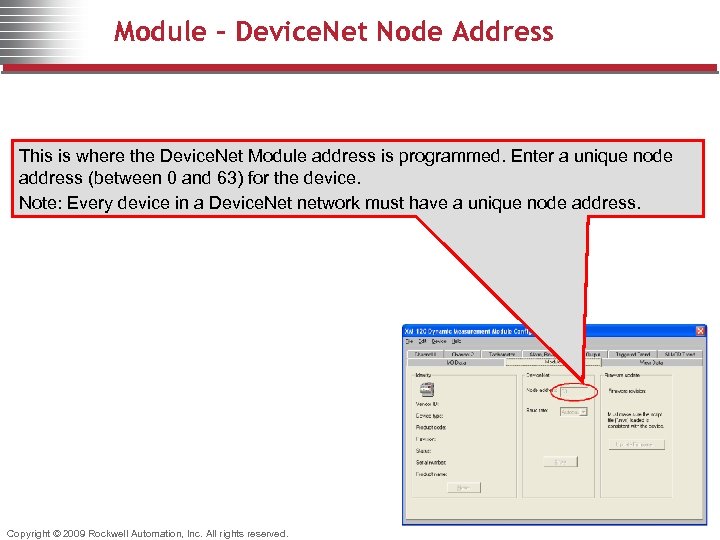 Module – Device. Net Node Address This is where the Device. Net Module address is programmed. Enter a unique node address (between 0 and 63) for the device. Note: Every device in a Device. Net network must have a unique node address. Copyright © 2009 Rockwell Automation, Inc. All rights reserved.
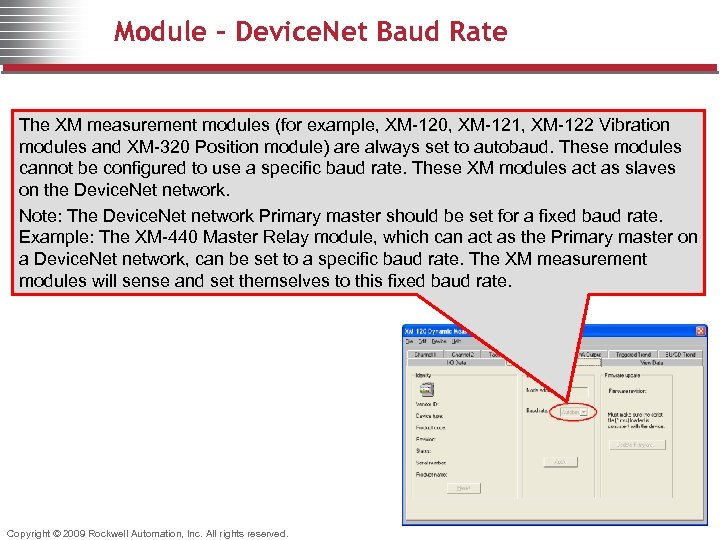 Module – Device. Net Baud Rate The XM measurement modules (for example, XM-120, XM-121, XM-122 Vibration modules and XM-320 Position module) are always set to autobaud. These modules cannot be configured to use a specific baud rate. These XM modules act as slaves on the Device. Net network. Note: The Device. Net network Primary master should be set for a fixed baud rate. Example: The XM-440 Master Relay module, which can act as the Primary master on a Device. Net network, can be set to a specific baud rate. The XM measurement modules will sense and set themselves to this fixed baud rate. Copyright © 2009 Rockwell Automation, Inc. All rights reserved.
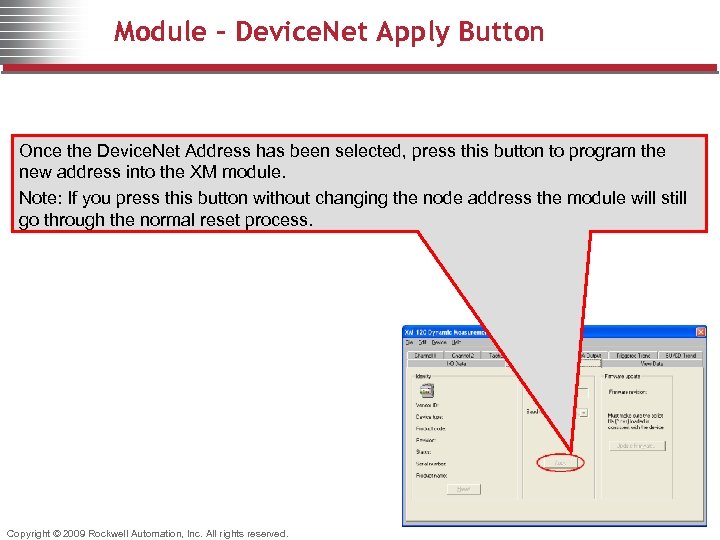 Module – Device. Net Apply Button Once the Device. Net Address has been selected, press this button to program the new address into the XM module. Note: If you press this button without changing the node address the module will still go through the normal reset process. Copyright © 2009 Rockwell Automation, Inc. All rights reserved.
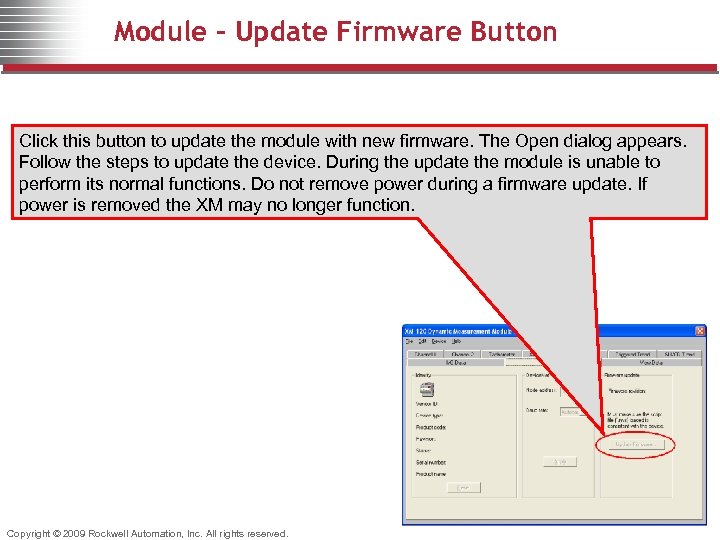 Module – Update Firmware Button Click this button to update the module with new firmware. The Open dialog appears. Follow the steps to update the device. During the update the module is unable to perform its normal functions. Do not remove power during a firmware update. If power is removed the XM may no longer function. Copyright © 2009 Rockwell Automation, Inc. All rights reserved.