


 Скачать презентацию Young Adult YA Application The e GOHS Application
9d84d69e3286701c4e55cfe80c8266f7.ppt
- Количество слайдов: 91
 Young Adult (YA) Application The e. GOHS Application Process “Every Life Counts – Strive for Zero Deaths and Injuries on Georgia Roads. ” Revised March 2011
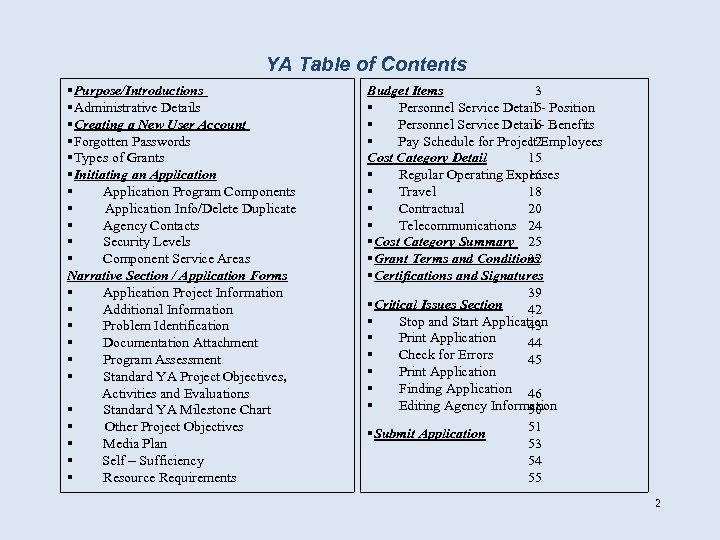 YA Table of Contents Purpose/Introductions Administrative Details Creating a New User Account Forgotten Passwords Types of Grants Initiating an Application Program Components Application Info/Delete Duplicate Agency Contacts Security Levels Component Service Areas Narrative Section / Application Forms Application Project Information Additional Information Problem Identification Documentation Attachment Program Assessment Standard YA Project Objectives, Activities and Evaluations Standard YA Milestone Chart Other Project Objectives Media Plan Self – Sufficiency Resource Requirements Budget Items 3 Personnel Service Detail 5 - Position Personnel Service Detail 6 - Benefits Pay Schedule for Project Employees 12 Cost Category Detail 15 Regular Operating Expenses 16 Travel 18 Contractual 20 Telecommunications 24 Cost Category Summary 25 Grant Terms and Conditions 32 Certifications and Signatures 39 Critical Issues Section 42 Stop and Start Application 43 Print Application 44 Check for Errors 45 Print Application Finding Application 46 Editing Agency Information 50 Submit Application 51 53 54 55 2
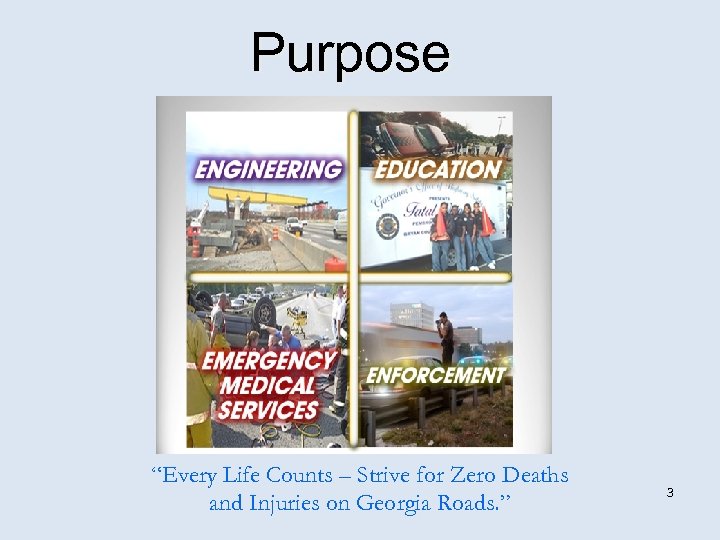 Purpose “Every Life Counts – Strive for Zero Deaths and Injuries on Georgia Roads. ” 3
 Workshop Objectives To provide potential Grantees with the knowledge and skills necessary to correctly: Create a user account and login to the e. GOHS system Create an Application Important Dates 4
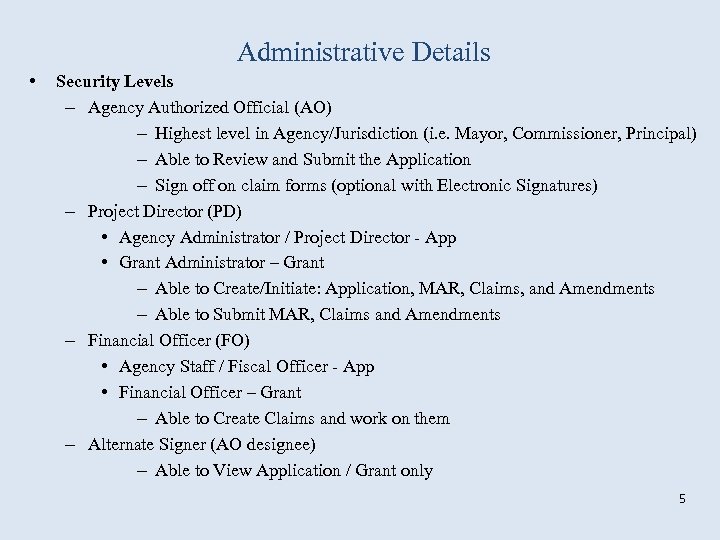 Administrative Details • Security Levels – Agency Authorized Official (AO) – Highest level in Agency/Jurisdiction (i. e. Mayor, Commissioner, Principal) – Able to Review and Submit the Application – Sign off on claim forms (optional with Electronic Signatures) – Project Director (PD) • Agency Administrator / Project Director - App • Grant Administrator – Grant – Able to Create/Initiate: Application, MAR, Claims, and Amendments – Able to Submit MAR, Claims and Amendments – Financial Officer (FO) • Agency Staff / Fiscal Officer - App • Financial Officer – Grant – Able to Create Claims and work on them – Alternate Signer (AO designee) – Able to View Application / Grant only 5
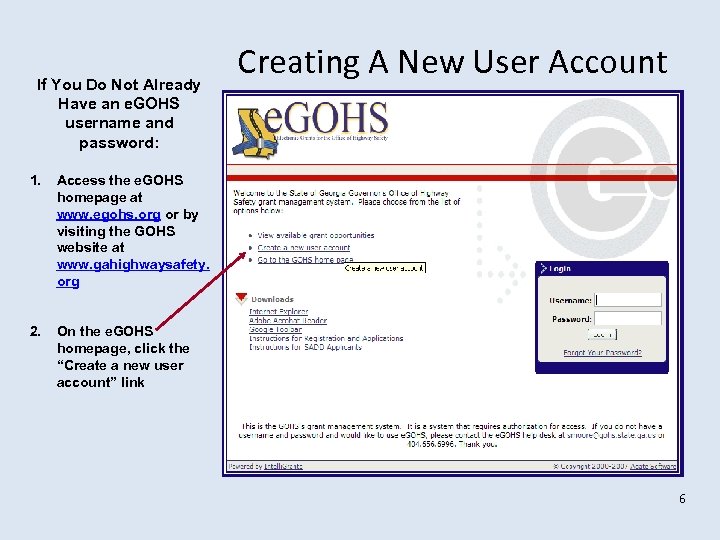 If You Do Not Already Have an e. GOHS username and password: 1. Access the e. GOHS homepage at www. egohs. org or by visiting the GOHS website at www. gahighwaysafety. org 2. Creating A New User Account On the e. GOHS homepage, click the “Create a new user account” link 6
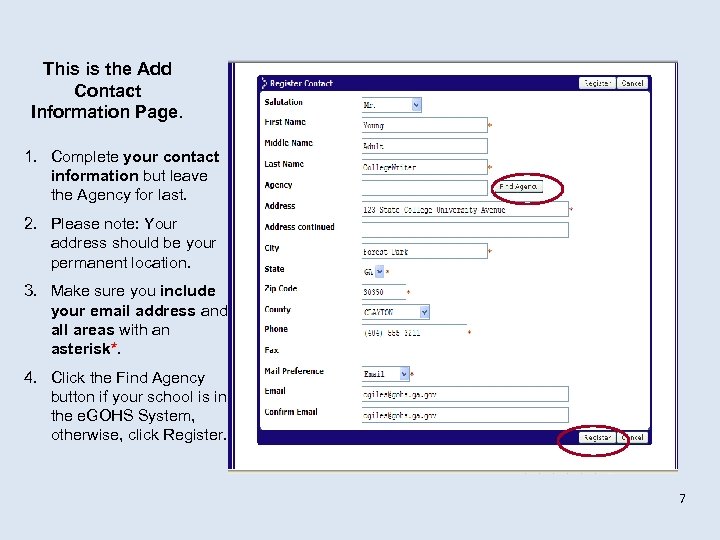 This is the Add Contact Information Page. 1. Complete your contact information but leave the Agency for last. 2. Please note: Your address should be your permanent location. 3. Make sure you include your email address and all areas with an asterisk*. 4. Click the Find Agency button if your school is in the e. GOHS System, otherwise, click Register. 7
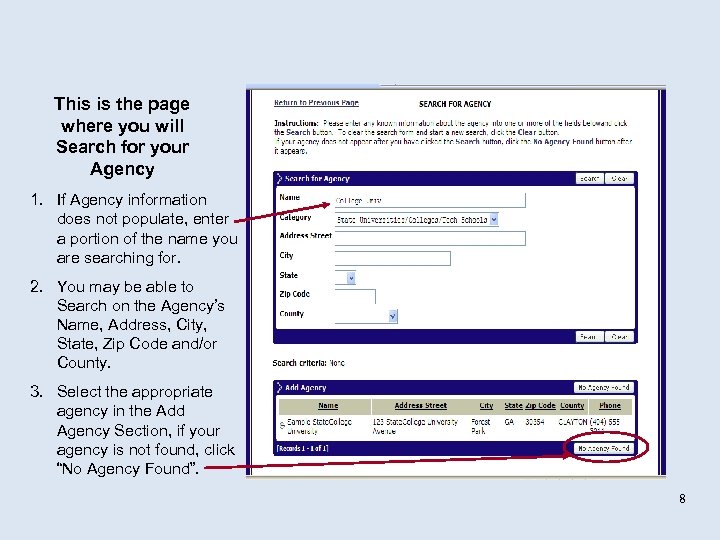 This is the page where you will Search for your Agency 1. If Agency information does not populate, enter a portion of the name you are searching for. 2. You may be able to Search on the Agency’s Name, Address, City, State, Zip Code and/or County. 3. Select the appropriate agency in the Add Agency Section, if your agency is not found, click “No Agency Found”. 8
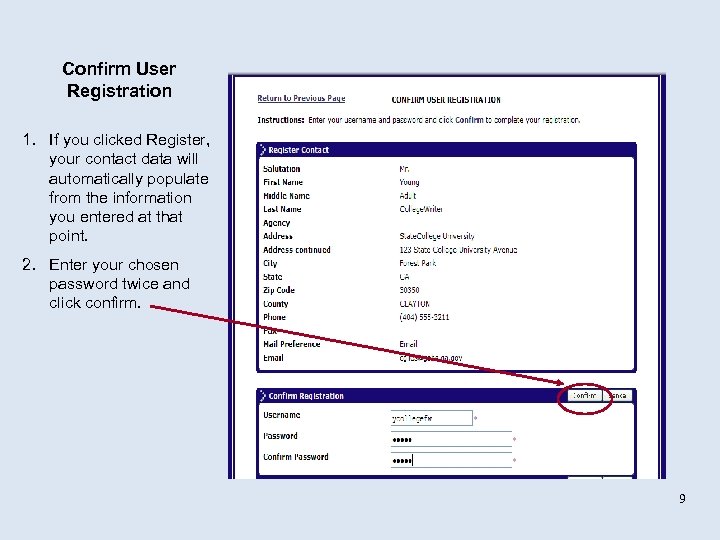 Confirm User Registration 1. If you clicked Register, your contact data will automatically populate from the information you entered at that point. 2. Enter your chosen password twice and click confirm. 9
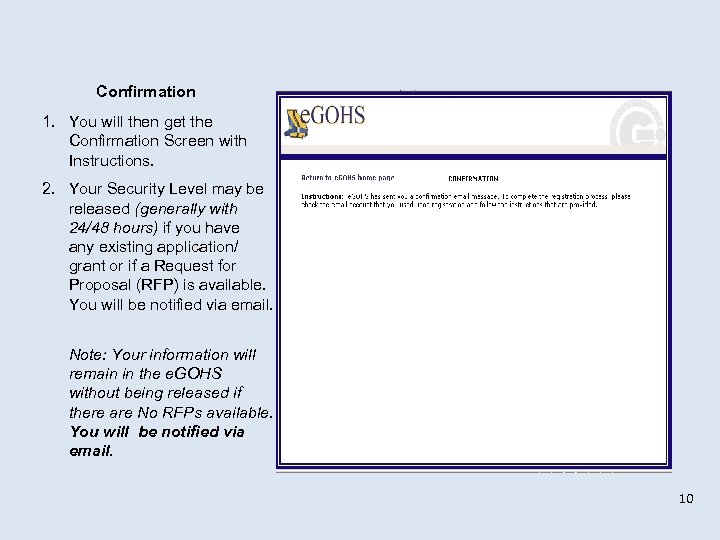 Confirmation 1. You will then get the Confirmation Screen with Instructions. 2. Your Security Level may be released (generally with 24/48 hours) if you have any existing application/ grant or if a Request for Proposal (RFP) is available. You will be notified via email. Note: Your information will remain in the e. GOHS without being released if there are No RFPs available. You will be notified via email. 10
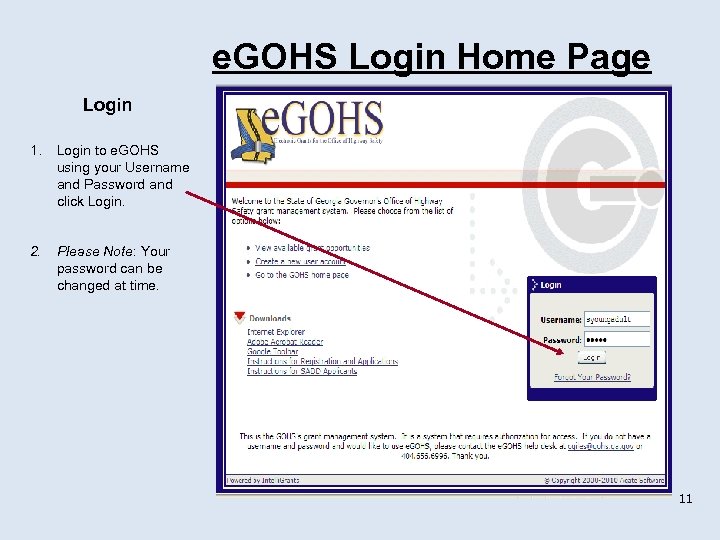 e. GOHS Login Home Page Login 1. Login to e. GOHS using your Username and Password and click Login. 2. Please Note: Your password can be changed at time. 11
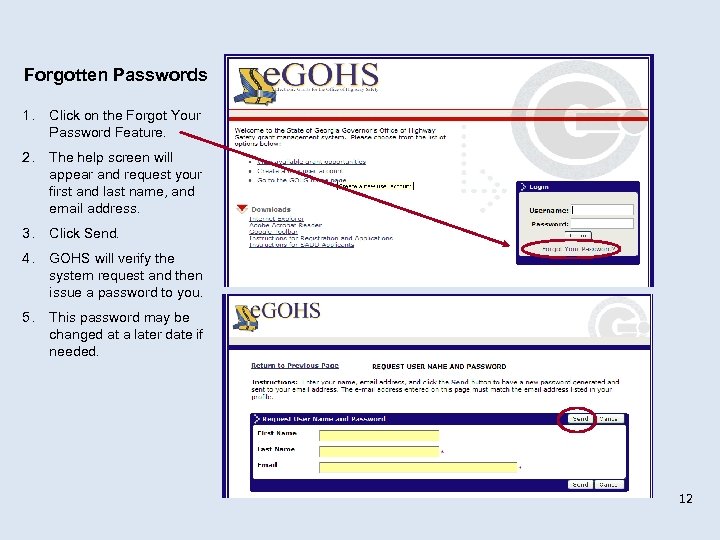 Forgotten Passwords 1. Click on the Forgot Your Password Feature. 2. The help screen will appear and request your first and last name, and email address. 3. Click Send. 4. GOHS will verify the system request and then issue a password to you. 5. This password may be changed at a later date if needed. 12
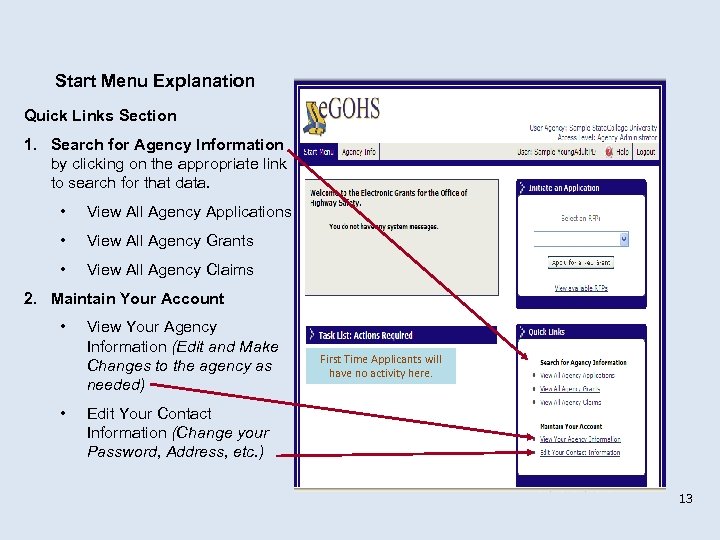 Start Menu Explanation Quick Links Section 1. Search for Agency Information by clicking on the appropriate link to search for that data. • View All Agency Applications • View All Agency Grants • View All Agency Claims 2. Maintain Your Account • • View Your Agency Information (Edit and Make Changes to the agency as needed) First Time Applicants will have no activity here. Edit Your Contact Information (Change your Password, Address, etc. ) 13
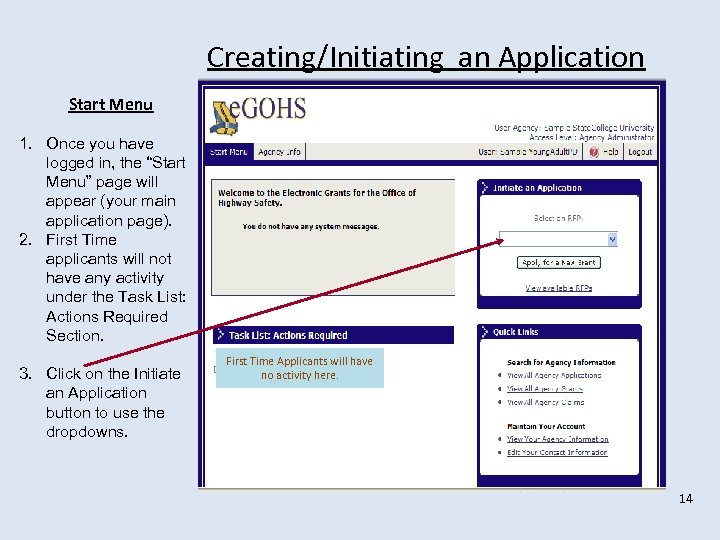 Creating/Initiating an Application Start Menu 1. Once you have logged in, the “Start Menu” page will appear (your main application page). 2. First Time applicants will not have any activity under the Task List: Actions Required Section. 3. Click on the Initiate an Application button to use the dropdowns. First Time Applicants will have no activity here. 14
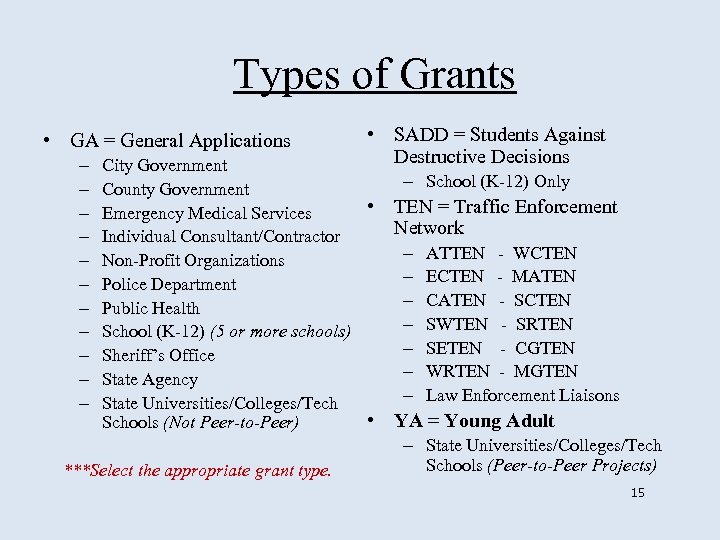 Types of Grants • GA = General Applications – – – • SADD = Students Against Destructive Decisions City Government County Government • Emergency Medical Services Individual Consultant/Contractor Non-Profit Organizations Police Department Public Health School (K-12) (5 or more schools) Sheriff’s Office State Agency State Universities/Colleges/Tech • Schools (Not Peer-to-Peer) ***Select the appropriate grant type. – School (K-12) Only TEN = Traffic Enforcement Network – – – – ATTEN - WCTEN ECTEN - MATEN CATEN - SCTEN SWTEN - SRTEN SETEN - CGTEN WRTEN - MGTEN Law Enforcement Liaisons YA = Young Adult – State Universities/Colleges/Tech Schools (Peer-to-Peer Projects) 15
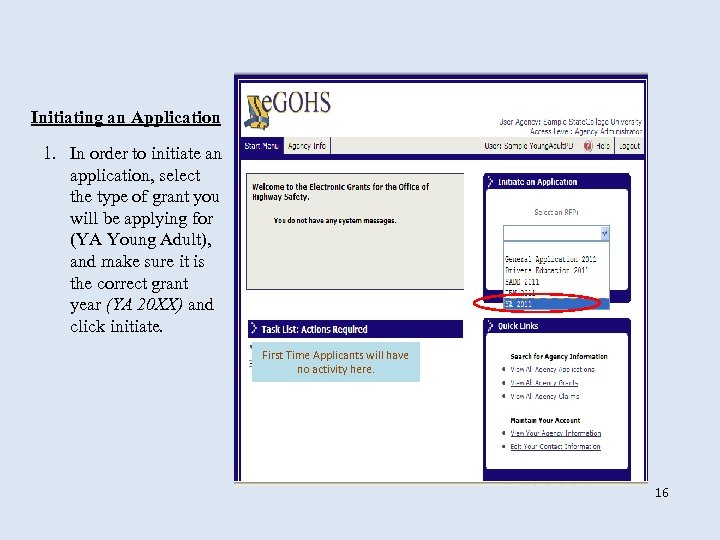 Initiating an Application 1. In order to initiate an application, select the type of grant you will be applying for (YA Young Adult), and make sure it is the correct grant year (YA 20 XX) and click initiate. First Time Applicants will have no activity here. 16
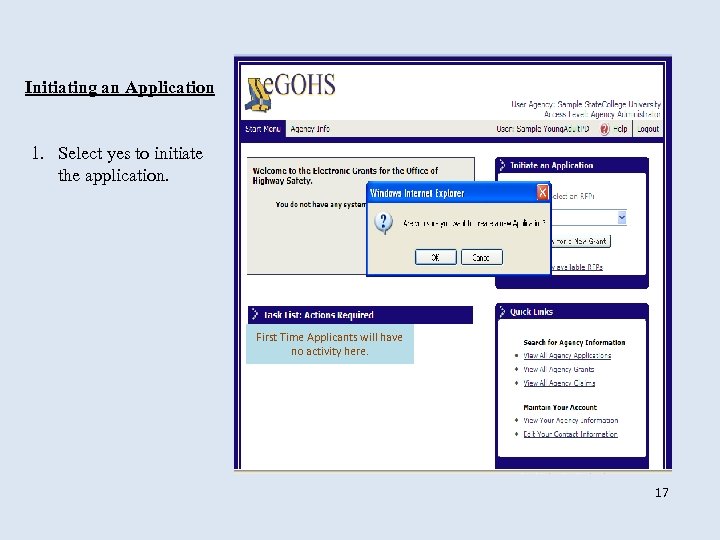 Initiating an Application 1. Select yes to initiate the application. First Time Applicants will have no activity here. 17
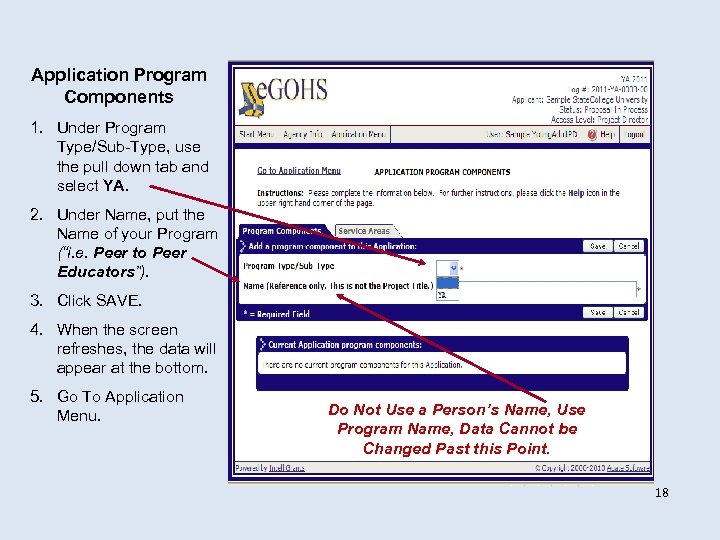 Application Program Components 1. Under Program Type/Sub-Type, use the pull down tab and select YA. 2. Under Name, put the Name of your Program (“i. e. Peer to Peer Educators”). 3. Click SAVE. 4. When the screen refreshes, the data will appear at the bottom. 5. Go To Application Menu. Do Not Use a Person’s Name, Use Program Name, Data Cannot be Changed Past this Point. 18
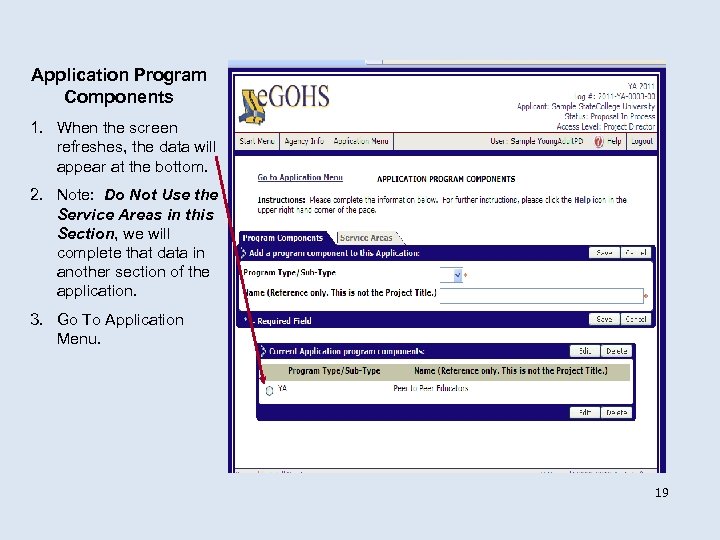 Application Program Components 1. When the screen refreshes, the data will appear at the bottom. 2. Note: Do Not Use the Service Areas in this Section, we will complete that data in another section of the application. 3. Go To Application Menu. 19
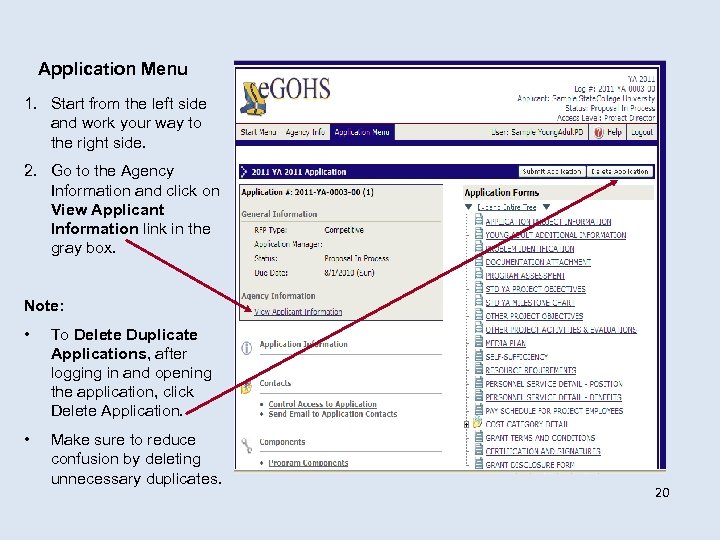 Application Menu 1. Start from the left side and work your way to the right side. 2. Go to the Agency Information and click on View Applicant Information link in the gray box. Note: • To Delete Duplicate Applications, after logging in and opening the application, click Delete Application. • Make sure to reduce confusion by deleting unnecessary duplicates. 20
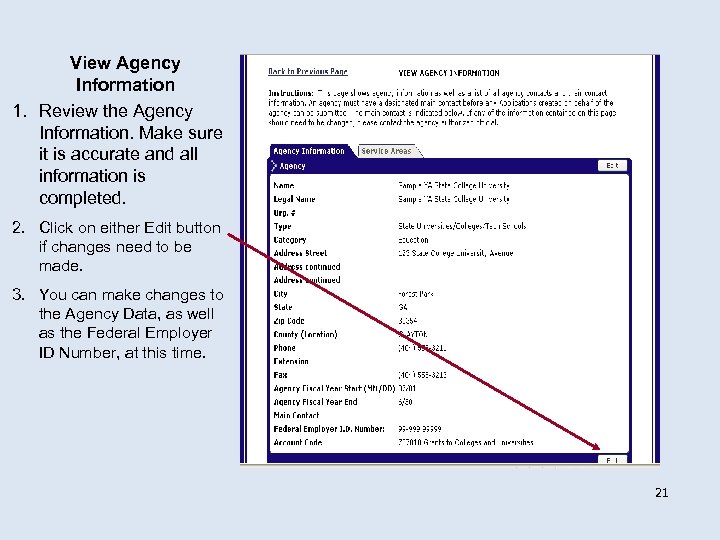 View Agency Information 1. Review the Agency Information. Make sure it is accurate and all information is completed. 2. Click on either Edit button if changes need to be made. 3. You can make changes to the Agency Data, as well as the Federal Employer ID Number, at this time. 21
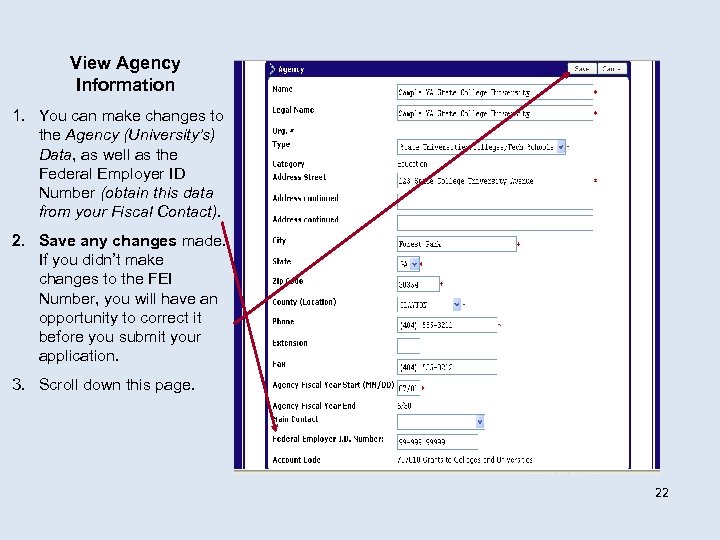 View Agency Information 1. You can make changes to the Agency (University’s) Data, as well as the Federal Employer ID Number (obtain this data from your Fiscal Contact). 2. Save any changes made. If you didn’t make changes to the FEI Number, you will have an opportunity to correct it before you submit your application. 3. Scroll down this page. 22
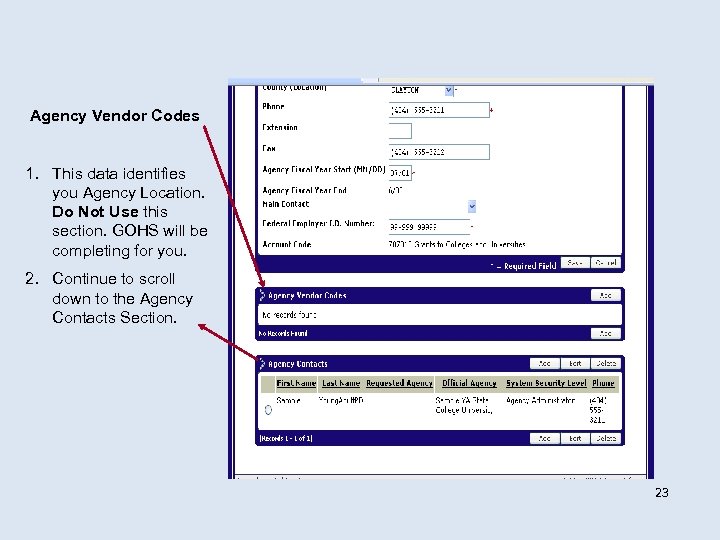 Agency Vendor Codes 1. This data identifies you Agency Location. Do Not Use this section. GOHS will be completing for you. 2. Continue to scroll down to the Agency Contacts Section. 23
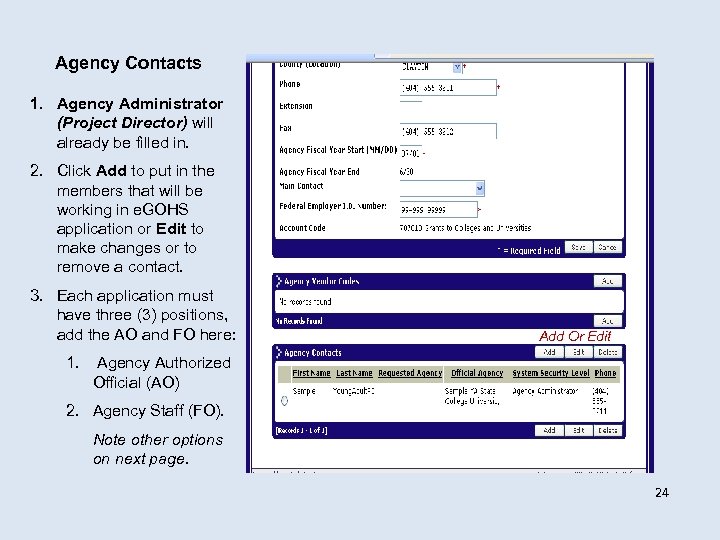 Agency Contacts 1. Agency Administrator (Project Director) will already be filled in. 2. Click Add to put in the members that will be working in e. GOHS application or Edit to make changes or to remove a contact. 3. Each application must have three (3) positions, add the AO and FO here: 1. Add Or Edit Agency Authorized Official (AO) 2. Agency Staff (FO). Note other options on next page. 24
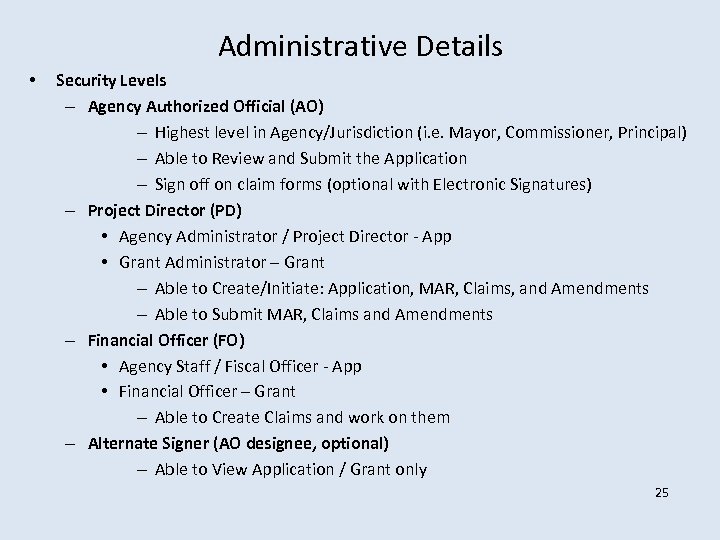 Administrative Details • Security Levels – Agency Authorized Official (AO) – Highest level in Agency/Jurisdiction (i. e. Mayor, Commissioner, Principal) – Able to Review and Submit the Application – Sign off on claim forms (optional with Electronic Signatures) – Project Director (PD) • Agency Administrator / Project Director - App • Grant Administrator – Grant – Able to Create/Initiate: Application, MAR, Claims, and Amendments – Able to Submit MAR, Claims and Amendments – Financial Officer (FO) • Agency Staff / Fiscal Officer - App • Financial Officer – Grant – Able to Create Claims and work on them – Alternate Signer (AO designee, optional) – Able to View Application / Grant only 25
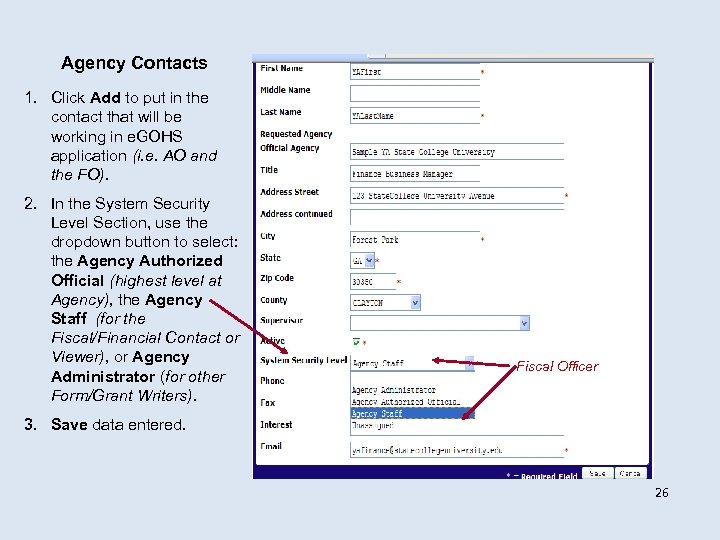 Agency Contacts 1. Click Add to put in the contact that will be working in e. GOHS application (i. e. AO and the FO). 2. In the System Security Level Section, use the dropdown button to select: the Agency Authorized Official (highest level at Agency), the Agency Staff (for the Fiscal/Financial Contact or Viewer), or Agency Administrator (for other Form/Grant Writers). Fiscal Officer 3. Save data entered. 26
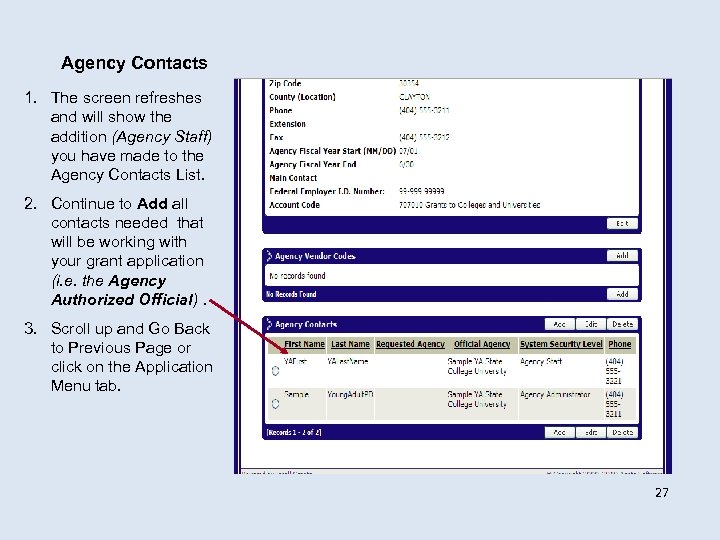 Agency Contacts 1. The screen refreshes and will show the addition (Agency Staff) you have made to the Agency Contacts List. 2. Continue to Add all contacts needed that will be working with your grant application (i. e. the Agency Authorized Official). 3. Scroll up and Go Back to Previous Page or click on the Application Menu tab. 27
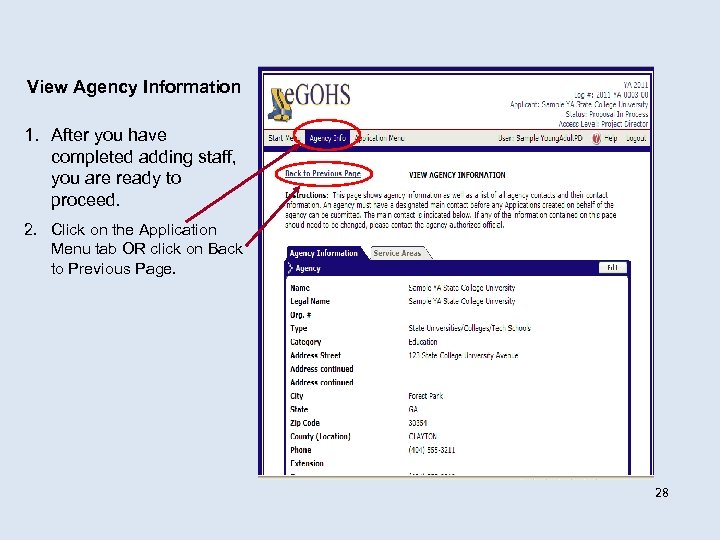 View Agency Information 1. After you have completed adding staff, you are ready to proceed. 2. Click on the Application Menu tab OR click on Back to Previous Page. 28
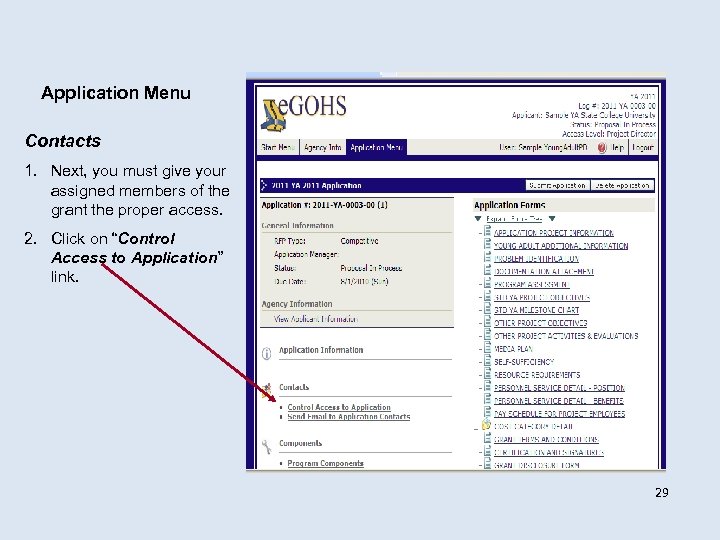 Application Menu Contacts 1. Next, you must give your assigned members of the grant the proper access. 2. Click on “Control Access to Application” link. 29
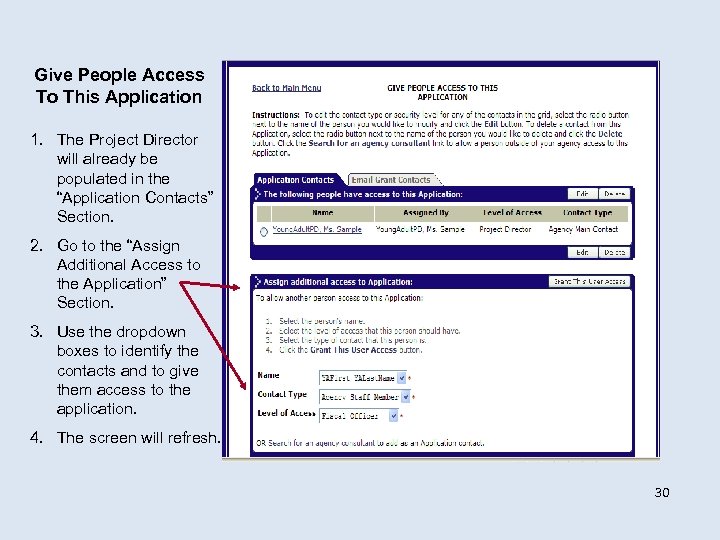 Give People Access To This Application 1. The Project Director will already be populated in the “Application Contacts” Section. 2. Go to the “Assign Additional Access to the Application” Section. 3. Use the dropdown boxes to identify the contacts and to give them access to the application. 4. The screen will refresh. 30
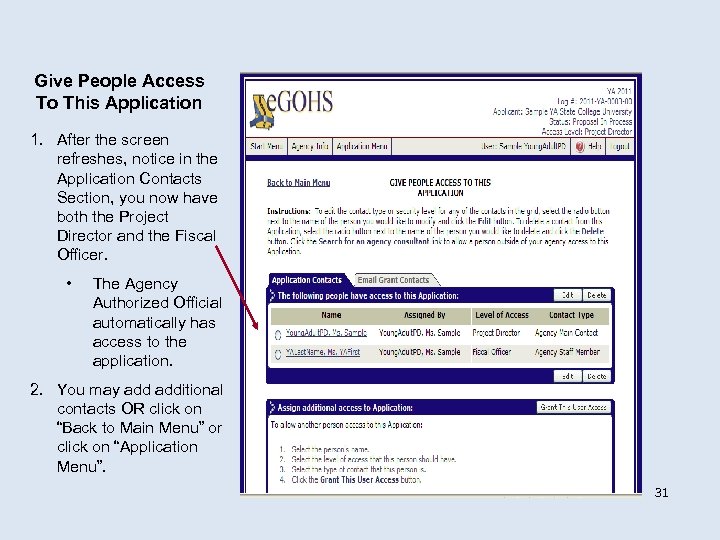 Give People Access To This Application 1. After the screen refreshes, notice in the Application Contacts Section, you now have both the Project Director and the Fiscal Officer. • The Agency Authorized Official automatically has access to the application. 2. You may additional contacts OR click on “Back to Main Menu” or click on “Application Menu”. 31
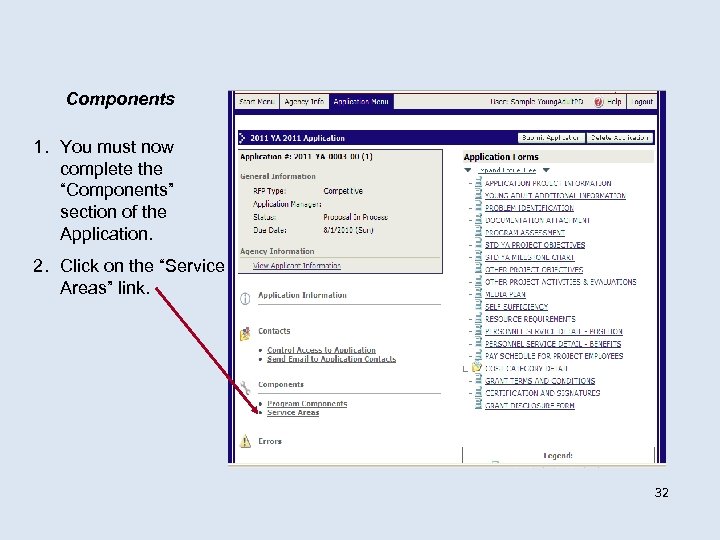 Components 1. You must now complete the “Components” section of the Application. 2. Click on the “Service Areas” link. 32
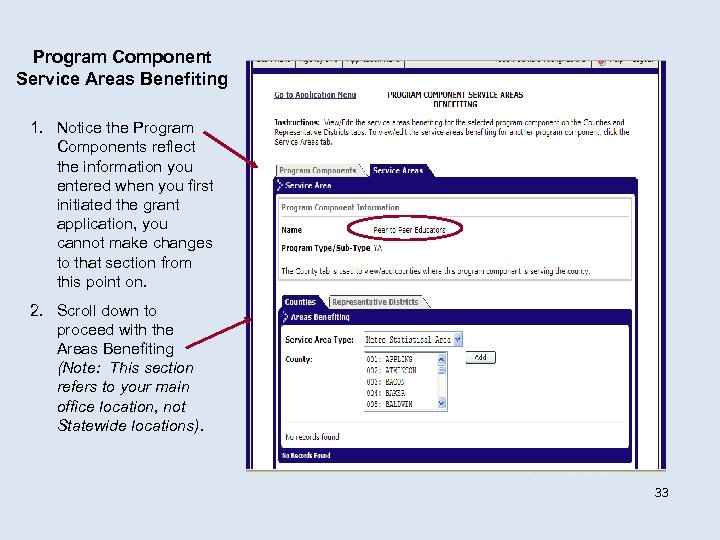 Program Component Service Areas Benefiting 1. Notice the Program Components reflect the information you entered when you first initiated the grant application, you cannot make changes to that section from this point on. 2. Scroll down to proceed with the Areas Benefiting (Note: This section refers to your main office location, not Statewide locations). 33
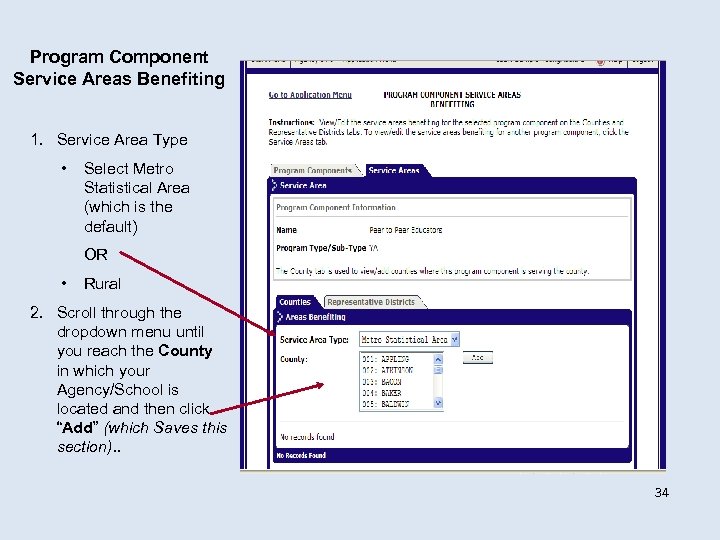 Program Component Service Areas Benefiting 1. Service Area Type • Select Metro Statistical Area (which is the default) OR • Rural 2. Scroll through the dropdown menu until you reach the County in which your Agency/School is located and then click “Add” (which Saves this section). . 34
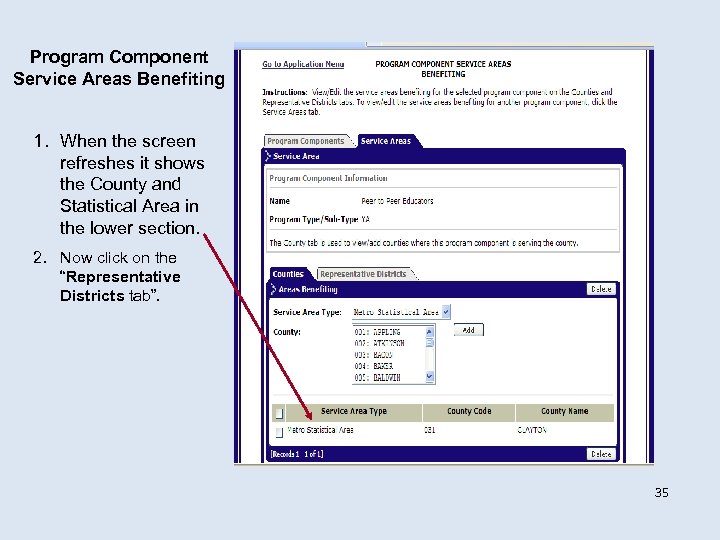 Program Component Service Areas Benefiting 1. When the screen refreshes it shows the County and Statistical Area in the lower section. 2. Now click on the “Representative Districts tab”. 35
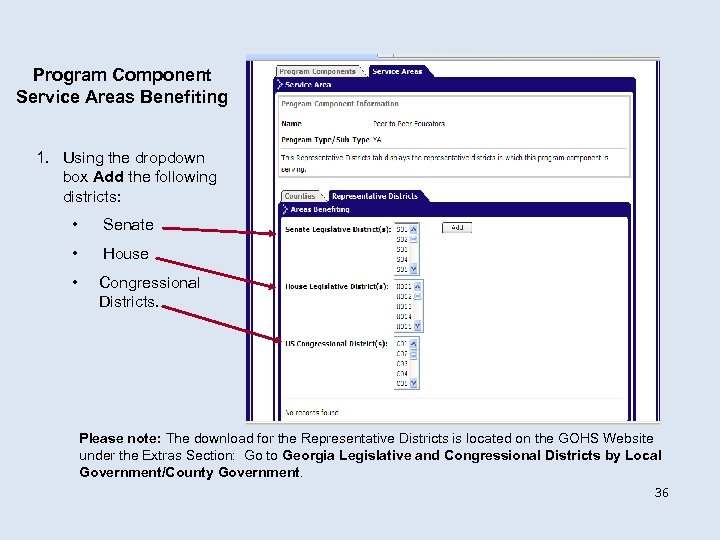 Program Component Service Areas Benefiting 1. Using the dropdown box Add the following districts: • Senate • House • Congressional Districts. Please note: The download for the Representative Districts is located on the GOHS Website under the Extras Section: Go to Georgia Legislative and Congressional Districts by Local Government/County Government. 36
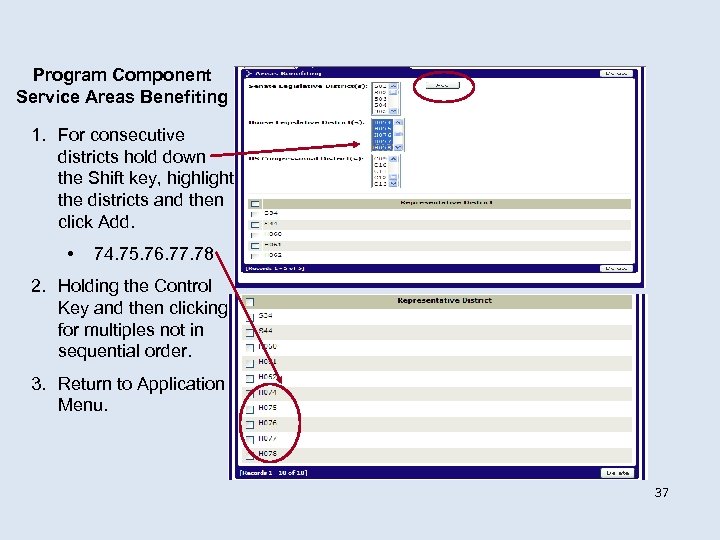 Program Component Service Areas Benefiting 1. For consecutive districts hold down the Shift key, highlight the districts and then click Add. • 74. 75. 76. 77. 78 2. Holding the Control Key and then clicking for multiples not in sequential order. 3. Return to Application Menu. 37
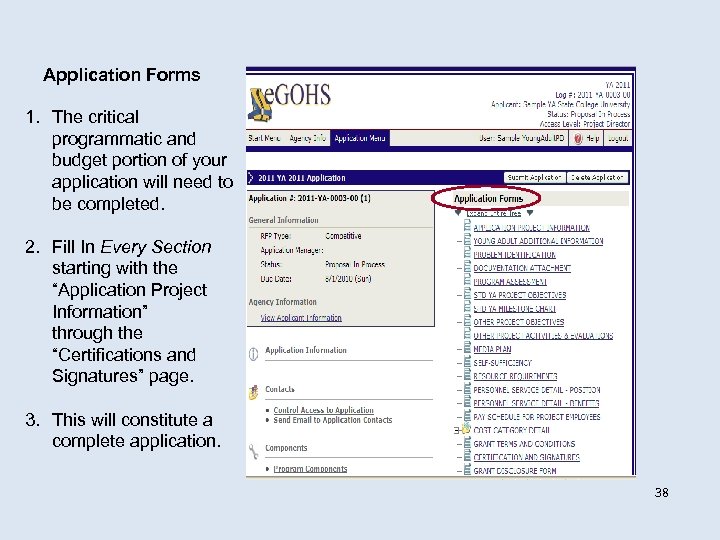 Application Forms 1. The critical programmatic and budget portion of your application will need to be completed. 2. Fill In Every Section starting with the “Application Project Information” through the “Certifications and Signatures” page. 3. This will constitute a complete application. 38
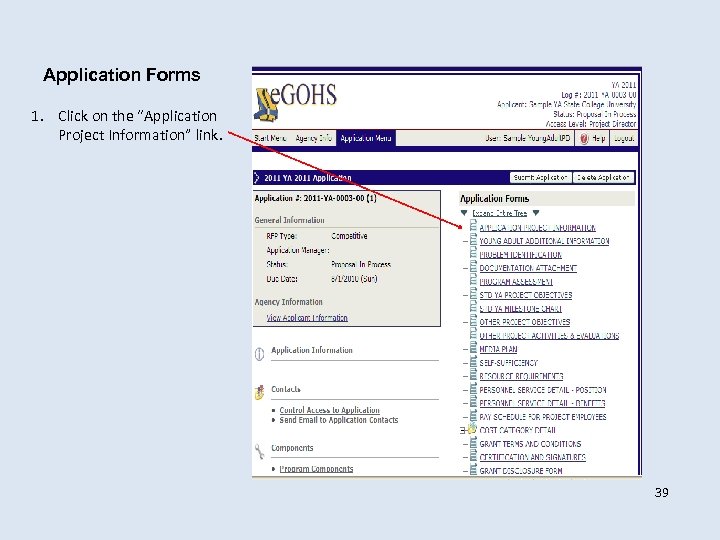 Application Forms 1. Click on the “Application Project Information” link. 39
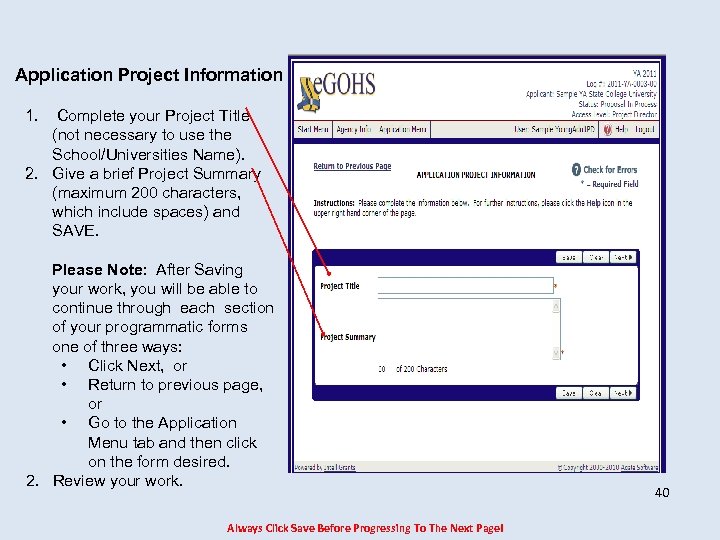 Application Project Information 1. Complete your Project Title (not necessary to use the School/Universities Name). 2. Give a brief Project Summary (maximum 200 characters, which include spaces) and SAVE. Please Note: After Saving your work, you will be able to continue through each section of your programmatic forms one of three ways: • Click Next, or • Return to previous page, or • Go to the Application Menu tab and then click on the form desired. 2. Review your work. Always Click Save Before Progressing To The Next Page! 40
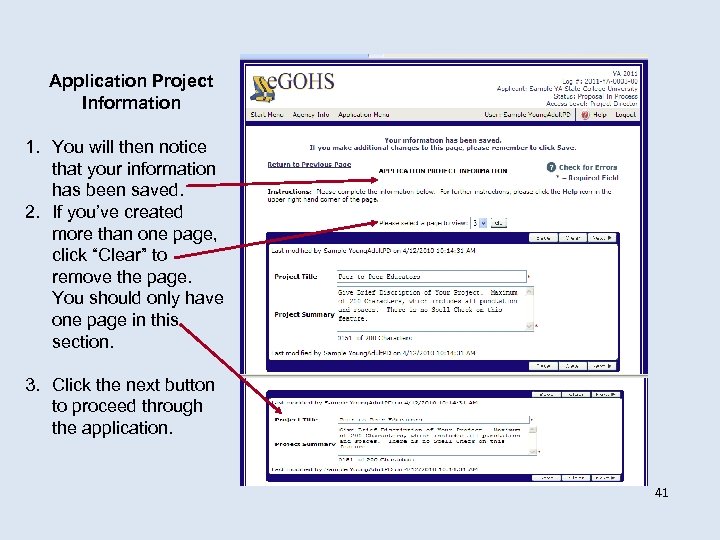 Application Project Information 1. You will then notice that your information has been saved. 2. If you’ve created more than one page, click “Clear” to remove the page. You should only have one page in this section. 3. Click the next button to proceed through the application. 41
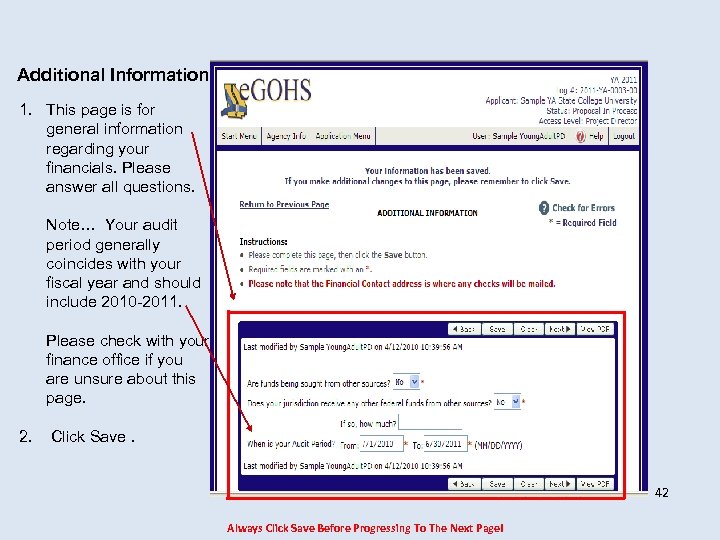 Additional Information 1. This page is for general information regarding your financials. Please answer all questions. Note… Your audit period generally coincides with your fiscal year and should include 2010 -2011. Please check with your finance office if you are unsure about this page. 2. Click Save. 42 Always Click Save Before Progressing To The Next Page!
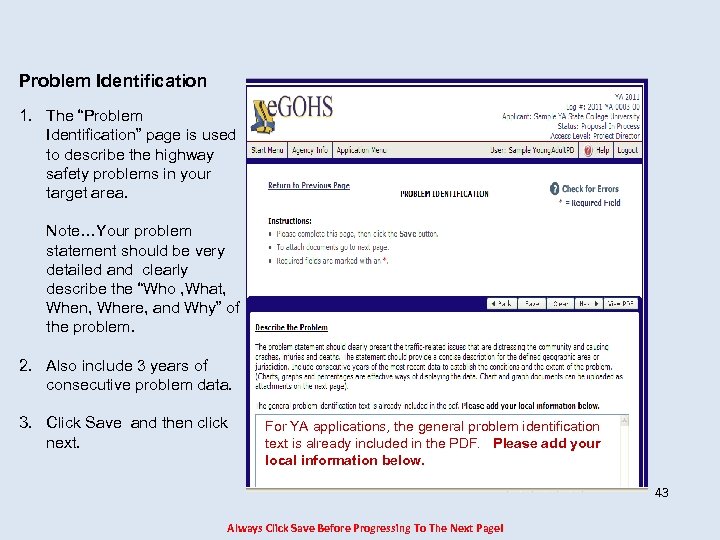 Problem Identification 1. The “Problem Identification” page is used to describe the highway safety problems in your target area. Note…Your problem statement should be very detailed and clearly describe the “Who , What, When, Where, and Why” of the problem. 2. Also include 3 years of consecutive problem data. 3. Click Save and then click next. For YA applications, the general problem identification text is already included in the PDF. Please add your local information below. 43 Always Click Save Before Progressing To The Next Page!
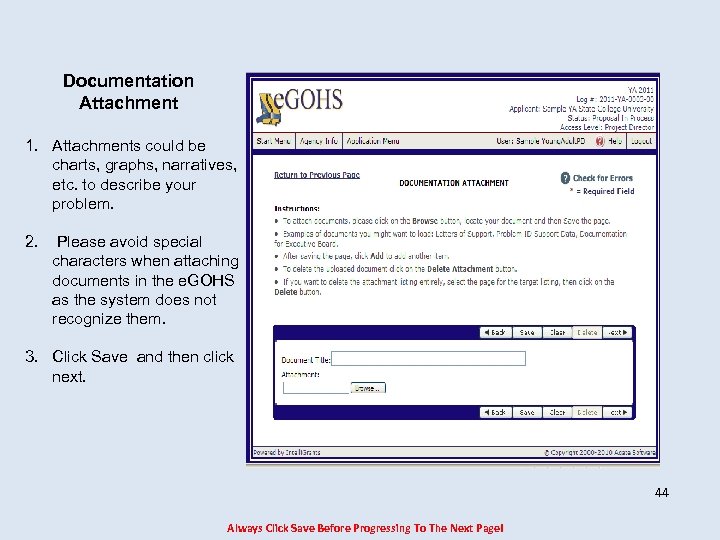 Documentation Attachment 1. Attachments could be charts, graphs, narratives, etc. to describe your problem. 2. Please avoid special characters when attaching documents in the e. GOHS as the system does not recognize them. 3. Click Save and then click next. 44 Always Click Save Before Progressing To The Next Page!
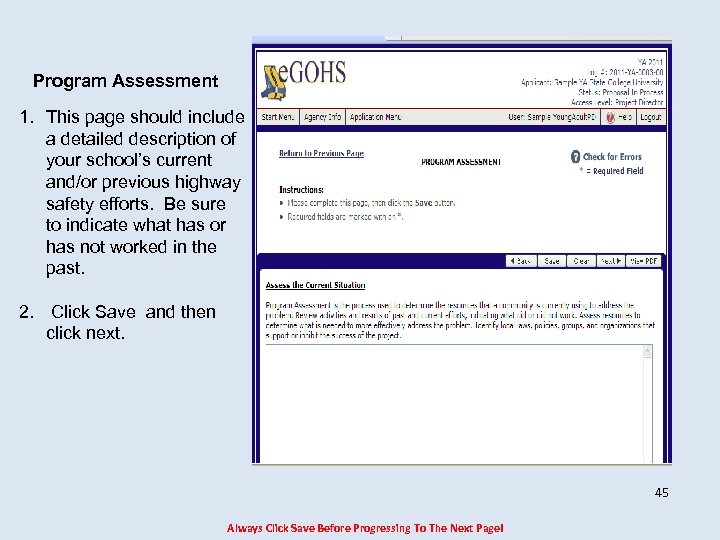 Program Assessment 1. This page should include a detailed description of your school’s current and/or previous highway safety efforts. Be sure to indicate what has or has not worked in the past. 2. Click Save and then click next. 45 Always Click Save Before Progressing To The Next Page!
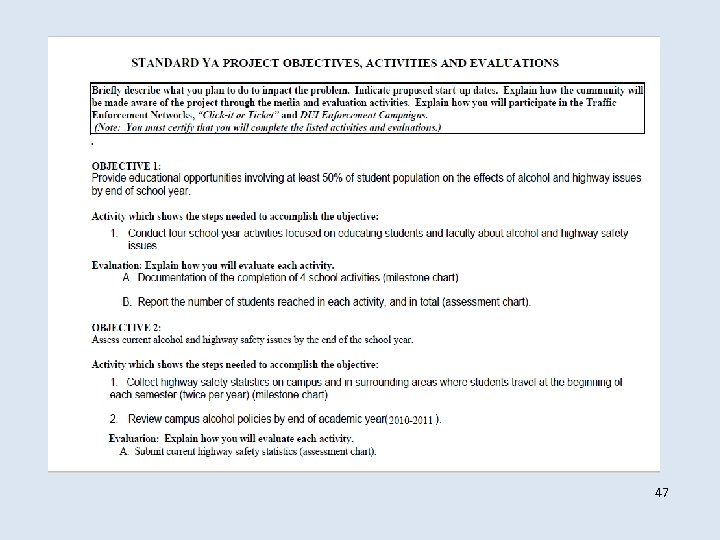
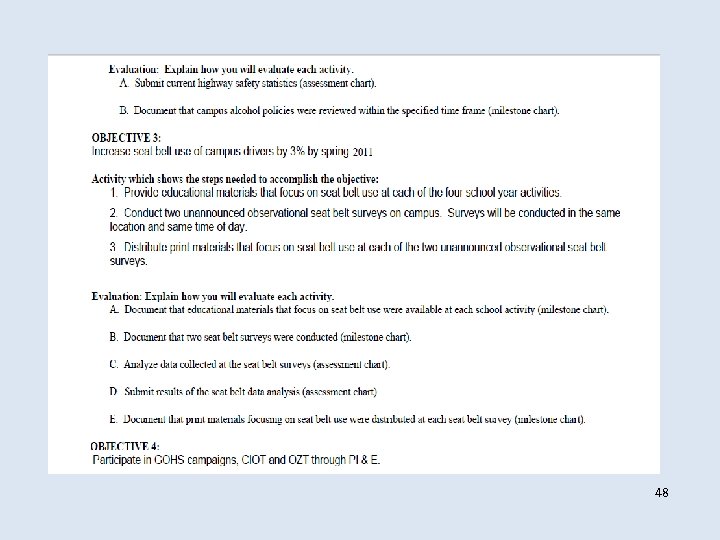
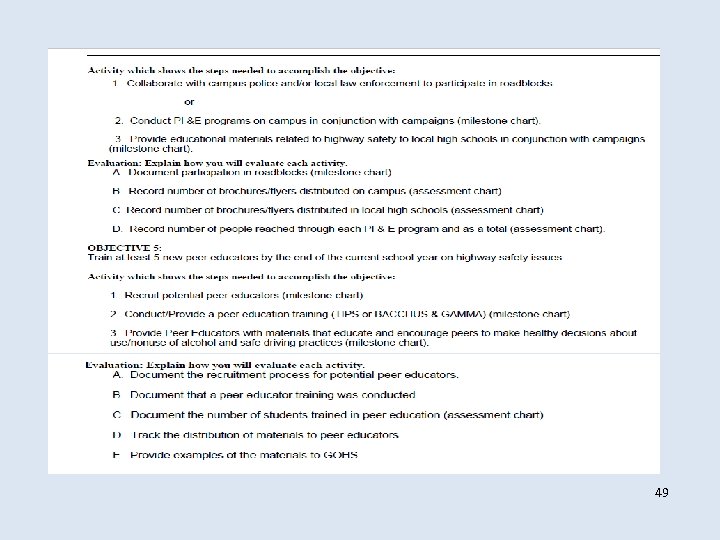
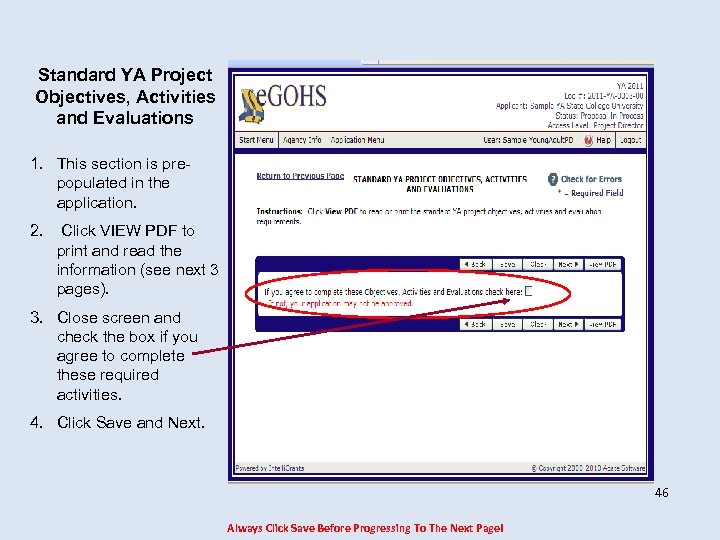 Standard YA Project Objectives, Activities and Evaluations 1. This section is prepopulated in the application. 2. Click VIEW PDF to print and read the information (see next 3 pages). 3. Close screen and check the box if you agree to complete these required activities. 4. Click Save and Next. 46 Always Click Save Before Progressing To The Next Page!
 47
47
 48
48
 49
49
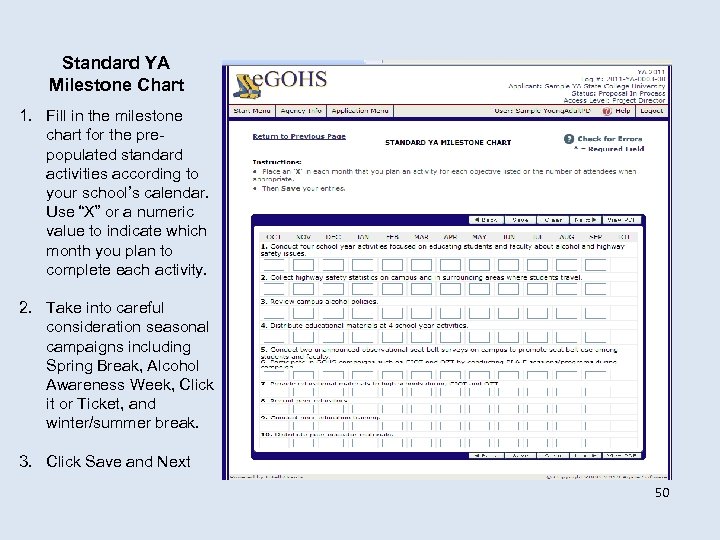 Standard YA Milestone Chart 1. Fill in the milestone chart for the prepopulated standard activities according to your school’s calendar. Use “X” or a numeric value to indicate which month you plan to complete each activity. 2. Take into careful consideration seasonal campaigns including Spring Break, Alcohol Awareness Week, Click it or Ticket, and winter/summer break. 3. Click Save and Next 50
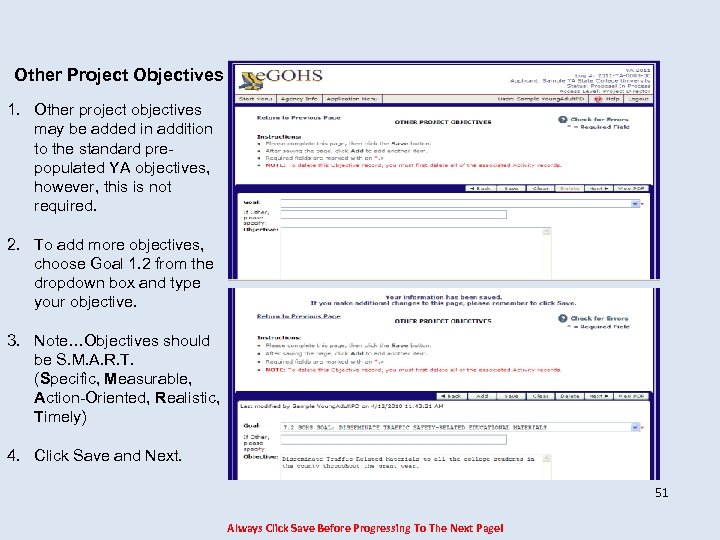 Other Project Objectives 1. Other project objectives may be added in addition to the standard prepopulated YA objectives, however, this is not required. 2. To add more objectives, choose Goal 1. 2 from the dropdown box and type your objective. 3. Note…Objectives should be S. M. A. R. T. (Specific, Measurable, Action-Oriented, Realistic, Timely) 4. Click Save and Next. 51 Always Click Save Before Progressing To The Next Page!
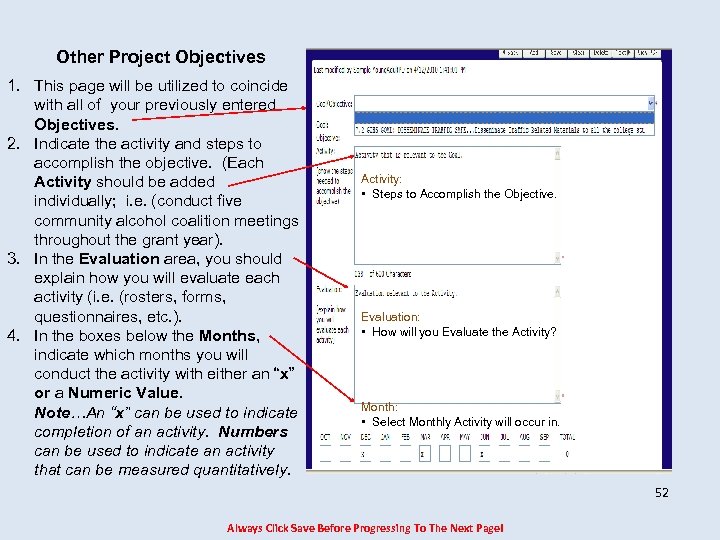 Other Project Objectives 1. This page will be utilized to coincide with all of your previously entered Objectives. 2. Indicate the activity and steps to accomplish the objective. (Each Activity should be added individually; i. e. (conduct five community alcohol coalition meetings throughout the grant year). 3. In the Evaluation area, you should explain how you will evaluate each activity (i. e. (rosters, forms, questionnaires, etc. ). 4. In the boxes below the Months, indicate which months you will conduct the activity with either an “x” or a Numeric Value. Note…An “x” can be used to indicate completion of an activity. Numbers can be used to indicate an activity that can be measured quantitatively. Activity: • Steps to Accomplish the Objective. Evaluation: • How will you Evaluate the Activity? Month: • Select Monthly Activity will occur in. 52 Always Click Save Before Progressing To The Next Page!
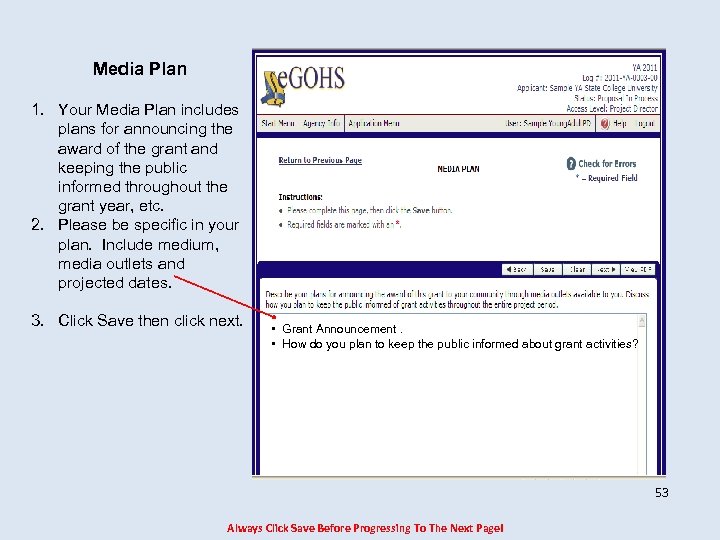 Media Plan 1. Your Media Plan includes plans for announcing the award of the grant and keeping the public informed throughout the grant year, etc. 2. Please be specific in your plan. Include medium, media outlets and projected dates. 3. Click Save then click next. • Grant Announcement. • How do you plan to keep the public informed about grant activities? 53 Always Click Save Before Progressing To The Next Page!
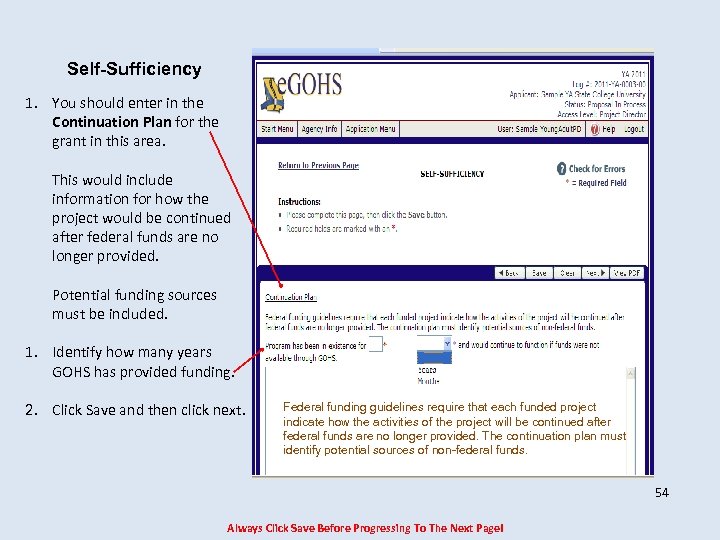 Self-Sufficiency 1. You should enter in the Continuation Plan for the grant in this area. This would include information for how the project would be continued after federal funds are no longer provided. Potential funding sources must be included. 1. Identify how many years GOHS has provided funding. 2. Click Save and then click next. Federal funding guidelines require that each funded project indicate how the activities of the project will be continued after federal funds are no longer provided. The continuation plan must identify potential sources of non-federal funds. 54 Always Click Save Before Progressing To The Next Page!
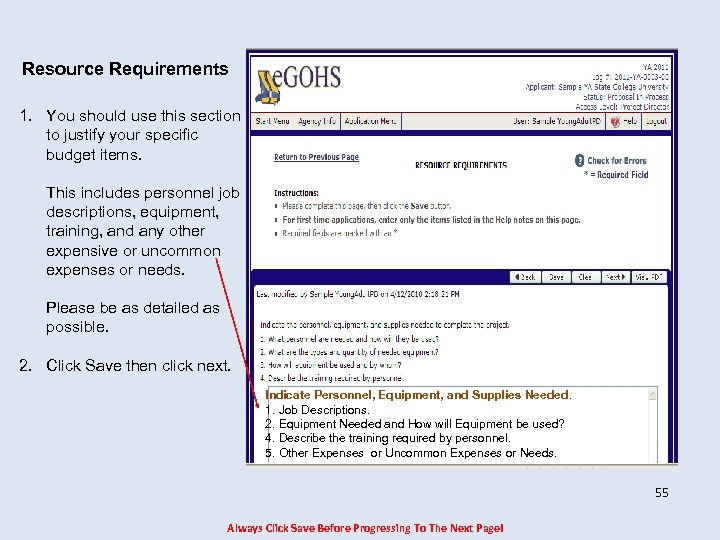 Resource Requirements 1. You should use this section to justify your specific budget items. This includes personnel job descriptions, equipment, training, and any other expensive or uncommon expenses or needs. Please be as detailed as possible. 2. Click Save then click next. Indicate Personnel, Equipment, and Supplies Needed. 1. Job Descriptions. 2. Equipment Needed and How will Equipment be used? 4. Describe the training required by personnel. 5. Other Expenses or Uncommon Expenses or Needs. 55 Always Click Save Before Progressing To The Next Page!
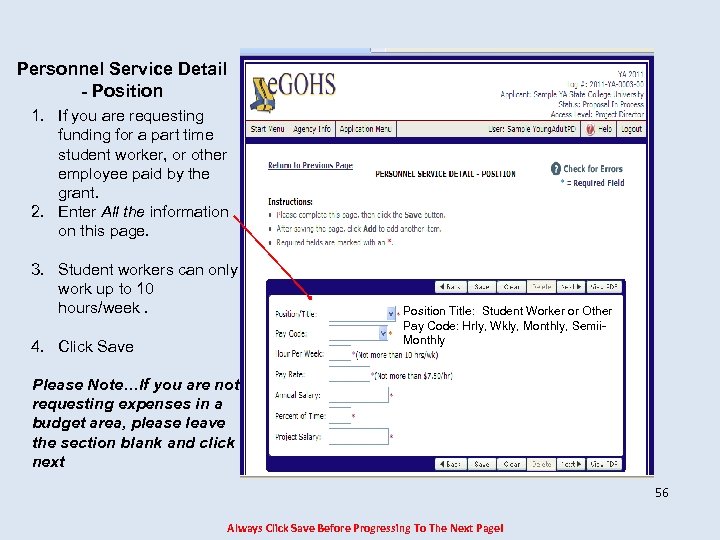 Personnel Service Detail - Position 1. If you are requesting funding for a part time student worker, or other employee paid by the grant. 2. Enter All the information on this page. 3. Student workers can only work up to 10 hours/week. 4. Click Save Position Title: Student Worker or Other Pay Code: Hrly, Wkly, Monthly, Semii. Monthly Please Note…If you are not requesting expenses in a budget area, please leave the section blank and click next 56 Always Click Save Before Progressing To The Next Page!
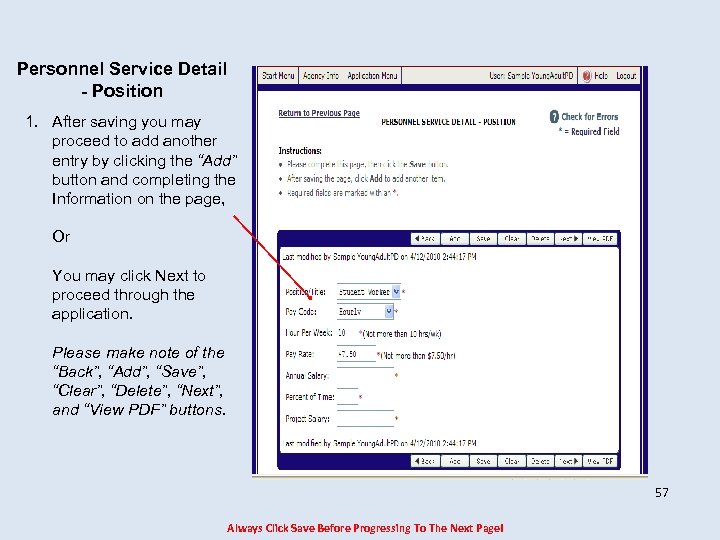 Personnel Service Detail - Position 1. After saving you may proceed to add another entry by clicking the “Add” button and completing the Information on the page, Or You may click Next to proceed through the application. Please make note of the “Back”, “Add”, “Save”, “Clear”, “Delete”, “Next”, and “View PDF” buttons. 57 Always Click Save Before Progressing To The Next Page!
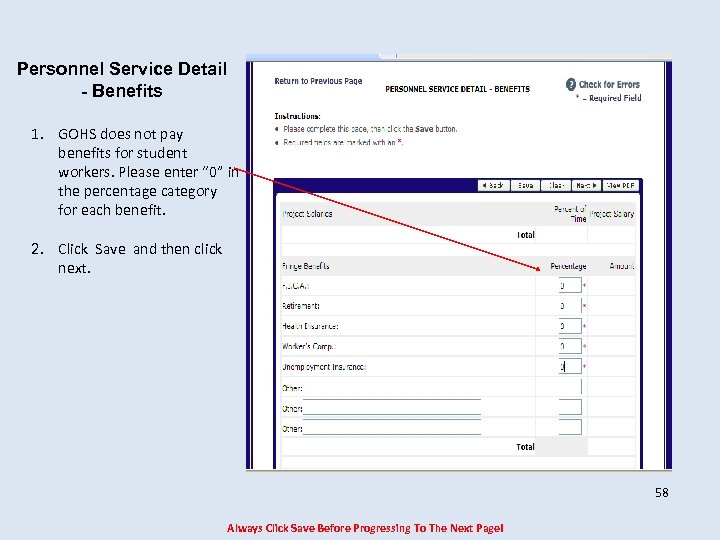 Personnel Service Detail - Benefits 1. GOHS does not pay benefits for student workers. Please enter “ 0” in the percentage category for each benefit. 2. Click Save and then click next. 58 Always Click Save Before Progressing To The Next Page!
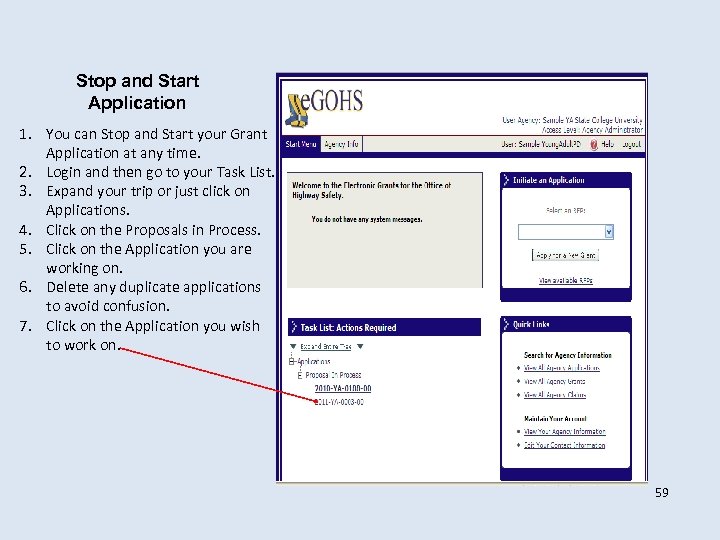 Stop and Start Application 1. You can Stop and Start your Grant Application at any time. 2. Login and then go to your Task List. 3. Expand your trip or just click on Applications. 4. Click on the Proposals in Process. 5. Click on the Application you are working on. 6. Delete any duplicate applications to avoid confusion. 7. Click on the Application you wish to work on. 59
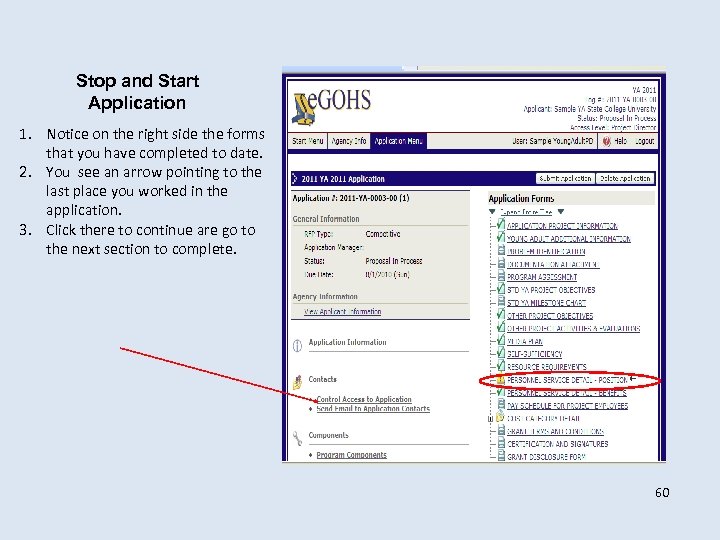 Stop and Start Application 1. Notice on the right side the forms that you have completed to date. 2. You see an arrow pointing to the last place you worked in the application. 3. Click there to continue are go to the next section to complete. 60
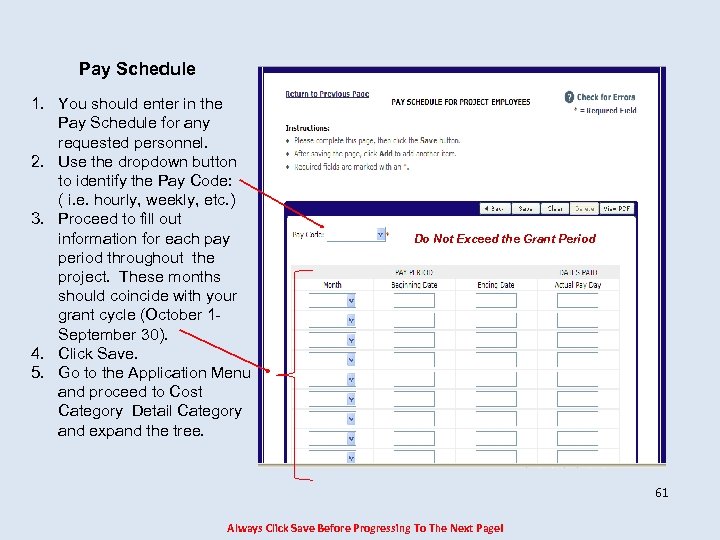 Pay Schedule 1. You should enter in the Pay Schedule for any requested personnel. 2. Use the dropdown button to identify the Pay Code: ( i. e. hourly, weekly, etc. ) 3. Proceed to fill out information for each pay period throughout the project. These months should coincide with your grant cycle (October 1 September 30). 4. Click Save. 5. Go to the Application Menu and proceed to Cost Category Detail Category and expand the tree. Do Not Exceed the Grant Period 61 Always Click Save Before Progressing To The Next Page!
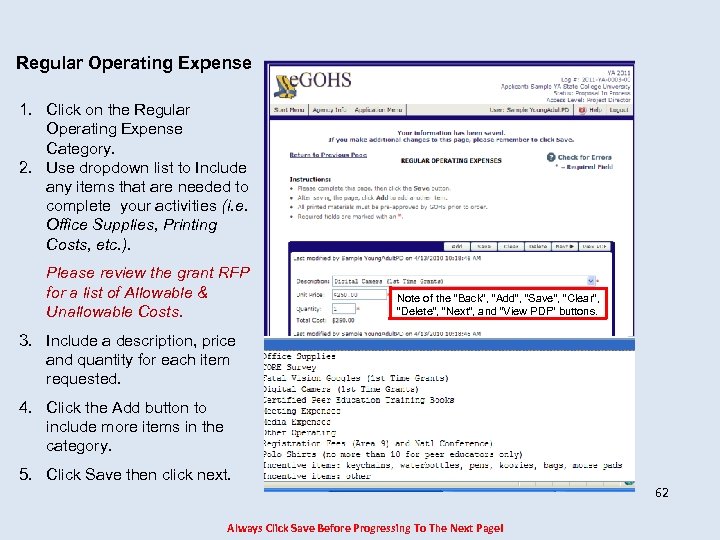 Regular Operating Expense 1. Click on the Regular Operating Expense Category. 2. Use dropdown list to Include any items that are needed to complete your activities (i. e. Office Supplies, Printing Costs, etc. ). Please review the grant RFP for a list of Allowable & Unallowable Costs. Note of the “Back”, “Add”, “Save”, “Clear”, “Delete”, “Next”, and “View PDF” buttons. 3. Include a description, price and quantity for each item requested. 4. Click the Add button to include more items in the category. 5. Click Save then click next. Always Click Save Before Progressing To The Next Page! 62
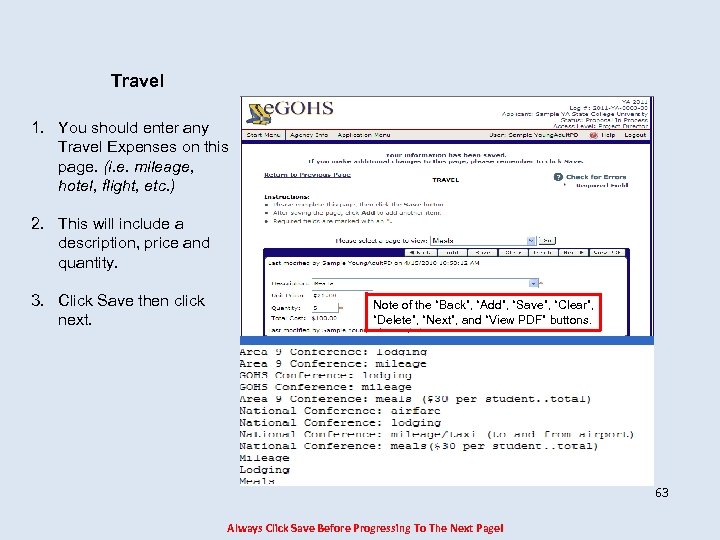 Travel 1. You should enter any Travel Expenses on this page. (i. e. mileage, hotel, flight, etc. ) 2. This will include a description, price and quantity. 3. Click Save then click next. Note of the “Back”, “Add”, “Save”, “Clear”, “Delete”, “Next”, and “View PDF” buttons. 63 Always Click Save Before Progressing To The Next Page!
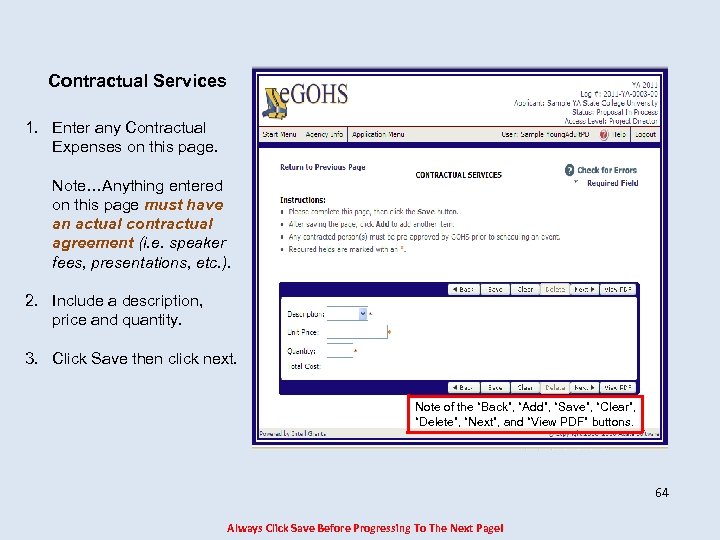 Contractual Services 1. Enter any Contractual Expenses on this page. Note…Anything entered on this page must have an actual contractual agreement (i. e. speaker fees, presentations, etc. ). 2. Include a description, price and quantity. 3. Click Save then click next. Note of the “Back”, “Add”, “Save”, “Clear”, “Delete”, “Next”, and “View PDF” buttons. 64 Always Click Save Before Progressing To The Next Page!
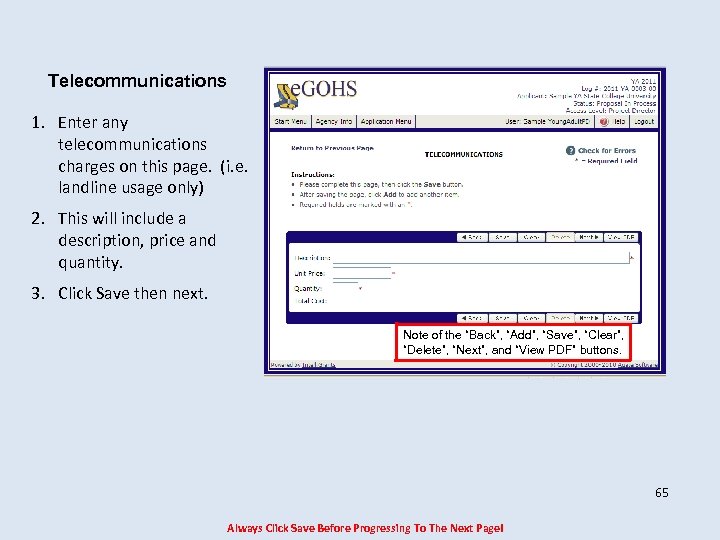 Telecommunications 1. Enter any telecommunications charges on this page. (i. e. landline usage only) 2. This will include a description, price and quantity. 3. Click Save then next. Note of the “Back”, “Add”, “Save”, “Clear”, “Delete”, “Next”, and “View PDF” buttons. 65 Always Click Save Before Progressing To The Next Page!
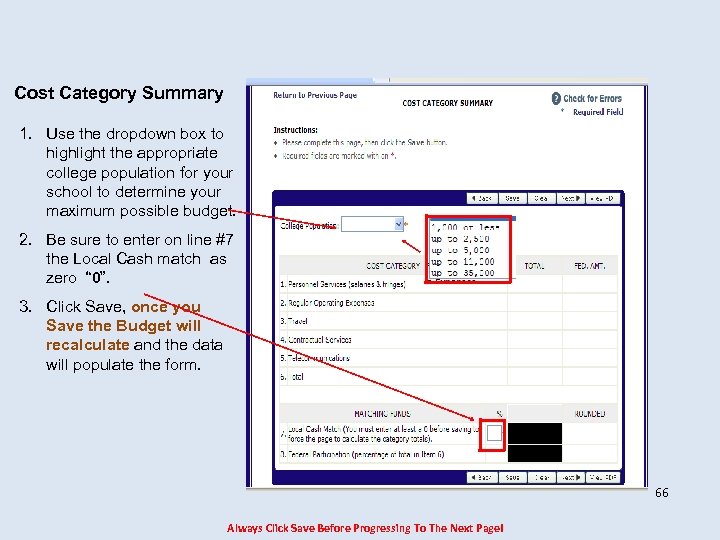 Cost Category Summary 1. Use the dropdown box to highlight the appropriate college population for your school to determine your maximum possible budget. 2. Be sure to enter on line #7 the Local Cash match as zero “ 0”. 3. Click Save, once you Save the Budget will recalculate and the data will populate the form. 66 Always Click Save Before Progressing To The Next Page!
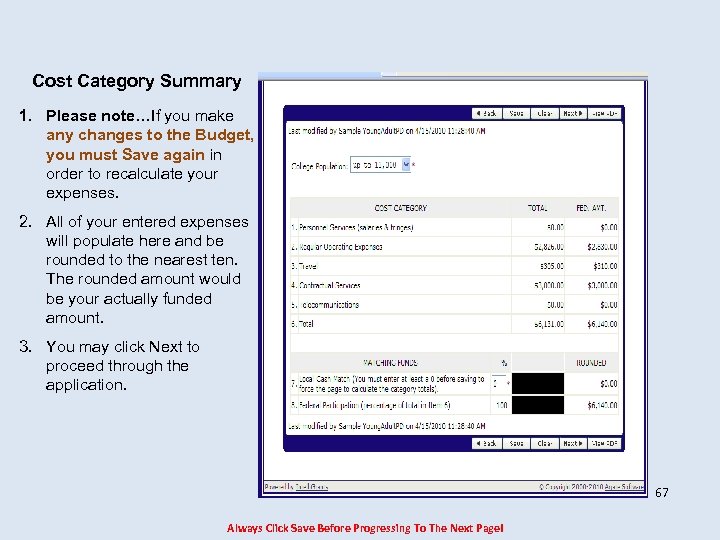 Cost Category Summary 1. Please note…If you make any changes to the Budget, you must Save again in order to recalculate your expenses. 2. All of your entered expenses will populate here and be rounded to the nearest ten. The rounded amount would be your actually funded amount. 3. You may click Next to proceed through the application. 67 Always Click Save Before Progressing To The Next Page!
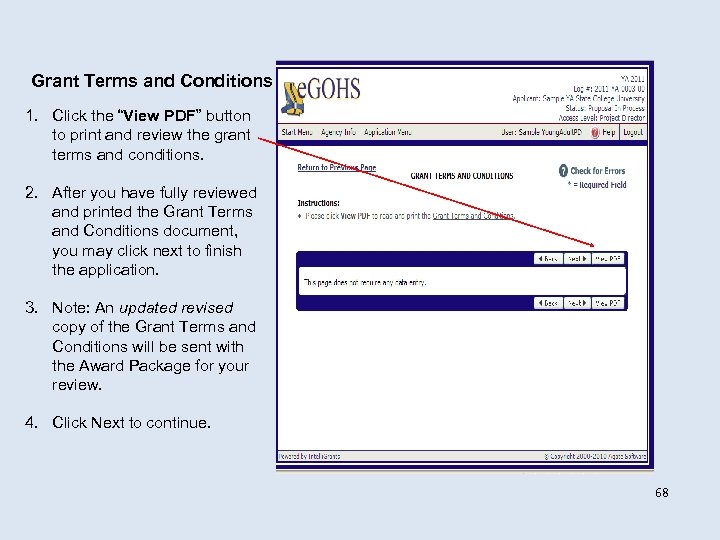 Grant Terms and Conditions 1. Click the “View PDF” button to print and review the grant terms and conditions. 2. After you have fully reviewed and printed the Grant Terms and Conditions document, you may click next to finish the application. 3. Note: An updated revised copy of the Grant Terms and Conditions will be sent with the Award Package for your review. 4. Click Next to continue. 68
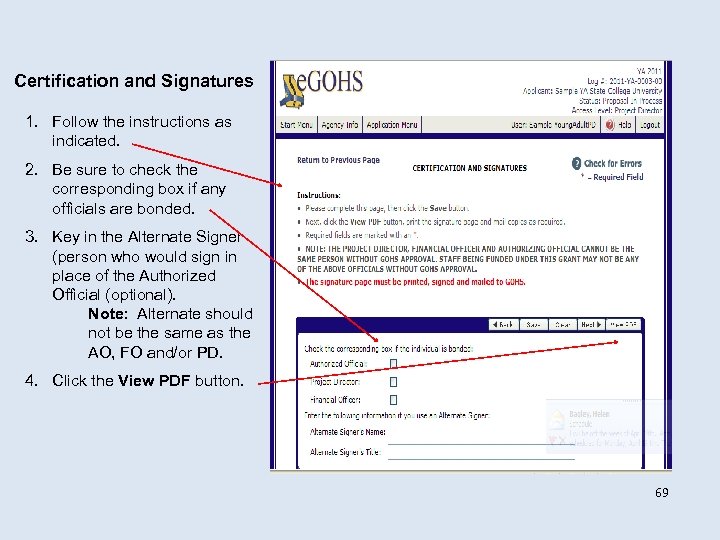 Certification and Signatures 1. Follow the instructions as indicated. 2. Be sure to check the corresponding box if any officials are bonded. 3. Key in the Alternate Signer (person who would sign in place of the Authorized Official (optional). Note: Alternate should not be the same as the AO, FO and/or PD. 4. Click the View PDF button. 69
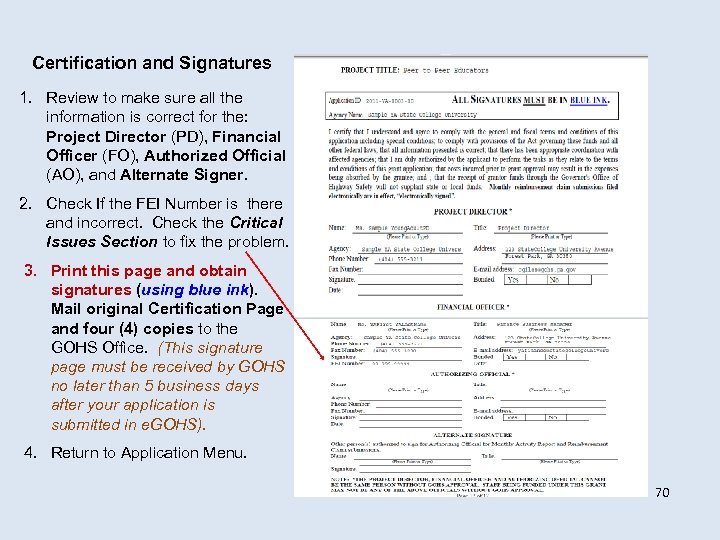 Certification and Signatures 1. Review to make sure all the information is correct for the: Project Director (PD), Financial Officer (FO), Authorized Official (AO), and Alternate Signer. 2. Check If the FEI Number is there and incorrect. Check the Critical Issues Section to fix the problem. 3. Print this page and obtain signatures (using blue ink). Mail original Certification Page and four (4) copies to the GOHS Office. (This signature page must be received by GOHS no later than 5 business days after your application is submitted in e. GOHS). 4. Return to Application Menu. 70
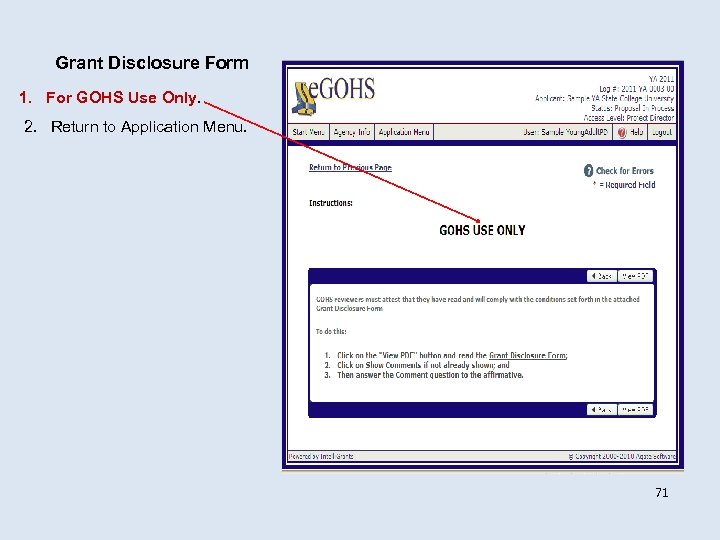 Grant Disclosure Form 1. For GOHS Use Only. 2. Return to Application Menu. 71
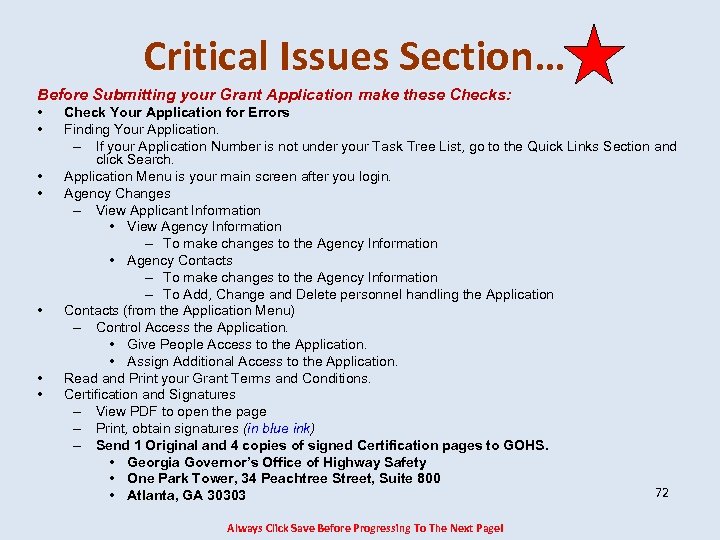 Critical Issues Section… Before Submitting your Grant Application make these Checks: • • Check Your Application for Errors Finding Your Application. – If your Application Number is not under your Task Tree List, go to the Quick Links Section and click Search. Application Menu is your main screen after you login. Agency Changes – View Applicant Information • View Agency Information – To make changes to the Agency Information • Agency Contacts – To make changes to the Agency Information – To Add, Change and Delete personnel handling the Application Contacts (from the Application Menu) – Control Access the Application. • Give People Access to the Application. • Assign Additional Access to the Application. Read and Print your Grant Terms and Conditions. Certification and Signatures – View PDF to open the page – Print, obtain signatures (in blue ink) – Send 1 Original and 4 copies of signed Certification pages to GOHS. • Georgia Governor’s Office of Highway Safety • One Park Tower, 34 Peachtree Street, Suite 800 72 • Atlanta, GA 30303 Always Click Save Before Progressing To The Next Page!
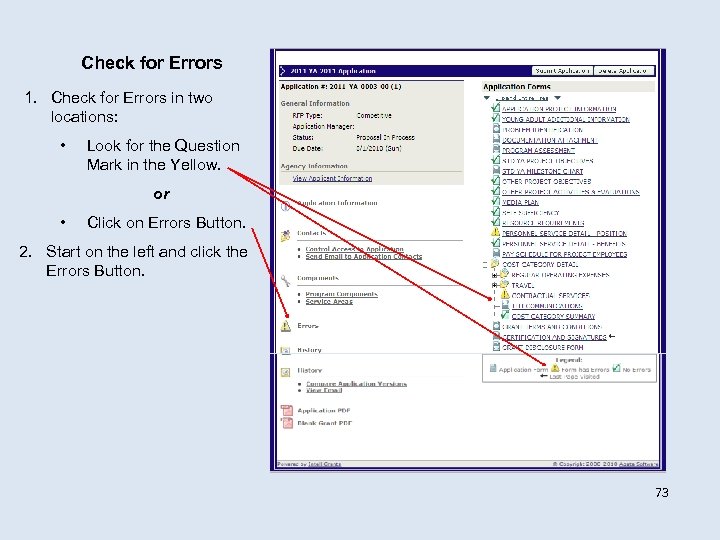 Check for Errors 1. Check for Errors in two locations: • Look for the Question Mark in the Yellow. or • Click on Errors Button. 2. Start on the left and click the Errors Button. 73
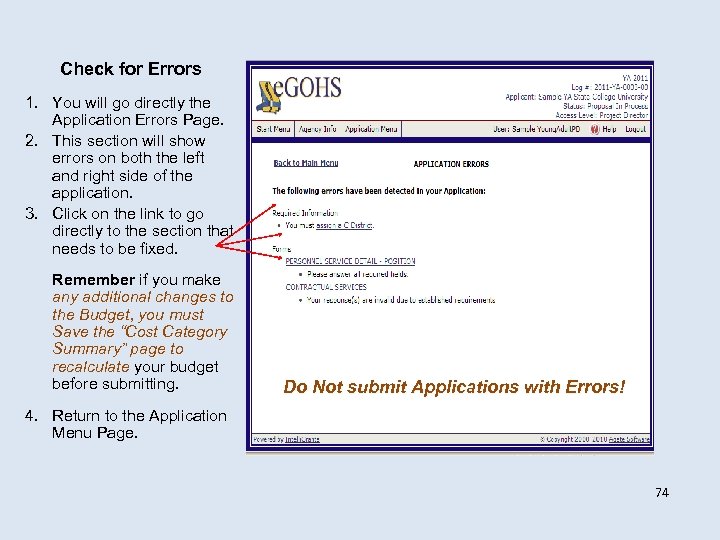 Check for Errors 1. You will go directly the Application Errors Page. 2. This section will show errors on both the left and right side of the application. 3. Click on the link to go directly to the section that needs to be fixed. Remember if you make any additional changes to the Budget, you must Save the “Cost Category Summary” page to recalculate your budget before submitting. Do Not submit Applications with Errors! 4. Return to the Application Menu Page. 74
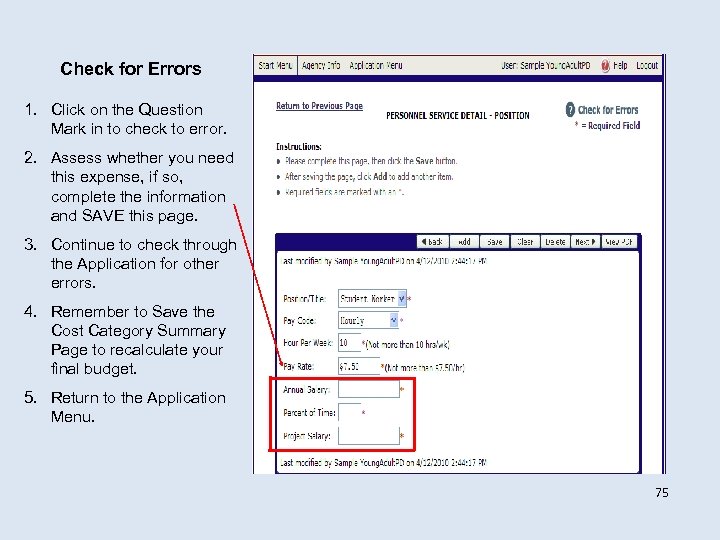 Check for Errors 1. Click on the Question Mark in to check to error. 2. Assess whether you need this expense, if so, complete the information and SAVE this page. 3. Continue to check through the Application for other errors. 4. Remember to Save the Cost Category Summary Page to recalculate your final budget. 5. Return to the Application Menu. 75
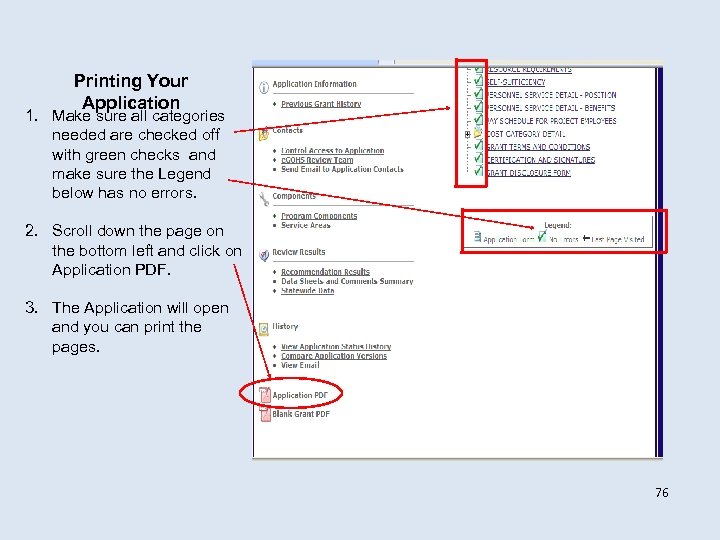 Printing Your Application 1. Make sure all categories needed are checked off with green checks and make sure the Legend below has no errors. 2. Scroll down the page on the bottom left and click on Application PDF. 3. The Application will open and you can print the pages. 76
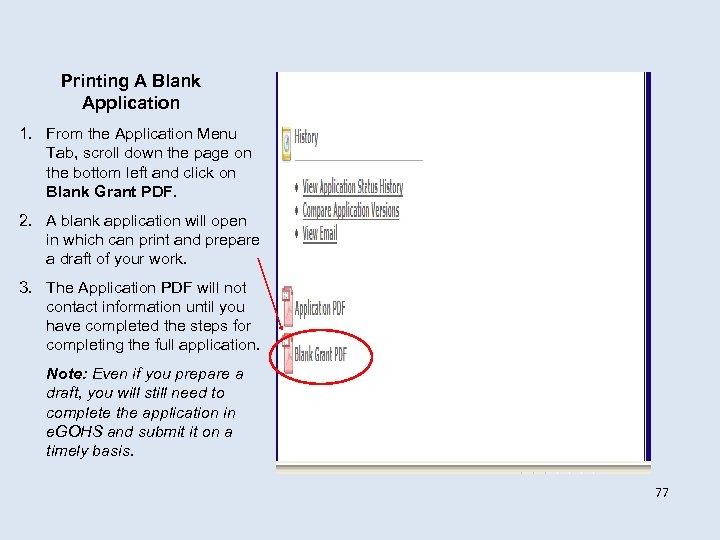 Printing A Blank Application 1. From the Application Menu Tab, scroll down the page on the bottom left and click on Blank Grant PDF. 2. A blank application will open in which can print and prepare a draft of your work. 3. The Application PDF will not contact information until you have completed the steps for completing the full application. Note: Even if you prepare a draft, you will still need to complete the application in e. GOHS and submit it on a timely basis. 77
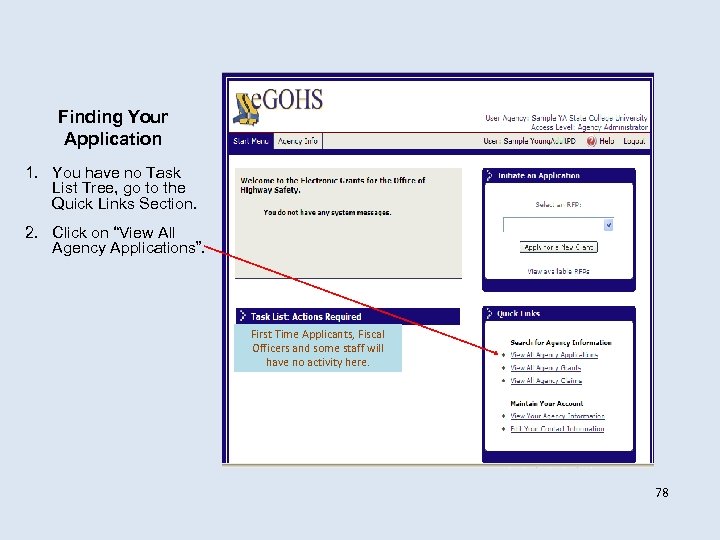 Finding Your Application 1. You have no Task List Tree, go to the Quick Links Section. 2. Click on “View All Agency Applications”. First Time Applicants, Fiscal Officers and some staff will have no activity here. 78
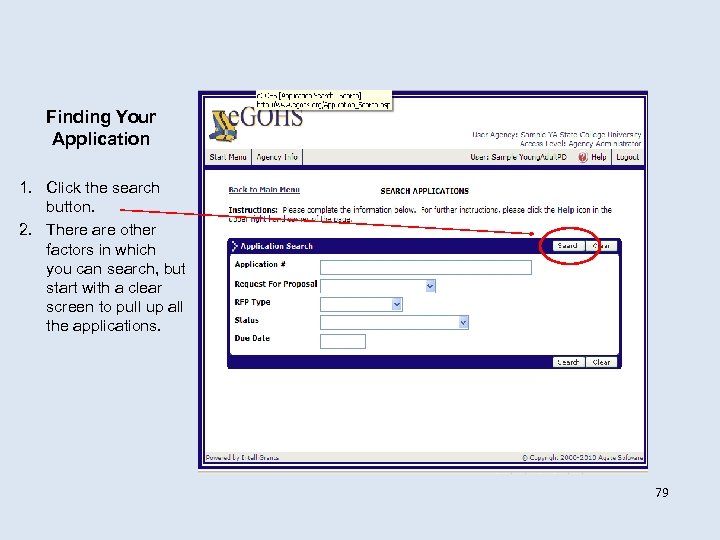 Finding Your Application 1. Click the search button. 2. There are other factors in which you can search, but start with a clear screen to pull up all the applications. 79
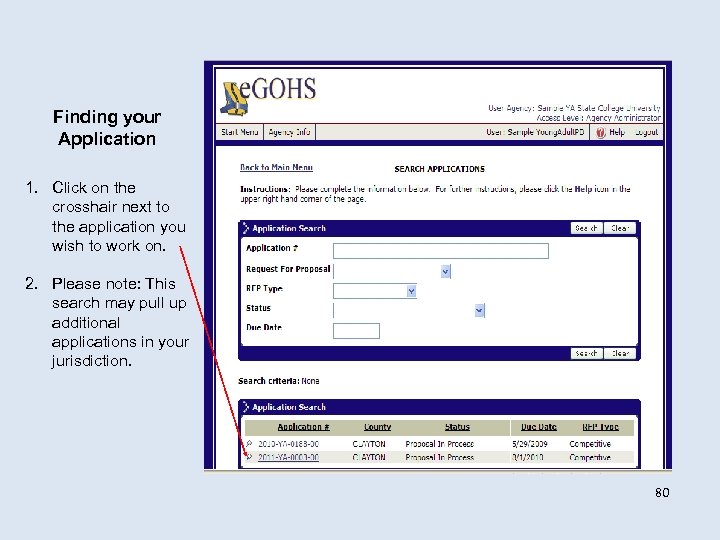 Finding your Application 1. Click on the crosshair next to the application you wish to work on. 2. Please note: This search may pull up additional applications in your jurisdiction. 80
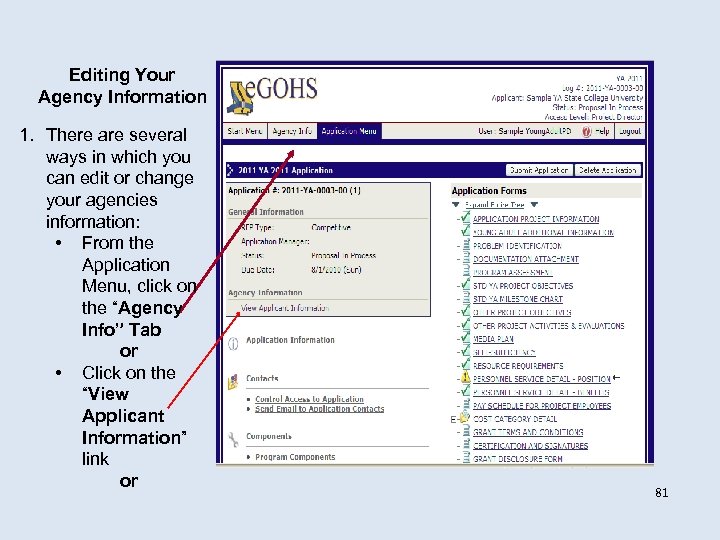 Editing Your Agency Information 1. There are several ways in which you can edit or change your agencies information: • From the Application Menu, click on the “Agency Info” Tab or • Click on the “View Applicant Information” link or 81
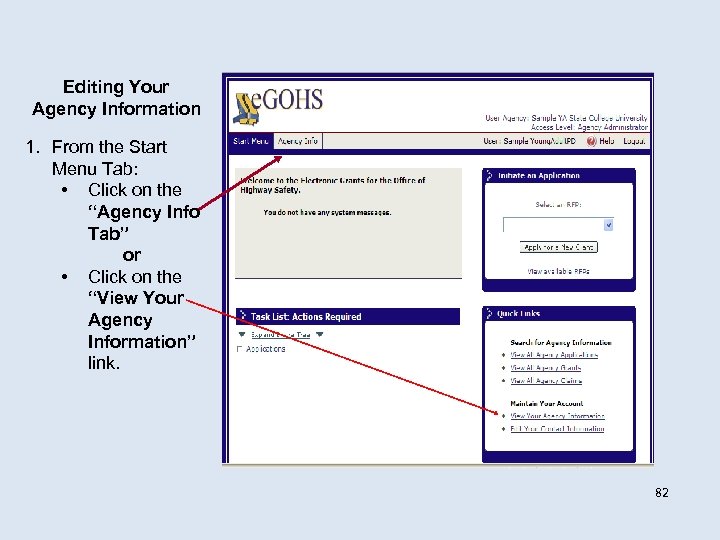 Editing Your Agency Information 1. From the Start Menu Tab: • Click on the “Agency Info Tab” or • Click on the “View Your Agency Information” link. 82
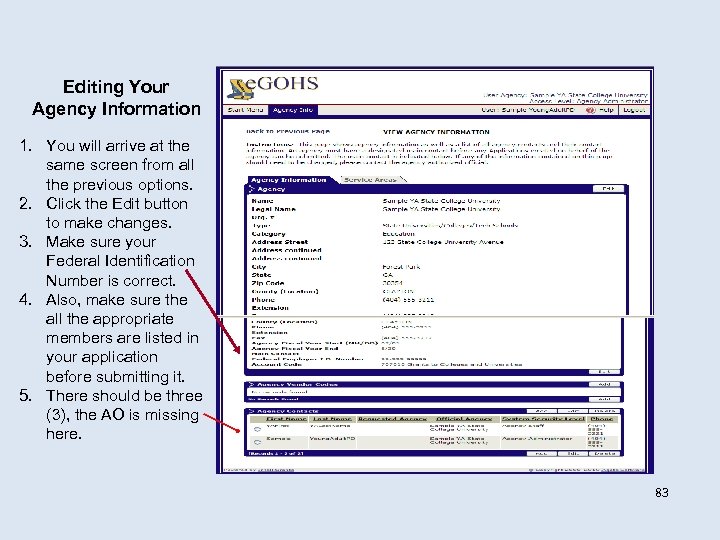 Editing Your Agency Information 1. You will arrive at the same screen from all the previous options. 2. Click the Edit button to make changes. 3. Make sure your Federal Identification Number is correct. 4. Also, make sure the all the appropriate members are listed in your application before submitting it. 5. There should be three (3), the AO is missing here. 83
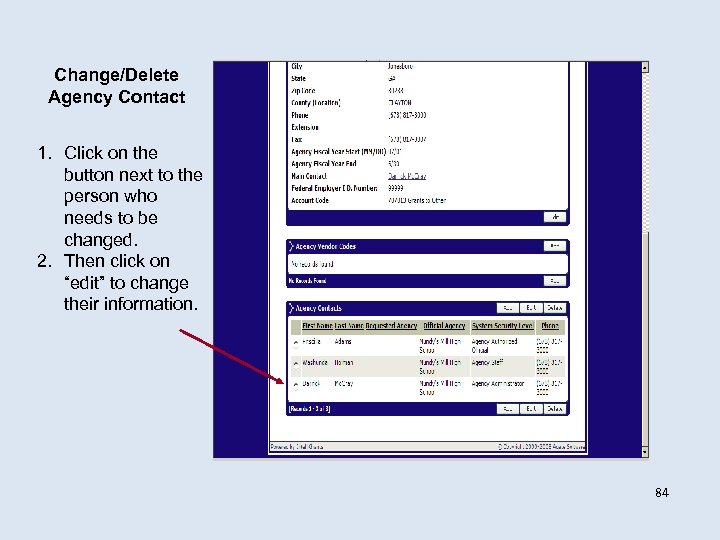 Change/Delete Agency Contact 1. Click on the button next to the person who needs to be changed. 2. Then click on “edit” to change their information. 84
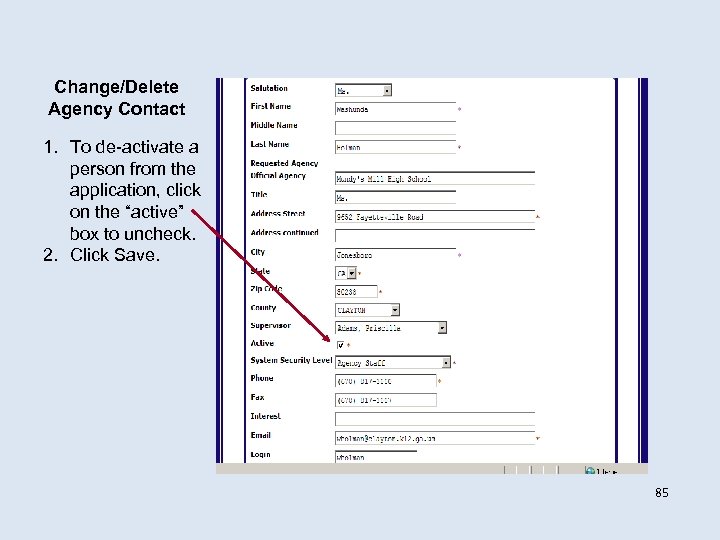 Change/Delete Agency Contact 1. To de-activate a person from the application, click on the “active” box to uncheck. 2. Click Save. 85
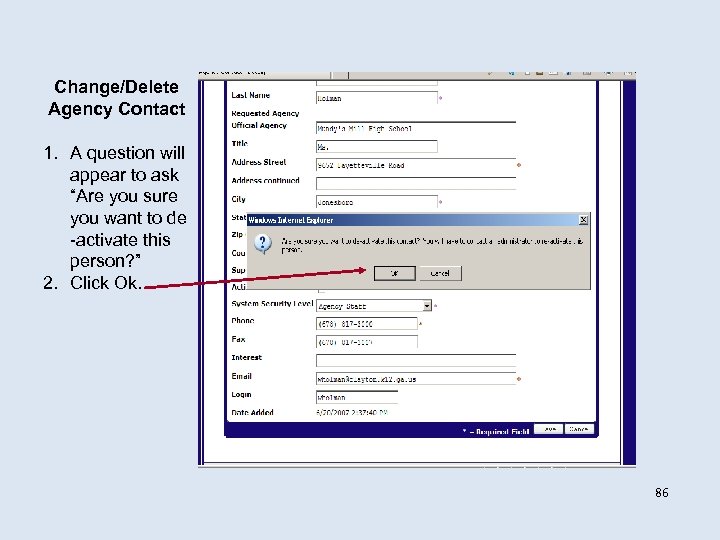 Change/Delete Agency Contact 1. A question will appear to ask “Are you sure you want to de -activate this person? ” 2. Click Ok. 86
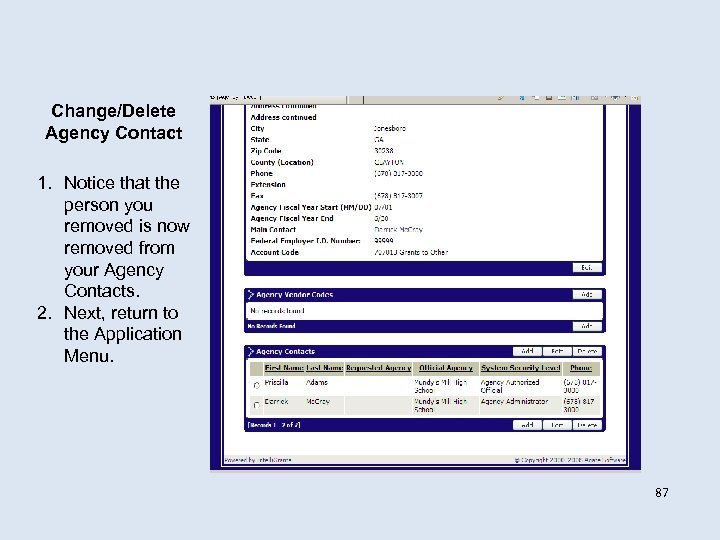 Change/Delete Agency Contact 1. Notice that the person you removed is now removed from your Agency Contacts. 2. Next, return to the Application Menu. 87
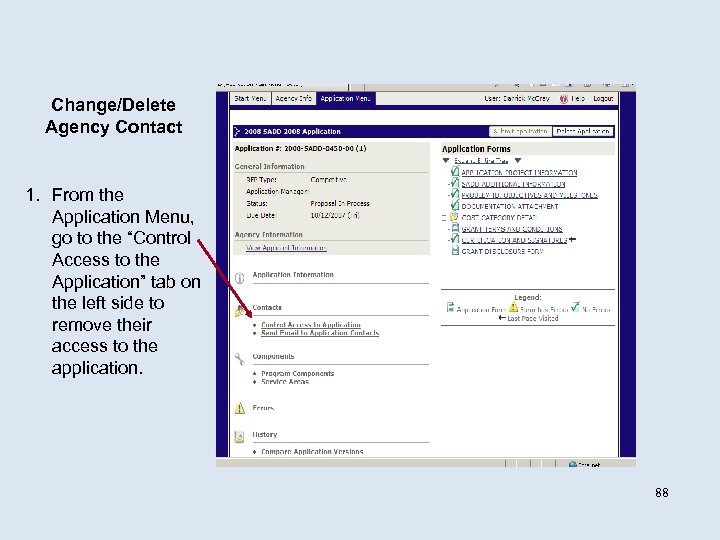 Change/Delete Agency Contact 1. From the Application Menu, go to the “Control Access to the Application” tab on the left side to remove their access to the application. 88
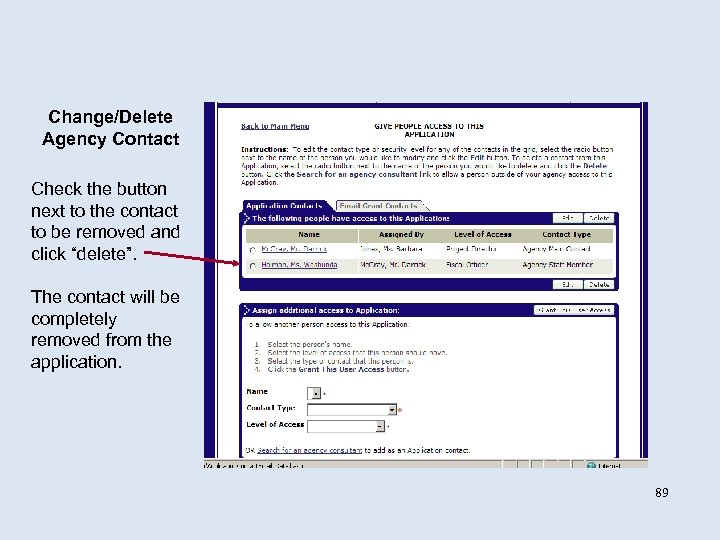 Change/Delete Agency Contact Check the button next to the contact to be removed and click “delete”. The contact will be completely removed from the application. 89
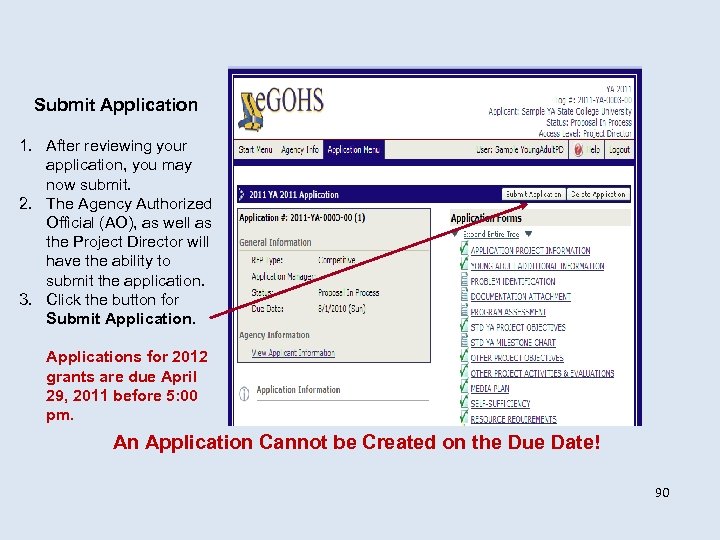 Submit Application 1. After reviewing your application, you may now submit. 2. The Agency Authorized Official (AO), as well as the Project Director will have the ability to submit the application. 3. Click the button for Submit Applications for 2012 grants are due April 29, 2011 before 5: 00 pm. An Application Cannot be Created on the Due Date! 90
 Contact GOHS with Questions? ? GOHS Help Desk 404 -656 -6996 Main Number That ends the GOHS 1 -888 -420 -0767 Toll Free SADD Grant Application Process 404 -651 -9107 Main Fax