


 Скачать презентацию Xen Client and Hyper-V 5 0 Enterprise Synchronizer
97a8b3ea2f2385192d7e92b6e4d957d2.ppt
- Количество слайдов: 45
 Xen. Client and Hyper-V 5. 0 Enterprise Synchronizer June 10, 2013
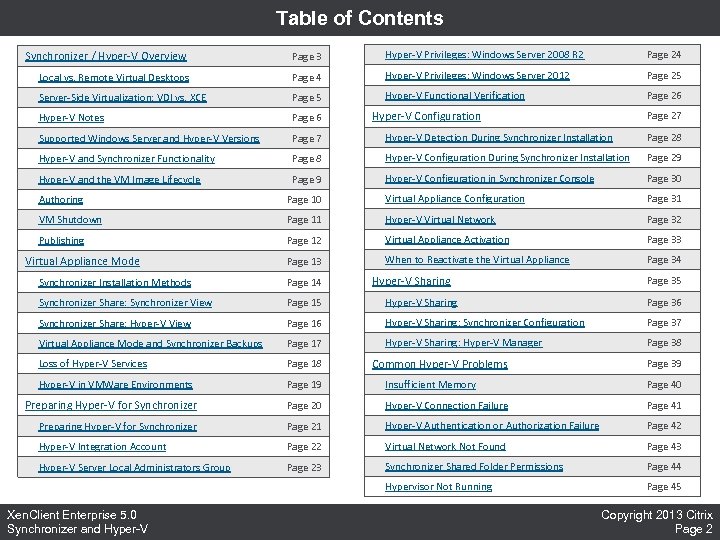 Table of Contents Synchronizer / Hyper-V Overview Page 3 Hyper-V Privileges: Windows Server 2008 R 2 Page 24 Local vs. Remote Virtual Desktops Page 4 Hyper-V Privileges: Windows Server 2012 Page 25 Server-Side Virtualization: VDI vs. XCE Page 5 Hyper-V Functional Verification Page 26 Hyper-V Notes Page 6 Supported Windows Server and Hyper-V Versions Page 7 Hyper-V Detection During Synchronizer Installation Page 28 Hyper-V and Synchronizer Functionality Page 8 Hyper-V Configuration During Synchronizer Installation Page 29 Hyper-V and the VM Image Lifecycle Page 9 Hyper-V Configuration in Synchronizer Console Page 30 Hyper-V Configuration Page 27 Authoring Page 10 Virtual Appliance Configuration Page 31 VM Shutdown Page 11 Hyper-V Virtual Network Page 32 Publishing Page 12 Virtual Appliance Activation Page 33 Page 13 When to Reactivate the Virtual Appliance Page 34 Virtual Appliance Mode Hyper-V Sharing Page 35 Synchronizer Installation Methods Page 14 Synchronizer Share: Synchronizer View Page 15 Hyper-V Sharing Page 36 Synchronizer Share: Hyper-V View Page 16 Hyper-V Sharing: Synchronizer Configuration Page 37 Virtual Appliance Mode and Synchronizer Backups Page 17 Hyper-V Sharing: Hyper-V Manager Page 38 Loss of Hyper-V Services Page 18 Hyper-V in VMWare Environments Page 19 Insufficient Memory Page 40 Preparing Hyper-V for Synchronizer Page 20 Hyper-V Connection Failure Page 41 Preparing Hyper-V for Synchronizer Page 21 Hyper-V Authentication or Authorization Failure Page 42 Hyper-V Integration Account Page 22 Virtual Network Not Found Page 43 Hyper-V Server Local Administrators Group Page 23 Synchronizer Shared Folder Permissions Page 44 Hypervisor Not Running Page 45 Xen. Client Enterprise 5. 0 Synchronizer and Hyper-V Common Hyper-V Problems Page 39 Copyright 2013 Citrix Page 2
 Synchronizer / Hyper-V Overview
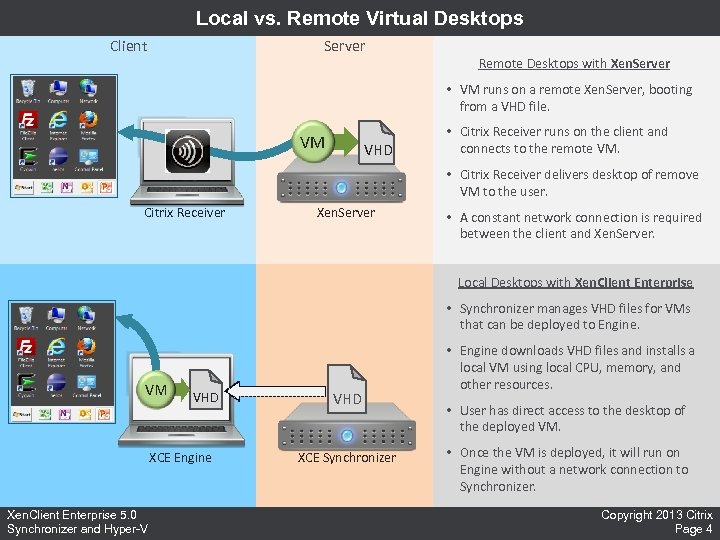 Local vs. Remote Virtual Desktops Client Server Remote Desktops with Xen. Server • VM runs on a remote Xen. Server, booting from a VHD file. VM VHD • Citrix Receiver runs on the client and connects to the remote VM. • Citrix Receiver delivers desktop of remove VM to the user. Citrix Receiver Xen. Server • A constant network connection is required between the client and Xen. Server. Local Desktops with Xen. Client Enterprise • Synchronizer manages VHD files for VMs that can be deployed to Engine. VM VHD XCE Engine Xen. Client Enterprise 5. 0 Synchronizer and Hyper-V VHD XCE Synchronizer • Engine downloads VHD files and installs a local VM using local CPU, memory, and other resources. • User has direct access to the desktop of the deployed VM. • Once the VM is deployed, it will run on Engine without a network connection to Synchronizer. Copyright 2013 Citrix Page 4
 Server-Side Virtualization: VDI vs. XCE Remote Virtual Desktops (VDI): • Remote desktop VMs run on virtual infrastructure (Xen. Server) in the network datacenter. • Clients use remote access software (Citrix Receiver) for virtual desktop connections. • Server-side virtualization infrastructure is critical for user access to virtual desktops. Xen. Client Enterprise Virtual Desktops: • Primary virtualization platform is the XCE Engine. • Deployed VMs run locally, using local resources, with direct access to the VM desktop. • Deployed VMs have no dependency on any kind of server-side virtualization infrastructure. • But Synchronizer uses Hyper-V as a tool for authoring and publishing VM images. Important Distinction: • Synchronizer only uses Hyper-V to manage VM images (authoring and publishing). • Not to run VMs for user access to virtual desktops. Xen. Client Enterprise 5. 0 Synchronizer and Hyper-V Copyright 2013 Citrix Page 5
 Hyper-V Notes Primary vs. Remote Synchronizer Servers • Synchronizer may be configured with one primary server and many remote servers. • Only the primary server uses Hyper-V. Remote servers do not user Hyper-V at all. Hyper-V and Native Windows • Hyper-V requires native Windows, it won’t run in a VM (nested virtualization isn’t supported). • Therefore the primary Synchronizer server needs a native Windows server. • This can sometimes present challenges in fully virtualized environments. • Virtual appliance installation is usually an acceptable solution. Hyper-V Integration Methods • Native: This means installing Synchronizer into a native (non-VM) Windows server with the Hyper -V role enabled. This is the most common installation option. • Virtual Appliance: This means installing Synchronizer in a VM, then integrating with Hyper-V running elsewhere. Typically used in VMWare or Xen. Server environments, or when Hyper-V is in use for other purposes besides Synchronizer. Xen. Client Enterprise 5. 0 Synchronizer and Hyper-V Copyright 2013 Citrix Page 6
 Supported Windows Server and Hyper-V Versions • XCE Synchronizer version 5. 0 supports: • Windows Server 2008 R 2 • Windows Server 2012 • Previous versions of Synchronizer only supported Windows Server 2008 R 2. • For Synchronizer installed in a VM (virtual appliance mode): • Synchronizer integrates with a separate Hyper-V server. • The Synchronizer VM and the Hyper-V server must run the same version of Windows. • If Synchronizer is installed in a Windows Server 2008 R 2 VM, then it must integrate with a separate Windows Server 2008 R 2 Hyper-V server. • If Synchronizer is installed in a Windows Serve 2012 VM, then it must integrate with a separate Windows Server 2012 Hyper-V server. Xen. Client Enterprise 5. 0 Synchronizer and Hyper-V Copyright 2013 Citrix Page 7
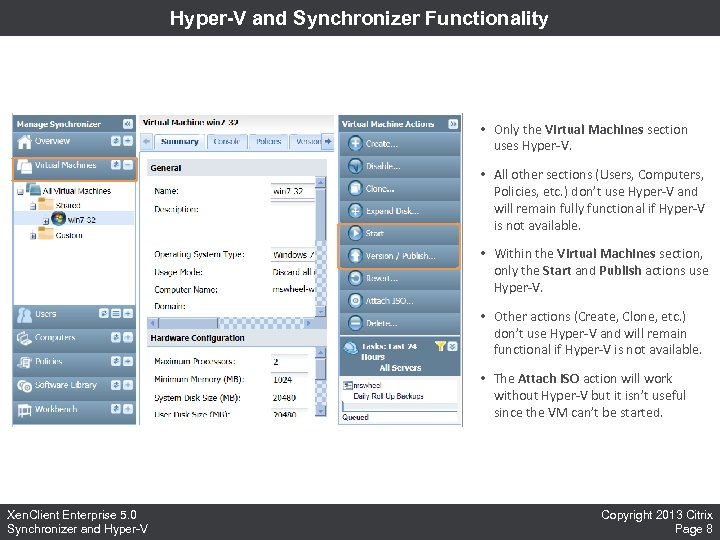 Hyper-V and Synchronizer Functionality • Only the Virtual Machines section uses Hyper-V. • All other sections (Users, Computers, Policies, etc. ) don’t use Hyper-V and will remain fully functional if Hyper-V is not available. • Within the Virtual Machines section, only the Start and Publish actions use Hyper-V. • Other actions (Create, Clone, etc. ) don’t use Hyper-V and will remain functional if Hyper-V is not available. • The Attach ISO action will work without Hyper-V but it isn’t useful since the VM can’t be started. Xen. Client Enterprise 5. 0 Synchronizer and Hyper-V Copyright 2013 Citrix Page 8
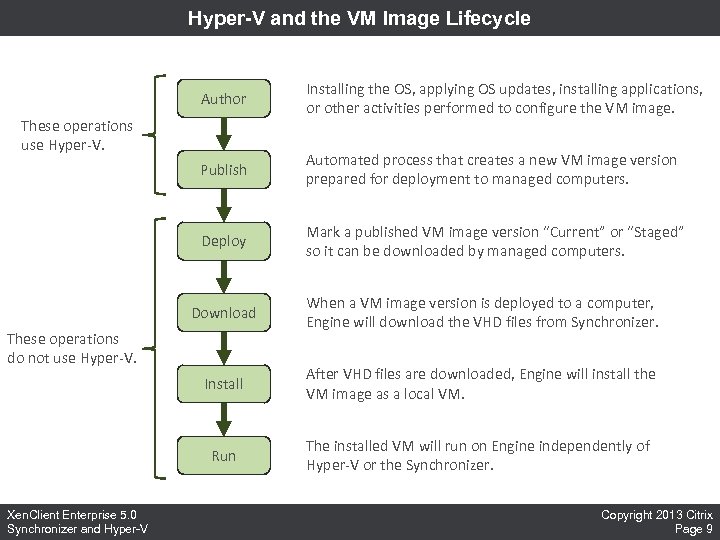 Hyper-V and the VM Image Lifecycle Author Installing the OS, applying OS updates, installing applications, or other activities performed to configure the VM image. Publish Automated process that creates a new VM image version prepared for deployment to managed computers. Deploy Mark a published VM image version “Current” or “Staged” so it can be downloaded by managed computers. These operations use Hyper-V. Download When a VM image version is deployed to a computer, Engine will download the VHD files from Synchronizer. Install After VHD files are downloaded, Engine will install the VM image as a local VM. Run The installed VM will run on Engine independently of Hyper-V or the Synchronizer. These operations do not use Hyper-V. Xen. Client Enterprise 5. 0 Synchronizer and Hyper-V Copyright 2013 Citrix Page 9
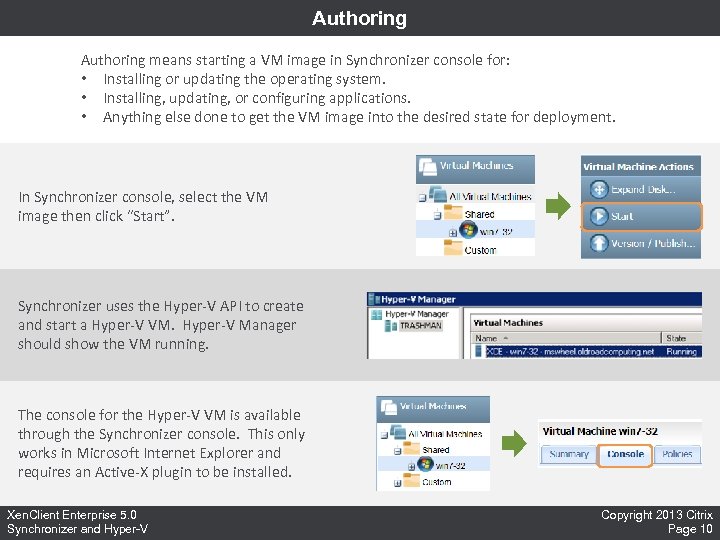 Authoring means starting a VM image in Synchronizer console for: • Installing or updating the operating system. • Installing, updating, or configuring applications. • Anything else done to get the VM image into the desired state for deployment. In Synchronizer console, select the VM image then click “Start”. Synchronizer uses the Hyper-V API to create and start a Hyper-V VM. Hyper-V Manager should show the VM running. The console for the Hyper-V VM is available through the Synchronizer console. This only works in Microsoft Internet Explorer and requires an Active-X plugin to be installed. Xen. Client Enterprise 5. 0 Synchronizer and Hyper-V Copyright 2013 Citrix Page 10
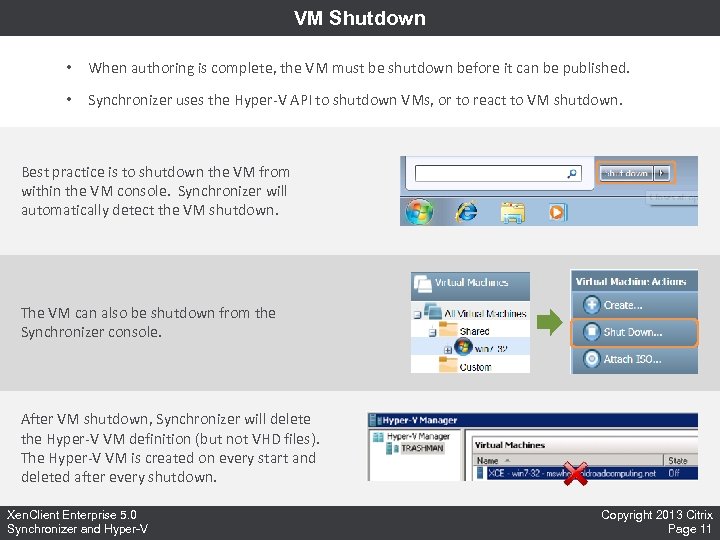 VM Shutdown • When authoring is complete, the VM must be shutdown before it can be published. • Synchronizer uses the Hyper-V API to shutdown VMs, or to react to VM shutdown. Best practice is to shutdown the VM from within the VM console. Synchronizer will automatically detect the VM shutdown. The VM can also be shutdown from the Synchronizer console. After VM shutdown, Synchronizer will delete the Hyper-V VM definition (but not VHD files). The Hyper-V VM is created on every start and deleted after every shutdown. Xen. Client Enterprise 5. 0 Synchronizer and Hyper-V Copyright 2013 Citrix Page 11
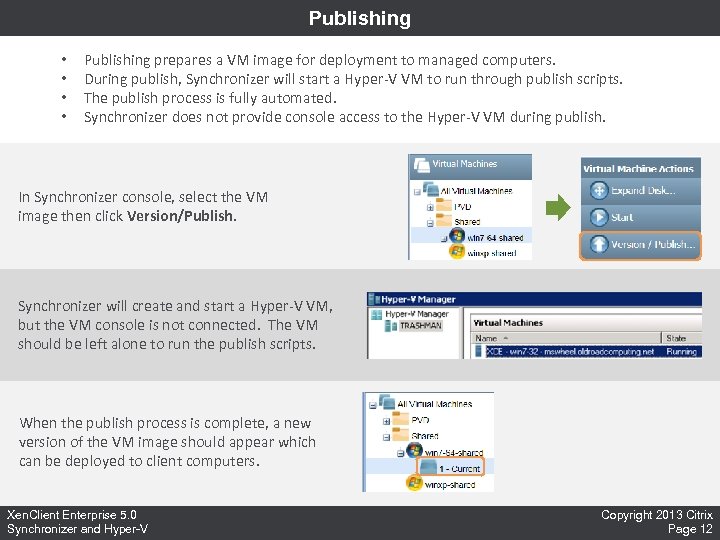 Publishing • • Publishing prepares a VM image for deployment to managed computers. During publish, Synchronizer will start a Hyper-V VM to run through publish scripts. The publish process is fully automated. Synchronizer does not provide console access to the Hyper-V VM during publish. In Synchronizer console, select the VM image then click Version/Publish. Synchronizer will create and start a Hyper-V VM, but the VM console is not connected. The VM should be left alone to run the publish scripts. When the publish process is complete, a new version of the VM image should appear which can be deployed to client computers. Xen. Client Enterprise 5. 0 Synchronizer and Hyper-V Copyright 2013 Citrix Page 12
 Virtual Appliance Mode
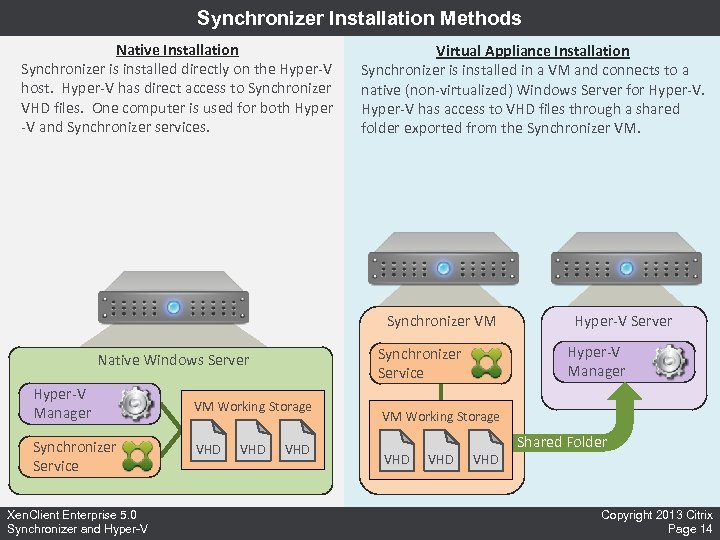 Synchronizer Installation Methods Native Installation Synchronizer is installed directly on the Hyper-V host. Hyper-V has direct access to Synchronizer VHD files. One computer is used for both Hyper -V and Synchronizer services. Virtual Appliance Installation Synchronizer is installed in a VM and connects to a native (non-virtualized) Windows Server for Hyper-V has access to VHD files through a shared folder exported from the Synchronizer VM Hyper-V Manager Synchronizer Service Xen. Client Enterprise 5. 0 Synchronizer and Hyper-V VM Working Storage VHD Hyper-V Manager Synchronizer Service Native Windows Server VHD Hyper-V Server VM Working Storage VHD VHD Shared Folder Copyright 2013 Citrix Page 14
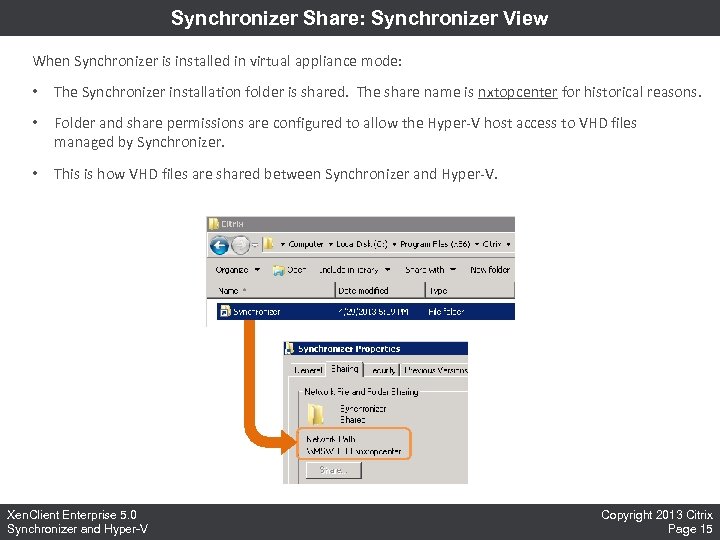 Synchronizer Share: Synchronizer View When Synchronizer is installed in virtual appliance mode: • The Synchronizer installation folder is shared. The share name is nxtopcenter for historical reasons. • Folder and share permissions are configured to allow the Hyper-V host access to VHD files managed by Synchronizer. • This is how VHD files are shared between Synchronizer and Hyper-V. Xen. Client Enterprise 5. 0 Synchronizer and Hyper-V Copyright 2013 Citrix Page 15
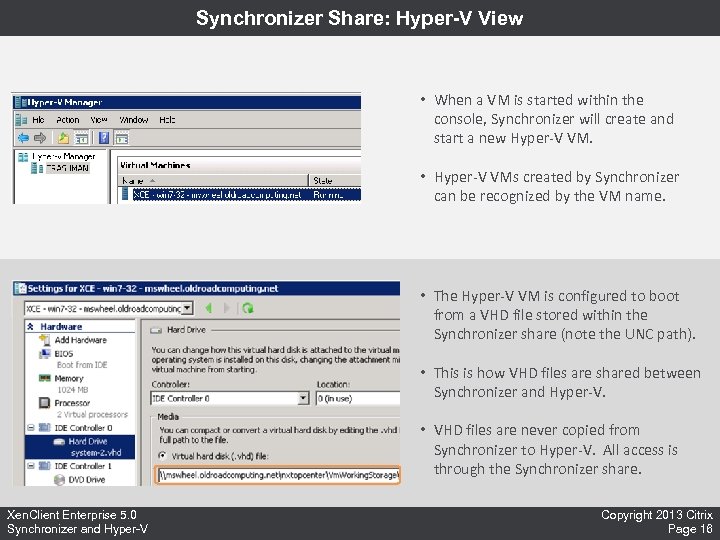 Synchronizer Share: Hyper-V View • When a VM is started within the console, Synchronizer will create and start a new Hyper-V VM. • Hyper-V VMs created by Synchronizer can be recognized by the VM name. • The Hyper-V VM is configured to boot from a VHD file stored within the Synchronizer share (note the UNC path). • This is how VHD files are shared between Synchronizer and Hyper-V. • VHD files are never copied from Synchronizer to Hyper-V. All access is through the Synchronizer share. Xen. Client Enterprise 5. 0 Synchronizer and Hyper-V Copyright 2013 Citrix Page 16
 Virtual Appliance Mode and Synchronizer Backups • When Synchronizer is installed in Virtual Appliance mode: • All Synchronizer data is stored in the Synchronizer VM. • Or in the Synchronizer MSSQL database, which might be hosted on a different server. • There is no Synchronizer data stored on the Hyper-V server. • From the Synchronizer point of view, there is no need to back up the Hyper-V server. • • Backing up the Synchronizer VM will protect all Synchronizer data. • • But there may be other reasons to do so, if the Hyper-V server is used for purposes other than Synchronizer. Plus the Synchronizer MSSQL database, if it is hosted on a different server. Synchronizer treats the Hyper-V server as a transient resource that may be replaced quickly and easily with no backup/restore required. Xen. Client Enterprise 5. 0 Synchronizer and Hyper-V Copyright 2013 Citrix Page 17
 Loss of Hyper-V Services What Happens if the Hyper-V Server is Lost? • Synchronizer will be unable to start or publish VMs. • All other Synchronizer functionality should still work. • There is no possibility of data loss because all data is stored in the Synchronizer VM. • Previously published VM images can still be deployed from Synchronizer to Engine. • Managed computers and deployed VMs will continue running normally. How To Recover from Loss of Hyper-V Services? • Resolve the Hyper-V server issue and bring it back online. • • Getting Hyper-V back up is important but usually not urgent since most Synchronizer functionality remains available without Hyper-V. If it is necessary to replace the Hyper-V server with a different computer: • Bring a new Windows server online with the Hyper-V role enabled. • Update Hyper-V Configuration in the Synchronizer console. • Enable Hyper-V privileges for the Hyper-V Integration Account. • Update the Hyper-V Appliance Local Administrators Group. • Reactivate the Virtual Appliance in the Synchronizer console. Xen. Client Enterprise 5. 0 Synchronizer and Hyper-V Copyright 2013 Citrix Page 18
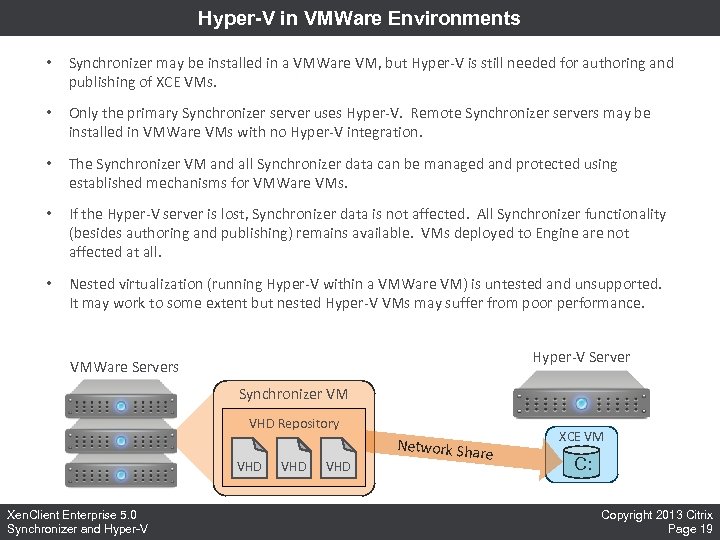 Hyper-V in VMWare Environments • Synchronizer may be installed in a VMWare VM, but Hyper-V is still needed for authoring and publishing of XCE VMs. • Only the primary Synchronizer server uses Hyper-V. Remote Synchronizer servers may be installed in VMWare VMs with no Hyper-V integration. • The Synchronizer VM and all Synchronizer data can be managed and protected using established mechanisms for VMWare VMs. • If the Hyper-V server is lost, Synchronizer data is not affected. All Synchronizer functionality (besides authoring and publishing) remains available. VMs deployed to Engine are not affected at all. • Nested virtualization (running Hyper-V within a VMWare VM) is untested and unsupported. It may work to some extent but nested Hyper-V VMs may suffer from poor performance. Hyper-V Server VMWare Servers Synchronizer VM VHD Repository VHD Xen. Client Enterprise 5. 0 Synchronizer and Hyper-V VHD Network Sha re XCE VM C: Copyright 2013 Citrix Page 19
 Preparing Hyper-V for Synchronizer
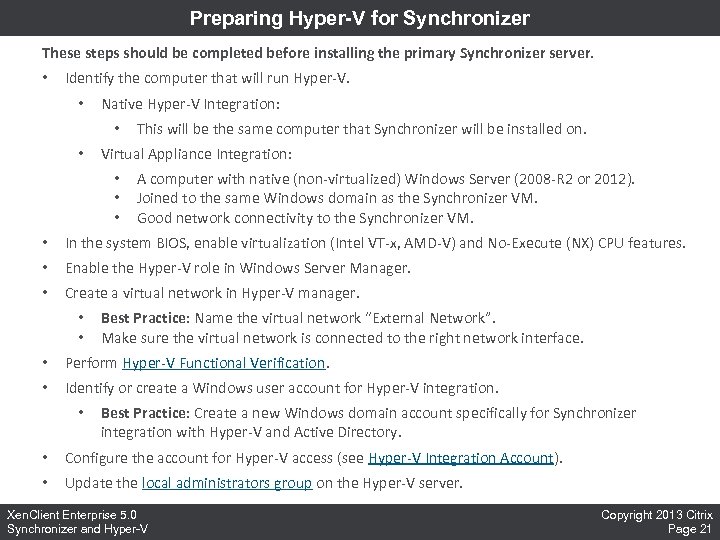 Preparing Hyper-V for Synchronizer These steps should be completed before installing the primary Synchronizer server. • Identify the computer that will run Hyper-V. • Native Hyper-V Integration: • • This will be the same computer that Synchronizer will be installed on. Virtual Appliance Integration: • • • A computer with native (non-virtualized) Windows Server (2008 -R 2 or 2012). Joined to the same Windows domain as the Synchronizer VM. Good network connectivity to the Synchronizer VM. • In the system BIOS, enable virtualization (Intel VT-x, AMD-V) and No-Execute (NX) CPU features. • Enable the Hyper-V role in Windows Server Manager. • Create a virtual network in Hyper-V manager. • • Best Practice: Name the virtual network “External Network”. Make sure the virtual network is connected to the right network interface. • Perform Hyper-V Functional Verification. • Identify or create a Windows user account for Hyper-V integration. • Best Practice: Create a new Windows domain account specifically for Synchronizer integration with Hyper-V and Active Directory. • Configure the account for Hyper-V access (see Hyper-V Integration Account). • Update the local administrators group on the Hyper-V server. Xen. Client Enterprise 5. 0 Synchronizer and Hyper-V Copyright 2013 Citrix Page 21
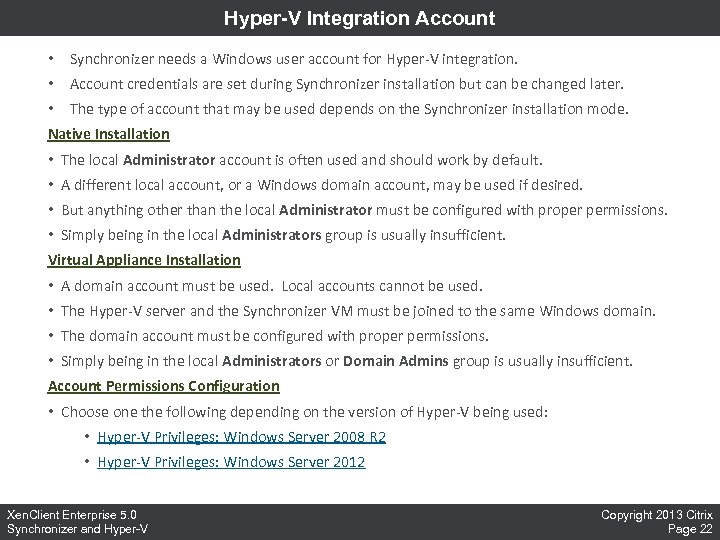 Hyper-V Integration Account • Synchronizer needs a Windows user account for Hyper-V integration. • Account credentials are set during Synchronizer installation but can be changed later. • The type of account that may be used depends on the Synchronizer installation mode. Native Installation • The local Administrator account is often used and should work by default. • A different local account, or a Windows domain account, may be used if desired. • But anything other than the local Administrator must be configured with proper permissions. • Simply being in the local Administrators group is usually insufficient. Virtual Appliance Installation • A domain account must be used. Local accounts cannot be used. • The Hyper-V server and the Synchronizer VM must be joined to the same Windows domain. • The domain account must be configured with proper permissions. • Simply being in the local Administrators or Domain Admins group is usually insufficient. Account Permissions Configuration • Choose one the following depending on the version of Hyper-V being used: • Hyper-V Privileges: Windows Server 2008 R 2 • Hyper-V Privileges: Windows Server 2012 Xen. Client Enterprise 5. 0 Synchronizer and Hyper-V Copyright 2013 Citrix Page 22
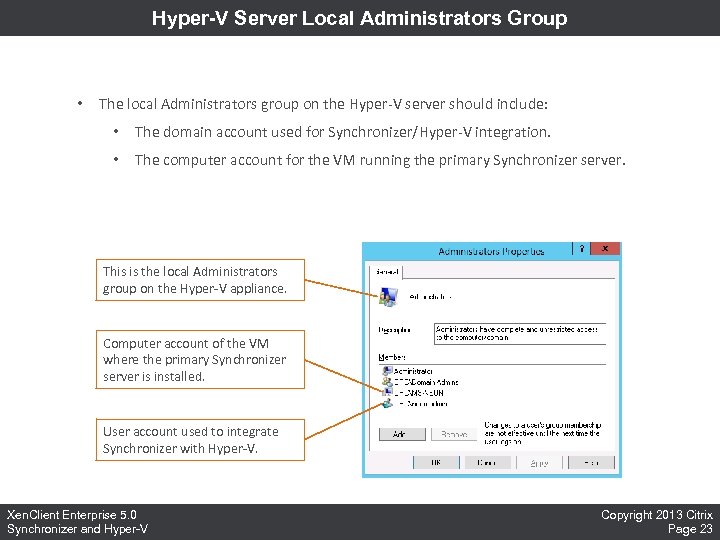 Hyper-V Server Local Administrators Group • The local Administrators group on the Hyper-V server should include: • The domain account used for Synchronizer/Hyper-V integration. • The computer account for the VM running the primary Synchronizer server. This is the local Administrators group on the Hyper-V appliance. Computer account of the VM where the primary Synchronizer server is installed. User account used to integrate Synchronizer with Hyper-V. Xen. Client Enterprise 5. 0 Synchronizer and Hyper-V Copyright 2013 Citrix Page 23
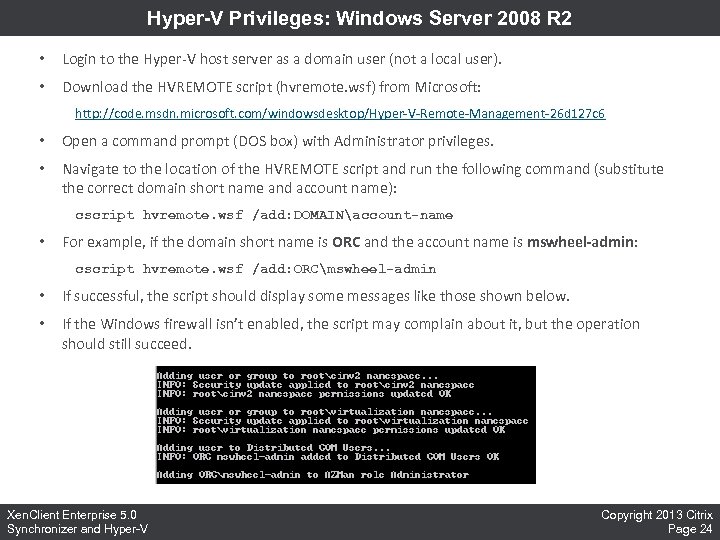 Hyper-V Privileges: Windows Server 2008 R 2 • Login to the Hyper-V host server as a domain user (not a local user). • Download the HVREMOTE script (hvremote. wsf) from Microsoft: http: //code. msdn. microsoft. com/windowsdesktop/Hyper-V-Remote-Management-26 d 127 c 6 • Open a command prompt (DOS box) with Administrator privileges. • Navigate to the location of the HVREMOTE script and run the following command (substitute the correct domain short name and account name): cscript hvremote. wsf /add: DOMAINaccount-name • For example, if the domain short name is ORC and the account name is mswheel-admin: cscript hvremote. wsf /add: ORCmswheel-admin • If successful, the script should display some messages like those shown below. • If the Windows firewall isn’t enabled, the script may complain about it, but the operation should still succeed. Xen. Client Enterprise 5. 0 Synchronizer and Hyper-V Copyright 2013 Citrix Page 24
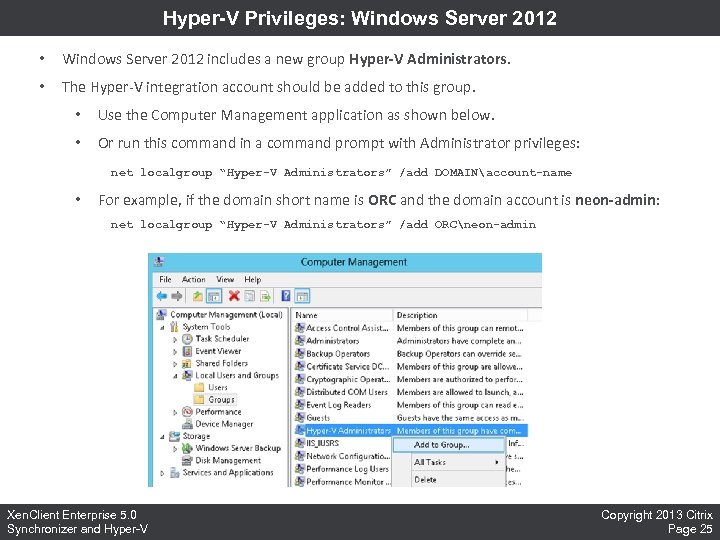 Hyper-V Privileges: Windows Server 2012 • Windows Server 2012 includes a new group Hyper-V Administrators. • The Hyper-V integration account should be added to this group. • Use the Computer Management application as shown below. • Or run this command in a command prompt with Administrator privileges: net localgroup “Hyper-V Administrators” /add DOMAINaccount-name • For example, if the domain short name is ORC and the domain account is neon-admin: net localgroup “Hyper-V Administrators” /add ORCneon-admin Xen. Client Enterprise 5. 0 Synchronizer and Hyper-V Copyright 2013 Citrix Page 25
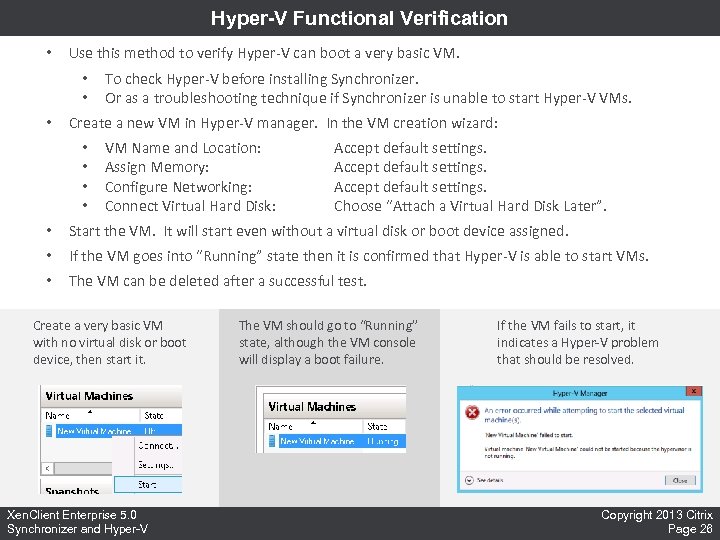 Hyper-V Functional Verification • Use this method to verify Hyper-V can boot a very basic VM. • • • To check Hyper-V before installing Synchronizer. Or as a troubleshooting technique if Synchronizer is unable to start Hyper-V VMs. Create a new VM in Hyper-V manager. In the VM creation wizard: • • VM Name and Location: Assign Memory: Configure Networking: Connect Virtual Hard Disk: Accept default settings. Choose “Attach a Virtual Hard Disk Later”. • Start the VM. It will start even without a virtual disk or boot device assigned. • If the VM goes into “Running” state then it is confirmed that Hyper-V is able to start VMs. • The VM can be deleted after a successful test. Create a very basic VM with no virtual disk or boot device, then start it. Xen. Client Enterprise 5. 0 Synchronizer and Hyper-V The VM should go to “Running” state, although the VM console will display a boot failure. If the VM fails to start, it indicates a Hyper-V problem that should be resolved. Copyright 2013 Citrix Page 26
 Hyper-V Configuration
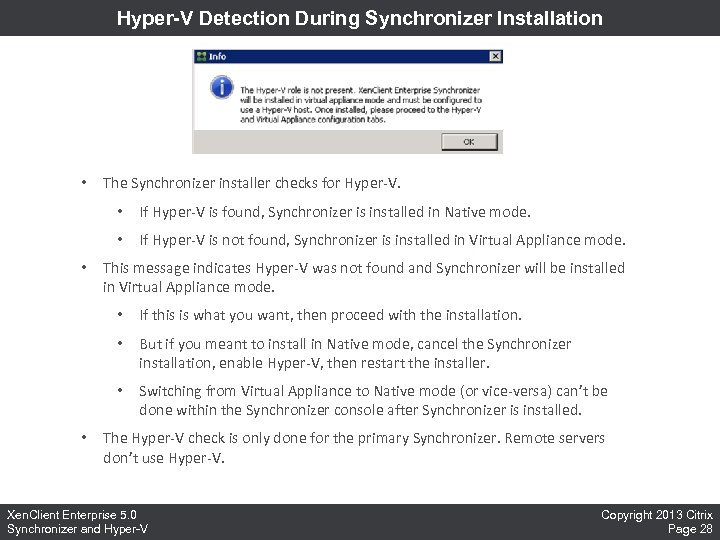 Hyper-V Detection During Synchronizer Installation • The Synchronizer installer checks for Hyper-V. • • • If Hyper-V is found, Synchronizer is installed in Native mode. If Hyper-V is not found, Synchronizer is installed in Virtual Appliance mode. This message indicates Hyper-V was not found and Synchronizer will be installed in Virtual Appliance mode. • • But if you meant to install in Native mode, cancel the Synchronizer installation, enable Hyper-V, then restart the installer. • • If this is what you want, then proceed with the installation. Switching from Virtual Appliance to Native mode (or vice-versa) can’t be done within the Synchronizer console after Synchronizer is installed. The Hyper-V check is only done for the primary Synchronizer. Remote servers don’t use Hyper-V. Xen. Client Enterprise 5. 0 Synchronizer and Hyper-V Copyright 2013 Citrix Page 28
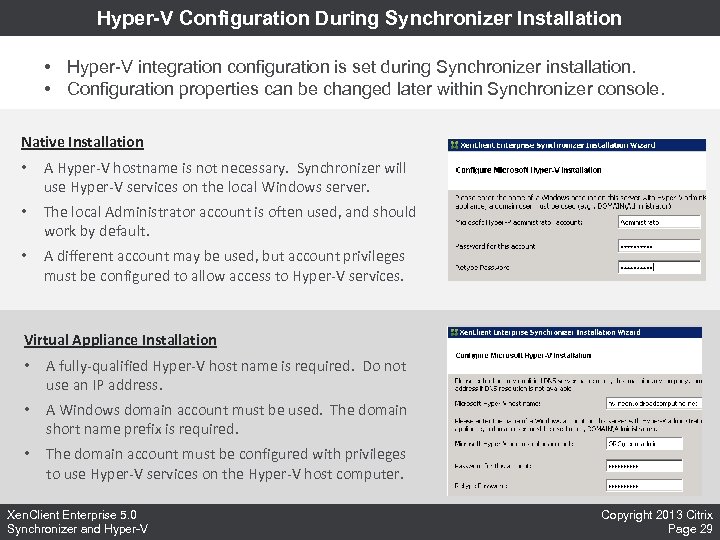 Hyper-V Configuration During Synchronizer Installation • Hyper-V integration configuration is set during Synchronizer installation. • Configuration properties can be changed later within Synchronizer console. Native Installation • A Hyper-V hostname is not necessary. Synchronizer will use Hyper-V services on the local Windows server. • The local Administrator account is often used, and should work by default. • A different account may be used, but account privileges must be configured to allow access to Hyper-V services. Virtual Appliance Installation • A fully-qualified Hyper-V host name is required. Do not use an IP address. • A Windows domain account must be used. The domain short name prefix is required. • The domain account must be configured with privileges to use Hyper-V services on the Hyper-V host computer. Xen. Client Enterprise 5. 0 Synchronizer and Hyper-V Copyright 2013 Citrix Page 29
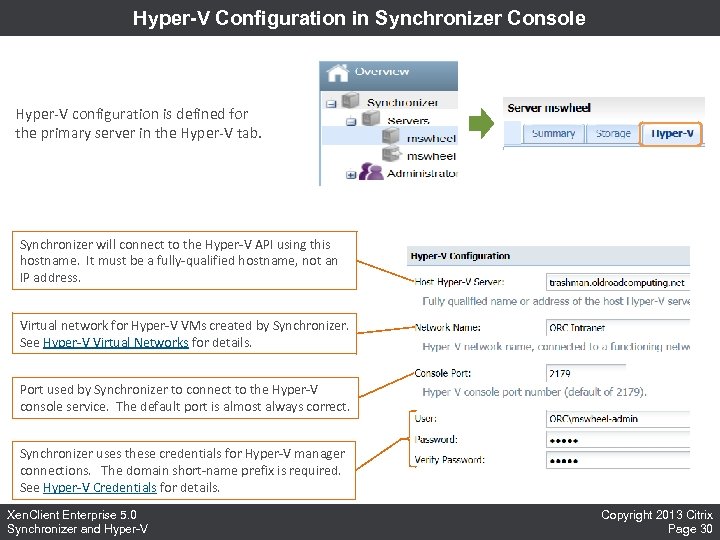 Hyper-V Configuration in Synchronizer Console Hyper-V configuration is defined for the primary server in the Hyper-V tab. Synchronizer will connect to the Hyper-V API using this hostname. It must be a fully-qualified hostname, not an IP address. Virtual network for Hyper-V VMs created by Synchronizer. See Hyper-V Virtual Networks for details. Port used by Synchronizer to connect to the Hyper-V console service. The default port is almost always correct. Synchronizer uses these credentials for Hyper-V manager connections. The domain short-name prefix is required. See Hyper-V Credentials for details. Xen. Client Enterprise 5. 0 Synchronizer and Hyper-V Copyright 2013 Citrix Page 30
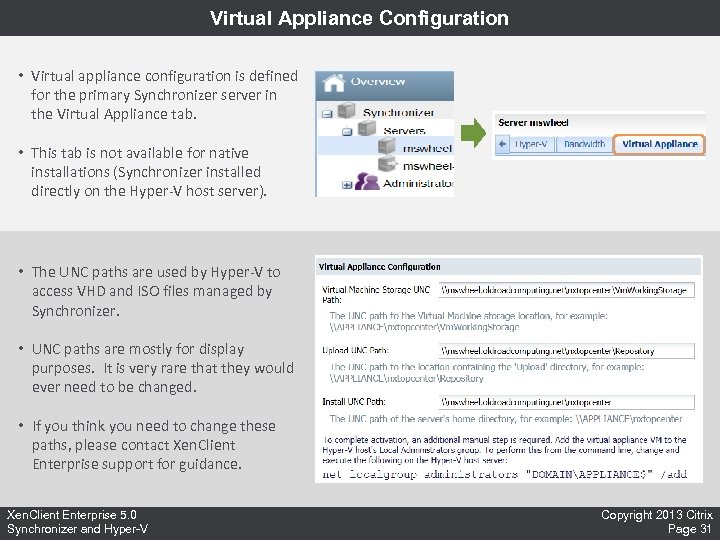 Virtual Appliance Configuration • Virtual appliance configuration is defined for the primary Synchronizer server in the Virtual Appliance tab. • This tab is not available for native installations (Synchronizer installed directly on the Hyper-V host server). • The UNC paths are used by Hyper-V to access VHD and ISO files managed by Synchronizer. • UNC paths are mostly for display purposes. It is very rare that they would ever need to be changed. • If you think you need to change these paths, please contact Xen. Client Enterprise support for guidance. Xen. Client Enterprise 5. 0 Synchronizer and Hyper-V Copyright 2013 Citrix Page 31
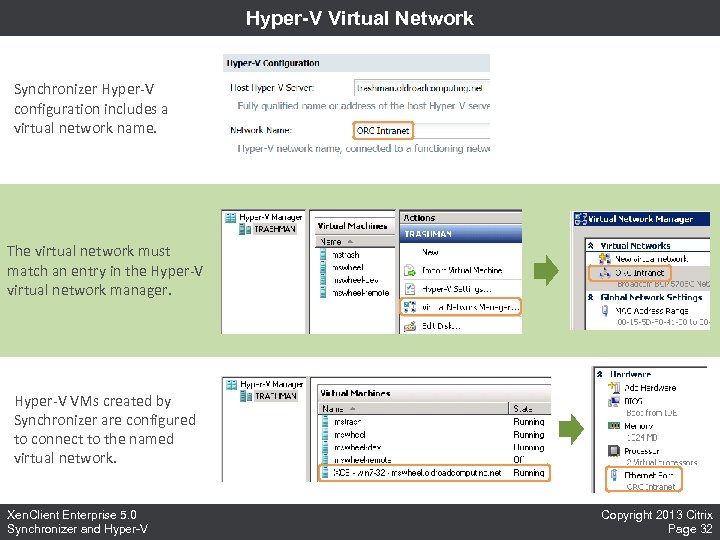 Hyper-V Virtual Network Synchronizer Hyper-V configuration includes a virtual network name. The virtual network must match an entry in the Hyper-V virtual network manager. Hyper-V VMs created by Synchronizer are configured to connect to the named virtual network. Xen. Client Enterprise 5. 0 Synchronizer and Hyper-V Copyright 2013 Citrix Page 32
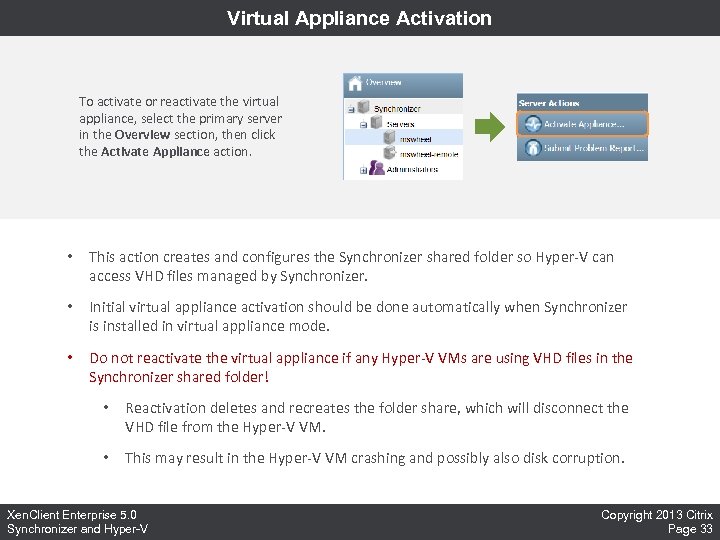 Virtual Appliance Activation To activate or reactivate the virtual appliance, select the primary server in the Overview section, then click the Activate Appliance action. • This action creates and configures the Synchronizer shared folder so Hyper-V can access VHD files managed by Synchronizer. • Initial virtual appliance activation should be done automatically when Synchronizer is installed in virtual appliance mode. • Do not reactivate the virtual appliance if any Hyper-V VMs are using VHD files in the Synchronizer shared folder! • Reactivation deletes and recreates the folder share, which will disconnect the VHD file from the Hyper-V VM. • This may result in the Hyper-V VM crashing and possibly also disk corruption. Xen. Client Enterprise 5. 0 Synchronizer and Hyper-V Copyright 2013 Citrix Page 33
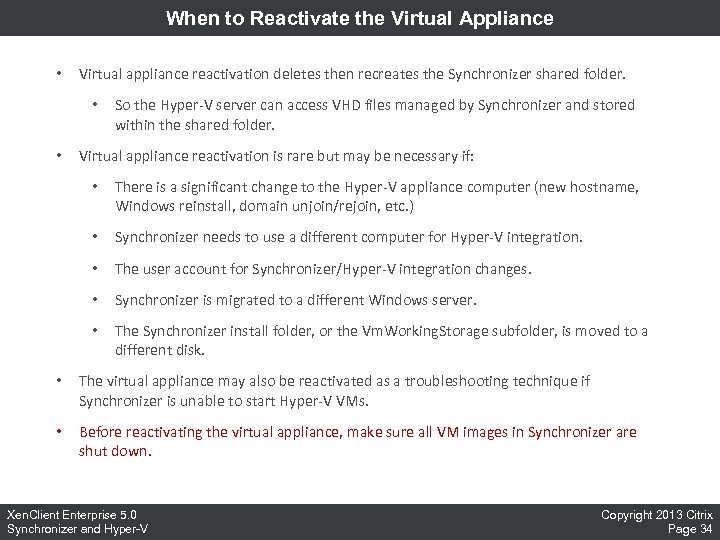 When to Reactivate the Virtual Appliance • Virtual appliance reactivation deletes then recreates the Synchronizer shared folder. • • So the Hyper-V server can access VHD files managed by Synchronizer and stored within the shared folder. Virtual appliance reactivation is rare but may be necessary if: • There is a significant change to the Hyper-V appliance computer (new hostname, Windows reinstall, domain unjoin/rejoin, etc. ) • Synchronizer needs to use a different computer for Hyper-V integration. • The user account for Synchronizer/Hyper-V integration changes. • Synchronizer is migrated to a different Windows server. • The Synchronizer install folder, or the Vm. Working. Storage subfolder, is moved to a different disk. • The virtual appliance may also be reactivated as a troubleshooting technique if Synchronizer is unable to start Hyper-V VMs. • Before reactivating the virtual appliance, make sure all VM images in Synchronizer are shut down. Xen. Client Enterprise 5. 0 Synchronizer and Hyper-V Copyright 2013 Citrix Page 34
 Hyper-V Sharing
 Hyper-V Sharing • The Hyper-V server might be shared by multiple primary Synchronizer servers. • The Hyper-V server and all Synchronizer servers must be joined to the same Windows domain. • Each Synchronizer server can use the Hyper-V API independently with no need for coordination. • The naming convention for Hyper-V VMs created by Synchronizer should avoid conflicts between multiple Synchronizer servers. • But one Synchronizer could start many VMs and use up all the memory on the Hyper-V host, preventing another Synchronizer from starting a VM. Xen. Client Enterprise 5. 0 Synchronizer and Hyper-V Copyright 2013 Citrix Page 36
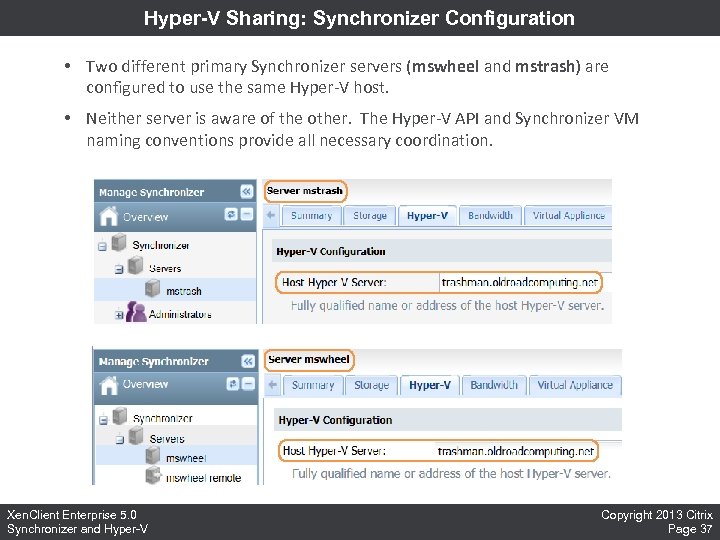 Hyper-V Sharing: Synchronizer Configuration • Two different primary Synchronizer servers (mswheel and mstrash) are configured to use the same Hyper-V host. • Neither server is aware of the other. The Hyper-V API and Synchronizer VM naming conventions provide all necessary coordination. Xen. Client Enterprise 5. 0 Synchronizer and Hyper-V Copyright 2013 Citrix Page 37
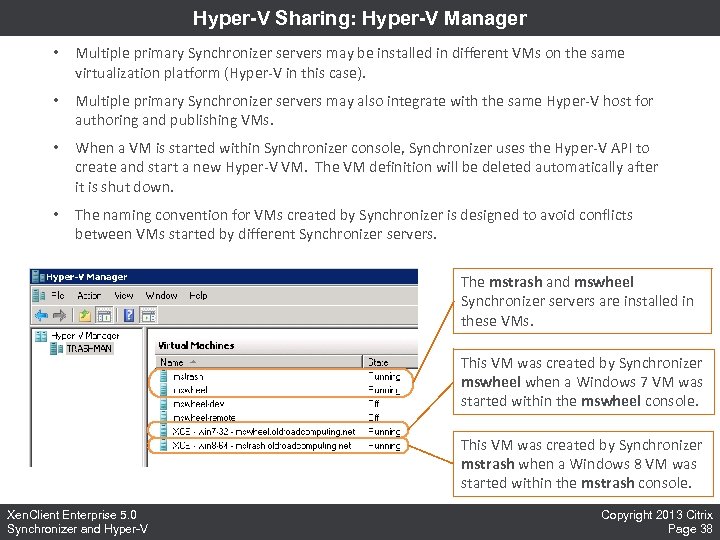 Hyper-V Sharing: Hyper-V Manager • Multiple primary Synchronizer servers may be installed in different VMs on the same virtualization platform (Hyper-V in this case). • Multiple primary Synchronizer servers may also integrate with the same Hyper-V host for authoring and publishing VMs. • When a VM is started within Synchronizer console, Synchronizer uses the Hyper-V API to create and start a new Hyper-V VM. The VM definition will be deleted automatically after it is shut down. • The naming convention for VMs created by Synchronizer is designed to avoid conflicts between VMs started by different Synchronizer servers. The mstrash and mswheel Synchronizer servers are installed in these VMs. This VM was created by Synchronizer mswheel when a Windows 7 VM was started within the mswheel console. This VM was created by Synchronizer mstrash when a Windows 8 VM was started within the mstrash console. Xen. Client Enterprise 5. 0 Synchronizer and Hyper-V Copyright 2013 Citrix Page 38
 Common Hyper-V Problems
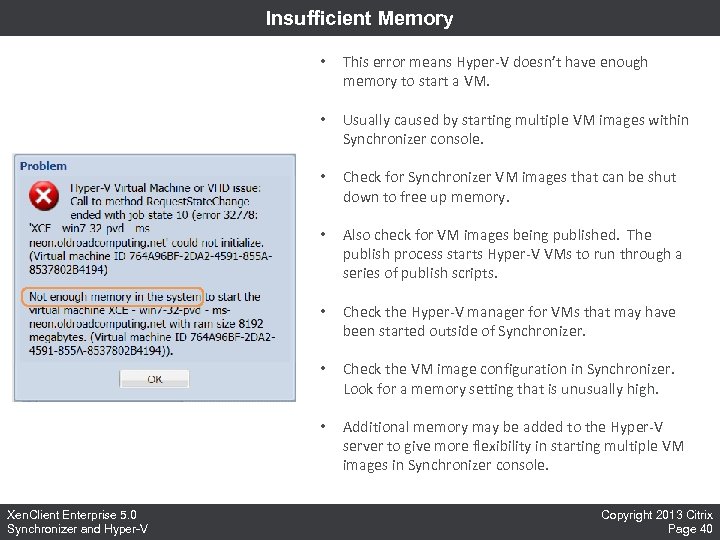 Insufficient Memory • • Usually caused by starting multiple VM images within Synchronizer console. • Check for Synchronizer VM images that can be shut down to free up memory. • Also check for VM images being published. The publish process starts Hyper-V VMs to run through a series of publish scripts. • Check the Hyper-V manager for VMs that may have been started outside of Synchronizer. • Check the VM image configuration in Synchronizer. Look for a memory setting that is unusually high. • Xen. Client Enterprise 5. 0 Synchronizer and Hyper-V This error means Hyper-V doesn’t have enough memory to start a VM. Additional memory may be added to the Hyper-V server to give more flexibility in starting multiple VM images in Synchronizer console. Copyright 2013 Citrix Page 40
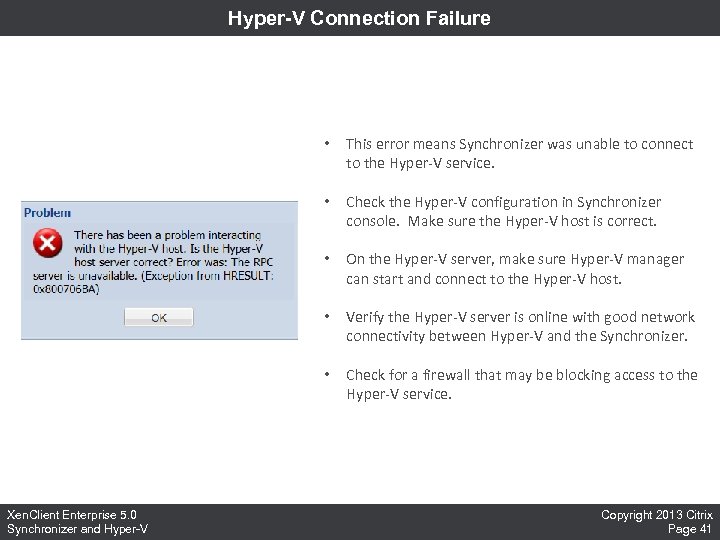 Hyper-V Connection Failure • • Check the Hyper-V configuration in Synchronizer console. Make sure the Hyper-V host is correct. • On the Hyper-V server, make sure Hyper-V manager can start and connect to the Hyper-V host. • Verify the Hyper-V server is online with good network connectivity between Hyper-V and the Synchronizer. • Xen. Client Enterprise 5. 0 Synchronizer and Hyper-V This error means Synchronizer was unable to connect to the Hyper-V service. Check for a firewall that may be blocking access to the Hyper-V service. Copyright 2013 Citrix Page 41
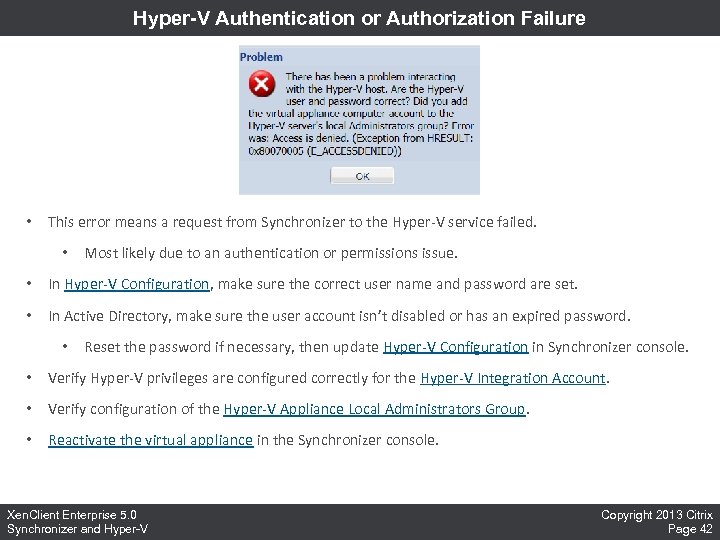 Hyper-V Authentication or Authorization Failure • This error means a request from Synchronizer to the Hyper-V service failed. • Most likely due to an authentication or permissions issue. • In Hyper-V Configuration, make sure the correct user name and password are set. • In Active Directory, make sure the user account isn’t disabled or has an expired password. • Reset the password if necessary, then update Hyper-V Configuration in Synchronizer console. • Verify Hyper-V privileges are configured correctly for the Hyper-V Integration Account. • Verify configuration of the Hyper-V Appliance Local Administrators Group. • Reactivate the virtual appliance in the Synchronizer console. Xen. Client Enterprise 5. 0 Synchronizer and Hyper-V Copyright 2013 Citrix Page 42
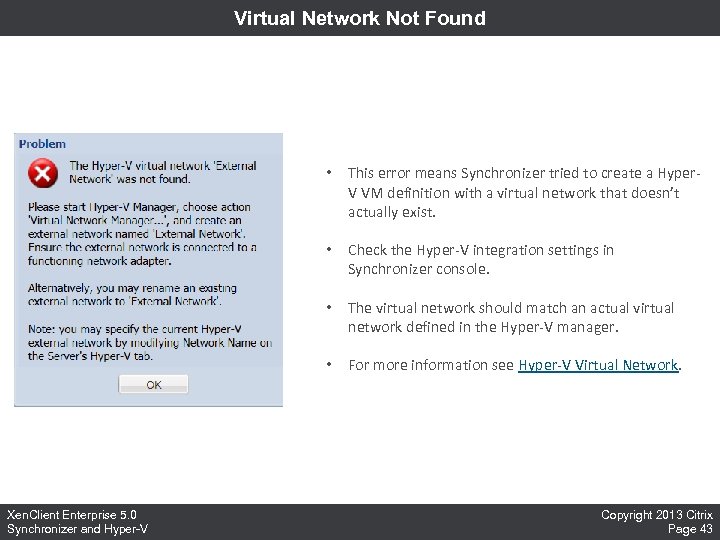 Virtual Network Not Found • • Check the Hyper-V integration settings in Synchronizer console. • The virtual network should match an actual virtual network defined in the Hyper-V manager. • Xen. Client Enterprise 5. 0 Synchronizer and Hyper-V This error means Synchronizer tried to create a Hyper. V VM definition with a virtual network that doesn’t actually exist. For more information see Hyper-V Virtual Network. Copyright 2013 Citrix Page 43
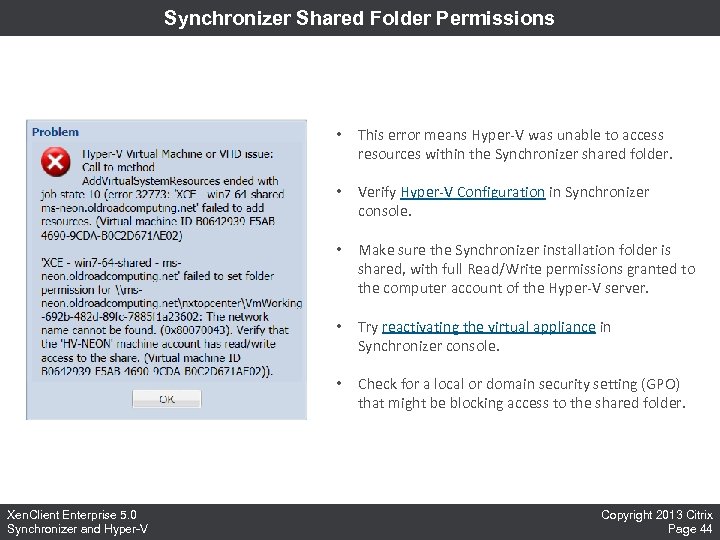 Synchronizer Shared Folder Permissions • • Verify Hyper-V Configuration in Synchronizer console. • Make sure the Synchronizer installation folder is shared, with full Read/Write permissions granted to the computer account of the Hyper-V server. • Try reactivating the virtual appliance in Synchronizer console. • Xen. Client Enterprise 5. 0 Synchronizer and Hyper-V This error means Hyper-V was unable to access resources within the Synchronizer shared folder. Check for a local or domain security setting (GPO) that might be blocking access to the shared folder. Copyright 2013 Citrix Page 44
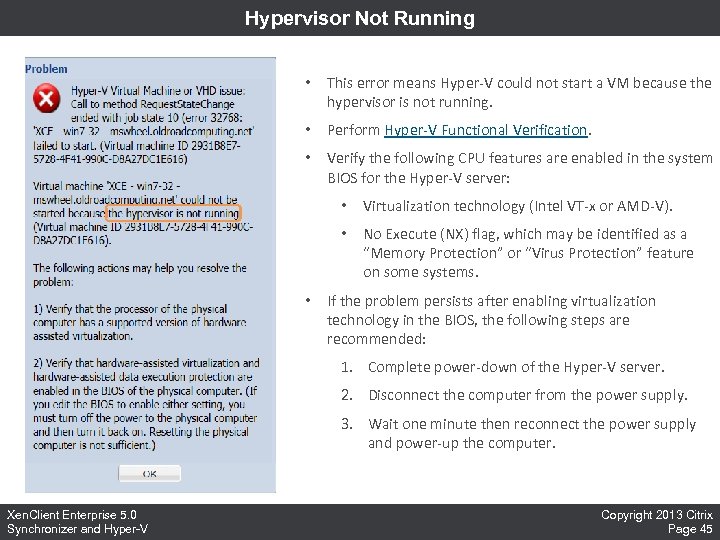 Hypervisor Not Running • This error means Hyper-V could not start a VM because the hypervisor is not running. • Perform Hyper-V Functional Verification. • Verify the following CPU features are enabled in the system BIOS for the Hyper-V server: • • • Virtualization technology (Intel VT-x or AMD-V). No Execute (NX) flag, which may be identified as a “Memory Protection” or “Virus Protection” feature on some systems. If the problem persists after enabling virtualization technology in the BIOS, the following steps are recommended: 1. Complete power-down of the Hyper-V server. 2. Disconnect the computer from the power supply. 3. Wait one minute then reconnect the power supply and power-up the computer. Xen. Client Enterprise 5. 0 Synchronizer and Hyper-V Copyright 2013 Citrix Page 45