


 Скачать презентацию WS-PGRADE Tutorial Lightweight introduction Zoltán Farkas zfarkas sztaki hu
8a3f11d0f72aa328a44a4f22fd73f71f.ppt
- Количество слайдов: 30
 WS-PGRADE Tutorial Lightweight introduction Zoltán Farkas zfarkas@sztaki. hu MTA SZTAKI LPDS 5/29/2006
 Outline • Graph creation • Concrete workflow configuration • Job types and corresponding properties • Port properties • Certificate handling • Submission • Log examination • Submitted instance management • Result evaluation • Repository handling (export/import) • Advanced features: • Parameter study • Embedded workflow support • Hands-on part 5/29/2006 Footer 2
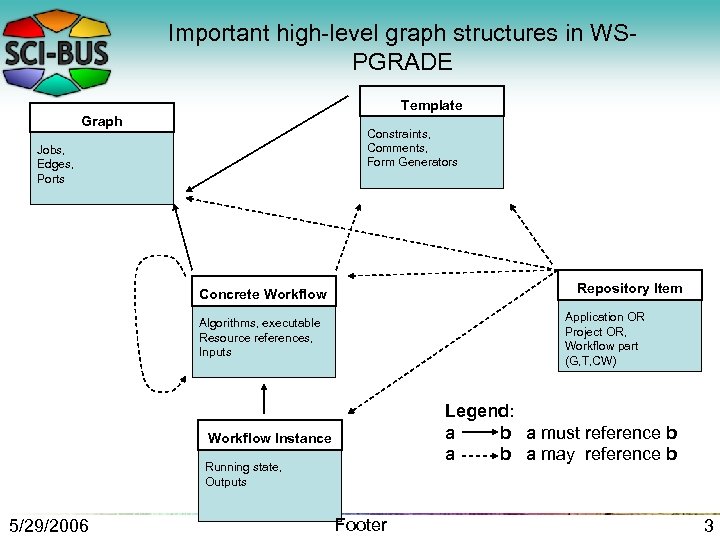 Important high-level graph structures in WSPGRADE Template Graph Constraints, Comments, Form Generators Jobs, Edges, Ports Repository Item Concrete Workflow Application OR Project OR, Workflow part (G, T, CW) Algorithms, executable Resource references, Inputs Legend: a b a must reference b a may reference b Workflow Instance Running state, Outputs 5/29/2006 Footer 3
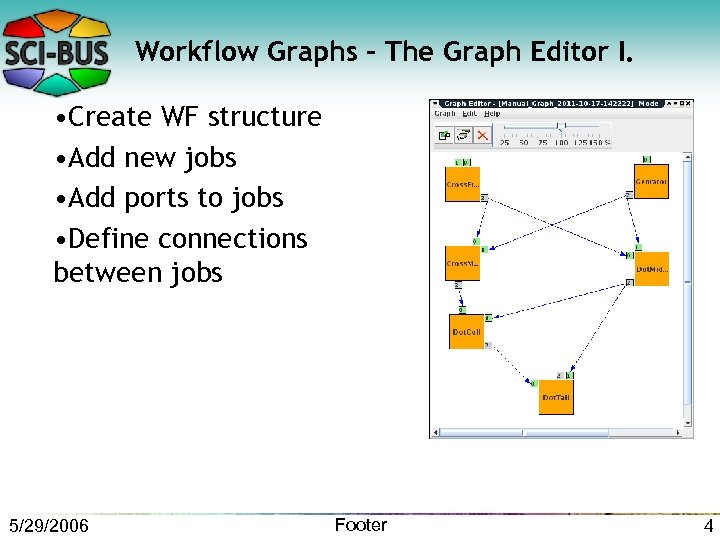 Workflow Graphs – The Graph Editor I. • Create WF structure • Add new jobs • Add ports to jobs • Define connections between jobs 5/29/2006 Footer 4
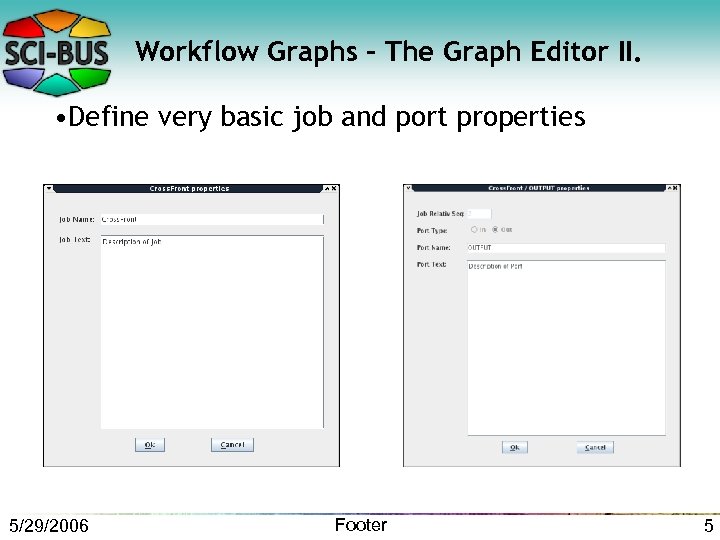 Workflow Graphs – The Graph Editor II. • Define very basic job and port properties 5/29/2006 Footer 5
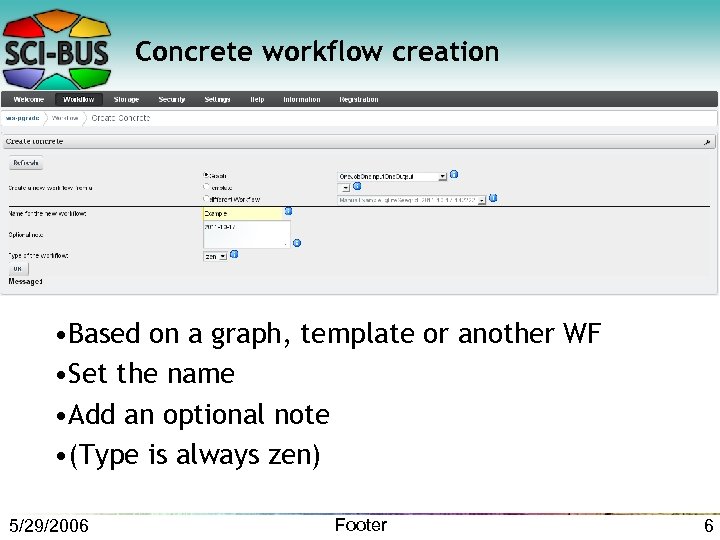 Concrete workflow creation • Based on a graph, template or another WF • Set the name • Add an optional note • (Type is always zen) 5/29/2006 Footer 6
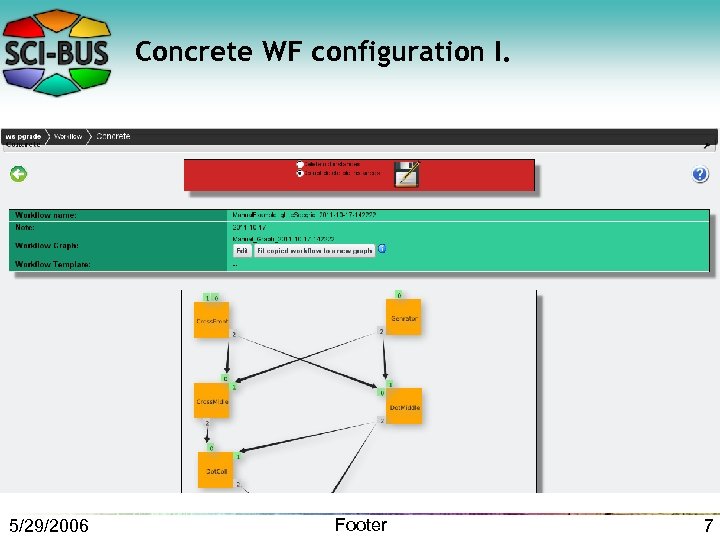 Concrete WF configuration I. 5/29/2006 Footer 7
 Concrete WF configuration II. • Set job properties: • Type: workflow, service, binary, cloud • Type-dependent properties • Set port properties: • Internal filename (as opened by the job) • Data source • Port type 5/29/2006 Footer 8
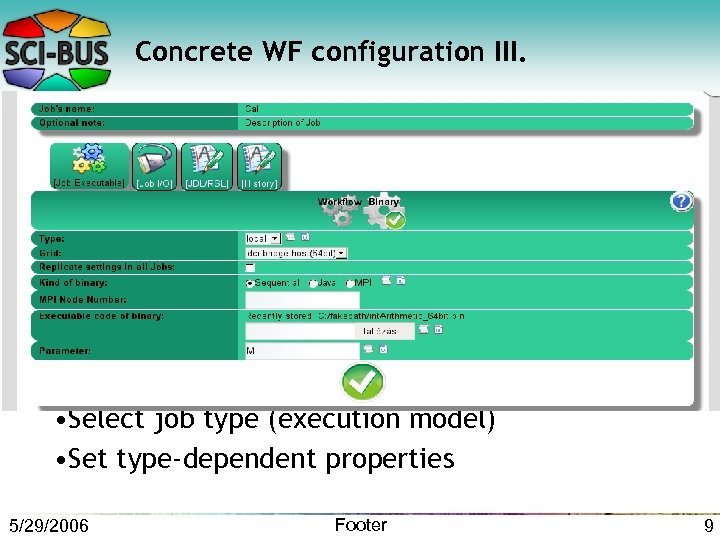 Concrete WF configuration III. • Select job type (execution model) • Set type-dependent properties 5/29/2006 Footer 9
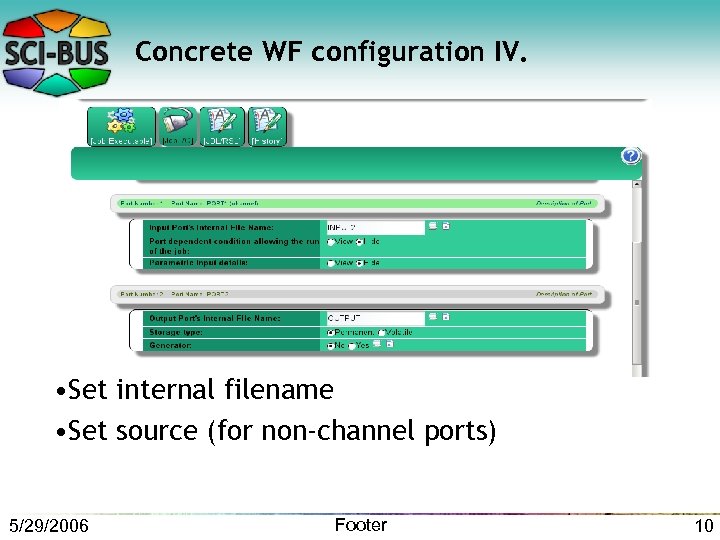 Concrete WF configuration IV. • Set internal filename • Set source (for non-channel ports) 5/29/2006 Footer 10
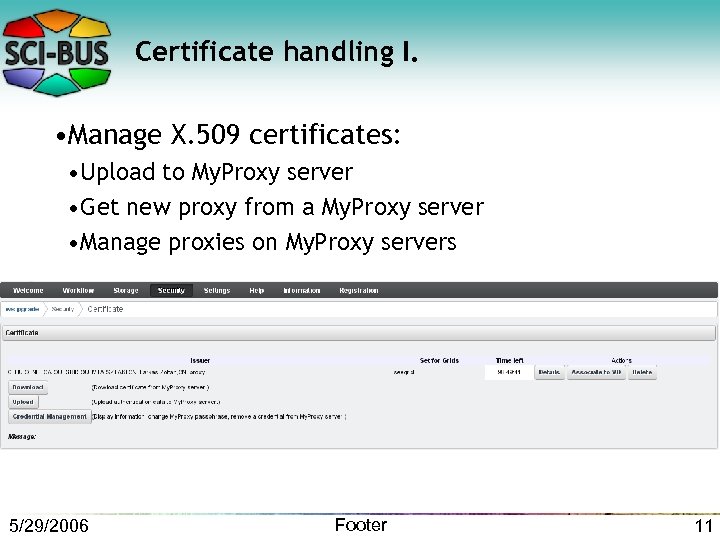 Certificate handling I. • Manage X. 509 certificates: • Upload to My. Proxy server • Get new proxy from a My. Proxy server • Manage proxies on My. Proxy servers 5/29/2006 Footer 11
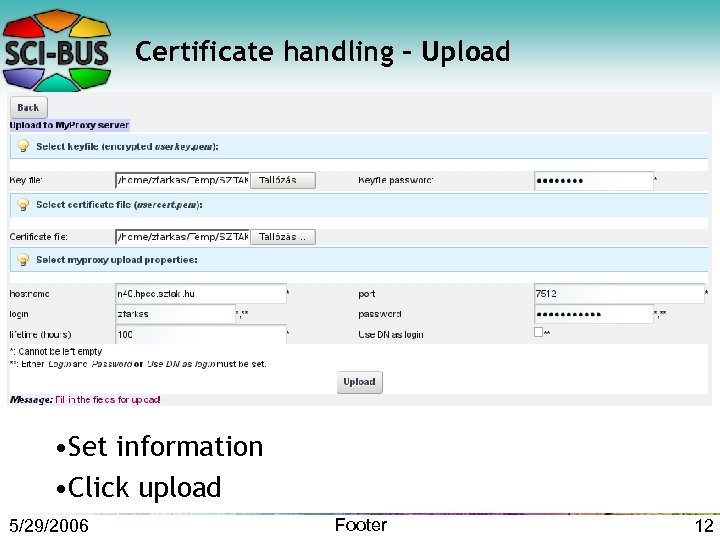 Certificate handling - Upload • Set information • Click upload 5/29/2006 Footer 12
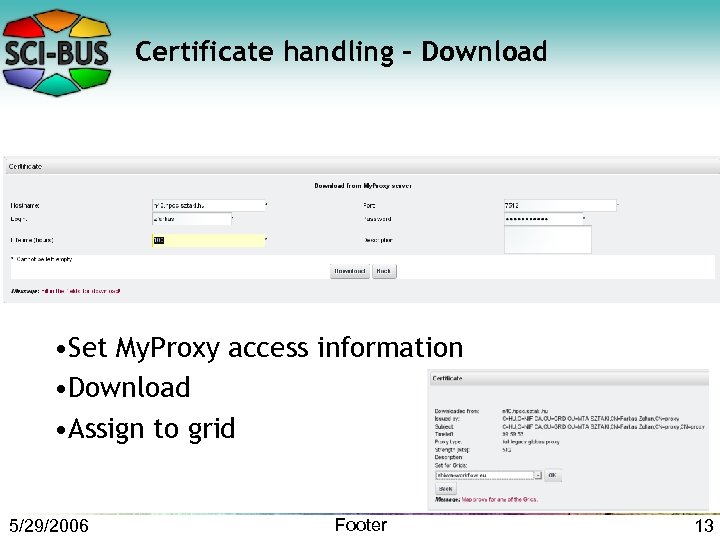 Certificate handling - Download • Set My. Proxy access information • Download • Assign to grid 5/29/2006 Footer 13
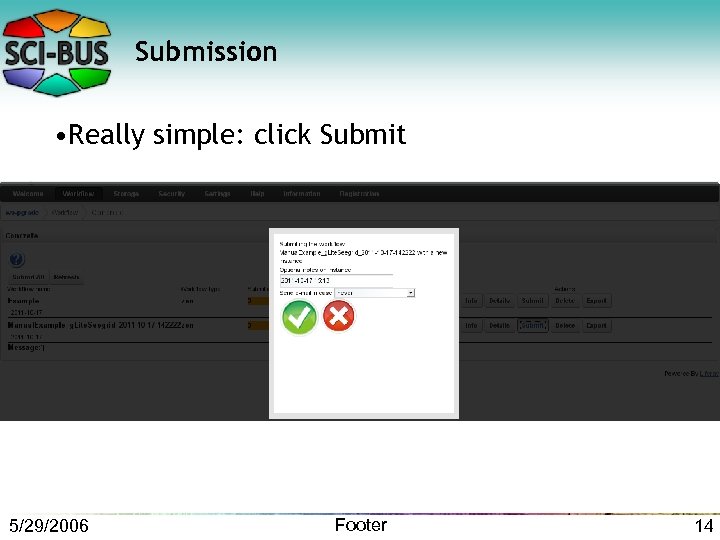 Submission • Really simple: click Submit 5/29/2006 Footer 14
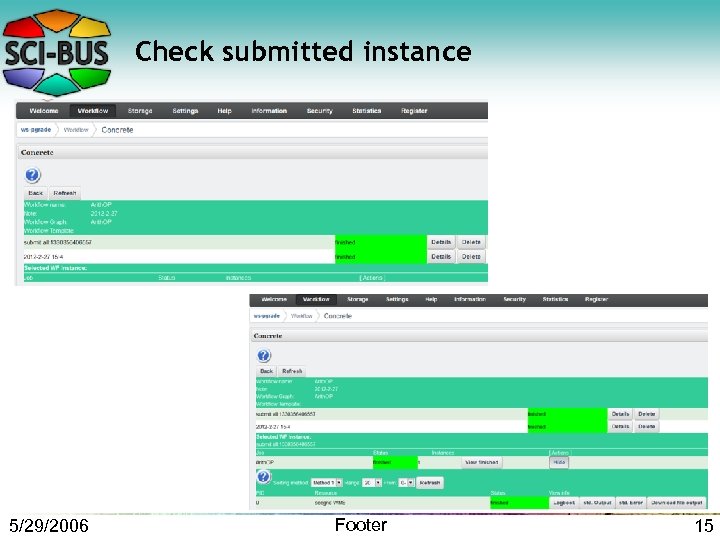 Check submitted instance 5/29/2006 Footer 15
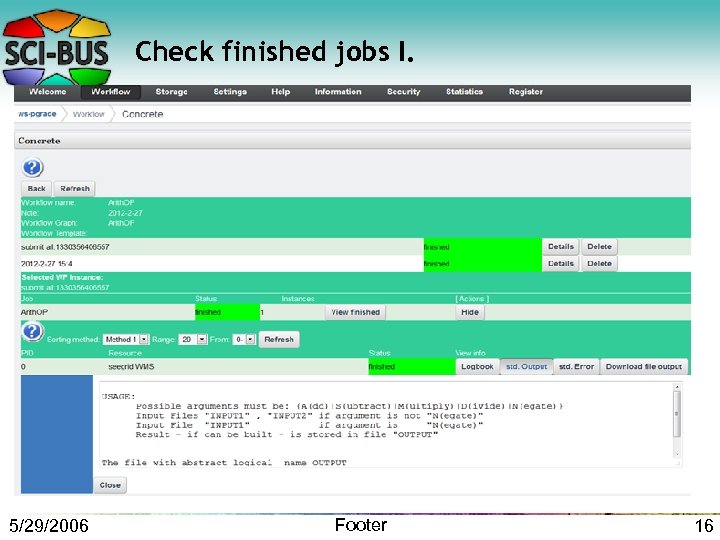 Check finished jobs I. 5/29/2006 Footer 16
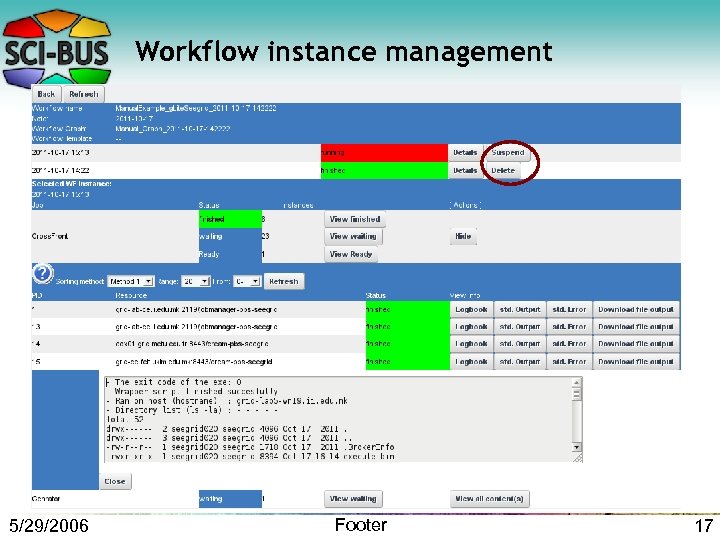 Workflow instance management 5/29/2006 Footer 17
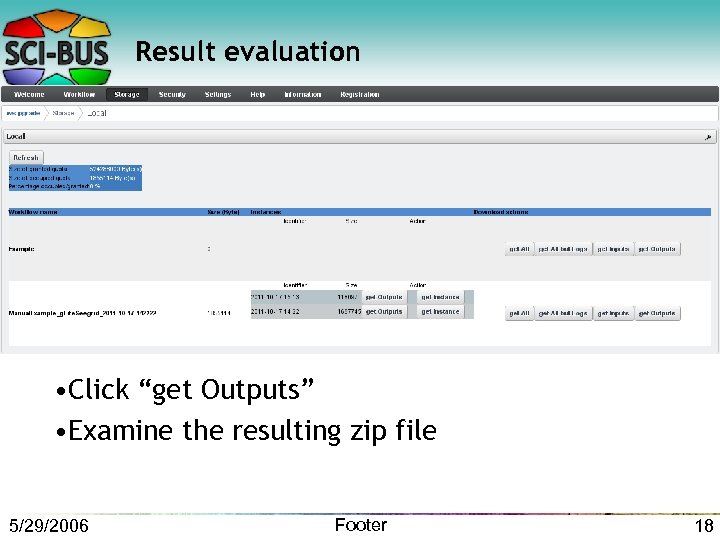 Result evaluation • Click “get Outputs” • Examine the resulting zip file 5/29/2006 Footer 18
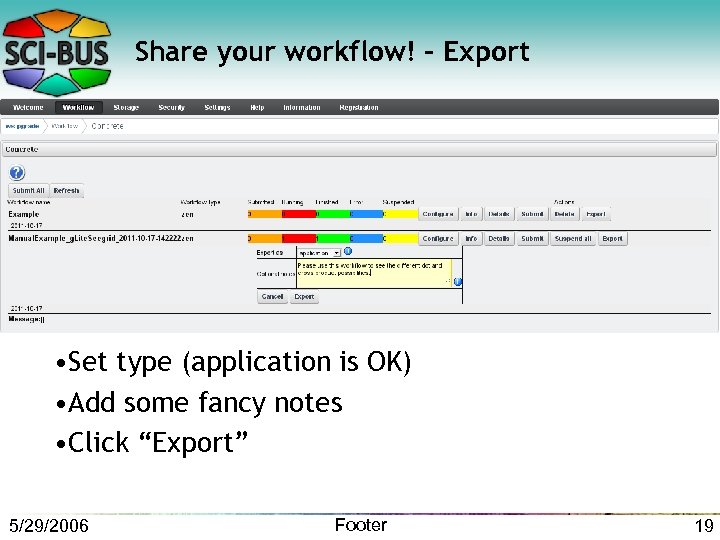 Share your workflow! - Export • Set type (application is OK) • Add some fancy notes • Click “Export” 5/29/2006 Footer 19
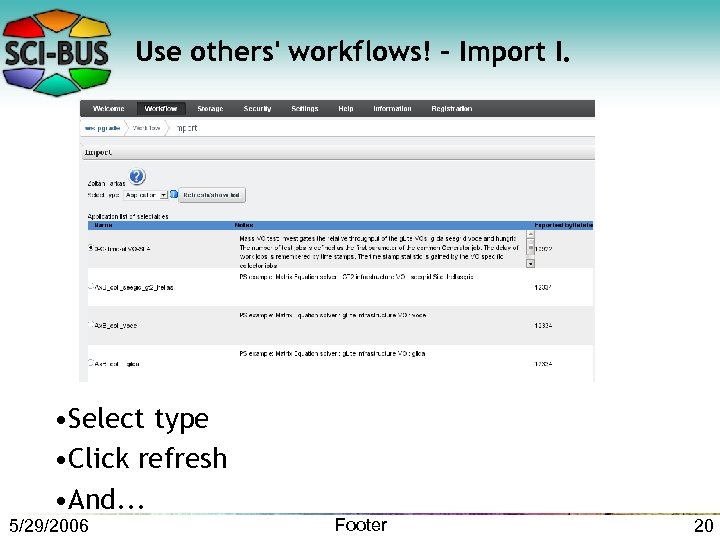 Use others' workflows! - Import I. • Select type • Click refresh • And. . . 5/29/2006 Footer 20
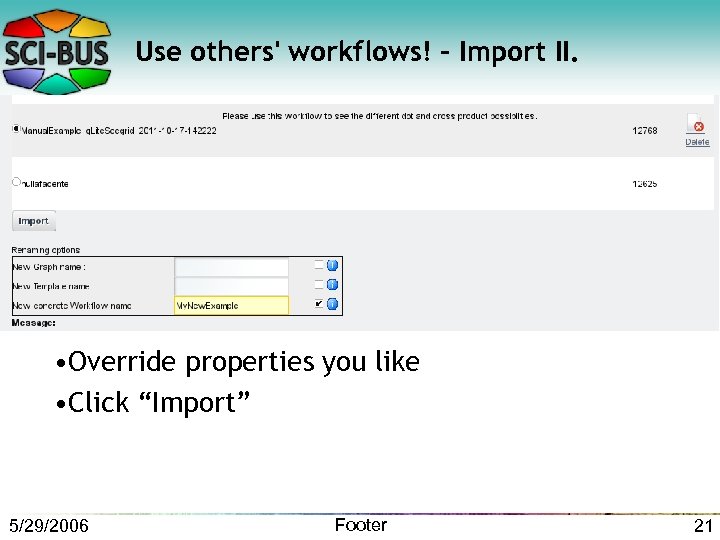 Use others' workflows! - Import II. • Override properties you like • Click “Import” 5/29/2006 Footer 21
 Advanced part – Parameter Study features • Parameter study helpers: • Generator jobs • Parametric input ports • Collector jobs • Input assignment options: • Dot product • Cross product 5/29/2006 Footer 22
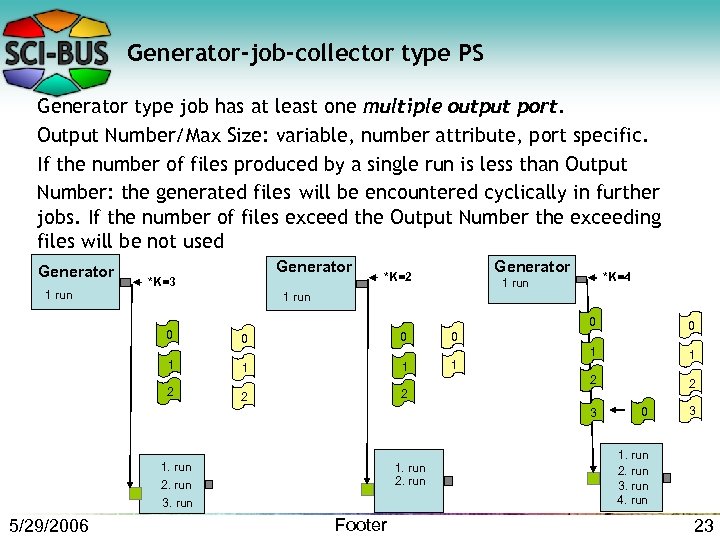 Generator-job-collector type PS Generator type job has at least one multiple output port. Output Number/Max Size: variable, number attribute, port specific. If the number of files produced by a single run is less than Output Number: the generated files will be encountered cyclically in further jobs. If the number of files exceed the Output Number the exceeding files will be not used Generator 1 run Generator *K=3 Generator *K=2 *K=4 1 run 0 1 2 0 0 0 1 1 1 2 0 1 1 2 2 0 2 3 1. run 2. run 3. run 5/29/2006 Footer 0 3 1. run 2. run 3. run 4. run 23
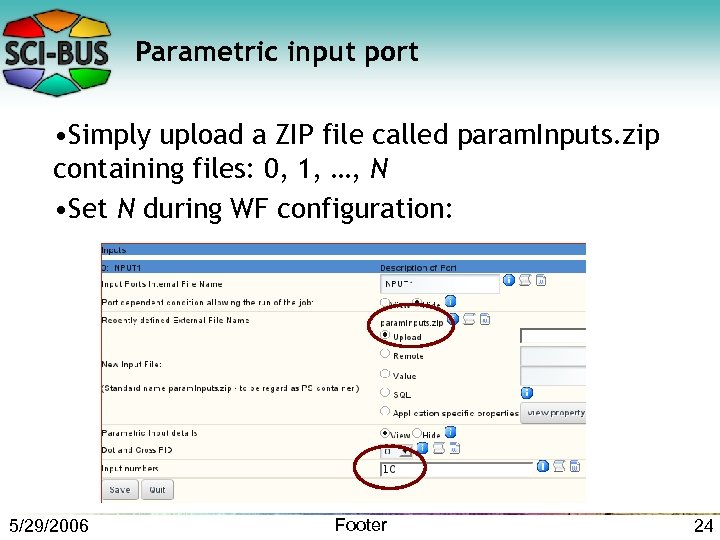 Parametric input port • Simply upload a ZIP file called param. Inputs. zip containing files: 0, 1, …, N • Set N during WF configuration: 5/29/2006 Footer 24
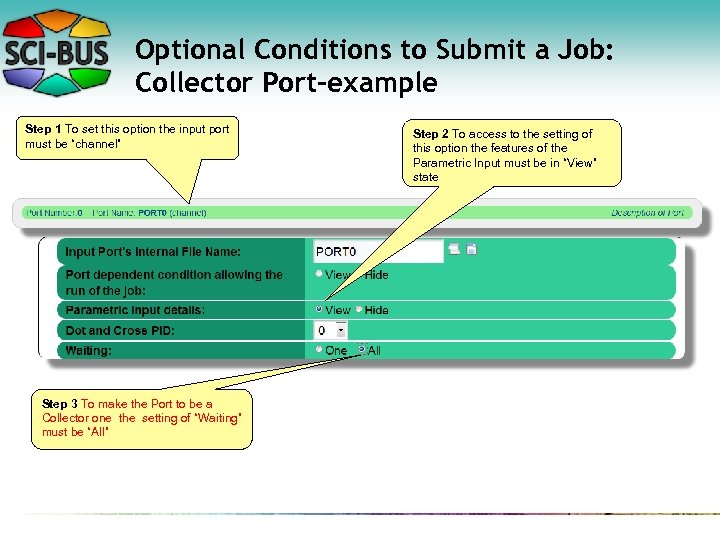 Optional Conditions to Submit a Job: Collector Port-example Step 1 To set this option the input port must be “channel” Step 3 To make the Port to be a Collector one the setting of “Waiting” must be “All” Step 2 To access to the setting of this option the features of the Parametric Input must be in “View” state
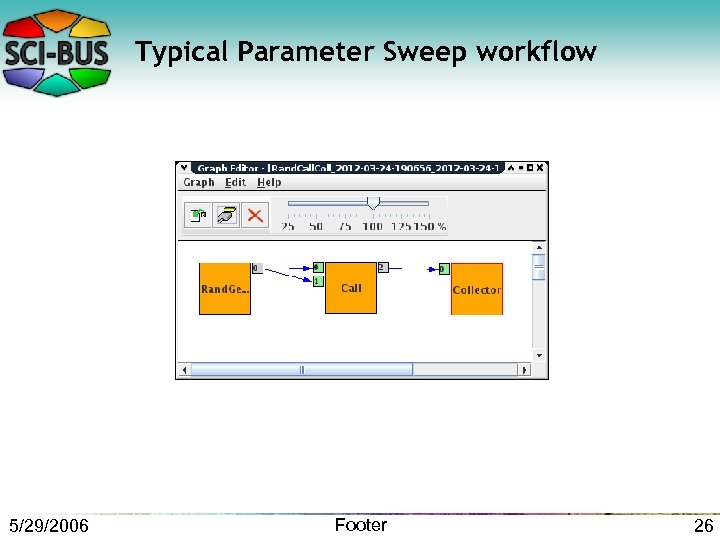 Typical Parameter Sweep workflow 5/29/2006 Footer 26
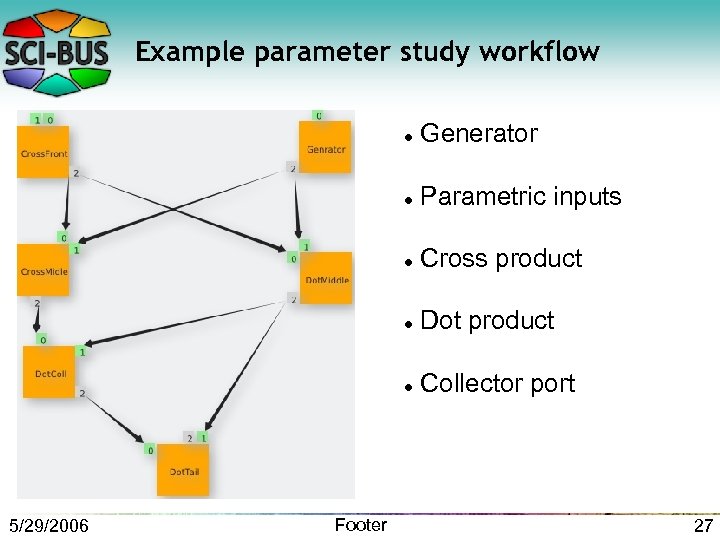 Example parameter study workflow Cross product Dot product Footer Parametric inputs 5/29/2006 Generator Collector port 27
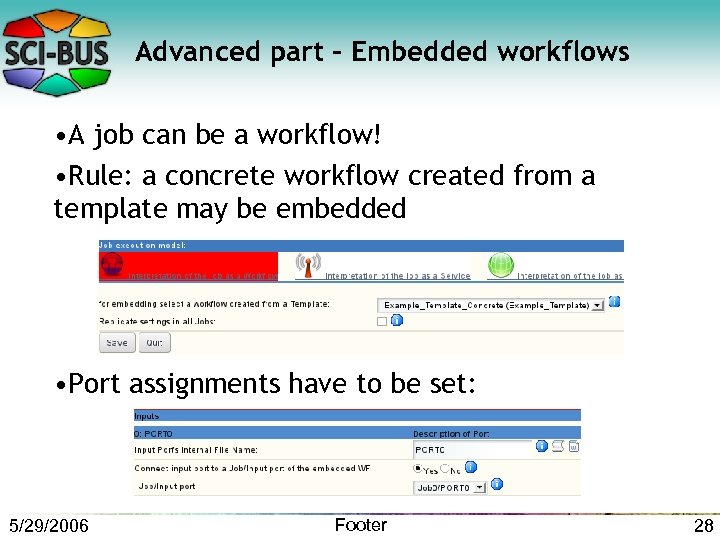 Advanced part – Embedded workflows • A job can be a workflow! • Rule: a concrete workflow created from a template may be embedded • Port assignments have to be set: 5/29/2006 Footer 28
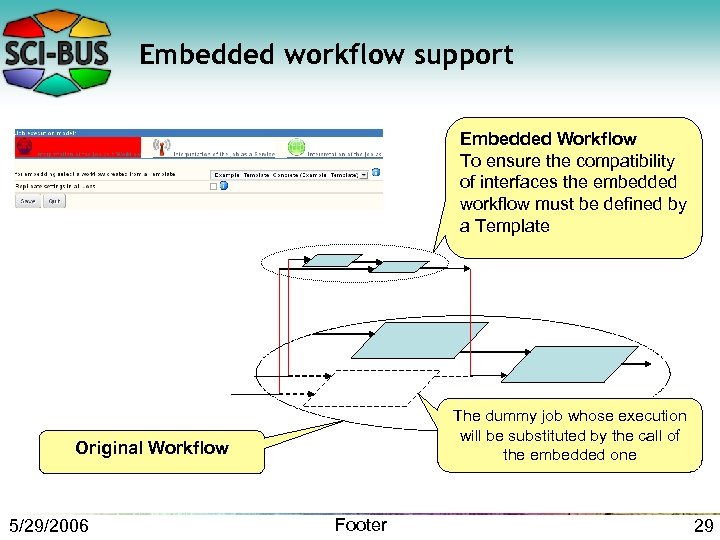 Embedded workflow support Embedded Workflow To ensure the compatibility of interfaces the embedded workflow must be defined by a Template The dummy job whose execution will be substituted by the call of the embedded one Original Workflow 5/29/2006 Footer 29
 Questions? Let's move to the hands-on part! 5/29/2006 Footer 30