 Скачать презентацию WS-PGRADE Akos Balasko LPDS MTA SZTAKI Content
5ef601c3aadbba28dfab4412794e11cf.ppt
- Количество слайдов: 90



WS-PGRADE Akos Balasko LPDS MTA SZTAKI
Content General Overview Parts of System Activities (of advanced and of common user) Simplified Graph of the hierarchy of Activities Principles of Workflow Submission Principles of Job Submissions Principles of Job Input Principles of Job Output Portlet Details Graph Create Concrete Template Storage Upload Repository
General Overview
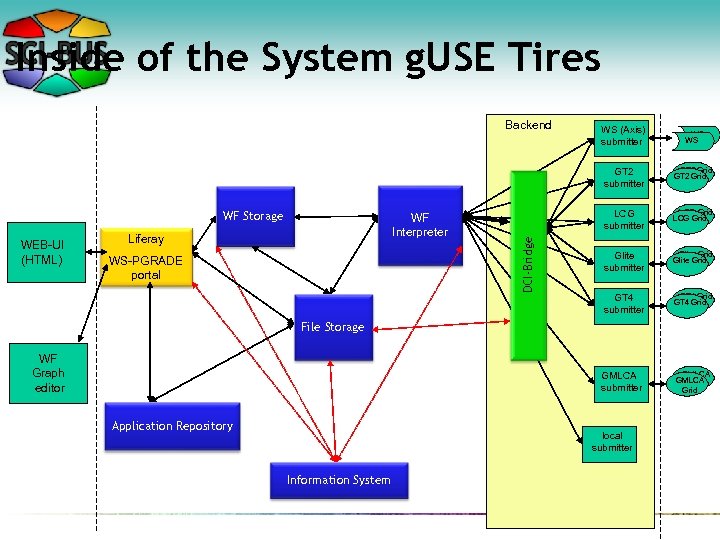
Inside of the System g. USE Tires Backend WS (Axis) submitter WS WS WEB-UI (HTML) WF Interpreter Liferay WS-PGRADE portal GT 2 Grid LCG submitter LCG Grid Glite submitter Glite Grid GT 4 submitter GT 4 Grid GMLCA submitter WF Storage DCI-Bridge GT 2 submitter GMLCA Grid File Storage WF Graph editor Application Repository local submitter Information System
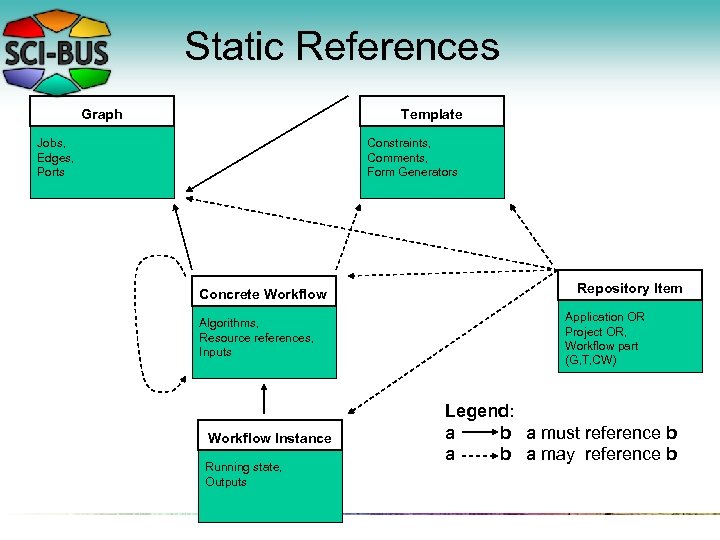
Static References Graph Template Jobs, Edges, Ports Constraints, Comments, Form Generators Concrete Workflow Algorithms, Resource references, Inputs Workflow Instance Running state, Outputs Repository Item Application OR Project OR, Workflow part (G, T, CW) Legend: a b a must reference b a may reference b
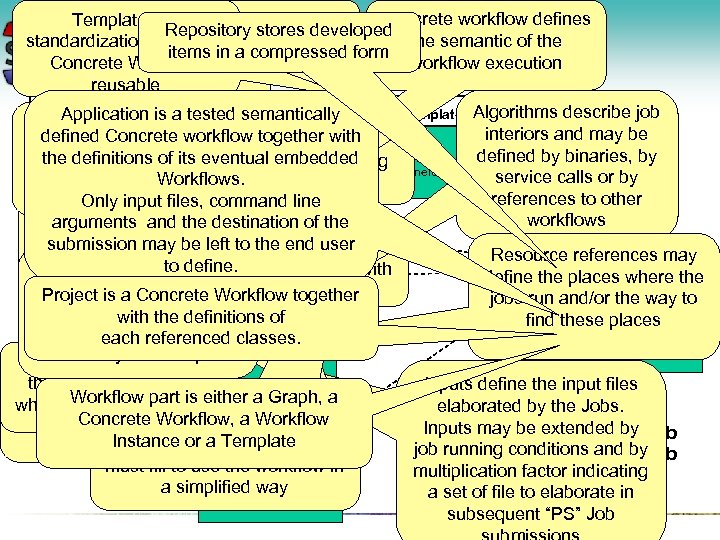
Concrete workflow defines Template is a Jobs are containers Repository stores developed Workflow making a a Static is the semantic of the standardization. Instance of insulated References itemsof aa compressed form in submitted object workflow execution Concrete Workflow computations Concrete Workflow reusable Graph Template Algorithms describe job Application certain Constraints fix is a tested semantically interiors and may be defined Concrete workflow together with Constraints, Edges refers to Jobs, properties of Concrete defined by binaries, by Edges, definitions of its eventual embedded Comments, Runtime state the Workflows subsequently channels connecting Generators Ports Form service calls or by composes Workflows. input/output files defined by the Template references to other information files, command line Only input workflows generated during the destination of the arguments and job submission in be left to the end user submission may Ports connect channel Resource references may order to control the user Comments helpto define. endpoints or files with define the places where the andto set the fix observe non Concrete. Job interiors Repository Item Workflow Project is a Concrete Workflow together jobs run and/or the way to run parameters ofthe definitions of Application OR with Concrete find these places Algorithms, Project OR, Workflows subsequently classes. Resource each referenced references, Workflow part Inputs defined by the Template (G, T, CW) Outputs graph DAG compose the result of the Inputs define the input files describes the part is either a Graph, a Workflow whole computation elaborated by the Jobs. Legend: skeleton of Workflow, a Workflow Concrete Generators define a Form Inputs may be extended by a b a must reference b workflow Workflow Instance or a Template user question form the end job runningbconditions and by b a a may reference Running workflow in must fill to use the state, multiplication factor indicating Outputs a simplified way a set of file to elaborate in subsequent “PS” Job
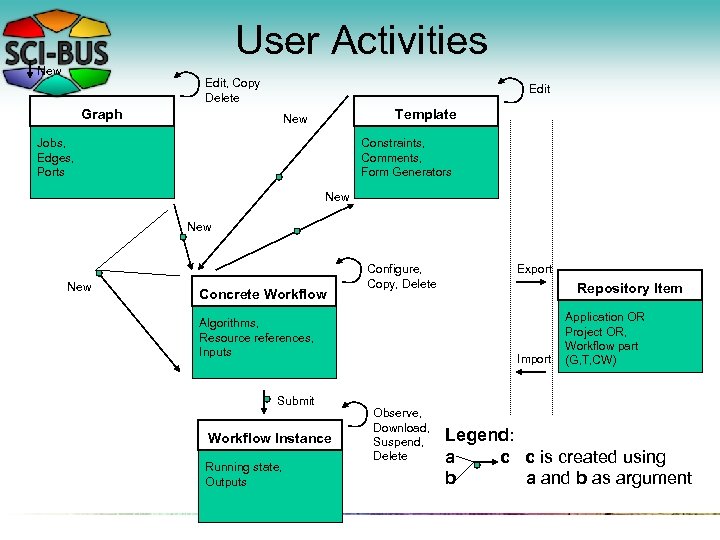
User Activities New Edit, Copy Delete Edit Graph Template New Jobs, Edges, Ports Constraints, Comments, Form Generators New New Concrete Workflow Configure, Copy, Delete Algorithms, Resource references, Inputs Submit Workflow Instance Running state, Outputs Export Repository Item Import Observe, Download, Suspend, Delete Application OR Project OR, Workflow part (G, T, CW) Legend: a c c is created using b a and b as argument
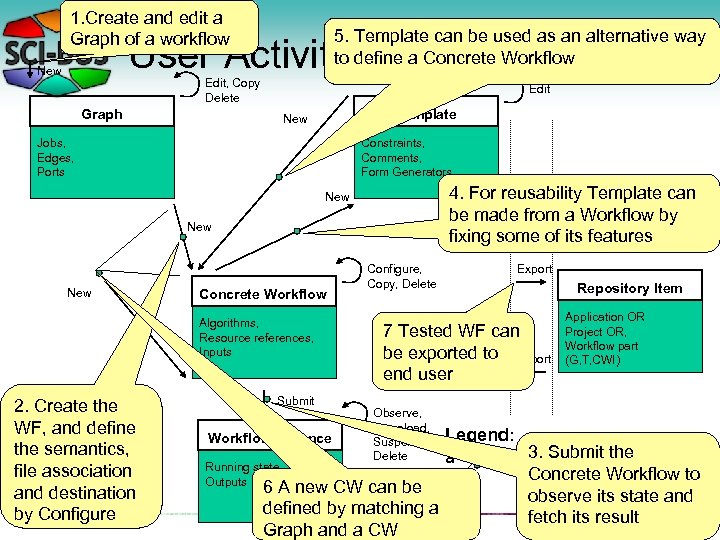
1. Create and edit a Graph of a workflow 5. Template can be used as an alternative way to define a Concrete Workflow User Activities - Developer New Edit, Copy Delete Edit Graph Template New Jobs, Edges, Ports Constraints, Comments, Form Generators 4. For reusability Template can be made from a Workflow by fixing some of its features New New Concrete Workflow Algorithms, Resource references, Inputs 2. Create the WF, and define the semantics, file association and destination by Configure Submit Workflow Instance Running state, Outputs Configure, Copy, Delete Export Repository Item 7 Tested WF can be exported to Import end user Observe, Download, Suspend, Delete 6 A new CW can be defined by matching a Graph and a CW Legend: a c b Application OR Project OR, Workflow part (G, T, CWI) 3. Submit the c is created using Concrete Workflow to a and b as argument observe its state and fetch its result
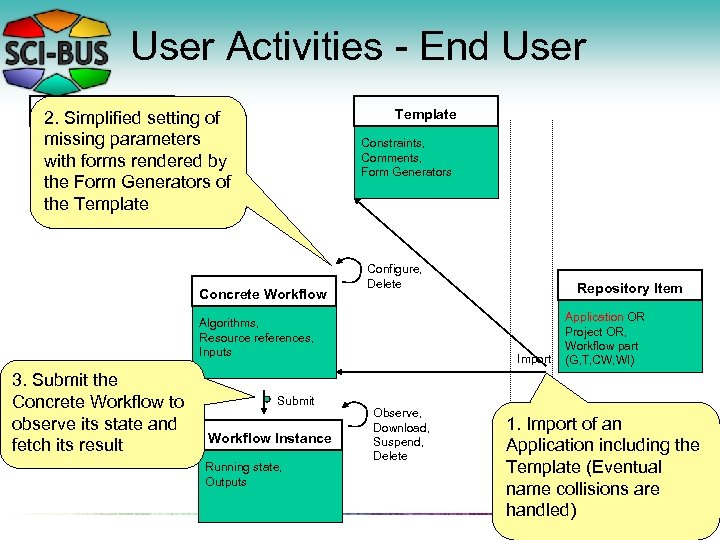
User Activities - End User Graph 2. Simplified setting of missing parameters Jobs, Edges, forms rendered by with Ports the Form Generators of the Template Constraints, Comments, Form Generators Concrete Workflow Configure, Delete Algorithms, Resource references, Inputs 3. Submit the Concrete Workflow to observe its state and fetch its result Submit Workflow Instance Running state, Outputs Repository Item Import Observe, Download, Suspend, Delete Application OR Project OR, Workflow part (G, T, CW, WI) 1. Import of an Application including the Template (Eventual name collisions are handled)
Portlet
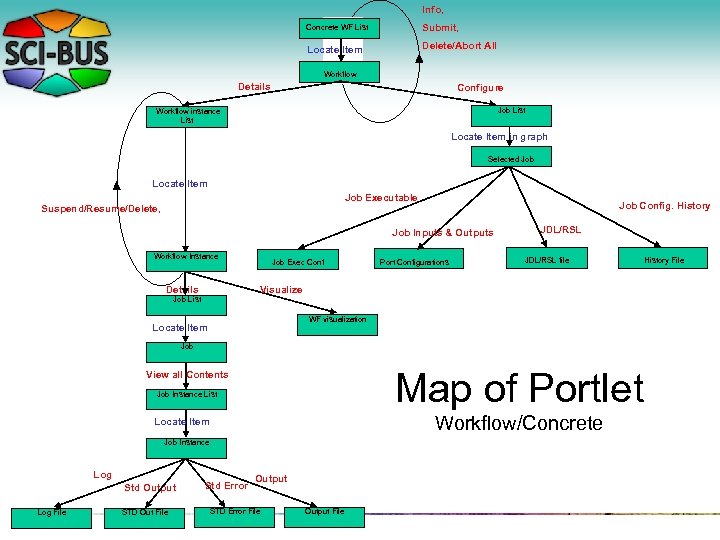
Info, Concrete WF List Submit, Locate Item Delete/Abort All Workflow Details Configure Job List Workflow instance List Locate Item in graph Selected Job Locate Item Job Executable Suspend/Resume/Delete, Job Config. History Job Inputs & Outputs Workflow Instance Details Job Exec Conf Port Configurations JDL/RSL file Visualize Job List WF visualization Locate Item Job Map of Portlet View all Contents Job Instance List Workflow/Concrete Locate Item Job Instance Log Std Output Log File STD Out File Std Error Output STD Error File Output File History File
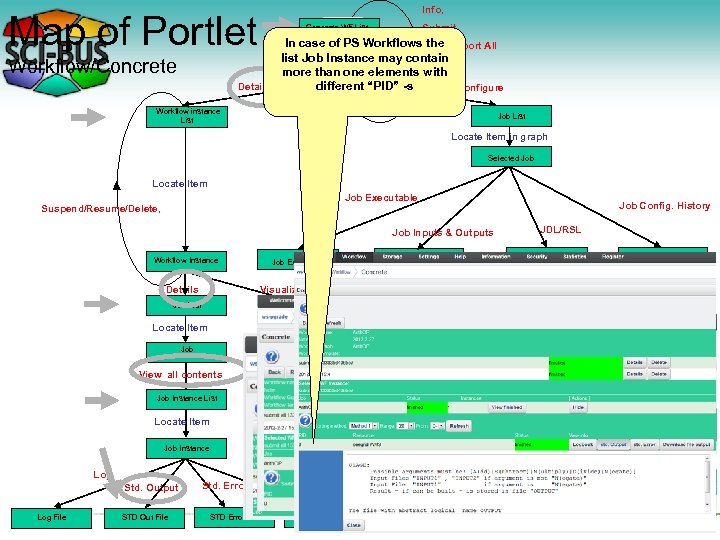
Info, Map of Portlet Submit, Concrete WF List In case of Item. Workflows. Delete/Abort All PS the Locate list Job Instance may contain more than one elements with Workflow Details different “PID” -s Configure Workflow/Concrete Workflow instance List Job List Locate Item in graph Selected Job Locate Item Job Executable Suspend/Resume/Delete, Job Inputs & Outputs Workflow Instance Details Job Exec Conf Visualize Job List WF visualization Locate Item Job View all contents Job Instance List Locate Item Job Instance Log Std. Output Log File STD Out File Std. Error Output STD Error File Output File Port Configurations Job Config. History JDL/RSL file History File
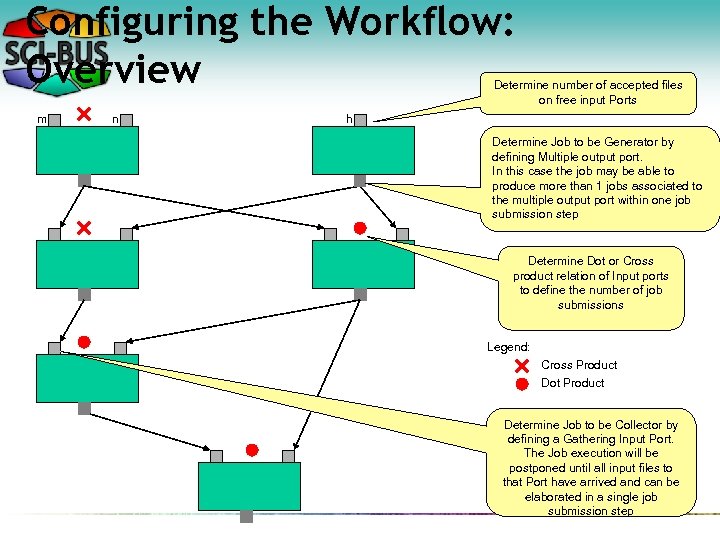
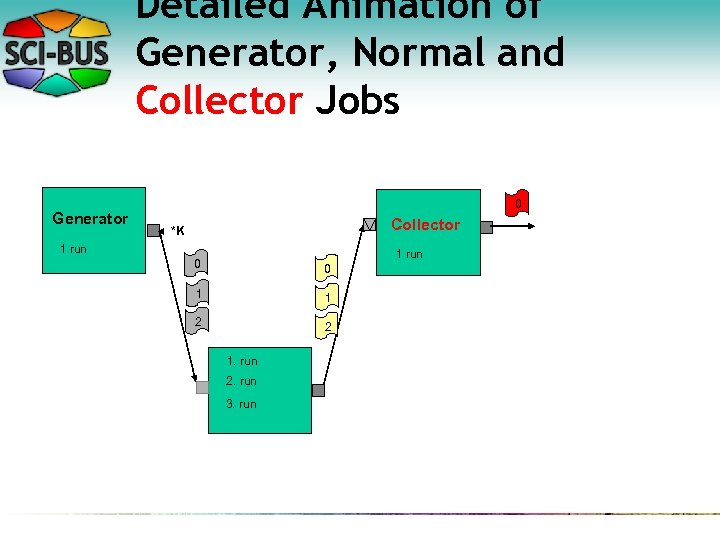
Configuring the Workflow: Overview Determine number of accepted files on free input Ports m n h *K Determine Job to be Generator by defining Multiple output port. In this case the job may be able to produce more than 1 jobs associated to the multiple output port within one job submission step Determine Dot or Cross product relation of Input ports to define the number of job submissions 1 Legend: Cross Product Dot Product Determine Job to be Collector by defining a Gathering Input Port. The Job execution will be postponed until all input files to that Port have arrived and can be elaborated in a single job submission step
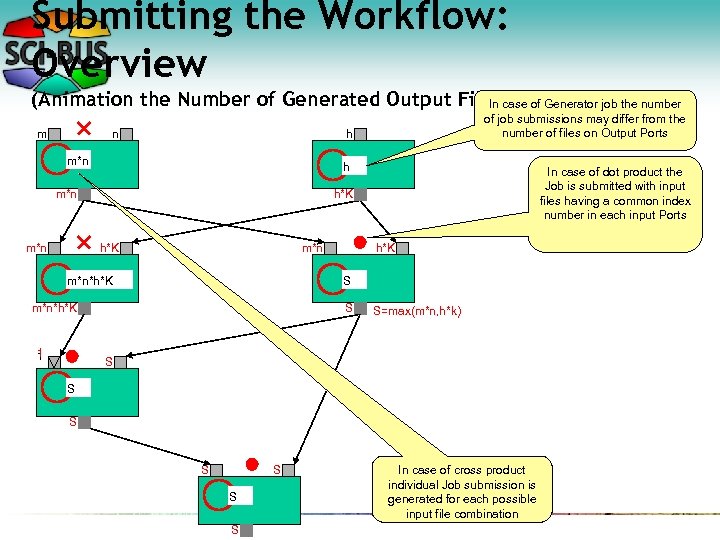
Submitting the Workflow: Overview (Animation the Number of Generated Output Files) of Generator job the number In case m n h m*n m*n In case of dot product the Job is submitted with input files having a common index number in each input Ports h*K m*n*h*K S m*n*h*K 1 of job submissions may differ from the number of files on Output Ports S S=max(m*n, h*k) S S S S In case of cross product individual Job submission is generated for each possible input file combination
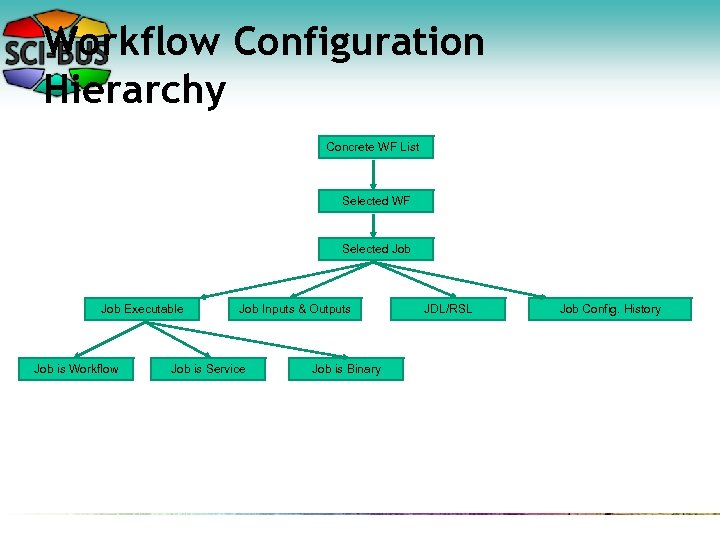
Workflow Configuration Hierarchy Concrete WF List Selected WF Selected Job Executable Job is Workflow Job Inputs & Outputs Job is Service Job is Binary JDL/RSL Job Config. History
Job Execution Model
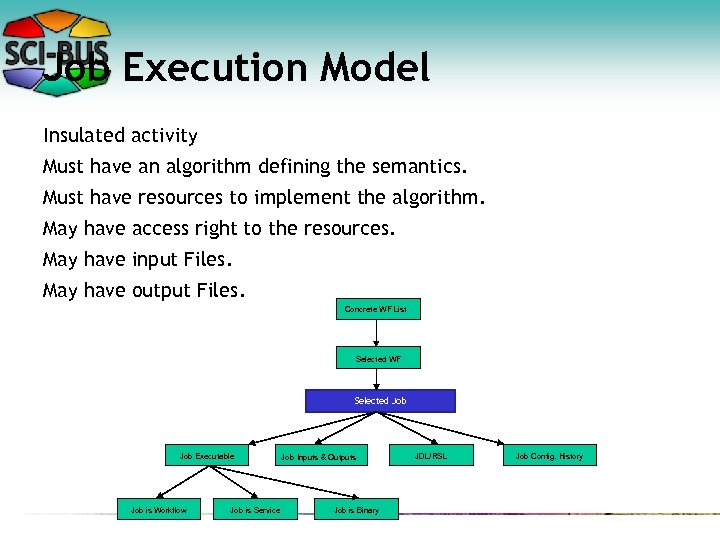
Job Execution Model Insulated activity Must have an algorithm defining the semantics. Must have resources to implement the algorithm. May have access right to the resources. May have input Files. May have output Files. Concrete WF List Selected WF Selected Job Executable Job is Workflow Job is Service Job Inputs & Outputs Job is Binary JDL/RSL Job Config. History
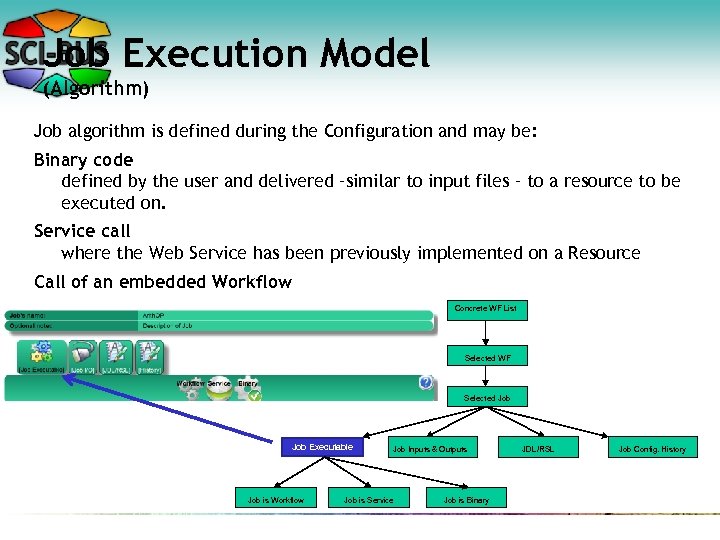
Job Execution Model (Algorithm) Job algorithm is defined during the Configuration and may be: Binary code defined by the user and delivered –similar to input files – to a resource to be executed on. Service call where the Web Service has been previously implemented on a Resource Call of an embedded Workflow Concrete WF List Selected WF Selected Job Executable Job is Workflow Job Inputs & Outputs Job is Service Job is Binary JDL/RSL Job Config. History
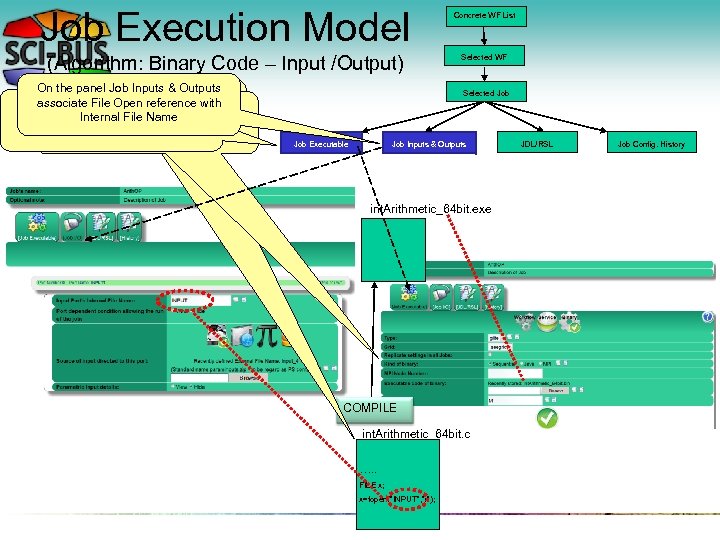
Job Execution Model (Algorithm: Binary Code – Input /Output) On the panel Job. Source File Make a Inputs & Outputs associate File Open reference with On the panel Job Executable define Compile it Internal executed the code to be. File Name Concrete WF List Selected WF Selected Job Executable Job Inputs & Outputs int. Arithmetic_64 bit. exe COMPILE int. Arithmetic_64 bit. c …. . FILE x; x=fopen(“INPUT”, ”r”); JDL/RSL Job Config. History
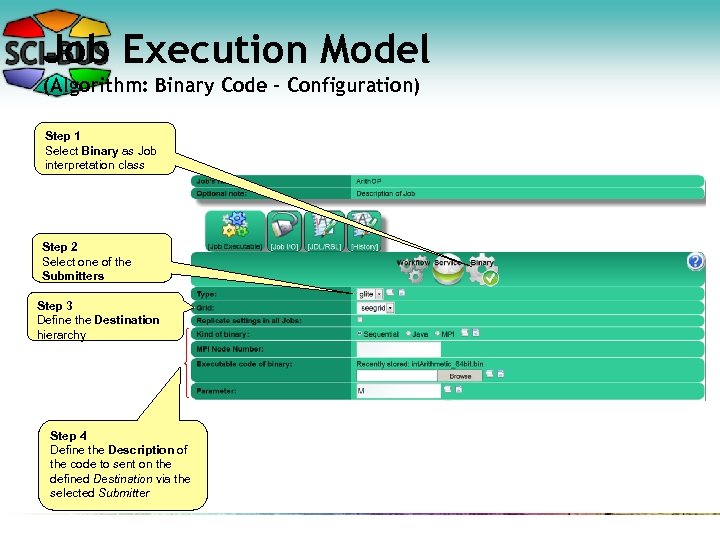
Job Execution Model (Algorithm: Binary Code - Configuration) Step 1 Select Binary as Job interpretation class Step 2 Select one of the Submitters Step 3 Define the Destination hierarchy Step 4 Define the Description of the code to sent on the defined Destination via the selected Submitter
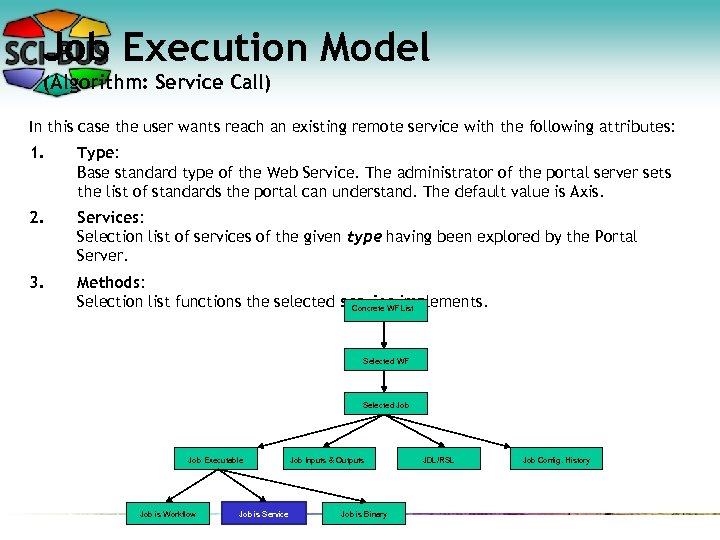
Job Execution Model (Algorithm: Service Call) In this case the user wants reach an existing remote service with the following attributes: 1. Type: Base standard type of the Web Service. The administrator of the portal server sets the list of standards the portal can understand. The default value is Axis. 2. Services: Selection list of services of the given type having been explored by the Portal Server. 3. Methods: Selection list functions the selected service implements. Concrete WF List Selected WF Selected Job Executable Job is Workflow Job is Service Job Inputs & Outputs Job is Binary JDL/RSL Job Config. History
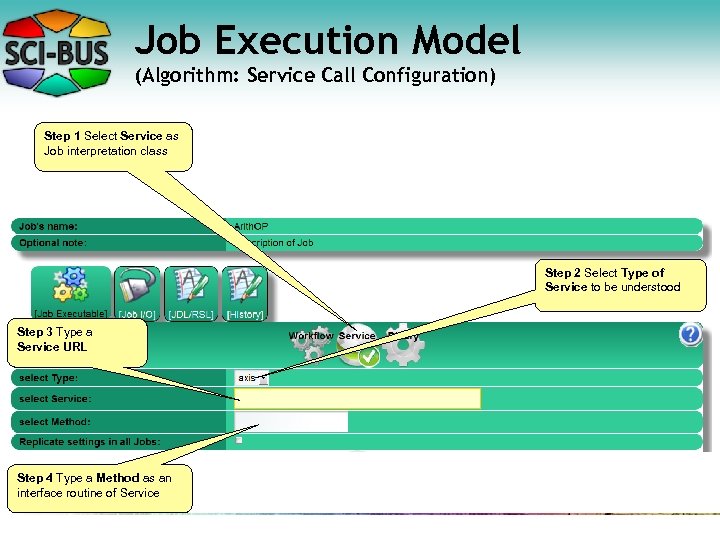
Job Execution Model (Algorithm: Service Call Configuration) Step 1 Select Service as Job interpretation class Step 2 Select Type of Service to be understood Step 3 Type a Service URL Step 4 Type a Method as an interface routine of Service
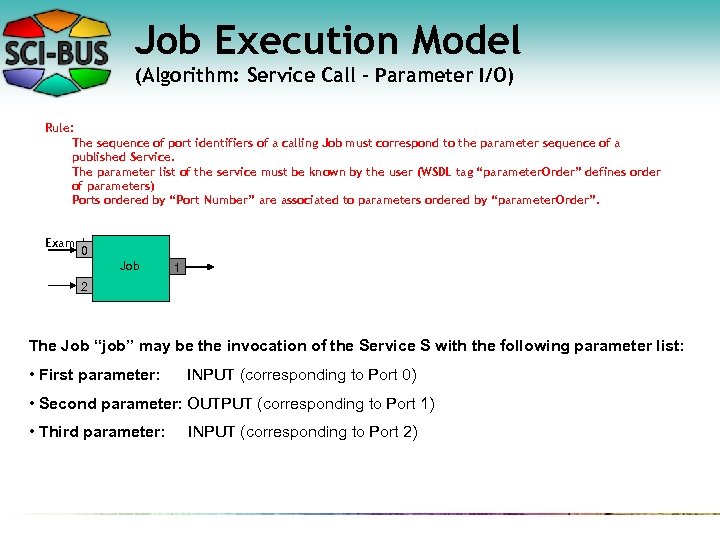
Job Execution Model (Algorithm: Service Call – Parameter I/O) Rule: The sequence of port identifiers of a calling Job must correspond to the parameter sequence of a published Service. The parameter list of the service must be known by the user (WSDL tag “parameter. Order” defines order of parameters) Ports ordered by “Port Number” are associated to parameters ordered by “parameter. Order”. Example: 0 Job 1 2 The Job “job” may be the invocation of the Service S with the following parameter list: • First parameter: INPUT (corresponding to Port 0) • Second parameter: OUTPUT (corresponding to Port 1) • Third parameter: INPUT (corresponding to Port 2)
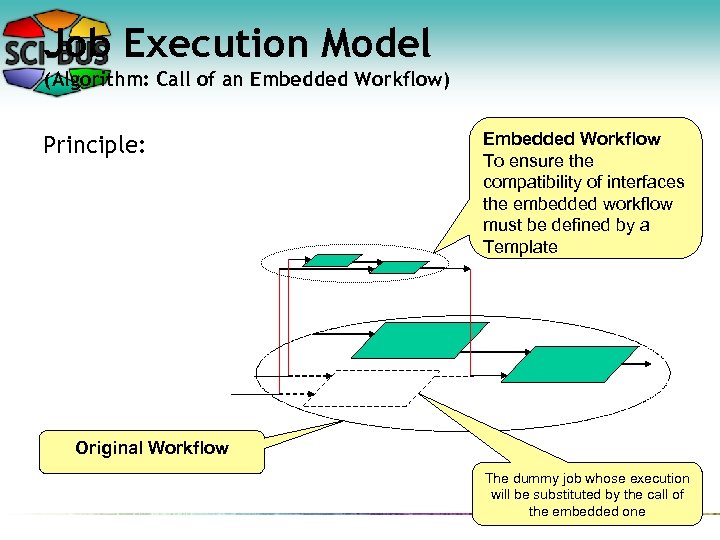
Job Execution Model (Algorithm: Call of an Embedded Workflow) Principle: Embedded Workflow To ensure the compatibility of interfaces the embedded workflow must be defined by a Template Original Workflow The dummy job whose execution will be substituted by the call of the embedded one
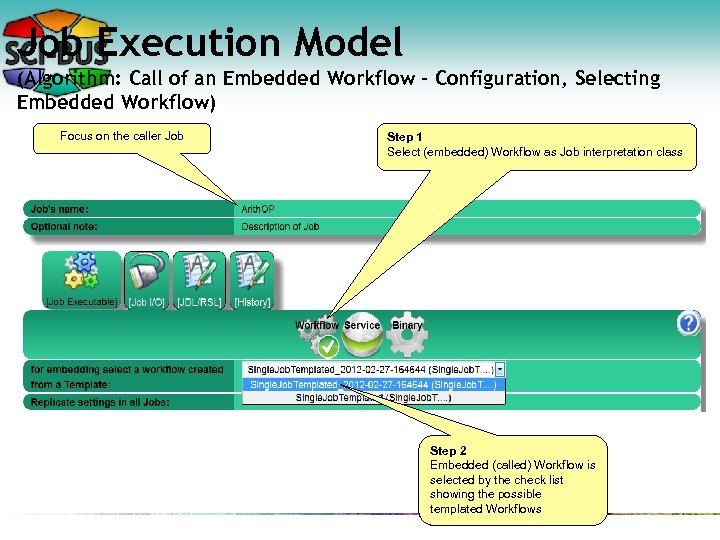
Job Execution Model (Algorithm: Call of an Embedded Workflow – Configuration, Selecting Embedded Workflow) Focus on the caller Job Step 1 Select (embedded) Workflow as Job interpretation class Step 2 Embedded (called) Workflow is selected by the check list showing the possible templated Workflows
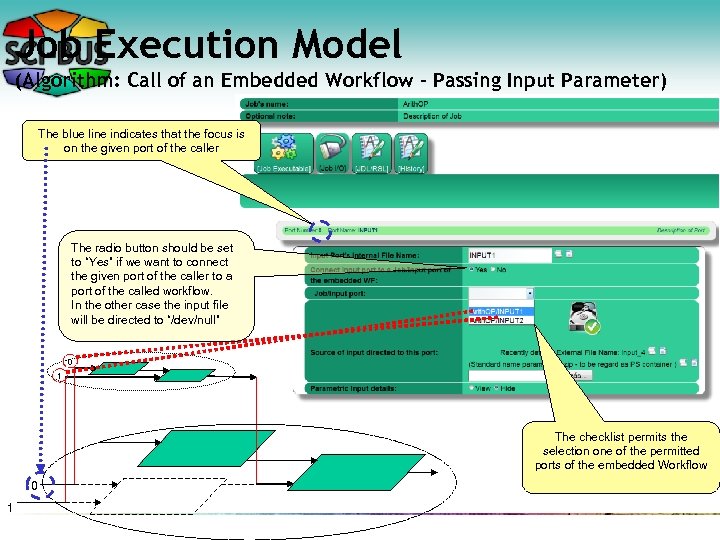
Job Execution Model (Algorithm: Call of an Embedded Workflow – Passing Input Parameter) The blue line indicates that the focus is on the given port of the caller The radio button should be set to “Yes” if we want to connect the given port of the caller to a port of the called workflow. In the other case the input file will be directed to “/dev/null” 0 1 The checklist permits the selection one of the permitted ports of the embedded Workflow 0 1
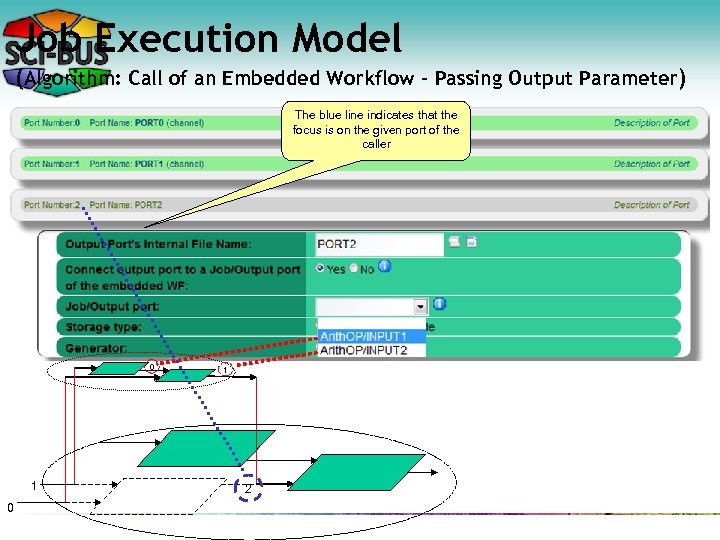
Job Execution Model (Algorithm: Call of an Embedded Workflow – Passing Output Parameter) The blue line indicates that the focus is on the given port of the caller 0 1 2
File Associations
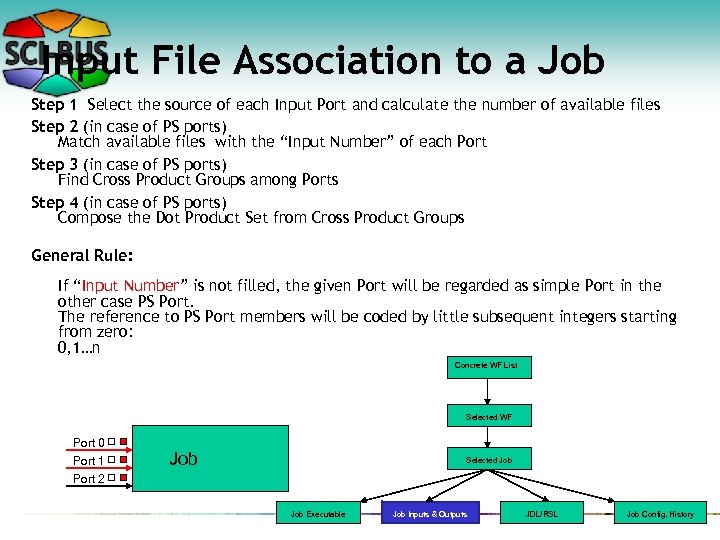
Input File Association to a Job Step 1 Select the source of each Input Port and calculate the number of available files Step 2 (in case of PS ports) Match available files with the “Input Number” of each Port Step 3 (in case of PS ports) Find Cross Product Groups among Ports Step 4 (in case of PS ports) Compose the Dot Product Set from Cross Product Groups General Rule: If “Input Number” is not filled, the given Port will be regarded as simple Port in the other case PS Port. The reference to PS Port members will be coded by little subsequent integers starting from zero: 0, 1…n Concrete WF List Selected WF Port 0 Port 1 Port 2 Job Selected Job Executable Job Inputs & Outputs JDL/RSL Job Config. History
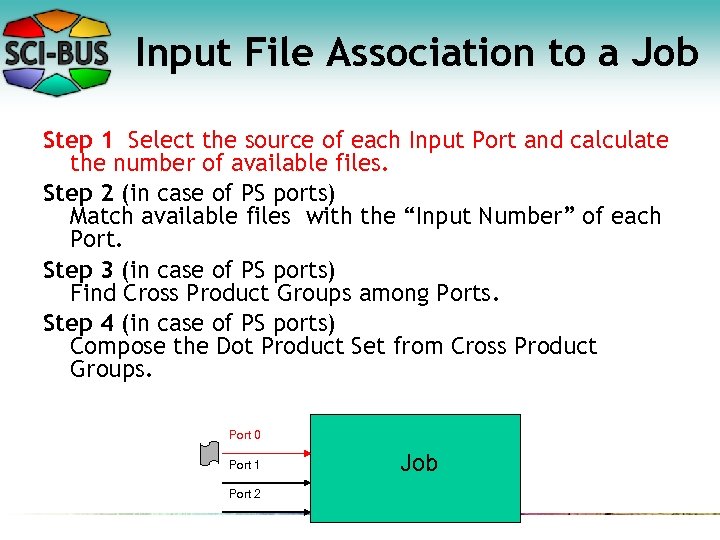
Input File Association to a Job Step 1 Select the source of each Input Port and calculate the number of available files. Step 2 (in case of PS ports) Match available files with the “Input Number” of each Port. Step 3 (in case of PS ports) Find Cross Product Groups among Ports. Step 4 (in case of PS ports) Compose the Dot Product Set from Cross Product Groups. Port 0 Port 1 Port 2 Job
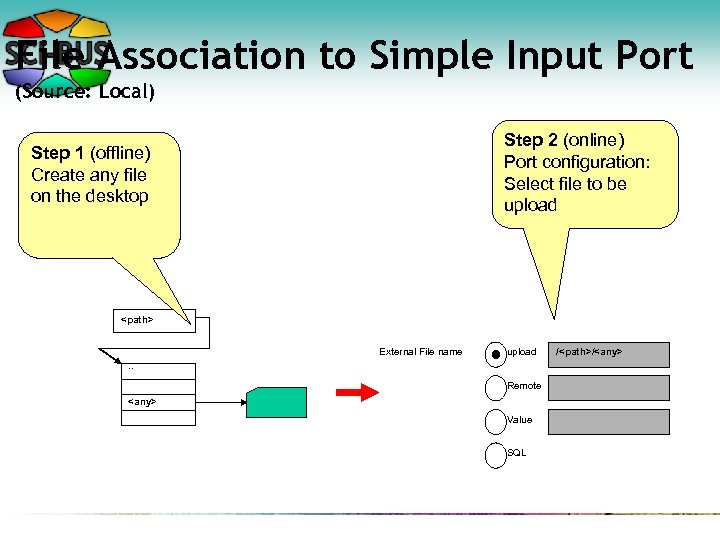
File Association to Simple Input Port (Source: Local) Step 2 (online) Port configuration: Select file to be upload Step 1 (offline) Create any file on the desktop <path> External File name upload . . Remote <any> Value SQL /<path>/<any>
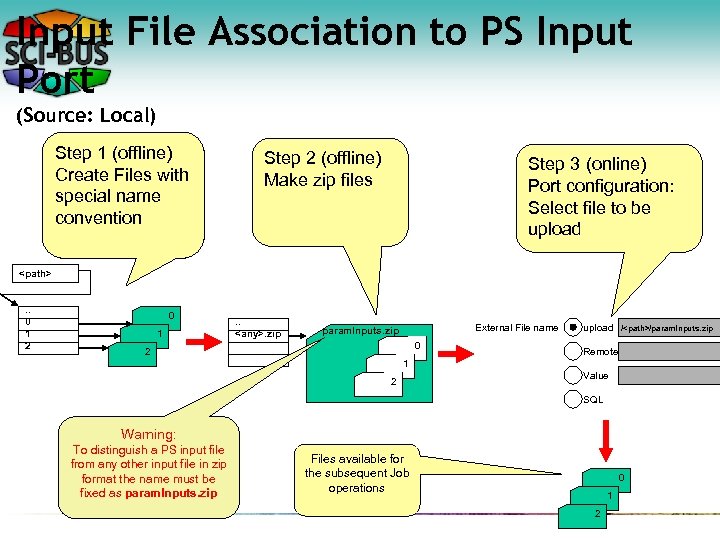
Input File Association to PS Input Port (Source: Local) Step 1 (offline) Create Files with special name convention Step 2 (offline) Make zip files Step 3 (online) Port configuration: Select file to be upload <path>. . 0 1 2 0 1 . . <any>. zip External File name param. Inputs. zip 0 2 upload /<path>/param. Inputs. zip Remote 1 2 Value SQL Warning: To distinguish a PS input file from any other input file in zip format the name must be fixed as param. Inputs. zip Files available for the subsequent Job operations 0 1 2
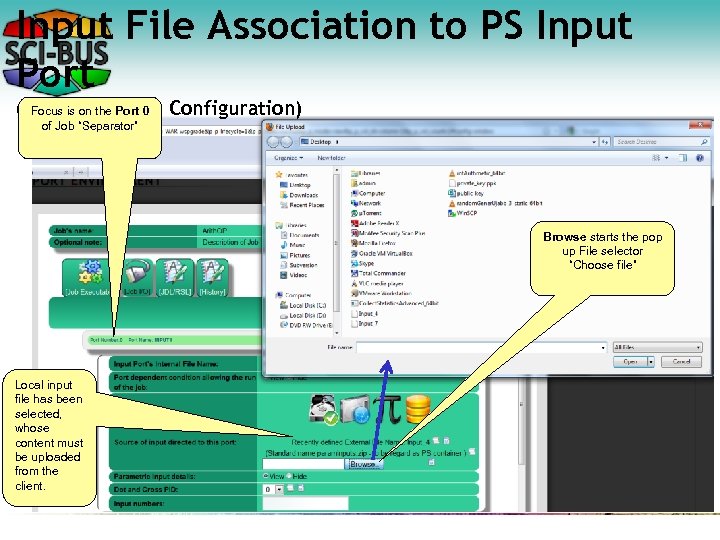
Input File Association to PS Input Port (Source: the Port 0 - Configuration) Focus is on Local of Job “Separator” Browse starts the pop up File selector “Choose file” Local input file has been selected, whose content must be uploaded from the client.
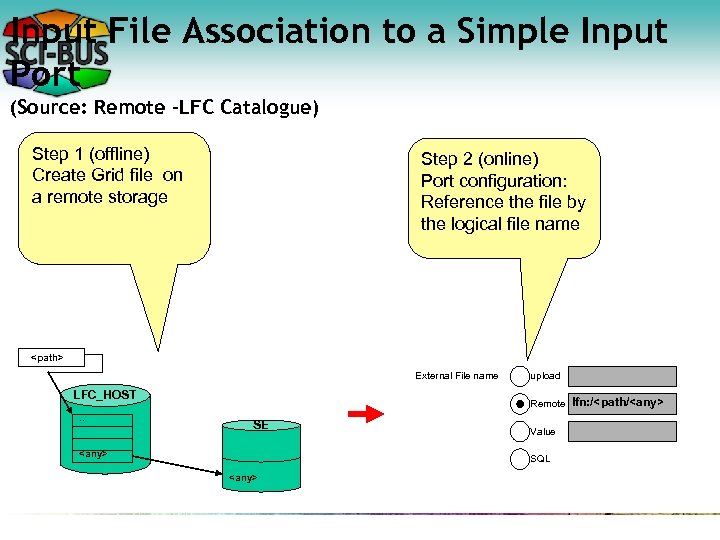
Input File Association to a Simple Input Port (Source: Remote –LFC Catalogue) Step 1 (offline) Create Grid file on a remote storage Step 2 (online) Port configuration: Reference the file by the logical file name <path> External File name LFC_HOST. . upload Remote SE <any> Value SQL <any> lfn: /<path/<any>
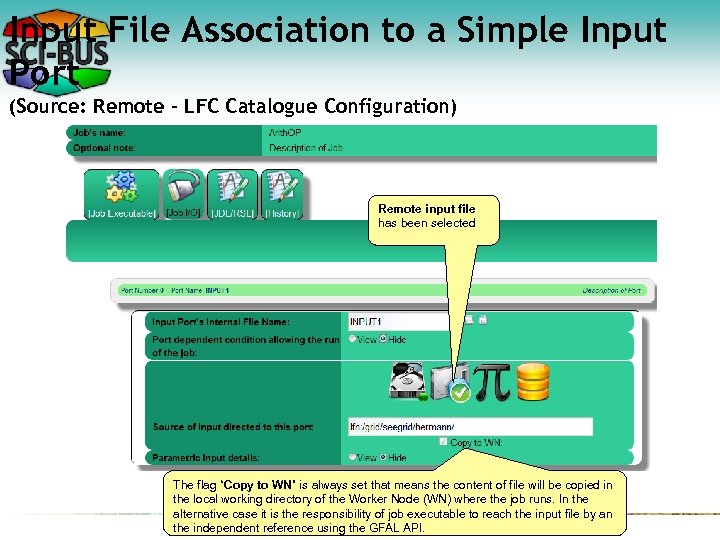
Input File Association to a Simple Input Port (Source: Remote – LFC Catalogue Configuration) Remote input file has been selected The flag “Copy to WN” is always set that means the content of file will be copied in the local working directory of the Worker Node (WN) where the job runs. In the alternative case it is the responsibility of job executable to reach the input file by an the independent reference using the GFAL API.
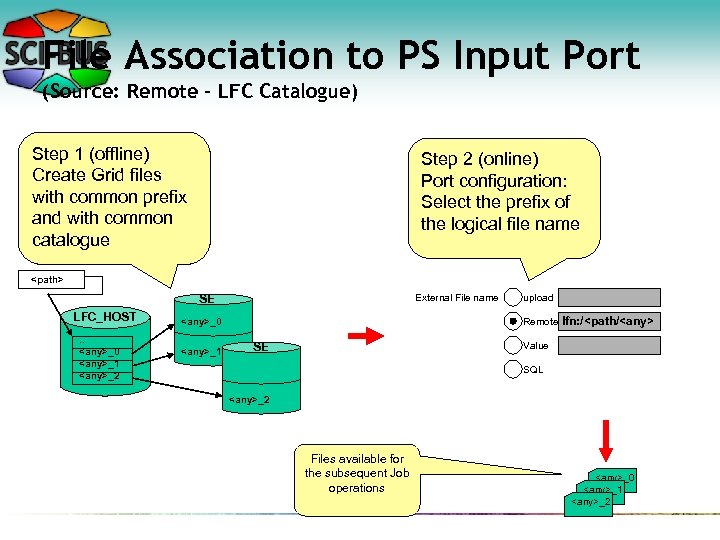
File Association to PS Input Port (Source: Remote – LFC Catalogue) Step 1 (offline) Create Grid files with common prefix and with common catalogue Step 2 (online) Port configuration: Select the prefix of the logical file name <path> External File name SE LFC_HOST. . <any>_0 <any>_1 <any>_2 <any>_0 <any>_1 upload Remote lfn: /<path/<any> Value SE SQL <any>_2 Files available for the subsequent Job operations <any>_0 <any>_1 <any>_2
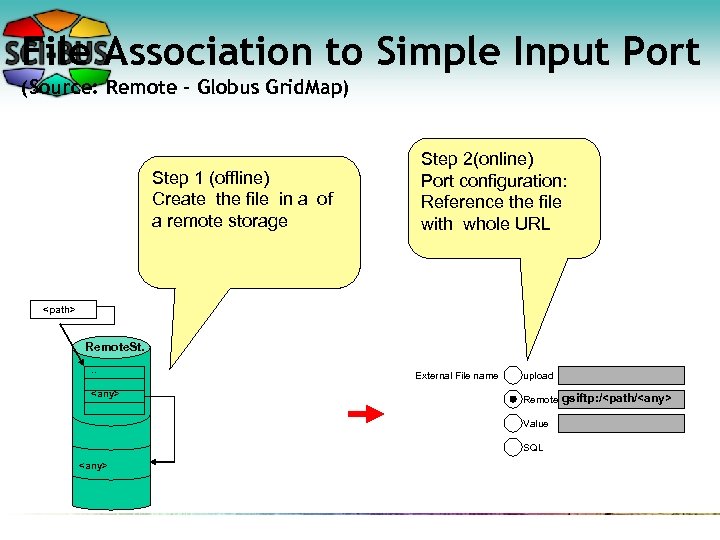
File Association to Simple Input Port (Source: Remote – Globus Grid. Map) Step 1 (offline) Create the file in a of a remote storage Step 2(online) Port configuration: Reference the file with whole URL <path> Remote. St. . . <any> External File name upload Remote Value SQL <any> gsiftp: /<path/<any>
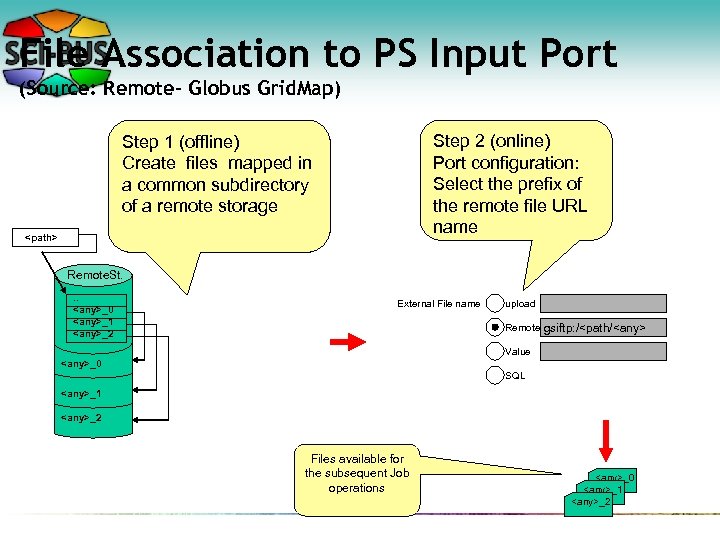
File Association to PS Input Port (Source: Remote– Globus Grid. Map) Step 2 (online) Port configuration: Select the prefix of the remote file URL name Step 1 (offline) Create files mapped in a common subdirectory of a remote storage <path> Remote. St. . . <any>_0 <any>_1 <any>_2 External File name upload Remote gsiftp: /<path/<any> Value <any>_0 SQL <any>_1 <any>_2 Files available for the subsequent Job operations <any>_0 <any>_1 <any>_2
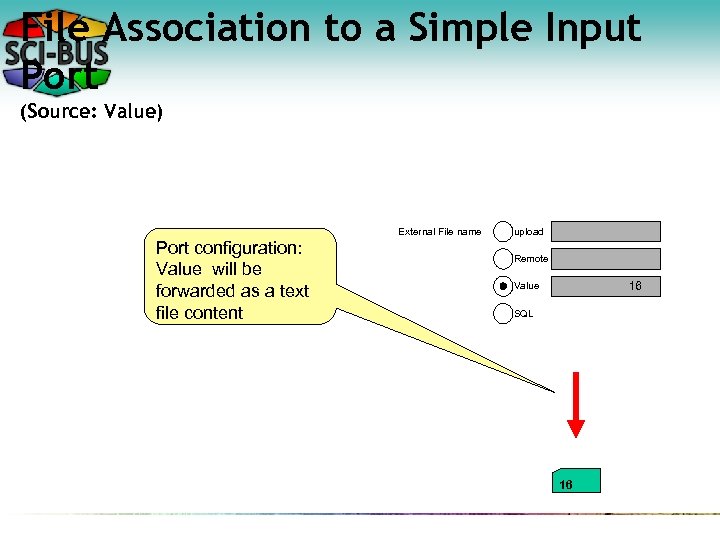
File Association to a Simple Input Port (Source: Value) External File name Port configuration: Value will be forwarded as a text file content upload Remote 16 Value SQL 16
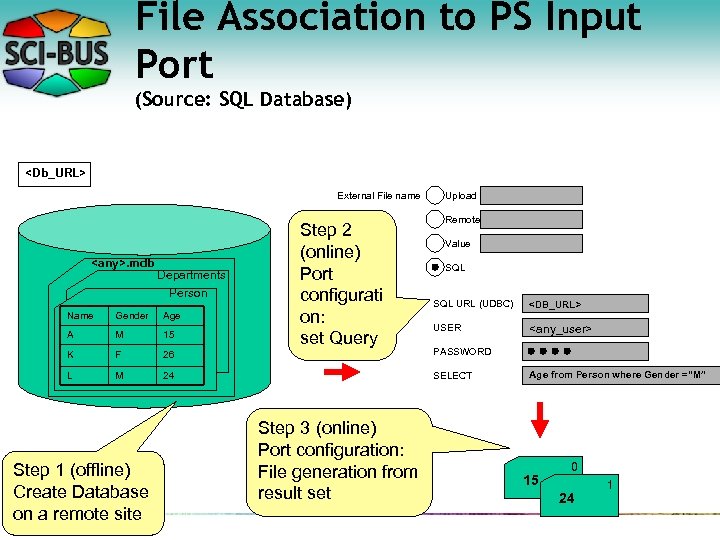
File Association to PS Input Port (Source: SQL Database) <Db_URL> External File name <any>. mdb Departments Person Step 2 (online) Port configurati on: set Query Upload Remote Value SQL URL (UDBC) <DB_URL> USER <any_user> Name Gender Age A M 15 K F 26 PASSWORD L M 24 SELECT Step 1 (offline) Create Database on a remote site Step 3 (online) Port configuration: File generation from result set Age from Person where Gender =“M” 15 0 24 1
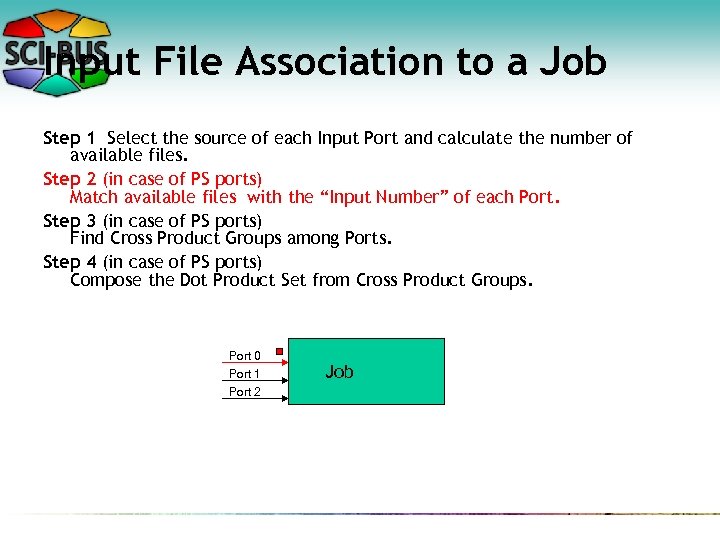
Input File Association to a Job Step 1 Select the source of each Input Port and calculate the number of available files. Step 2 (in case of PS ports) Match available files with the “Input Number” of each Port. Step 3 (in case of PS ports) Find Cross Product Groups among Ports. Step 4 (in case of PS ports) Compose the Dot Product Set from Cross Product Groups. Port 0 Port 1 Port 2 Job
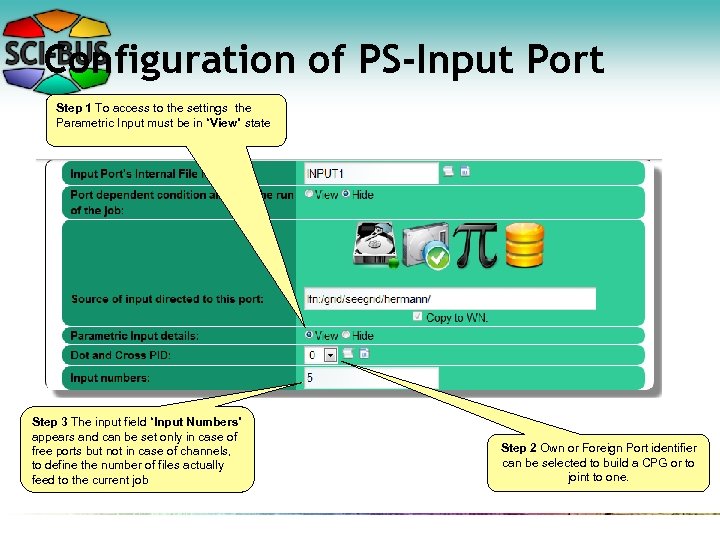
Configuration of PS-Input Port Step 1 To access to the settings the Parametric Input must be in “View” state Step 3 The input field “Input Numbers” appears and can be set only in case of free ports but not in case of channels, to define the number of files actually feed to the current job Step 2 Own or Foreign Port identifier can be selected to build a CPG or to joint to one.
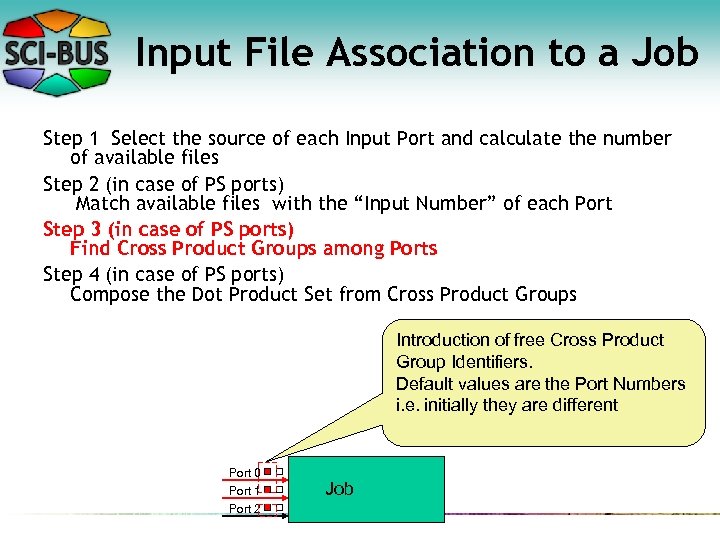
Input File Association to a Job Step 1 Select the source of each Input Port and calculate the number of available files Step 2 (in case of PS ports) Match available files with the “Input Number” of each Port Step 3 (in case of PS ports) Find Cross Product Groups among Ports Step 4 (in case of PS ports) Compose the Dot Product Set from Cross Product Groups Introduction of free Cross Product Group Identifiers. Default values are the Port Numbers i. e. initially they are different Port 0 Port 1 Port 2 Job
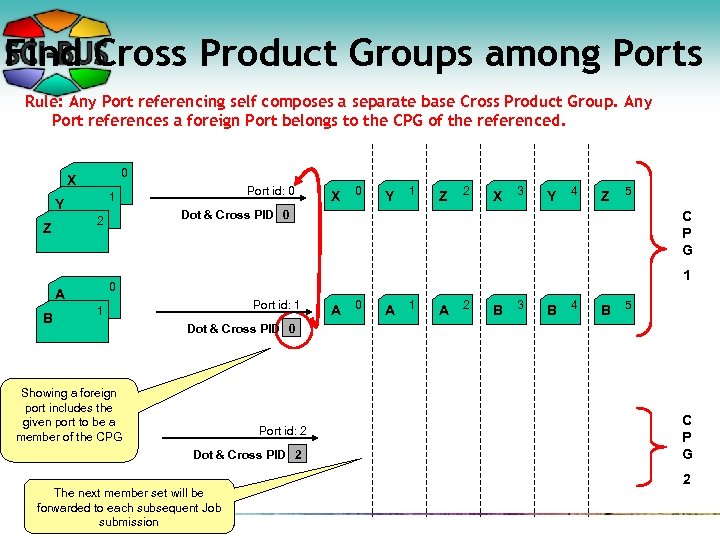
Find Cross Product Groups among Ports Rule: Any Port referencing self composes a separate base Cross Product Group. Any Port references a foreign Port belongs to the CPG of the referenced. 0 X Y 0 Y 1 Z 2 X 3 Y 4 Z 5 C P G 1 0 A B X Dot & Cross PID 0 2 Z Port id: 0 1 Port id: 1 1 A 0 A 1 A 2 B 3 B 4 B 5 Dot & Cross PID 0 Showing a foreign port includes the given port to be a member of the CPG Port id: 2 Dot & Cross PID 2 The next member set will be forwarded to each subsequent Job submission C P G 2
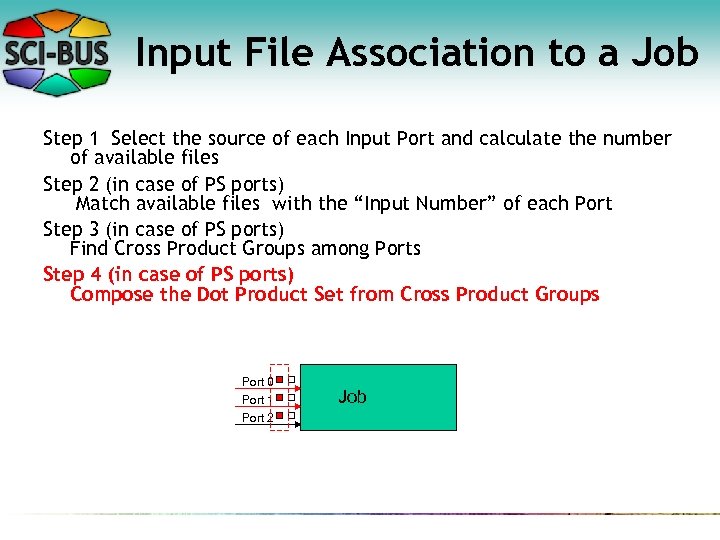
Input File Association to a Job Step 1 Select the source of each Input Port and calculate the number of available files Step 2 (in case of PS ports) Match available files with the “Input Number” of each Port Step 3 (in case of PS ports) Find Cross Product Groups among Ports Step 4 (in case of PS ports) Compose the Dot Product Set from Cross Product Groups Port 0 Port 1 Port 2 Job
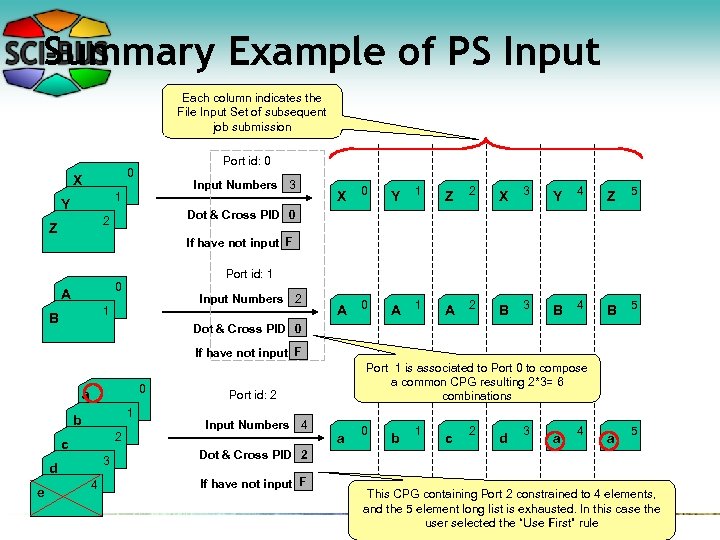
Summary Example of PS Input Each column indicates the File Input Set of subsequent job submission Port id: 0 0 X Input Numbers 3 1 Y 0 Y 1 Z 2 X 3 Y 4 Z 5 Dot & Cross PID 0 2 Z X If have not input F Port id: 1 0 A Input Numbers 2 1 B A 0 A 1 A 2 B 3 B 4 B 5 Dot & Cross PID 0 If have not input F 0 a 1 b 2 c 3 d e 4 Port 1 is associated to Port 0 to compose a common CPG resulting 2*3= 6 combinations Port id: 2 Input Numbers 4 a 0 b 1 c 2 d 3 a 4 a 5 Dot & Cross PID 2 If have not input F This CPG containing Port 2 constrained to 4 elements, and the 5 element long list is exhausted. In this case the user selected the “Use First” rule
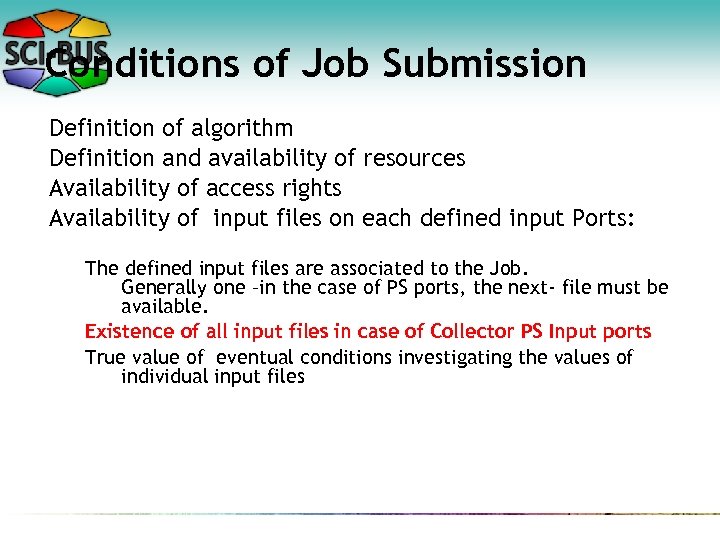
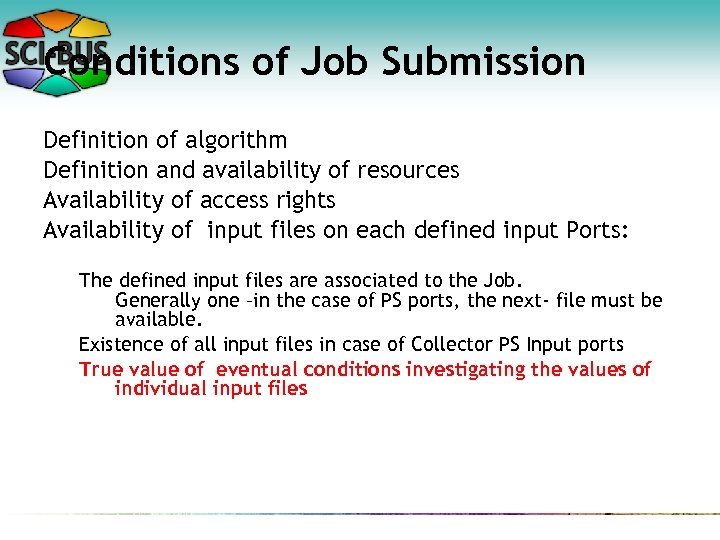
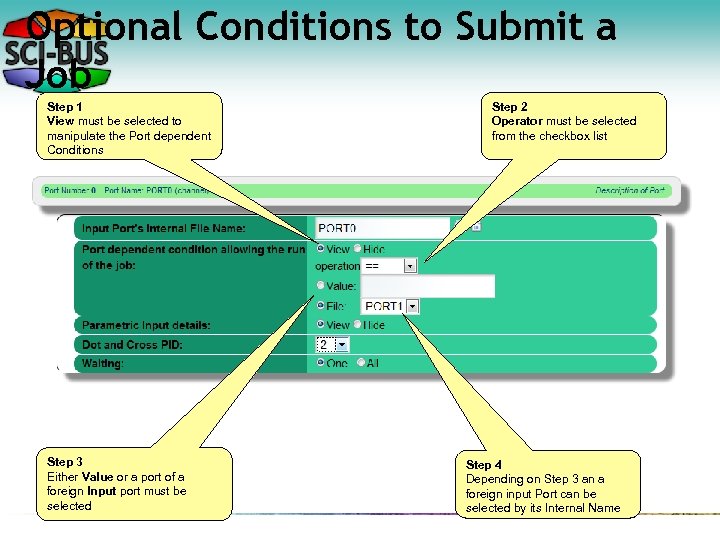
Conditions of Job Submission Definition of algorithm Definition and availability of resources Availability of access rights Availability of input files on each defined input Ports: The defined input files are associated to the Job. Generally one –in the case of PS ports, the next- file must be available. Existence of all input files in case of Collector PS Input ports True value of eventual conditions investigating the values of individual input files
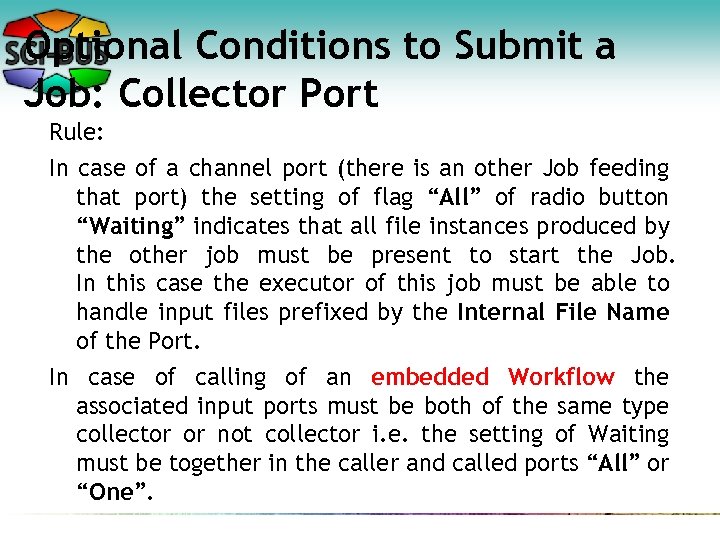
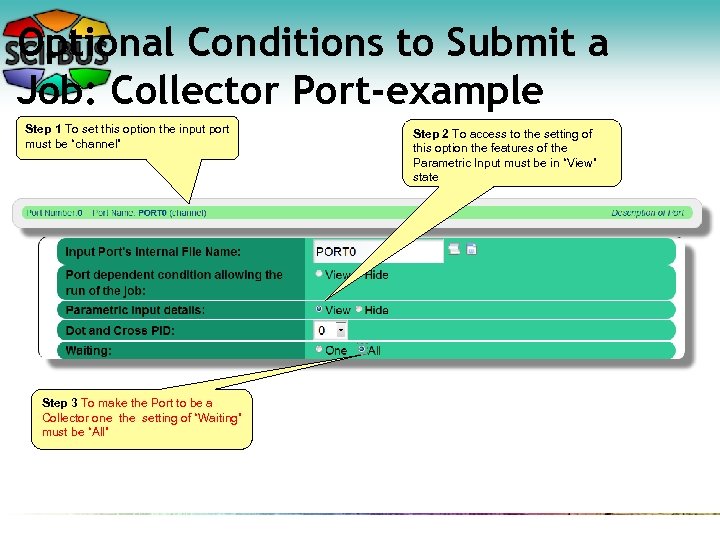
Optional Conditions to Submit a Job: Collector Port Rule: In case of a channel port (there is an other Job feeding that port) the setting of flag “All” of radio button “Waiting” indicates that all file instances produced by the other job must be present to start the Job. In this case the executor of this job must be able to handle input files prefixed by the Internal File Name of the Port. In case of calling of an embedded Workflow the associated input ports must be both of the same type collector or not collector i. e. the setting of Waiting must be together in the caller and called ports “All” or “One”.
Detailed Animation of Generator, Normal and Collector Jobs Generator 0 Collector *K 1 run 0 0 1 1 2 2 1. run 2. run 3. run
Optional Conditions to Submit a Job: Collector Port-example Step 1 To set this option the input port must be “channel” Step 3 To make the Port to be a Collector one the setting of “Waiting” must be “All” Step 2 To access to the setting of this option the features of the Parametric Input must be in “View” state
Conditions of Job Submission Definition of algorithm Definition and availability of resources Availability of access rights Availability of input files on each defined input Ports: The defined input files are associated to the Job. Generally one –in the case of PS ports, the next- file must be available. Existence of all input files in case of Collector PS Input ports True value of eventual conditions investigating the values of individual input files
Optional Conditions to Submit a Job Step 1 View must be selected to manipulate the Port dependent Conditions Step 3 Either Value or a port of a foreign Input port must be selected Step 2 Operator must be selected from the checkbox list Step 4 Depending on Step 3 an a foreign input Port can be selected by its Internal Name
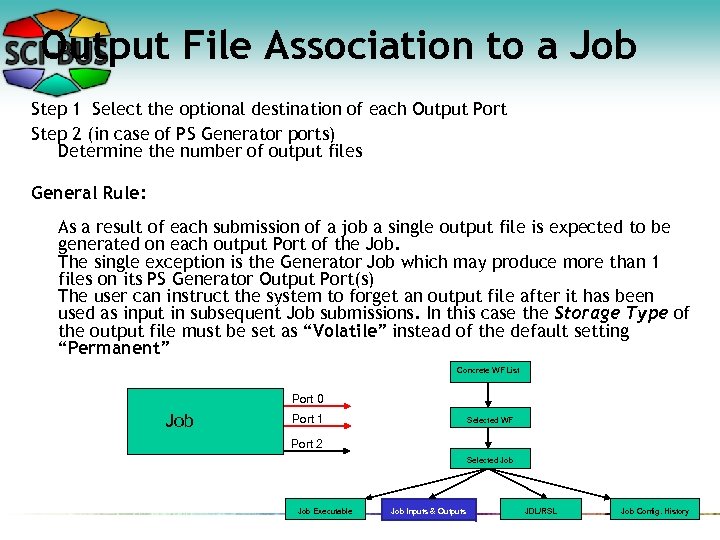
Output File Association to a Job Step 1 Select the optional destination of each Output Port Step 2 (in case of PS Generator ports) Determine the number of output files General Rule: As a result of each submission of a job a single output file is expected to be generated on each output Port of the Job. The single exception is the Generator Job which may produce more than 1 files on its PS Generator Output Port(s) The user can instruct the system to forget an output file after it has been used as input in subsequent Job submissions. In this case the Storage Type of the output file must be set as “Volatile” instead of the default setting “Permanent” Concrete WF List Port 0 Job Port 1 Selected WF Port 2 Selected Job Executable Job Inputs & Outputs JDL/RSL Job Config. History
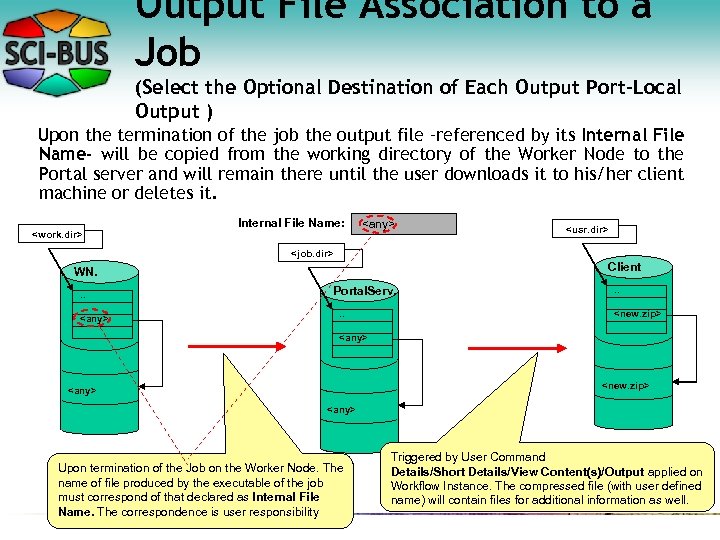
Output File Association to a Job (Select the Optional Destination of Each Output Port-Local Output ) Upon the termination of the job the output file –referenced by its Internal File Name- will be copied from the working directory of the Worker Node to the Portal server and will remain there until the user downloads it to his/her client machine or deletes it. <work. dir> Internal File Name: <any> <usr. dir> <job. dir> Client WN. . . <any> Portal. Serv. . . <new. zip> <any> Upon termination of the Job on the Worker Node. The name of file produced by the executable of the job must correspond of that declared as Internal File Name. The correspondence is user responsibility Triggered by User Command Details/Short Details/View Content(s)/Output applied on Workflow Instance. The compressed file (with user defined name) will contain files for additional information as well.
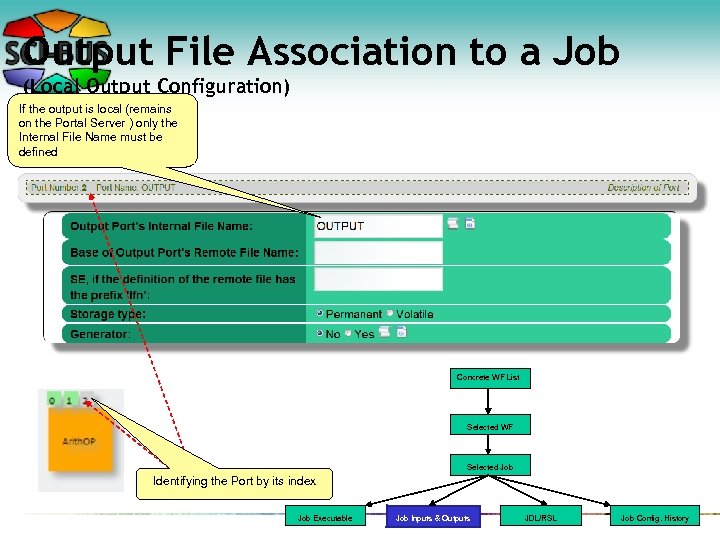
Output File Association to a Job (Local Output Configuration) If the output is local (remains on the Portal Server ) only the Internal File Name must be defined Concrete WF List Selected WF Selected Job Identifying the Port by its index Job Executable Job Inputs & Outputs JDL/RSL Job Config. History
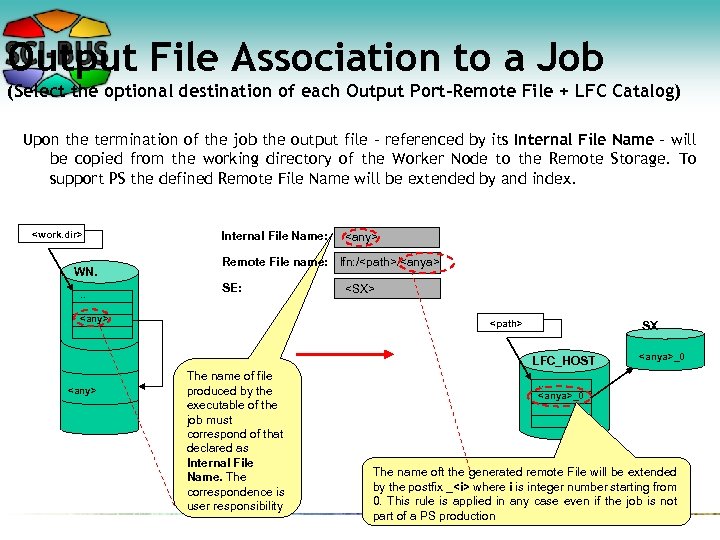
Output File Association to a Job (Select the optional destination of each Output Port-Remote File + LFC Catalog) Upon the termination of the job the output file - referenced by its Internal File Name - will be copied from the working directory of the Worker Node to the Remote Storage. To support PS the defined Remote File Name will be extended by and index. <work. dir> WN. . . Internal File Name: <any> Remote File name: lfn: /<path>/<anya> SE: <any> <SX> <path> SX LFC_HOST <any> The name of file produced by the executable of the job must correspond of that declared as Internal File Name. The correspondence is user responsibility <anya>_0 . . <anya>_0 The name oft the generated remote File will be extended by the postfix _<i> where i is integer number starting from 0. This rule is applied in any case even if the job is not part of a PS production
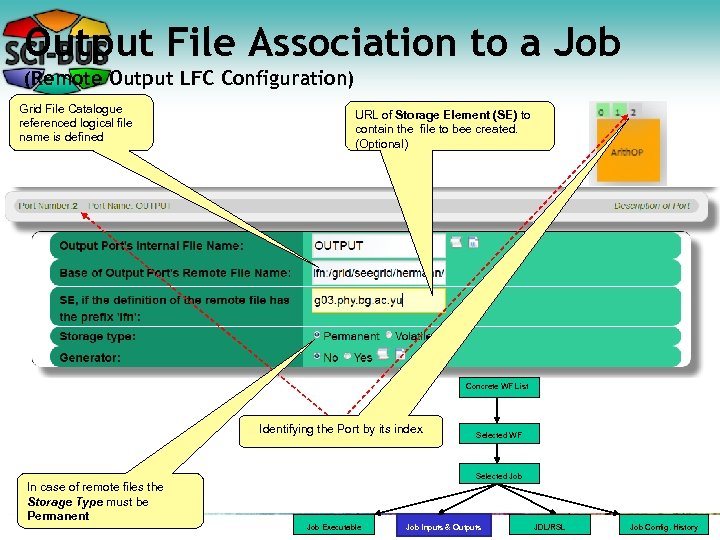
Output File Association to a Job (Remote Output LFC Configuration) Grid File Catalogue referenced logical file name is defined URL of Storage Element (SE) to contain the file to bee created. (Optional) Concrete WF List Identifying the Port by its index In case of remote files the Storage Type must be Permanent Selected WF Selected Job Executable Job Inputs & Outputs JDL/RSL Job Config. History
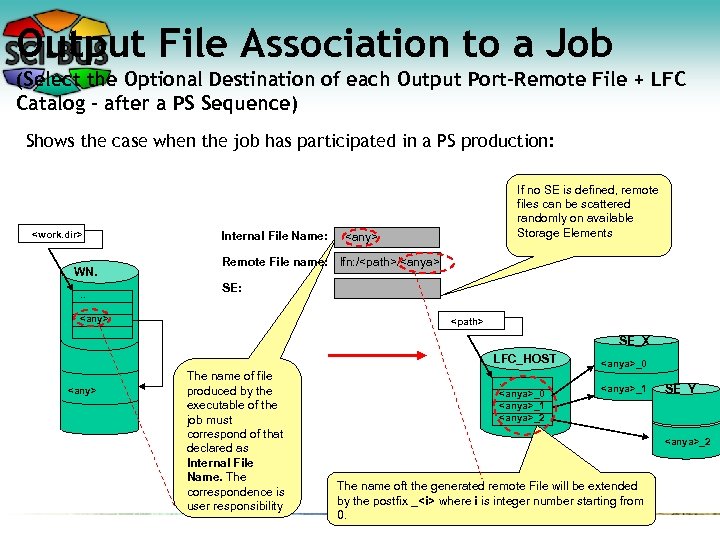
Output File Association to a Job (Select the Optional Destination of each Output Port-Remote File + LFC Catalog – after a PS Sequence) Shows the case when the job has participated in a PS production: <work. dir> WN. . . Internal File Name: If no SE is defined, remote files can be scattered randomly on available Storage Elements <any> Remote File name: lfn: /<path>/<anya> SE: <any> <path> SE_X LFC_HOST <any> The name of file produced by the executable of the job must correspond of that declared as Internal File Name. The correspondence is user responsibility . . <anya>_0 <anya>_1 <anya>_2 <anya>_0 <anya>_1 SE_Y <anya>_2 The name oft the generated remote File will be extended by the postfix _<i> where i is integer number starting from 0.
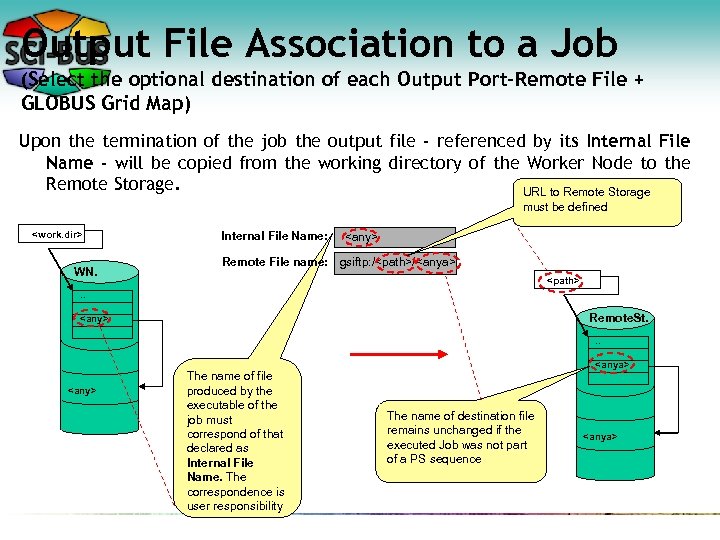
Output File Association to a Job (Select the optional destination of each Output Port-Remote File + GLOBUS Grid Map) Upon the termination of the job the output file - referenced by its Internal File Name - will be copied from the working directory of the Worker Node to the Remote Storage. URL to Remote Storage must be defined <work. dir> WN. Internal File Name: <any> Remote File name: gsiftp: /<path>/<anya> <path> . . Remote. St. <any> The name of file produced by the executable of the job must correspond of that declared as Internal File Name. The correspondence is user responsibility <anya> The name of destination file remains unchanged if the executed Job was not part of a PS sequence <anya>
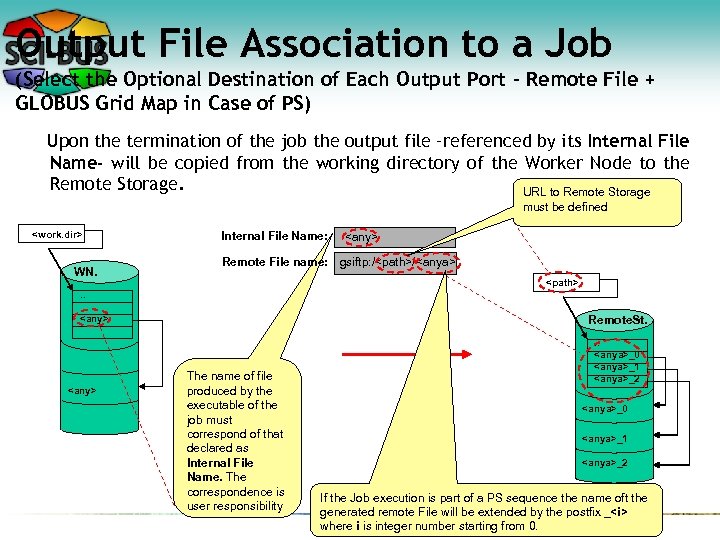
Output File Association to a Job (Select the Optional Destination of Each Output Port - Remote File + GLOBUS Grid Map in Case of PS) Upon the termination of the job the output file –referenced by its Internal File Name- will be copied from the working directory of the Worker Node to the Remote Storage. URL to Remote Storage must be defined <work. dir> WN. Internal File Name: <any> Remote File name: gsiftp: /<path>/<anya> <path> . . <any> Remote. St. The name of file produced by the executable of the job must correspond of that declared as Internal File Name. The correspondence is user responsibility . . <anya>_0 <anya>_1 <anya>_2 If the Job execution is part of a PS sequence the name oft the generated remote File will be extended by the postfix _<i> where i is integer number starting from 0.
Define a Generator Job A job is of a Generator type if it has at least one multiple output port. Syntactically a output port is multiple output port if the associated Output Number is bigger than one. If the number of files produced by a single run of the Generator job is less than the value of Output Number then the generated files will be encountered cyclically in further jobs. If the number of output files exceed the Output Number the exceeding files will be not used
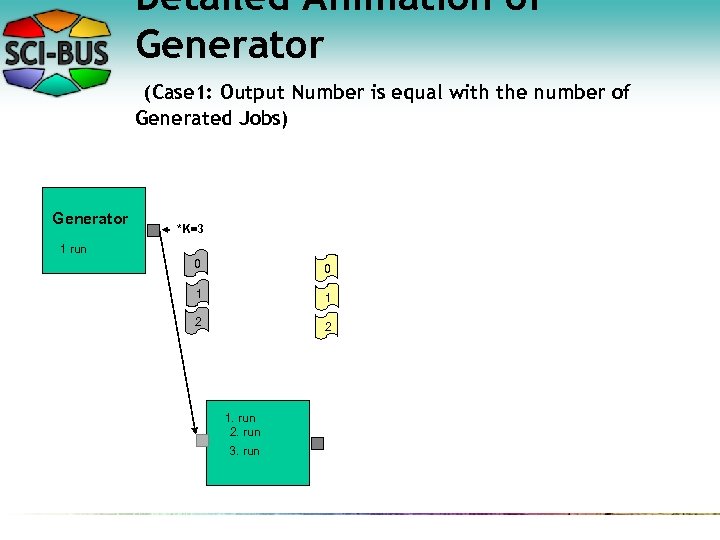
Detailed Animation of Generator (Case 1: Output Number is equal with the number of Generated Jobs) Generator *K=3 1 run 0 0 1 1 2 2 1. run 2. run 3. run
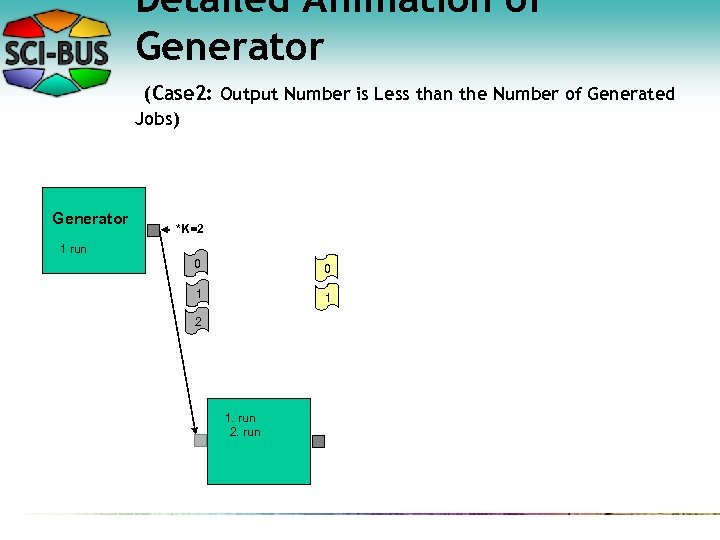
Detailed Animation of Generator (Case 2: Output Number is Less than the Number of Generated Jobs) Generator *K=2 1 run 0 0 1 1 2 1. run 2. run
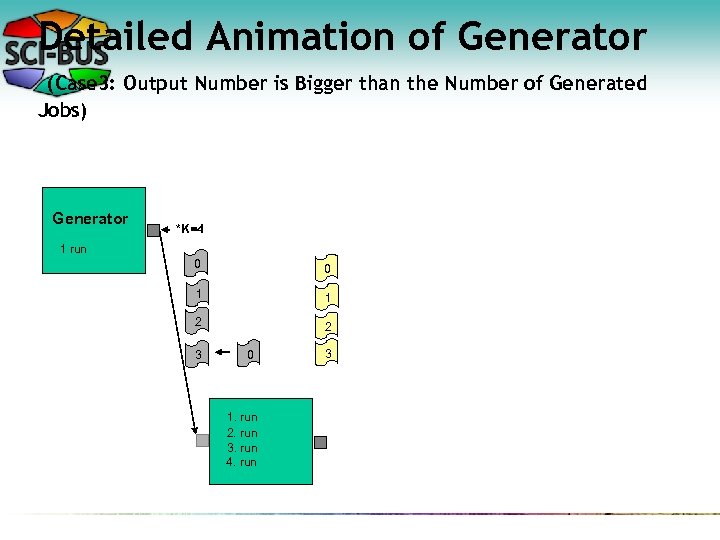
Detailed Animation of Generator (Case 3: Output Number is Bigger than the Number of Generated Jobs) Generator *K=4 1 run 0 0 1 1 2 2 3 0 1. run 2. run 3. run 4. run 3
Workflow
Workflow Activation A workflow can be activated by the following way: Interactively started by the user hitting the button Submit belonging to the given concrete workflow on the portlet Workflow/Concrete.
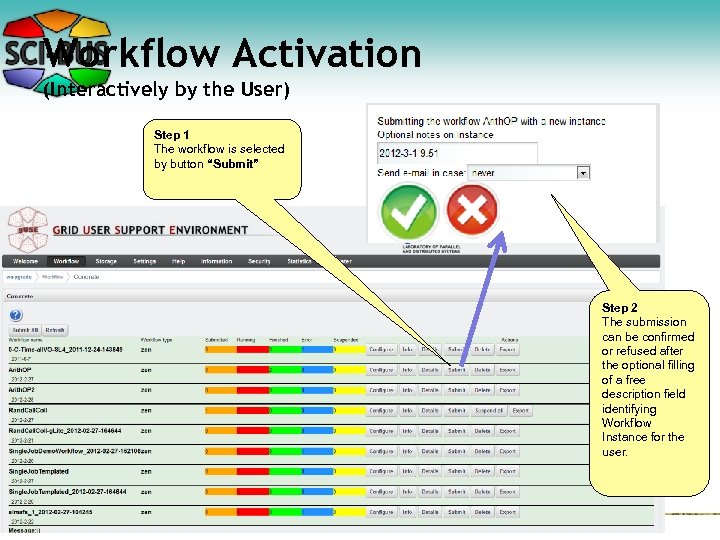
Workflow Activation (Interactively by the User) Step 1 The workflow is selected by button “Submit” Step 2 The submission can be confirmed or refused after the optional filling of a free description field identifying Workflow Instance for the user.
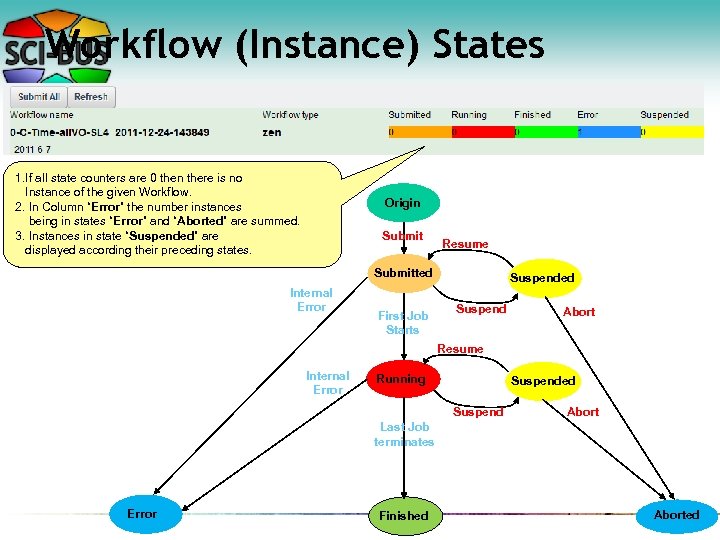
Workflow (Instance) States 1. If all state counters are 0 then there is no Instance of the given Workflow. 2. In Column “Error” the number instances being in states “Error” and “Aborted” are summed. 3. Instances in state “Suspended” are displayed according their preceding states. Origin Submit Resume Submitted Internal Error First Job Starts Suspended Suspend Abort Resume Internal Error Running Suspended Suspend Abort Last Job terminates Error Finished Aborted
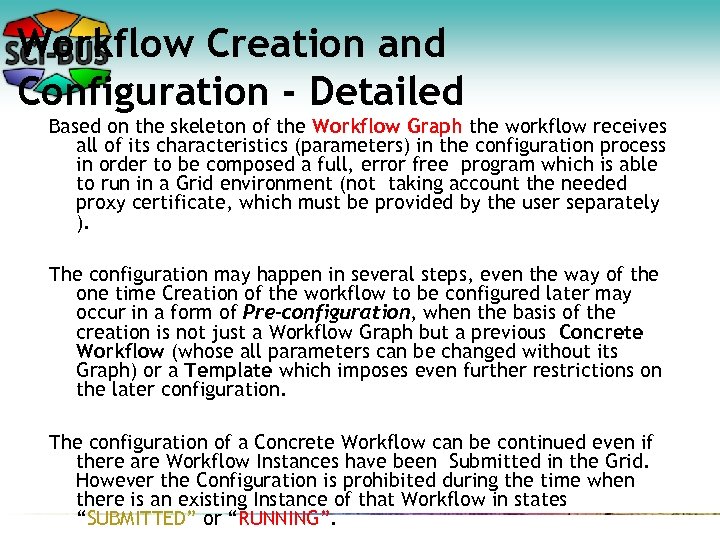
Workflow Creation and Configuration - Detailed Based on the skeleton of the Workflow Graph the workflow receives all of its characteristics (parameters) in the configuration process in order to be composed a full, error free program which is able to run in a Grid environment (not taking account the needed proxy certificate, which must be provided by the user separately ). The configuration may happen in several steps, even the way of the one time Creation of the workflow to be configured later may occur in a form of Pre-configuration, when the basis of the creation is not just a Workflow Graph but a previous Concrete Workflow (whose all parameters can be changed without its Graph) or a Template which imposes even further restrictions on the later configuration. The configuration of a Concrete Workflow can be continued even if there are Workflow Instances have been Submitted in the Grid. However the Configuration is prohibited during the time when there is an existing Instance of that Workflow in states “SUBMITTED” or “RUNNING”.
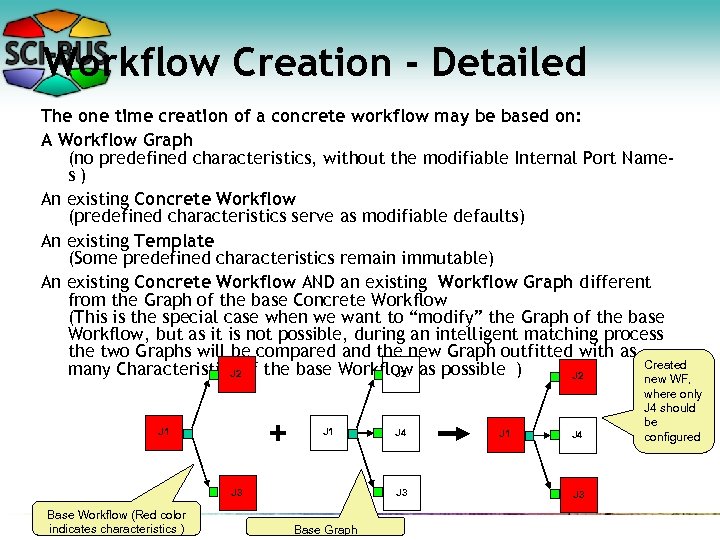
Workflow Creation - Detailed The one time creation of a concrete workflow may be based on: A Workflow Graph (no predefined characteristics, without the modifiable Internal Port Names) An existing Concrete Workflow (predefined characteristics serve as modifiable defaults) An existing Template (Some predefined characteristics remain immutable) An existing Concrete Workflow AND an existing Workflow Graph different from the Graph of the base Concrete Workflow (This is the special case when we want to “modify” the Graph of the base Workflow, but as it is not possible, during an intelligent matching process the two Graphs will be compared and the new Graph outfitted with as Created many Characteristics of the base Workflow as possible ) J 2 J 2 new WF, + J 1 J 3 Base Workflow (Red color indicates characteristics ) J 4 J 3 Base Graph J 1 J 4 J 3 where only J 4 should be configured
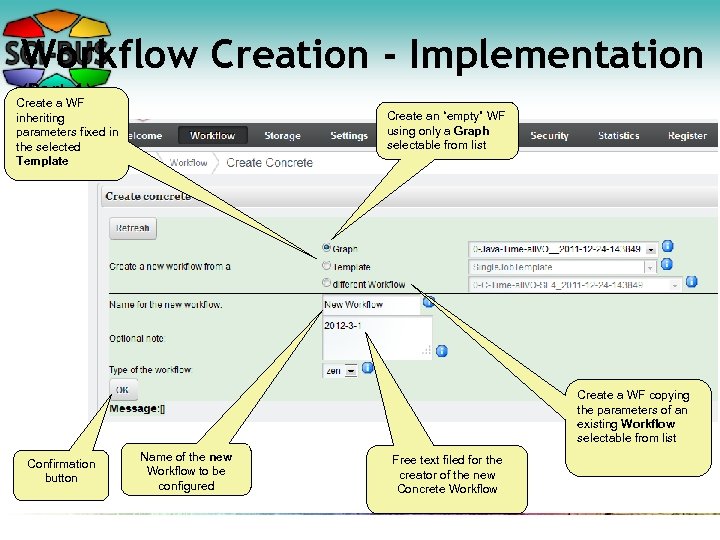
Workflow Creation - Implementation (Part 1) Create a WF inheriting parameters fixed in the selected Template Create an “empty” WF using only a Graph selectable from list Create a WF copying the parameters of an existing Workflow selectable from list Confirmation button Name of the new Workflow to be configured Free text filed for the creator of the new Concrete Workflow
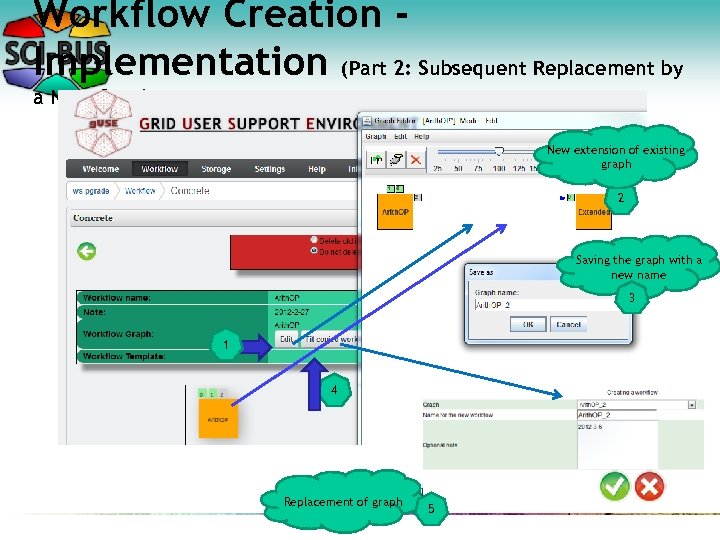
Workflow Creation Implementation (Part 2: Subsequent Replacement by a New Graph) New extension of existing graph 2 Saving the graph with a new name 3 1 4 Replacement of graph 5
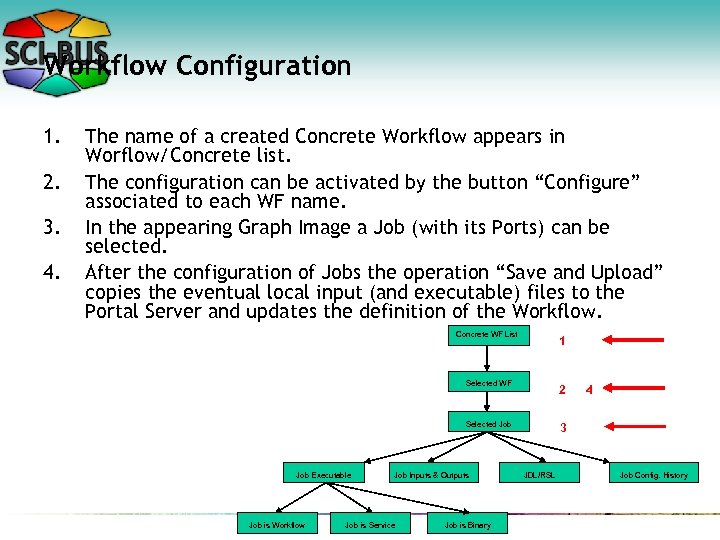
Workflow Configuration 1. 2. 3. 4. The name of a created Concrete Workflow appears in Worflow/Concrete list. The configuration can be activated by the button “Configure” associated to each WF name. In the appearing Graph Image a Job (with its Ports) can be selected. After the configuration of Jobs the operation “Save and Upload” copies the eventual local input (and executable) files to the Portal Server and updates the definition of the Workflow. Concrete WF List 1 Selected WF Selected Job Executable Job is Workflow 2 3 Job Inputs & Outputs Job is Service Job is Binary JDL/RSL 4 Job Config. History
Storage - Overview A Concrete Workflow and its eventual instances can be downloaded from the Portal Server to the client Machine. The storage can serve a subsequent Upload operation, recording the work done, or access to the results of the calculations. The actual file transfer is prepared by compressing the needed data If only a Concrete Workflow is needed you should delete the Instances previously. The Instances and the Outputs of Instances can be downloaded separately. The download of Instances includes the download of the generator Concrete Workflow the outputs the messages resulting from the eventual user jobs and the messages resulting from the Note: In the case of Instances all produced output is booked – and can be downloaded. However – at present - only the actual Input is stored, therefore – if the user has changed the input between two successful Workflow Submissions it is not automatically assured, that the user can fetch the input of the former run.
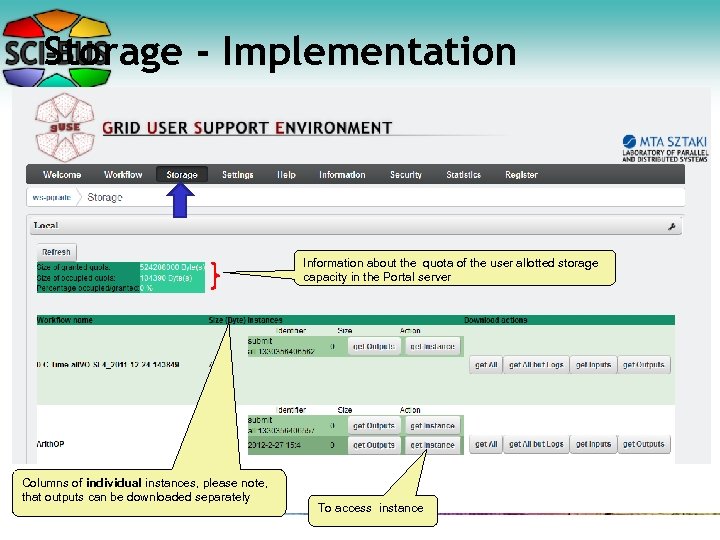
Storage - Implementation Information about the quota of the user allotted storage capacity in the Portal server Columns of individual instances, please note, that outputs can be downloaded separately To access instance
Upload Overview The user can upload a previously downloaded Concrete Workflow from the Client Machine to the Portal Server. To avoid name collisions the user has the possibility to rename: the workflow the graph of the workflow the eventual Template belonging to the workflow The operation collaborates with the Upload operations of Portlet Workflow/Storage accepting the same way of encoding of Workflows
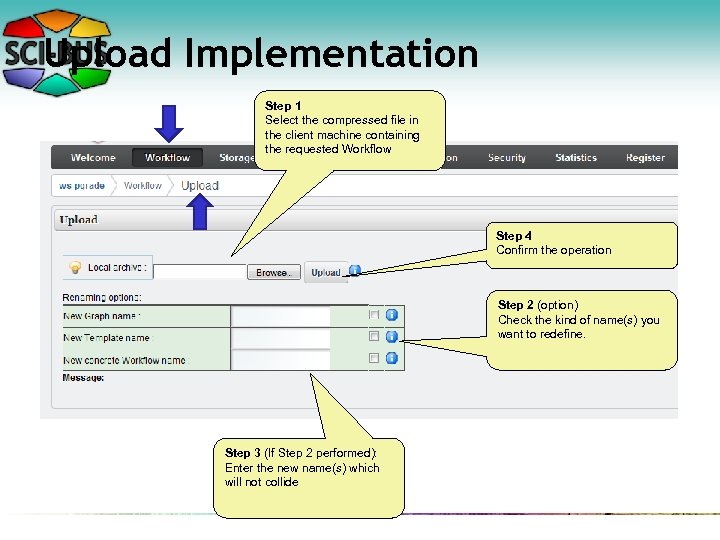
Upload Implementation Step 1 Select the compressed file in the client machine containing the requested Workflow Step 4 Confirm the operation Step 2 (option) Check the kind of name(s) you want to redefine. Step 3 (If Step 2 performed): Enter the new name(s) which will not collide
Template: Make a Workflow Reusable Template is basically an additional database to a workflow. It serves an experienced user: To guarantee the immutability of certain tested settings of a workflow. To inform the new users of the workflow about the proper settings of free characteristics (which have not been set to be immutable by the experienced user) To define syntax constraints for certain free types used by the Form Generators, where Form Generators are system tools to generate simple question forms to be filled by non experienced users to define a concrete workflow in an easy way.
Lifecycle of Templates 1. 2. 3. A named template T will be created on the base of an existing – probably – tested workflow TW. The selecting of immutable characteristics (parameters) is performed during the creation process and can not be modified afterwards. In an optional Editing process the –experienced user may add comments and type descriptions to the non immutable (free) parameters. A user referencing T may create a new, so called “Templated” workflow inheriting all the properties of TW where the user during the subsequent configurations may not change the immutable parameters.
Creating a Template Phase 1 Selecting the base Workflow of the Template and determine the main rule of the creation. Phase 2 Decide individually about the free/immutable status of each characteristics which is not already immutable at the moment.
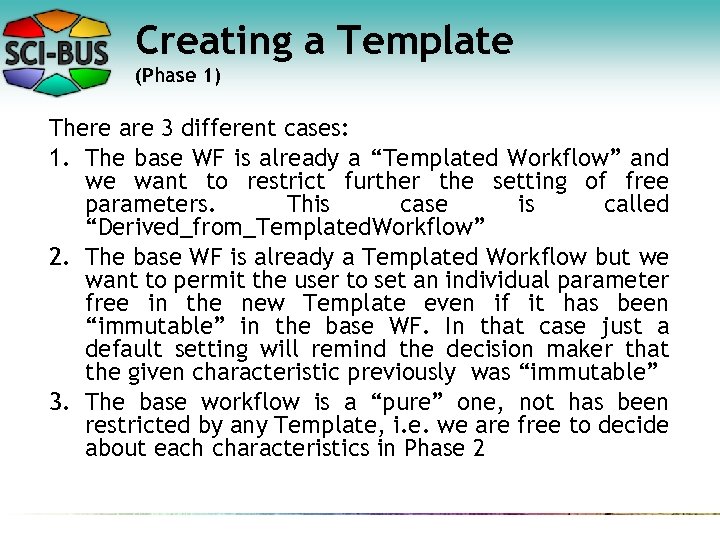
Creating a Template (Phase 1) There are 3 different cases: 1. The base WF is already a “Templated Workflow” and we want to restrict further the setting of free parameters. This case is called “Derived_from_Templated. Workflow” 2. The base WF is already a Templated Workflow but we want to permit the user to set an individual parameter free in the new Template even if it has been “immutable” in the base WF. In that case just a default setting will remind the decision maker that the given characteristic previously was “immutable” 3. The base workflow is a “pure” one, not has been restricted by any Template, i. e. we are free to decide about each characteristics in Phase 2
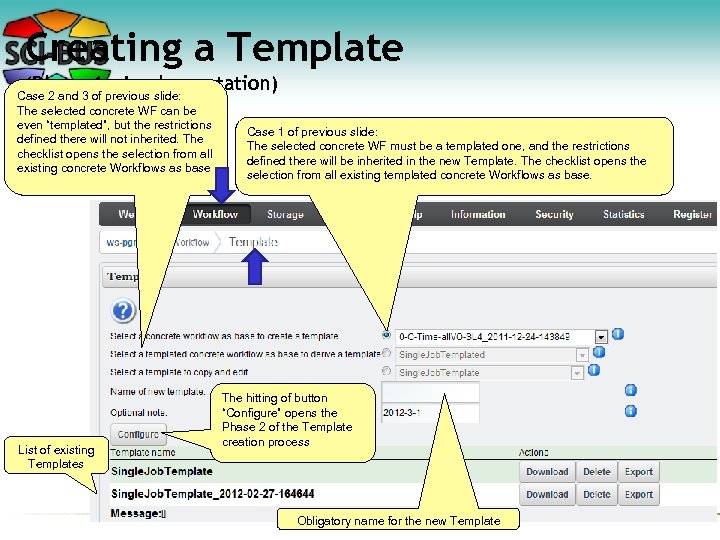
Creating a Template (Phase 1 - Implementation) Case 2 and 3 of previous slide: The selected concrete WF can be even “templated”, but the restrictions defined there will not inherited. The checklist opens the selection from all existing concrete Workflows as base List of existing Templates Case 1 of previous slide: The selected concrete WF must be a templated one, and the restrictions defined there will be inherited in the new Template. The checklist opens the selection from all existing templated concrete Workflows as base. The hitting of button “Configure” opens the Phase 2 of the Template creation process Obligatory name for the new Template
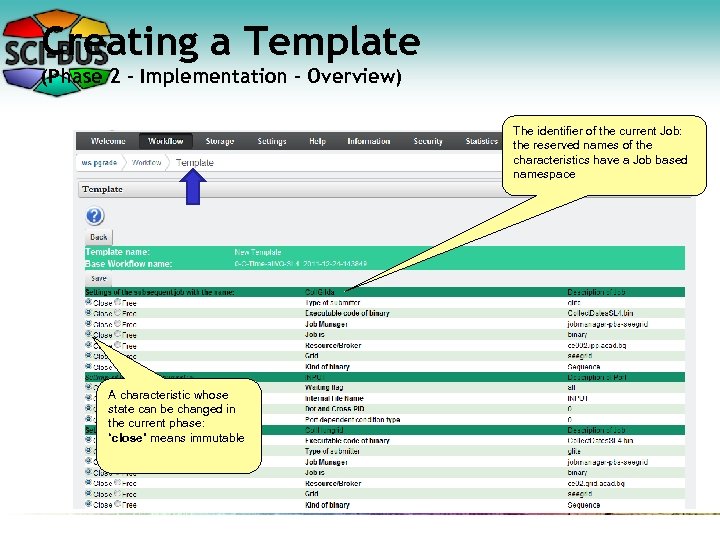
Creating a Template (Phase 2 - Implementation - Overview) The identifier of the current Job: the reserved names of the characteristics have a Job based namespace A characteristic whose state can be changed in the current phase: “close” means immutable
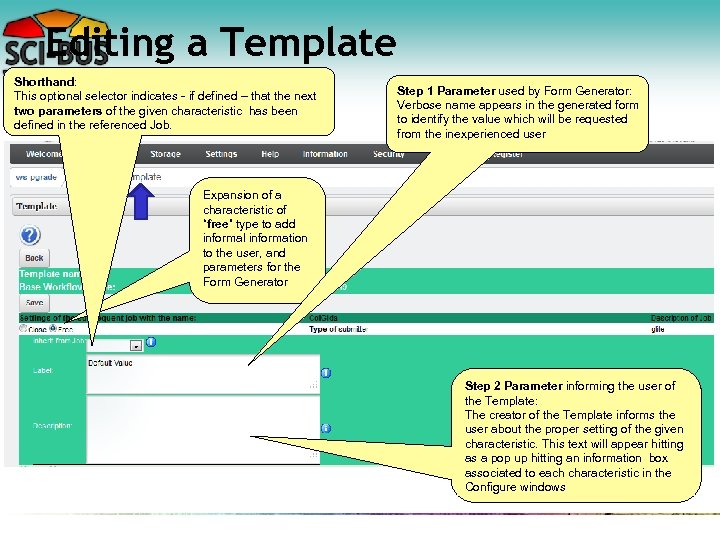
Editing a Template Shorthand: This optional selector indicates - if defined – that the next two parameters of the given characteristic has been defined in the referenced Job. Step 1 Parameter used by Form Generator: Verbose name appears in the generated form to identify the value which will be requested from the inexperienced user Expansion of a characteristic of “free” type to add informal information to the user, and parameters for the Form Generator Step 2 Parameter informing the user of the Template: The creator of the Template informs the user about the proper setting of the given characteristic. This text will appear hitting as a pop up hitting an information box associated to each characteristic in the Configure windows
Repository
Repository Overview Repository is a Library for the Publication of: Applications Semantically tested, trusted Workflows containing the definitions of the eventually referenced Embedded Workflows (including their transitive closures) Projects Applications under construction Concrete Workflows Templates Graphs Repository is an interface between: an advanced User (who has the right to insert an element in the Repository by Export) and the common User who can only read a Repository member by Import. During the inserting of an Application in the Repository the system checks the formal correctness of the Application: Only the input files, the number of them in case of PS, command line arguments and destinations of job submissions may not be filled. During the reading operation the System checks the name collisions and notifies the user about them.
Repository Export The object to be exported can be selected from the proper Portlet of the Workflow Group (Graph, Template, Concrete). The button “Export” starts the export process.
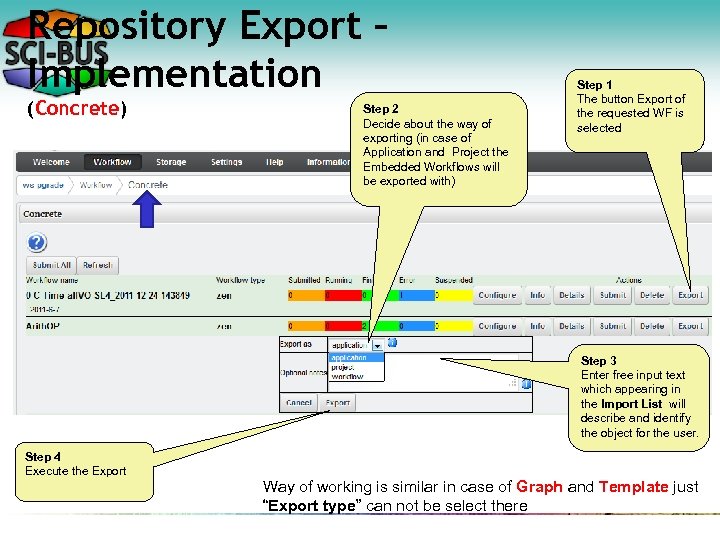
Repository Export – Implementation (Concrete) Step 2 Decide about the way of exporting (in case of Application and Project the Embedded Workflows will be exported with) Step 1 The button Export of the requested WF is selected Step 3 Enter free input text which appearing in the Import List will describe and identify the object for the user. Step 4 Execute the Export Way of working is similar in case of Graph and Template just “Export type” can not be select there
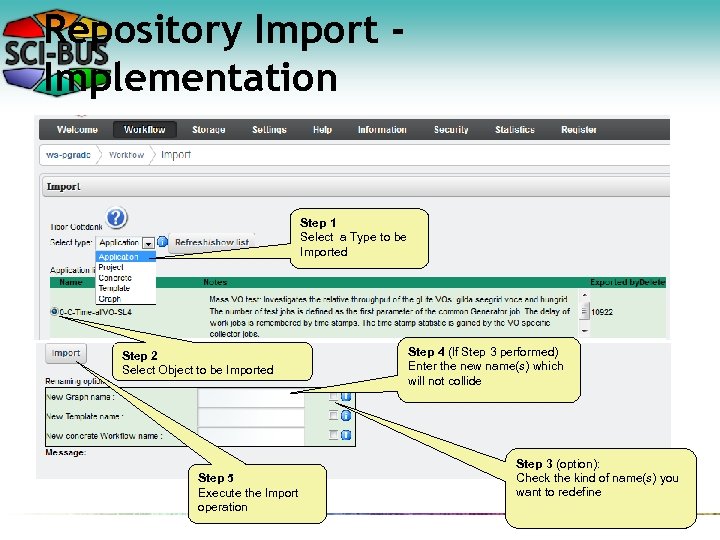
Repository Import Implementation Step 1 Select a Type to be Imported Step 2 Select Object to be Imported Step 5 Execute the Import operation Step 4 (If Step 3 performed) Enter the new name(s) which will not collide Step 3 (option): Check the kind of name(s) you want to redefine

Thank you for your attention! Questions? balasko@sztaki. hu http: //www. lpds. sztaki. hu/products/guse Special thanks to Gabor Hermann and Tibor Gottdank (MTA SZTAKI) for the slides
Скачать презентацию WS-PGRADE Akos Balasko LPDS MTA SZTAKI Content
5ef601c3aadbba28dfab4412794e11cf.ppt