



 Writing and editing text
 Text entry and work with fragments Text input can be in one of two modes: insertion or replacement. When you type new text in insert mode contained in the document text shifts to the right of the insertion point. In overwrite mode, the old one is removed and replaced. To switch between the two modes using ¬ forms a key Ins. Opredelit which mode is currently in use, can be an indicator of OVR in the status bar at the bottom of Word. If the indicator is displaying ¬ etsya black, then the mode change if the gray - insert. Double click on this indicator also excludes re ¬ modes.
 One of the most important objects when working with text is a paragraph. Paragraph - part of a document (text, graphics, tables and other objects), located to the paragraph symbol. In the paragraph related ¬ out to be the parameters of its formatting: font, margins, invariant intervals of ¬, alignment, etc. In order to start a new ab ¬ Zats, if you are typing you need to press Enter. To go on but ¬ vuyu line within a paragraph using the key combination Shift-Enter. Paragraph symbol and a number of other characters (spaces conditional ¬ nye breaks, tabs, and hidden text) are called special or non-printable characters. They can be seen on the screen if you press the corresponding button in the standard Pan ¬ a tool. Working with Word is built on a "choose and perform. "
 Before you perform any operation, you need to choose a fragment of the document to which this operation will be applied. The selection on the screen is inverted. Fragment selection can be performed as a mouse and keypad ¬ ture.
 The choice of the fragment with the mouse runs as follows: • put in place, you want to start selection, your mouse, then press the left button and continue ¬ zhayte hold it; • move the mouse, pushing the boundaries of the fragment; • after selecting the desired fragment release the mouse button. Using the keyboard portion of the document is selected as follows: • Set the input cursor to the place from which you want to chat ¬ choice. Then press and continue to hold down the Shift; • using the cursor keys, expands the boundaries of the fragment; • after selecting the desired fragment release Shift. Any selection of the document, including non ¬ text objects, you can delete, move from one part to another document or copy. At the same time actively using ¬ etsya clipboard Windows.
 Deleting and Copying Deleting, copying and re ¬ displaced characters and selections using cluster viatury by key combinations shown in Table. 3. 2. To delete a movie, use the command Edit / Delete. The button for this action in the standard toolbar is not enabled.
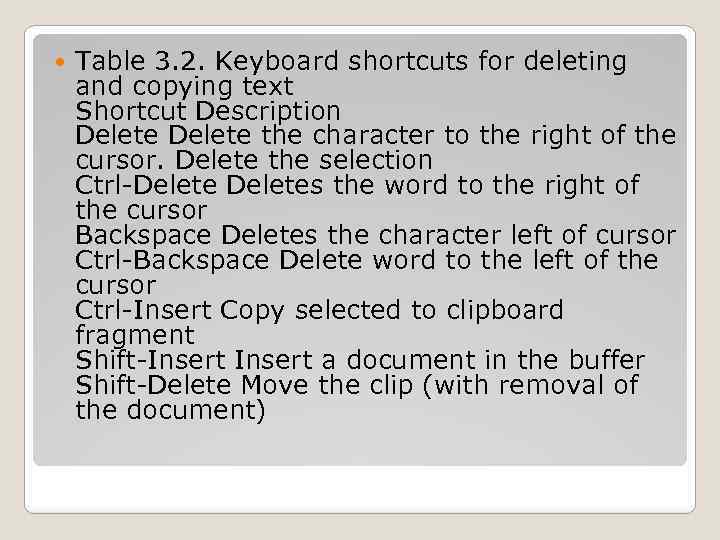 Table 3. 2. Keyboard shortcuts for deleting and copying text Shortcut Description Delete the character to the right of the cursor. Delete the selection Ctrl-Deletes the word to the right of the cursor Backspace Deletes the character left of cursor Ctrl-Backspace Delete word to the left of the cursor Ctrl-Insert Copy selected to clipboard fragment Shift-Insert a document in the buffer Shift-Delete Move the clip (with removal of the document)
 Copying from the clipboard. For then ¬ th to copy any fragment, first in ¬ his place in the clipboard and then paste from the clipboard to the document. To copy to the clipboard but we can use hot keys ¬ vatsya Copy from the Edit menu, and to move the selection to the clipboard - the Cut command. Paste the contents of the buffer with the command Paste from the Edit menu.
 To copy a convenient to use the mouse. Proceed as follows ¬ follows: select some document to be copied; • Place the cursor anywhere on the selected frag ¬ ment, and then click the left mouse button and press Ctrl; • hold down the mouse button and Ctrl, move the mouse cursor to the place where you need to copy the abusive ¬ fragment (position from which the fragment is inserted, there is a gray vertical bar); • Release the mouse button and then pressing Ctrl. Moving the piece can be performed as well, but fold ¬ shu not need to press Ctrl. Copying and moving pieces with the mouse may not only within a single document, but also between multiple documents open in different windows.
 You can navigate to the following elements of the document and the objects in it: • page (by number); • Section (by number); • row (by number); • tab (by name); • annotations (on behalf of the person to whom it belongs); • Note (by number); • field (by name); • Table (by number); • illustrations (by number); • a mathematical formula (by number); • another inserted into the document object (by name).