 Скачать презентацию Workstation Design LAB 3 Outline 2
da240fc039c6a664ef5b22111692c085.ppt
- Количество слайдов: 80



Workstation Design LAB # 3
Outline 2 Introduction. Ergonomic Design. Modern Work Environment. Workstation Design Guidelines. Ergonomic Computer Workstation. General Tips. Lab # 3: Workstation Design 19 March 2018
Workstation Design 3 INTRODUCTION Lab # 3: Workstation Design 19 March 2018
Introduction 4 Ergonomics is a scientific discipline, which is concerned with improving the productivity, health, safety and comfort of people, as well as promoting effective interaction among people, technology and the environment. Lab # 3: Workstation Design 19 March 2018
Introduction (Cont. ) 5 Designing for ergonomics requires understanding and consideration of the following: The physical and psychological attributes of the person or population of people that will perform the job. The design and arrangement of the workstation furniture, computer hardware, and other workstation accessories. The tasks required to perform the job. The work environment, including such things as noise and temperature, also management and organizational methods and constraints. Lab # 3: Workstation Design 19 March 2018
Workstation Design 6 ERGONOMIC DESIGN Lab # 3: Workstation Design 19 March 2018
Ergonomic Design 7 Because people spend up to 90% of their time indoors, and much of it in their workplaces, the physical environment in offices should be carefully designed and managed. The physical conditions that operators experience are important determinants of satisfaction, comfort, well -being, and effectiveness. Lab # 3: Workstation Design 19 March 2018
Ergonomic Design (Cont. ) 8 Ergonomic furniture should be designed to facilitate task performance, minimize fatigue and injury by fitting equipment to the body size, strength and range of motion of the user. Office furnishings, which are generally available, have adjustable components that enable the user to modify the workstation to accommodate different physical dimensions and the requirements of the job. Ergonomically designed furniture can reduce pain and injury, increase productivity, improve morale, and decrease complaints. Lab # 3: Workstation Design 19 March 2018
Ergonomic Design (Cont. ) 9 Ergonomics is used in the design of furniture to eliminate: Static or uncomfortable posture. Repetitive motion. Poor access or inadequate clearance and excessive reach. Display that are difficult to read and understand. Controls that are confusing to operate or require too much force. Lab # 3: Workstation Design 19 March 2018
Ergonomic Design(Cont. ) 10 Design objectives should support humans to achieve the operational objectives for which they are responsible. There are three goals to consider in human-centered design. Enhance human abilities. Overcome human limitations. Encourage user acceptance. Lab # 3: Workstation Design 19 March 2018
Ergonomic Design(Cont. ) 11 To achieve the previous objectives, there are several key elements of ergonomics in the office to consider. Equipment: video display terminals Software design: system design and screen design for greater usability Workstation design: chairs, work surfaces and accessories Environment: space planning, use of colors, lighting, acoustics, air quality and thermal factors Training: preparing workers to deal with technology Lab # 3: Workstation Design 19 March 2018
Workstation Design 12 MODERN WORK ENVIRONMENT Lab # 3: Workstation Design 19 March 2018
Modern Work Environment 13 Changes in modern business practices have considerably changed the way we work in the office. The delivery of low-cost, high-quality, customized products and services to customers who are increasingly demanding is critical to organizational success. These changes in business practices are being reflected in modern office designs. Lab # 3: Workstation Design 19 March 2018
Modern Work Environment (Cont. ) 14 In the Past Large areas filled with rows of clerks and typists conducting routine, repetitive tasks. Lab # 3: Workstation Design At Present Most routine tasks, such as text typing and data entry, are now integrated into more complex, project-based work. 19 March 2018
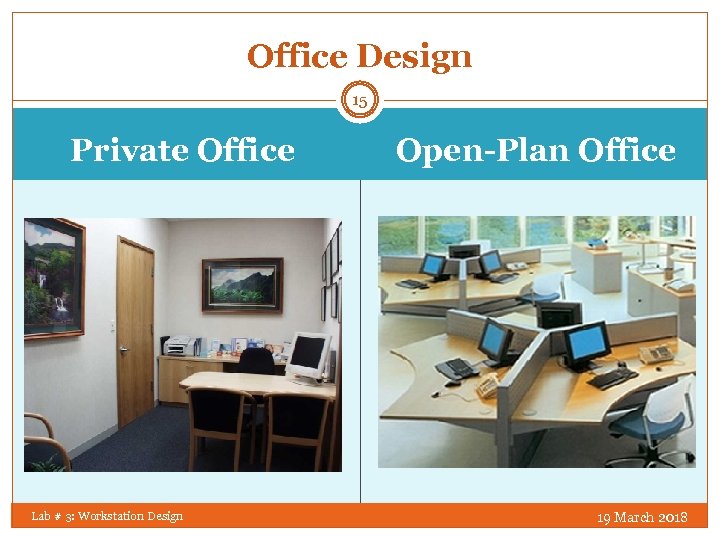
Office Design 15 Private Office Lab # 3: Workstation Design Open-Plan Office 19 March 2018
Office Design (Cont. ) 16 You must take into your account how office design parameters (e. g. workstation size, ceiling type) affect physical office conditions (e. g. lighting, acoustics, indoor air quality), and occupant satisfaction. Lab # 3: Workstation Design 19 March 2018
Office Design: Noise 17 Absorption properties of the ceiling, the workstation size, and the partition height have the largest effect on acoustic conditions since they are compensating for walls that would normally block sound travel between neighbors; however, no one element can control noise, and the most significant improvements in office acoustics occur when most of the office elements are well designed. Lab # 3: Workstation Design 19 March 2018
Practical tips: Noise 18 Do! Provide acoustic satisfaction with comfortable background noise and good speech privacy. Block sound with absorbent surfaces (especially the ceiling) and high, wide partitions. Provide a sound masking system. Lab # 3: Workstation Design DO NOT! Expose occupants to unacceptable noise sources, especially speech sources. Create small workstations with low partitions. 19 March 2018
Office Design: Ventilation 19 In any office, indoor air quality (IAQ) and thermal conditions are determined by the building’s ventilation system and by the contents of the office. Poor conditions can result if contaminants, air delivery, and temperature are not properly managed. Poor IAQ and thermal comfort are among the most common problems in offices. Poor conditions can be uncomfortable and make it harder to concentrate and work efficiently. They can also lead to symptoms such as headaches, sleepiness, or eye, nose and throat pain. Lab # 3: Workstation Design 19 March 2018
Practical tips: Ventilation 20 DO! DO NOT! Provide an adequate supply of Exceed air supply capacity outdoor air. Provide some individual control over temperature, air velocity, and/or air direction. Clean and maintain the ventilation system and the office space. Create a comfortable thermal environment. Insulate windows and provide perimeter heating/cooling. Lab # 3: Workstation Design of ventilation system. Choose furnishings and equipment that emit high levels of contaminants. Place workers close to contaminant sources. Block air diffusers. Use very high partitions. 19 March 2018
Office Design: Lighting and Day-lighting 21 Light reflected off surfaces and objects reveals the world to us. Good interior lighting reveals what we need to see, making details visible but also facilitating communication, setting the mood, and addressing health and safety. It does so in balance with the architectural characteristics of the space and practical considerations such as costs, energy consumption, installation, and maintenance. Lab # 3: Workstation Design 19 March 2018
Practical tips: Lighting 22 DO! Provide adequate task illumination. Provide access to daylight. Provide uniformity on task surfaces. Create visual interest and a pleasant atmosphere. Use fluorescent lamps with good color rendering. Provide some individual lighting controls. Lab # 3: Workstation Design DO NOT! Allow walls and ceilings to be dark and cave-like. Permit glare problems. Create a colorless, blandly uniform office. Use glossy surfaces. 19 March 2018
Office Design: Layout 23 Offices exist primarily to allow employees to do their work, and, thereby, support their organization’s goals. Though work performance is the key function, a workstation should also provide a supportive environment for mental and physical well-being. Employees may spend upwards of 30% of their working hours per year in their offices, which need to be comfortable and satisfactory. Lab # 3: Workstation Design 19 March 2018
Practical tips: Layout 24 DO! Furnish cubicles based on worker job needs. Provide visual and acoustic privacy with enclosure (higher number of partitions, and larger workstations). Provide adjustable furnishings and environmental controls. Provide lockable storage for personal items. Locate work groups in the same area. Provide access to a window and a view. Match alternative office strategies to tasks and employee needs. Lab # 3: Workstation Design DO NOT! Crowd worker. Make shared resources difficult to access or place routes through work groups. Place workers in busy, noisy areas of the office. Prevent personalization of the workstation. 19 March 2018
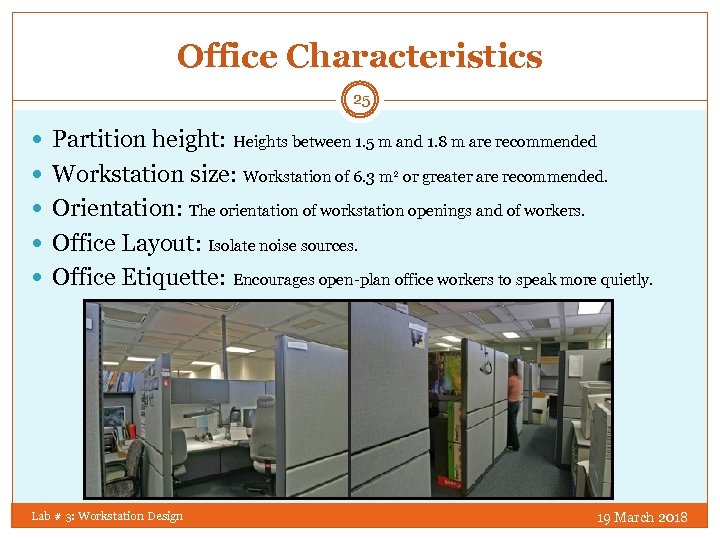
Office Characteristics 25 Partition height: Heights between 1. 5 m and 1. 8 m are recommended Workstation size: Workstation of 6. 3 m 2 or greater are recommended. Orientation: The orientation of workstation openings and of workers. Office Layout: Isolate noise sources. Office Etiquette: Encourages open-plan office workers to speak more quietly. Lab # 3: Workstation Design 19 March 2018
Workstation Design 26 WORKSTATION DESIGN GUIDELINES Lab # 3: Workstation Design 19 March 2018
Workstation Design Guidelines 27 There are 14 guidelines that must be taken into considerations by ergonomists when considering the design of a workstation. Lab # 3: Workstation Design 19 March 2018
Guideline 1 28 Avoid Static Loads and Fixed Work Postures Static load increases systolic and diastolic blood pressure. Metabolic wastes accumulate in the muscles. Consider increasing recovery time. Lab # 3: Workstation Design 19 March 2018
Avoid Static Postures 29 Employees should be encouraged to wear proper shoes for work requires lots of standing. Workstations should be equipped with mats. Have hips parallel to the floor. Provide bar rail to vary work posture. Lab # 3: Workstation Design 19 March 2018
Falls 30 Slips and falls are a major cause of injury deaths and have annual direct cost/capita of $50– 400. Causes of falls: Slips: unexpected horizontal foot movement Trips: restriction of foot movement Stepping-on-air: unexpected vertical foot movement Lab # 3: Workstation Design 19 March 2018

Solutions for Falls 31 Prevent the fall: Use well-designed ladders, scaffolds, and ramps properly. Provide safe steps. Use three-contact rule. Provide good friction and reduce lubricants. Reduce the consequences of the fall: Interrupt the fall. Soften the impact. Lab # 3: Workstation Design 19 March 2018
Head Weight 32 The head weighs about the same as a bowling ball. Keep the line of sight below the horizontal. Maintain forward head tilt of 10º-15º Avoid backward and sideward tilts. Lab # 3: Workstation Design 19 March 2018
Hands/Arms 33 An arm weighs about 4. 4 kg. Avoid using the hand to hold up a tool or work piece. Avoid working with elevated hands. Support the arms on the work surface or chair arms. Lab # 3: Workstation Design 19 March 2018
Guideline 2 34 Reduce Musculoskeletal Disorders Don’t bend your wrist. Don’t lift your elbow. Don’t reach behind your back. Follow guidelines for hand arm motions. Lab # 3: Workstation Design 19 March 2018
Guideline 3 35 Set the Work Height at 50 mm Below the Elbow Work height is defined in terms of elbow height. Optimum height is slightly below the elbow. Optimum height from the elbow is the same for sitting and standing. Work height is not table height. Lab # 3: Workstation Design 19 March 2018
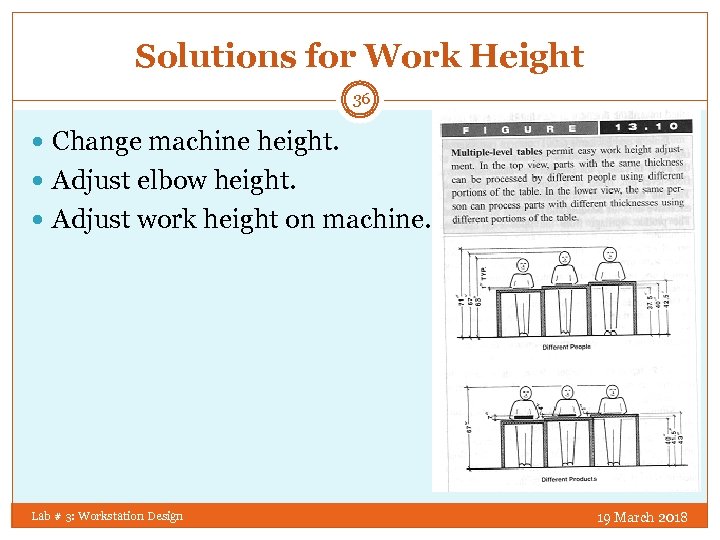
Solutions for Work Height 36 Change machine height. Adjust elbow height. Adjust work height on machine. Lab # 3: Workstation Design 19 March 2018
Video Display Terminal Workstations 37 Key items: screen, keyboard, document, eyes, hands Workstation furniture must be adjustable. Locate the primary visual element first: ahead of the eye, perpendicular to the line of sight. Train the operator in adjusting the equipment. Provide a wrist rest. Lab # 3: Workstation Design 19 March 2018
Guideline 4 38 Furnish Every Employee with an Adjustable Chair The cost of an adjustable chair is very low compared to labor cost. Allow users to try chairs in their specific jobs. Buy chairs that are easily adjustable. Train people in proper adjustment. Lab # 3: Workstation Design 19 March 2018
Chair Design 39 Seats Seat Height from Floor Seat Length Seat Width Slope of Seat Shape Backrests Position of Backrest Molded Chair Back Position & Curvature Armrests Legs/pedestals Clearance of feet and calves under chair Lab # 3: Workstation Design 19 March 2018
Guideline 6 40 Use Gravity; Don’t Oppose It Make movements horizontal or downward; avoid lifting. Consider using the weight of the body to increase mechanical force. Use gravity to move material to the work. Use gravity as a fixture. Use gravity in feeding and disposal. Lab # 3: Workstation Design 19 March 2018
Guideline 7 41 Conserve Momentum Avoid unnecessary acceleration and deceleration. Use circular motion for moving and polishing. Eliminate grasping motions by providing edges, rolled edges, and holes. Avoid transporting weight in the hand. Lab # 3: Workstation Design 19 March 2018
Guideline 8 42 Use 2 -Hand Motions Rather Than 1 -Hand Motions Cranking with 2 arms is 25% more efficient than with one. Using 2 hands is more productive despite taking more time and effort. Don’t use the hand as a fixture. Lab # 3: Workstation Design 19 March 2018
Guideline 9 43 Use Parallel Motions for Eye Control of 2 Hand Motions Minimize the degree of spread rather than worry about symmetry. Estimate the cost of eye control with predetermined time systems. Lab # 3: Workstation Design 19 March 2018
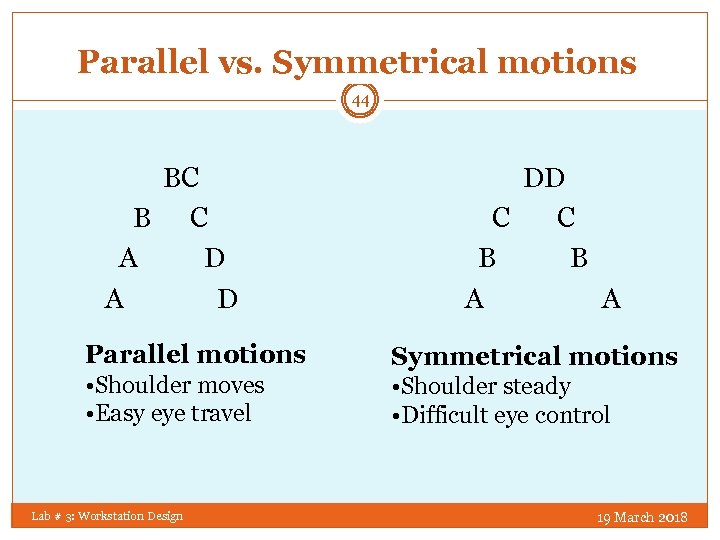
Parallel vs. Symmetrical motions 44 BC B C A D A D Parallel motions • Shoulder moves • Easy eye travel Lab # 3: Workstation Design DD C C B B A A Symmetrical motions • Shoulder steady • Difficult eye control 19 March 2018
Guideline 10 45 Use Rowing Motions for 2 -Hand Motions Alternation causes movement of the shoulder and twisting of the torso. Alternation causes higher heart rates. Rowing motions are more efficient and provide greater power. Lab # 3: Workstation Design 19 March 2018
Guideline 11 46 Pivot Motions About the Elbow Motion time is minimized with motion about the elbow. Cross-body movements are more accurate than those about the elbow. Physiological cost is lower for movements about the elbow. Lab # 3: Workstation Design 19 March 2018
Guideline 12 47 Use the Preferred Hand The dominant hand is: 10% faster for reach-type motions More accurate than the non-dominant More exposed to cumulative trauma 5% to 10% stronger Work should arrive from the operator’s preferred side and leave from the non-preferred side. Lab # 3: Workstation Design 19 March 2018
Guideline 13 48 Keep Arm Motions in the Normal Work Area Avoid long benches. Use swing arms. For high use, keep it close. Remember the arm pivots on the shoulder, not the nose. The shoulder is very sensitive to small changes in workplace layout. Lab # 3: Workstation Design 19 March 2018
Guideline 14 49 Let the Small Person Reach; Let the Large Person Fit Design so most of the user population can use the design. Jobs must be designed for both sexes: Small or Large - Weld Multi-person use of equipment and stations is becoming more common. The proportion to exclude depends on the seriousness of designing people out and the cost of including more people. Lab # 3: Workstation Design 19 March 2018
Workstation Design 50 ERGONOMIC COMPUTER WORKSTATION Lab # 3: Workstation Design 19 March 2018
Ergonomic Computer workstation 51 10 steps for a good ergonomic arrangement of a Computer Workstation: 1. 2. 3. 4. 5. 6. 7. 8. 9. 10. How will the computer be used? What kind of computer will be used? What furniture will you use? What chair will be used? What kind of work will the computer be used for? What can you see? Posture, posture! Keep it close! Good Workstation Ergonomic Arrangement Where will the computer be used? Lab # 3: Workstation Design 19 March 2018
Step # 1: How will the computer be used? 52 Who will be using the computer? 1. One person: then the arrangement can be optimized for that person's size and shape, and features such as an adjustable height chair may be unnecessary. 2. Several people: you will need to create an arrangement that most closely satisfies the needs of the extremes, that is the smallest and tallest, thinnest and broadest persons, as well as those in between these extremes. How long will people be using the computer? 1. If it's a few minutes a day then ergonomic issues may not be a high priority. 2. If it's more than 1 hour per day it is advisable that you create an ergonomic arrangement. 3. If it's more than 4 hours then you should immediately implement an ergonomic arrangement. Lab # 3: Workstation Design 19 March 2018
Step # 2: What kind of computer will be used? 53 Desktops : are the most widely and it means that the computer screen is separate from the keyboard. Laptop computers: are growing in popularity and are great for short periods of computer work. Guidelines for laptop use are more difficult because laptop design inherently is problematic - when the screen is at a comfortable height and distance the keyboard isn't and vice versa. Lab # 3: Workstation Design 19 March 2018
Step # 3: What furniture will you use? 54 Make sure that the computer (monitor, CPU system unit, keyboard, mouse) are placed on a stable working surface with adequate room for proper arrangement. If this work surface is going to be used for writing on paper as well as computer use a flat surface that is between 28"-30" above the floor (suitable for most adults). You should consider attaching a keyboard/mouse tray system to your work surface. Choose a system that is height adjustable, that allows you to tilt the keyboard down away from you slightly for better wrist posture, and that allows you to use the mouse with your upper arms relaxed and as close to the body as possible and with your wrist in a comfortable and neutral position. Lab # 3: Workstation Design 19 March 2018
Step # 4: What chair will be used? 55 Choose a comfortable chair for the user to sit in. 1. If only one person is using this the chair can even be at a fixed height providing that it is comfortable to sit on and has a good backrest that provides lumbar support. 2. If more than one person will be using the computer, consider a chair with several ergonomic features. Best seated posture: 1. Studies show that the best seated posture is a reclined posture of 100 -110 degrees 2. NOT the upright 90 degree posture that is often portrayed. Lab # 3: Workstation Design 19 March 2018
How to choose an ergonomic chair? 56 An ergonomic chair should meet at least the following criteria: 1. Does the seat pan feel comfortable and fit your shape? 2. Is the seat chair height adjustable? 3. Is the range of height adjustment of the chair sufficient to meet the needs of all users? 4. Does the chair have a comfortable lumbar (lower back) back rest? 5. Is the chair back rest large enough to provide good back support? 6. When you sit back against the lumbar support is there ample space for hip room? Lab # 3: Workstation Design 19 March 2018
How to choose an ergonomic chair? (Cont. ) 57 7. 8. 9. 10. 11. 12. 13. Does the seat pan still feel comfortable after you've been sitting in it for 60 - 120 minutes? Does the chair backrest recline and support your back in different positions? Does the chair have a 5 pedestal base? Do you need armrests on your chair? Do you need a footrest? What chair covering is best? Do you need an adjustable tilt seat pan ? Lab # 3: Workstation Design 19 March 2018
Step # 5: What kind of work will the computer be used for? 58 Try to anticipate what type of software will be used most often. 1. Word processing: arranging the best keyboard/mouse position is high priority. 2. Surfing the net, graphic design: arranging the best mouse position is high priority. 3. Data entry: arranging the best numeric keypad/keyboard is a high priority. 4. Games: arranging the best keyboard/mouse/game pad is a high priority. Lab # 3: Workstation Design 19 March 2018
Step # 6: What can you see? 59 Make sure that any paper documents that you are reading are placed as close to the computer monitor as possible and that these are at a similar angle - use a document holder where possible. Take the following considerations into account to position the monitor: 1. 2. 3. 4. 5. 6. 7. 8. Place it directly in front of you and facing you. Center the monitor on the user. Put the monitor at a comfortable height. Bifocals and progressive lens. Viewing distance. Screen quality. Eye checkup. Use a document holder that can be comfortably seen. Lab # 3: Workstation Design 19 March 2018
Step # 7: Posture, posture! 60 Good posture is the basis of good workstation ergonomics. Good posture is the best way to avoid a computer-related injury. To ensure good user posture: 1. 2. 3. 4. 5. 6. Make sure that the user can reach the keyboard keys with their wrists as flat as possible (not bent up or down) and straight (not bent left or right). Make sure that the user's elbow angle (the angle between the inner surface of the upper arm and the forearm) is at or greater than 90 degrees to avoid nerve compression at the elbow. Make sure that the upper arm and elbow are as close to the body and as relaxed as possible for mouse - avoid overreaching. Make sure the user sits back in the chair and has good back support. Make sure the head and neck are as straight as possible. Make sure the posture feels relaxed for the user. Lab # 3: Workstation Design 19 March 2018
Step # 8: Keep it close! 61 Make sure that those things the user uses most frequently are placed closest to the user so that they can be conveniently and comfortably reached. Make sure that the user is centered on the alphanumeric keyboard. Most modern keyboards are asymmetrical in design (the alphanumeric keyboard is to the left and a numeric keypad to the right). If the outer edges of the keyboard are used as landmarks for centering the keyboard and monitor, the users hands will be deviated because the alphanumeric keys will be to the left of the user's midline. Move the keyboard so that the center of the alphanumeric keys (the B key, is centered on the mid-line of the user). Make sure that the phone is also close to you if you frequently use it. Lab # 3: Workstation Design 19 March 2018
Step # 9: Good Workstation Ergonomic Arrangement 62 A good workstation ergonomic arrangement will allow any computer user to work in a neutral, relaxed, ideal typing posture that will minimize the risk of developing any injury. An ideal keyboard arrangement is to place this on a height adjustable negative-tilt tray. An ideal mouse arrangement is for this to be on a flat surface that's 12" above the keyboard and moveable over the numeric keypad. If you want a surface at the level of the keyboard base then make sure that this can also be angled downwards slightly to help to keep your hands in wrist neutral while you are mousing, and keep your elbow is as close to the body as possible while you work. Lab # 3: Workstation Design 19 March 2018
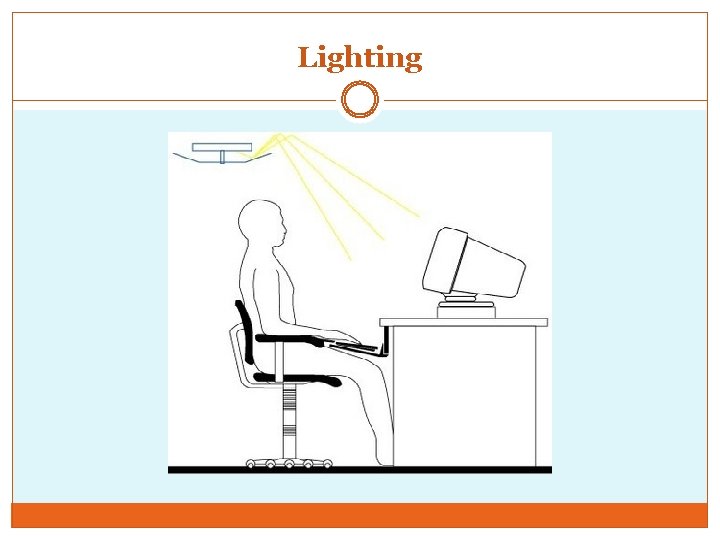
Step # 10: Where will the computer be used? 63 Think about the following environmental conditions where the computer will be used: 1. 2. 3. Lighting: make sure that the lighting isn't too bright. You shouldn't see any bright light glare on the computer screen. If you do, move the screen, lower the light level, use a good quality, glass anti-glare screen. Also make sure that the computer monitor screen isn't backed to a bright window or facing a bright window so that there's the screen looks washed out (use a shade or drapes to control window brightness). Ventilation: make sure that you use your computer somewhere that has adequate fresh-air ventilation and that has adequate heating or cooling so that you feel comfortable when you're working. Noise: noise can cause stress and that tenses your muscles which can increase injury risks. Try to choose a quiet place for your workstation, and use low volume music, preferably light classical, to mask the hum of any fans or other sound sources. Lab # 3: Workstation Design 19 March 2018
Lighting
Workstation Design 65 GENERAL TIPS Lab # 3: Workstation Design 19 March 2018
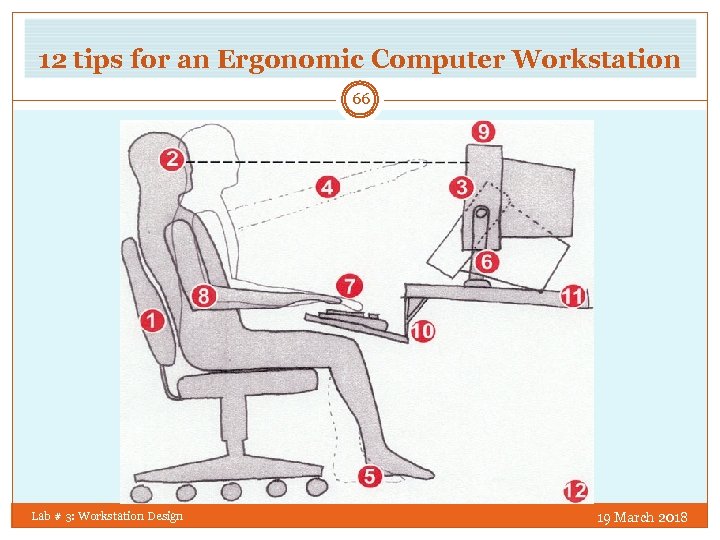
12 tips for an Ergonomic Computer Workstation 66 Lab # 3: Workstation Design 19 March 2018
Take a Break! 67 All Ergonomists agree that it's a good idea to take frequent, brief rest breaks: Practice the following: 1. 2. 3. 4. 5. Eye breaks: Every 15 minutes you should briefly look away from the screen for a minute or two to a more distant scene, preferably something more that 20 feet away. This lets the muscles inside the eye relax. Also, blink your eyes rapidly for a few seconds. This refreshes the tear film and clears dust from the eye surface. Micro-breaks: most typing is done in bursts rather than continuously. Between these bursts of activity you should rest your hands in a relaxed, flat, straight posture. Rest breaks: every 30 to 60 minutes you should take a brief rest break. During this break stand up, move around and do something else. Go and get a drink of water, tea, coffee or whatever. Exercise breaks - there are many stretching and gentle exercises that you can do to help relieve muscle fatigue. You should do these every 1 -2 hours. Ergonomic software: working at a computer can be hypnotic, and often you don't realize how long you've been working and how much you've been typing and mousing. You can get excellent ergonomic software that you can install on your computer. Lab # 3: Workstation Design 19 March 2018
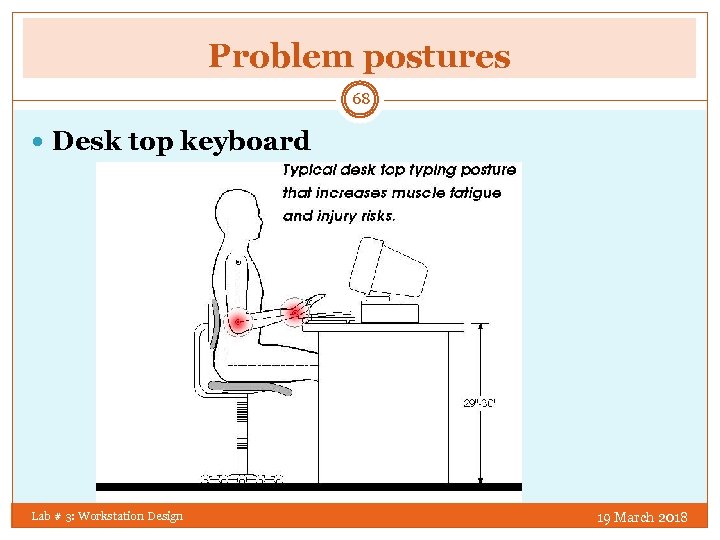
Problem postures 68 Desk top keyboard Lab # 3: Workstation Design 19 March 2018
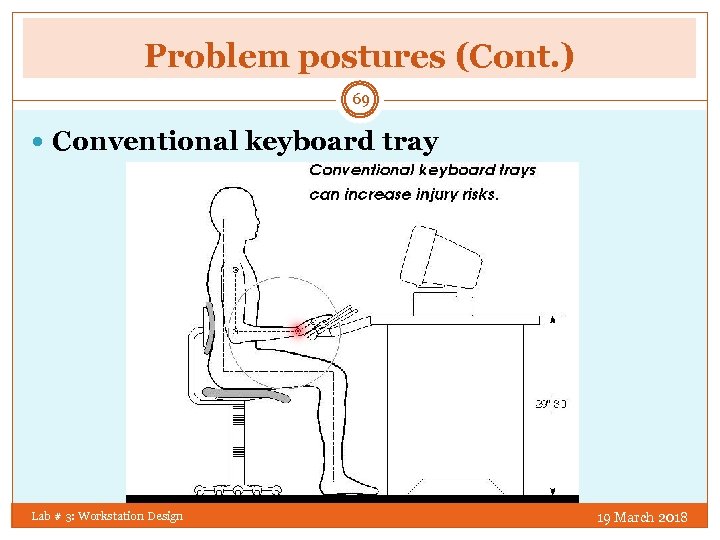
Problem postures (Cont. ) 69 Conventional keyboard tray Lab # 3: Workstation Design 19 March 2018
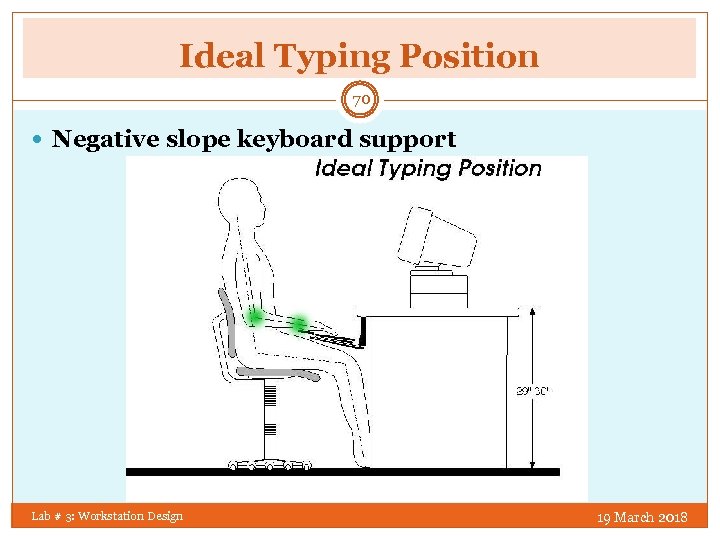
Ideal Typing Position 70 Negative slope keyboard support Lab # 3: Workstation Design 19 March 2018
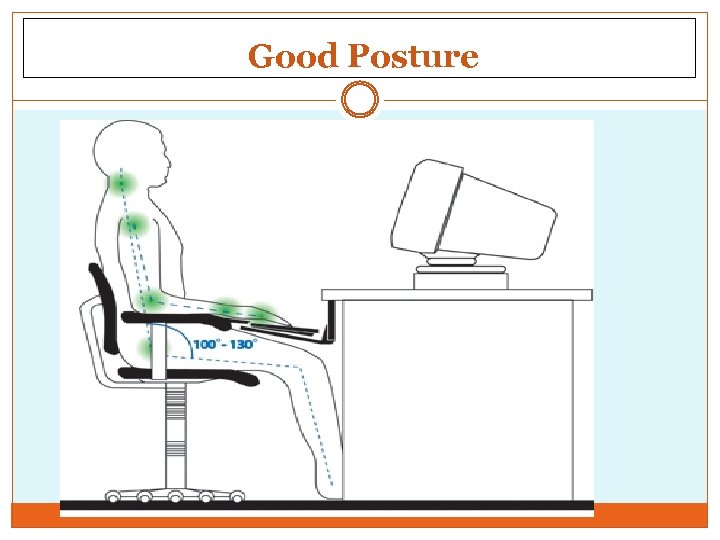
Good Posture
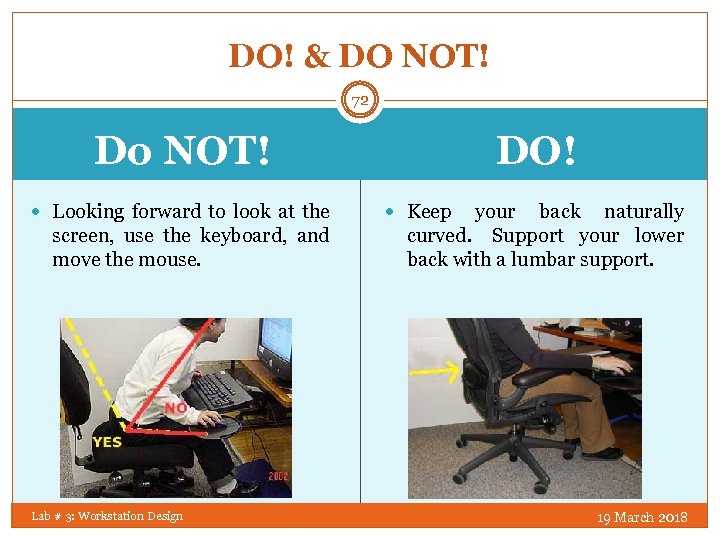
DO! & DO NOT! 72 DO! Do NOT! Looking forward to look at the screen, use the keyboard, and move the mouse. Lab # 3: Workstation Design Keep your back naturally curved. Support your lower back with a lumbar support. 19 March 2018
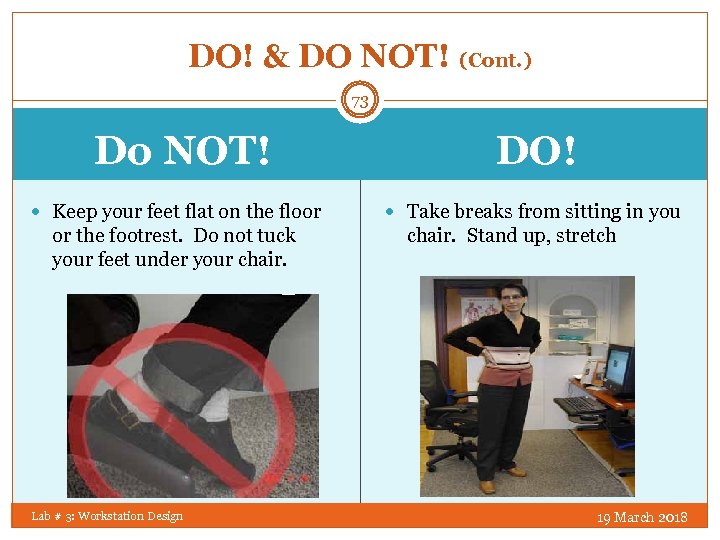
DO! & DO NOT! (Cont. ) 73 Do NOT! DO! Keep your feet flat on the floor Take breaks from sitting in you or the footrest. Do not tuck your feet under your chair. Lab # 3: Workstation Design chair. Stand up, stretch 19 March 2018
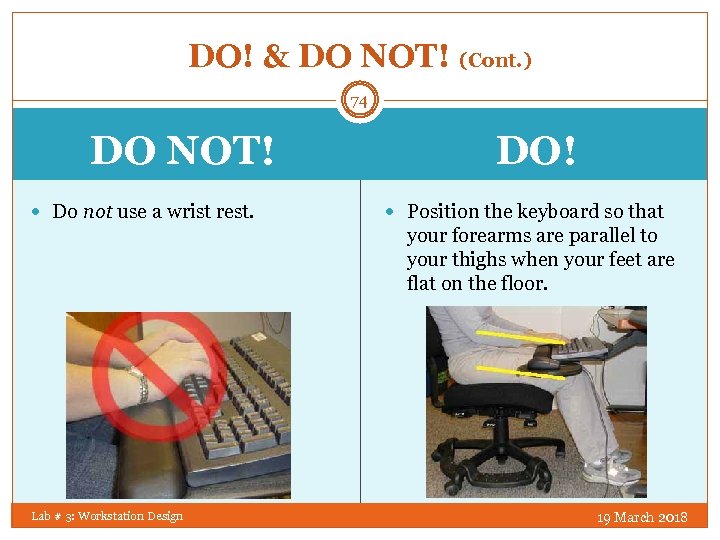
DO! & DO NOT! (Cont. ) 74 DO NOT! Do not use a wrist rest. DO! Position the keyboard so that your forearms are parallel to your thighs when your feet are flat on the floor. Lab # 3: Workstation Design 19 March 2018
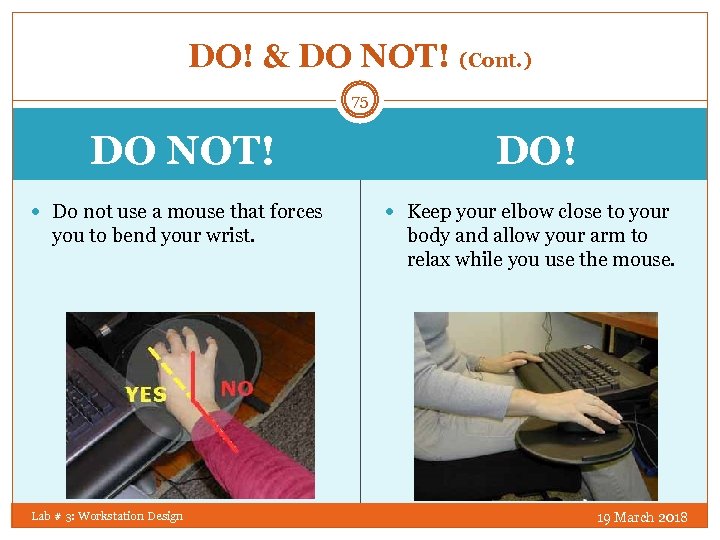
DO! & DO NOT! (Cont. ) 75 DO NOT! Do not use a mouse that forces you to bend your wrist. Lab # 3: Workstation Design DO! Keep your elbow close to your body and allow your arm to relax while you use the mouse. 19 March 2018
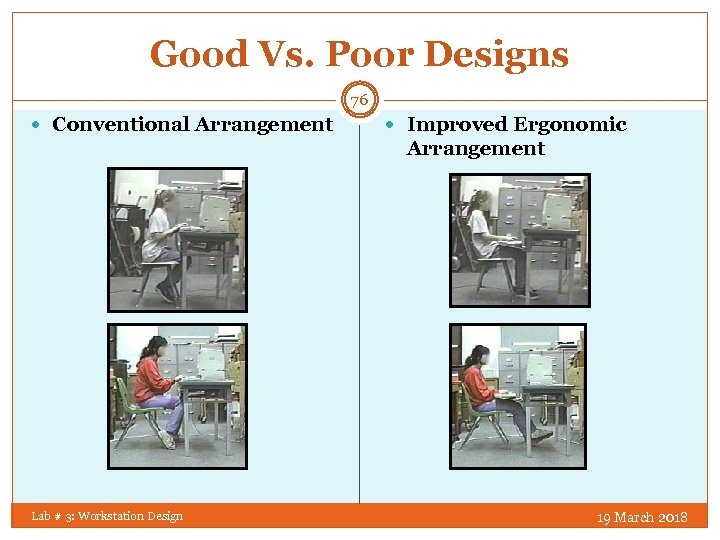
Good Vs. Poor Designs 76 Conventional Arrangement Improved Ergonomic Arrangement Lab # 3: Workstation Design 19 March 2018
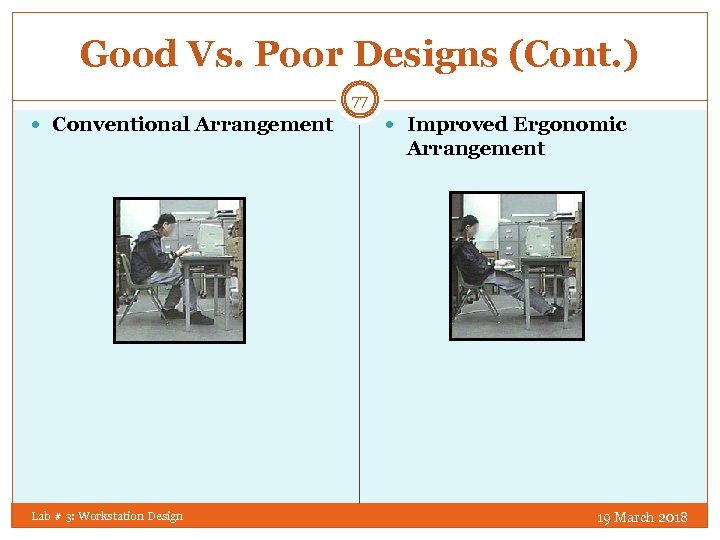
Good Vs. Poor Designs (Cont. ) 77 Conventional Arrangement Improved Ergonomic Arrangement Lab # 3: Workstation Design 19 March 2018
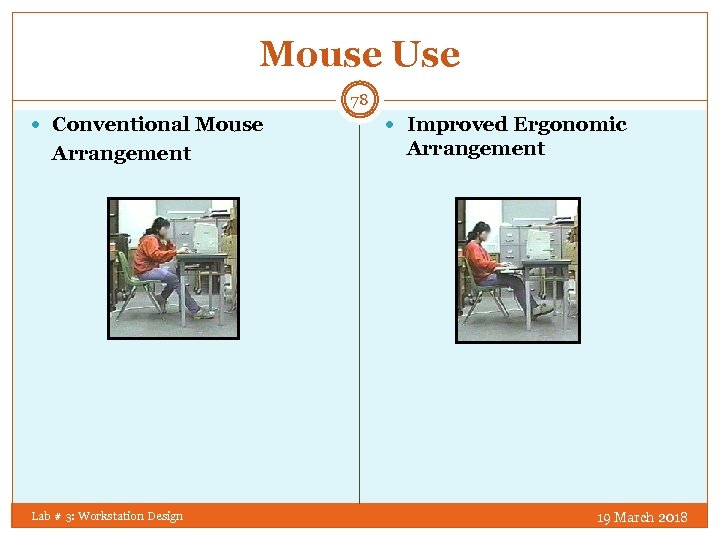
Mouse Use 78 Conventional Mouse Arrangement Lab # 3: Workstation Design Improved Ergonomic Arrangement 19 March 2018
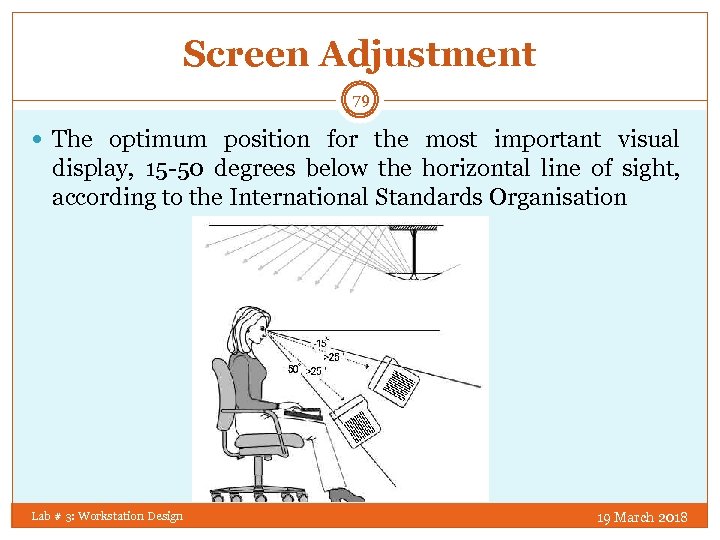
Screen Adjustment 79 The optimum position for the most important visual display, 15 -50 degrees below the horizontal line of sight, according to the International Standards Organisation Lab # 3: Workstation Design 19 March 2018
Any Question? Lab # 3: Workstation Design 80 19 March 2018
Скачать презентацию Workstation Design LAB 3 Outline 2
da240fc039c6a664ef5b22111692c085.ppt