

WORKING WITH QUERIES In this section, you’ll learn


 Скачать презентацию WORKING WITH QUERIES In this section, you’ll learn
22452-working_with_queries.ppt
- Количество слайдов: 16
WORKING WITH QUERIES In this section, you'll learn how to: Create queries Sort results Add criteria Employ Boolean operators
CREATE QUERIES Start Base, and open the FlowerStore database. In the Database list, click Queries. Click Create Query in Design View. The Query Design window should appear. In the Add Tables window, click Customers. Then click the ADD button. Click the Close button.
ADD FIELDS TO QUERY Click the arrow in the first column's Field box. When the list appears, click Customers.Customer ID. Drag the First Name field from the Customers table to the second column of the query design grid. Release the mouse button. Drag the Last Name field to the design grid.
Run the query The query is now set up to show the Customer ID, First Name, and Last Name of each customer in the Customers table. On the Toolbar, click the Run Query icon. The query shows the Customer ID, First Name, and Last Name of each customer in the Customers table.
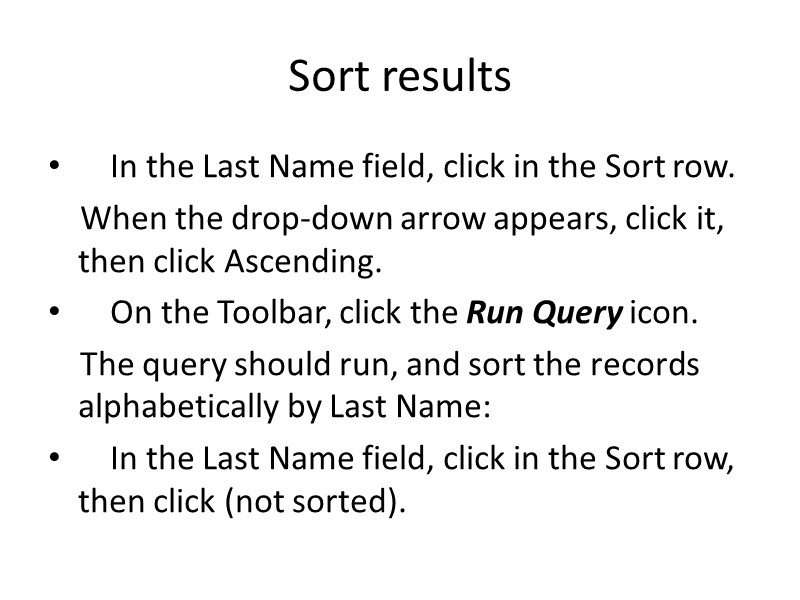
Sort results In the Last Name field, click in the Sort row. When the drop-down arrow appears, click it, then click Ascending. On the Toolbar, click the Run Query icon. The query should run, and sort the records alphabetically by Last Name: In the Last Name field, click in the Sort row, then click (not sorted).
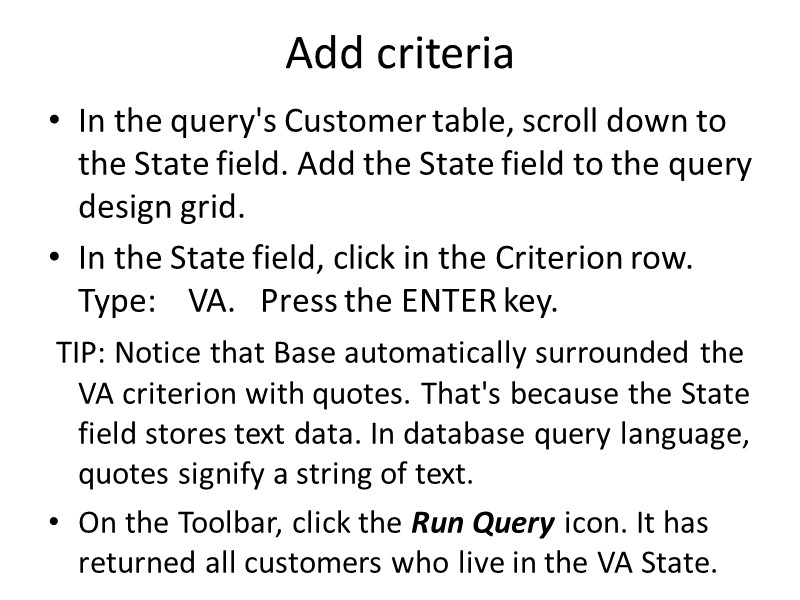
Add criteria In the query's Customer table, scroll down to the State field. Add the State field to the query design grid. In the State field, click in the Criterion row. Type: VA. Press the ENTER key. TIP: Notice that Base automatically surrounded the VA criterion with quotes. That's because the State field stores text data. In database query language, quotes signify a string of text. On the Toolbar, click the Run Query icon. It has returned all customers who live in the VA State.
Employ Boolean operators What are Boolean operators? Boolean operators are expressions such as AND, OR, NEITHER, and NOR that allow you to add multiple criteria to a query. They take their name from George Boole, the mathematician who first used them.
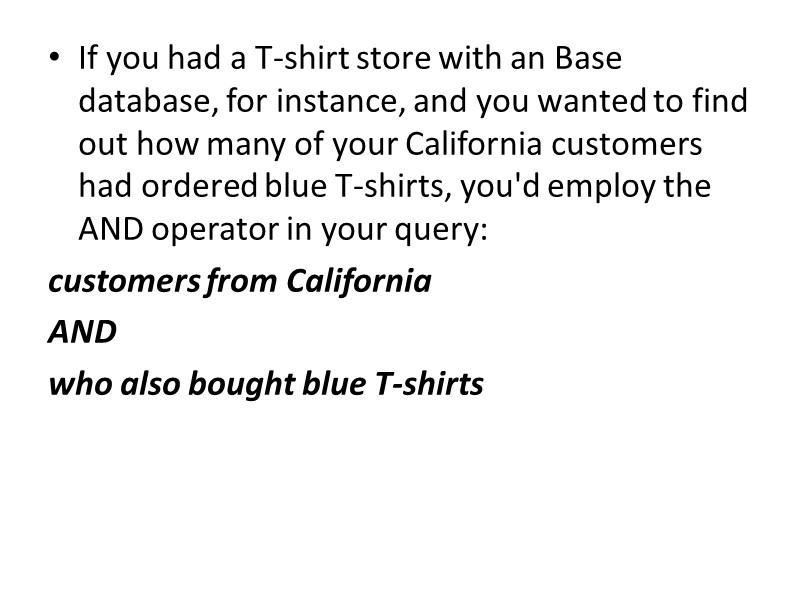
If you had a T-shirt store with an Base database, for instance, and you wanted to find out how many of your California customers had ordered blue T-shirts, you'd employ the AND operator in your query: customers from California AND who also bought blue T-shirts
If you wanted to see how many customers were from California (these California customers could have bought T-shirts of any color),and how many customers bought blue T-shirts (these blue T-shirt customers could be from anywhere), you'd employ the OR operator: customers from California OR customers who bought blue T-shirts
Employ the OR operator In the State field, click in the Or row under the criterion VA. Type: NY then press the ENTER key. Click the Run Query icon.
Employ the AND operator Remove the query criteria from the State field. TIP: Highlight the contents of the State field, then press the DELETE key. In the First Name field, click in the Criterion row. Type: Jill then press the ENTER key. In the State field, type: NY in the Criterion row then press the ENTER key. Click the Run Query icon. No records were returned, because there's no one in the table whose first name is Jill AND lives in New York.
Employ a Wild Card character Remove all query criteria from all fields. The design grid should be blank. Add the Company Name field to the query: Drag it from the field list in the Customers table and drop it in the blank field to the right of the State field.
In the Company Name field, click in the Criterion row. Type: LIKE A* then press the ENTER key. TIP: An asterisk (*) stands for any character or combination of characters. For instance, Ap* would match Ape, Aptitude, Apparent, etc. The LIKE keyword is used to search for a pattern. Click the Run Query icon. The query shows all companies whose names begin with A. On the Menu Bar, click File, then Save.
When the Save As window appears, type: Companies that begin with A in the Query Name box. Click the OK button. On the Menu Bar, click File, then Close. You should return to the FlowerStore database window. Exit the database and close Base.
Practice: Working with Queries Start Base. Open the Library 2 database. Create a new query in Design view based on the Authors table. Add all the fields to the design grid. Sort Authors Names in Ascending order. Add the criteria Yes to the Good Author field. Run the query. Close the query, saving it as Good Authors. Exit Base.
http://inpics.net/tutorials/base2/queries8.html