

WORKING WITH FORMS In this section, you’ll learn

 Скачать презентацию WORKING WITH FORMS In this section, you’ll learn
22450-working_with_forms.ppt
- Количество слайдов: 13
WORKING WITH FORMS In this section, you'll learn how to: Modify forms Add/delete records Edit records Find records Filter records
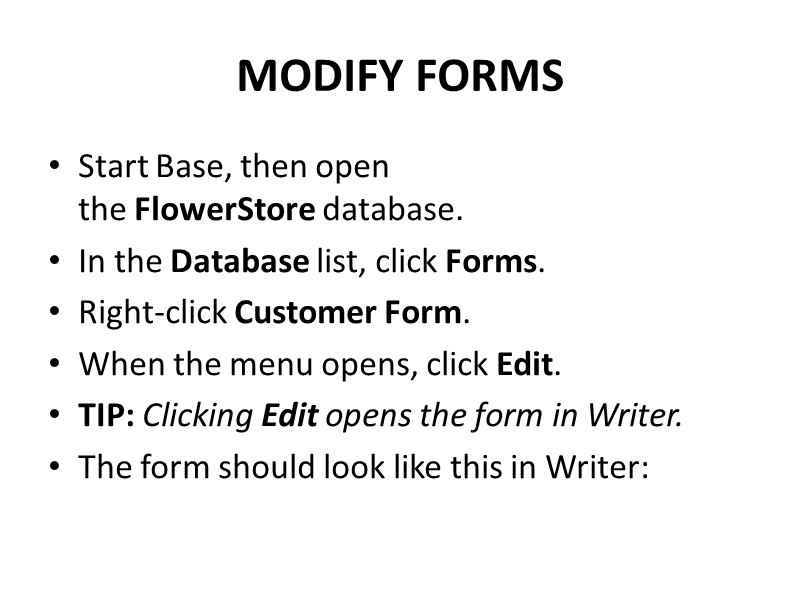
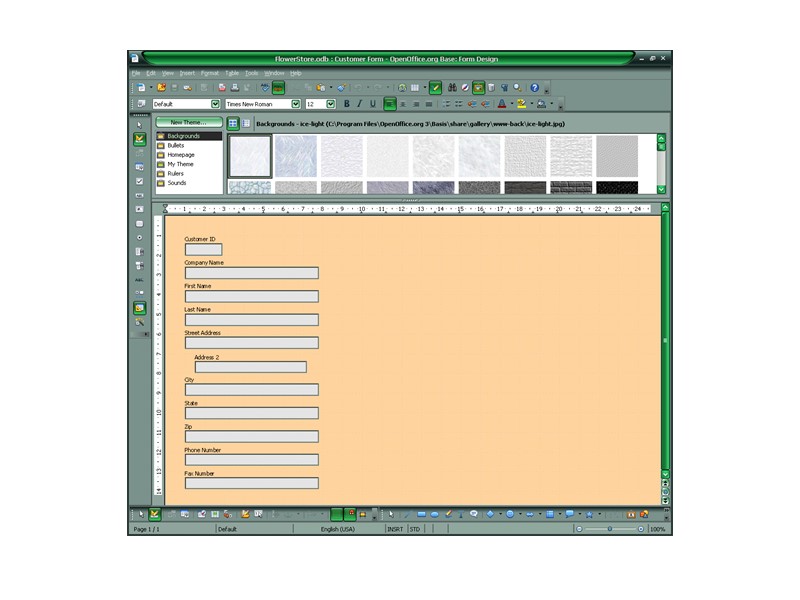
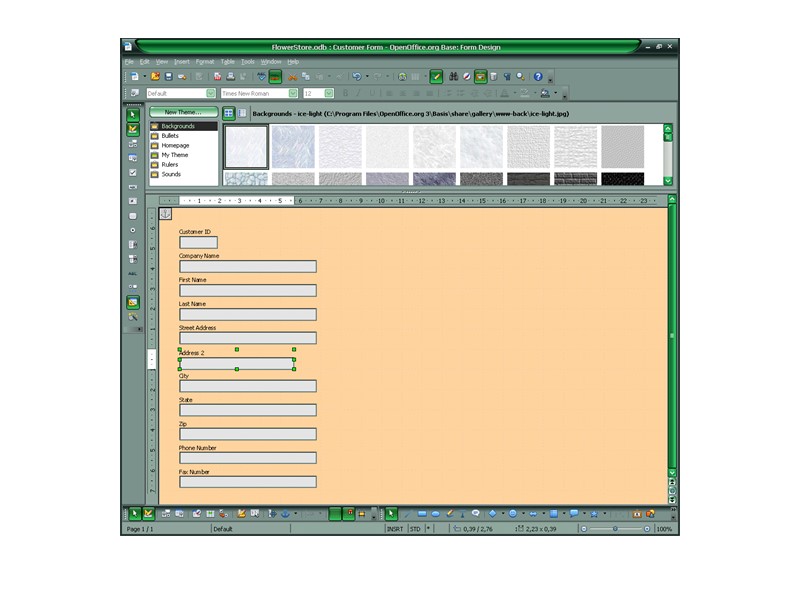
MODIFY FORMS Start Base, then open the FlowerStore database. In the Database list, click Forms. Right-click Customer Form. When the menu opens, click Edit. TIP: Clicking Edit opens the form in Writer. The form should look like this in Writer:
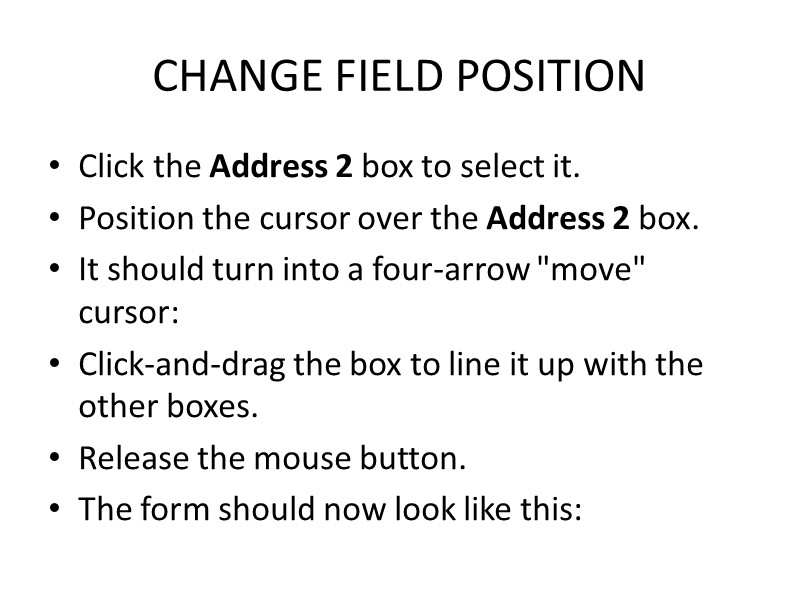
CHANGE FIELD POSITION Click the Address 2 box to select it. Position the cursor over the Address 2 box. It should turn into a four-arrow "move" cursor: Click-and-drag the box to line it up with the other boxes. Release the mouse button. The form should now look like this:
ADD/DELETE RECORDS ADD A NEW RECORD Click the Design Mode ON/OFF icon to toggle the view. Click the button. Fill in the following information: Amy Moore Gifts & Buds 1214 Maryland Ave. Suite 13 Washington, DC 20001 2025556113 2025556114 Click the ► button to save the record and advance to a new one.
DELETE RECORDS Click the ◄button to go back to record number 6, the one you just added. On the Toolbar, click the ► icon. When the alert window appears, click the YES button.
EDIT RECORDS NAVIGATE TO A SPECIFIC RECORD NUMBER Click in the Record box. Highlight the current record number, then type: 2 Press the ENTER key. The form should now show record number 2. Delete the contents of the Street Address field. Type: 476 New York Ave. Press the TAB key.
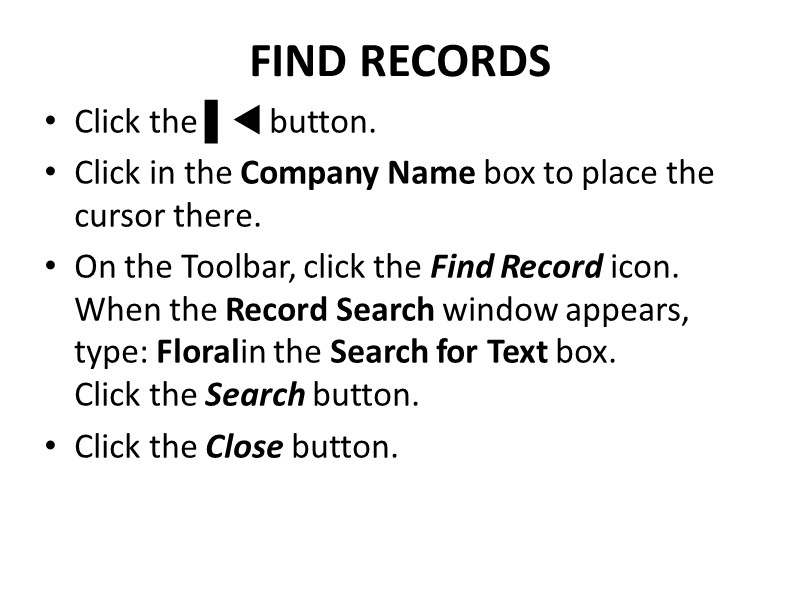
FIND RECORDS Click the ▌ button. Click in the Company Name box to place the cursor there. On the Toolbar, click the Find Record icon. When the Record Search window appears, type: Floralin the Search for Text box. Click the Search button. Click the Close button.
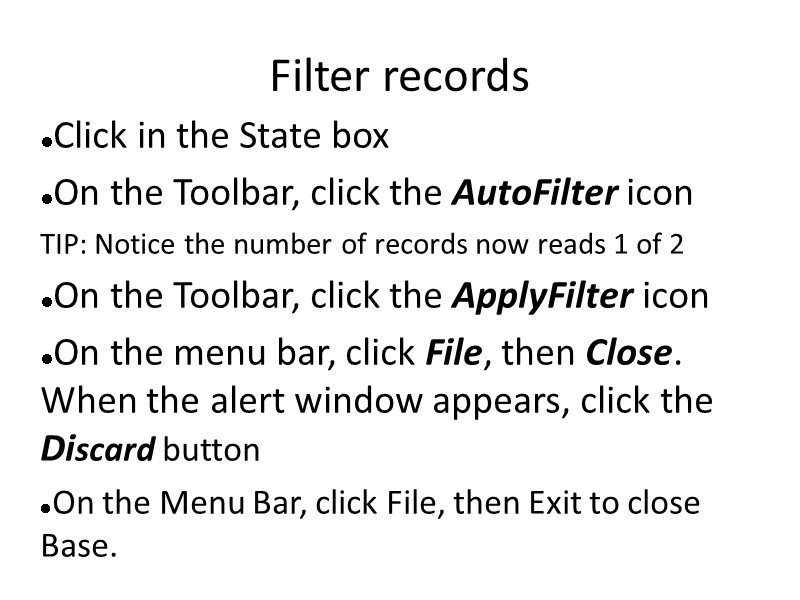
Filter records Click in the State box On the Toolbar, click the AutoFilter icon TIP: Notice the number of records now reads 1 of 2 On the Toolbar, click the ApplyFilter icon On the menu bar, click File, then Close. When the alert window appears, click the Discard button On the Menu Bar, click File, then Exit to close Base.
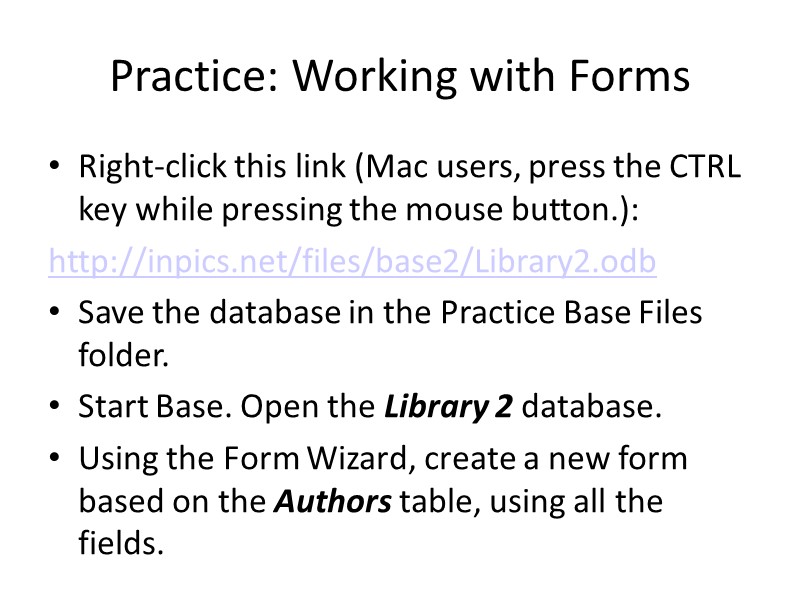
Practice: Working with Forms Right-click this link (Mac users, press the CTRL key while pressing the mouse button.): http://inpics.net/files/base2/Library2.odb Save the database in the Practice Base Files folder. Start Base. Open the Library 2 database. Using the Form Wizard, create a new form based on the Authors table, using all the fields.
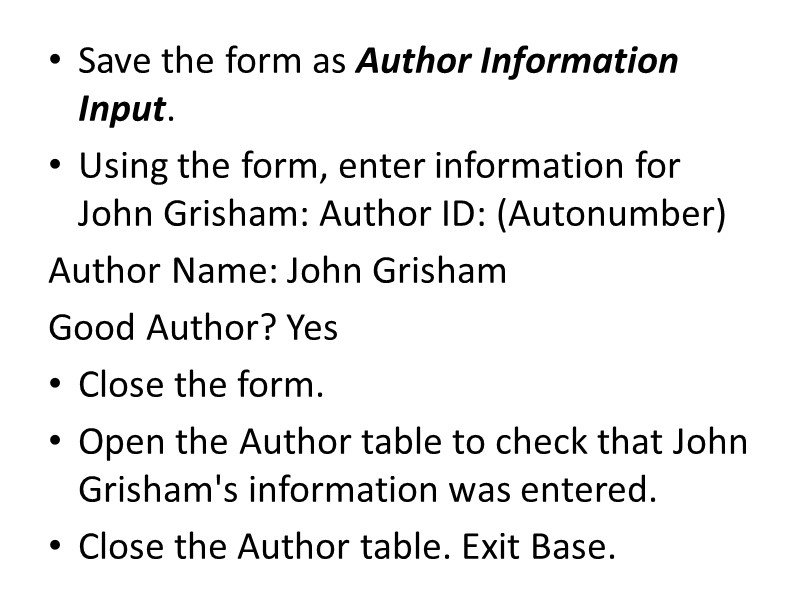
Save the form as Author Information Input. Using the form, enter information for John Grisham: Author ID: (Autonumber) Author Name: John Grisham Good Author? Yes Close the form. Open the Author table to check that John Grisham's information was entered. Close the Author table. Exit Base.
http://inpics.net/tutorials/base2/forms11.html