


 Скачать презентацию WITS World Integrated Trade Solution Training Washington March
46b2ba4393f740730e82d8cfa201236d.ppt
- Количество слайдов: 195
 WITS World Integrated Trade Solution Training Washington March 2004 1
 Program § What is WITS and How to Access § WITS for Trade Data Analysis § WITS for Tariff data Analysis § WITS Simulation Tools 2
 § Introduction § What is WITS ? ; Registration and installation; access to databases § Trade Data § Quick and advanced queries, COMTRADE, TRAINS, IDB § Tariff data § Tariff statistics, WTO IDB and CTS, UNCTAD TRAINS 3
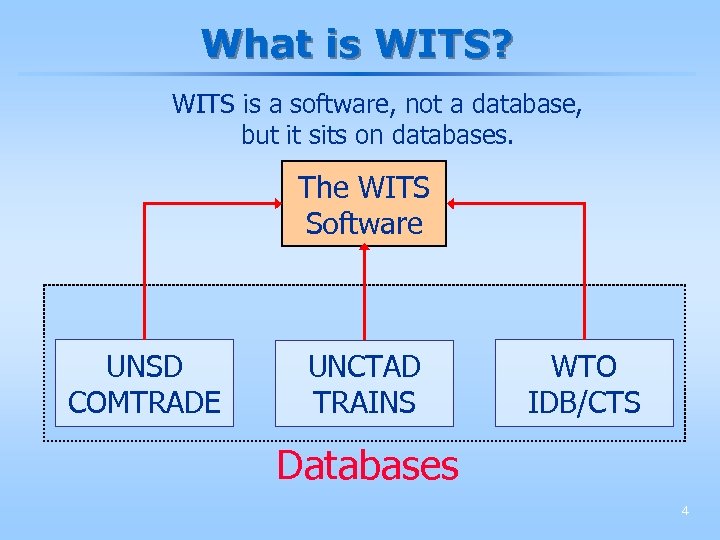 What is WITS? WITS is a software, not a database, but it sits on databases. The WITS Software UNSD COMTRADE UNCTAD TRAINS WTO IDB/CTS Databases 4
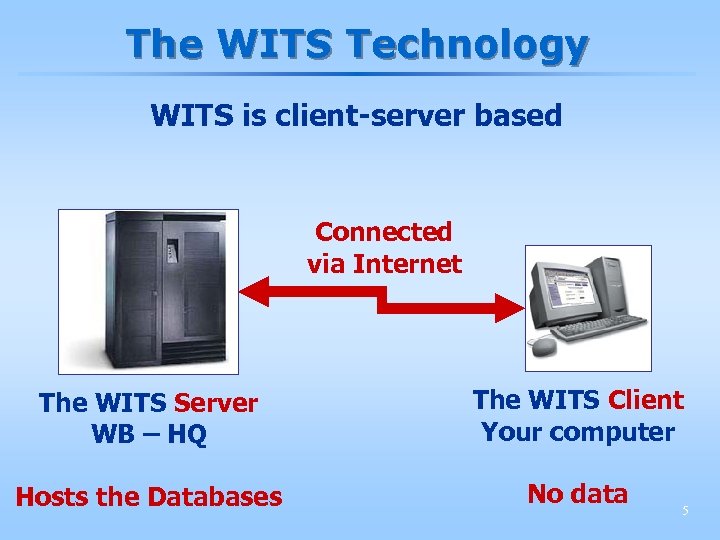 The WITS Technology WITS is client-server based Connected via Internet The WITS Server WB – HQ The WITS Client Your computer Hosts the Databases No data 5
 What is WITS? The WITS software is both : § A gateway to trade and protection statistics § An analytical tool : § Data extraction and analysis § Tariff change simulations 6
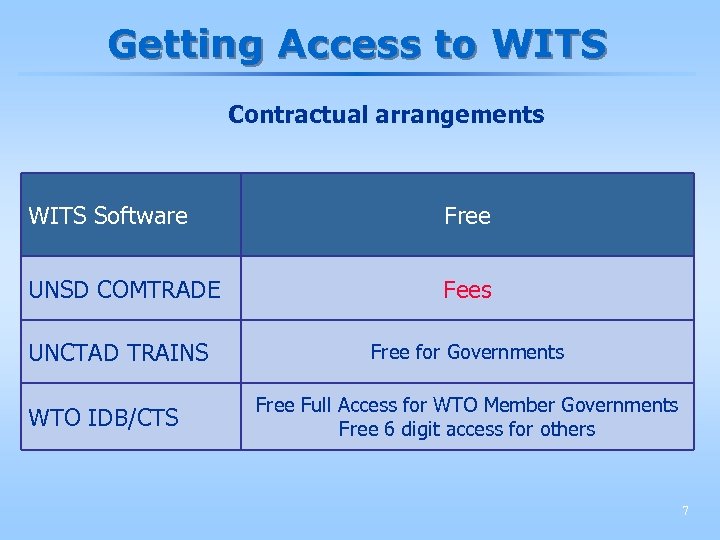 Getting Access to WITS Contractual arrangements WITS Software Free UNSD COMTRADE Fees UNCTAD TRAINS Free for Governments WTO IDB/CTS Free Full Access for WTO Member Governments Free 6 digit access for others 7
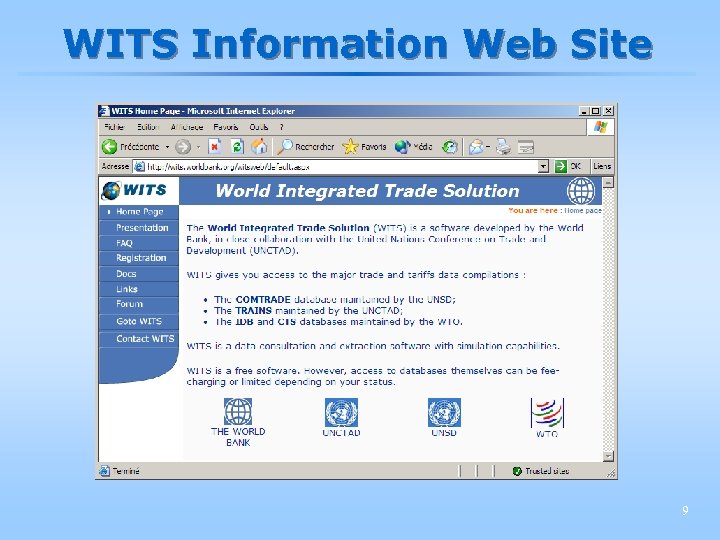
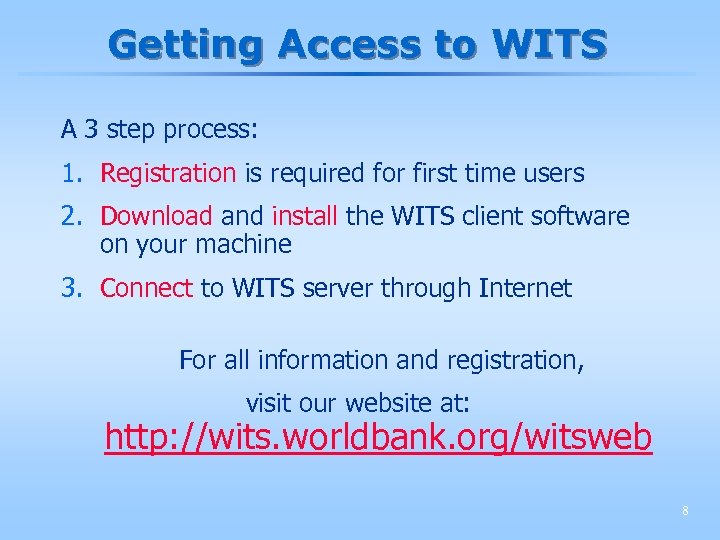 Getting Access to WITS A 3 step process: 1. Registration is required for first time users 2. Download and install the WITS client software on your machine 3. Connect to WITS server through Internet For all information and registration, visit our website at: http: //wits. worldbank. org/witsweb 8
 WITS Information Web Site 9
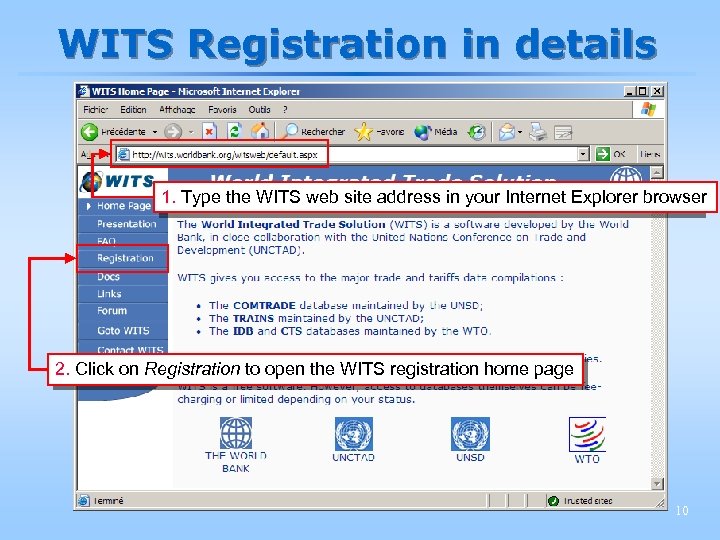 WITS Registration in details 1. Type the WITS web site address in your Internet Explorer browser 2. Click on Registration to open the WITS registration home page 10
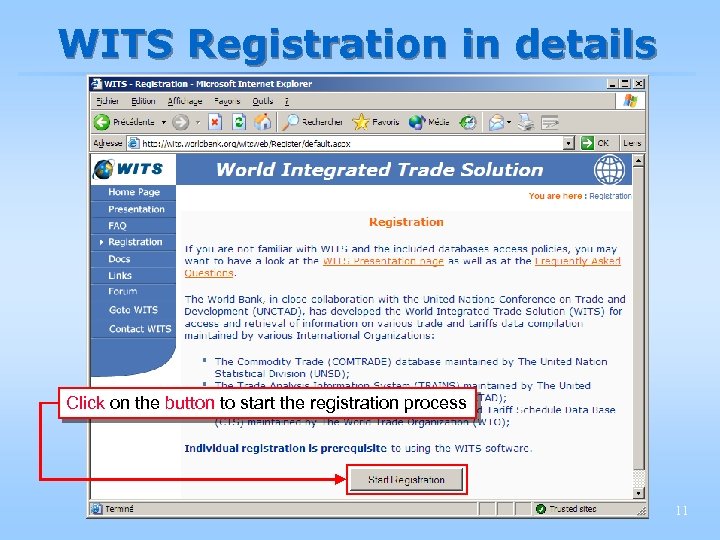 WITS Registration in details Click on the button to start the registration process 11
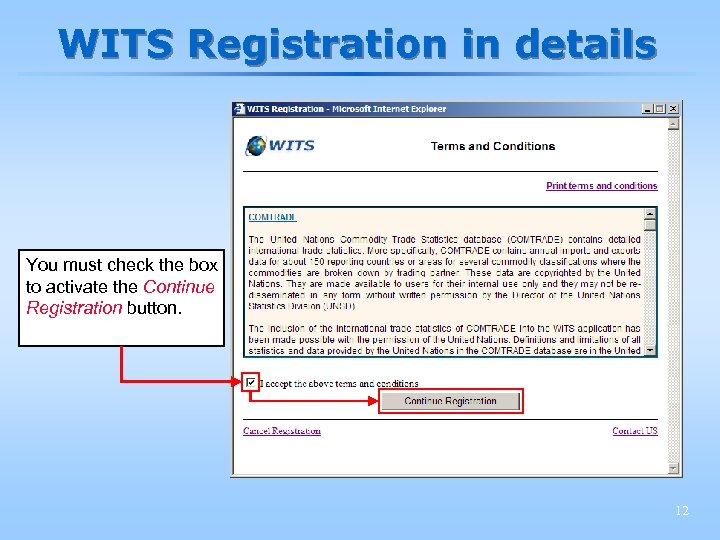 WITS Registration in details You must check the box to activate the Continue Registration button. 12
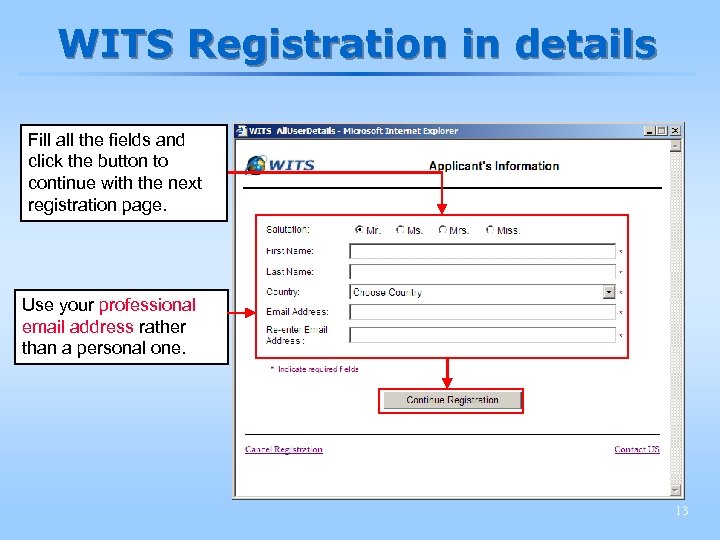 WITS Registration in details Fill all the fields and click the button to continue with the next registration page. Use your professional email address rather than a personal one. 13
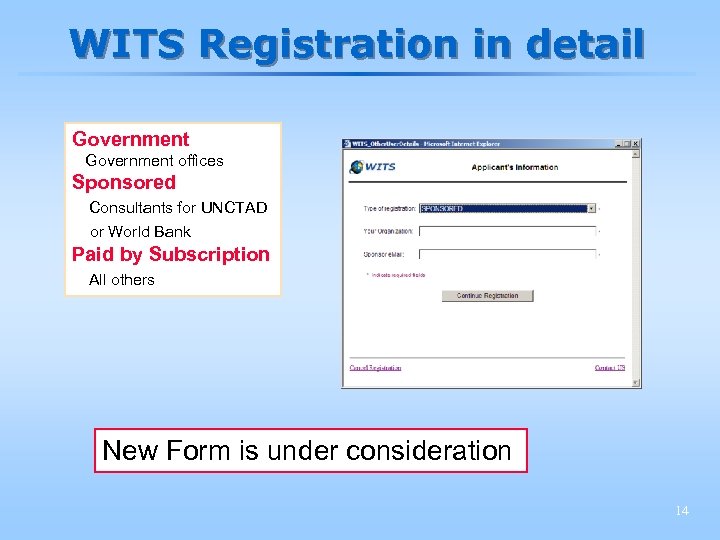 WITS Registration in detail Government offices Sponsored Consultants for UNCTAD or World Bank Paid by Subscription All others New Form is under consideration 14
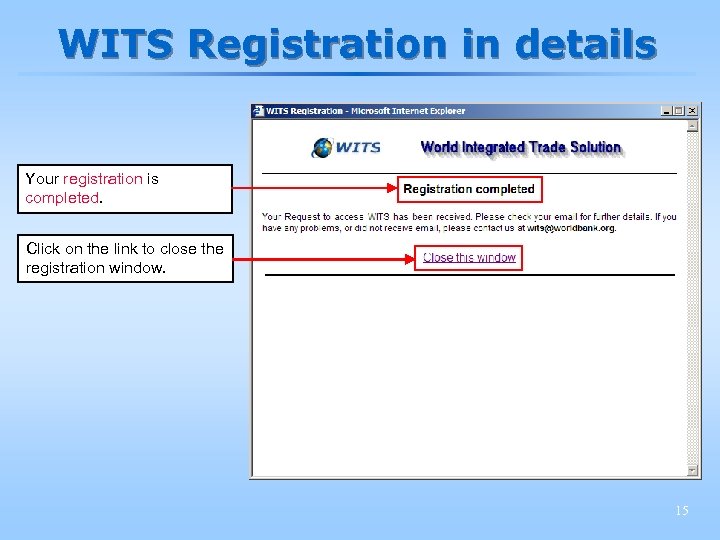 WITS Registration in details Your registration is completed. Click on the link to close the registration window. 15
 WITS Registration in details § Your WITS account is opened immediately for governments and for others as soon as your sponsor confirms it or your payment is received. § You then receive a confirmation email with: § your password; § a link to download the WITS client software. 16
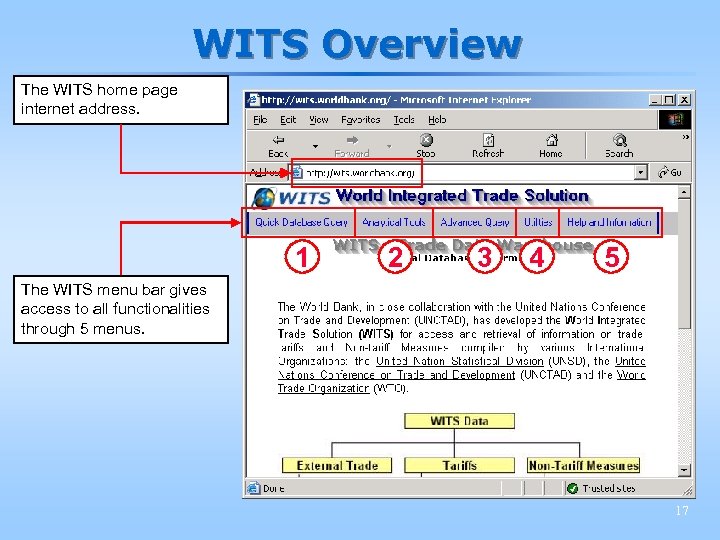 WITS Overview The WITS home page internet address. 1 2 3 4 5 The WITS menu bar gives access to all functionalities through 5 menus. 17
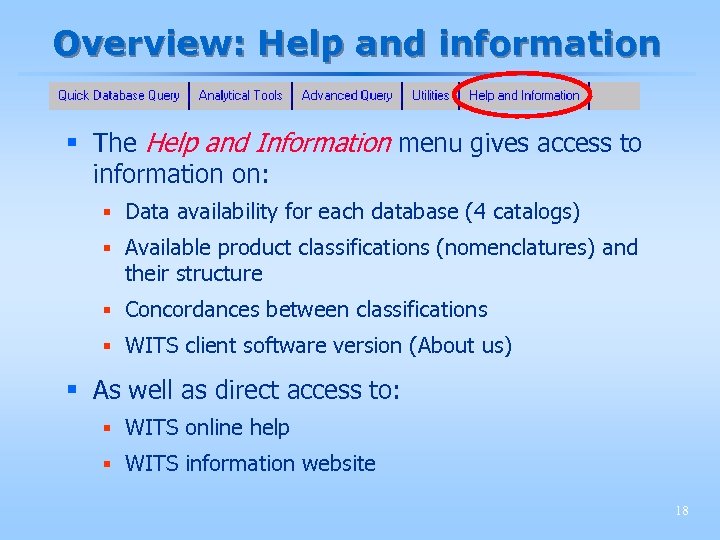 Overview: Help and information § The Help and Information menu gives access to information on: § Data availability for each database (4 catalogs) § Available product classifications (nomenclatures) and their structure § Concordances between classifications § WITS client software version (About us) § As well as direct access to: § WITS online help § WITS information website 18
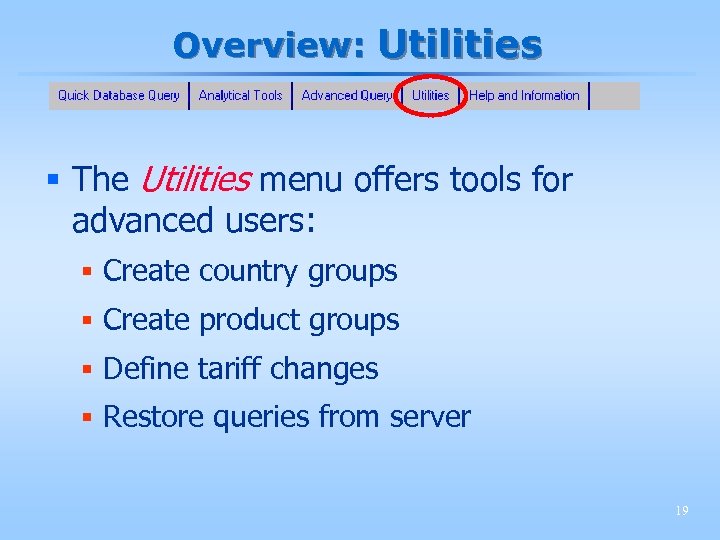 Overview: Utilities § The Utilities menu offers tools for advanced users: § Create country groups § Create product groups § Define tariff changes § Restore queries from server 19
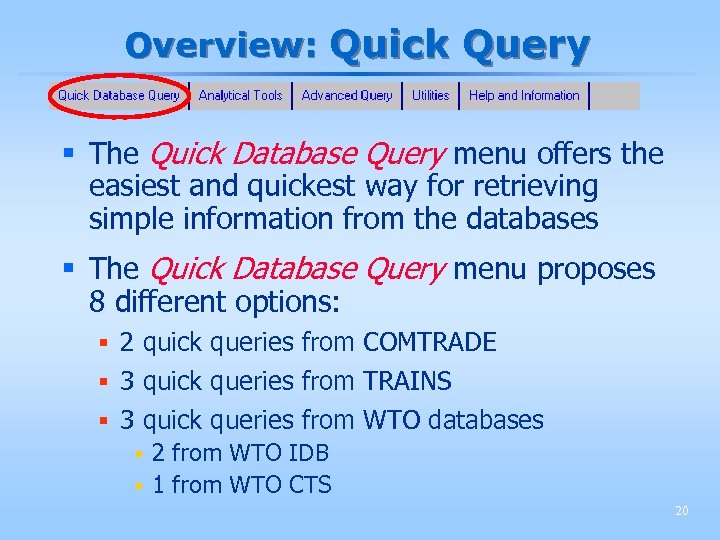 Overview: Quick Query § The Quick Database Query menu offers the easiest and quickest way for retrieving simple information from the databases § The Quick Database Query menu proposes 8 different options: § 2 quick queries from COMTRADE § 3 quick queries from TRAINS § 3 quick queries from WTO databases § 2 from WTO IDB § 1 from WTO CTS 20
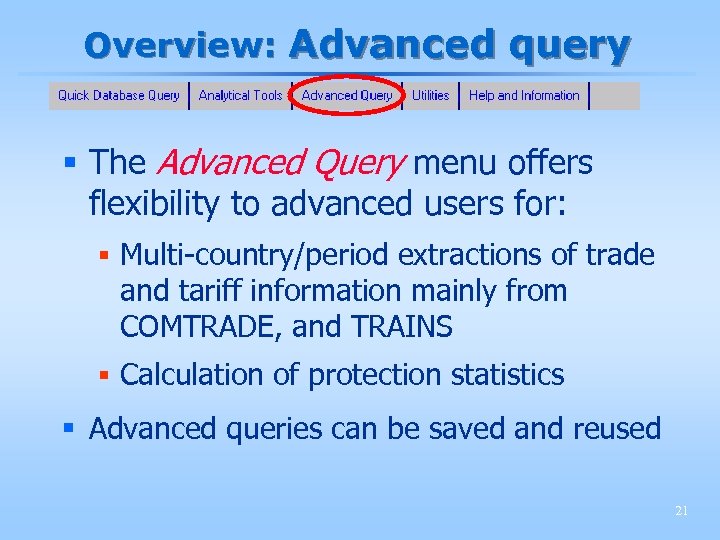 Overview: Advanced query § The Advanced Query menu offers flexibility to advanced users for: § Multi-country/period extractions of trade and tariff information mainly from COMTRADE, and TRAINS § Calculation of protection statistics § Advanced queries can be saved and reused 21
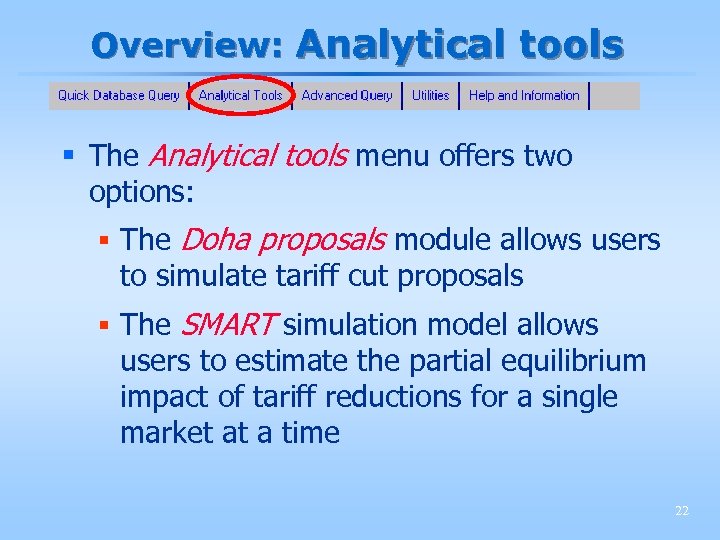 Overview: Analytical tools § The Analytical tools menu offers two options: § The Doha proposals module allows users to simulate tariff cut proposals § The SMART simulation model allows users to estimate the partial equilibrium impact of tariff reductions for a single market at a time 22
 Trade data 23
 Databases with trade data § Trade data is available in three databases: § COMTRADE § TRAINS § WTO IDB 24
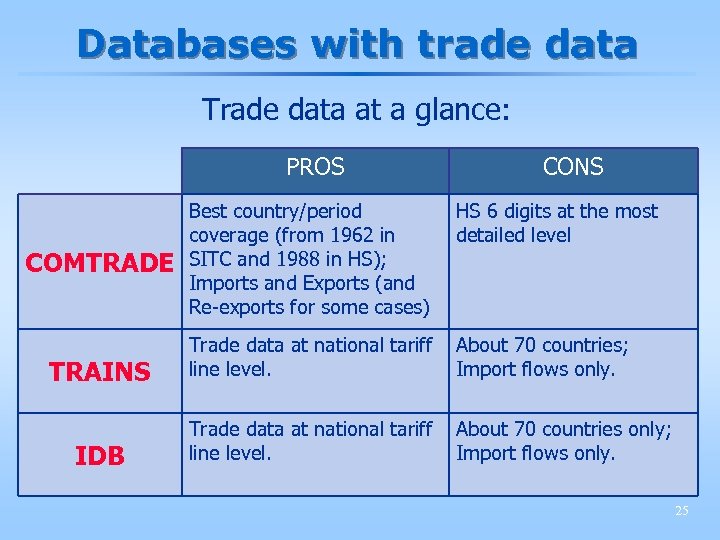 Databases with trade data Trade data at a glance: PROS CONS Best country/period coverage (from 1962 in SITC and 1988 in HS); Imports and Exports (and Re-exports for some cases) HS 6 digits at the most detailed level TRAINS Trade data at national tariff line level. About 70 countries; Import flows only. IDB Trade data at national tariff line level. About 70 countries only; Import flows only. COMTRADE 25
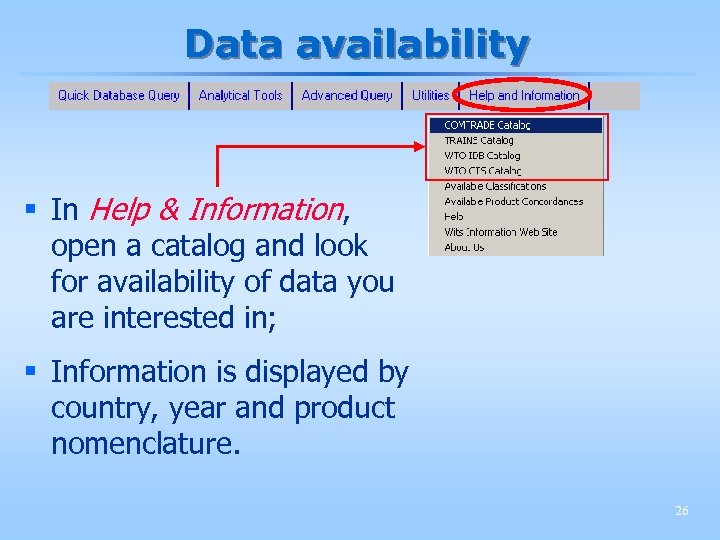 Data availability § In Help & Information, open a catalog and look for availability of data you are interested in; § Information is displayed by country, year and product nomenclature. 26
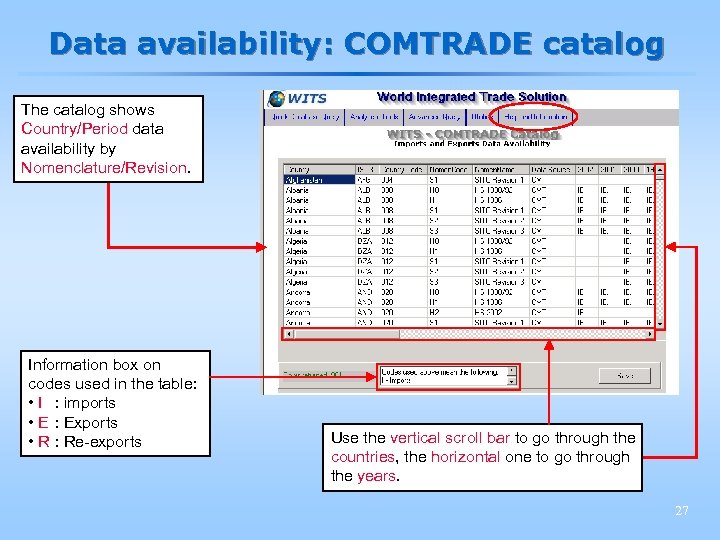 Data availability: COMTRADE catalog The catalog shows Country/Period data availability by Nomenclature/Revision. Information box on codes used in the table: • I : imports • E : Exports • R : Re-exports Use the vertical scroll bar to go through the countries, the horizontal one to go through the years. 27
 Data availability: other catalogs § Information on data availability can be retrieved the same way for the TRAINS and IDB database catalogs. 28
 A word on Nomenclatures § Trade data have been recorded according to several product nomenclatures depending on the database and year: § Standard International Trade Classification (SITC) § Harmonized Commodity Description and Coding System (HS) § Data can be displayed in some other nomenclatures thanks to concordances and up to HS 6 digit level. 29
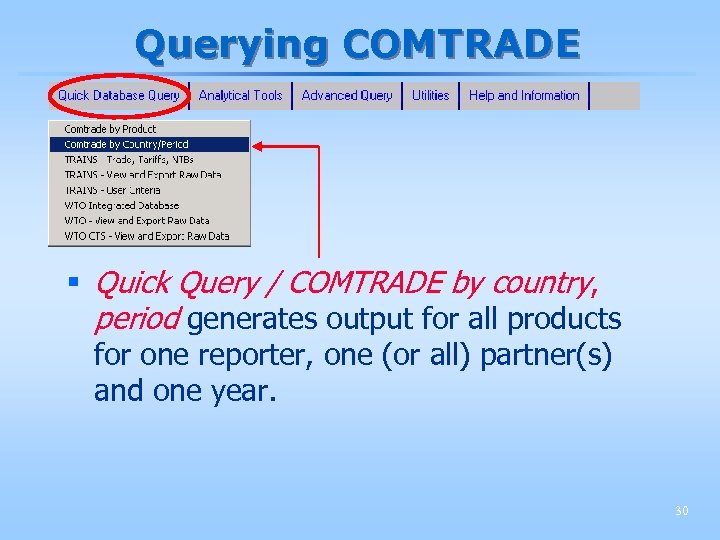 Querying COMTRADE § Quick Query / COMTRADE by country, period generates output for all products for one reporter, one (or all) partner(s) and one year. 30
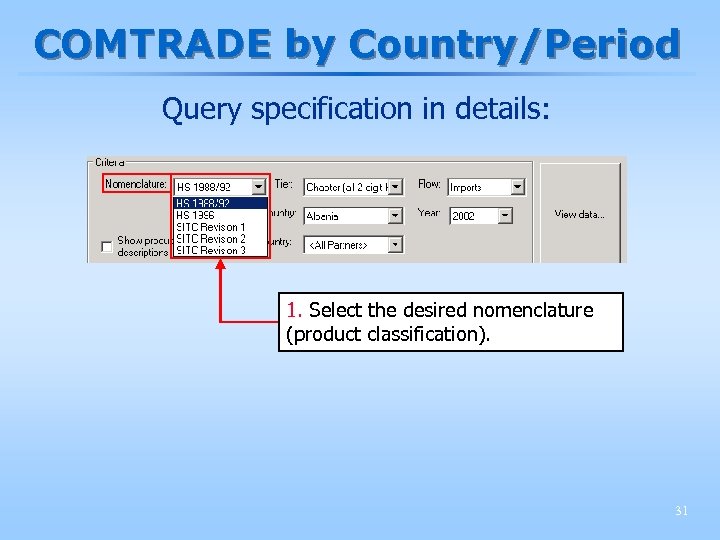 COMTRADE by Country/Period Query specification in details: 1. Select the desired nomenclature (product classification). 31
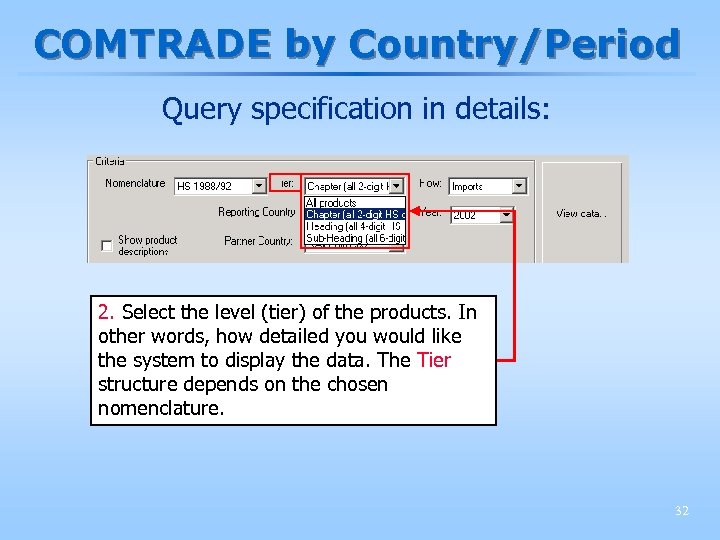 COMTRADE by Country/Period Query specification in details: 2. Select the level (tier) of the products. In other words, how detailed you would like the system to display the data. The Tier structure depends on the chosen nomenclature. 32
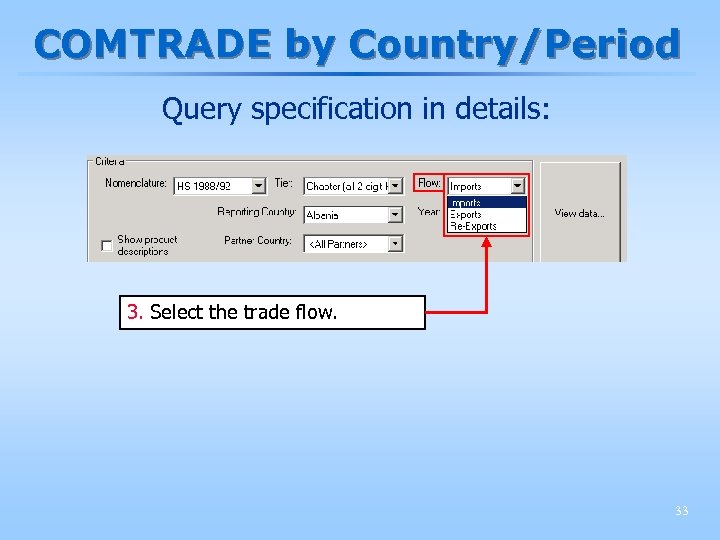 COMTRADE by Country/Period Query specification in details: 3. Select the trade flow. 33
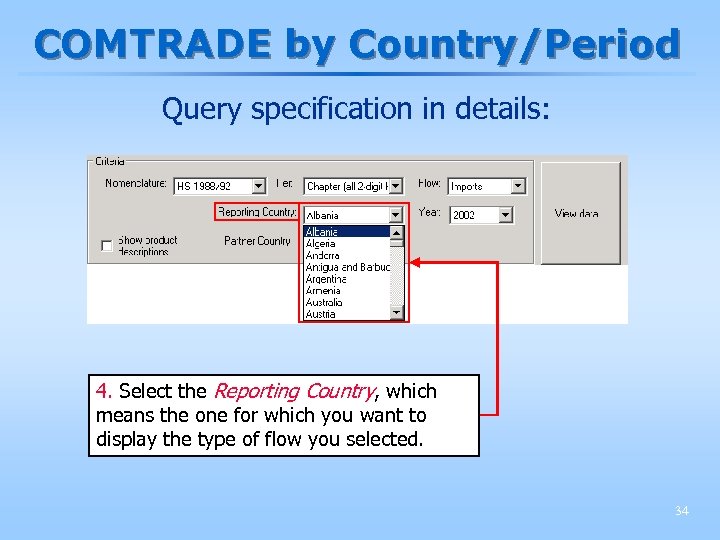 COMTRADE by Country/Period Query specification in details: 4. Select the Reporting Country, which means the one for which you want to display the type of flow you selected. 34
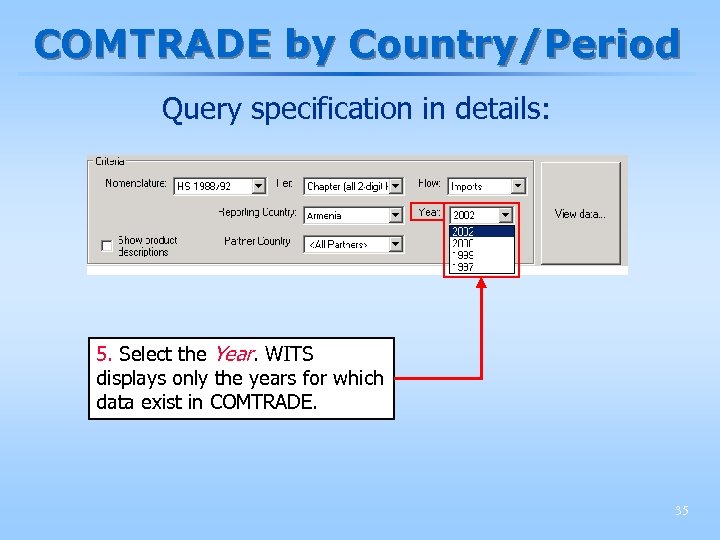 COMTRADE by Country/Period Query specification in details: 5. Select the Year. WITS displays only the years for which data exist in COMTRADE. 35
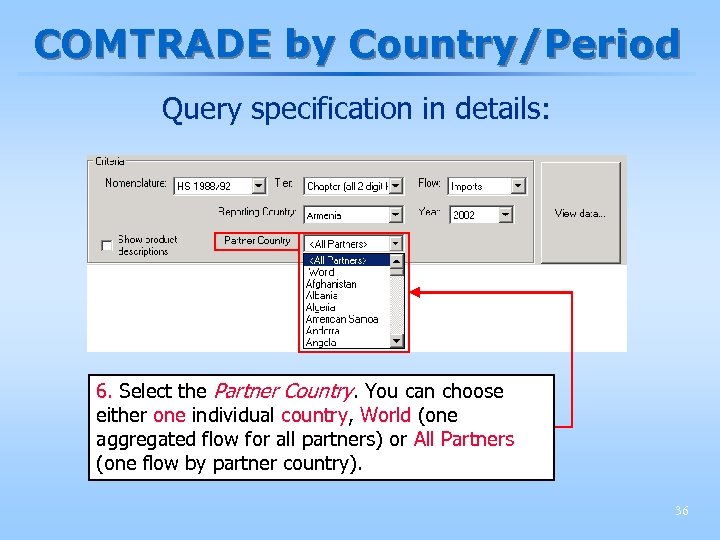 COMTRADE by Country/Period Query specification in details: 6. Select the Partner Country. You can choose either one individual country, World (one aggregated flow for all partners) or All Partners (one flow by partner country). 36
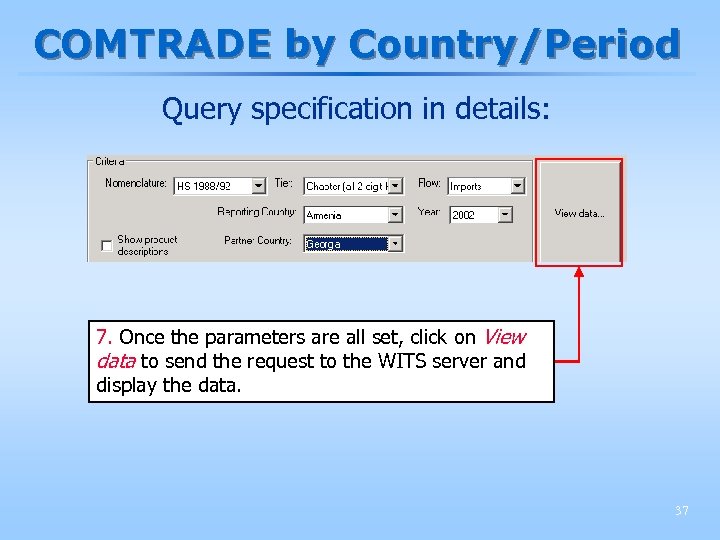 COMTRADE by Country/Period Query specification in details: 7. Once the parameters are all set, click on View data to send the request to the WITS server and display the data. 37
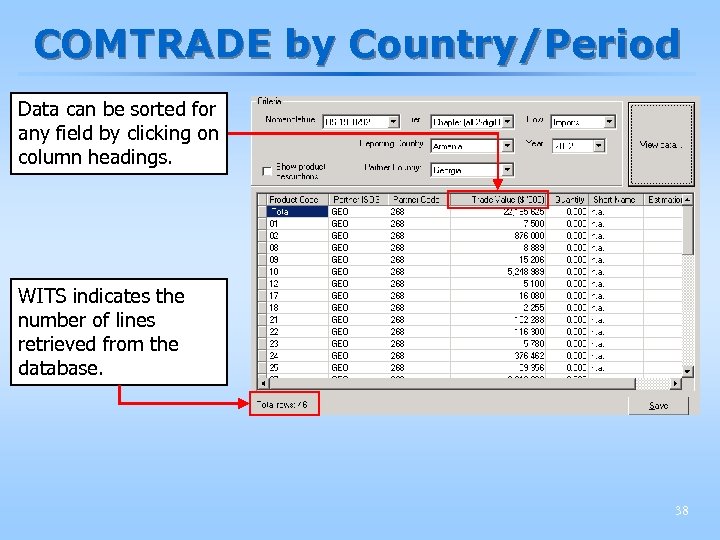 COMTRADE by Country/Period Data can be sorted for any field by clicking on column headings. WITS indicates the number of lines retrieved from the database. 38
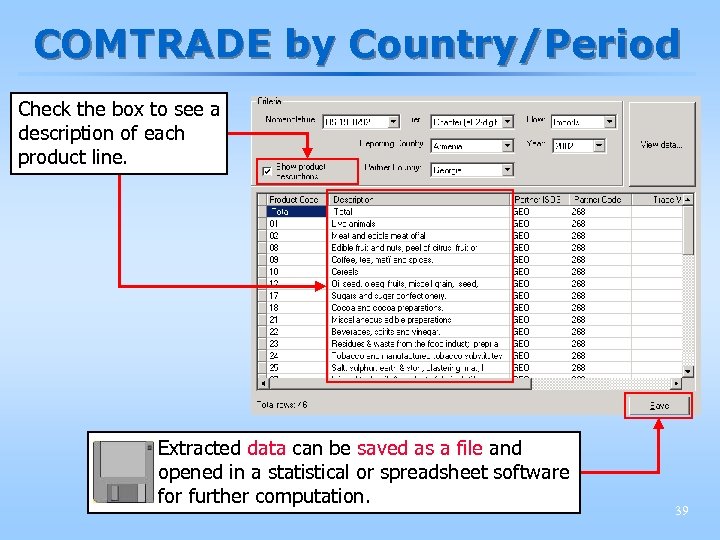 COMTRADE by Country/Period Check the box to see a description of each product line. Extracted data can be saved as a file and opened in a statistical or spreadsheet software for further computation. 39
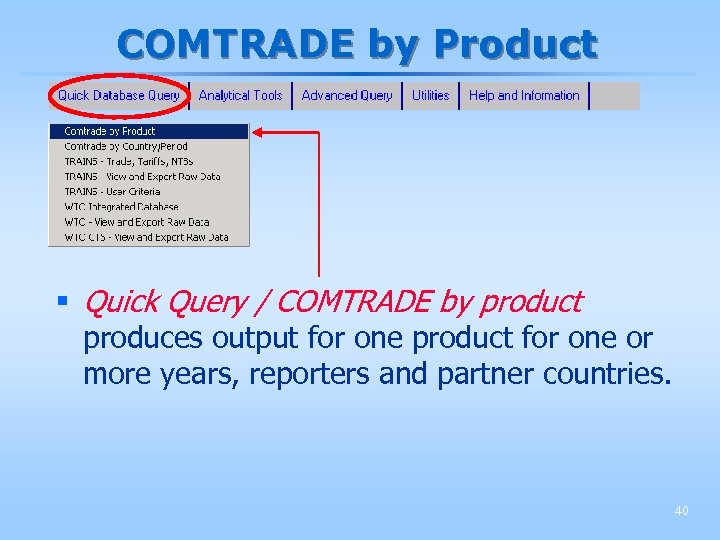 COMTRADE by Product § Quick Query / COMTRADE by product produces output for one product for one or more years, reporters and partner countries. 40
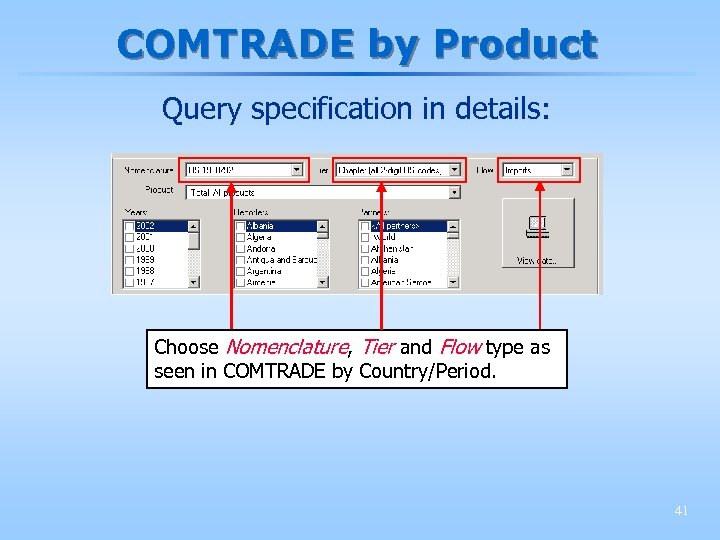 COMTRADE by Product Query specification in details: Choose Nomenclature, Tier and Flow type as seen in COMTRADE by Country/Period. 41
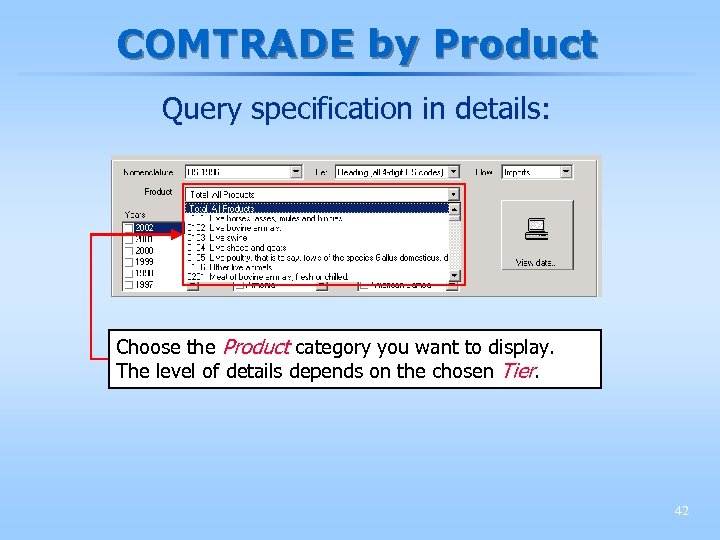 COMTRADE by Product Query specification in details: Choose the Product category you want to display. The level of details depends on the chosen Tier. 42
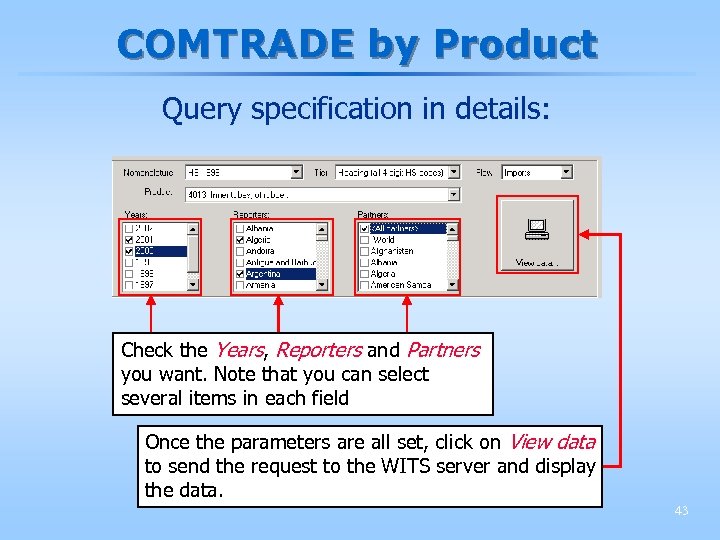 COMTRADE by Product Query specification in details: Check the Years, Reporters and Partners you want. Note that you can select several items in each field Once the parameters are all set, click on View data to send the request to the WITS server and display the data. 43
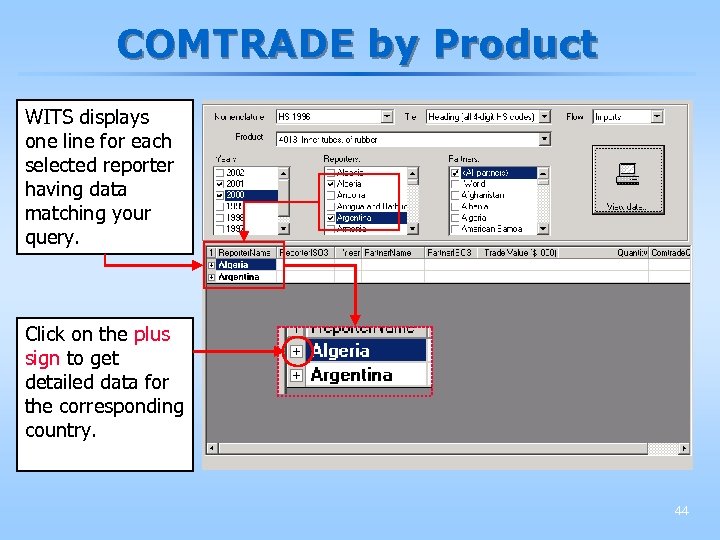 COMTRADE by Product WITS displays one line for each selected reporter having data matching your query. Click on the plus sign to get detailed data for the corresponding country. 44
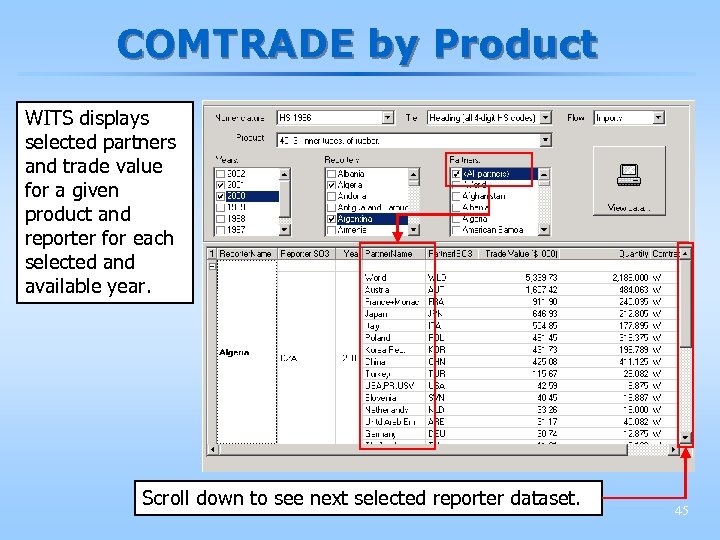 COMTRADE by Product WITS displays selected partners and trade value for a given product and reporter for each selected and available year. Scroll down to see next selected reporter dataset. 45
 Dealing with mirror data § When some data are missing, it can be useful to use partner’s mirror data (exports – imports) to fill gaps. § However, one has to be very careful because: § Of the FOB – CIF issue; § Of the difference in reporting quality when a country deals with imports and exports; § Of the difference in reporting quality from one country to another. § Example: Pakistan (exports)– China (imports) in 2001 236 M US$ 557 M US$ 46
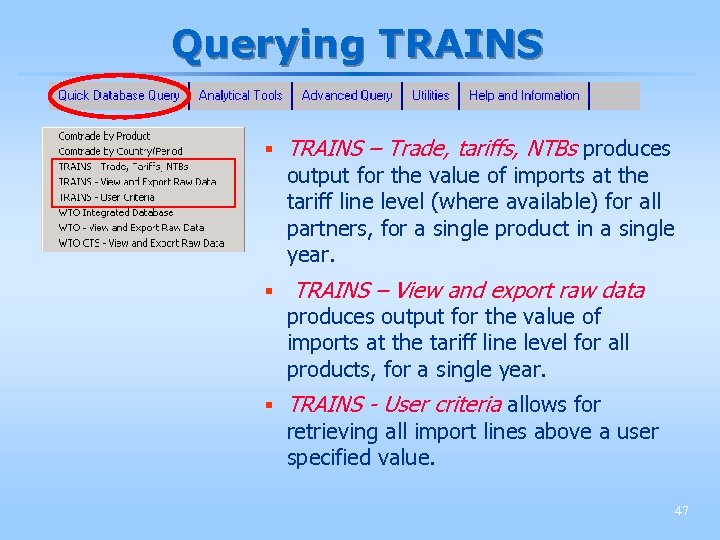 Querying TRAINS § TRAINS – Trade, tariffs, NTBs produces output for the value of imports at the tariff line level (where available) for all partners, for a single product in a single year. § TRAINS – View and export raw data produces output for the value of imports at the tariff line level for all products, for a single year. § TRAINS - User criteria allows for retrieving all import lines above a user specified value. 47
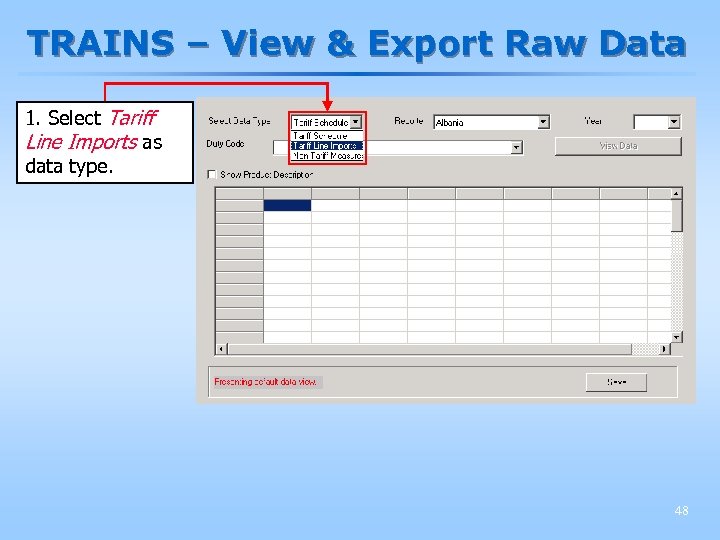 TRAINS – View & Export Raw Data 1. Select Tariff Line Imports as data type. 48
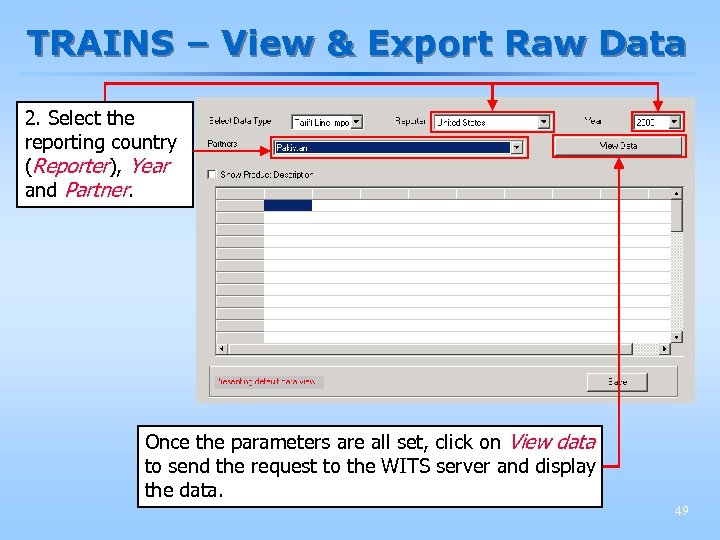 TRAINS – View & Export Raw Data 2. Select the reporting country (Reporter), Year and Partner. Once the parameters are all set, click on View data to send the request to the WITS server and display the data. 49
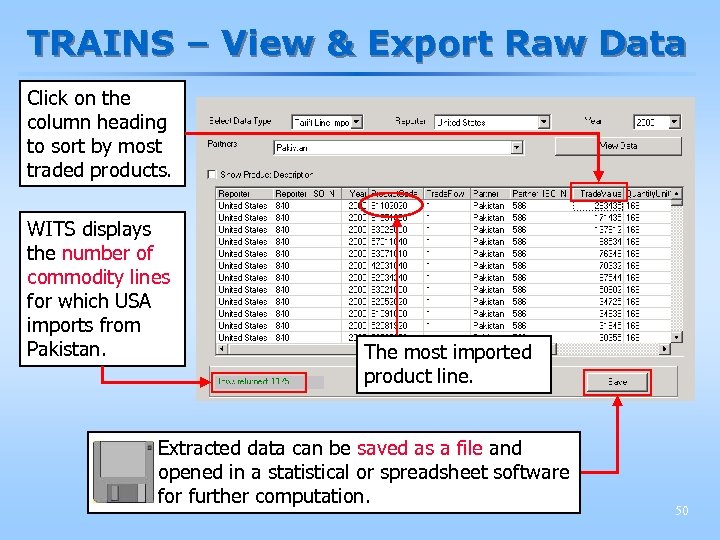 TRAINS – View & Export Raw Data Click on the column heading to sort by most traded products. WITS displays the number of commodity lines for which USA imports from Pakistan. The most imported product line. Extracted data can be saved as a file and opened in a statistical or spreadsheet software for further computation. 50
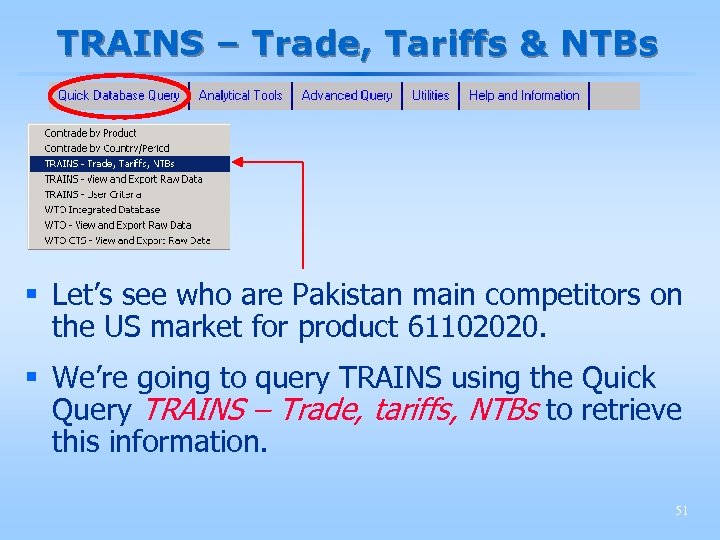 TRAINS – Trade, Tariffs & NTBs § Let’s see who are Pakistan main competitors on the US market for product 61102020. § We’re going to query TRAINS using the Quick Query TRAINS – Trade, tariffs, NTBs to retrieve this information. 51
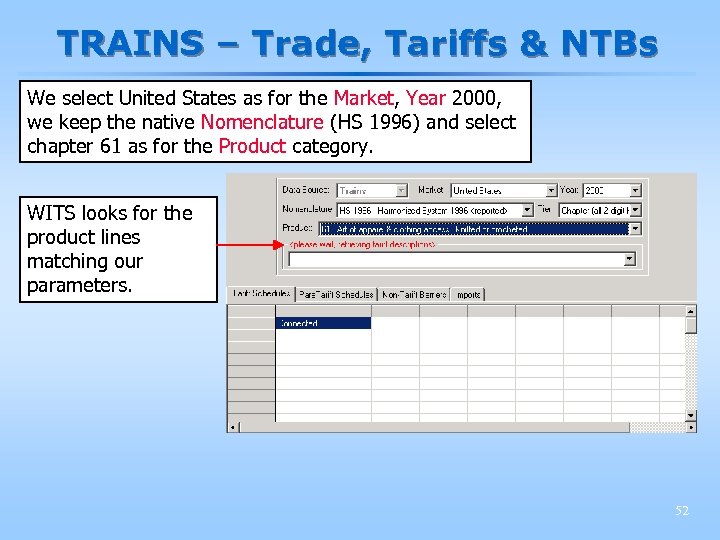 TRAINS – Trade, Tariffs & NTBs We select United States as for the Market, Year 2000, we keep the native Nomenclature (HS 1996) and select chapter 61 as for the Product category. WITS looks for the product lines matching our parameters. 52
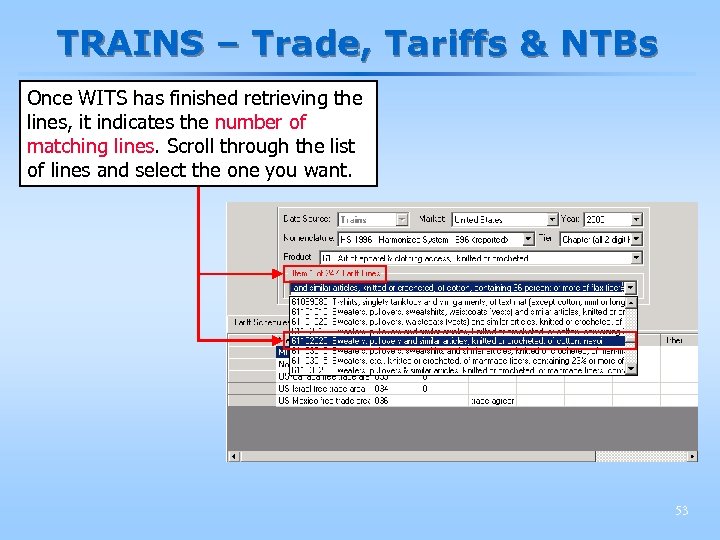 TRAINS – Trade, Tariffs & NTBs Once WITS has finished retrieving the lines, it indicates the number of matching lines. Scroll through the list of lines and select the one you want. 53
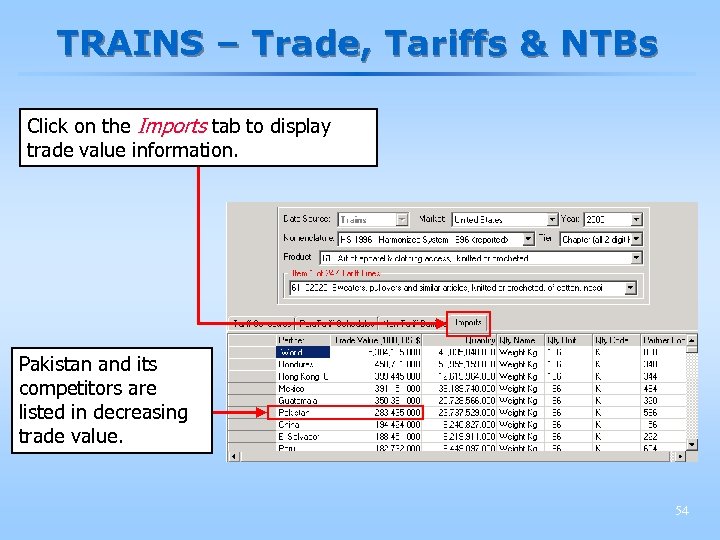 TRAINS – Trade, Tariffs & NTBs Click on the Imports tab to display trade value information. Pakistan and its competitors are listed in decreasing trade value. 54
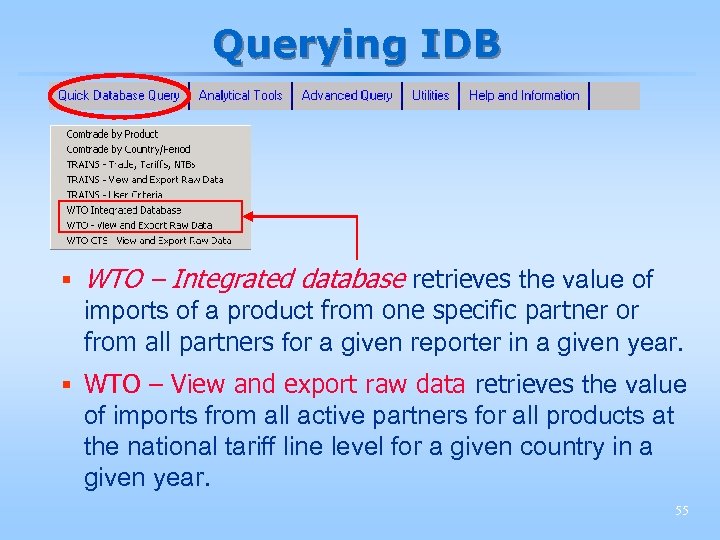 Querying IDB § WTO – Integrated database retrieves the value of imports of a product from one specific partner or from all partners for a given reporter in a given year. § WTO – View and export raw data retrieves the value of imports from all active partners for all products at the national tariff line level for a given country in a given year. 55
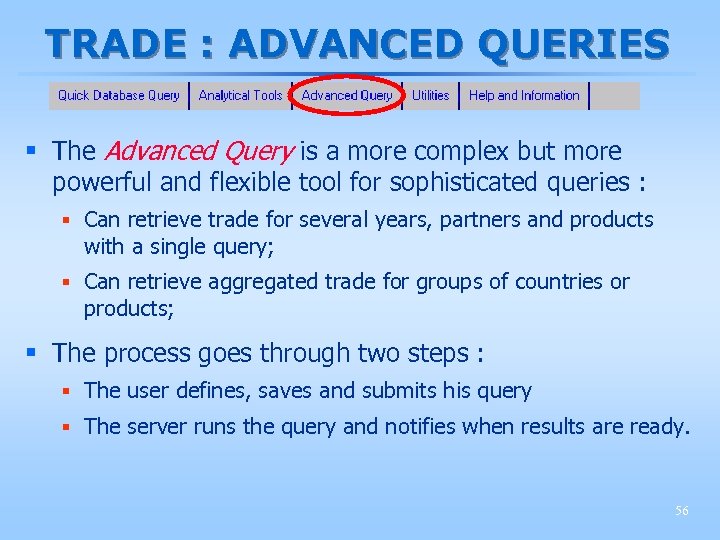 TRADE : ADVANCED QUERIES § The Advanced Query is a more complex but more powerful and flexible tool for sophisticated queries : § Can retrieve trade for several years, partners and products with a single query; § Can retrieve aggregated trade for groups of countries or products; § The process goes through two steps : § The user defines, saves and submits his query § The server runs the query and notifies when results are ready. 56
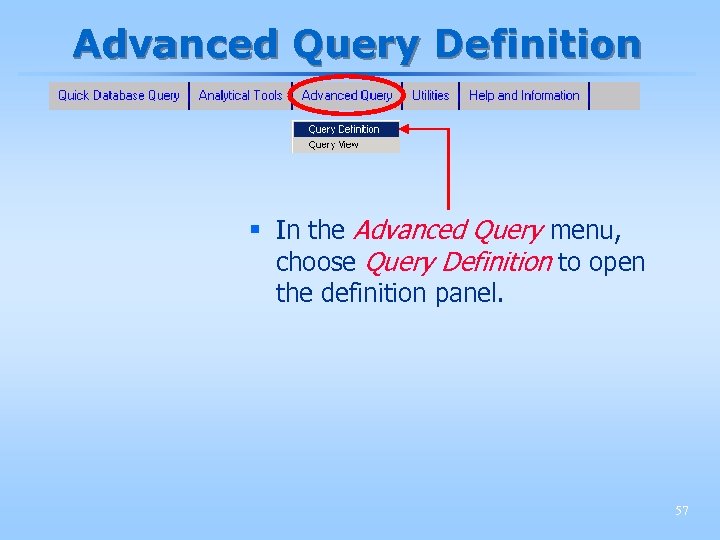 Advanced Query Definition § In the Advanced Query menu, choose Query Definition to open the definition panel. 57
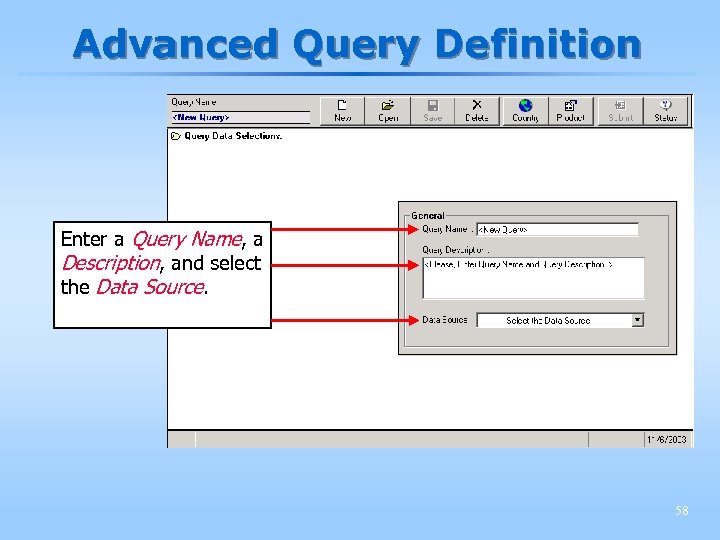 Advanced Query Definition Enter a Query Name, a Description, and select the Data Source. 58
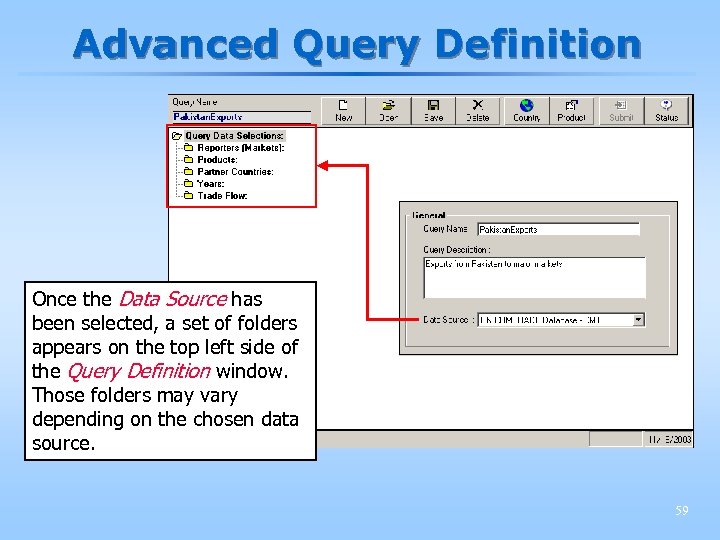 Advanced Query Definition Once the Data Source has been selected, a set of folders appears on the top left side of the Query Definition window. Those folders may vary depending on the chosen data source. 59
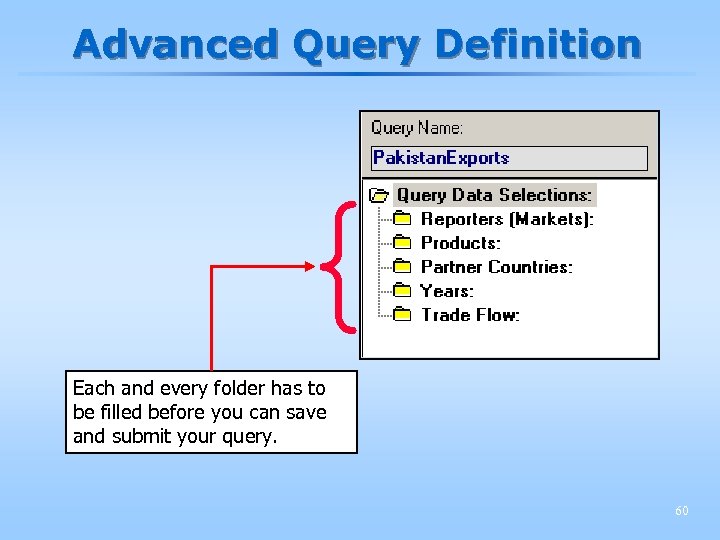 Advanced Query Definition { Each and every folder has to be filled before you can save and submit your query. 60
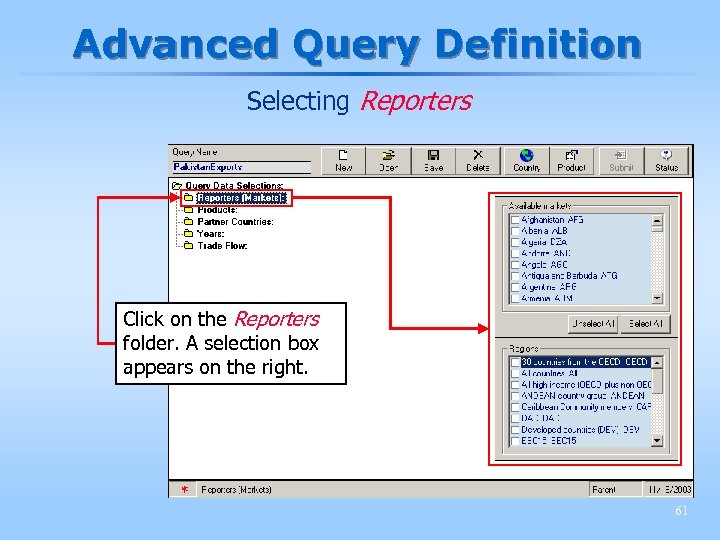 Advanced Query Definition Selecting Reporters Click on the Reporters folder. A selection box appears on the right. 61
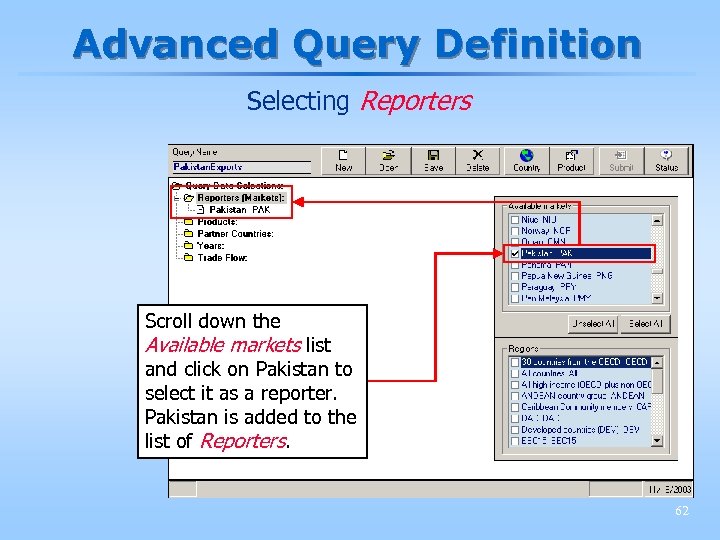 Advanced Query Definition Selecting Reporters Scroll down the Available markets list and click on Pakistan to select it as a reporter. Pakistan is added to the list of Reporters. 62
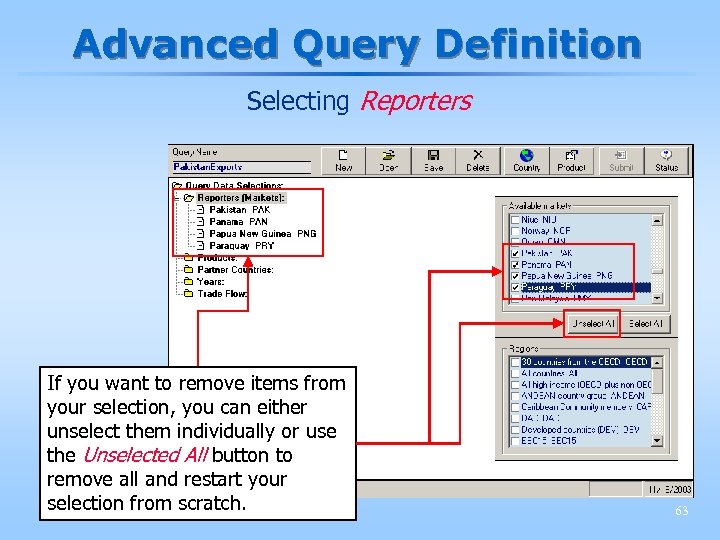 Advanced Query Definition Selecting Reporters If you want to remove items from your selection, you can either unselect them individually or use the Unselected All button to remove all and restart your selection from scratch. 63
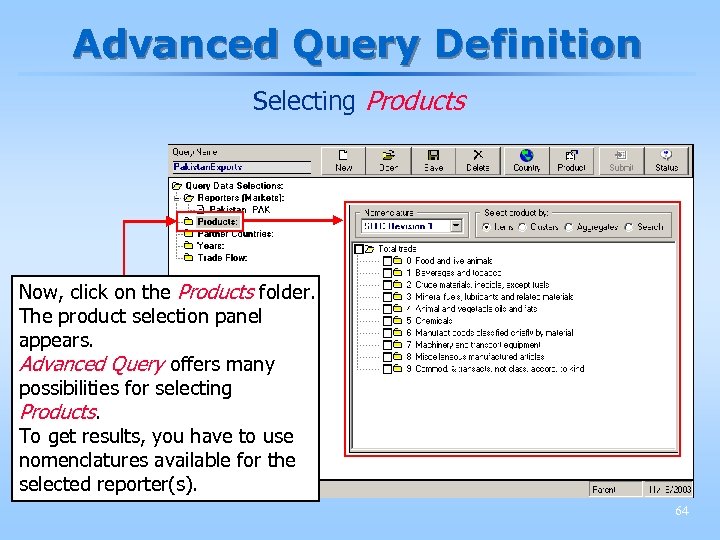 Advanced Query Definition Selecting Products Now, click on the Products folder. The product selection panel appears. Advanced Query offers many possibilities for selecting Products. To get results, you have to use nomenclatures available for the selected reporter(s). 64
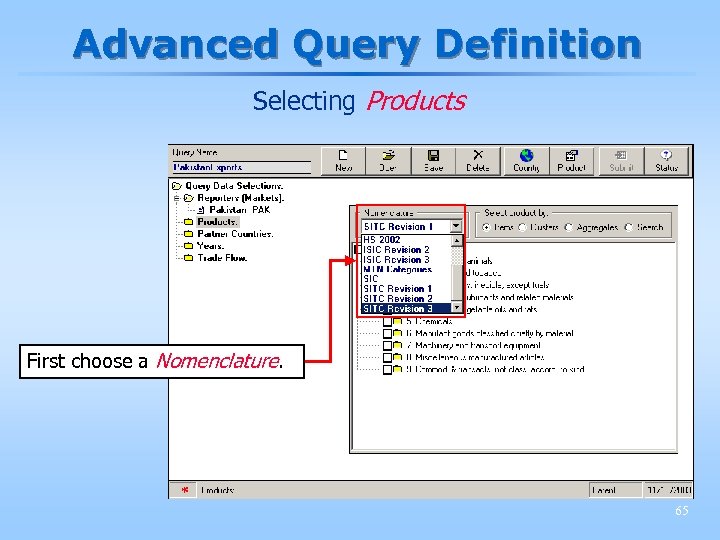 Advanced Query Definition Selecting Products First choose a Nomenclature. 65
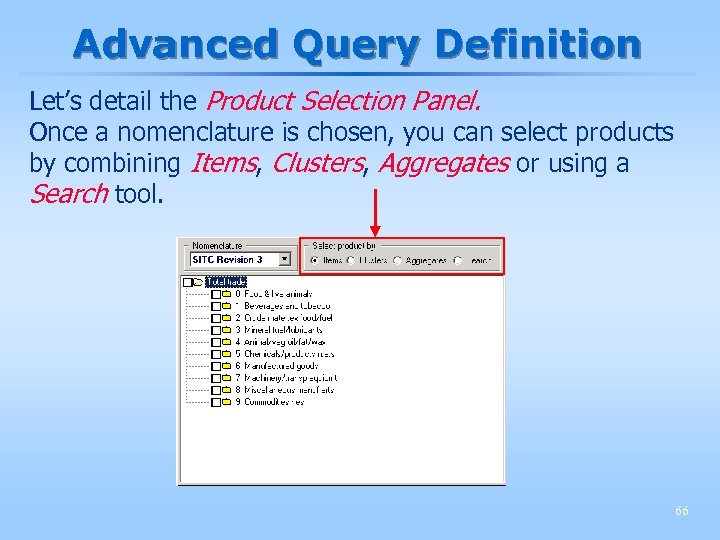 Advanced Query Definition Let’s detail the Product Selection Panel. Once a nomenclature is chosen, you can select products by combining Items, Clusters, Aggregates or using a Search tool. 66
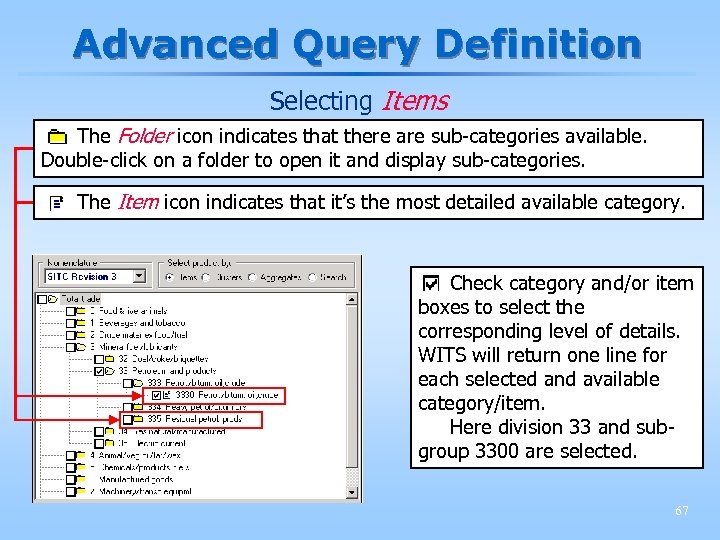 Advanced Query Definition Selecting Items The Folder icon indicates that there are sub-categories available. Double-click on a folder to open it and display sub-categories. The Item icon indicates that it’s the most detailed available category. Check category and/or item boxes to select the corresponding level of details. WITS will return one line for each selected and available category/item. Here division 33 and subgroup 3300 are selected. 67
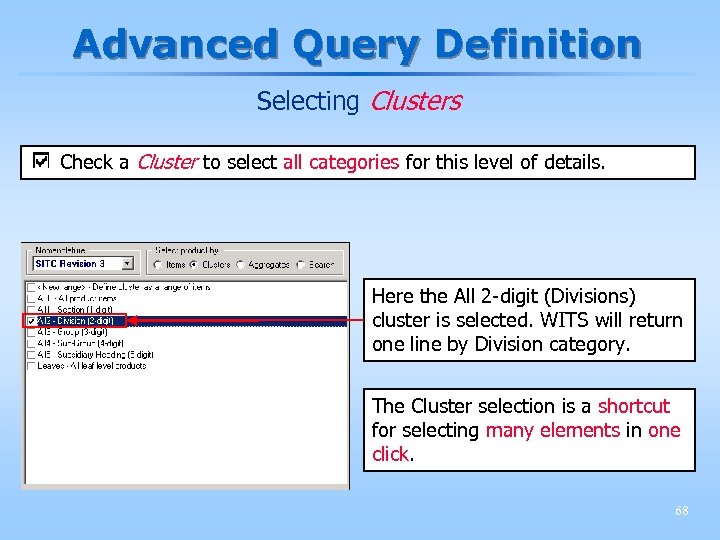 Advanced Query Definition Selecting Clusters Check a Cluster to select all categories for this level of details. Here the All 2 -digit (Divisions) cluster is selected. WITS will return one line by Division category. The Cluster selection is a shortcut for selecting many elements in one click. 68
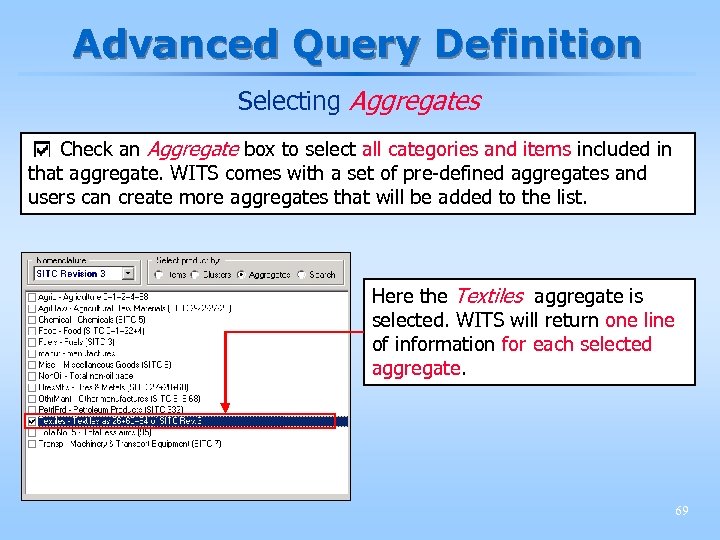 Advanced Query Definition Selecting Aggregates Check an Aggregate box to select all categories and items included in that aggregate. WITS comes with a set of pre-defined aggregates and users can create more aggregates that will be added to the list. Here the Textiles aggregate is selected. WITS will return one line of information for each selected aggregate. 69
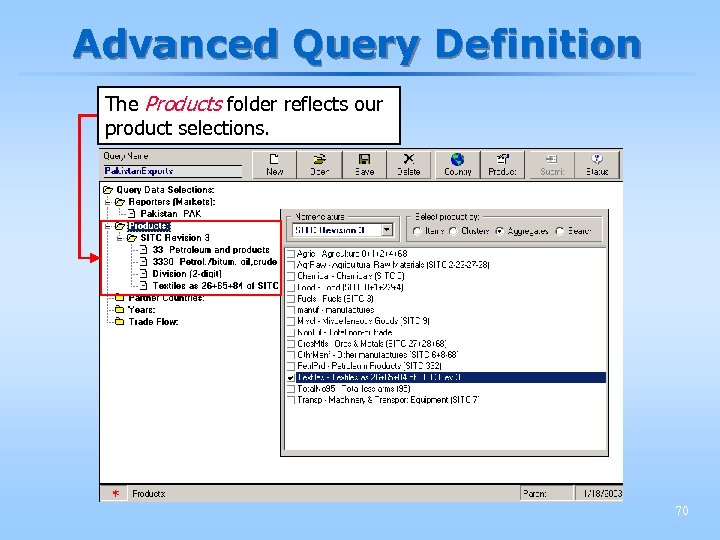 Advanced Query Definition The Products folder reflects our product selections. 70
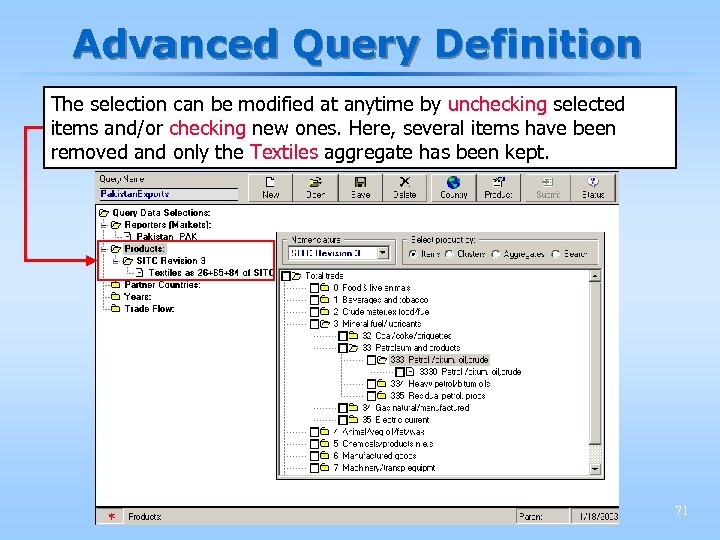 Advanced Query Definition The selection can be modified at anytime by unchecking selected items and/or checking new ones. Here, several items have been removed and only the Textiles aggregate has been kept. 71
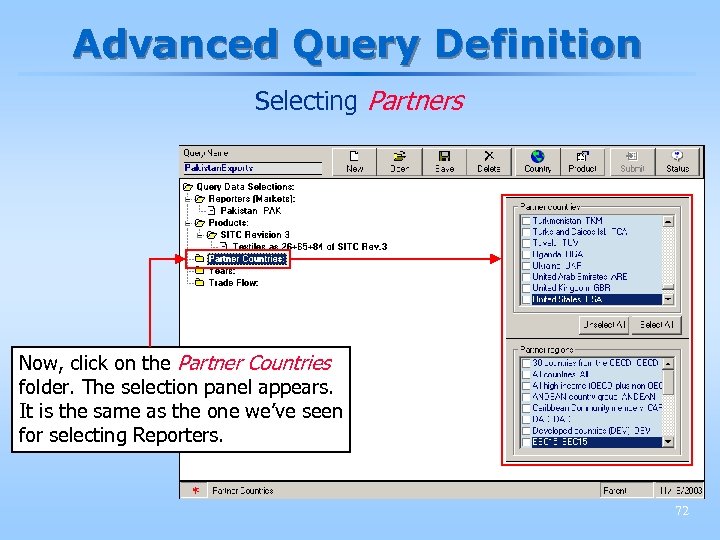 Advanced Query Definition Selecting Partners Now, click on the Partner Countries folder. The selection panel appears. It is the same as the one we’ve seen for selecting Reporters. 72
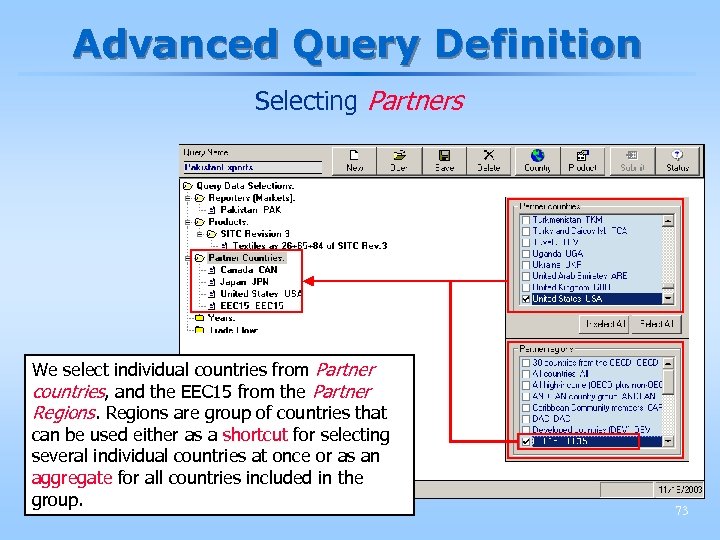 Advanced Query Definition Selecting Partners We select individual countries from Partner countries, and the EEC 15 from the Partner Regions are group of countries that can be used either as a shortcut for selecting several individual countries at once or as an aggregate for all countries included in the group. 73
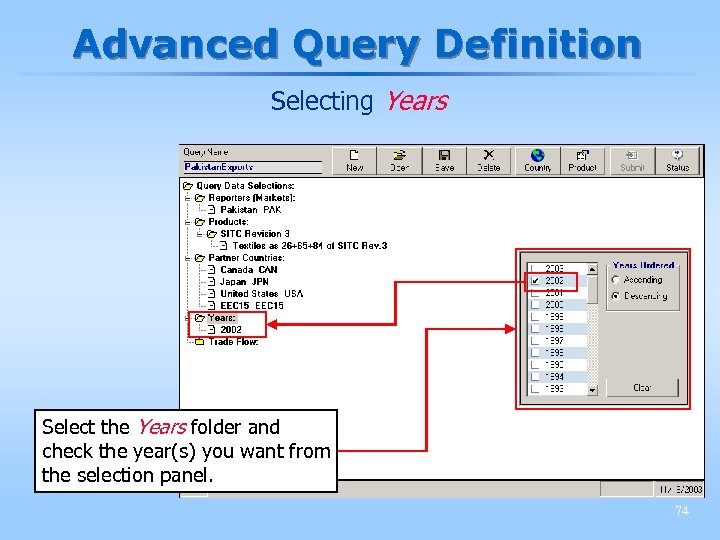 Advanced Query Definition Selecting Years Select the Years folder and check the year(s) you want from the selection panel. 74
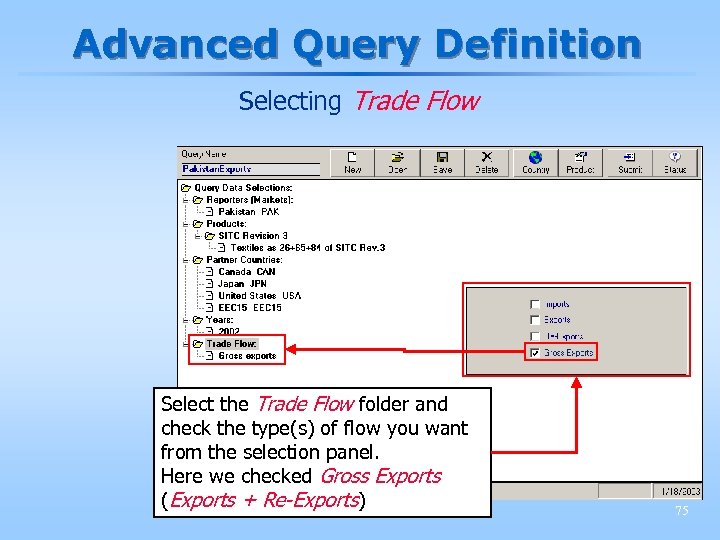 Advanced Query Definition Selecting Trade Flow Select the Trade Flow folder and check the type(s) of flow you want from the selection panel. Here we checked Gross Exports (Exports + Re-Exports) 75
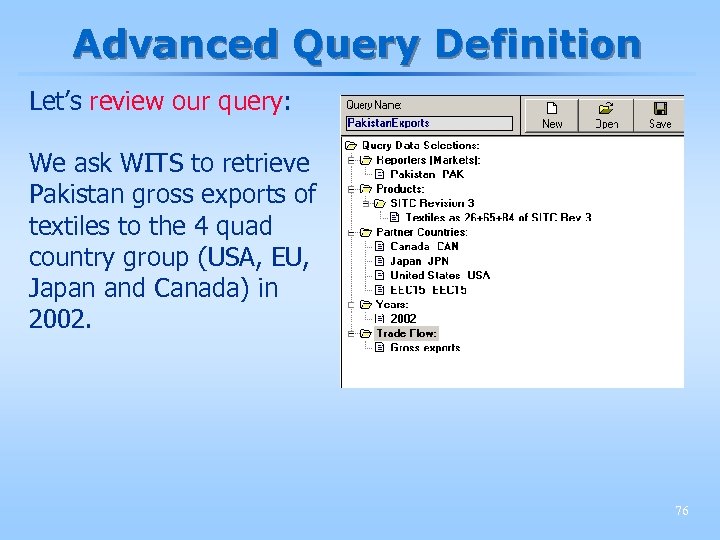 Advanced Query Definition Let’s review our query: We ask WITS to retrieve Pakistan gross exports of textiles to the 4 quad country group (USA, EU, Japan and Canada) in 2002. 76
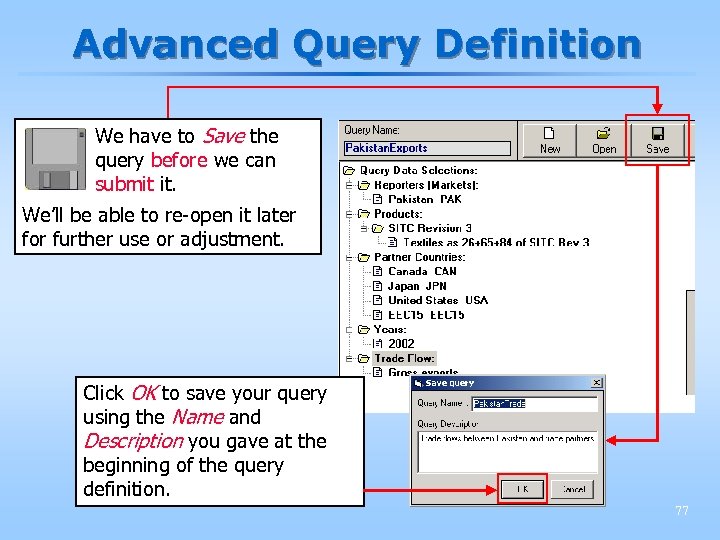 Advanced Query Definition We have to Save the query before we can submit it. We’ll be able to re-open it later for further use or adjustment. Click OK to save your query using the Name and Description you gave at the beginning of the query definition. 77
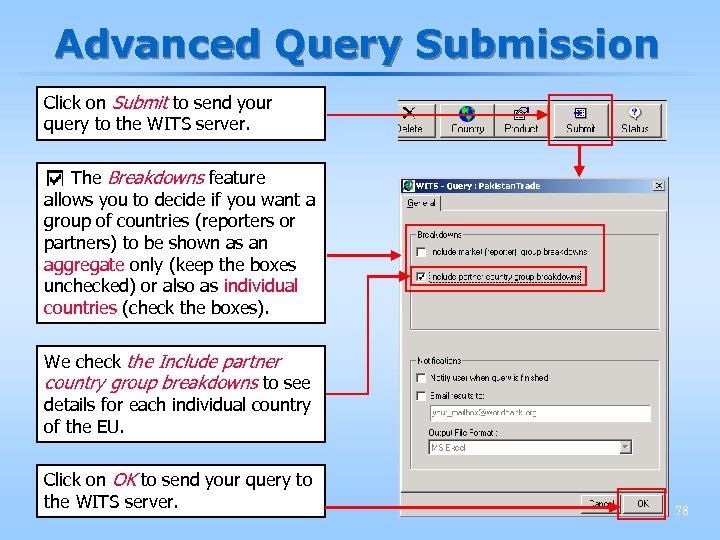 Advanced Query Submission Click on Submit to send your query to the WITS server. The Breakdowns feature allows you to decide if you want a group of countries (reporters or partners) to be shown as an aggregate only (keep the boxes unchecked) or also as individual countries (check the boxes). We check the Include partner country group breakdowns to see details for each individual country of the EU. Click on OK to send your query to the WITS server. 78
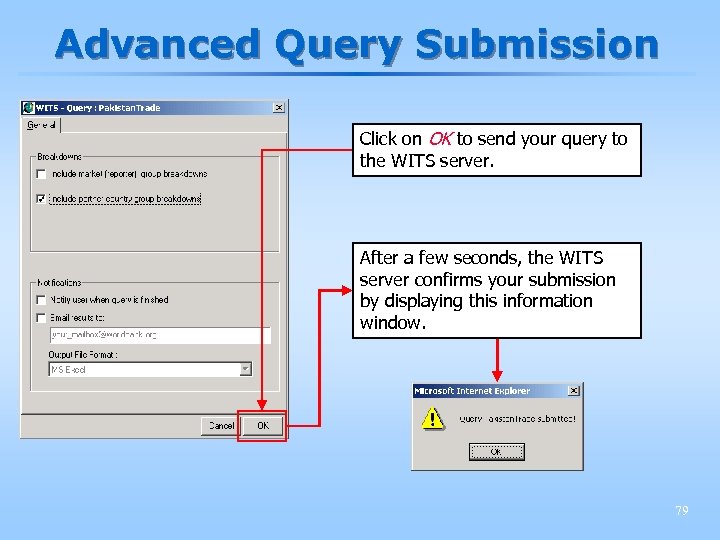 Advanced Query Submission Click on OK to send your query to the WITS server. After a few seconds, the WITS server confirms your submission by displaying this information window. 79
 The Query Status Panel § The time required to complete your query and to receive the results depends on several factors: § The size of your query; § The quality of your internet connection; § The number and size of queries sent by other WITS users (first come first served principle). § Your query will take from a few seconds to several minutes to be operated by the WITS server. 80
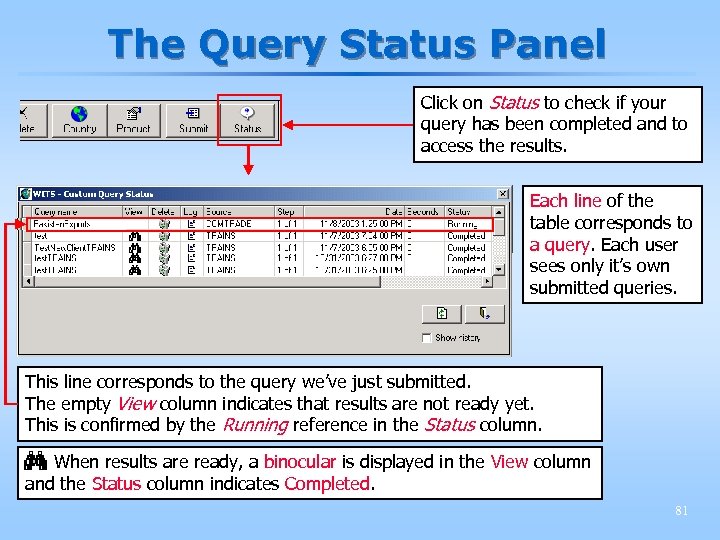 The Query Status Panel Click on Status to check if your query has been completed and to access the results. Each line of the table corresponds to a query. Each user sees only it’s own submitted queries. This line corresponds to the query we’ve just submitted. The empty View column indicates that results are not ready yet. This is confirmed by the Running reference in the Status column. When results are ready, a binocular is displayed in the View column and the Status column indicates Completed. 81
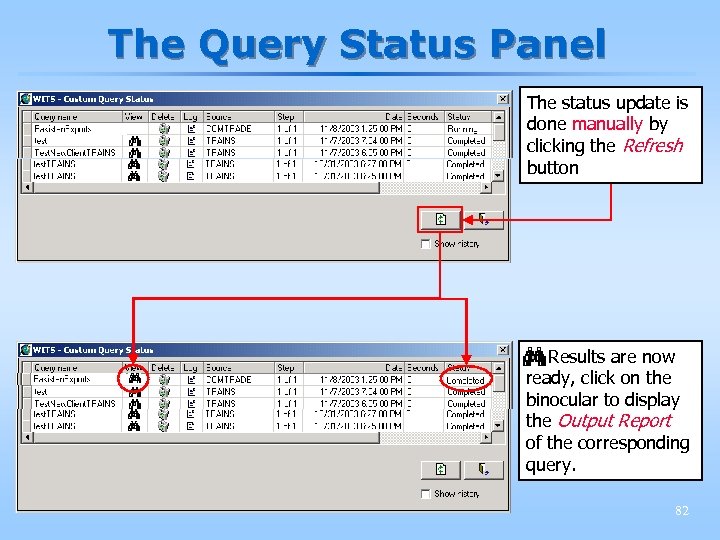 The Query Status Panel The status update is done manually by clicking the Refresh button Results are now ready, click on the binocular to display the Output Report of the corresponding query. 82
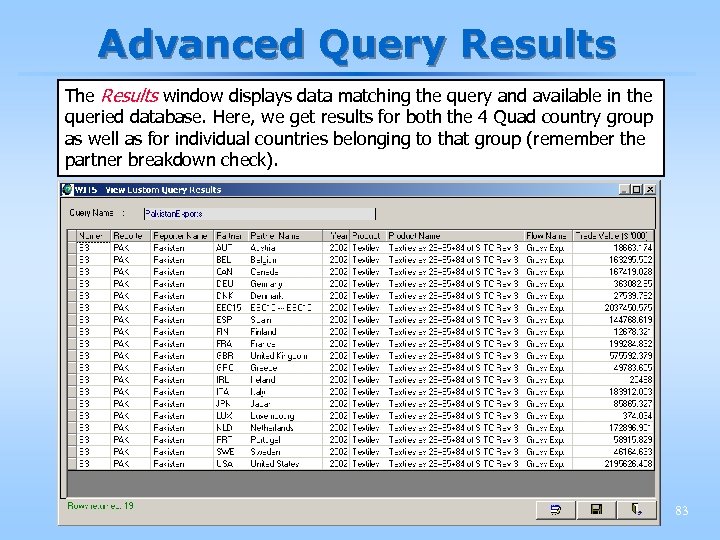 Advanced Query Results The Results window displays data matching the query and available in the queried database. Here, we get results for both the 4 Quad country group as well as for individual countries belonging to that group (remember the partner breakdown check). 83
 Tariffs and NTMs in WITS 84
 Tariffs and NTMs in WITS § 3 types of tariffs: § Bound tariffs (MFN by nature) § Applied MFN tariffs § Preferential tariffs 85
 Bound Tariffs § Bound tariffs are specific commitments made by individual WTO member governments; § The bound tariff is the maximum tariff level for a given commodity line; § A country may bind only part of its tariff structure: concept of binding coverage; 86
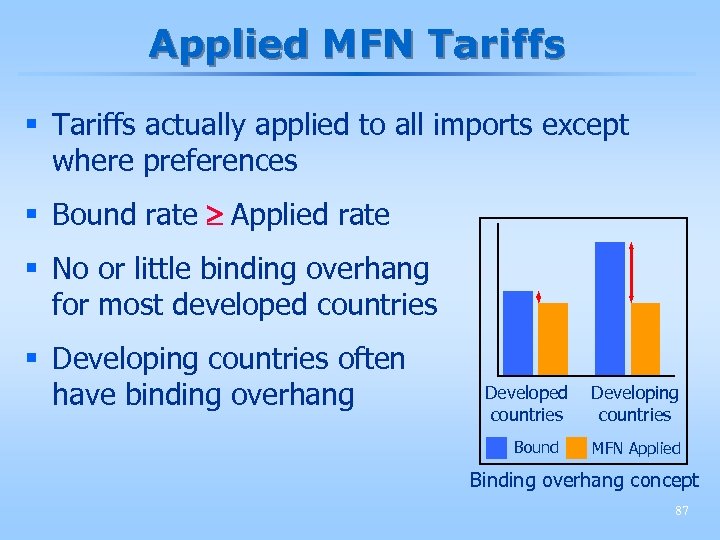 Applied MFN Tariffs § Tariffs actually applied to all imports except where preferences § Bound rate Applied rate § No or little binding overhang for most developed countries § Developing countries often have binding overhang Developed countries Bound Developing countries MFN Applied Binding overhang concept 87
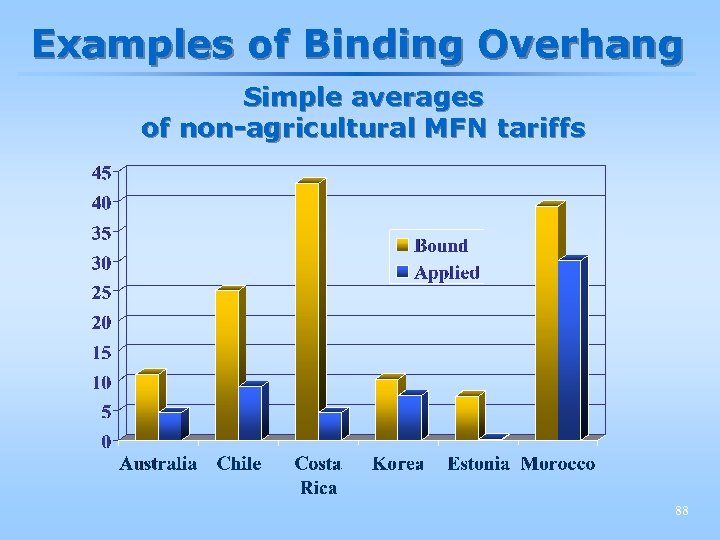 Examples of Binding Overhang Simple averages of non-agricultural MFN tariffs 88
 Preferential Tariffs § Preferential tariffs are granted to a subset of trading partners under some exception to the MFN principle § Preferences differ between partners and agreements: some countries have access to several preference schemes: § Example: ACP countries have access to both EBA and Cotonou preferences when exporting to the EU 89
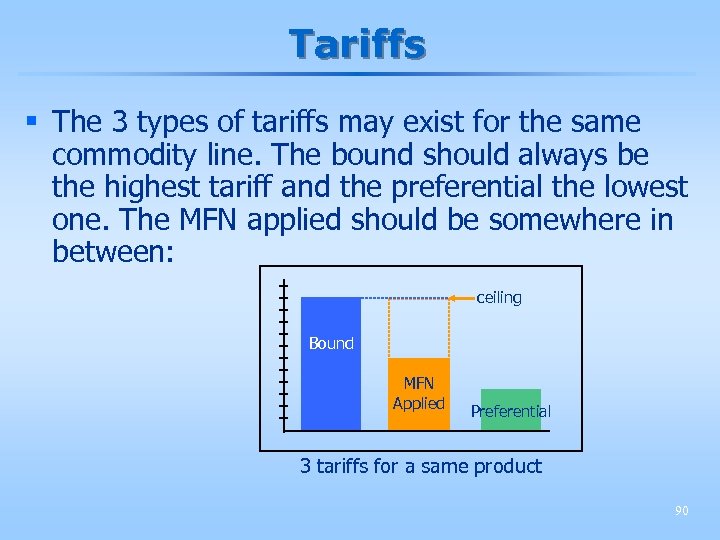 Tariffs § The 3 types of tariffs may exist for the same commodity line. The bound should always be the highest tariff and the preferential the lowest one. The MFN applied should be somewhere in between: ceiling Bound MFN Applied Preferential 3 tariffs for a same product 90
 Different forms of tariffs § Ad valorem tariffs (% of declared value) § Non ad valorem tariffs : § Specific tariffs ($/ton) § Mixed tariffs: specific + ad valorem § Compound tariffs: based on sugar or alcohol content, etc. § Non ad valorem tariffs are less transparent, more distortive and less stable. 91
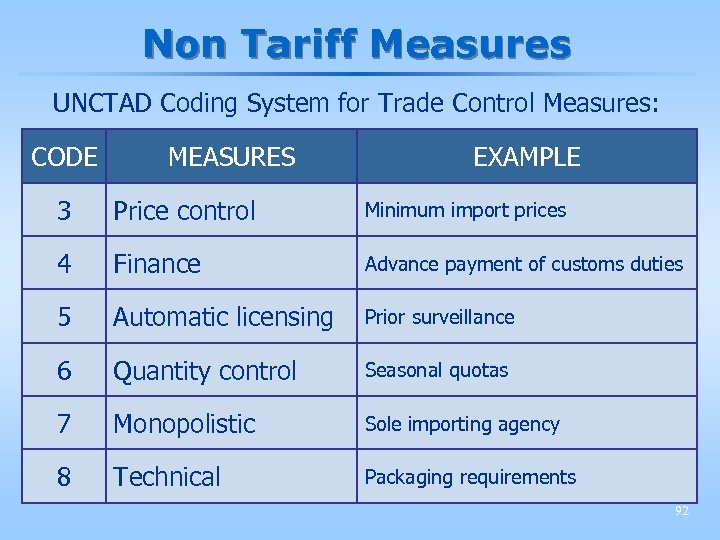 Non Tariff Measures UNCTAD Coding System for Trade Control Measures: CODE MEASURES EXAMPLE 3 Price control Minimum import prices 4 Finance Advance payment of customs duties 5 Automatic licensing Prior surveillance 6 Quantity control Seasonal quotas 7 Monopolistic Sole importing agency 8 Technical Packaging requirements 92
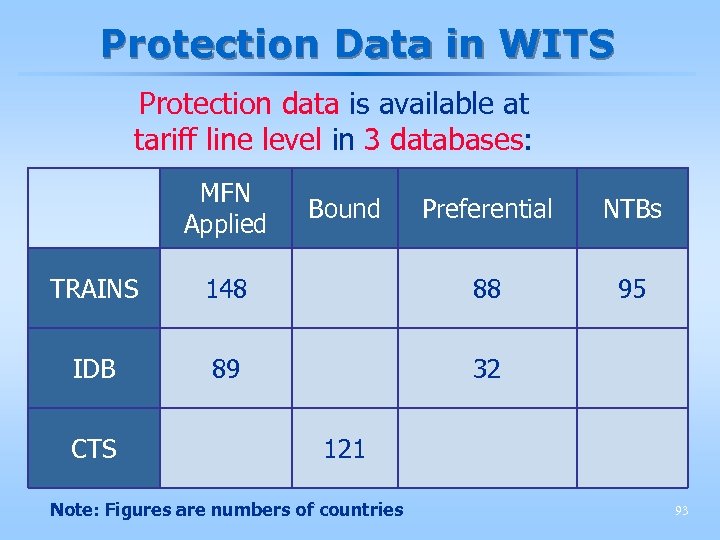 Protection Data in WITS Protection data is available at tariff line level in 3 databases: MFN Applied Bound Preferential NTBs 95 TRAINS 148 88 IDB 89 32 CTS 121 Note: Figures are numbers of countries 93
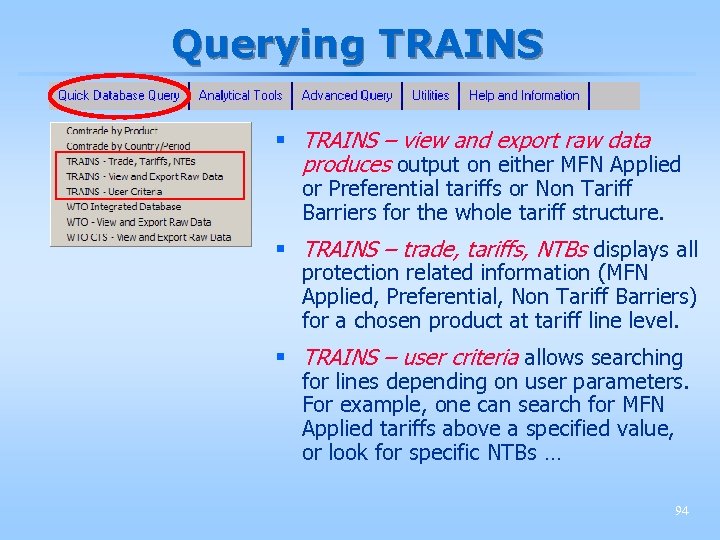 Querying TRAINS § TRAINS – view and export raw data produces output on either MFN Applied or Preferential tariffs or Non Tariff Barriers for the whole tariff structure. § TRAINS – trade, tariffs, NTBs displays all protection related information (MFN Applied, Preferential, Non Tariff Barriers) for a chosen product at tariff line level. § TRAINS – user criteria allows searching for lines depending on user parameters. For example, one can search for MFN Applied tariffs above a specified value, or look for specific NTBs … 94
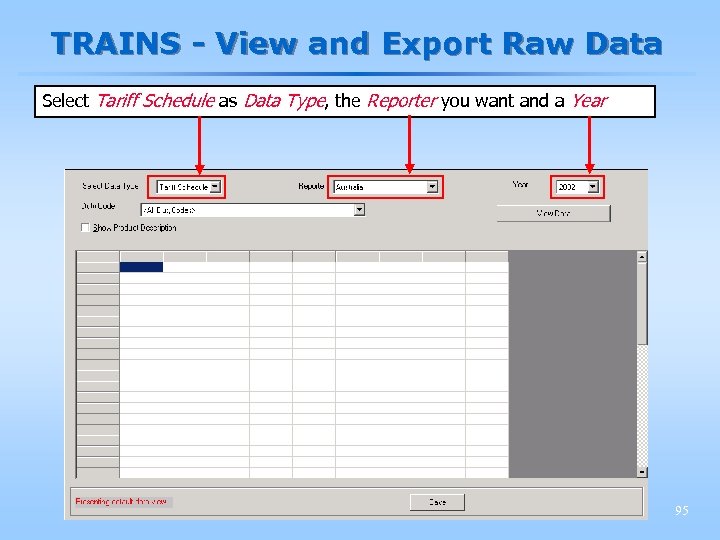 TRAINS - View and Export Raw Data Select Tariff Schedule as Data Type, the Reporter you want and a Year 95
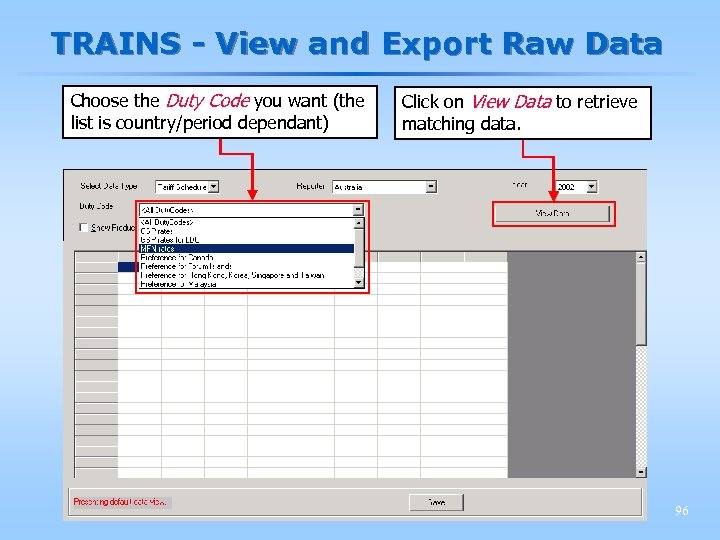 TRAINS - View and Export Raw Data Choose the Duty Code you want (the list is country/period dependant) Click on View Data to retrieve matching data. 96
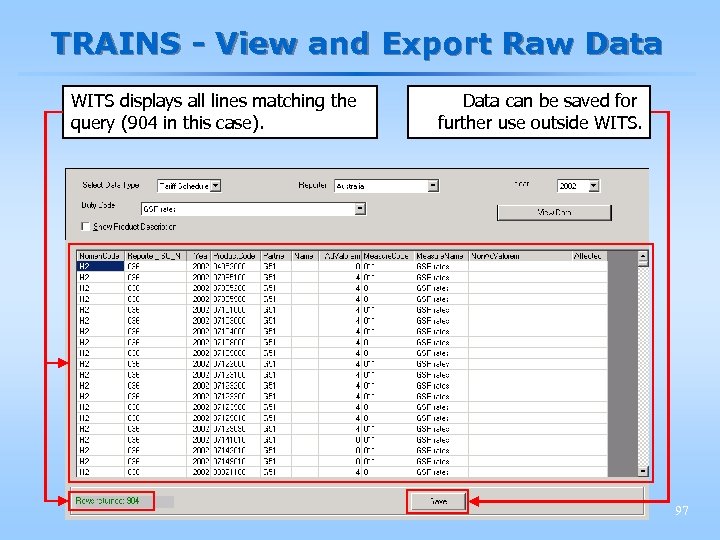 TRAINS - View and Export Raw Data WITS displays all lines matching the query (904 in this case). Data can be saved for further use outside WITS. 97
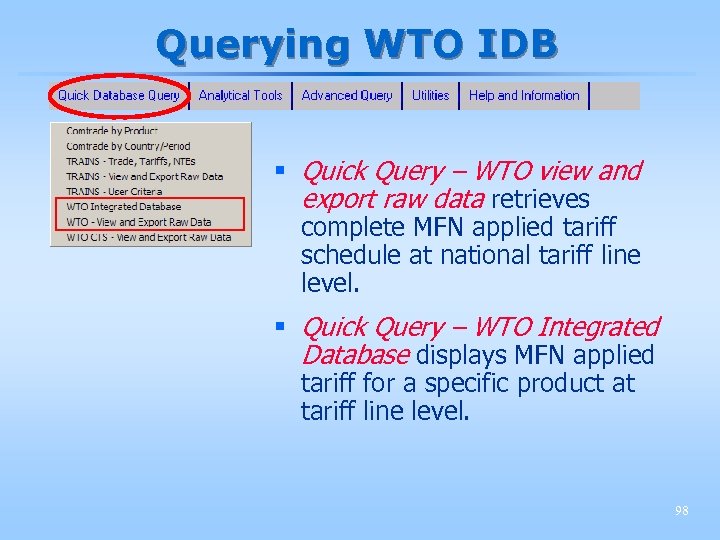 Querying WTO IDB § Quick Query – WTO view and export raw data retrieves complete MFN applied tariff schedule at national tariff line level. § Quick Query – WTO Integrated Database displays MFN applied tariff for a specific product at tariff line level. 98
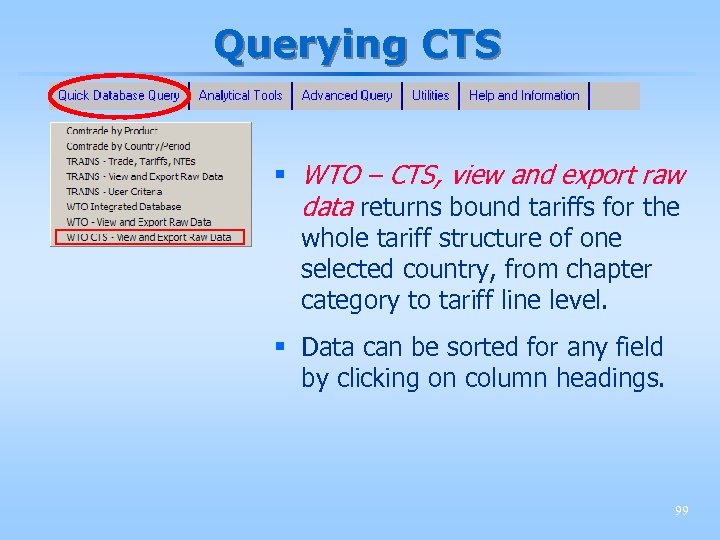 Querying CTS § WTO – CTS, view and export raw data returns bound tariffs for the whole tariff structure of one selected country, from chapter category to tariff line level. § Data can be sorted for any field by clicking on column headings. 99
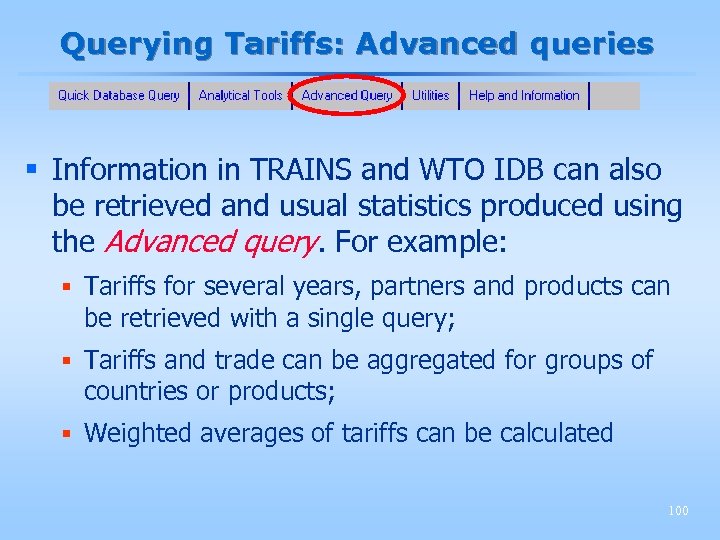 Querying Tariffs: Advanced queries § Information in TRAINS and WTO IDB can also be retrieved and usual statistics produced using the Advanced query. For example: § Tariffs for several years, partners and products can be retrieved with a single query; § Tariffs and trade can be aggregated for groups of countries or products; § Weighted averages of tariffs can be calculated 100
 Advanced Query for Tariff Data § The query definition for tariff data follows the same principles as for Trade data. § Let’s focus only on the differences and the Output Report. § For detailed information about defining a query, look at the slides on Advanced Query Definition in TRADE. 101
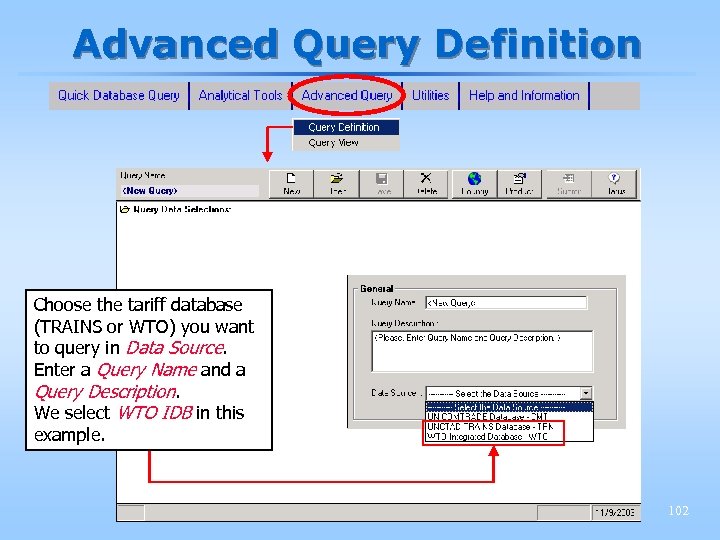 Advanced Query Definition Choose the tariff database (TRAINS or WTO) you want to query in Data Source. Enter a Query Name and a Query Description. We select WTO IDB in this example. 102
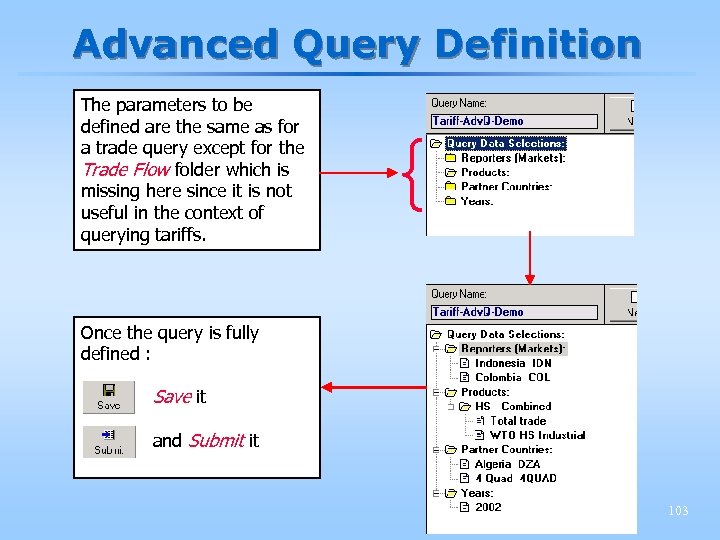 Advanced Query Definition The parameters to be defined are the same as for a trade query except for the Trade Flow folder which is missing here since it is not useful in the context of querying tariffs. { Once the query is fully defined : Save it and Submit it 103
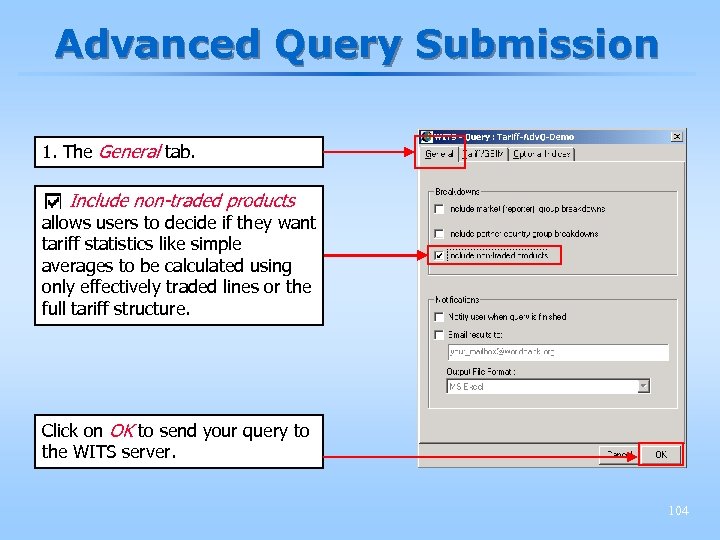 Advanced Query Submission 1. The General tab. Include non-traded products allows users to decide if they want tariff statistics like simple averages to be calculated using only effectively traded lines or the full tariff structure. Click on OK to send your query to the WITS server. 104
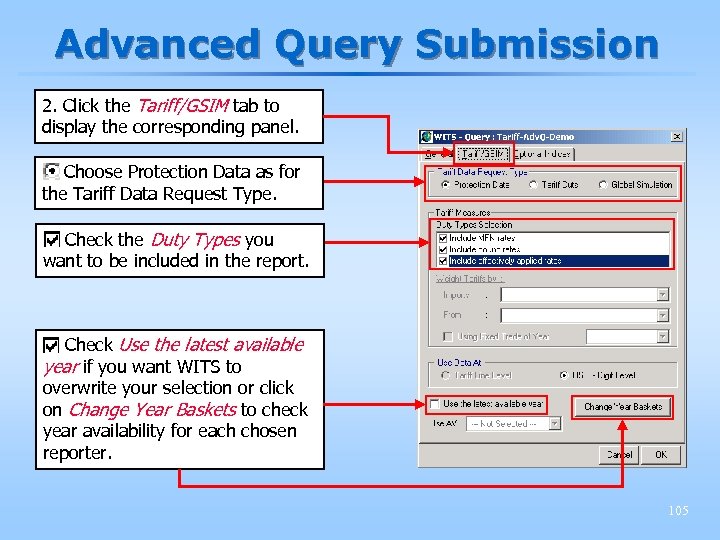 Advanced Query Submission 2. Click the Tariff/GSIM tab to display the corresponding panel. Choose Protection Data as for the Tariff Data Request Type. Check the Duty Types you want to be included in the report. Check Use the latest available year if you want WITS to overwrite your selection or click on Change Year Baskets to check year availability for each chosen reporter. 105
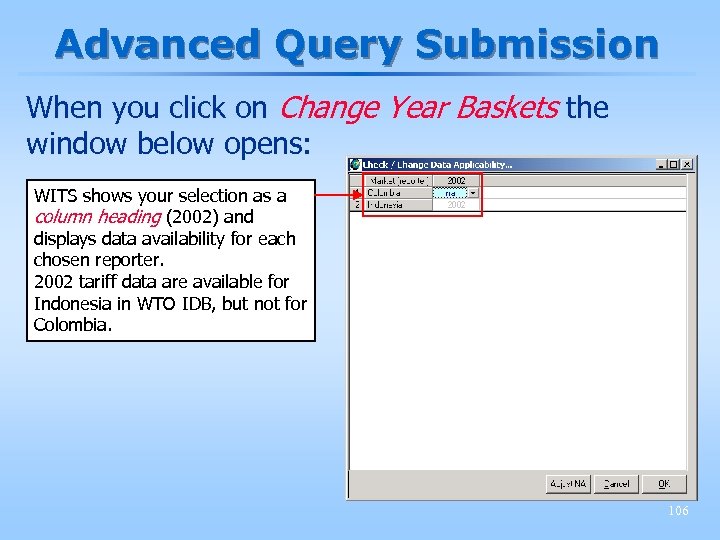 Advanced Query Submission When you click on Change Year Baskets the window below opens: WITS shows your selection as a column heading (2002) and displays data availability for each chosen reporter. 2002 tariff data are available for Indonesia in WTO IDB, but not for Colombia. 106
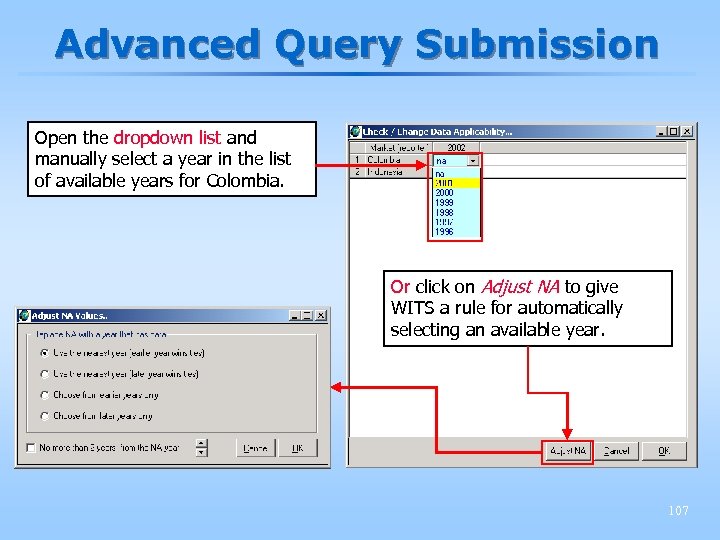 Advanced Query Submission Open the dropdown list and manually select a year in the list of available years for Colombia. Or click on Adjust NA to give WITS a rule for automatically selecting an available year. 107
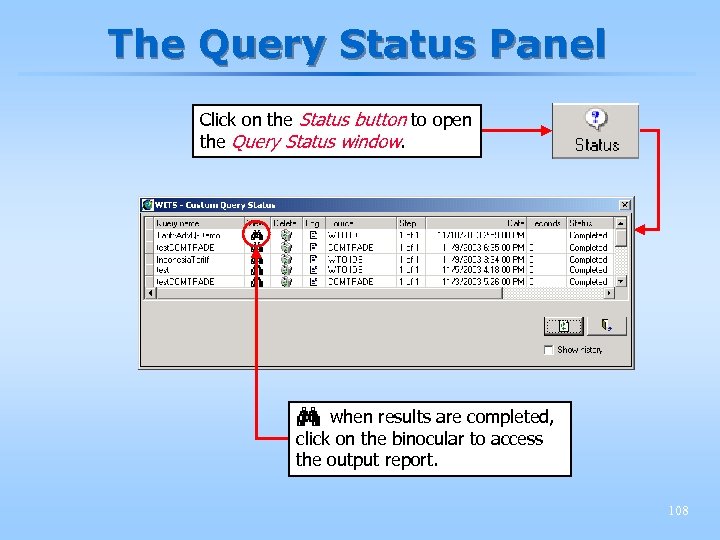 The Query Status Panel Click on the Status button to open the Query Status window. when results are completed, click on the binocular to access the output report. 108
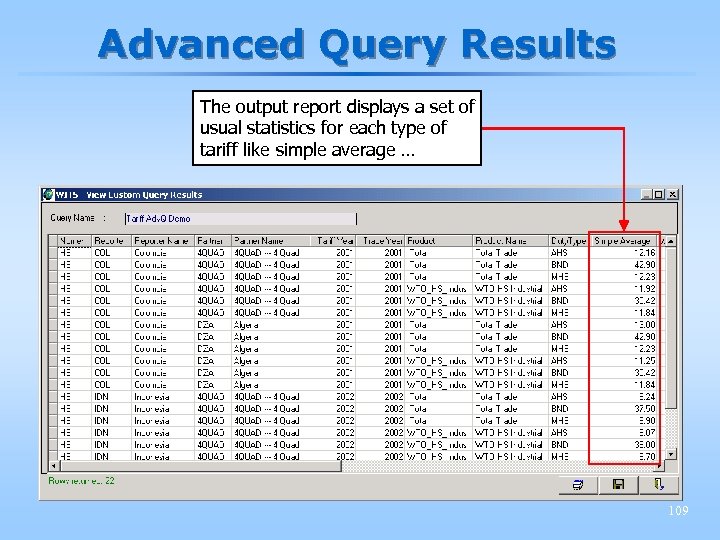 Advanced Query Results The output report displays a set of usual statistics for each type of tariff like simple average … 109
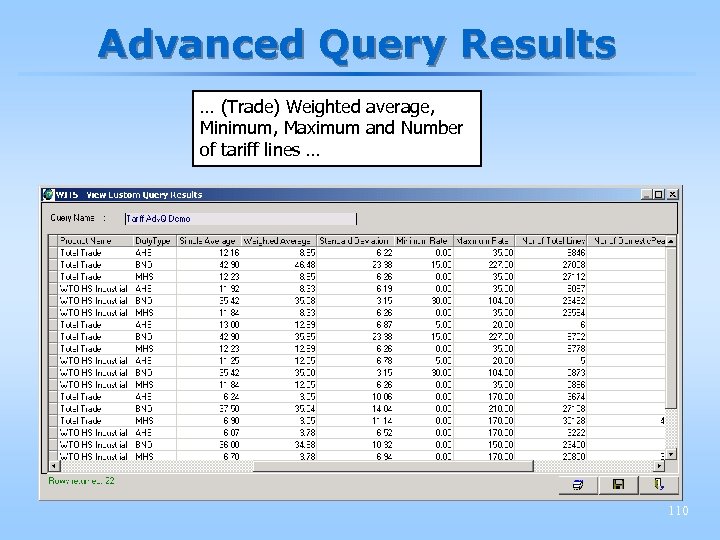 Advanced Query Results … (Trade) Weighted average, Minimum, Maximum and Number of tariff lines … 110
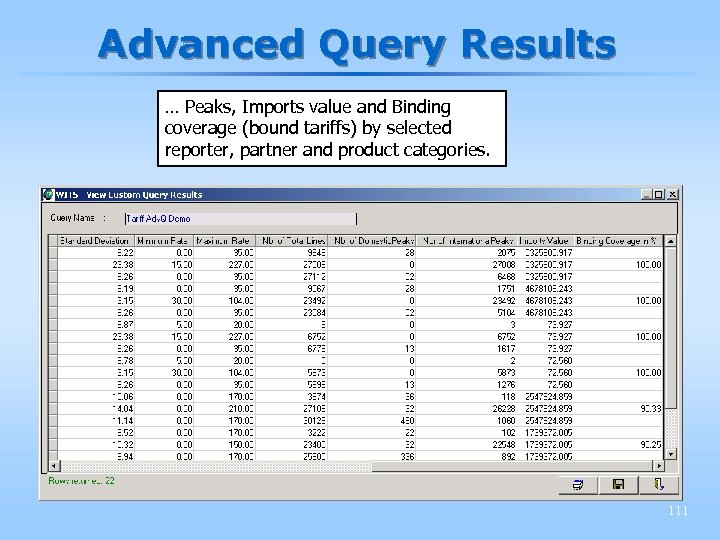 Advanced Query Results … Peaks, Imports value and Binding coverage (bound tariffs) by selected reporter, partner and product categories. 111
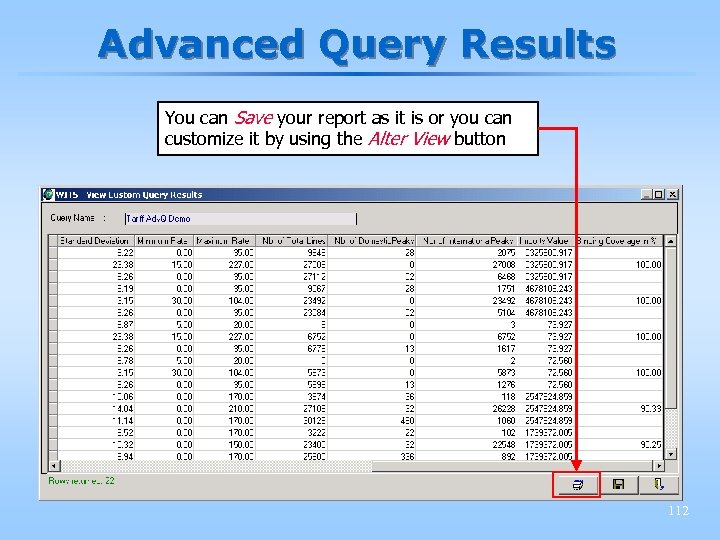 Advanced Query Results You can Save your report as it is or you can customize it by using the Alter View button 112
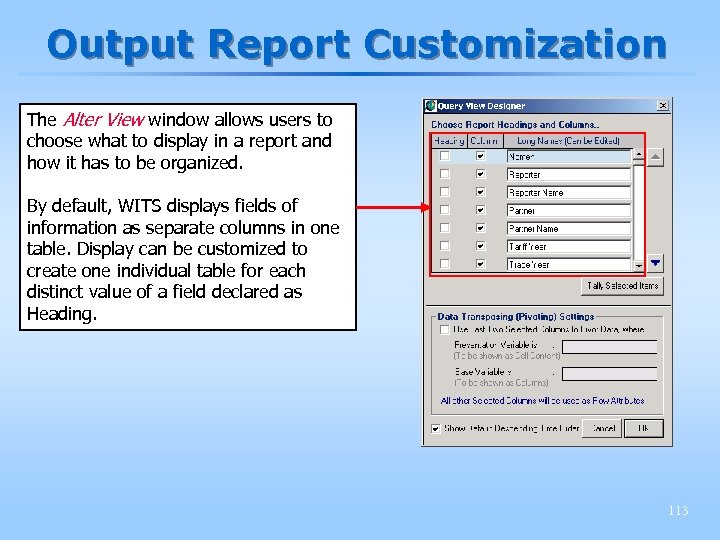 Output Report Customization The Alter View window allows users to choose what to display in a report and how it has to be organized. By default, WITS displays fields of information as separate columns in one table. Display can be customized to create one individual table for each distinct value of a field declared as Heading. 113
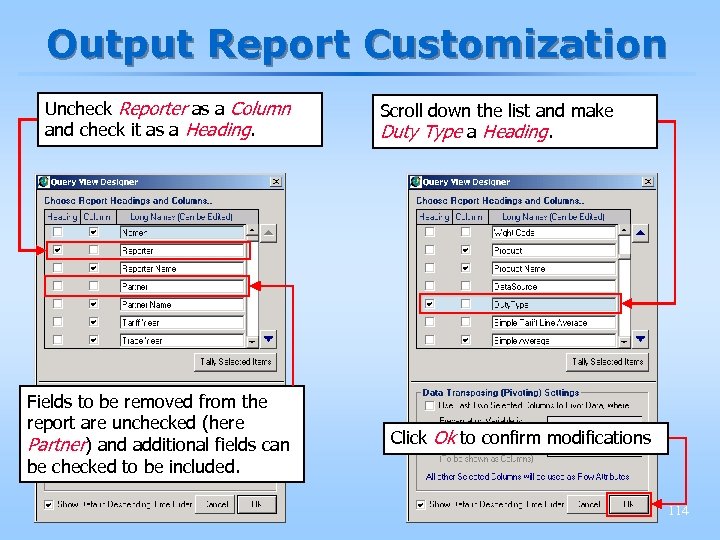 Output Report Customization Uncheck Reporter as a Column and check it as a Heading. Fields to be removed from the report are unchecked (here Partner) and additional fields can be checked to be included. Scroll down the list and make Duty Type a Heading. Click Ok to confirm modifications 114
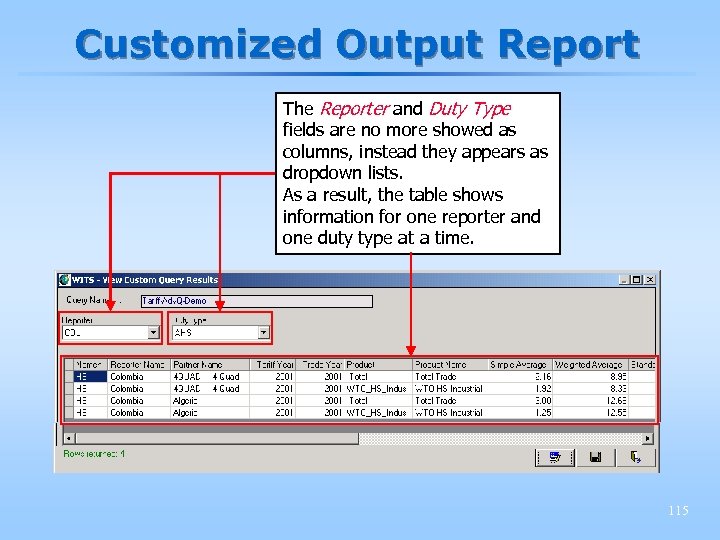 Customized Output Report The Reporter and Duty Type fields are no more showed as columns, instead they appears as dropdown lists. As a result, the table shows information for one reporter and one duty type at a time. 115
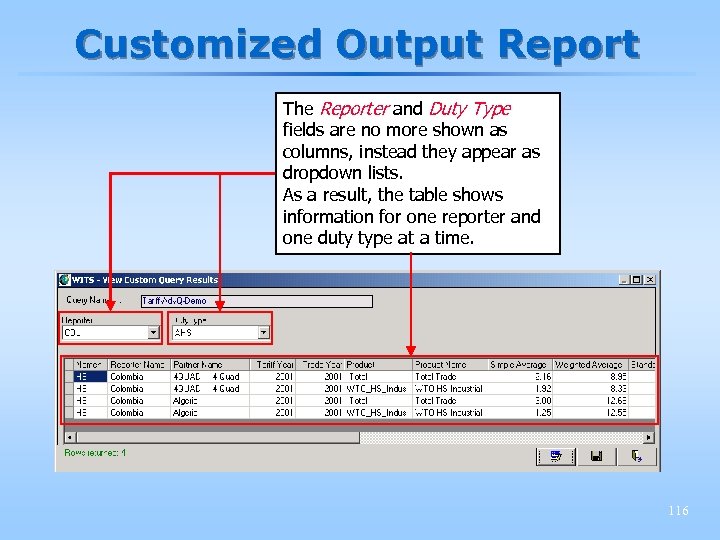 Customized Output Report The Reporter and Duty Type fields are no more shown as columns, instead they appear as dropdown lists. As a result, the table shows information for one reporter and one duty type at a time. 116
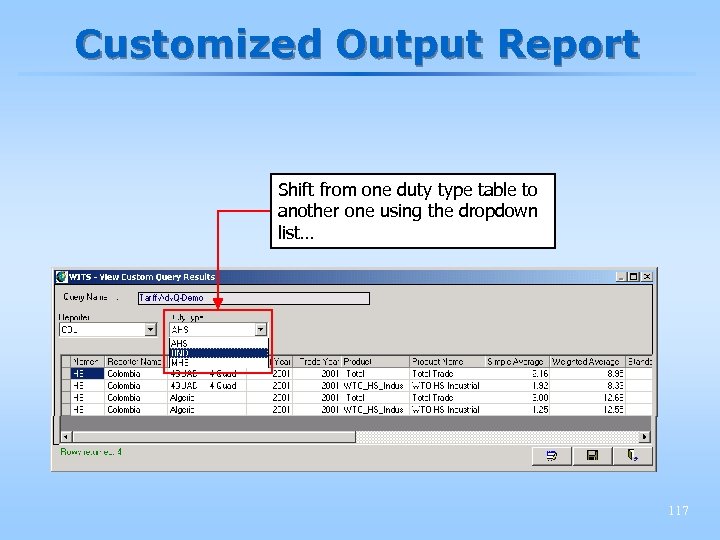 Customized Output Report Shift from one duty type table to another one using the dropdown list… 117
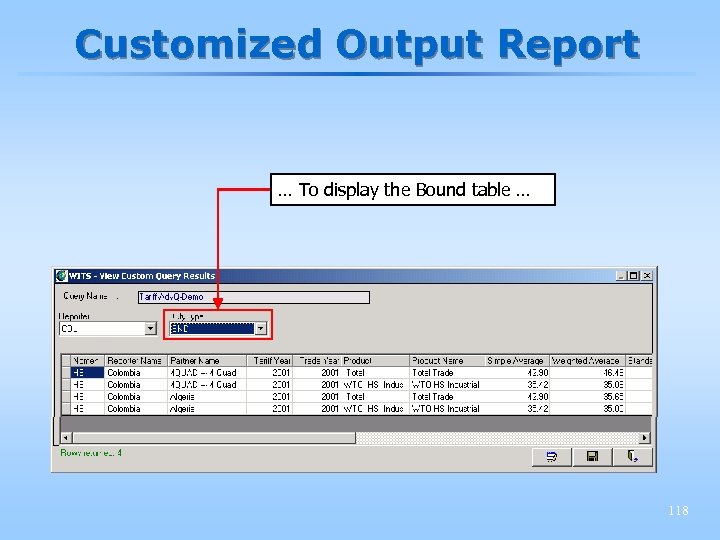 Customized Output Report … To display the Bound table … 118
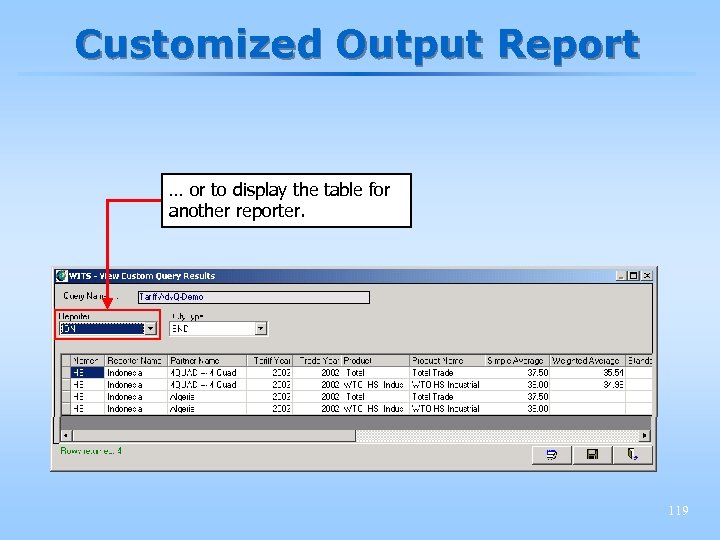 Customized Output Report … or to display the table for another reporter. 119
 Session 3 Monday, 2: 30 pm – 4: 00 pm § Exercises § Extraction of trade and tariff data from WITS 120
 Exercise 1: trade data availability § Look at trade data availability in the COMTRADE, TRAINS and IDB catalogs for your focus country: § What are the available databases, nomenclatures and years? 121
 Exercise 2: main import and export products Using COMTRADE, HS 1996 nomenclature at 2 digits (Chapter level), World as partner: 1. Identify the main import products for your focus country apart from petroleum. 2. Identify the main export products for your focus country. 122
 Exercise 2: main import and export products Hints: § Use Comtrade by country/period § World as partner § Click column heading to rank values 123
 Exercise 3: main trading partners Using COMTRADE and the HS 1996 nomenclature at 2 digits (Chapter level): 1. Identify your focus country’s main suppliers? 2. Identify your focus country’s main export markets ? 124
 Exercise 3: main trading partners Hints: § Use Comtrade by product § Total all products as product § All partners as partner § Click column heading to rank values 125
 Exercise 4: main trading partners Using the HS 1996 nomenclature at 2 digits (Chapter level): 1. Identify your focus country’s 3 main export products to its main export market ? 2. Identify your focus country’s 2 main competitors for each of these 3 products in its main export market ? 126
 Exercise 4: main trading partners Hints: 1. Use Comtrade – by country, period select exports, your country as reporter and choose the main export market as partner 2. Use Comtrade – by product, select imports and choose the main export market as reporter and the product you are interested in as product 127
 Exercise 5: mirror statistics § Compare what your focus country reports as exports to USA with what’s reported by the USA as imports from your focus country. 128
 Exercise 5: mirror statistics Hints: § Use Comtrade by product 129
 Exercise 6: main exports to the EU 1. Using IDB, identify your focus country’s 10 main export products (defined at the line level) to the EU in 2001. 2. Using IDB, identify your country’s main competitors on the EU market for its main export product to the EU. 130
 Exercise 6: main exports to the EU Hints: 1. Use WTO – View & Export Raw Data, Tariff line imports as data type, EU as reporter and your focus country as partner. 2. Use WTO – IDB, EU as reporter, 2001 as year, HS 96 as nomenclature, and select your product. 131
 Exercise 7: evolution of trade § Define and submit an advanced query using the proposed selections § Do not use the breakdown features when submitting § Open the Status window and display the Output Report when it is ready 132
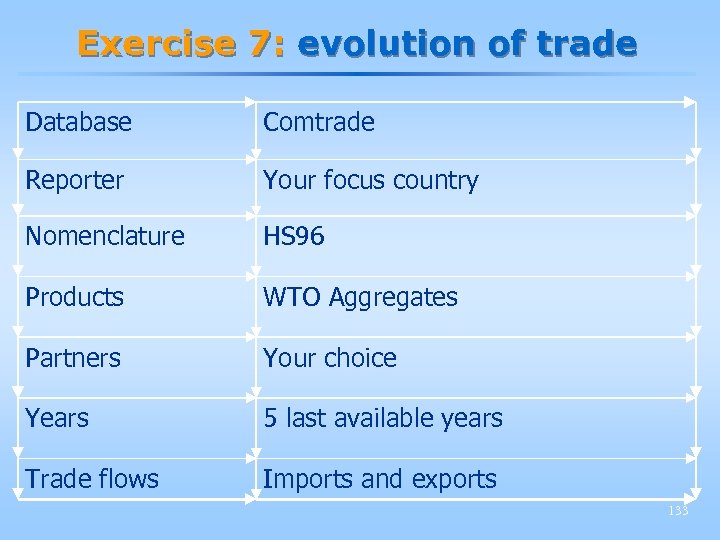 Exercise 7: evolution of trade Database Comtrade Reporter Your focus country Nomenclature HS 96 Products WTO Aggregates Partners Your choice Years 5 last available years Trade flows Imports and exports 133
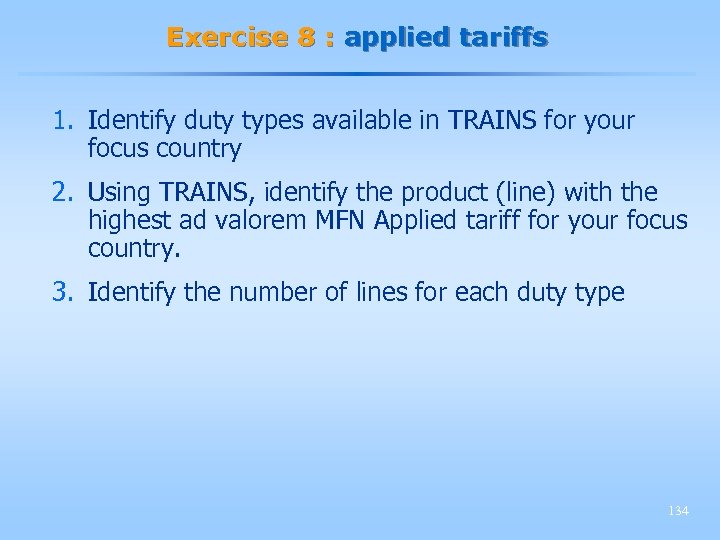 Exercise 8 : applied tariffs 1. Identify duty types available in TRAINS for your focus country 2. Using TRAINS, identify the product (line) with the highest ad valorem MFN Applied tariff for your focus country. 3. Identify the number of lines for each duty type 134
 Exercise 8 : applied tariffs Hints: 1. Use Trains – View and export raw data 2. Use Trains – View and export raw data. 3. Use Trains – View and export raw data. 135
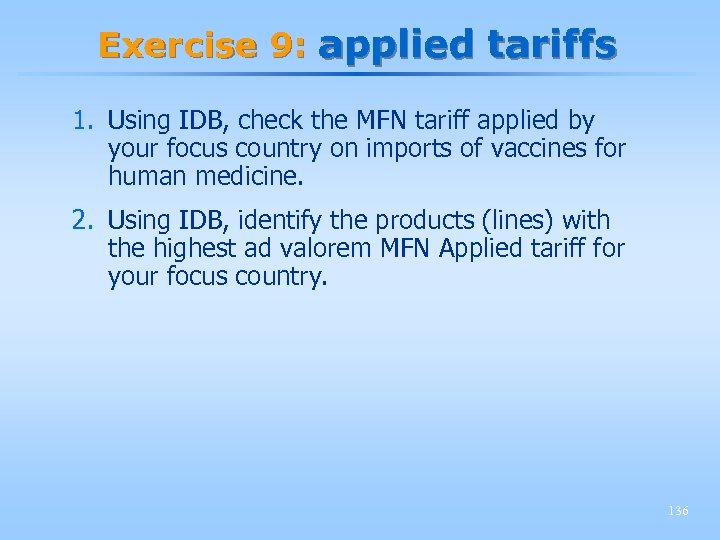 Exercise 9: applied tariffs 1. Using IDB, check the MFN tariff applied by your focus country on imports of vaccines for human medicine. 2. Using IDB, identify the products (lines) with the highest ad valorem MFN Applied tariff for your focus country. 136
 Exercise 9: applied tariffs Hints: 1. Use WTO – IDB, look for HS 300220. 2. Use WTO – view and export raw data, rank 137
 Exercise 10: Bound tariffs 1. Identify the number of Bound lines in your focus country’s tariff structure 2. Identify lines facing the highest bound tariffs. 138
 Exercise 10 : bound tariffs Hints: 1. Use WTO – CTS view and export raw data 2. Use WTO – CTS view and export raw data 139
 Exercise 11 : Tariff statistics § Define and submit a query using the selections proposed in the next slide § Include non traded products when submitting § Include all types of tariffs § Open the Status window and display the Output Report when it is ready 140
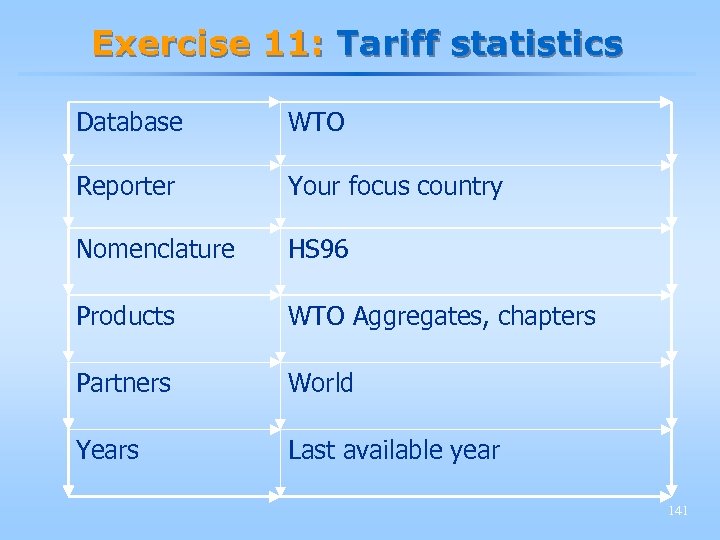 Exercise 11: Tariff statistics Database WTO Reporter Your focus country Nomenclature HS 96 Products WTO Aggregates, chapters Partners World Years Last available year 141
 Session 5 Tuesday, 9: 00 am – 11: 00 am § Simulation of the Doha proposals § NAMA proposals, defining the queries and interpreting the results § SMART Model § The model, results, limits 142
 WITS Analytical Tools § Doha Formulas § SMART Simulation 143
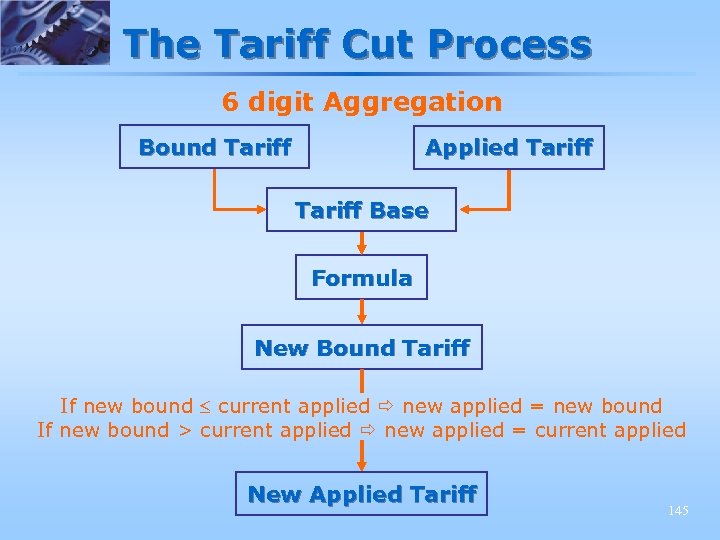
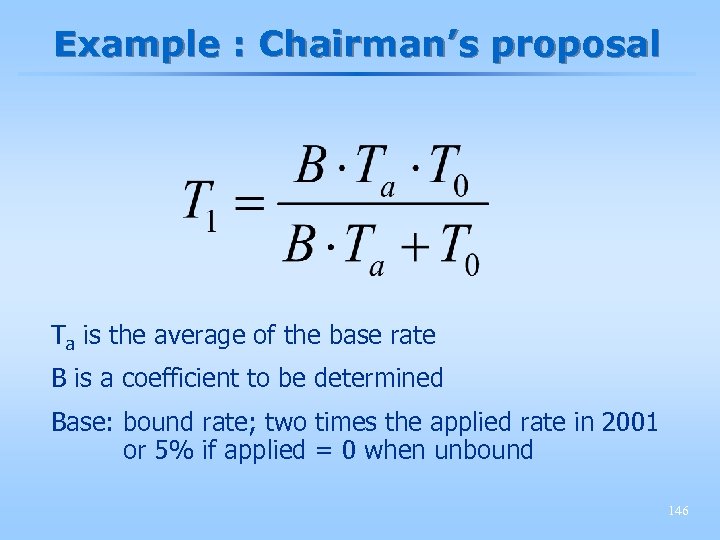
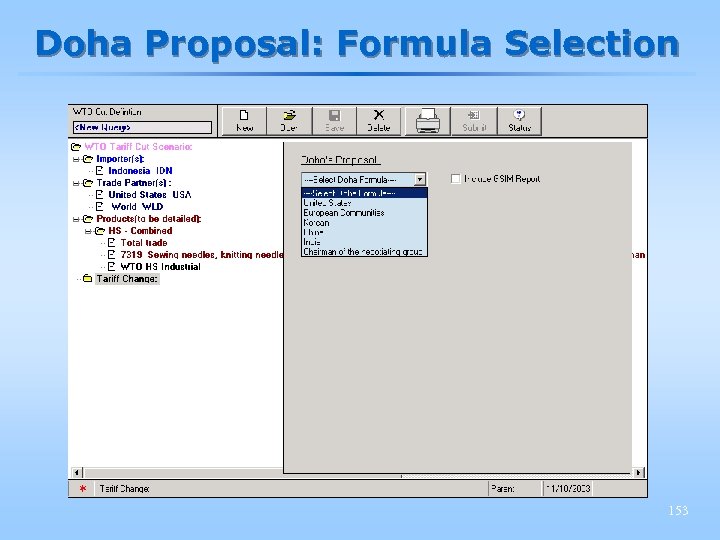
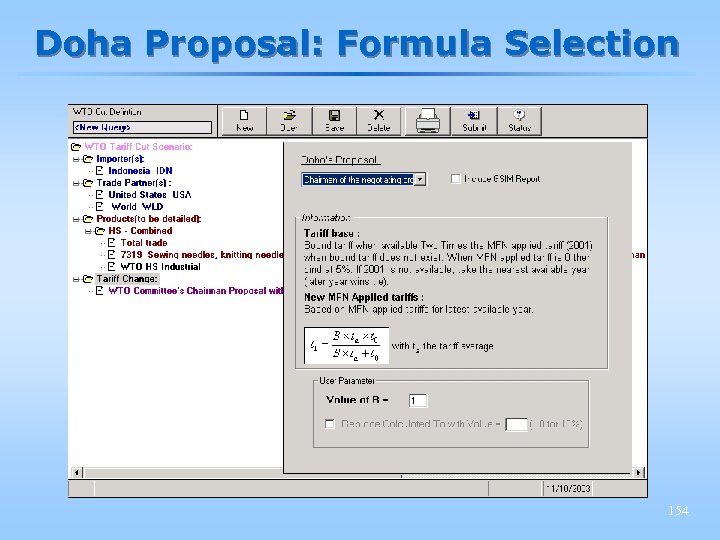
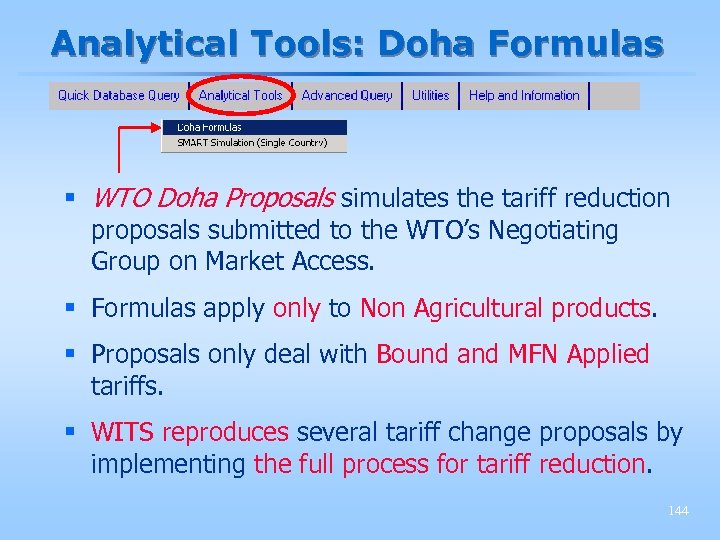 Analytical Tools: Doha Formulas § WTO Doha Proposals simulates the tariff reduction proposals submitted to the WTO’s Negotiating Group on Market Access. § Formulas apply only to Non Agricultural products. § Proposals only deal with Bound and MFN Applied tariffs. § WITS reproduces several tariff change proposals by implementing the full process for tariff reduction. 144
 The Tariff Cut Process 6 digit Aggregation Bound Tariff Applied Tariff Base Formula New Bound Tariff If new bound current applied new applied = new bound If new bound > current applied new applied = current applied New Applied Tariff 145
 Example : Chairman’s proposal Ta is the average of the base rate B is a coefficient to be determined Base: bound rate; two times the applied rate in 2001 or 5% if applied = 0 when unbound 146
 Doha Proposal: Query Definition 147
 Doha Proposal: Importer Selection 148
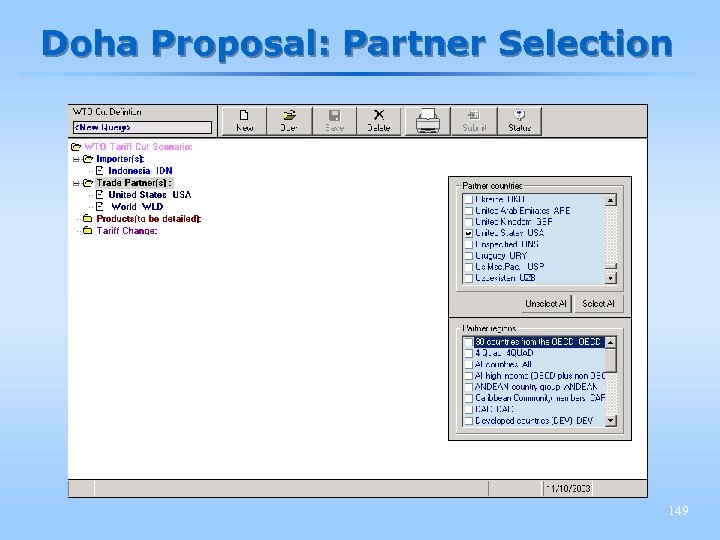 Doha Proposal: Partner Selection 149
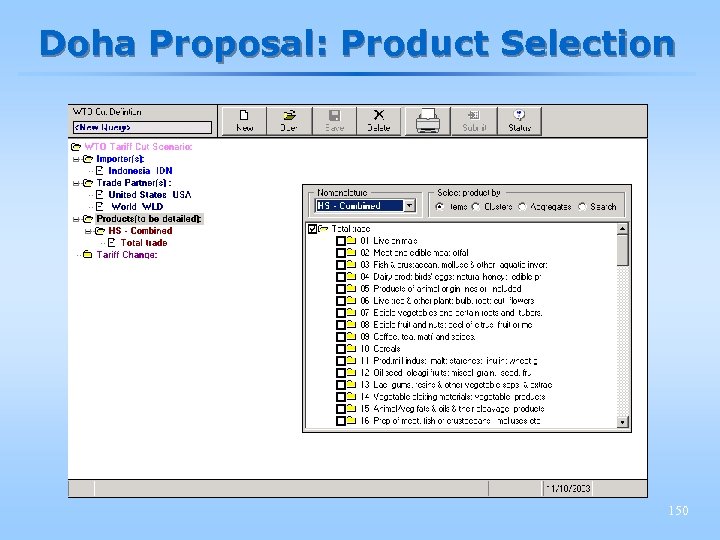 Doha Proposal: Product Selection 150
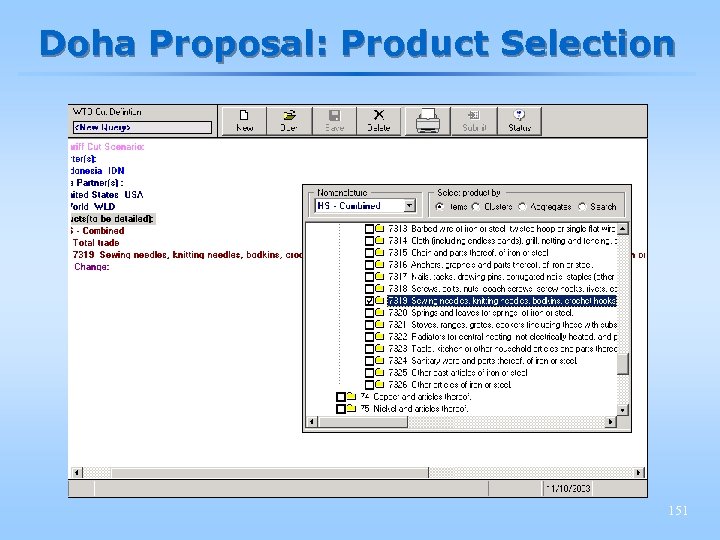 Doha Proposal: Product Selection 151
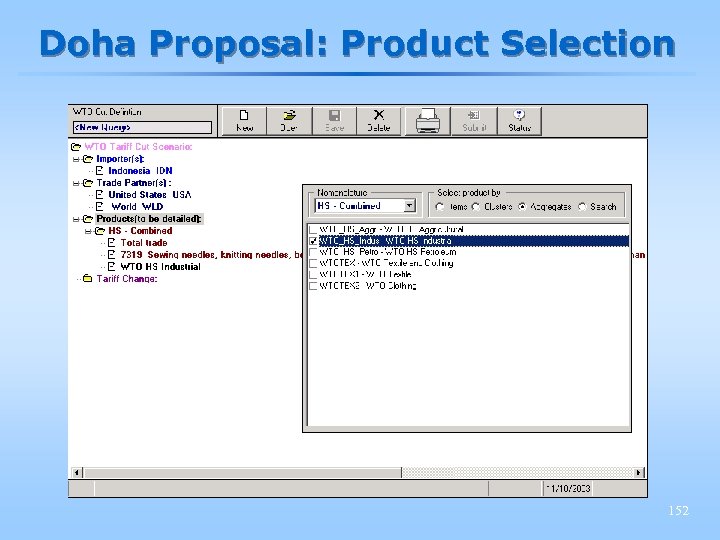 Doha Proposal: Product Selection 152
 Doha Proposal: Formula Selection 153
 Doha Proposal: Formula Selection 154
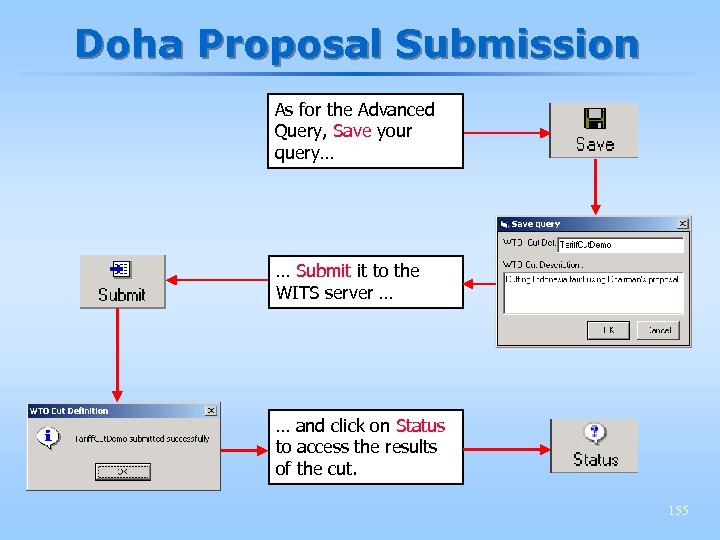 Doha Proposal Submission As for the Advanced Query, Save your query… … Submit it to the WITS server … … and click on Status to access the results of the cut. 155
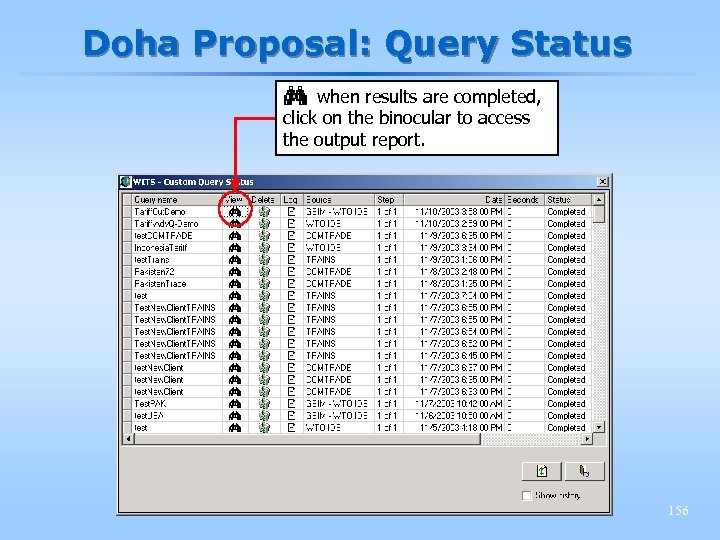 Doha Proposal: Query Status when results are completed, click on the binocular to access the output report. 156
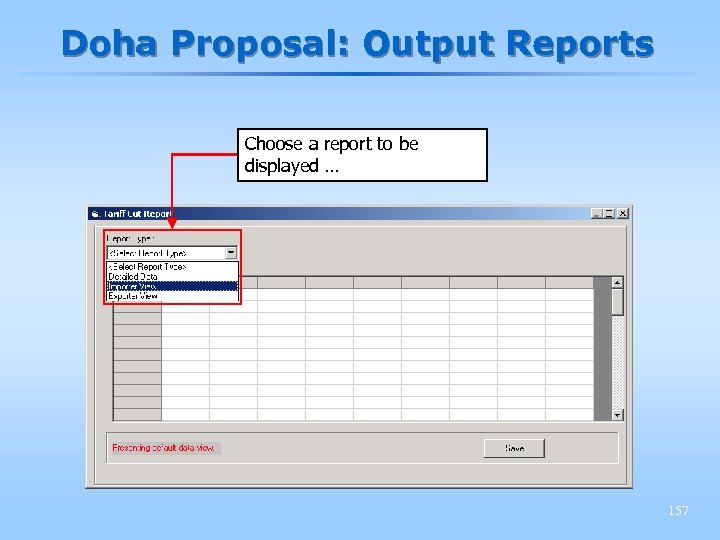 Doha Proposal: Output Reports Choose a report to be displayed … 157
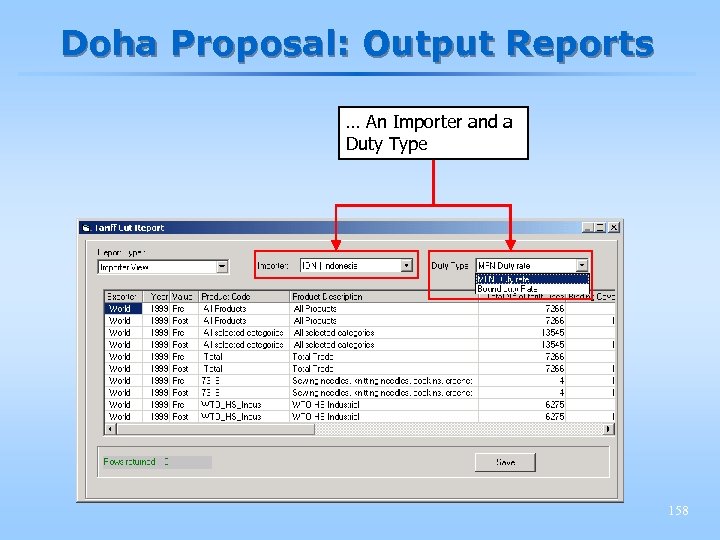 Doha Proposal: Output Reports … An Importer and a Duty Type 158
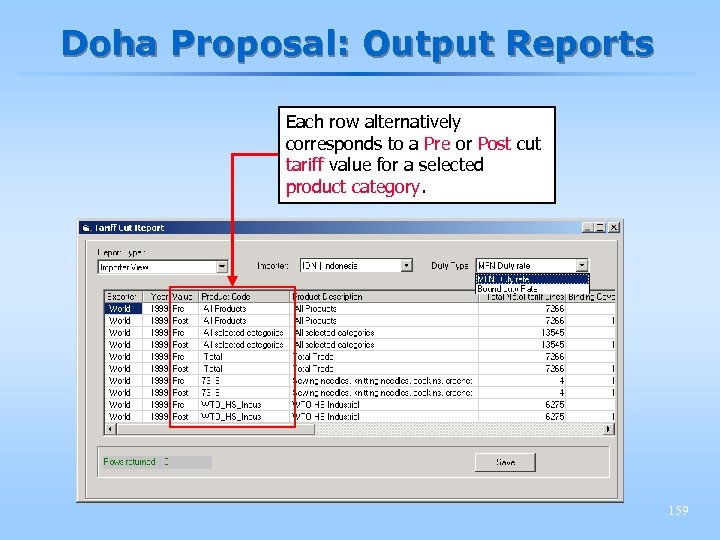 Doha Proposal: Output Reports Each row alternatively corresponds to a Pre or Post cut tariff value for a selected product category. 159
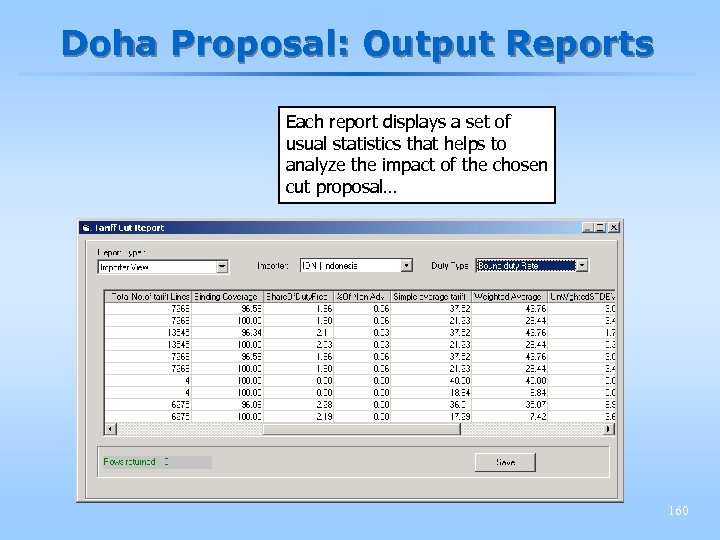 Doha Proposal: Output Reports Each report displays a set of usual statistics that helps to analyze the impact of the chosen cut proposal… 160
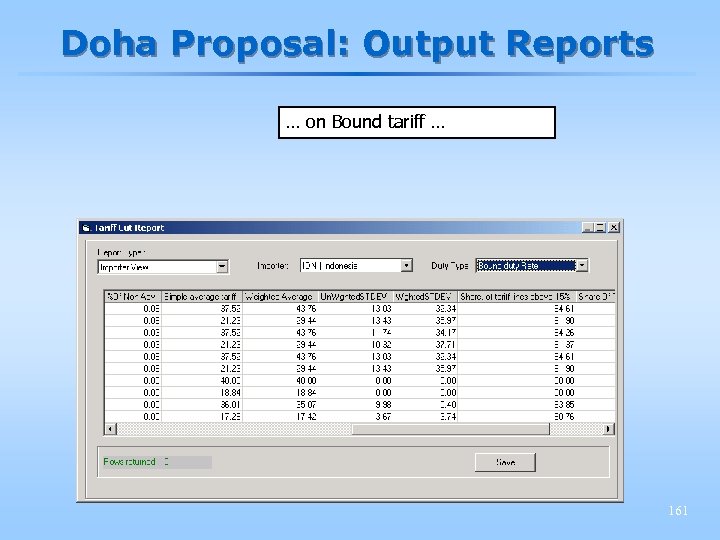 Doha Proposal: Output Reports … on Bound tariff … 161
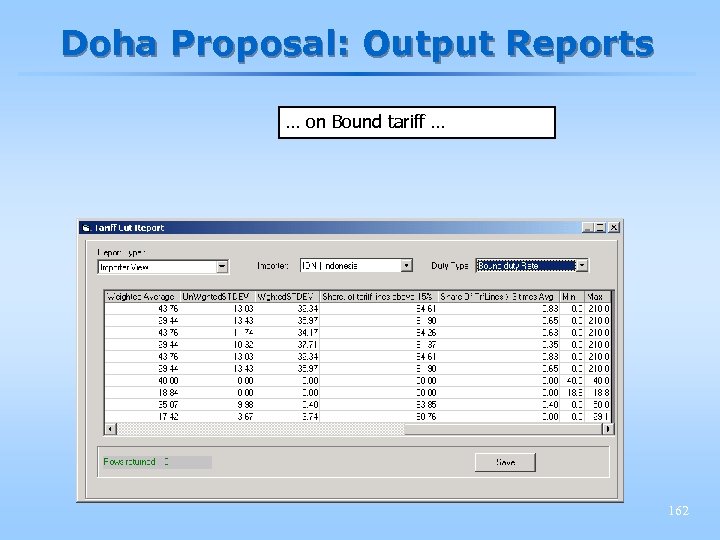 Doha Proposal: Output Reports … on Bound tariff … 162
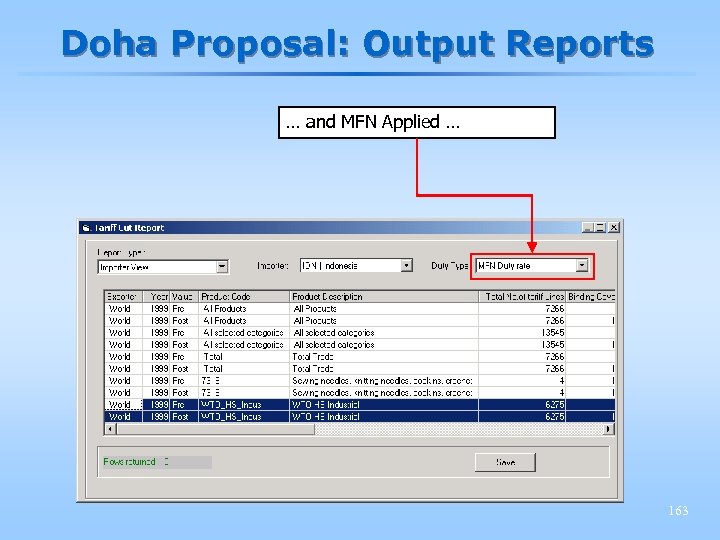 Doha Proposal: Output Reports … and MFN Applied … 163
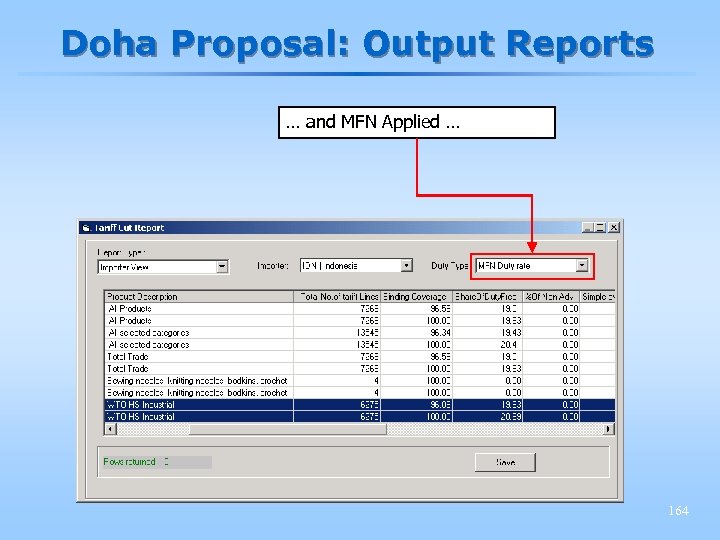 Doha Proposal: Output Reports … and MFN Applied … 164
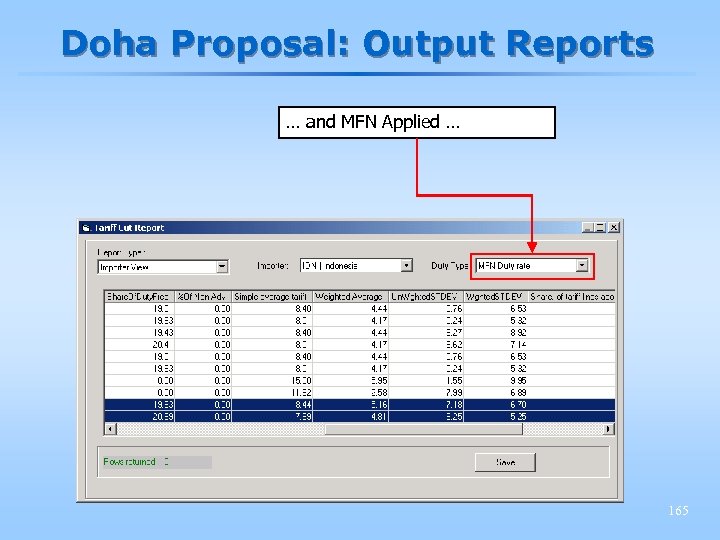 Doha Proposal: Output Reports … and MFN Applied … 165
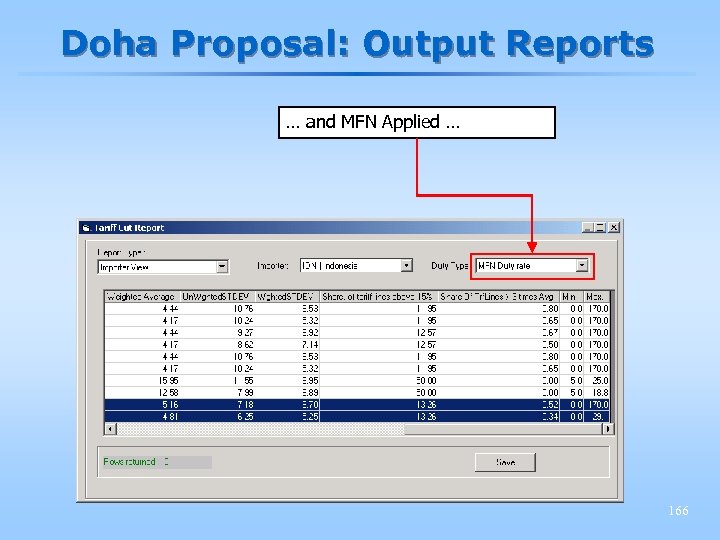 Doha Proposal: Output Reports … and MFN Applied … 166
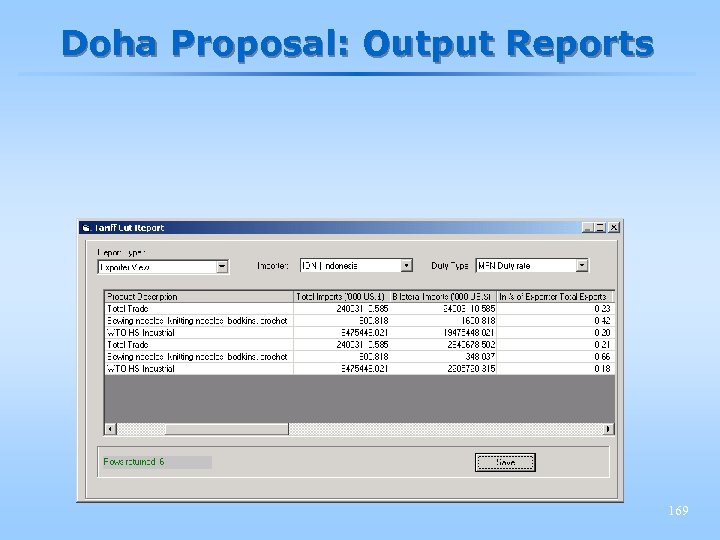
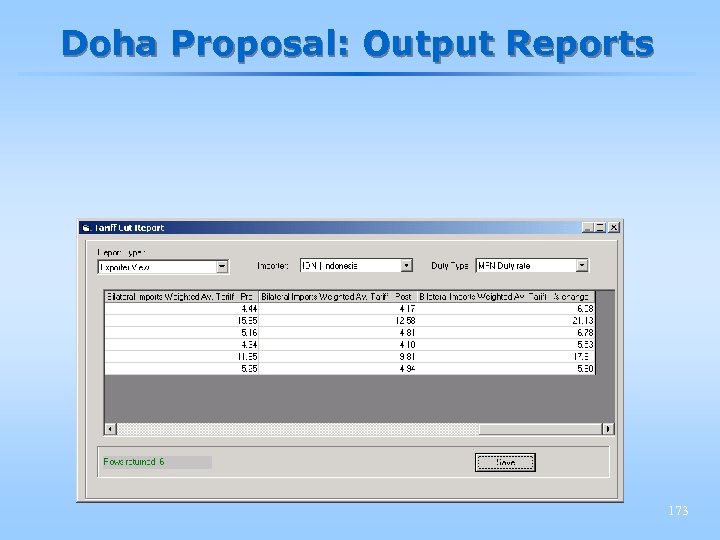
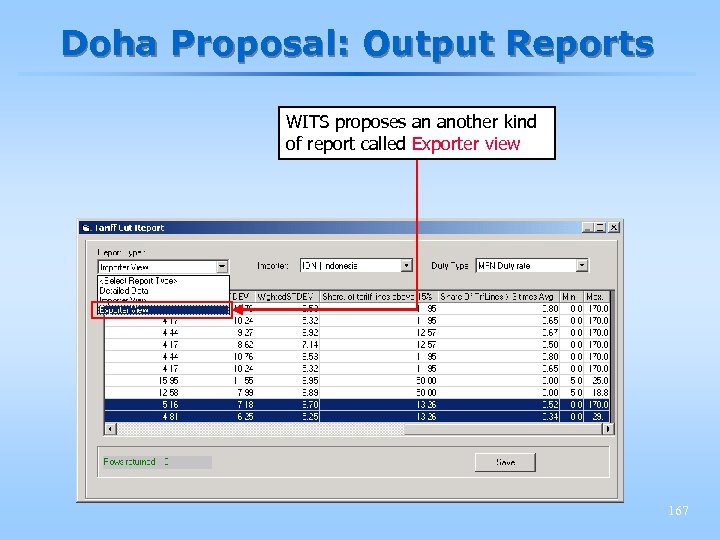 Doha Proposal: Output Reports WITS proposes an another kind of report called Exporter view 167
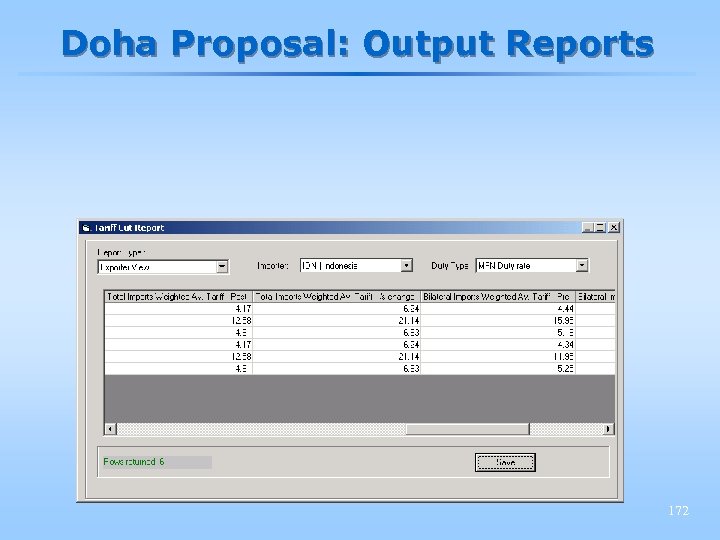
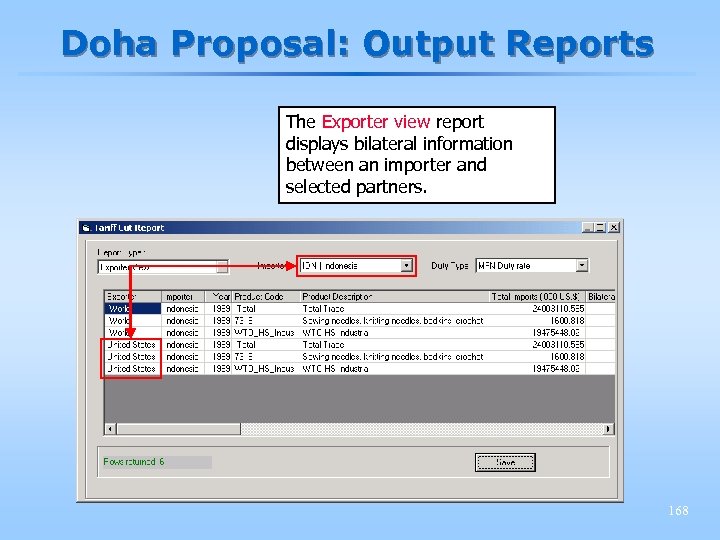 Doha Proposal: Output Reports The Exporter view report displays bilateral information between an importer and selected partners. 168
 Doha Proposal: Output Reports 169
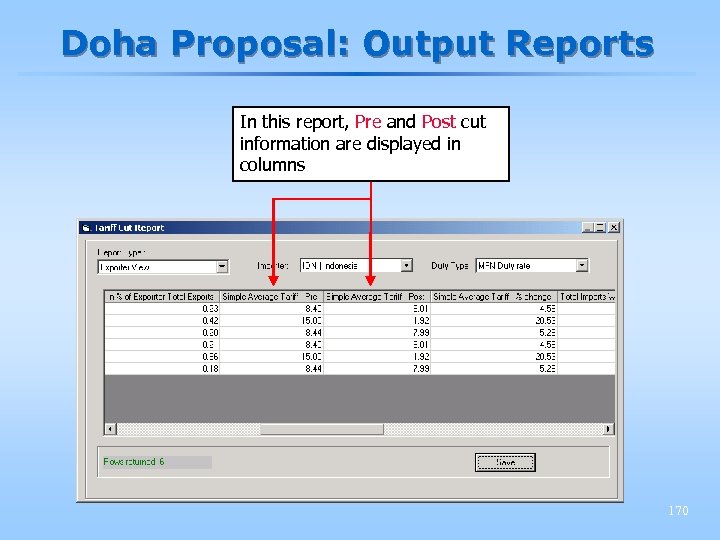 Doha Proposal: Output Reports In this report, Pre and Post cut information are displayed in columns 170
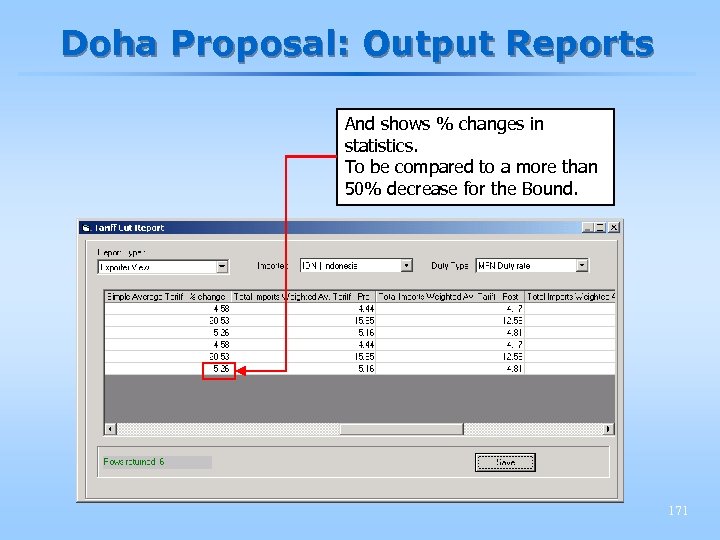 Doha Proposal: Output Reports And shows % changes in statistics. To be compared to a more than 50% decrease for the Bound. 171
 Doha Proposal: Output Reports 172
 Doha Proposal: Output Reports 173
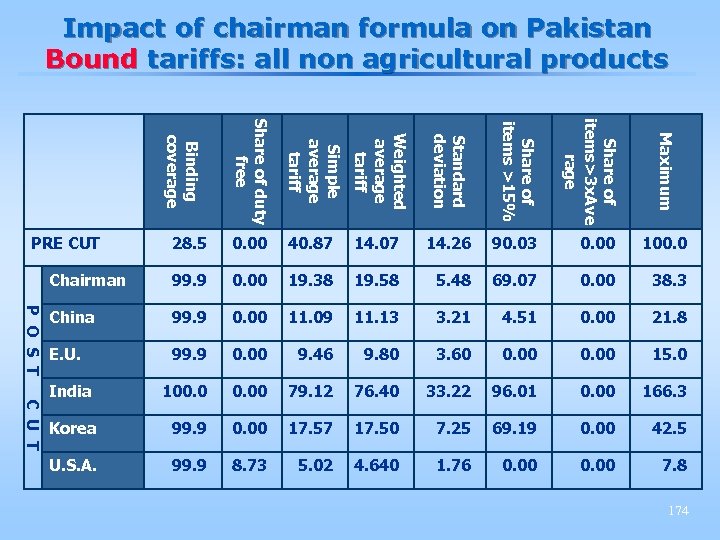 Impact of chairman formula on Pakistan Bound tariffs: all non agricultural products Simple average tariff Weighted average tariff Standard deviation Share of items >15% Share of items>3 x. Ave rage 40. 87 14. 07 14. 26 90. 03 0. 00 100. 0 Chairman 99. 9 0. 00 19. 38 19. 58 5. 48 69. 07 0. 00 38. 3 China 99. 9 0. 00 11. 09 11. 13 3. 21 4. 51 0. 00 21. 8 E. U. 99. 9 0. 00 9. 46 9. 80 3. 60 0. 00 15. 0 India 100. 00 79. 12 76. 40 33. 22 96. 01 0. 00 166. 3 Korea 99. 9 0. 00 17. 57 17. 50 7. 25 69. 19 0. 00 42. 5 U. S. A. 99. 9 8. 73 5. 02 4. 640 1. 76 0. 00 7. 8 Maximum Share of duty free 0. 00 Binding coverage 28. 5 PRE CUT P O S T C U T 174
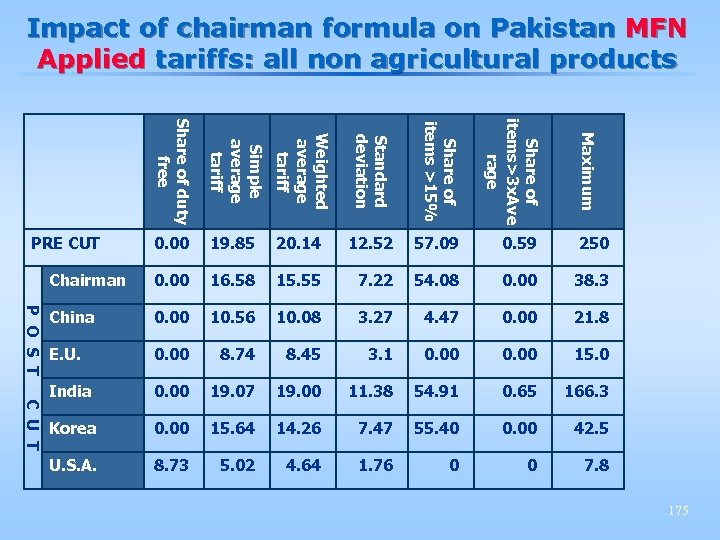 Impact of chairman formula on Pakistan MFN Applied tariffs: all non agricultural products Simple average tariff Weighted average tariff Standard deviation Share of items >15% Share of items>3 x. Ave rage 19. 85 20. 14 12. 52 57. 09 0. 59 250 Chairman 0. 00 16. 58 15. 55 7. 22 54. 08 0. 00 38. 3 China 0. 00 10. 56 10. 08 3. 27 4. 47 0. 00 21. 8 E. U. 0. 00 8. 74 8. 45 3. 1 0. 00 15. 0 India 0. 00 19. 07 19. 00 11. 38 54. 91 0. 65 166. 3 Korea 0. 00 15. 64 14. 26 7. 47 55. 40 0. 00 42. 5 U. S. A. 8. 73 5. 02 4. 64 1. 76 0 0 7. 8 Maximum Share of duty free 0. 00 PRE CUT P O S T C U T 175
 Analytical Tools: SMART § SMART: § Simulates the partial equilibrium impact of a tariff reduction for a single market § Can’t easily capture the effects of a full round of tariff negotiations 176
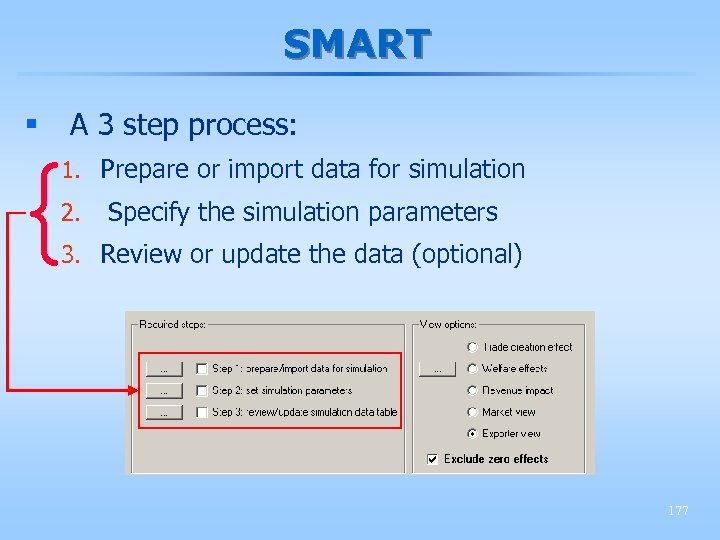 SMART § A 3 step process: { 1. Prepare or import data for simulation 2. Specify the simulation parameters 3. Review or update the data (optional) 177
 SMART: Example Scenario § Consider USA grants a free trade agreement (FTA) to El Salvador, Guatemala and Honduras on chapters 61 and 63 (Textile products) § Let’s look at the consequences on: § The beneficiaries exports to USA § The trade creation, tariff revenue and consumer surplus for USA § Pakistan exports to USA on these chapters 178
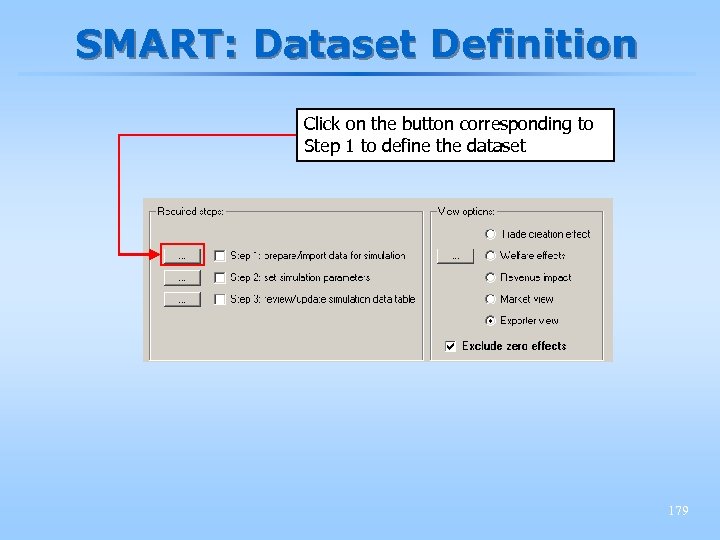 SMART: Dataset Definition Click on the button corresponding to Step 1 to define the dataset 179
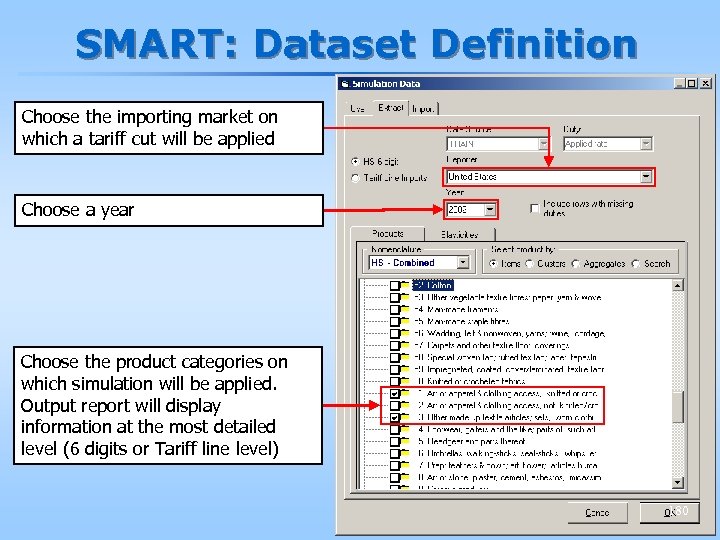 SMART: Dataset Definition Choose the importing market on which a tariff cut will be applied Choose a year Choose the product categories on which simulation will be applied. Output report will display information at the most detailed level (6 digits or Tariff line level) 180
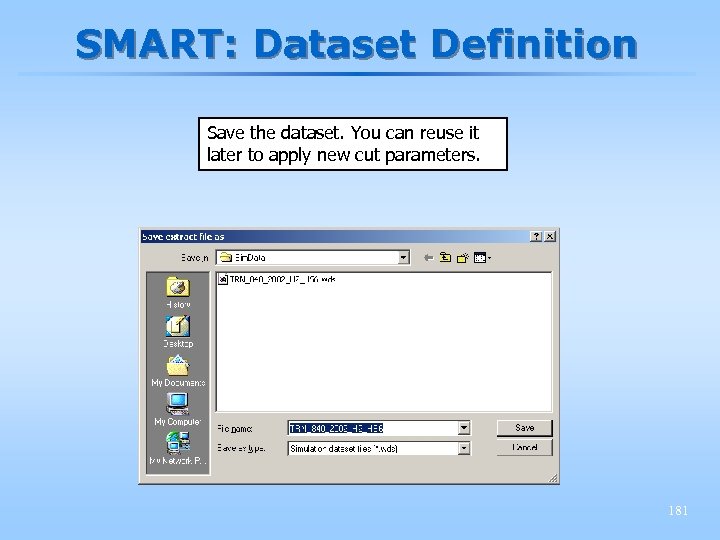 SMART: Dataset Definition Save the dataset. You can reuse it later to apply new cut parameters. 181
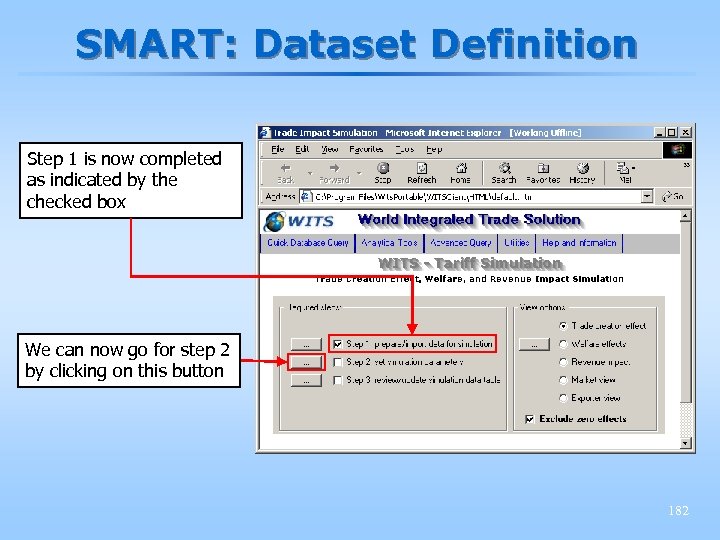 SMART: Dataset Definition Step 1 is now completed as indicated by the checked box We can now go for step 2 by clicking on this button 182
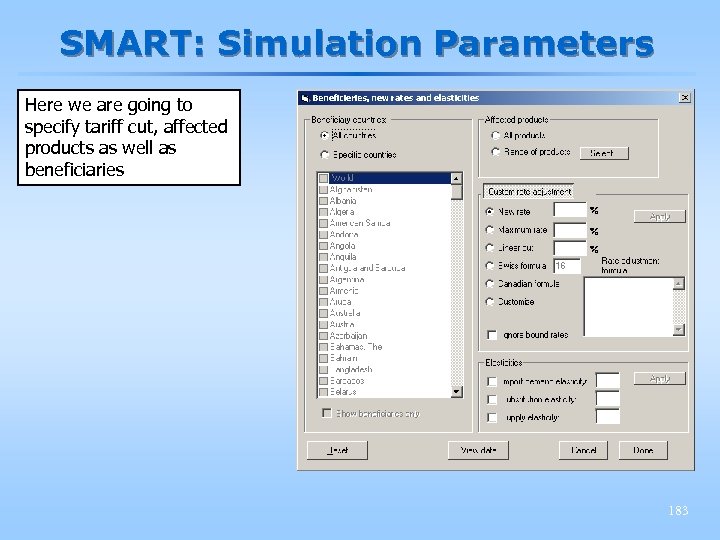 SMART: Simulation Parameters Here we are going to specify tariff cut, affected products as well as beneficiaries 183
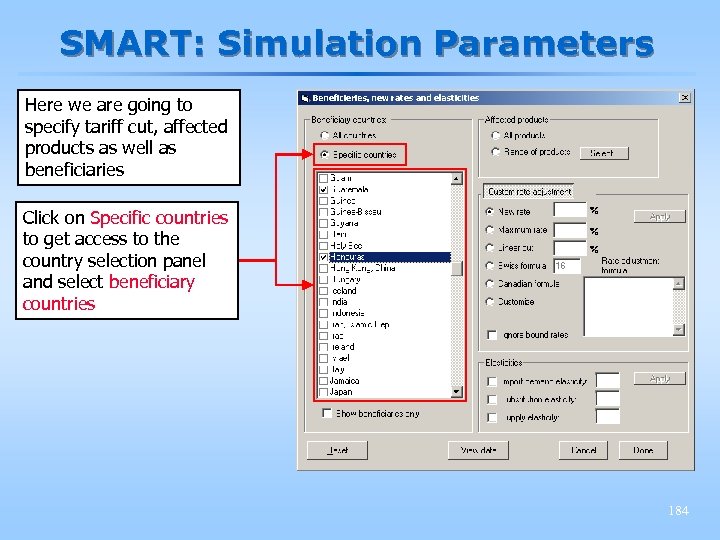 SMART: Simulation Parameters Here we are going to specify tariff cut, affected products as well as beneficiaries Click on Specific countries to get access to the country selection panel and select beneficiary countries 184
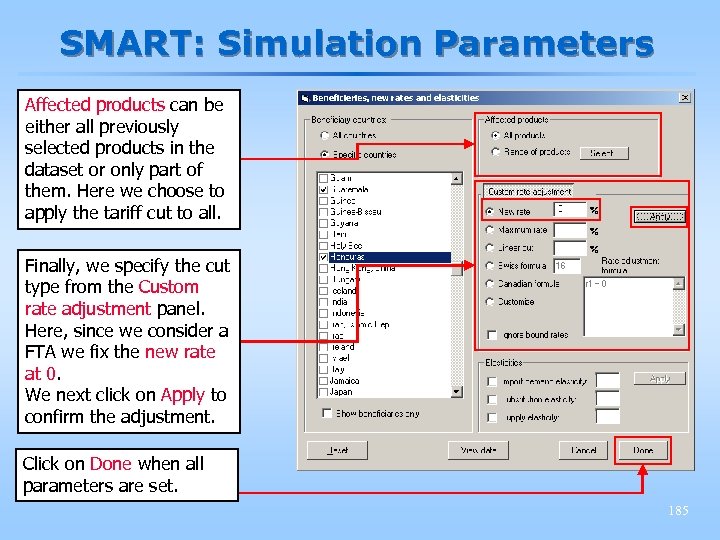 SMART: Simulation Parameters Affected products can be either all previously selected products in the dataset or only part of them. Here we choose to apply the tariff cut to all. Finally, we specify the cut type from the Custom rate adjustment panel. Here, since we consider a FTA we fix the new rate at 0. We next click on Apply to confirm the adjustment. Click on Done when all parameters are set. 185
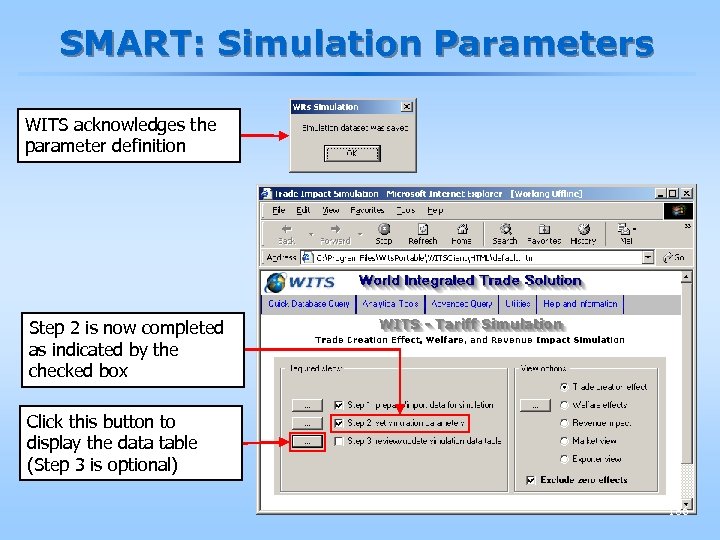 SMART: Simulation Parameters WITS acknowledges the parameter definition Step 2 is now completed as indicated by the checked box Click this button to display the data table (Step 3 is optional) 186
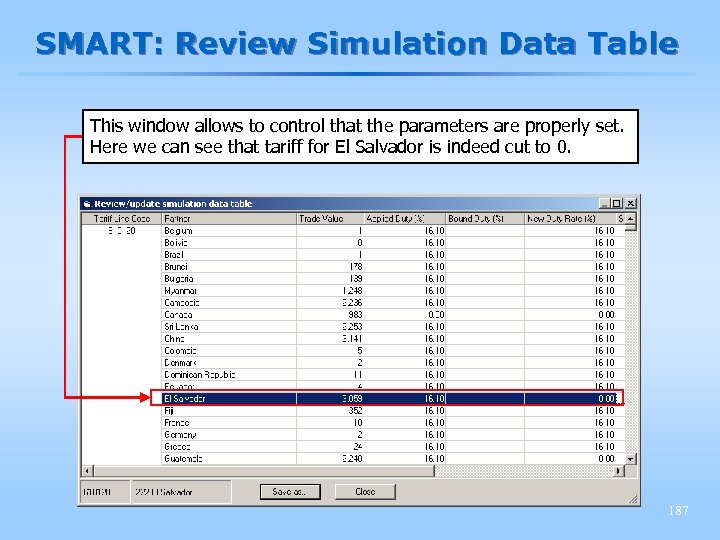 SMART: Review Simulation Data Table This window allows to control that the parameters are properly set. Here we can see that tariff for El Salvador is indeed cut to 0. 187
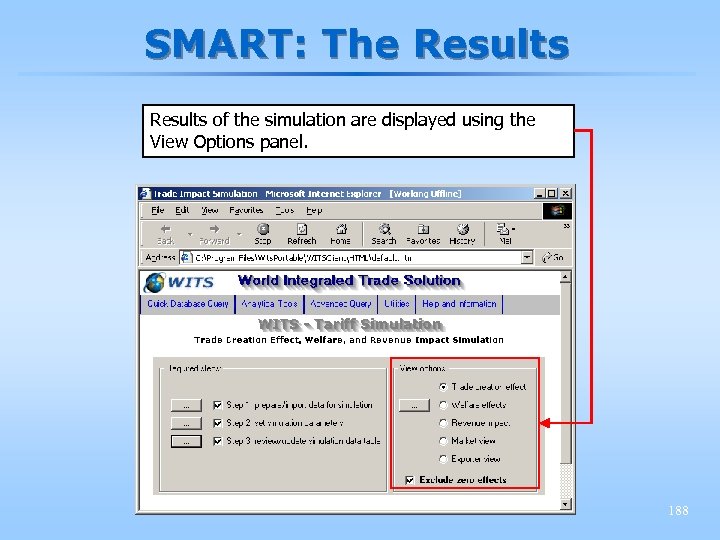 SMART: The Results of the simulation are displayed using the View Options panel. 188
 SMART: The Results § Through a set of 5 output reports, WITS provides the following results: § Trade Total Effect composed of: § Trade Diversion Effect § Trade Creation Effect § Pre and Post Exports by Partner § Pre and Post cut average duty rate § Consumer Surplus (Welfare) § Tariff Revenue effect § Price effect only if one uses a non infinite Supply elasticity (infinite by default in SMART) 189
 SMART: Comments § Preferential tariff reduction (free trade areas, customs unions, bilateral agreements) diverts trade away from countries not enjoying preferences § When most efficient producers are part of the FTA, preferences may, on balance, create new trade 190
 WITS in a nutshell § Enormously powerful instrument for retrieving and analyzing data § much more data than we’ve ever had before § Great care needed in interpreting the meaning of the data and the analysis § These are complex areas § Helpful to trade negotiators, particularly in developing countries, as well as analysts § Further development to come § New databases to be included, including AVEs § More simulation tools to be released 191
 More about WITS ? The WITS information web site at: http: //wits. worldbank. org/witsweb/ 192
 Session 6 Tuesday, 11: 15 am – 12: 45 am § Exercises § Simulation of the Doha proposals § SMART Model 193
 Doha Proposals: Exercise § Apply a formula of your choice on the following query using the Doha Proposal analytical tool: § Reporter : your focus country § Products : HS WTO Industrial and a Chapter of your choice (2 digits) § Partner : World 194
 SMART: Exercise § Consider Kenya grants the EU free access for imports of motor cars (8703) § Let’s look at the consequences on: § The EU’s exports to the US § Trade creation, tariff revenue and consumer surplus for Kenya § Japanese car exports to Kenya 195