


 Скачать презентацию Wireless Networking Chapter 9 Contents Explain
a7f007d8fe292d03ff9b1f1505078e8d.ppt
- Количество слайдов: 68
 Wireless Networking Chapter 9
 Contents • Explain wireless networking hardware and software requirements and configure wireless networking hardware • Define wireless networking IEEE standards and FCC operation frequencies • Define wireless network operation modes, limits, and methods • Configure wireless networking security • Describe troubleshooting techniques for wireless networks
 Introduction
 Wireless Networking • Wireless networking uses radio waves instead of wires to connect devices • Wireless networking is dominated by two technologies – IEEE 802. 11 wireless Ethernet standard • Wireless Fidelity (Wi-Fi) • Home Radio Frequency (Home. RF) – Bluetooth
 Wireless Networking Basics
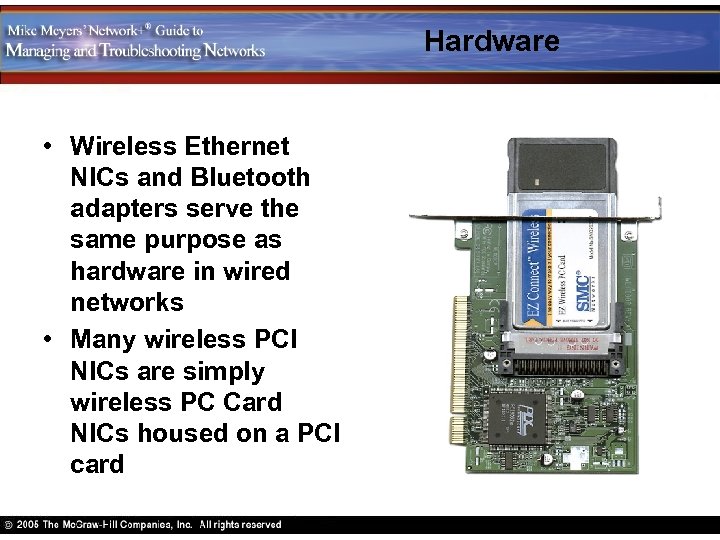 Hardware • Wireless Ethernet NICs and Bluetooth adapters serve the same purpose as hardware in wired networks • Many wireless PCI NICs are simply wireless PC Card NICs housed on a PCI card
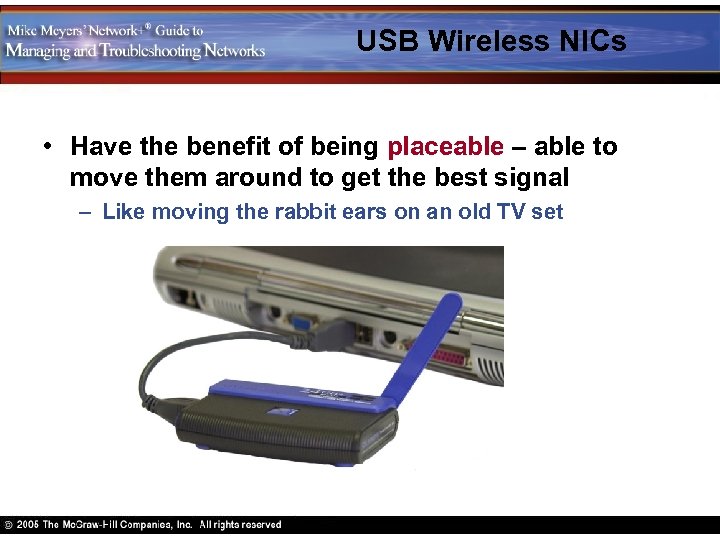 USB Wireless NICs • Have the benefit of being placeable – able to move them around to get the best signal – Like moving the rabbit ears on an old TV set
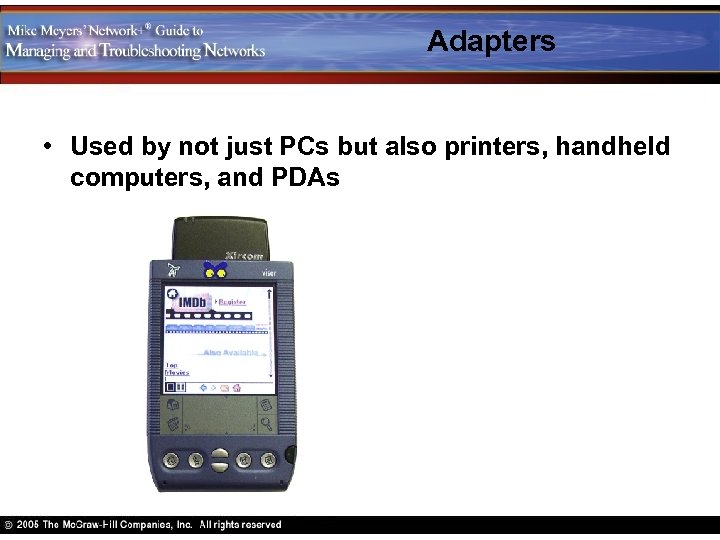 Adapters • Used by not just PCs but also printers, handheld computers, and PDAs
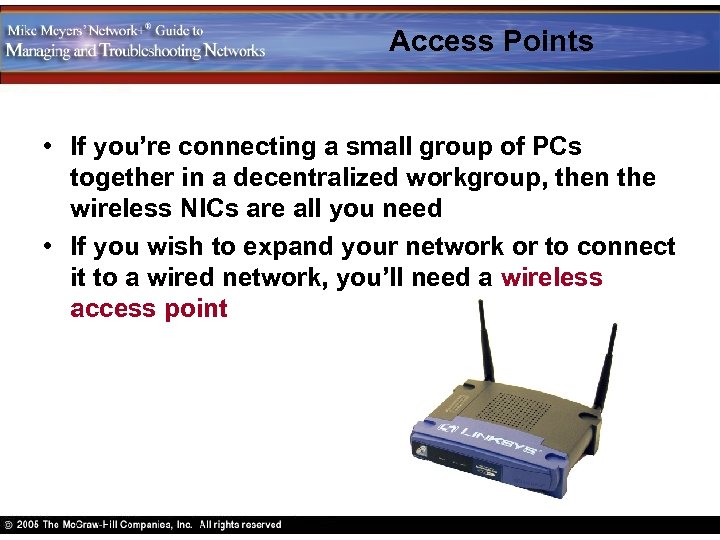 Access Points • If you’re connecting a small group of PCs together in a decentralized workgroup, then the wireless NICs are all you need • If you wish to expand your network or to connect it to a wired network, you’ll need a wireless access point
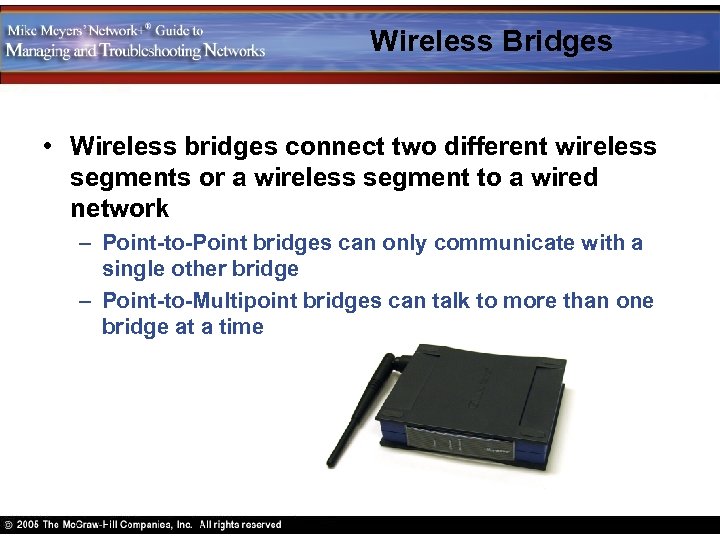 Wireless Bridges • Wireless bridges connect two different wireless segments or a wireless segment to a wired network – Point-to-Point bridges can only communicate with a single other bridge – Point-to-Multipoint bridges can talk to more than one bridge at a time
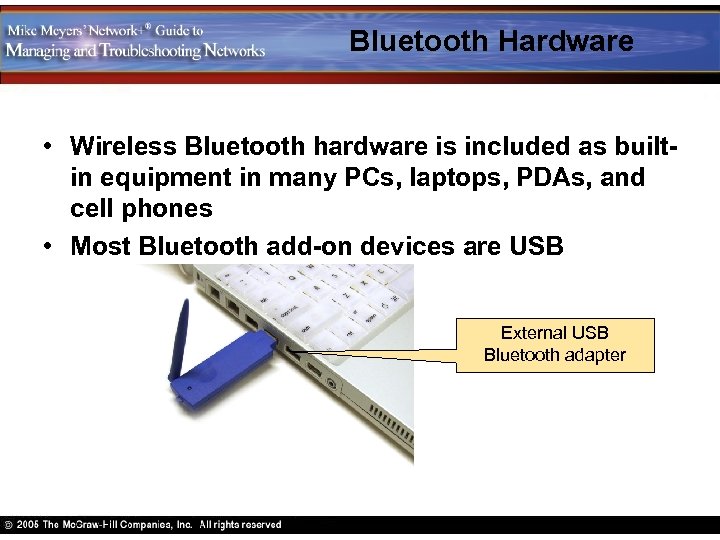 Bluetooth Hardware • Wireless Bluetooth hardware is included as builtin equipment in many PCs, laptops, PDAs, and cell phones • Most Bluetooth add-on devices are USB External USB Bluetooth adapter
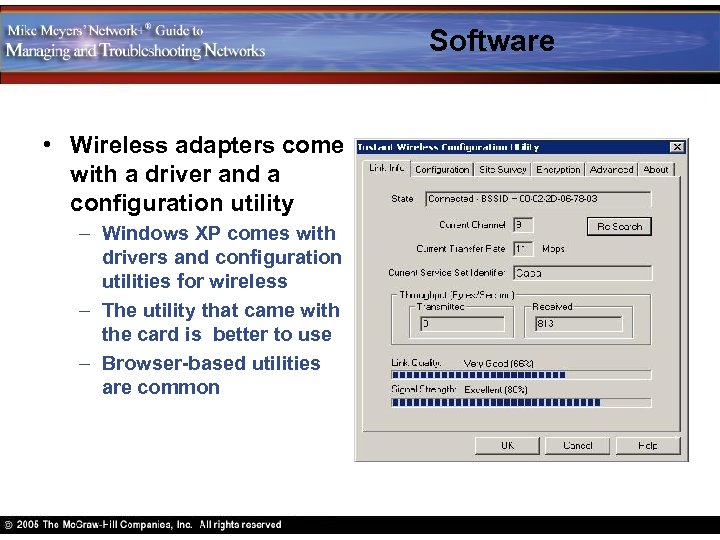 Software • Wireless adapters come with a driver and a configuration utility – Windows XP comes with drivers and configuration utilities for wireless – The utility that came with the card is better to use – Browser-based utilities are common
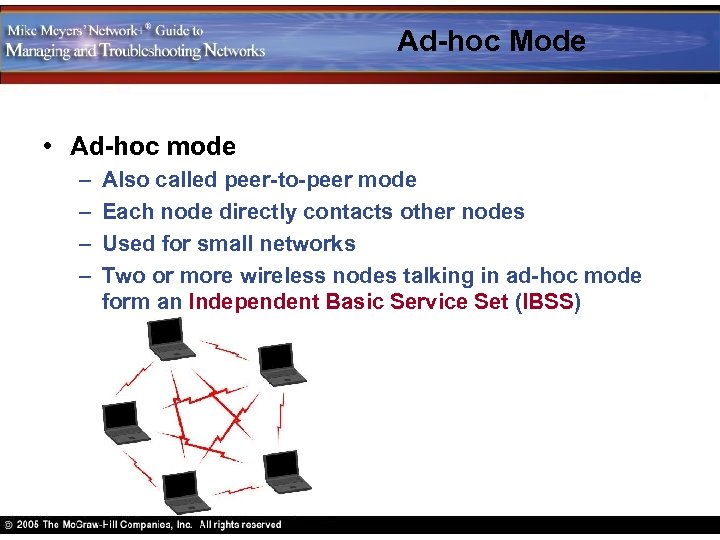 Ad-hoc Mode • Ad-hoc mode – – Also called peer-to-peer mode Each node directly contacts other nodes Used for small networks Two or more wireless nodes talking in ad-hoc mode form an Independent Basic Service Set (IBSS)
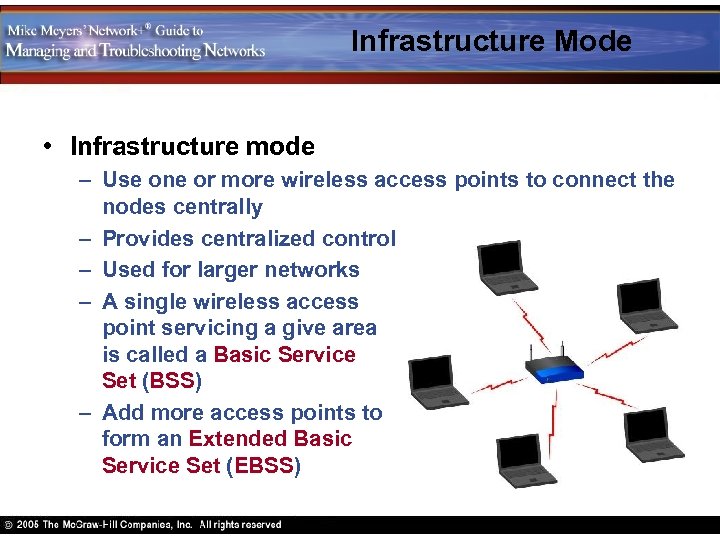 Infrastructure Mode • Infrastructure mode – Use one or more wireless access points to connect the nodes centrally – Provides centralized control – Used for larger networks – A single wireless access point servicing a give area is called a Basic Service Set (BSS) – Add more access points to form an Extended Basic Service Set (EBSS)
 Security • Wireless networking devices provide no security out of the box • Hackers may easily grab packets right out of the air and read them • To provide better security, wireless networks use one of these methods: – Service Set Identification (SSID) or network names – Media Access Control address filtering – Data encryption
 Service Set Identification • The Service Set Identification (SSID) is a 32 -bit string in the header of each packet • Only wireless clients whose SSID matches can gain access to the network • Wireless access points come with a generic SSID that is widely publicized by the vendor – Linksys uses linksys – 3 Com uses 101 – Netgear uses wireless or netgear
 MAC Filtering • MAC address filtering limits access based on the physical, hard-wired address of the wireless network adapter • Any data packet whose MAC address is not listed in the wireless access point’s table is rejected • Specified MAC addresses may be denied • MAC addresses may be spoofed by hackers • Each MAC address needs to be manually entered initially and kept up to date
 Encryption • Encrypted data packets are electronically scrambled (locked) with a private encryption key before being transmitted • The receiving device must possess the encryption key in order to unscramble (unlock) the packet • Encryption is enabled through Wireless Equivalency Privacy (WEP) or Wi-Fi Protected Access (WPA) or WPA 2
 Wireless Equivalency Privacy • WEP uses a 64 -bit encryption algorithm • Works only on layers 1 and 2 (Physical and Data Link) • Encryption key is static (same from session to session) and shared by all network nodes • No user authentication
 Wi-Fi Protected Access • WPA offers – Dynamic encryption key generation issued on a peruser, per-session basis – Encryption key integrity-checking feature – User authentication through Extensible Authentication Protocol (EAP) – Not available on all wireless devices
 Speed • Ranges from 2 Mbps to 54 Mbps • Speed decreases as distance increases • Speed is affected by interference from other networking devices and solid objects – Dead spots may be created by things like refrigerators, air conditioners, metal plumbing
 Range • Environmental factors greatly affect range • Theoretical maximum ranges are usually listed, while the effective range may be about half as far • To extend range: – Add more wireless access points – Install a signal booster to increase the WAP’s signal
 Broadcasting Frequencies • The Federal Communications Commission (FCC) set aside the Industrial, Scientific, and Medical (ISM) frequencies for wireless networking – 83. 5 MHz of bandwidth in the 2. 4 GHz frequency band – 125 MHz of bandwidth in the 5. 8 GHz band – 300 MHz of bandwidth (Unlicensed National Information Infrastructure (U-NII)) split into: • 5. 15 to 5. 25 GHz frequency band • 5. 25 to 5. 35 GHz frequency band • 5. 725 to 5. 825 GHz frequency band
 Media Access Methods • Multiple devices may share a medium by first listening in on the network media to see if it is busy • Devices need to wait if it is busy for the length of a frame plus the Interframe Space (IFS) • If two devices transmit at the same time a collision occurs and data is corrupted • How are collisions dealt with?
 CSMA/CD • Carrier Sense Multiple Access /Collision Detection – When a collision occurs (is detected), the device will wait a random amount of time and then attempt to resend the data
 CSMA/CA • Carrier Sense Multiple Access / Collision Avoidance – Instead of reacting to collisions, steps are taken to avoid collisions using Distributed Coordination Function (DCF) • Point Coordination Function (PCF) is defined but not implemented yet – DCF requires receiving nodes to send an Acknowledgement (ACK) for every packet that tells other nodes to wait a certain amount of time before trying to access the media
 RTS/CTS • Request To Send/Clear To Send (RTS/CTS) – Transmitting nodes send an RTS frame to the receiving node before transmitting any data – The receiving node responds with a CTS – Another form of collision avoidance
 Wireless Networking Standards
 802. 11 Standard • IEEE 802. 11 wireless Ethernet standard defines methods to communicate using spreadspectrum radio waves – Broadcast data in small discrete chunks within a frequency range • All 802. 11 wireless technologies use the 2. 4 GHz frequency • Except for 802. 11 a that uses the 5 GHz frequency
 Broadcasting Methods • Direct-sequence spreadspectrum (DSSS) – Sends data out on difference frequencies at the same time – Uses 22 MHz bandwidth – Greater throughput – More prone to interference – Used by most 802. 11 based wireless networking standards • Frequency-hopping spread-spectrum (FHSS) – Sends data on one frequency at a time – Constantly shifts or hops frequencies – Uses 1 MHz bandwidth – Used by Home. RF wireless networks
 Wi-Fi Standards • Most widely adapted wireless networking technology today • Devices that conform to the extended versions of the 802. 11 standard (802. 11 a, 802. 11 b, and 802. 11 g) are Wi-Fi certified – By the Wi-Fi Alliance (formerly the Wireless Ethernet Compatibility Alliance – WECA) • Wireless devices must use the same standard to communicate – 802. 11 g is backwards compatible with 802. 11 b
 802. 11 • • • The original standard Slow speed at 2 Mbps Limited range at about 150 feet Uses the 2. 4 GHz broadcast range Security provided by WEP and WPA encryption Rare today
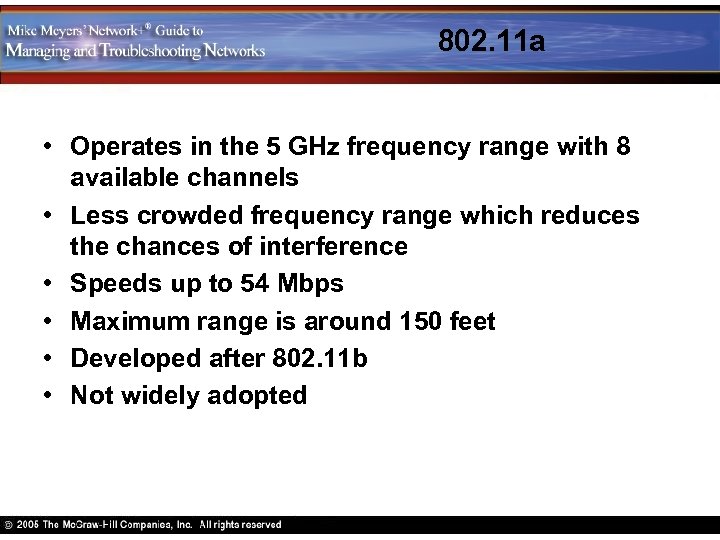 802. 11 a • Operates in the 5 GHz frequency range with 8 available channels • Less crowded frequency range which reduces the chances of interference • Speeds up to 54 Mbps • Maximum range is around 150 feet • Developed after 802. 11 b • Not widely adopted
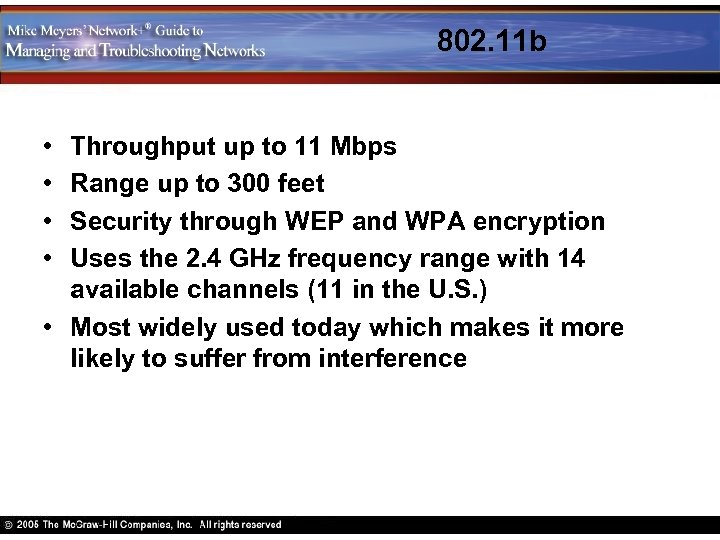 802. 11 b • • Throughput up to 11 Mbps Range up to 300 feet Security through WEP and WPA encryption Uses the 2. 4 GHz frequency range with 14 available channels (11 in the U. S. ) • Most widely used today which makes it more likely to suffer from interference
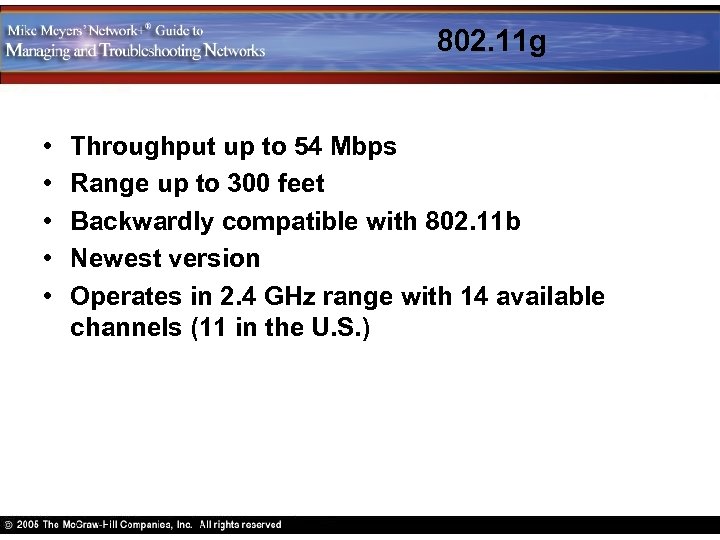 802. 11 g • • • Throughput up to 54 Mbps Range up to 300 feet Backwardly compatible with 802. 11 b Newest version Operates in 2. 4 GHz range with 14 available channels (11 in the U. S. )
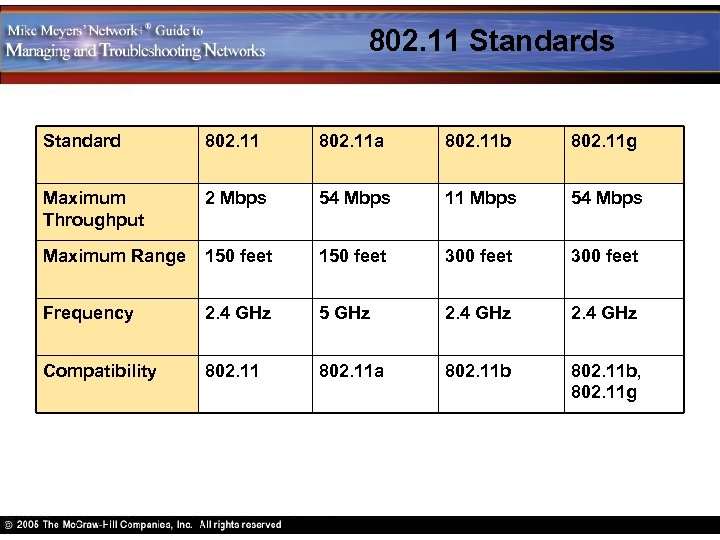 802. 11 Standards Standard 802. 11 a 802. 11 b 802. 11 g Maximum Throughput 2 Mbps 54 Mbps 11 Mbps 54 Mbps Maximum Range 150 feet 300 feet Frequency 2. 4 GHz 5 GHz 2. 4 GHz Compatibility 802. 11 a 802. 11 b, 802. 11 g
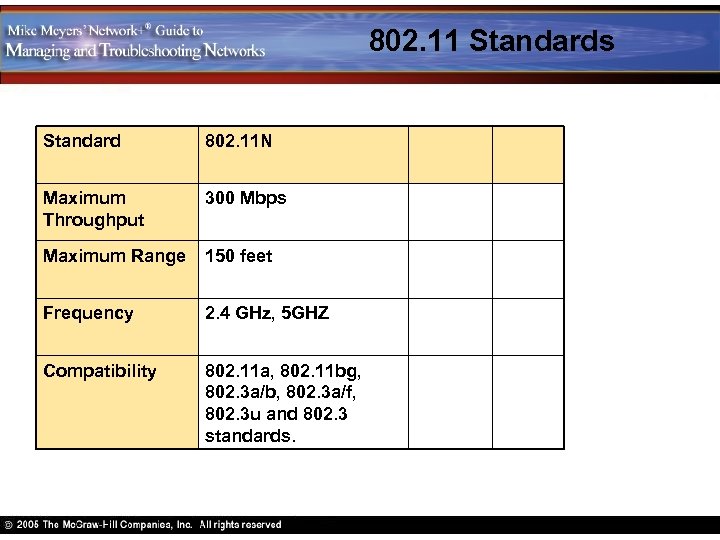 802. 11 Standards Standard 802. 11 N Maximum Throughput 300 Mbps Maximum Range 150 feet Frequency 2. 4 GHz, 5 GHZ Compatibility 802. 11 a, 802. 11 bg, 802. 3 a/b, 802. 3 a/f, 802. 3 u and 802. 3 standards.
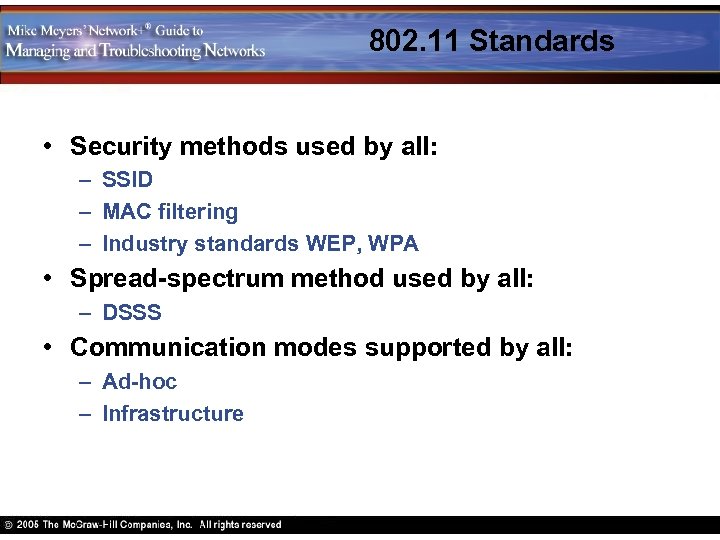 802. 11 Standards • Security methods used by all: – SSID – MAC filtering – Industry standards WEP, WPA • Spread-spectrum method used by all: – DSSS • Communication modes supported by all: – Ad-hoc – Infrastructure
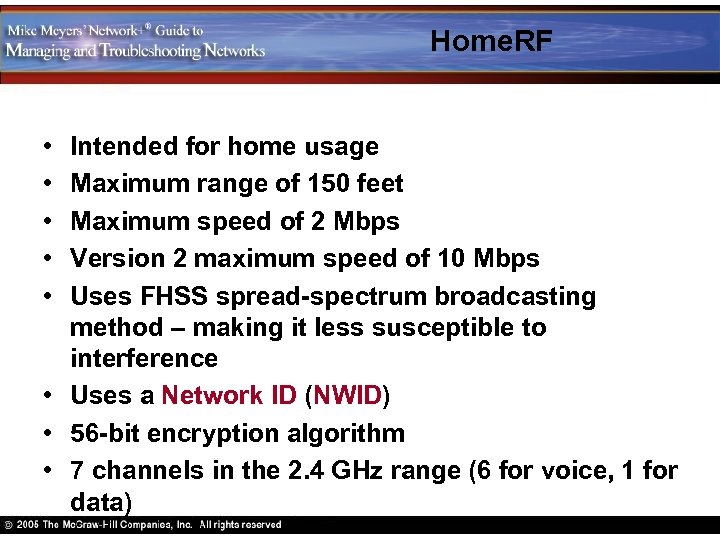 Home. RF • • • Intended for home usage Maximum range of 150 feet Maximum speed of 2 Mbps Version 2 maximum speed of 10 Mbps Uses FHSS spread-spectrum broadcasting method – making it less susceptible to interference • Uses a Network ID (NWID) • 56 -bit encryption algorithm • 7 channels in the 2. 4 GHz range (6 for voice, 1 for data)
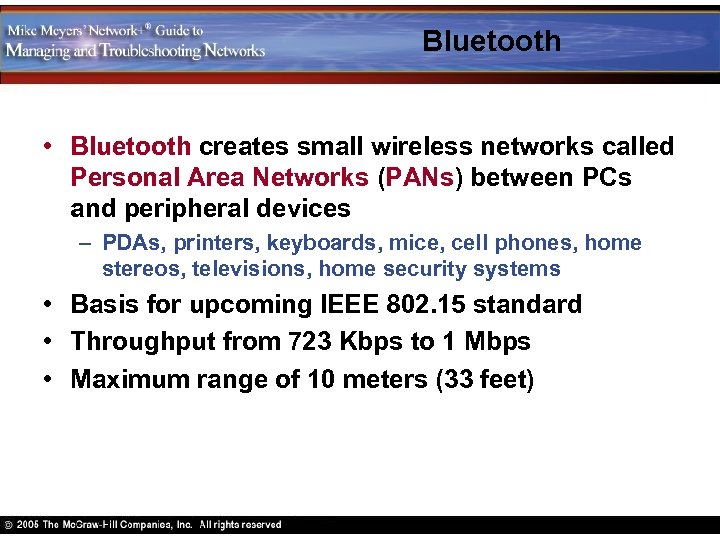 Bluetooth • Bluetooth creates small wireless networks called Personal Area Networks (PANs) between PCs and peripheral devices – PDAs, printers, keyboards, mice, cell phones, home stereos, televisions, home security systems • Basis for upcoming IEEE 802. 15 standard • Throughput from 723 Kbps to 1 Mbps • Maximum range of 10 meters (33 feet)
 Bluetooth Operation Modes • Operates in an automatic master/slave relationship – One master controls up to seven slave devices – A Bluetooth PAN is called a piconet (meaning very small) – Up to 255 devices may participate but only seven may be active at a time – An inactive slave device is called a parked device
 Bluetooth Communication Stages • Device discovery – Broadcasts its MAC address an a code identifying the type of device – May set device to non-discovery mode to skip this stage • Name discovery – Device identifies itself by a friendly name • Such as i. PAQ Pocket PC • Association – Device officially joins the network – Some devices require a PIN code for security – Also called bonding, pairing, or joining • Service profile – Defines the kind of service it provides
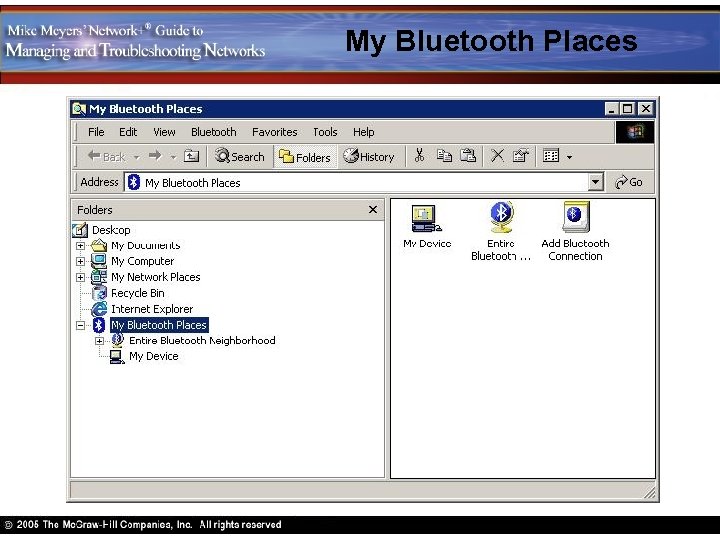 My Bluetooth Places
 Data Transfer • Synchronous Connection. Oriented (SCO) – Guarantees all data transmitted is received – Good for file transfers – Master nodes support up to 3 SCO connections at a time with up to 3 slave units • Asynchronous Connectionless (ACL) – No guarantee of delivery – Faster – Good for streaming media – Point-to-point (master to slave) or broadcast (master to all slaves) links
 Bluetooth Services • Services supported by Bluetooth are called profiles – Generic Access Profile defines how units discover and establish connections – Service Discovery Profile enables discovery of services other devices provide – Cordless Telephony Profile defines wireless phone functionality – Intercom Profile defines wireless intercom functionality – Serial Port Profile enables a device to emulate serial port communication – Headset Profile defines wireless telephone and PC headset functionality
 Bluetooth Services – Dial-up Networking Profile defines capability to act as or interact with a modem – Fax Profile defines capability to act as or interact with a fax device – LAN Access Profile defines how a device accesses a LAN or the Internet – Generic Object Exchange Profile defines how to exchange data with other devices – Object Push Profile is used to exchange small data objects – File Transfer Profile is used to exchange large data objects like files – Synchronization Traffic is used to synchronize data between PDAs and PCs
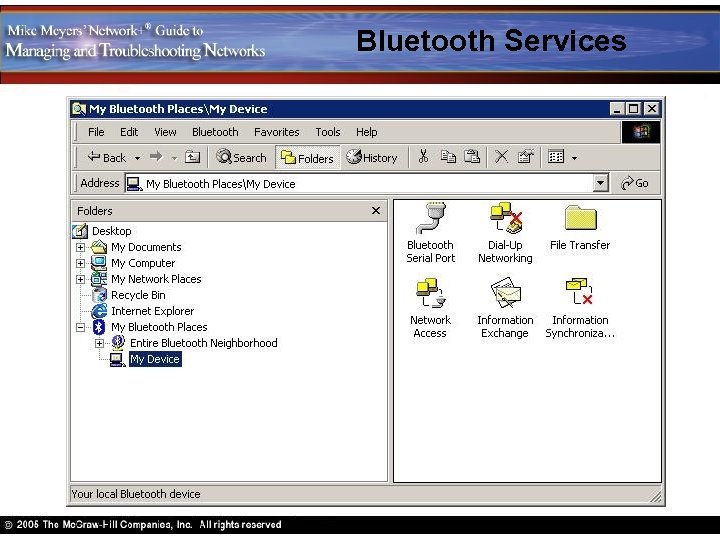 Bluetooth Services
 Bluetooth Security • 128 -bit encryption and per-user passwords • Point-to-Point Tunneling Protocol (PPTP) and Secure Sockets Layer (SSL) for browser-based remote access • MAC filtering • Non-discovery mode to hide them from other devices
 Configuring Wireless Networking
 Wi-Fi and Home. RF • Install a wireless network adapter the same way as a wired adapter • Check Windows Device Manager after installation
 Configuring Ad-Hoc Mode • Each wireless node must use the same network name (SSID) • No two nodes can have the same IP address • Ensure that File and Printer Sharing is running on all nodes
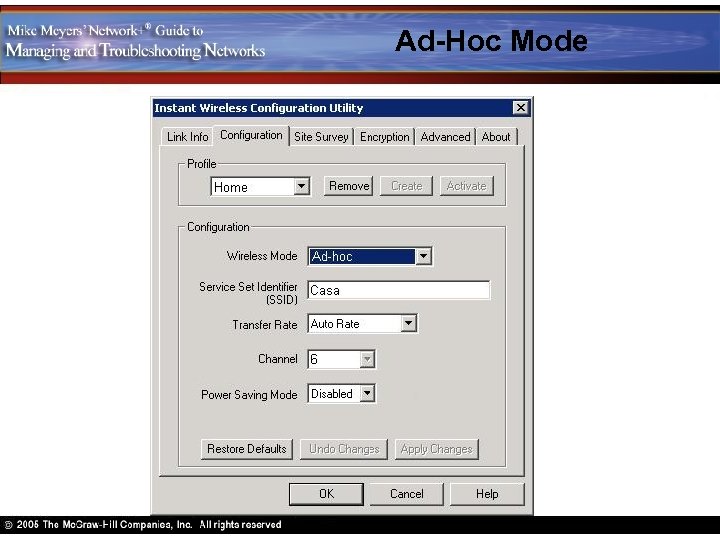 Ad-Hoc Mode
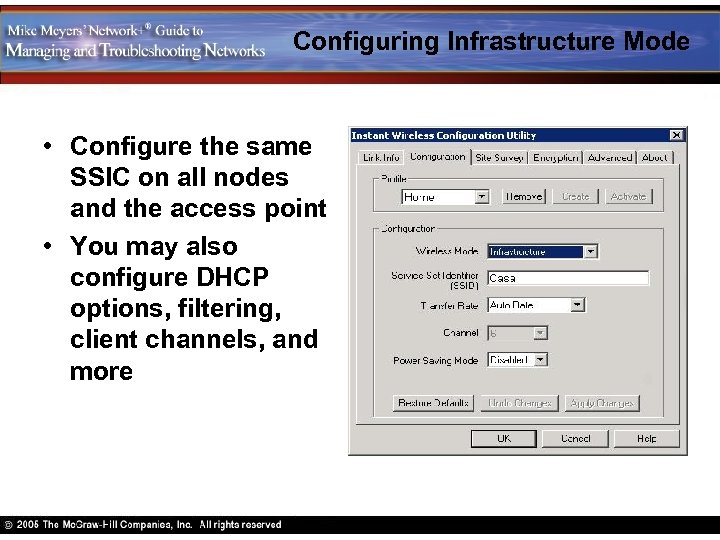 Configuring Infrastructure Mode • Configure the same SSIC on all nodes and the access point • You may also configure DHCP options, filtering, client channels, and more
 Access Point Configuration • Uses a browser-based setup utility • Point web browser to 192. 168. 1. 1 and use the administrative password given in the documentation • Various configuration options will be available such as SSID and whether to broadcast it
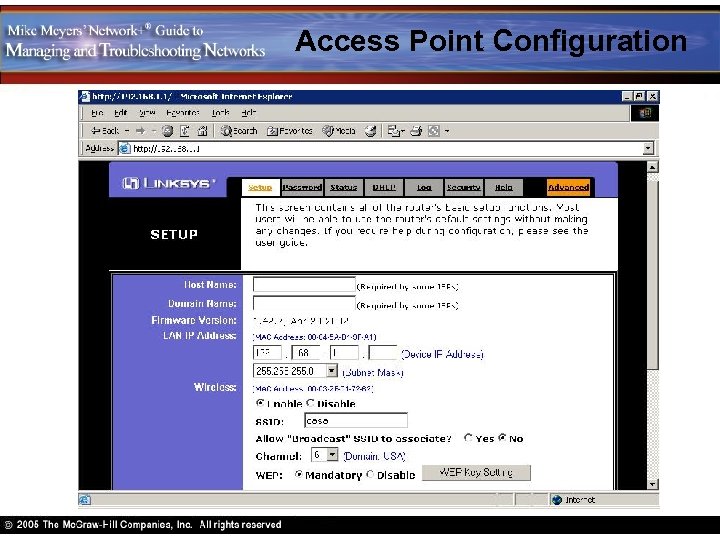 Access Point Configuration
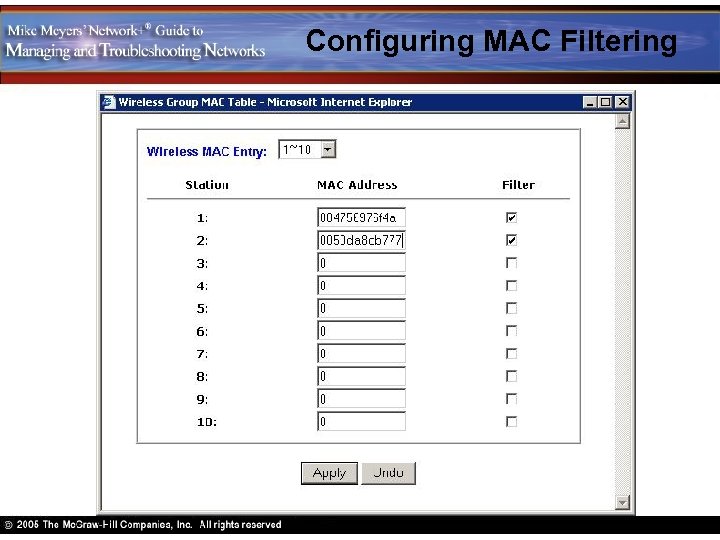 Configuring MAC Filtering
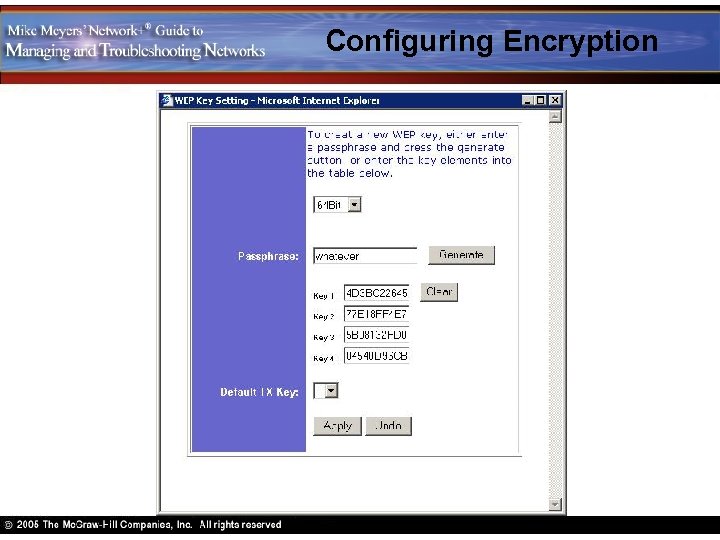 Configuring Encryption
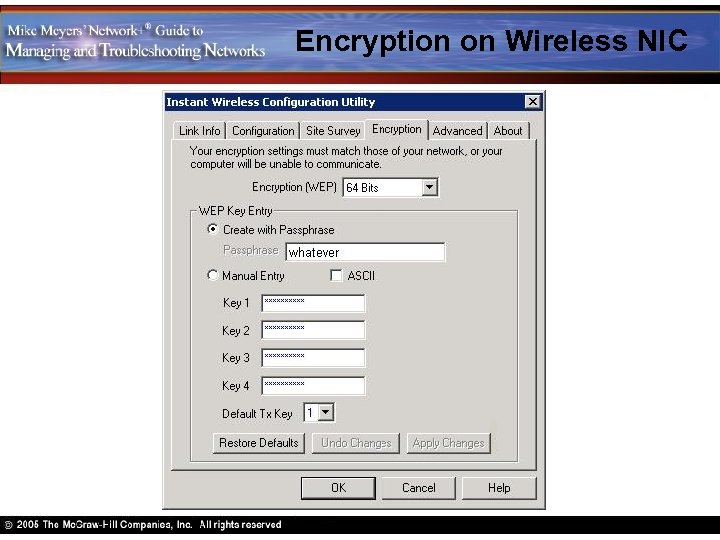 Encryption on Wireless NIC
 Bluetooth Hardware • Comes integrated with many devices today • To add Bluetooth capabilities you usually need to install an adapter – Follow the instructions which usually require you to install your driver and configuration utility first – Bluetooth devices seek each other out and establish master/slave relationships automatically
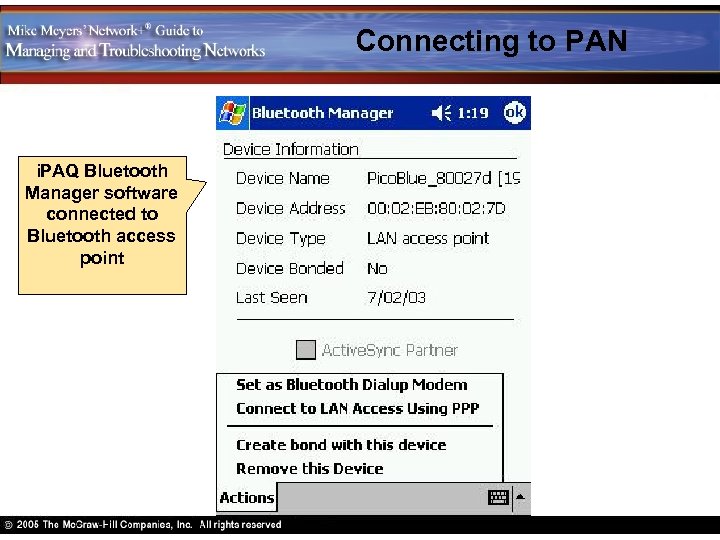 Connecting to PAN i. PAQ Bluetooth Manager software connected to Bluetooth access point
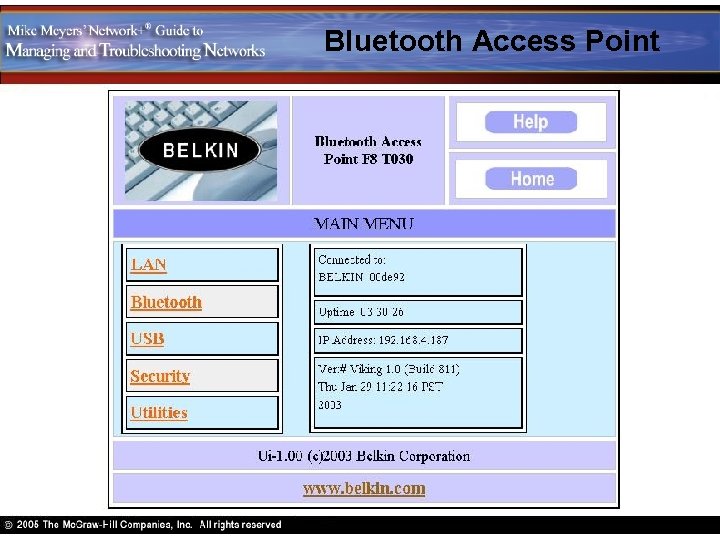 Bluetooth Access Point
 Troubleshooting Wireless Networks
 Scope of Problem • Who is affected by the problem? – Try to isolate whether the problem relates to a few client machines or to an access point • What is the nature of their network problem? – Can some network services to accessed while others cannot? Then the problem is most likely not related to their client equipment • When did the problem start? – What changed?
 Wi-FI and Home. RF • Hardware – Check Device Manager for resource conflicts – Try reinstalling the device driver • Software – USB devices usually require that you first install the software before the hardware – Update the device’s firmware version to the latest
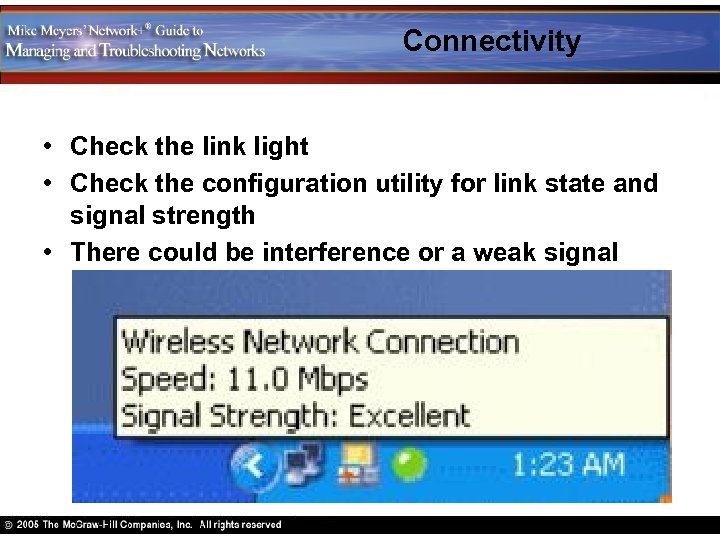 Connectivity • Check the link light • Check the configuration utility for link state and signal strength • There could be interference or a weak signal
 Configuration • Check your SSID and WEP configuration for typos – Watch for blank spaces at the end of a SSID • Make sure the MAC address of the client is on the list of accepted users • Make sure the encryption strength matches
 Bluetooth • Hardware – – Check for detection, driver or resource errors Make sure the device is seated properly Some newer Bluetooth devices only work with USB 2. 0 Check Device Manager • Software – Always check the documentation before installing Bluetooth devices – sometimes steps may not be performed out of order – Only Windows XP (with service pack 1) and Apple OSX offer native support for Bluetooth
 Connectivity & Configuration • Check the configuration utility • Remember Bluetooth range is limited to 30 feet • Shut down other Bluetooth devices in the same area to see if there is interference • Make sure all device use the same profile • Check to see if non-discovery mode has been enabled • Check the password or PIN • Check the power-saving settings