 Скачать презентацию Windows 7 Test Prep Based on this
02a98682f516418bbe9df6a29b9a8c64.ppt
- Количество слайдов: 35



Windows 7 Test Prep
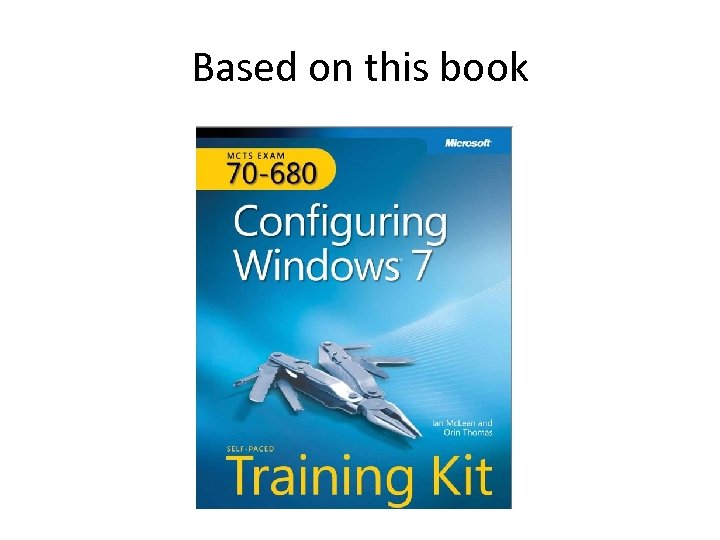
Based on this book
Ch 1 Install, Migrate, or Upgrade to Windows 7
Lesson 1: Installing Windows 7 • • Windows 7 Editions Windows 7 Hardware Requirements Preparing the Windows 7 Installation Source Installing Windows 7
Editions • There are six different Windows 7 editions – Starter – Home Basic – Home Premium – Professional – Enterprise – Ultimate
Windows Versions • Link Test. Prep Ch 1 a is wrong about Starter, even though it is from Microsoft • Test. Prep Ch 1 b is better • Home Basic is for developing markets, not the USA
Starter • • 32 -bit only, only 1 processor Can't play DVDs Can't create Home. Groups No Location Sensors No Windows Media Center Can't join a domain No Aero No multiple monitors
Home Basic • • Only in emerging markets 32 & 64 -bit versions, only 1 processor Max. 4 GB RAM on 32 -bit Max. 8 GB RAM on 64 -bit No Aero or DVD playback Can't join a domain No EFS
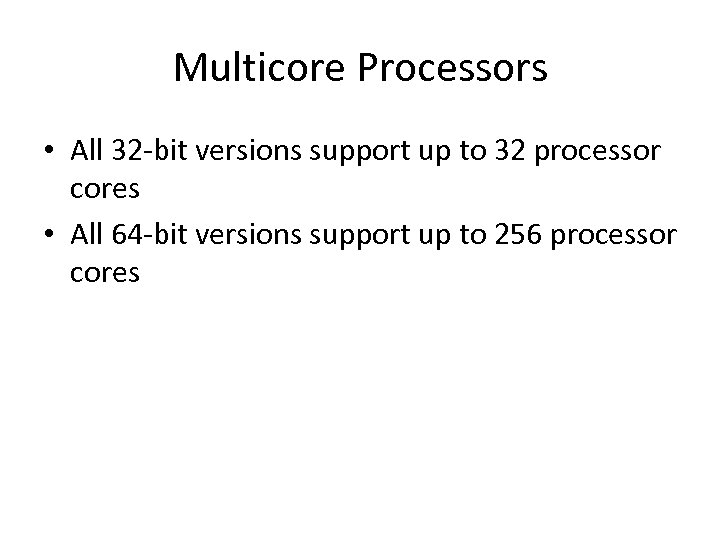
Multicore Processors • All 32 -bit versions support up to 32 processor cores • All 64 -bit versions support up to 256 processor cores
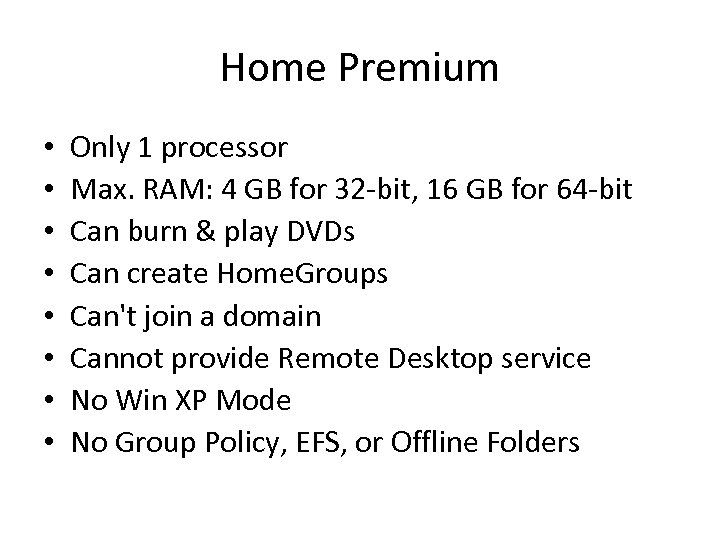
Home Premium • • Only 1 processor Max. RAM: 4 GB for 32 -bit, 16 GB for 64 -bit Can burn & play DVDs Can create Home. Groups Can't join a domain Cannot provide Remote Desktop service No Win XP Mode No Group Policy, EFS, or Offline Folders
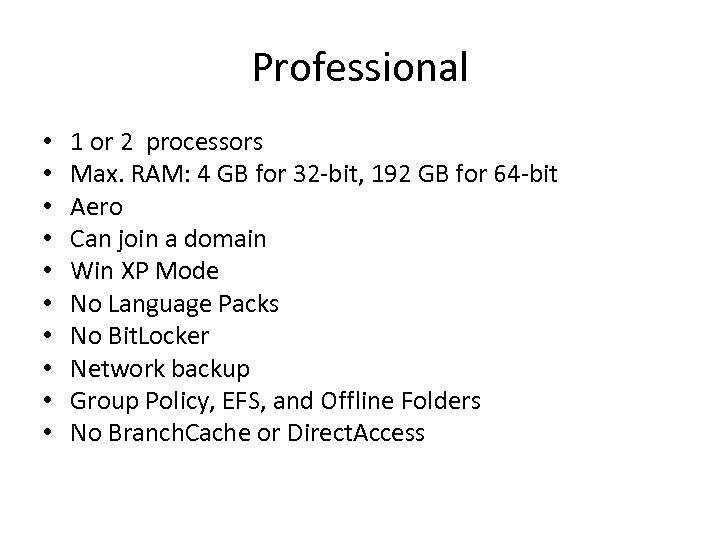
Professional • • • 1 or 2 processors Max. RAM: 4 GB for 32 -bit, 192 GB for 64 -bit Aero Can join a domain Win XP Mode No Language Packs No Bit. Locker Network backup Group Policy, EFS, and Offline Folders No Branch. Cache or Direct. Access
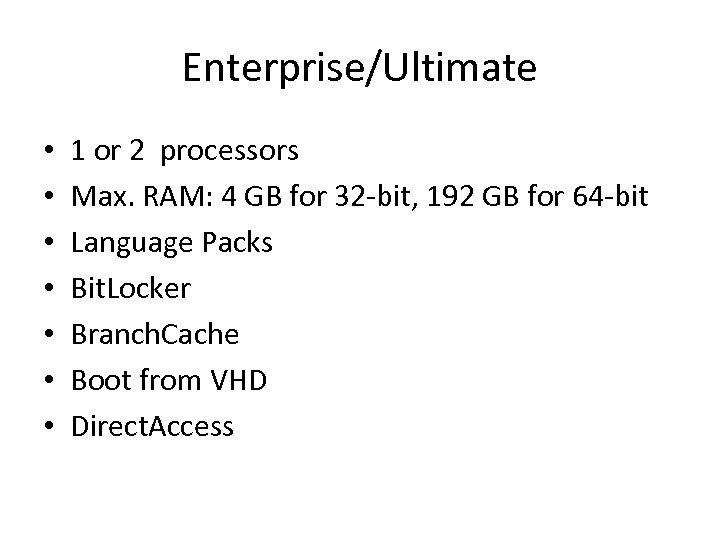
Enterprise/Ultimate • • 1 or 2 processors Max. RAM: 4 GB for 32 -bit, 192 GB for 64 -bit Language Packs Bit. Locker Branch. Cache Boot from VHD Direct. Access
Hardware Requirements • Starter: 512 MB RAM • All others: 1 GB of RAM – Some sources say 2 GB RAM for 64 -bit versions
Installation Source • DVD • USB drive (>= 4 GB), FAT 32, Active • Network share (must boot target PCs to PE, with USB or DVDs) • Windows Deployment Service (WDS) – Requires a Server 2008 domain – Multicast – Target PCs boot PXE or a Windows Discover Image – Server has the install. wim file
Installing Win 7 • Standard Installation • Unattended Installation – Unattend. xml file on USB drive • Can install Enterprise or Ultimate to VHD • Booting from VHD is only possible if boot loader is Win 7 or Server 2008 R 2

Lesson 2: Upgrading to Windows 7 • Upgrading from Windows 7 Editions • Upgrading from Windows Vista • Migrating from Windows XP
Upgrade v. Migration • Upgrade – Vista SP 1 -> Win 7 (equal or higher edition) – Lower edition of Win 7 -> Higher Win 7 Edition – Can roll back to Vista until first logon to Win 7 • Migration – You cannot upgrade from x 86 to 64 -bit – You cannot upgrade from Win XP to Win 7 – Those are wipe-and-load migration tasks instead – Cannot be rolled back
Upgrade Media • Use installation media – DVD, USB, Network share • Windows Anytime Upgrade – No media needed • Windows Upgrade Advisor
Migrating from Windows XP • Side-by-side migration – Move user data from one computer to another – Or from one partition to another • Wipe-and-load migration – Export user data to an external storage device – Clean install – Import user data
Lesson 3: Managing User Profiles • Migrating User Profile Data • Windows Easy Transfer • User State Migration Tool
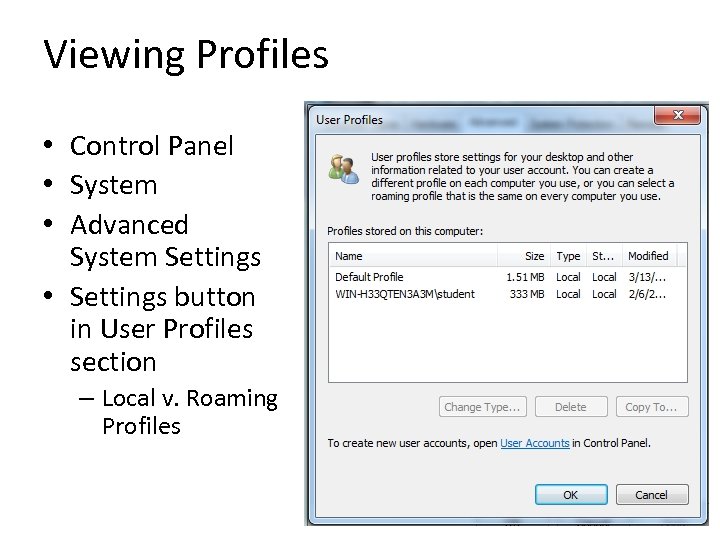
Viewing Profiles • Control Panel • System • Advanced System Settings • Settings button in User Profiles section – Local v. Roaming Profiles
Windows Easy Transfer • Transfers user data in three ways – Easy Transfer Cable – Network – External hard disk or USB flash drive • Start on the new computer, with Win 7 – Select "This is my new computer" – It will offer to install Easy Transfer on the old computer (you need the Win 7 version)
User State Migration Tool • Command-line tool • Part of WAIK (Windows Automated Installation Kit) • Can write data to removable USB storage or a network share – Does not support side-by-side migration • Two steps – Export profile data with Scan. State – Import data with Load. State
USMT Features • USMT does capture – User accounts, user files, OS settings, and application settings • Migrates ACLs • USMT does not capture – Mapped drives, local printers, device drivers, passwords, shared folder permissions, or Internet Connection Sharing settings
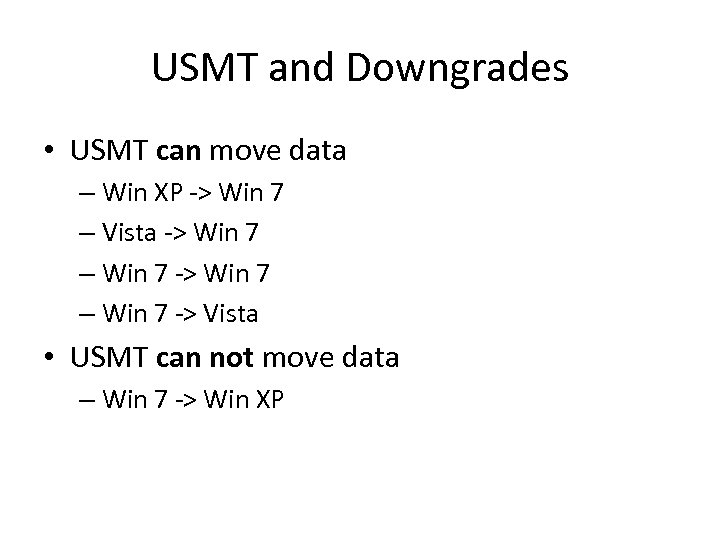
USMT and Downgrades • USMT can move data – Win XP -> Win 7 – Vista -> Win 7 – Win 7 -> Vista • USMT can not move data – Win 7 -> Win XP
USMT's 4 XML Files • Mig. App. xml • Mig. User. xml
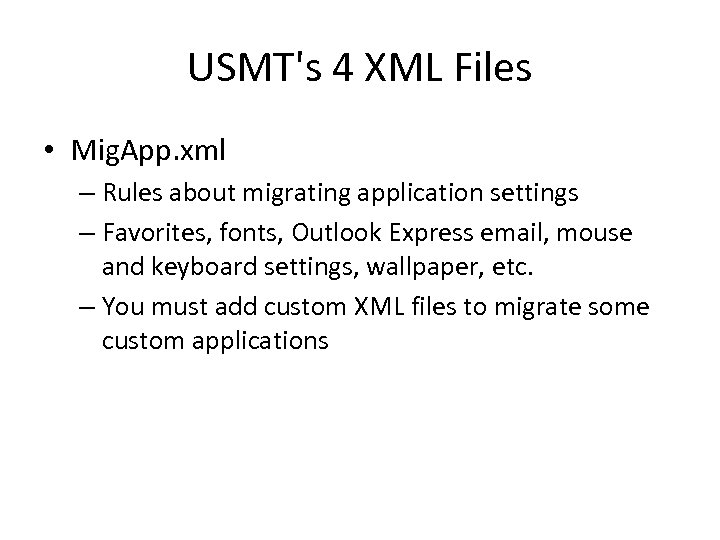
USMT's 4 XML Files • Mig. App. xml – Rules about migrating application settings – Favorites, fonts, Outlook Express email, mouse and keyboard settings, wallpaper, etc. – You must add custom XML files to migrate some custom applications
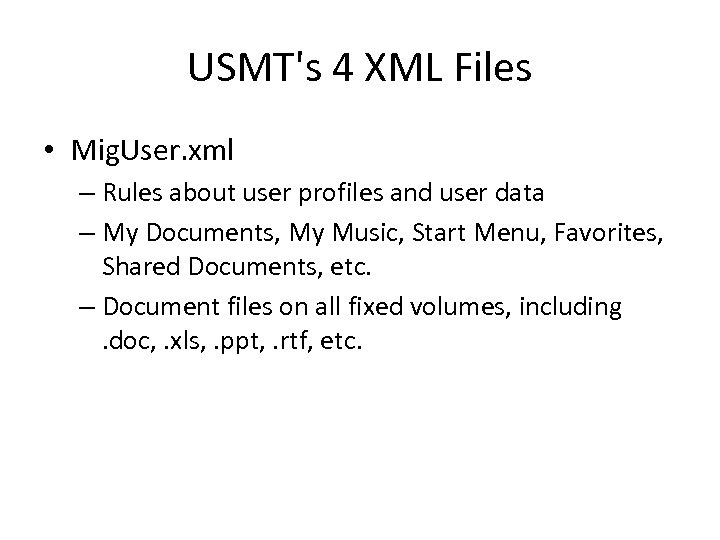
USMT's 4 XML Files • Mig. User. xml – Rules about user profiles and user data – My Documents, My Music, Start Menu, Favorites, Shared Documents, etc. – Document files on all fixed volumes, including. doc, . xls, . ppt, . rtf, etc.
USMT's 4 XML Files • Mig. Docs. xml – Information on the location of user documents • Config. xml – Used to exclude files from migration – Create and modify config. xml with • scanstate. exe /genconfig
Rerouting Files and Settings • Sends files from a folder to a different folder on the target machine – Or select files by file type – Or specify a specific file • Create custom xml file • Specify the custom file in command-line parameters in scanstate and loadstate
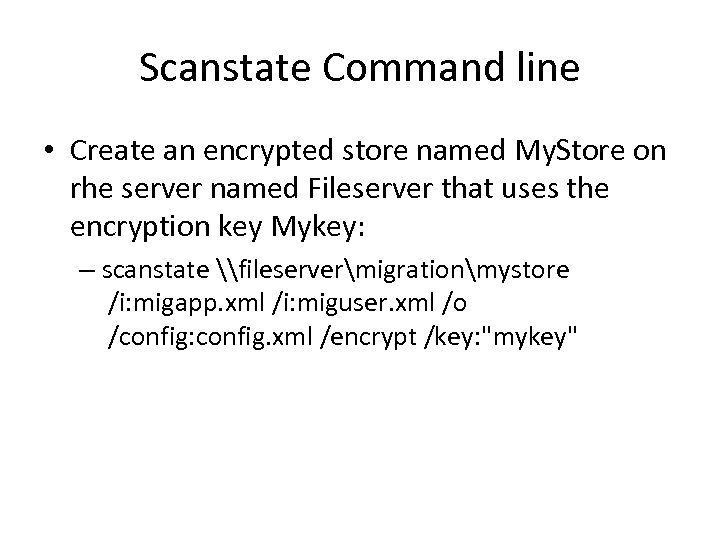
Scanstate Command line • Create an encrypted store named My. Store on rhe server named Fileserver that uses the encryption key Mykey: – scanstate \fileservermigrationmystore /i: migapp. xml /i: miguser. xml /o /config: config. xml /encrypt /key: "mykey"
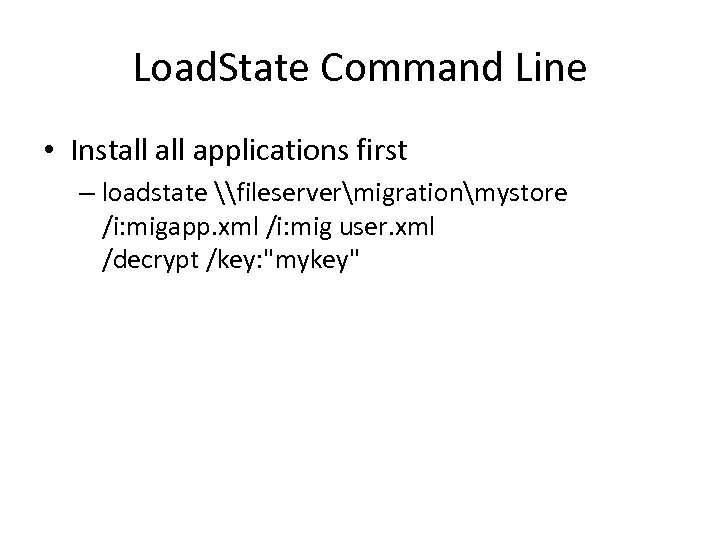
Load. State Command Line • Install applications first – loadstate \fileservermigrationmystore /i: migapp. xml /i: mig user. xml /decrypt /key: "mykey"
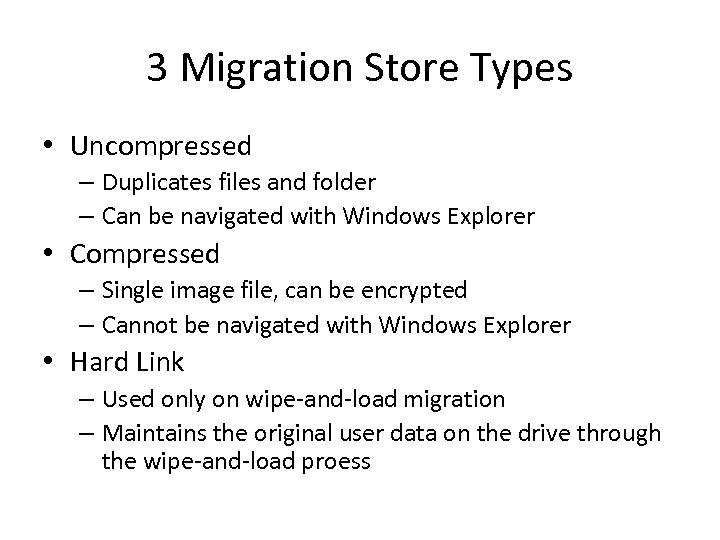
3 Migration Store Types • Uncompressed – Duplicates files and folder – Can be navigated with Windows Explorer • Compressed – Single image file, can be encrypted – Cannot be navigated with Windows Explorer • Hard Link – Used only on wipe-and-load migration – Maintains the original user data on the drive through the wipe-and-load proess
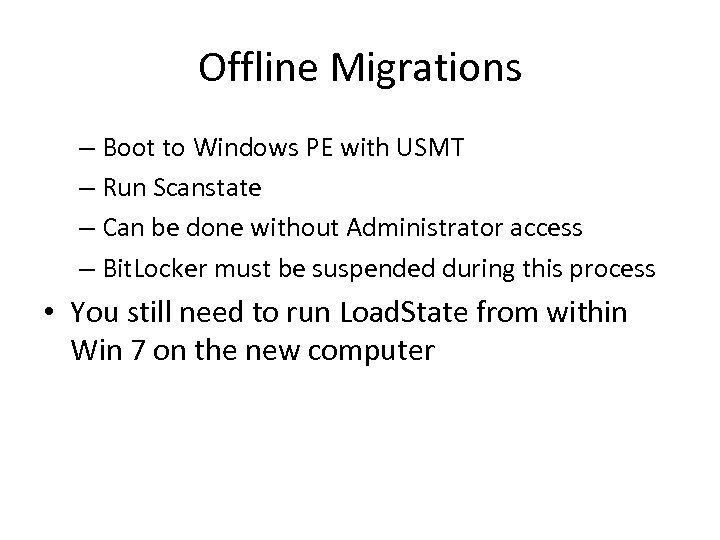
Offline Migrations – Boot to Windows PE with USMT – Run Scanstate – Can be done without Administrator access – Bit. Locker must be suspended during this process • You still need to run Load. State from within Win 7 on the new computer
Скачать презентацию Windows 7 Test Prep Based on this
02a98682f516418bbe9df6a29b9a8c64.ppt