


 Скачать презентацию Windows 7 Inside Out Chapter 19 — Fixing
90d31d2198c45328dff63a44e26f945b.ppt
- Количество слайдов: 71
 Windows 7 Inside Out Chapter 19 - Fixing and Tweaking Your Network Last modified 4 -11 -10
 Editions Ø The networking features in this chapter work identically in all Windows 7 editions
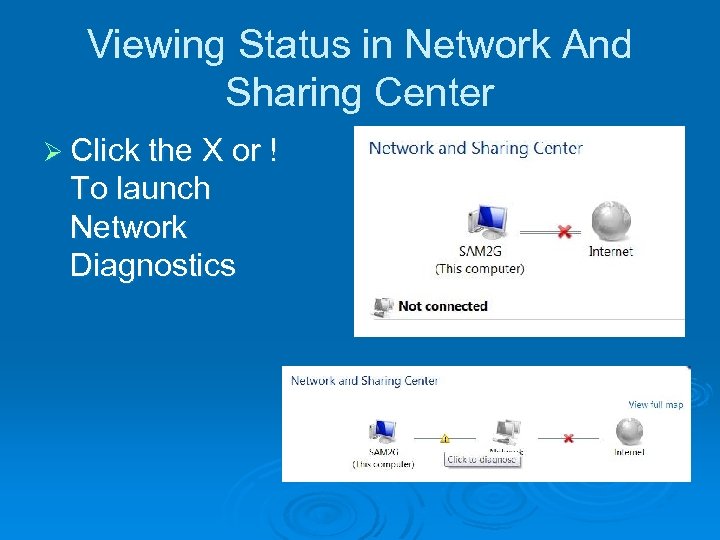 Viewing Status in Network And Sharing Center Ø Click the X or ! To launch Network Diagnostics
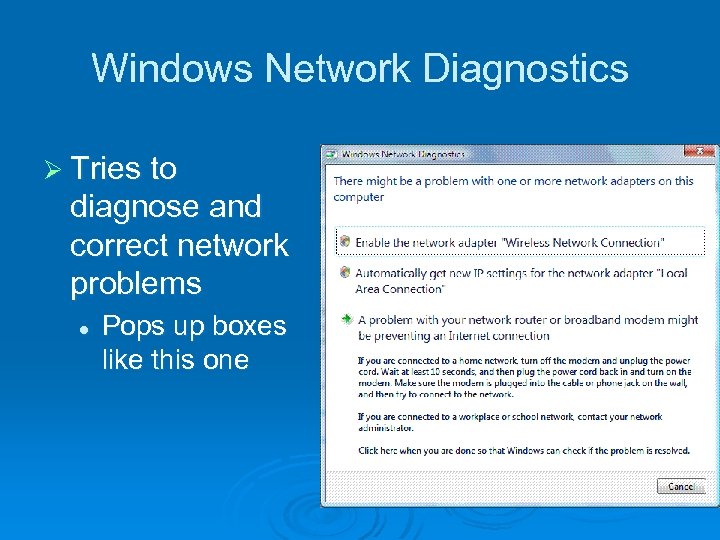 Windows Network Diagnostics Ø Tries to diagnose and correct network problems l Pops up boxes like this one
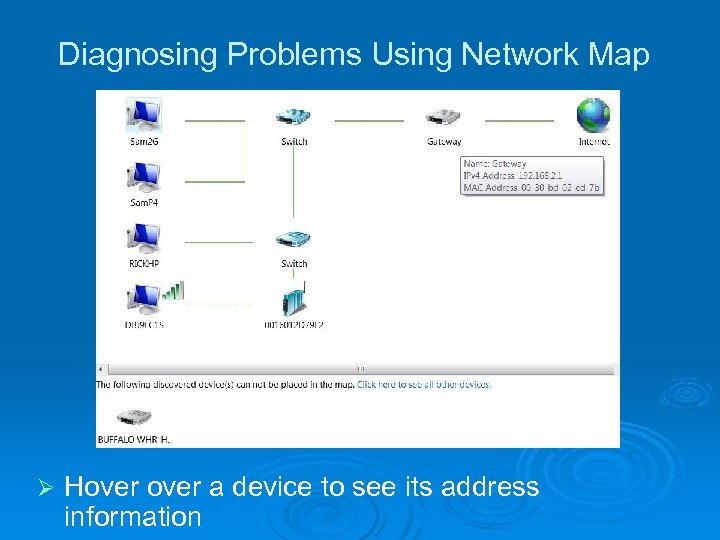 Diagnosing Problems Using Network Map Ø Hover a device to see its address information
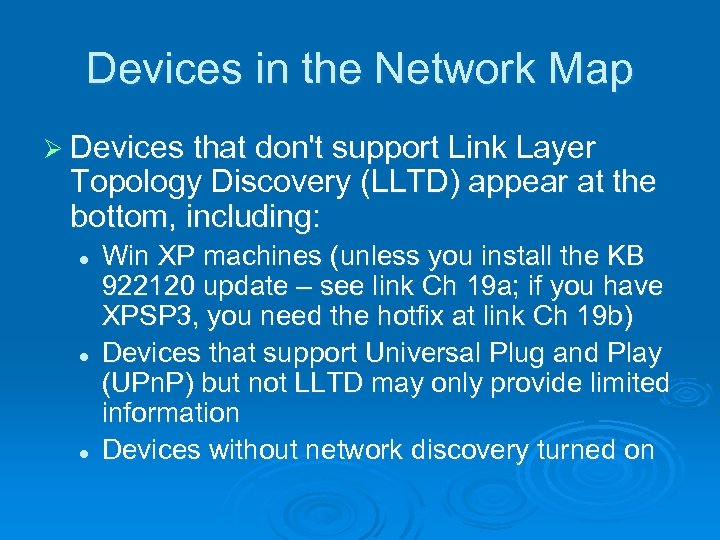 Devices in the Network Map Ø Devices that don't support Link Layer Topology Discovery (LLTD) appear at the bottom, including: l l l Win XP machines (unless you install the KB 922120 update – see link Ch 19 a; if you have XPSP 3, you need the hotfix at link Ch 19 b) Devices that support Universal Plug and Play (UPn. P) but not LLTD may only provide limited information Devices without network discovery turned on
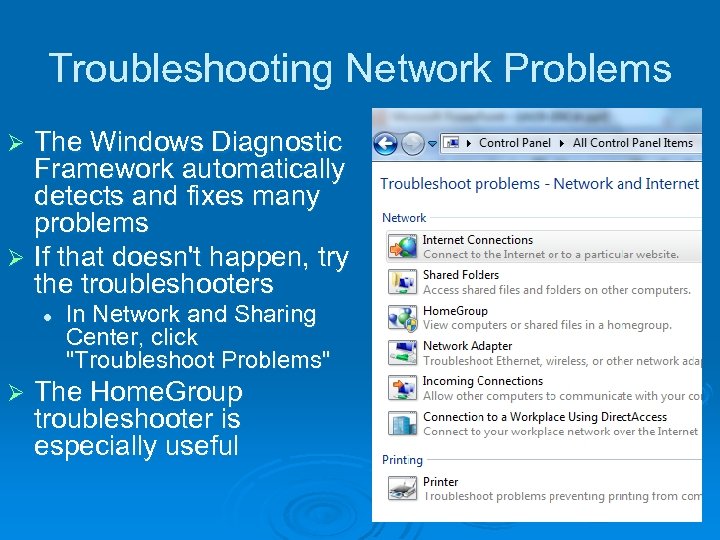 Troubleshooting Network Problems The Windows Diagnostic Framework automatically detects and fixes many problems Ø If that doesn't happen, try the troubleshooters Ø l Ø In Network and Sharing Center, click "Troubleshoot Problems" The Home. Group troubleshooter is especially useful
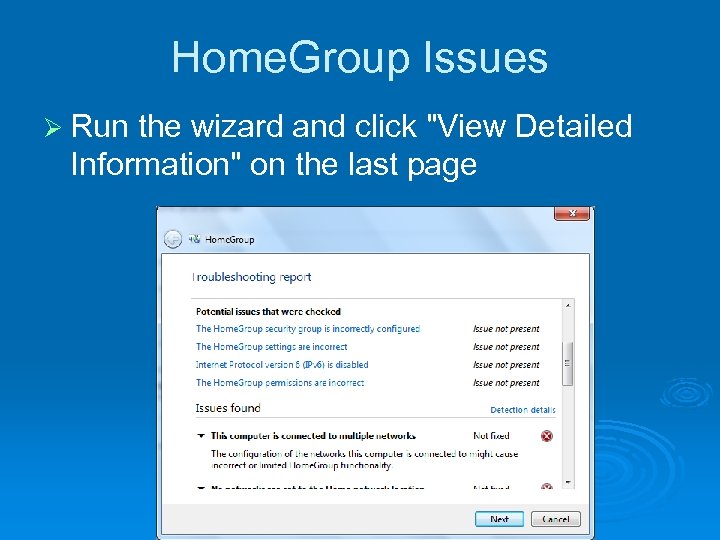 Home. Group Issues Ø Run the wizard and click "View Detailed Information" on the last page
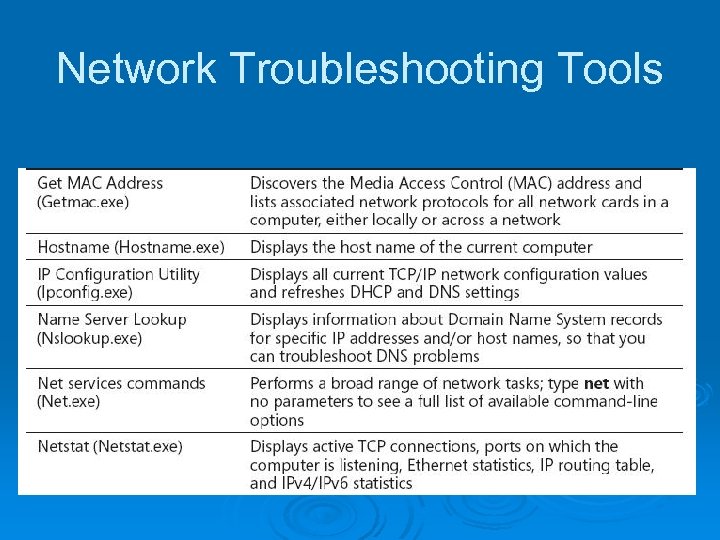 Network Troubleshooting Tools
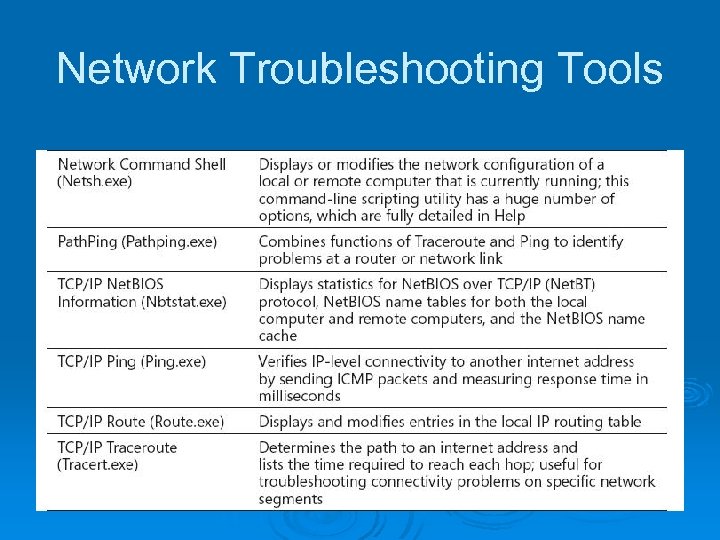 Network Troubleshooting Tools
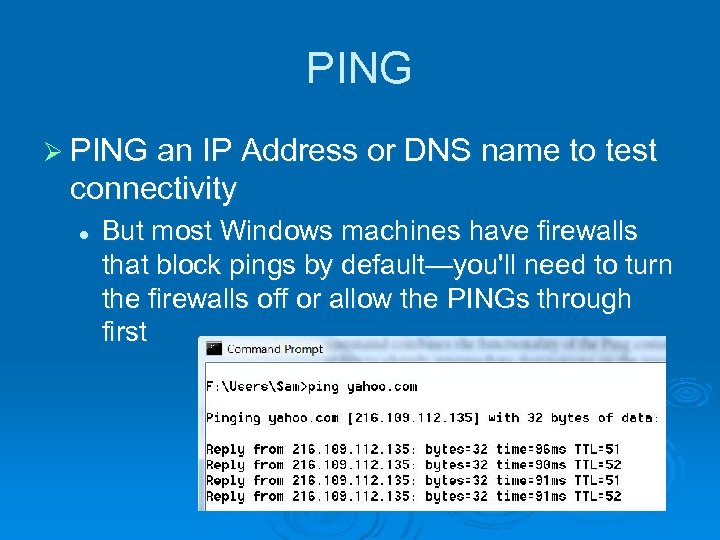 PING Ø PING an IP Address or DNS name to test connectivity l But most Windows machines have firewalls that block pings by default—you'll need to turn the firewalls off or allow the PINGs through first
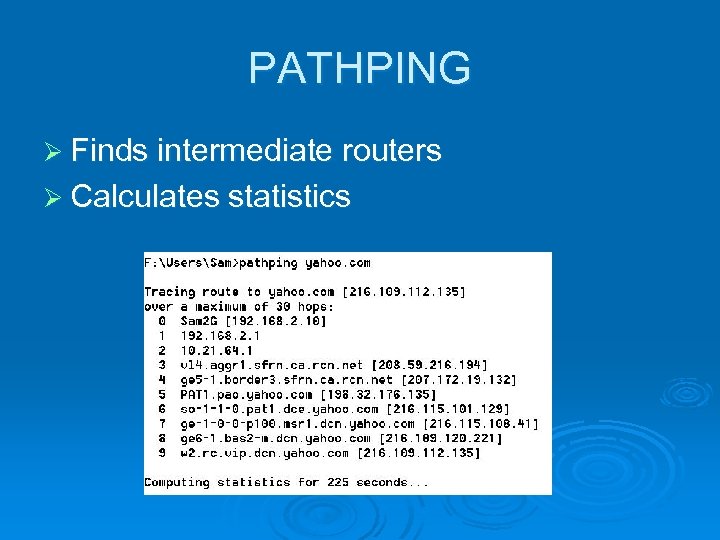 PATHPING Ø Finds intermediate routers Ø Calculates statistics
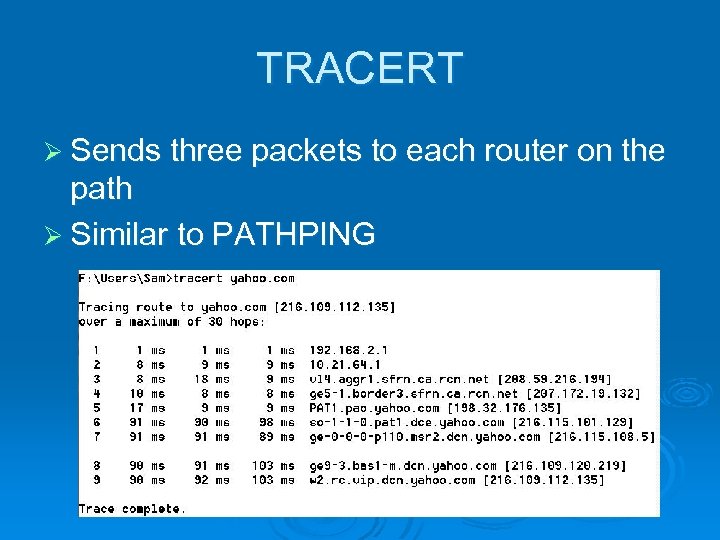 TRACERT Ø Sends three packets to each router on the path Ø Similar to PATHPING
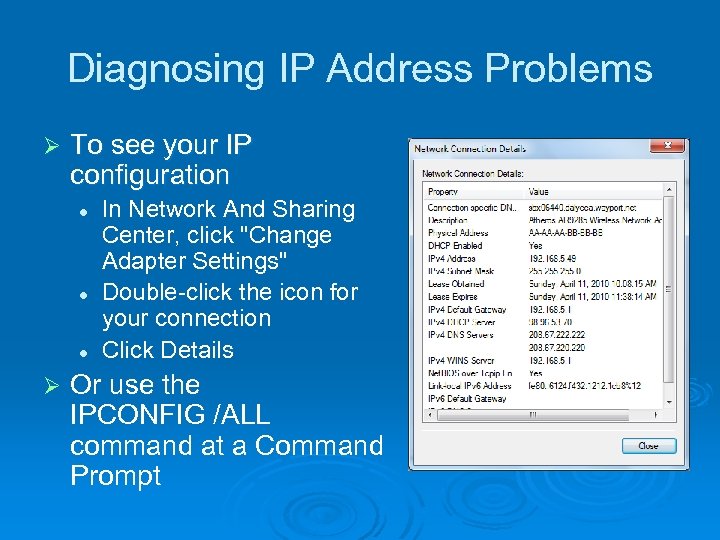 Diagnosing IP Address Problems Ø To see your IP configuration l l l Ø In Network And Sharing Center, click "Change Adapter Settings" Double-click the icon for your connection Click Details Or use the IPCONFIG /ALL command at a Command Prompt
 Important IP Addresses to Know Ø 169. 254. x. y l l l Automatic Private IP Address (APIPA) The computer tried to use Dynamic Host Configuration Protocol (DHCP) but could not contact a DHCP Server Make sure you are connected to the DHCP server (usually a router) and restart the machine • The IPCONFIG /RENEW command at a Command prompt works too
 Important IP Addresses to Know Ø 10. x. y. z or 192. 168. x. y or 172. 16. x. y to 172. 31. x. y l l Reserved private IP address Normal for a computer behind a Network Address Translation (NAT) server, such as a router • But the router needs a public address on its Wide Area Network (WAN) side l You cannot connect directly to the Internet with a private address
 Important IP Addresses to Know Ø 0. 0 l l l Cable disconnected, or IP address conflict No networking is possible with this address
 Subnet Mask Ø The subnet mask must be the same for all computers on your local network segment l Usually the subnet mask is one of these three • • • l 255. 0. 0. 0 255. 0 Intermediate values like 255. 240. 0 are sometimes used in large networks
 Default Gateway Ø Traditionally uses an address ending with 1 like 192. 168. 0. 1 Ø All devices on a network should have the same default gateway l Unless you have a complex network with more than one router
 Repairing Your TCP/IP Configuration Ø Automated l Right-click the connection icon in Network Connections and click Diagnose Ø Renew l Repair your IP address In a Command Prompt window, use • IPCONFIG /RENEW l or • IPCONFIG /RENEW 6 l For IPv 6
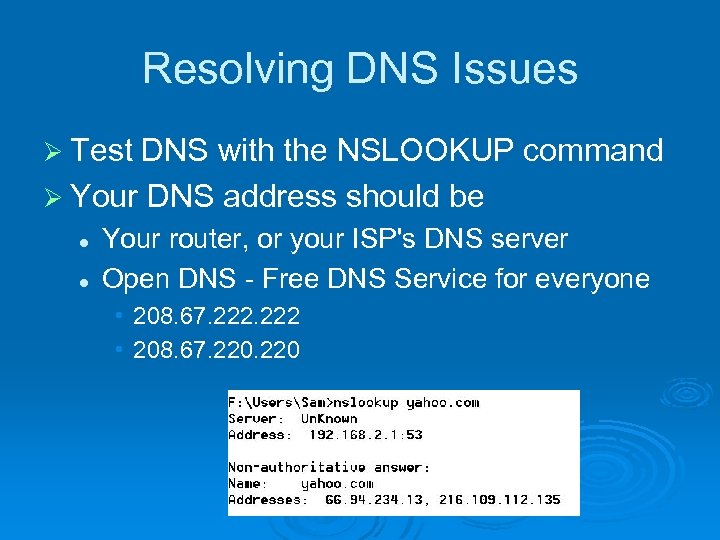 Resolving DNS Issues Ø Test DNS with the NSLOOKUP command Ø Your DNS address should be l l Your router, or your ISP's DNS server Open DNS - Free DNS Service for everyone • 208. 67. 222 • 208. 67. 220
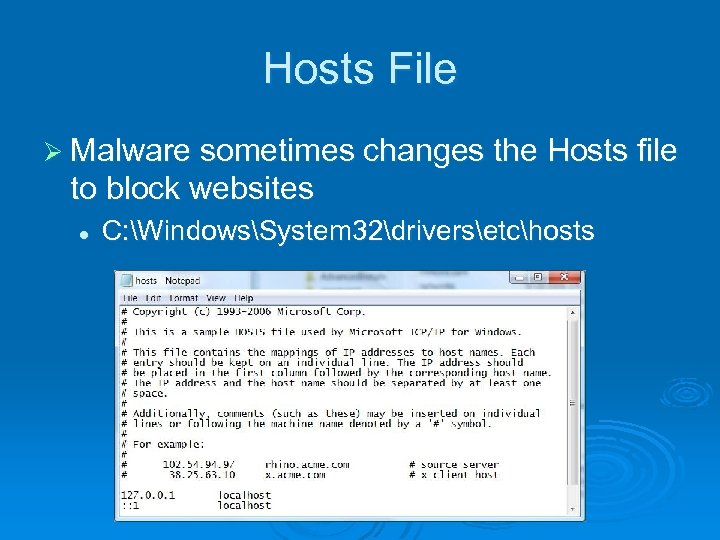 Hosts File Ø Malware sometimes changes the Hosts file to block websites l C: WindowsSystem 32driversetchosts
 DNS Cache Ø Windows maintains a temporary list of DNS names and IP addresses Ø You can clear it with this command at a Command Prompt l IPCONFIG /FLUSHDNS
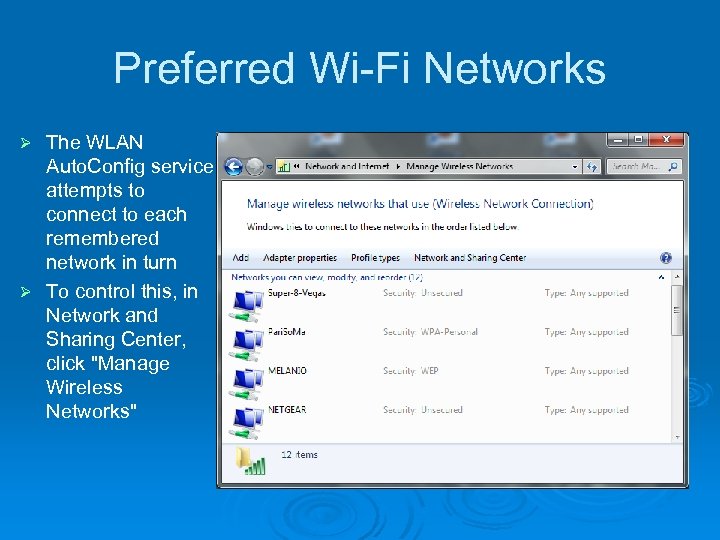 Preferred Wi-Fi Networks The WLAN Auto. Config service attempts to connect to each remembered network in turn Ø To control this, in Network and Sharing Center, click "Manage Wireless Networks" Ø
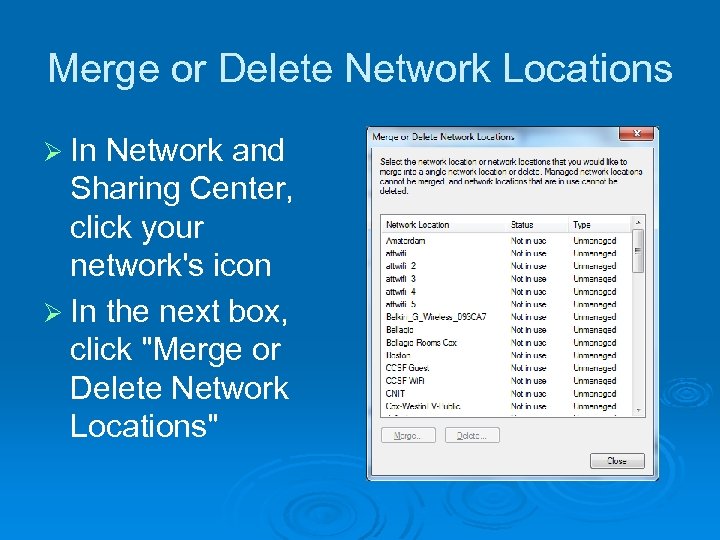 Merge or Delete Network Locations Ø In Network and Sharing Center, click your network's icon Ø In the next box, click "Merge or Delete Network Locations"
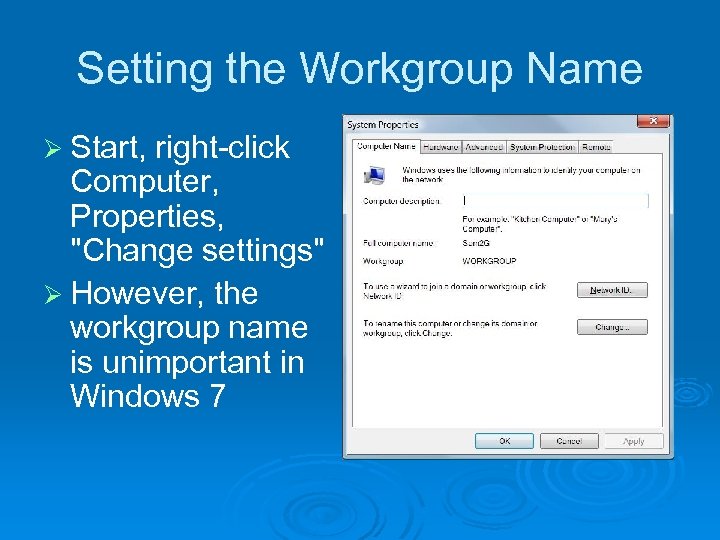 Setting the Workgroup Name Ø Start, right-click Computer, Properties, "Change settings" Ø However, the workgroup name is unimportant in Windows 7
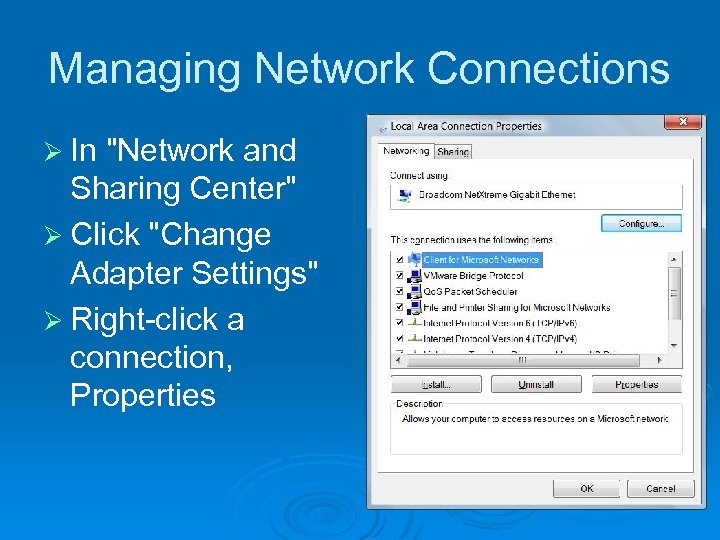 Managing Network Connections Ø In "Network and Sharing Center" Ø Click "Change Adapter Settings" Ø Right-click a connection, Properties
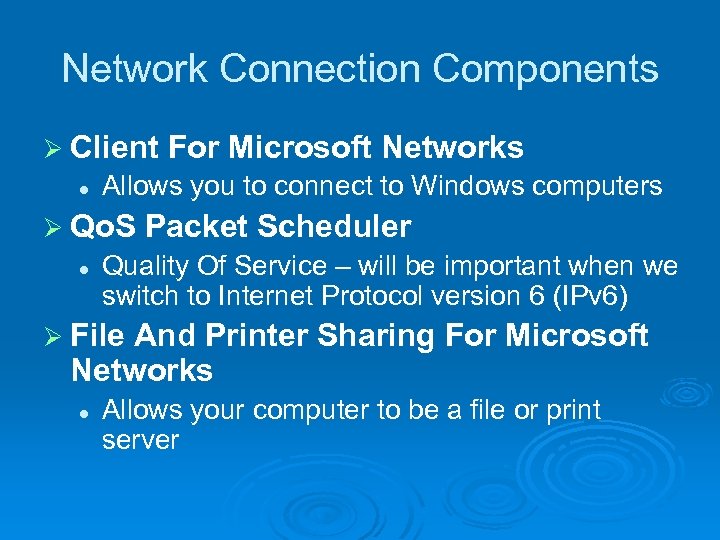 Network Connection Components Ø Client l Allows you to connect to Windows computers Ø Qo. S l For Microsoft Networks Packet Scheduler Quality Of Service – will be important when we switch to Internet Protocol version 6 (IPv 6) Ø File And Printer Sharing For Microsoft Networks l Allows your computer to be a file or print server
 Network Connection Components Ø Internet l The new Internet protocol, not widely used in the USA yet Ø Internet l Protocol Version 6 (TCP/IPv 6) Protocol Version 4 (TCP/IPv 4) The primary Internet protocol in current use
 Network Connection Components Ø Link-Layer Topology Discovery Mapper I/O Driver l Used to create the network map Ø Link-Layer Topology Discovery Responder l Also used to create the network map
 IP Addresses On a TCP/IPv 4 network, every computer has a unique IP address Ø Four 8 -bit numbers Ø l l l (In decimal format, a number between 0 and 255) Separated by periods Example: 147. 144. 1. 2 Ø TCP/IP configuration has three additional settings: l l l Subnet Mask Default Gateway DNS Server
 Subnet Mask, Default Gateway, DNS Server Ø Subnet l mask Tells the network how to distinguish between IP addresses that are part of the same network and those that belong to other networks. Ø Default l Gateway A computer that can send packets outside the local network Ø Domain l Name System (DNS) Servers Computers that translate domain names (such as www. microsoft. com) into IP addresses
 Methods For Assigning IP Addresses Ø Dynamic Host Configuration Protocol (DHCP) l l The most common method IP configuration is set automatically by the server Ø Automatic Private IP Addressing (APIPA) l If DHCP fails, the machines make up their own addresses starting with 169. 254.
 Methods For Assigning IP Addresses Ø Static l l l IP Addressing Administrator must manually type in the IP address for each machine Servers typically use static IP addresses Requires more administrative effort and not commonly used for workstations anymore
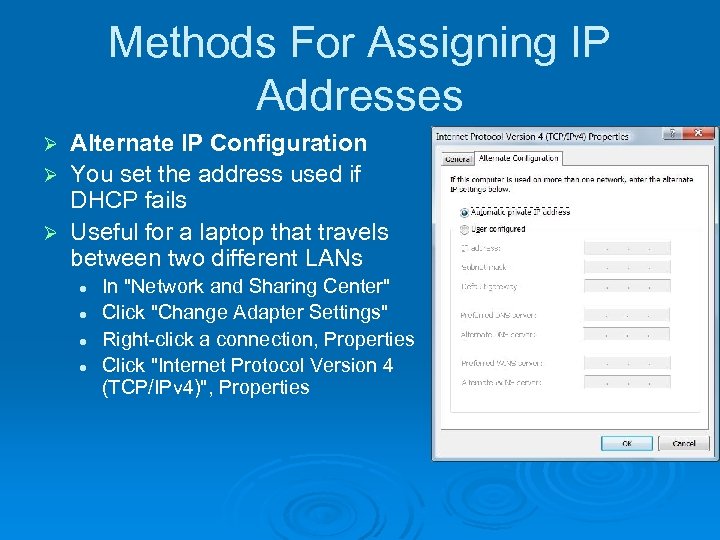 Methods For Assigning IP Addresses Alternate IP Configuration Ø You set the address used if DHCP fails Ø Useful for a laptop that travels between two different LANs Ø l l In "Network and Sharing Center" Click "Change Adapter Settings" Right-click a connection, Properties Click "Internet Protocol Version 4 (TCP/IPv 4)", Properties
 Public IP Addresses Ø Like public telephone numbers Ø Every computer that is directly connected to the Internet needs one Ø Your Internet service provider assigns you a public IP address
 Public IP Addresses Ø Dynamic l l Common for dial-up connections Each time you connect, your ISP assigns a different IP address to your computer Ø Static l l IP Address Common for cable or DSL connections Your IP address never changes
 Private IP Addresses ØA whole network can share a single Public IP Address l l Better Security Lower Cost Ø Each of the computers on the local network has a Private IP Address that is not reachable from the outside world.
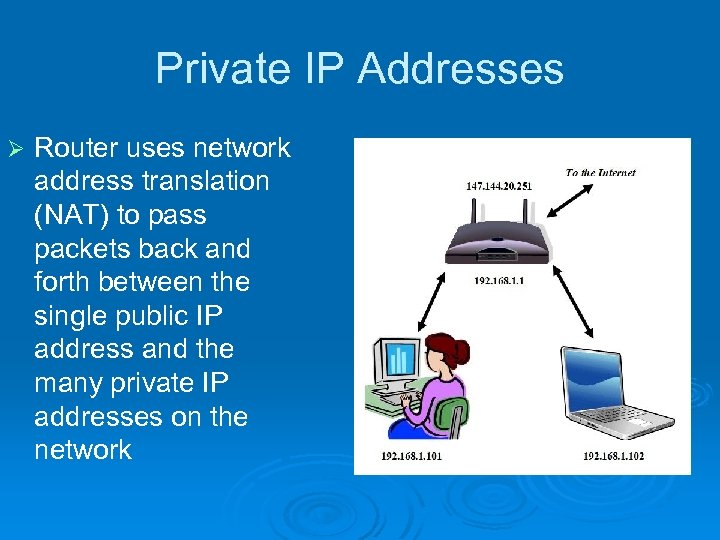 Private IP Addresses Ø Router uses network address translation (NAT) to pass packets back and forth between the single public IP address and the many private IP addresses on the network
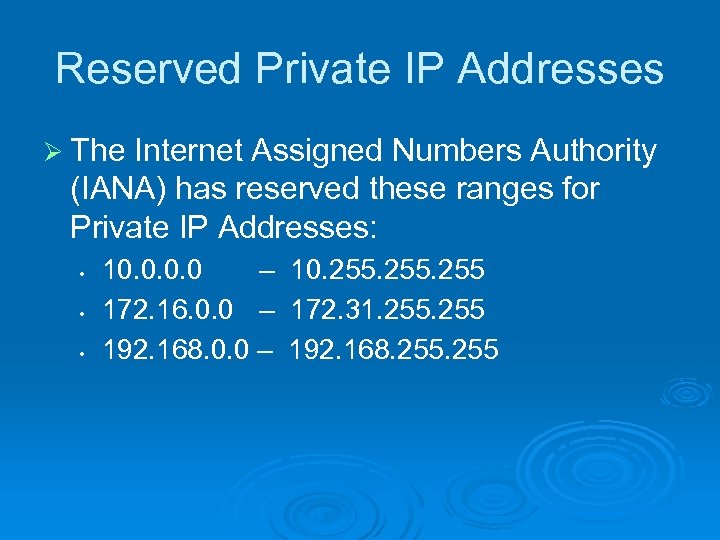 Reserved Private IP Addresses Ø The Internet Assigned Numbers Authority (IANA) has reserved these ranges for Private IP Addresses: • • • 10. 0 – 10. 255 172. 16. 0. 0 – 172. 31. 255 192. 168. 0. 0 – 192. 168. 255
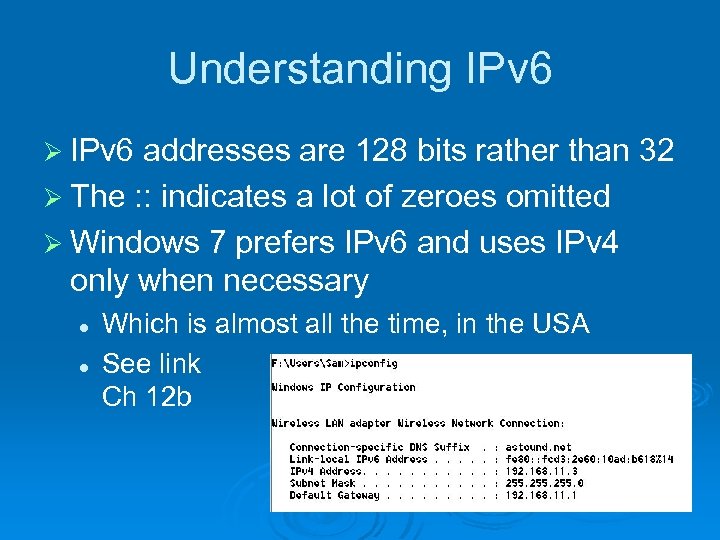 Understanding IPv 6 Ø IPv 6 addresses are 128 bits rather than 32 Ø The : : indicates a lot of zeroes omitted Ø Windows 7 prefers IPv 6 and uses IPv 4 only when necessary l l Which is almost all the time, in the USA See link Ch 12 b
 Windows 7 Inside Out Chapter 20 - Tuning Up and Monitoring Performance Last modified 4 -11 -10
 Editions Ø All of the tools described in this chapter are available in all editions of Windows 7
 What Causes Poor Performance? Ø Defective l l hardware Run Windows Memory Diagnostic Hard disk diagnostics from the manufacturer Ø Outdated or flawed device drivers Ø Inadequate hardware resources Ø Active background tasks Ø Out-of-control processes or services Ø Malware
 Establishing a Performance Baseline Ø Windows l Command-line version: WINSAT. EXE Ø System l Experience Index Health Report Also called System Diagnostics Ø Resource Monitor
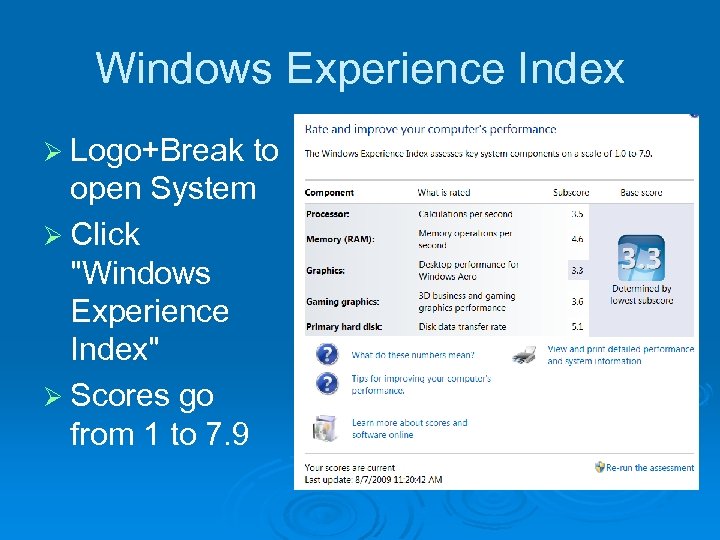 Windows Experience Index Ø Logo+Break to open System Ø Click "Windows Experience Index" Ø Scores go from 1 to 7. 9
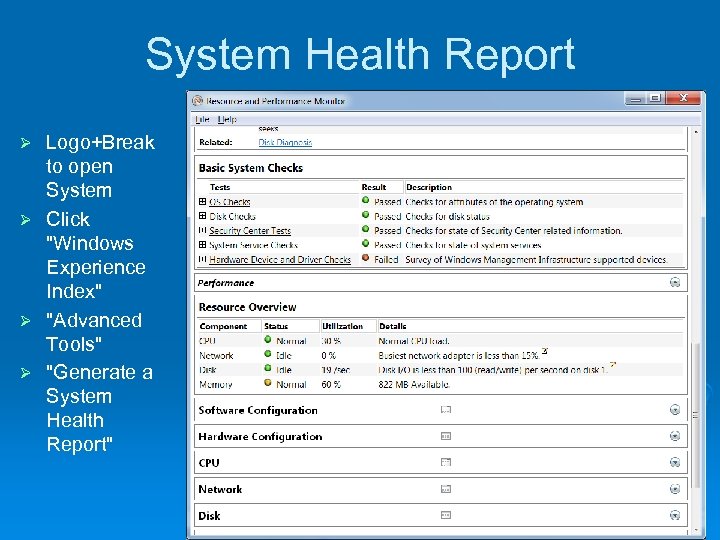 System Health Report Logo+Break to open System Ø Click "Windows Experience Index" Ø "Advanced Tools" Ø "Generate a System Health Report" Ø
 Monitoring Performance in Real Time Ø Windows Task Manager Ø Resource Monitor
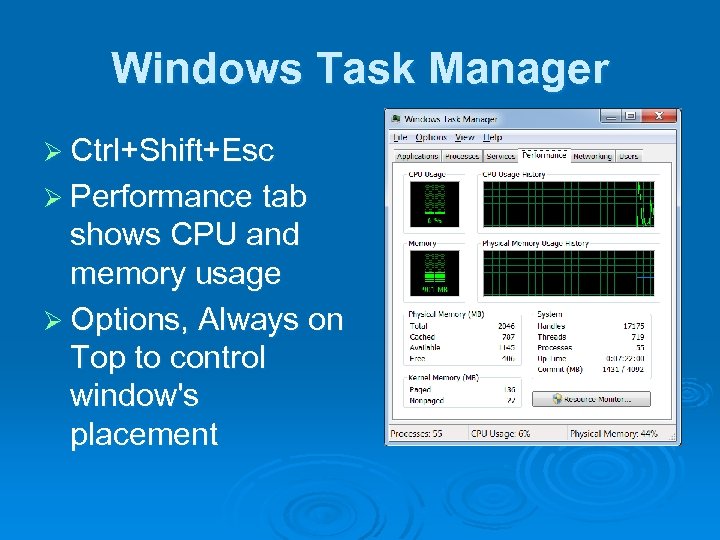 Windows Task Manager Ø Ctrl+Shift+Esc Ø Performance tab shows CPU and memory usage Ø Options, Always on Top to control window's placement
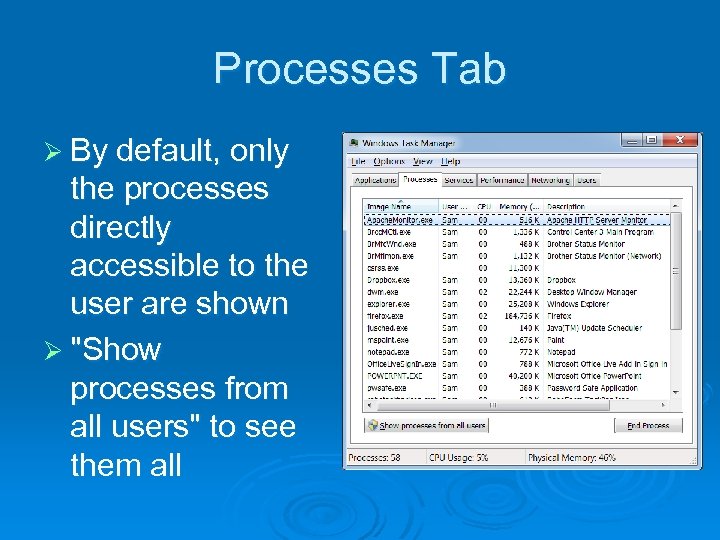 Processes Tab Ø By default, only the processes directly accessible to the user are shown Ø "Show processes from all users" to see them all
 Process Information Ø For each process, Windows Task Manager shows: l l Image Name (the name of the process) User Name (which user started the process) CPU (% currently using) Memory (Private Working Set) • The amount of memory the process requires to perform its regular functions l Description
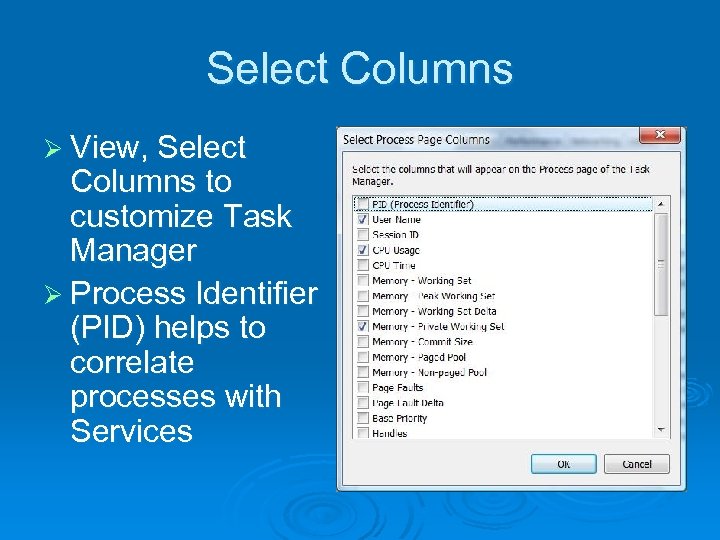 Select Columns Ø View, Select Columns to customize Task Manager Ø Process Identifier (PID) helps to correlate processes with Services
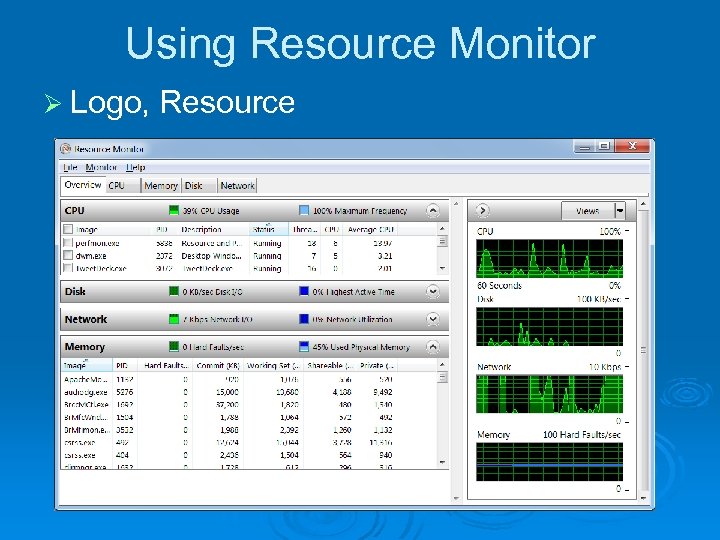 Using Resource Monitor Ø Logo, Resource
 Basic Strategies for Improving Performance Ø Ø Ø Ø Ensuring that you have adequate RAM Ensuring that you have an adequate virtualmemory configuration Tuning and troubleshooting Super. Fetch Using Ready. Boost to compensate for a slow hard disk Managing startup programs Keeping your disks defragmented Maintaining adequate free space on your disks Avoiding tweaks of dubious value
 Adequate RAM Ø For 32 -bit Windows 7, minimum RAM is 1 GB Ø For 64 -bit Windows 7, you need 2 GB Ø Double that RAM for better performance
 Physical Memory Limitations Ø All 32 -bit versions are limited to 4 GB max. RAM, and usually only 3. 5 GB or less of that is usable 64 -bit Starter & Home Basic: Ø 64 -bit Home Premium Ø 64 -bit Pro & higher Ø max. RAM 8 GB max. RAM 16 GB max. RAM 192 GB
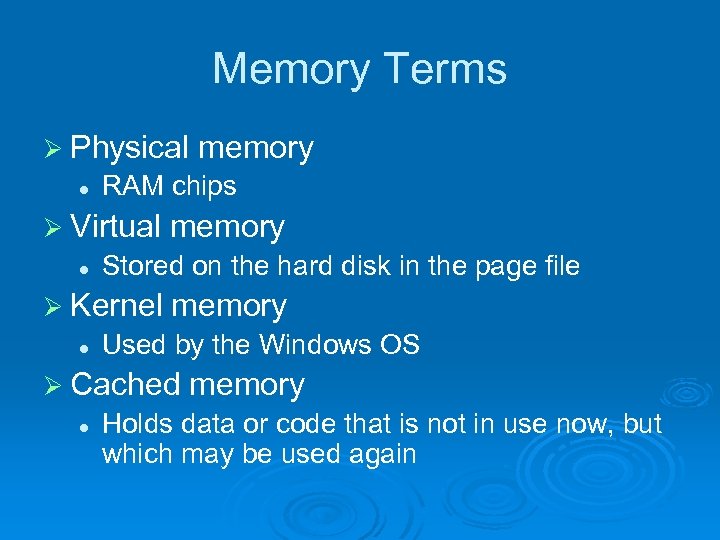 Memory Terms Ø Physical l RAM chips Ø Virtual l memory Stored on the hard disk in the page file Ø Kernel l memory Used by the Windows OS Ø Cached l memory Holds data or code that is not in use now, but which may be used again
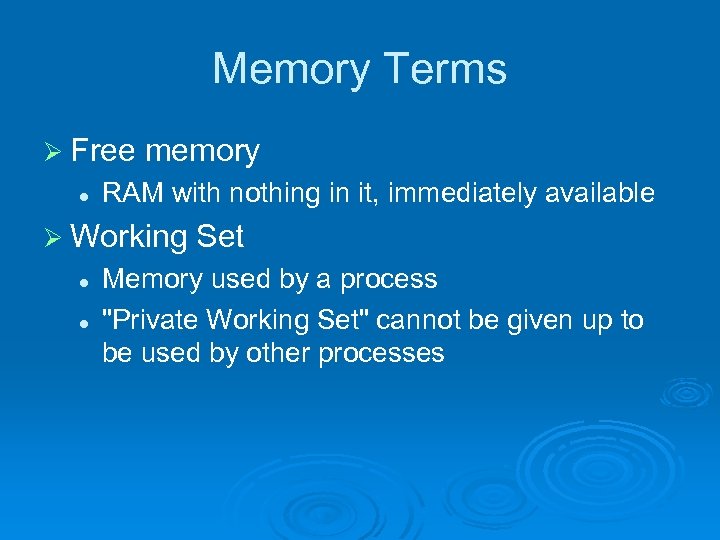 Memory Terms Ø Free l memory RAM with nothing in it, immediately available Ø Working l l Set Memory used by a process "Private Working Set" cannot be given up to be used by other processes
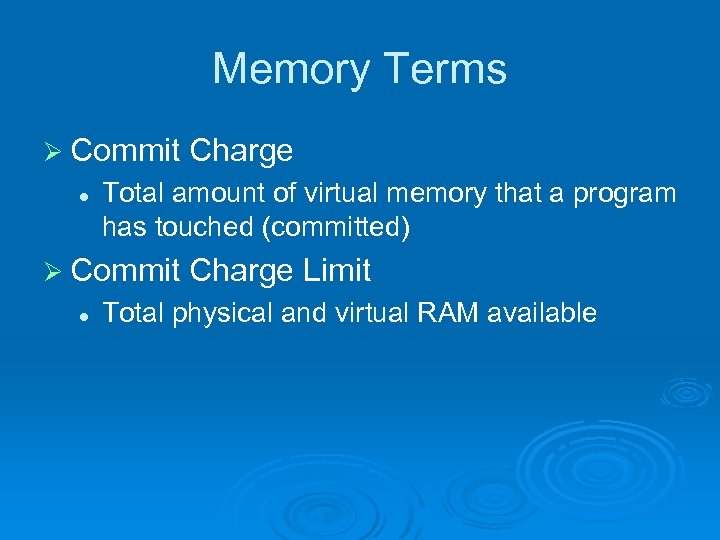 Memory Terms Ø Commit l Total amount of virtual memory that a program has touched (committed) Ø Commit l Charge Limit Total physical and virtual RAM available
 Memory Terms Ø Hard l l l faults A block of memory needed by the operating system has to be fetched from the page file on the hard disk A high number of hard faults means that virtual memory is being used a lot, which slows performance drastically Solution: get more RAM
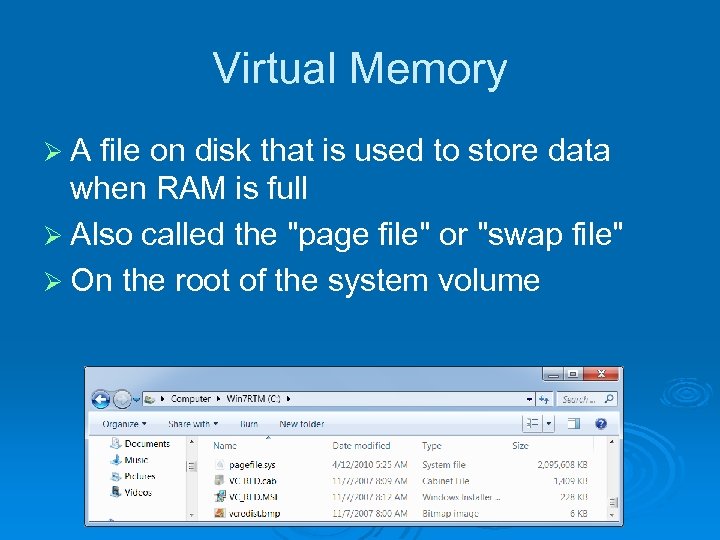 Virtual Memory ØA file on disk that is used to store data when RAM is full Ø Also called the "page file" or "swap file" Ø On the root of the system volume
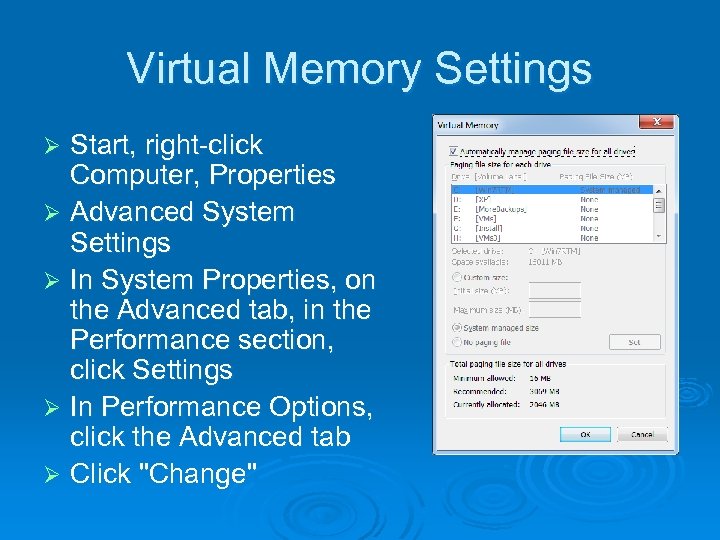 Virtual Memory Settings Start, right-click Computer, Properties Ø Advanced System Settings Ø In System Properties, on the Advanced tab, in the Performance section, click Settings Ø In Performance Options, click the Advanced tab Ø Click "Change" Ø
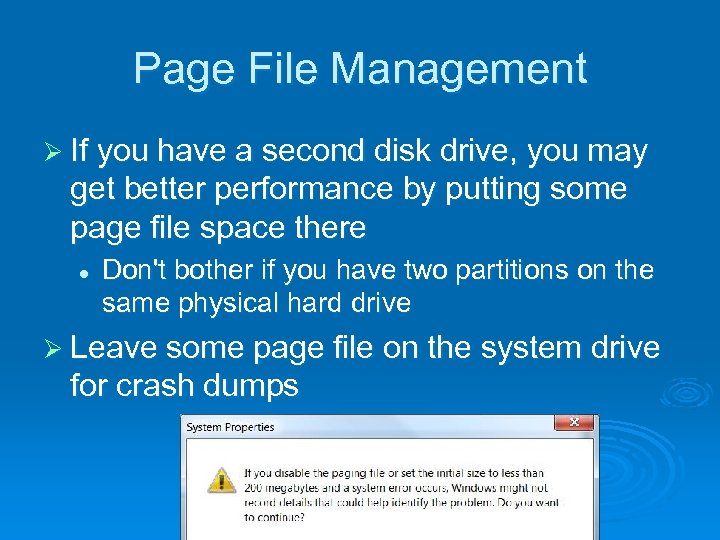 Page File Management Ø If you have a second disk drive, you may get better performance by putting some page file space there l Don't bother if you have two partitions on the same physical hard drive Ø Leave some page file on the system drive for crash dumps
 Performance-enhancing Technologies Ø Super. Fetch l Adjusts caching to match the way you use your computer (automatic, no adjustment needed) Ø Ready. Boost l Uses a USB 2. 0 flash memory stick or other external memory to cache (may help with netbooks)
 Managing Startup Programs Ø Too many startup programs slow a machine Ø Find them with MSCONFIG Ø Or download Autoruns from Microsoft l Link Ch 20 a
 Keeping Your Disks Defragmented Ø By default, Windows 7 defragments your disk automatically each week Ø You shouldn't need to do anything further
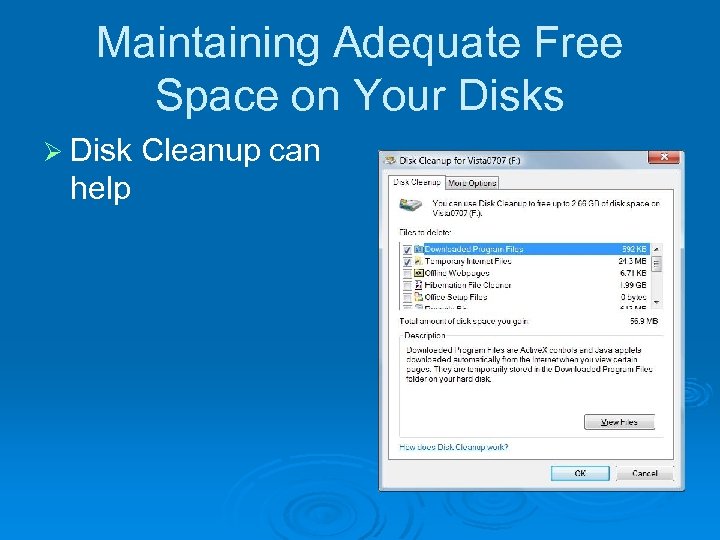 Maintaining Adequate Free Space on Your Disks Ø Disk help Cleanup can
 Page File Myths Ø With 1 GB or more RAM, you should eliminate the swap file l Windows wasn't designed to run without a swap file Ø Creating a swap file of a fixed size improves performance l This was true on 1990 s-vintage hardware, but not any more
 Prefetch Folder Ø The Prefetch folder contains an index to segments of frequently used files l l l This speeds up performance Don't turn it off It doesn't need to be manually cleared—it does that automatically
 Shutting Down Services Ø Shutting down services can make Windows look like an older version, and run somewhat faster l Windows Search, System Restore, Automatic Updates Ø You also lose features Ø Not sensible for people who want to understand how Windows works as designed
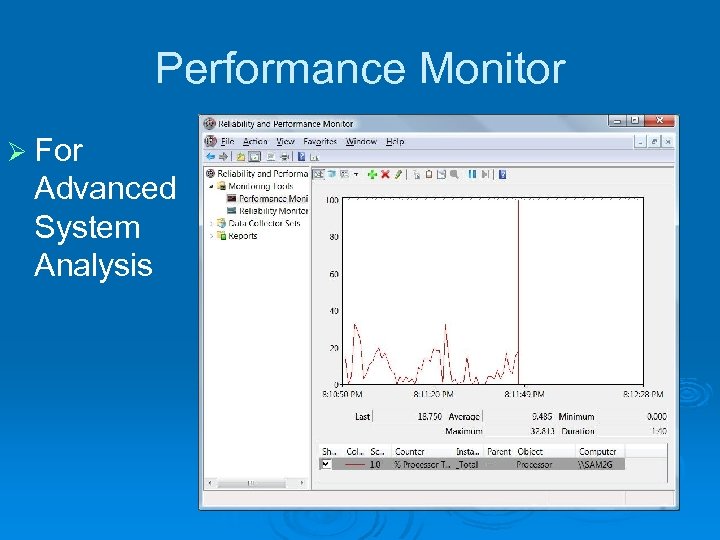 Performance Monitor Ø For Advanced System Analysis