 Скачать презентацию Where Technology Equals Results Intent to Buy Choose
19e0d2b6cd8fbdd0d47b176d82d79cfd.ppt
- Количество слайдов: 19



Where Technology Equals Results. Intent to Buy Choose the Easier Way to Submit Your Cases Insurance products are issued by: John Hancock Life Insurance Company (U. S. A. ), Boston, MA 02116 (not licensed in New York) and John Hancock Life Insurance Company of New York, Valhalla, NY 10595. © 2011 John Hancock. All rights reserved. 1 FOR AGENT USE ONLY. NOT TO BE USED WITH THE PUBLIC.
Overview Where Technology Equals Results. Take a look at some of the key features that the Intent to Buy process offers: – Simple to use: Electronic “smart form” guides the Financial Advisor (FA) through the screens required to complete the Ticket – Right the first time: John Hancock required forms are automatically included in the completed Intent-to-Buy submission* – Flexible: Three submission options available – • e-Submission with e-Signature • e-Submission with wet signature • Paper submission with wet signature Intent-to-buy is currently available for single-life Term and single-life Universal Life. *The FA should visit Jones. Link for any Edward Jones required forms 2 FOR AGENT USE ONLY. NOT TO BE USED WITH THE PUBLIC.
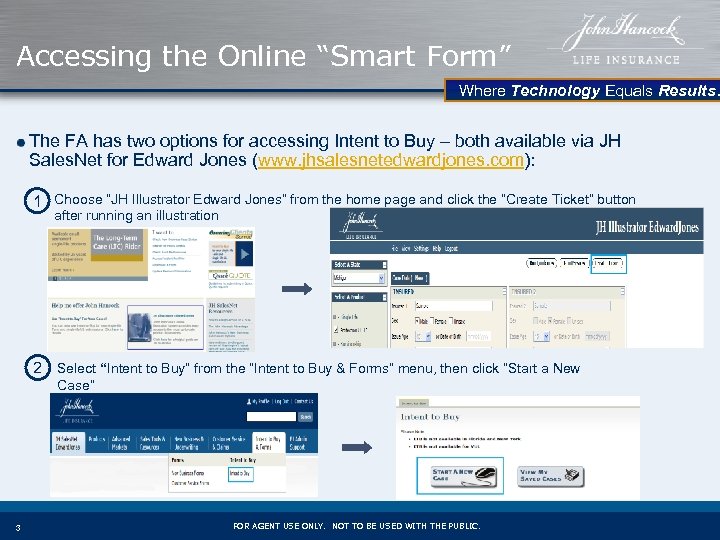
Accessing the Online “Smart Form” Where Technology Equals Results. The FA has two options for accessing Intent to Buy – both available via JH Sales. Net for Edward Jones (www. jhsalesnetedwardjones. com): 1 Choose “JH Illustrator Edward Jones” from the home page and click the “Create Ticket” button after running an illustration 2 Select “Intent to Buy” from the “Intent to Buy & Forms” menu, then click “Start a New Case” 3 FOR AGENT USE ONLY. NOT TO BE USED WITH THE PUBLIC.
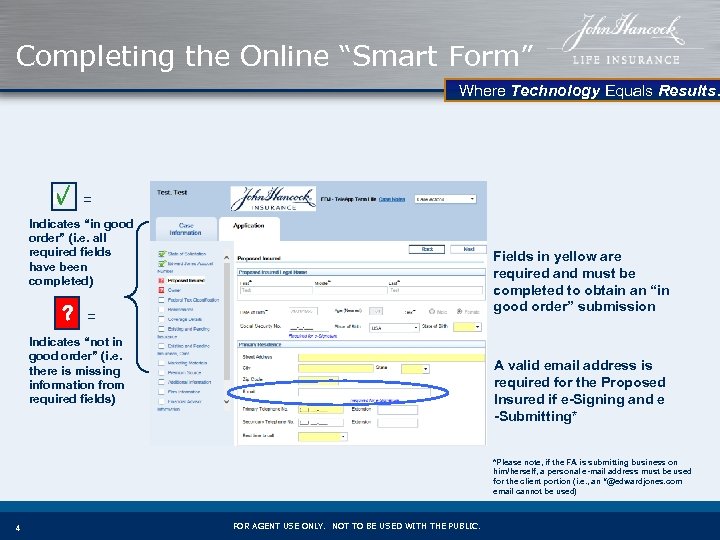
Completing the Online “Smart Form” Where Technology Equals Results. √ = Indicates “in good order” (i. e. all required fields have been completed) ? Fields in yellow are required and must be completed to obtain an “in good order” submission = Indicates “not in good order” (i. e. there is missing information from required fields) A valid email address is required for the Proposed Insured if e-Signing and e -Submitting* *Please note, if the FA is submitting business on him/herself, a personal e-mail address must be used for the client portion (i. e. , an “@edwardjones. com email cannot be used) 4 FOR AGENT USE ONLY. NOT TO BE USED WITH THE PUBLIC.
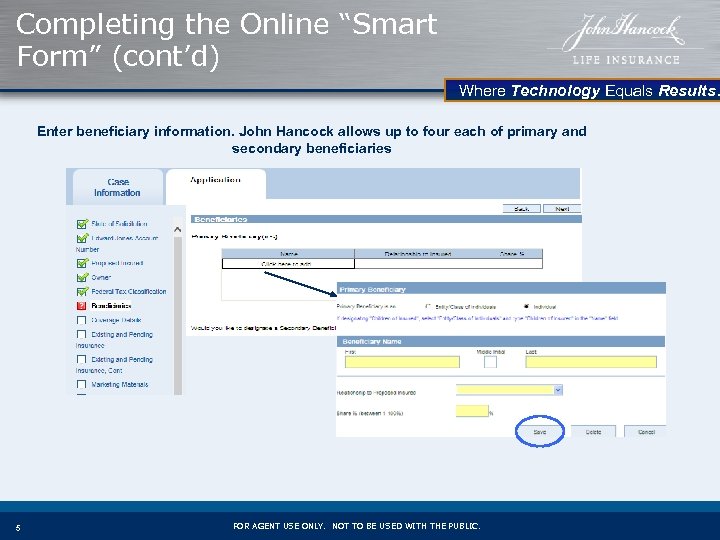
Completing the Online “Smart Form” (cont’d) Where Technology Equals Results. Enter beneficiary information. John Hancock allows up to four each of primary and secondary beneficiaries 5 FOR AGENT USE ONLY. NOT TO BE USED WITH THE PUBLIC.
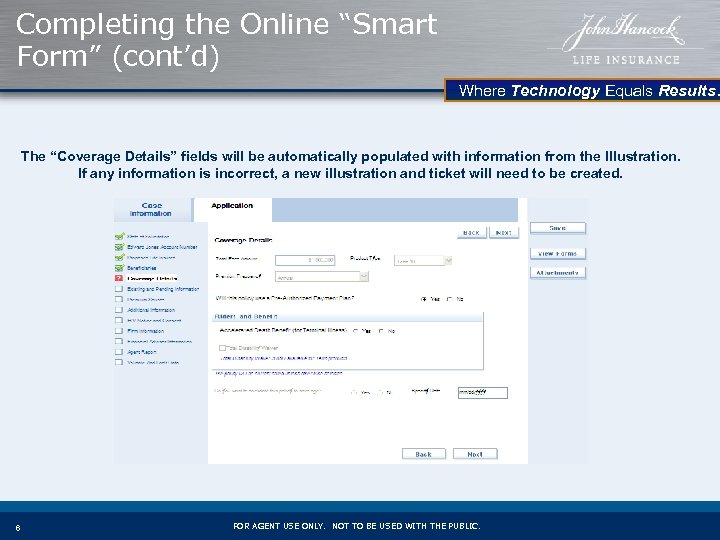
Completing the Online “Smart Form” (cont’d) Where Technology Equals Results. The “Coverage Details” fields will be automatically populated with information from the Illustration. If any information is incorrect, a new illustration and ticket will need to be created. 6 FOR AGENT USE ONLY. NOT TO BE USED WITH THE PUBLIC.
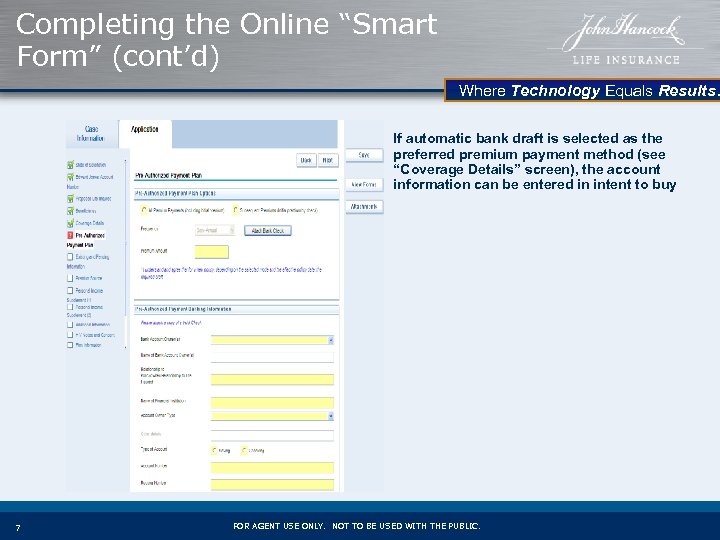
Completing the Online “Smart Form” (cont’d) Where Technology Equals Results. If automatic bank draft is selected as the preferred premium payment method (see “Coverage Details” screen), the account information can be entered in intent to buy 7 FOR AGENT USE ONLY. NOT TO BE USED WITH THE PUBLIC.
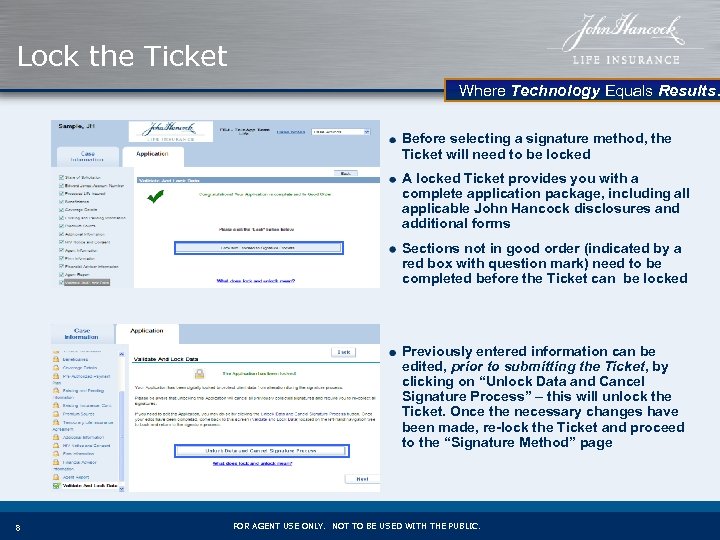
Lock the Ticket Where Technology Equals Results. Before selecting a signature method, the Ticket will need to be locked A locked Ticket provides you with a complete application package, including all applicable John Hancock disclosures and additional forms Sections not in good order (indicated by a red box with question mark) need to be completed before the Ticket can be locked Previously entered information can be edited, prior to submitting the Ticket, by clicking on “Unlock Data and Cancel Signature Process” – this will unlock the Ticket. Once the necessary changes have been made, re-lock the Ticket and proceed to the “Signature Method” page 8 FOR AGENT USE ONLY. NOT TO BE USED WITH THE PUBLIC.
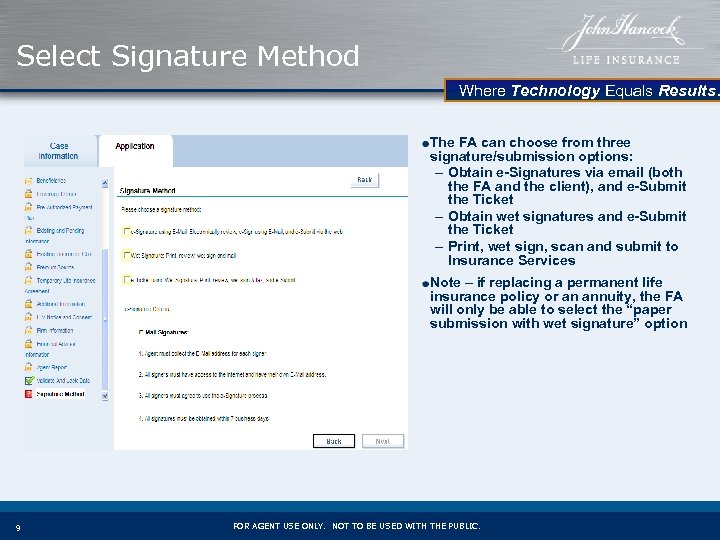
Select Signature Method Where Technology Equals Results. The FA can choose from three signature/submission options: – Obtain e-Signatures via email (both the FA and the client), and e-Submit the Ticket – Obtain wet signatures and e-Submit the Ticket – Print, wet sign, scan and submit to Insurance Services Note – if replacing a permanent life insurance policy or an annuity, the FA will only be able to select the “paper submission with wet signature” option 9 FOR AGENT USE ONLY. NOT TO BE USED WITH THE PUBLIC.
Where Technology Equals Results. e-Signature and e-Submission Process 10 FOR AGENT USE ONLY. NOT TO BE USED WITH THE PUBLIC.
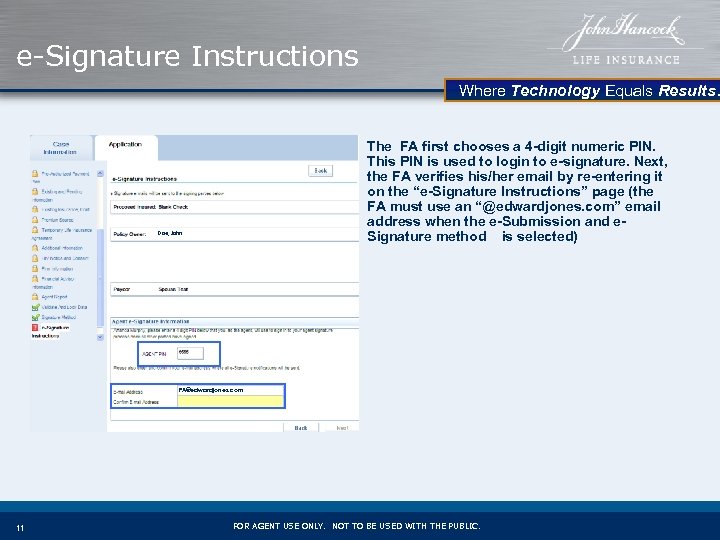
e-Signature Instructions Where Technology Equals Results. The FA first chooses a 4 -digit numeric PIN. This PIN is used to login to e-signature. Next, the FA verifies his/her email by re-entering it on the “e-Signature Instructions” page (the FA must use an “@edwardjones. com” email address when the e-Submission and e. Signature method is selected) Doe, John FA@edwardjones. com 11 FOR AGENT USE ONLY. NOT TO BE USED WITH THE PUBLIC.
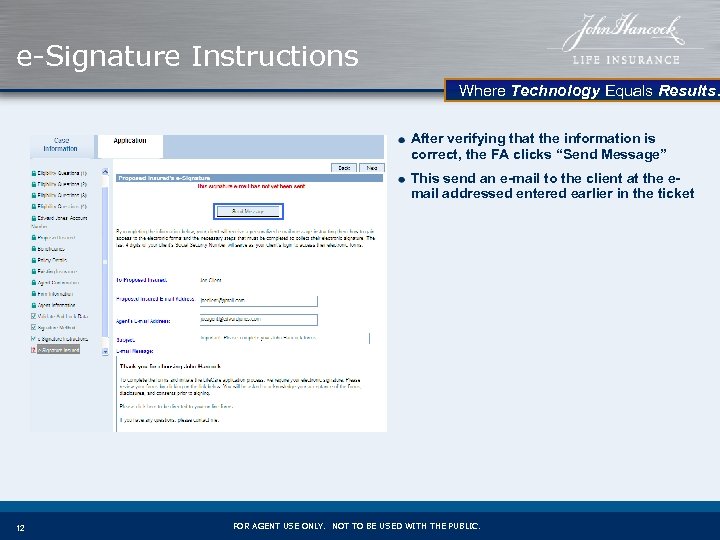
e-Signature Instructions Where Technology Equals Results. After verifying that the information is correct, the FA clicks “Send Message” This send an e-mail to the client at the email addressed entered earlier in the ticket 12 FOR AGENT USE ONLY. NOT TO BE USED WITH THE PUBLIC.
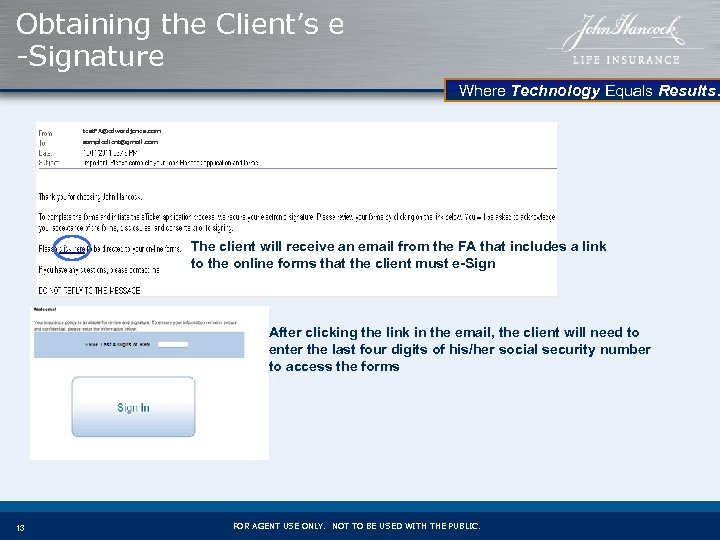
Obtaining the Client’s e -Signature Where Technology Equals Results. test. FA@edwardjones. com sampleclient@gmail. com The client will receive an email from the FA that includes a link to the online forms that the client must e-Sign After clicking the link in the email, the client will need to enter the last four digits of his/her social security number to access the forms 13 FOR AGENT USE ONLY. NOT TO BE USED WITH THE PUBLIC.
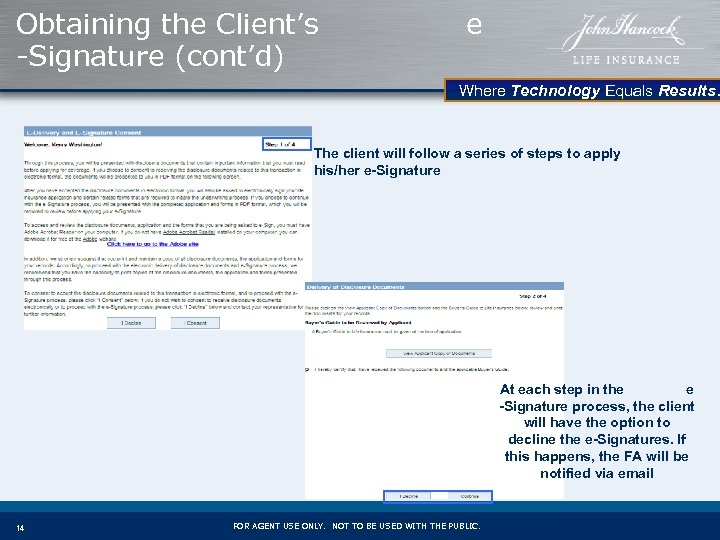
Obtaining the Client’s -Signature (cont’d) e Where Technology Equals Results. The client will follow a series of steps to apply his/her e-Signature At each step in the e -Signature process, the client will have the option to decline the e-Signatures. If this happens, the FA will be notified via email 14 FOR AGENT USE ONLY. NOT TO BE USED WITH THE PUBLIC.
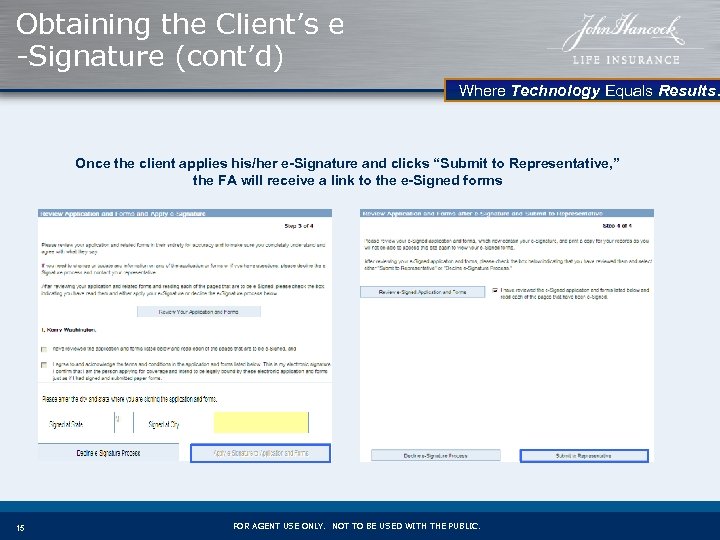
Obtaining the Client’s e -Signature (cont’d) Where Technology Equals Results. Once the client applies his/her e-Signature and clicks “Submit to Representative, ” the FA will receive a link to the e-Signed forms 15 FOR AGENT USE ONLY. NOT TO BE USED WITH THE PUBLIC.
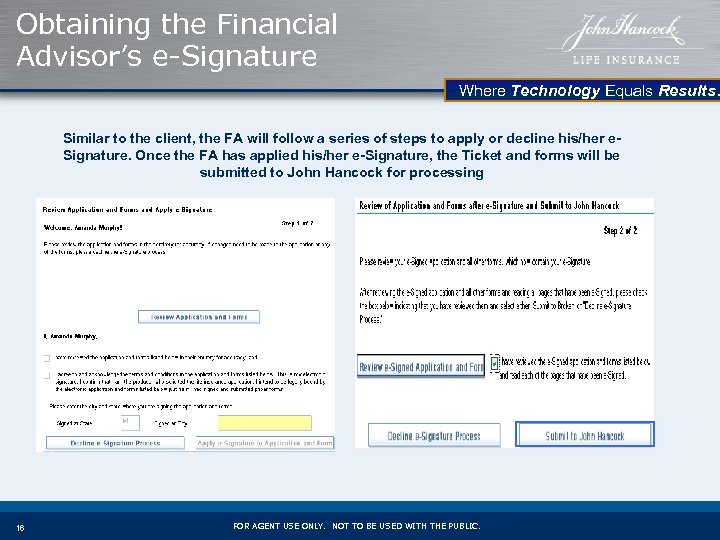
Obtaining the Financial Advisor’s e-Signature Where Technology Equals Results. Similar to the client, the FA will follow a series of steps to apply or decline his/her e. Signature. Once the FA has applied his/her e-Signature, the Ticket and forms will be submitted to John Hancock for processing 16 FOR AGENT USE ONLY. NOT TO BE USED WITH THE PUBLIC.
Where Technology Equals Results. Viewing Submitted Cases 17 FOR AGENT USE ONLY. NOT TO BE USED WITH THE PUBLIC.
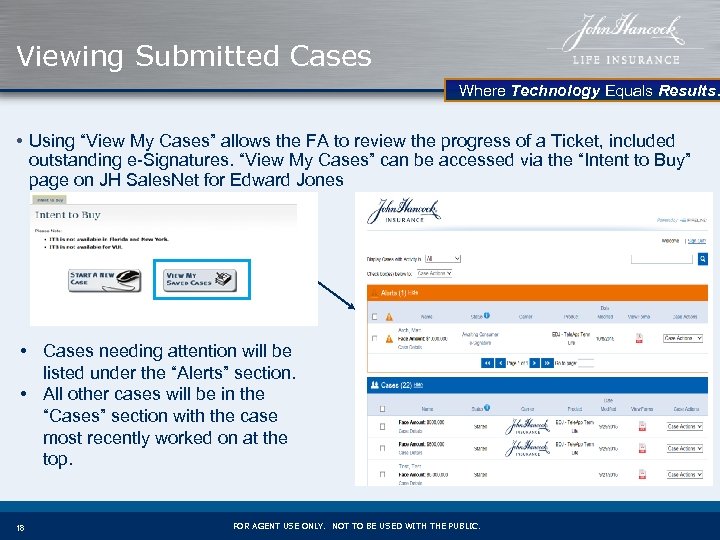
Viewing Submitted Cases Where Technology Equals Results. • Using “View My Cases” allows the FA to review the progress of a Ticket, included outstanding e-Signatures. “View My Cases” can be accessed via the “Intent to Buy” page on JH Sales. Net for Edward Jones • Cases needing attention will be listed under the “Alerts” section. • All other cases will be in the “Cases” section with the case most recently worked on at the top. 18 FOR AGENT USE ONLY. NOT TO BE USED WITH THE PUBLIC.
Questions? Where Technology Equals Results. If you have any questions about Intent-to-Buy, contact the Intent-to-Buy Helpline: 1 -877 -339 -5663 Option 1 ->Option 2 19 FOR AGENT USE ONLY. NOT TO BE USED WITH THE PUBLIC.
Скачать презентацию Where Technology Equals Results Intent to Buy Choose
19e0d2b6cd8fbdd0d47b176d82d79cfd.ppt