


 Скачать презентацию Welcome u How to use your Phone Effectively
972cb2357cd2ac49d3cab7f437657b93.ppt
- Количество слайдов: 33
 Welcome u How to use your Phone Effectively u Telephone Features u Voice Messaging Features
 Telephone Features u Placing calls u Transfers, Consultation, and Conference Calls u Call Pickup u Forwarding Your Phone u UCAR Directory u Custom Services
 Phone Types u Cisco 7910 Common areas 2 line display, single line phone u Cisco 7960 Standard office issue. Has a built-in speakerphone u Cisco 7914 Additional lines module All models have a data port
 Placing calls u Within UCAR buildings Dial 4 digit extension u Local calls 9 + 10 digits (303 or 720) 9 + Toll free number (1 -800 etc. ) u Long distance calls 9 + 1 + Area Code + number + Acct or ID 9 + 011 + number + Acct or ID 9 + information + Acct or ID u u You will receive a prompt (stutter tone) for account key or ID number. If you misdial the account key or user ID, you will hear error tone (dee do), at which point you have the opportunity to enter the correct code. If you enter 3 incorrect codes, you will hear a busy signal and then be disconnected. (“<<“ will erase last character)
 Placing fax calls u For international calls: “ 9 + 011 + intl-number + # (pound key) + 2 pauses (pause button on the fax which may be the redial key, consult your fax book) + account key” u Domestic long distance: “ 9 + 1 + area code + number + 2 pauses + account key” u Enter all of these digits before pressing the "start" button on the fax. This will allow time for the fax to dial the telephone number, indicate the "end of dialed number" via the "#" (important for variable length international numbers), then provide pauses to allow time for the account key stutter prompt, allow entry of the account key.
 Transferring calls u Press “Trnsfer” (displayed in screen) u When you receive dial tone, enter the extension where you would like to transfer the call to u Announce u Press u To call “Trnsfer” return to caller if party is not available, press “End Call”, then press “Resume”
 Consultation Call u Press “Hold” u Press “New Call” Dial Extension u Press “Hold” u To alternate between calls Use arrow keys to highlight caller, press “Resume”
 Conference Call (up to 5 other people) u Dial 1 st party u Press “More” (displayed in screen) u Press “Confrn” u Dial 2 nd party u Press “Confrn”
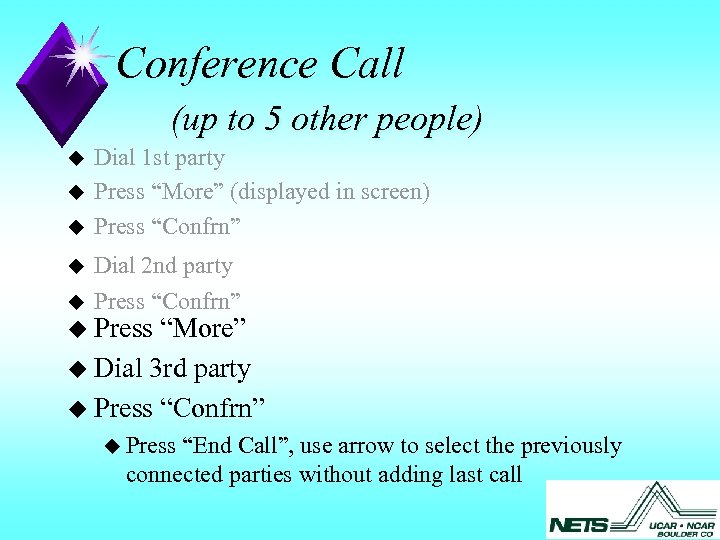 Conference Call (up to 5 other people) u u u Dial 1 st party Press “More” (displayed in screen) Press “Confrn” Dial 2 nd party Press “Confrn” u Press “More” u Dial 3 rd party u Press “Confrn” u Press “End Call”, use arrow to select the previously connected parties without adding last call
 Call Pickup u Allows you to pick up a ringing phone u Press “More” (displayed in screen) until you can choose “Pick. Up” u Enter the ringing extension number
 Forwarding Your Phone u To work at another desk u Or when you will be away from the office u Press “CFwd. All” Dial the extension (or Voice Messaging access number) to forward your calls to Display reads “Forwarded to xxxx” u To remove forwarding from your line u Press “CFwd. All”
 UCAR Directory u To look up UCAR Employees u Press “Directories” Select the UCAR Directory u Enter Last Name, First Name Enough letters to make a list of less than 32 names u Or extension u Press “Search” (“<<“ will erase last character) u Select person (using arrows) u Press “Dial”
 Setting up Your Telephone Services u Logon to the web page http: //phones. ucar. edu/ccmuser Logon name (same as UCAR email user ID, eg. jdoe) Password PIN - please change password and PIN at first login u Web interfaces uses “mouse-overs” to highlight links
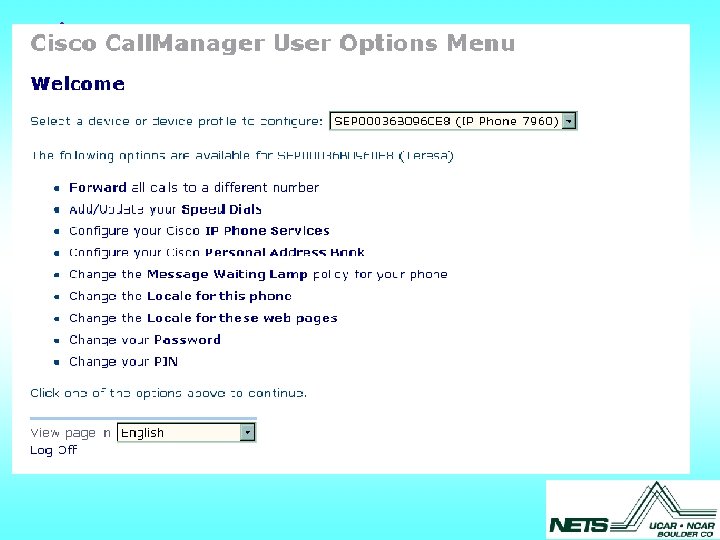
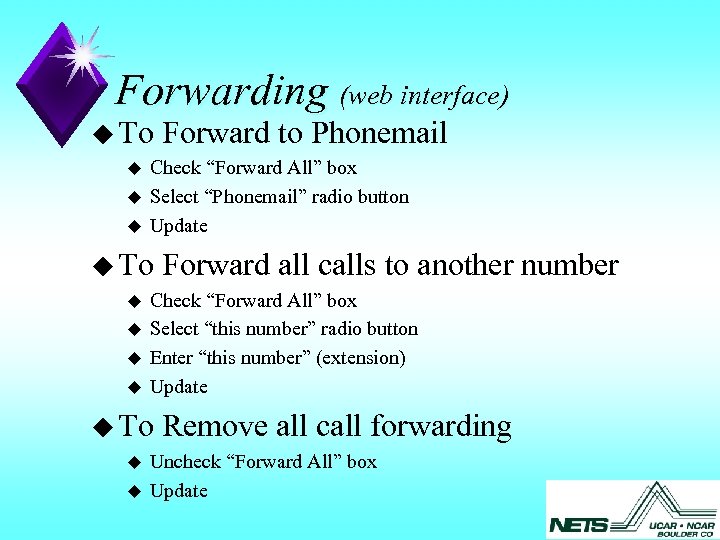 Forwarding (web interface) u To u u u Check “Forward All” box Select “Phonemail” radio button Update u To u u u Forward all calls to another number Check “Forward All” box Select “this number” radio button Enter “this number” (extension) Update u To u Forward to Phonemail Remove all call forwarding Uncheck “Forward All” box Update
 Speed Dial Buttons (web interface) u 4 Buttons available (depending upon phone configuration) u Add/Update your Speed Dials Enter telephone number Remember to add access digits Enter Text to display next to button u Update (this will reset your phone)
 Configuring IP Phone Services u Select a Service (drop down menu) u Click continue u Add additional information (if required) u Press Subscribe The selected Service is now available from your phone u To Use the service u Press Services u Select service (arrows or number) u Follow prompts
 Fast Dials & Address Book u 100 u u u Fast dial entries Select and configure“My Fast Dials” and “Personal Address Book” as services (see preceding screen) Configure “Personal Address Book” “Add New Entry” Enter telephone number (Remember to add access digits, no spaces, only digits) Click Insert button Click “Fast Dials” Select Unassigned Index Select previously defined Entry & number Click Insert button
 Voice Messaging Lamp u We recommend using the system policy defaults
 Locales u For your phone u For your web pages These select the language of the displays (web interface and phone)
 Telephone Features u Placing calls u Transfers, Consultation, and Conference Calls u Call Pickup u Forwarding Your Phone u UCAR Directory u Custom Services
 Questions u 7960 Phone tutorial available at http: //www. cisco. com/warp/public/779/largeent/avvid/prod ucts/7960/router_page. htm
 Voice Messaging Features u Accessing your Mailbox u Listening to Messages u Forwarding , Saving, and Deleting messages u Sending Messages u Setup Options u Message Notification
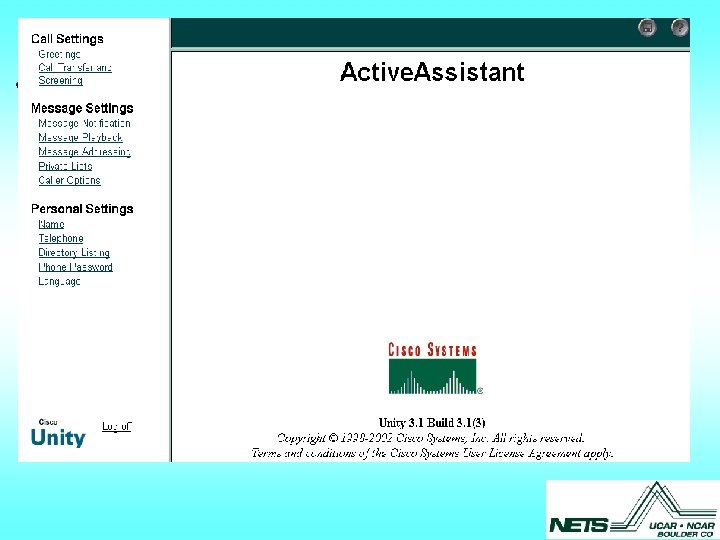
 Accessing Messaging u Press Messages (or dial access number) If you dialed the external phone number, press answers, and enter your extension u Enter * when voice messaging your password, # u Web Interface Internet Explorer (version 4. 0 or above) u http: //voicemail. ucar. edu/web/aa User name Password
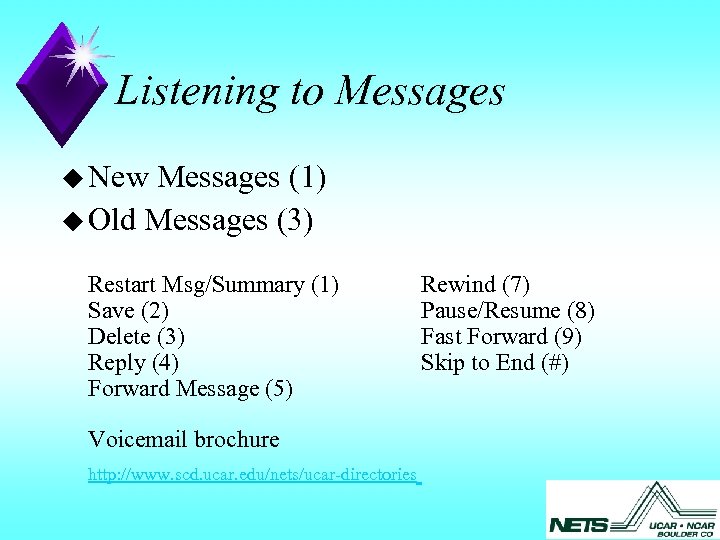 Listening to Messages u New Messages (1) u Old Messages (3) Restart Msg/Summary (1) Save (2) Delete (3) Reply (4) Forward Message (5) Voicemail brochure http: //www. scd. ucar. edu/nets/ucar-directories Rewind (7) Pause/Resume (8) Fast Forward (9) Skip to End (#)
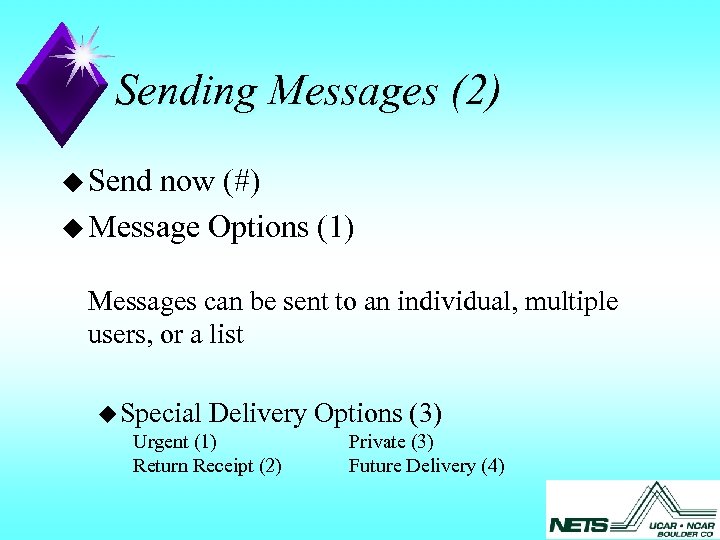 Sending Messages (2) u Send now (#) u Message Options (1) Messages can be sent to an individual, multiple users, or a list u Special Delivery Options (3) Urgent (1) Return Receipt (2) Private (3) Future Delivery (4)
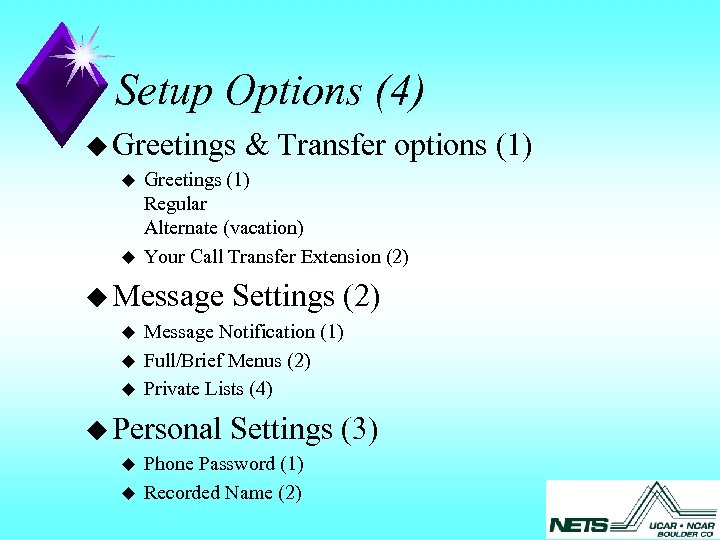 Setup Options (4) u Greetings u u Greetings (1) Regular Alternate (vacation) Your Call Transfer Extension (2) u Message u u Settings (2) Message Notification (1) Full/Brief Menus (2) Private Lists (4) u Personal u & Transfer options (1) Settings (3) Phone Password (1) Recorded Name (2)
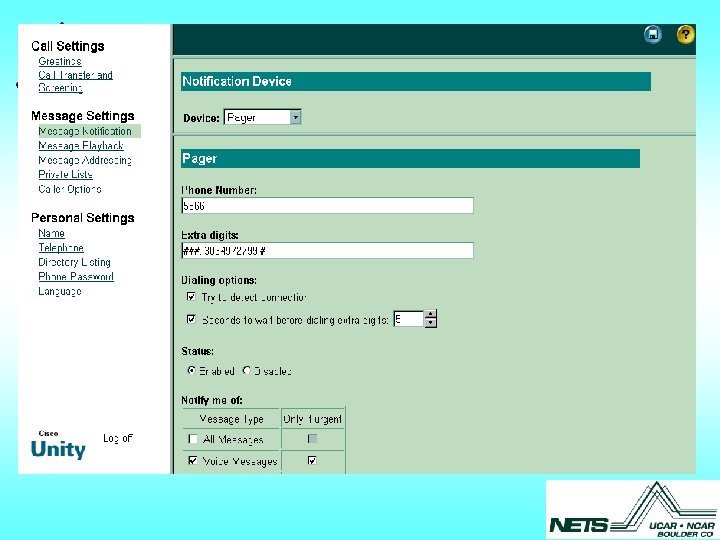
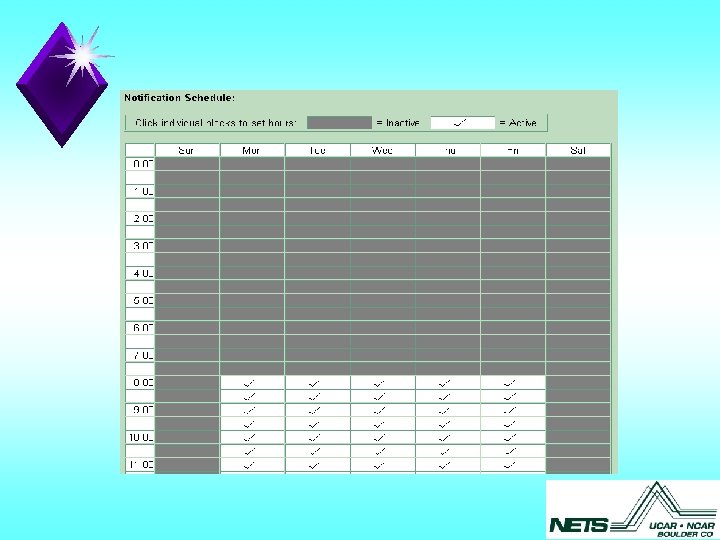
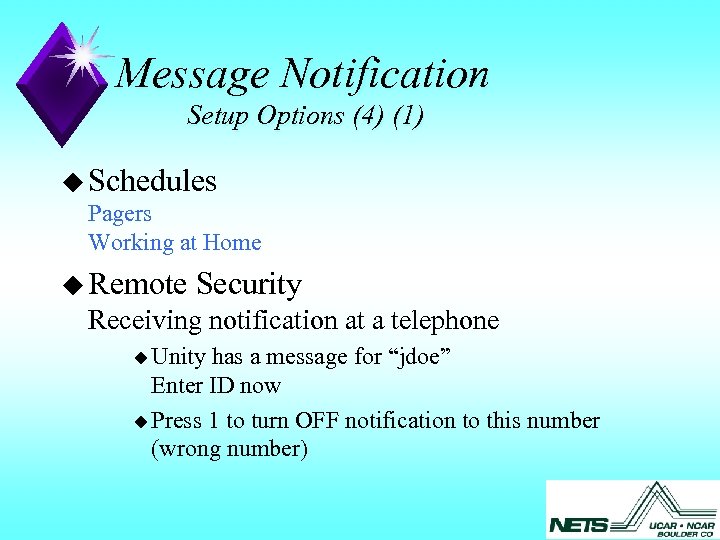 Message Notification Setup Options (4) (1) u Schedules Pagers Working at Home u Remote Security Receiving notification at a telephone u Unity has a message for “jdoe” Enter ID now u Press 1 to turn OFF notification to this number (wrong number)
 Voice Messaging Features u Accessing your Mailbox u Listening to Messages u Forwarding , Saving, and Deleting messages u Sending Messages u Setup Options u Message Notification
 Questions u u User information available at: http: //www. scd. ucar. edu/nets/projects/voip/documentation/ users/voip-user-info. htm Email “phones@ucar. edu”