


 Скачать презентацию Welcome u How to use the new NCAR
f3e88a80689c7e6a7904b0cda6f0847c.ppt
- Количество слайдов: 26
 Welcome u How to use the new NCAR telephone system u Telephone Features u Voice Messaging Features
 Phone Types u Cisco 7960 Standard office issue. Has a built-in speakerphone u Cisco 7914 Additional lines module u Cisco 7910 Common areas 2 line display, single line phone All models have a 10/100 Ethernet port
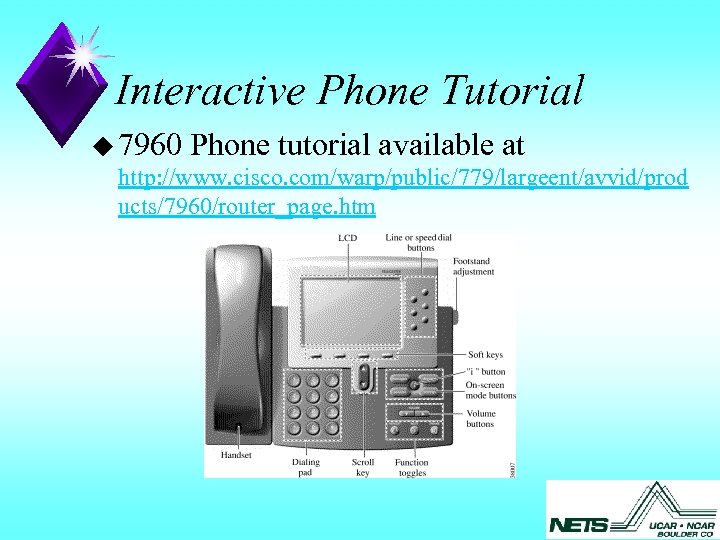 Interactive Phone Tutorial u 7960 Phone tutorial available at http: //www. cisco. com/warp/public/779/largeent/avvid/prod ucts/7960/router_page. htm
 Placing calls u Within UCAR buildings Dial 4 digit extension u Local calls 9 + 10 digits (303 or 720) 9 + Toll free number (1 -800 etc. ) There is no dial tone after dialing the “ 9” u Long distance calls 9 + 1 + Area Code + number + Acct or ID 9 + 011 + number + Acct or ID (“<<“ will erase last character)
 Placing Calls u From a fax machine For international calls: 9 + 011 + intl-number + # (pound key) + 2 pauses (pause button on the fax - which may be the redial key, consult your fax book) + account key Domestic long distance 9 + 1 + area code + number + 2 pauses + account key This information is included in the FAQ page
 Transferring calls u Press “Trnsfer” (displayed in screen) u When you receive dial tone, enter the extension where you would like to transfer the call to u Announce u Press u To call (optional) “Trnsfer” return to caller if party is not available, press “End Call”, then press “Resume”
 Consultation Call (“Can I put you on Hold for a Minute? ”) u Press “Hold” u Press “New Call” Dial Extension u Press “Hold” u To alternate between calls Use arrow keys to highlight caller, press “Resume”
 Conference Call (Joining up to 5 other people together for a simultaneous conversation) u u u u Dial 1 st party Press “More” (displayed in screen) Press “Confrn” Dial 2 nd party Press “Confrn” Press “More” Dial 3 rd party Press “Confrn” u Press “End Call”, use arrow to select the previously connected parties without adding last call
 Forwarding Your Calls u To work at another desk u Or when you will be away from the office u Press “CFwd. All” Dial the destination extension (or x 2799) Display reads “Forwarded to xxxx” u To remove forwarding from your line u Press “CFwd. All”
 New Tools u User defined Volume levels Ringer and Handset (save) u UCAR Directory u Last Number Redial u Missed Calls u Call Log w/ redialing u Web Interface
 UCAR Directory u To look up UCAR Employees u Press “Directories” Select the UCAR Directory u Enter Last Name, First Name Enough letters to make a list of less than 32 names u Or extension u Press “Search” (“<<“ will erase last character) u Select person (using arrows) u Press “Dial”
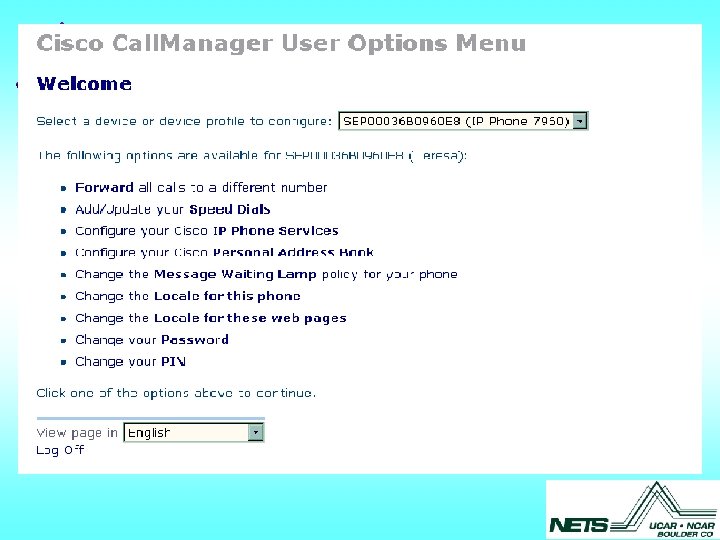
 Setting up Your Telephone Services u Logon to the web page http: //phones. ucar. edu/ccmuser Logon name (same as UCAR email user ID, eg. jdoe) Password PIN - please change password and PIN at first login (default 123456) u Web links interfaces uses “mouse-overs” to highlight
 Telephone Features u Placing calls u Transfers, Consultation, and Conference Calls u Forwarding Your Phone u New Tools UCAR Directory, Custom Volume levels, Redial, Call Logs, & Web access
 Questions
 Voice Messaging Features u Accessing u Press your Mailbox * if not at your phone u Listening to Messages u Forwarding , Saving, and Deleting messages u Sending Messages u Setup Options u Message Notification Voicemail brochure http: //www. scd. ucar. edu/nets/ucar-directories
 Accessing Messaging u Press Messages Button or dial access number (x 2799) If you dial the external phone number or are calling from another office, press * when voice messaging answers, and enter your extension u Enter your password, #
 Listening to Messages u New Messages you have not yet listened to u Old Messages that you have listened to and saved You can Forward a message to another user on the new system with a comment attached.
 Sending Messages u Message Options Messages can be sent to an individual, multiple users, or a list u Special Delivery Options Urgent, Private (can not be forwarded), Return Receipt, Future Delivery
 Setup Options u Greetings u u Regular Alternate (vacation) u Message u u u Message Notification (pager) Full/Brief Menus Private Lists (distribution list) u Personal u u Settings Phone Password Recorded Name
 Message Notification u Schedules Pagers Working at Home u Remote Security Receiving notification at a telephone u Unity has a message for “jdoe” Enter ID now u Press 1 to turn OFF notification to this number (wrong number)
 Caller Options u Callers can bypass your greeting and go directly to recording by pressing the # (pound) key at any point during your greeting u Callers may transfer to another extension after they reach your voicemail box by entering the extension at any time during your recorded greeting
 The best way to provide this information is to record it in your greeting. "Hello, this is _____ and I am not available at this time. Press # to skip this greeting or you may dial x 1234 at any time to reach our reception desk. "
 Voice Messaging Features u Accessing your Mailbox u Listening to Messages u Forwarding , Saving, and Deleting messages u Sending Messages u Setup Options u Message Notification
 User Responsibilities u New Voice Messaging boxes Please setup your greetings now u When are setup phones at your current location are disconnected, your phone and messaging will be active on the new systems u Old Phone. Mail boxes will be available for 2 weeks
 Questions