


 Скачать презентацию Welcome to Fluke Network s Wireless Networking Workshop
ad08edb3feeee7688e0868d5c9a58489.ppt
- Количество слайдов: 110
 Welcome to Fluke Network’s Wireless Networking Workshop!
 Who are you? Who is Fluke Networks? Why bother with this stuff at all ?
 Your Presenter • Name: Dan Hernandez, Fluke Network Systems Engineer • Office: 973. 948. 7386 • Cell: 973. 222. 8151 • Email: Dan. Hernandez@flukenetworks. com • Located in Hampton Twp, New Jersey 3
 Your Fluke Networks Account Manager • Name: Perry Romano (White Plains Workshop Contact) • Office: +1 203 452 8386 • Cell: 203 5201702 • Email: Perry. Romano@flukenetworks. com • Located in Trumbull, CT 4
 FTP Link to Download Presentation 5
 Survey and Prize Drawing • Fill out customer information survey • How did you find out about the workshop? • What were your expectations? • Help us improve our workshops! • Comments? • We’ll pick these up at the end for the drawing! 6
 Agenda Wireless Growth - Where are YOU headed? Wireless- The Standards 802 Standards, Terminology, Frequencies A look at 802. 11 a, b, g Wireless- The A, B, C’s Choose a PHY Layer Choose a Topology Choose a Security Method Wireless- Site Survey with Interpret. Air Wireless- Troubleshooting with Etherscope 7
 Why Even Listen to us? Partnerships, products and best practices that lead to high-performance networks – and enterprises
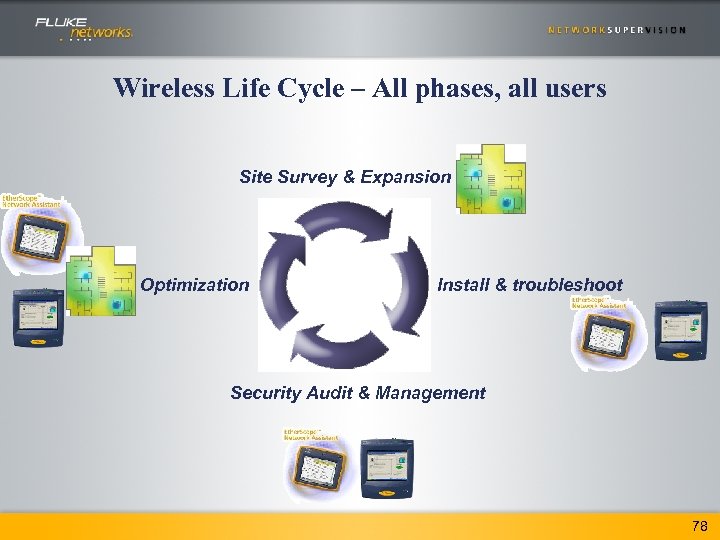
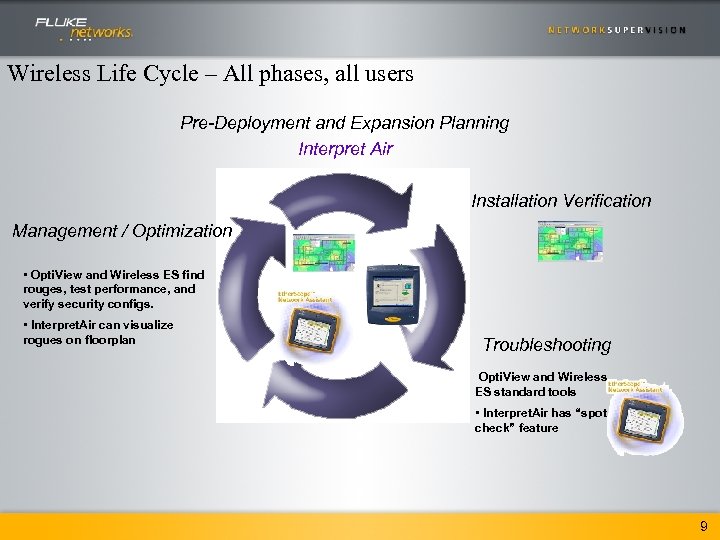 Wireless Life Cycle – All phases, all users Pre-Deployment and Expansion Planning Interpret Air Installation Verification Management / Optimization • Opti. View and Wireless ES find rouges, test performance, and verify security configs. • Interpret. Air can visualize rogues on floorplan Troubleshooting Opti. View and Wireless ES standard tools • Interpret. Air has “spot check” feature 9
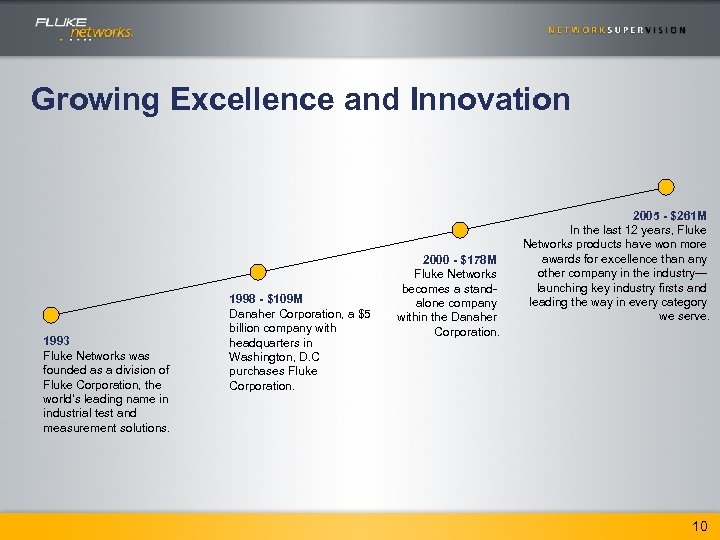 Growing Excellence and Innovation 1993 Fluke Networks was founded as a division of Fluke Corporation, the world’s leading name in industrial test and measurement solutions. 1998 - $109 M Danaher Corporation, a $5 billion company with headquarters in Washington, D. C purchases Fluke Corporation. 2000 - $178 M Fluke Networks becomes a standalone company within the Danaher Corporation. 2005 - $261 M In the last 12 years, Fluke Networks products have won more awards for excellence than any other company in the industry— launching key industry firsts and leading the way in every category we serve. 10
 Fluke Networks Today • Part of a $7 B premiere global enterprise • Continuously profitable company since its inception • Over 500 associates worldwide Everett, WA: Worldwide Headquarters, Infrastructure Design Center Colorado Springs: Enterprise Networks Design Center Sales Offices & Associates: Worldwide 11
 Wireless- Growth “Where are YOU headed? ”
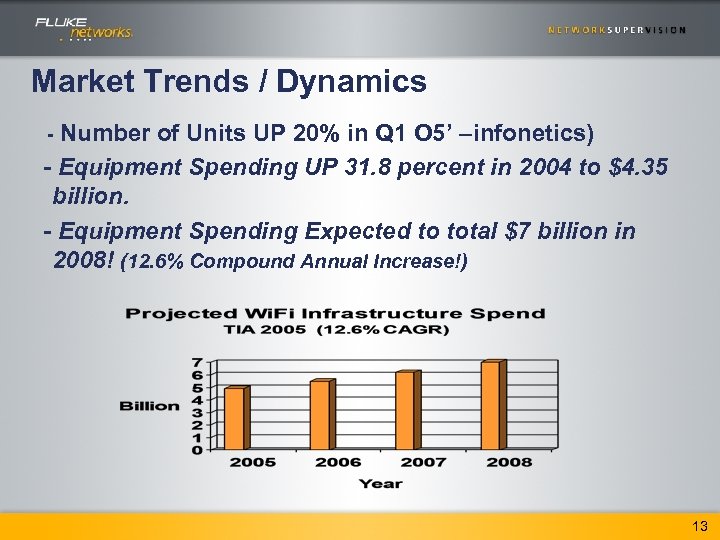 Market Trends / Dynamics - Number of Units UP 20% in Q 1 O 5’ –infonetics) - Equipment Spending UP 31. 8 percent in 2004 to $4. 35 billion. - Equipment Spending Expected to total $7 billion in 2008! (12. 6% Compound Annual Increase!) 13
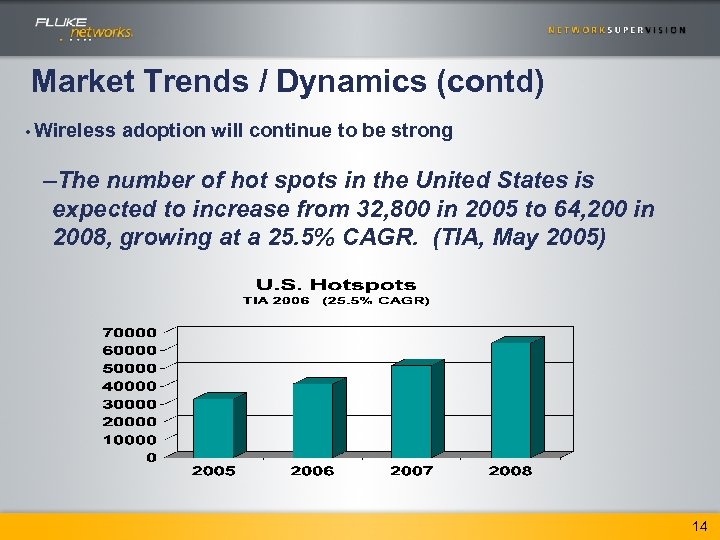 Market Trends / Dynamics (contd) • Wireless adoption will continue to be strong –The number of hot spots in the United States is expected to increase from 32, 800 in 2005 to 64, 200 in 2008, growing at a 25. 5% CAGR. (TIA, May 2005) 14
 Share some issues you have had? • Site Survey & Expansion – Did you do it? Did you contract it out? – Problems? • Install & troubleshoot – What tools do you use? (Laptop-NIC card? ) – Problems? • Security Audit & Management – How do you locate Rogue Devices and AD-Hoc networks? • Optimization – Have you done this? – Do you need to? – What tools will you use? 15
 Wireless “The Standards”
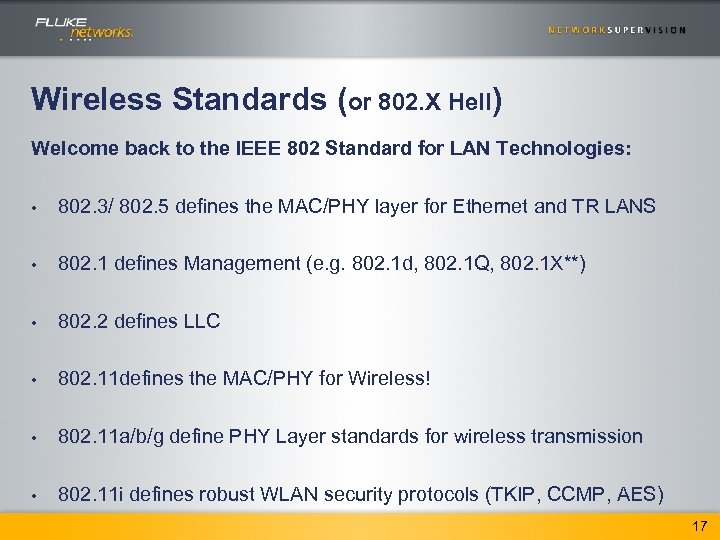 Wireless Standards (or 802. X Hell) Welcome back to the IEEE 802 Standard for LAN Technologies: • 802. 3/ 802. 5 defines the MAC/PHY layer for Ethernet and TR LANS • 802. 1 defines Management (e. g. 802. 1 d, 802. 1 Q, 802. 1 X**) • 802. 2 defines LLC • 802. 11 defines the MAC/PHY for Wireless! • 802. 11 a/b/g define PHY Layer standards for wireless transmission • 802. 11 i defines robust WLAN security protocols (TKIP, CCMP, AES) 17
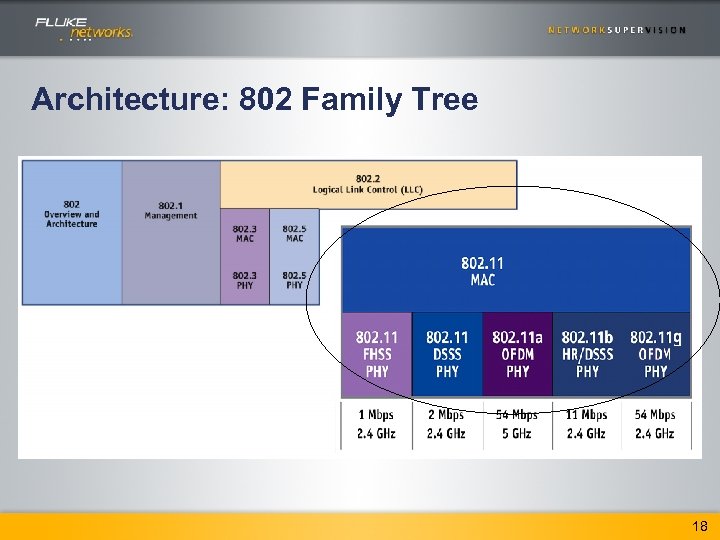 Architecture: 802 Family Tree 18
 Wireless A-B-C A-Pick a PHY Layer B- Pick a Topology C- Choose Security
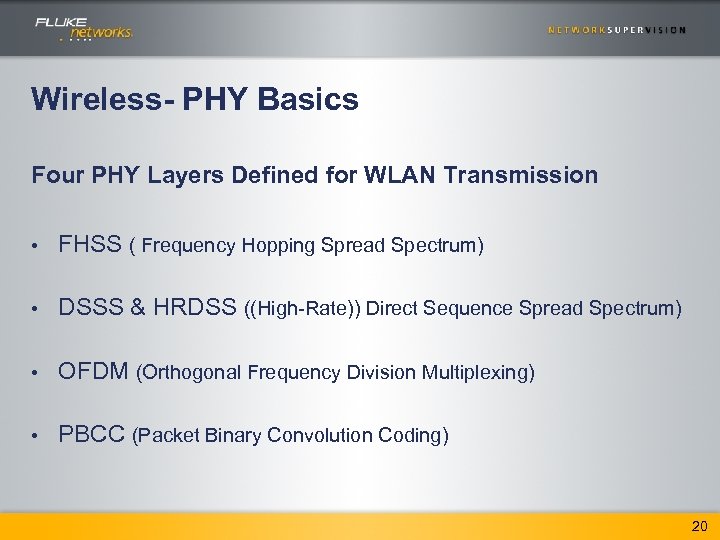 Wireless- PHY Basics Four PHY Layers Defined for WLAN Transmission • FHSS ( Frequency Hopping Spread Spectrum) • DSSS & HRDSS ((High-Rate)) Direct Sequence Spread Spectrum) • OFDM (Orthogonal Frequency Division Multiplexing) • PBCC (Packet Binary Convolution Coding) 20
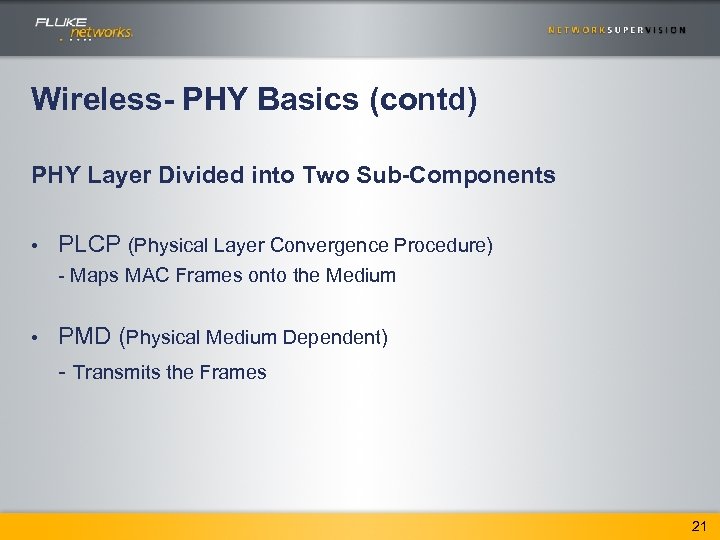 Wireless- PHY Basics (contd) PHY Layer Divided into Two Sub-Components • PLCP (Physical Layer Convergence Procedure) - Maps MAC Frames onto the Medium • PMD (Physical Medium Dependent) - Transmits the Frames 21
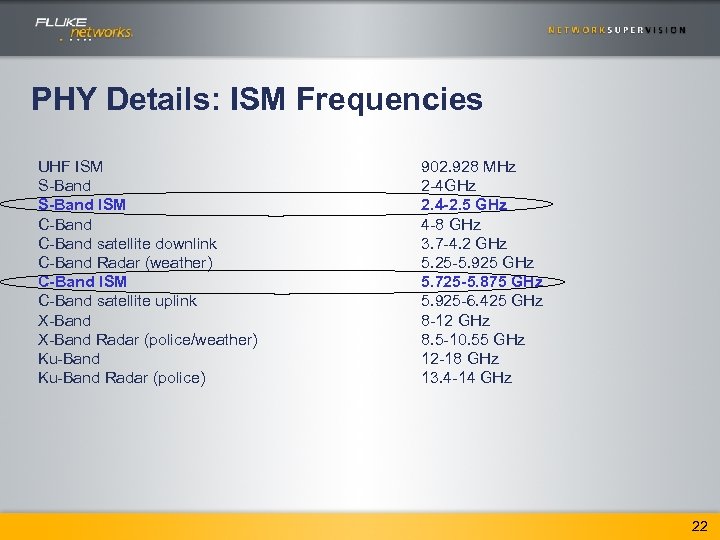 PHY Details: ISM Frequencies UHF ISM S-Band ISM C-Band satellite downlink C-Band Radar (weather) C-Band ISM C-Band satellite uplink X-Band Radar (police/weather) Ku-Band Radar (police) 902. 928 MHz 2 -4 GHz 2. 4 -2. 5 GHz 4 -8 GHz 3. 7 -4. 2 GHz 5. 25 -5. 925 GHz 5. 725 -5. 875 GHz 5. 925 -6. 425 GHz 8 -12 GHz 8. 5 -10. 55 GHz 12 -18 GHz 13. 4 -14 GHz 22
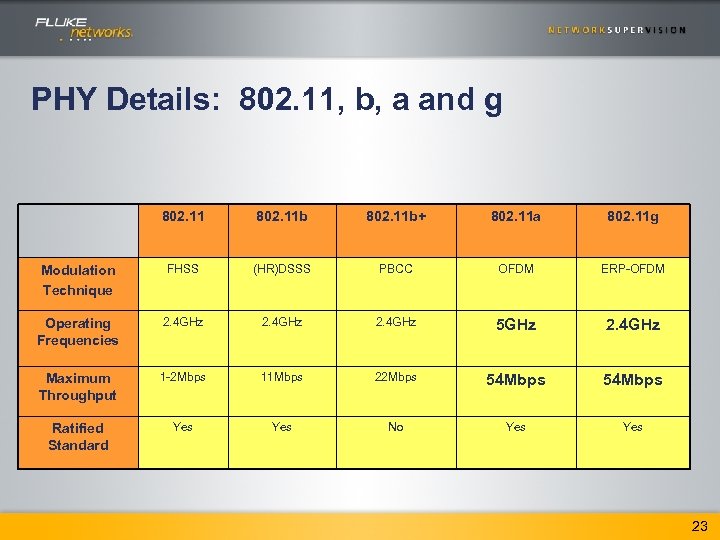 PHY Details: 802. 11, b, a and g 802. 11 b+ 802. 11 a 802. 11 g Modulation Technique FHSS (HR)DSSS PBCC OFDM ERP-OFDM Operating Frequencies 2. 4 GHz 5 GHz 2. 4 GHz Maximum Throughput 1 -2 Mbps 11 Mbps 22 Mbps 54 Mbps Ratified Standard Yes No Yes 23
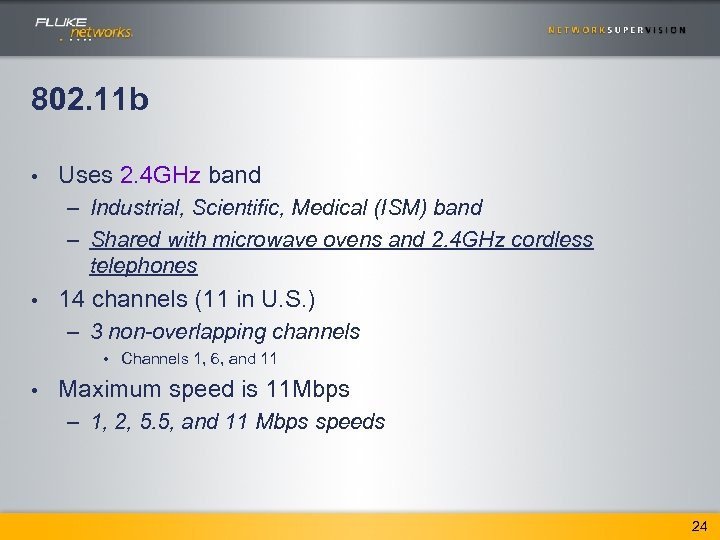 802. 11 b • Uses 2. 4 GHz band – Industrial, Scientific, Medical (ISM) band – Shared with microwave ovens and 2. 4 GHz cordless telephones • 14 channels (11 in U. S. ) – 3 non-overlapping channels • Channels 1, 6, and 11 • Maximum speed is 11 Mbps – 1, 2, 5. 5, and 11 Mbps speeds 24
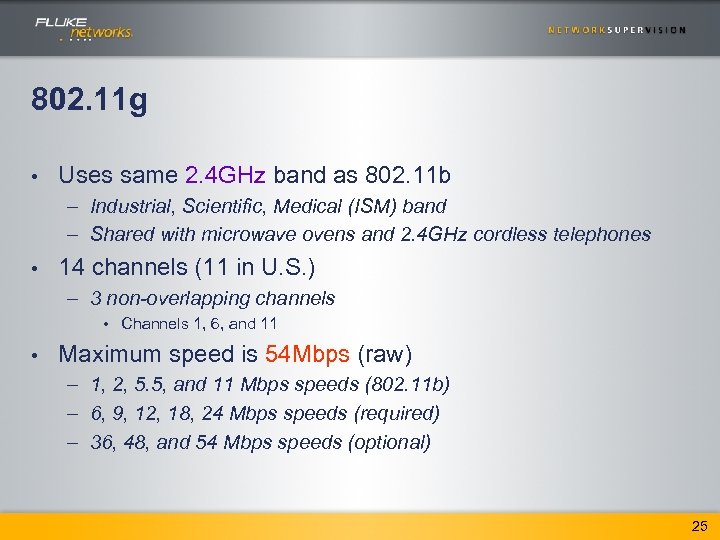 802. 11 g • Uses same 2. 4 GHz band as 802. 11 b – Industrial, Scientific, Medical (ISM) band – Shared with microwave ovens and 2. 4 GHz cordless telephones • 14 channels (11 in U. S. ) – 3 non-overlapping channels • Channels 1, 6, and 11 • Maximum speed is 54 Mbps (raw) – 1, 2, 5. 5, and 11 Mbps speeds (802. 11 b) – 6, 9, 12, 18, 24 Mbps speeds (required) – 36, 48, and 54 Mbps speeds (optional) 25
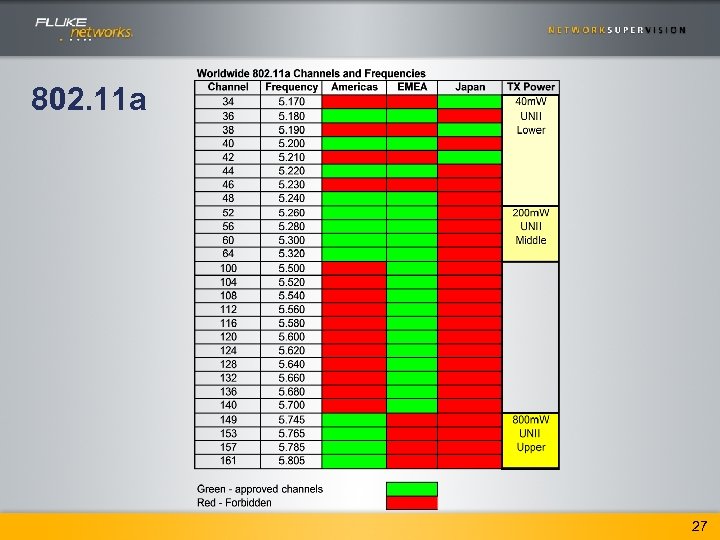
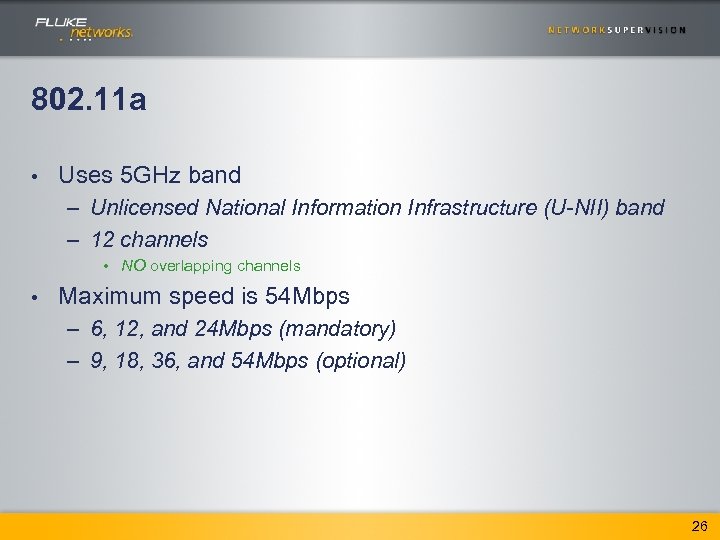 802. 11 a • Uses 5 GHz band – Unlicensed National Information Infrastructure (U-NII) band – 12 channels • NO overlapping channels • Maximum speed is 54 Mbps – 6, 12, and 24 Mbps (mandatory) – 9, 18, 36, and 54 Mbps (optional) 26
 802. 11 a 27
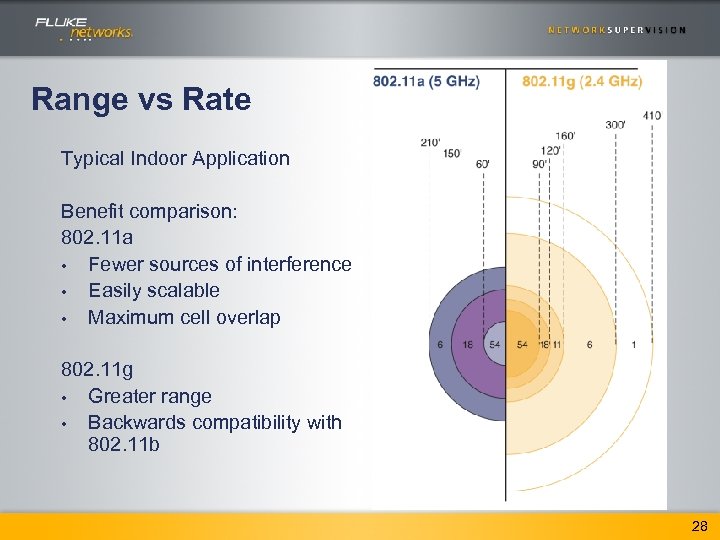 Range vs Rate Typical Indoor Application Benefit comparison: 802. 11 a • Fewer sources of interference • Easily scalable • Maximum cell overlap 802. 11 g • Greater range • Backwards compatibility with 802. 11 b 28
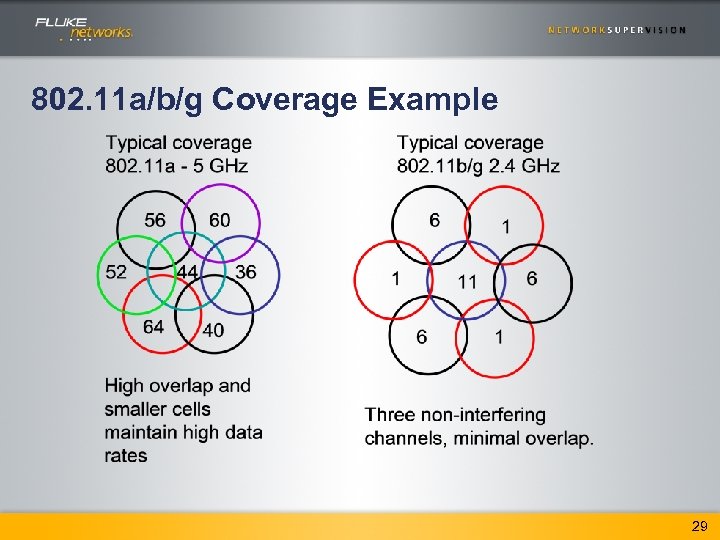 802. 11 a/b/g Coverage Example 29
 Trends • 802. 11 g is by far the leading WLAN technology in enterprise (new install), followed by 802. 11 b (largest installed base) – Both are 2. 4 GHz. • 802. 11 a is still around, but growth is slow. • 802. 11 n in development for 100 Mb/s speeds – 300 Mb/s and 600 Mb/s also in the queue 30
 Wireless A-B-C A-Pick a PHY Layer B- Pick a Topology C- Choose Security
 Wireless- Choose a Topology • Basic Service Set (BSS) - A group of stations communicating with each other • Independent Basic Service Set (IBSS) - BSS communicating in Ad-Hoc Mode • Infrastructure Basic Service Set (Infrastructure BSS) - BSS communicating in Infrastructure (AP) Mode • Extended Service Set (ESS) - BSS’s connected together through a backbone network 32
 Wireless- Choose a Topology • BSSID (Basic Service Set Identifier) - Usually the MAC address of the AP hosting the BSS clients - Used by all BSS Stations in the Frame Header • SSID (Service Set Identifier) - Name given to all AP’s in an ESS - Transmitted in non-encrypted management frames 33
 Wireless- Choose a Topology • Beacons - Announce the existence of a network and it’s parameters - Define the basic service area for a BSS • Probe Requests - Used by stations to scan an area for existing 802. 11 networks - Include the SSID and rates supported by the station • Probe Responses - Sent in response to Probe Requests by the AP or assigned Ad-Hoc Station - Contain all information found in the Beacon Frame 34
 Wireless- Choose a Topology • 802. 11 Authentication (Two-Step) - The process of a station identifying itself before being allowed to transmit frames • Association (Two-Step) - The process of a station “registering” with a chosen AP AFTER 802. 11 authentication. The AP registers the station on the network. Association is the equivalent of “plugging in” to a wired network. 35
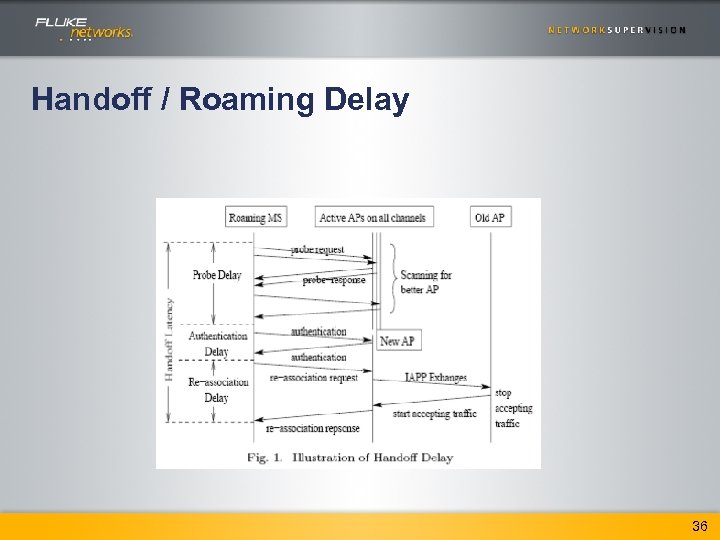 Handoff / Roaming Delay 36
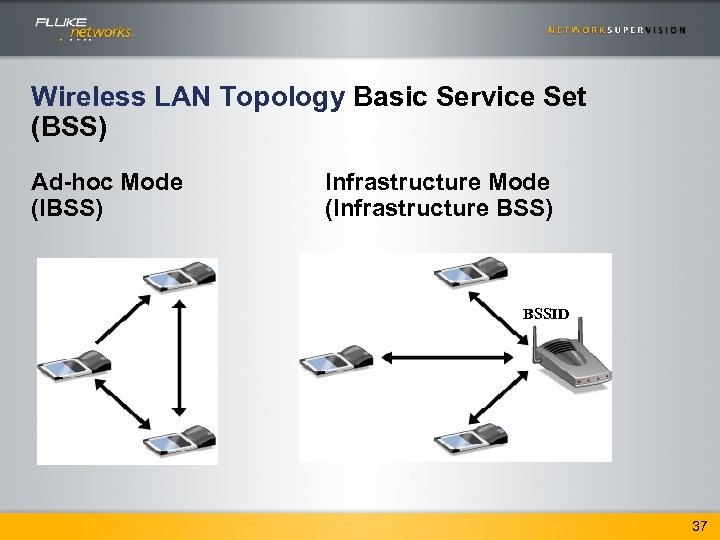 Wireless LAN Topology Basic Service Set (BSS) Ad-hoc Mode (IBSS) Infrastructure Mode (Infrastructure BSS) BSSID 37
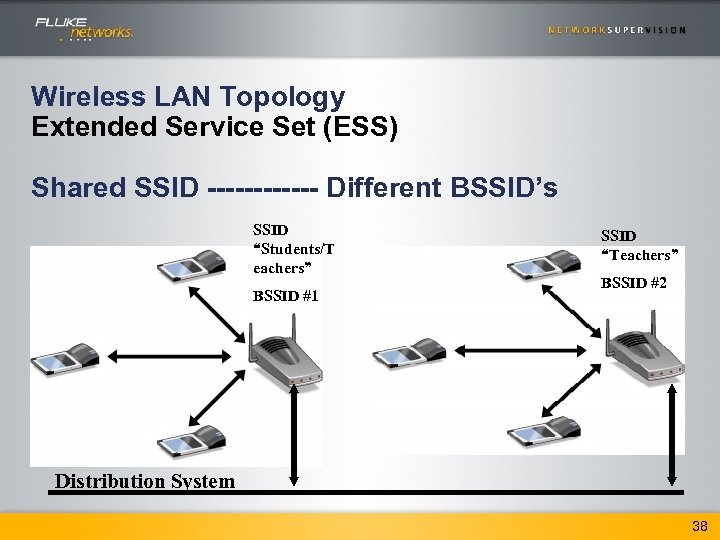 Wireless LAN Topology Extended Service Set (ESS) Shared SSID ------ Different BSSID’s SSID “Students/T eachers” BSSID #1 SSID “Teachers” BSSID #2 Distribution System 38
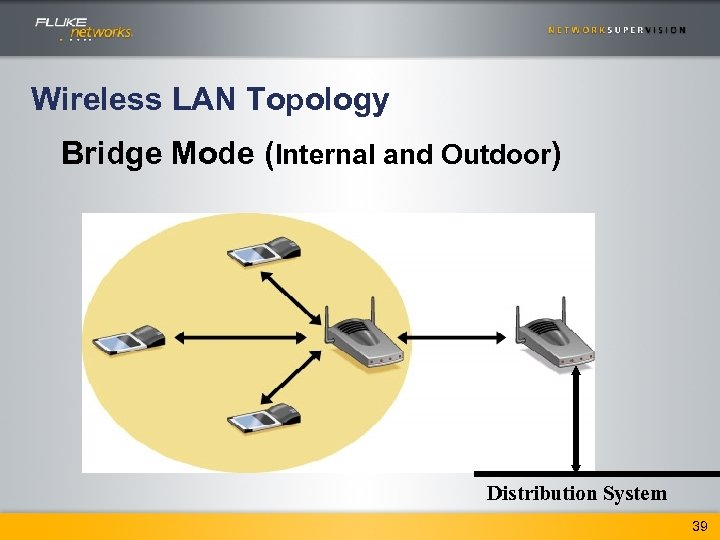 Wireless LAN Topology Bridge Mode (Internal and Outdoor) Distribution System 39
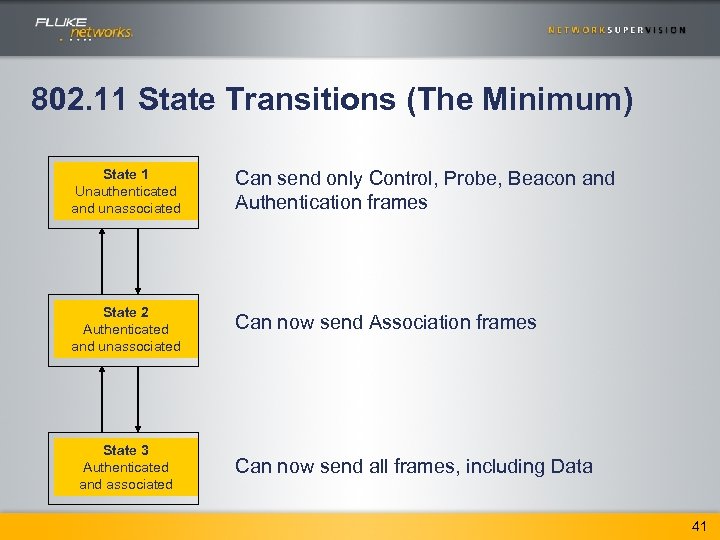 802. 11 State Transitions (The Minimum) State 1 Unauthenticated and unassociated Can send only Control, Probe, Beacon and Authentication frames State 2 Authenticated and unassociated Can now send Association frames State 3 Authenticated and associated Can now send all frames, including Data 41
 Identify Your Coverage Locations • Keep the antenna away from metal obstructions such as heating and air-conditioning ducts, large ceiling trusses, building superstructures, and major power cabling runs. If necessary, use a rigid conduit to lower the antenna away from these obstructions. • The density of the materials used in a building's construction determines the number of walls the signal must pass through and still maintain adequate coverage. Consider the following before choosing the location to install your antenna: – Paper and vinyl walls have very little affect on signal penetration. – Solid and pre-cast concrete walls limit signal penetration to one or two walls without – – – • degrading coverage. Concrete and wood block walls limit signal penetration to three or four walls. A signal can penetrate five or six walls constructed of drywall or wood. A thick metal wall causes signals to reflect off, causing poor penetration. A chain link fence or wire mesh spaced between 1 and 1 1/2 in. (2. 5 and 3. 8 cm) acts as a harmonic reflector that blocks a 2. 4 Ghz radio signal. Install the antenna away from microwave ovens and 2 -GHz cordless phones. These products can cause signal interference because they operate in the same frequency range as the device to which your antenna is connected. Install the antenna horizontally to maximize signal propagation. 42
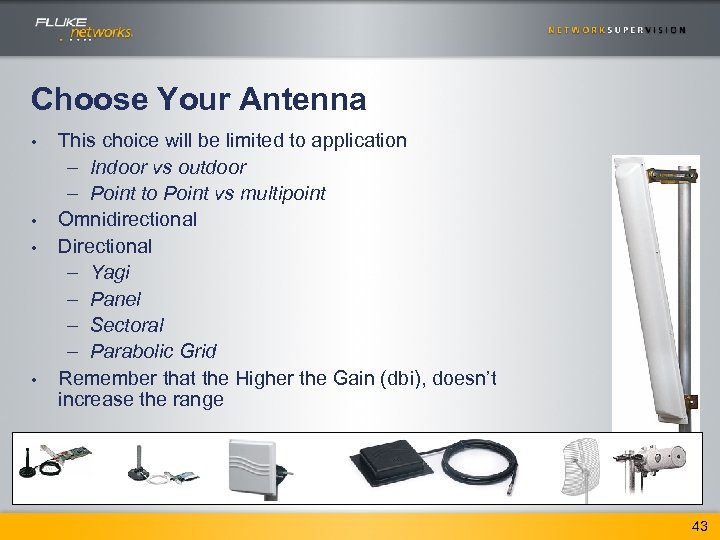 Choose Your Antenna • • This choice will be limited to application – Indoor vs outdoor – Point to Point vs multipoint Omnidirectional Directional – Yagi – Panel – Sectoral – Parabolic Grid Remember that the Higher the Gain (dbi), doesn’t increase the range 43
 Wireless A-B-C A-Pick a PHY Layer B- Pick a Topology C- Choose Security
 WLAN Security Q&A Key Questions: – How can I protect against war drivers? – Are there rogue devices in my network? – How does wireless relate to my other security solutions? Challenges: – The rogue user (war drivers) Challenge (Geek, thief, or both? ) – The User Policy Challenge – The Authentication + Encryption Challenge Result: – Secured wireless network 45
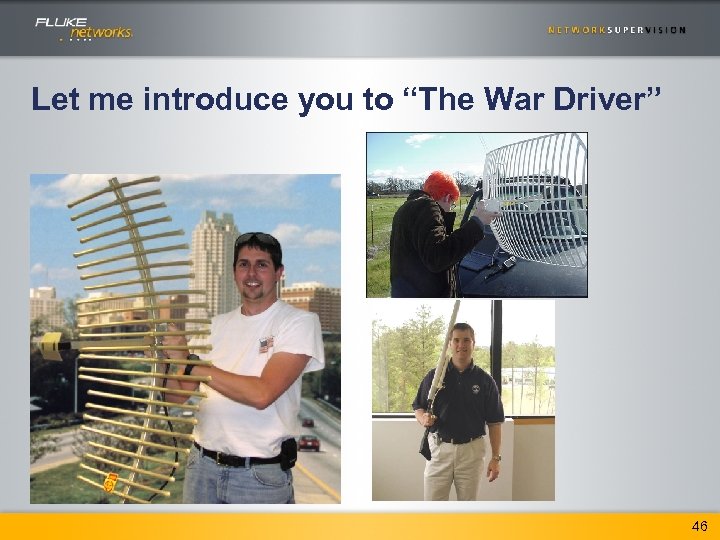 Let me introduce you to “The War Driver” 46
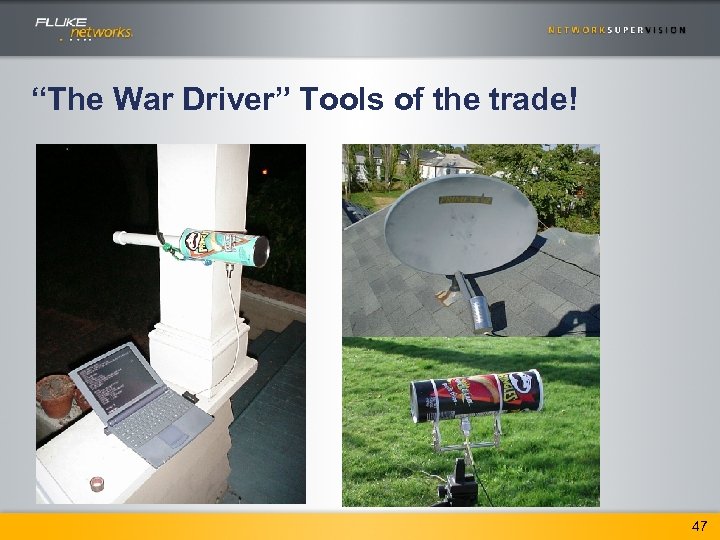 “The War Driver” Tools of the trade! 47
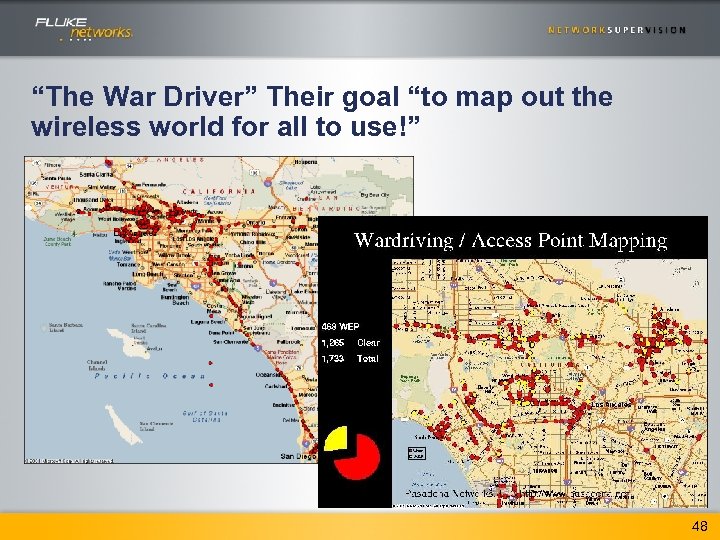 “The War Driver” Their goal “to map out the wireless world for all to use!” 48
 The User Policy Challenge: How do I ensure users aren’t bringing in rogue equipment from home? Fact 1: You have wireless, whether you know it or not. . . • • • Home APs cost <$50 and are widely available Home equipment may not respond to SNMP queries All home equipment is a security hole out of the box Design Approaches: • • Outlaw private wireless LAN equipment Enforce the policy with periodic walkthroughs 49
 The Authentication + Challenges: My authentication methods are top-notch so I’m safe, right? My WLAN data is encrypted so I’m safe, right? 50
 WLAN Security = Authentication + Encryption Early Security “Solutions” • Don’t Send Beacons? • Don’t Broadcast my SSID? • Filter MAC addresses? • How about a VPN? 51
 WLAN Security = Authentication + Encryption “Trivial” Authentication Methods Include • OPEN • WEP (Wired Equivalent Privacy) • WPA-PSK (Wi-Fi Protected Access/Pre-shared Key) – Also called 802. 11 i-PSK These methods can be easily Hacked!! 52
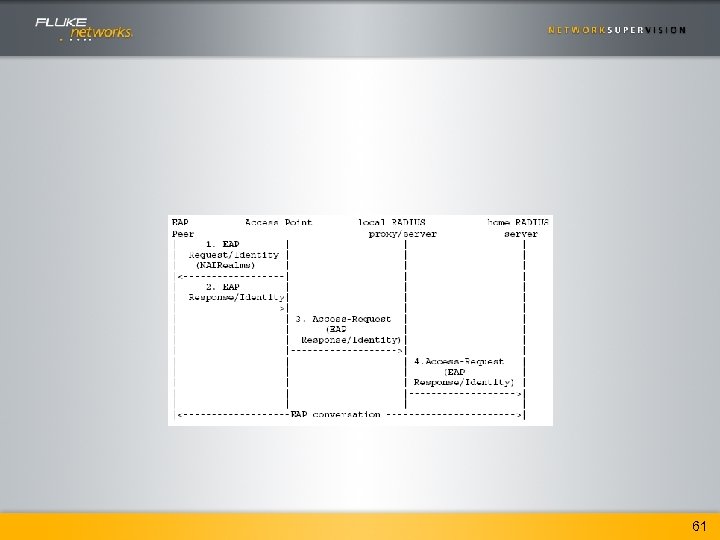
 802. 1 X AUTHENTICATION • The premise of 802. 1 X is to authenticate the User NOT the machine • Also Called WPA or WPA “Enterprise” • Based on the Extensible Authentication Framework Protocol (EAP) • uses a RADIUS server to provide authorization, authentication and accounting (AAA) services • does not specify authentication mechanism 53
 802. 1 X- Different EAP Methods • LEAP (Lightweight EAP) • TLS (Transport Layer Security) • TTLS (Tunneled TLS) & PEAP (Protected EAP) – Establish a TLS tunnel w/certificates – Encrypt a legacy or unencrypted authentication Protocol – Examples of “inner” authentication protocols include: Eap-MD 5 Challenge, EAP-Generic Token Card, EAPMSCHAP-V 2 – Non-Eap incl. PAP, CHAP, MS-CHAP LDAP, Kerberos 54
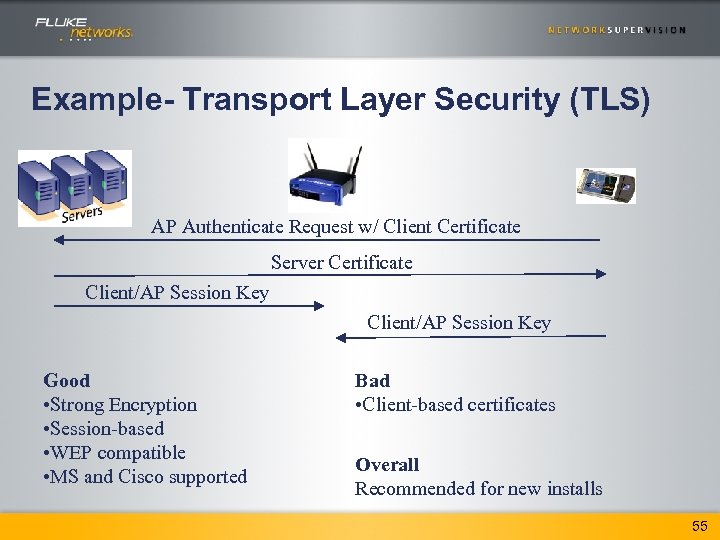 Example- Transport Layer Security (TLS) AP Authenticate Request w/ Client Certificate Server Certificate Client/AP Session Key Good • Strong Encryption • Session-based • WEP compatible • MS and Cisco supported Bad • Client-based certificates Overall Recommended for new installs 55
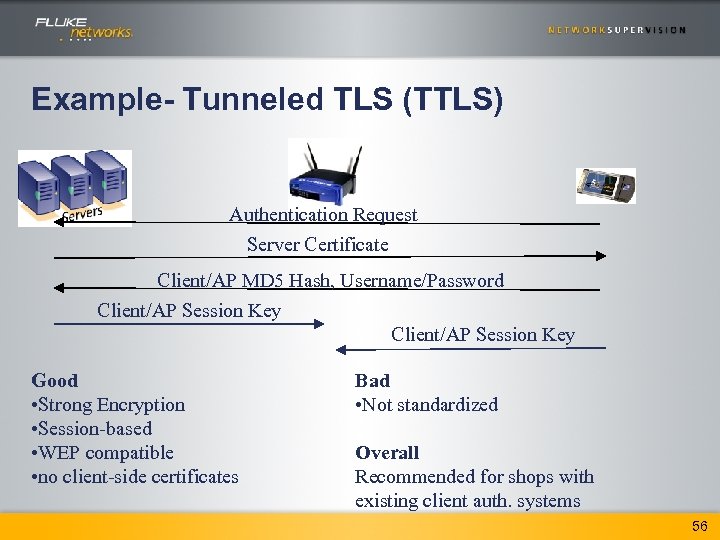 Example- Tunneled TLS (TTLS) Authentication Request Server Certificate Client/AP MD 5 Hash, Username/Password Client/AP Session Key Good • Strong Encryption • Session-based • WEP compatible • no client-side certificates Bad • Not standardized Overall Recommended for shops with existing client auth. systems 56
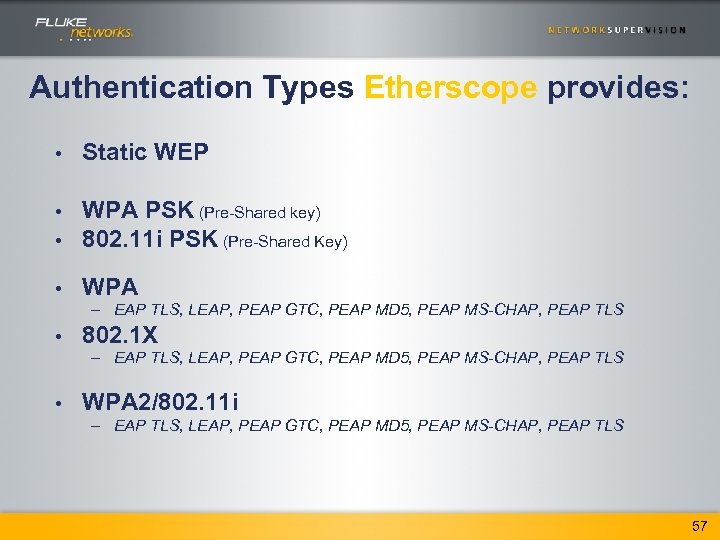 Authentication Types Etherscope provides: • Static WEP • • WPA PSK (Pre-Shared key) 802. 11 i PSK (Pre-Shared Key) • WPA – EAP TLS, LEAP, PEAP GTC, PEAP MD 5, PEAP MS-CHAP, PEAP TLS • 802. 1 X – EAP TLS, LEAP, PEAP GTC, PEAP MD 5, PEAP MS-CHAP, PEAP TLS • WPA 2/802. 11 i – EAP TLS, LEAP, PEAP GTC, PEAP MD 5, PEAP MS-CHAP, PEAP TLS 57
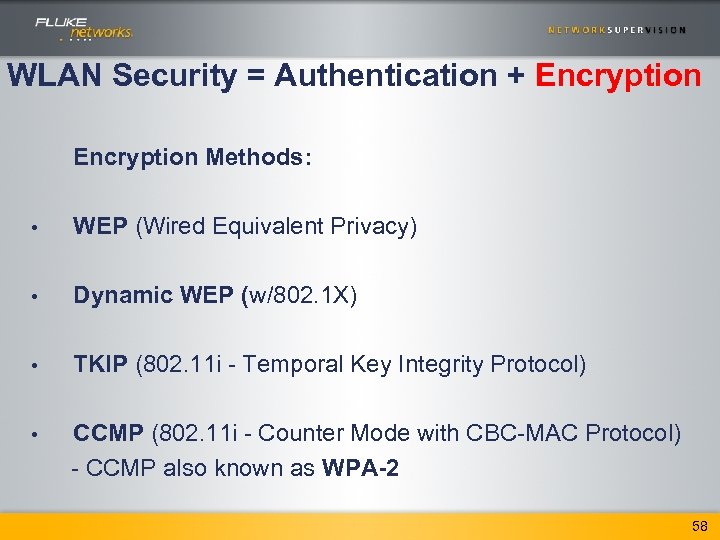 WLAN Security = Authentication + Encryption Methods: • WEP (Wired Equivalent Privacy) • Dynamic WEP (w/802. 1 X) • TKIP (802. 11 i - Temporal Key Integrity Protocol) • CCMP (802. 11 i - Counter Mode with CBC-MAC Protocol) - CCMP also known as WPA-2 58
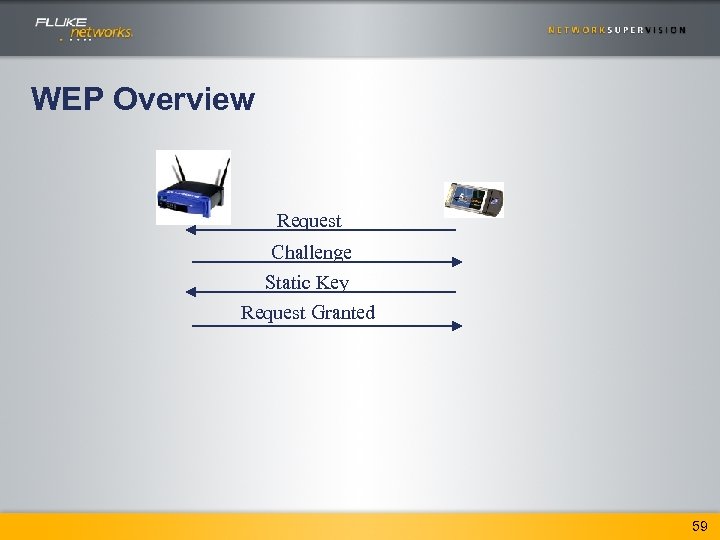 WEP Overview Request Challenge Static Key Request Granted 59
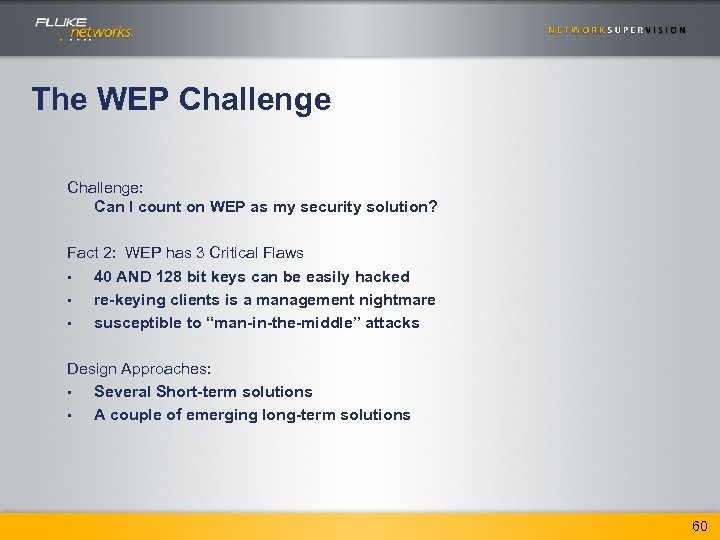 The WEP Challenge: Can I count on WEP as my security solution? Fact 2: WEP has 3 Critical Flaws • 40 AND 128 bit keys can be easily hacked • re-keying clients is a management nightmare • susceptible to “man-in-the-middle” attacks Design Approaches: • Several Short-term solutions • A couple of emerging long-term solutions 60
 61
61
 WPA • WPA (Wi-Fi Protected Access) -Improves WEP by adding key management and addressing flaws in original WEP - Uses 802. 1 X for Authentication - Uses TKIP for Encryption 62
 Encryption Key Management • TKIP (Temporal Key Integrity Protocol) – Manages/changes WEP keys -Multiple Master Keys -Per-Frame Keying -Sequence Counter -New Message Integrity Check (MIC) -Launch of Counter-measures! (Re-check validation, shut-down communications, Key refresh) 63
 WPA 2 • WPA 2 improves on WEP by addressing the last “flaw” – Based on 802. 11 i standard – RC 4 encryption mechanism is replaced by AES (Advanced Encryption Standard) which is much more robust. • Requires appropriate chipset in Access Point • FIPS 140 -2 eligible (Government approved – strong encryption) 64
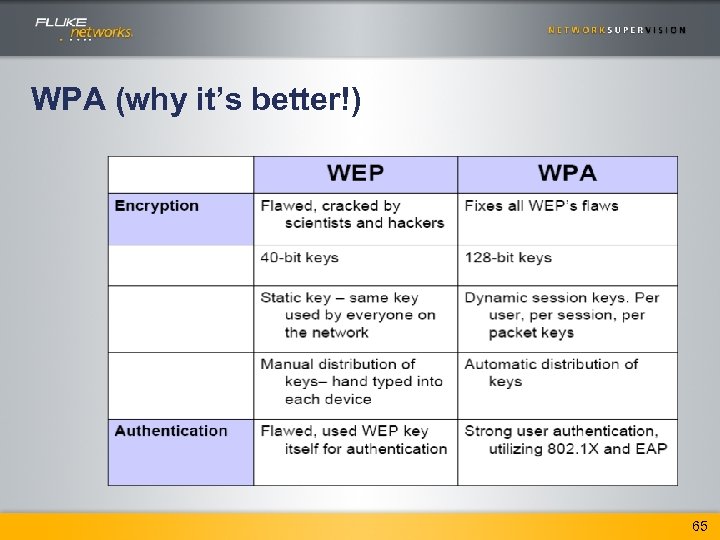 WPA (why it’s better!) 65
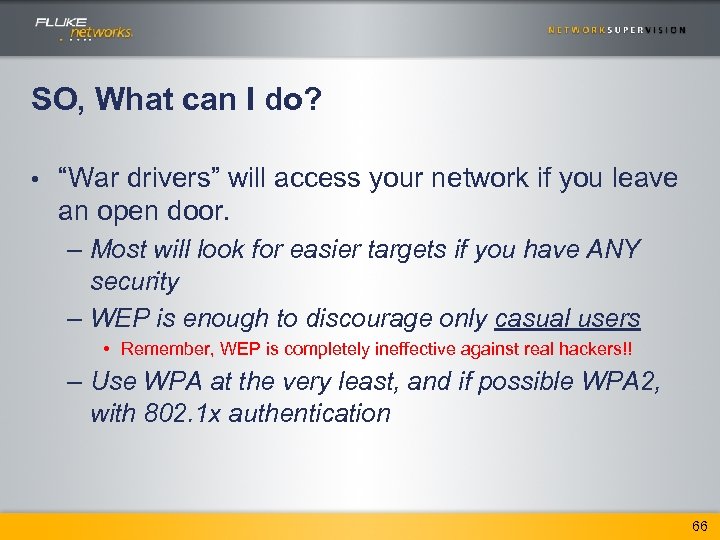 SO, What can I do? • “War drivers” will access your network if you leave an open door. – Most will look for easier targets if you have ANY security – WEP is enough to discourage only casual users • Remember, WEP is completely ineffective against real hackers!! – Use WPA at the very least, and if possible WPA 2, with 802. 1 x authentication 66
 Wireless – Site Survey Fluke Networks Interpret. Air Site Survey Tool “A Sneak Peak into what’s coming”
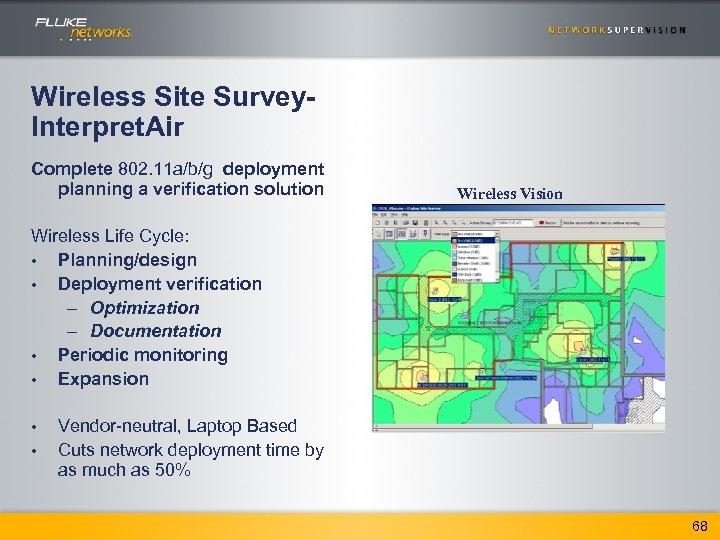 Wireless Site Survey. Interpret. Air Complete 802. 11 a/b/g deployment planning a verification solution Wireless Vision Wireless Life Cycle: • Planning/design • Deployment verification – Optimization – Documentation • Periodic monitoring • Expansion • • Vendor-neutral, Laptop Based Cuts network deployment time by as much as 50% 68
 Network Planning (what, where, how) WLAN design, and how to connect to the wired net. • Based on requirements, determine: • – – – Locations of wired ethernet & power outlets Access Point (AP) types and locations Transmission power and channel separation Antenna types Cabling, wiring closets Analysis of the environment (or in the next phase) 69
 Pre-deployment survey Using one or few access points, map parts or the whole area of operation, without installing the complete infrastructure • Compare the network plan to the measured readings. Adjust the plan if necessary. • Using site survey software, simulate the complete production network using pre-deploment measurements. • Customer choice: some rely on predicted measurements in software, some perform partial or extensive pre-deployment surveys • 70
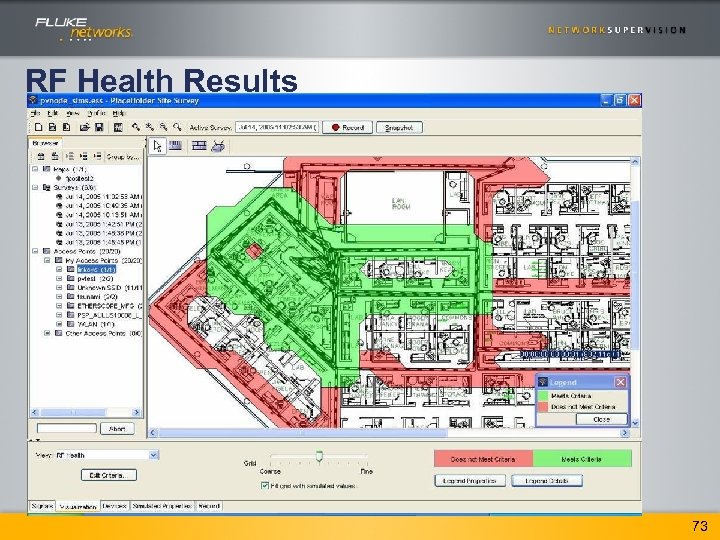
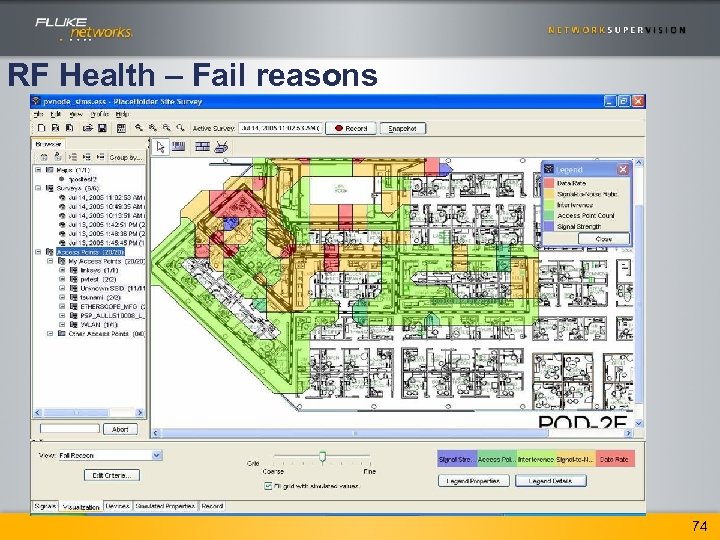
 Verification / RF Health Walk the site and measure deployed performance. • A post-installation survey is conducted to ensure the deployed infrastructure operates as predicted/required • One carefully conducted survey around the site is enough! • Fluke Networks RF Health Feature makes verification and optimization faster and easier. • – Enough APs / coverage overlap? – Data rate? – SNR? 71
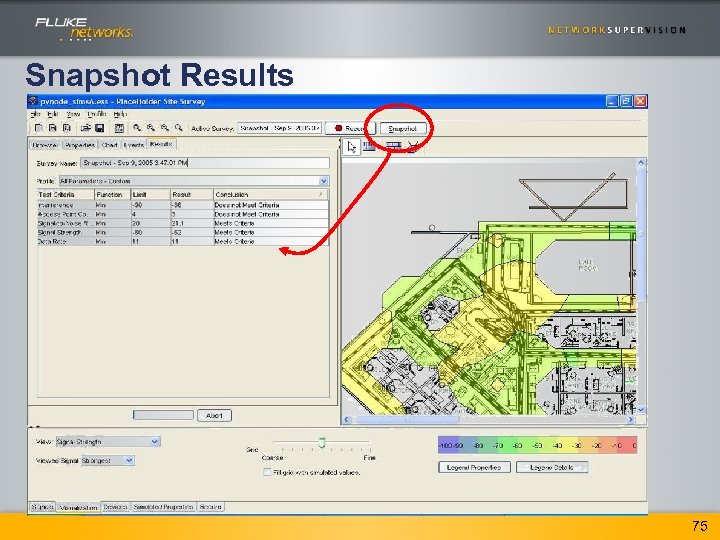
 Interpret. Air Differentiators Fluke Networks is the only provider of these features! • RF Health Feature – Aggregate view of user defined performance criteria – Makes analysis easier/faster • “Snap. Shot” – Fast wireless troubleshooting • Extremely easy to use / intuitive UI Laptops offer better screen real estate than PDA Complements wireless portable analysis tools to provide a complete solution for wireless life cycle management. • • 72
 RF Health Results 73
 RF Health – Fail reasons 74
 Snapshot Results 75
 Optimization • Review the results of the deployed network: – – • Coverage analysis, possible dead spots Rogue access points Overlap, interference, SNR Overall network performance RF Health feature makes optimization easier too! Simulation: Increase network load, AP break-down simulation • Optimize settings (Tx powers, channels. . . ) until site meets plan • 76
 Documentation What to report: – Requirement Specification – Site map /Visualizations • Coverage, SNR, Data Rate • RF Health – Access Point Information – Survey Notes – Implemented Security methods within the Infrastructure 77
 Wireless Life Cycle – All phases, all users Site Survey & Expansion Optimization Install & troubleshoot Security Audit & Management 78
 Wireless- Troubleshooting with FLUKE Networks Ether. Scope Network Assistant ECA 100305
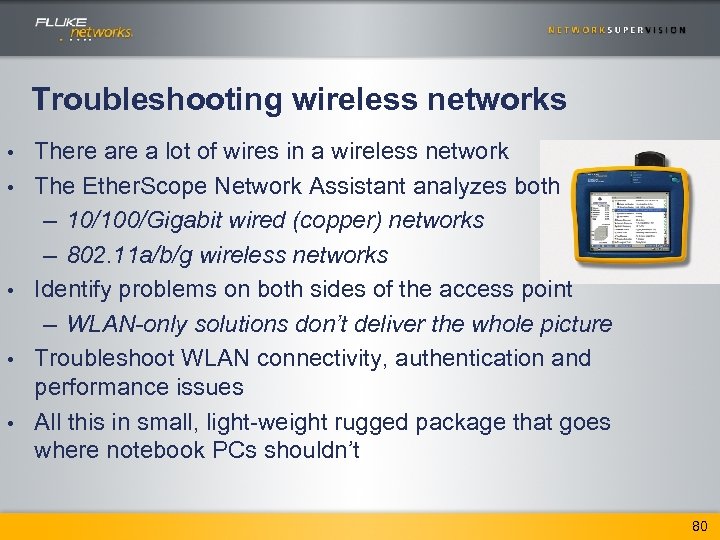 Troubleshooting wireless networks • • • There a lot of wires in a wireless network The Ether. Scope Network Assistant analyzes both – 10/100/Gigabit wired (copper) networks – 802. 11 a/b/g wireless networks Identify problems on both sides of the access point – WLAN-only solutions don’t deliver the whole picture Troubleshoot WLAN connectivity, authentication and performance issues All this in small, light-weight rugged package that goes where notebook PCs shouldn’t 80
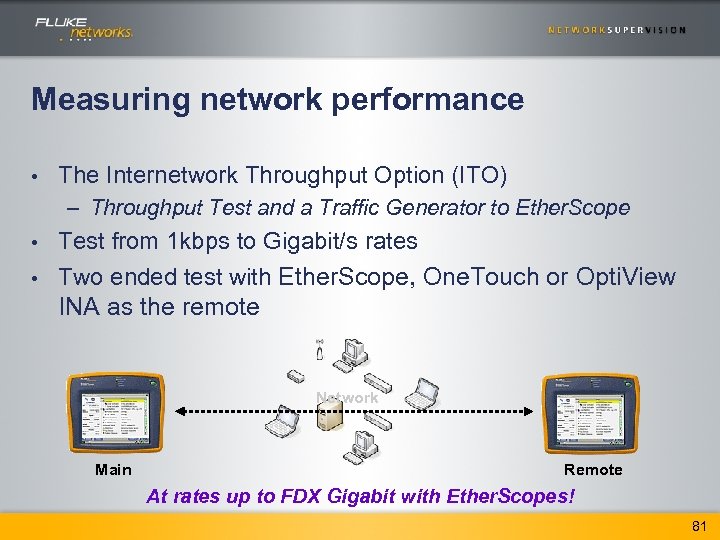 Measuring network performance • The Internetwork Throughput Option (ITO) – Throughput Test and a Traffic Generator to Ether. Scope Test from 1 kbps to Gigabit/s rates • Two ended test with Ether. Scope, One. Touch or Opti. View INA as the remote • Network Main Remote At rates up to FDX Gigabit with Ether. Scopes! 81
 What problems does the new Ether. Scope solve?
 What are the problems with wireless networks • Don’t know what network types are active – feature: Network Discovery • • • Don’t know who is using the WLAN Need to verify device configurations Can’t connect or login Not getting the expected performance (“too slow”) Security concerns (e. g. rogue clients) WLAN isn’t documented 83
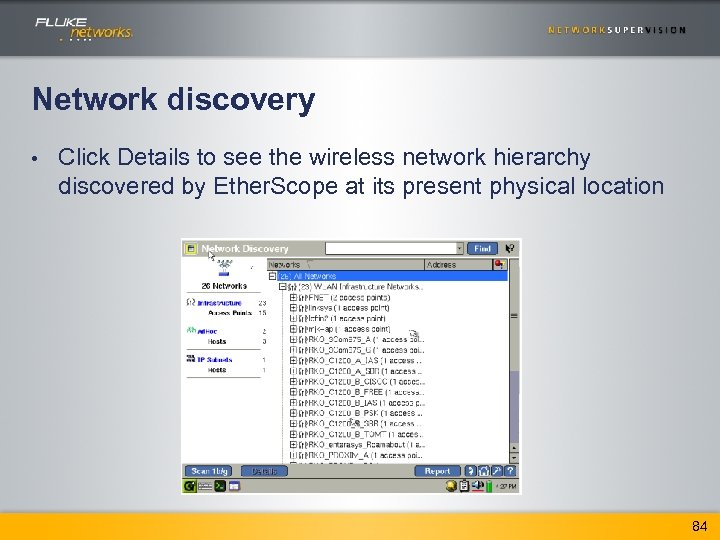 Network discovery • Click Details to see the wireless network hierarchy discovered by Ether. Scope at its present physical location insert screen shot of Network Discovery details 84
 What are the problems with wireless networks • Don’t know what network types are active – feature: Network Discovery • Don’t know who is using the WLAN – feature: Device Discovery • • • Need to verify device configurations Can’t connect or login Not getting the expected performance (“too slow”) Security concerns (e. g. rogue clients) WLAN isn’t documented 85
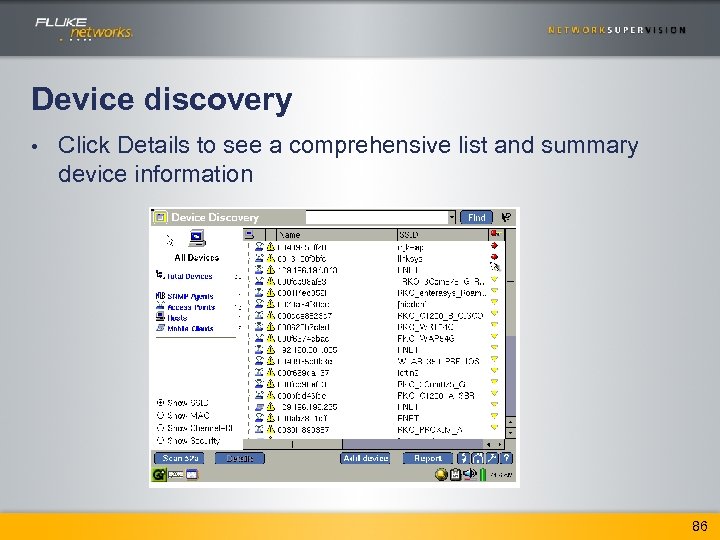 Device discovery • Click Details to see a comprehensive list and summary device information insert screen shot of Device Discovery details 86
 What are the problems with wireless networks • Don’t know what network types are active – feature: Network Discovery • Don’t know who is using the WLAN – feature: Device Discovery • Need to verify device configurations – feature: Device Discovery Details Not getting the expected performance (“too slow”) • Security concerns (e. g. rogue clients) • Can’t connect or login • WLAN isn’t documented • 87
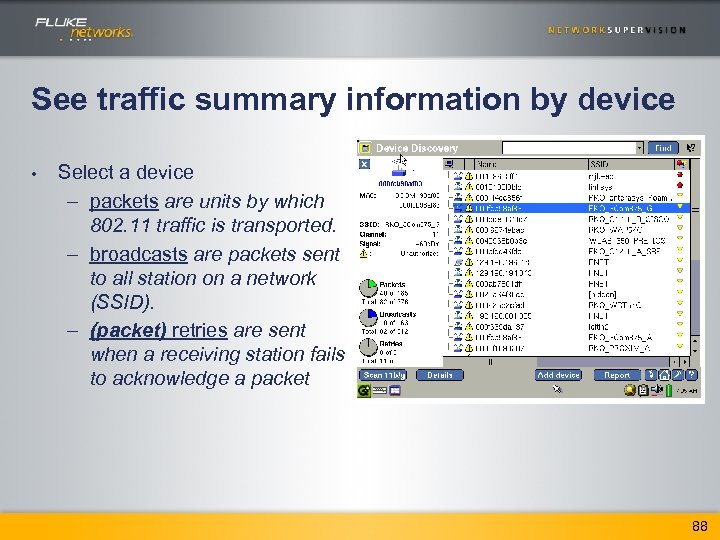 See traffic summary information by device • Select a device – packets are units by which 802. 11 traffic is transported. – broadcasts are packets sent to all station on a network (SSID). – (packet) retries are sent when a receiving station fails to acknowledge a packet 88
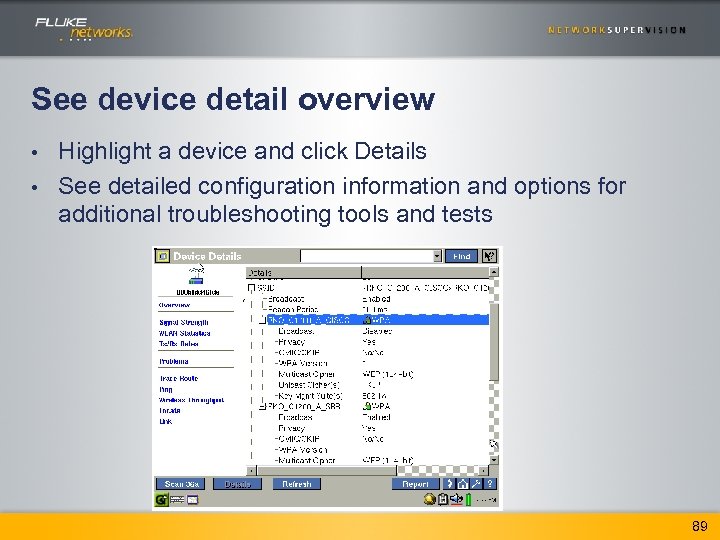 See device detail overview Highlight a device and click Details • See detailed configuration information and options for additional troubleshooting tools and tests • 89
 What are the problems with wireless networks • • Don’t know what network types are active – feature: Network Discovery Don’t know who is using the WLAN – feature: Device Discovery Need to verify device configurations – feature: Device Discovery Details Not getting the expected performance (“too slow”) – feature: Channel statistics Security concerns (e. g. rogue clients) Can’t connect or login WLAN isn’t documented 90
 Analyze performance and connectivity issues by examining channel statistics • A channel is defined as the common frequency that is used to direct communication between an 802. 11 radio card an access point. – 802. 11 b/g • 14 channels; 11 in US • Channels 1, 6, and 11 non-overlapping • Uses 22 MHz wide channels – 802. 11 a • 30 channels • Uses 20 MHz wide channels • NO overlapping channels 91
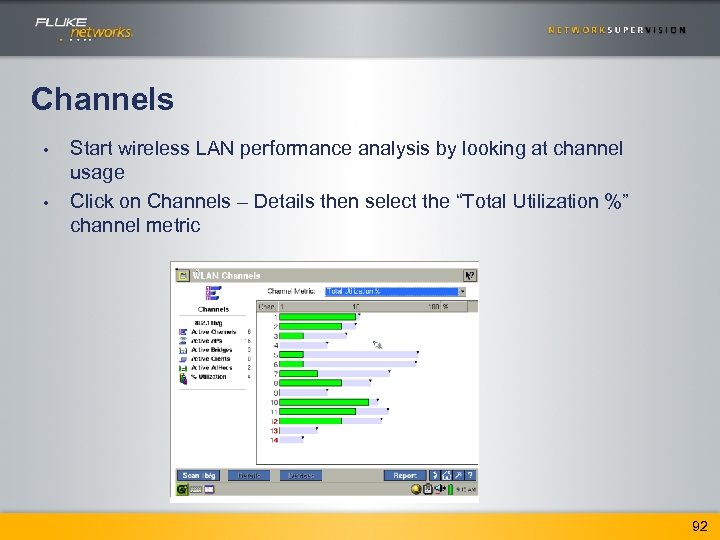 Channels • • Start wireless LAN performance analysis by looking at channel usage Click on Channels – Details then select the “Total Utilization %” channel metric 92
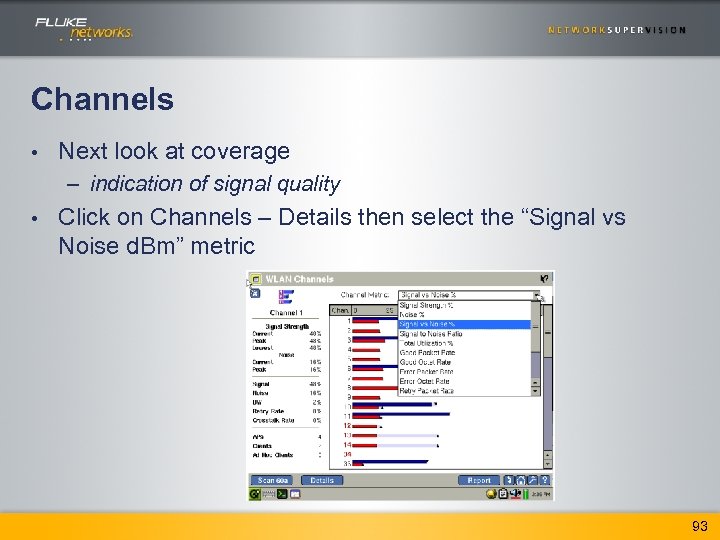 Channels • Next look at coverage – indication of signal quality • Click on Channels – Details then select the “Signal vs Noise d. Bm” metric 93
 Noise Non 802. 11 energy (non-compliant signal strength) • Get noise readings from radio card • Indicates noise floor level • Used to evaluate channel quality • – Signal-to-Noise ratio Noise level impacts connectivity and performance • Shows distribution of noise across channels • Channel Quality represented by signal-to-noise ratio • 94
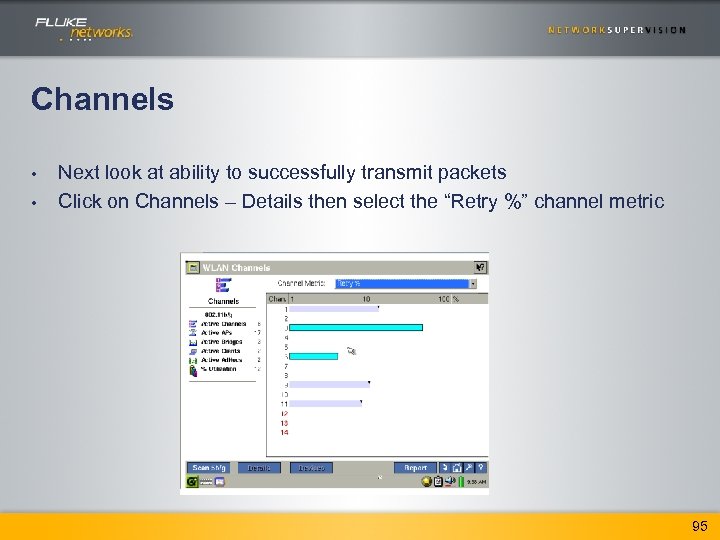 Channels • • Next look at ability to successfully transmit packets Click on Channels – Details then select the “Retry %” channel metric 95
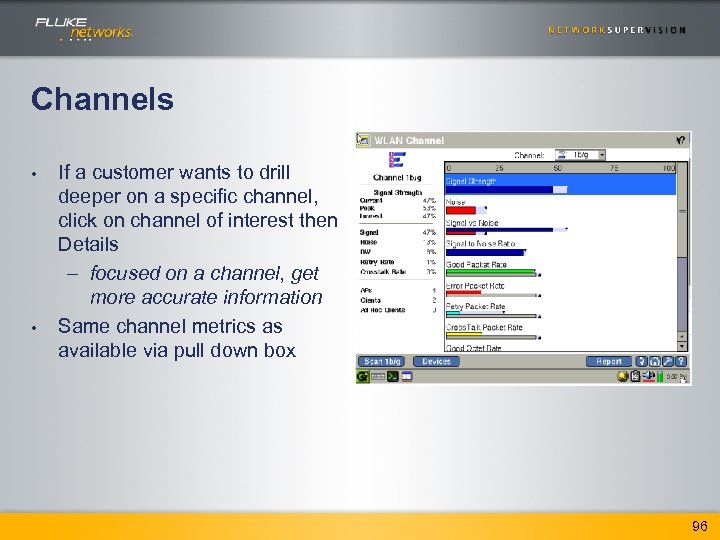 Channels • • If a customer wants to drill deeper on a specific channel, click on channel of interest then Details – focused on a channel, get more accurate information Same channel metrics as available via pull down box 96
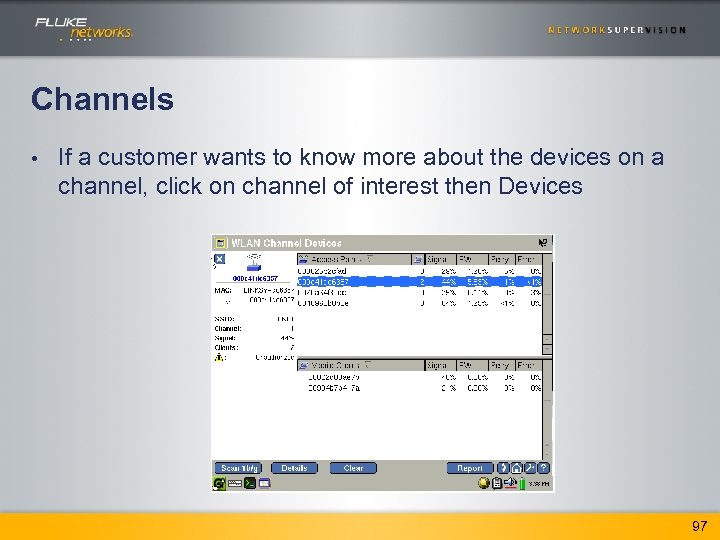 Channels • If a customer wants to know more about the devices on a channel, click on channel of interest then Devices 97
 Analyze wireless network health by examining channel utilization • A channel utilization measures the % of bandwidth consumed by packets transmitted by wireless devices (Access Points, mobile clients, etc. ) on a single frequency 98
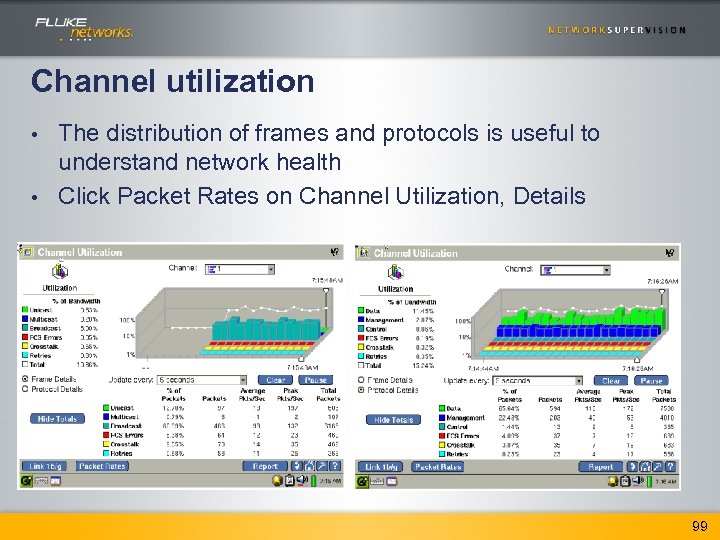 Channel utilization The distribution of frames and protocols is useful to understand network health • Click Packet Rates on Channel Utilization, Details • 99
 What are the problems with wireless networks • • Don’t know what network types are active – feature: Network Discovery Don’t know who is using the WLAN – feature: Device Discovery Need to verify device configurations – feature: Device Discovery Details Not getting the expected performance (“too slow”) – feature: Channel statistics Security concerns (e. g. rogue clients) – feature: Security Scan Can’t connect or login WLAN isn’t documented 100
 Identifying security vulnerabilities • Security threats are identified two ways – unprotected devices are not using encryption to manage connections • unprotected devices can be a path into your network – unauthorized devices are not approved by the IT manager to be on the network • Ether. Scope assumes all devices are unauthorized until made otherwise 101
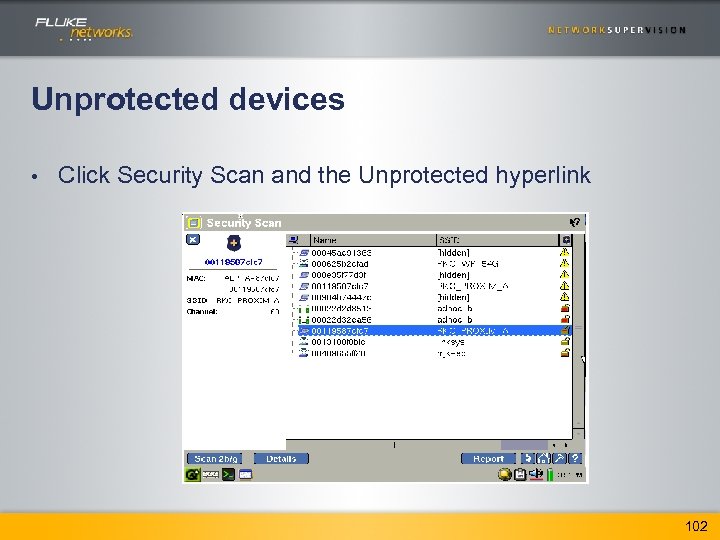 Unprotected devices • Click Security Scan and the Unprotected hyperlink 102
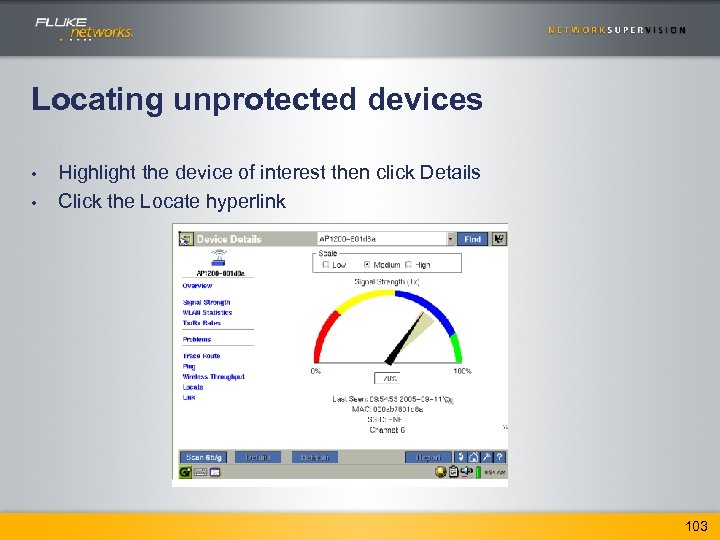 Locating unprotected devices • • Highlight the device of interest then click Details Click the Locate hyperlink insert screen shot of device details locate feature 103
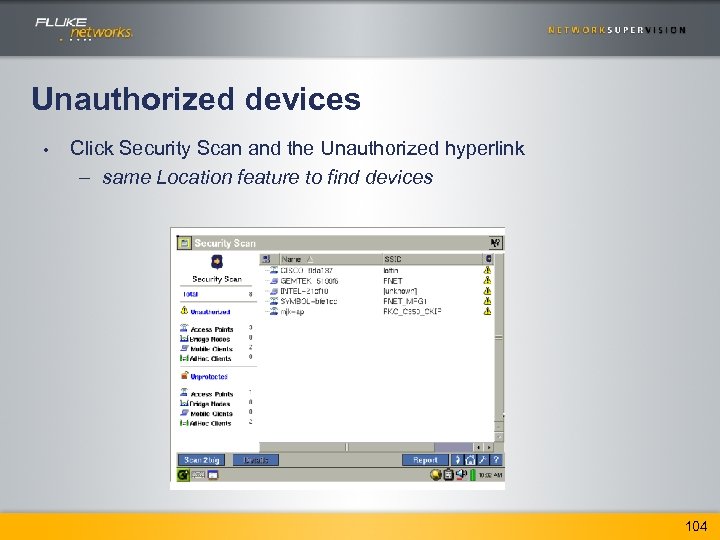 Unauthorized devices • Click Security Scan and the Unauthorized hyperlink – same Location feature to find devices insert screen shot of security scan unauthorized devices 104
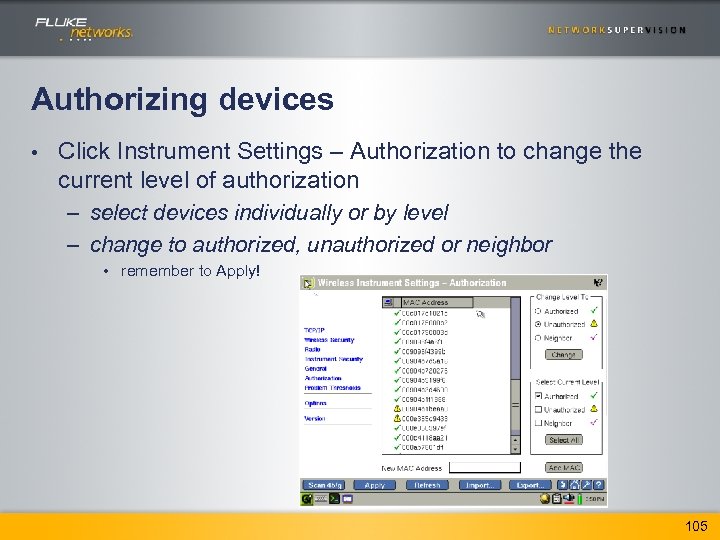 Authorizing devices • Click Instrument Settings – Authorization to change the current level of authorization – select devices individually or by level – change to authorized, unauthorized or neighbor • remember to Apply! 105
 What are the problems with wireless networks • • Don’t know what network types are active – feature: Network Discovery Don’t know who is using the WLAN – feature: Device Discovery Need to verify device configurations – feature: Device Discovery Details Not getting the expected performance (“too slow”) – feature: Channel statistics Security concerns (e. g. rogue clients) – feature: Security Scan Can’t connect or login – feature: Login Diagnosis WLAN isn’t documented 106
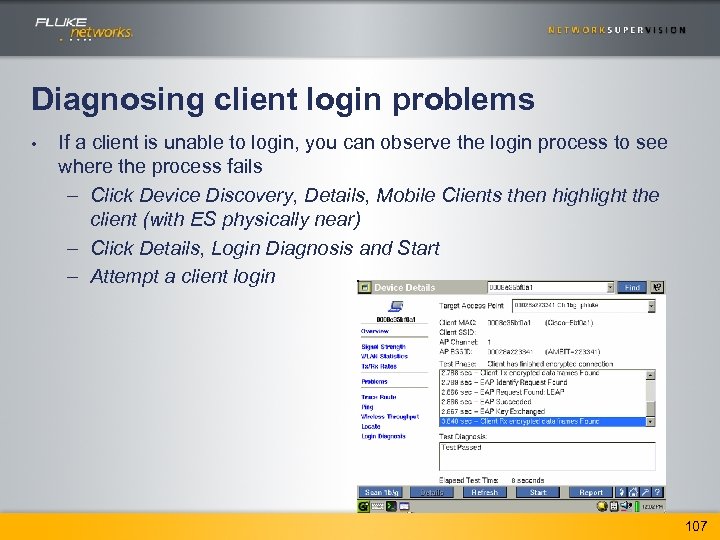 Diagnosing client login problems • If a client is unable to login, you can observe the login process to see where the process fails – Click Device Discovery, Details, Mobile Clients then highlight the client (with ES physically near) – Click Details, Login Diagnosis and Start – Attempt a client login Insert screen shot and emphasize key points 107
 What are the problems with wireless networks • • Don’t know what network types are active – feature: Network Discovery Don’t know who is using the WLAN – feature: Device Discovery Need to verify device configurations – feature: Device Discovery Details Not getting the expected performance (“too slow”) – feature: Channel statistics Security concerns (e. g. rogue clients) – feature: Security Scan Can’t connect or login – feature: Login Diagnosis WLAN isn’t documented – feature: Reports 108
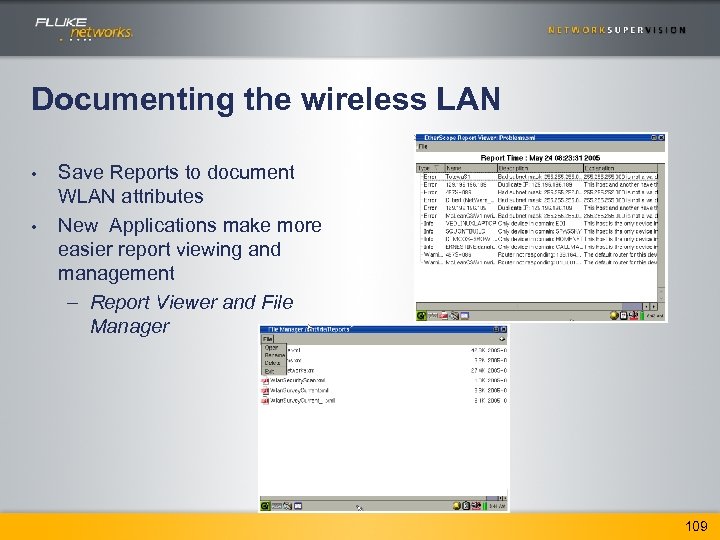 Documenting the wireless LAN • • Save Reports to document WLAN attributes New Applications make more easier report viewing and management – Report Viewer and File Manager 109
 Portable Wireless Network Planning and Troubleshooting Interpret. Air™ Ether. Scope Wireless Site Survey Network Assistant For Network Engineers, Technicians, and installers who are tasked with planning, installing, and verifying WLAN systems. Interpret. Air enables them to assure peak performance and provide seamless WLAN coverage to support mobile applications. • • Planning (Simulation) Verification/Troubleshooting Expansion Documentation For network professionals, Ether. Scope Network Assistant is a portable problem-solving tool that helps them quickly identify what and where gigabit and 802. 11 a/b/g wireless problems are so they can fix them faster, resulting in more time for everything else. • • Problem Solving Maintenance/ Troubleshooting 110
 Thanks for coming to Fluke Network’s Wireless Networking Workshop!