 Скачать презентацию Web-Application Development Workshop M Dixon 1 Session
4351991e72d4101d7f8d0cccacecddcd.ppt
- Количество слайдов: 35



Web-Application Development Workshop M Dixon 1
Session Aims & Objectives • Aims – to introduce the main concepts involved in creating web-applications • Objectives, by end of this week’s sessions, you should be able to: – create an html page – create objects by adding html tags – create an asp page – make your page interactive • respond to events, read in form input and display dynamic output – connect to a database – display data – create a php page M Dixon 2
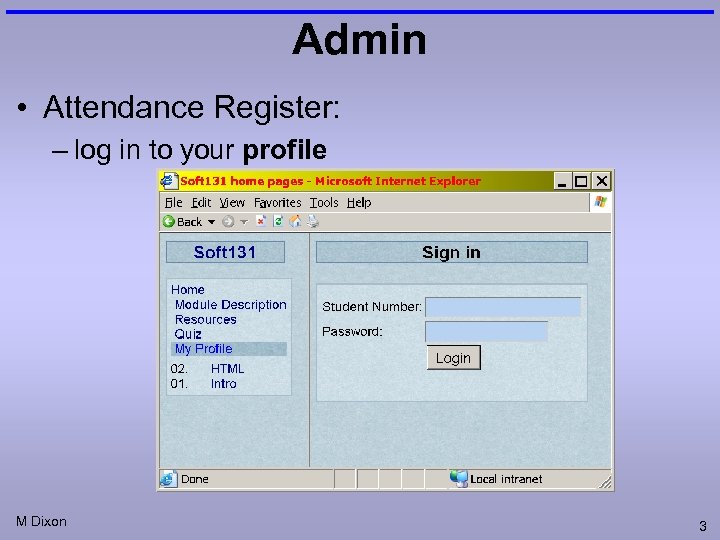
Admin • Attendance Register: – log in to your profile M Dixon 3
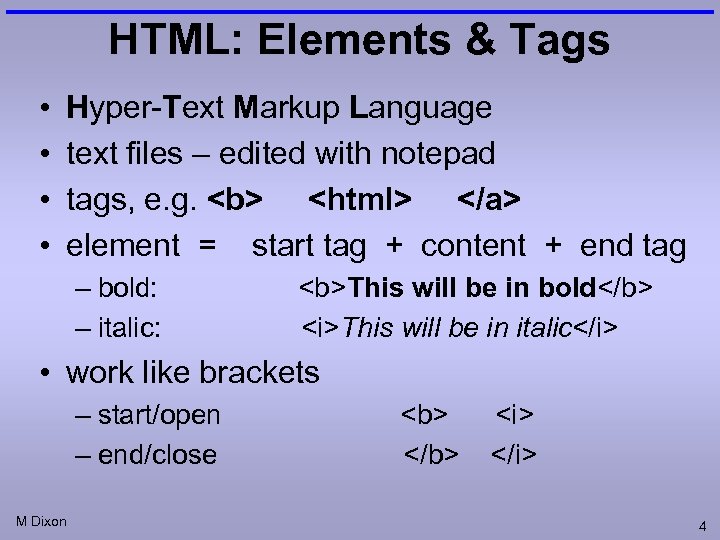
HTML: Elements & Tags • • Hyper-Text Markup Language text files – edited with notepad tags, e. g. <b> <html> </a> element = start tag + content + end tag – bold: – italic: <b>This will be in bold</b> <i>This will be in italic</i> • work like brackets – start/open – end/close M Dixon <b> </b> <i> </i> 4
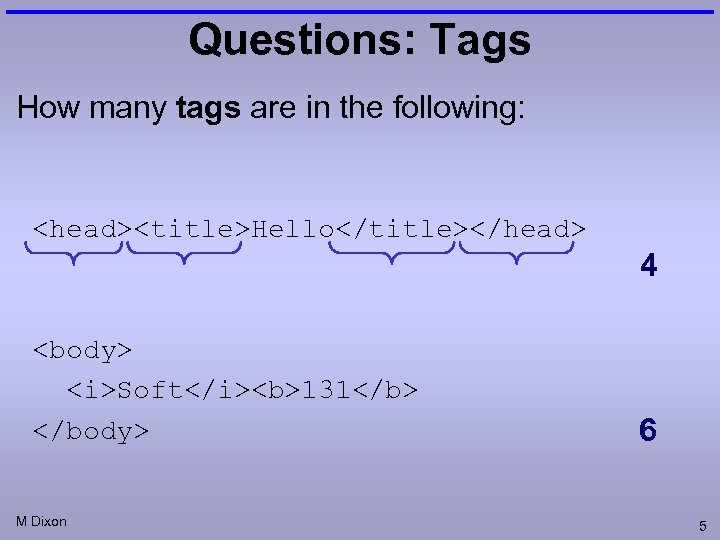
Questions: Tags How many tags are in the following: <head><title>Hello</title></head> 4 <body> <i>Soft</i><b>131</b> </body> M Dixon 6 5
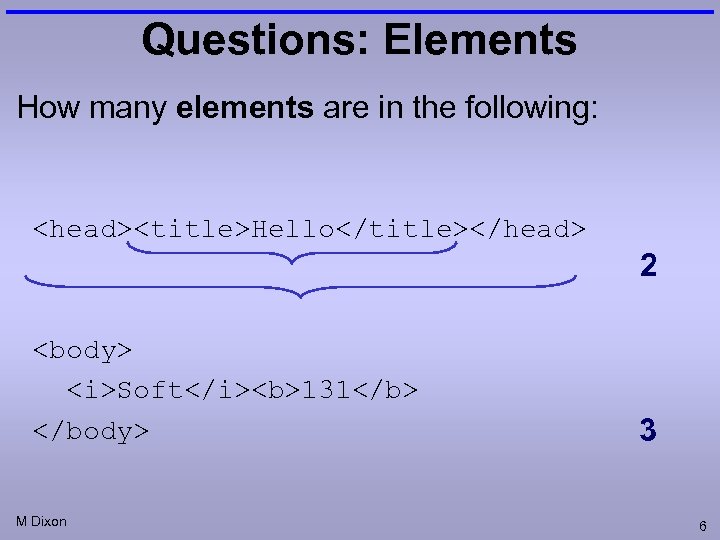
Questions: Elements How many elements are in the following: <head><title>Hello</title></head> 2 <body> <i>Soft</i><b>131</b> </body> M Dixon 3 6
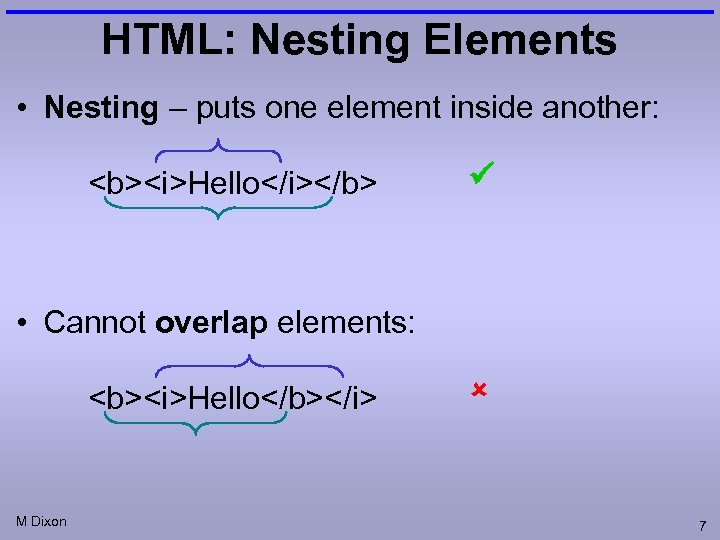
HTML: Nesting Elements • Nesting – puts one element inside another: <b><i>Hello</i></b> • Cannot overlap elements: <b><i>Hello</b></i> M Dixon 7
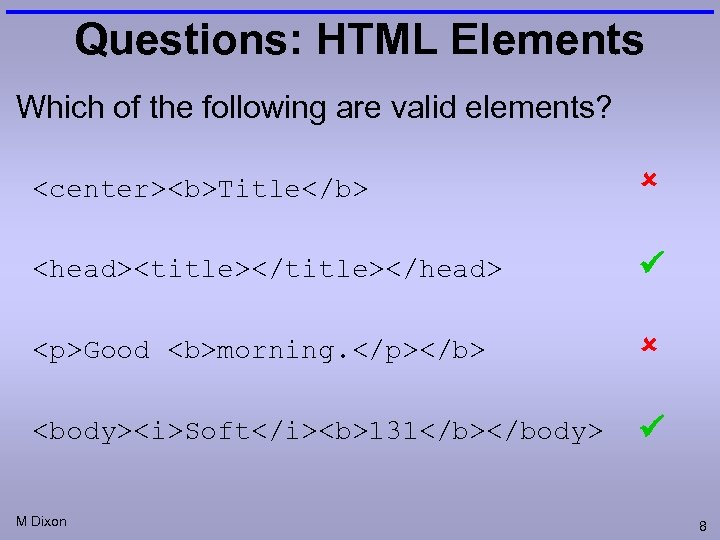
Questions: HTML Elements Which of the following are valid elements? <center><b>Title</b> <head><title></head> <p>Good <b>morning. </p></b> <body><i>Soft</i><b>131</b></body> M Dixon 8
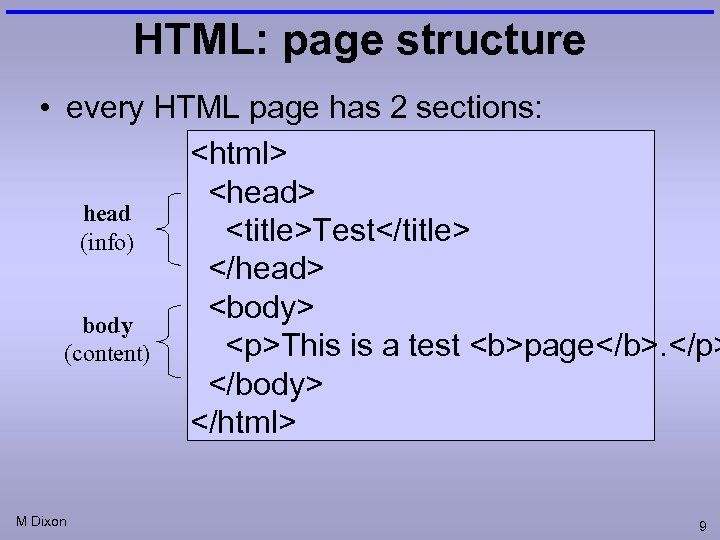
HTML: page structure • every HTML page has 2 sections: <html> <head> head <title>Test</title> (info) </head> <body> body <p>This is a test <b>page</b>. </p> (content) </body> </html> M Dixon 9
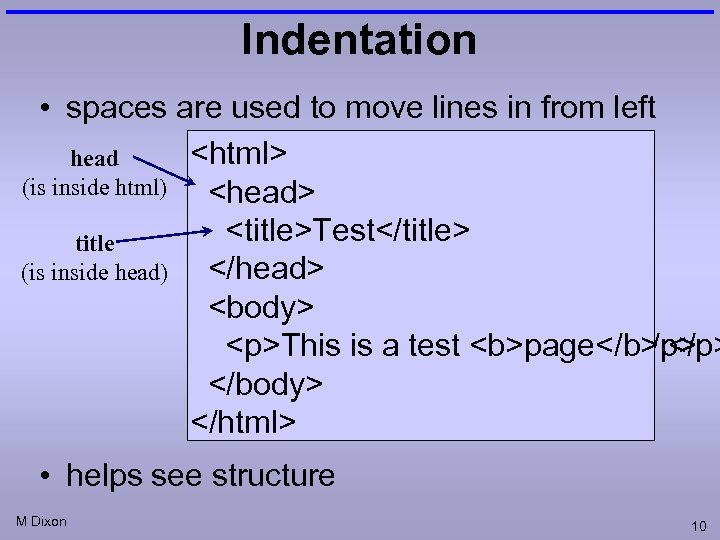
Indentation • spaces are used to move lines in from left <html> head (is inside html) <head> <title>Test</title> title </head> (is inside head) </head> <body> <p>This is a test <b>page</b>. </p> </body> </html> • helps see structure M Dixon 10
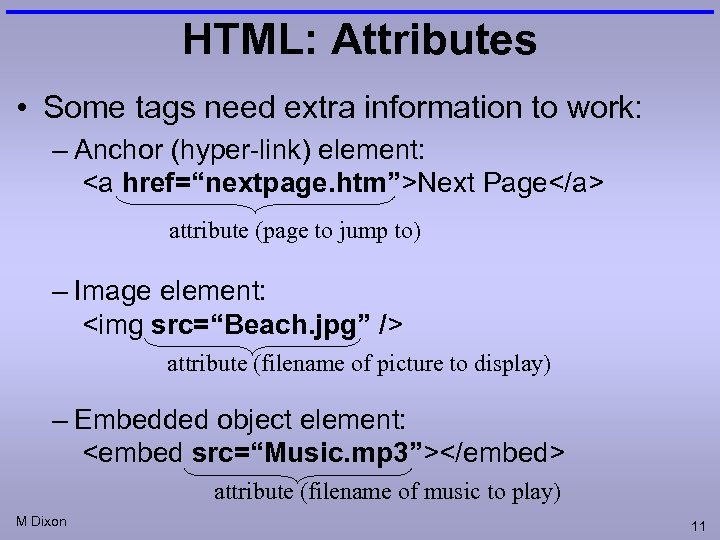
HTML: Attributes • Some tags need extra information to work: – Anchor (hyper-link) element: <a href=“nextpage. htm”>Next Page</a> attribute (page to jump to) – Image element: <img src=“Beach. jpg” /> attribute (filename of picture to display) – Embedded object element: <embed src=“Music. mp 3”></embed> attribute (filename of music to play) M Dixon 11
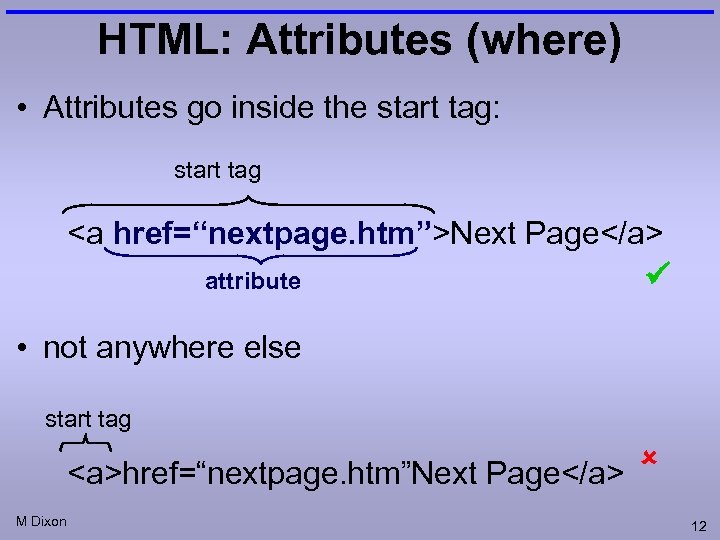
HTML: Attributes (where) • Attributes go inside the start tag: start tag <a href=“nextpage. htm”>Next Page</a> attribute • not anywhere else start tag <a>href=“nextpage. htm”Next Page</a> M Dixon 12
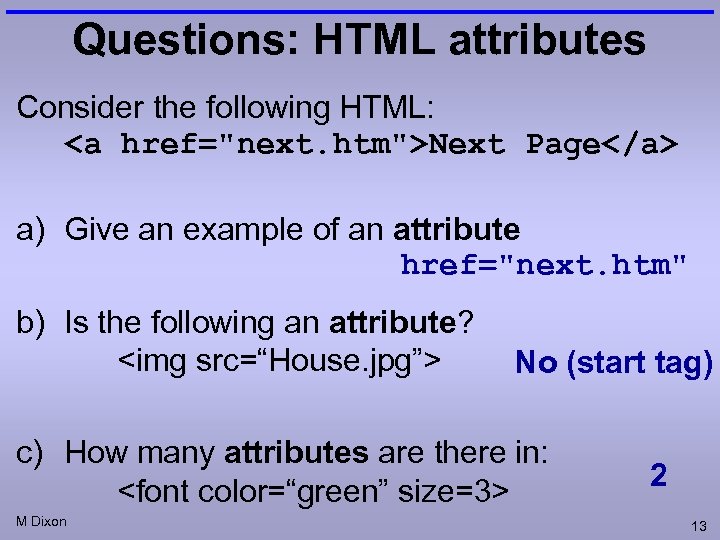
Questions: HTML attributes Consider the following HTML: <a href="next. htm">Next Page</a> a) Give an example of an attribute href="next. htm" b) Is the following an attribute? <img src=“House. jpg”> No (start tag) c) How many attributes are there in: <font color=“green” size=3> M Dixon 2 13
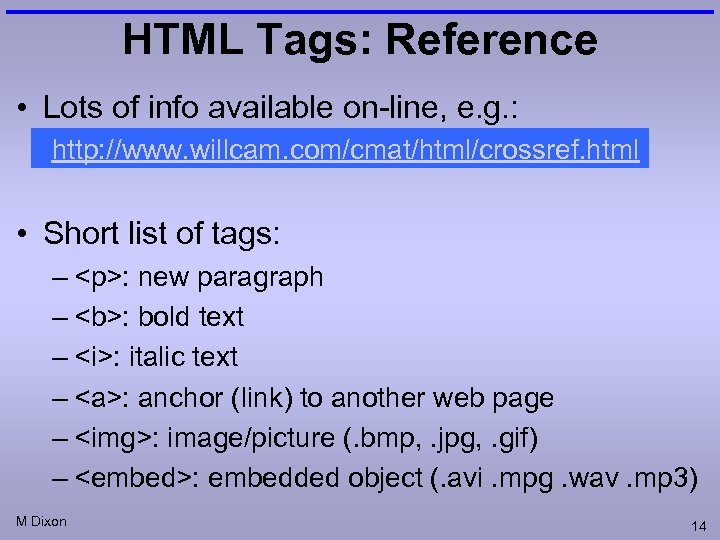
HTML Tags: Reference • Lots of info available on-line, e. g. : http: //www. willcam. com/cmat/html/crossref. html • Short list of tags: – <p>: new paragraph – <b>: bold text – <i>: italic text – <a>: anchor (link) to another web page – <img>: image/picture (. bmp, . jpg, . gif) – <embed>: embedded object (. avi. mpg. wav. mp 3) M Dixon 14
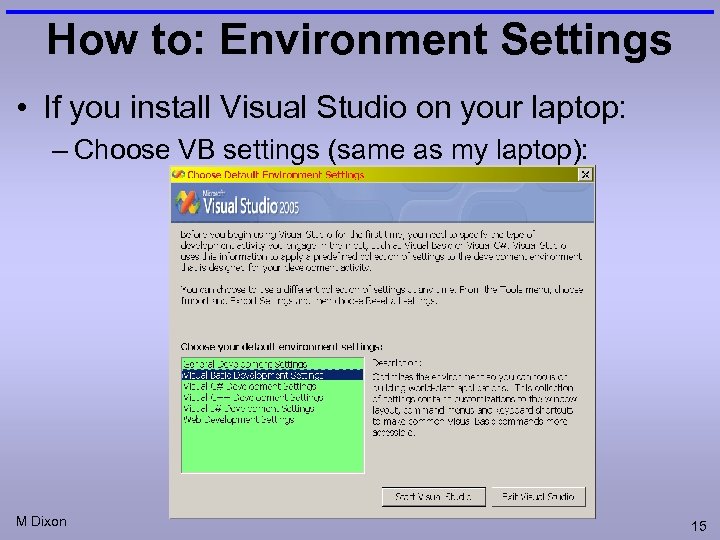
How to: Environment Settings • If you install Visual Studio on your laptop: – Choose VB settings (same as my laptop): M Dixon 15
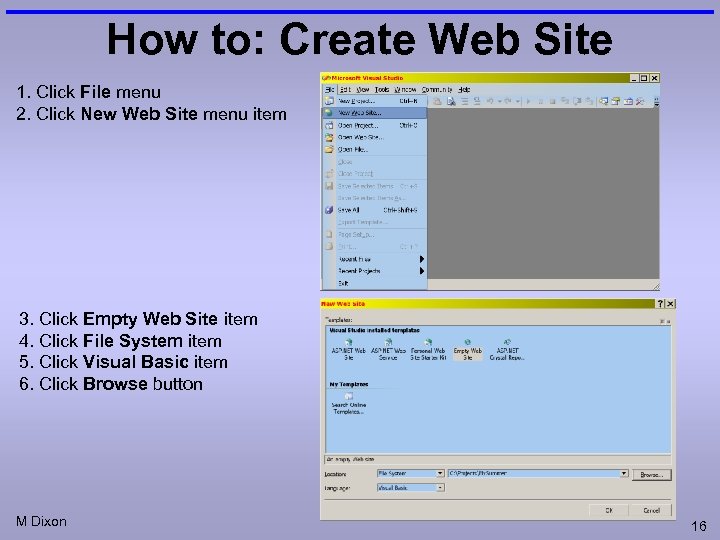
How to: Create Web Site 1. Click File menu 2. Click New Web Site menu item 3. Click Empty Web Site item 4. Click File System item 5. Click Visual Basic item 6. Click Browse button M Dixon 16
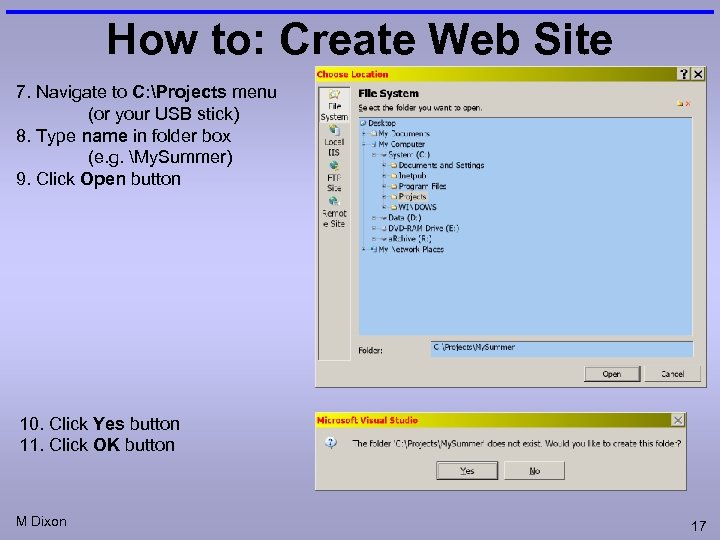
How to: Create Web Site 7. Navigate to C: Projects menu (or your USB stick) 8. Type name in folder box (e. g. My. Summer) 9. Click Open button 10. Click Yes button 11. Click OK button M Dixon 17
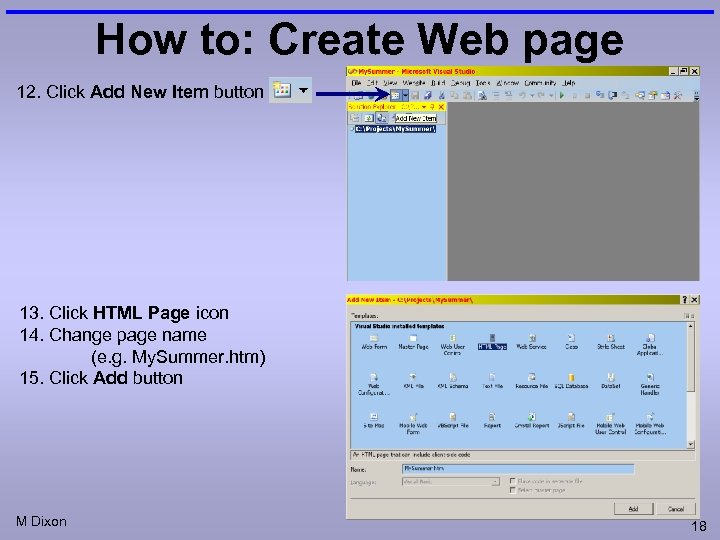
How to: Create Web page 12. Click Add New Item button 13. Click HTML Page icon 14. Change page name (e. g. My. Summer. htm) 15. Click Add button M Dixon 18
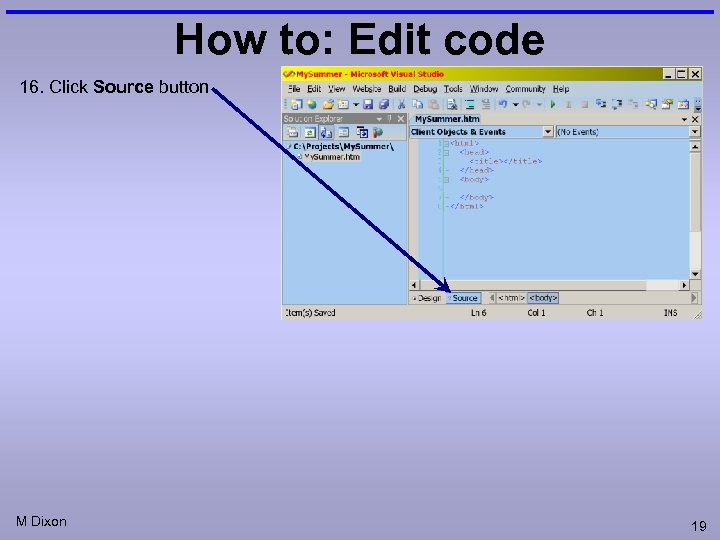
How to: Edit code 16. Click Source button M Dixon 19
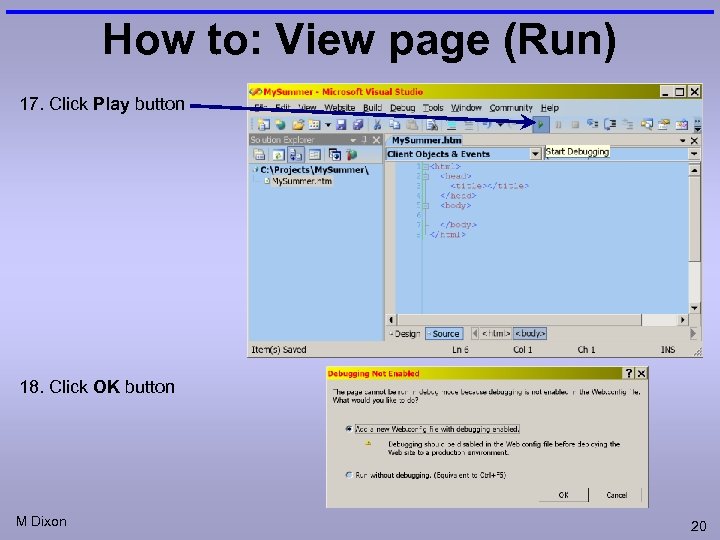
How to: View page (Run) 17. Click Play button 18. Click OK button M Dixon 20
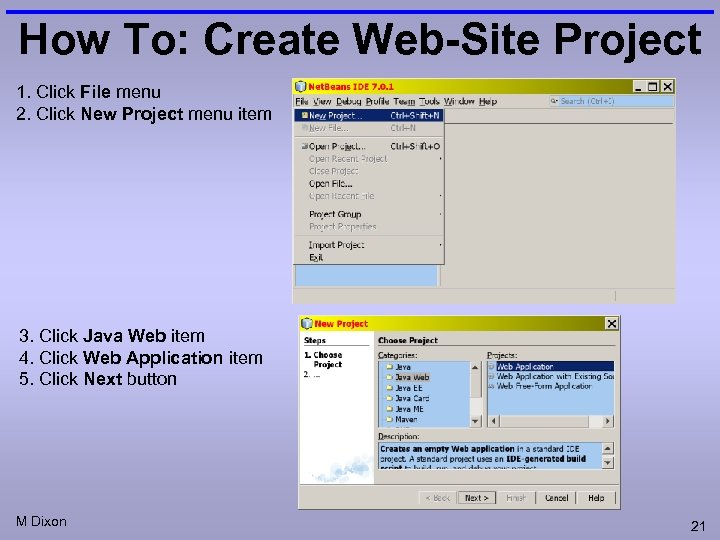
How To: Create Web-Site Project 1. Click File menu 2. Click New Project menu item 3. Click Java Web item 4. Click Web Application item 5. Click Next button M Dixon 21
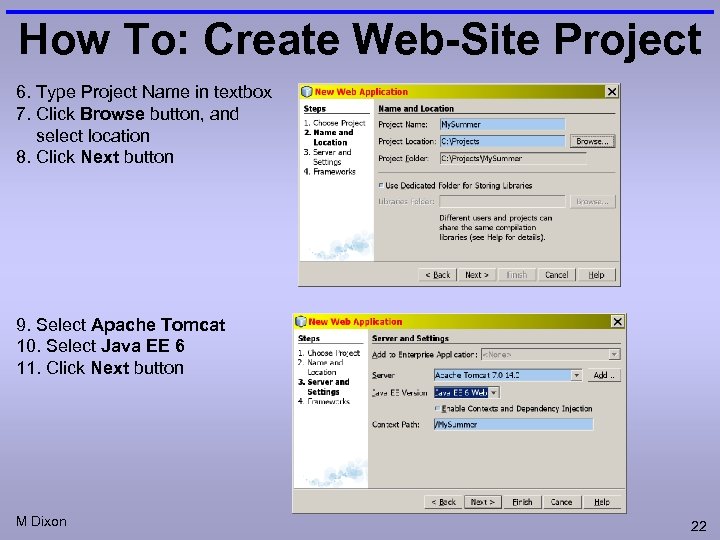
How To: Create Web-Site Project 6. Type Project Name in textbox 7. Click Browse button, and select location 8. Click Next button 9. Select Apache Tomcat 10. Select Java EE 6 11. Click Next button M Dixon 22
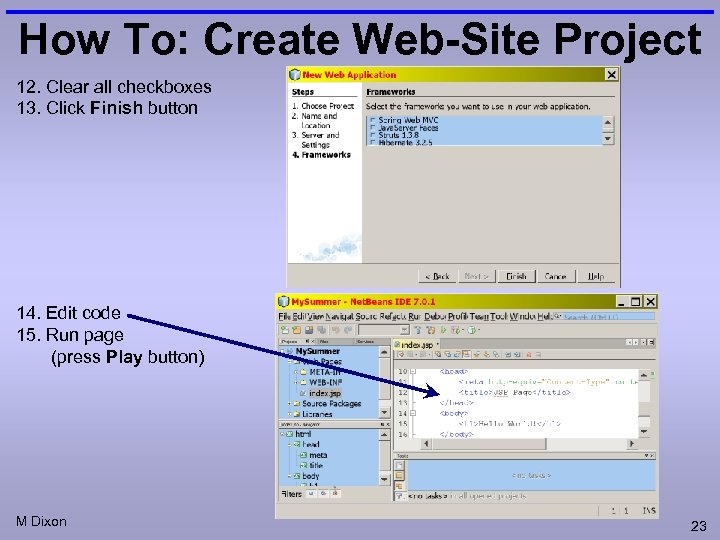
How To: Create Web-Site Project 12. Clear all checkboxes 13. Click Finish button 14. Edit code 15. Run page (press Play button) M Dixon 23
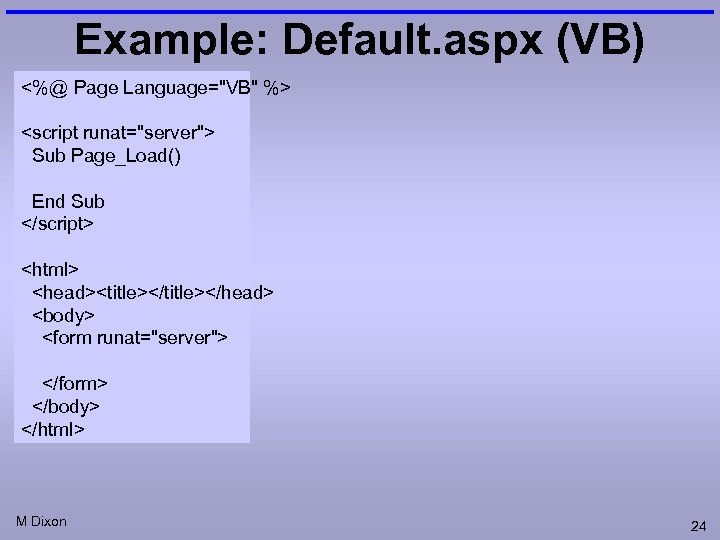
Example: Default. aspx (VB) <%@ Page Language="VB" %> <script runat="server"> Sub Page_Load() End Sub </script> <html> <head><title></head> <body> <form runat="server"> </form> </body> </html> M Dixon 24
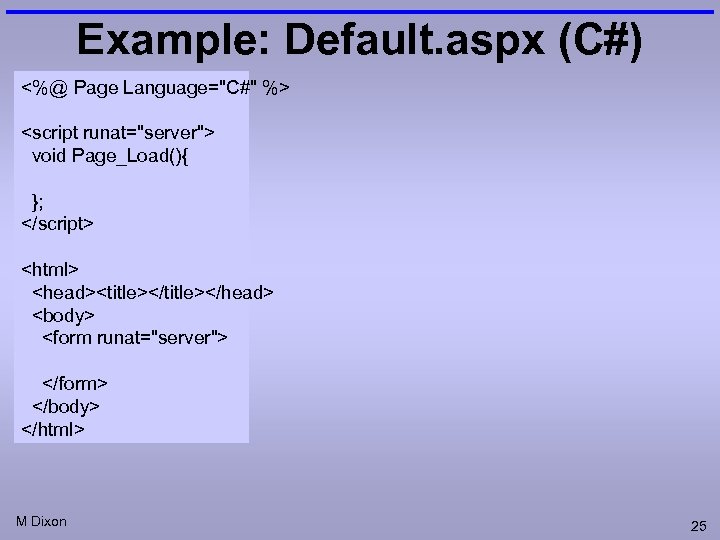
Example: Default. aspx (C#) <%@ Page Language="C#" %> <script runat="server"> void Page_Load(){ }; </script> <html> <head><title></head> <body> <form runat="server"> </form> </body> </html> M Dixon 25
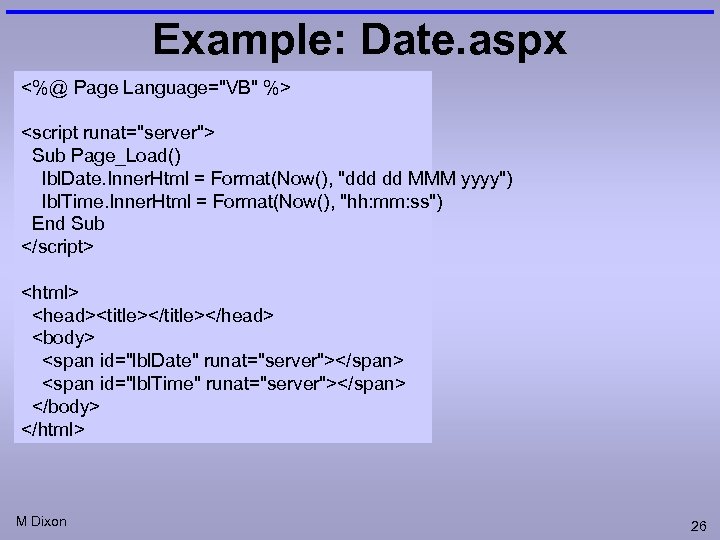
Example: Date. aspx <%@ Page Language="VB" %> <script runat="server"> Sub Page_Load() lbl. Date. Inner. Html = Format(Now(), "ddd dd MMM yyyy") lbl. Time. Inner. Html = Format(Now(), "hh: mm: ss") End Sub </script> <html> <head><title></head> <body> <span id="lbl. Date" runat="server"></span> <span id="lbl. Time" runat="server"></span> </body> </html> M Dixon 26
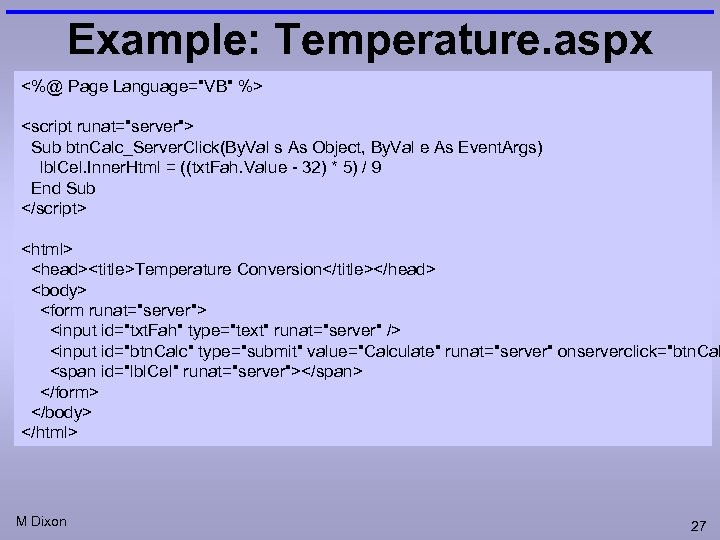
Example: Temperature. aspx <%@ Page Language="VB" %> <script runat="server"> Sub btn. Calc_Server. Click(By. Val s As Object, By. Val e As Event. Args) lbl. Cel. Inner. Html = ((txt. Fah. Value - 32) * 5) / 9 End Sub </script> <html> <head><title>Temperature Conversion</title></head> <body> <form runat="server"> <input id="txt. Fah" type="text" runat="server" /> <input id="btn. Calc" type="submit" value="Calculate" runat="server" onserverclick="btn. Cal <span id="lbl. Cel" runat="server"></span> </form> </body> </html> M Dixon 27
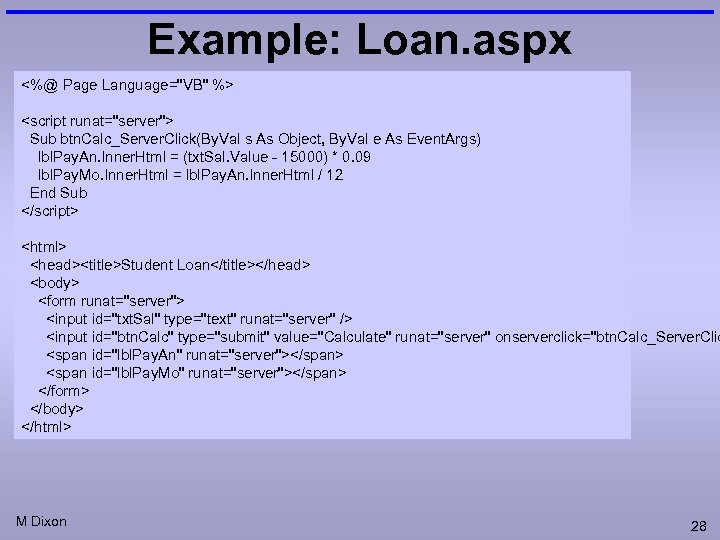
Example: Loan. aspx <%@ Page Language="VB" %> <script runat="server"> Sub btn. Calc_Server. Click(By. Val s As Object, By. Val e As Event. Args) lbl. Pay. An. Inner. Html = (txt. Sal. Value - 15000) * 0. 09 lbl. Pay. Mo. Inner. Html = lbl. Pay. An. Inner. Html / 12 End Sub </script> <html> <head><title>Student Loan</title></head> <body> <form runat="server"> <input id="txt. Sal" type="text" runat="server" /> <input id="btn. Calc" type="submit" value="Calculate" runat="server" onserverclick="btn. Calc_Server. Clic <span id="lbl. Pay. An" runat="server"></span> <span id="lbl. Pay. Mo" runat="server"></span> </form> </body> </html> M Dixon 28
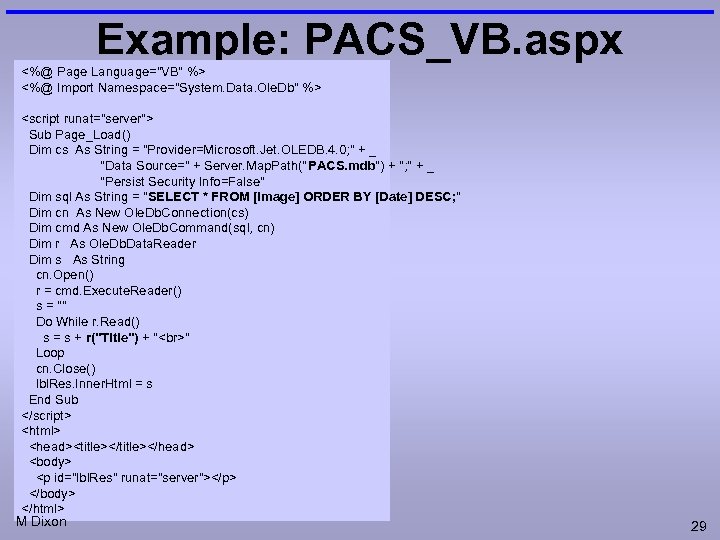
Example: PACS_VB. aspx <%@ Page Language="VB" %> <%@ Import Namespace="System. Data. Ole. Db" %> <script runat="server"> Sub Page_Load() Dim cs As String = "Provider=Microsoft. Jet. OLEDB. 4. 0; " + _ "Data Source=" + Server. Map. Path("PACS. mdb") + "; " + _ "Persist Security Info=False" Dim sql As String = "SELECT * FROM [Image] ORDER BY [Date] DESC; " Dim cn As New Ole. Db. Connection(cs) Dim cmd As New Ole. Db. Command(sql, cn) Dim r As Ole. Db. Data. Reader Dim s As String cn. Open() r = cmd. Execute. Reader() s = "" Do While r. Read() s = s + r("Title") + " " Loop cn. Close() lbl. Res. Inner. Html = s End Sub </script> <html> <head><title></head> <body> <p id="lbl. Res" runat="server"></p> </body> </html> M Dixon 29
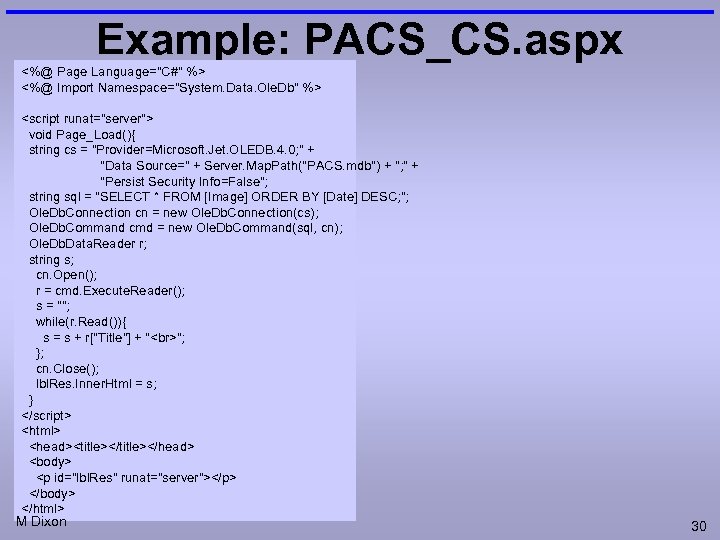
Example: PACS_CS. aspx <%@ Page Language="C#" %> <%@ Import Namespace="System. Data. Ole. Db" %> <script runat="server"> void Page_Load(){ string cs = "Provider=Microsoft. Jet. OLEDB. 4. 0; " + "Data Source=" + Server. Map. Path("PACS. mdb") + "; " + "Persist Security Info=False"; string sql = "SELECT * FROM [Image] ORDER BY [Date] DESC; "; Ole. Db. Connection cn = new Ole. Db. Connection(cs); Ole. Db. Command cmd = new Ole. Db. Command(sql, cn); Ole. Db. Data. Reader r; string s; cn. Open(); r = cmd. Execute. Reader(); s = ""; while(r. Read()){ s = s + r["Title"] + " "; }; cn. Close(); lbl. Res. Inner. Html = s; } </script> <html> <head><title></head> <body> <p id="lbl. Res" runat="server"></p> </body> </html> M Dixon 30
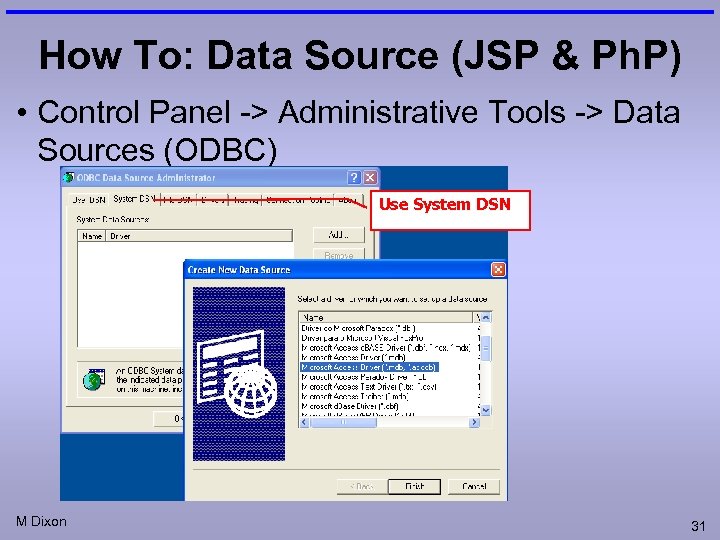
How To: Data Source (JSP & Ph. P) • Control Panel -> Administrative Tools -> Data Sources (ODBC) Use System DSN M Dixon 31
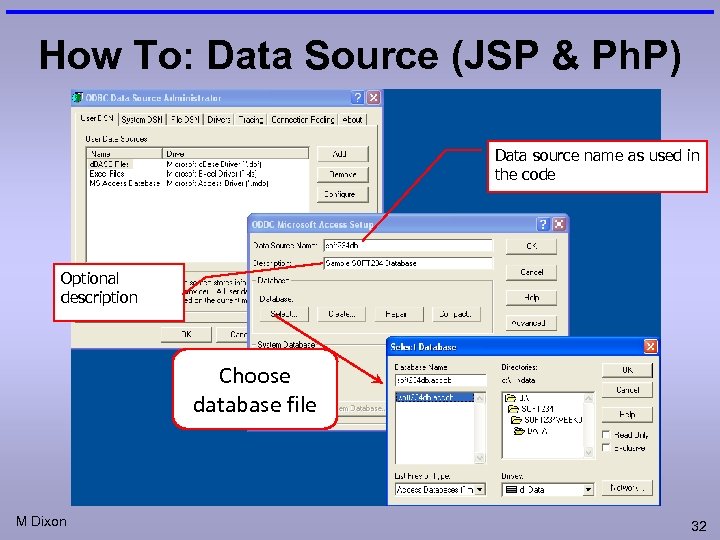
How To: Data Source (JSP & Ph. P) Data source name as used in the code Optional description Choose database file M Dixon 32
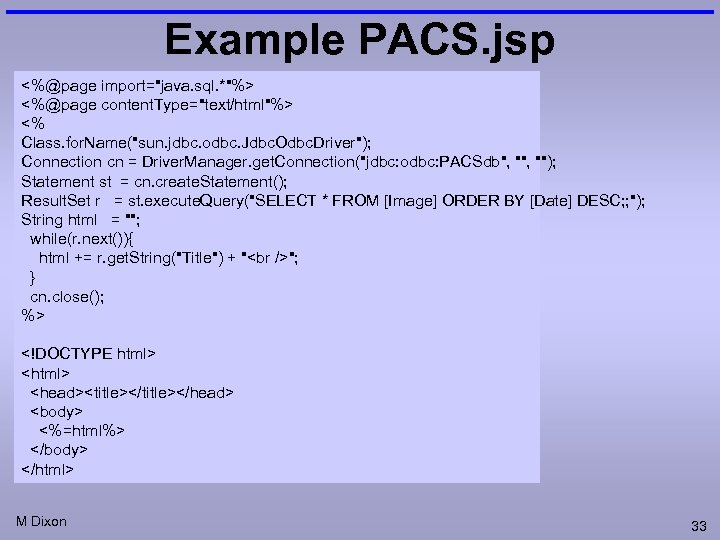
Example PACS. jsp <%@page import="java. sql. *"%> <%@page content. Type="text/html"%> <% Class. for. Name("sun. jdbc. odbc. Jdbc. Odbc. Driver"); Connection cn = Driver. Manager. get. Connection("jdbc: odbc: PACSdb", ""); Statement st = cn. create. Statement(); Result. Set r = st. execute. Query("SELECT * FROM [Image] ORDER BY [Date] DESC; ; "); String html = ""; while(r. next()){ html += r. get. String("Title") + " "; } cn. close(); %> <!DOCTYPE html> <head><title></head> <body> <%=html%> </body> </html> M Dixon 33
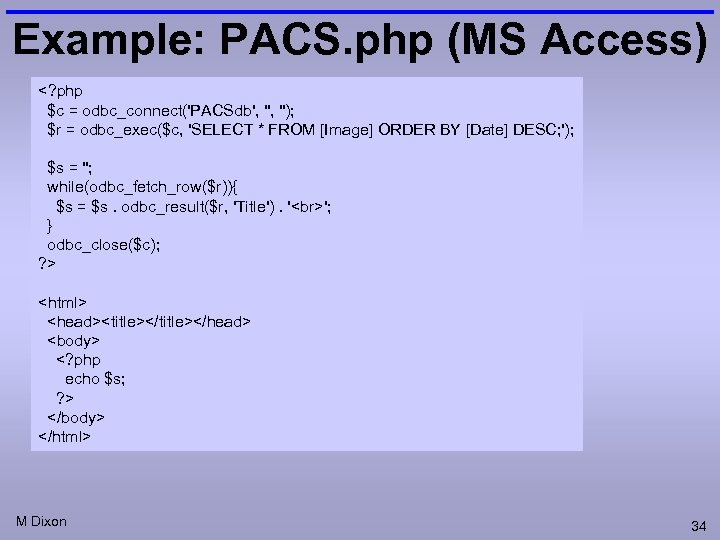
Example: PACS. php (MS Access) <? php $c = odbc_connect('PACSdb', ''); $r = odbc_exec($c, 'SELECT * FROM [Image] ORDER BY [Date] DESC; '); $s = ''; while(odbc_fetch_row($r)){ $s = $s. odbc_result($r, 'Title'). ' '; } odbc_close($c); ? > <html> <head><title></head> <body> <? php echo $s; ? > </body> </html> M Dixon 34
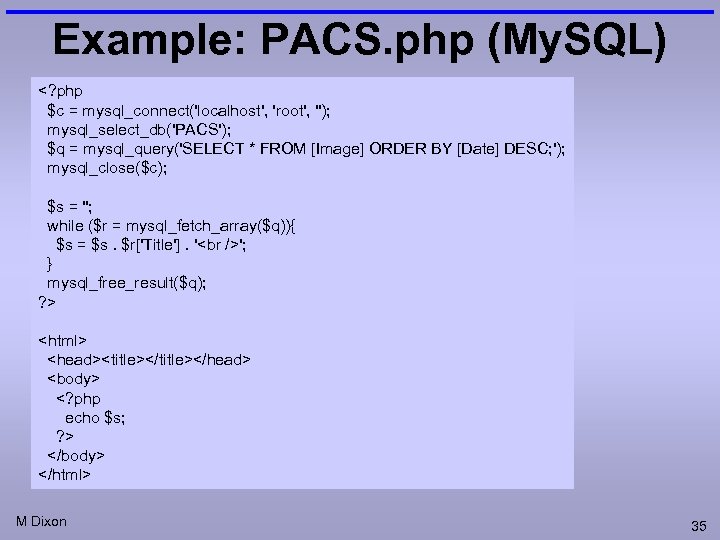
Example: PACS. php (My. SQL) <? php $c = mysql_connect('localhost', 'root', ''); mysql_select_db('PACS'); $q = mysql_query('SELECT * FROM [Image] ORDER BY [Date] DESC; '); mysql_close($c); $s = ''; while ($r = mysql_fetch_array($q)){ $s = $s. $r['Title']. ' '; } mysql_free_result($q); ? > <html> <head><title></head> <body> <? php echo $s; ? > </body> </html> M Dixon 35
Скачать презентацию Web-Application Development Workshop M Dixon 1 Session
4351991e72d4101d7f8d0cccacecddcd.ppt