


 Скачать презентацию Viewer s notes to help you
2861bdfb059d5eb91a6d737ca3e78db7.ppt
- Количество слайдов: 73
 Viewer’s notes. . . to help you … v v At the bottom left of each page there is a page number, when the slide has finished an automated sequence a small star appears in the bottom right hand corner to indicate that the slide may be ‘advanced’ when you are ready. To run the presentation: v v 1. Click on the screen to make sure that the presentation window is selected. 2. Use the space bar to advance (page up should reverse)
 Introduction to the 7000 Hearing Aid Test System By: Kristina Frye Electronics, Inc.
 Outline of this Presentation p Real-ear Measurements n n p Entering an Audiogram Real-ear SPL measurements Visible Speech Insertion Gain Coupler Measurements n n n ANSI Coupler Multicurve Advanced Coupler: Enhanced DSP, Attack & Release, I/O, Battery Current
 Open Fit Hearing Aids Some Open Fit hearing aids interfere with the reference microphone measurements outside the ear. p Disable the Reference Microphone in the local menu to perform real-ear on these hearing aids. p Noise Reduction on analyzer may interfere with anti-feedback phase shifting technology. Turn OFF noise red (comp) p Real-ear targets may prescribe low frequency amplification unsuitable for open fit hearing aids. p
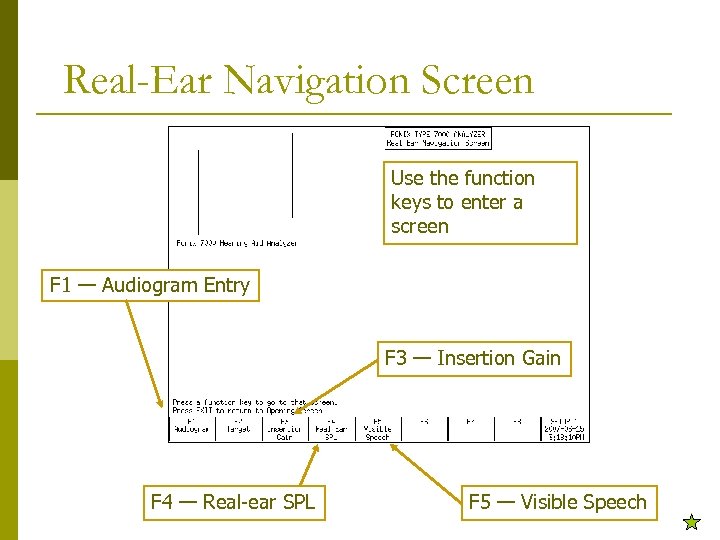 Real-Ear Navigation Screen Use the function keys to enter a screen F 1 — Audiogram Entry F 3 — Insertion Gain F 4 — Real-ear SPL F 5 — Visible Speech
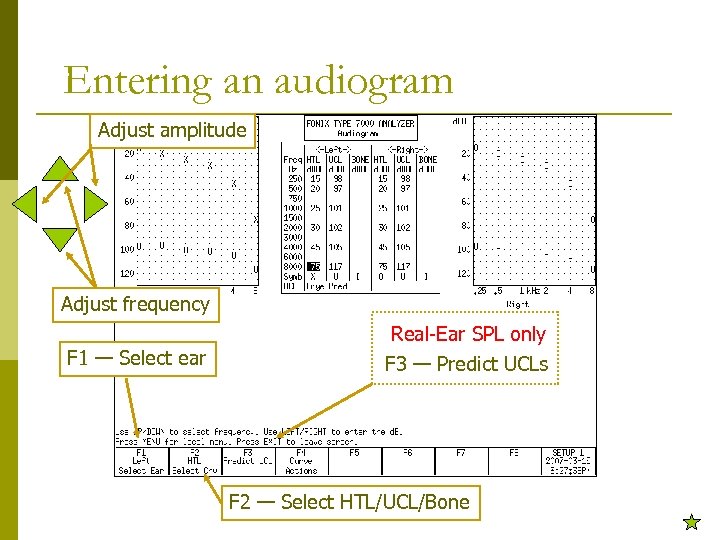 Entering an audiogram Adjust amplitude Adjust frequency F 1 — Select ear Real-Ear SPL only F 3 — Predict UCLs F 2 — Select HTL/UCL/Bone
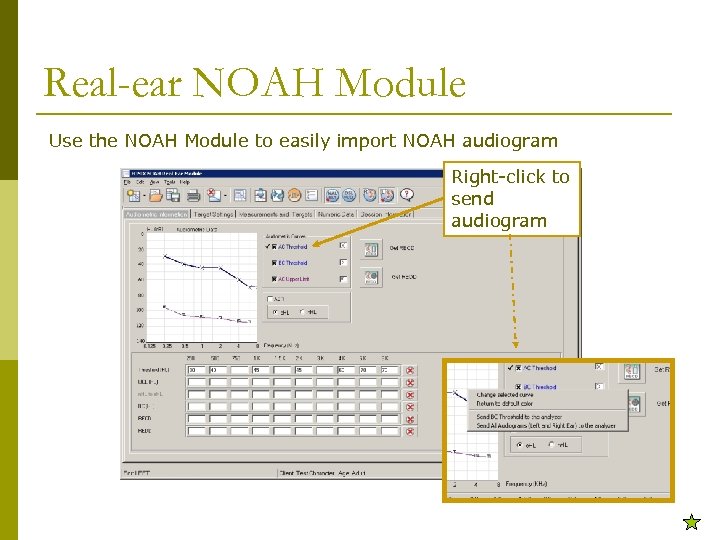 Real-ear NOAH Module Use the NOAH Module to easily import NOAH audiogram Right-click to send audiogram
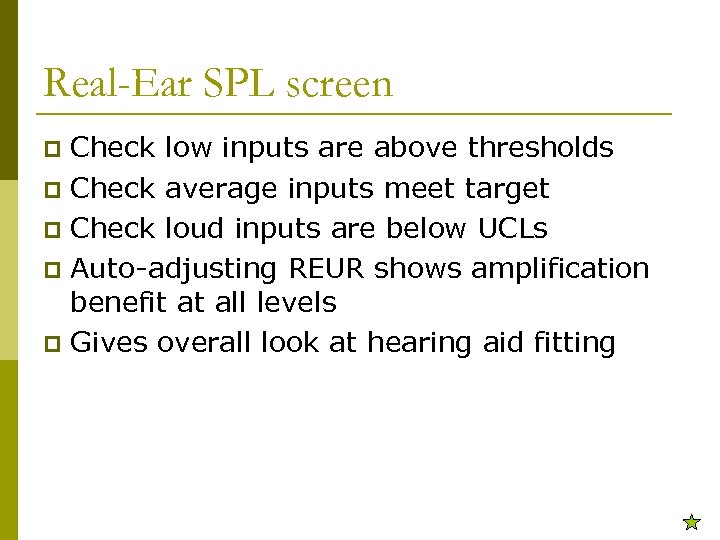 Real-Ear SPL screen Check low inputs are above thresholds p Check average inputs meet target p Check loud inputs are below UCLs p Auto-adjusting REUR shows amplification benefit at all levels p Gives overall look at hearing aid fitting p
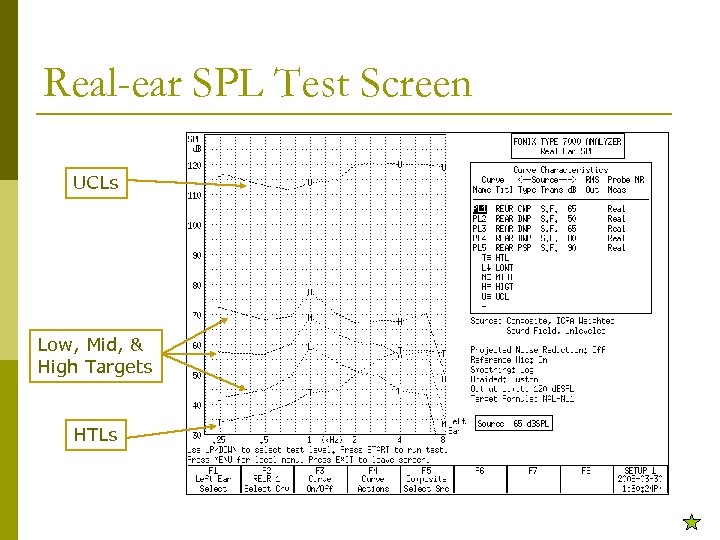 Real-ear SPL Test Screen UCLs Low, Mid, & High Targets HTLs
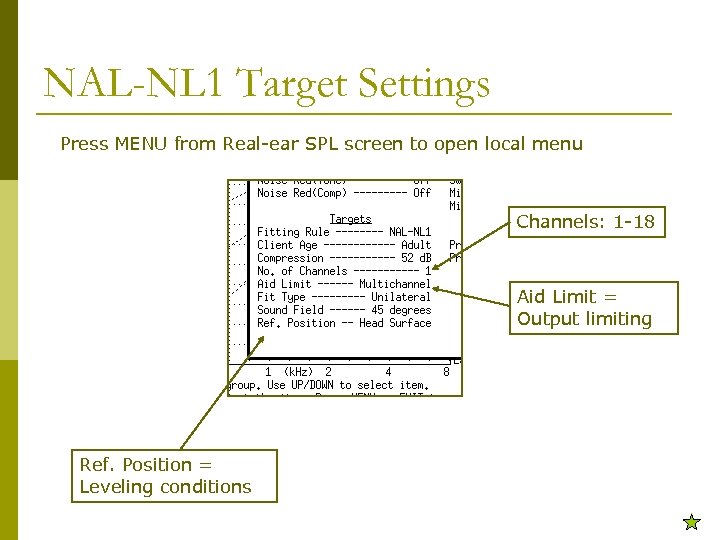 NAL-NL 1 Target Settings Press MENU from Real-ear SPL screen to open local menu Channels: 1 -18 Aid Limit = Output limiting Ref. Position = Leveling conditions
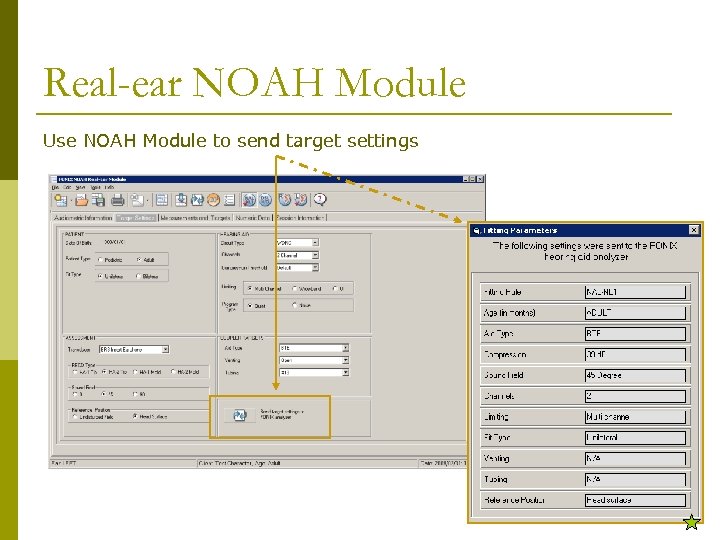 Real-ear NOAH Module Use NOAH Module to send target settings
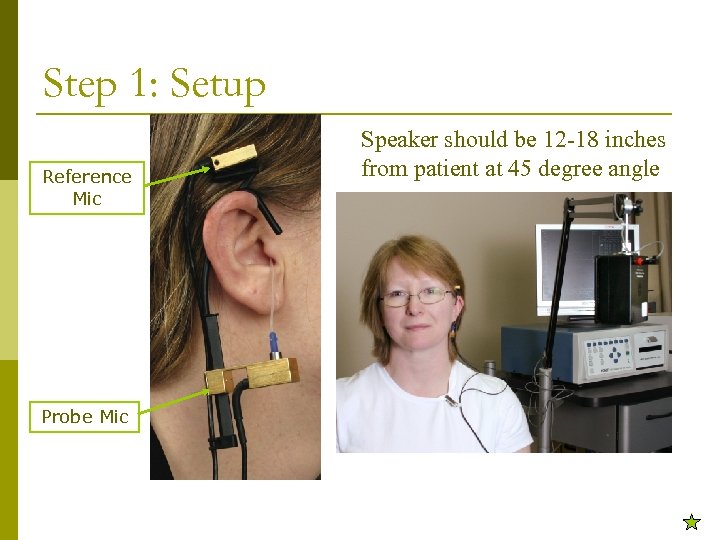 Step 1: Setup Reference Mic Probe Mic Speaker should be 12 -18 inches from patient at 45 degree angle
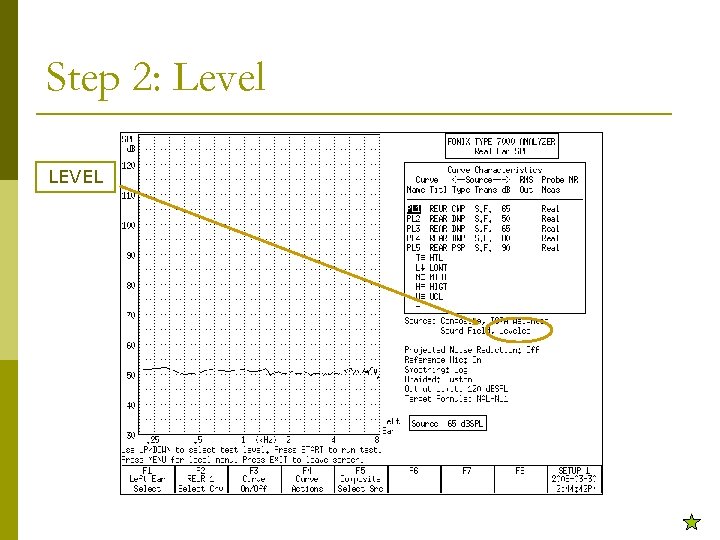 Step 2: Level LEVEL
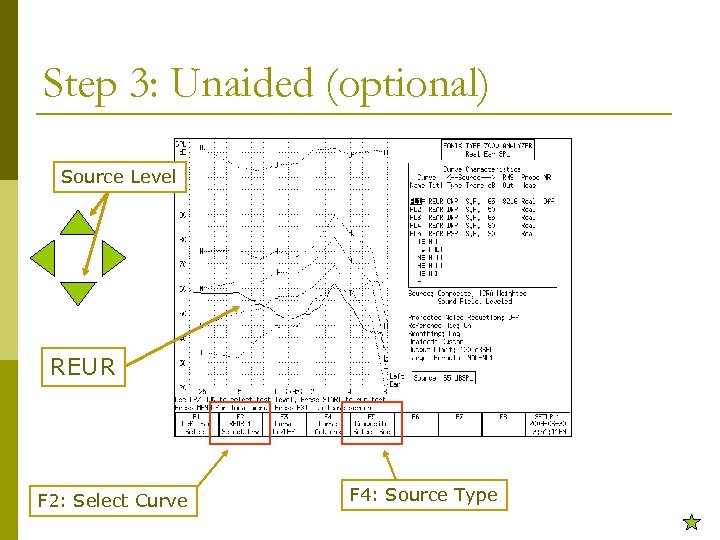 Step 3: Unaided (optional) Source Level REUR F 2: Select Curve F 4: Source Type
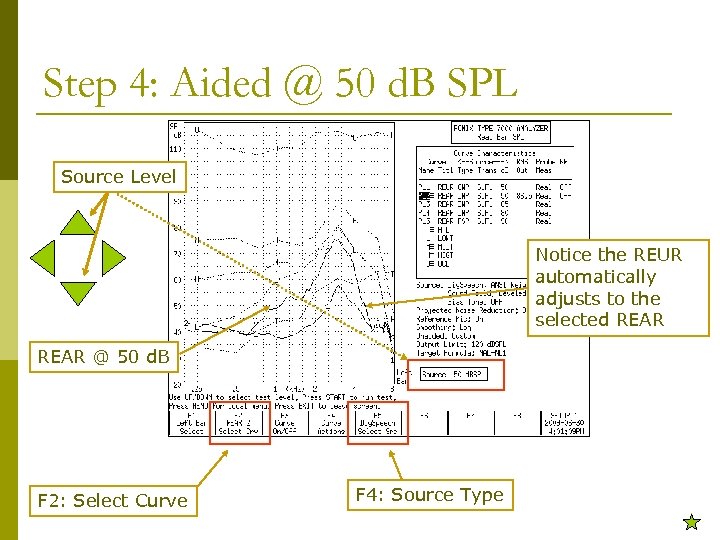 Step 4: Aided @ 50 d. B SPL Source Level Notice the REUR automatically adjusts to the selected REAR @ 50 d. B F 2: Select Curve F 4: Source Type
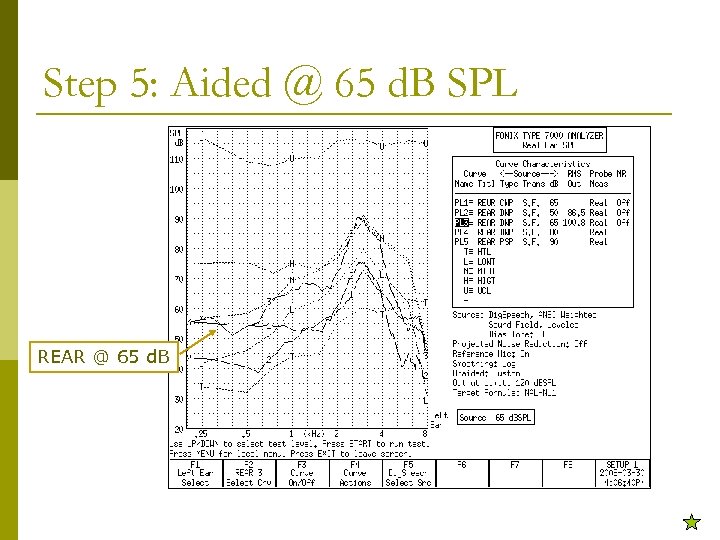 Step 5: Aided @ 65 d. B SPL REAR @ 65 d. B
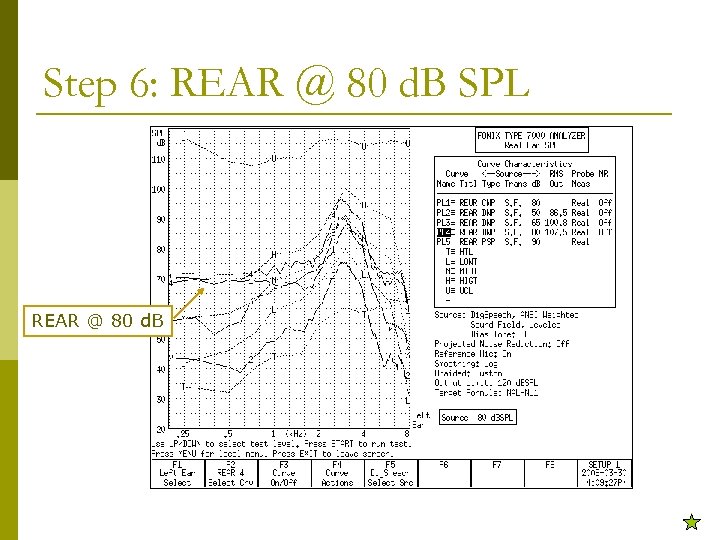 Step 6: REAR @ 80 d. B SPL REAR @ 80 d. B
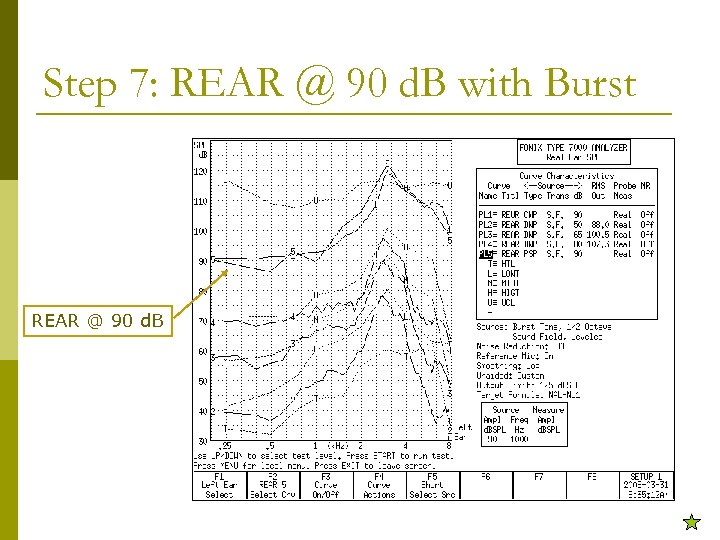 Step 7: REAR @ 90 d. B with Burst REAR @ 90 d. B
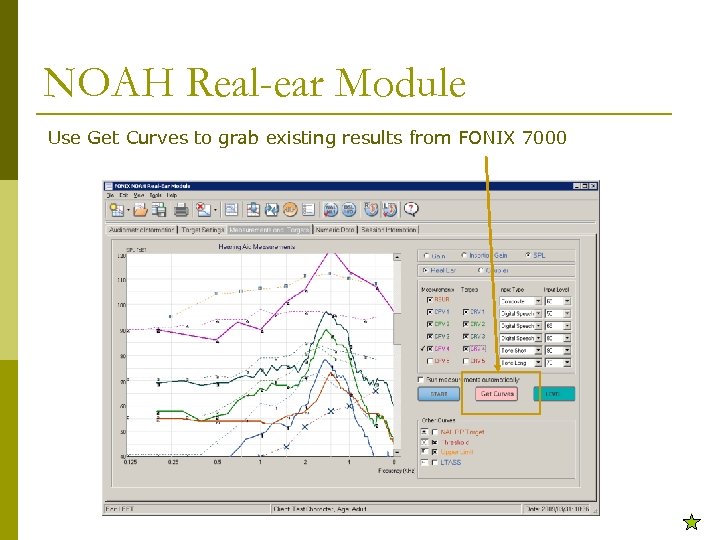 NOAH Real-ear Module Use Get Curves to grab existing results from FONIX 7000
 Using Real-ear Module Automatically uses latest NOAH audiogram p Send audiogram and target to analyzer to measure with analyzer controls. Use Get Curves to grab tests results p Or perform measurements using Windows controls p
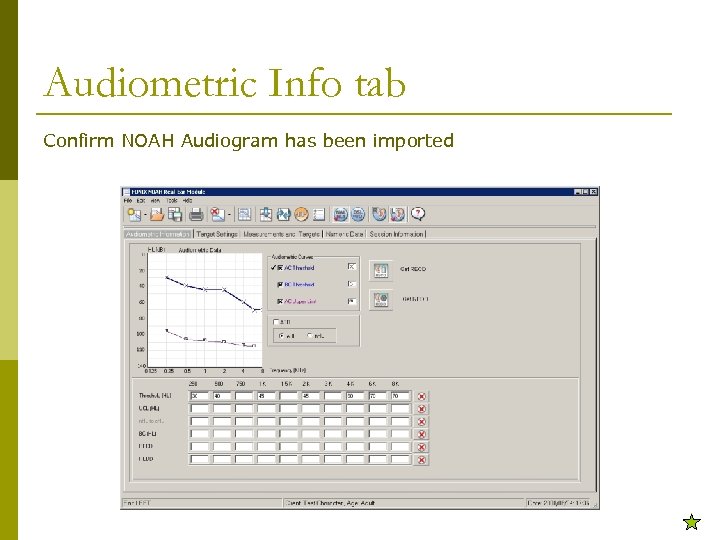 Audiometric Info tab Confirm NOAH Audiogram has been imported
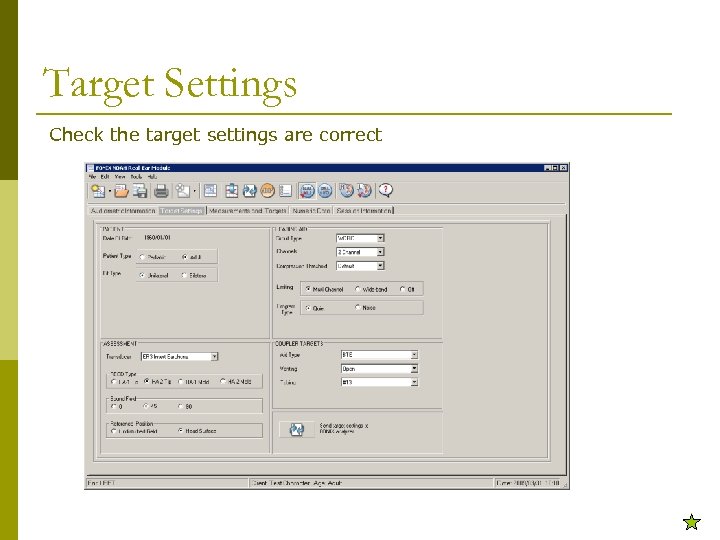 Target Settings Check the target settings are correct
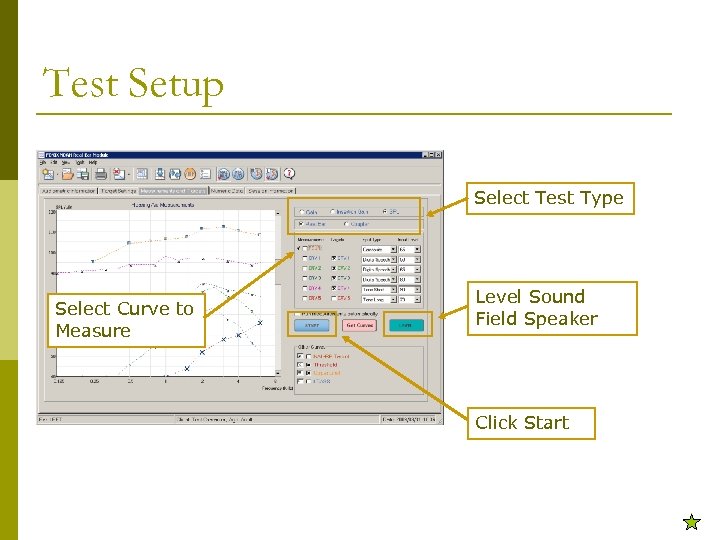 Test Setup Select Test Type Select Curve to Measure Level Sound Field Speaker Click Start
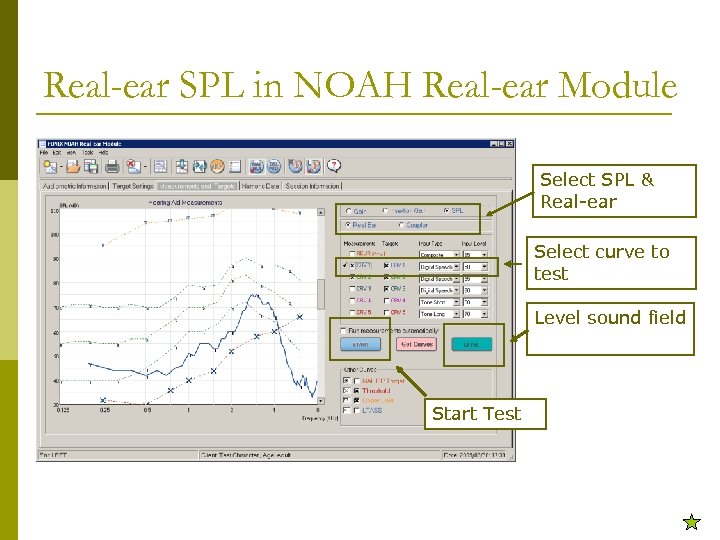 Real-ear SPL in NOAH Real-ear Module Select SPL & Real-ear Select curve to test Level sound field Start Test
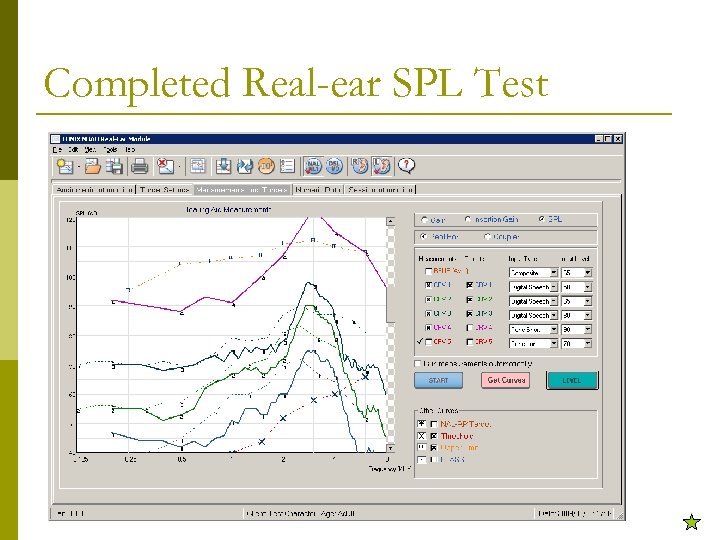 Completed Real-ear SPL Test
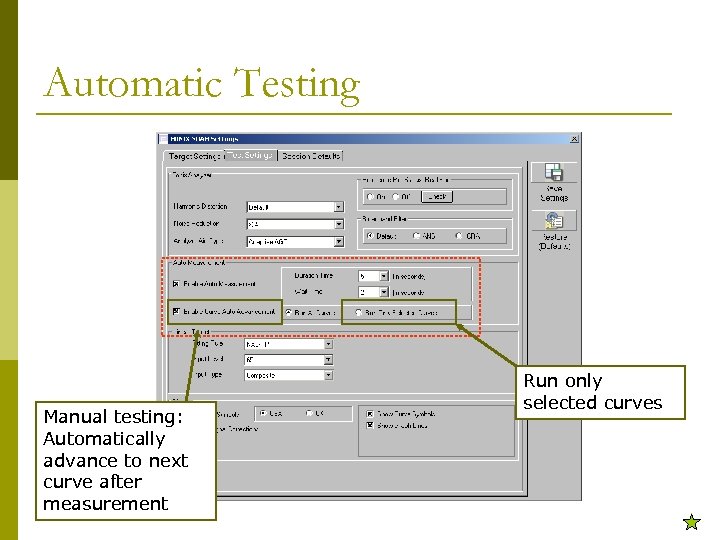 Automatic Testing Manual testing: Automatically advance to next curve after measurement Run only selected curves
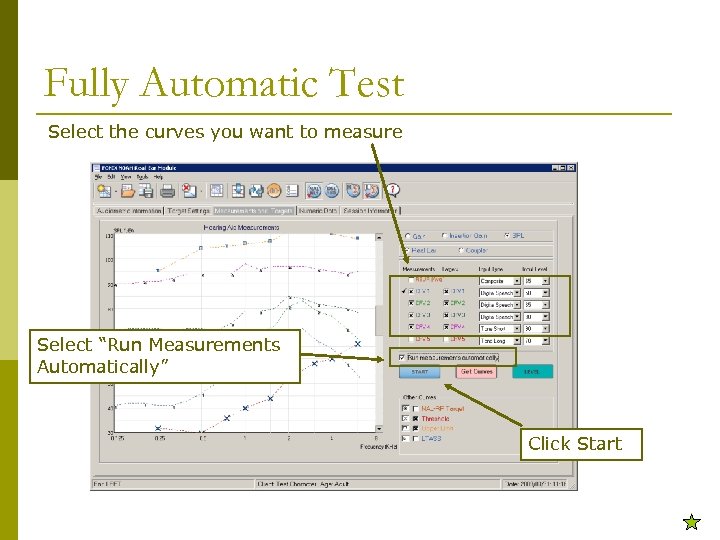 Fully Automatic Test Select the curves you want to measure Select “Run Measurements Automatically” Click Start
 Visible Speech Use live speech signal p Real-time response (during test) p Average response p Minimum and maximum response per frequency for the length of the test (optional) p HTLs p UCLs p SII p Reference microphone p All on one graph in d. B SPL p
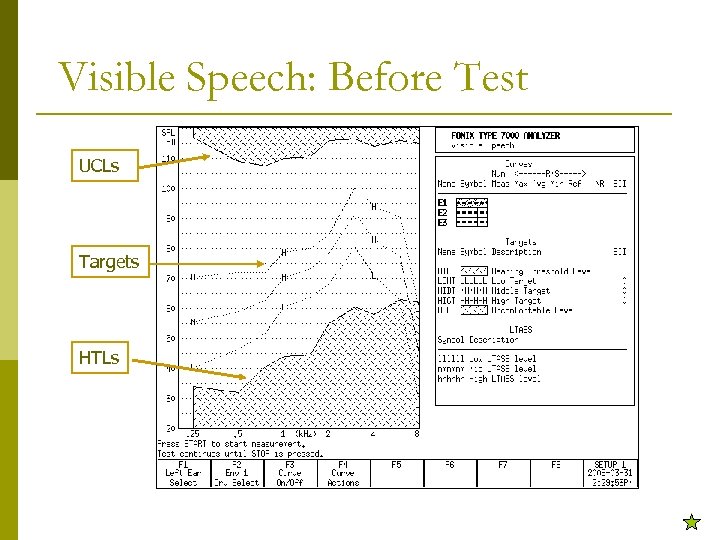 Visible Speech: Before Test UCLs Targets HTLs
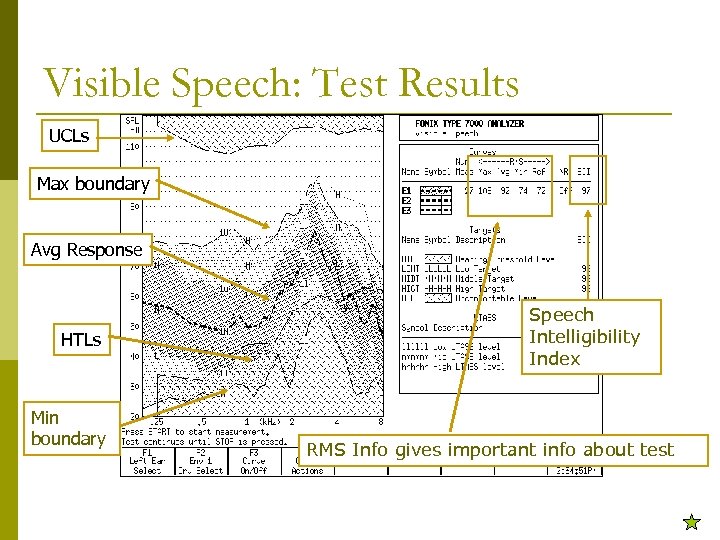 Visible Speech: Test Results UCLs Max boundary Avg Response HTLs Min boundary Speech Intelligibility Index RMS Info gives important info about test
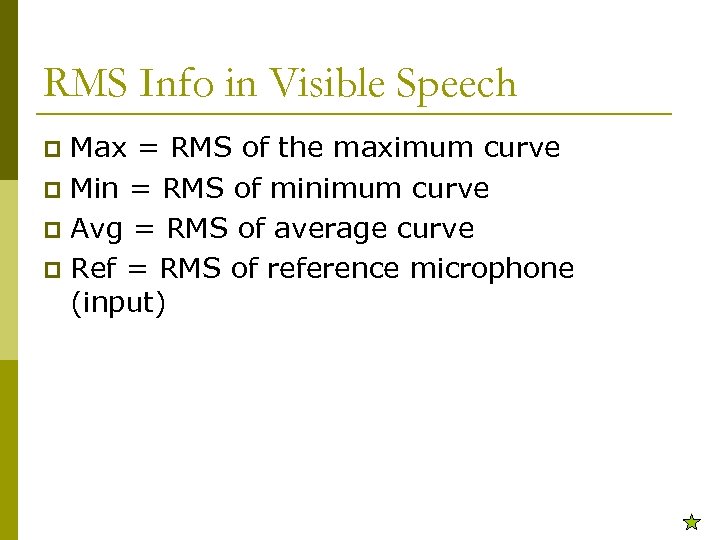 RMS Info in Visible Speech Max = RMS of the maximum curve p Min = RMS of minimum curve p Avg = RMS of average curve p Ref = RMS of reference microphone (input) p
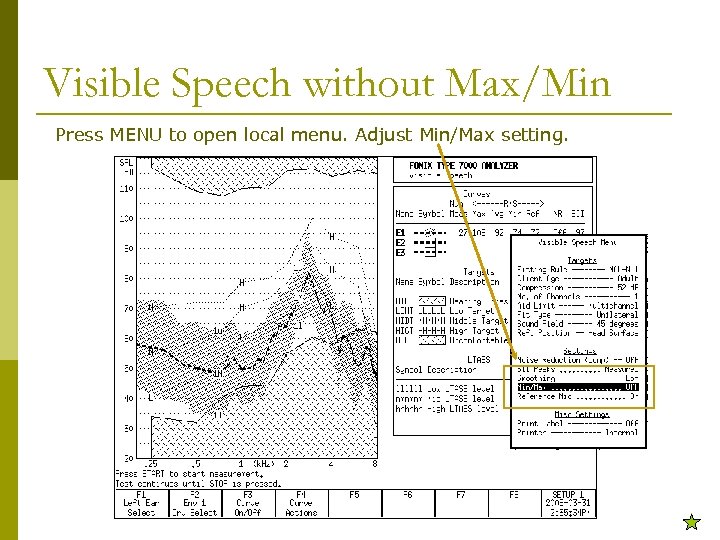 Visible Speech without Max/Min Press MENU to open local menu. Adjust Min/Max setting.
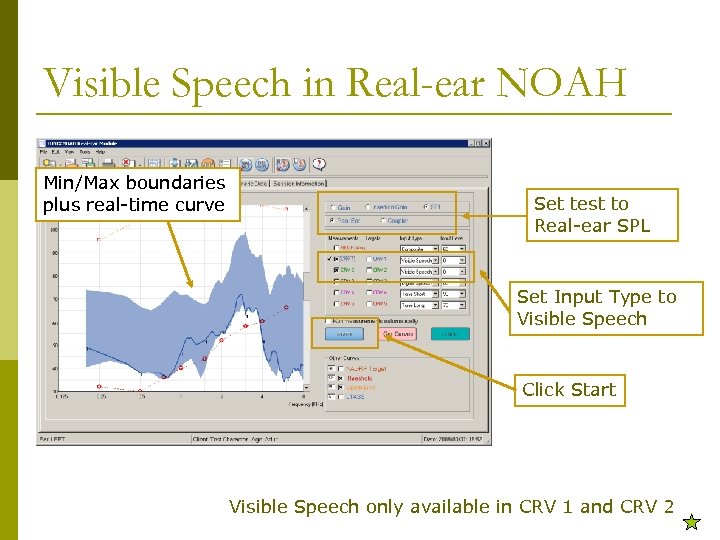 Visible Speech in Real-ear NOAH Min/Max boundaries plus real-time curve Set test to Real-ear SPL Set Input Type to Visible Speech Click Start Visible Speech only available in CRV 1 and CRV 2
 Insertion Gain features Unaided measurement p Up to 4 aided measurements p Gives up to 4 insertion gain measurements p
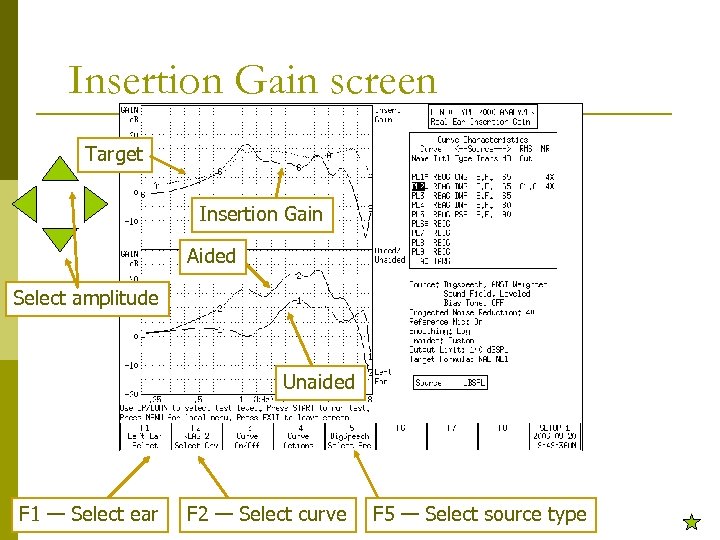 Insertion Gain screen Target Insertion Gain Aided Select amplitude Unaided F 1 — Select ear F 2 — Select curve F 5 — Select source type
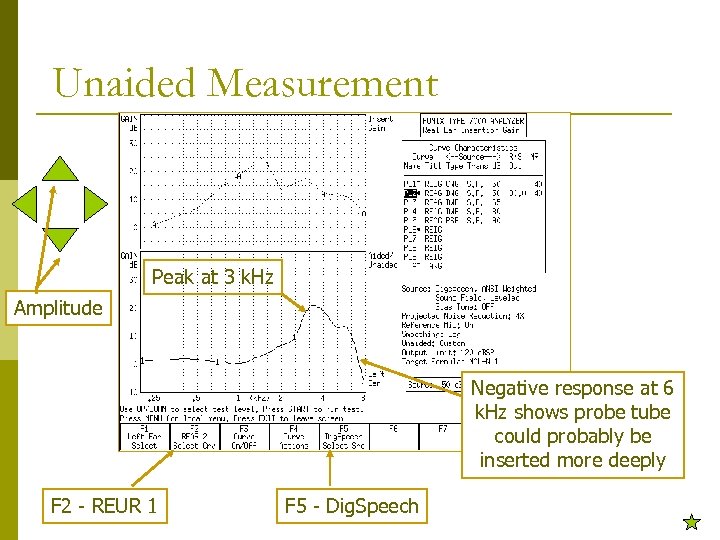 Unaided Measurement Peak at 3 k. Hz Amplitude Negative response at 6 k. Hz shows probe tube could probably be inserted more deeply F 2 - REUR 1 F 5 - Dig. Speech
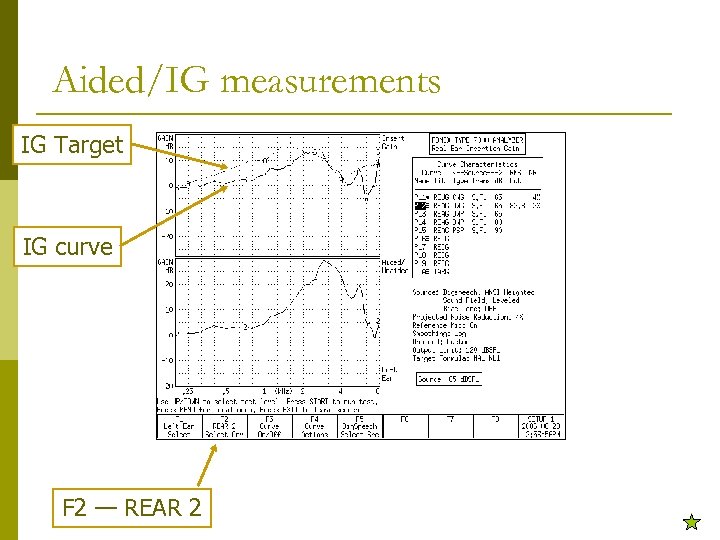 Aided/IG measurements IG Target IG curve F 2 — REAR 2
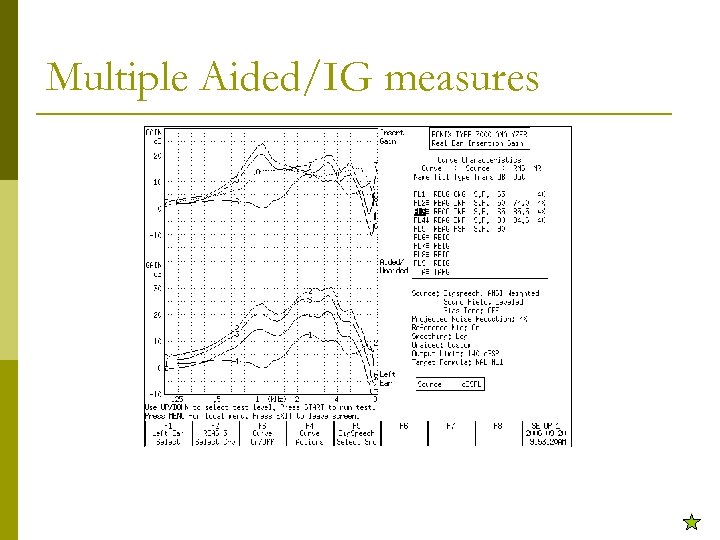 Multiple Aided/IG measures
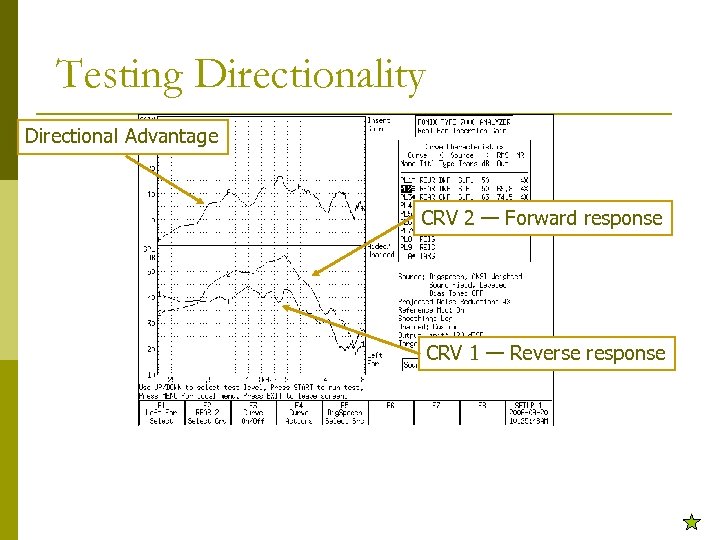 Testing Directionality Directional Advantage CRV 2 — Forward response CRV 1 — Reverse response
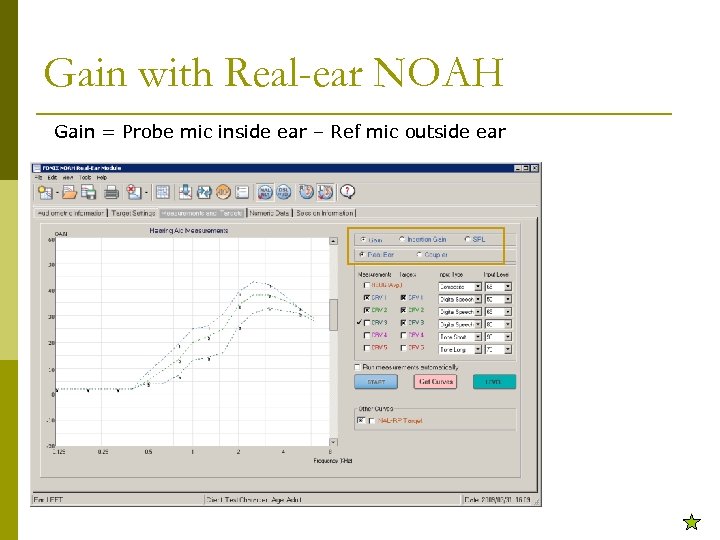 Gain with Real-ear NOAH Gain = Probe mic inside ear – Ref mic outside ear
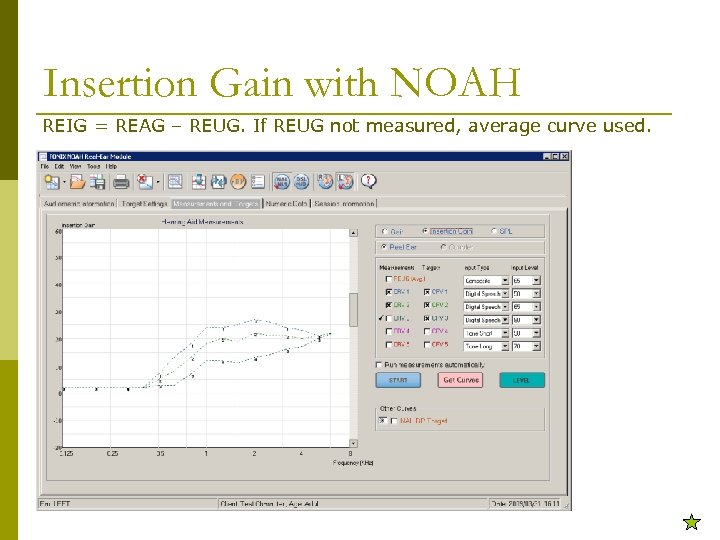 Insertion Gain with NOAH REIG = REAG – REUG. If REUG not measured, average curve used.
 Coupler Measurements ANSI, Coupler Multicurve, Enhanced DSP, Battery, Attack & Release, I/O
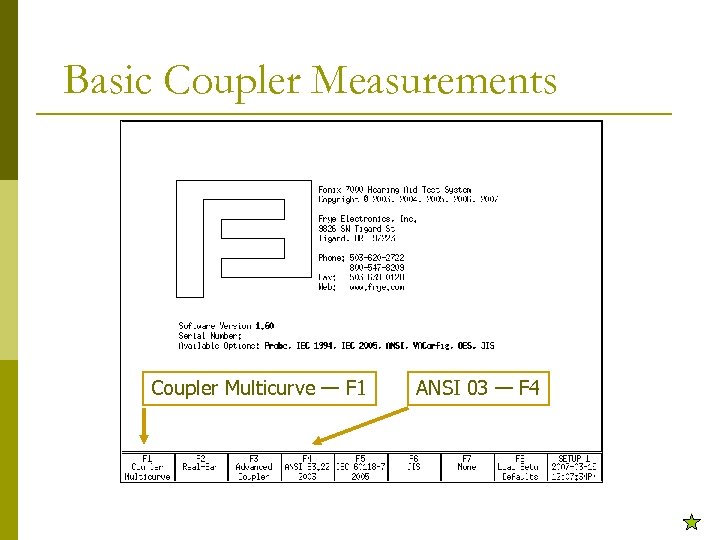 Basic Coupler Measurements Coupler Multicurve — F 1 ANSI 03 — F 4
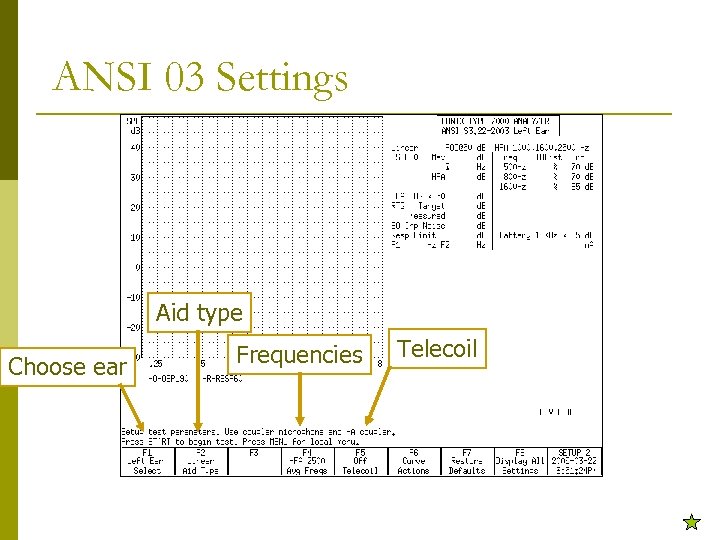 ANSI 03 Settings Aid type Choose ear Frequencies Telecoil
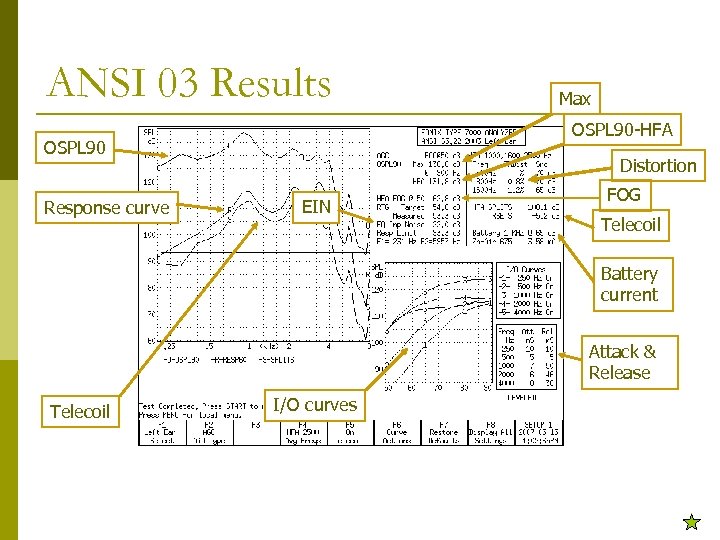 ANSI 03 Results OSPL 90 -HFA OSPL 90 Response curve Max Distortion EIN FOG Telecoil Battery current Attack & Release Telecoil I/O curves
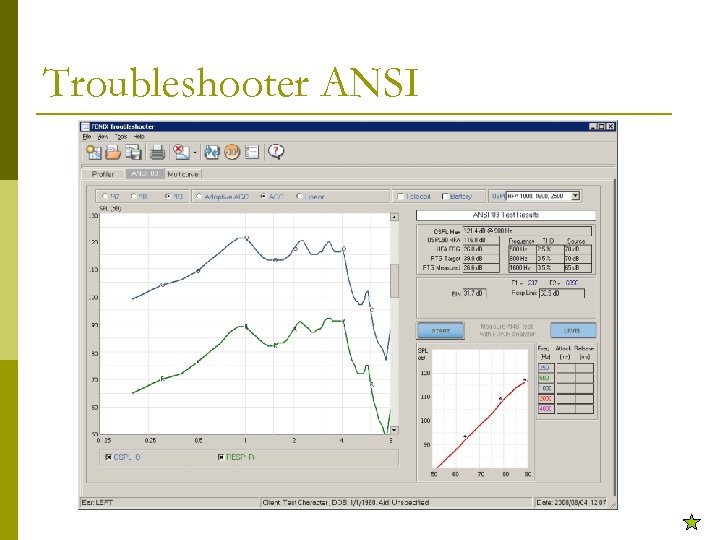 Troubleshooter ANSI
 Coupler Multicurve Features Realistic frequency response measurements p Variety of signal types: Composite, Digital Speech, Pure-tone sweeps p Display 10 different curves simultaneously p Switch back and forth between gain and output. All curves translated. p
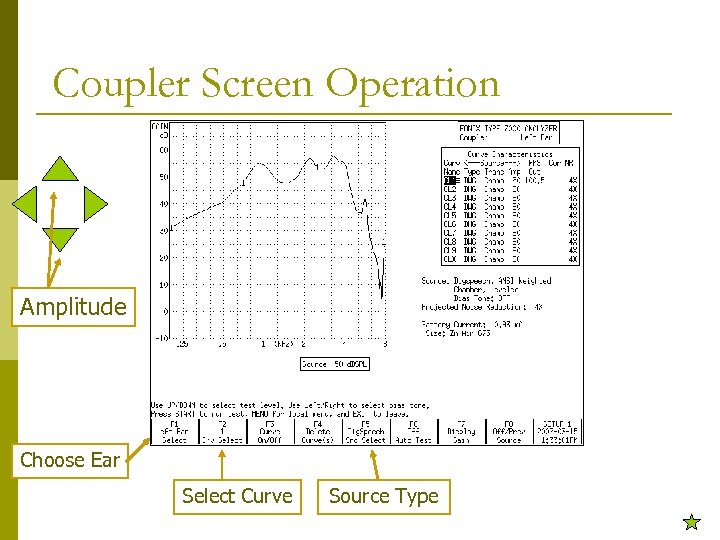 Coupler Screen Operation Amplitude Choose Ear Select Curve Source Type
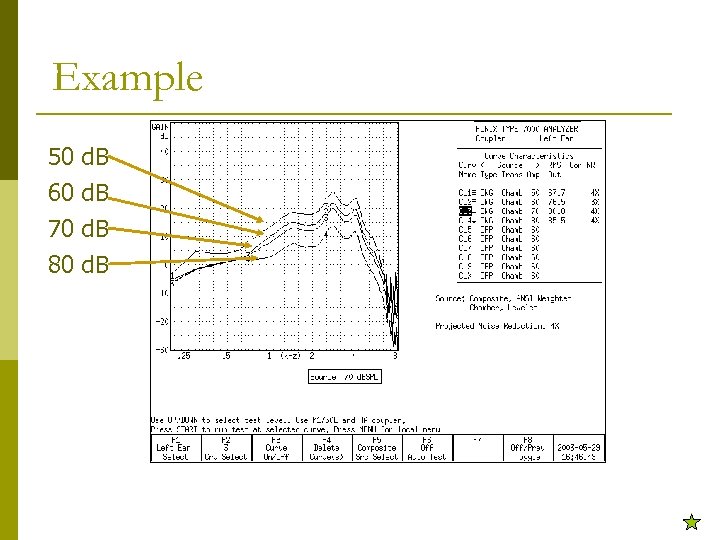 Example 50 60 70 80 d. B
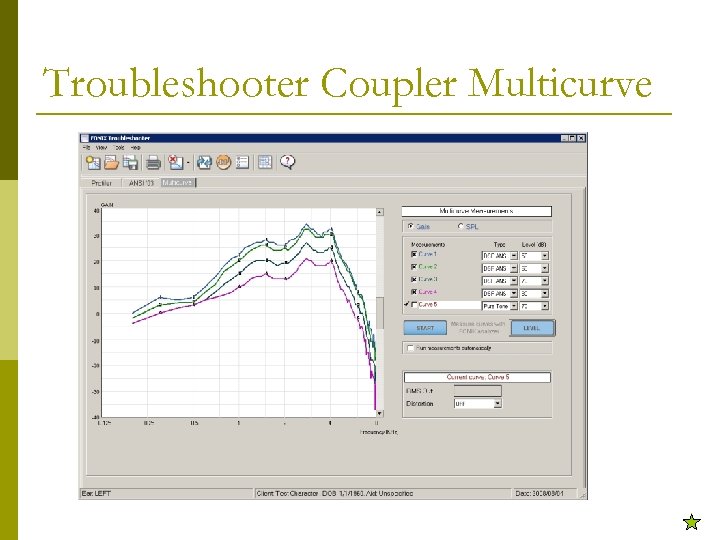 Troubleshooter Coupler Multicurve
 Testing Digital Aids Digital Speech p Type of Composite signal p Modulated to allow testing of noise reducing digital aids p Used with ANSI or ICRA speech spectra p
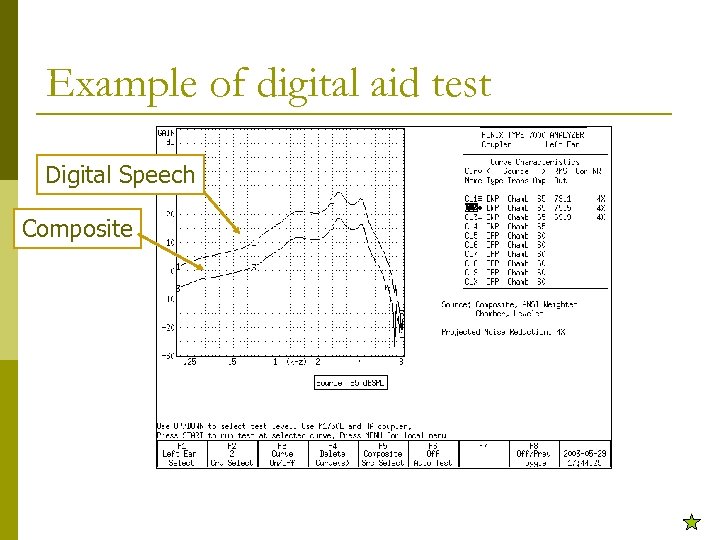 Example of digital aid test Digital Speech Composite
 Testing Open Fit Hearing Aids p The Open Fit Coupler was designed to n n p Provide a realistic response for open fit hearing aids. Provide an easy mechanism for attaching an open fit hearing aid to a coupler The Open Fit Coupler is a non-standard sized coupler not designed to test to manufacturing specifications
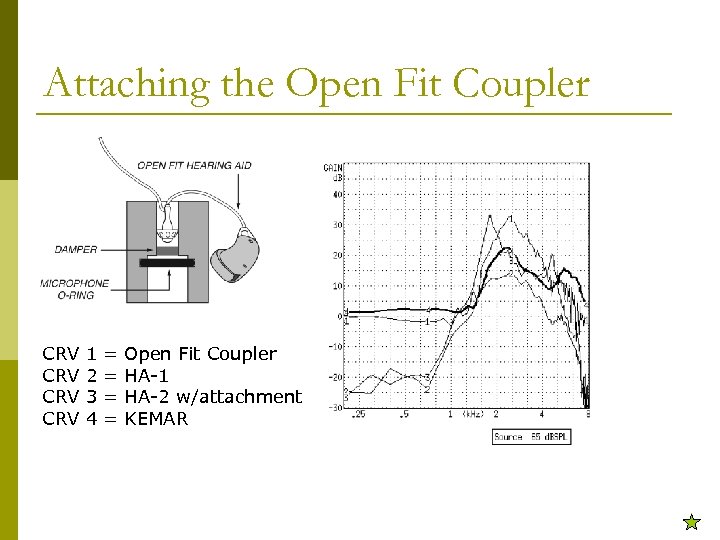 Attaching the Open Fit Coupler CRV CRV 1 2 3 4 = = Open Fit Coupler HA-1 HA-2 w/attachment KEMAR
 Testing Directionality Use chamber design to perform “forward” and “reverse” measurements to obtain directional advantage p Chamber speaker mounted at 45 degree angle, pointing towards left side of chamber p
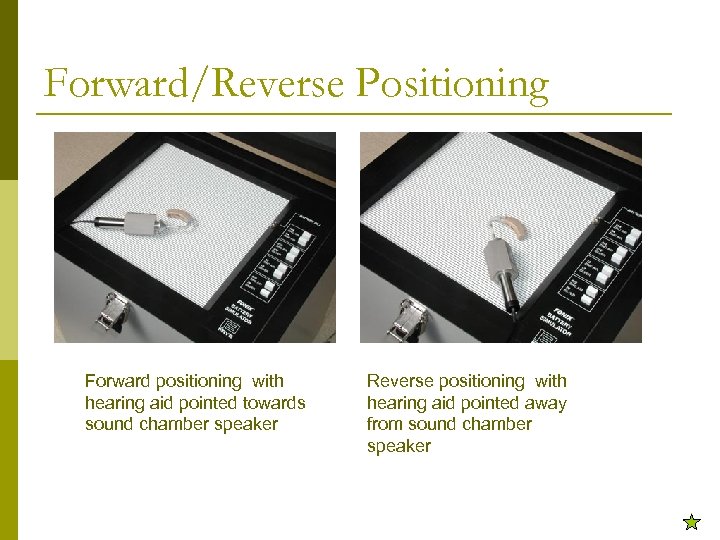 Forward/Reverse Positioning Forward positioning with hearing aid pointed towards sound chamber speaker Reverse positioning with hearing aid pointed away from sound chamber speaker
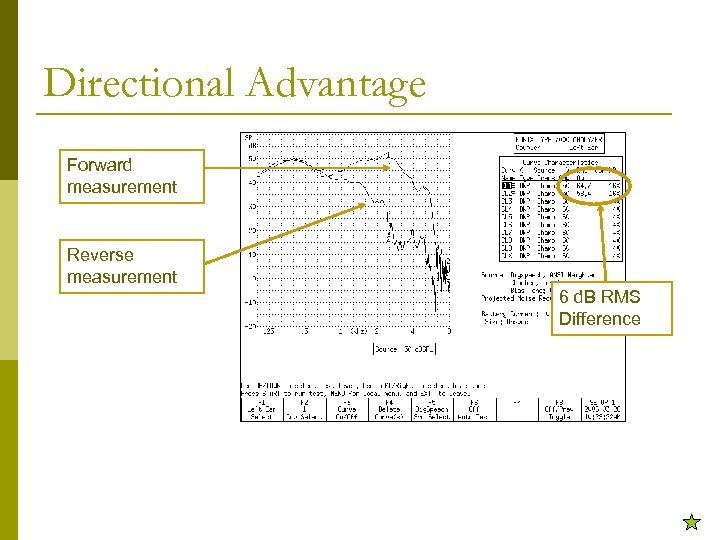 Directional Advantage Forward measurement Reverse measurement 6 d. B RMS Difference
 Coupler Automation Set up own test sequence p Select signal type for each curve p Select signal amplitude for each curve p Add any desired pauses in test sequence p Save and auto load test sequence p
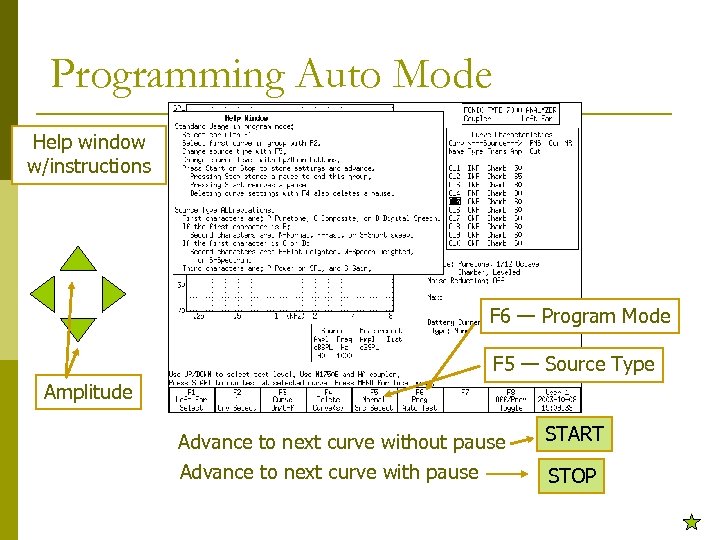 Programming Auto Mode Help window w/instructions F 6 — Program Mode F 5 — Source Type Amplitude Advance to next curve without pause Advance to next curve with pause START STOP
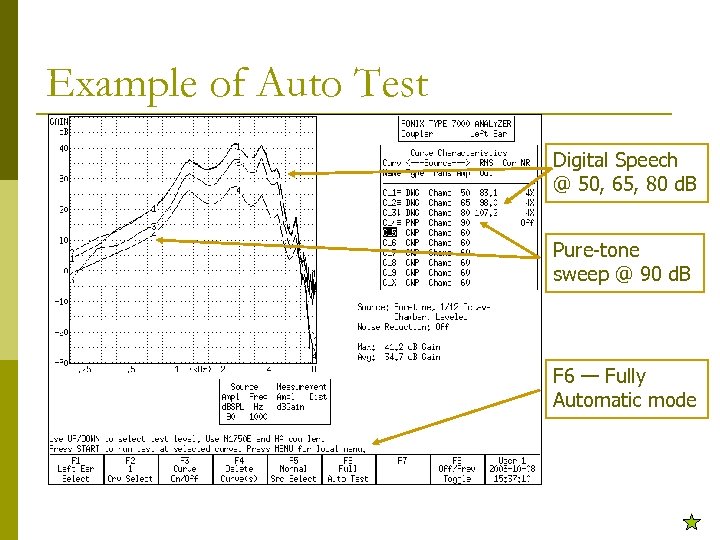 Example of Auto Test Digital Speech @ 50, 65, 80 d. B Pure-tone sweep @ 90 d. B F 6 — Fully Automatic mode
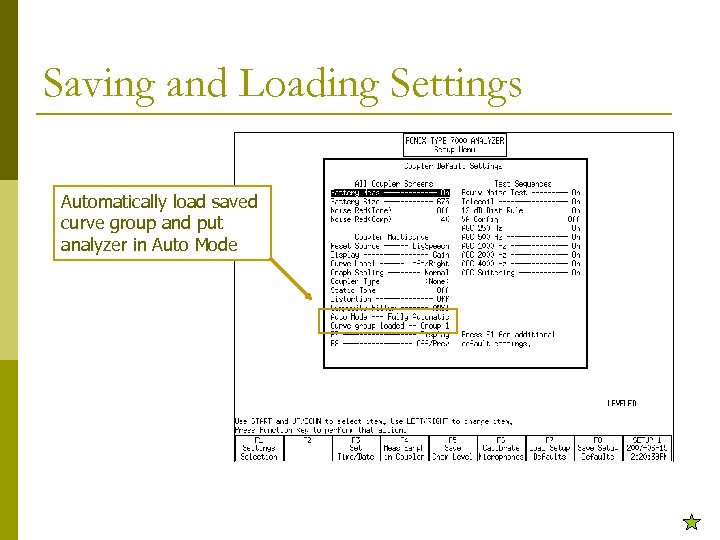 Saving and Loading Settings Automatically load saved curve group and put analyzer in Auto Mode
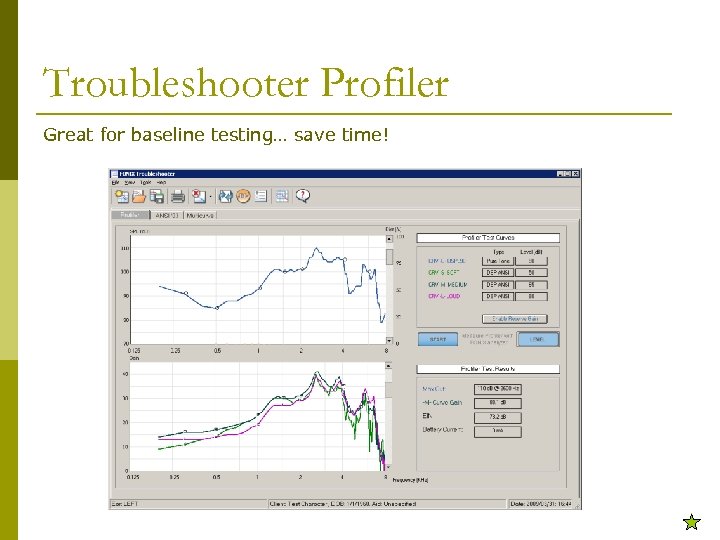 Troubleshooter Profiler Great for baseline testing… save time!
![Advanced Coupler Battery Current [F 1] p Coupler I/O [F 2] p Attack &](https://present5.com/presentation/2861bdfb059d5eb91a6d737ca3e78db7/image-63.jpg "Advanced Coupler Battery Current [F 1] p Coupler I/O [F 2] p Attack &") Advanced Coupler Battery Current [F 1] p Coupler I/O [F 2] p Attack & Release [F 3] p Enhanced DSP [F 4] p Function key operations available in the Advanced Coupler Navigation Screen
Advanced Coupler Battery Current [F 1] p Coupler I/O [F 2] p Attack & Release [F 3] p Enhanced DSP [F 4] p Function key operations available in the Advanced Coupler Navigation Screen
 Battery Current Screen Measure Battery Current as a function of frequency p Measure Battery Current as a function of amplitude p Estimate battery life of hearing aid p
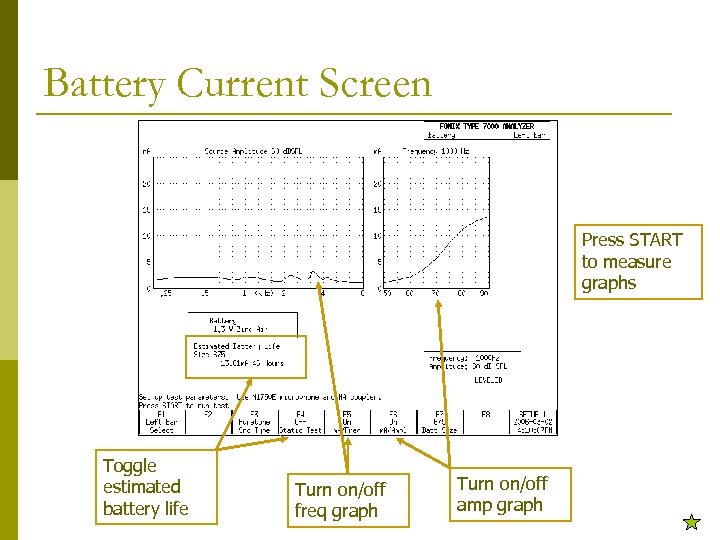 Battery Current Screen Press START to measure graphs Toggle estimated battery life Turn on/off freq graph Turn on/off amp graph
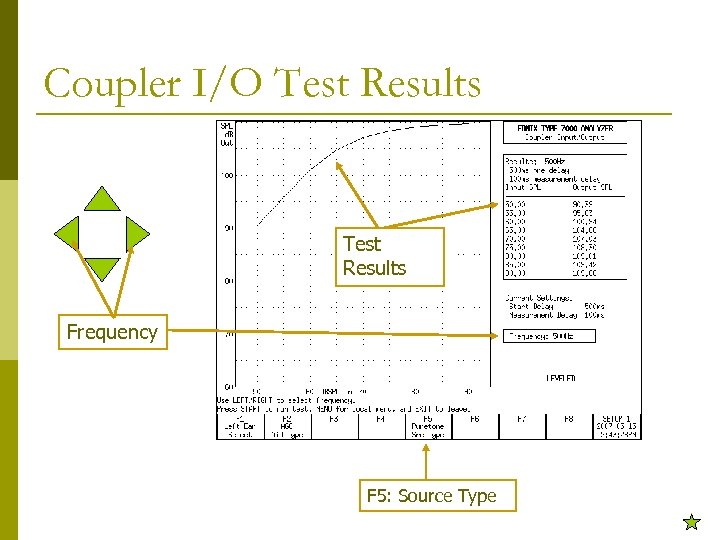 Coupler I/O Test Results Frequency F 5: Source Type
 Attack & Release Test Screen Visual time graph of Attack and Release tests p Scale graphs independently to zoom in on results p Use Composite or Pure-tone p Choose any frequency from 200 -8000 Hz in 100 Hz intervals p Customize amplitudes used in tests p
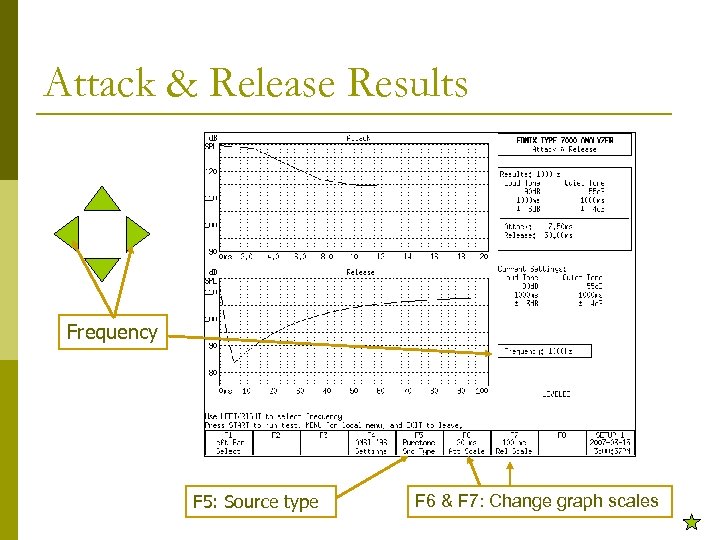 Attack & Release Results Frequency F 5: Source type F 6 & F 7: Change graph scales
 Enhanced DSP p Designed to measure the "group delay" of a DSP aid. In other words, the actual digital processing time of a hearing aid. n n n p 0 ms for analog aids 1 -12 ms for DSP Great way to check if aid is analog or DSP Also tests the "phase" of a hearing aid. This is useful for binaural fittings. Are the aids working together?
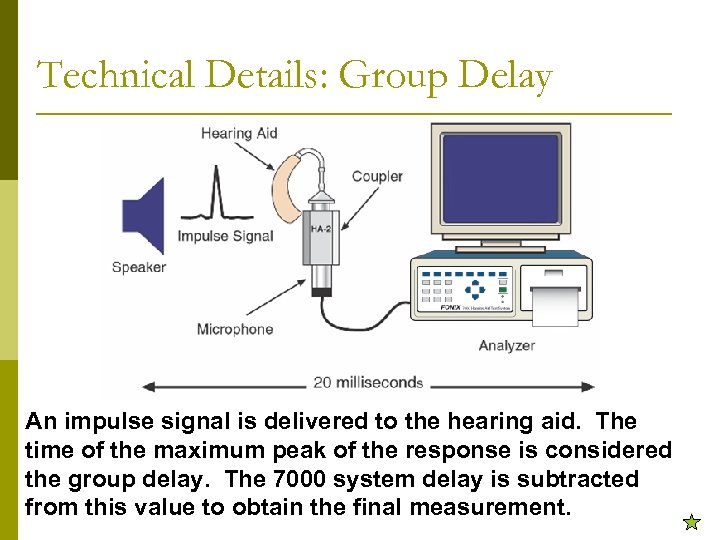 Technical Details: Group Delay An impulse signal is delivered to the hearing aid. The time of the maximum peak of the response is considered the group delay. The 7000 system delay is subtracted from this value to obtain the final measurement.
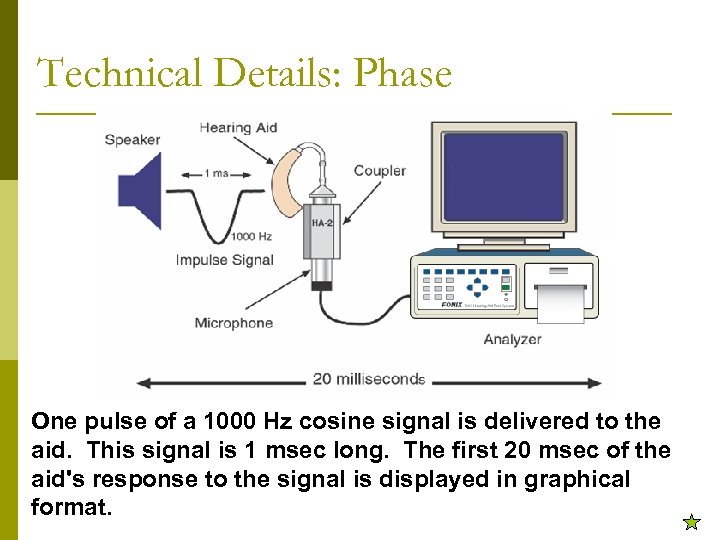 Technical Details: Phase One pulse of a 1000 Hz cosine signal is delivered to the aid. This signal is 1 msec long. The first 20 msec of the aid's response to the signal is displayed in graphical format.
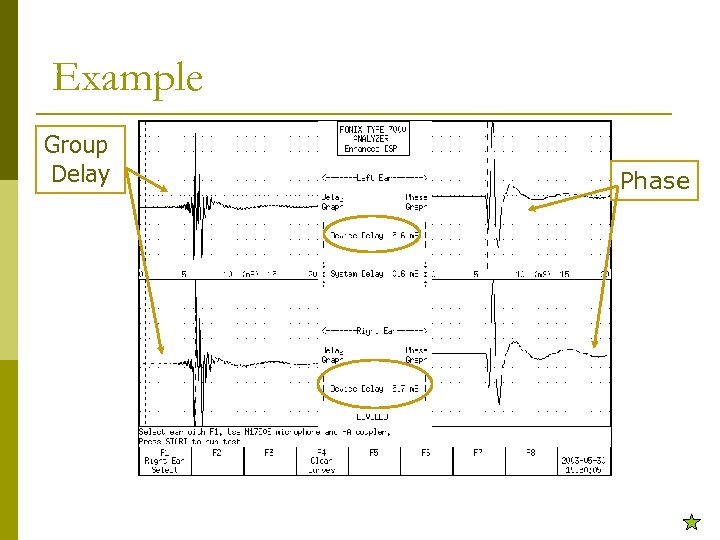 Example Group Delay Phase
 Thank you for your time! Please email kris@frye. com for more information. Frye Electronics, 9826 SW Tigard St, Tigard, OR 97223, USA Tel: 503 -620 -2722 or 800 -547 -8209