


 Скачать презентацию Viewer s notes to help you
59f8ac9d6d1379fbd6111eeb99763124.ppt
- Количество слайдов: 85
 Viewer’s notes. . . to help you … v At the bottom left of each page there is a page number, when the slide has finished an automated sequence a small star appears in the bottom right hand corner to indicate that the slide may be ‘advanced’ when you are ready. v To run the presentation: 1. Click on the screen to make sure that the presentation window is selected. 2. Use the space bar to advance (page up should reverse) v v 1
 Introduction to the FP 35 Hearing Aid Analyzer v 6. 01 Software Kristina Frye Electronics 2
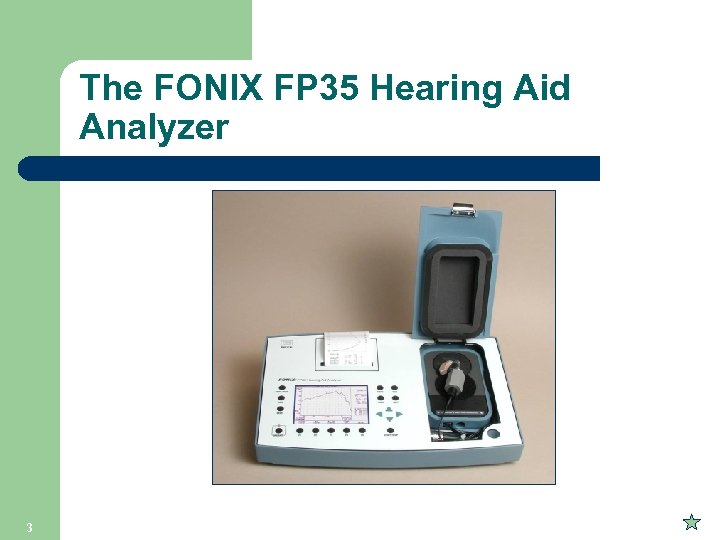 The FONIX FP 35 Hearing Aid Analyzer 3
 The FP 35 offers: l l l 4 Quick & accurate coupler measurements An intuitive but versatile user interface On-screen pop-up help windows Multiple options for stimuli and measurement settings Build-in thermal printer and RS 232 capability Optional real-ear measurements
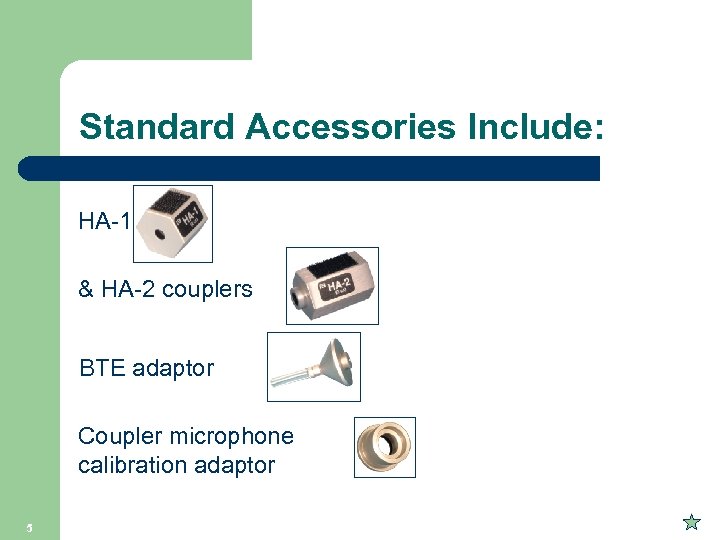 Standard Accessories Include: HA-1 & HA-2 couplers BTE adaptor Coupler microphone calibration adaptor 5
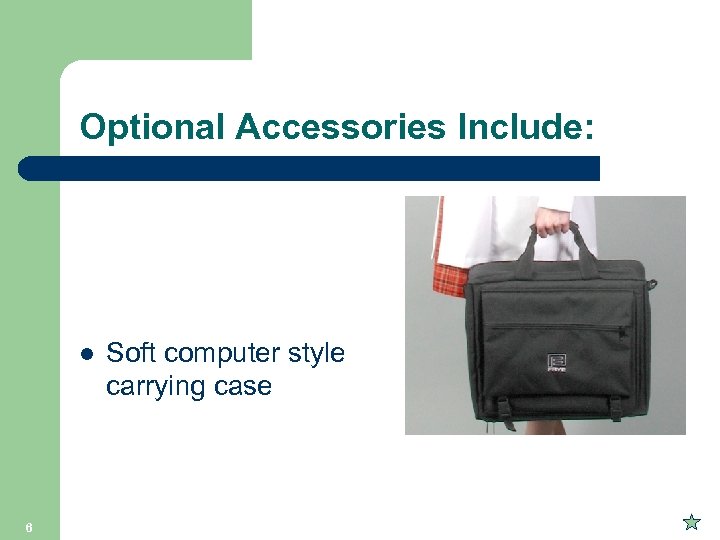 Optional Accessories Include: l 6 Soft computer style carrying case
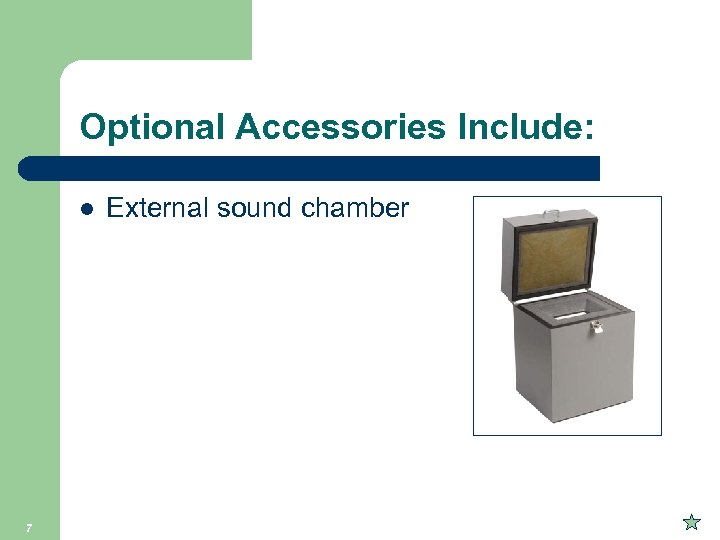 Optional Accessories Include: l 7 External sound chamber
 Basic analyzer features: l l Automated ANSI or IEC test sequence Coupler Multicurve – – l Four types of pure-tone sweeps - l 8 Up to 4 response curves in d. B Gain or d. B SPL Harmonic and intermodulation distortion pure tone sweep audio demonstration Ability to set custom default settings
 Composite/Digital Speech features (Now included standard) l Composite: Broadband signal consisting of 79 different frequencies presented simultaneously, updating up to five times a second - audio demonstration l Digital Speech: Modulated Composite signal for testing digital hearing aids with noise suppression technology - audio demonstration l 9 ICRA, ANSI, LTASS (DSL) speech weighting options with Composite & Digital Speech
![Basic Operation Print Help Reset “Operate” (On) Function Keys [F 1] to [F 5]](https://present5.com/presentation/59f8ac9d6d1379fbd6111eeb99763124/image-10.jpg "Basic Operation Print Help Reset “Operate” (On) Function Keys [F 1] to [F 5]") Basic Operation Print Help Reset “Operate” (On) Function Keys [F 1] to [F 5] 10
Basic Operation Print Help Reset “Operate” (On) Function Keys [F 1] to [F 5] 10
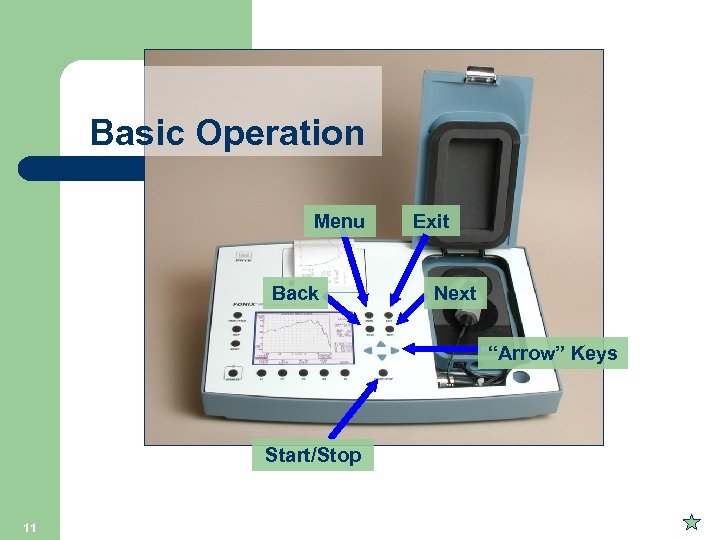 Basic Operation Menu Back Exit Next “Arrow” Keys Start/Stop 11
![Front-panel Buttons to remember l l l 12 [MENU] : Enters/exits local menus [NEXT/BACK]:](https://present5.com/presentation/59f8ac9d6d1379fbd6111eeb99763124/image-12.jpg "Front-panel Buttons to remember l l l 12 [MENU] : Enters/exits local menus [NEXT/BACK]:") Front-panel Buttons to remember l l l 12 [MENU] : Enters/exits local menus [NEXT/BACK]: Moves between related measurement screens and between main & advanced menus “Arrow” keys: Moves cursor through choices, or to adjust frequency/level [START/STOP]: Starts/stops selected function [EXIT] : Exits current screen, keeping curves [RESET]: Exits and clears data, resetting analyzer
Front-panel Buttons to remember l l l 12 [MENU] : Enters/exits local menus [NEXT/BACK]: Moves between related measurement screens and between main & advanced menus “Arrow” keys: Moves cursor through choices, or to adjust frequency/level [START/STOP]: Starts/stops selected function [EXIT] : Exits current screen, keeping curves [RESET]: Exits and clears data, resetting analyzer
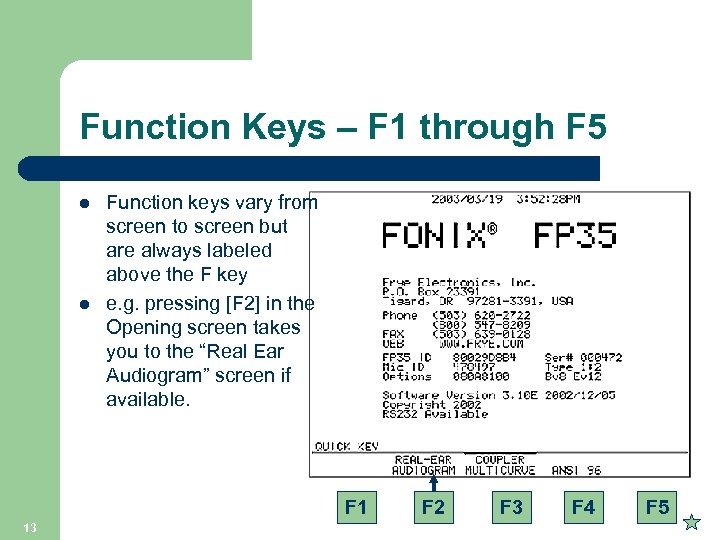 Function Keys – F 1 through F 5 l l Function keys vary from screen to screen but are always labeled above the F key e. g. pressing [F 2] in the Opening screen takes you to the “Real Ear Audiogram” screen if available. F 1 13 F 2 F 3 F 4 F 5
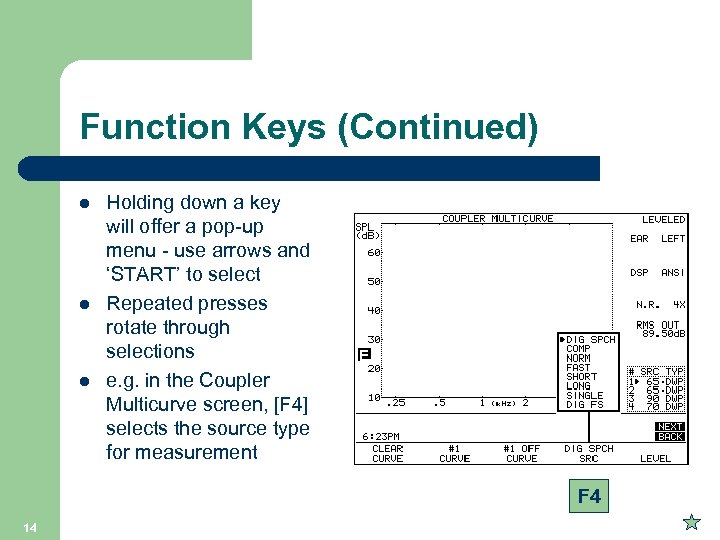 Function Keys (Continued) l l l Holding down a key will offer a pop-up menu - use arrows and ‘START’ to select Repeated presses rotate through selections e. g. in the Coupler Multicurve screen, [F 4] selects the source type for measurement F 4 14
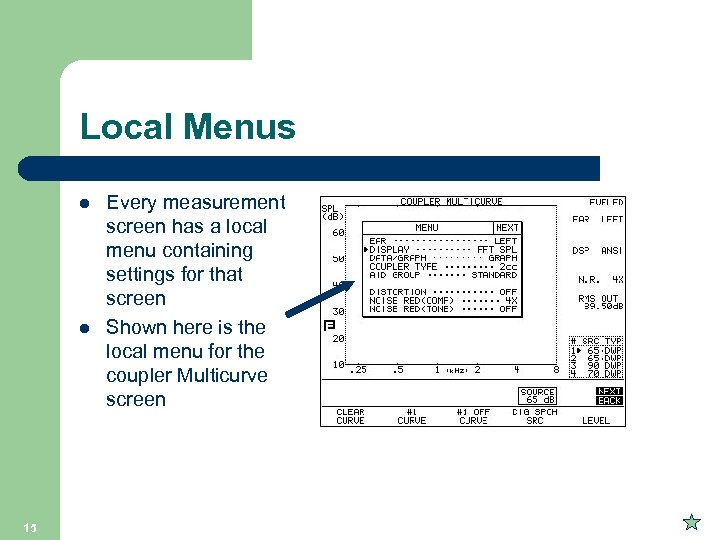 Local Menus l l 15 Every measurement screen has a local menu containing settings for that screen Shown here is the local menu for the coupler Multicurve screen
![Additional Menu Choices l l 16 Some screens have additional menu choices. Use [NEXT]](https://present5.com/presentation/59f8ac9d6d1379fbd6111eeb99763124/image-16.jpg "Additional Menu Choices l l 16 Some screens have additional menu choices. Use [NEXT]") Additional Menu Choices l l 16 Some screens have additional menu choices. Use [NEXT] and [BACK] to move between the menus. Shown here is the Advanced Menu in the Coupler Multicurve screen
Additional Menu Choices l l 16 Some screens have additional menu choices. Use [NEXT] and [BACK] to move between the menus. Shown here is the Advanced Menu in the Coupler Multicurve screen
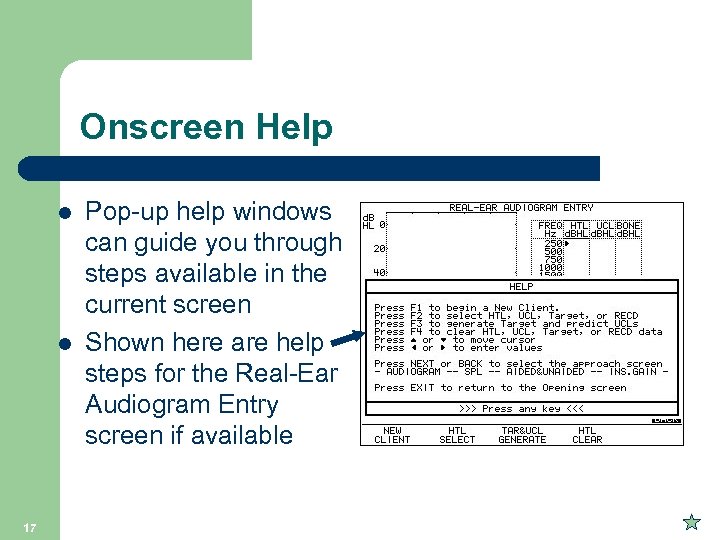 Onscreen Help l l 17 Pop-up help windows can guide you through steps available in the current screen Shown here are help steps for the Real-Ear Audiogram Entry screen if available
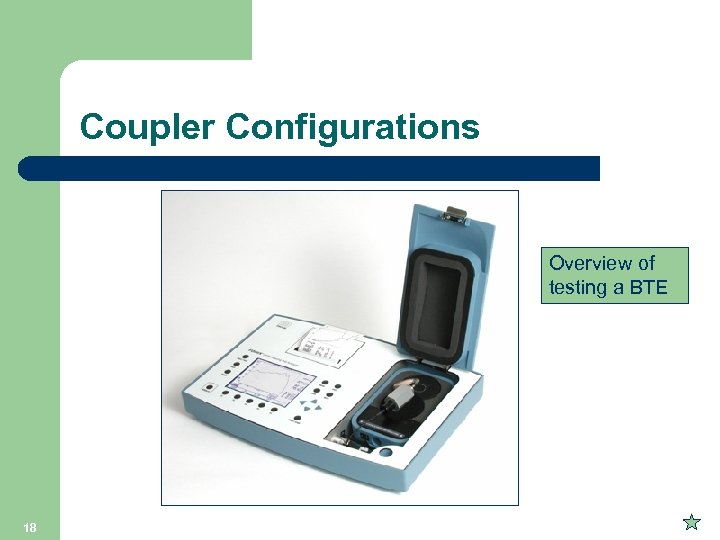 Coupler Configurations Overview of testing a BTE 18
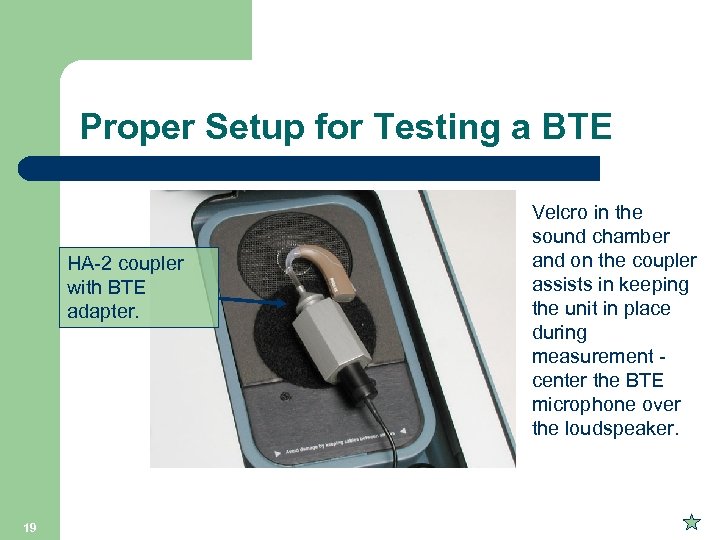 Proper Setup for Testing a BTE HA-2 coupler with BTE adapter. 19 Velcro in the sound chamber and on the coupler assists in keeping the unit in place during measurement center the BTE microphone over the loudspeaker.
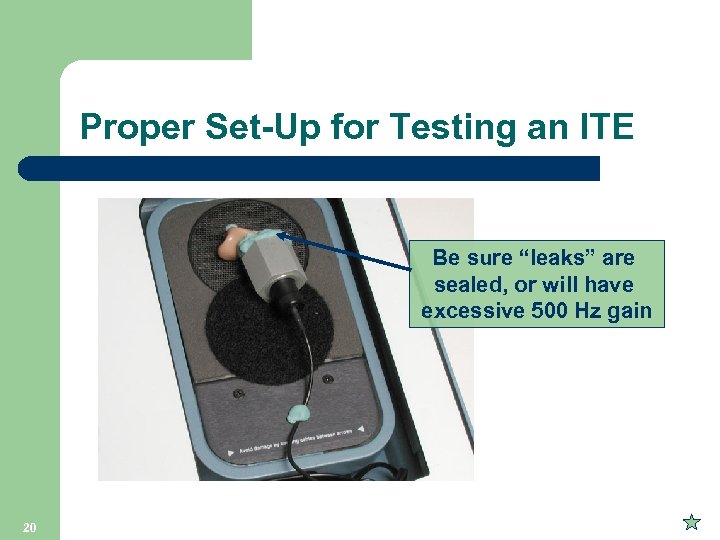 Proper Set-Up for Testing an ITE Be sure “leaks” are sealed, or will have excessive 500 Hz gain 20
 ANSI S 3. 22 -2003 l l For quality control to ensure dispensed hearing aids match manufacturer’s specs Compared to previous standard it offers: – – l 21 Multiple I/O and attack/release measurements AGC aids tested at reduced reference test gain From the Opening Screen, press [F 5] or [F 4]
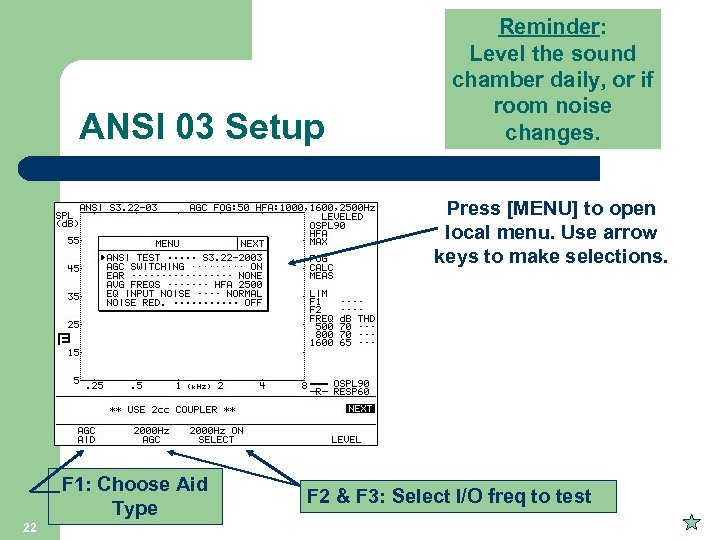 ANSI 03 Setup Reminder: Level the sound chamber daily, or if room noise changes. Press [MENU] to open local menu. Use arrow keys to make selections. F 1: Choose Aid Type 22 F 2 & F 3: Select I/O freq to test
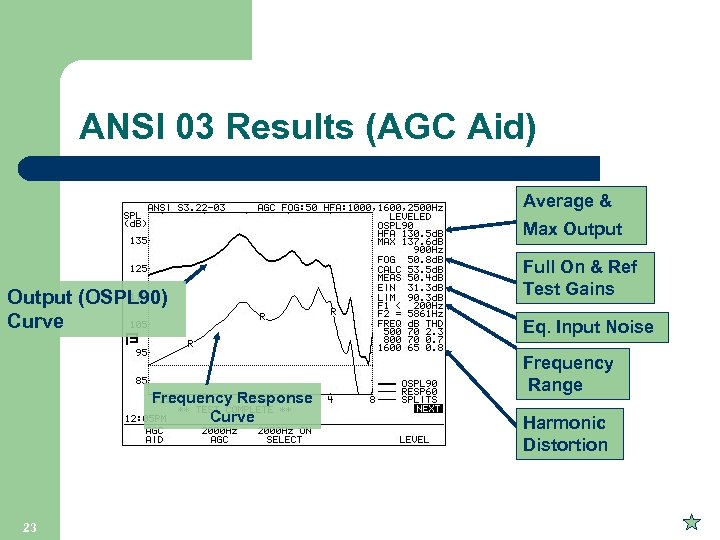 ANSI 03 Results (AGC Aid) Average & Max Output (OSPL 90) Curve Frequency Response Curve 23 Full On & Ref Test Gains Eq. Input Noise Frequency Range Harmonic Distortion
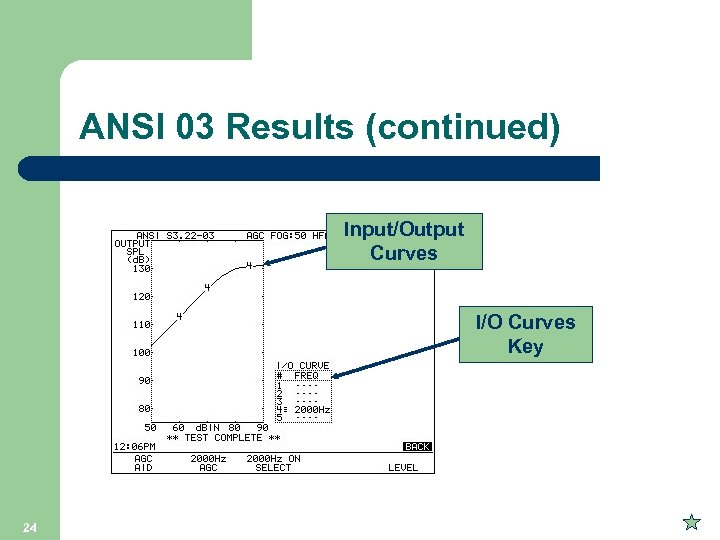 ANSI 03 Results (continued) Input/Output Curves I/O Curves Key 24
 Coupler Multicurve Screen l l 25 Choose stimulus of pure tone (sweeps or single frequency), Composite, or Digital Speech Measure/display a family of up to 4 frequency response curves Show graph or data numerical values Measure/display harmonic and intermodulation distortion
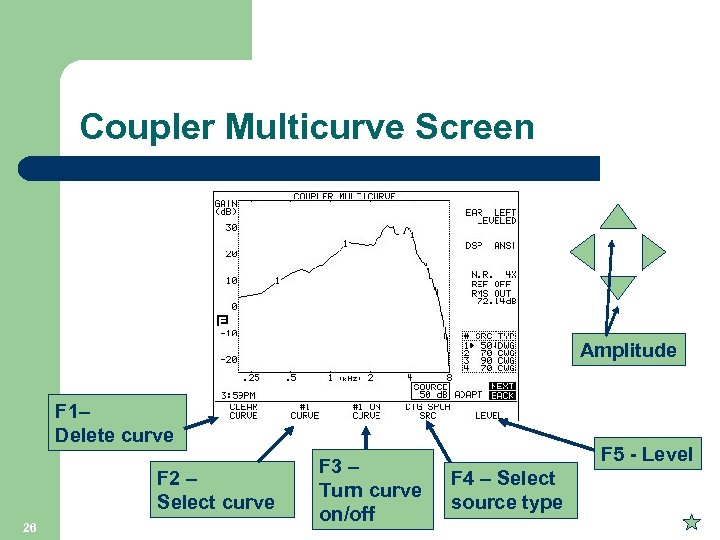 Coupler Multicurve Screen Amplitude F 1– Delete curve F 2 – Select curve 26 F 3 – Turn curve on/off F 5 - Level F 4 – Select source type
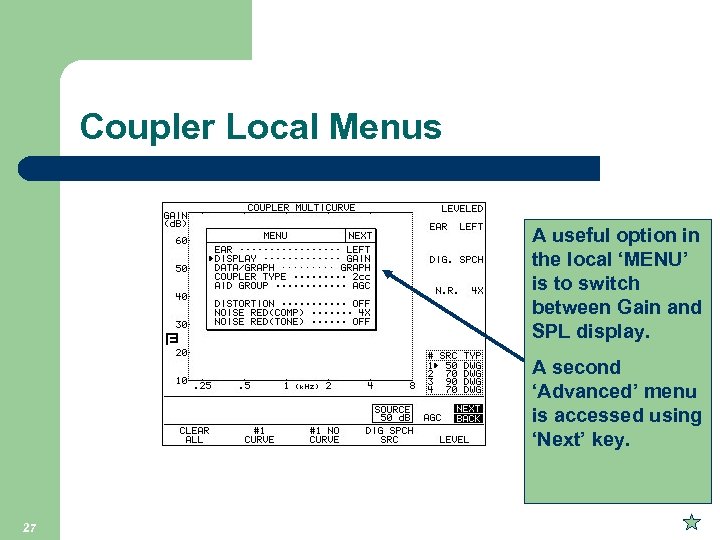 Coupler Local Menus A useful option in the local ‘MENU’ is to switch between Gain and SPL display. A second ‘Advanced’ menu is accessed using ‘Next’ key. 27
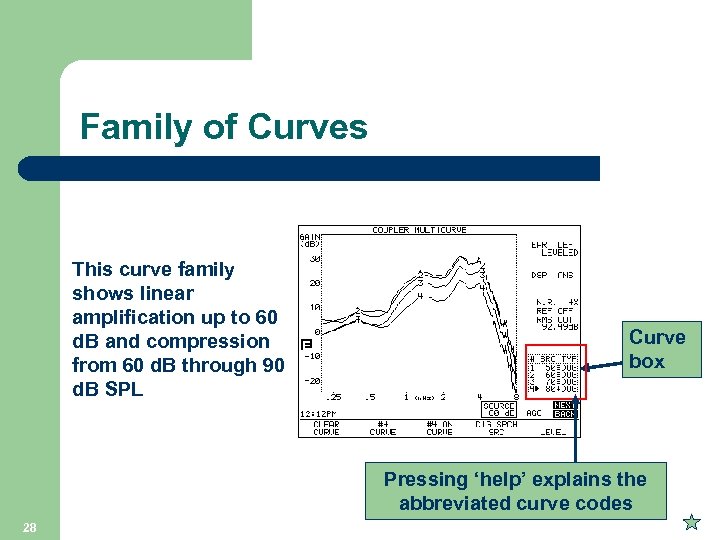 Family of Curves This curve family shows linear amplification up to 60 d. B and compression from 60 d. B through 90 d. B SPL Curve box Pressing ‘help’ explains the abbreviated curve codes 28
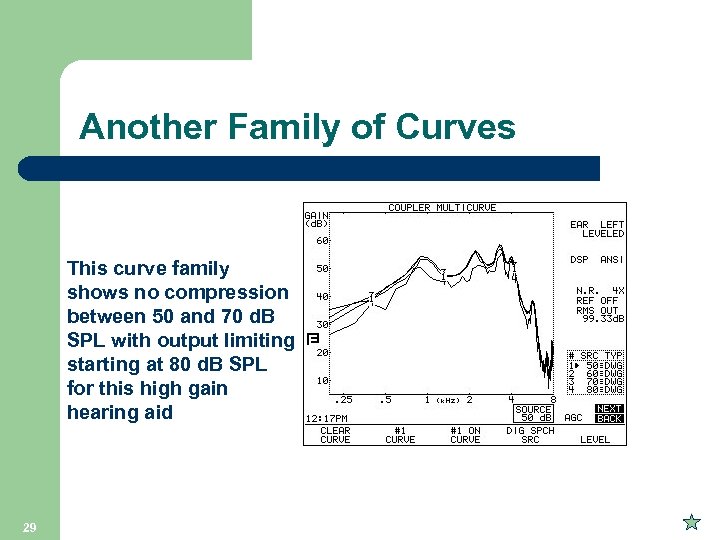 Another Family of Curves This curve family shows no compression between 50 and 70 d. B SPL with output limiting starting at 80 d. B SPL for this high gain hearing aid 29
 Testing Digital Aids l l l 30 Some DSP aids have NR circuitry that reduces gain when the input signal is noise The composite signal, because it is continuous and non-modulating, is seen by the circuitry as “noise” Thus, gain is reduced in the aid while the composite signal is on, and thus the measurement is not accurate
 A Solution: The “Digital Speech” Signal l l 31 Switches Composite signal on/off intermittently in bursts The “on” time can be set from 50 to 150 msec and the “off” time is randomly varied between 100 msec and 300 msec Thus, the hearing aid responds as if the input is speech instead of noise (i. e. , modulated instead of continuous) ANSI, ICRA, and LTASS speech weightings are available with this stimulus too Recently improved to test aids with feedback suppression!
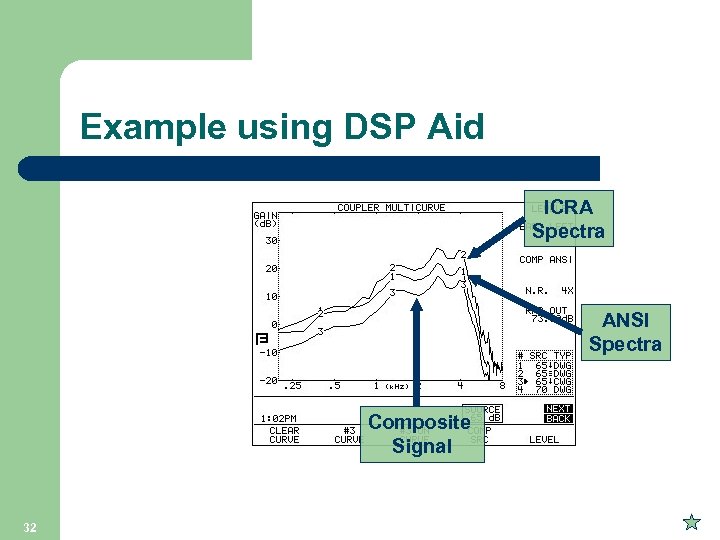 Example using DSP Aid ICRA Spectra ANSI Spectra Composite Signal 32
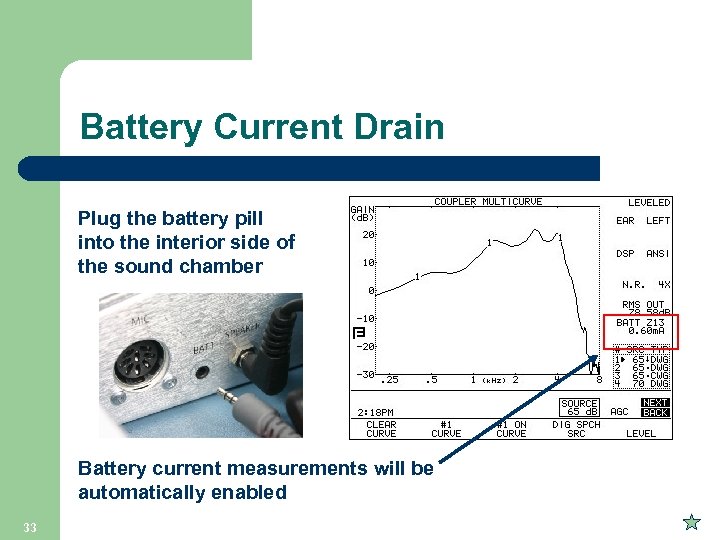 Battery Current Drain Plug the battery pill into the interior side of the sound chamber Battery current measurements will be automatically enabled 33
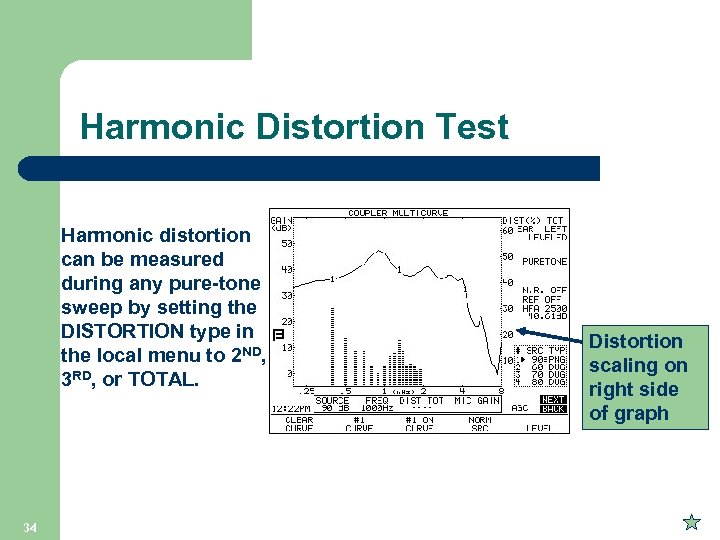 Harmonic Distortion Test Harmonic distortion can be measured during any pure-tone sweep by setting the DISTORTION type in the local menu to 2 ND, 3 RD, or TOTAL. 34 Distortion scaling on right side of graph
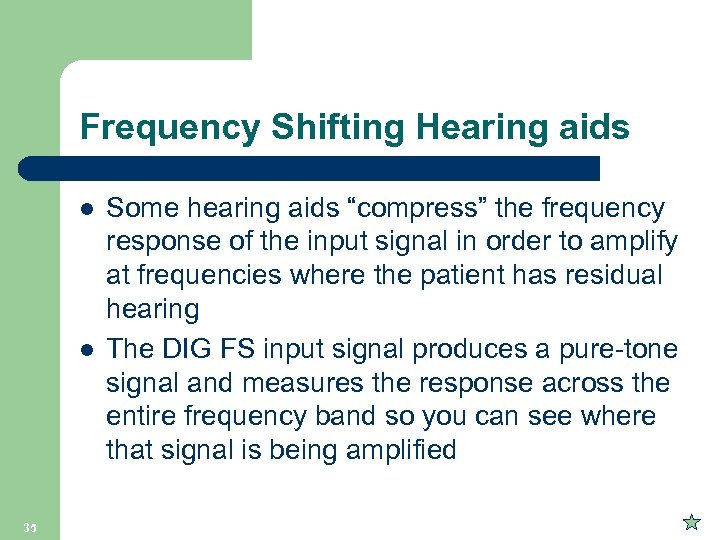 Frequency Shifting Hearing aids l l 35 Some hearing aids “compress” the frequency response of the input signal in order to amplify at frequencies where the patient has residual hearing The DIG FS input signal produces a pure-tone signal and measures the response across the entire frequency band so you can see where that signal is being amplified
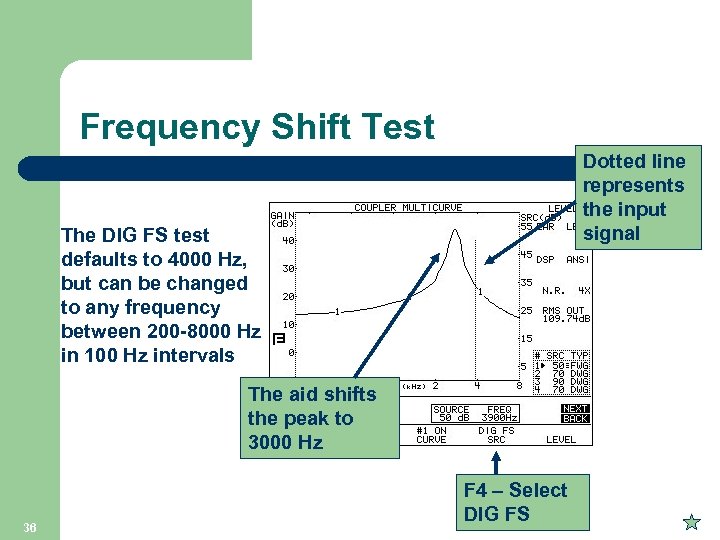 Frequency Shift Test Dotted line represents the input signal The DIG FS test defaults to 4000 Hz, but can be changed to any frequency between 200 -8000 Hz in 100 Hz intervals The aid shifts the peak to 3000 Hz 36 F 4 – Select DIG FS
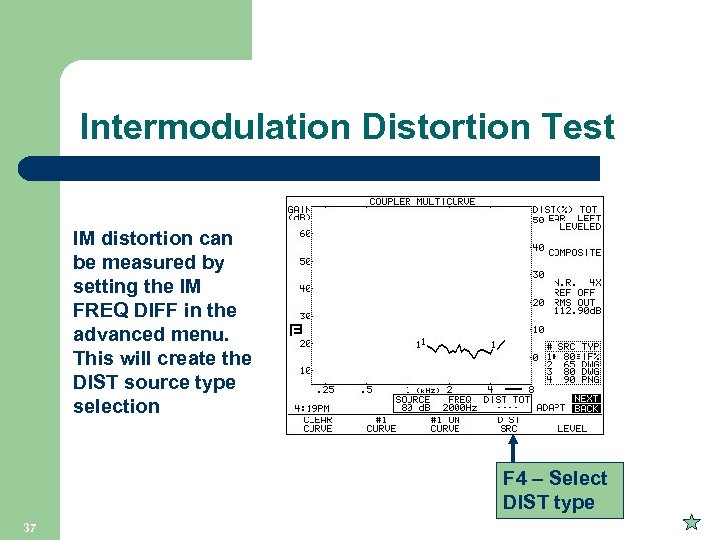 Intermodulation Distortion Test IM distortion can be measured by setting the IM FREQ DIFF in the advanced menu. This will create the DIST source type selection F 4 – Select DIST type 37
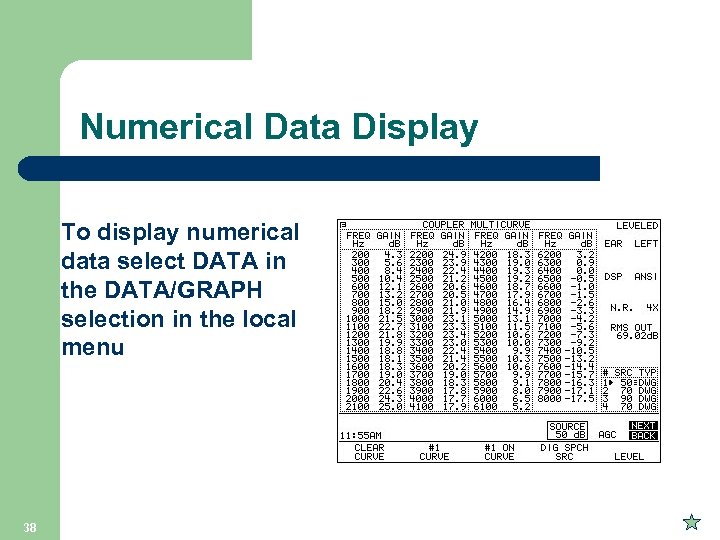 Numerical Data Display To display numerical data select DATA in the DATA/GRAPH selection in the local menu 38
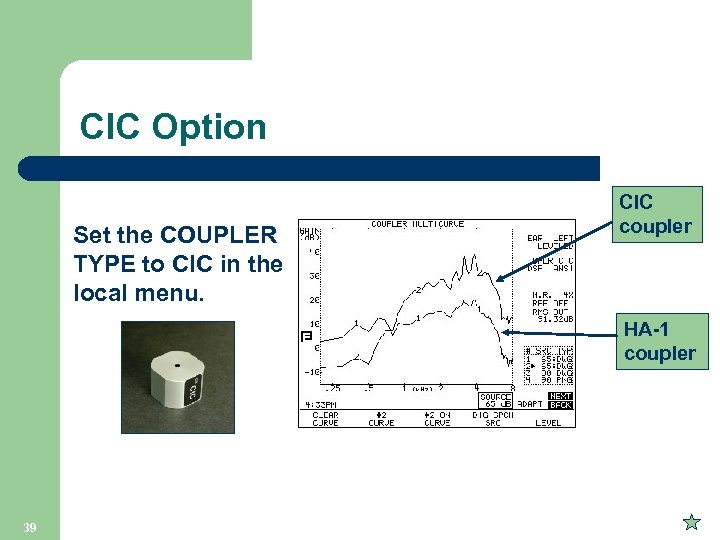 CIC Option Set the COUPLER TYPE to CIC in the local menu. CIC coupler HA-1 coupler 39
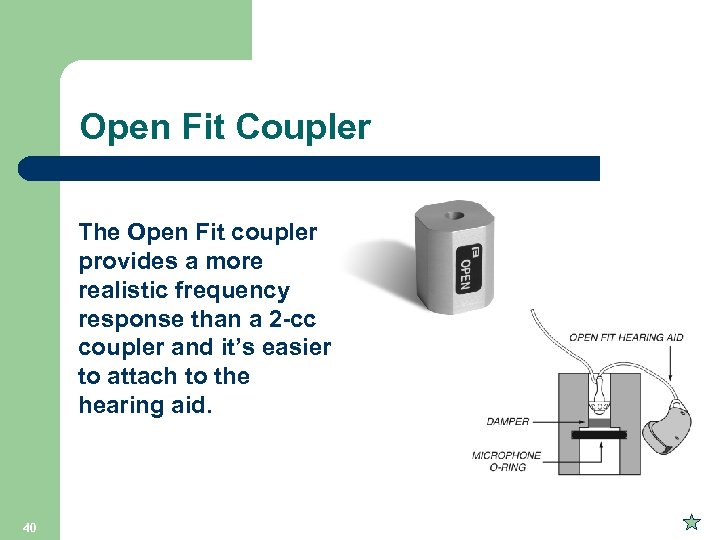 Open Fit Coupler The Open Fit coupler provides a more realistic frequency response than a 2 -cc coupler and it’s easier to attach to the hearing aid. 40
 FP 35 Real-ear Measurements 41
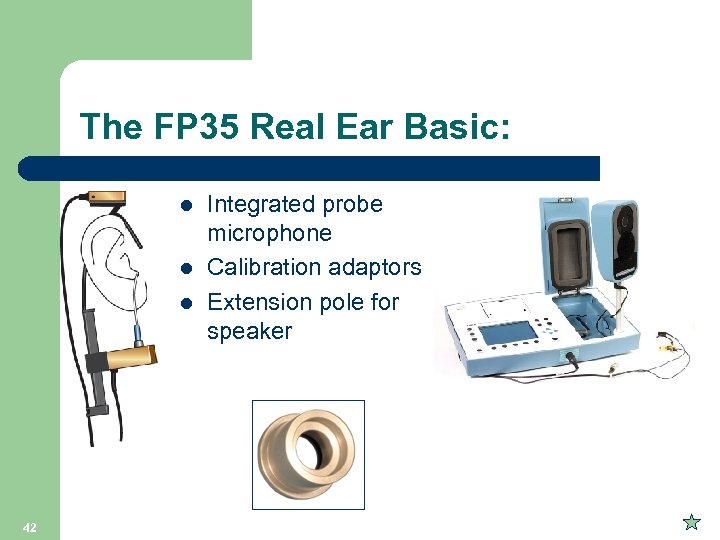 The FP 35 Real Ear Basic: l l l 42 Integrated probe microphone Calibration adaptors Extension pole for speaker
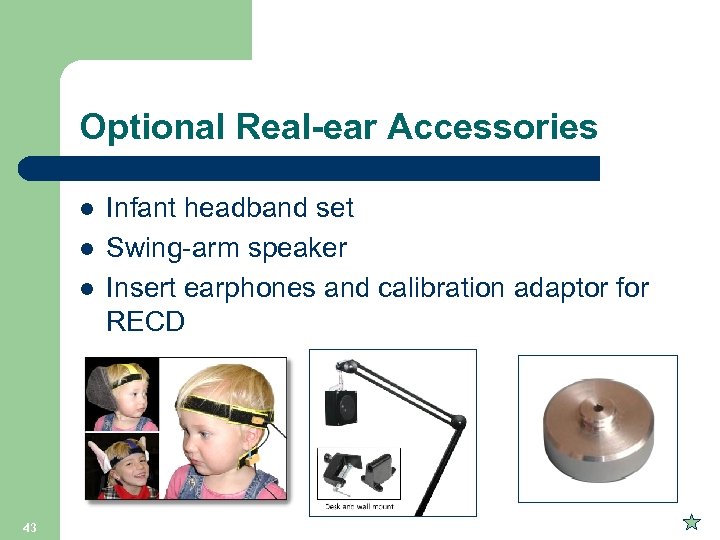 Optional Real-ear Accessories l l l 43 Infant headband set Swing-arm speaker Insert earphones and calibration adaptor for RECD
 Real-Ear features: l l l 44 Fitting rules: NAL-NL 1, MOD NAL, DSL, NALRP, plus the traditional ones Age correction factors for testing kids with NALNL 1 and DSL Insertion Gain & SPL-o-gram methods Visible Speech Coupler Target & Simulated Real-ear RECD
 FP 35 Real-ear Screens l l Audiogram entry screen Real-ear SPL screen Unaided & aided screen Insertion gain screen Use the [NEXT] and [BACK] keys when in Real -ear Mode to cycle between these four screens. 45
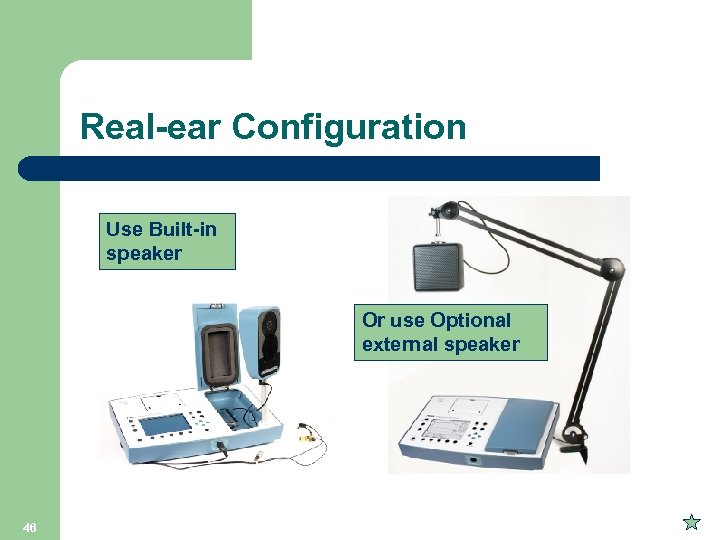 Real-ear Configuration Use Built-in speaker Or use Optional external speaker 46
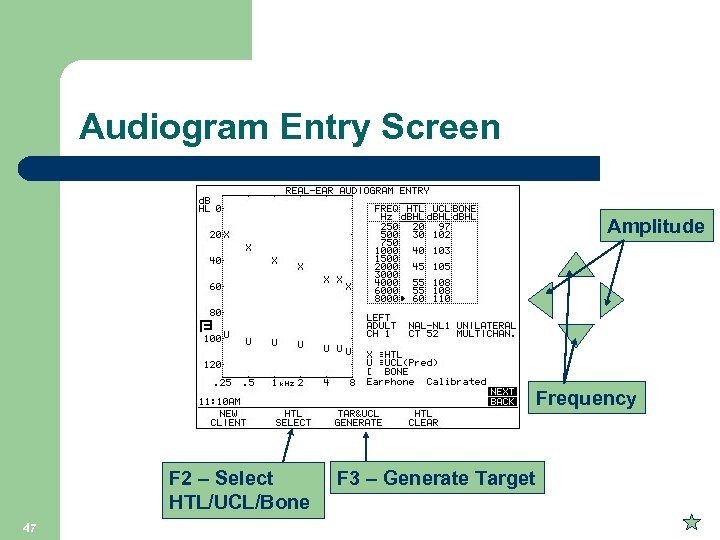 Audiogram Entry Screen Amplitude Frequency F 2 – Select HTL/UCL/Bone 47 F 3 – Generate Target
 Features l l l 48 Fitting rules: NAL-NL 1, MOD NAL, DSL, NALRP, plus the traditional ones Age correction factors for testing kids with NALNL 1, MOD NAL, and DSL RECD
 NAL-NL 1 & MOD NAL Features l l l 49 Age of client (kids) Number of channels Bone conduction Bilateral vs. Unilateral loss Limiting: Multi-channel or Wideband Compression threshold
![Generating the Selected Target l l l Press [F 3] to generate the target](https://present5.com/presentation/59f8ac9d6d1379fbd6111eeb99763124/image-50.jpg "Generating the Selected Target l l l Press [F 3] to generate the target") Generating the Selected Target l l l Press [F 3] to generate the target Press [F 5] to toggle between IG target and SPL target Shown here is IG Target Inter. F 3 50 F 5 Note: No curves are measured in the Audiogram Entry screen
Generating the Selected Target l l l Press [F 3] to generate the target Press [F 5] to toggle between IG target and SPL target Shown here is IG Target Inter. F 3 50 F 5 Note: No curves are measured in the Audiogram Entry screen
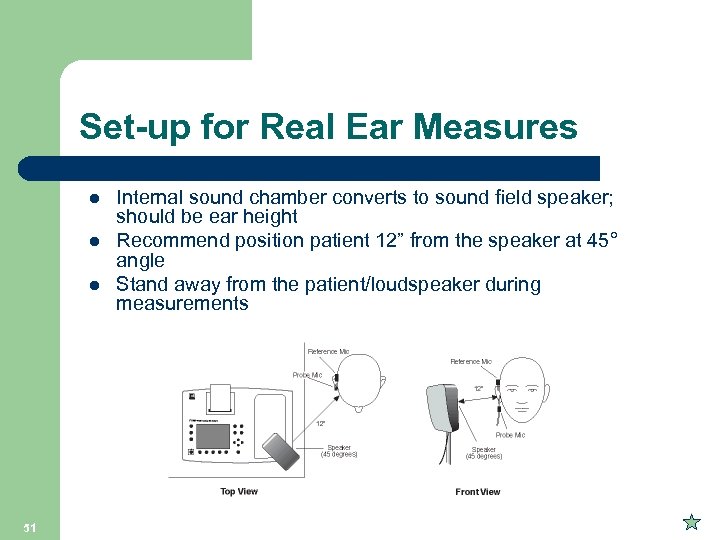 Set-up for Real Ear Measures l l l Internal sound chamber converts to sound field speaker; should be ear height Recommend position patient 12” from the speaker at 45° angle Stand away from the patient/loudspeaker during measurements Probe 51
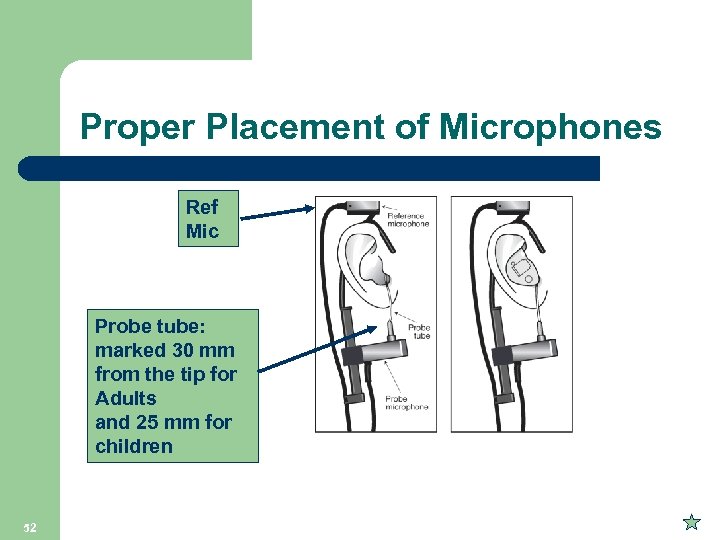 Proper Placement of Microphones Ref Mic Probe tube: marked 30 mm from the tip for Adults and 25 mm for children 52
 Leveling the Sound Field Loudspeaker l l l 53 Position patient and earhook/microphone (probe tube insertion optional) Go to REM test screen (Real-ear SPL, Real-ear Unaided & Aided, or Real-ear Insertion Gain) using [NEXT] and [BACK]. Press “Level” [F 5] and [START/STOP] Leveling only uses the reference microphone so probe placement doesn’t matter The hearing aid can be inserted in the ear during leveling as long as it is turned off. Reminder: Re-level for each patient and each ear
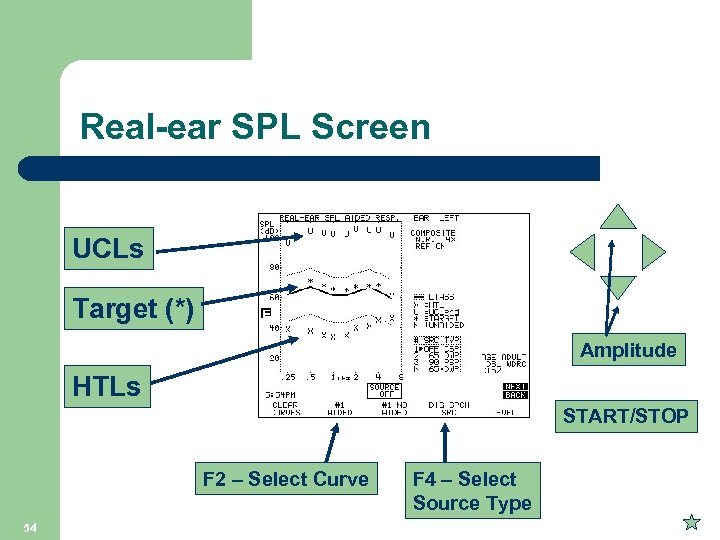 Real-ear SPL Screen UCLs Target (*) Amplitude HTLs START/STOP F 2 – Select Curve 54 F 4 – Select Source Type
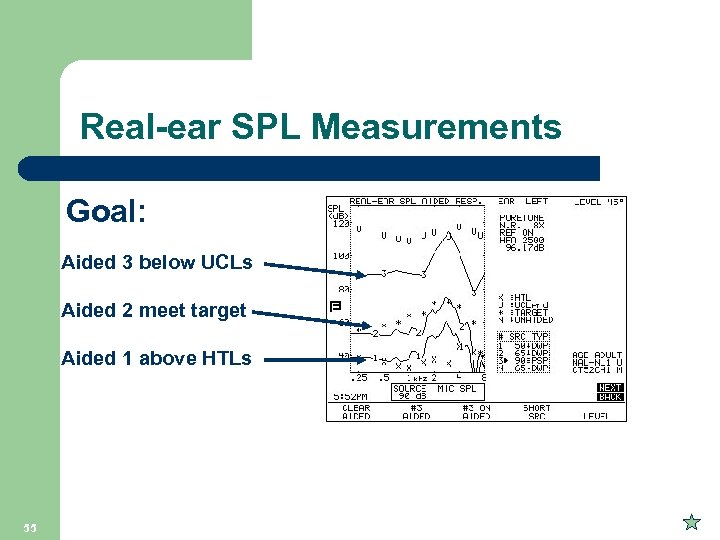 Real-ear SPL Measurements Goal: Aided 3 below UCLs Aided 2 meet target Aided 1 above HTLs 55
 Visible Speech l l 56 Use Live Speech or Pre-recorded Speech from an attached CD player or i. Pod Set the source type to COMP (or DIG SPCH) with F 4 Set the source level to OFF using the downarrow key repeatedly Press START/STOP to start the measurement
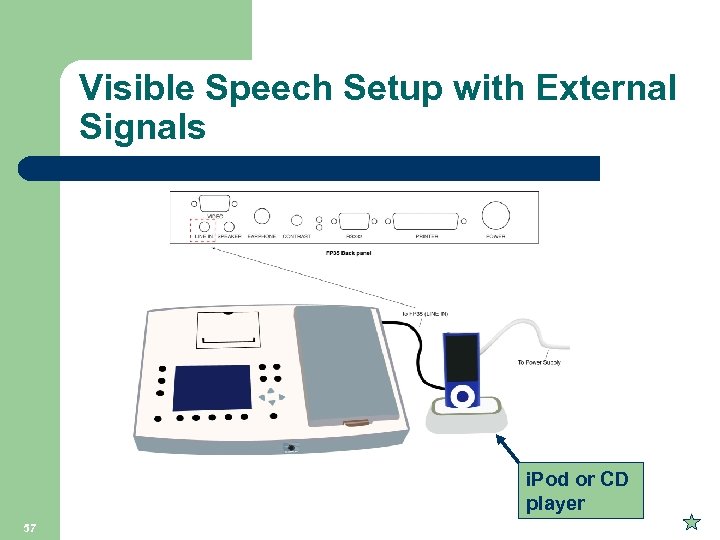 Visible Speech Setup with External Signals i. Pod or CD player 57
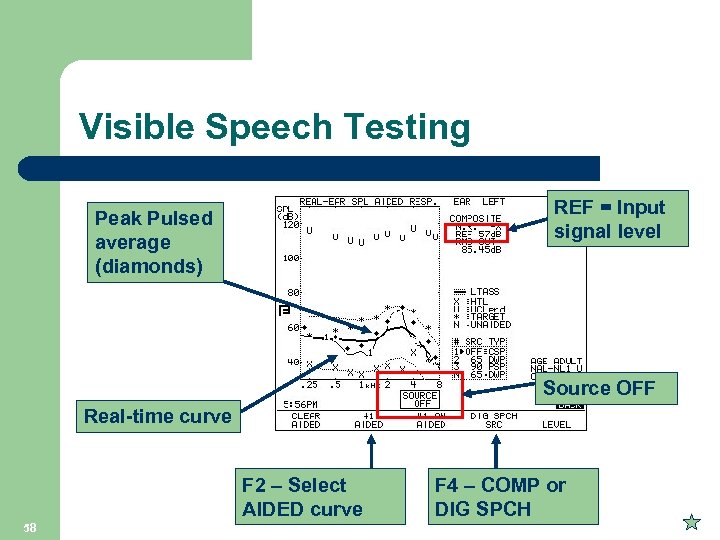 Visible Speech Testing REF = Input signal level Peak Pulsed average (diamonds) Source OFF Real-time curve F 2 – Select AIDED curve 58 F 4 – COMP or DIG SPCH
 Third Octave analysis Two SPL analysis methods are available: l 100 Hz FFT SPL: 79 measurement points every 100 Hz l 3 RD Octave SPL: 17 measurement points unequally spaced with higher resolution in the low frequencies 59
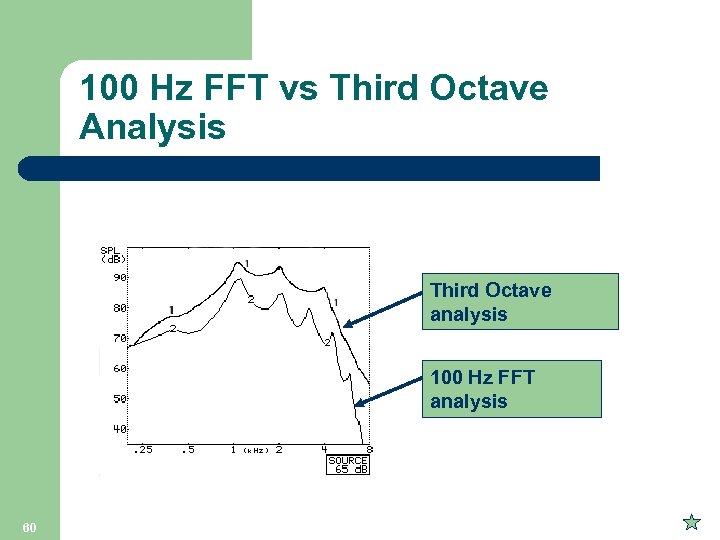 100 Hz FFT vs Third Octave Analysis Third Octave analysis 100 Hz FFT analysis 60
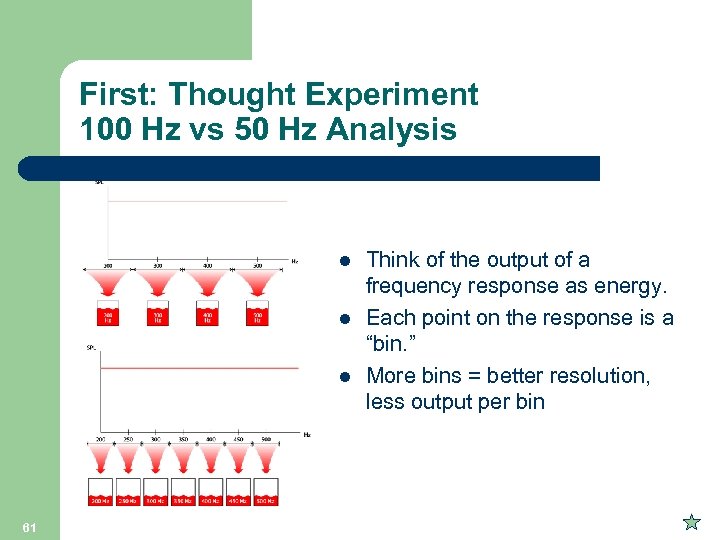 First: Thought Experiment 100 Hz vs 50 Hz Analysis l l l 61 Think of the output of a frequency response as energy. Each point on the response is a “bin. ” More bins = better resolution, less output per bin
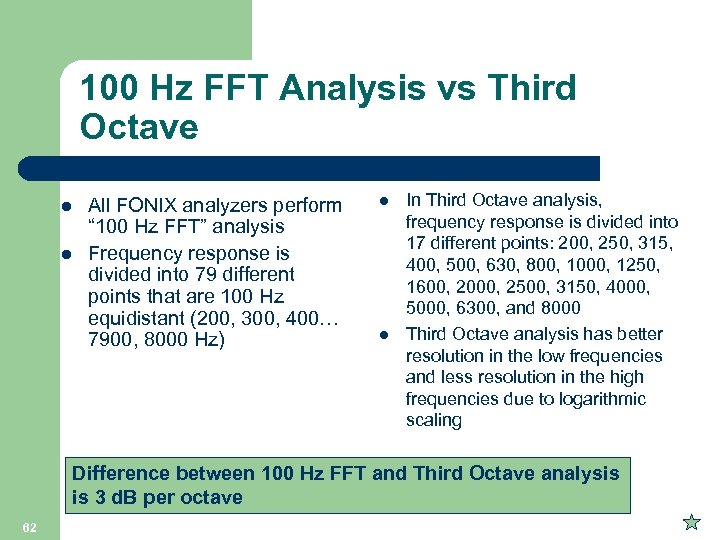 100 Hz FFT Analysis vs Third Octave l l All FONIX analyzers perform “ 100 Hz FFT” analysis Frequency response is divided into 79 different points that are 100 Hz equidistant (200, 300, 400… 7900, 8000 Hz) l l In Third Octave analysis, frequency response is divided into 17 different points: 200, 250, 315, 400, 500, 630, 800, 1000, 1250, 1600, 2000, 2500, 3150, 4000, 5000, 6300, and 8000 Third Octave analysis has better resolution in the low frequencies and less resolution in the high frequencies due to logarithmic scaling Difference between 100 Hz FFT and Third Octave analysis is 3 d. B per octave 62
 Important Notes l l 63 This 3 d. B per octave difference only occurs when viewing results in terms of d. B SPL (coupler or real-ear). Gain measurements are not affected. This difference only occurs when using broadband signals. During a pure-tone sweep, only one “bin” is filled at a time, so the energy is not distributed.
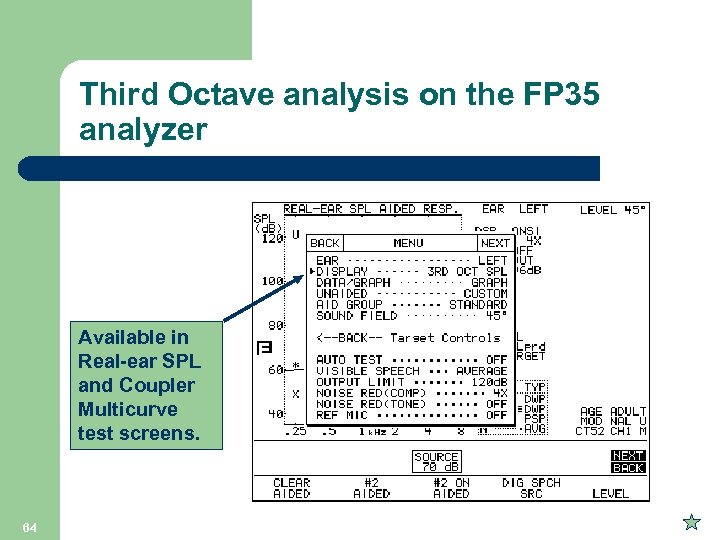 Third Octave analysis on the FP 35 analyzer Available in Real-ear SPL and Coupler Multicurve test screens. 64
 Auto Test l l l 65 When enabled, it measures all three aided measurement curves sequentially The measurement time for each curve can be changed in the Advanced Menu The “unaided” curve is not part of the Auto Test Sequence
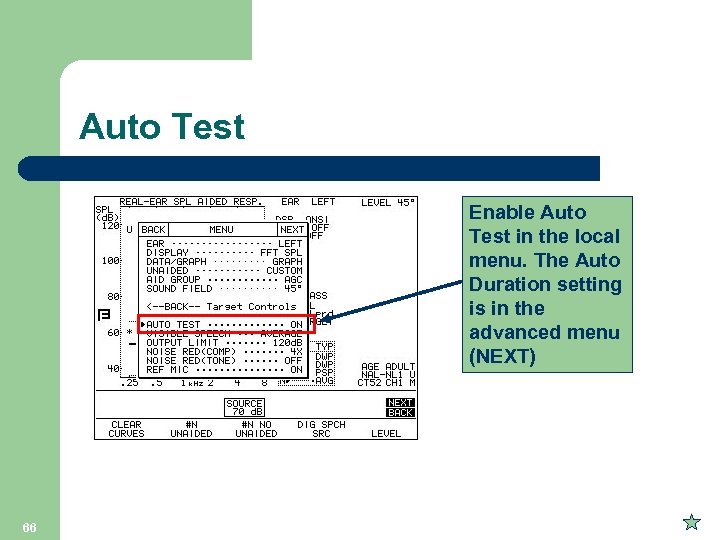 Auto Test Enable Auto Test in the local menu. The Auto Duration setting is in the advanced menu (NEXT) 66
 Insertion Gain l l 67 Aided & Unaided screen shows aided and unaided measurements in d. B Gain or d. B SPL Insertion Gain screen shows resulting insertion gain curve & insertion gain target
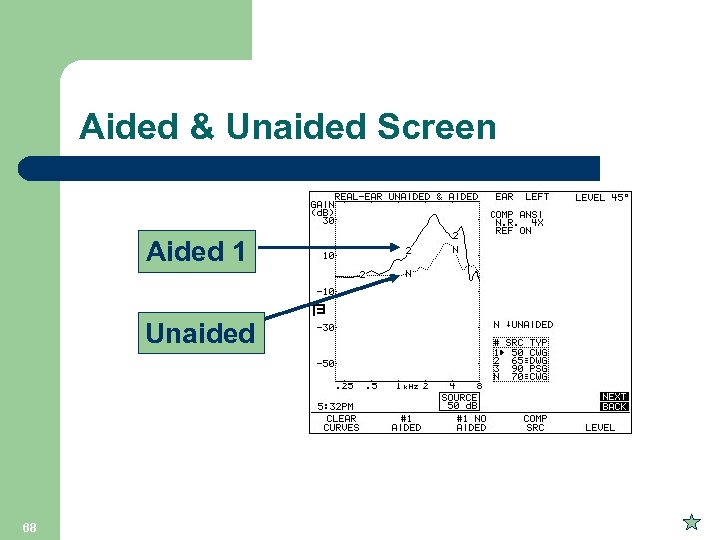 Aided & Unaided Screen Aided 1 Unaided 68
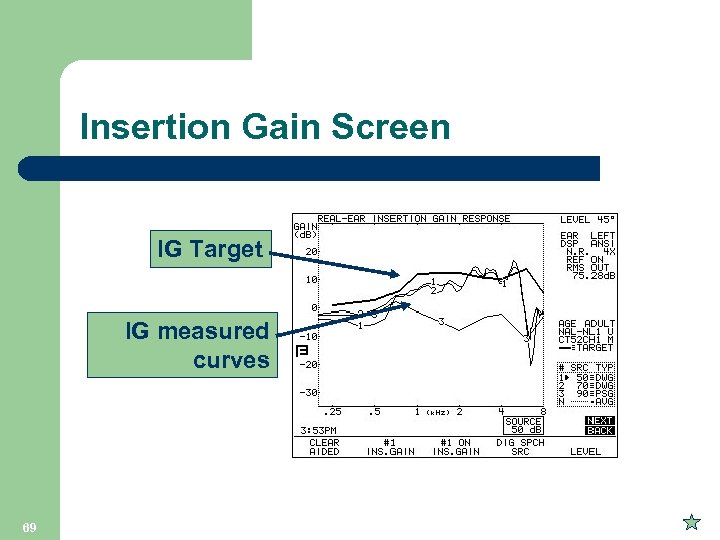 Insertion Gain Screen IG Target IG measured curves 69
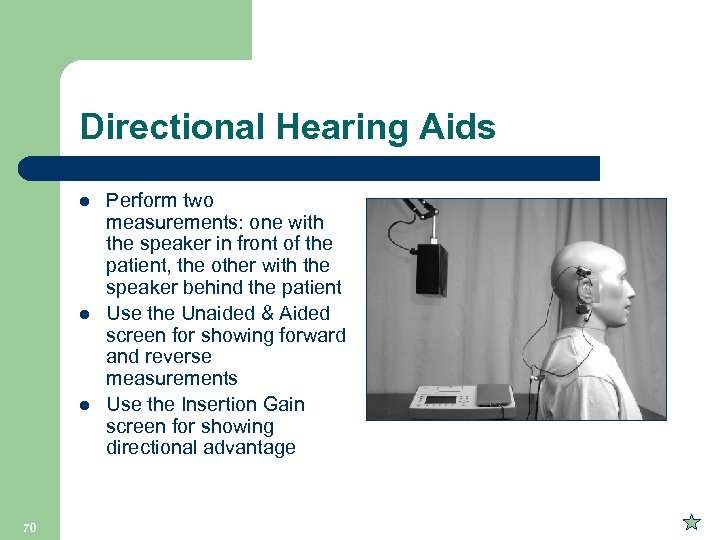 Directional Hearing Aids l l l 70 Perform two measurements: one with the speaker in front of the patient, the other with the speaker behind the patient Use the Unaided & Aided screen for showing forward and reverse measurements Use the Insertion Gain screen for showing directional advantage
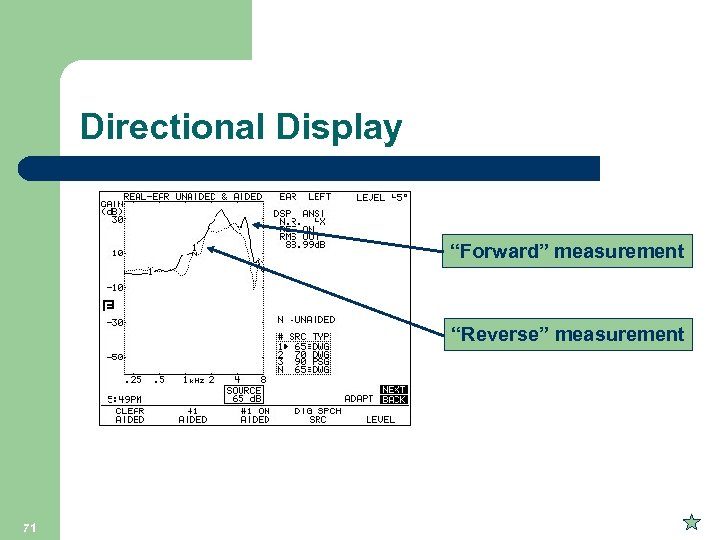 Directional Display “Forward” measurement “Reverse” measurement 71
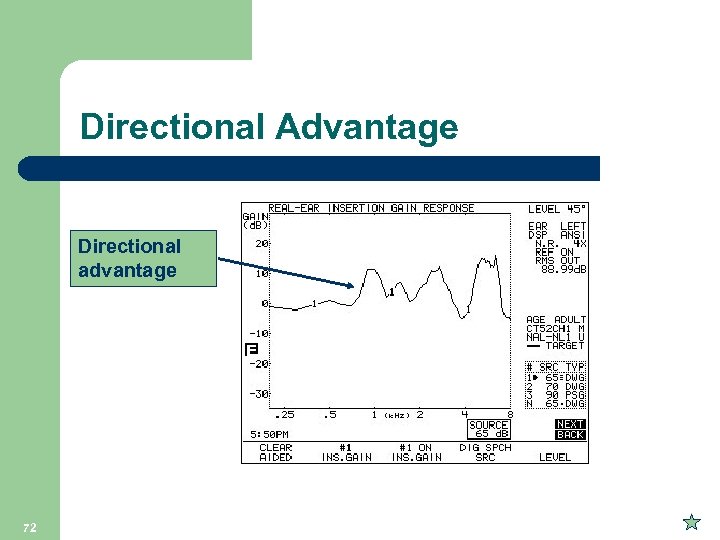 Directional Advantage Directional advantage 72
 Coupler Targets l l 73 Audiogram entered in Audiogram Entry screen, as normal RECD – Average or Measured Coupler Target screen Coupler Ear. Sim screen
 Real-ear to Coupler Difference (RECD) l l 74 The acoustical difference between the 2 -cc coupler and the real-ear unaided response on a patient (as measured with insert earphones) Two measurements are needed: 1) The coupler measurement: Performed in the Calibration screen only periodically 2) The real-ear measurement: Performed in the Audiogram Entry screen for each patient measured
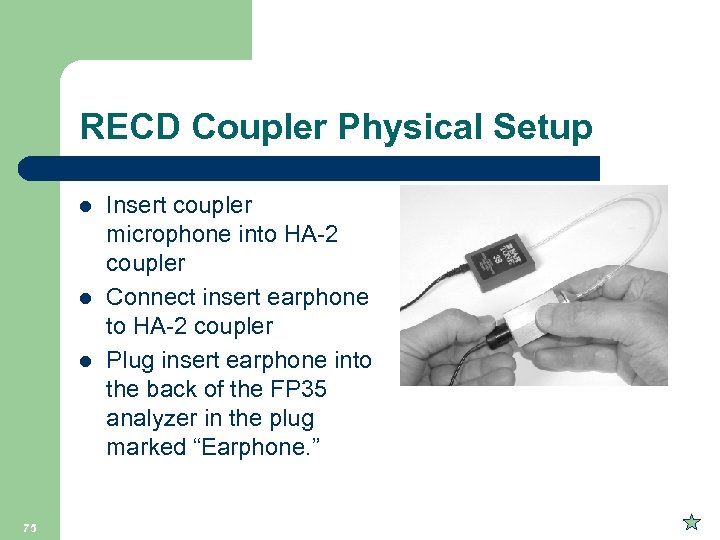 RECD Coupler Physical Setup l l l 75 Insert coupler microphone into HA-2 coupler Connect insert earphone to HA-2 coupler Plug insert earphone into the back of the FP 35 analyzer in the plug marked “Earphone. ”
![RECD Coupler FP 35 Operation 1. 2. 3. 4. 5. 6. 76 Press [MENU]](https://present5.com/presentation/59f8ac9d6d1379fbd6111eeb99763124/image-76.jpg "RECD Coupler FP 35 Operation 1. 2. 3. 4. 5. 6. 76 Press [MENU]") RECD Coupler FP 35 Operation 1. 2. 3. 4. 5. 6. 76 Press [MENU] from the Opening screen to enter the Default Settings screen Press [F 3] to go to the Calibration Screen Press [F 4] to go to the Earphone Calibration Screen Press [START/STOP] twice to perform the measurement Press [F 5] and [START/STOP] to save the coupler RECD. Use the down arrow to select Calibrate Ins. Earphone (RECD) and repeat steps 4 -5.
RECD Coupler FP 35 Operation 1. 2. 3. 4. 5. 6. 76 Press [MENU] from the Opening screen to enter the Default Settings screen Press [F 3] to go to the Calibration Screen Press [F 4] to go to the Earphone Calibration Screen Press [START/STOP] twice to perform the measurement Press [F 5] and [START/STOP] to save the coupler RECD. Use the down arrow to select Calibrate Ins. Earphone (RECD) and repeat steps 4 -5.
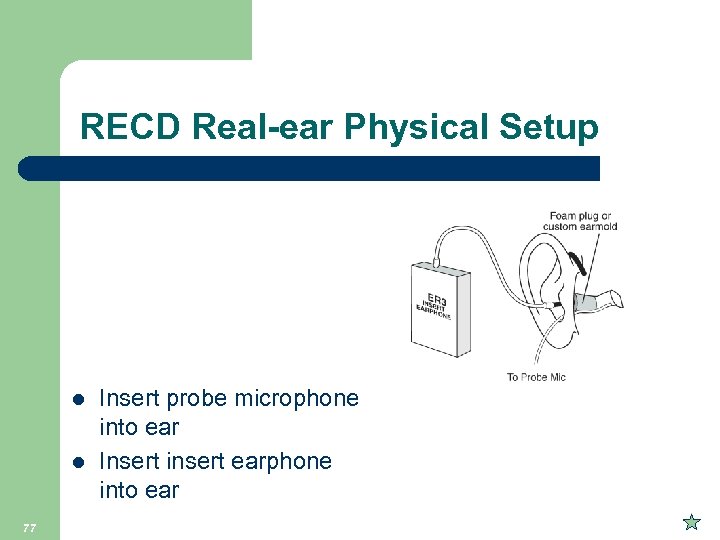 RECD Real-ear Physical Setup Marked 30 mm from the Tip for Adults and 25 mm for children l l 77 Insert probe microphone into ear Insert insert earphone into ear Probe
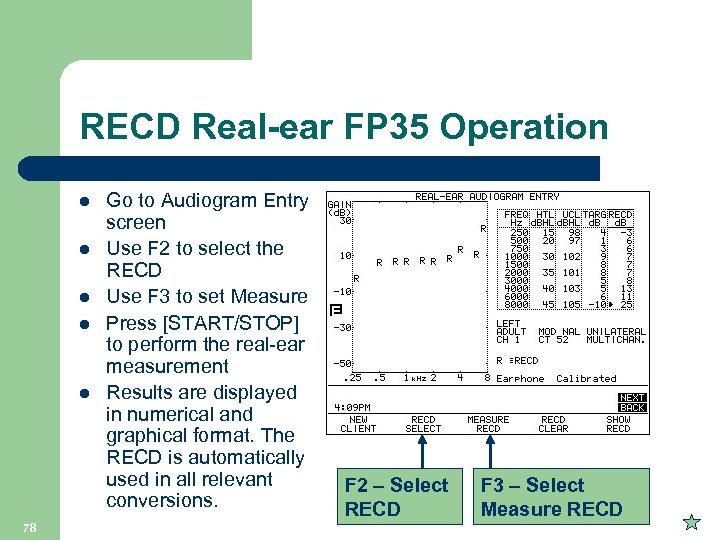 RECD Real-ear FP 35 Operation l l l 78 Go to Audiogram Entry screen Use F 2 to select the RECD Use F 3 to set Measure Press [START/STOP] to perform the real-ear measurement Results are displayed in numerical and graphical format. The RECD is automatically used in all relevant conversions. Probe F 2 – Select F 3 – Select RECD Measure RECD
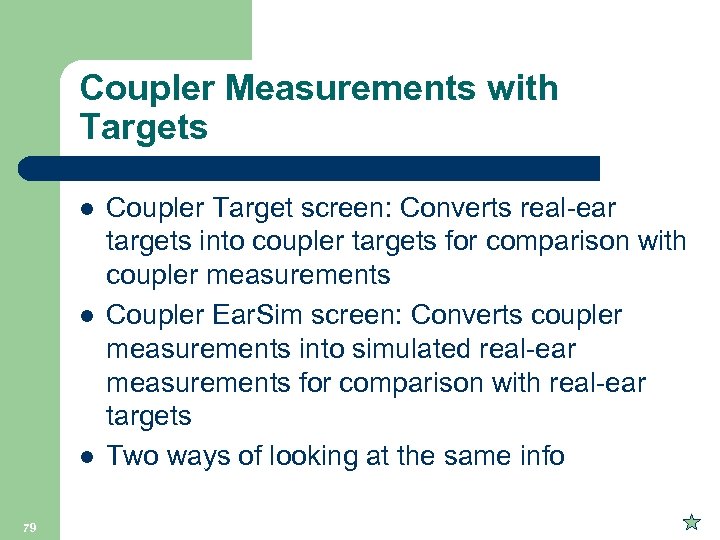 Coupler Measurements with Targets l l l 79 Coupler Target screen: Converts real-ear targets into coupler targets for comparison with coupler measurements Coupler Ear. Sim screen: Converts coupler measurements into simulated real-ear measurements for comparison with real-ear targets Two ways of looking at the same info
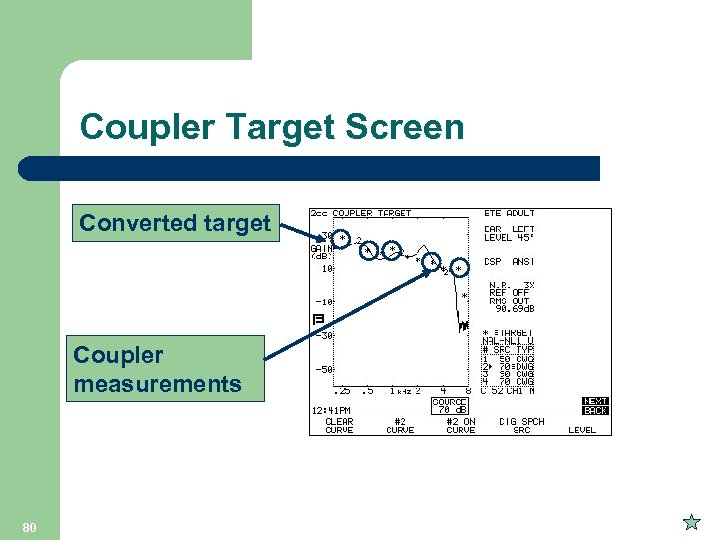 Coupler Target Screen Converted target Coupler measurements 80
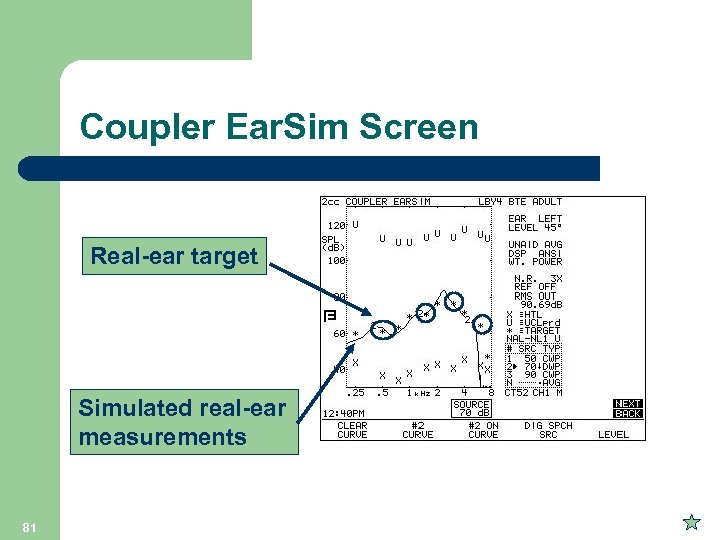 Coupler Ear. Sim Screen Real-ear target Simulated real-ear measurements 81
 Entering default settings l l l 82 The FP 35 can memorise up to 3 default settings groups To enter your default settings choose ‘MENU’ from the initial FONIX screen ‘NEXT’ will advance to a second screen
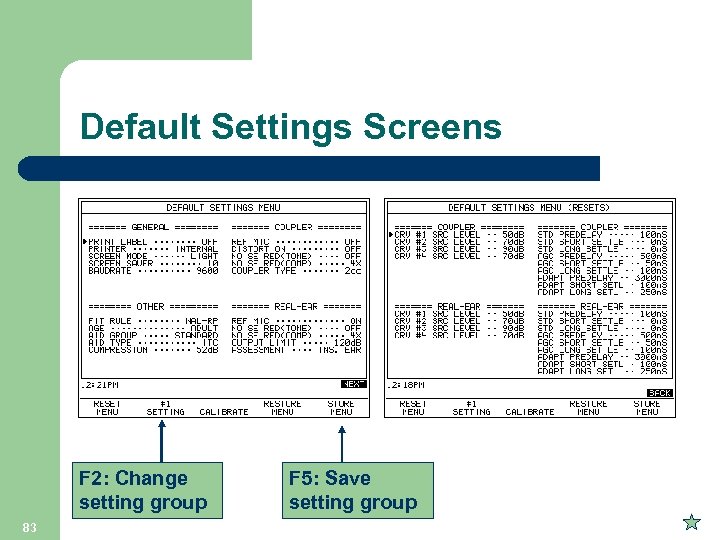 Default Settings Screens F 2: Change setting group 83 F 5: Save setting group
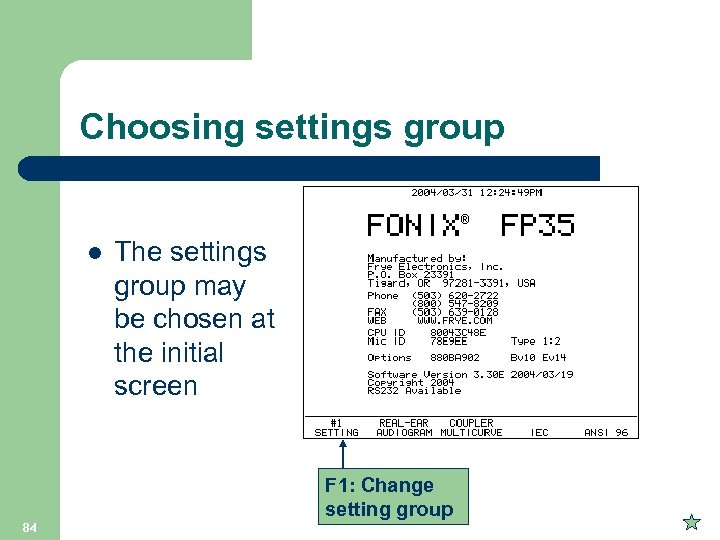 Choosing settings group l The settings group may be chosen at the initial screen F 1: Change setting group 84
 Thank you for your time! Please email kris@frye. com should you require further information. Frye Electronics, 9826 SW Tigard St, Tigard, OR 97223, USA Tel: 503 -620 -2722 or 800 -547 -8209 85 Special thanks to David Evans of Connevans, UK and Dr Carol Sammeth who contributed to this presentation