


 Скачать презентацию Version Control V 22 0474 -001 Software Engineering
61f3412b015594f00e9157712fcc89fe.ppt
- Количество слайдов: 49
 Version Control V 22. 0474 -001 Software Engineering Lecture 7
 Review • Requirements • Unified Modeling Language (UML) • Live Sequence Charts (LSC’s) • Project Teams • Project Requirements Document
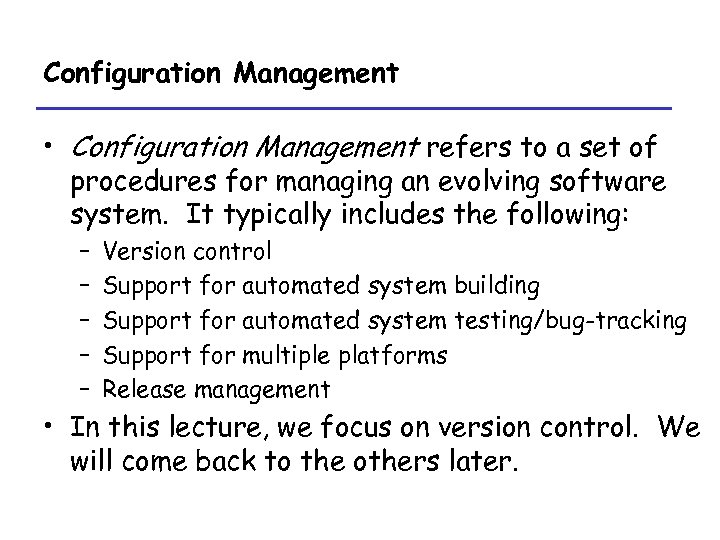 Configuration Management • Configuration Management refers to a set of procedures for managing an evolving software system. It typically includes the following: – – – Version control Support for automated system building Support for automated system testing/bug-tracking Support for multiple platforms Release management • In this lecture, we focus on version control. We will come back to the others later.
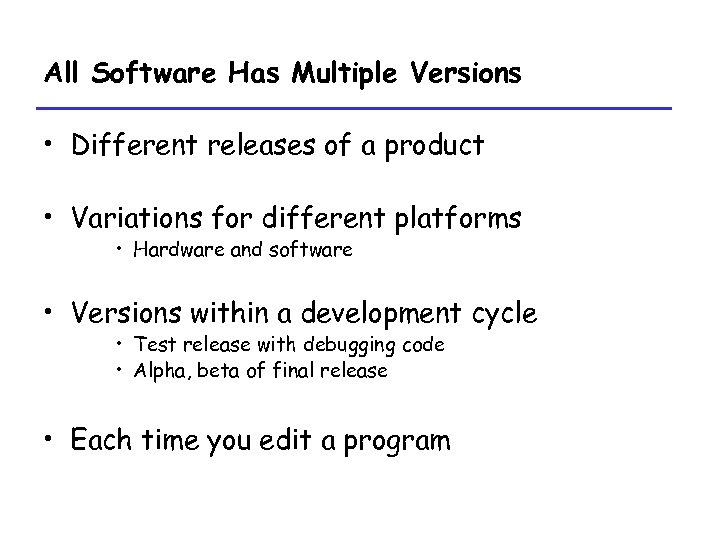 All Software Has Multiple Versions • Different releases of a product • Variations for different platforms • Hardware and software • Versions within a development cycle • Test release with debugging code • Alpha, beta of final release • Each time you edit a program
 Version Control • Version control tracks multiple versions • In particular, allows – old versions to be recovered – multiple versions to exist simultaneously • Why use version control?
 Why Use Version Control? • To allow more than one developer to work on the code • Can easily recreate old versions • Change log • Comparison with old versions very useful for debugging • May need multiple versions of the same project
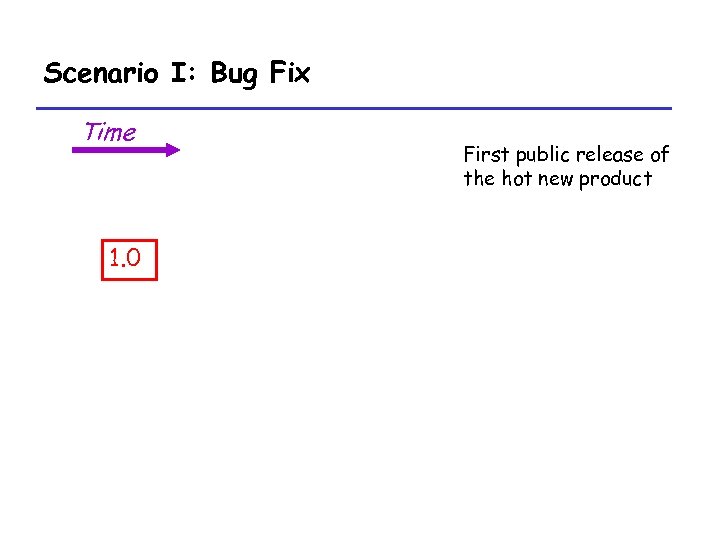 Scenario I: Bug Fix Time 1. 0 First public release of the hot new product
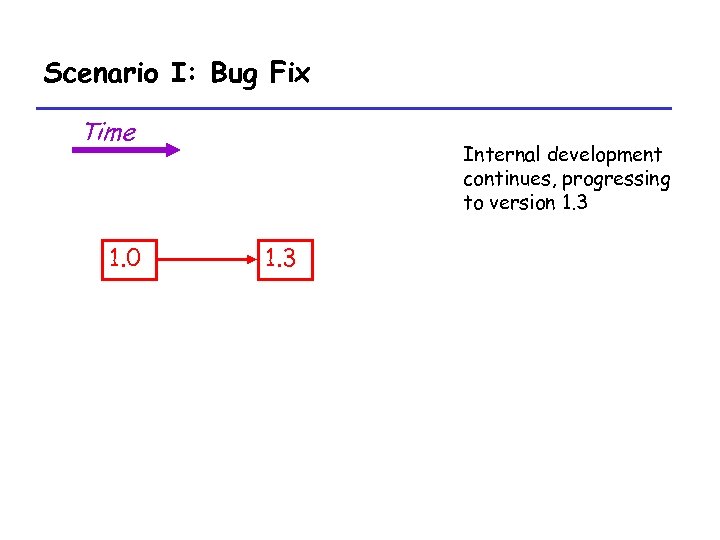 Scenario I: Bug Fix Time 1. 0 Internal development continues, progressing to version 1. 3
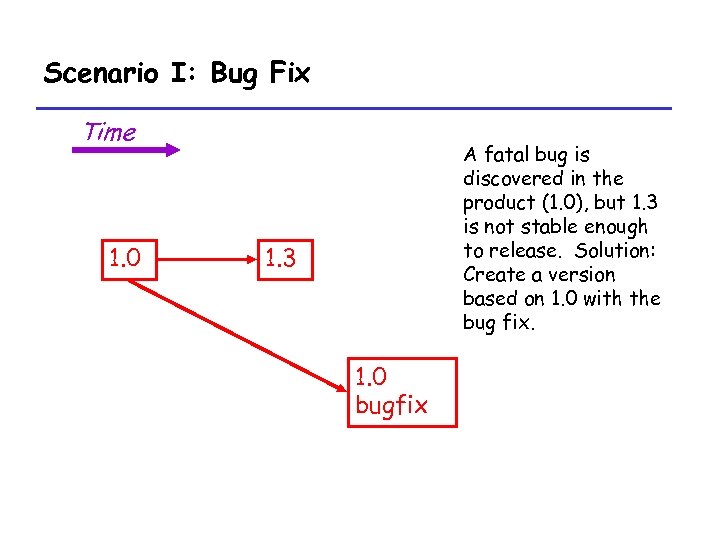 Scenario I: Bug Fix Time 1. 0 A fatal bug is discovered in the product (1. 0), but 1. 3 is not stable enough to release. Solution: Create a version based on 1. 0 with the bug fix. 1. 3 1. 0 bugfix
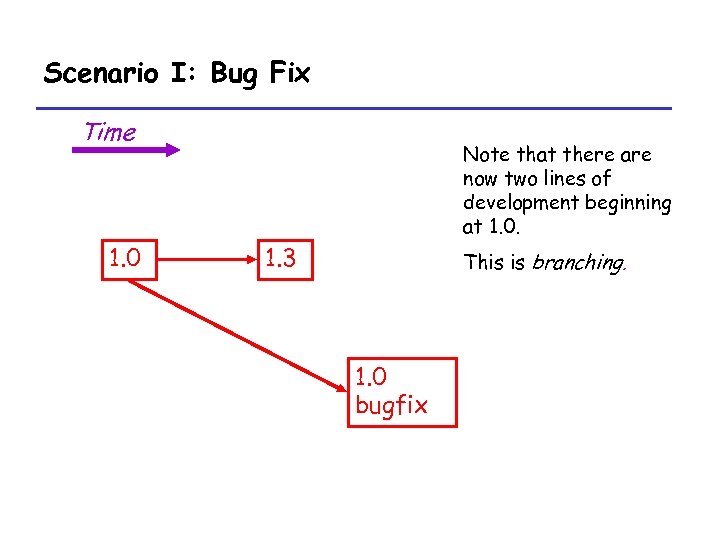 Scenario I: Bug Fix Time 1. 0 Note that there are now two lines of development beginning at 1. 0. 1. 3 This is branching. 1. 0 bugfix
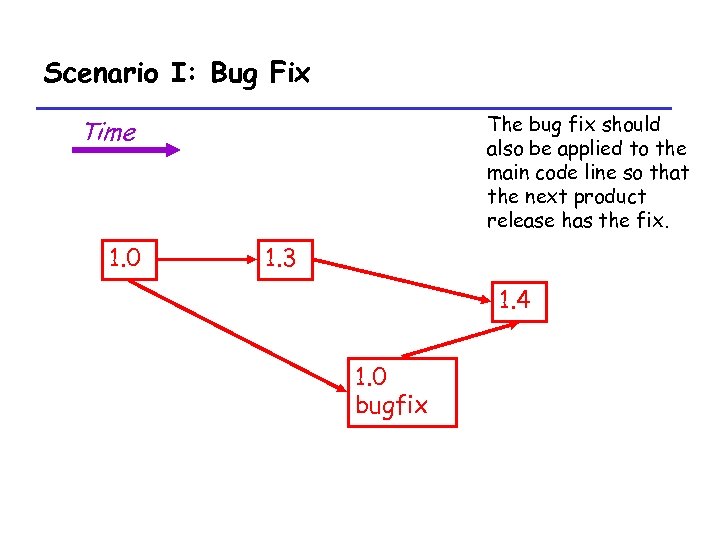 Scenario I: Bug Fix The bug fix should also be applied to the main code line so that the next product release has the fix. Time 1. 0 1. 3 1. 4 1. 0 bugfix
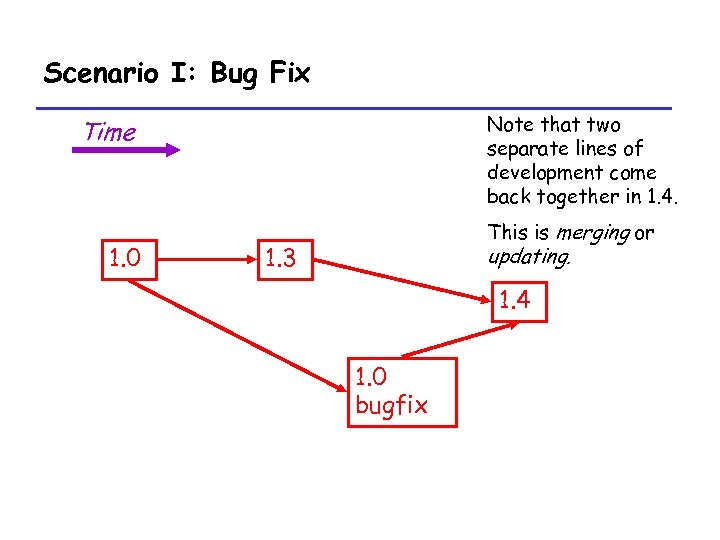 Scenario I: Bug Fix Note that two separate lines of development come back together in 1. 4. Time 1. 0 This is merging or updating. 1. 3 1. 4 1. 0 bugfix
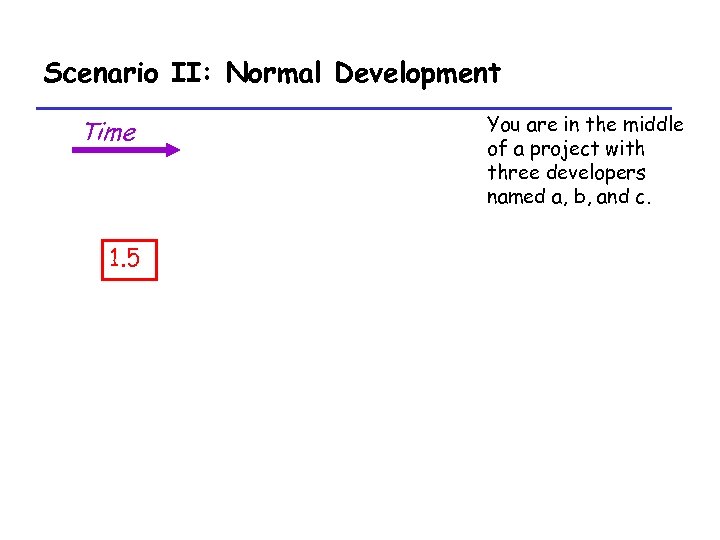 Scenario II: Normal Development Time 1. 5 You are in the middle of a project with three developers named a, b, and c.
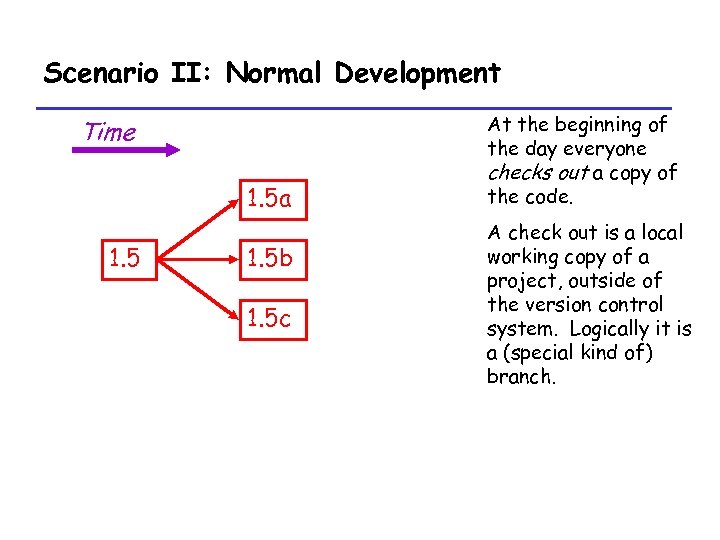 Scenario II: Normal Development Time 1. 5 a 1. 5 b 1. 5 c At the beginning of the day everyone checks out a copy of the code. A check out is a local working copy of a project, outside of the version control system. Logically it is a (special kind of) branch.
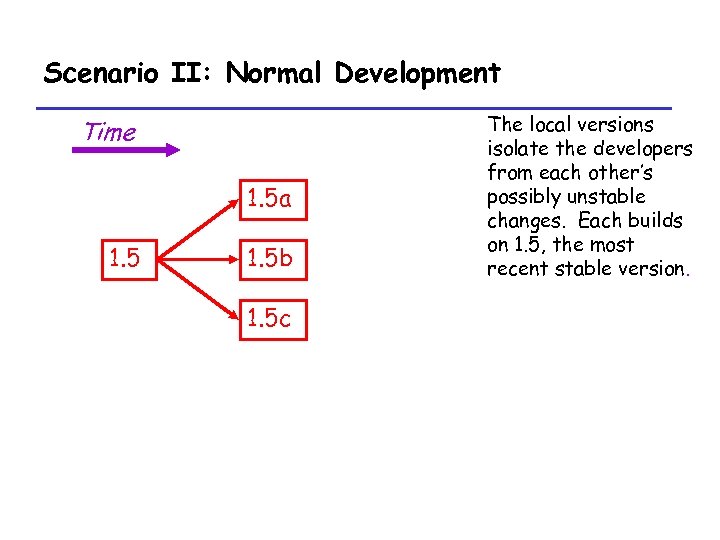 Scenario II: Normal Development Time 1. 5 a 1. 5 b 1. 5 c The local versions isolate the developers from each other’s possibly unstable changes. Each builds on 1. 5, the most recent stable version.
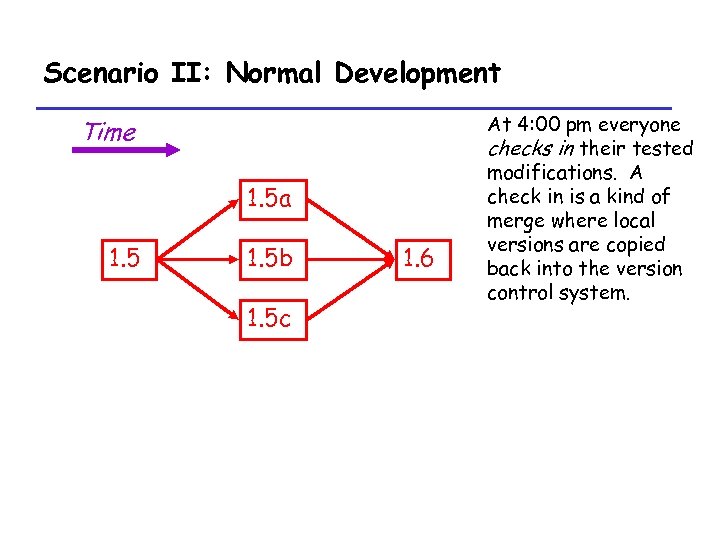 Scenario II: Normal Development Time 1. 5 a 1. 5 b 1. 5 c 1. 6 At 4: 00 pm everyone checks in their tested modifications. A check in is a kind of merge where local versions are copied back into the version control system.
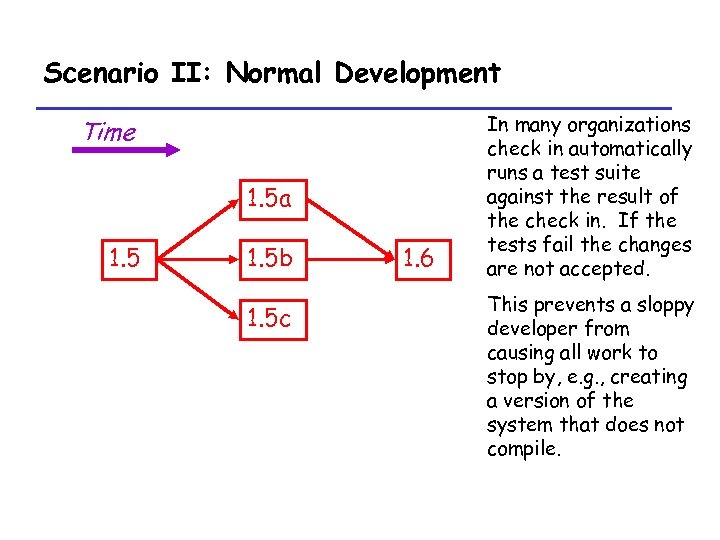 Scenario II: Normal Development Time 1. 5 a 1. 5 b 1. 5 c 1. 6 In many organizations check in automatically runs a test suite against the result of the check in. If the tests fail the changes are not accepted. This prevents a sloppy developer from causing all work to stop by, e. g. , creating a version of the system that does not compile.
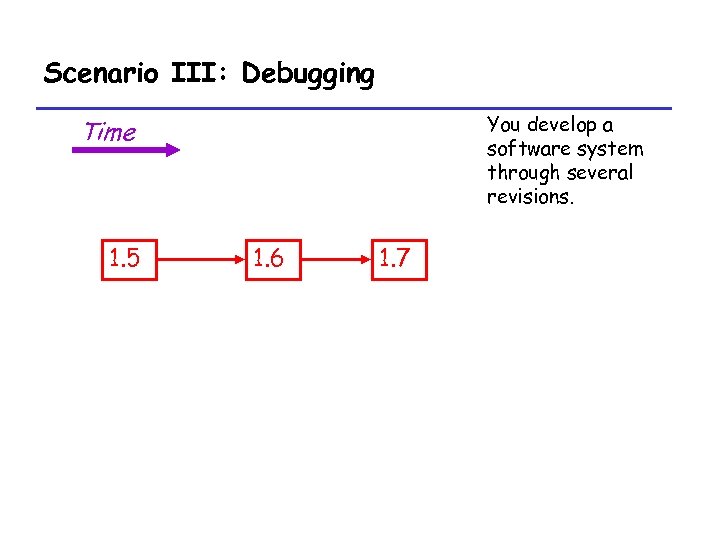 Scenario III: Debugging You develop a software system through several revisions. Time 1. 5 1. 6 1. 7
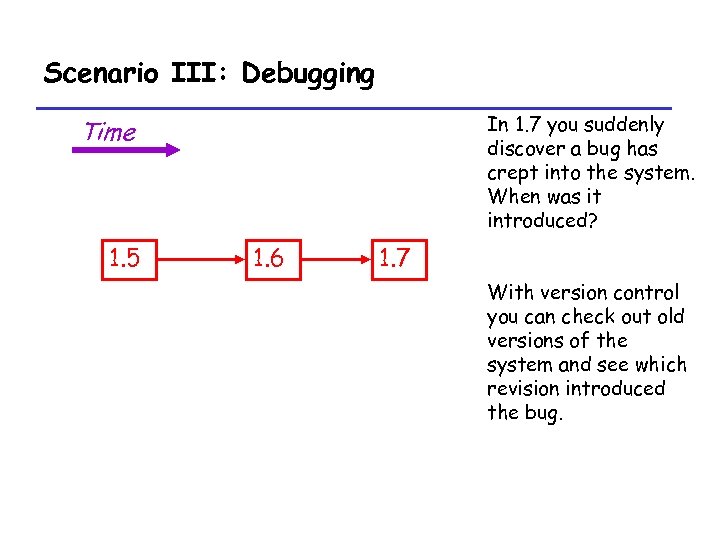 Scenario III: Debugging In 1. 7 you suddenly discover a bug has crept into the system. When was it introduced? Time 1. 5 1. 6 1. 7 With version control you can check out old versions of the system and see which revision introduced the bug.
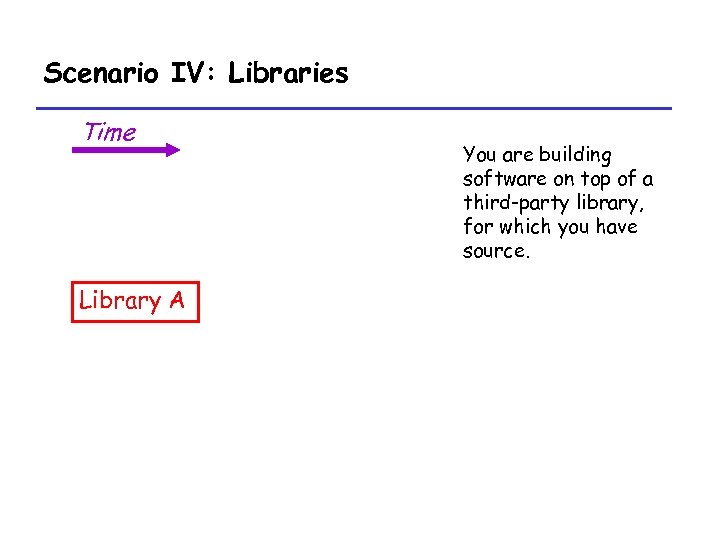 Scenario IV: Libraries Time Library A You are building software on top of a third-party library, for which you have source.
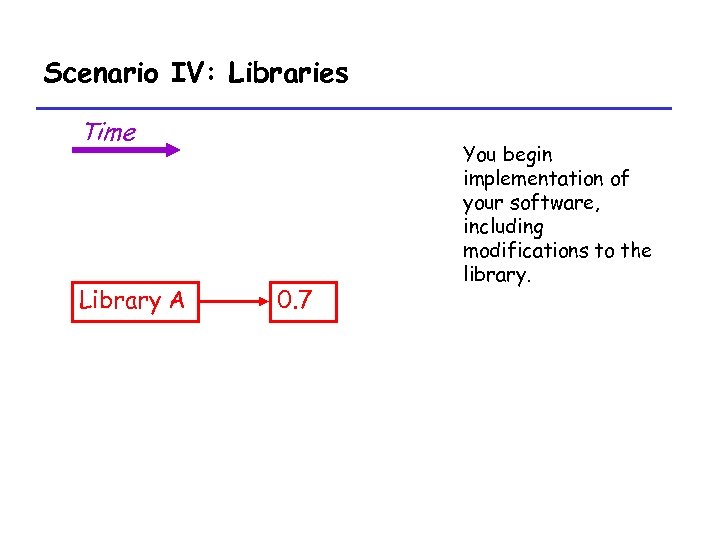 Scenario IV: Libraries Time Library A 0. 7 You begin implementation of your software, including modifications to the library.
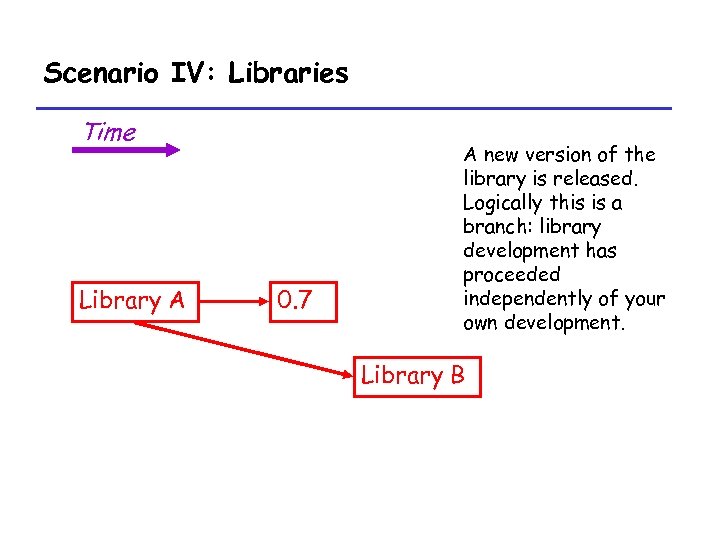 Scenario IV: Libraries Time Library A 0. 7 A new version of the library is released. Logically this is a branch: library development has proceeded independently of your own development. Library B
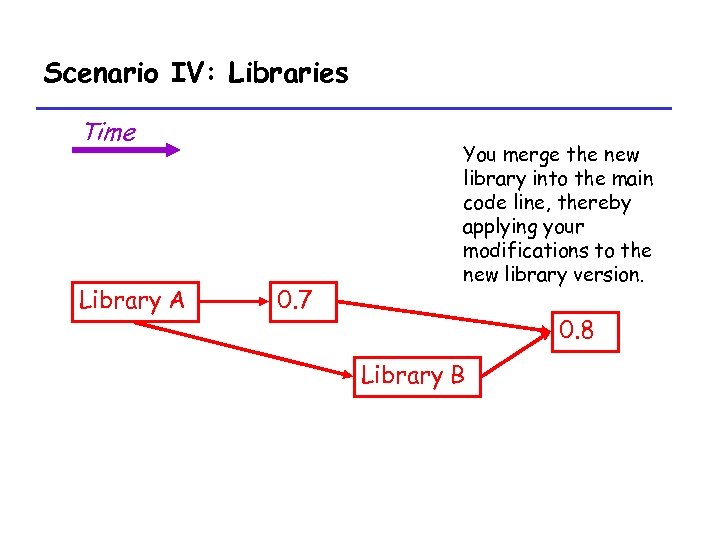 Scenario IV: Libraries Time Library A 0. 7 You merge the new library into the main code line, thereby applying your modifications to the new library version. 0. 8 Library B
 CVS • CVS stands for “Concurrent Versions System” • It is a commonly-used open-source program for version control. • I recommend you use CVS for your project. • More information available at http: //www. cvshome. org/
 Concepts • • Repository Projects Working Copy Revisions Merging Conflicts Branches
 Repository • In order to use CVS, you must have a repository, a location which CVS can use to store information about multiple versions • Typically, one repository may hold many different projects
 Creating a Repository Using CVS
 Projects • A project is a set of files in version control • Version control doesn’t care what files – Not a build system – Or a test system • Though there are often hooks to these other systems – Just manages versions of a collection of files
 Creating a Project in CVS
 Creating a Project in CVS
 Creating a Working Copy
 Adding a file
 Working with Multiple Copies
 Revisions • Consider – Check out a project – Edit some files – Check the files back in • This creates a new version of each file – Usually increment minor version number – E. g. , 1. 5 -> 1. 6
 Revisions (Cont. ) • Observation: Most edits are small • For efficiency, don’t store entire new file – Store diff with previous version – Minimizes space – Makes check-in, check-out potentially slower • Must apply diffs from all previous versions to compute current file • In practice, not significant
 Revisions (Cont. ) • With each revision, system stores – The diffs for that version – The new minor version number – Other metadata • Author • Time of check in • Log file message
 Merging • Start with a file, say main. cpp, revision 1. 1 • Alice makes changes A to 1. 1 • Bob makes changes B to 1. 1 • Assume Bob checks in first – Current revision is 1. 2 = apply(B, 1. 1)
 Merging (Cont. ) • Now Alice checks in – System notices that Alice had checked out 1. 1 – But current version is 1. 2 – Alice has not made her changes in the current version! • The system complains – Alice is told to update her local copy of the code
 Merging (Cont. ) • Alice does an update – This applies Bob’s changes B to Alice’s code • • • Remember Alice’s code is apply(A, 1. 1) Current version is 1. 6 = apply(B, 1. 1) Two possible outcomes of an update – – Success Conflicts
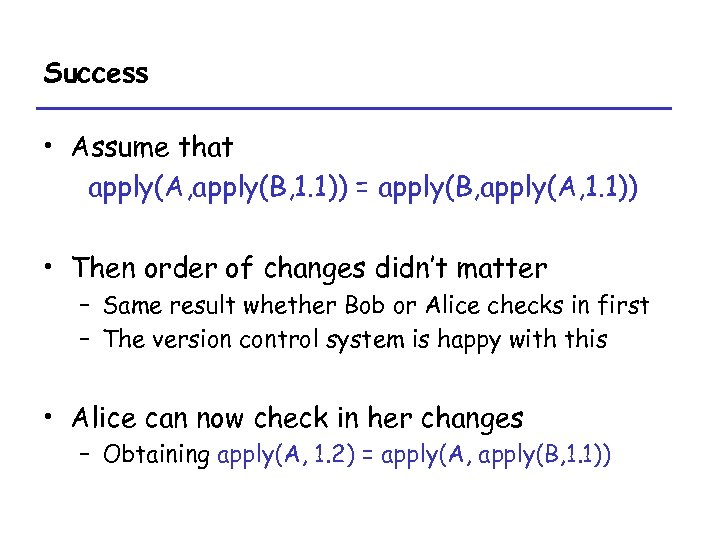 Success • Assume that apply(A, apply(B, 1. 1)) = apply(B, apply(A, 1. 1)) • Then order of changes didn’t matter – Same result whether Bob or Alice checks in first – The version control system is happy with this • Alice can now check in her changes – Obtaining apply(A, 1. 2) = apply(A, apply(B, 1. 1))
 Failure
 Conflicts • Arise when two programmers edit the same piece of code – One change overwrites another 1. 3: Alice: Bob: “Hello world” “Hello world, my name is Alice” “Hello world, my name is Bob” The system doesn’t know what should be done, and so complains of a conflict.
 Conflicts (Cont. ) • System cannot apply changes when there are conflicts – Final result is not unique – Depends on order in which changes are applied • Version control shows conflicts on update • Conflicts must be resolved by hand – Symptom of bad communication
 Conflicts are Syntactic • Conflict detection is based on “nearness” of changes – Changes to the same line will conflict – Changes to different lines will likely not conflict • Note: Lack of conflicts does not mean Alice’s and Bob’s changes work together
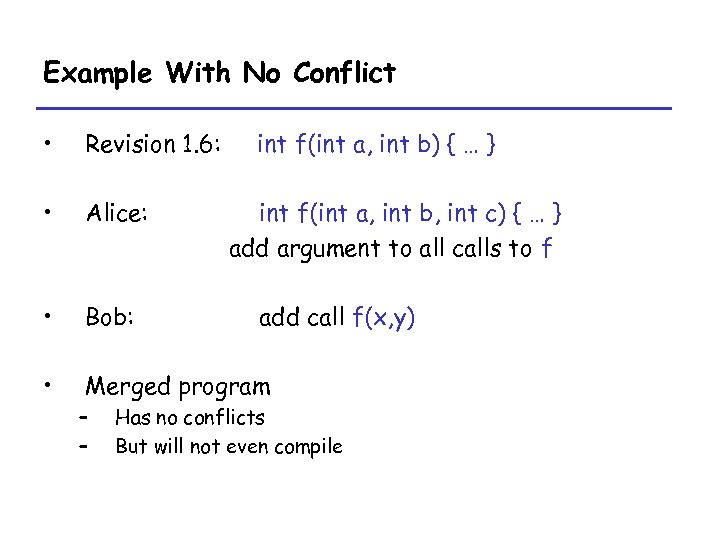 Example With No Conflict • Revision 1. 6: • Alice: • Bob: • Merged program – – int f(int a, int b) { … } int f(int a, int b, int c) { … } add argument to all calls to f add call f(x, y) Has no conflicts But will not even compile
 Don’t Forget • Merging is syntactic • Semantic errors may not create conflicts – But the code is still wrong – You are lucky if the code doesn’t compile • Worse if it does. . . – Rare in practice, if you maintain good team communication
 Branches • A branch is just two separate revisions of a file that do not get merged – Two people check out 1. 5 – Check in 1. 5. 1 – Check in 1. 5. 2 • Notes – Normally checking in does not create a branch • Changes merged into main code line – Must explicitly ask to create a branch – Must explicitly merge branches
 CVS Tags • Some operations require a snapshot of the global project state – Branching – Major releases • CVS can tag a project with a name
 CVS Remote Repository • Normally, repository is on the local file system – Hard to collaborate between distributed teams • CVS can run in client-server mode – Server machine runs ssh server and keeps the repository – Client machine queries the server – Only diffs are being sent => fast even on slow net – Converts automatically MSDOX/Unix files – Use it to keep source files synchronized