



V 1. 2 PB & CJ Ver 1. 1 OMNESYS

Login & Change Password Ver 1. 1 V 1. 2 PB & CJ
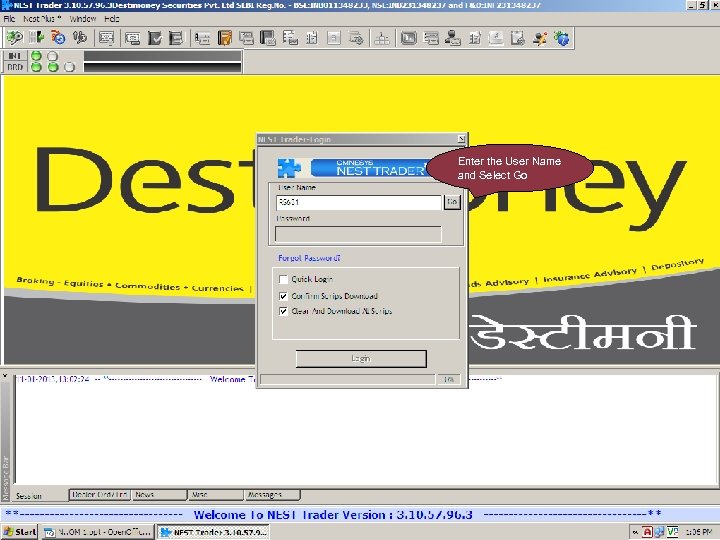
Enter the Username Enter the User Name and click on Go and Select Go Ver 1. 1 V 1. 2 PB & CJ
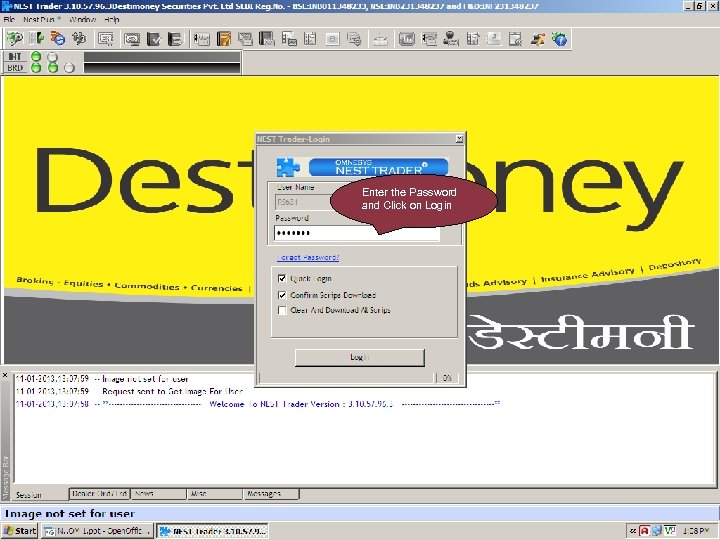
Enter the Password and Click on Login Ver 1. 1 V 1. 2 PB & CJ
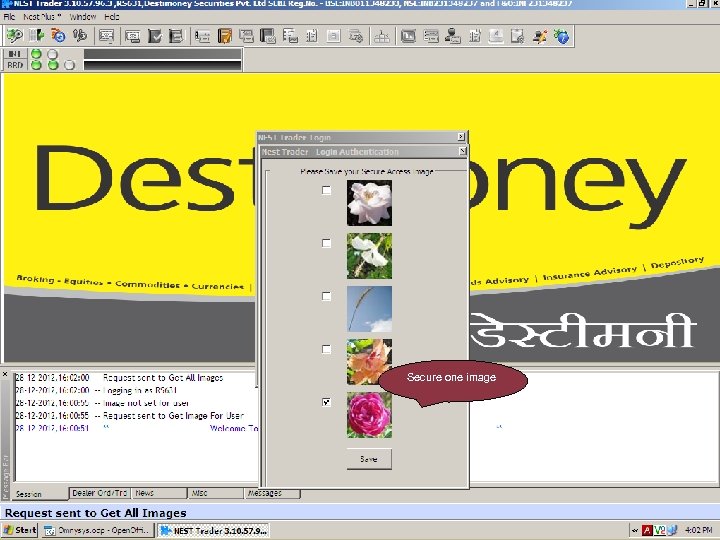
Ver 1. 1 V 1. 2 PB & CJ Secure one image
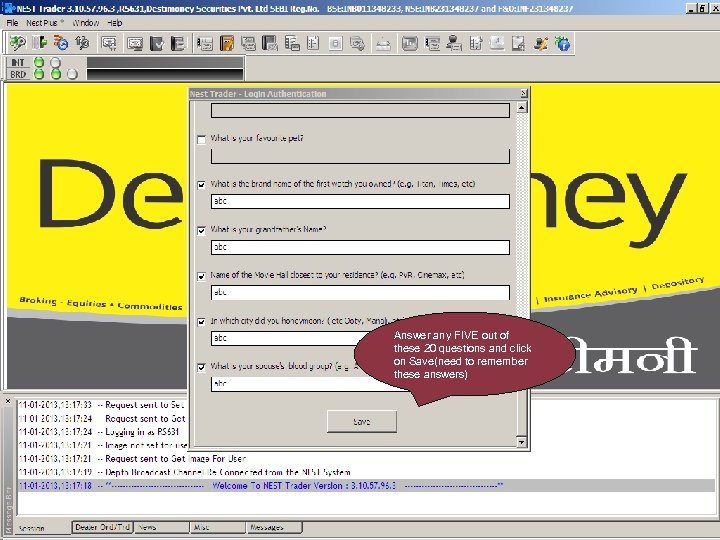
Answer any FIVE out of these 20 questions and click on Save(need to remember these answers) Ver 1. 1 V 1. 2 PB & CJ
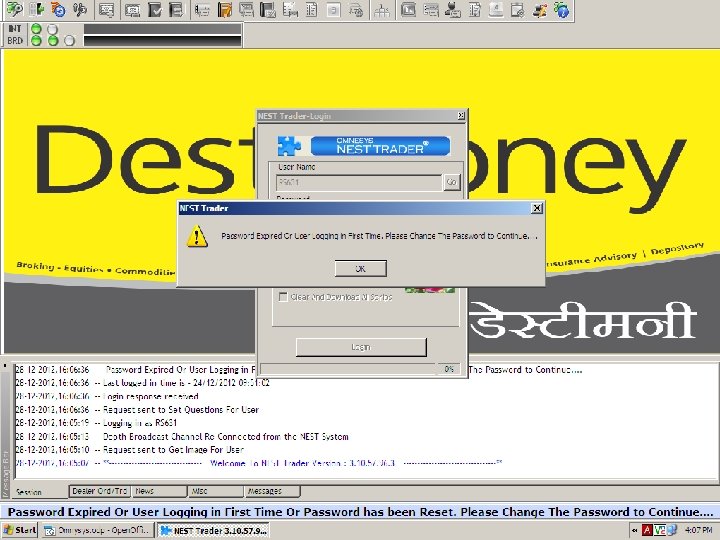
Ver 1. 1 V 1. 2 PB & CJ
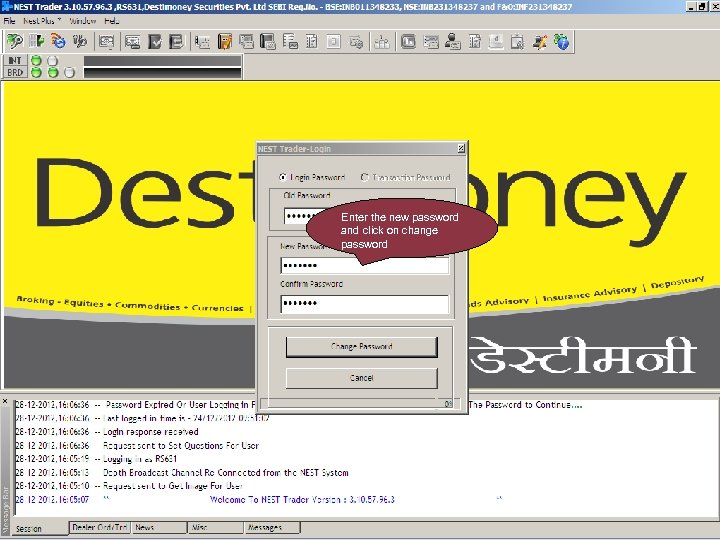
Enter the new password and click on change password Ver 1. 1 V 1. 2 PB & CJ
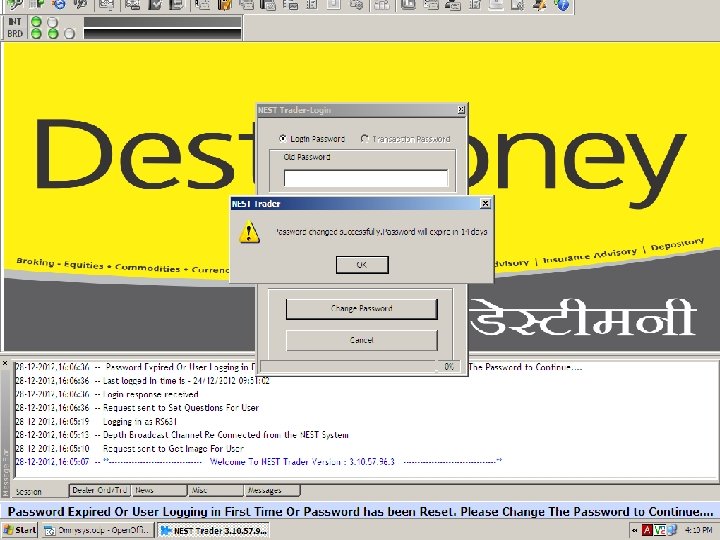
Ver 1. 1 V 1. 2 PB & CJ
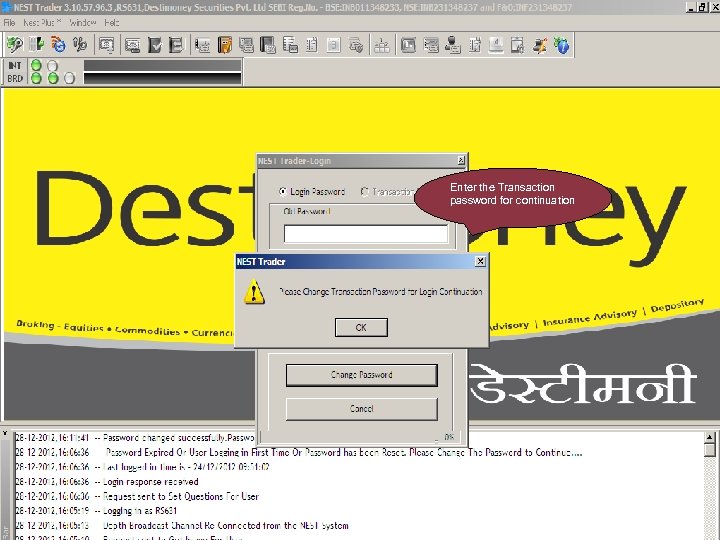
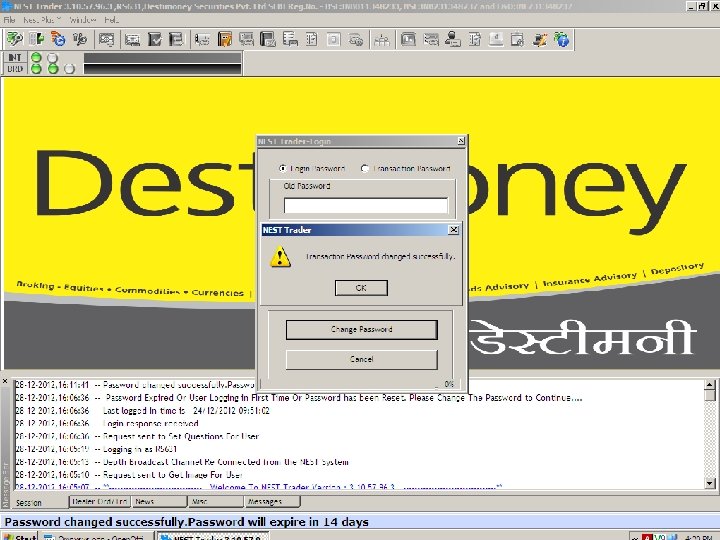
Enter the Transaction password for continuation Ver 1. 1 V 1. 2 PB & CJ
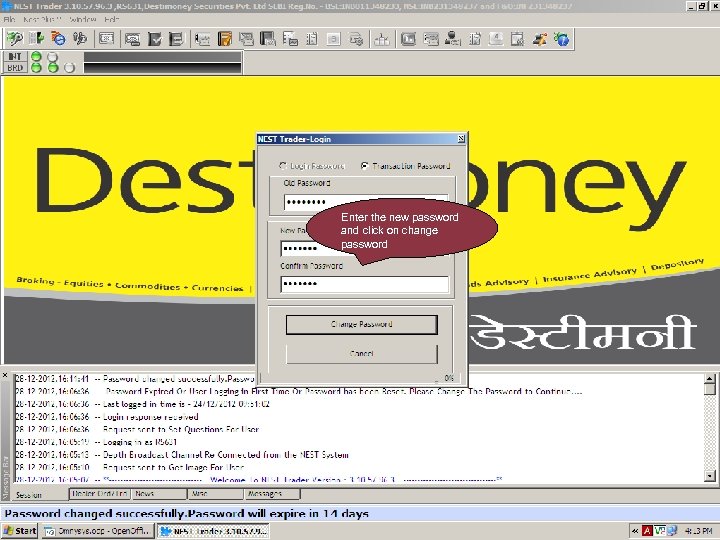
Enter the new password and click on change password Ver 1. 1 V 1. 2 PB & CJ
Ver 1. 1 V 1. 2 PB & CJ
Ver 1. 1 V 1. 2 PB & CJ
Ver 1. 1 V 1. 2 PB & CJ

V 1. 2 PB & CJ Ver 1. 1 Market Watch
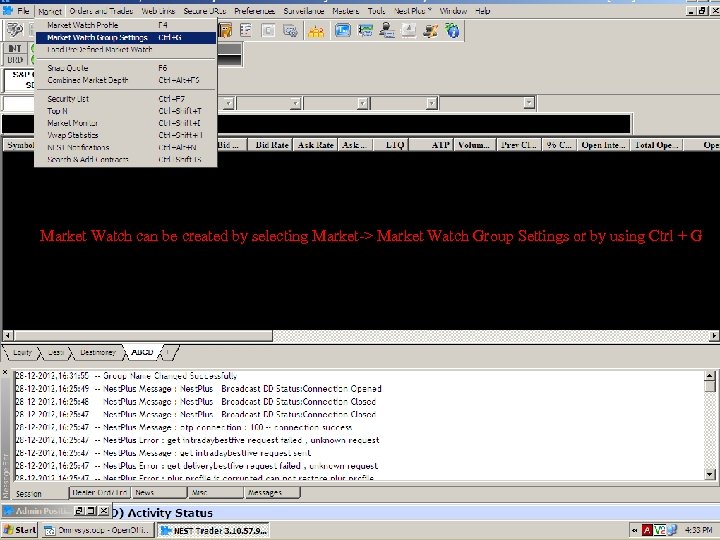
Market Watch can be created by selecting Market-> Market Watch Group Settings or by using Ctrl + G Ver 1. 1 V 1. 2 PB & CJ
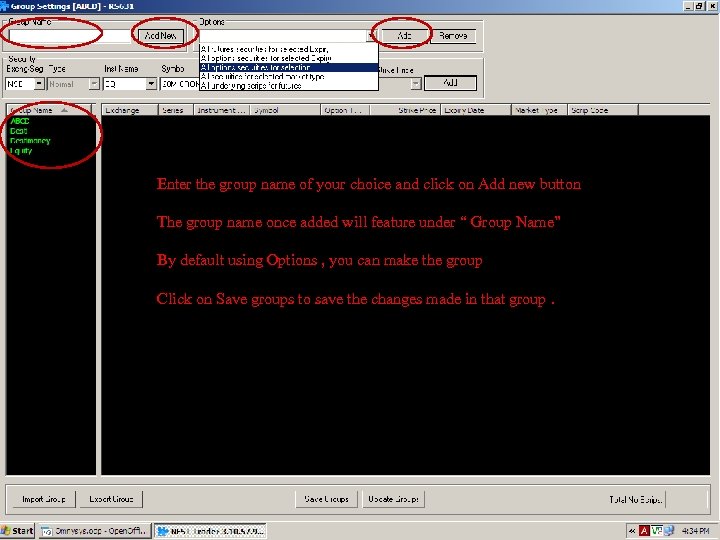
Enter the group name of your choice and click on Add new button The group name once added will feature under “ Group Name” By default using Options , you can make the group Click on Save groups to save the changes made in that group. Ver 1. 1 V 1. 2 PB & CJ
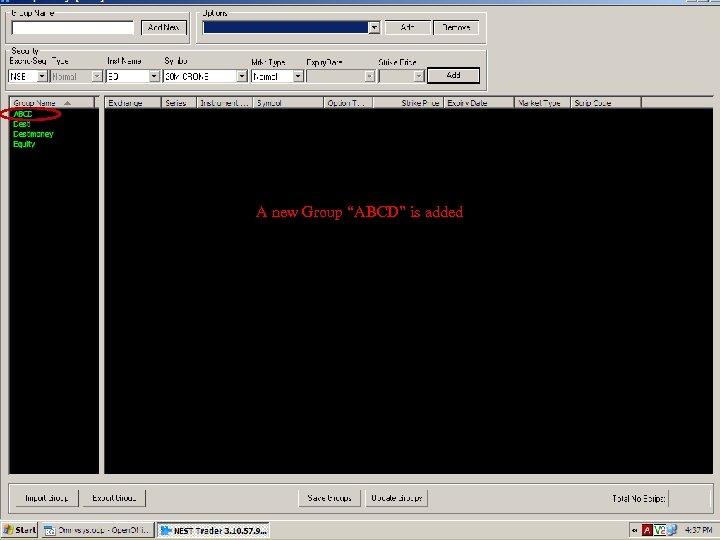
A new Group “ABCD” is added Ver 1. 1 V 1. 2 PB & CJ
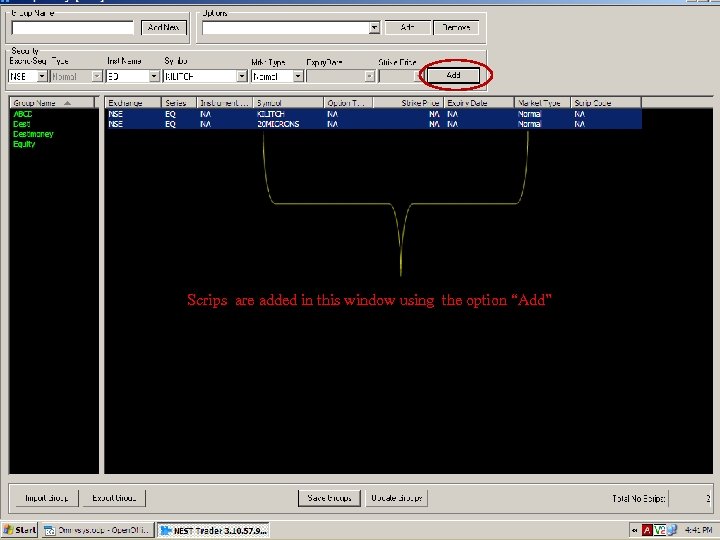
Scrips are added in this window using the option “Add” Ver 1. 1 V 1. 2 PB & CJ
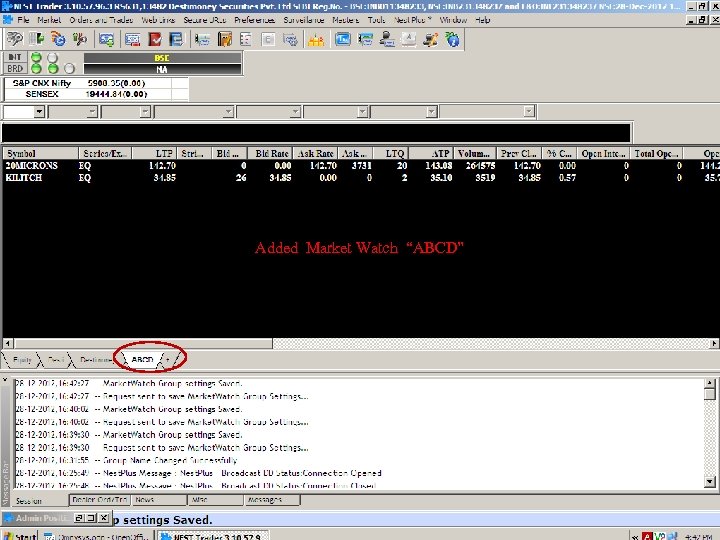
Added Market Watch “ABCD” Ver 1. 1 V 1. 2 PB & CJ

Orders and Trades Ver 1. 1 V 1. 2 PB & CJ
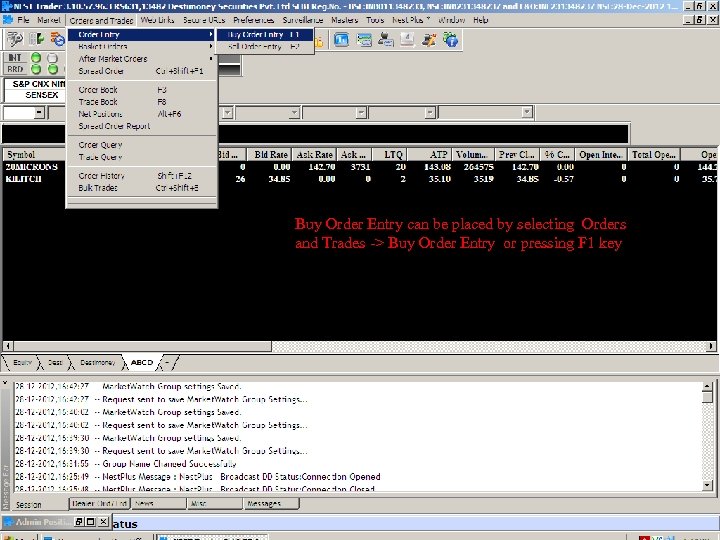
Buy Order Entry can be placed by selecting Orders and Trades -> Buy Order Entry or pressing F 1 key Ver 1. 1 V 1. 2 PB & CJ
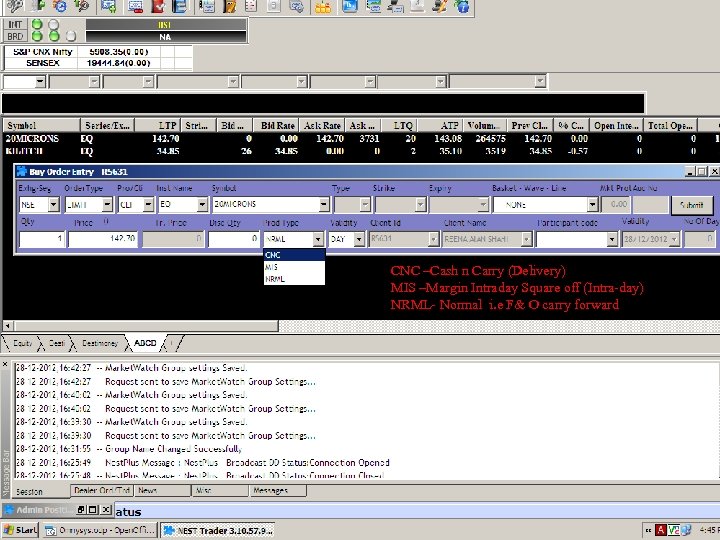
CNC –Cash n Carry (Delivery) MIS –Margin Intraday Square off (Intra-day) NRML- Normal i. e F& O carry forward Ver 1. 1 V 1. 2 PB & CJ
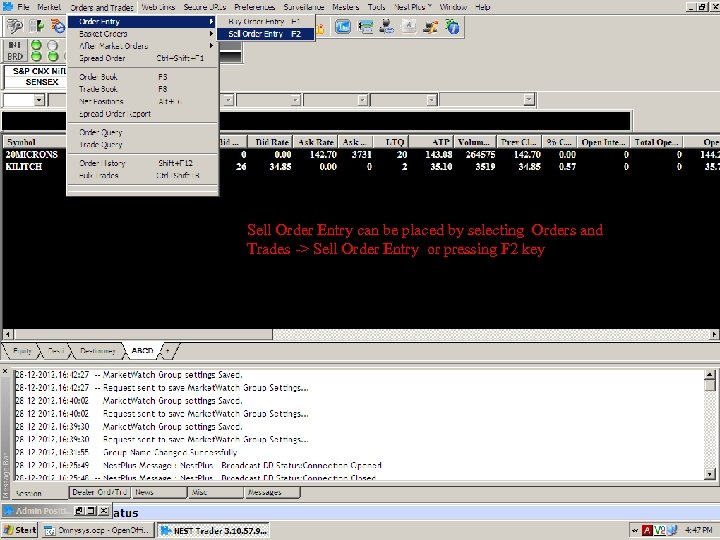
Sell Order Entry can be placed by selecting Orders and Trades -> Sell Order Entry or pressing F 2 key Ver 1. 1 V 1. 2 PB & CJ
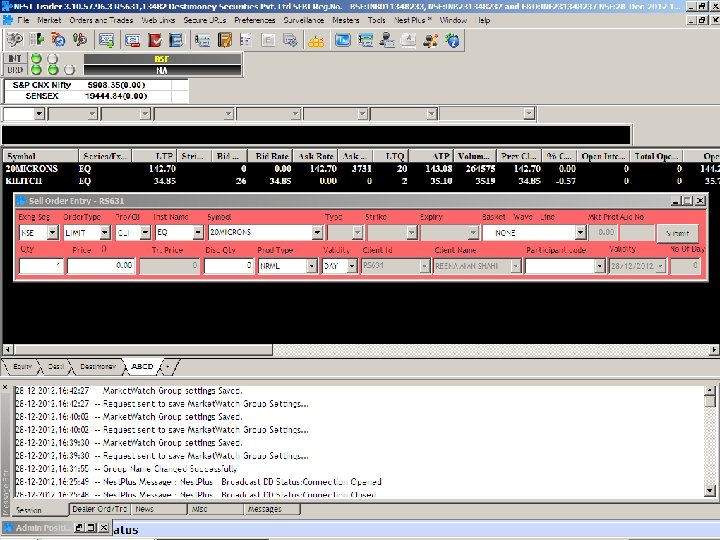
Ver 1. 1 V 1. 2 PB & CJ
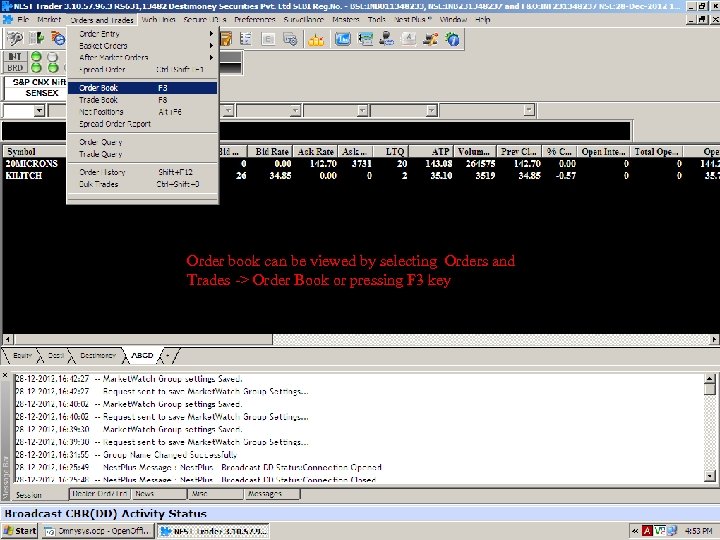
Order book can be viewed by selecting Orders and Trades -> Order Book or pressing F 3 key Ver 1. 1 V 1. 2 PB & CJ
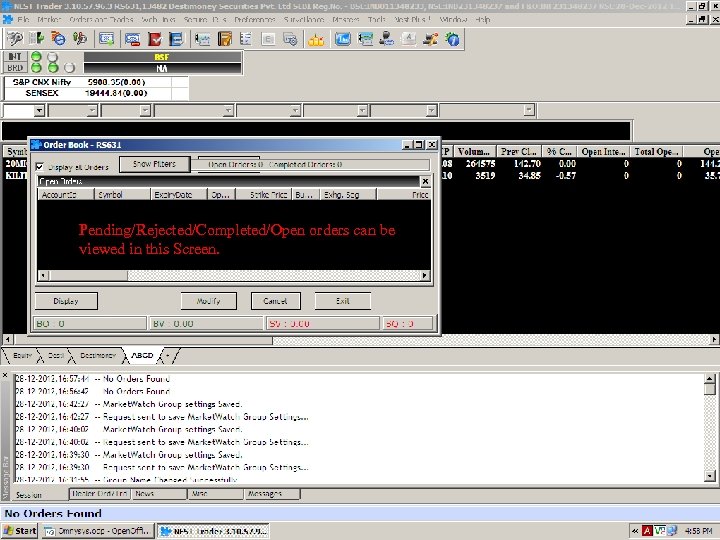
Pending/Rejected/Completed/Open orders can be viewed in this Screen. Ver 1. 1 V 1. 2 PB & CJ
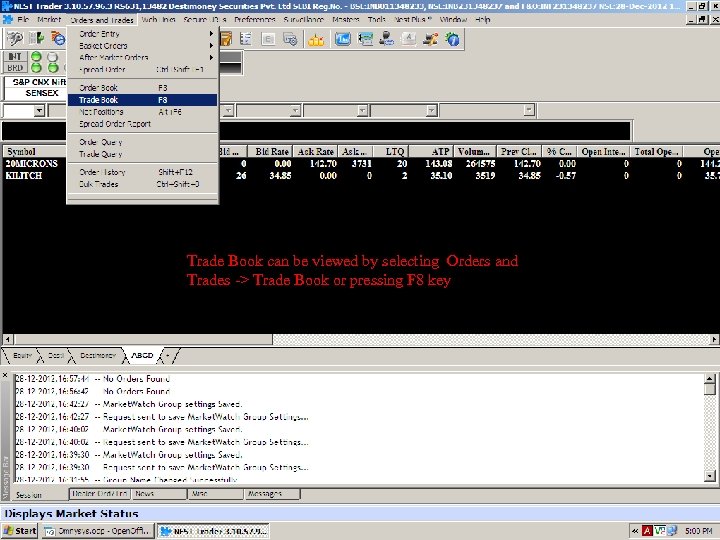
Trade Book can be viewed by selecting Orders and Trades -> Trade Book or pressing F 8 key Ver 1. 1 V 1. 2 PB & CJ
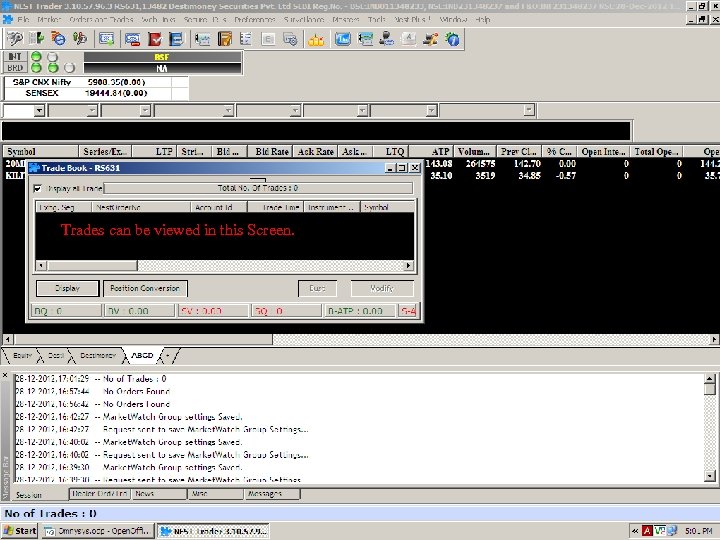
Trades can be viewed in this Screen. Ver 1. 1 V 1. 2 PB & CJ

Fund Transfer/ Withdrawal Ver 1. 1 V 1. 2 PB & CJ
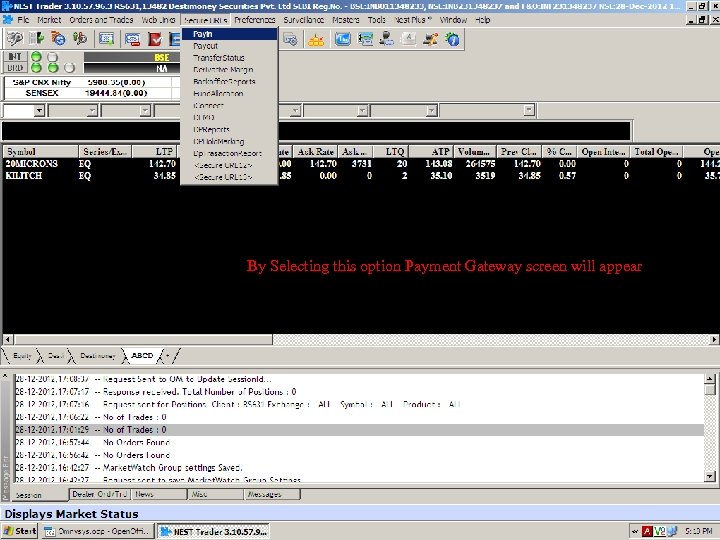
By Selecting this option Payment Gateway screen will appear Ver 1. 1 V 1. 2 PB & CJ
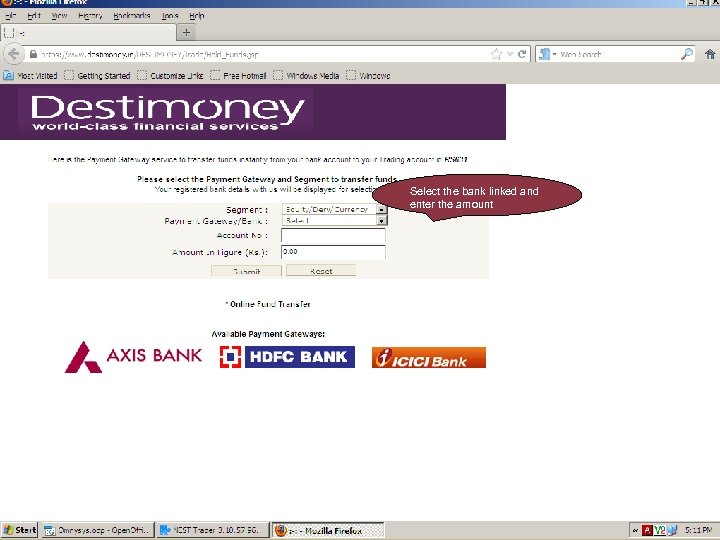
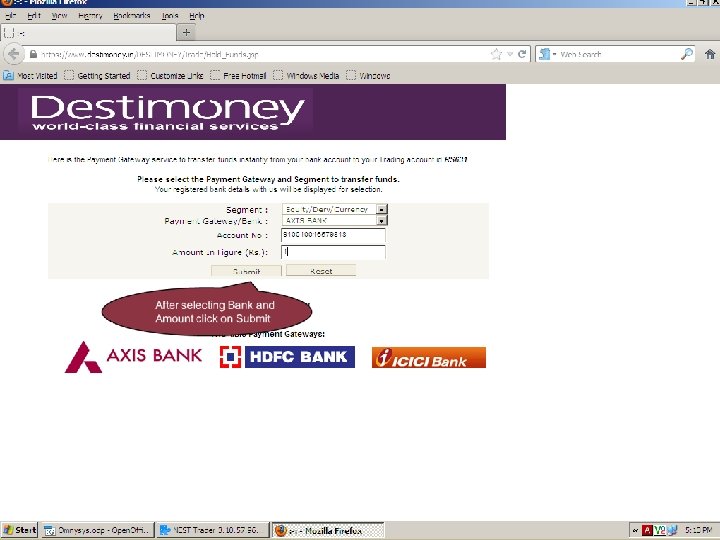
Select the bank linked and enter the amount Ver 1. 1 V 1. 2 PB & CJ
Ver 1. 1 V 1. 2 PB & CJ
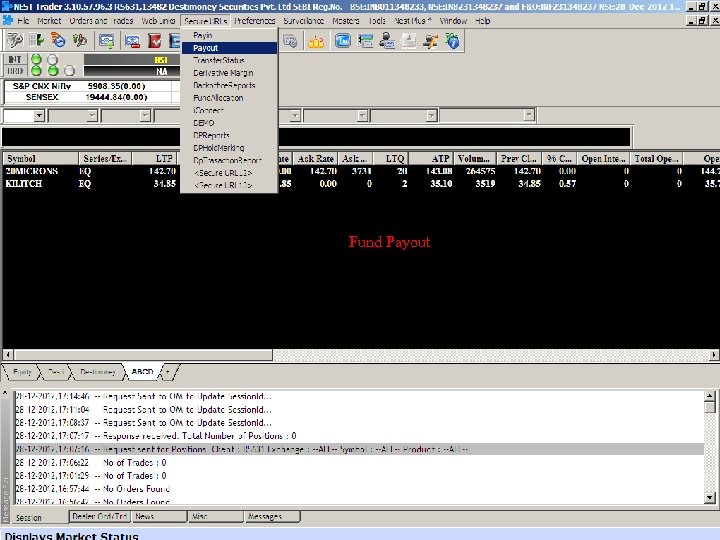
V 1. 2 PB & CJ Ver 1. 1 Fund Payout
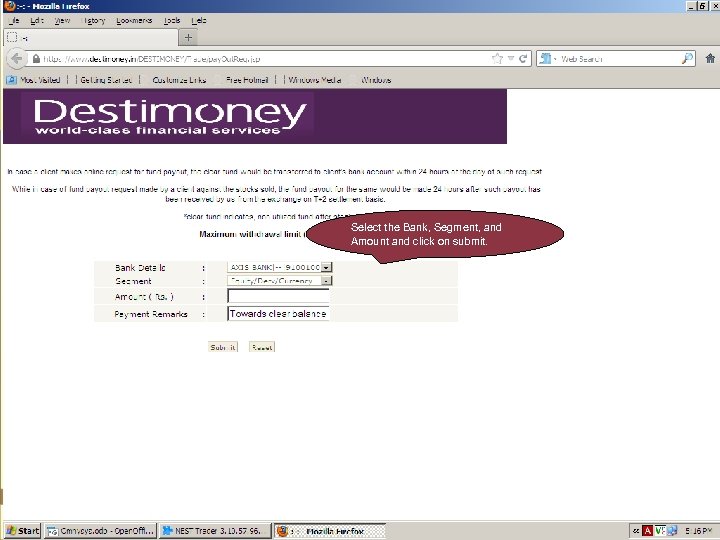
Select the Bank, Segment, and Amount and click on submit. Ver 1. 1 V 1. 2 PB & CJ
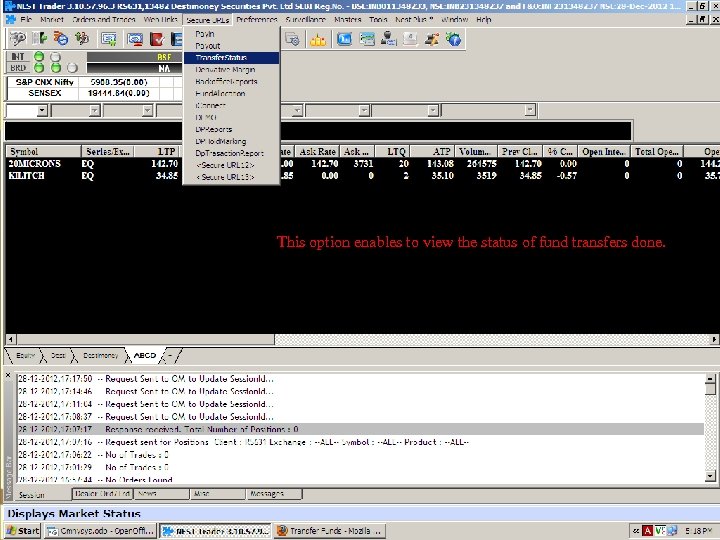
This option enables to view the status of fund transfers done. Ver 1. 1 V 1. 2 PB & CJ
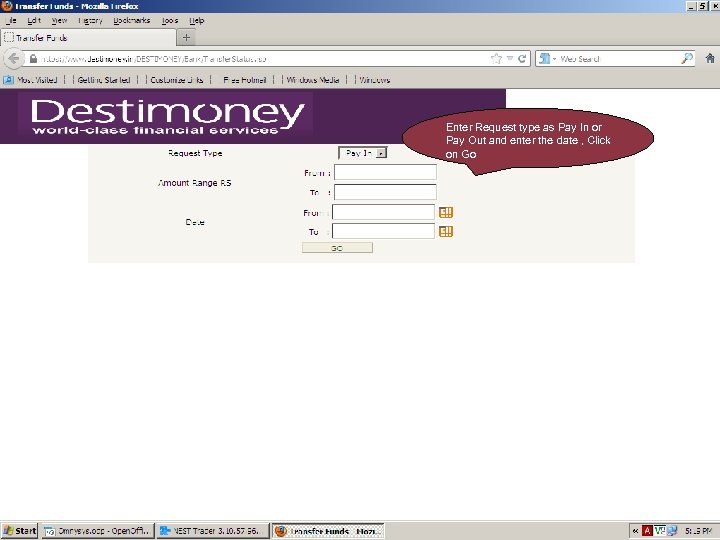
Enter Request type as Pay In or Pay Out and enter the date , Click on Go Ver 1. 1 V 1. 2 PB & CJ
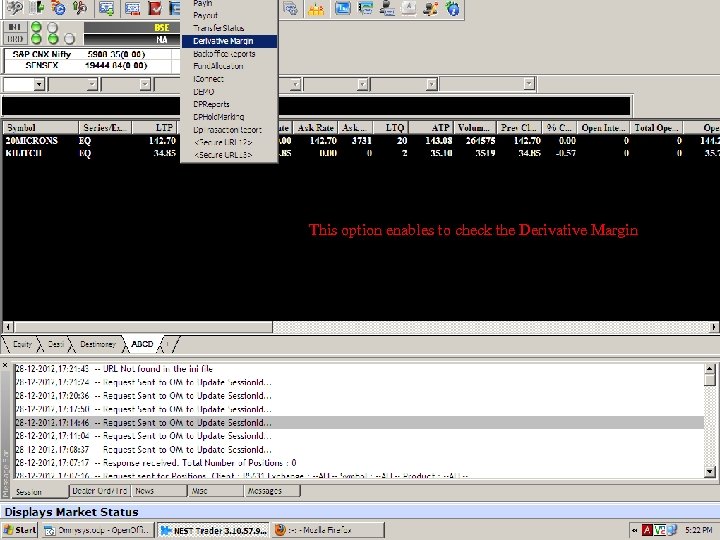
This option enables to check the Derivative Margin Ver 1. 1 V 1. 2 PB & CJ
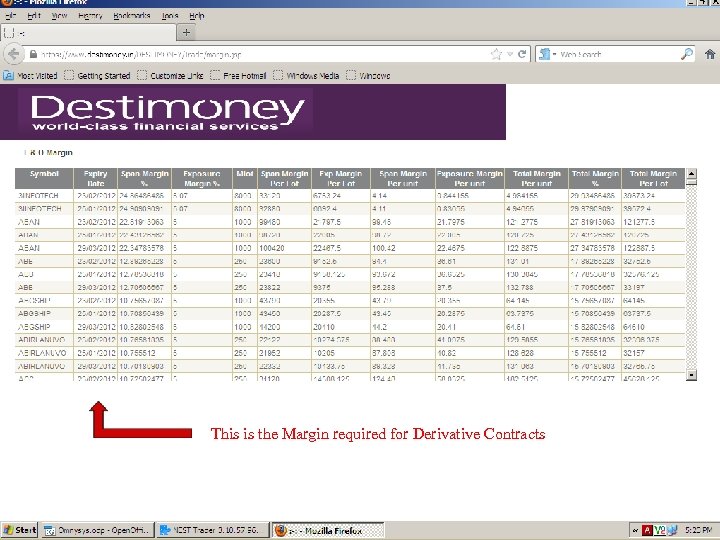
Ver 1. 1 V 1. 2 PB & CJ This is the Margin required for Derivative Contracts

Limit & Margin details Ver 1. 1 V 1. 2 PB & CJ
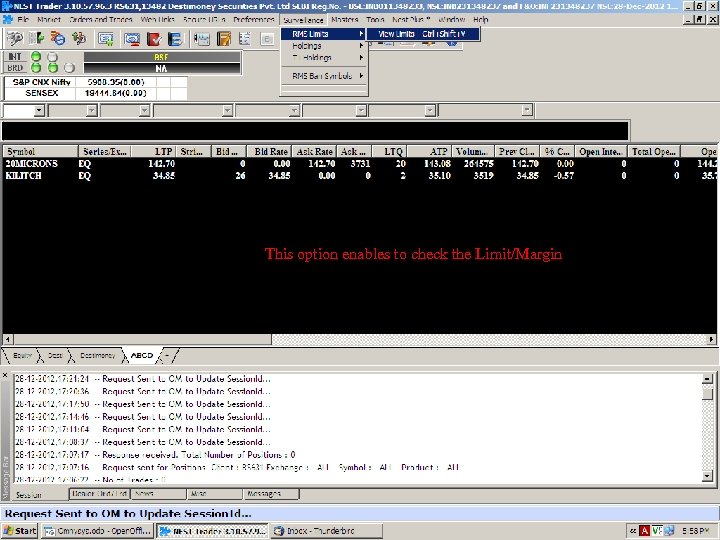
This option enables to check the Limit/Margin Ver 1. 1 V 1. 2 PB & CJ
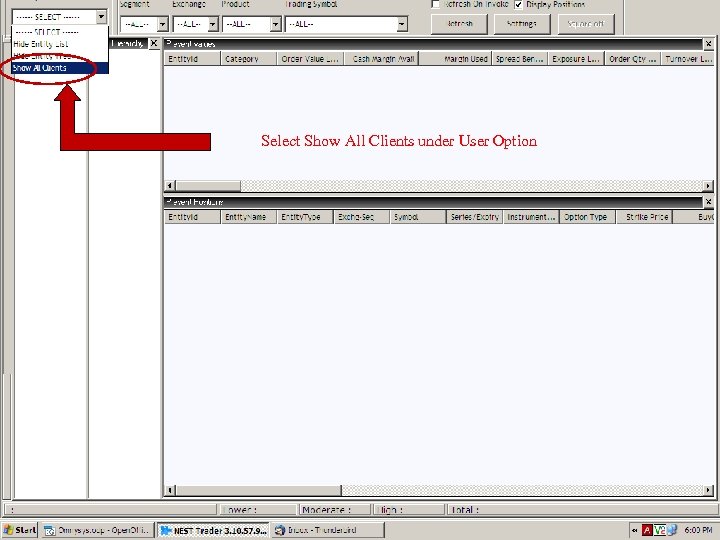
Select Show All Clients under User Option Ver 1. 1 V 1. 2 PB & CJ
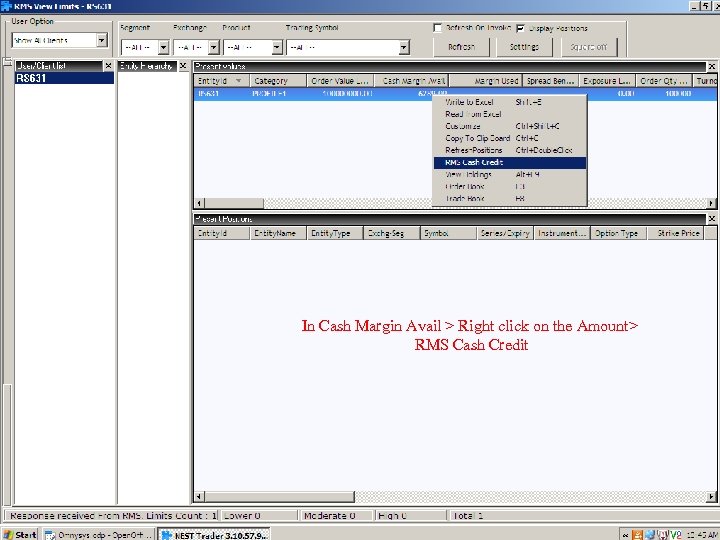
In Cash Margin Avail > Right click on the Amount> RMS Cash Credit Ver 1. 1 V 1. 2 PB & CJ
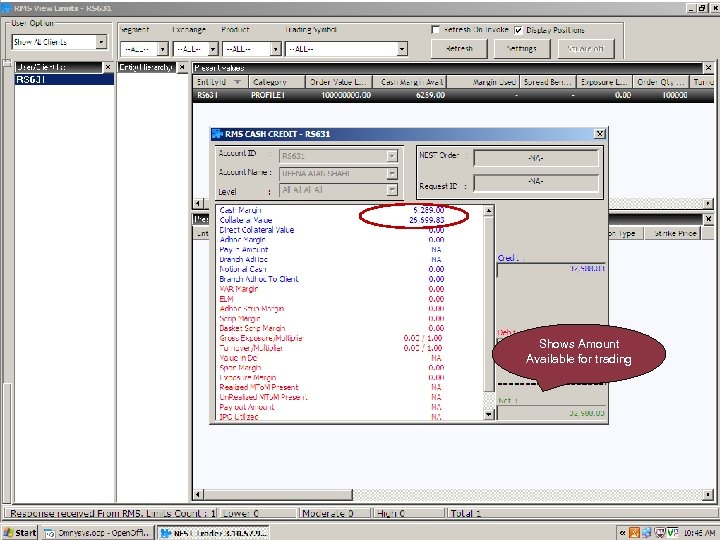
Shows Amount Available for trading Ver 1. 1 V 1. 2 PB & CJ

V 1. 2 PB & CJ Ver 1. 1 Holdings
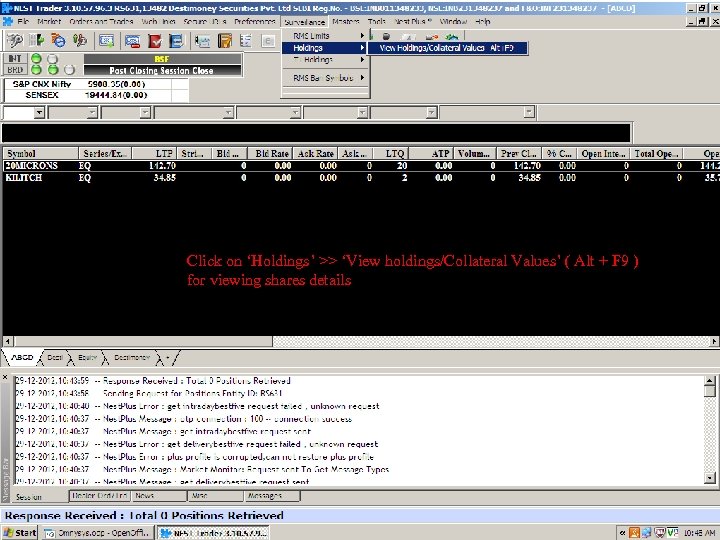
Click on ‘Holdings’ >> ‘View holdings/Collateral Values’ ( Alt + F 9 ) for viewing shares details Ver 1. 1 V 1. 2 PB & CJ
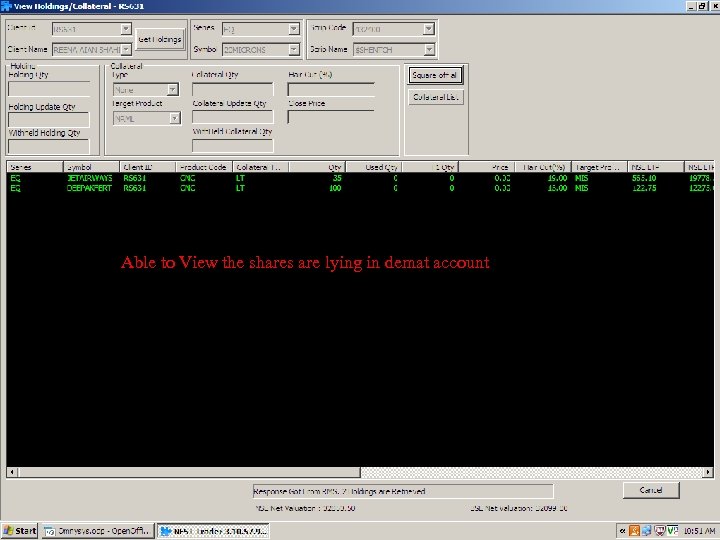
Able to View the shares are lying in demat account Ver 1. 1 V 1. 2 PB & CJ

Buy Today Sell Tomorrow (BTST) Ver 1. 1 V 1. 2 PB & CJ
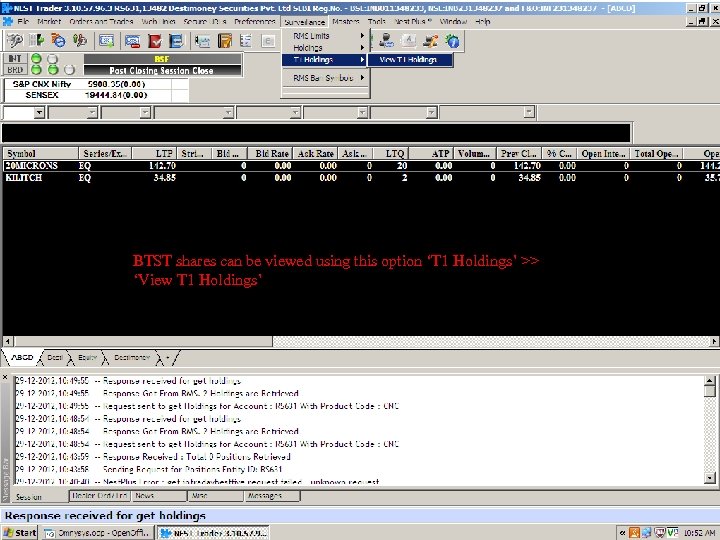
BTST shares can be viewed using this option ‘T 1 Holdings’ >> ‘View T 1 Holdings’ Ver 1. 1 V 1. 2 PB & CJ
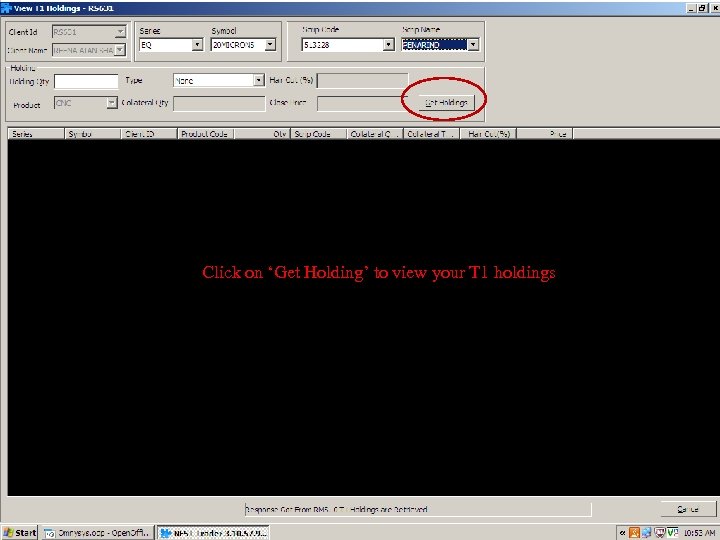
Click on ‘Get Holding’ to view your T 1 holdings Ver 1. 1 V 1. 2 PB & CJ

V 1. 2 PB & CJ Ver 1. 1 Charts
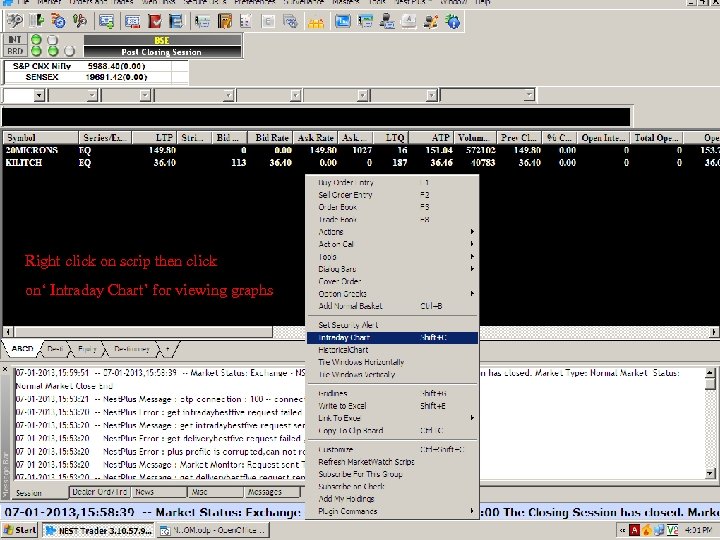
Right click on scrip then click on‘ Intraday Chart’ for viewing graphs Ver 1. 1 V 1. 2 PB & CJ
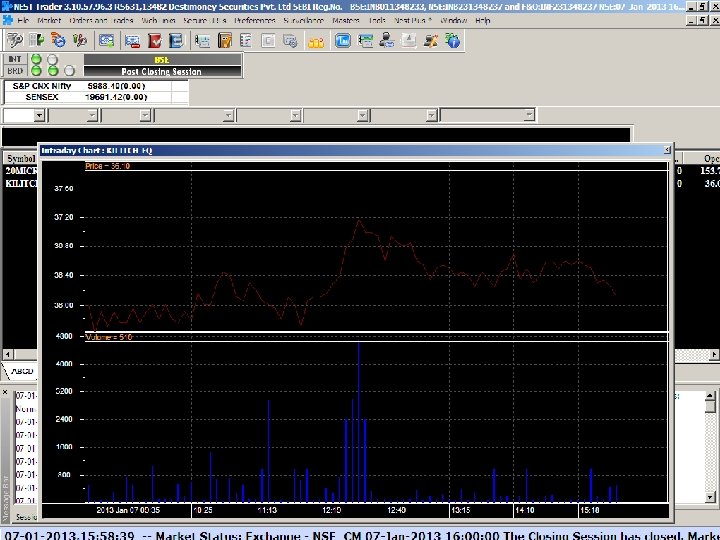
Ver 1. 1 V 1. 2 PB & CJ
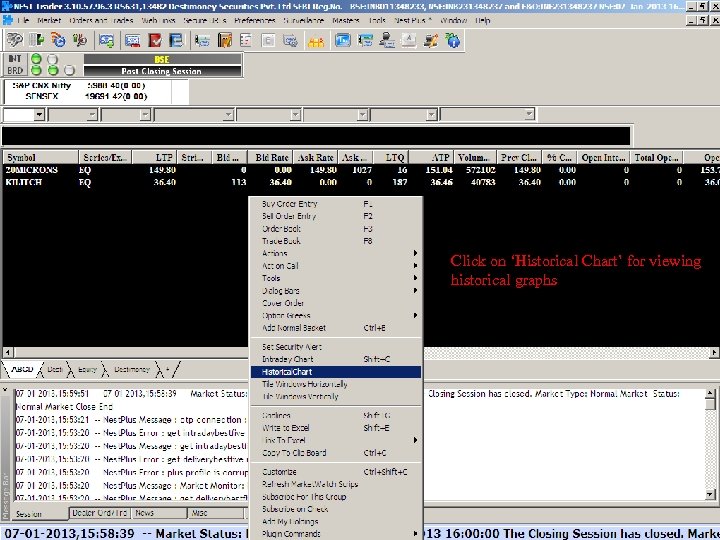
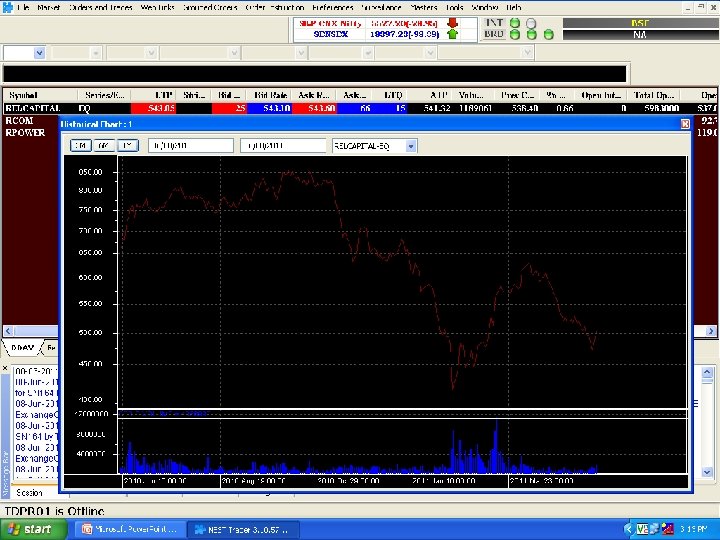
Click on ‘Historical Chart’ for viewing historical graphs Ver 1. 1 V 1. 2 PB & CJ
Ver 1. 1 V 1. 2 PB & CJ
User Settings Ver 1. 1 V 1. 2 PB & CJ
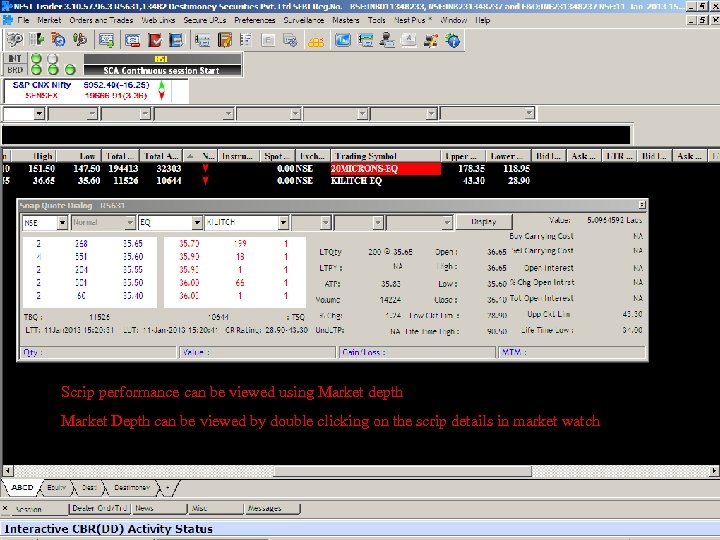
Ver 1. 1 Market Depth can be viewed by double clicking on the scrip details in market watch V 1. 2 PB & CJ Scrip performance can be viewed using Market depth
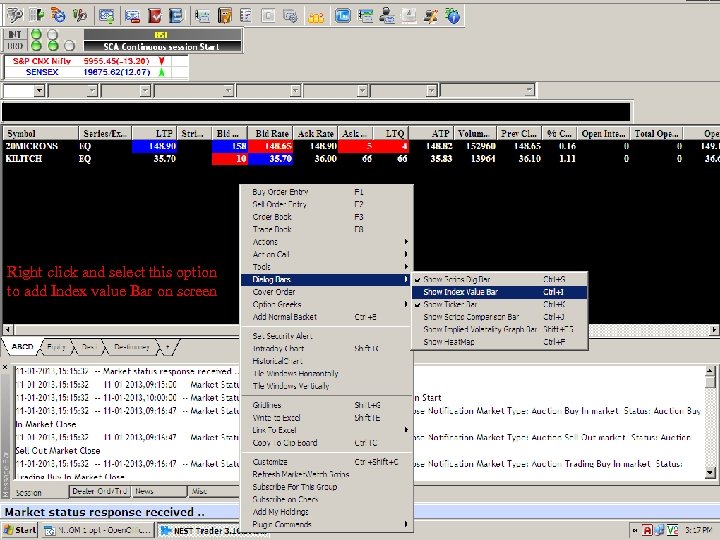
Right click and select this option to add Index value Bar on screen Ver 1. 1 V 1. 2 PB & CJ
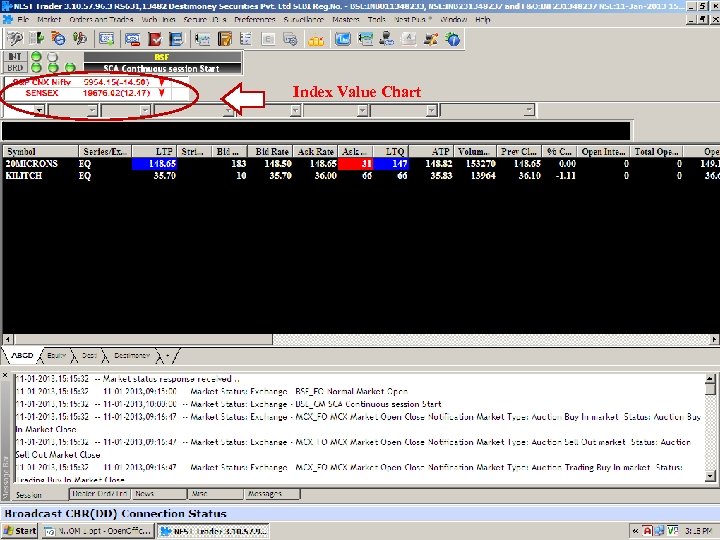
Index Value Chart Ver 1. 1 V 1. 2 PB & CJ
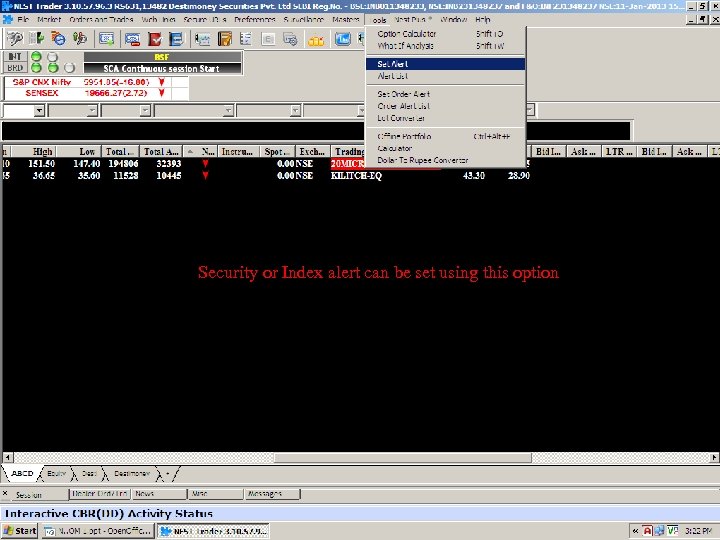
Security or Index alert can be set using this option Ver 1. 1 V 1. 2 PB & CJ
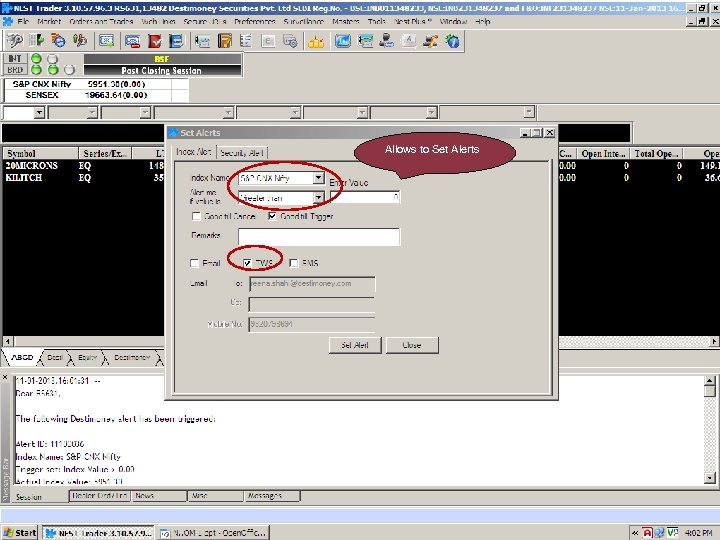
Allows to Set Alerts Ver 1. 1 V 1. 2 PB & CJ

Thank You Happy Trading Ver 1. 1 V 1. 2 PB & CJ
