


 Скачать презентацию Using Microsoft Excel Solver Function A quick review
089118a621340039419a22c87b320513.ppt
- Количество слайдов: 18
 Using Microsoft Excel Solver Function A quick review of the power of Solver
 What is “Solver” • Solver is a built-in function (routine) • Solver is good for what-if, trend, and other relationships • Using historical data Solver will try to optimize a solution • You can use Solver much like regression analysis
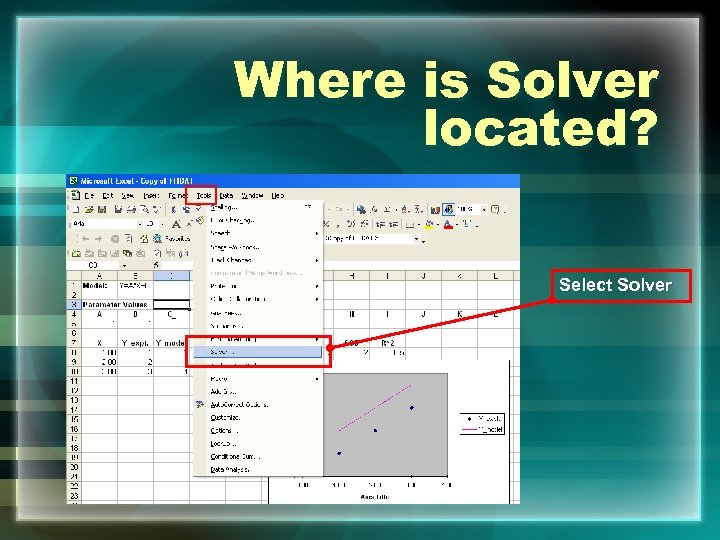 Where is Solver located? Select Solver
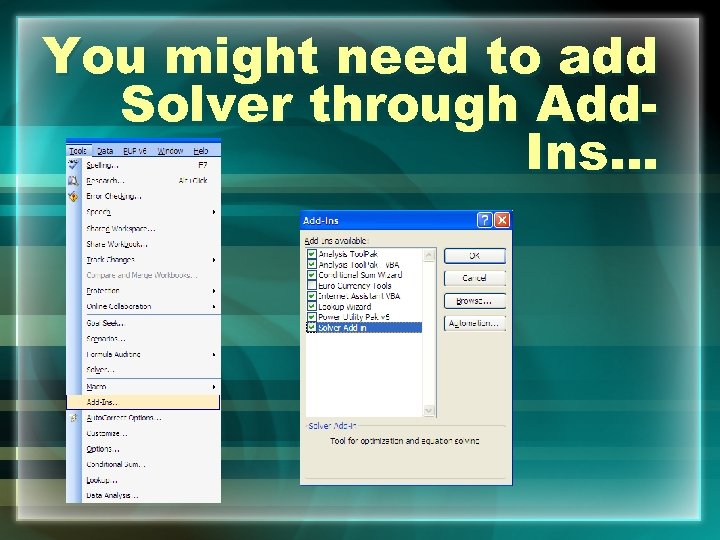 You might need to add Solver through Add. Ins…
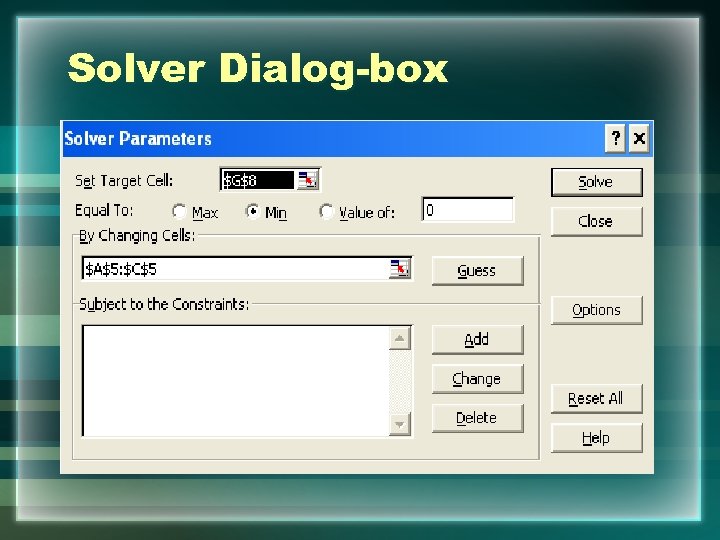 Solver Dialog-box
 What Do All Those Options Mean? • Set Target Cell: – This is the cell where you will have the computer optimize the calculation • Equate To: – Choice of Max, Min, or Value of… (typically this is set to Min)
 What Do All Those Options Mean? • By Changing Cells: – These are the “weighting factors” (Parameter Values) that the computer will use to fit the equation • Subject to the Constraints: – You can set logical statements like A>B, or A>0
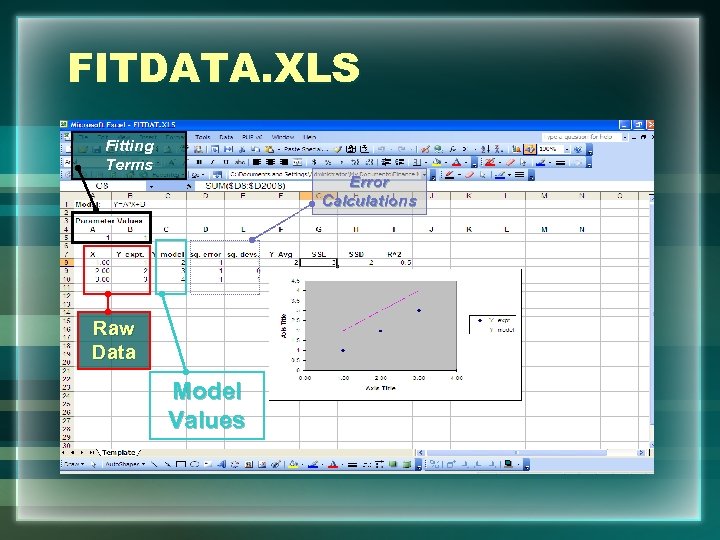 FITDATA. XLS Fitting Terms Error Calculations Raw Data Model Values
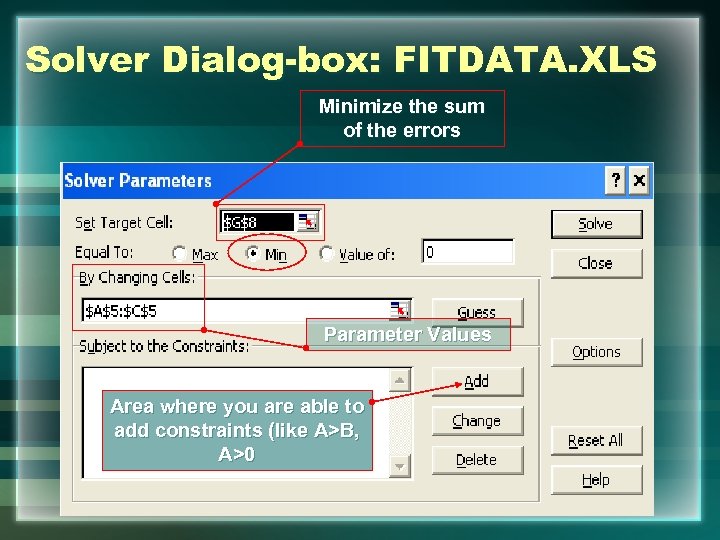 Solver Dialog-box: FITDATA. XLS Minimize the sum of the errors Parameter Values Area where you are able to add constraints (like A>B, A>0
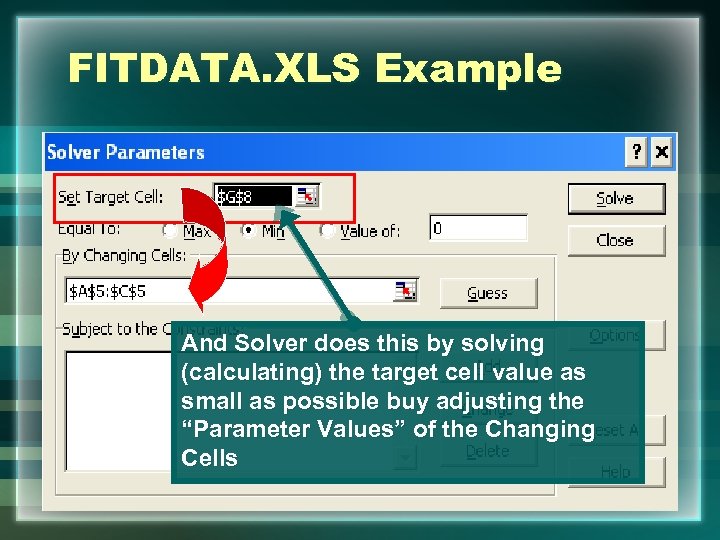 FITDATA. XLS Example This Cell sum of • Solver will try to minimize the is minimized the squares of errors (this example) – This means the better the fit of the “Parameter Values” the less error And Solver the solution introduced into does this by solving (calculating) the target cell value as small as possible buy adjusting the “Parameter Values” of the Changing Cells
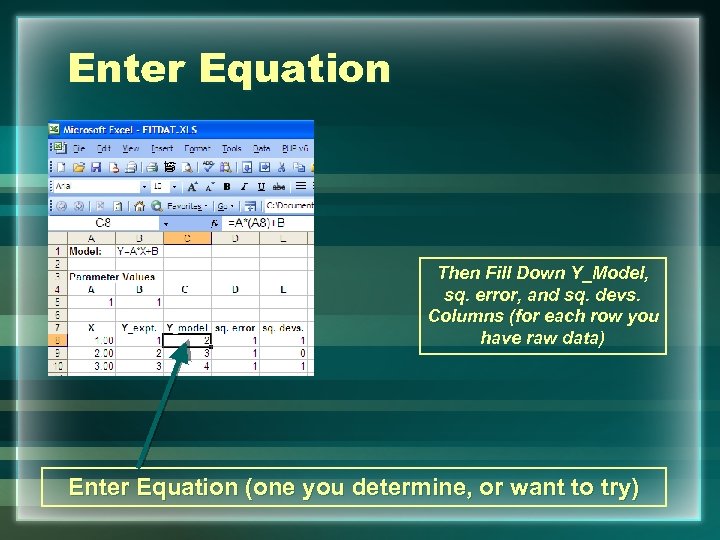 Enter Equation Then Fill Down Y_Model, sq. error, and sq. devs. Columns (for each row you have raw data) Enter Equation (one you determine, or want to try)
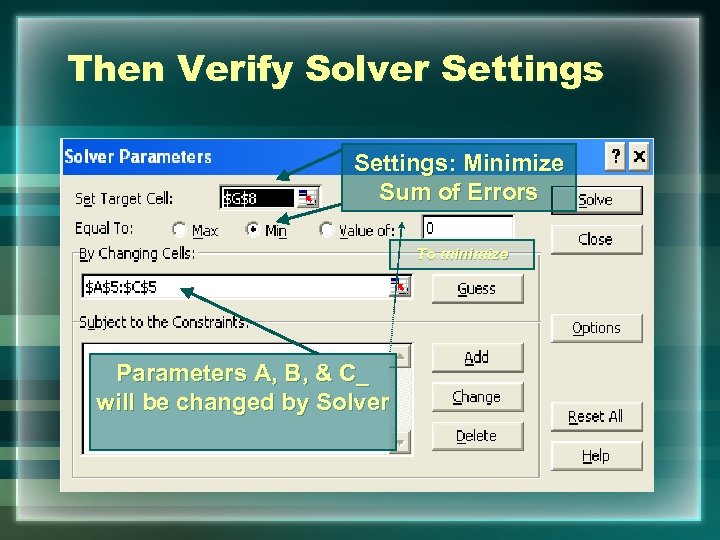 Then Verify Solver Settings: Minimize Sum of Errors To minimize Parameters A, B, & C_ will be changed by Solver
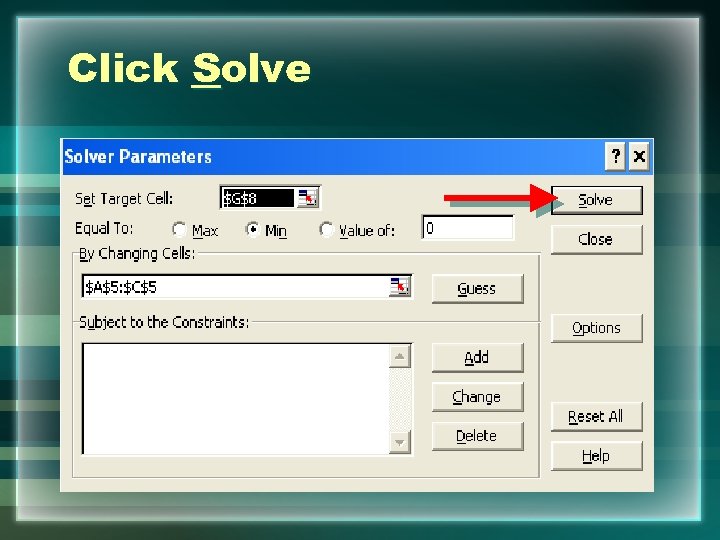 Click Solve
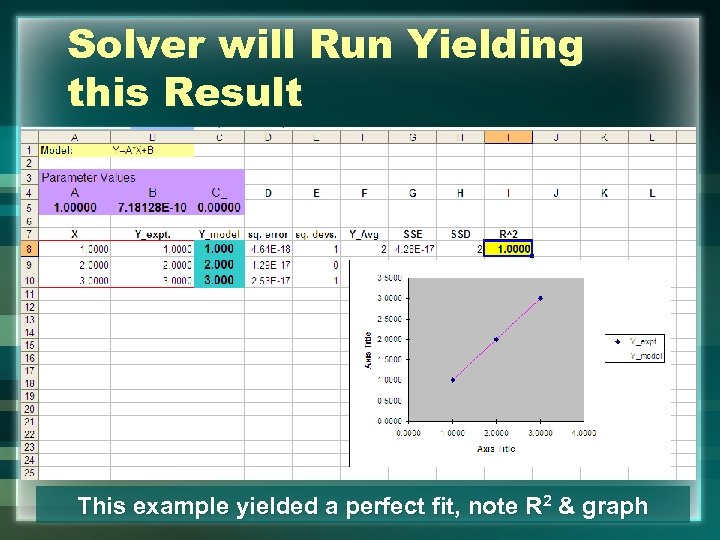 Solver will Run Yielding this Result This example yielded a perfect fit, note R 2 & graph
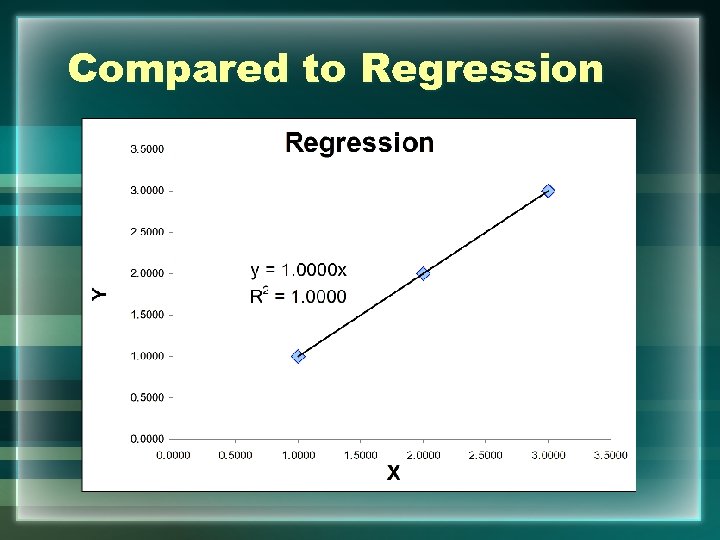 Compared to Regression
 Solver ~ Regression • The Two ~ Match • Solver can do more complex equations and relationships • The following example is Prepayments – Seven major terms were used • COFI, 30 -Yr , COFI Teaser, Spread between COFI & 30 -Yr, Spread between COFI & COFI Teaser, Seasonality – Then a three month look-back for each rate was added
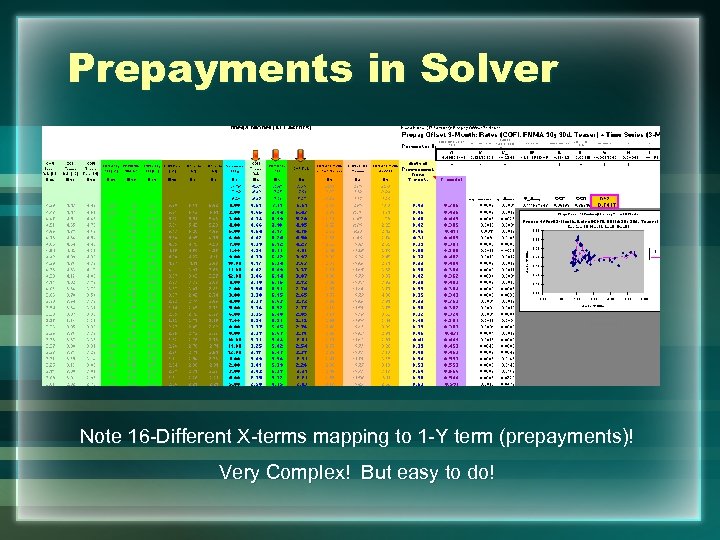 Prepayments in Solver Note 16 -Different X-terms mapping to 1 -Y term (prepayments)! Very Complex! But easy to do!
 Empowered • Now that you are empowered with the Power of Excel Solver what do you want solve?