 Скачать презентацию Using HPC Systems on Future Grid Presented by
d62baba89f6b2a431a593385e5763387.ppt
- Количество слайдов: 40



Using HPC Systems on Future. Grid Presented by Andrew J. Younge Indiana University Slide Authors: Gregory G. Pike, Andrew Younge, Gregor von Laszewski http: //futuregrid. org
Getting an account • Upload your ssh key to the portal, if you have not done that when you created the portal account o Account -> Portal Account § Edit the ssh key § Include the public portion of your SSH key! § Use a passphrase when generating the key!!!!! • Request a Future. Grid HPC/Nimbus Account o Account -> HPC & Nimbus • This process may take up to 3 days. o If it’s been longer than a week, send email o We do not do any account management over weekends! http: //futuregrid. org
Generating an SSH key pair • For Mac or Linux users o ssh-keygen –t rsa o Copy ~/. ssh/id_rsa. pub to the web form • For Windows users, this is more difficult o Download putty. exe and puttygen. exe o Puttygen is used to generate an SSH key pair § Run puttygen and click “Generate” o The public portion of your key is in the box labeled “SSH key for pasting into Open. SSH authorized_keys file” http: //futuregrid. org
Logging in • You must be logging in from a machine that has your SSH key • Use the following command (on Linux/OSX): o ssh username@india. futuregrid. org • Substitute username with your Future. Grid account http: //futuregrid. org
Now you are logged in. What is next?
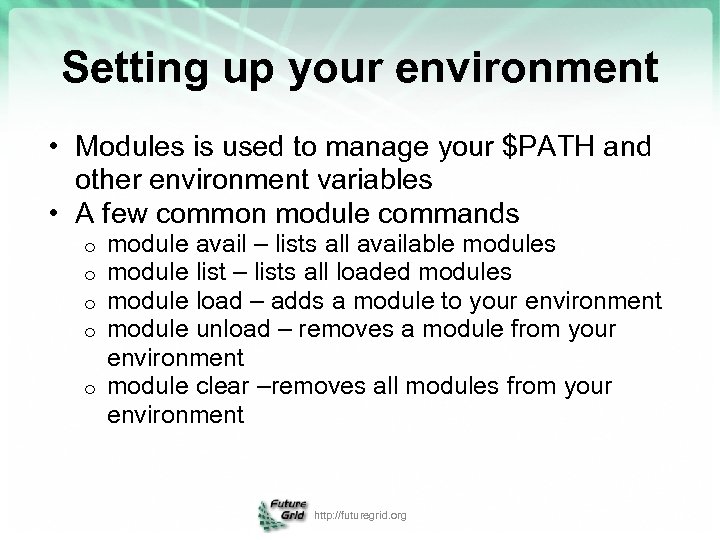
Setting up your environment • Modules is used to manage your $PATH and other environment variables • A few common module commands module avail – lists all available modules module list – lists all loaded modules module load – adds a module to your environment module unload – removes a module from your environment o module clear –removes all modules from your environment o o http: //futuregrid. org
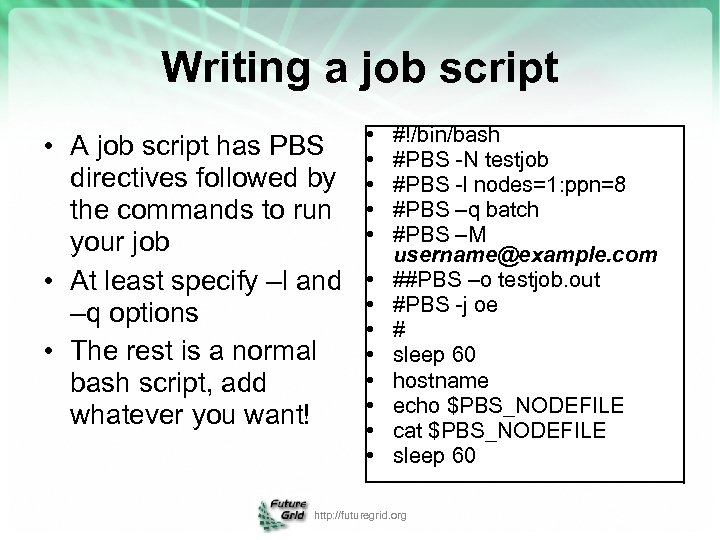
Writing a job script • A job script has PBS directives followed by the commands to run your job • At least specify –l and –q options • The rest is a normal bash script, add whatever you want! • • • • #!/bin/bash #PBS -N testjob #PBS -l nodes=1: ppn=8 #PBS –q batch #PBS –M username@example. com ##PBS –o testjob. out #PBS -j oe # sleep 60 hostname echo $PBS_NODEFILE cat $PBS_NODEFILE sleep 60 http: //futuregrid. org
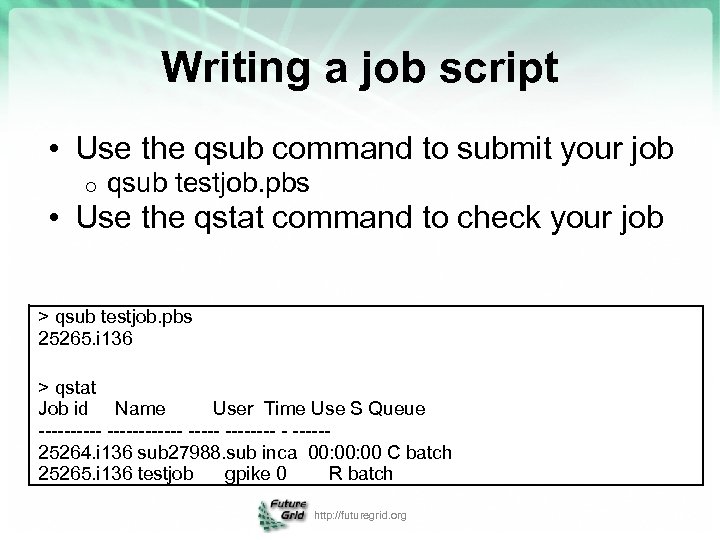
Writing a job script • Use the qsub command to submit your job o qsub testjob. pbs • Use the qstat command to check your job > qsub testjob. pbs 25265. i 136 > qstat Job id Name User Time Use S Queue ------------ - -----25264. i 136 sub 27988. sub inca 00: 00 C batch 25265. i 136 testjob gpike 0 R batch http: //futuregrid. org
Looking at the job queue • Both qstat and showq can be used to show what’s running on the system • The showq command gives nicer output • The pbsnodes command will list all nodes and details about each node • The checknode command will give extensive details about a particular node Run module load moab to add commands to path http: //futuregrid. org
Why won’t my job run? Two common reasons: The cluster is full and your job is waiting for other jobs to finish o You asked for something that doesn’t exist o § More CPUs or nodes than exist o The job manager is optimistic! § If you ask for more resources than we have, the job manager will sometimes hold your job until we buy more hardware http: //futuregrid. org
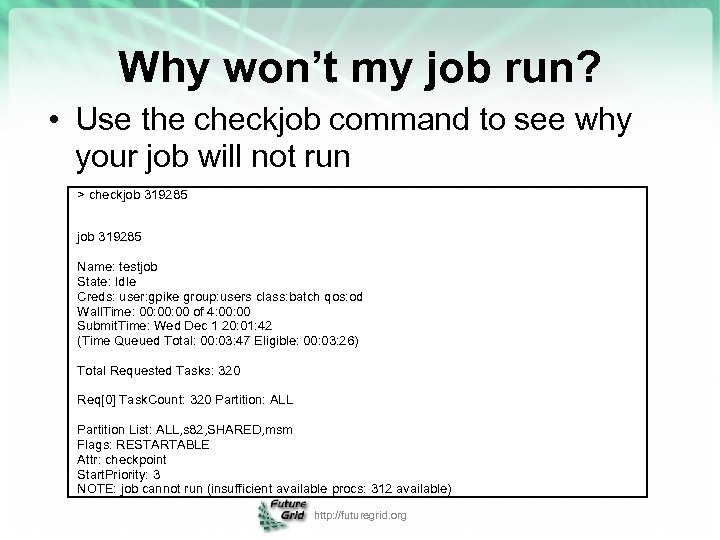
Why won’t my job run? • Use the checkjob command to see why your job will not run > checkjob 319285 Name: testjob State: Idle Creds: user: gpike group: users class: batch qos: od Wall. Time: 00: 00 of 4: 00 Submit. Time: Wed Dec 1 20: 01: 42 (Time Queued Total: 00: 03: 47 Eligible: 00: 03: 26) Total Requested Tasks: 320 Req[0] Task. Count: 320 Partition: ALL Partition List: ALL, s 82, SHARED, msm Flags: RESTARTABLE Attr: checkpoint Start. Priority: 3 NOTE: job cannot run (insufficient available procs: 312 available) http: //futuregrid. org
Why won’t my job run? • If you submitted a job that cannot run, use qdel to delete the job, fix your script, and resubmit the job o qdel 319285 • If you think your job should run, leave it in the queue and send email • It’s also possible that maintenance is coming up soon http: //futuregrid. org
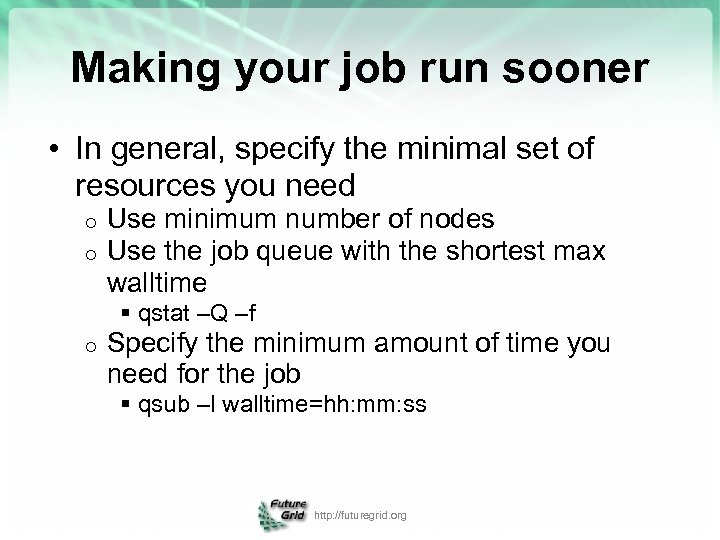
Making your job run sooner • In general, specify the minimal set of resources you need o o Use minimum number of nodes Use the job queue with the shortest max walltime § qstat –Q –f o Specify the minimum amount of time you need for the job § qsub –l walltime=hh: mm: ss http: //futuregrid. org

Map. Reduce on Future. Grid Presented by Andrew J. Younge Indiana University Material was prepared by Shava Smallen, Andrew Younge http: //futuregrid. org 14
What is Map. Reduce • Map. Reduce is a programming model and implementation for processing and generating large data sets – Focus developer time/effort on salient (unique, distinguished) application requirements. – Allow common but complex application requirements (e. g. , distribution, load balancing, scheduling, failures) to be met by the framework. – Enhance portability via specialized run-time support for different architectures. • Uses: – Large/massive amounts of data – Simple application processing requirements – Desired portability across variety of execution platforms http: //futuregrid. org 15
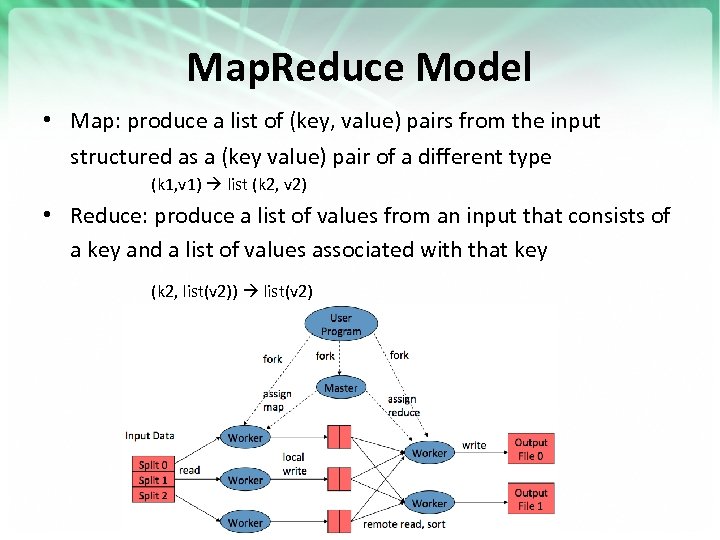
Map. Reduce Model • Map: produce a list of (key, value) pairs from the input structured as a (key value) pair of a different type (k 1, v 1) list (k 2, v 2) • Reduce: produce a list of values from an input that consists of a key and a list of values associated with that key (k 2, list(v 2)) list(v 2)
Hadoop • Hadoop provides an open source implementation of Map. Reduce and HDFS. • my. Hadoop provides a set of scripts to configure and run Hadoop within an HPC environment – From San Diego Supercomputer Center – Available on India, Sierra, and Alamo systems within Future. Grid http: //futuregrid. org 17
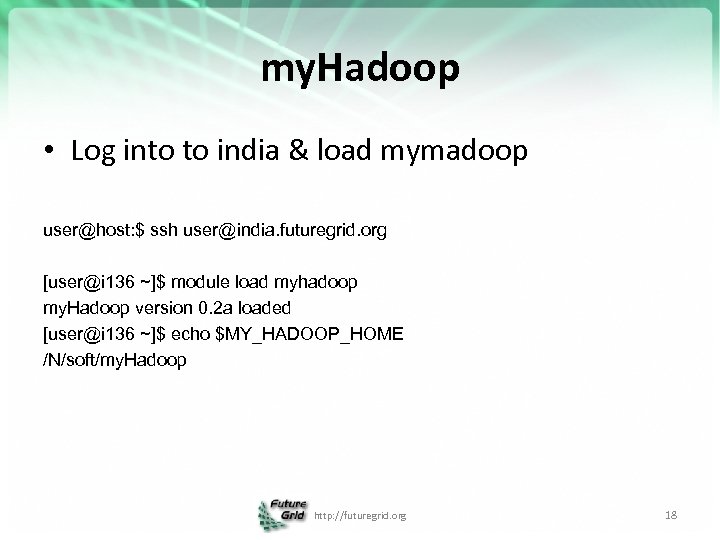
my. Hadoop • Log into to india & load mymadoop user@host: $ ssh user@india. futuregrid. org [user@i 136 ~]$ module load myhadoop my. Hadoop version 0. 2 a loaded [user@i 136 ~]$ echo $MY_HADOOP_HOME /N/soft/my. Hadoop http: //futuregrid. org 18
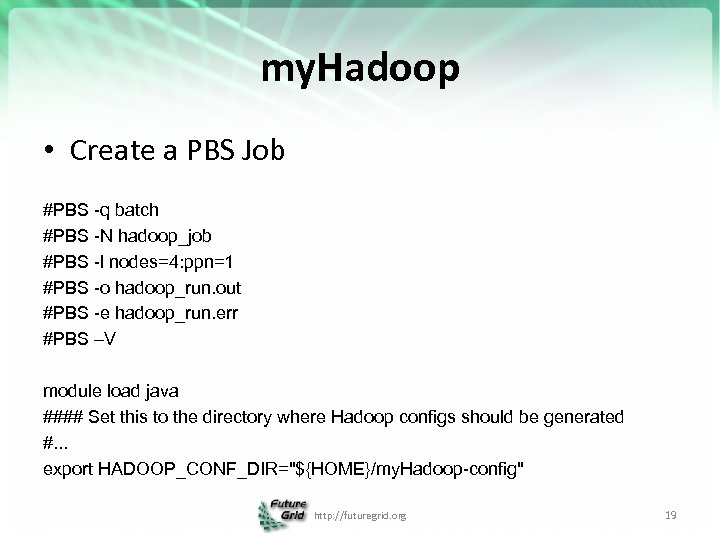
my. Hadoop • Create a PBS Job #PBS -q batch #PBS -N hadoop_job #PBS -l nodes=4: ppn=1 #PBS -o hadoop_run. out #PBS -e hadoop_run. err #PBS –V module load java #### Set this to the directory where Hadoop configs should be generated #. . . export HADOOP_CONF_DIR="${HOME}/my. Hadoop-config" http: //futuregrid. org 19
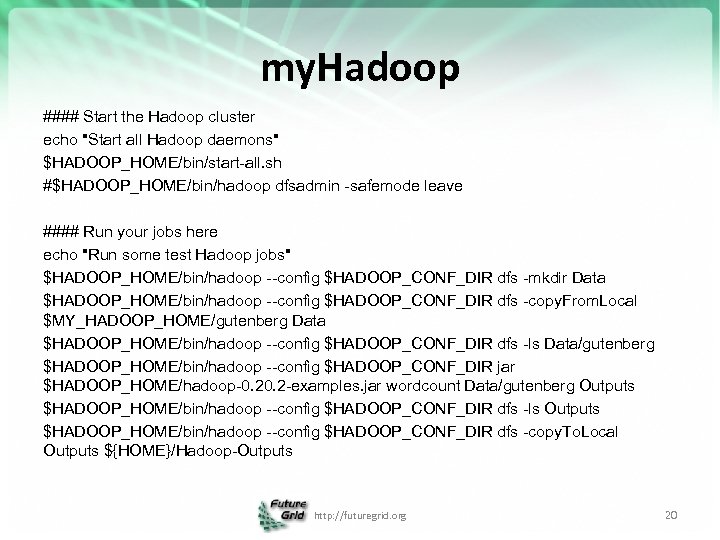
my. Hadoop #### Start the Hadoop cluster echo "Start all Hadoop daemons" $HADOOP_HOME/bin/start-all. sh #$HADOOP_HOME/bin/hadoop dfsadmin -safemode leave #### Run your jobs here echo "Run some test Hadoop jobs" $HADOOP_HOME/bin/hadoop --config $HADOOP_CONF_DIR dfs -mkdir Data $HADOOP_HOME/bin/hadoop --config $HADOOP_CONF_DIR dfs -copy. From. Local $MY_HADOOP_HOME/gutenberg Data $HADOOP_HOME/bin/hadoop --config $HADOOP_CONF_DIR dfs -ls Data/gutenberg $HADOOP_HOME/bin/hadoop --config $HADOOP_CONF_DIR jar $HADOOP_HOME/hadoop-0. 2 -examples. jar wordcount Data/gutenberg Outputs $HADOOP_HOME/bin/hadoop --config $HADOOP_CONF_DIR dfs -ls Outputs $HADOOP_HOME/bin/hadoop --config $HADOOP_CONF_DIR dfs -copy. To. Local Outputs ${HOME}/Hadoop-Outputs http: //futuregrid. org 20
![my. Hadoop • Submit a job [user@i 136 ~]$ qsub pbs-example. sh 125525. i](https://present5.com/presentation/d62baba89f6b2a431a593385e5763387/image-21.jpg "my. Hadoop • Submit a job [user@i 136 ~]$ qsub pbs-example. sh 125525. i")
my. Hadoop • Submit a job [user@i 136 ~]$ qsub pbs-example. sh 125525. i 136 [user@i 136 ~]$ qstat -u user i 136: Req'd Elap Job ID Username Queue Jobname Sess. ID NDS TSK Memory Time S Time ---------- -------- --- ----- - ----125525. i 136 user batch hadoop_job -- 4 4 -- 04: 00 Q -- http: //futuregrid. org 21
![my. Hadoop • Get results [user@i 136 ~]$ head Hadoop-Outputs/part-r-00000 "'After 1 "'My 1](https://present5.com/presentation/d62baba89f6b2a431a593385e5763387/image-22.jpg "my. Hadoop • Get results [user@i 136 ~]$ head Hadoop-Outputs/part-r-00000 \"'After 1 \"'My 1")
my. Hadoop • Get results [user@i 136 ~]$ head Hadoop-Outputs/part-r-00000 "'After 1 "'My 1 "'Tis 2 "A 12 "About 2 "Ah!" 1 "Ah, 1 "All 2 "All! 1 http: //futuregrid. org 22
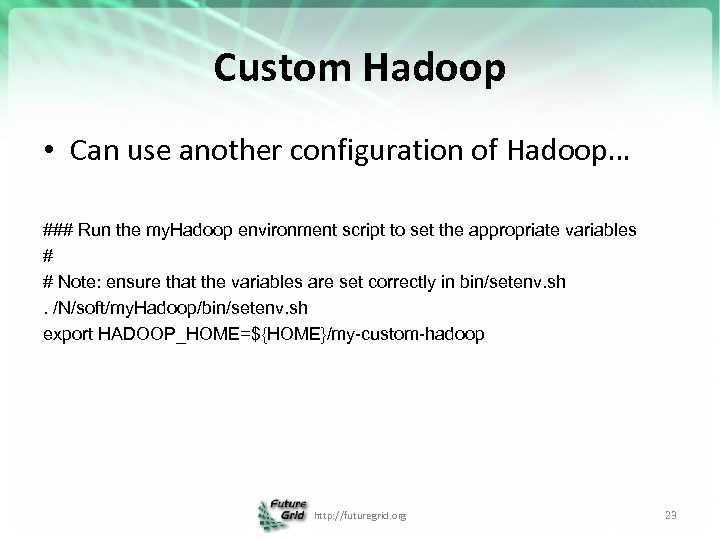
Custom Hadoop • Can use another configuration of Hadoop… ### Run the my. Hadoop environment script to set the appropriate variables # # Note: ensure that the variables are set correctly in bin/setenv. sh. /N/soft/my. Hadoop/bin/setenv. sh export HADOOP_HOME=${HOME}/my-custom-hadoop http: //futuregrid. org 23

http: //futuregrid. org 24

Eucalyptus on Future. Grid Presented by Andrew J. Younge Indiana University Slide authors: Archit Kulshrestha, Gregor von Laszewski, Andrew Younge http: //futuregrid. org
Eucalyptus • Elastic Utility Computing Architecture Linking Your Programs To Useful Systems Eucalyptus is an open-source software platform that implements Iaa. S-style cloud computing using the existing Linux-based infrastructure o Iaa. S Cloud Services providing atomic allocation for o § Set of VMs § Set of Storage resources § Networking http: //futuregrid. org
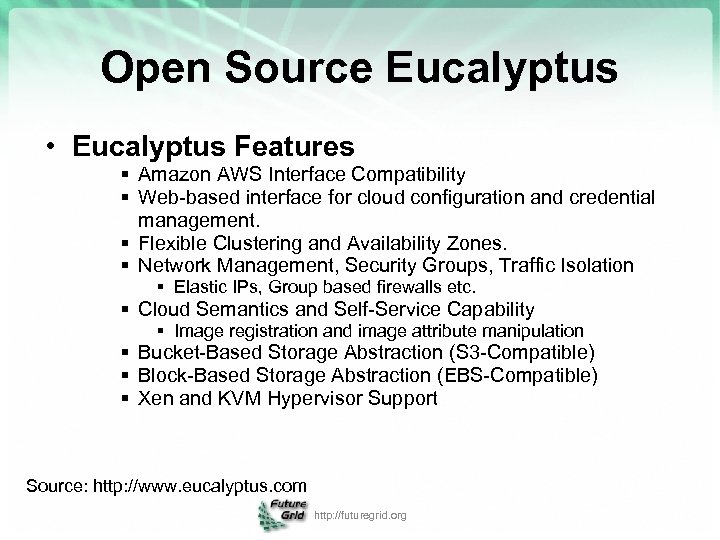
Open Source Eucalyptus • Eucalyptus Features § Amazon AWS Interface Compatibility § Web-based interface for cloud configuration and credential management. § Flexible Clustering and Availability Zones. § Network Management, Security Groups, Traffic Isolation § Elastic IPs, Group based firewalls etc. § Cloud Semantics and Self-Service Capability § Image registration and image attribute manipulation § Bucket-Based Storage Abstraction (S 3 -Compatible) § Block-Based Storage Abstraction (EBS-Compatible) § Xen and KVM Hypervisor Support Source: http: //www. eucalyptus. com http: //futuregrid. org
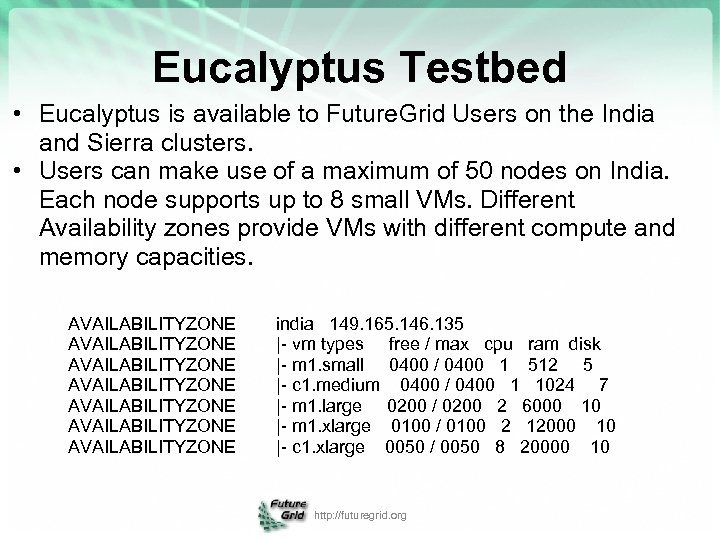
Eucalyptus Testbed • Eucalyptus is available to Future. Grid Users on the India and Sierra clusters. • Users can make use of a maximum of 50 nodes on India. Each node supports up to 8 small VMs. Different Availability zones provide VMs with different compute and memory capacities. AVAILABILITYZONE india 149. 165. 146. 135 AVAILABILITYZONE |- vm types free / max cpu ram disk AVAILABILITYZONE |- m 1. small 0400 / 0400 1 512 5 AVAILABILITYZONE |- c 1. medium 0400 / 0400 1 1024 7 AVAILABILITYZONE |- m 1. large 0200 / 0200 2 6000 10 AVAILABILITYZONE |- m 1. xlarge 0100 / 0100 2 12000 10 AVAILABILITYZONE |- c 1. xlarge 0050 / 0050 8 20000 10 http: //futuregrid. org
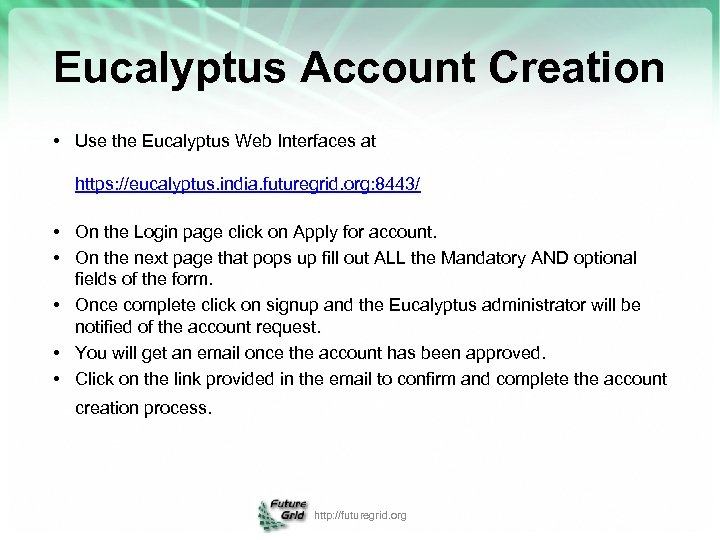
Eucalyptus Account Creation • Use the Eucalyptus Web Interfaces at https: //eucalyptus. india. futuregrid. org: 8443/ • On the Login page click on Apply for account. • On the next page that pops up fill out ALL the Mandatory AND optional fields of the form. • Once complete click on signup and the Eucalyptus administrator will be notified of the account request. • You will get an email once the account has been approved. • Click on the link provided in the email to confirm and complete the account creation process. http: //futuregrid. org
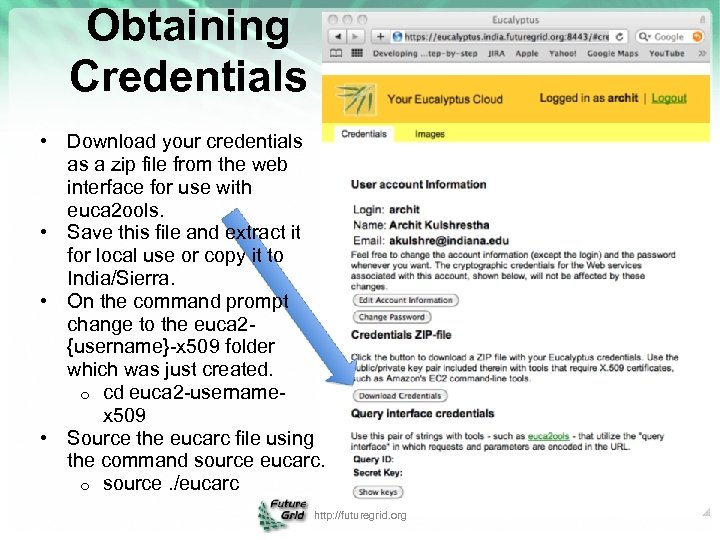
Obtaining Credentials • Download your credentials as a zip file from the web interface for use with euca 2 ools. • Save this file and extract it for local use or copy it to India/Sierra. • On the command prompt change to the euca 2{username}-x 509 folder which was just created. o cd euca 2 -usernamex 509 • Source the eucarc file using the command source eucarc. o source. /eucarc http: //futuregrid. org
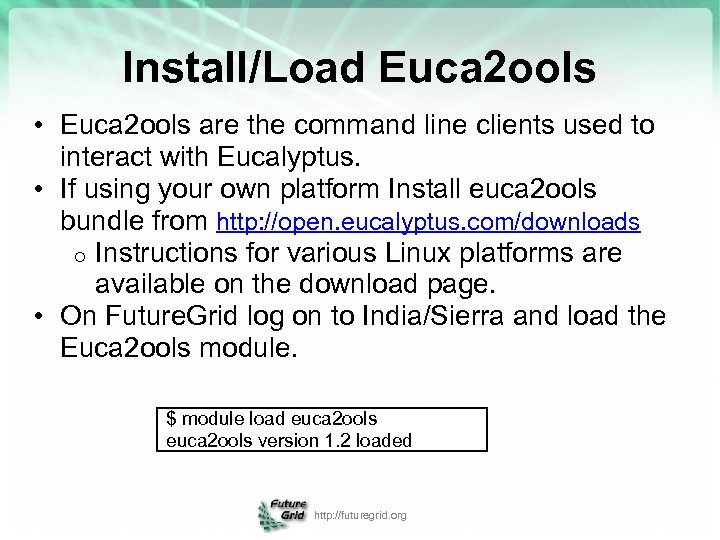
Install/Load Euca 2 ools • Euca 2 ools are the command line clients used to interact with Eucalyptus. • If using your own platform Install euca 2 ools bundle from http: //open. eucalyptus. com/downloads o Instructions for various Linux platforms are available on the download page. • On Future. Grid log on to India/Sierra and load the Euca 2 ools module. $ module load euca 2 ools version 1. 2 loaded http: //futuregrid. org
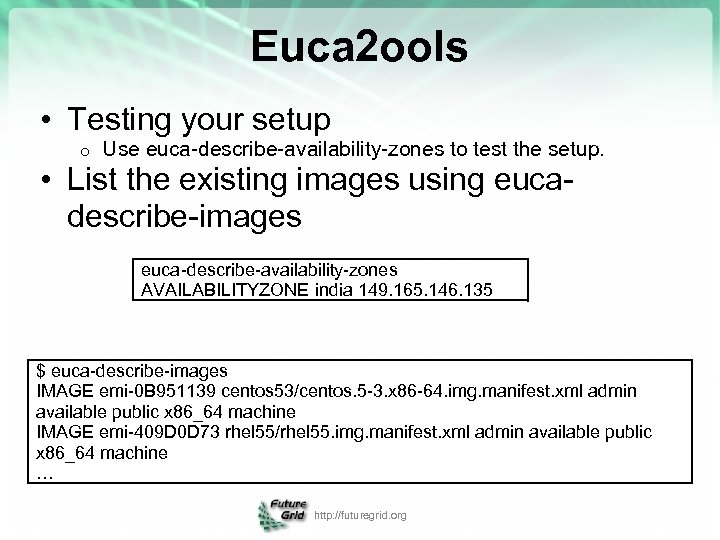
Euca 2 ools • Testing your setup o Use euca-describe-availability-zones to test the setup. • List the existing images using eucadescribe-images euca-describe-availability-zones AVAILABILITYZONE india 149. 165. 146. 135 $ euca-describe-images IMAGE emi-0 B 951139 centos 53/centos. 5 -3. x 86 -64. img. manifest. xml admin available public x 86_64 machine IMAGE emi-409 D 0 D 73 rhel 55/rhel 55. img. manifest. xml admin available public x 86_64 machine … http: //futuregrid. org
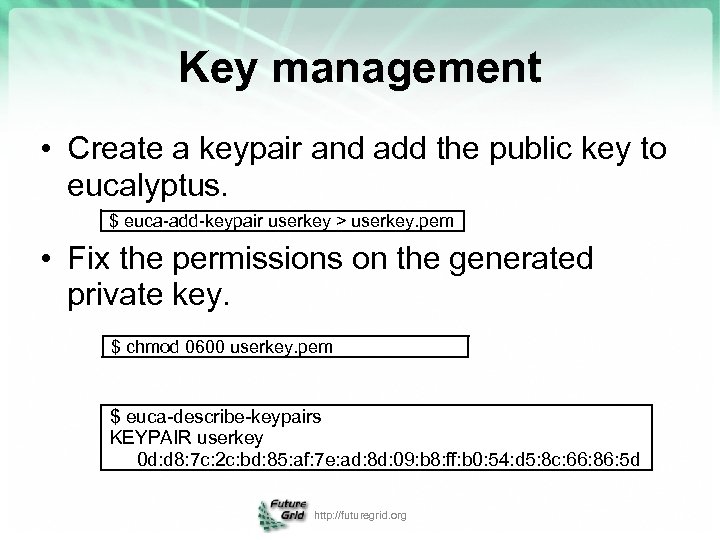
Key management • Create a keypair and add the public key to eucalyptus. $ euca-add-keypair userkey > userkey. pem • Fix the permissions on the generated private key. $ chmod 0600 userkey. pem $ euca-describe-keypairs KEYPAIR userkey 0 d: d 8: 7 c: 2 c: bd: 85: af: 7 e: ad: 8 d: 09: b 8: ff: b 0: 54: d 5: 8 c: 66: 86: 5 d http: //futuregrid. org
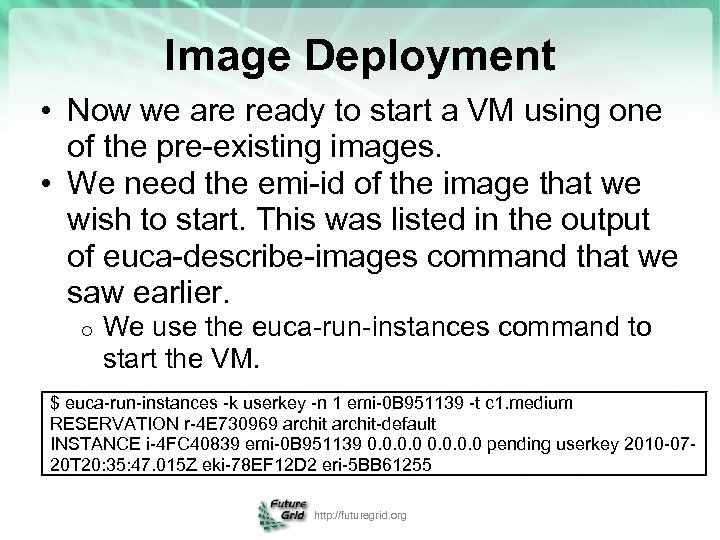
Image Deployment • Now we are ready to start a VM using one of the pre-existing images. • We need the emi-id of the image that we wish to start. This was listed in the output of euca-describe-images command that we saw earlier. o We use the euca-run-instances command to start the VM. $ euca-run-instances -k userkey -n 1 emi-0 B 951139 -t c 1. medium RESERVATION r-4 E 730969 archit-default INSTANCE i-4 FC 40839 emi-0 B 951139 0. 0 pending userkey 2010 -0720 T 20: 35: 47. 015 Z eki-78 EF 12 D 2 eri-5 BB 61255 http: //futuregrid. org
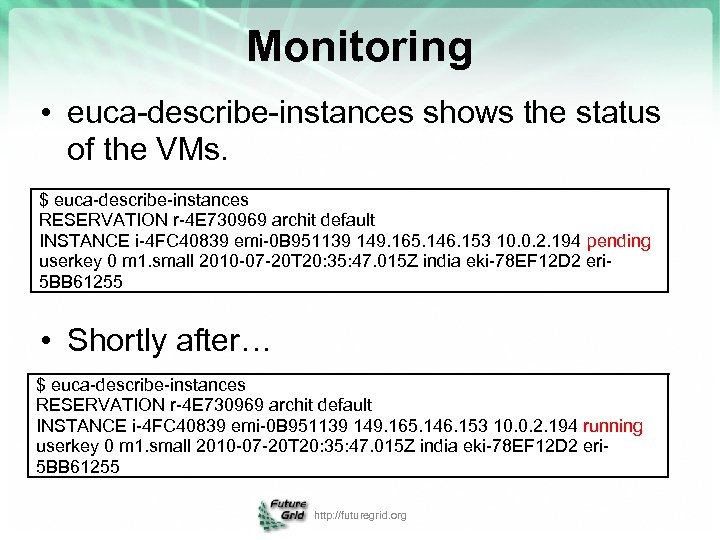
Monitoring • euca-describe-instances shows the status of the VMs. $ euca-describe-instances RESERVATION r-4 E 730969 archit default INSTANCE i-4 FC 40839 emi-0 B 951139 149. 165. 146. 153 10. 0. 2. 194 pending userkey 0 m 1. small 2010 -07 -20 T 20: 35: 47. 015 Z india eki-78 EF 12 D 2 eri 5 BB 61255 • Shortly after… $ euca-describe-instances RESERVATION r-4 E 730969 archit default INSTANCE i-4 FC 40839 emi-0 B 951139 149. 165. 146. 153 10. 0. 2. 194 running userkey 0 m 1. small 2010 -07 -20 T 20: 35: 47. 015 Z india eki-78 EF 12 D 2 eri 5 BB 61255 http: //futuregrid. org
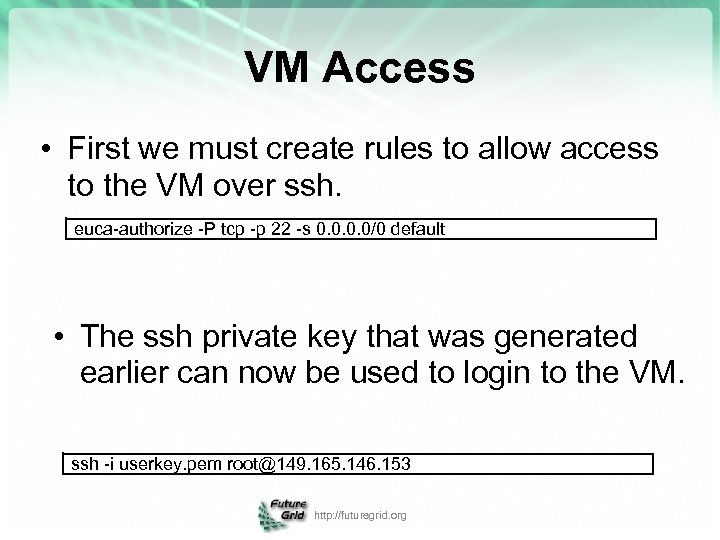
VM Access • First we must create rules to allow access to the VM over ssh. euca-authorize -P tcp -p 22 -s 0. 0/0 default • The ssh private key that was generated earlier can now be used to login to the VM. ssh -i userkey. pem root@149. 165. 146. 153 http: //futuregrid. org
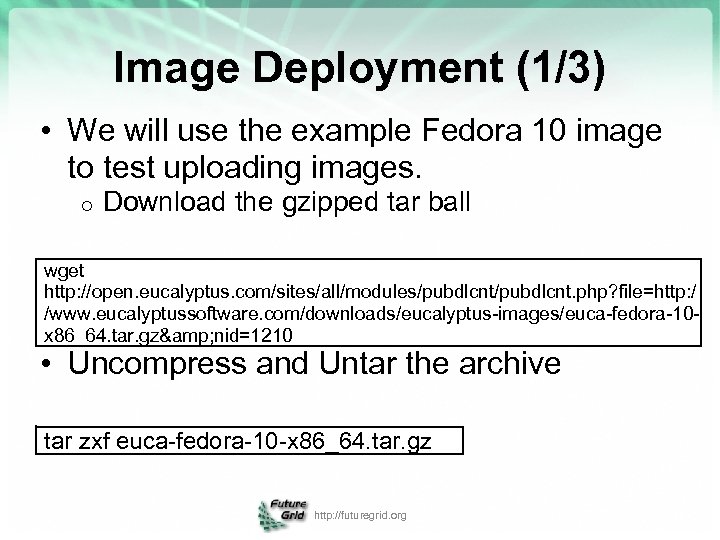
Image Deployment (1/3) • We will use the example Fedora 10 image to test uploading images. o Download the gzipped tar ball wget http: //open. eucalyptus. com/sites/all/modules/pubdlcnt. php? file=http: / /www. eucalyptussoftware. com/downloads/eucalyptus-images/euca-fedora-10 x 86_64. tar. gz& nid=1210 • Uncompress and Untar the archive tar zxf euca-fedora-10 -x 86_64. tar. gz http: //futuregrid. org
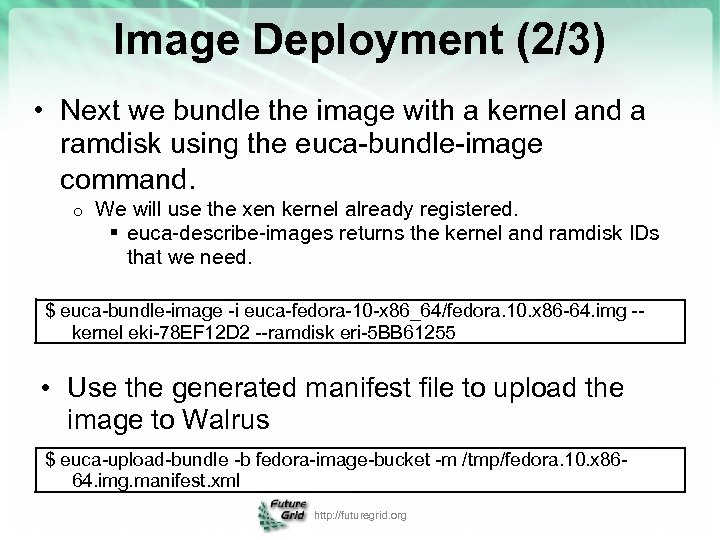
Image Deployment (2/3) • Next we bundle the image with a kernel and a ramdisk using the euca-bundle-image command. o We will use the xen kernel already registered. § euca-describe-images returns the kernel and ramdisk IDs that we need. $ euca-bundle-image -i euca-fedora-10 -x 86_64/fedora. 10. x 86 -64. img -kernel eki-78 EF 12 D 2 --ramdisk eri-5 BB 61255 • Use the generated manifest file to upload the image to Walrus $ euca-upload-bundle -b fedora-image-bucket -m /tmp/fedora. 10. x 8664. img. manifest. xml http: //futuregrid. org
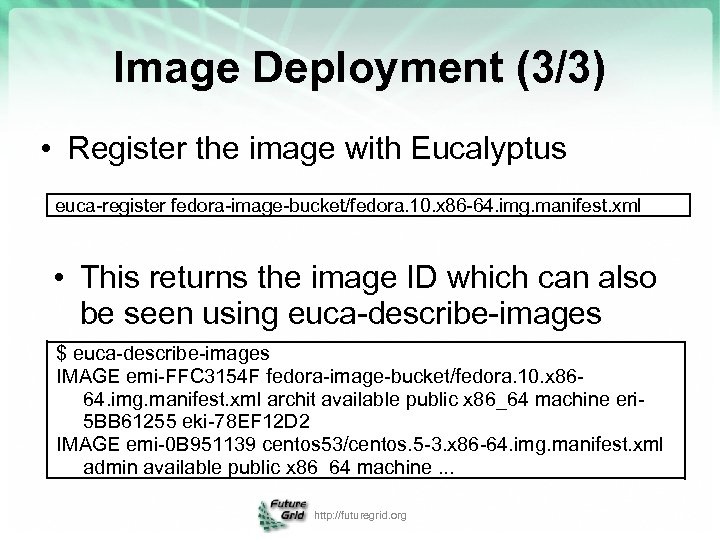
Image Deployment (3/3) • Register the image with Eucalyptus euca-register fedora-image-bucket/fedora. 10. x 86 -64. img. manifest. xml • This returns the image ID which can also be seen using euca-describe-images $ euca-describe-images IMAGE emi-FFC 3154 F fedora-image-bucket/fedora. 10. x 8664. img. manifest. xml archit available public x 86_64 machine eri 5 BB 61255 eki-78 EF 12 D 2 IMAGE emi-0 B 951139 centos 53/centos. 5 -3. x 86 -64. img. manifest. xml admin available public x 86_64 machine. . . http: //futuregrid. org

QUESTIONS?
Скачать презентацию Using HPC Systems on Future Grid Presented by
d62baba89f6b2a431a593385e5763387.ppt