 Скачать презентацию USAJOBS Career Connector Applicant User Guide February 2014 Prepared
5dec35b795b6eae409c283eb7ca47a23.ppt
- Количество слайдов: 45



USAJOBS/Career. Connector Applicant User Guide February 2014 Prepared by HCO ETS
USAJOBS/Career. Connector SIX STEPS TO APPLY FOR IRS JOBS ONLINE USING USAJOBS/CAREERCONNECTOR • • • Step 1 - Create a USAJOBS account Step 2 – Build or Upload an Online Resume Step 3 – Search for IRS Vacancy Announcements Step 4 – Complete the Career. Connector Account Creation Step 5 – Apply to the Vacancy Step 6 – Submit Documents and Review Application February 2014 2
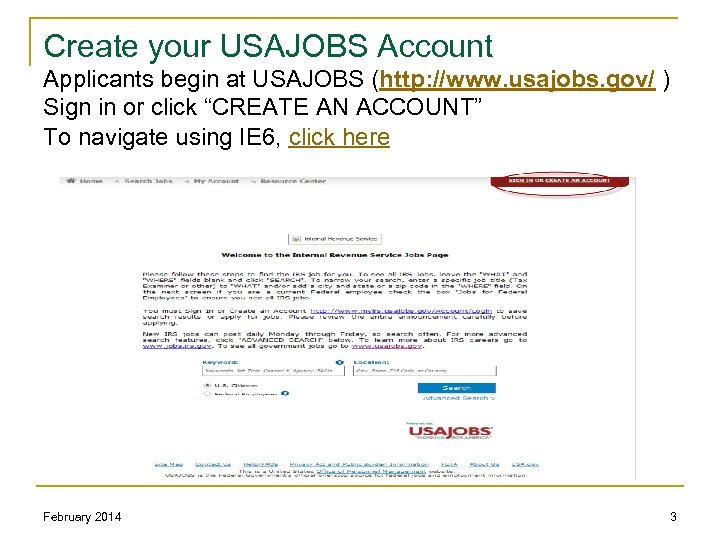
Create your USAJOBS Account Applicants begin at USAJOBS (http: //www. usajobs. gov/ ) Sign in or click “CREATE AN ACCOUNT” To navigate using IE 6, click here February 2014 3
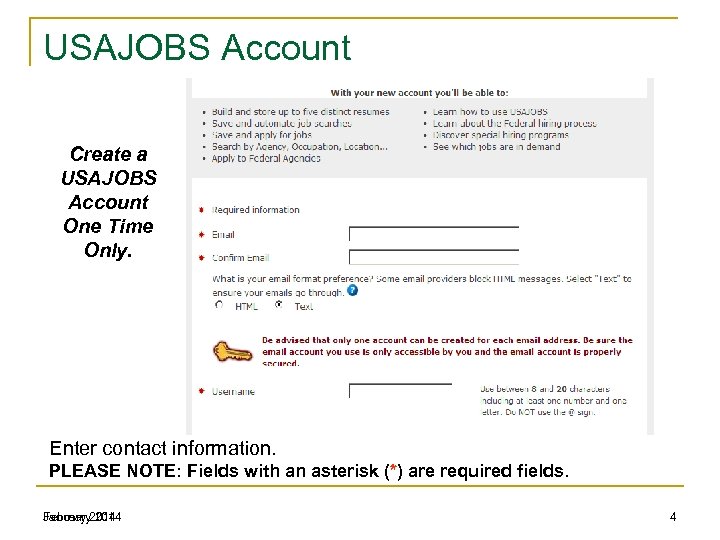
USAJOBS Account Create a USAJOBS Account One Time Only. Enter contact information. PLEASE NOTE: Fields with an asterisk (*) are required fields. January 2014 February 2014 4
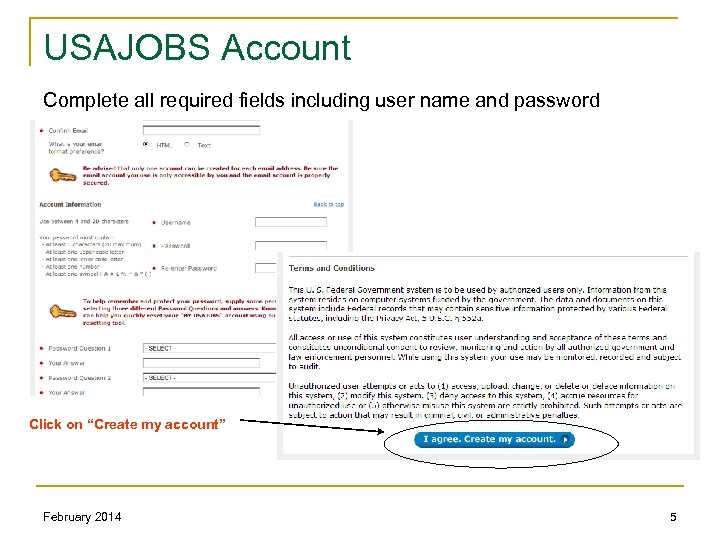
USAJOBS Account Complete all required fields including user name and password Click on “Create my account” February 2014 5
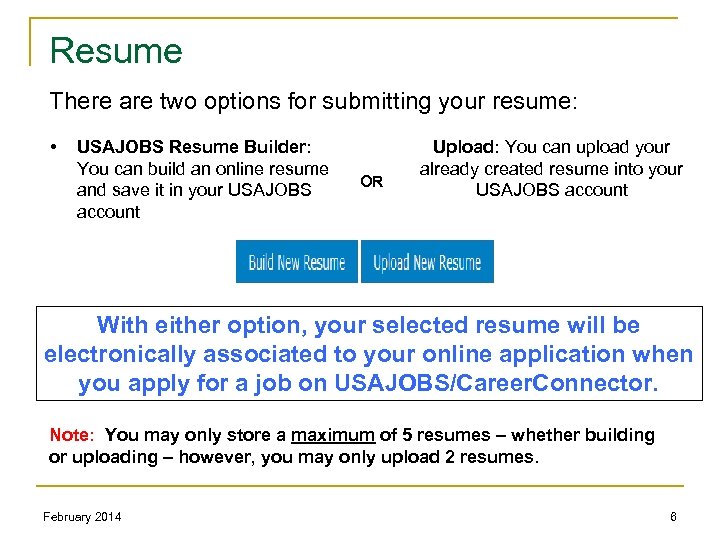
Resume There are two options for submitting your resume: • USAJOBS Resume Builder: You can build an online resume and save it in your USAJOBS account OR Upload: You can upload your already created resume into your USAJOBS account With either option, your selected resume will be electronically associated to your online application when you apply for a job on USAJOBS/Career. Connector. Note: You may only store a maximum of 5 resumes – whether building or uploading – however, you may only upload 2 resumes. February 2014 6
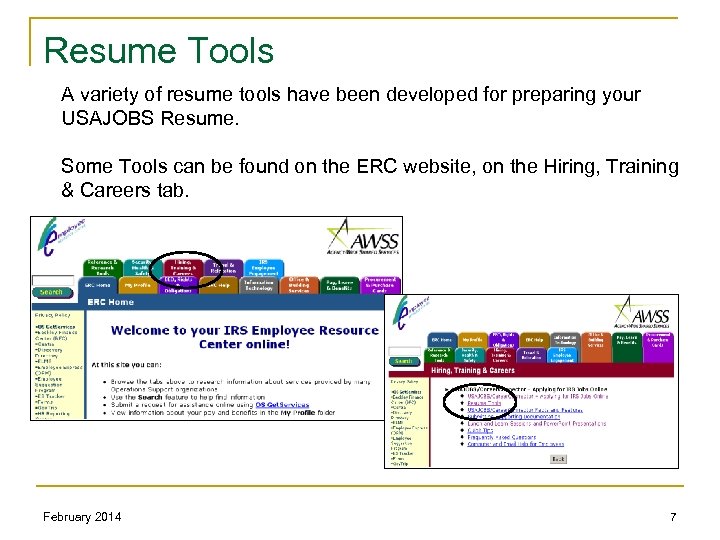
Resume Tools A variety of resume tools have been developed for preparing your USAJOBS Resume. Some Tools can be found on the ERC website, on the Hiring, Training & Careers tab. February 2014 7
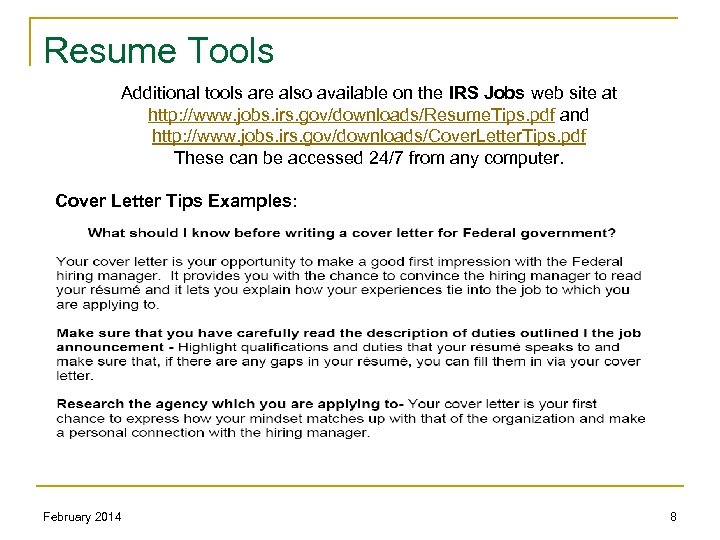
Resume Tools Additional tools are also available on the IRS Jobs web site at http: //www. jobs. irs. gov/downloads/Resume. Tips. pdf and http: //www. jobs. irs. gov/downloads/Cover. Letter. Tips. pdf These can be accessed 24/7 from any computer. Cover Letter Tips Examples: February 2014 8
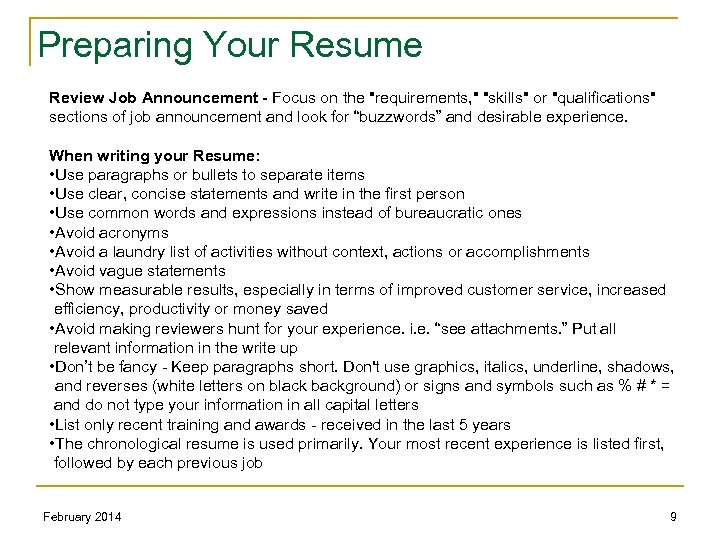
Preparing Your Resume Review Job Announcement - Focus on the "requirements, " "skills" or "qualifications" sections of job announcement and look for “buzzwords” and desirable experience. When writing your Resume: • Use paragraphs or bullets to separate items • Use clear, concise statements and write in the first person • Use common words and expressions instead of bureaucratic ones • Avoid acronyms • Avoid a laundry list of activities without context, actions or accomplishments • Avoid vague statements • Show measurable results, especially in terms of improved customer service, increased efficiency, productivity or money saved • Avoid making reviewers hunt for your experience. i. e. “see attachments. ” Put all relevant information in the write up • Don’t be fancy - Keep paragraphs short. Don't use graphics, italics, underline, shadows, and reverses (white letters on black background) or signs and symbols such as % # * = and do not type your information in all capital letters • List only recent training and awards - received in the last 5 years • The chronological resume is used primarily. Your most recent experience is listed first, followed by each previous job February 2014 9
Preparing Your Resume is Your Sales Pitch- Because applications are quickly skimmed during the first pass, it is crucial your resume competencies get right to work selling your credentials. For example, if an advanced degree is an important qualification, it shouldn't be buried at the end of a four-page resume. Specific or General? In the Federal government, the purpose of the resume is to “show” your qualifications so that you can be qualified by meeting eligibility requirements. This means that your resume needs to include more specifics and similar language as the vacancy announcement because the Human Resources Specialist is looking to see if you have the “specialized” or directly related experience requirements of the position for which you are applying. How Long Should My Resume Be? A resume should be no more than three to five pages. Don’t forget to Review and Spell Check! Make sure you spell check your resume. Nothing is more distracting than typos and grammatical errors. Your paperwork is your advocate. This is your first and last chance to make a good first impression. February 2014 10
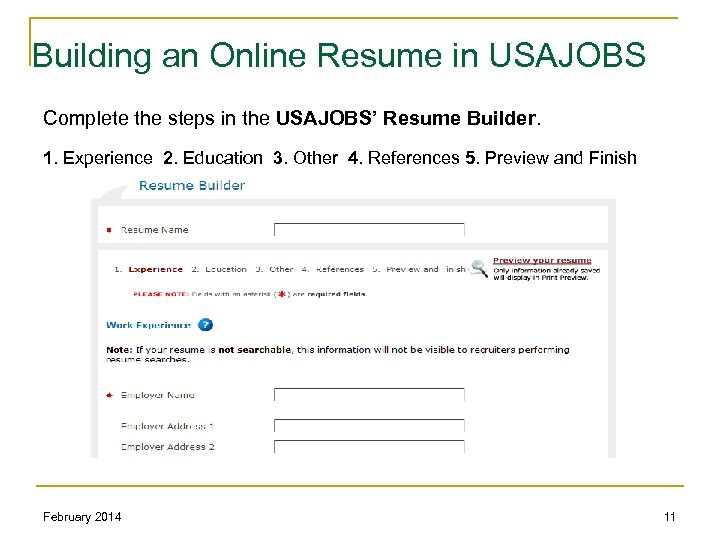
Building an Online Resume in USAJOBS Complete the steps in the USAJOBS’ Resume Builder. 1. Experience 2. Education 3. Other 4. References 5. Preview and Finish February 2014 11
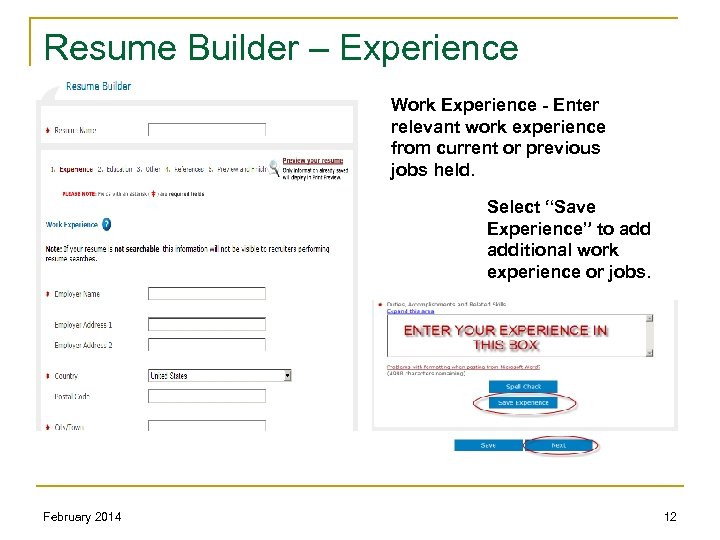
Resume Builder – Experience Work Experience - Enter relevant work experience from current or previous jobs held. Select “Save Experience” to additional work experience or jobs. February 2014 12
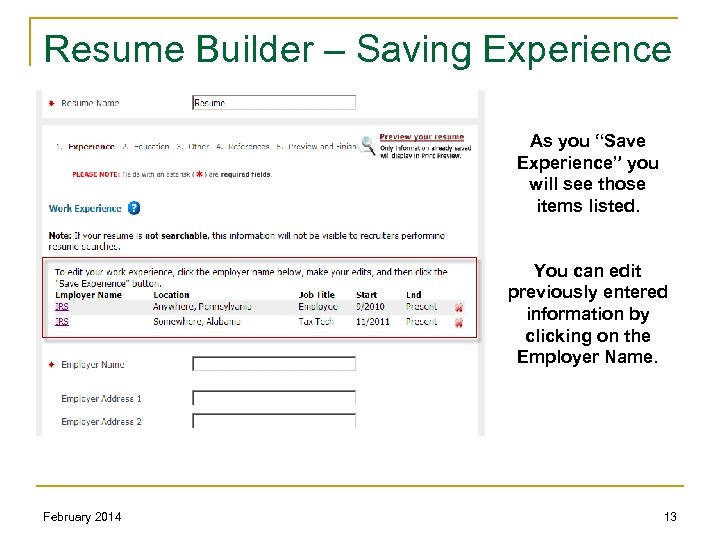
Resume Builder – Saving Experience As you “Save Experience” you will see those items listed. You can edit previously entered information by clicking on the Employer Name. February 2014 13
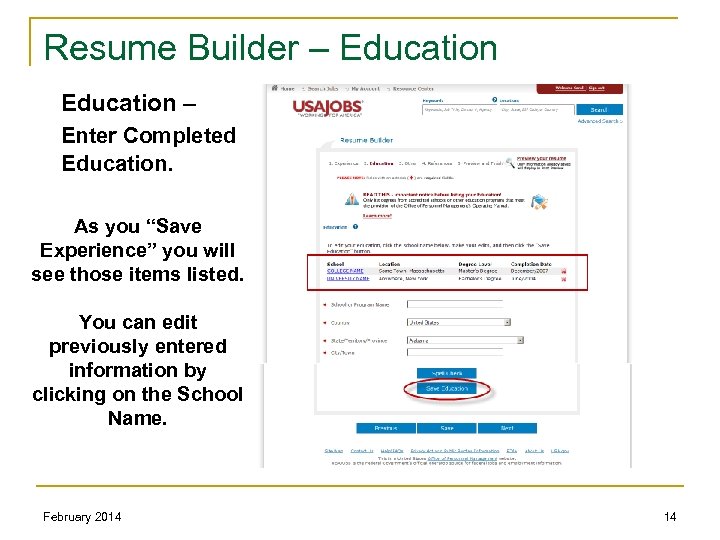
Resume Builder – Education – Enter Completed Education. As you “Save Experience” you will see those items listed. You can edit previously entered information by clicking on the School Name. February 2014 14
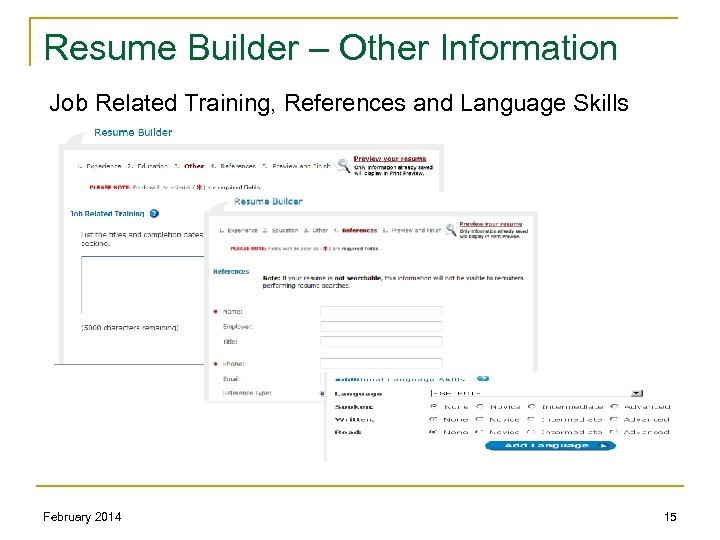
Resume Builder – Other Information Job Related Training, References and Language Skills February 2014 15
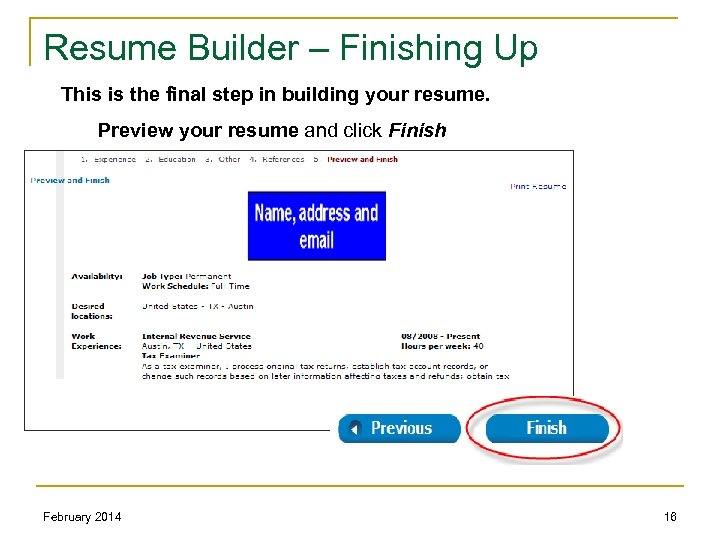
Resume Builder – Finishing Up This is the final step in building your resume. Preview your resume and click Finish February 2014 16
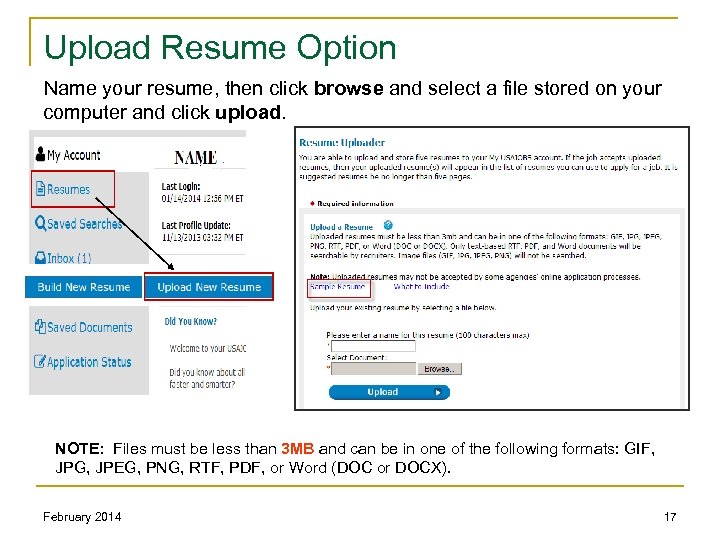
Upload Resume Option Name your resume, then click browse and select a file stored on your computer and click upload. NOTE: Files must be less than 3 MB and can be in one of the following formats: GIF, JPG, JPEG, PNG, RTF, PDF, or Word (DOC or DOCX). February 2014 17
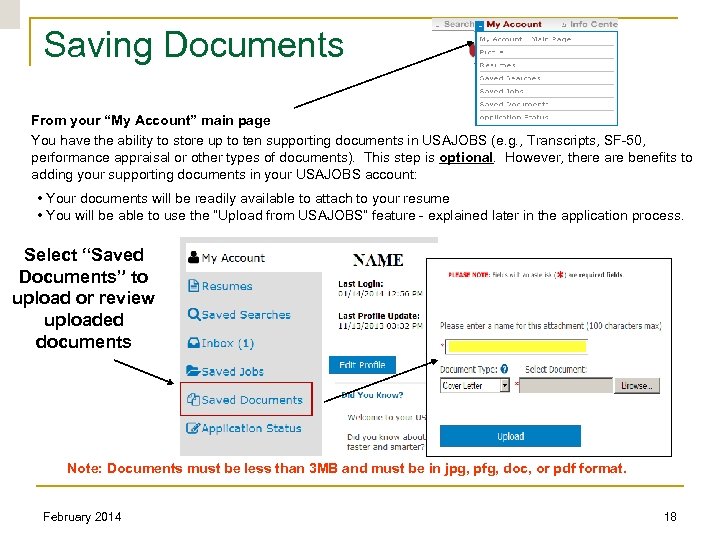
Saving Documents From your “My Account” main page You have the ability to store up to ten supporting documents in USAJOBS (e. g. , Transcripts, SF-50, performance appraisal or other types of documents). This step is optional. However, there are benefits to adding your supporting documents in your USAJOBS account: • Your documents will be readily available to attach to your resume • You will be able to use the “Upload from USAJOBS” feature - explained later in the application process. Select “Saved Documents” to upload or review uploaded documents Note: Documents must be less than 3 MB and must be in jpg, pfg, doc, or pdf format. February 2014 18
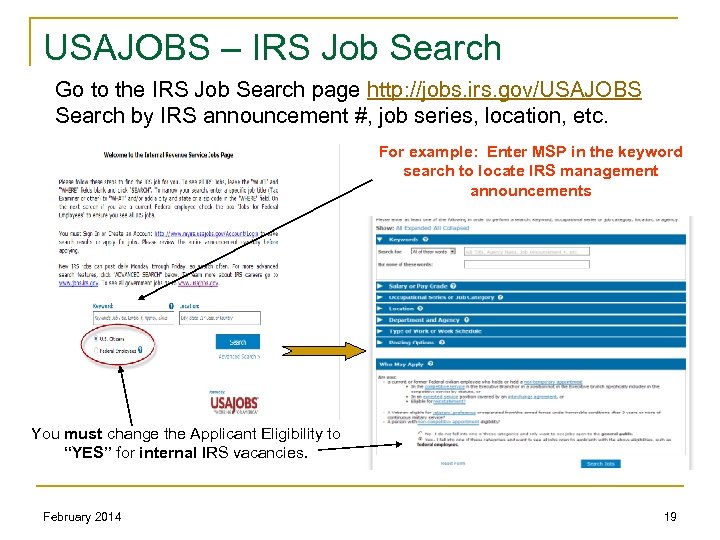
USAJOBS – IRS Job Search Go to the IRS Job Search page http: //jobs. irs. gov/USAJOBS Search by IRS announcement #, job series, location, etc. For example: Enter MSP in the keyword search to locate IRS management announcements You must change the Applicant Eligibility to “YES” for internal IRS vacancies. February 2014 19
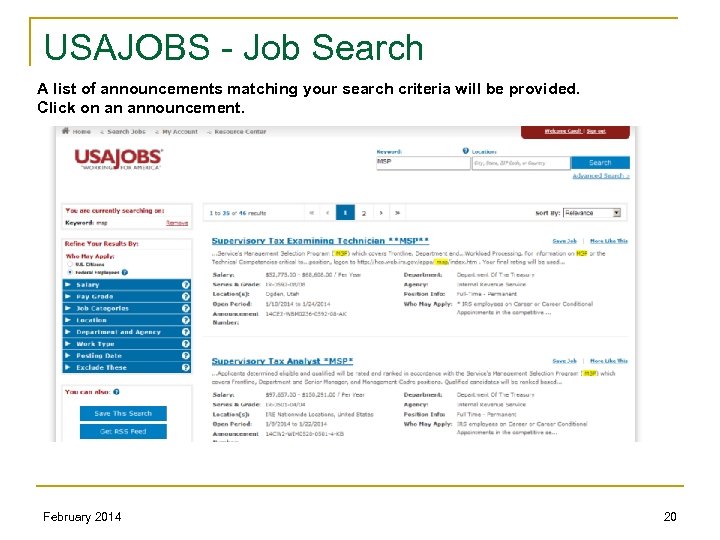
USAJOBS - Job Search A list of announcements matching your search criteria will be provided. Click on an announcement. February 2014 20
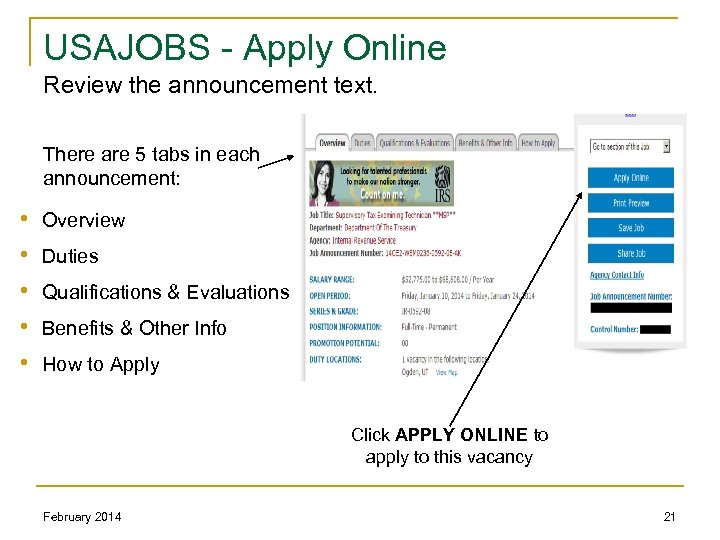
USAJOBS - Apply Online Review the announcement text. There are 5 tabs in each announcement: • • • Overview Duties Qualifications & Evaluations Benefits & Other Info How to Apply Click APPLY ONLINE to apply to this vacancy February 2014 21
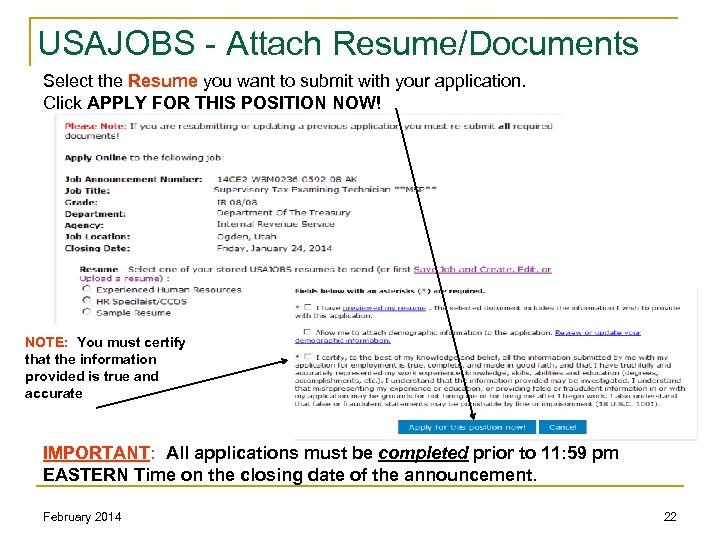
USAJOBS - Attach Resume/Documents Select the Resume you want to submit with your application. Click APPLY FOR THIS POSITION NOW! NOTE: You must certify that the information provided is true and accurate IMPORTANT: All applications must be completed prior to 11: 59 pm EASTERN Time on the closing date of the announcement. February 2014 22
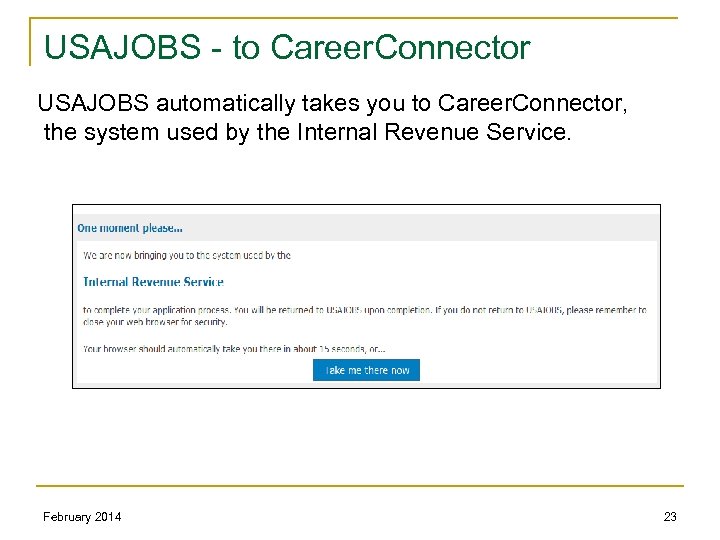
USAJOBS - to Career. Connector USAJOBS automatically takes you to Career. Connector, the system used by the Internal Revenue Service. February 2014 23
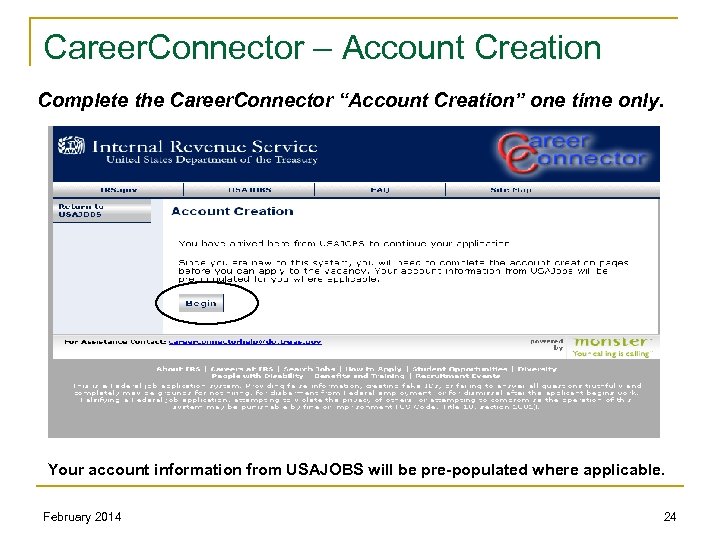
Career. Connector – Account Creation Complete the Career. Connector “Account Creation” one time only. Your account information from USAJOBS will be pre-populated where applicable. February 2014 24
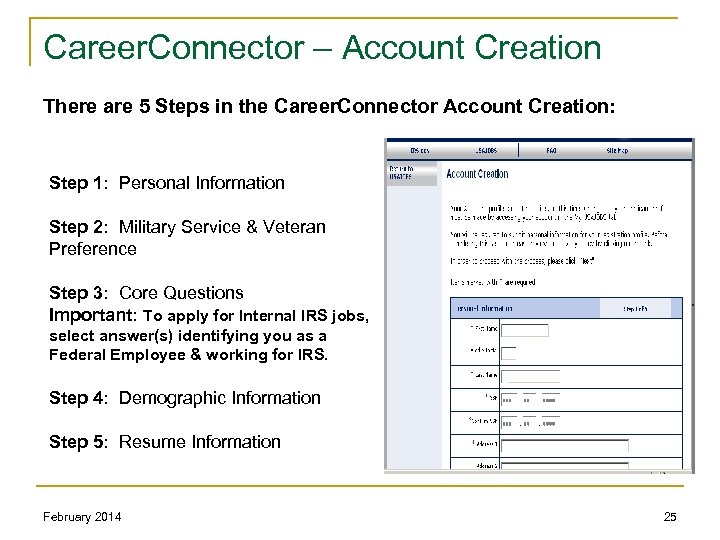
Career. Connector – Account Creation There are 5 Steps in the Career. Connector Account Creation: Step 1: Personal Information Step 2: Military Service & Veteran Preference Step 3: Core Questions Important: To apply for Internal IRS jobs, select answer(s) identifying you as a Federal Employee & working for IRS. Step 4: Demographic Information Step 5: Resume Information February 2014 25
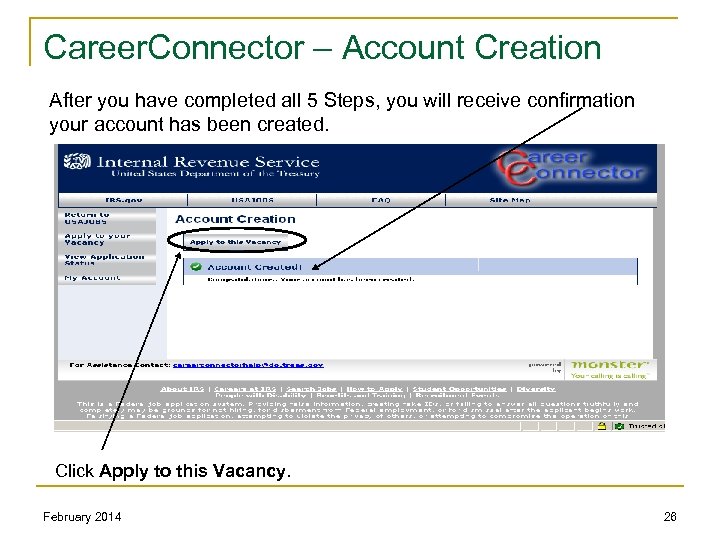
Career. Connector – Account Creation After you have completed all 5 Steps, you will receive confirmation your account has been created. Click Apply to this Vacancy. February 2014 26
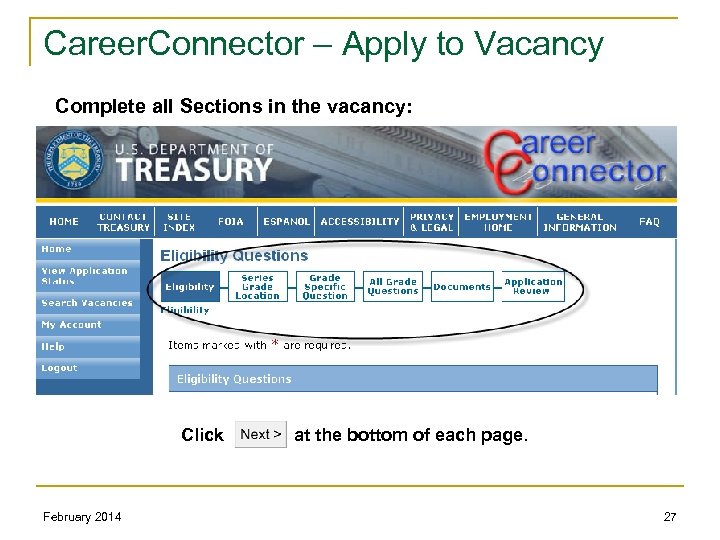
Career. Connector – Apply to Vacancy Complete all Sections in the vacancy: Click February 2014 at the bottom of each page. 27
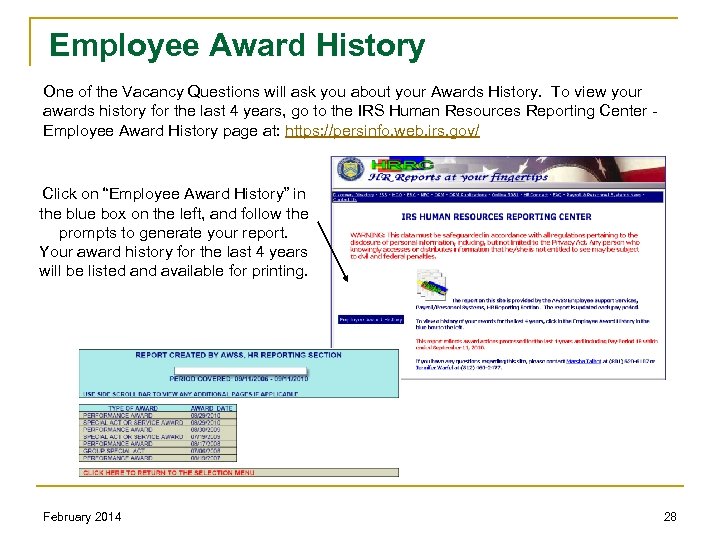
Employee Award History One of the Vacancy Questions will ask you about your Awards History. To view your awards history for the last 4 years, go to the IRS Human Resources Reporting Center - Employee Award History page at: https: //persinfo. web. irs. gov/ Click on “Employee Award History” in the blue box on the left, and follow the prompts to generate your report. Your award history for the last 4 years will be listed and available for printing. February 2014 28
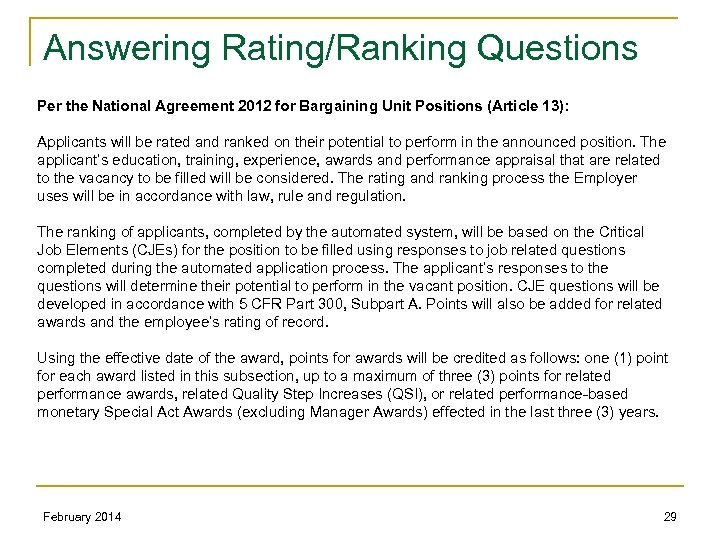
Answering Rating/Ranking Questions Per the National Agreement 2012 for Bargaining Unit Positions (Article 13): Applicants will be rated and ranked on their potential to perform in the announced position. The applicant’s education, training, experience, awards and performance appraisal that are related to the vacancy to be filled will be considered. The rating and ranking process the Employer uses will be in accordance with law, rule and regulation. The ranking of applicants, completed by the automated system, will be based on the Critical Job Elements (CJEs) for the position to be filled using responses to job related questions completed during the automated application process. The applicant’s responses to the questions will determine their potential to perform in the vacant position. CJE questions will be developed in accordance with 5 CFR Part 300, Subpart A. Points will also be added for related awards and the employee’s rating of record. Using the effective date of the award, points for awards will be credited as follows: one (1) point for each award listed in this subsection, up to a maximum of three (3) points for related performance awards, related Quality Step Increases (QSI), or related performance-based monetary Special Act Awards (excluding Manager Awards) effected in the last three (3) years. February 2014 29
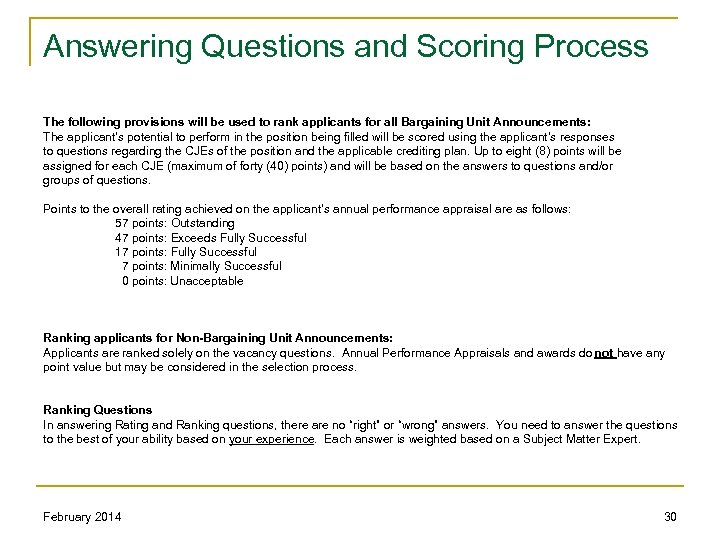
Answering Questions and Scoring Process The following provisions will be used to rank applicants for all Bargaining Unit Announcements: The applicant’s potential to perform in the position being filled will be scored using the applicant’s responses to questions regarding the CJEs of the position and the applicable crediting plan. Up to eight (8) points will be assigned for each CJE (maximum of forty (40) points) and will be based on the answers to questions and/or groups of questions. Points to the overall rating achieved on the applicant’s annual performance appraisal are as follows: 57 points: Outstanding 47 points: Exceeds Fully Successful 17 points: Fully Successful 7 points: Minimally Successful 0 points: Unacceptable Ranking applicants for Non-Bargaining Unit Announcements: Applicants are ranked solely on the vacancy questions. Annual Performance Appraisals and awards do not have any point value but may be considered in the selection process. Ranking Questions In answering Rating and Ranking questions, there are no “right” or “wrong” answers. You need to answer the questions to the best of your ability based on your experience. Each answer is weighted based on a Subject Matter Expert. February 2014 30
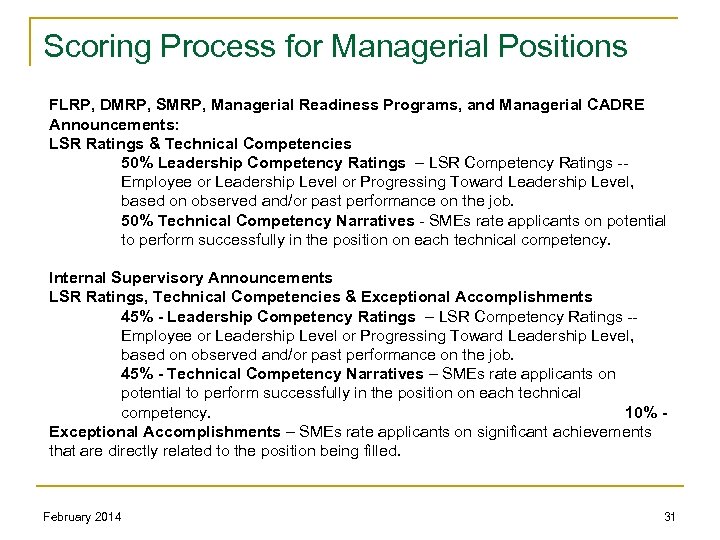
Scoring Process for Managerial Positions FLRP, DMRP, SMRP, Managerial Readiness Programs, and Managerial CADRE Announcements: LSR Ratings & Technical Competencies 50% Leadership Competency Ratings – LSR Competency Ratings -- Employee or Leadership Level or Progressing Toward Leadership Level, based on observed and/or past performance on the job. 50% Technical Competency Narratives - SMEs rate applicants on potential to perform successfully in the position on each technical competency. Internal Supervisory Announcements LSR Ratings, Technical Competencies & Exceptional Accomplishments 45% - Leadership Competency Ratings – LSR Competency Ratings -- Employee or Leadership Level or Progressing Toward Leadership Level, based on observed and/or past performance on the job. 45% - Technical Competency Narratives – SMEs rate applicants on potential to perform successfully in the position on each technical competency. 10% - Exceptional Accomplishments – SMEs rate applicants on significant achievements that are directly related to the position being filled. February 2014 31
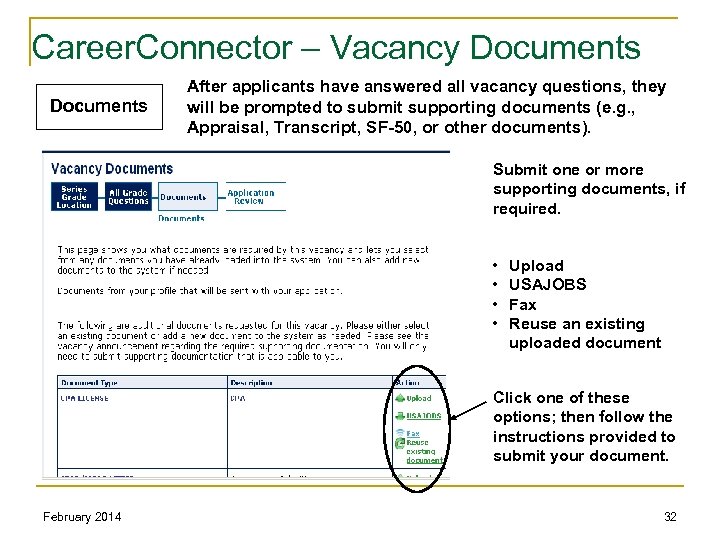
Career. Connector – Vacancy Documents After applicants have answered all vacancy questions, they will be prompted to submit supporting documents (e. g. , Appraisal, Transcript, SF-50, or other documents). Submit one or more supporting documents, if required. • • Upload USAJOBS Fax Reuse an existing uploaded document Click one of these options; then follow the instructions provided to submit your document. February 2014 32
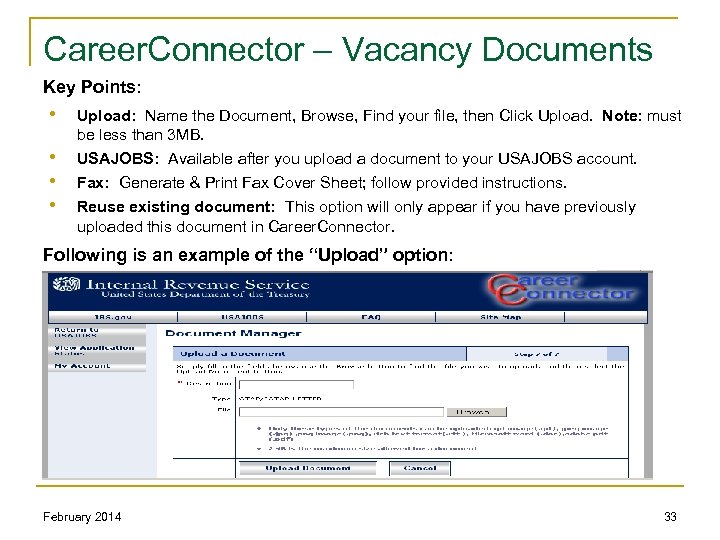
Career. Connector – Vacancy Documents Key Points: • Upload: Name the Document, Browse, Find your file, then Click Upload. Note: must be less than 3 MB. • • • USAJOBS: Available after you upload a document to your USAJOBS account. Fax: Generate & Print Fax Cover Sheet; follow provided instructions. Reuse existing document: This option will only appear if you have previously uploaded this document in Career. Connector. Following is an example of the “Upload” option: February 2014 33
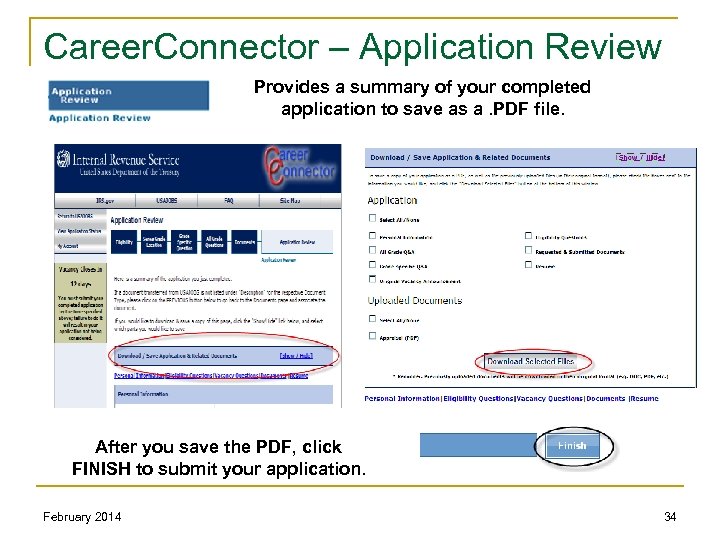
Career. Connector – Application Review Provides a summary of your completed application to save as a. PDF file. After you save the PDF, click FINISH to submit your application. February 2014 34
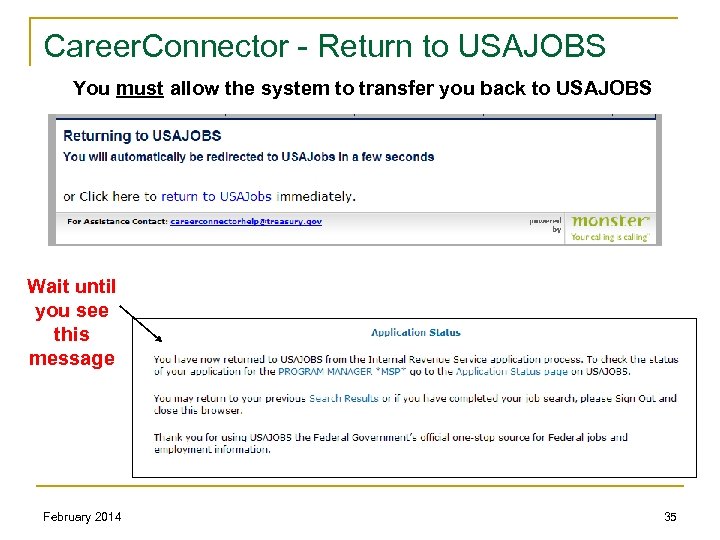
Career. Connector - Return to USAJOBS You must allow the system to transfer you back to USAJOBS Wait until you see this message February 2014 35
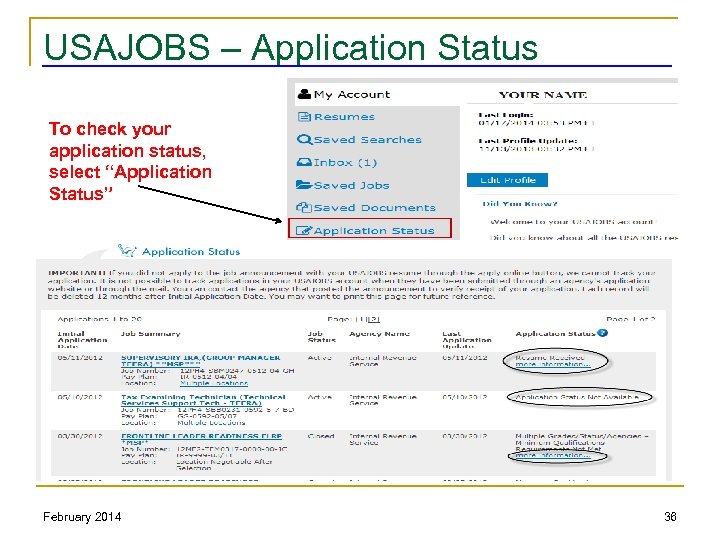
USAJOBS – Application Status To check your application status, select “Application Status” February 2014 36
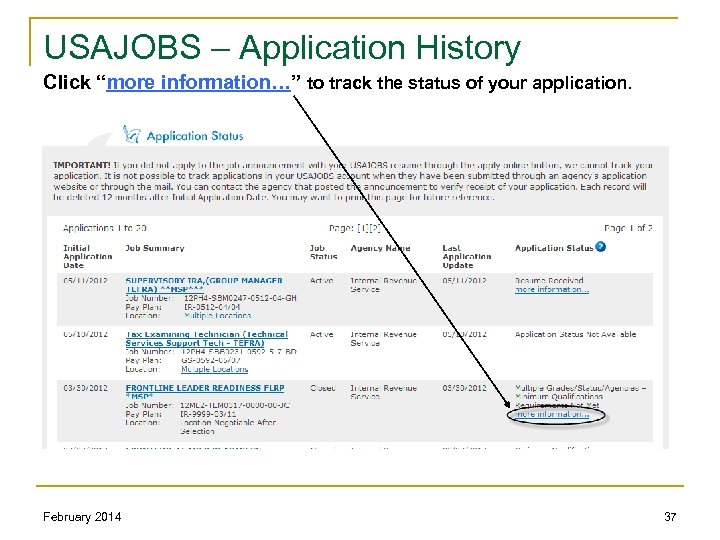
USAJOBS – Application History Click “more information…” to track the status of your application. February 2014 37
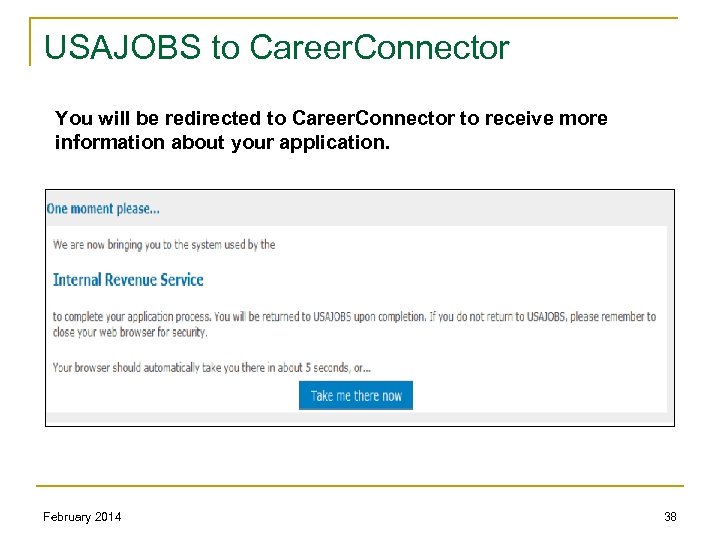
USAJOBS to Career. Connector You will be redirected to Career. Connector to receive more information about your application. February 2014 38
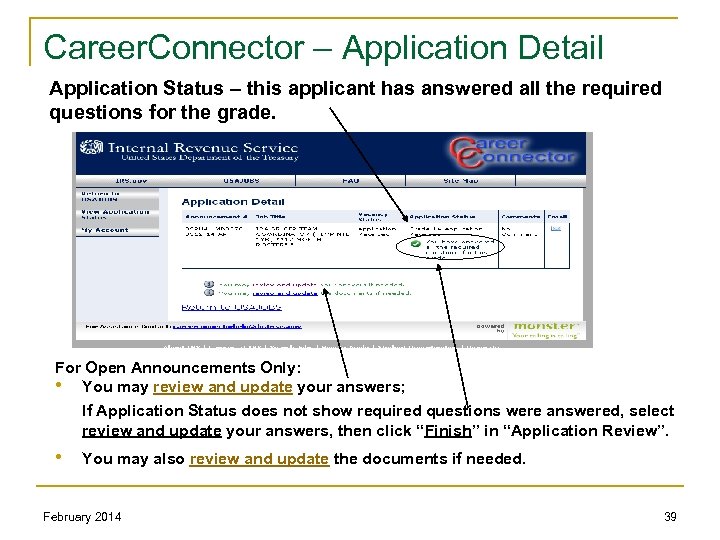
Career. Connector – Application Detail Application Status – this applicant has answered all the required questions for the grade. For Open Announcements Only: • You may review and update your answers; If Application Status does not show required questions were answered, select review and update your answers, then click “Finish” in “Application Review”. • You may also review and update the documents if needed. February 2014 39
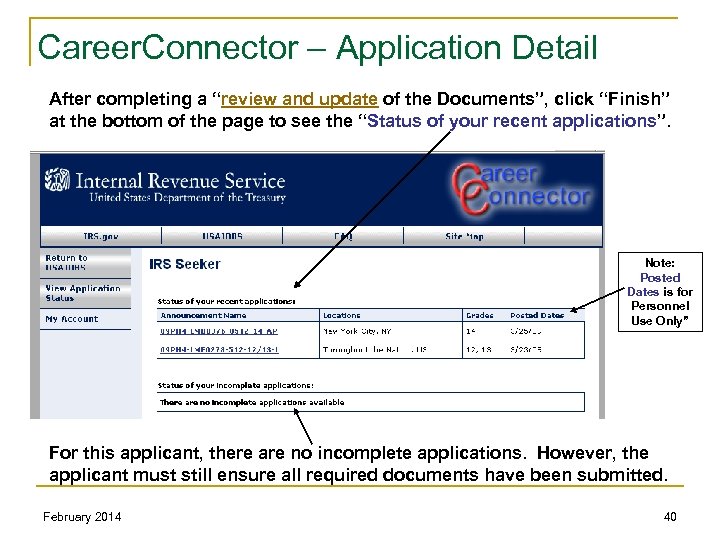
Career. Connector – Application Detail After completing a “review and update of the Documents”, click “Finish” at the bottom of the page to see the “Status of your recent applications”. Note: Posted Dates is for Personnel Use Only” For this applicant, there are no incomplete applications. However, the applicant must still ensure all required documents have been submitted. February 2014 40
USAJOBS/Career. Connector Important: Ensure Timely Submission of Completed Applications All applications must be completed prior to 11: 59 pm EASTERN Time on the closing date of the announcement. If the announcement closes prior to the applicant finishing their application, they will not be able to complete their application. Announcements close at 11: 59 pm Eastern Time, which means: • • 11: 59 pm for Eastern Time 10: 59 pm for Central Time 9: 59 pm for Mountain Time 8: 59 pm for Pacific Time Apply Early to ensure your application is received timely. February 2014 41

Additional Resources ERC - Applying for IRS Jobs Online http: //erc. web. irs. gov/Displayanswers/Question. asp? Folder. ID=3&Category. ID=87 Six Steps to Apply for IRS Jobs Online Using USAJOBS/Career. Connector This is a summary of the application process. http: //hco. web. irs. gov/apps/CCAppl. User. Guide 4/Tools/6 step_ref_internal. pdf Quick Tips - updated periodically as “Lessons Learned” are identified http: //hco. web. irs. gov/apps/CCAppl. User. Guide 4/USAJobs_CC_Quick-Tips. htm USAJOBS Information Center - http: //www. usajobs. gov/infocenter/ IRS Careers Page has additional tools at the links below http: //www. jobs. irs. gov/downloads/Resume. Tips. pdf http: //www. jobs. irs. gov/downloads/Cover. Letter. Tips. pdf Employee Award History page at http: //persinfo. web. irs. gov/indexawd. htm February 2014 42
Additional Resources (cont) ERC - Resume Tools http: //erc. web. irs. gov/Displayanswers/Answer. Type. asp? Question. ID=2207& Sub. Category. ID=0&Category. ID=87&Folder. ID=3 n Line-by-Line Sample MPQ Template This actual Form 9686 Merit Program Questionnaire (MPQ) provides a line by line visual of where MPQ information can be placed in the USAJOBS Resume Builder. n Easy to View MPQ to USAJOBS Resume Builder Comparison This easy to view comparison displays side by side screen shots of each section of the MPQ and corresponding screen shots of the individual sections of the USAJOBS Resume Builder. n Converting an MPQ to USAJOBS Resume Chart This chart is a combination of visual and written instructions, providing more detailed information about the placement of information from an MPQ into the appropriate sections of the USAJOBS Builder. February 2014 43
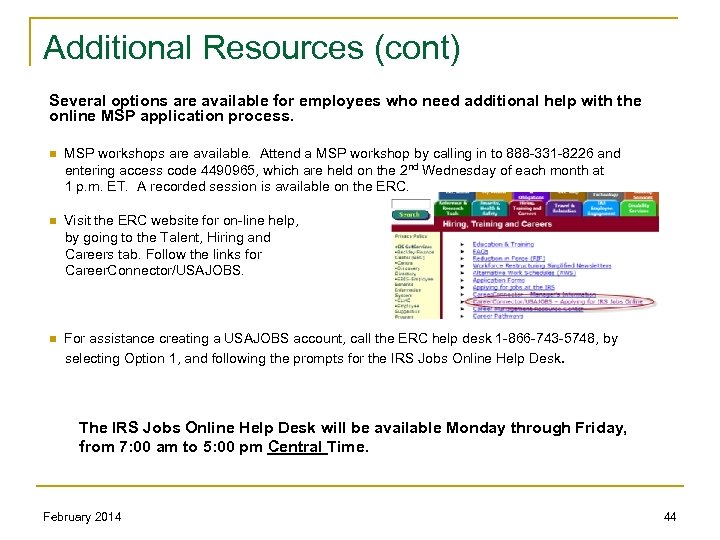
Additional Resources (cont) Several options are available for employees who need additional help with the online MSP application process. n MSP workshops are available. Attend a MSP workshop by calling in to 888 -331 -8226 and entering access code 4490965, which are held on the 2 nd Wednesday of each month at 1 p. m. ET. A recorded session is available on the ERC. n Visit the ERC website for on-line help, by going to the Talent, Hiring and Careers tab. Follow the links for Career. Connector/USAJOBS. n For assistance creating a USAJOBS account, call the ERC help desk 1 -866 -743 -5748, by selecting Option 1, and following the prompts for the IRS Jobs Online Help Desk. The IRS Jobs Online Help Desk will be available Monday through Friday, from 7: 00 am to 5: 00 pm Central Time. February 2014 44

QUESTIONS February 2014 45
Скачать презентацию USAJOBS Career Connector Applicant User Guide February 2014 Prepared
5dec35b795b6eae409c283eb7ca47a23.ppt