 Скачать презентацию Usability Testing Web Design Jan Knight Research
cc1dff3a0a88d796f8b4026b1ba7391a.ppt
- Количество слайдов: 31



Usability Testing & Web Design Jan Knight, Research Specialist Senior 1
LTC Services • Faculty can explore uses of technology in teaching & research • Assist faculty to transform ideas into effective teaching strategies • Implement strategies for enhanced student learning • Serve faculty, TA’s, Colleges, Departments, Administrative departments 2
How we Help • Faculty work area – facilities, hardware & software • Consulting • Workshops • Help Desk for Instructional Tools 3
Services & Tools • • • Instructional Assessment, evaluation & design Graphic Design Usability & Web Design Programming & Database design Audio/Visual Media Services Instructional Tools – D 2 L (Campus wide Course Mgmt System) – Podcasts, Blogs, POLIS, Caucus, Breeze 4
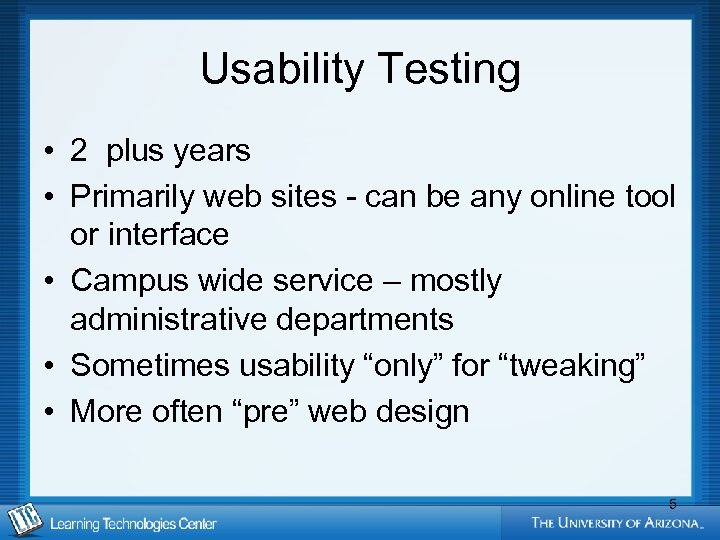
Usability Testing • 2 plus years • Primarily web sites - can be any online tool or interface • Campus wide service – mostly administrative departments • Sometimes usability “only” for “tweaking” • More often “pre” web design 5
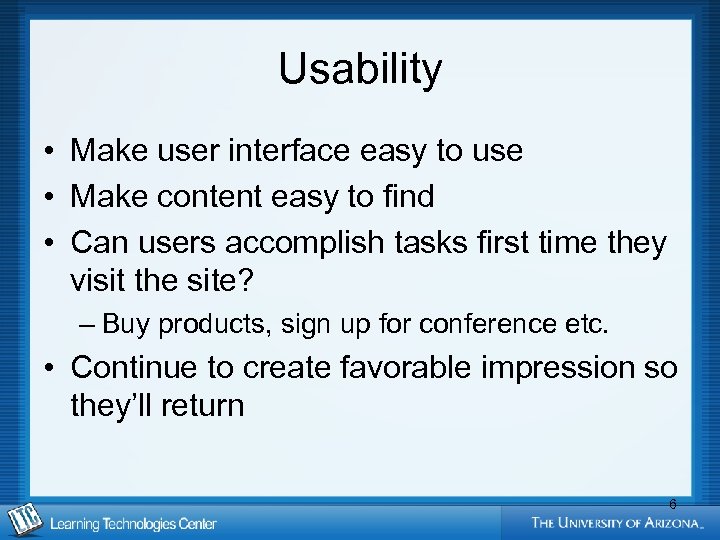
Usability • Make user interface easy to use • Make content easy to find • Can users accomplish tasks first time they visit the site? – Buy products, sign up for conference etc. • Continue to create favorable impression so they’ll return 6
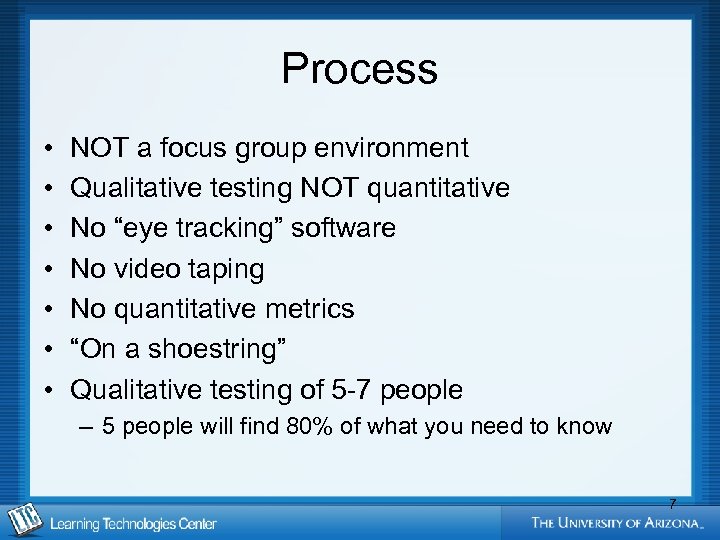
Process • • NOT a focus group environment Qualitative testing NOT quantitative No “eye tracking” software No video taping No quantitative metrics “On a shoestring” Qualitative testing of 5 -7 people – 5 people will find 80% of what you need to know 7
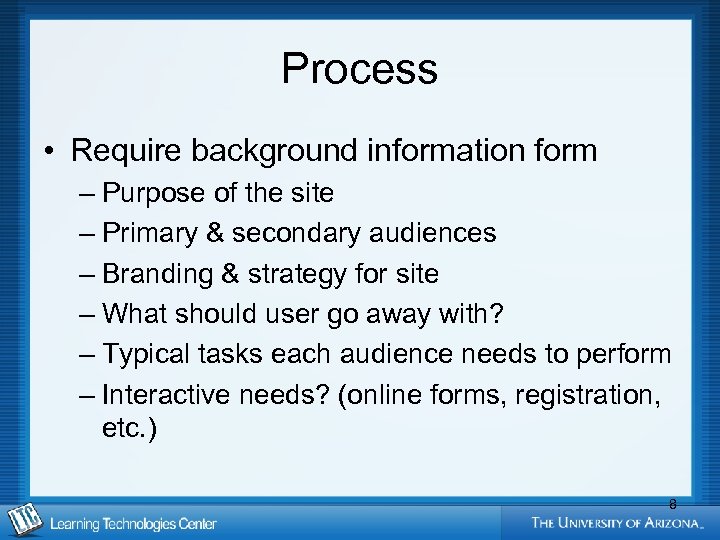
Process • Require background information form – Purpose of the site – Primary & secondary audiences – Branding & strategy for site – What should user go away with? – Typical tasks each audience needs to perform – Interactive needs? (online forms, registration, etc. ) 8
Subjects • Enlist subjects per demographics of audiences (from campus) • Typically not familiar with the site • 2 or 3 for each audience • Technical skills vary • Schedule one-on-one meetings • 45 minutes approximately • Incentives for participation 9
Process (cont) • If “tweaking” site - ask to accomplish typical tasks • Document how easy, where look, what say, confidence level • If redesign – make more general • Browse around. General questions 10
Process (cont) • Sit with tester one-on-one – (Ask, Observe, Note taker) • Introduce role/scenario of user • Before showing site introduce the concept/need of the site • Ask for keywords, phrases that come to mind • Look at home page & test “expectations” of navigation labels 11
Process (cont) • “Speak Aloud Protocol” • Observe mouse movement, listen • Be neutral when asking questions 12
Process (cont) • General questions – – Now you know site & function, what top things would you use the most? – What’s missing? – General comments re: layout, design, colors, features, photos etc. 13
Usability Report & Presentation • • Present to: client, stakeholders, designers Document methodology Include “background information” sheet Include ADA (accessibility) testing report or general info on accessibility Categorize findings “Issues” & “Recommendations” Expectation of Labels –suggestions for new labels Include input from Interface Design review 14
Usability Guidelines • Structure site to mirror users’ tasks - not the way the organization is structured • Keep copy brief & scannable • Make sure pages load quickly (1 second) • Avoid “irritations”- splash pages, animation • Photos --Users connect with photos of “real” people –looking at them • Alert users of format & size of download – Rules & Regulations Checklist [PDF 62 K] • Include Adobe Reader link on page or site 15
Usability Guidelines (cont) • Link Colors: – Unvisited links blue and visited links red/purple. Helps users know what they’ve visited & aids task accomplishment • People Links: - People expect information “about the person” (e. g. a bio) not an email to “communicate with them” - Link to short bio instead 16
Usability Guidelines (cont) • Online forms for membership, registration or donations – Provide formats for dates, credit cards etc. • Dates - mm/dd/yyyy – Make it clear & easy what to type – Use clear drop down menus for options – Asterisk or color code mandatory fields – Confirm “submit” with immediate page 17
Usability Guidelines (cont) Hyperlinks on page NO “Click Here for information on volunteer opportunities” YES “Be sure to check out our volunteer opportunities. 18
Writing for the Web • People don’t read…. . they scan • Provide scannability – Bullets, short blocks of text, headers, subheads, bolding, links • Don’t underline (looks like links) • Don’t capitalize everything • Avoid too many different fonts • Keep key text “above the fold”-avoid long scrolls • Write for “your” audiences – not jargon 19
Web Design Process • Background information sheet – Branding, purpose, audiences…… • Usability testing findings • Stakeholder questions findings • Client input 20
Web Design Process (cont) • Current site – review current “content chunks” • Decide what to keep, toss, add • Card Sorting? • Information Architecture • Draft site map – Word doc, flow chart – Review how many levels deep 21
Web Design Process (cont) • Review navigation labels/terms • Functional headings: resources, membership • Audience headings: students, staff, parents • Outline copy needed for each part • Assign personnel on client side (write/edit) 22
Branding your site • Consistency of design & with other materials • Logo & tagline consistency • Language – keep simple, clear • Look & feel match image want to convey • Create an emotion • Be memorable 23
Web Site “stickiness” • • Create a site people want to return to Maintain up to date content Put updated news on home page Provide useful resources so users think of you as “key” resource on a topic Get people involved in activities Create forums for discussion Educate through quizzes Children’s sites – games 24
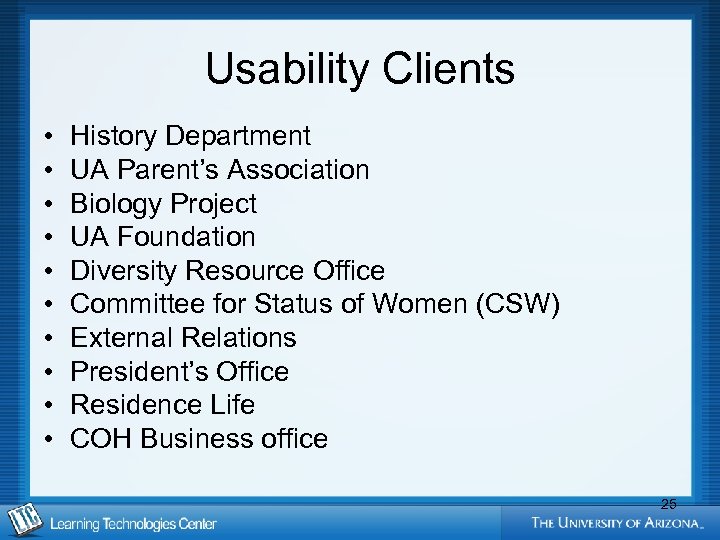
Usability Clients • • • History Department UA Parent’s Association Biology Project UA Foundation Diversity Resource Office Committee for Status of Women (CSW) External Relations President’s Office Residence Life COH Business office 25
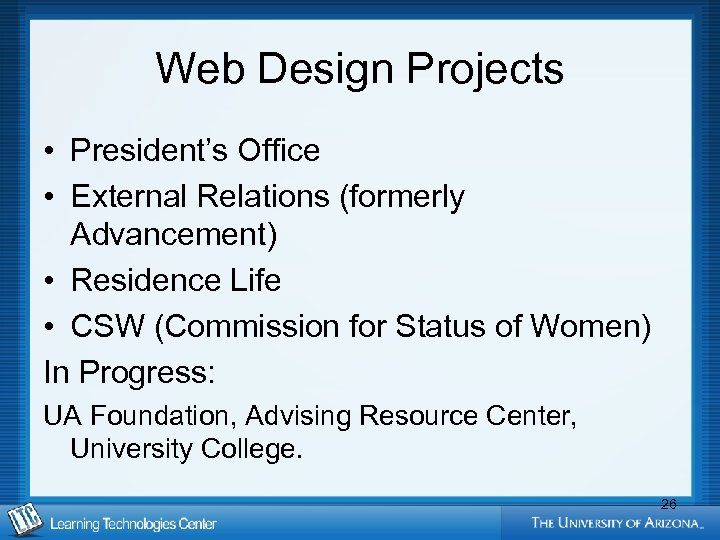
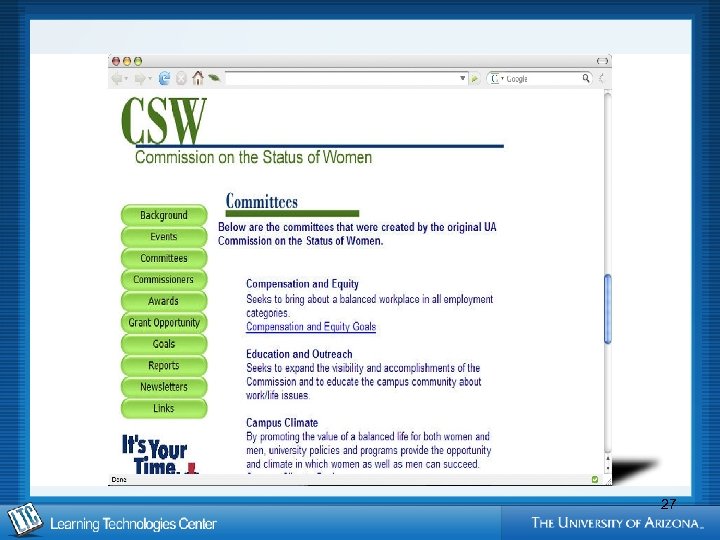
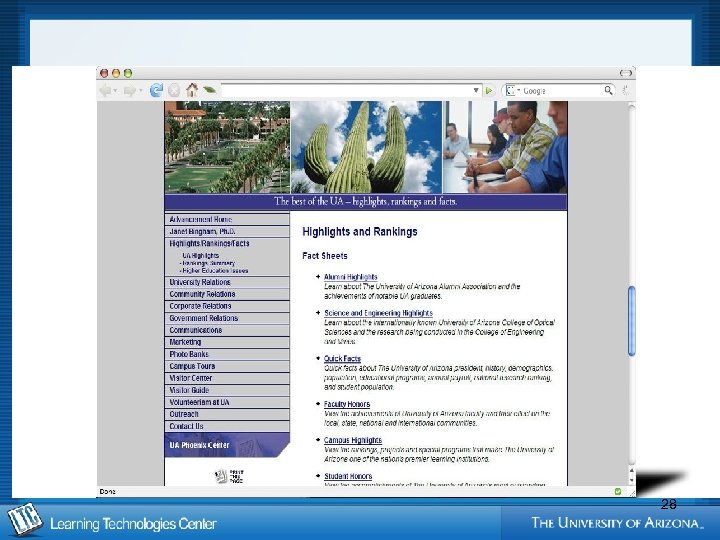
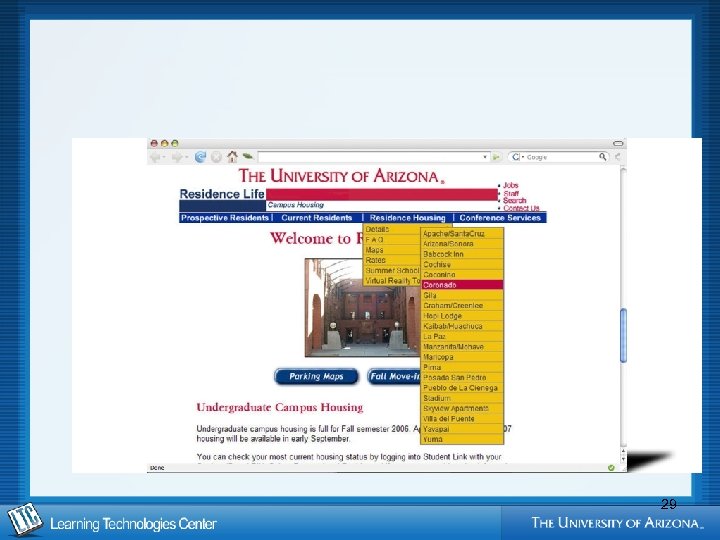
Web Design Projects • President’s Office • External Relations (formerly Advancement) • Residence Life • CSW (Commission for Status of Women) In Progress: UA Foundation, Advising Resource Center, University College. 26
27
28
29
Usability/Accessibility Resources • Usable Web http: //usableweb. com/ • Useit. com: Jakob Neilsen’s Website http: //useit. com • Web. Style Guide www. webstyleguide. com/ • Web. AIM-Web Accessibility in Mind www. webaim. org • Accessibility Evaluation Tools www. webaim. org/articles/tools/ 30
How We Can Help You: Building Course & Faculty Websites Training and Support for Course Management Tools Assessment and Evaluation Instructional Design Instructional Blogging Usability Testing for Websites Database/Programming Support Emerging Technologies Adapting Open Source Applications Graphic Design Services for Instructional Purposes Audio and Video Services for your classes Database and Programming Support Jan Knight Research Specialist, Senior 520 -626 -1315 jknight@email. arizona. edu www. ltc. arizona. edu 31
Скачать презентацию Usability Testing Web Design Jan Knight Research
cc1dff3a0a88d796f8b4026b1ba7391a.ppt