


 Скачать презентацию Upgrading from Exchange Server 2003 to Exchange Server
e8c80a33480f0ca86b8181702345903b.ppt
- Количество слайдов: 69
 Upgrading from Exchange Server 2003 to Exchange Server 2010 Christian Schindler Senior Consultant Microsoft Certfied Master – Exchange Server 2007 NTx Back. Office Consulting Group Austria
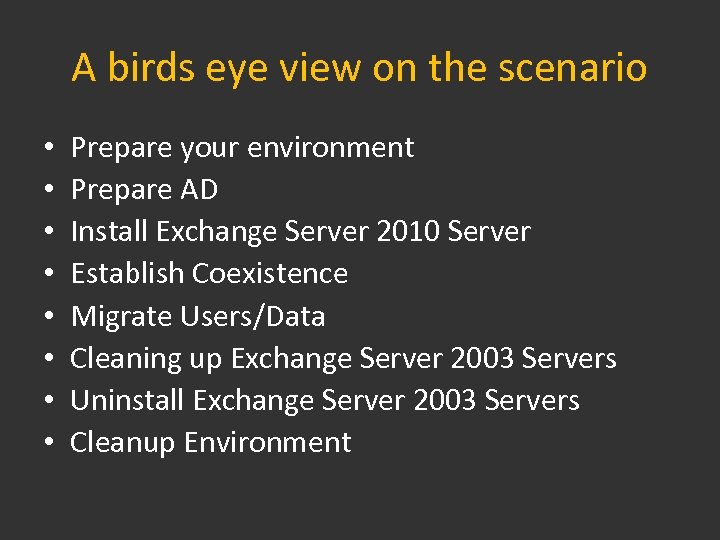 A birds eye view on the scenario • • Prepare your environment Prepare AD Install Exchange Server 2010 Server Establish Coexistence Migrate Users/Data Cleaning up Exchange Server 2003 Servers Uninstall Exchange Server 2003 Servers Cleanup Environment
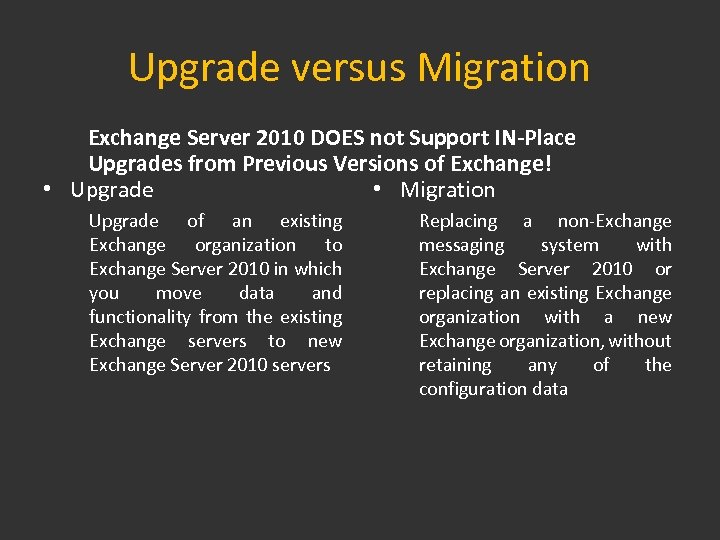 Upgrade versus Migration Exchange Server 2010 DOES not Support IN-Place Upgrades from Previous Versions of Exchange! • Upgrade • Migration Upgrade of an existing Exchange organization to Exchange Server 2010 in which you move data and functionality from the existing Exchange servers to new Exchange Server 2010 servers Replacing a non-Exchange messaging system with Exchange Server 2010 or replacing an existing Exchange organization with a new Exchange organization, without retaining any of the configuration data
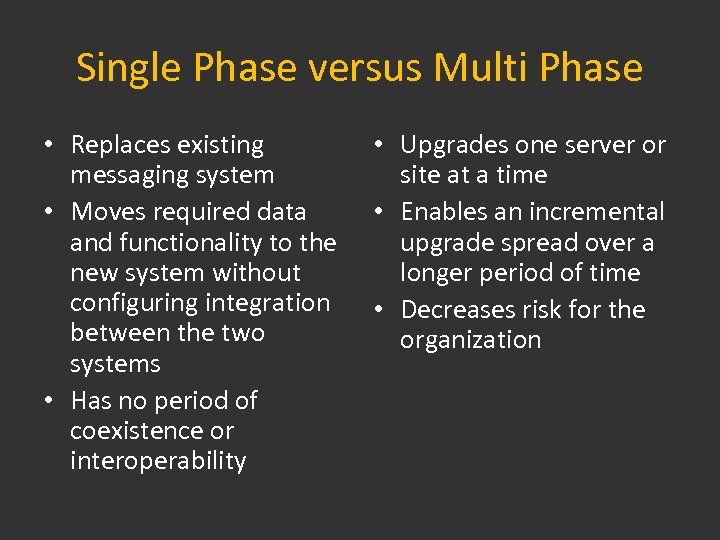 Single Phase versus Multi Phase • Replaces existing messaging system • Moves required data and functionality to the new system without configuring integration between the two systems • Has no period of coexistence or interoperability • Upgrades one server or site at a time • Enables an incremental upgrade spread over a longer period of time • Decreases risk for the organization
 Keep in mind… • Exchange 2010 doesn‘t use – Administrative Groups (AG) – Routing Groups (RG) – Link State Routing • During AD Preparation, a new Administrative Group and Routing Group will be created – Only there for Interoperability – ALL Exchange 2010 Servers will be members in this AG/RG
 PREPARING THE ENVIRONMENT
 Active Directory Prereqs • Schema Master must be Windows Server 2003 SP 2 or higher • Global Catalogs must be Windows Server 2003 SP 2 or higher • Forest Functional Level must be Windows Server 2003 or higher • Do I have to mention that DNS needs to work?
 Exchange Prereqs • Exchange Server 2003 SP 2 minimum • NO Support for Exchange 2000 • Can upgrade from a mixed Exchange 2003/2007 Organization
 Fixup Objectnames • Exchange 2007 and 2010 are very strict when it comes to object naming for – Aliases and Displaynames • Beware of – Special characters (@, space, etc. ) – Leading and trailing spaces in Public Folder Displaynames • Use Powershell or Scripting for fixup – Need Exchange Managment Shell installed! – FIXALIAS. PS 1 to replace special characters – TRIMPFNAMES. PS 1 to delete leading and trailing spaces on Public Folder Names
 Disable Link State Routing • Required if you have more than one Routing Group • Failure to do so may result in routing loops • Must be done on every Exchange 2003 Server • Use instructions in this Article to disable it: http: //technet. microsoft. com/enus/library/aa 996728. aspx
 Create additional Routing Group Connectors (RGC) • Only applicable if you have more than one Routing Group • Introduce additional RGCs as a shortcut for message routing • Beware of Linkstate Islands!
 Maintain connectivity for Outlook 2003 • Exchange 2010 by default requires MAPI encryption • In Outlook 2003 it is not enabled by default! • Either – Disable the requirement on the serverside – Enable encryption on the client RECOMMENDED! • Use GPO to rollout the change – Use an ADM Template http: //support. microsoft. com/kb/2006508 – Use GPO Preferences (recommended)
 Kerberos Client Connectivity with CASARRAYS… • CASARRAYS don‘t support KERBEROS authentication (at least for now) • If you plan to use CASARRAYS, make sure Outlook Clients use Negotiation or NTLM – Use GPO to rollout the change
 -Disable Link State Routing -Enable MAPI Encryption for Outlook 2003 -Configure Outlook Client authentication Methods LAB
 PREPARING ACTIVE DIRECTORY
 In General… • All of the following tasks need to – Be run on a x 64 machine – Require Windows Powershell 2. 0 – Be run on a machine which is in the same site and the same domain as the Schema Master – As always, wait for replication to finish before you start the next step… • For detailed information about what happens, visit http: //technet. microsoft. com/enus/library/bb 125224. aspx
 Step 1: Prepare. Legacy. Exchange. Permissions! • Upgrade needed before Schema Extension – Failure to do so would break RUS! • Use „Setup /Prepare. Legacy. Exchange. Permissions“ or „Setup /pl“ to prepare ALL Domains! – Specify „Domain FQDN“ to prepare only one Domain – Need to be member of Enterprise Admins for this! • Will automatically be done by the next step if you forgot…
 Step 2: Extend the Schema • Exchange 2010 Setup will import differences to Exchange 2003 schema only • Use „setup /Prepare. Schema“ or „setup /ps“ – Need to be Schema and Enterprise Admin! • Manual import of LDIF Files not supported! • Will automatically be done by the next step if you forgot…
 Step 3: Preparing AD for Exchange 2010 • Preparation will – Create a new Administrative Group and Routing Group • Exchange Administrative Group (FYDIBOHF 23 SPDLT) • Exchange Routing Group (DWBGZMFD 01 QNBJR) – Create some other containers… – Create the „Microsoft Exchange Security Groups“ OU in the Root Domain • Create Groups inside this OU – Prepare the local domain • Use „Setup /Prepare. AD“ or „Setup /p“ – Need to be Enterprise Admin!
 Step 4: Preparing Domains • Need to prepare a Domain if you plan to – Want to create recipients in that domain – Install Exchange Servers in that domain • Will Assigns permissions at the domain level • Use „Setup /Prepare. Domain“ or „Setup /pd“ – Need to specify „Domain FQDN“ – Need to be Domain Admin – Use /Prepare. All. Domains to prepare all Domains in one step…
 -Prepare AD for Exchange Server 2010 (All Steps) LAB
 INSTALLING EXCHANGE SERVER 2010 SERVERS
 Order for Installing Exchange Server 2010 Roles • Deploy Exchange Server 2010 Servers in the following order – Client Access – Hub Transport – Mailbox Server – Unified Messaging • Deploy Edge Transport at any time • Upgrade Internet accessible Sites first • Implement one Active Directory site at a time
 Installing the first HUB/CAS Server • Need to specify Exchange 2003 Source Server – Setup will create a Routing Group Connector between 2003<->2010 Routing Groups • Can specify external Name of CAS Services – E. g. FQDN used to access OWA, Active. Sync, etc.
 After the installation of HUB/CAS… • Inbound Mail Routing – Exchange 2003 -> RGC -> Exchange 2010 • Outbound Mail Routing – Exchange 2010 -> RGC -> Exchange 2003 • Client Access – Not completely established yet • Create a Client Access Array – Even if you don’t plan for HA, it’s an investment in the future… – Databases on all newly installed MBX Servers will use the CASARRAY as endpoint
 -Install HUB and CAS Role on HC 1 -Creating a CASARRAY LAB
 Installing the first Mailbox Server • Setup will create two new Databases – Mailbox Database – Public Folder Database • Possible to specify the Path and Name of these Databases – Must run Setup from the command line to be able to do so… • If you created a CASARRAY before, DB’s will point to it…
 -Install MBX Role on MBX 1 -Fixup Contacts and Public Folders LAB
 ESTABLISHING COEXISTENCE
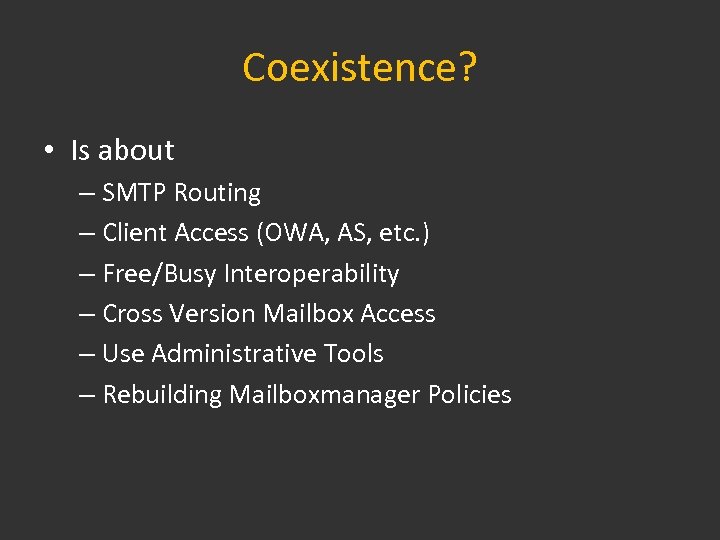 Coexistence? • Is about – SMTP Routing – Client Access (OWA, AS, etc. ) – Free/Busy Interoperability – Cross Version Mailbox Access – Use Administrative Tools – Rebuilding Mailboxmanager Policies
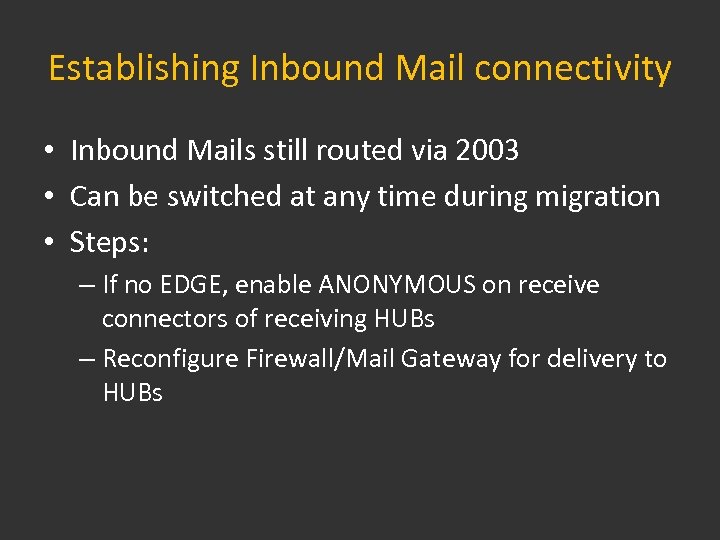 Establishing Inbound Mail connectivity • Inbound Mails still routed via 2003 • Can be switched at any time during migration • Steps: – If no EDGE, enable ANONYMOUS on receive connectors of receiving HUBs – Reconfigure Firewall/Mail Gateway for delivery to HUBs
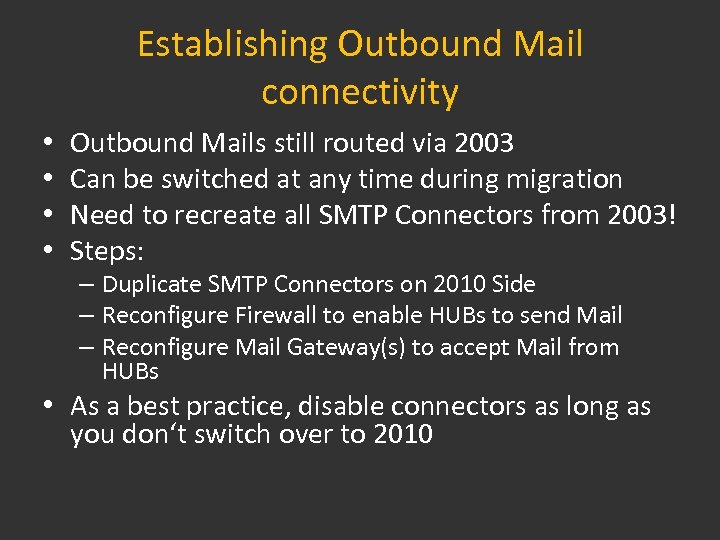 Establishing Outbound Mail connectivity • • Outbound Mails still routed via 2003 Can be switched at any time during migration Need to recreate all SMTP Connectors from 2003! Steps: – Duplicate SMTP Connectors on 2010 Side – Reconfigure Firewall to enable HUBs to send Mail – Reconfigure Mail Gateway(s) to accept Mail from HUBs • As a best practice, disable connectors as long as you don‘t switch over to 2010
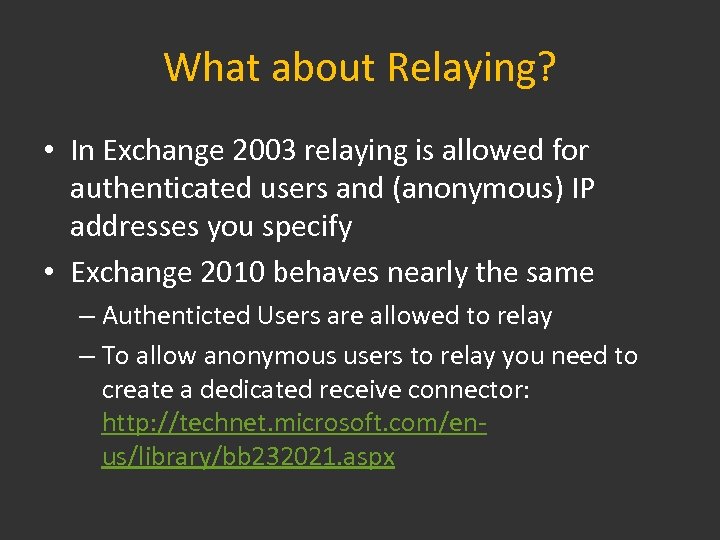 What about Relaying? • In Exchange 2003 relaying is allowed for authenticated users and (anonymous) IP addresses you specify • Exchange 2010 behaves nearly the same – Authenticted Users are allowed to relay – To allow anonymous users to relay you need to create a dedicated receive connector: http: //technet. microsoft. com/enus/library/bb 232021. aspx
 Migrating Relaying-Settings • If you have a large number of IP Addresses, adding them by hand is cumbersome and error prone • Use EXIPSECURITY. EXE to export IP Addresses • Then use Powershell to read the file and use the IP Addresses when creating the relaying receive connector
 -Configuring Inbound Mail Flow -Duplicating Connectors -Migrating Relaying Settings LAB
 Using new Transport Features • Exchange 2010 introduces a several new features – Transport Rules – Moderated Transport – Etc. • If you want to use them during coexistence, there might be unpredictable results… – Exchange 2003 doesn‘t know of new features – Use “Expansion Server” Property for this
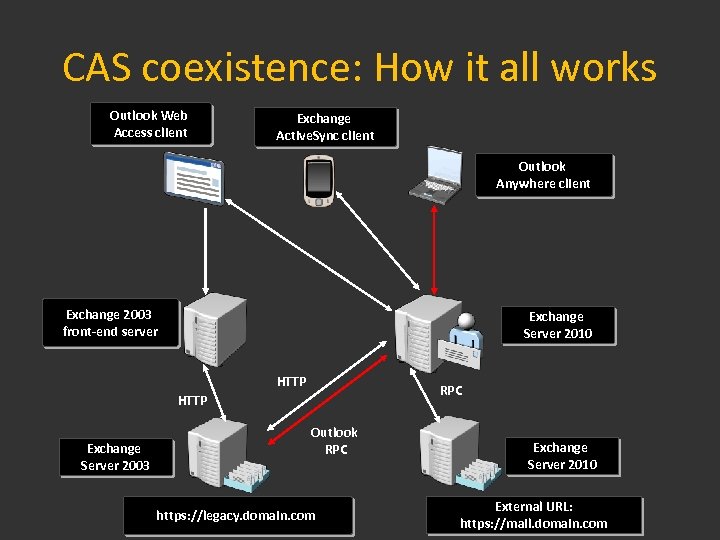
 Client Access coexistence • CAS 2010 will be the primary endpoint • Will redirect OWA users to 2003 – Need to specify a redirection URL – Use „Set-OWAVirtual. Directory –Identity „HC 1owa (Default Web Site)“ –Exchange 2003 URL https: //legacy. domain. com/exchange“ – Need to install a new certificate for redirection url • Will proxy traffic for Active. Sync and Outlook Anywhere • Configure DNS with new(legacy) Name • Remove the Exchange 2003 from the RPC over HTTP configuration
 CAS coexistence: How it all works Outlook Web Access client Exchange Active. Sync client Outlook Anywhere client Exchange 2003 front-end server Exchange Server 2010 HTTP RPC HTTP Exchange Server 2003 Outlook RPC https: //legacy. domain. com Exchange Server 2010 External URL: https: //mail. domain. com
 -Establishing Client Access Coexistence -Request a new Certificate -Configure OWA Redirection URL LAB
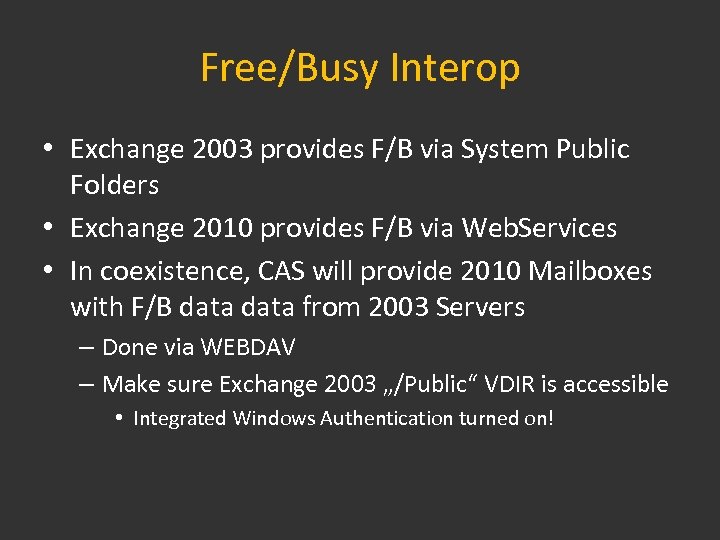 Free/Busy Interop • Exchange 2003 provides F/B via System Public Folders • Exchange 2010 provides F/B via Web. Services • In coexistence, CAS will provide 2010 Mailboxes with F/B data from 2003 Servers – Done via WEBDAV – Make sure Exchange 2003 „/Public“ VDIR is accessible • Integrated Windows Authentication turned on!
 Cross Version Mailbox Access • Mailboxes on different Exchange Server versions can be opened in Outlook • Best Practice is to move both at the same time – Manager & Delegate, etc.
 Administrative Coexsistence • Exchange 2010 lacks AD Users & Computers Integration – EVERYTHING must be done from Powershell or EMC • Best Practice – Use Exchange 2010 Tools for 2010 Admin Tasks – Use Exchange 2003 Tools for 2003 Admin Tasks • If you accidentialy (? ) create new mailboxes on 2010 with 2003 Tools… – Attributes are missing – Use –Apply. Mandatory. Attributes in Powershell
 Offline Address Books • Exchange 2010 introduces some new features for the OAB • If you want to use them, move the OAB Generation to a 2010 MBX Server – Make sure you have Public Folder Store on this Server to support Outlook 2003 users! • As long as the OAB generation is on 2003, Outlook 2007+ will use Public Folders for OAB access
 Rebuilding Mailboxmanager Policies • Exchange 2010 don‘t have Mailboxmanager Policies – The replacement is Managed Folders Mailbox Policies • Recreate Mailboxmanager Policies as Managed Folder Mailbox Policies(MFMP) in 2010 – Keep in mind that if you apply a MFMP to a mailbox you cannot enable the archive! – MFMP and Retention Policies are mutually exclusive!
 -Move Offline Address List Generation to Exchange Server 2010 -Recreating Mailboxmanager Policies LAB
 REPLICATING PUBLIC FOLDERS AND MOVING MAILBOXES
 Public Folder Replication • Hierarchy Replication should automatically start as soon as you install a mailbox server • Content Replication must be manually set – Use Move. All. Replicas. PS 1 for Single-Phase upgrades – Use Add. Replica. To. Pf. Recursive. PS 1 for Multi-Phase upgrades • Possible to use ESM for the Job – Work in Batches – don‘t replicate all folders at the same time
 Moving Mailboxes • Move Mailbox has changed in 2010 – We use „Move Requests“ • CAS is responsible of moving the data – No more scheduling – Reports a generated by CAS and stored in a special Mailbox • Keep in mind that the Dumpster is not retained! – If you move Mailboxes from 2010 to 2010, dumpster will be retained!
 Move Mailbox Best Practices • Check for Store Quotas on both sides – A Mailbox won‘t move if it doesn‘t „fit“ into the target store… • Test Mailbox Move – Use –Validate. Only Switch in Powershell • Move in Batches • Have a look at transaction logs – SIS is no longer there!
 -Add Public Folder Replicas to Exchange Server 2010 -Move all Mailboxes LAB
 CLEANING UP EXCHANGE SERVER 2003 SERVERS
 Cleanup Servers? • Before you can uninstall Exchange 2003, you need to move everything associated with the specific server to another server – Recipient Update Service – Public Folders – Connectors – Inbound Mail Routing(if not already done) – Move Public Folder Hierarchy
 Prior to moving Public Folders • First compare the contents! – Use the „Export List…“ Function in ESM to get a CSV File of Public Folders on 2003 Server – Use Powershell to get a CSV File of Public Folders on a Exchange 2010 Server – Then use EXCEL to normalize the data and compare the ITEM COUNT! • Size is not comparable… – There also a lot of scripts out there for this task
 Move Public Folders • To move all at a time either use – ESM „Move All Replicas“ on the 2003 PF Store – Use „Move. All. Replicas. PS 1“ Script on 2010 • To move in batches use the same technique as you used to add replicas… – Powershell Scripts in $EXSCRIPTS Folder – ESM
 -Remove Public Folder Replicas from Exchange Server 2003 LAB
 Remove/Move Recipient Update Services • Domain RUS – If you need to keep the RUS, just change the Exchange 2003 Server it points to… – If it is save to remove, delete the RUS • Enterprise RUS can‘t be deleted in ESM – Use ADSIEDIT – at the END OF THE UPGRADE PROCESS!
 -Remove Domain Recipient Update Services LAB
 Delete Connectors… • As soon as you switched your Inbound/Outbound Mail Routing to 2010 – Analyze Mailflow before deleting Connectors • Remove RCG only if you plan to remove the corresponding servers • Also might need to designate a new Routing Group Master…
 -Remove SMTP Connectors -Remove RGC LAB
 Move Public Folder Hierarchy • The „Public Folders“ Object needs to be moved to the Exchange 2010 Administrative Group – Use ESM to create a „Folders“ Container – Drag & Drop the Hierarchy Object
 UNINSTALL/REMOVE EXCHANGE SERVER 2003 SERVERS
 Order for Uninstalling • Remove/Uninstall Exchange Server 2003 Servers in the following order – Backend Server – Bridgehead Server – Frontend Server
 Removing Exchange Server 2003 Servers • Either use Uninstall from the Control Panel – Requires E 2003 Sources (CD) • Use the „Remove Server“ Option in ESM – Need to stop all Services/Shutdown Machine • To remove a Cluster – Take all Exchange Resources except Networkname and IP offline – Select “Remove Exchange Virtual Server” in CLUADMIN
 Issues when removing Exchange 2003 • Public Folders don‘t replicate correctly – Instances left over in PF Store – If the data is consistent on both sides, use ADSIEDIT to remove the PF Store(dismount first) • Users are still having mailboxes on the server – Although you moved all of them… – Search for „ms. Exch. Home. Server. Name=*
 Making sure Outlook gets redirected to the new Server • Everyone‘s Outlook will connect to the old Server first – Will get redirected to the new server • When you remove the server before everyone‘s outlook is updated this wont happen so either: – Leave the server in place until all clients are updated – Create an Alias in DNS for the old server name an point it to a 2010 CAS(!) – Use Scripting to update client profiles – Put on your sneakers and…
 -Removing Exchange Server 2003 Servers BE 1, BE 2 and FE LAB
 CLEANUP THE ENVIRONMENT
 Converting LDAP Filters in Objects • Exchange 2010 use OPATH format in Administrative Tools instead of LDAP • Need to convert Objects to be able to edit them – Address Lists – Recipient Policies – Dynamic Distribution Groups • Convert it with the Shell… • When Converting Recipient Policies, you need to deactivate Mailboxmanager settings in ESM
 Removing Exchange Server 2003 Permissions and Groups • After you finished the upgrade, remove Exchange Server 2003 Permissions in the domain – Remove Permission for „Exchange Enterprise Servers“ from the Root of the Domain – Then safely delete the group • Delete the „Exchange Domain Servers“ Group