


 Скачать презентацию Unix Shell Scripting Introduction to Unix The File
43d9911228365b6f65051a86d8605ca9.ppt
- Количество слайдов: 140
 Unix Shell Scripting Introduction to Unix The File System in Unix Pipes and Filters Editors Shell Programming – II Additional Exercises
 Introduction to UNIX Define OS and its functionalities Evolution and Structure of UNIX Usage of simple UNIX commands Usage of directory commands Usage of file commands Lab Exercises
 The File System in UNIX Directory Hierarchy Input/Output Redirection Wild Card Patterns Environmental Variables Additional Commands File Access Permissions Lab Exercises
 Pipes and Filters Introduction to Pipes and Filters Usage of sort and grep commands Usage of other filters Usage of Pipes and Filters together Lab Exercises
 Editors Introduction to the VI editor Getting started with the VI editor Usage of some editing commands Lab Exercises
 Shell Programming – I Introduction to Shell Scripts Features offered by Shell Programming Language Constructs Lab Exercises
 Shell Programming – II Advanced features of Shell Advanced Programming Language Constructs Background Processing Lab Exercises
 Introduction to Unix Define an Operating System and identify its functionalities - Definition - Functions n n Command Interpreter Peripherals Manager Memory Manager Process Manager - Types of Operating Systems n n Single User Multi User
 Define an Operating System A software program designed to act as an interface between a hardware and the user. It controls the hardware, manages system resources and supervises interaction between the system and its users.
 Functions of Operating System Command Interpreter The Operating System interprets command typed in by the user and translates it to a machine language and vice versa, translates the results of the command . Peripherals Manager The Operating System manages the devices attached to the system. Inputs are the input devices like keyboard, mouse, card readers are taken and the result of the command is printed to output devices like printers, VGA etc. This I/O management is Peripherals Management Memory Manager The processes running on a system require memory (RAM) to perform the tasks which they are intended to. The OS determines the allocation of memory for the processes based on the importance of the process. Process Manager The amount of time spent on a process by a CPU is managed by the OS.
 Types of Operating Systems Single user As the name portrays only one user at any single point of time. Multi User Multiple users can perform operations on the OS at a singe point of time.
 Evolution and Structure of Unix w Stage I: Pre 1969 w Stage II: In 1969 CSRD of Bell Labs used GE’s Mainframe 645 with an OS called MULTICS. This had the disadvantage of retaining the code of the previous OS therefore it was slow. w Stage III: Ken Thompson was working on an experiment called “Space Travel” and wanted a faster OS, so wrote and OS called Unix in Assembly Language, but the disadvantage was that the OS could not be ported. Ken Thompson developed a language B to include portability. . this was later renamed to C by Dennis Ritchie. w State IV: In 1980 UNIX was completely rewritten in C and then evolved on the greatest OS in history UNIX (Uniplexed Information and Computing Service)
 Structure of Unix OS consists of two parts - Kernel : Core of the Unix OS. It interacts with the hardware. It is loaded into memory when the system is booted. Its functions are - Managing the system resources Allocating time and for users and processes Managing process priorities and performing them.
 Structure of Unix - Shell: It interacts with kernel and the user. It has the following features: - Interactive Processing Background Processing Input / Output redirection Pipes Wild Card Patterns Shell Scripts Shell Variables Programming language constructs
 Types of Shell Bourne Shell (sh) -- This shell does not have the interactive facilities provided by modern shells such as the C shell and Korn shell. C Shell (csh) -- It provides a C-like language with which to write shell scripts - hence its name. Korn Shell (ksh) -- It provides all the features of the C and TC shells together with a shell programming language similar to that of the original Bourne shell. Bash Shell(bash) -- Bash provides all the interactive features of the C shell (csh) and the Korn shell (ksh). Its programming language is compatible with the Bourne shell (sh).
 Usage of Simple Unix Commands n n n n date - Command to display and edit system date who - Command to fine out who logged into the system who am i – Command to display who you are logged in as w - Command to display who is doing what man - Command to display manual pages of Unix commands head – Command to display the first “n” lines in a file tail - Command to display the last “n” lines in a file
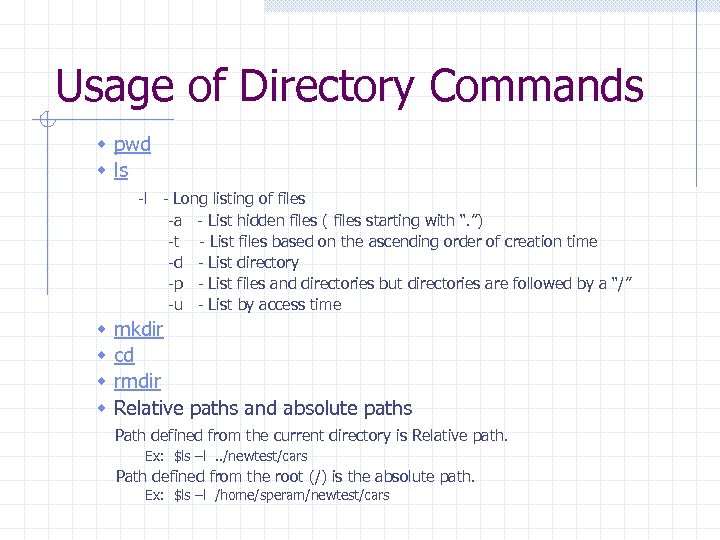 Usage of Directory Commands w pwd w ls -l - Long listing of files -a - List hidden files ( files starting with “. ”) -t - List files based on the ascending order of creation time -d - List directory -p - List files and directories but directories are followed by a “/” -u - List by access time w w mkdir cd rmdir Relative paths and absolute paths Path defined from the current directory is Relative path. Ex: $ls –l. . /newtest/cars Path defined from the root (/) is the absolute path. Ex: $ls –l /home/speram/newtest/cars
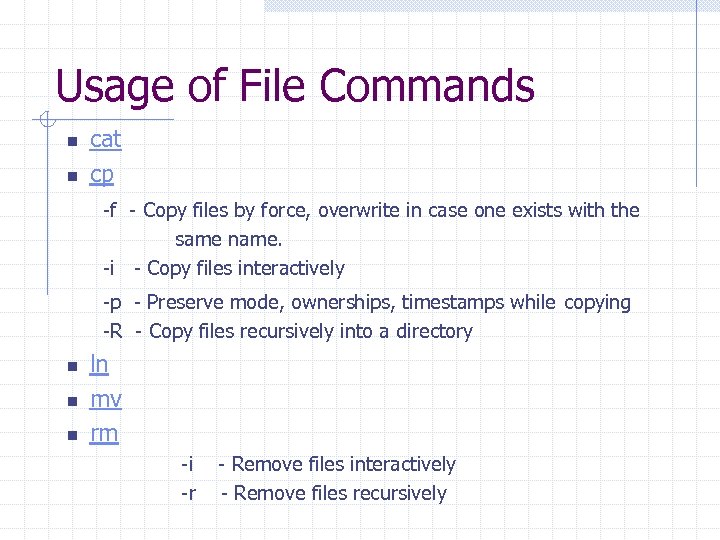 Usage of File Commands n n cat cp -f - Copy files by force, overwrite in case one exists with the same name. -i - Copy files interactively -p - Preserve mode, ownerships, timestamps while copying -R - Copy files recursively into a directory n n n ln mv rm -i -r - Remove files interactively - Remove files recursively
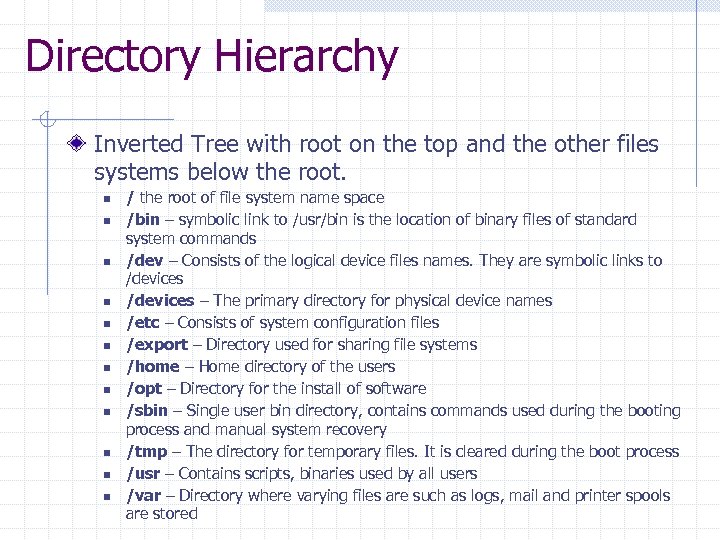 Directory Hierarchy Inverted Tree with root on the top and the other files systems below the root. n n n / the root of file system name space /bin – symbolic link to /usr/bin is the location of binary files of standard system commands /dev – Consists of the logical device files names. They are symbolic links to /devices – The primary directory for physical device names /etc – Consists of system configuration files /export – Directory used for sharing file systems /home – Home directory of the users /opt – Directory for the install of software /sbin – Single user bin directory, contains commands used during the booting process and manual system recovery /tmp – The directory for temporary files. It is cleared during the boot process /usr – Contains scripts, binaries used by all users /var – Directory where varying files are such as logs, mail and printer spools are stored
 Input/Output Redirection Standard Input and Standard Output Files Redirection n Input redirection Output redirection Redirecting both Standard Input and Standard Output
![Wild Card Patterns * ? []](https://present5.com/presentation/43d9911228365b6f65051a86d8605ca9/image-21.jpg "Wild Card Patterns * ? []") Wild Card Patterns * ? []
Wild Card Patterns * ? []
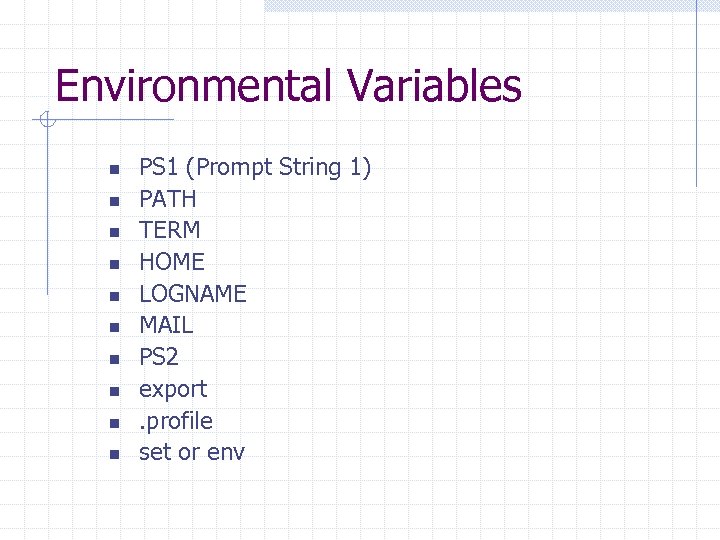 Environmental Variables n n n n n PS 1 (Prompt String 1) PATH TERM HOME LOGNAME MAIL PS 2 export. profile set or env
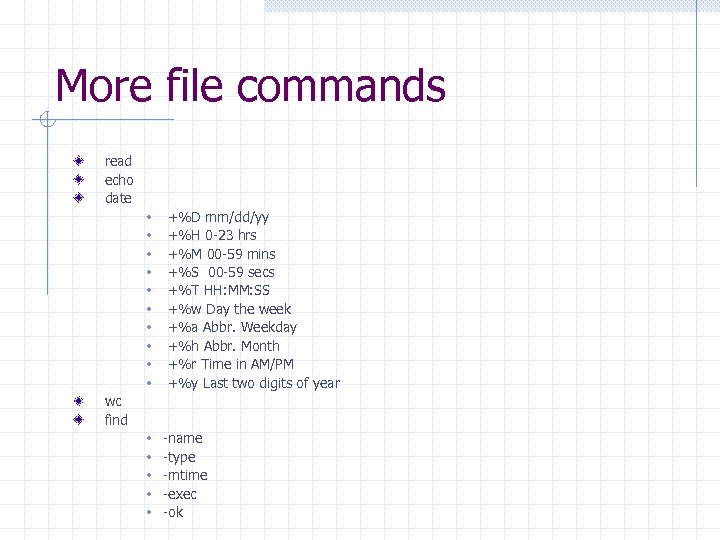 More file commands read echo date w w w w w +%D mm/dd/yy +%H 0 -23 hrs +%M 00 -59 mins +%S 00 -59 secs +%T HH: MM: SS +%w Day the week +%a Abbr. Weekday +%h Abbr. Month +%r Time in AM/PM +%y Last two digits of year wc find w w w -name -type -mtime -exec -ok
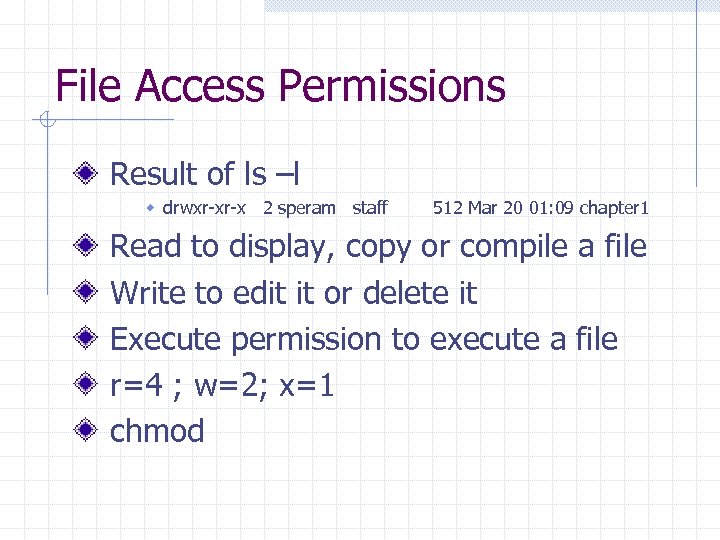 File Access Permissions Result of ls –l w drwxr-xr-x 2 speram staff 512 Mar 20 01: 09 chapter 1 Read to display, copy or compile a file Write to edit it or delete it Execute permission to execute a file r=4 ; w=2; x=1 chmod
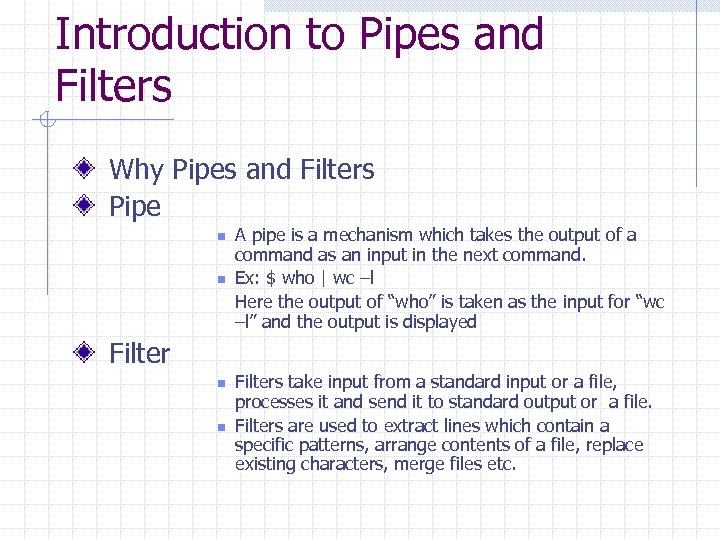 Introduction to Pipes and Filters Why Pipes and Filters Pipe n n A pipe is a mechanism which takes the output of a command as an input in the next command. Ex: $ who | wc –l Here the output of “who” is taken as the input for “wc –l” and the output is displayed Filter n n Filters take input from a standard input or a file, processes it and send it to standard output or a file. Filters are used to extract lines which contain a specific patterns, arrange contents of a file, replace existing characters, merge files etc.
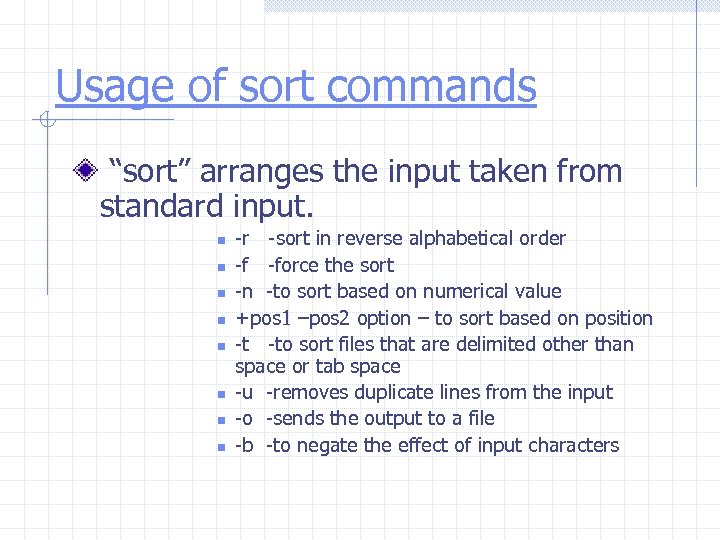 Usage of sort commands “sort” arranges the input taken from standard input. n n n n -r -sort in reverse alphabetical order -f -force the sort -n -to sort based on numerical value +pos 1 –pos 2 option – to sort based on position -t -to sort files that are delimited other than space or tab space -u -removes duplicate lines from the input -o -sends the output to a file -b -to negate the effect of input characters
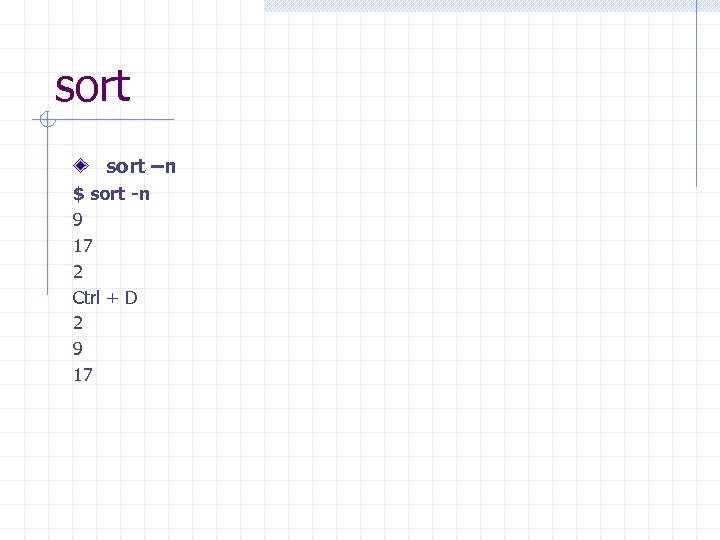 sort –n $ sort -n 9 17 2 Ctrl + D 2 9 17
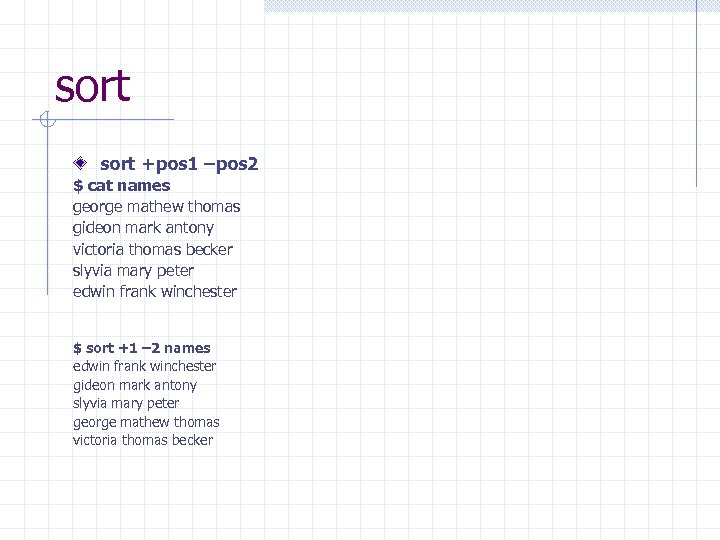 sort +pos 1 –pos 2 $ cat names george mathew thomas gideon mark antony victoria thomas becker slyvia mary peter edwin frank winchester $ sort +1 – 2 names edwin frank winchester gideon mark antony slyvia mary peter george mathew thomas victoria thomas becker
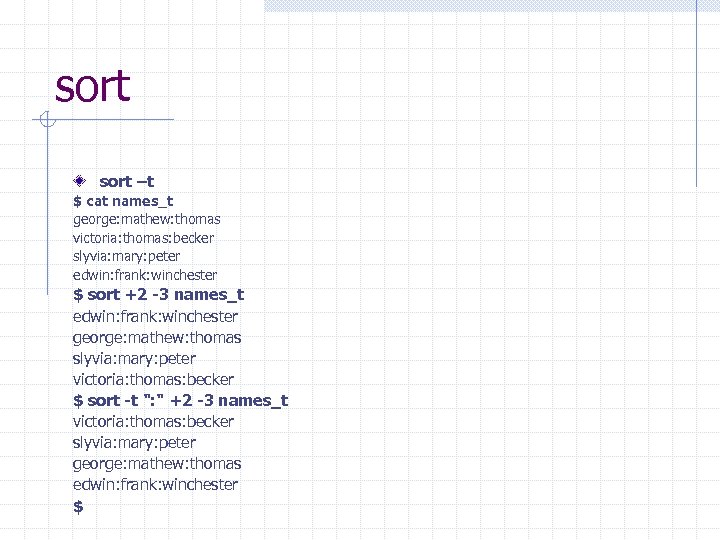 sort –t $ cat names_t george: mathew: thomas victoria: thomas: becker slyvia: mary: peter edwin: frank: winchester $ sort +2 -3 names_t edwin: frank: winchester george: mathew: thomas slyvia: mary: peter victoria: thomas: becker $ sort -t ": " +2 -3 names_t victoria: thomas: becker slyvia: mary: peter george: mathew: thomas edwin: frank: winchester $
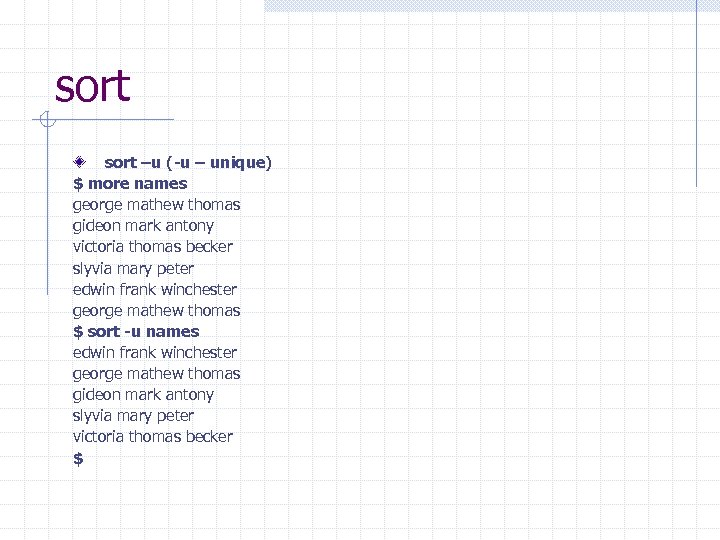 sort –u (-u – unique) $ more names george mathew thomas gideon mark antony victoria thomas becker slyvia mary peter edwin frank winchester george mathew thomas $ sort -u names edwin frank winchester george mathew thomas gideon mark antony slyvia mary peter victoria thomas becker $
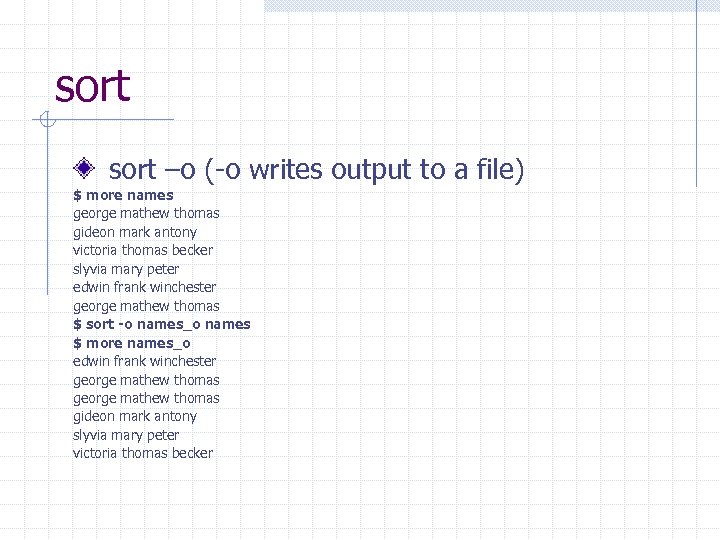 sort –o (-o writes output to a file) $ more names george mathew thomas gideon mark antony victoria thomas becker slyvia mary peter edwin frank winchester george mathew thomas $ sort -o names_o names $ more names_o edwin frank winchester george mathew thomas gideon mark antony slyvia mary peter victoria thomas becker
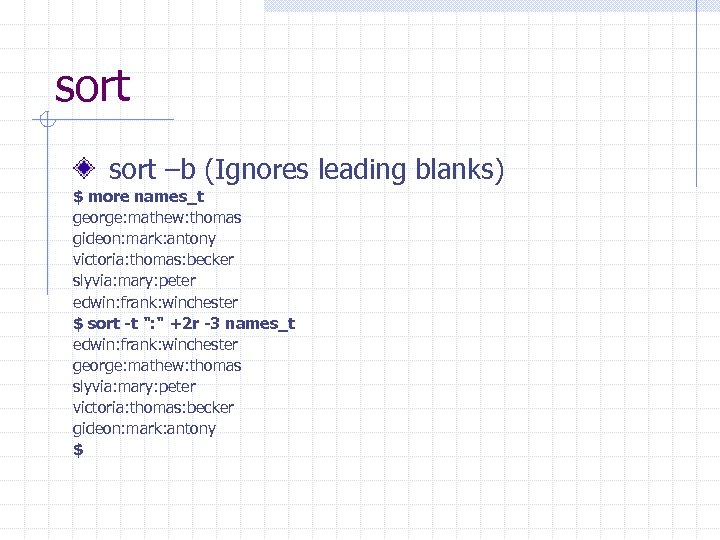 sort –b (Ignores leading blanks) $ more names_t george: mathew: thomas gideon: mark: antony victoria: thomas: becker slyvia: mary: peter edwin: frank: winchester $ sort -t ": " +2 r -3 names_t edwin: frank: winchester george: mathew: thomas slyvia: mary: peter victoria: thomas: becker gideon: mark: antony $
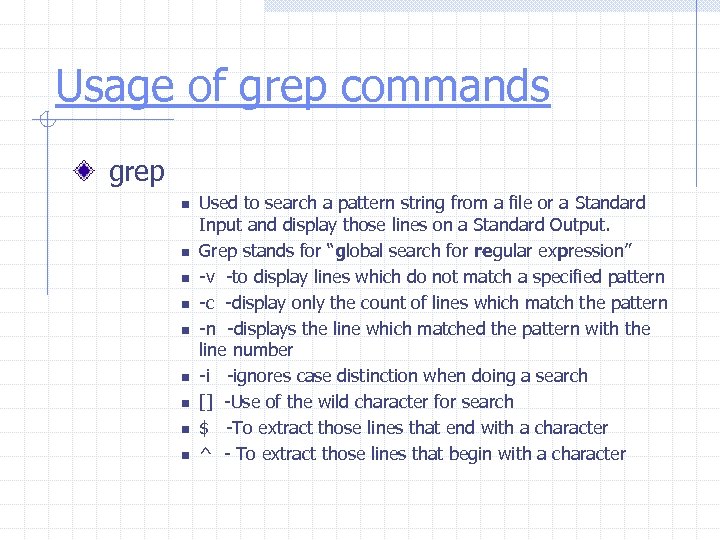 Usage of grep commands grep n n n n n Used to search a pattern string from a file or a Standard Input and display those lines on a Standard Output. Grep stands for “global search for regular expression” -v -to display lines which do not match a specified pattern -c -display only the count of lines which match the pattern -n -displays the line which matched the pattern with the line number -i -ignores case distinction when doing a search [] -Use of the wild character for search $ -To extract those lines that end with a character ^ - To extract those lines that begin with a character
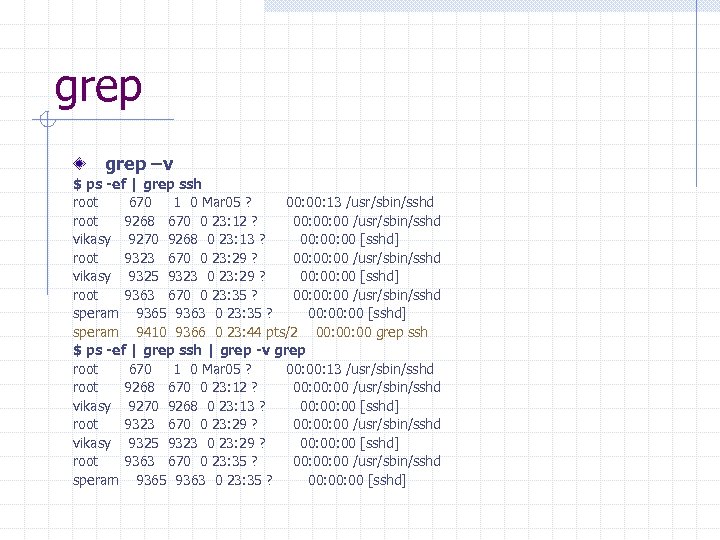 grep –v $ ps -ef | grep ssh root 670 1 0 Mar 05 ? 00: 13 /usr/sbin/sshd root 9268 670 0 23: 12 ? 00: 00 /usr/sbin/sshd vikasy 9270 9268 0 23: 13 ? 00: 00 [sshd] root 9323 670 0 23: 29 ? 00: 00 /usr/sbin/sshd vikasy 9325 9323 0 23: 29 ? 00: 00 [sshd] root 9363 670 0 23: 35 ? 00: 00 /usr/sbin/sshd speram 9365 9363 0 23: 35 ? 00: 00 [sshd] speram 9410 9366 0 23: 44 pts/2 00: 00 grep ssh $ ps -ef | grep ssh | grep -v grep root 670 1 0 Mar 05 ? 00: 13 /usr/sbin/sshd root 9268 670 0 23: 12 ? 00: 00 /usr/sbin/sshd vikasy 9270 9268 0 23: 13 ? 00: 00 [sshd] root 9323 670 0 23: 29 ? 00: 00 /usr/sbin/sshd vikasy 9325 9323 0 23: 29 ? 00: 00 [sshd] root 9363 670 0 23: 35 ? 00: 00 /usr/sbin/sshd speram 9365 9363 0 23: 35 ? 00: 00 [sshd]
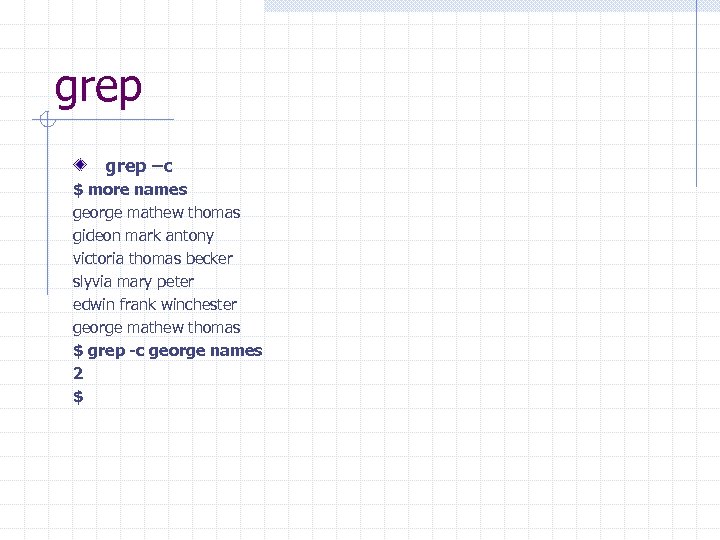 grep –c $ more names george mathew thomas gideon mark antony victoria thomas becker slyvia mary peter edwin frank winchester george mathew thomas $ grep -c george names 2 $
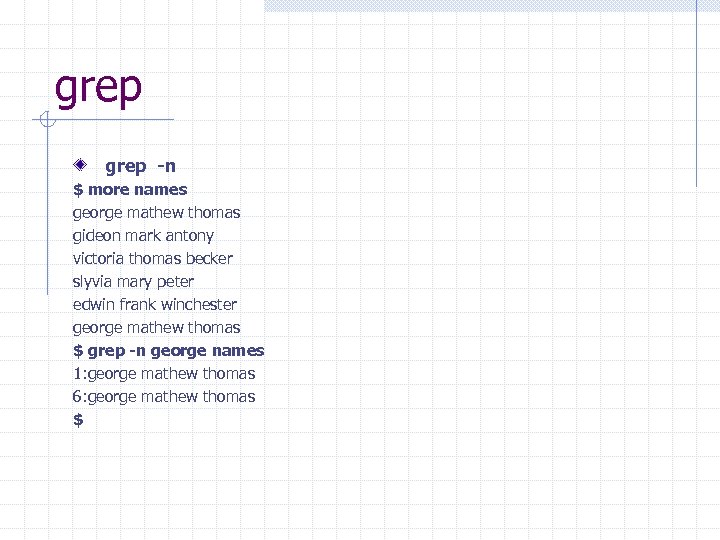 grep -n $ more names george mathew thomas gideon mark antony victoria thomas becker slyvia mary peter edwin frank winchester george mathew thomas $ grep -n george names 1: george mathew thomas 6: george mathew thomas $
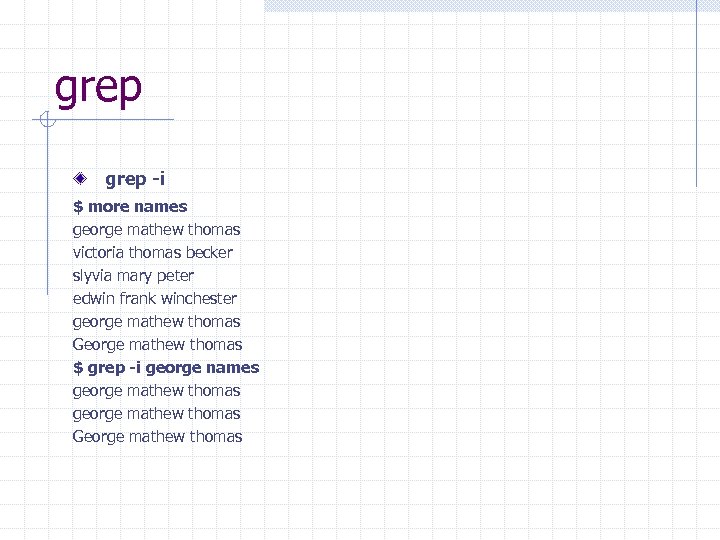 grep -i $ more names george mathew thomas victoria thomas becker slyvia mary peter edwin frank winchester george mathew thomas George mathew thomas $ grep -i george names george mathew thomas George mathew thomas
![grep with [] wild characters $ more names george mathew thomas victoria thomas becker](https://present5.com/presentation/43d9911228365b6f65051a86d8605ca9/image-38.jpg "grep with [] wild characters $ more names george mathew thomas victoria thomas becker") grep with [] wild characters $ more names george mathew thomas victoria thomas becker slyvia mary peter edwin frank winchester george mathew thomas George mathew thomas gaorge nick carter $ grep g[a, e]orge names george mathew thomas gaorge nick carter $
grep with [] wild characters $ more names george mathew thomas victoria thomas becker slyvia mary peter edwin frank winchester george mathew thomas George mathew thomas gaorge nick carter $ grep g[a, e]orge names george mathew thomas gaorge nick carter $
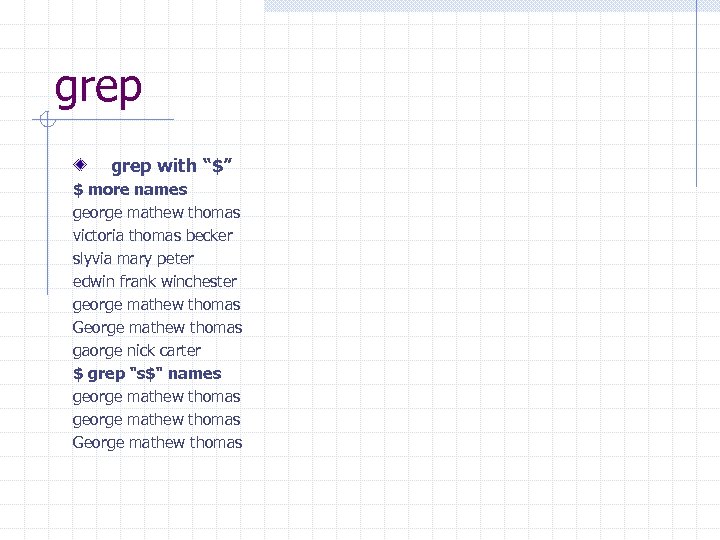 grep with “$” $ more names george mathew thomas victoria thomas becker slyvia mary peter edwin frank winchester george mathew thomas George mathew thomas gaorge nick carter $ grep "s$" names george mathew thomas George mathew thomas
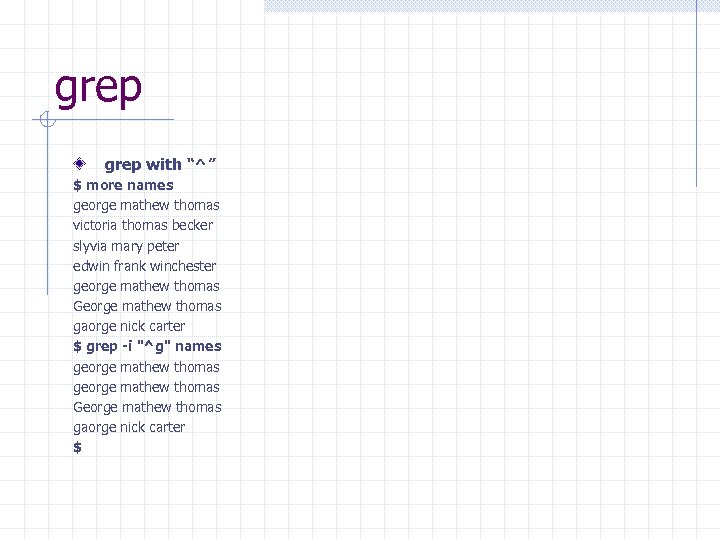 grep with “^” $ more names george mathew thomas victoria thomas becker slyvia mary peter edwin frank winchester george mathew thomas George mathew thomas gaorge nick carter $ grep -i "^g" names george mathew thomas George mathew thomas gaorge nick carter $
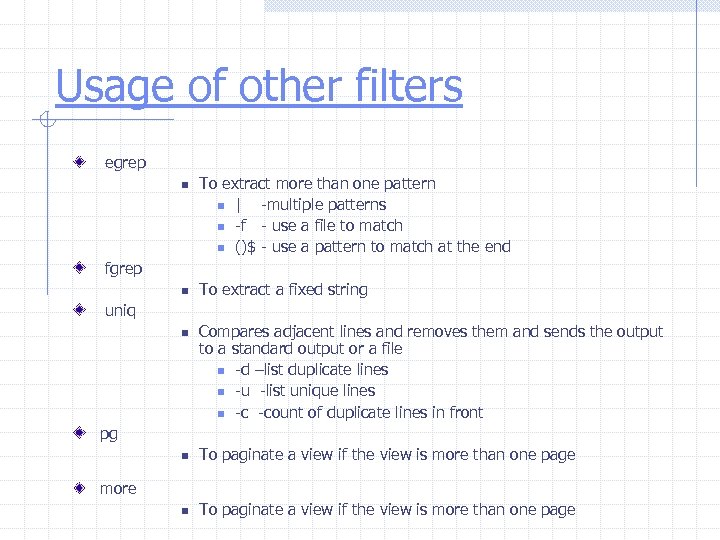 Usage of other filters egrep n To extract more than one pattern n | -multiple patterns n -f - use a file to match n ()$ - use a pattern to match at the end fgrep n To extract a fixed string uniq n Compares adjacent lines and removes them and sends the output to a standard output or a file n -d –list duplicate lines n -u -list unique lines n -c -count of duplicate lines in front pg n To paginate a view if the view is more than one page more
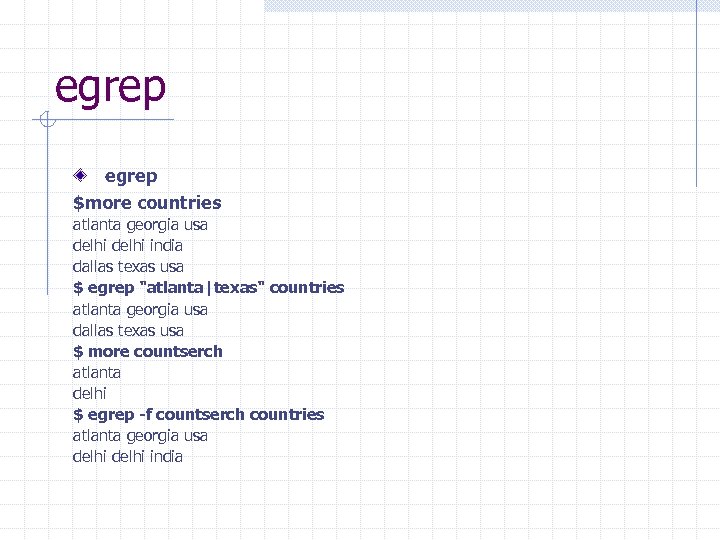 egrep $more countries atlanta georgia usa delhi india dallas texas usa $ egrep "atlanta|texas" countries atlanta georgia usa dallas texas usa $ more countserch atlanta delhi $ egrep -f countserch countries atlanta georgia usa delhi india
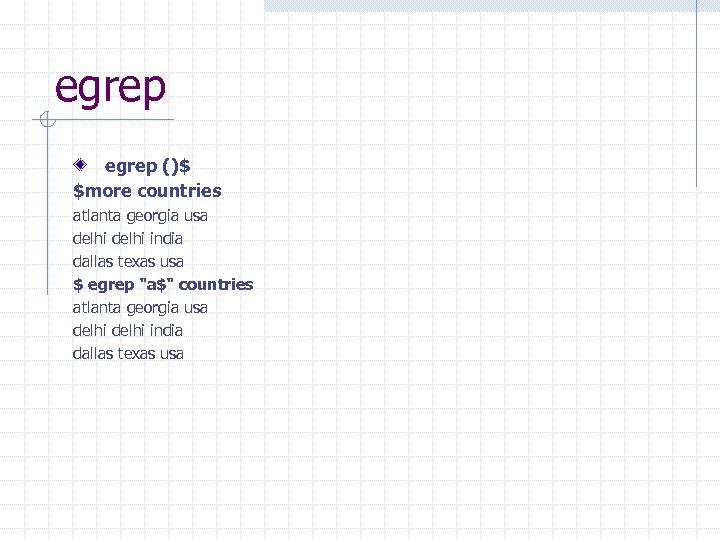 egrep ()$ $more countries atlanta georgia usa delhi india dallas texas usa $ egrep "a$" countries atlanta georgia usa delhi india dallas texas usa
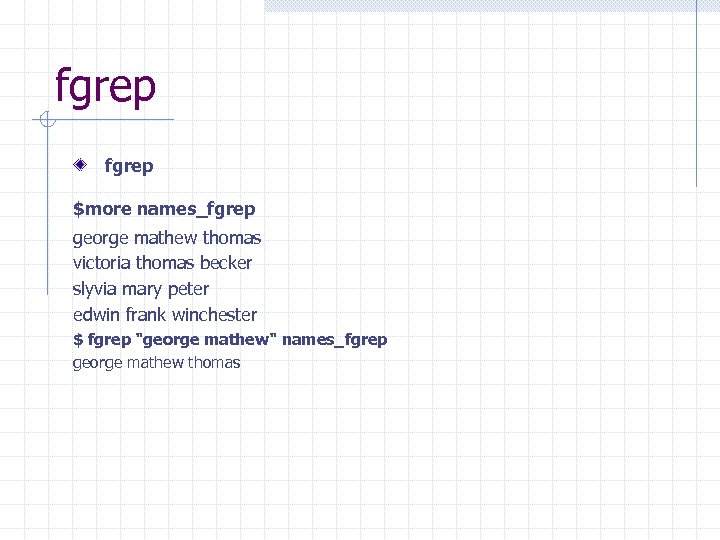 fgrep $more names_fgrep george mathew thomas victoria thomas becker slyvia mary peter edwin frank winchester $ fgrep "george mathew" names_fgrep george mathew thomas
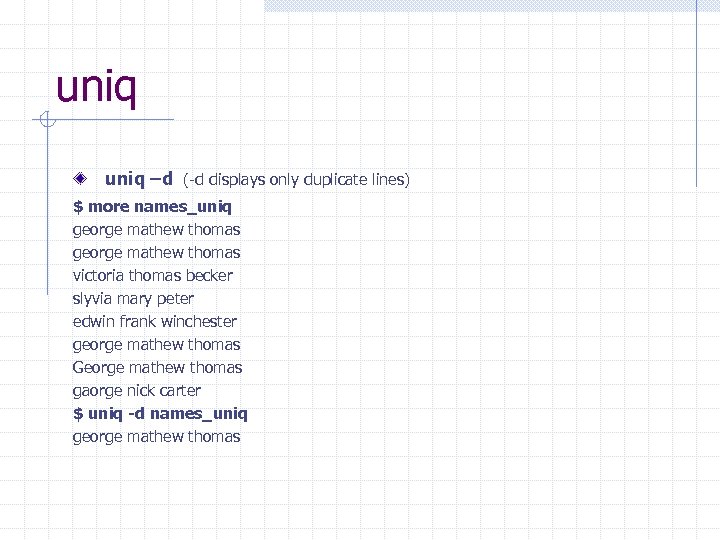 uniq –d (-d displays only duplicate lines) $ more names_uniq george mathew thomas victoria thomas becker slyvia mary peter edwin frank winchester george mathew thomas George mathew thomas gaorge nick carter $ uniq -d names_uniq george mathew thomas
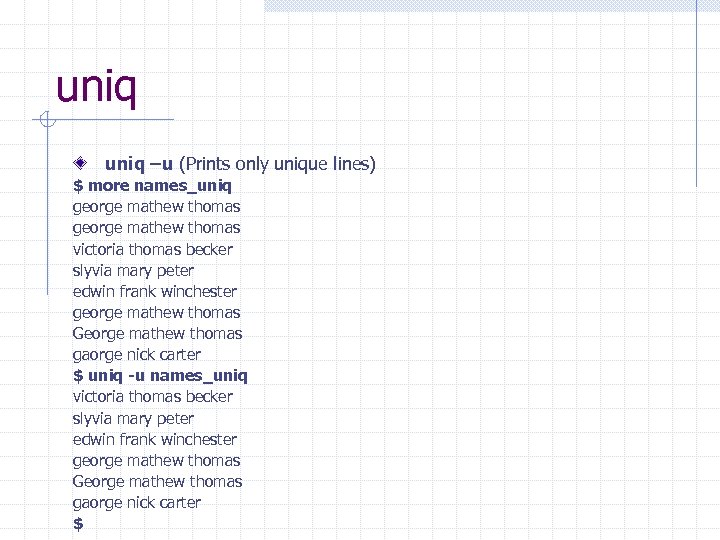 uniq –u (Prints only unique lines) $ more names_uniq george mathew thomas victoria thomas becker slyvia mary peter edwin frank winchester george mathew thomas George mathew thomas gaorge nick carter $ uniq -u names_uniq victoria thomas becker slyvia mary peter edwin frank winchester george mathew thomas George mathew thomas gaorge nick carter $
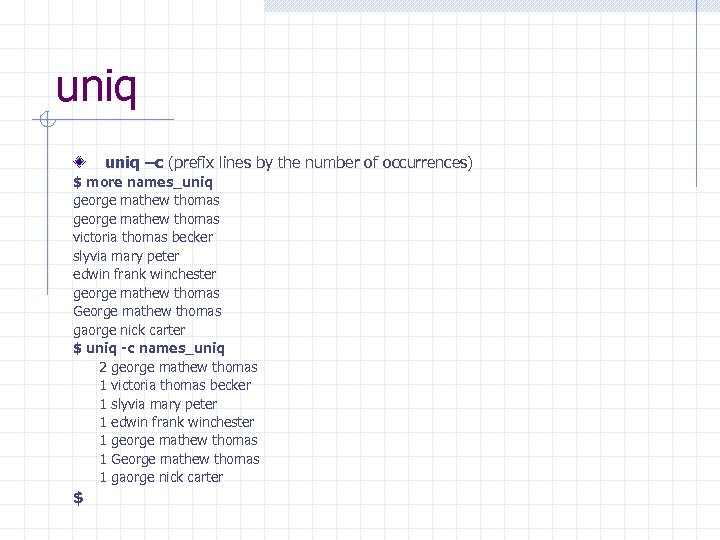 uniq –c (prefix lines by the number of occurrences) $ more names_uniq george mathew thomas victoria thomas becker slyvia mary peter edwin frank winchester george mathew thomas George mathew thomas gaorge nick carter $ uniq -c names_uniq 2 george mathew thomas 1 victoria thomas becker 1 slyvia mary peter 1 edwin frank winchester 1 george mathew thomas 1 George mathew thomas 1 gaorge nick carter $
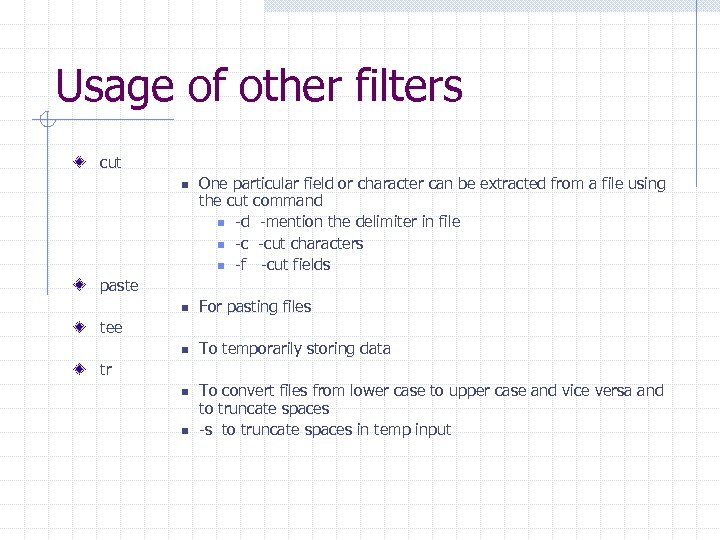 Usage of other filters cut n One particular field or character can be extracted from a file using the cut command n -d -mention the delimiter in file n -c -cut characters n -f -cut fields paste n For pasting files n To temporarily storing data tee tr n n To convert files from lower case to upper case and vice versa and to truncate spaces -s to truncate spaces in temp input
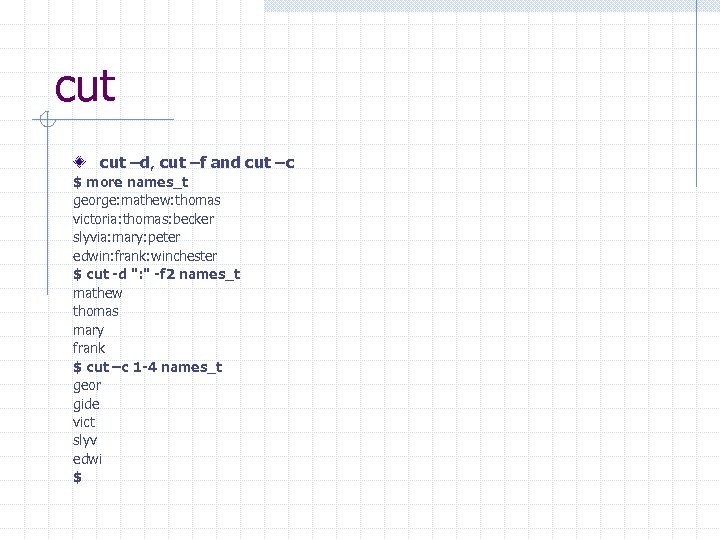 cut –d, cut –f and cut –c $ more names_t george: mathew: thomas victoria: thomas: becker slyvia: mary: peter edwin: frank: winchester $ cut -d ": " -f 2 names_t mathew thomas mary frank $ cut –c 1 -4 names_t geor gide vict slyv edwi $
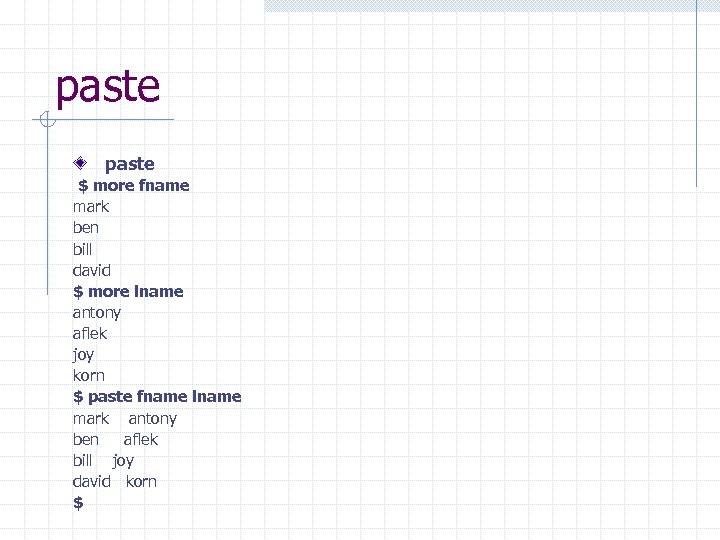 paste $ more fname mark ben bill david $ more lname antony aflek joy korn $ paste fname lname mark antony ben aflek bill joy david korn $
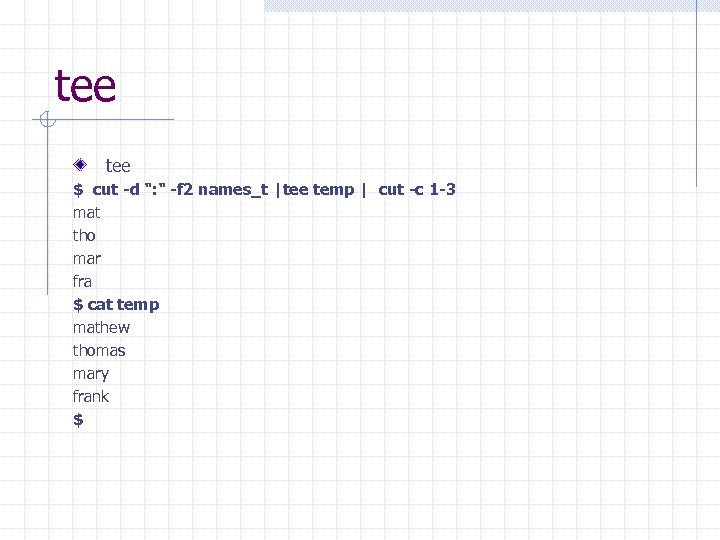 tee $ cut -d ": " -f 2 names_t |tee temp | cut -c 1 -3 mat tho mar fra $ cat temp mathew thomas mary frank $
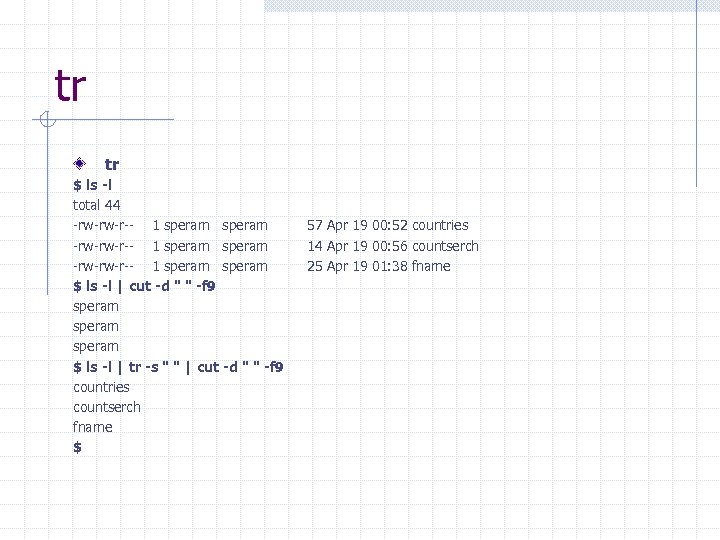 tr tr $ ls -l total 44 -rw-rw-r-- 1 speram -rw-rw-r-- 1 speram $ ls -l | cut -d " " -f 9 speram $ ls -l | tr -s " " | cut -d " " -f 9 countries countserch fname $ 57 Apr 19 00: 52 countries 14 Apr 19 00: 56 countserch 25 Apr 19 01: 38 fname
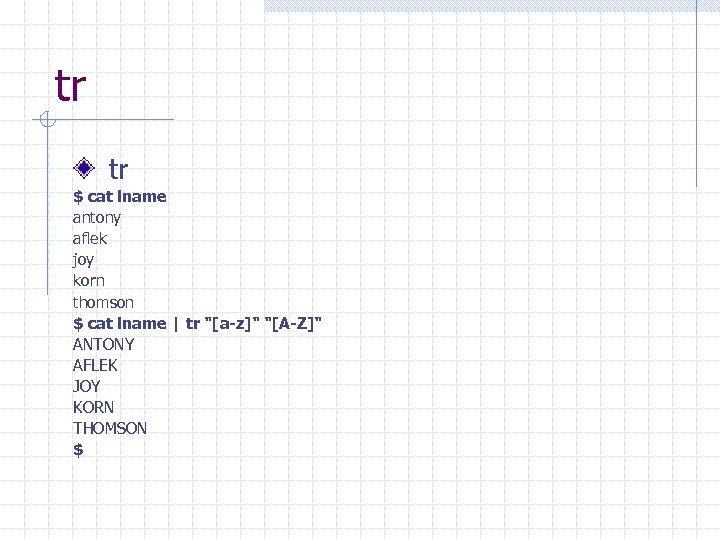 tr tr $ cat lname antony aflek joy korn thomson $ cat lname | tr "[a-z]" "[A-Z]" ANTONY AFLEK JOY KORN THOMSON $
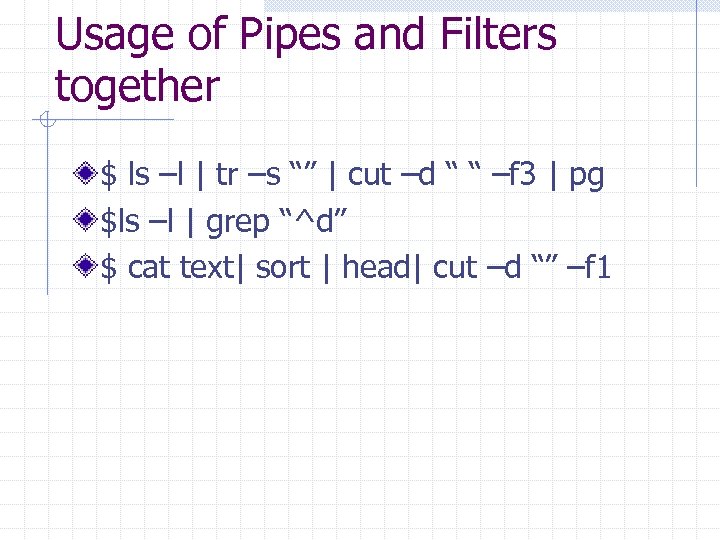 Usage of Pipes and Filters together $ ls –l | tr –s “” | cut –d “ “ –f 3 | pg $ls –l | grep “^d” $ cat text| sort | head| cut –d “” –f 1
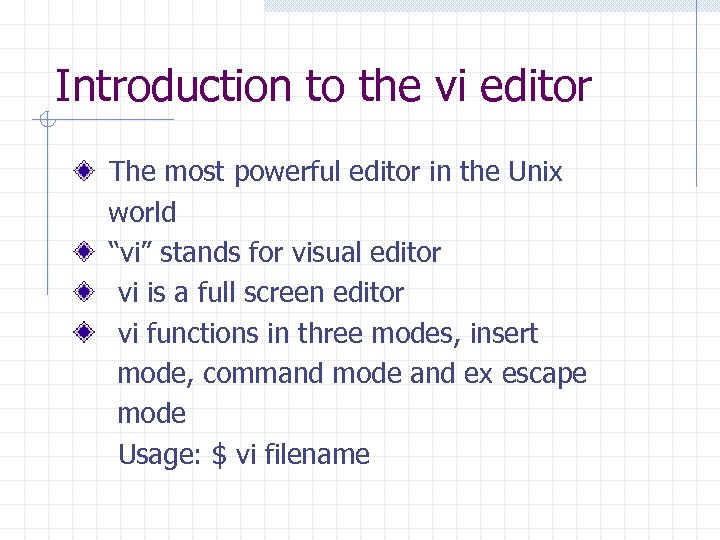 Introduction to the vi editor The most powerful editor in the Unix world “vi” stands for visual editor vi is a full screen editor vi functions in three modes, insert mode, command mode and ex escape mode Usage: $ vi filename
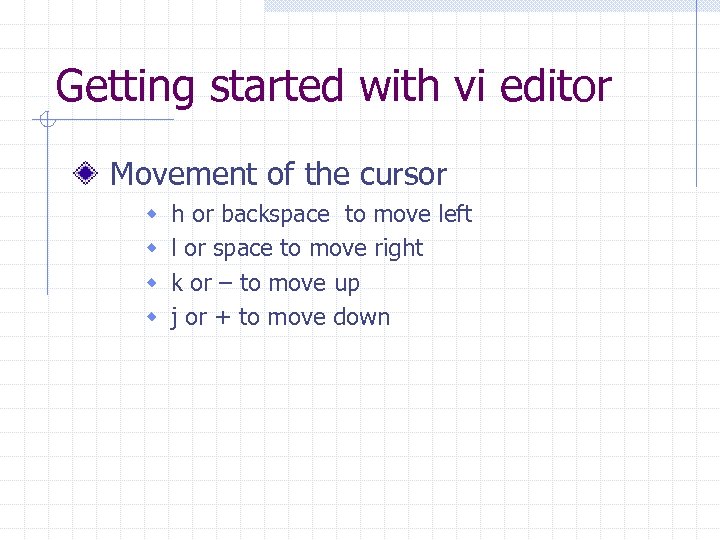 Getting started with vi editor Movement of the cursor w w h or backspace to move left l or space to move right k or – to move up j or + to move down
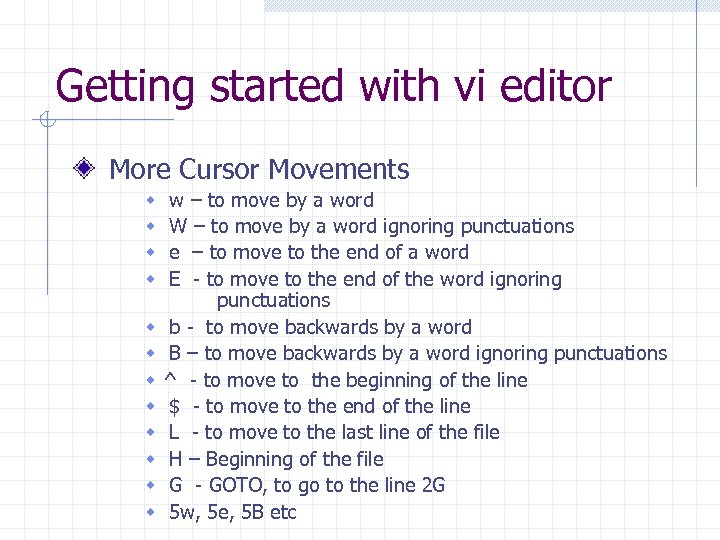 Getting started with vi editor More Cursor Movements w w w w – to move by a word W – to move by a word ignoring punctuations e – to move to the end of a word E - to move to the end of the word ignoring punctuations b - to move backwards by a word B – to move backwards by a word ignoring punctuations ^ - to move to the beginning of the line $ - to move to the end of the line L - to move to the last line of the file H – Beginning of the file G - GOTO, to go to the line 2 G 5 w, 5 e, 5 B etc
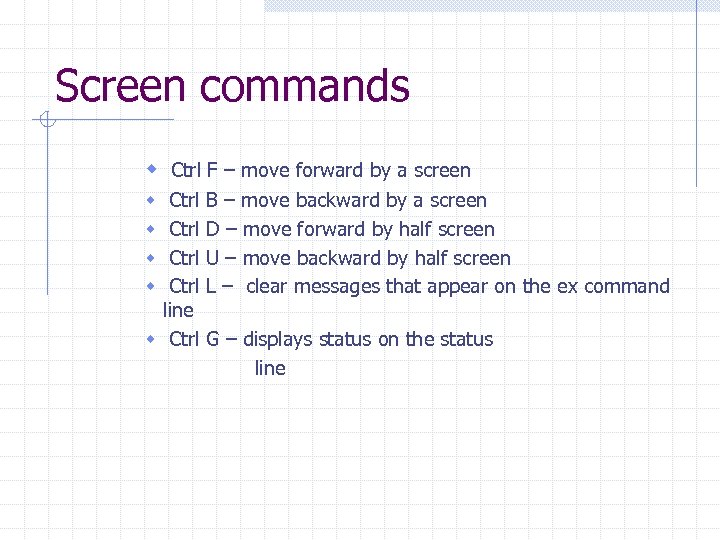 Screen commands w Ctrl F – move forward by a screen Ctrl line w Ctrl w w B – move backward by a screen D – move forward by half screen U – move backward by half screen L – clear messages that appear on the ex command G – displays status on the status line
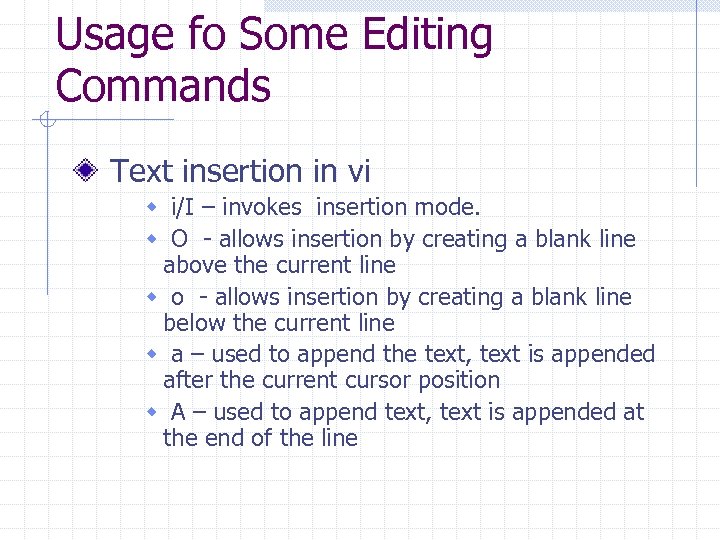 Usage fo Some Editing Commands Text insertion in vi w i/I – invokes insertion mode. w O - allows insertion by creating a blank line above the current line w o - allows insertion by creating a blank line below the current line w a – used to append the text, text is appended after the current cursor position w A – used to append text, text is appended at the end of the line
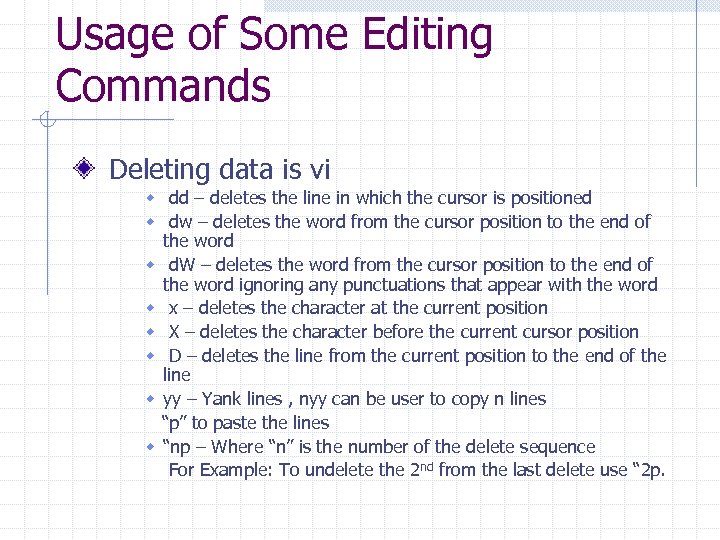 Usage of Some Editing Commands Deleting data is vi w dd – deletes the line in which the cursor is positioned w dw – deletes the word from the cursor position to the end of the word w d. W – deletes the word from the cursor position to the end of the word ignoring any punctuations that appear with the word w x – deletes the character at the current position w X – deletes the character before the current cursor position w D – deletes the line from the current position to the end of the line w yy – Yank lines , nyy can be user to copy n lines “p” to paste the lines w “np – Where “n” is the number of the delete sequence For Example: To undelete the 2 nd from the last delete use “ 2 p.
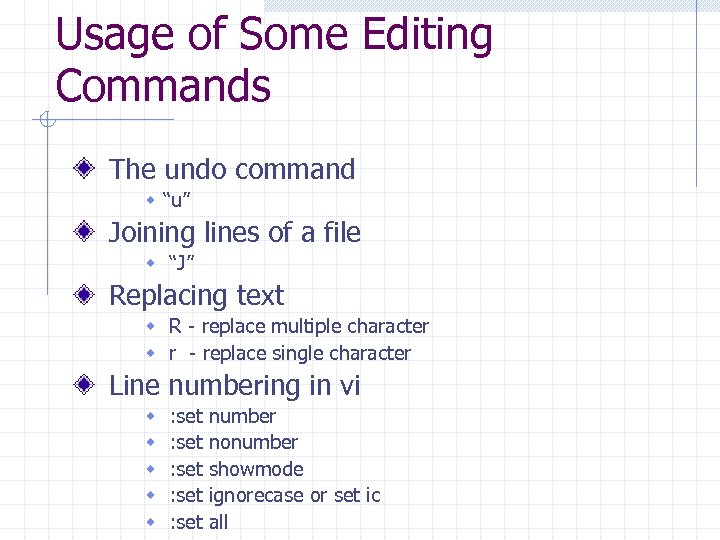 Usage of Some Editing Commands The undo command w “u” Joining lines of a file w “J” Replacing text w R - replace multiple character w r - replace single character Line numbering in vi w w w : set : set number nonumber showmode ignorecase or set ic all
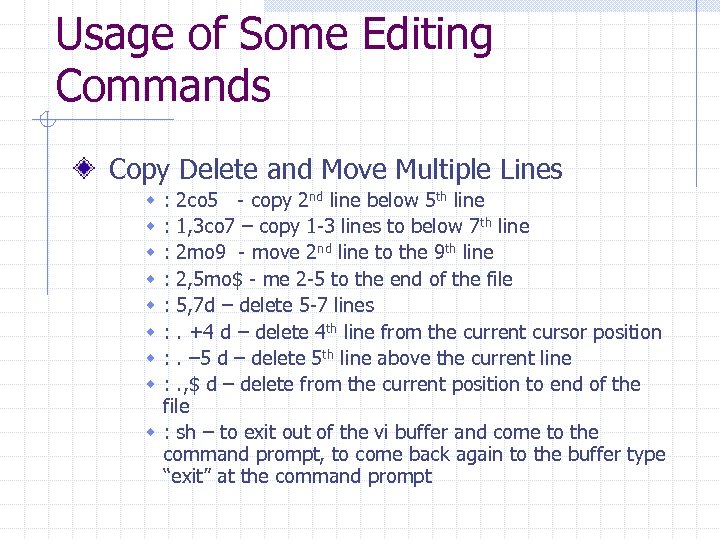 Usage of Some Editing Commands Copy Delete and Move Multiple Lines : 2 co 5 - copy 2 nd line below 5 th line : 1, 3 co 7 – copy 1 -3 lines to below 7 th line : 2 mo 9 - move 2 nd line to the 9 th line : 2, 5 mo$ - me 2 -5 to the end of the file : 5, 7 d – delete 5 -7 lines : . +4 d – delete 4 th line from the current cursor position : . – 5 d – delete 5 th line above the current line : . , $ d – delete from the current position to end of the file w : sh – to exit out of the vi buffer and come to the command prompt, to come back again to the buffer type “exit” at the command prompt w w w w
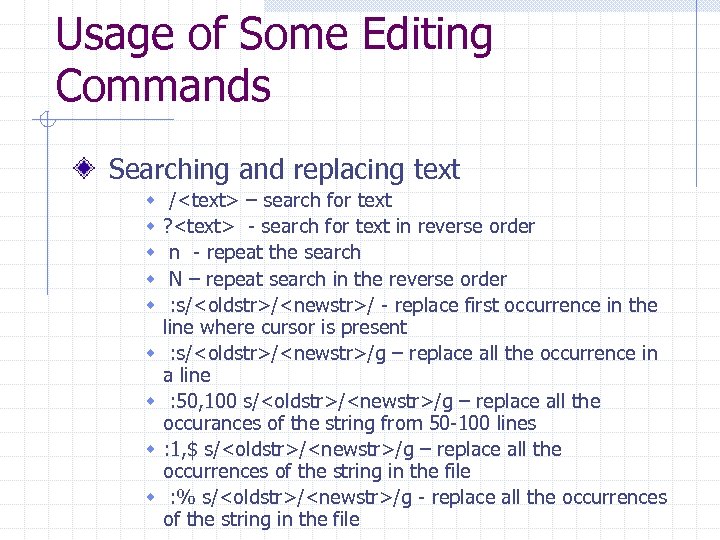 Usage of Some Editing Commands Searching and replacing text w w w w w /
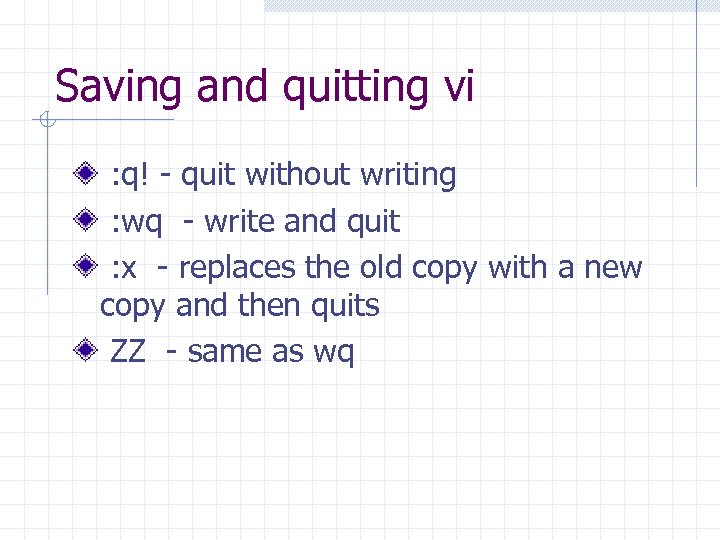 Saving and quitting vi : q! - quit without writing : wq - write and quit : x - replaces the old copy with a new copy and then quits ZZ - same as wq
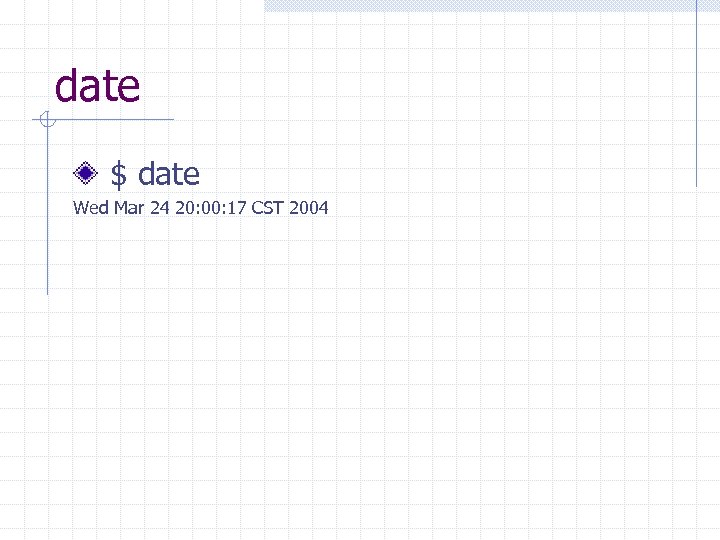 date $ date Wed Mar 24 20: 00: 17 CST 2004
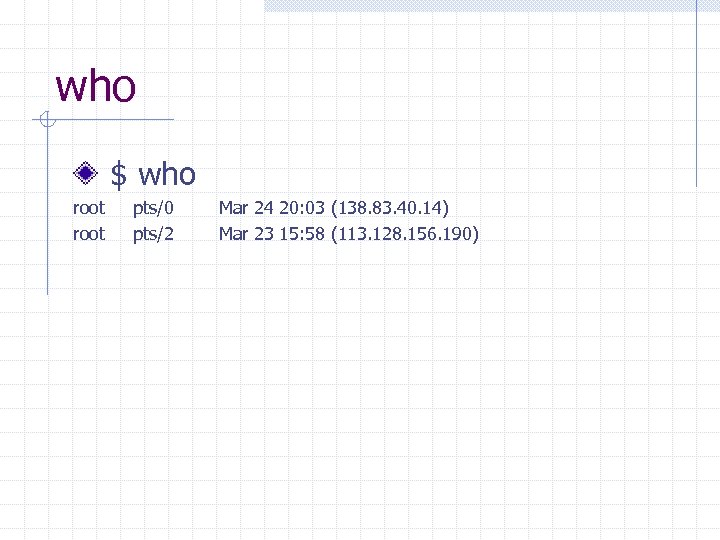 who $ who root pts/0 pts/2 Mar 24 20: 03 (138. 83. 40. 14) Mar 23 15: 58 (113. 128. 156. 190)
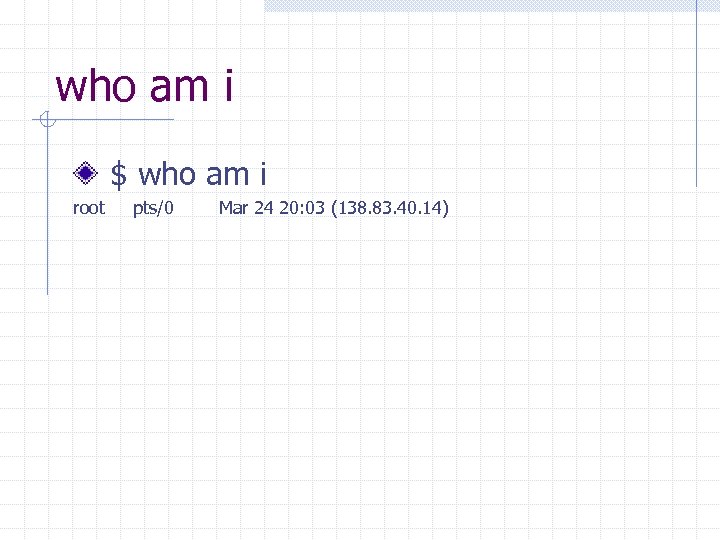 who am i $ who am i root pts/0 Mar 24 20: 03 (138. 83. 40. 14)
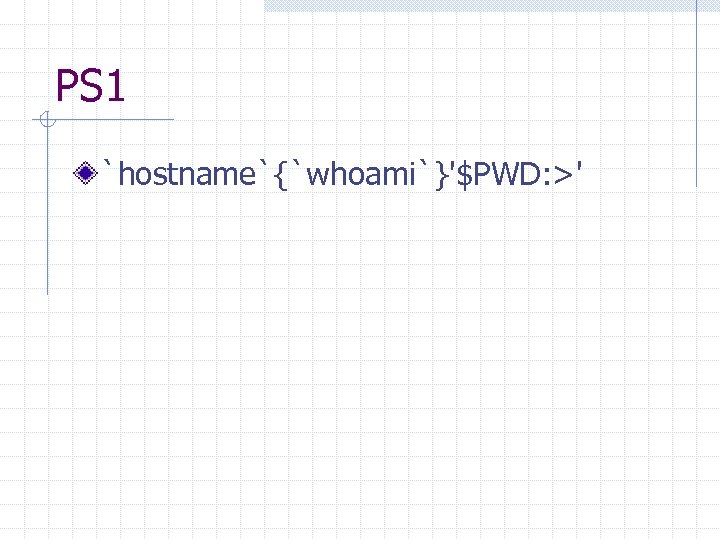 PS 1 `hostname`{`whoami`}'$PWD: >'
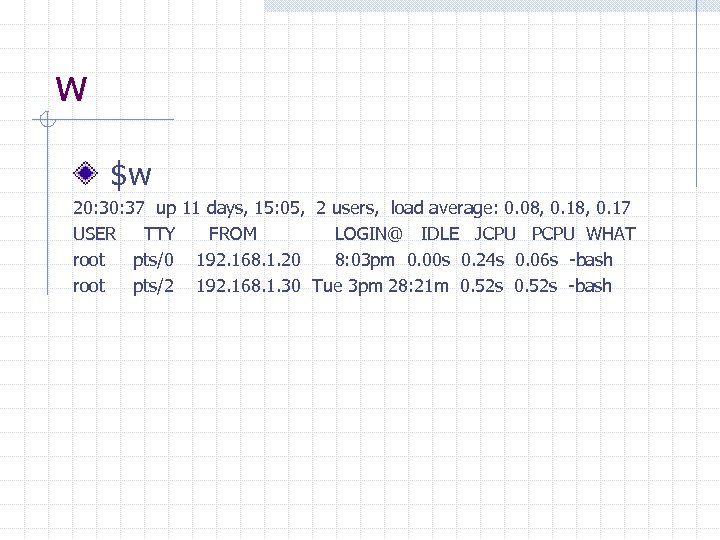 w $w 20: 37 up 11 days, 15: 05, 2 users, load average: 0. 08, 0. 17 USER TTY FROM LOGIN@ IDLE JCPU PCPU WHAT root pts/0 192. 168. 1. 20 8: 03 pm 0. 00 s 0. 24 s 0. 06 s -bash root pts/2 192. 168. 1. 30 Tue 3 pm 28: 21 m 0. 52 s -bash
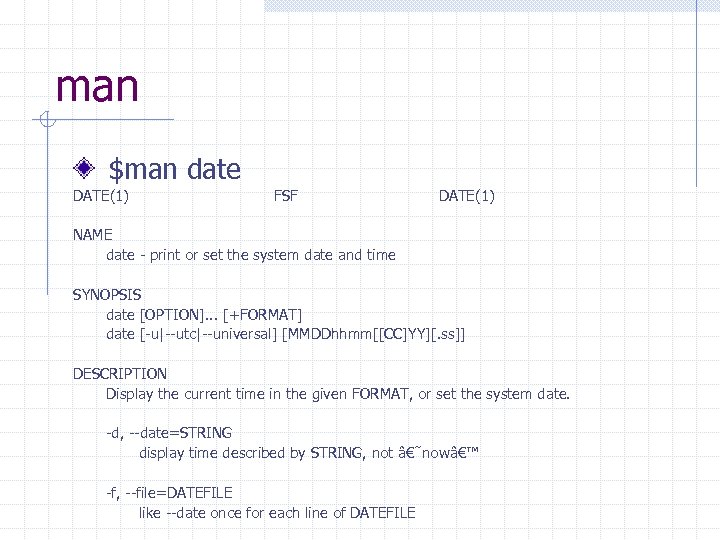 man $man date DATE(1) FSF DATE(1) NAME date - print or set the system date and time SYNOPSIS date [OPTION]. . . [+FORMAT] date [-u|--utc|--universal] [MMDDhhmm[[CC]YY][. ss]] DESCRIPTION Display the current time in the given FORMAT, or set the system date. -d, --date=STRING display time described by STRING, not ‘now’ -f, --file=DATEFILE like --date once for each line of DATEFILE
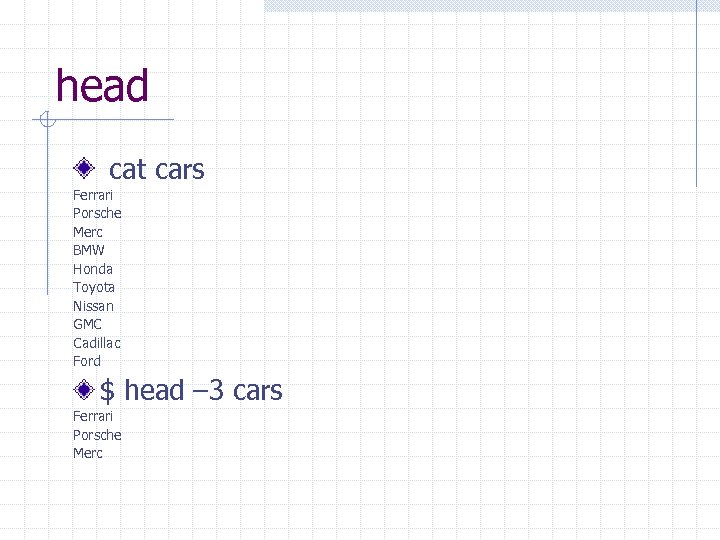 head cat cars Ferrari Porsche Merc BMW Honda Toyota Nissan GMC Cadillac Ford $ head – 3 cars Ferrari Porsche Merc
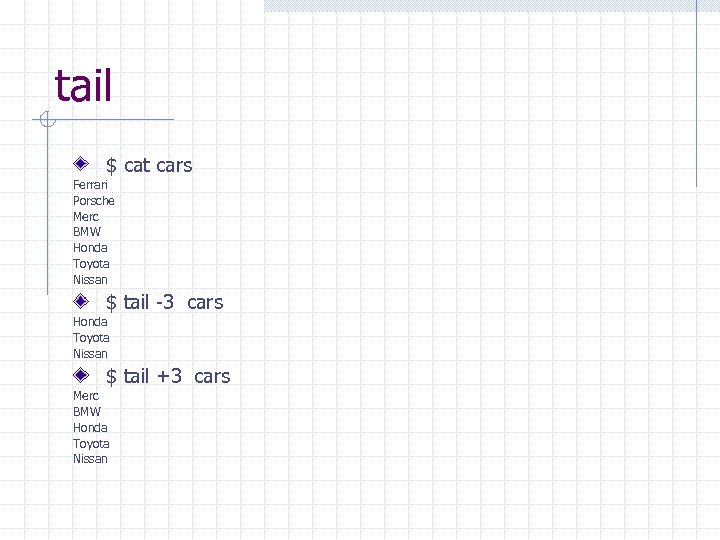 tail $ cat cars Ferrari Porsche Merc BMW Honda Toyota Nissan $ tail -3 cars Honda Toyota Nissan $ tail +3 cars Merc BMW Honda Toyota Nissan
 pwd $ pwd /home/speram
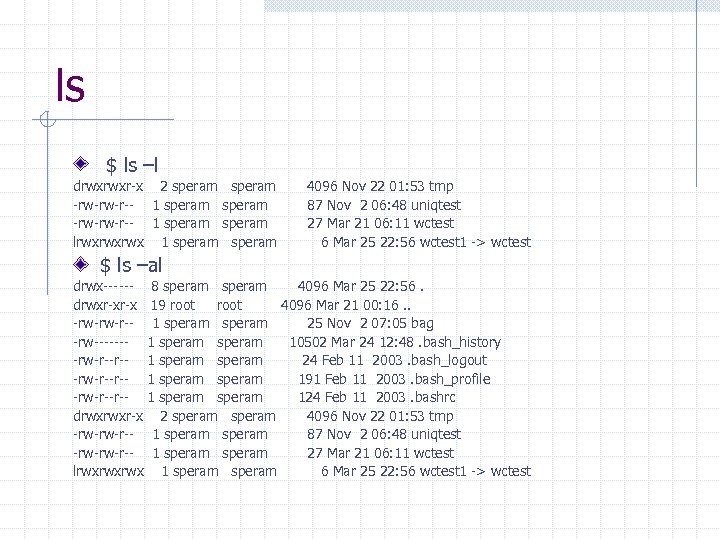 ls $ ls –l drwxrwxr-x 2 speram -rw-rw-r-- 1 speram lrwxrwxrwx 1 speram 4096 Nov 22 01: 53 tmp 87 Nov 2 06: 48 uniqtest 27 Mar 21 06: 11 wctest 6 Mar 25 22: 56 wctest 1 -> wctest $ ls –al drwx------ 8 speram 4096 Mar 25 22: 56. drwxr-xr-x 19 root 4096 Mar 21 00: 16. . -rw-rw-r-- 1 speram 25 Nov 2 07: 05 bag -rw------- 1 speram 10502 Mar 24 12: 48. bash_history -rw-r--r-- 1 speram 24 Feb 11 2003. bash_logout -rw-r--r-- 1 speram 191 Feb 11 2003. bash_profile -rw-r--r-- 1 speram 124 Feb 11 2003. bashrc drwxrwxr-x 2 speram 4096 Nov 22 01: 53 tmp -rw-rw-r-- 1 speram 87 Nov 2 06: 48 uniqtest -rw-rw-r-- 1 speram 27 Mar 21 06: 11 wctest lrwxrwxrwx 1 speram 6 Mar 25 22: 56 wctest 1 -> wctest
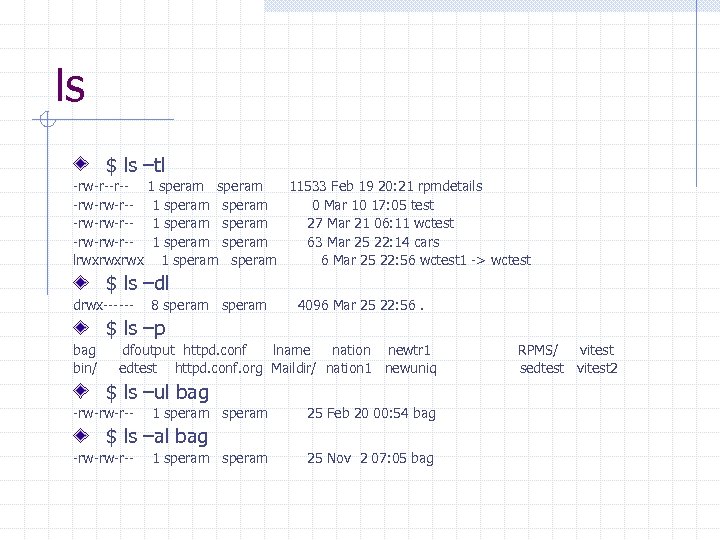 ls $ ls –tl -rw-r--r-- 1 speram 11533 Feb 19 20: 21 rpmdetails -rw-rw-r-- 1 speram 0 Mar 10 17: 05 test -rw-rw-r-- 1 speram 27 Mar 21 06: 11 wctest -rw-rw-r-- 1 speram 63 Mar 25 22: 14 cars lrwxrwxrwx 1 speram 6 Mar 25 22: 56 wctest 1 -> wctest $ ls –dl drwx------ 8 speram 4096 Mar 25 22: 56. $ ls –p bag bin/ dfoutput httpd. conf lname nation newtr 1 edtest httpd. conf. org Maildir/ nation 1 newuniq $ ls –ul bag -rw-rw-r-- 1 speram 25 Feb 20 00: 54 bag $ ls –al bag -rw-rw-r-- 1 speram 25 Nov 2 07: 05 bag RPMS/ vitest sedtest vitest 2
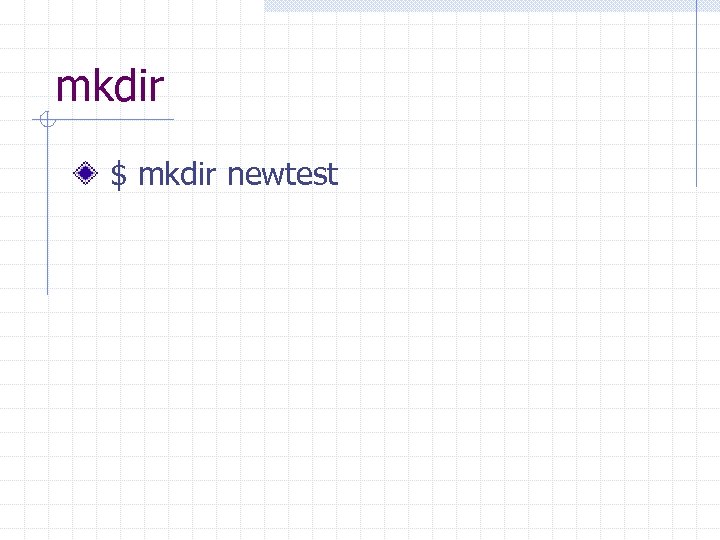 mkdir $ mkdir newtest
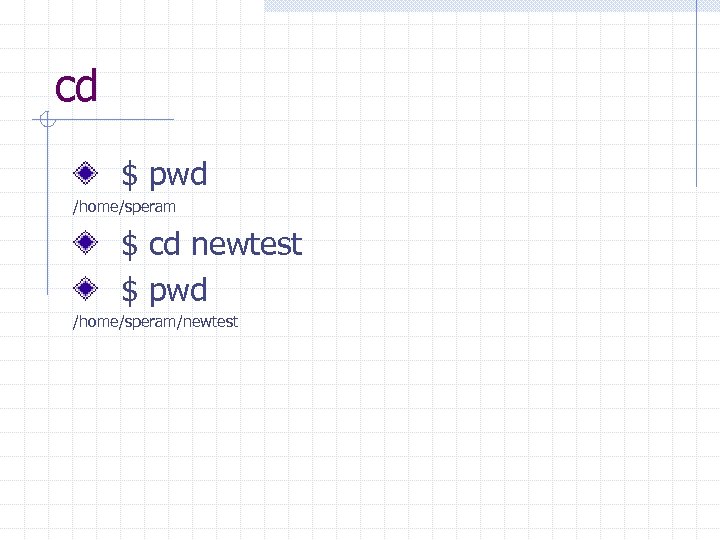 cd $ pwd /home/speram $ cd newtest $ pwd /home/speram/newtest
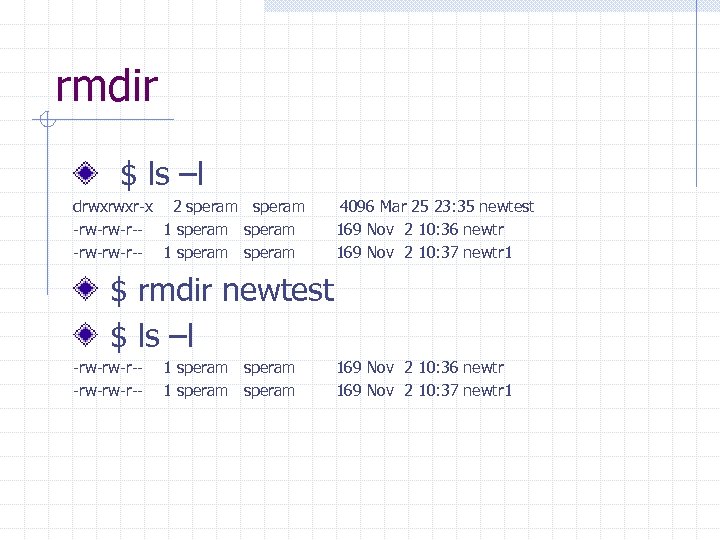 rmdir $ ls –l drwxrwxr-x 2 speram -rw-rw-r-- 1 speram 4096 Mar 25 23: 35 newtest 169 Nov 2 10: 36 newtr 169 Nov 2 10: 37 newtr 1 $ rmdir newtest $ ls –l -rw-rw-r-- 1 speram 169 Nov 2 10: 36 newtr 169 Nov 2 10: 37 newtr 1
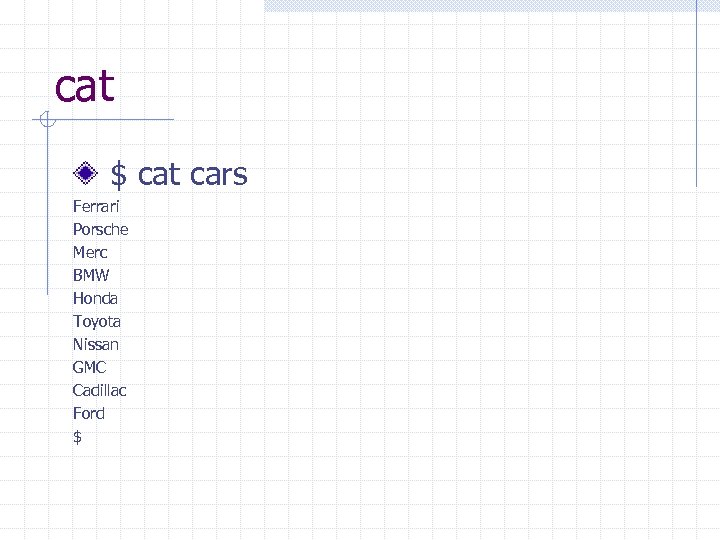 cat $ cat cars Ferrari Porsche Merc BMW Honda Toyota Nissan GMC Cadillac Ford $
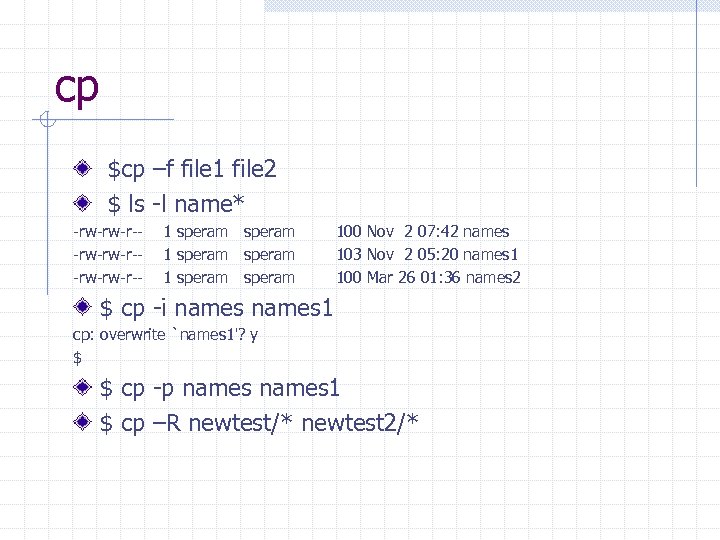 cp $cp –f file 1 file 2 $ ls -l name* -rw-rw-r--rw-rw-r-- 1 speram 1 speram 100 Nov 2 07: 42 names 103 Nov 2 05: 20 names 1 100 Mar 26 01: 36 names 2 $ cp -i names 1 cp: overwrite `names 1'? y $ $ cp -p names 1 $ cp –R newtest/* newtest 2/*
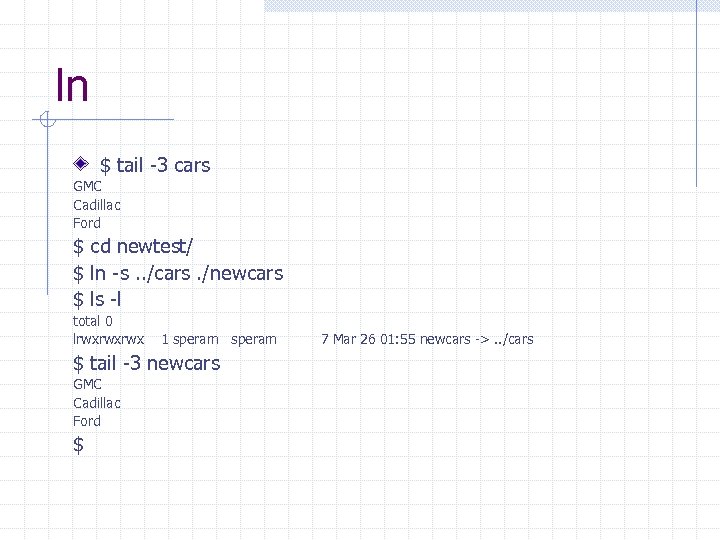 ln $ tail -3 cars GMC Cadillac Ford $ cd newtest/ $ ln -s. . /cars. /newcars $ ls -l total 0 lrwxrwxrwx 1 speram $ tail -3 newcars GMC Cadillac Ford $ 7 Mar 26 01: 55 newcars ->. . /cars
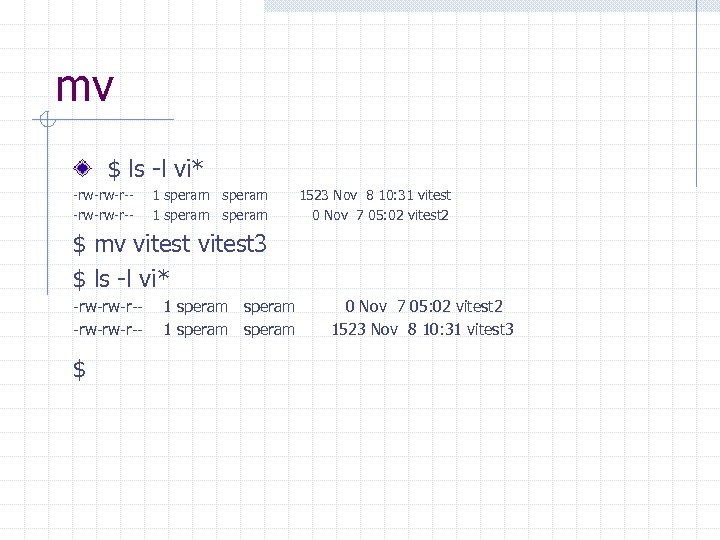 mv $ ls -l vi* -rw-rw-r-- 1 speram 1523 Nov 8 10: 31 vitest 0 Nov 7 05: 02 vitest 2 $ mv vitest 3 $ ls -l vi* -rw-rw-r-- $ 1 speram 0 Nov 7 05: 02 vitest 2 1523 Nov 8 10: 31 vitest 3
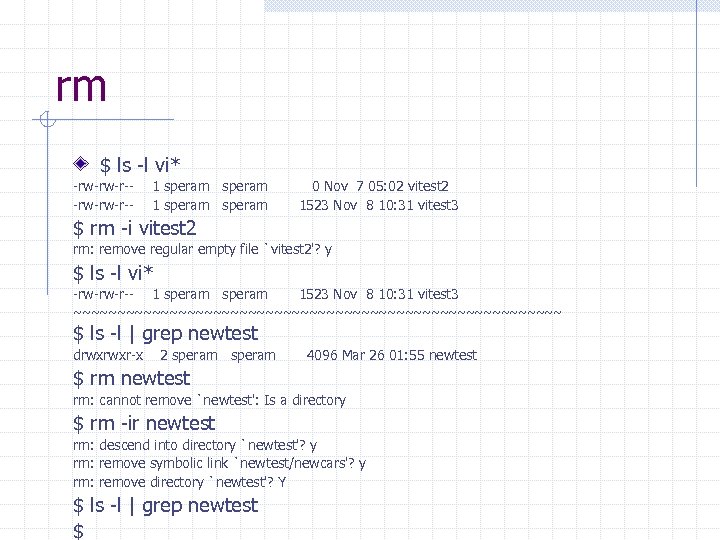 rm $ ls -l vi* -rw-rw-r-- 1 speram 0 Nov 7 05: 02 vitest 2 1523 Nov 8 10: 31 vitest 3 $ rm -i vitest 2 rm: remove regular empty file `vitest 2'? y $ ls -l vi* -rw-rw-r-- 1 speram 1523 Nov 8 10: 31 vitest 3 ~~~~~~~~~~~~~~~~~~~~~~~~~~~~ $ ls -l | grep newtest drwxrwxr-x 2 speram 4096 Mar 26 01: 55 newtest $ rm newtest rm: cannot remove `newtest': Is a directory $ rm -ir newtest rm: descend into directory `newtest'? y rm: remove symbolic link `newtest/newcars'? y rm: remove directory `newtest'? Y $ ls -l | grep newtest $
 Introduction to Shell Scripts Introduction Creation and Execution Shell Variables w w User defined variables Environment variables Local and Global Variables Special Shell Variables Features offered by Shell Programming Language Constructs
 Introduction to Shell Scripts Introduction w A shell script is a program that issues or executes a sequence of Unix commands.
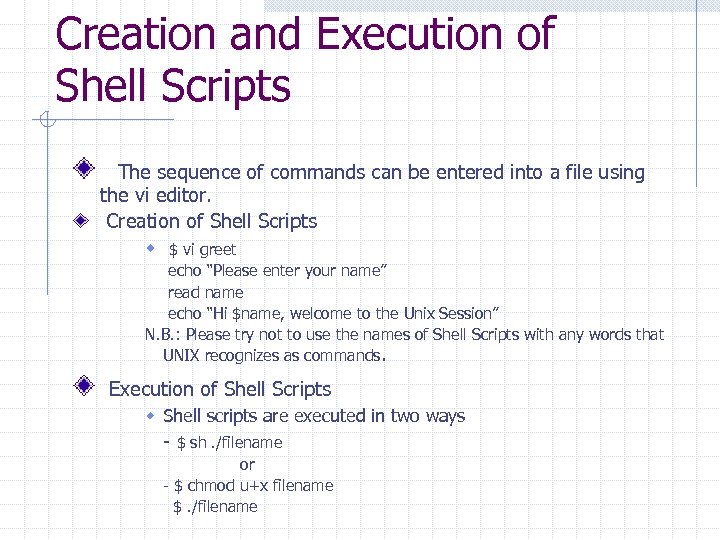 Creation and Execution of Shell Scripts The sequence of commands can be entered into a file using the vi editor. Creation of Shell Scripts w $ vi greet echo “Please enter your name” read name echo “Hi $name, welcome to the Unix Session” N. B. : Please try not to use the names of Shell Scripts with any words that UNIX recognizes as commands. Execution of Shell Scripts w Shell scripts are executed in two ways - $ sh. /filename or - $ chmod u+x filename $. /filename
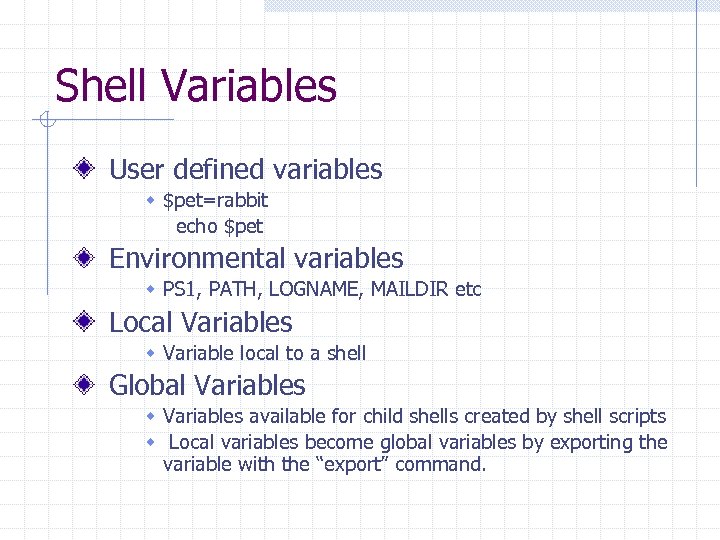 Shell Variables User defined variables w $pet=rabbit echo $pet Environmental variables w PS 1, PATH, LOGNAME, MAILDIR etc Local Variables w Variable local to a shell Global Variables w Variables available for child shells created by shell scripts w Local variables become global variables by exporting the variable with the “export” command.
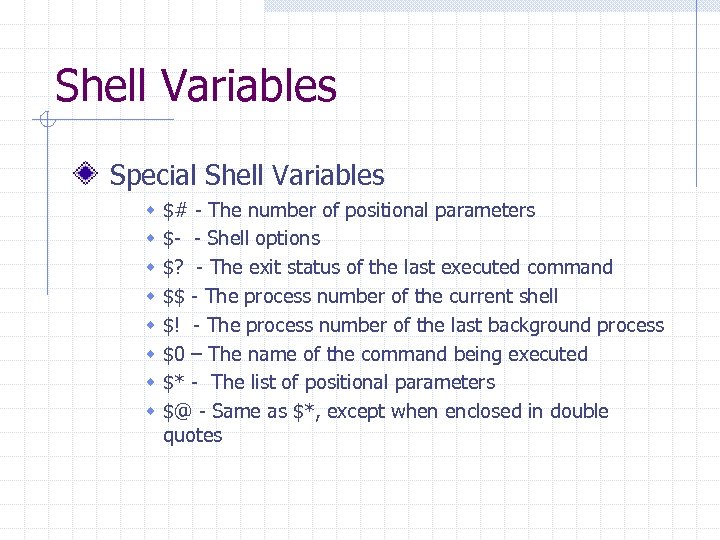 Shell Variables Special Shell Variables w w w w $# - The number of positional parameters $- - Shell options $? - The exit status of the last executed command $$ - The process number of the current shell $! - The process number of the last background process $0 – The name of the command being executed $* - The list of positional parameters $@ - Same as $*, except when enclosed in double quotes
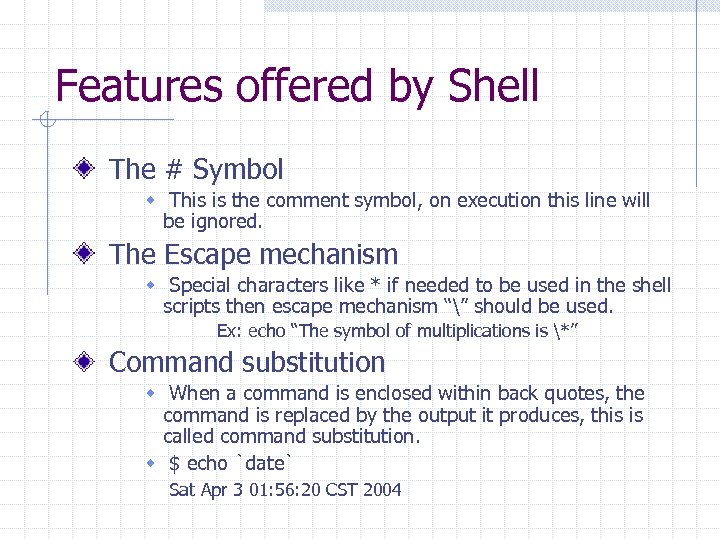 Features offered by Shell The # Symbol w This is the comment symbol, on execution this line will be ignored. The Escape mechanism w Special characters like * if needed to be used in the shell scripts then escape mechanism “” should be used. Ex: echo “The symbol of multiplications is *” Command substitution w When a command is enclosed within back quotes, the command is replaced by the output it produces, this is called command substitution. w $ echo `date` Sat Apr 3 01: 56: 20 CST 2004
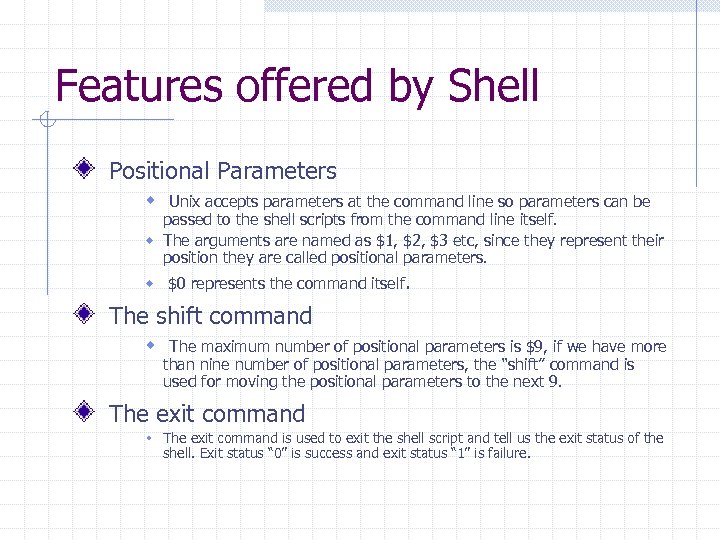 Features offered by Shell Positional Parameters w Unix accepts parameters at the command line so parameters can be passed to the shell scripts from the command line itself. w The arguments are named as $1, $2, $3 etc, since they represent their position they are called positional parameters. w $0 represents the command itself. The shift command w The maximum number of positional parameters is $9, if we have more than nine number of positional parameters, the “shift” command is used for moving the positional parameters to the next 9. The exit command w The exit command is used to exit the shell script and tell us the exit status of the shell. Exit status “ 0” is success and exit status “ 1” is failure.
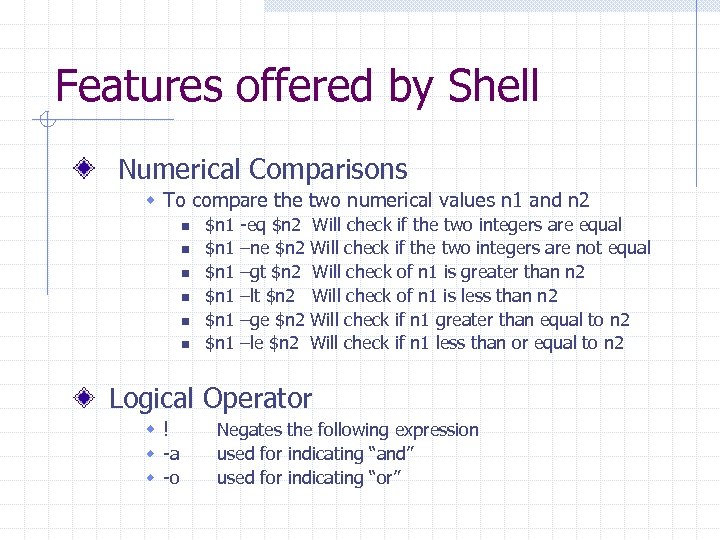 Features offered by Shell Numerical Comparisons w To compare the two numerical values n 1 and n 2 n n n $n 1 $n 1 -eq $n 2 Will check if the two integers are equal –ne $n 2 Will check if the two integers are not equal –gt $n 2 Will check of n 1 is greater than n 2 –lt $n 2 Will check of n 1 is less than n 2 –ge $n 2 Will check if n 1 greater than equal to n 2 –le $n 2 Will check if n 1 less than or equal to n 2 Logical Operator w! w -a w -o Negates the following expression used for indicating “and” used for indicating “or”
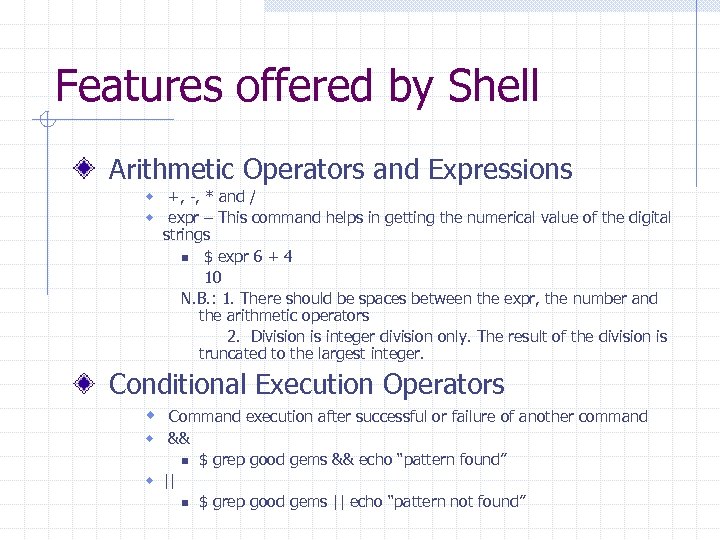 Features offered by Shell Arithmetic Operators and Expressions w +, -, * and / w expr – This command helps in getting the numerical value of the digital strings n $ expr 6 + 4 10 N. B. : 1. There should be spaces between the expr, the number and the arithmetic operators 2. Division is integer division only. The result of the division is truncated to the largest integer. Conditional Execution Operators w Command execution after successful or failure of another command w && n $ grep good gems && echo “pattern found” n $ grep good gems || echo “pattern not found” w ||
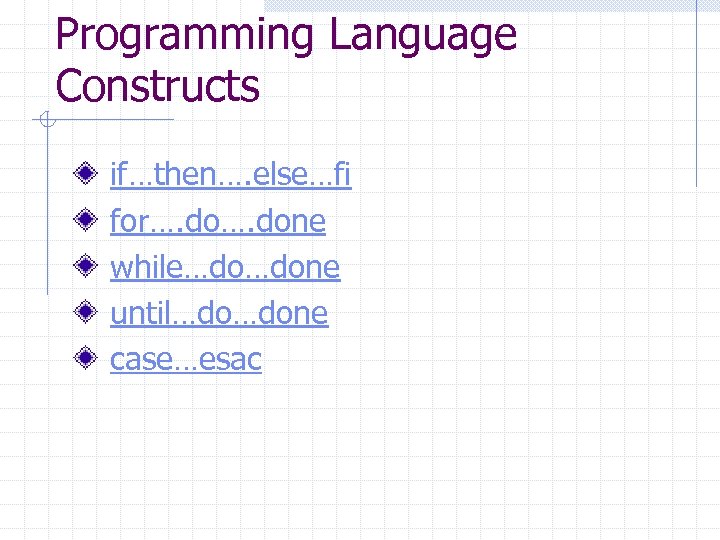 Programming Language Constructs if…then…. else…fi for…. done while…do…done until…do…done case…esac
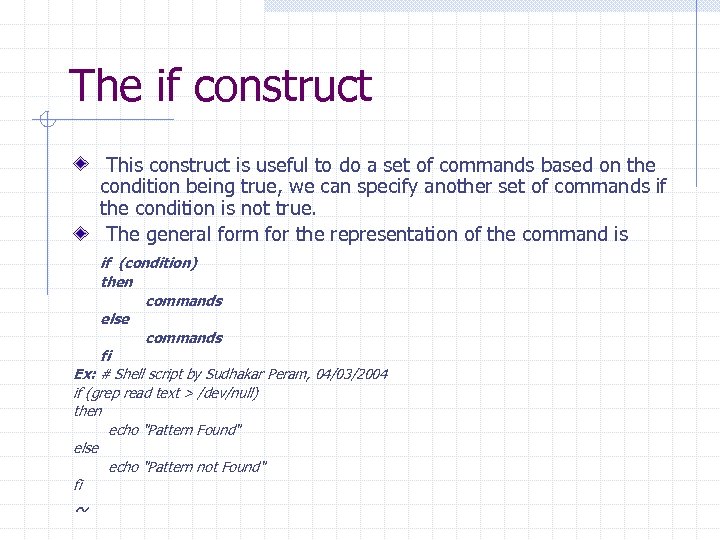 The if construct This construct is useful to do a set of commands based on the condition being true, we can specify another set of commands if the condition is not true. The general form for the representation of the command is if (condition) then commands else commands fi Ex: # Shell script by Sudhakar Peram, 04/03/2004 if (grep read text > /dev/null) then echo "Pattern Found" else echo "Pattern not Found" fi ~
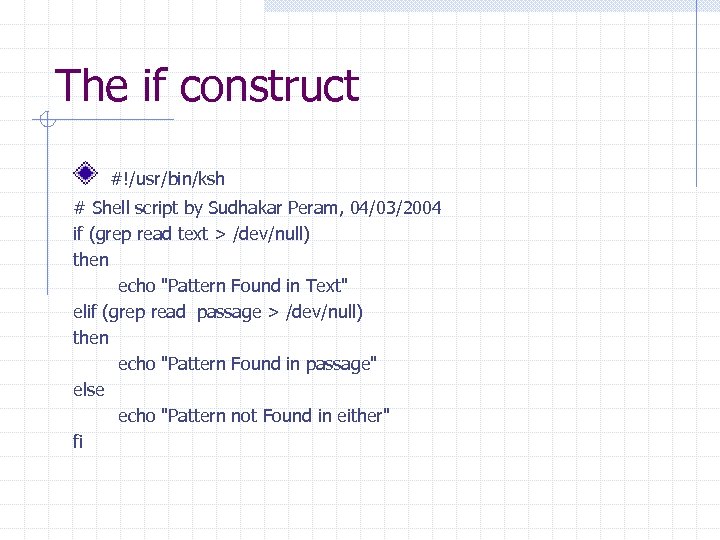 The if construct #!/usr/bin/ksh # Shell script by Sudhakar Peram, 04/03/2004 if (grep read text > /dev/null) then echo "Pattern Found in Text" elif (grep read passage > /dev/null) then echo "Pattern Found in passage" else echo "Pattern not Found in either" fi
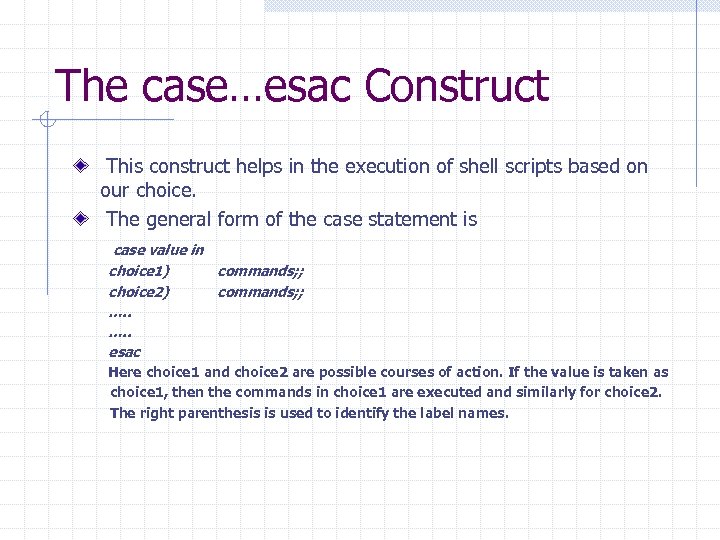 The case…esac Construct This construct helps in the execution of shell scripts based on our choice. The general form of the case statement is case value in choice 1) commands; ; choice 2) commands; ; …. . esac Here choice 1 and choice 2 are possible courses of action. If the value is taken as choice 1, then the commands in choice 1 are executed and similarly for choice 2. The right parenthesis is used to identify the label names.
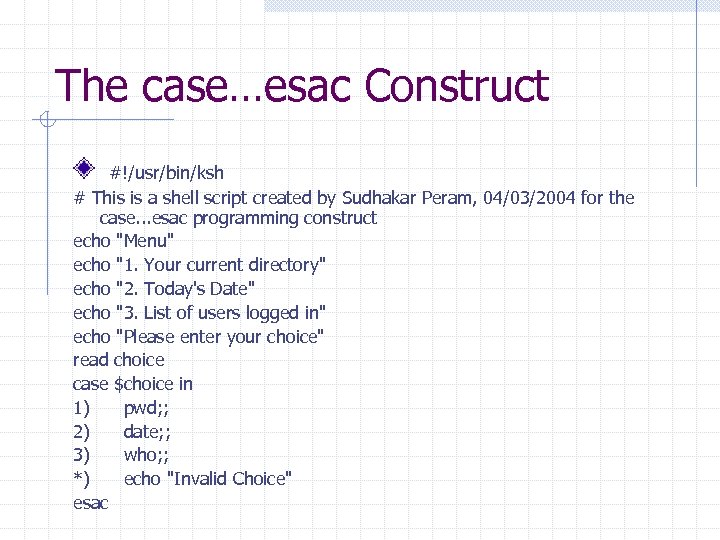 The case…esac Construct #!/usr/bin/ksh # This is a shell script created by Sudhakar Peram, 04/03/2004 for the case. . . esac programming construct echo "Menu" echo "1. Your current directory" echo "2. Today's Date" echo "3. List of users logged in" echo "Please enter your choice" read choice case $choice in 1) pwd; ; 2) date; ; 3) who; ; *) echo "Invalid Choice" esac
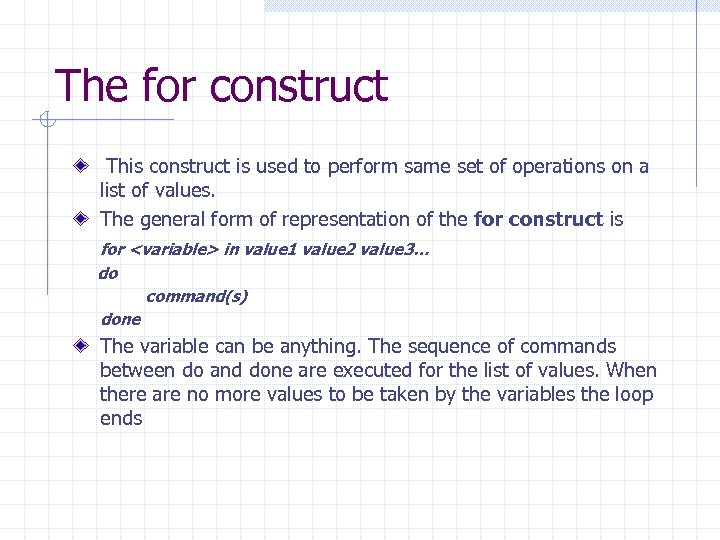 The for construct This construct is used to perform same set of operations on a list of values. The general form of representation of the for construct is for
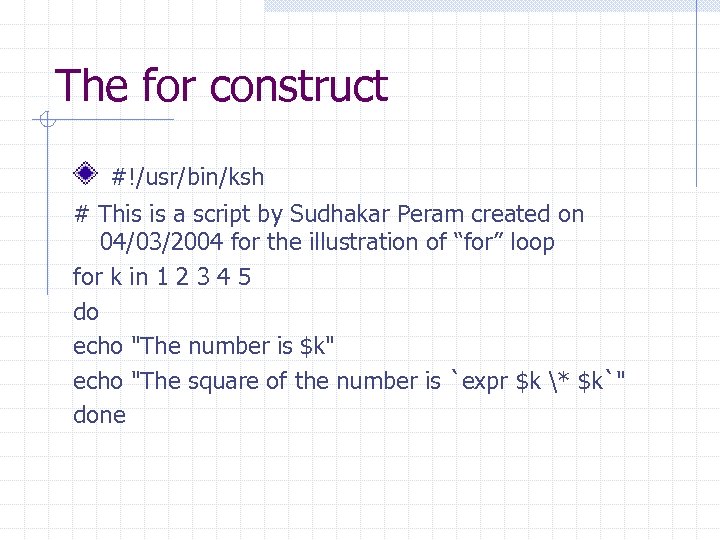 The for construct #!/usr/bin/ksh # This is a script by Sudhakar Peram created on 04/03/2004 for the illustration of “for” loop for k in 1 2 3 4 5 do echo "The number is $k" echo "The square of the number is `expr $k * $k`" done
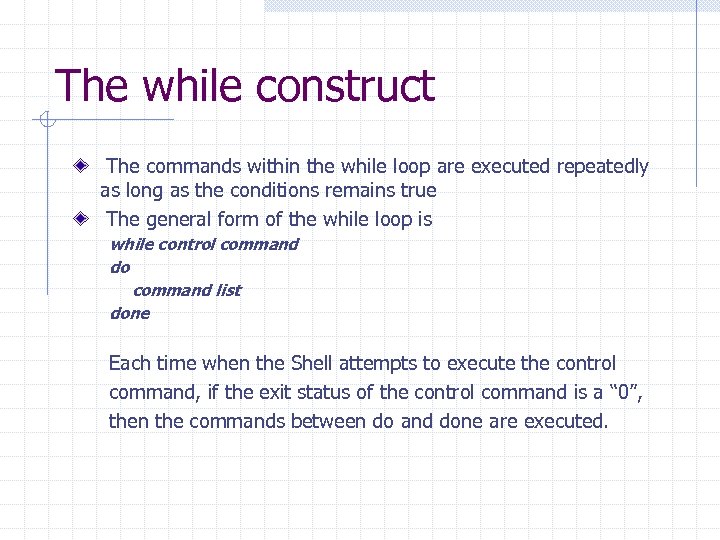 The while construct The commands within the while loop are executed repeatedly as long as the conditions remains true The general form of the while loop is while control command do command list done Each time when the Shell attempts to execute the control command, if the exit status of the control command is a “ 0”, then the commands between do and done are executed.
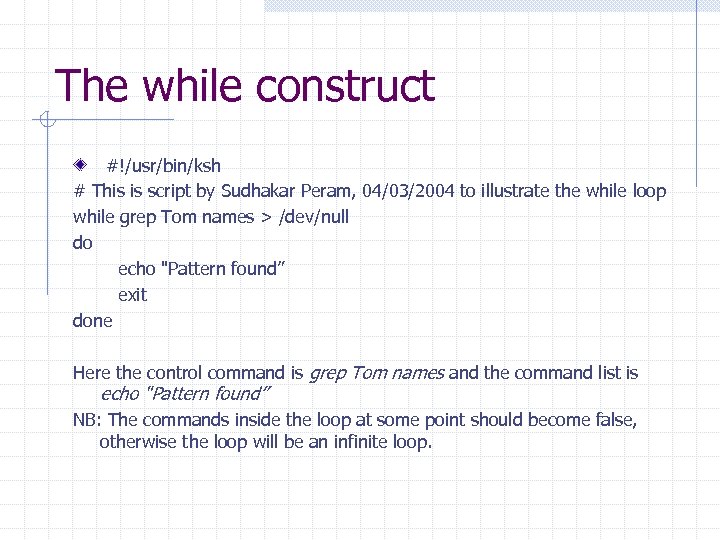 The while construct #!/usr/bin/ksh # This is script by Sudhakar Peram, 04/03/2004 to illustrate the while loop while grep Tom names > /dev/null do echo "Pattern found” exit done Here the control command is grep Tom names and the command list is echo "Pattern found” NB: The commands inside the loop at some point should become false, otherwise the loop will be an infinite loop.
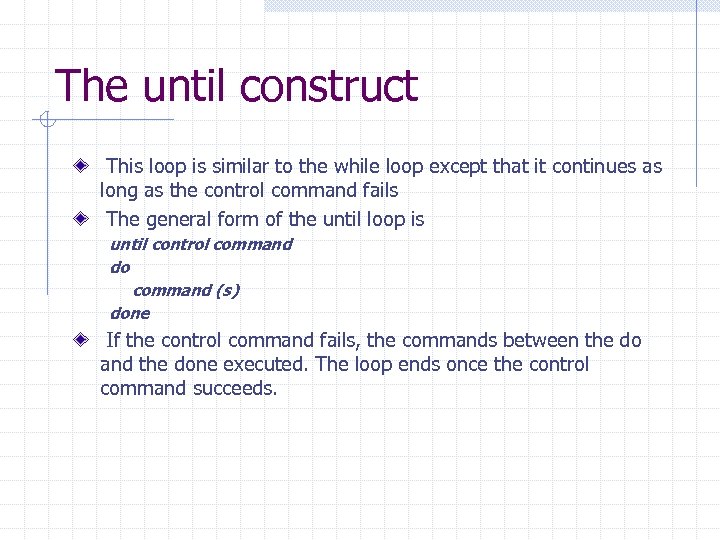 The until construct This loop is similar to the while loop except that it continues as long as the control command fails The general form of the until loop is until control command do command (s) done If the control command fails, the commands between the do and the done executed. The loop ends once the control command succeeds.
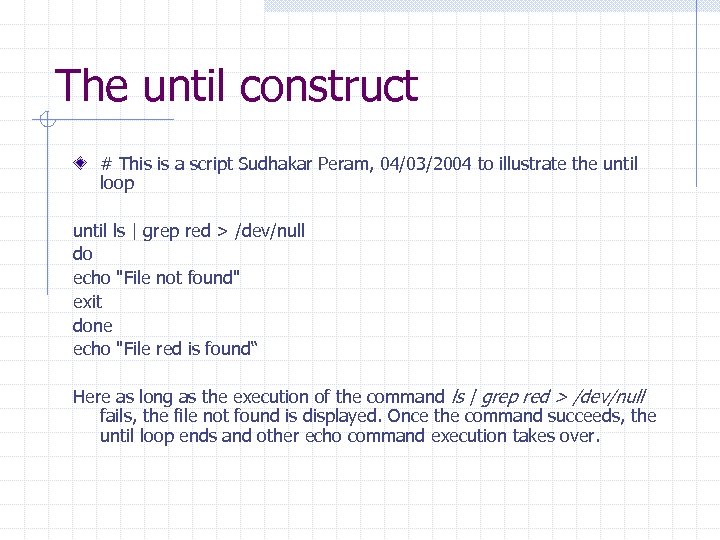 The until construct # This is a script Sudhakar Peram, 04/03/2004 to illustrate the until loop until ls | grep red > /dev/null do echo "File not found" exit done echo "File red is found“ Here as long as the execution of the command ls | grep red > /dev/null fails, the file not found is displayed. Once the command succeeds, the until loop ends and other echo command execution takes over.
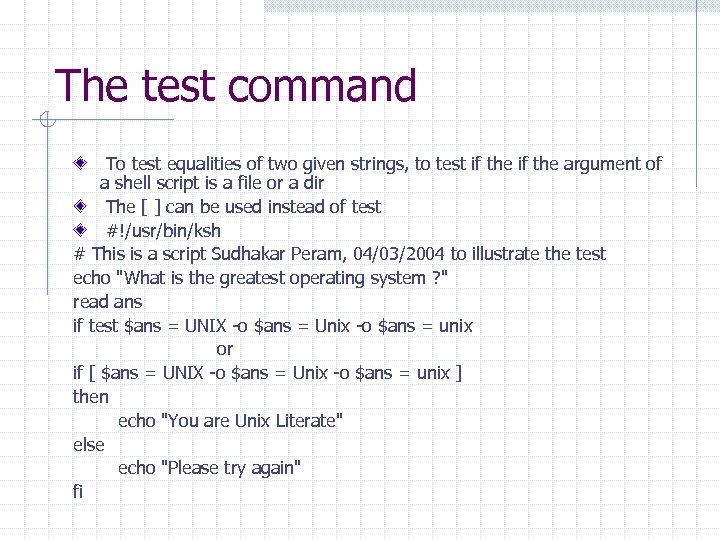 The test command To test equalities of two given strings, to test if the argument of a shell script is a file or a dir The [ ] can be used instead of test #!/usr/bin/ksh # This is a script Sudhakar Peram, 04/03/2004 to illustrate the test echo "What is the greatest operating system ? " read ans if test $ans = UNIX -o $ans = Unix -o $ans = unix or if [ $ans = UNIX -o $ans = Unix -o $ans = unix ] then echo "You are Unix Literate" else echo "Please try again" fi
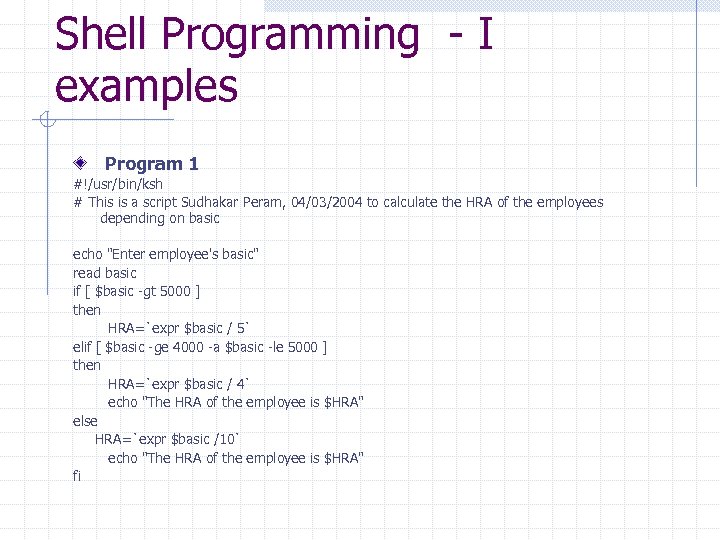 Shell Programming - I examples Program 1 #!/usr/bin/ksh # This is a script Sudhakar Peram, 04/03/2004 to calculate the HRA of the employees depending on basic echo "Enter employee's basic" read basic if [ $basic -gt 5000 ] then HRA=`expr $basic / 5` elif [ $basic -ge 4000 -a $basic -le 5000 ] then HRA=`expr $basic / 4` echo "The HRA of the employee is $HRA" else HRA=`expr $basic /10` echo "The HRA of the employee is $HRA" fi
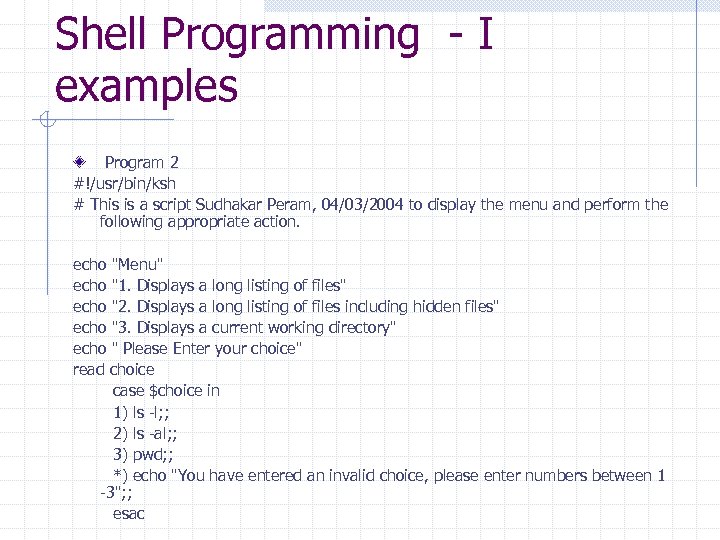 Shell Programming - I examples Program 2 #!/usr/bin/ksh # This is a script Sudhakar Peram, 04/03/2004 to display the menu and perform the following appropriate action. echo "Menu" echo "1. Displays a long listing of files" echo "2. Displays a long listing of files including hidden files" echo "3. Displays a current working directory" echo " Please Enter your choice" read choice case $choice in 1) ls -l; ; 2) ls -al; ; 3) pwd; ; *) echo "You have entered an invalid choice, please enter numbers between 1 -3"; ; esac
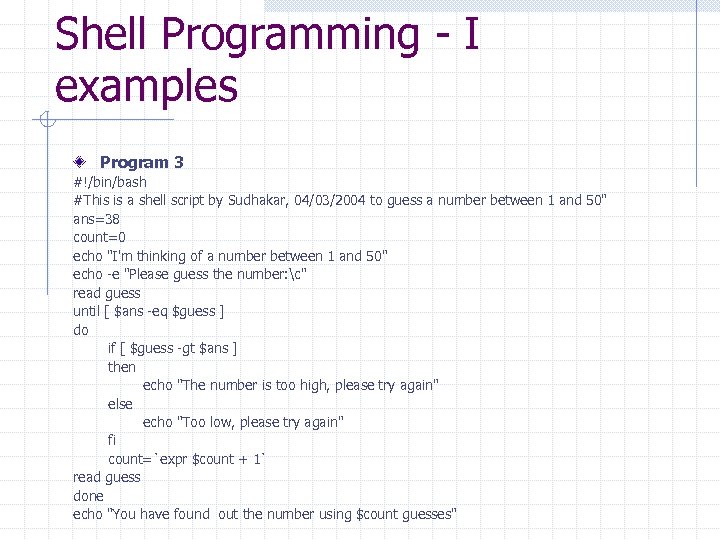 Shell Programming - I examples Program 3 #!/bin/bash #This is a shell script by Sudhakar, 04/03/2004 to guess a number between 1 and 50" ans=38 count=0 echo "I'm thinking of a number between 1 and 50" echo -e "Please guess the number: c" read guess until [ $ans -eq $guess ] do if [ $guess -gt $ans ] then echo "The number is too high, please try again" else echo "Too low, please try again" fi count=`expr $count + 1` read guess done echo "You have found out the number using $count guesses"
 Shell Programming - II Advanced Features of Shell Additional programming language constructs Background Processing
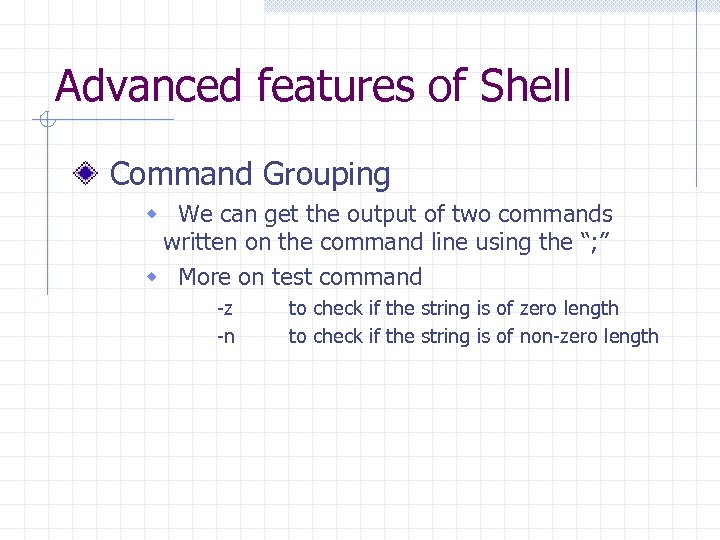 Advanced features of Shell Command Grouping w We can get the output of two commands written on the command line using the “; ” w More on test command -z -n to check if the string is of zero length to check if the string is of non-zero length
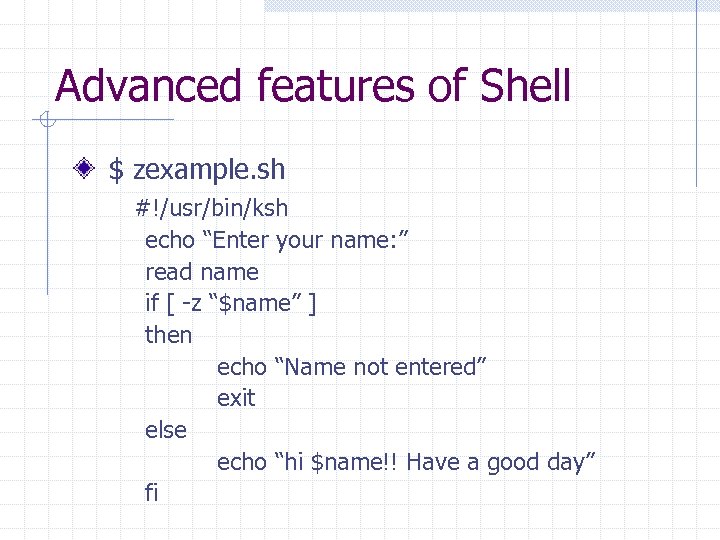 Advanced features of Shell $ zexample. sh #!/usr/bin/ksh echo “Enter your name: ” read name if [ -z “$name” ] then echo “Name not entered” exit else echo “hi $name!! Have a good day” fi
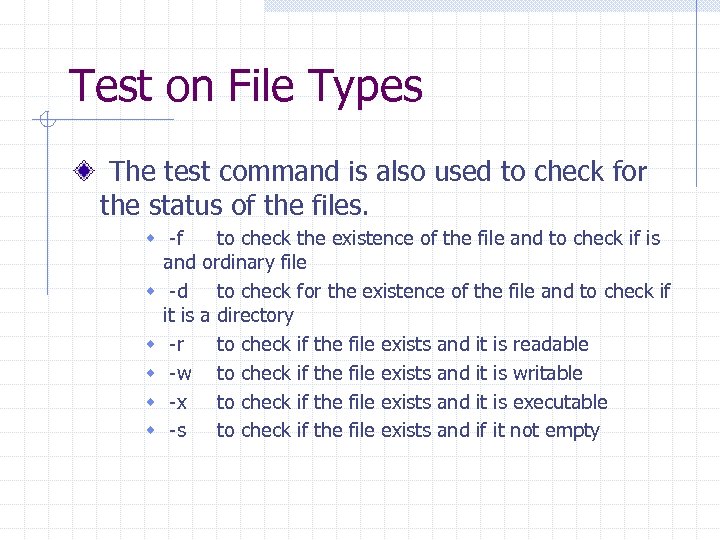 Test on File Types The test command is also used to check for the status of the files. w -f to check the existence of the file and to check if is and ordinary file w -d to check for the existence of the file and to check if it is a directory w -r to check if the file exists and it is readable w -w to check if the file exists and it is writable w -x to check if the file exists and it is executable w -s to check if the file exists and if it not empty
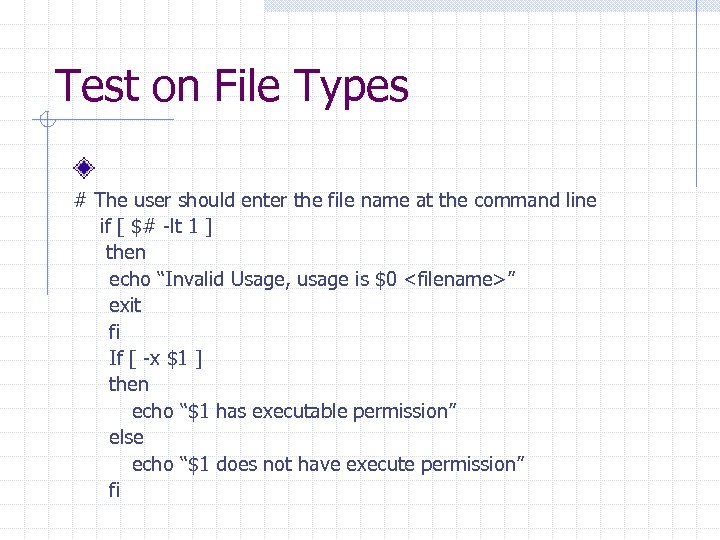 Test on File Types # The user should enter the file name at the command line if [ $# -lt 1 ] then echo “Invalid Usage, usage is $0
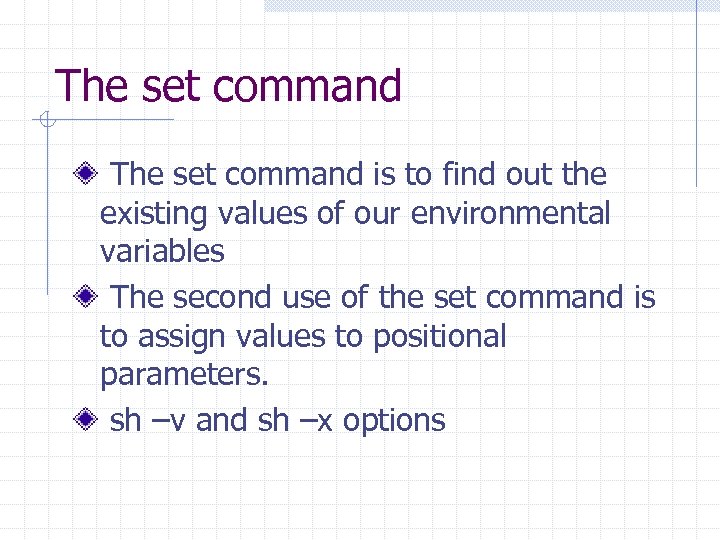 The set command is to find out the existing values of our environmental variables The second use of the set command is to assign values to positional parameters. sh –v and sh –x options
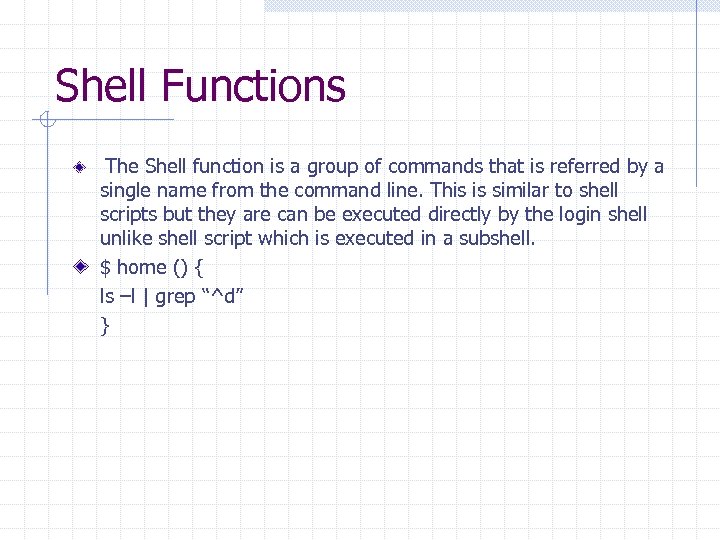 Shell Functions The Shell function is a group of commands that is referred by a single name from the command line. This is similar to shell scripts but they are can be executed directly by the login shell unlike shell script which is executed in a subshell. $ home () { ls –l | grep “^d” }
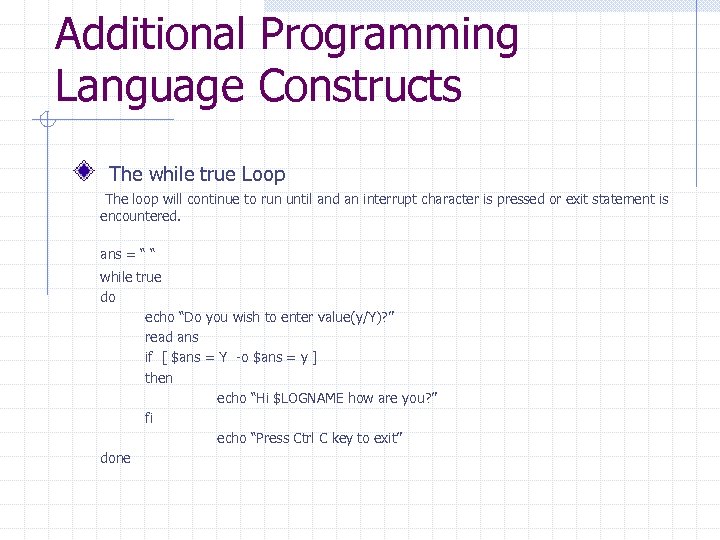 Additional Programming Language Constructs The while true Loop The loop will continue to run until and an interrupt character is pressed or exit statement is encountered. ans = “ “ while true do echo “Do you wish to enter value(y/Y)? ” read ans if [ $ans = Y -o $ans = y ] then echo “Hi $LOGNAME how are you? ” fi echo “Press Ctrl C key to exit” done
 Additional Programming Language Constructs The until false loop This is a complementary of “while true” loop. As long as the condition remains false, the execution of the script continues until false do ps –f sleep 5 echo “Unix at your service” echo “Press Ctrl+C key to exit” done
 Adding the default argument The default argument will be executed if no input is given in the command line. case $# in 0) num=30; ; *) num=$1 esac echo “Listing out the number below $num” while true do echo “$num” num=`expr $num – 1` if [ $num –le 0 ] then echo “We’ve listed the numbers as you requested” exit fi done
 The break and continue statements The break statement This helps in the termination of the loop. Ex: #/bin/bash #This is a script to illustrate the break statement while true do echo "Enter your choice: " echo "Enter w to quit" echo "Menu" echo "a. Today's date" echo "b. List of users" echo "c. Name of the home directory" read choice case $choice in a) clear; date; ; b) clear; who; ; c) clear; echo "Your home directory is $HOME"; ; w) break; ; *) echo "Not a valid choice" esac done
 The break and continue statements The continue statement This statement is used if we want to skip the remaining commands in the loop and start from the beginning of the loop again. #!/bin/bash # This is a script to illustrate the usage of continue statement ans=" " echo "Do you want to enter a value (Y/y)? " read ans while [ $ans = "Y" -o $ans = "y" ] do echo "Enter a name" read name echo $name >> names wish=" " echo "Do you wish to continue? " read wish if [ $wish = Y -o $wish = y ] then continue else echo "The contents of the file is: `cat names`" exit fi done
 Important Shell Script Considerations -v and –x options Usage of echo statements to get the values All error messages should be directed to the Standard Error Work comfortable with the editors
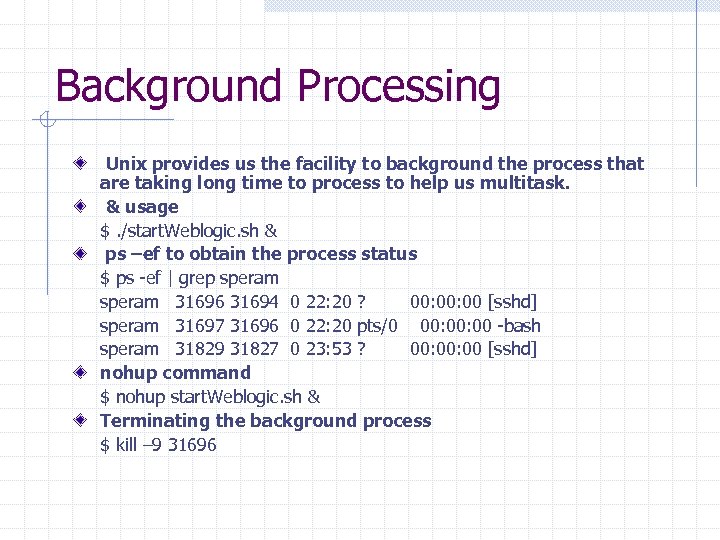 Background Processing Unix provides us the facility to background the process that are taking long time to process to help us multitask. & usage $. /start. Weblogic. sh & ps –ef to obtain the process status $ ps -ef | grep speram 31696 31694 0 22: 20 ? 00: 00 [sshd] speram 31697 31696 0 22: 20 pts/0 00: 00 -bash speram 31829 31827 0 23: 53 ? 00: 00 [sshd] nohup command $ nohup start. Weblogic. sh & Terminating the background process $ kill – 9 31696
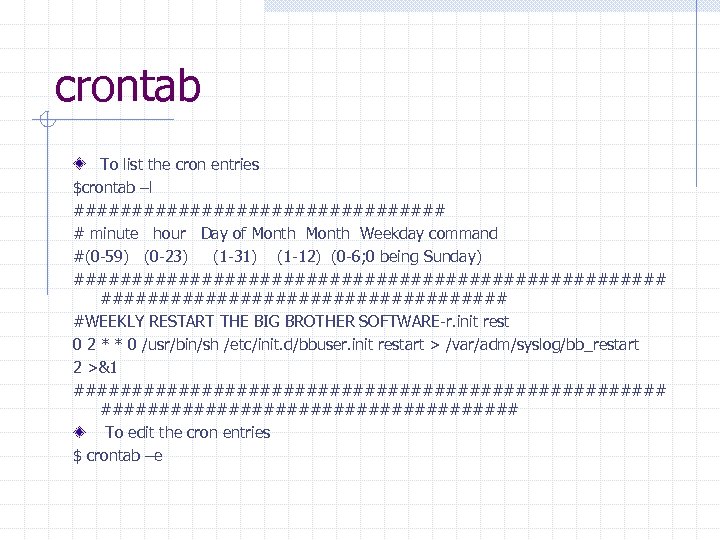 crontab To list the cron entries $crontab –l ################ # minute hour Day of Month Weekday command #(0 -59) (0 -23) (1 -31) (1 -12) (0 -6; 0 being Sunday) ########################## #WEEKLY RESTART THE BIG BROTHER SOFTWARE-r. init rest 0 2 * * 0 /usr/bin/sh /etc/init. d/bbuser. init restart > /var/adm/syslog/bb_restart 2 >&1 ########################## To edit the cron entries $ crontab –e
 Additional Unix Commands tar compress and uncompress gzip and gunzip sed and awk telnet and ftp ssh and scp mailx , mail write
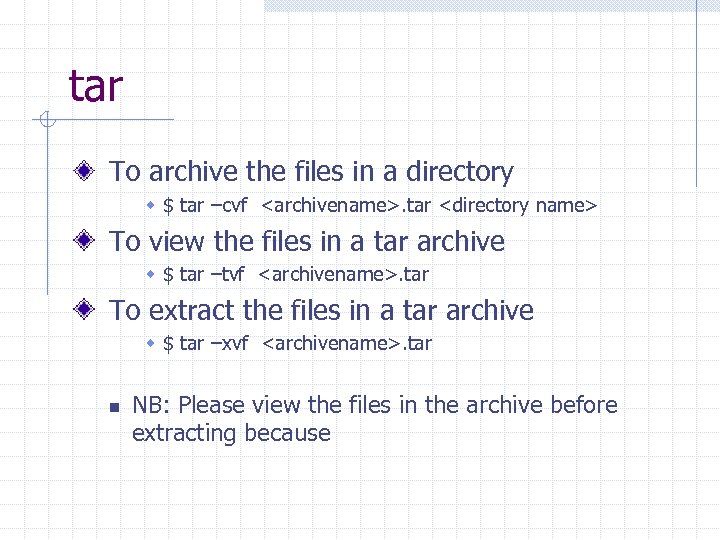 tar To archive the files in a directory w $ tar –cvf
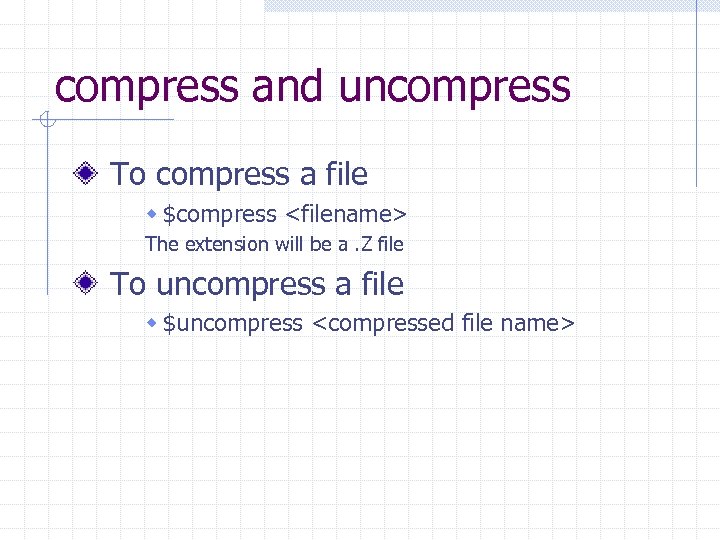 compress and uncompress To compress a file w $compress
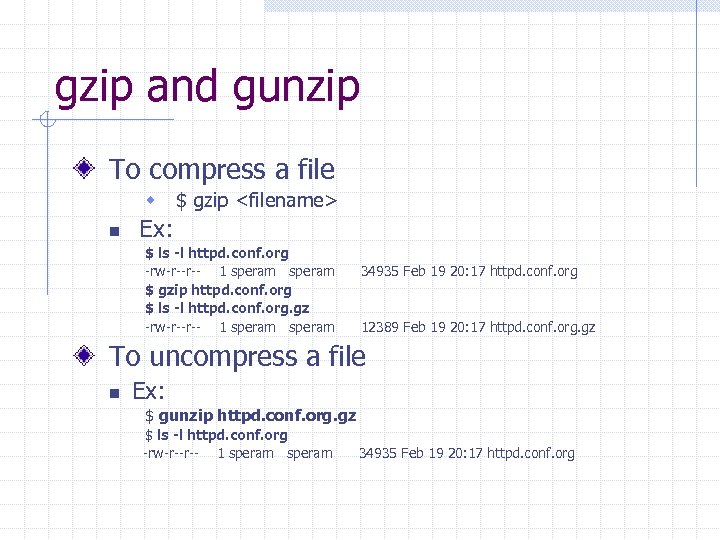 gzip and gunzip To compress a file w $ gzip
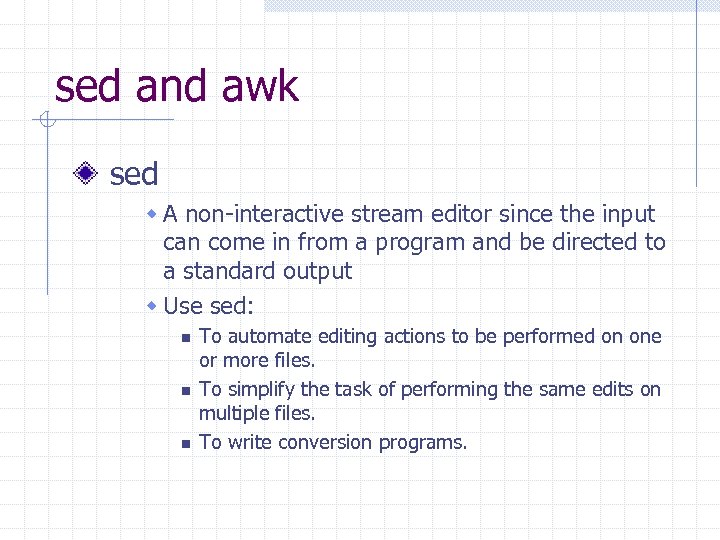 sed and awk sed w A non-interactive stream editor since the input can come in from a program and be directed to a standard output w Use sed: n n n To automate editing actions to be performed on one or more files. To simplify the task of performing the same edits on multiple files. To write conversion programs.
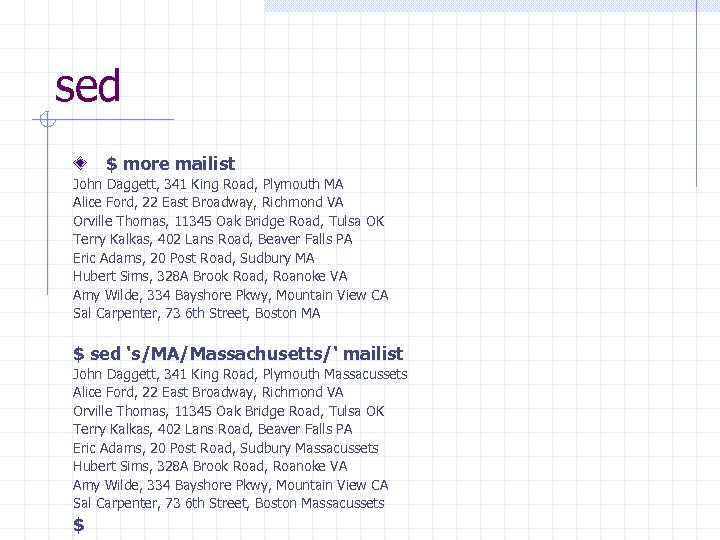 sed $ more mailist John Daggett, 341 King Road, Plymouth MA Alice Ford, 22 East Broadway, Richmond VA Orville Thomas, 11345 Oak Bridge Road, Tulsa OK Terry Kalkas, 402 Lans Road, Beaver Falls PA Eric Adams, 20 Post Road, Sudbury MA Hubert Sims, 328 A Brook Road, Roanoke VA Amy Wilde, 334 Bayshore Pkwy, Mountain View CA Sal Carpenter, 73 6 th Street, Boston MA $ sed 's/MA/Massachusetts/' mailist John Daggett, 341 King Road, Plymouth Massacussets Alice Ford, 22 East Broadway, Richmond VA Orville Thomas, 11345 Oak Bridge Road, Tulsa OK Terry Kalkas, 402 Lans Road, Beaver Falls PA Eric Adams, 20 Post Road, Sudbury Massacussets Hubert Sims, 328 A Brook Road, Roanoke VA Amy Wilde, 334 Bayshore Pkwy, Mountain View CA Sal Carpenter, 73 6 th Street, Boston Massacussets $
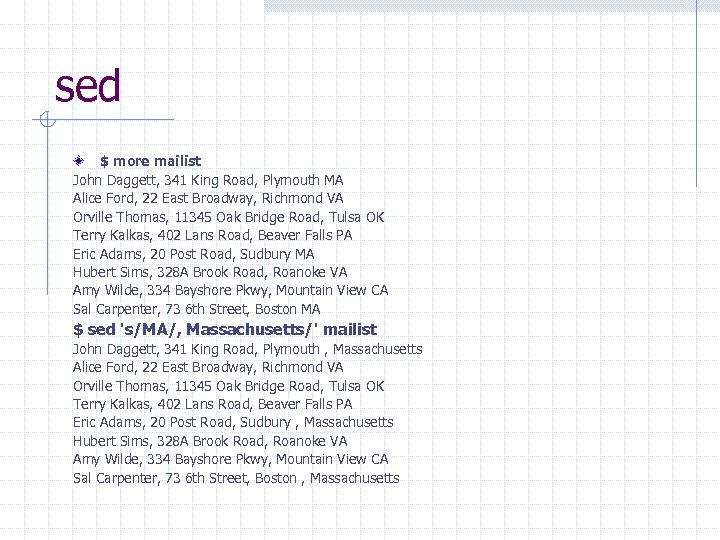 sed $ more mailist John Daggett, 341 King Road, Plymouth MA Alice Ford, 22 East Broadway, Richmond VA Orville Thomas, 11345 Oak Bridge Road, Tulsa OK Terry Kalkas, 402 Lans Road, Beaver Falls PA Eric Adams, 20 Post Road, Sudbury MA Hubert Sims, 328 A Brook Road, Roanoke VA Amy Wilde, 334 Bayshore Pkwy, Mountain View CA Sal Carpenter, 73 6 th Street, Boston MA $ sed 's/MA/, Massachusetts/' mailist John Daggett, 341 King Road, Plymouth , Massachusetts Alice Ford, 22 East Broadway, Richmond VA Orville Thomas, 11345 Oak Bridge Road, Tulsa OK Terry Kalkas, 402 Lans Road, Beaver Falls PA Eric Adams, 20 Post Road, Sudbury , Massachusetts Hubert Sims, 328 A Brook Road, Roanoke VA Amy Wilde, 334 Bayshore Pkwy, Mountain View CA Sal Carpenter, 73 6 th Street, Boston , Massachusetts
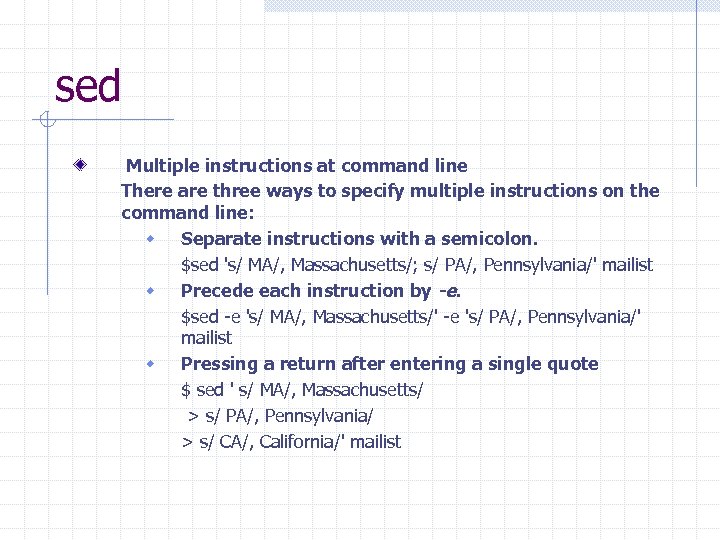 sed Multiple instructions at command line There are three ways to specify multiple instructions on the command line: w Separate instructions with a semicolon. $sed 's/ MA/, Massachusetts/; s/ PA/, Pennsylvania/' mailist w Precede each instruction by -e. $sed -e 's/ MA/, Massachusetts/' -e 's/ PA/, Pennsylvania/' mailist w Pressing a return after entering a single quote $ sed ' s/ MA/, Massachusetts/ > s/ PA/, Pennsylvania/ > s/ CA/, California/' mailist
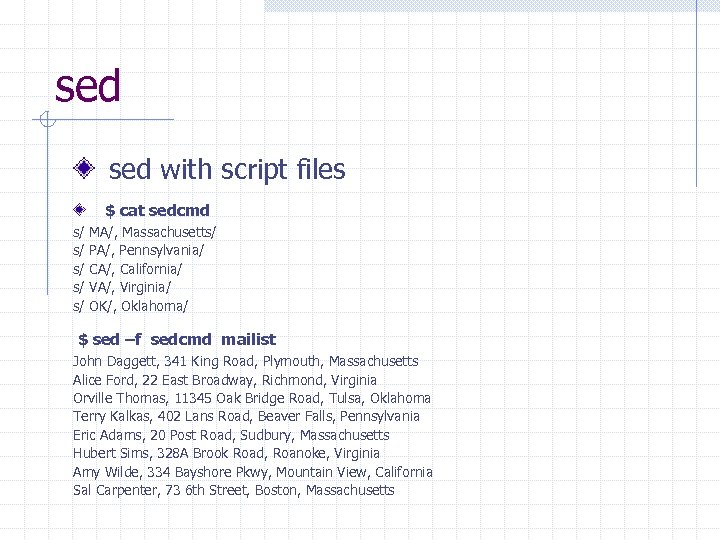 sed with script files $ cat sedcmd s/ s/ s/ MA/, Massachusetts/ PA/, Pennsylvania/ CA/, California/ VA/, Virginia/ OK/, Oklahoma/ $ sed –f sedcmd mailist John Daggett, 341 King Road, Plymouth, Massachusetts Alice Ford, 22 East Broadway, Richmond, Virginia Orville Thomas, 11345 Oak Bridge Road, Tulsa, Oklahoma Terry Kalkas, 402 Lans Road, Beaver Falls, Pennsylvania Eric Adams, 20 Post Road, Sudbury, Massachusetts Hubert Sims, 328 A Brook Road, Roanoke, Virginia Amy Wilde, 334 Bayshore Pkwy, Mountain View, California Sal Carpenter, 73 6 th Street, Boston, Massachusetts
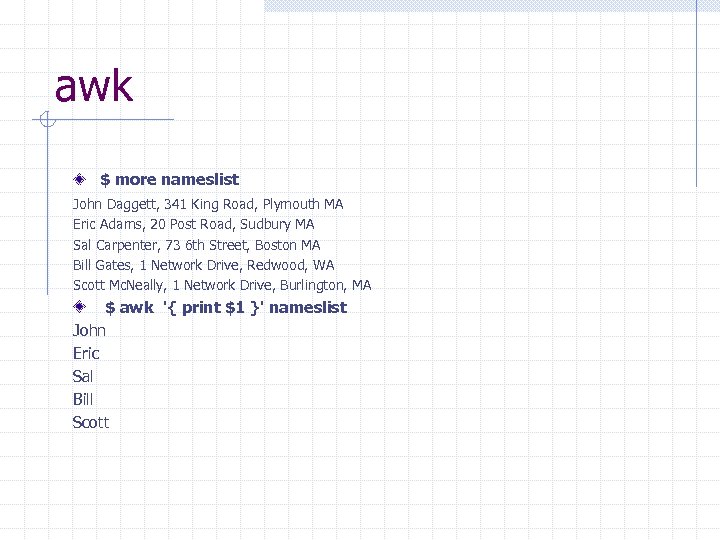 awk $ more nameslist John Daggett, 341 King Road, Plymouth MA Eric Adams, 20 Post Road, Sudbury MA Sal Carpenter, 73 6 th Street, Boston MA Bill Gates, 1 Network Drive, Redwood, WA Scott Mc. Neally, 1 Network Drive, Burlington, MA $ awk '{ print $1 }' nameslist John Eric Sal Bill Scott
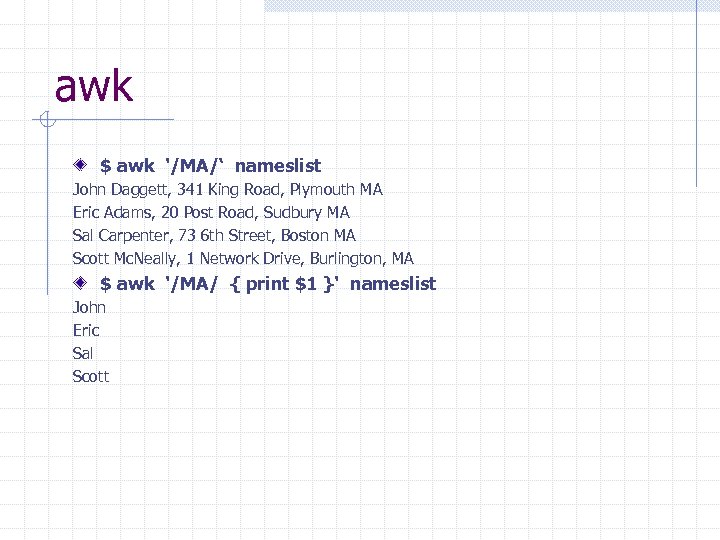 awk $ awk '/MA/‘ nameslist John Daggett, 341 King Road, Plymouth MA Eric Adams, 20 Post Road, Sudbury MA Sal Carpenter, 73 6 th Street, Boston MA Scott Mc. Neally, 1 Network Drive, Burlington, MA $ awk '/MA/ { print $1 }' nameslist John Eric Sal Scott
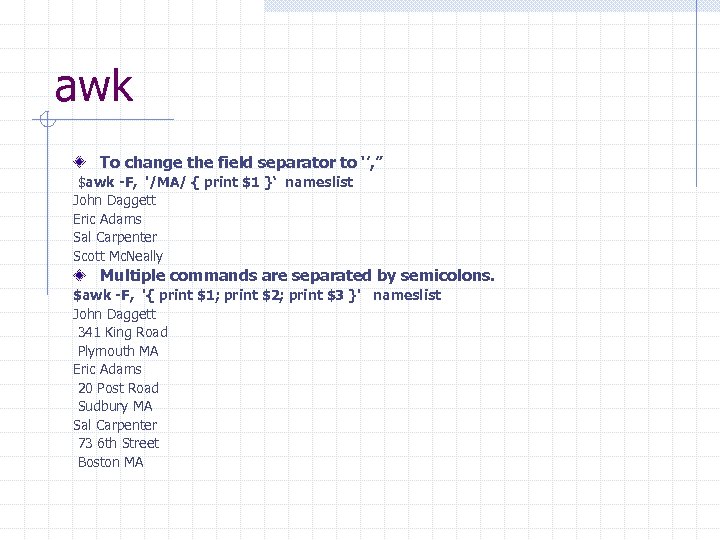 awk To change the field separator to ‘’, ” $awk -F, '/MA/ { print $1 }‘ nameslist John Daggett Eric Adams Sal Carpenter Scott Mc. Neally Multiple commands are separated by semicolons. $awk -F, '{ print $1; print $2; print $3 }' nameslist John Daggett 341 King Road Plymouth MA Eric Adams 20 Post Road Sudbury MA Sal Carpenter 73 6 th Street Boston MA
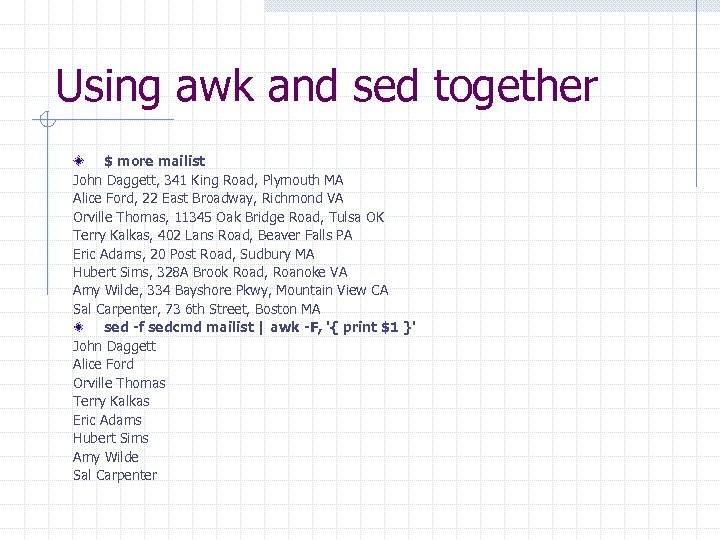 Using awk and sed together $ more mailist John Daggett, 341 King Road, Plymouth MA Alice Ford, 22 East Broadway, Richmond VA Orville Thomas, 11345 Oak Bridge Road, Tulsa OK Terry Kalkas, 402 Lans Road, Beaver Falls PA Eric Adams, 20 Post Road, Sudbury MA Hubert Sims, 328 A Brook Road, Roanoke VA Amy Wilde, 334 Bayshore Pkwy, Mountain View CA Sal Carpenter, 73 6 th Street, Boston MA sed -f sedcmd mailist | awk -F, '{ print $1 }' John Daggett Alice Ford Orville Thomas Terry Kalkas Eric Adams Hubert Sims Amy Wilde Sal Carpenter
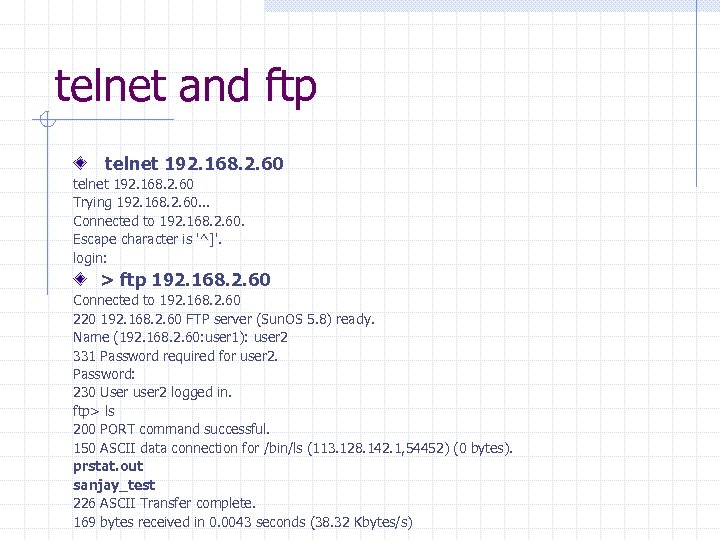 telnet and ftp telnet 192. 168. 2. 60 Trying 192. 168. 2. 60. . . Connected to 192. 168. 2. 60. Escape character is '^]'. login: > ftp 192. 168. 2. 60 Connected to 192. 168. 2. 60 220 192. 168. 2. 60 FTP server (Sun. OS 5. 8) ready. Name (192. 168. 2. 60: user 1): user 2 331 Password required for user 2. Password: 230 User user 2 logged in. ftp> ls 200 PORT command successful. 150 ASCII data connection for /bin/ls (113. 128. 142. 1, 54452) (0 bytes). prstat. out sanjay_test 226 ASCII Transfer complete. 169 bytes received in 0. 0043 seconds (38. 32 Kbytes/s)
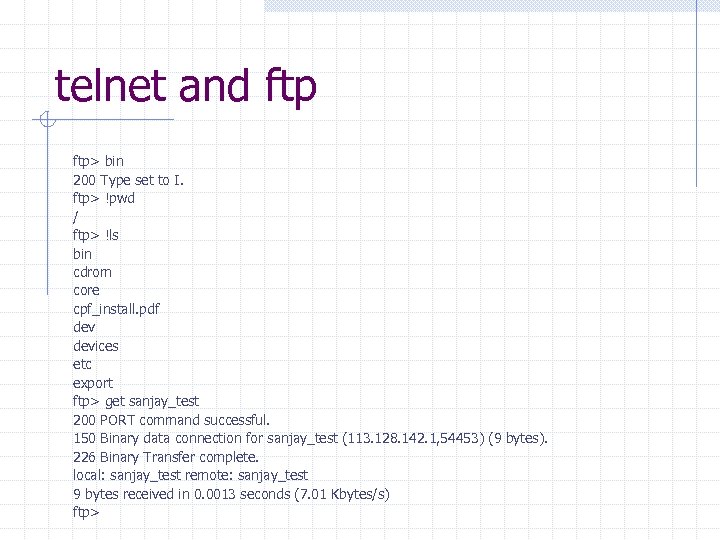 telnet and ftp> bin 200 Type set to I. ftp> !pwd / ftp> !ls bin cdrom core cpf_install. pdf devices etc export ftp> get sanjay_test 200 PORT command successful. 150 Binary data connection for sanjay_test (113. 128. 142. 1, 54453) (9 bytes). 226 Binary Transfer complete. local: sanjay_test remote: sanjay_test 9 bytes received in 0. 0013 seconds (7. 01 Kbytes/s) ftp>
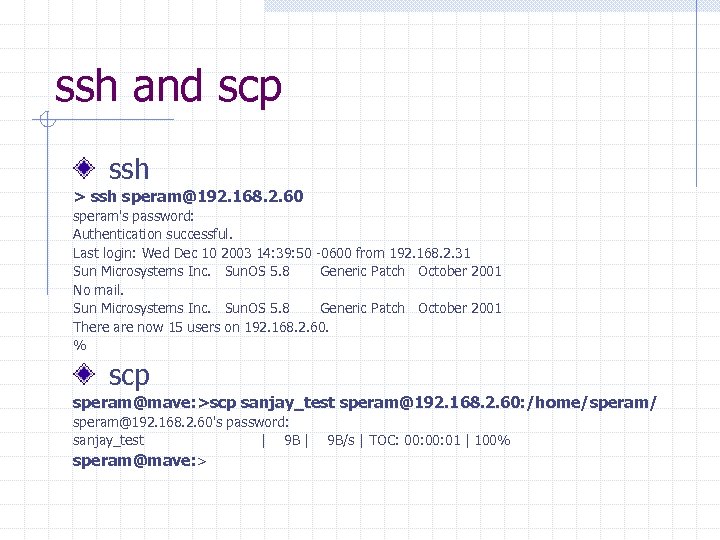 ssh and scp ssh > ssh speram@192. 168. 2. 60 speram's password: Authentication successful. Last login: Wed Dec 10 2003 14: 39: 50 -0600 from 192. 168. 2. 31 Sun Microsystems Inc. Sun. OS 5. 8 Generic Patch October 2001 No mail. Sun Microsystems Inc. Sun. OS 5. 8 Generic Patch October 2001 There are now 15 users on 192. 168. 2. 60. % scp speram@mave: >scp sanjay_test speram@192. 168. 2. 60: /home/speram/ speram@192. 168. 2. 60's password: sanjay_test | 9 B | speram@mave: > 9 B/s | TOC: 00: 01 | 100%
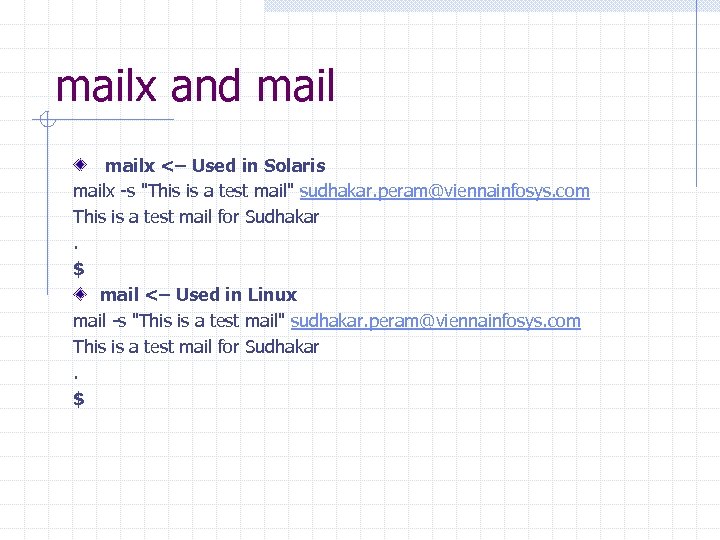 mailx and mailx <– Used in Solaris mailx -s "This is a test mail" sudhakar. peram@viennainfosys. com This is a test mail for Sudhakar. $ mail <– Used in Linux mail -s "This is a test mail" sudhakar. peram@viennainfosys. com This is a test mail for Sudhakar. $
![write [root@nemohibas root]# who speram pts/0 May 31 12: 24 (192. 168. 0. 2)](https://present5.com/presentation/43d9911228365b6f65051a86d8605ca9/image-140.jpg "write [root@nemohibas root]# who speram pts/0 May 31 12: 24 (192. 168. 0. 2)") write [root@nemohibas root]# who speram pts/0 May 31 12: 24 (192. 168. 0. 2) root pts/1 May 31 12: 25 (192. 168. 0. 2) [root@nemohibas root]# write speram Hi Sudhakar, How are you? Please log off as we'll be rebooting the system. . [root@nemohibas root]# ########################## [speram@nemohibas speram]$ Message from root@nemohibas on pts/1 at 12: 25. . . Hi Sudhakar, How are you? Please log off as we'll be rebooting the system. . EOF
write [root@nemohibas root]# who speram pts/0 May 31 12: 24 (192. 168. 0. 2) root pts/1 May 31 12: 25 (192. 168. 0. 2) [root@nemohibas root]# write speram Hi Sudhakar, How are you? Please log off as we'll be rebooting the system. . [root@nemohibas root]# ########################## [speram@nemohibas speram]$ Message from root@nemohibas on pts/1 at 12: 25. . . Hi Sudhakar, How are you? Please log off as we'll be rebooting the system. . EOF