 Скачать презентацию Unit OS 11 Performance Evaluation 11 2 Boot Startup
046f4c4f18ccd1c5a2f542d3d180a491.ppt
- Количество слайдов: 57



Unit OS 11: Performance Evaluation 11. 2. Boot/Startup Troubleshooting Windows Operating System Internals - by David A. Solomon and Mark E. Russinovich with Andreas Polze
Copyright Notice © 2000 -2005 David A. Solomon and Mark Russinovich These materials are part of the Windows Operating System Internals Curriculum Development Kit, developed by David A. Solomon and Mark E. Russinovich with Andreas Polze Microsoft has licensed these materials from David Solomon Expert Seminars, Inc. for distribution to academic organizations solely for use in academic environments (and not for commercial use) 2
Roadmap for Section 11. 2 Windows Boot Process Shutdown Causes for Crashes Recovery Console and Safe-Mode Boot System Restore 3
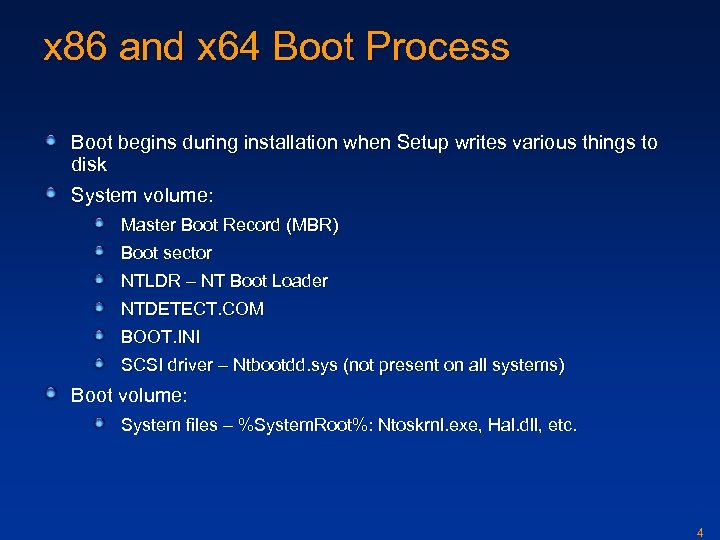
x 86 and x 64 Boot Process Boot begins during installation when Setup writes various things to disk System volume: Master Boot Record (MBR) Boot sector NTLDR – NT Boot Loader NTDETECT. COM BOOT. INI SCSI driver – Ntbootdd. sys (not present on all systems) Boot volume: System files – %System. Root%: Ntoskrnl. exe, Hal. dll, etc. 4
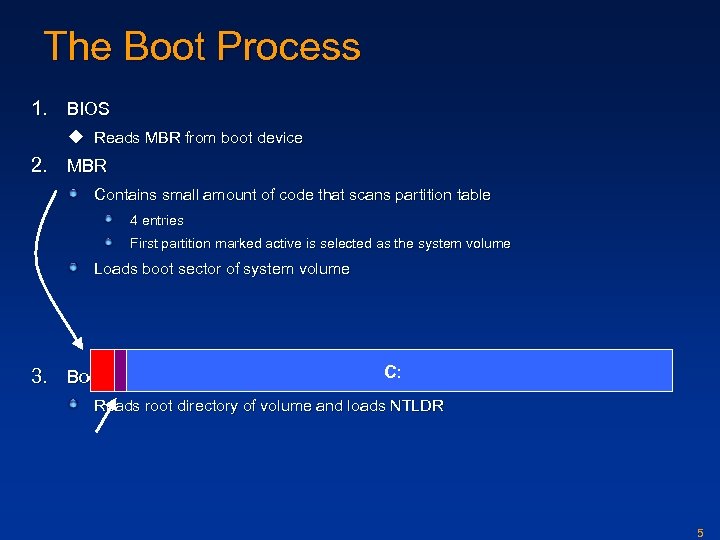
The Boot Process 1. BIOS u Reads MBR from boot device 2. MBR Contains small amount of code that scans partition table 4 entries First partition marked active is selected as the system volume Loads boot sector of system volume 3. Boot sector (NT-specific code) C: Reads root directory of volume and loads NTLDR 5
x 86 and x 64 Boot Process 4. NTLDR Moves system from 16 -bit to 32 -bit mode and enables paging Reads and uses Ntbootdd. sys to perform disk I/O if the boot volume is on a SCSI disk different than the system volume This is a copy of the SCSI miniport driver used when the OS is booted Reads Boot. ini selections point to boot drive Specifies OS boot selections and optional switches (most for debugging/troubleshooting) that passed to kernel during boot If more than one selection, NTLDR displays boot menu (with timeout) If you select a 64 -bit installation, NTLDR moves the CPU into 64 -bit mode 7
Boot Process 4. NTLDR (continued) Once boot selection made, user can type F 8 to get to special boot menu Last Known Good, Safe modes, hardware profile, Debugging mode NTLDR loads and executes Ntdetect. com to perform BIOS hardware detection (x 86 and x 64 only) Later saved into HKLMHardwareDescription NTLDR loads: Ntoskrnl. exe, Hal. dll, and Bootvid. dll (and Kdcom. dll for XP and later) The registry SYSTEM hive (WindowsSystem 32ConfigSystem) Later this becomes HKLMSystem Based on the SYSTEM hive, the boot drivers are loaded Boot driver: critical to boot process (e. g. boot file system driver) Transfers control to main entry point of Ntoskrnl. exe 8
The Boot Process (cont) 5. Ntoskrnl. exe (splash screen appears) Initializes kernel subsystems in two phases: First phase is object definition (process, thread, driver, etc) Second builds on the base that the objects provide This is done in the context of a kernel-mode system thread that becomes the idle thread I/O Manager starts boot-start drivers and then loads and starts system-start drivers 9
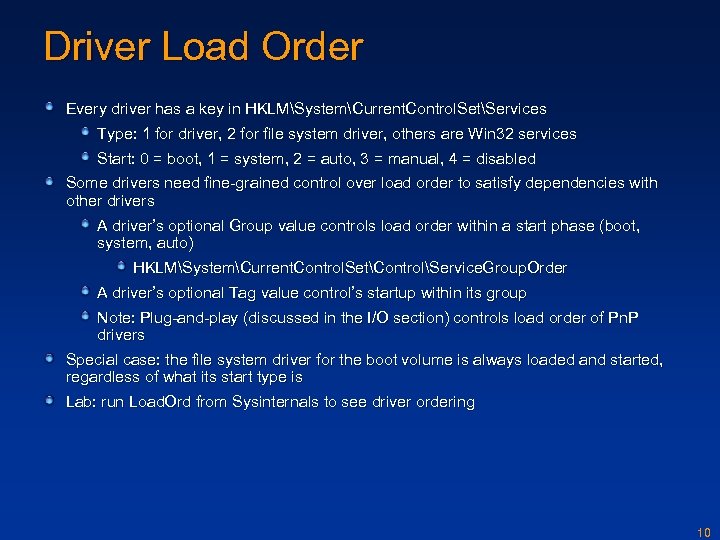
Driver Load Order Every driver has a key in HKLMSystemCurrent. Control. SetServices Type: 1 for driver, 2 for file system driver, others are Win 32 services Start: 0 = boot, 1 = system, 2 = auto, 3 = manual, 4 = disabled Some drivers need fine-grained control over load order to satisfy dependencies with other drivers A driver’s optional Group value controls load order within a start phase (boot, system, auto) HKLMSystemCurrent. Control. SetControlService. Group. Order A driver’s optional Tag value control’s startup within its group Note: Plug-and-play (discussed in the I/O section) controls load order of Pn. P drivers Special case: the file system driver for the boot volume is always loaded and started, regardless of what its start type is Lab: run Load. Ord from Sysinternals to see driver ordering 10
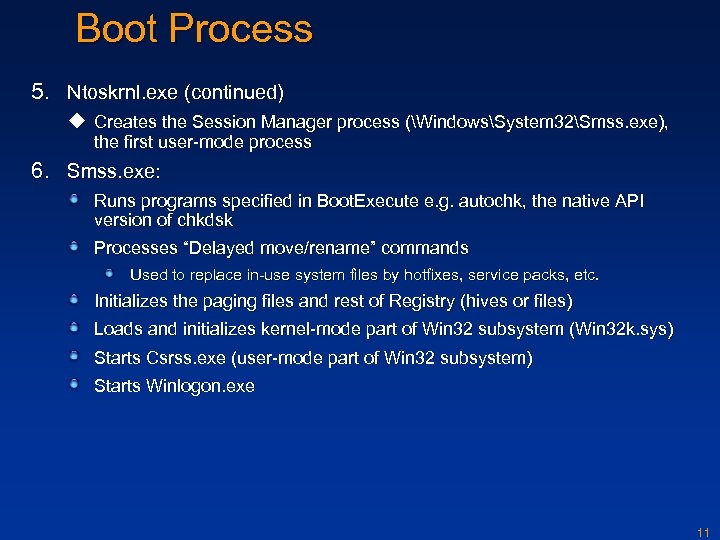
Boot Process 5. Ntoskrnl. exe (continued) u Creates the Session Manager process (WindowsSystem 32Smss. exe), the first user-mode process 6. Smss. exe: Runs programs specified in Boot. Execute e. g. autochk, the native API version of chkdsk Processes “Delayed move/rename” commands Used to replace in-use system files by hotfixes, service packs, etc. Initializes the paging files and rest of Registry (hives or files) Loads and initializes kernel-mode part of Win 32 subsystem (Win 32 k. sys) Starts Csrss. exe (user-mode part of Win 32 subsystem) Starts Winlogon. exe 11
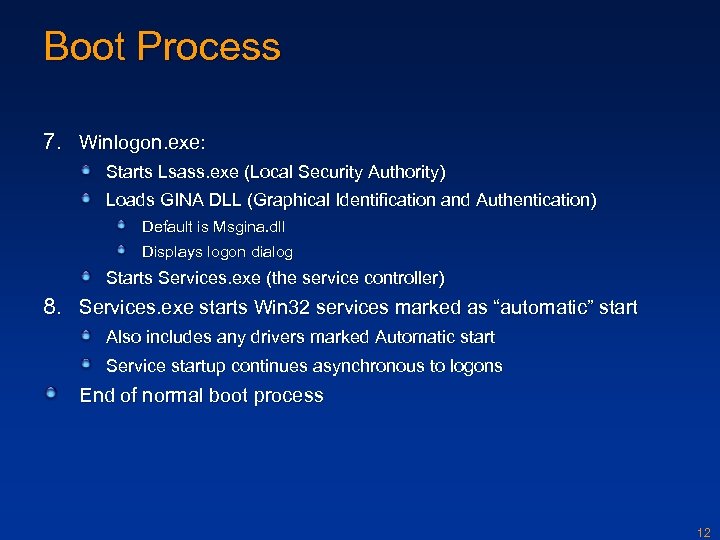
Boot Process 7. Winlogon. exe: Starts Lsass. exe (Local Security Authority) Loads GINA DLL (Graphical Identification and Authentication) Default is Msgina. dll Displays logon dialog Starts Services. exe (the service controller) 8. Services. exe starts Win 32 services marked as “automatic” start Also includes any drivers marked Automatic start Service startup continues asynchronous to logons End of normal boot process 12
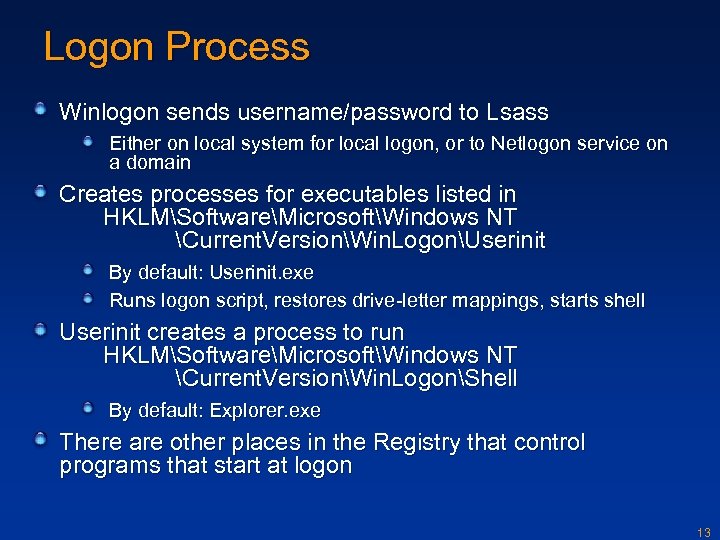
Logon Process Winlogon sends username/password to Lsass Either on local system for local logon, or to Netlogon service on a domain Creates processes for executables listed in HKLMSoftwareMicrosoftWindows NT Current. VersionWin. LogonUserinit By default: Userinit. exe Runs logon script, restores drive-letter mappings, starts shell Userinit creates a process to run HKLMSoftwareMicrosoftWindows NT Current. VersionWin. LogonShell By default: Explorer. exe There are other places in the Registry that control programs that start at logon 13
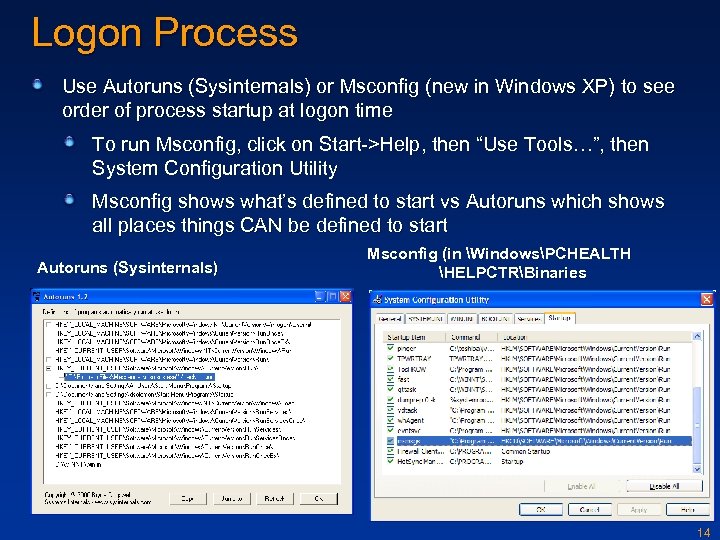
Logon Process Use Autoruns (Sysinternals) or Msconfig (new in Windows XP) to see order of process startup at logon time To run Msconfig, click on Start->Help, then “Use Tools…”, then System Configuration Utility Msconfig shows what’s defined to start vs Autoruns which shows all places things CAN be defined to start Autoruns (Sysinternals) Msconfig (in WindowsPCHEALTH HELPCTRBinaries 14
Normal vs. Abnormal Shutdown Normal shutdown Required reboots (e. g. installing a service pack replaces critical system files) Hardware maintenance But normally don’t need to shutdown—just hibernate! Abnormal shutdown System crash - something wrong in kernel mode Hardware error 15
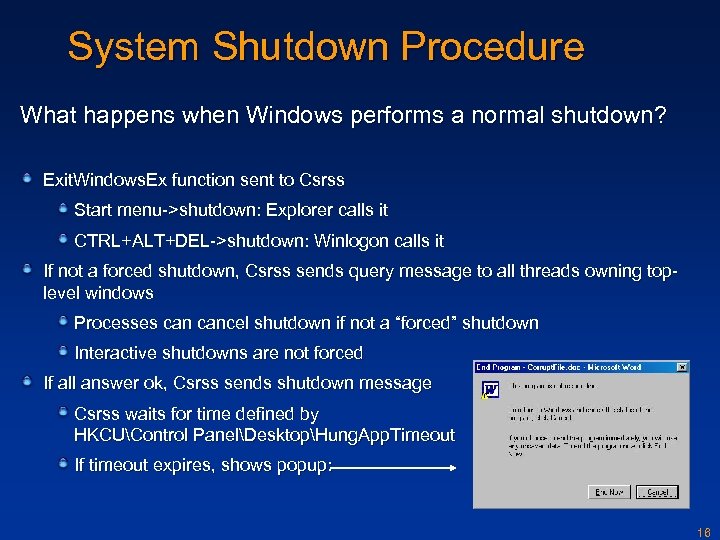
System Shutdown Procedure What happens when Windows performs a normal shutdown? Exit. Windows. Ex function sent to Csrss Start menu->shutdown: Explorer calls it CTRL+ALT+DEL->shutdown: Winlogon calls it If not a forced shutdown, Csrss sends query message to all threads owning toplevel windows Processes cancel shutdown if not a “forced” shutdown Interactive shutdowns are not forced If all answer ok, Csrss sends shutdown message Csrss waits for time defined by HKCUControl PanelDesktopHung. App. Timeout If timeout expires, shows popup: 16
Shutdown Procedure (contd). Csrss tells Service Control Manager (Services. exe) to exit, which tells all Win 32 services to exit Csrss. exe waits for HKLMSystemCurrent. Control. SetControlWait. To. Kill. Service. Timeout After the timeout, Services. exe is terminated (even though service processes may still be shutting down) Example: IIS, Exchange Some sites lengthen the value to accommodate long shutdowns Finally, calls Nt. Shutdown. System, which calls the Plug and Play manager’s Nt. Set. System. Power. State orchestrates final system shutdown Drivers are called to shut down (e. g. flush data to disk) Finally, the HAL is called, which then tells the hardware either to reboot or power off Systems without power management end with the dialog “it is safe to power off your system now” 17
Hibernate & Resume Hibernation was introduced with Windows 2000 power management System memory saved to hiberfil. sys on system volume On power-on NTLDR reads hiberfil. sys and continues where the system left off No boot. ini or boot option menu if hiberfil. sys has valid data Not supported on x 86 Server systems (works on x 64 Server 2003 systems) XP has some hibernate/resume enhancements Hibernation file is better compressed I/O overlapped on IDE drives Resume is faster because reads are larger Device parallelization during power up improved Power up done asynchronously in the background by drivers (specifically power-pageable devices without children) 18
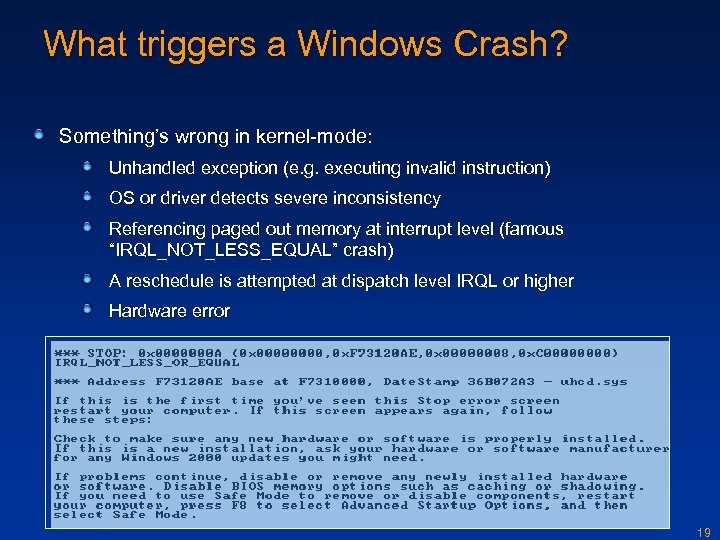
What triggers a Windows Crash? Something’s wrong in kernel-mode: Unhandled exception (e. g. executing invalid instruction) OS or driver detects severe inconsistency Referencing paged out memory at interrupt level (famous “IRQL_NOT_LESS_EQUAL” crash) A reschedule is attempted at dispatch level IRQL or higher Hardware error 19
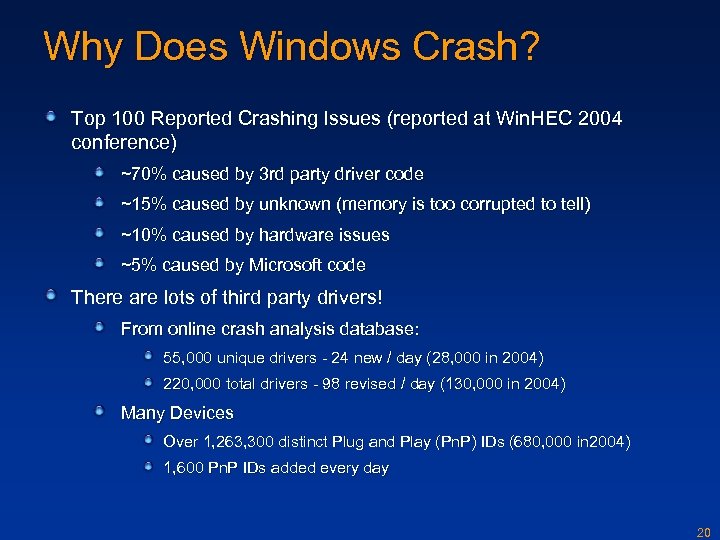
Why Does Windows Crash? Top 100 Reported Crashing Issues (reported at Win. HEC 2004 conference) ~70% caused by 3 rd party driver code ~15% caused by unknown (memory is too corrupted to tell) ~10% caused by hardware issues ~5% caused by Microsoft code There are lots of third party drivers! From online crash analysis database: 55, 000 unique drivers - 24 new / day (28, 000 in 2004) 220, 000 total drivers - 98 revised / day (130, 000 in 2004) Many Devices Over 1, 263, 300 distinct Plug and Play (Pn. P) IDs (680, 000 in 2004) 1, 600 Pn. P IDs added every day 20
What Happens At The Crash When a condition is detected that requires a crash, Ke. Bug. Check. Ex is called Takes five arguments: Stop code (also called bugcheck code) 4 stop-code defined parameters Ke. Bug. Check. Ex: Turns off interrupts Tells other CPUs to stop Paints the blue screen Notifies registered drivers of the crash If a dump is configured (and it is safe to do so), writes dump to disk 21
After the Crash - Causes for Boot Problems Boot may be failing because of… Master Boot Record (MBR) corruption Boot. ini problems System hive corruption Crash at boot System file corruption 22
Boot Failure - MBR Corruption Symptoms: Hang at a black screen after BIOS executes “Invalid Partition Table”, “Error loading operating system” or “Missing operating system” message on black screen Cause: MBR is corrupt Resolution: Boot into Recovery Console Execute the RC’s “fixmbr” command Only writes MBR code, not partition table If the partition table is corrupt you have to rely on restoring a backup MBR or use 3 rd-party disk repair tools 23
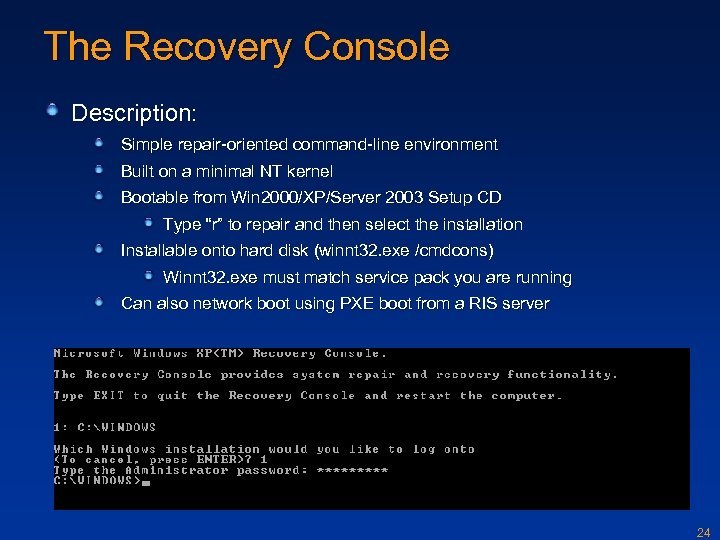
The Recovery Console Description: Simple repair-oriented command-line environment Built on a minimal NT kernel Bootable from Win 2000/XP/Server 2003 Setup CD Type “r” to repair and then select the installation Installable onto hard disk (winnt 32. exe /cmdcons) Winnt 32. exe must match service pack you are running Can also network boot using PXE boot from a RIS server 24
The Recovery Console Capabilities: File commands: rename, move, delete, copy Service/Driver commands: listsvc, enable, disable MBR/Boot sector commands: fixmbr, fixboot Limitations: Must “log into” the system with the Administrator password Limits on what you can access: Only access Windows, System Volume Information, and root of non-removable media Can only copy files onto system, not off You can override these in the Local Security Policy editor (secpol. msc) on the installation when its running No networking, file editing, or registry editing 25
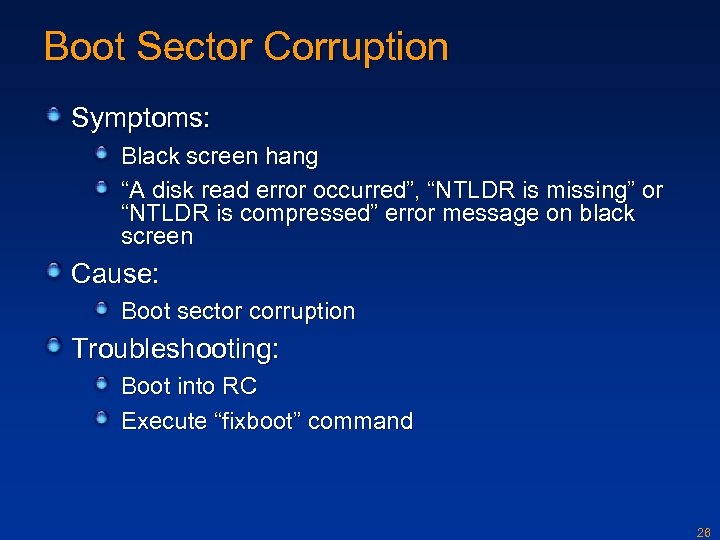
Boot Sector Corruption Symptoms: Black screen hang “A disk read error occurred”, “NTLDR is missing” or “NTLDR is compressed” error message on black screen Cause: Boot sector corruption Troubleshooting: Boot into RC Execute “fixboot” command 26
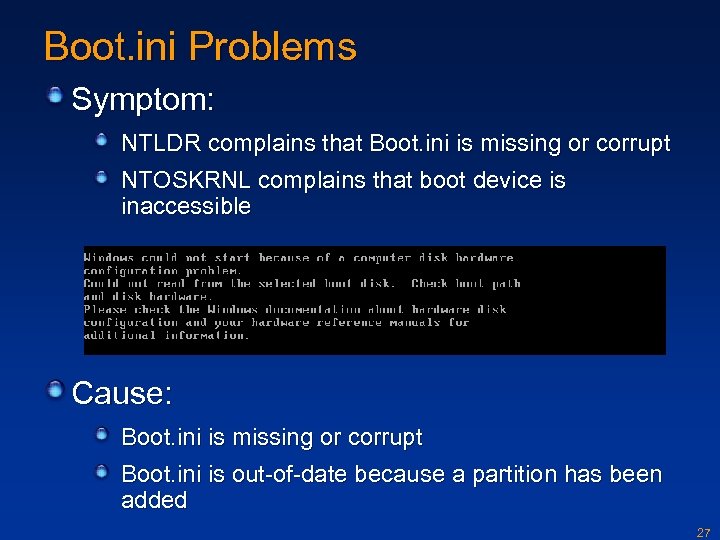
Boot. ini Problems Symptom: NTLDR complains that Boot. ini is missing or corrupt NTOSKRNL complains that boot device is inaccessible Cause: Boot. ini is missing or corrupt Boot. ini is out-of-date because a partition has been added 27
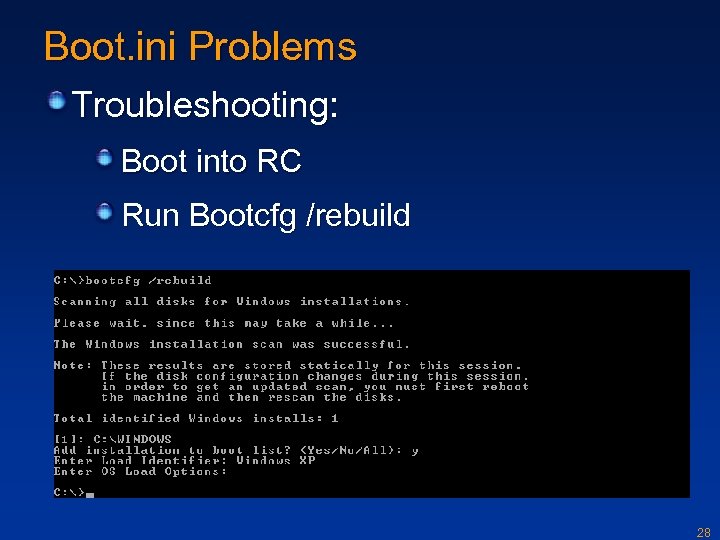
Boot. ini Problems Troubleshooting: Boot into RC Run Bootcfg /rebuild 28
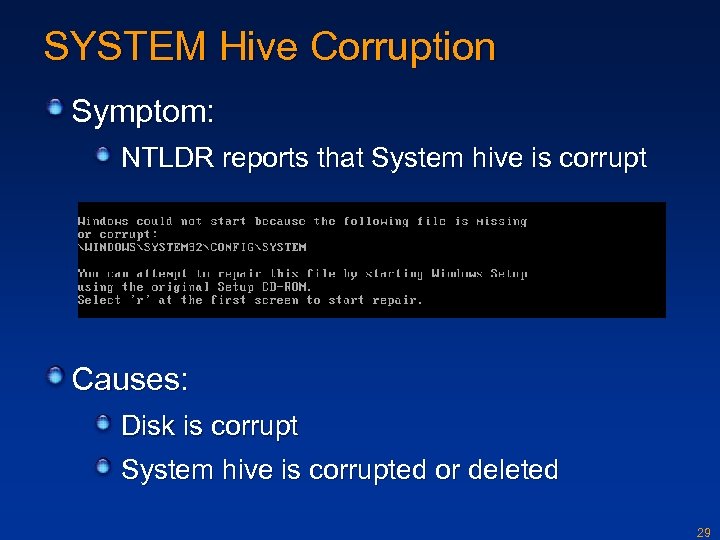
SYSTEM Hive Corruption Symptom: NTLDR reports that System hive is corrupt Causes: Disk is corrupt System hive is corrupted or deleted 29
SYSTEM Hive Corruption Troubleshooting: Boot into RC Run Chkdsk and reboot If still fails, need to restore a good copy of System hive: If System Restore enabled, copy backup copy from latest Restore Point folder (covered later) to WindowsSystem 32Config Otherwise, copy backup copy of System hive from WindowsRepair to WindowsSystem 32Config These registry hives are created by Setup Backing up “System State” (ASR backup) with Windows Backup updates these files 30
Automated System Recovery (ASR) Description: Backup of all system state and user data on system volume Includes registry, system files, boot sector, MBR Made by Windows Backup (Ntbackup. exe) Windows XP Professional and higher To restore: Boot into ASR from Windows setup (press F 2 when prompted) and insert the ASR floppy Will restore entire system state, including boot sector, MBR, system files, and registry Limitations: You have to keep the backup up-to-date No control over granularity of restore (all-or-nothing) Not included with Windows XP Home Edition 31
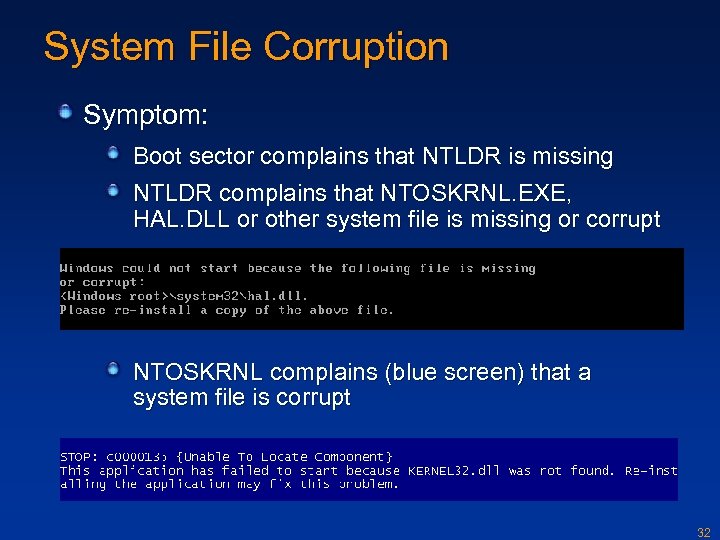
System File Corruption Symptom: Boot sector complains that NTLDR is missing NTLDR complains that NTOSKRNL. EXE, HAL. DLL or other system file is missing or corrupt NTOSKRNL complains (blue screen) that a system file is corrupt 32
System File Corruption Causes: Disk is corrupt File is missing or corrupt Troubleshooting: Boot into RC Run Chkdsk If no Chkdsk errors, obtain clean copy of file and replace file Check in WindowsSystem 32DLLCache for backup Replacement must be identical match i. e. from same hotfix or service pack If there’s more than one corrupt file, use Setup Repair Install If can’t find replacement use Automated System Recovery (ASR) 33
Post-Splash Screen Crash or Hang Symptoms: System blue screens on boot Hang before logon prompt appears NOTE: If system auto-reboots on crash you won’t see the blue screen! Causes: Buggy driver Registry corruption of non-System hive Troubleshooting: Last Known Good or Safe Mode or RC 34
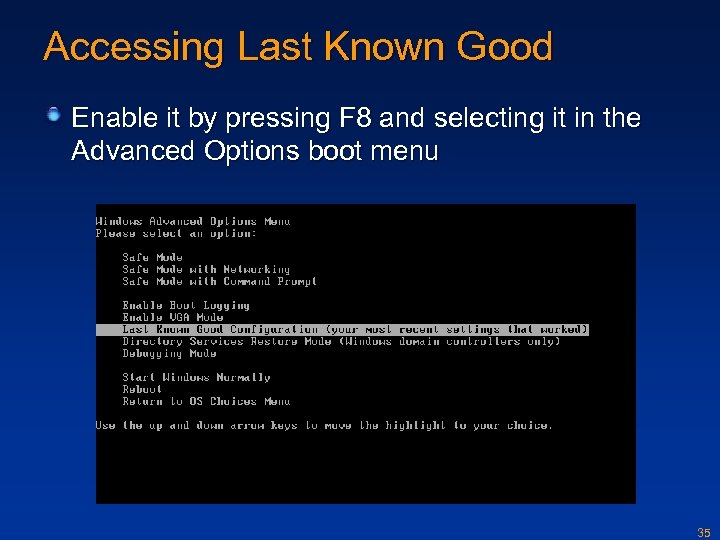
Accessing Last Known Good Enable it by pressing F 8 and selecting it in the Advanced Options boot menu 35
LKG Description Last Known Good (LKG) Uses backup of registry control set last used to boot successfully A Control Set is core startup configuration HKLMSystemControl 00 n Control set only includes core OS and driver configuration Control set does not include Software, SAM, Security, or Users HKLMSystemSelectCurrent points at active Control Set 36
LKG Description Boot control makes a copy of the control set that booted the system Copy is Control. Set 00 n, where 00 n is the next available number After a successful boot: 1. Last. Known. Good is set to the copy 2. The previous Last. Known. Good is deleted By default, “Successful boot” is determined when All the auto-start services have started successfully A successful interactive log in Can be overridden programmatically 37
LKG Capabilities and Limitations Restores bootable configuration when: A new driver was installed since the last successful boot A driver’s settings were modified since the last successful boot System settings were modified since the last successful boot Doesn’t work if: An existing driver was updated A latent driver bug for some reason becomes active Files or registry hives are missing or corrupt 38
Leveraging the Failed Control Set When you use LKG the control set you avoid is saved as the Failed control set 1. Look at the Failed value in the Select key – this is the control set that you aborted 2. Export the current control set and failed control set to. reg files 3. Massage the text so that there are no differences in the control set name 4. Windiff or Fc to see what’s different 39
Safe Mode Description Try Safe Mode if LKG doesn’t work Accessible from same boot menu as LKG Idea is to only include core set of drivers/services Modeled after Safe Mode in Windows 95 Avoids third-party and unnecessary drivers, which hopefully are what’s causing the boot problem 40
Safe Mode Description HKLMSystemCurrent. Control. SetControlSafeboot guides safe mode by specifying names and groups of drivers Normal, Network, Command-Prompt No networking in Normal Networking includes networking services Command-Prompt is same as Normal except launches Command Prompt instead of Explorer as shell for when Explorer shell extensions cause logon problems Directory Services Restore Mode: not for boot troubleshooting (for repairing or restoring Active Directory database from backup) 41
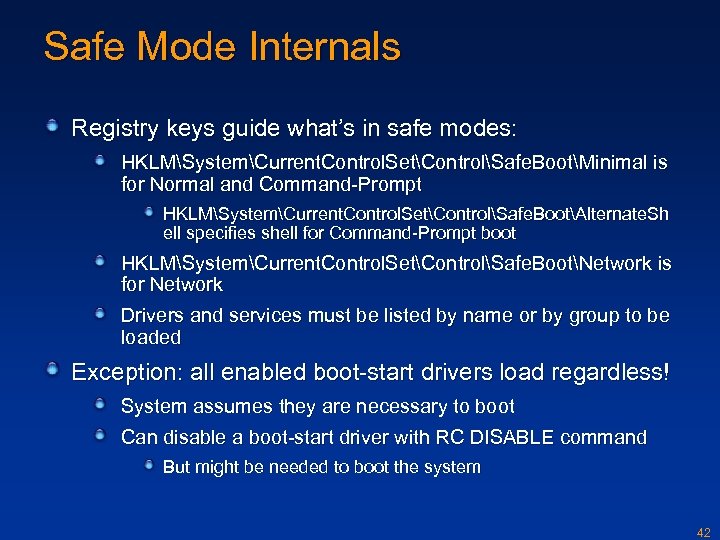
Safe Mode Internals Registry keys guide what’s in safe modes: HKLMSystemCurrent. Control. SetControlSafe. BootMinimal is for Normal and Command-Prompt HKLMSystemCurrent. Control. SetControlSafe. BootAlternate. Sh ell specifies shell for Command-Prompt boot HKLMSystemCurrent. Control. SetControlSafe. BootNetwork is for Network Drivers and services must be listed by name or by group to be loaded Exception: all enabled boot-start drivers load regardless! System assumes they are necessary to boot Can disable a boot-start driver with RC DISABLE command But might be needed to boot the system 42
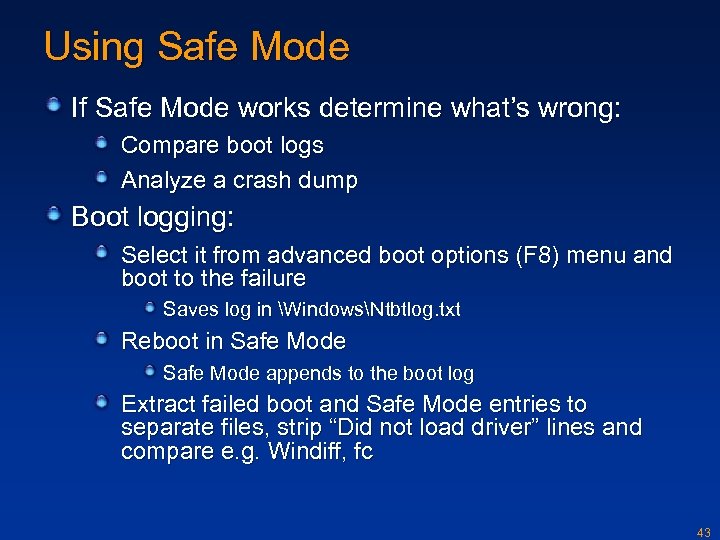
Using Safe Mode If Safe Mode works determine what’s wrong: Compare boot logs Analyze a crash dump Boot logging: Select it from advanced boot options (F 8) menu and boot to the failure Saves log in WindowsNtbtlog. txt Reboot in Safe Mode appends to the boot log Extract failed boot and Safe Mode entries to separate files, strip “Did not load driver” lines and compare e. g. Windiff, fc 43
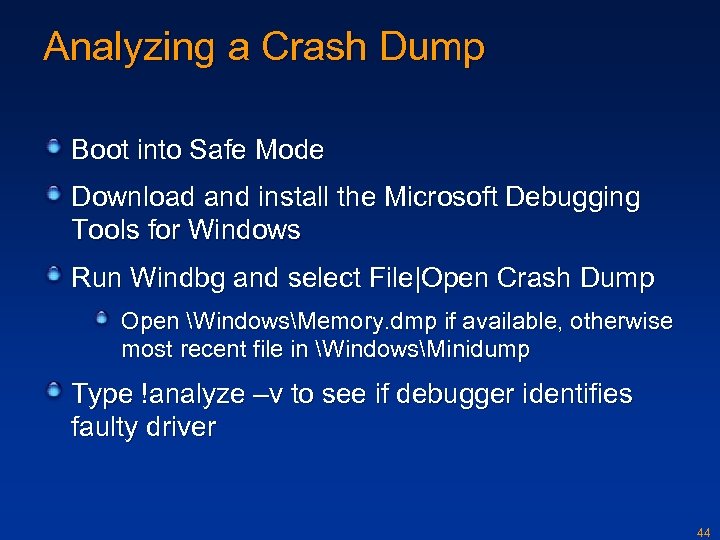
Analyzing a Crash Dump Boot into Safe Mode Download and install the Microsoft Debugging Tools for Windows Run Windbg and select File|Open Crash Dump Open WindowsMemory. dmp if available, otherwise most recent file in WindowsMinidump Type !analyze –v to see if debugger identifies faulty driver 44
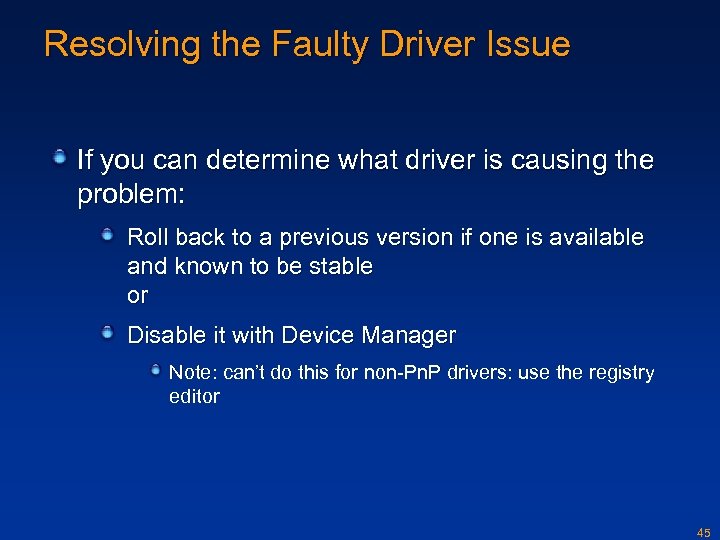
Resolving the Faulty Driver Issue If you can determine what driver is causing the problem: Roll back to a previous version if one is available and known to be stable or Disable it with Device Manager Note: can’t do this for non-Pn. P drivers: use the registry editor 45
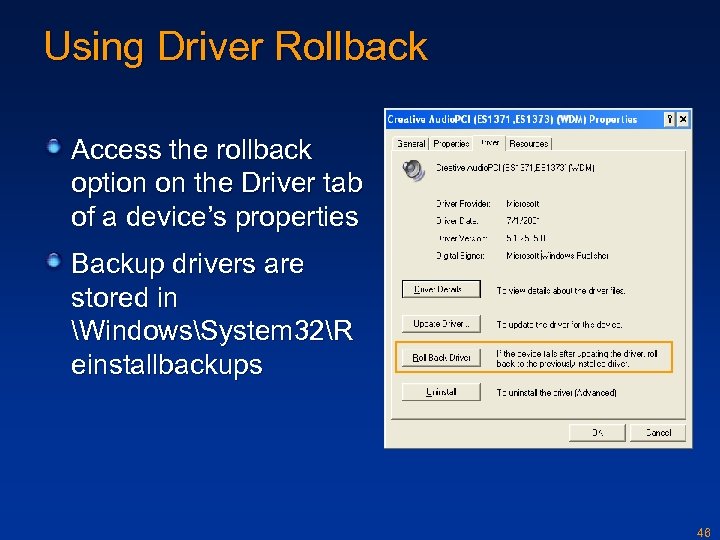
Using Driver Rollback Access the rollback option on the Driver tab of a device’s properties Backup drivers are stored in WindowsSystem 32R einstallbackups 46
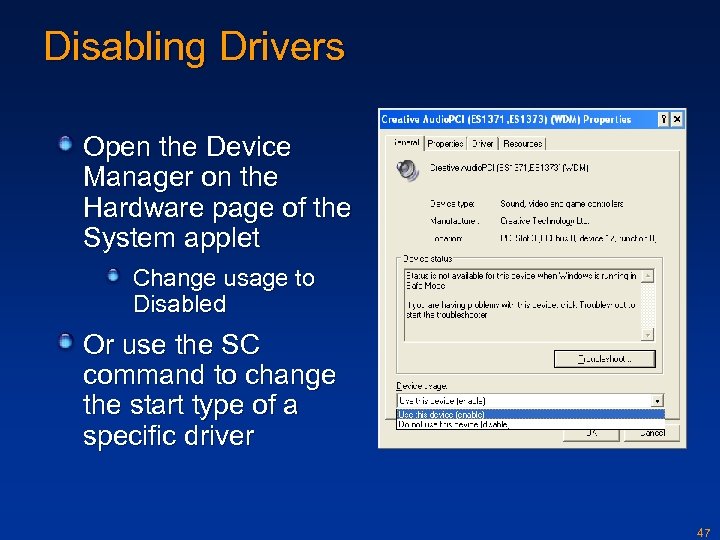
Disabling Drivers Open the Device Manager on the Hardware page of the System applet Change usage to Disabled Or use the SC command to change the start type of a specific driver 47
Finding the Faulty Driver There are three approaches when you can’t determine what driver is causing the boot to fail: Use the Driver Verifier to catch the faulty driver Disable drivers that don’t load in Safe Mode one by one until the system boots normally Use System Restore (Windows XP only) as a last resort 48
The Driver Verifier catches drivers performing illegal operations: Buffer overflow Invalid memory access Invalid I/O commands Launch it with Start->Run->Verifier Enable the Driver Verifier on all drivers from within Safe Mode Choose “custom settings” and then “select individual settings” Check all settings except “low resource simulation” Boot normally and you’ll hopefully get a crash that is easy to analyze Note: the Driver Verifier is disabled in Safe Mode 49
System Restore Description Rollback system to previous state (registry, COM+ registration database, user profiles, other files not protected by WFP) New to XP (not included with Server 2003) Enabled by default Replacement of certain file types causes original version to be stored in a restore point folder 569 file types monitored—see Platform SDK for list Restore operation replaces these files Implemented as a service and a filter driver Access the System Restore Wizard from Start->Help and Support->System Restore Safe Mode asks when you log in if you want to run the wizard 50
System Restore Creation Restore Points are created: Every 24 hours When installing an unsigned driver When explicitly requested by user or an install program (via an API or script) Start->Help and Support -> System Restore 51
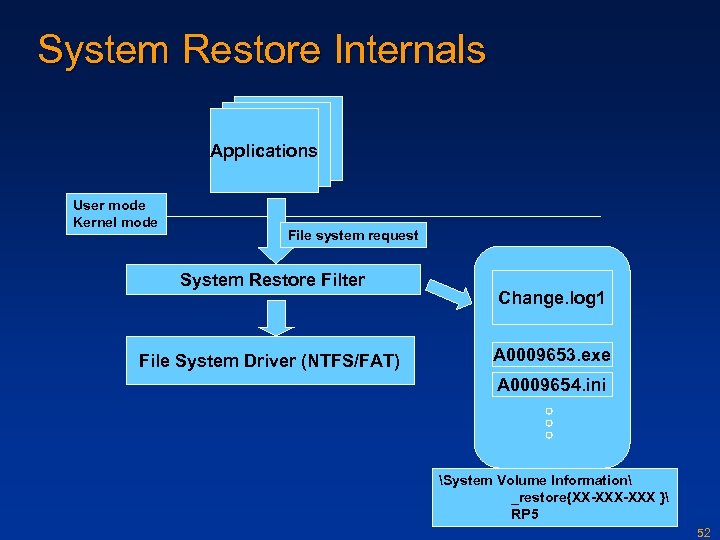
System Restore Internals Applications User mode Kernel mode File system request System Restore Filter File System Driver (NTFS/FAT) Change. log 1 A 0009653. exe A 0009654. ini System Volume Information _restore{XX-XXX } RP 5 52
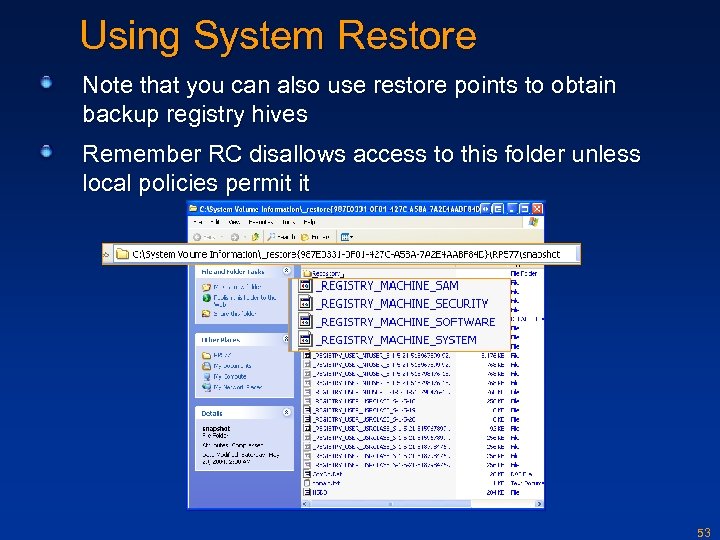
Using System Restore Note that you can also use restore points to obtain backup registry hives Remember RC disallows access to this folder unless local policies permit it 53
When Safe Mode Fails Symptom: Safe mode crashes the same as a normal boot Causes: The driver causing the crash also loads in safe mode Troubleshooting: Determine the problematic driver: Boot into RC and look at the last line in the boot log Boot into debugging mode (to be described in next section) Disable it with the RC’s “disable” command 54
Third-Party Tools NTFSDOS Professional (Winternals) Access NTFS from DOS Can run DOS virus scanners and other DOS applications ERD Commander 2003 (Winternals) Windows-like recovery environment booted from CD Full GUI interface (previous version was command line) Based on Win. PE Special subset of XP that replaces having to use DOS boot disks Only available to hardware & software vendors Since it’s XP, plug and play configures the system Offers more functionality than Recovery Console: Reset any password Full registry editor Text editor System compare wizard System Restore No security restrictions 55
The Bluescreen Saver Scare your enemies and fool your friends with the Sysinternals Bluescreen Saver Remotely execute it (requires admin privilege on remote system): psexec –i –d –c “sys. Internals bluescreen. scr” /s Be careful, your job may be on the line! 56
Further Reading Mark E. Russinovich and David A. Solomon, Microsoft Windows Internals, 4 th Edition, Microsoft Press, 2004. Chapter 1 - Concepts and Tools Performance Tool, Support Tools, Resource Kits, pp. 25 -34 Chapter 14 - Crash Dump Analysis, Error Reporting, pp. 845 -870 57
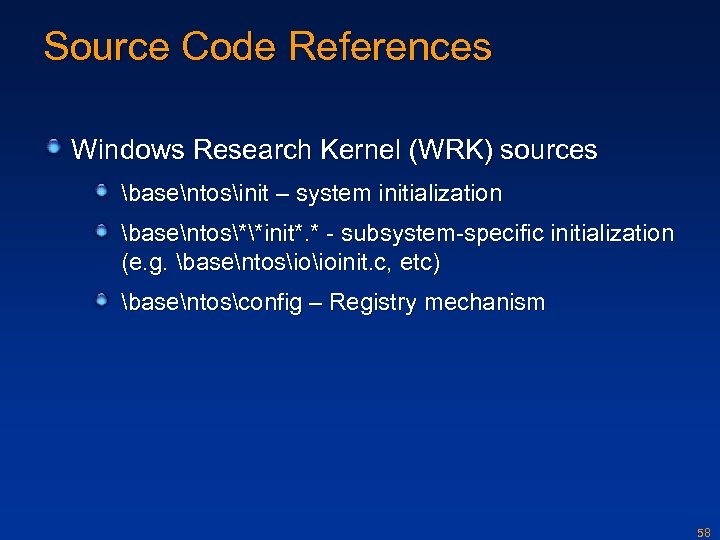
Source Code References Windows Research Kernel (WRK) sources basentosinit – system initialization basentos**init*. * - subsystem-specific initialization (e. g. basentosioioinit. c, etc) basentosconfig – Registry mechanism 58
Скачать презентацию Unit OS 11 Performance Evaluation 11 2 Boot Startup
046f4c4f18ccd1c5a2f542d3d180a491.ppt