 Скачать презентацию Unit 9 Buses Video and Upgrades Copyright
8de440a7c2f6561431b6d477c25dbd42.ppt
- Количество слайдов: 163



Unit 9 Buses, Video, and Upgrades Copyright © 2005 Heathkit Company, Inc. All rights reserved.
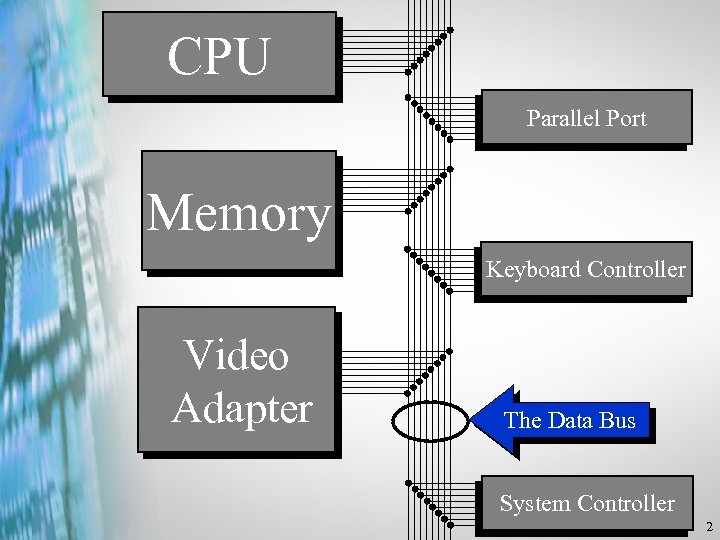
CPU Parallel Port Memory Keyboard Controller Video Adapter The Data Bus System Controller 2
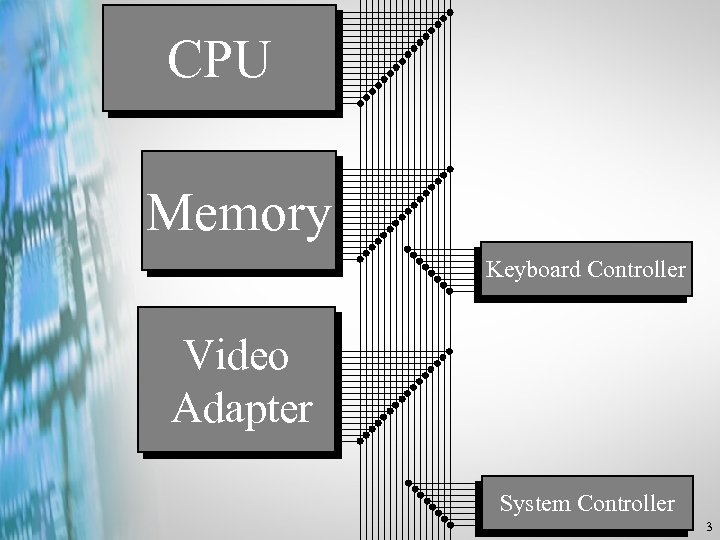
CPU Memory Keyboard Controller Video Adapter System Controller 3
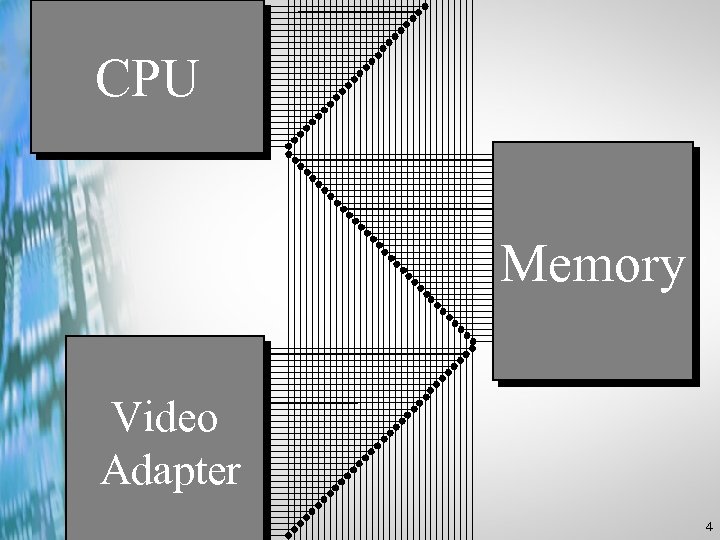
CPU Memory Video Adapter 4
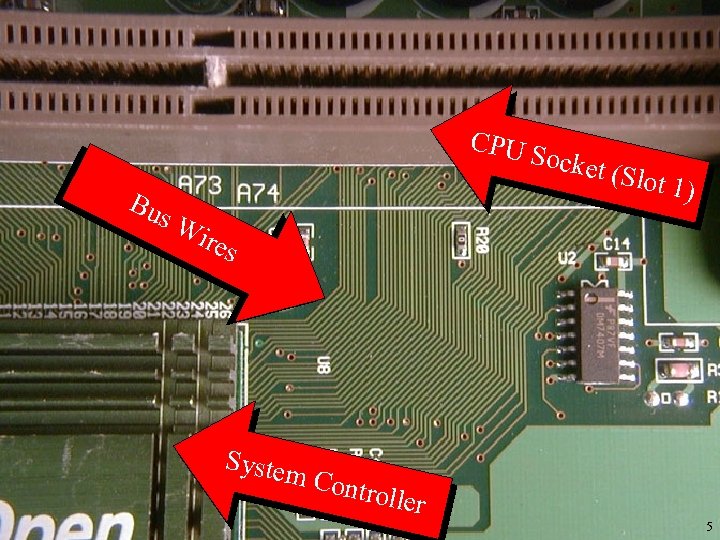
CPU S ocket Bu s. W ires System (Slot 1 ) Contr oller 5
Expansion Buses Copyright © 2005 Heathkit Company, Inc. All rights reserved.
What is a Bus? • Signal Pathways • A way of passing information between components inside and outside the computer. • A modular way of expanding the functions or capabilities of the computer. 7
PC Bus Architectures • • ISA MCA EISA VL-Bus PCI AGP PCI Express PC Card 8
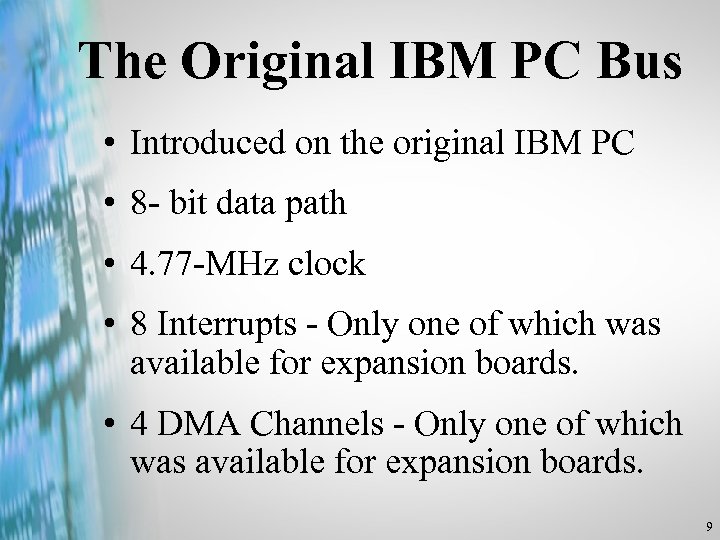
The Original IBM PC Bus • Introduced on the original IBM PC • 8 - bit data path • 4. 77 -MHz clock • 8 Interrupts - Only one of which was available for expansion boards. • 4 DMA Channels - Only one of which was available for expansion boards. 9
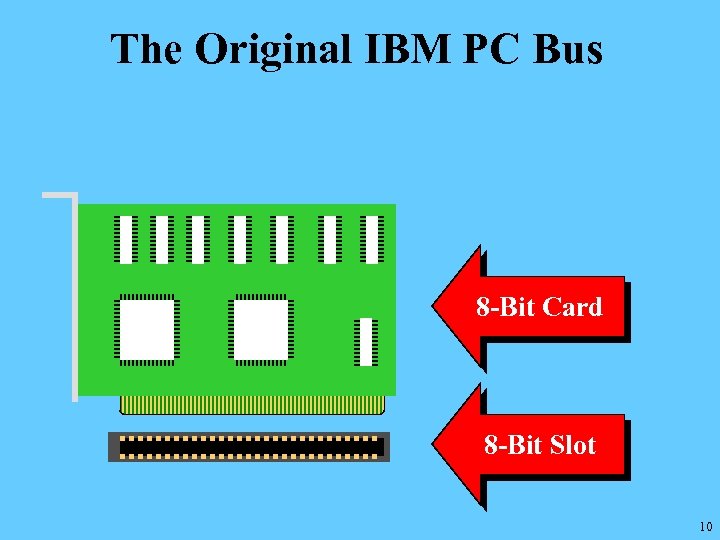
The Original IBM PC Bus 8 -Bit Card 8 -Bit Slot 10
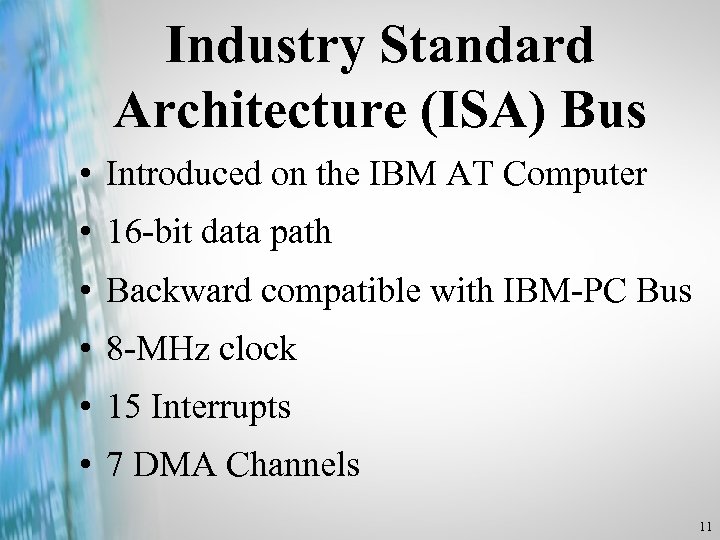
Industry Standard Architecture (ISA) Bus • Introduced on the IBM AT Computer • 16 -bit data path • Backward compatible with IBM-PC Bus • 8 -MHz clock • 15 Interrupts • 7 DMA Channels 11
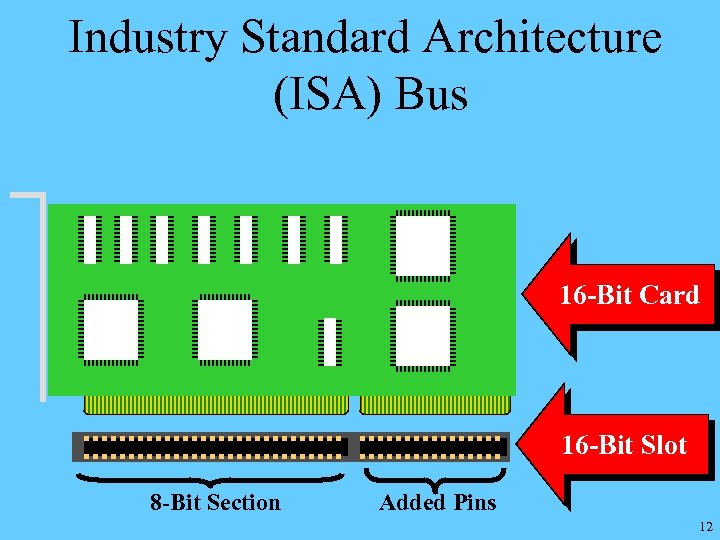
Industry Standard Architecture (ISA) Bus 16 -Bit Card 16 -Bit Slot 8 -Bit Section Added Pins 12
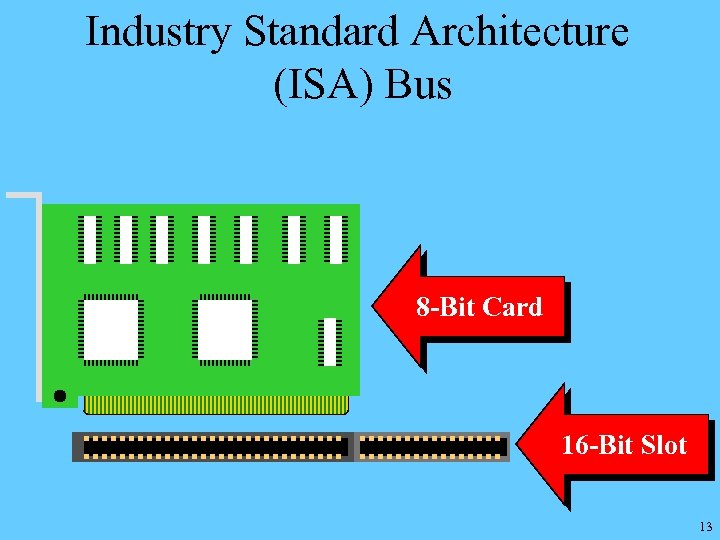
Industry Standard Architecture (ISA) Bus 8 -Bit Card 16 -Bit Slot 13
Micro-Channel Architecture (MCA) Bus • • Introduced on the IBM PS/2 16 -bit or 32 -bit data path 10 -MHz clock Configured by software rather than by jumpers or switches • Not compatible with the ISA bus • Bus Mastering 14
Bus Mastering • Allows data to be passed from one device to another without CPU intervention. • Allows a controller card to take control of the bus, leaving the CPU free to concentrate on other tasks. 15
Bus Mastering vs. DMA • DMA can send data from peripheral to RAM or from RAM to peripheral, without the intervention of the CPU. • Bus Mastering can send data from peripheral to peripheral, without the intervention of the CPU. 16
Extended ISA Bus (EISA) • The industry’s answer to the MCA bus • Backward compatible with ISA • 16 -bit or 32 -bit data path • 8 -MHz Clock • Configured by software, not jumpers or switches • Bus Mastering 17
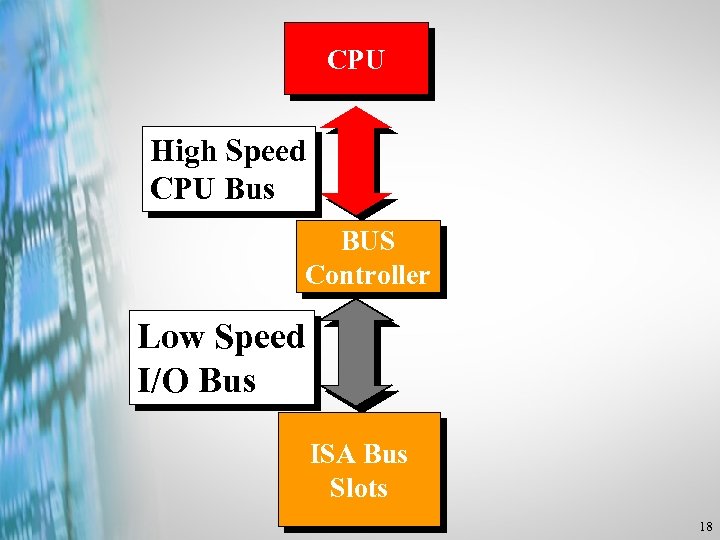
CPU High Speed CPU Bus BUS Controller Low Speed I/O Bus ISA Bus Slots 18
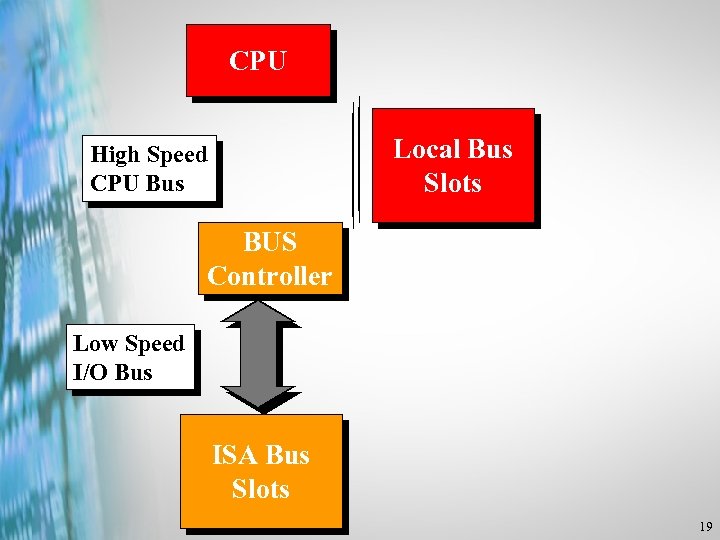
CPU Local Bus Slots High Speed CPU Bus BUS Controller Low Speed I/O Bus ISA Bus Slots 19
VESA Local Bus (VL-Bus) • Clock speed same as the processor • 32 -bit data path • Regular ISA slot with local bus connector added • Bus Mastering 20
Peripheral Component Interconnect (PCI) • Developed for Pentium-class processors • 32 -bit and 64 -bit data path versions • 33 -MHz Clock • Processor Independent • Plug and Play with Bus Mastering 21
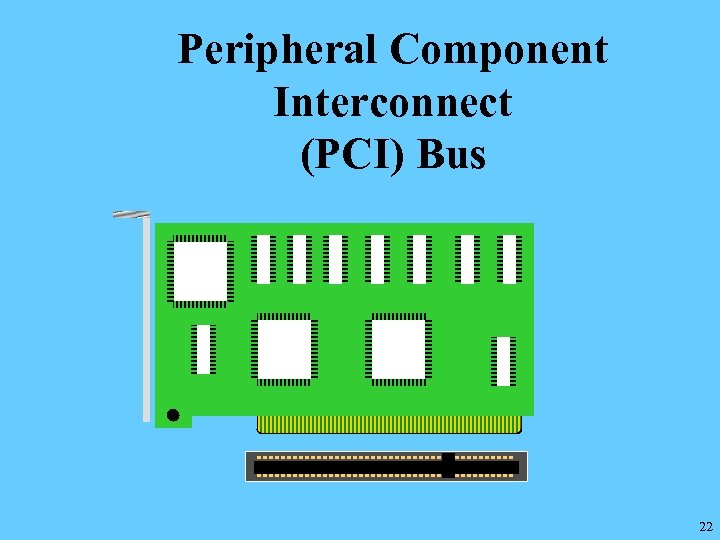
Peripheral Component Interconnect (PCI) Bus 22
Accelerated Graphics Port (AGP) • Developed for high speed graphics cards • Frees the PCI bus from making video transfers • Used only for video cards • Considered a port rather than a bus • 66 MHz, 32 -Bit 23
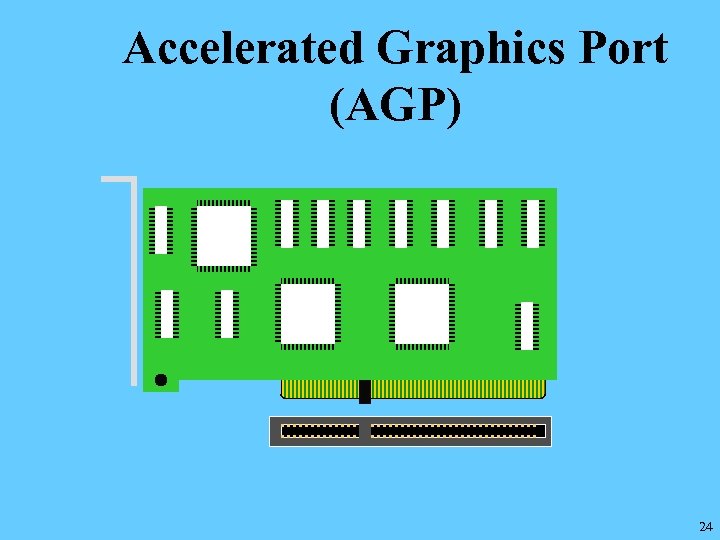
Accelerated Graphics Port (AGP) 24
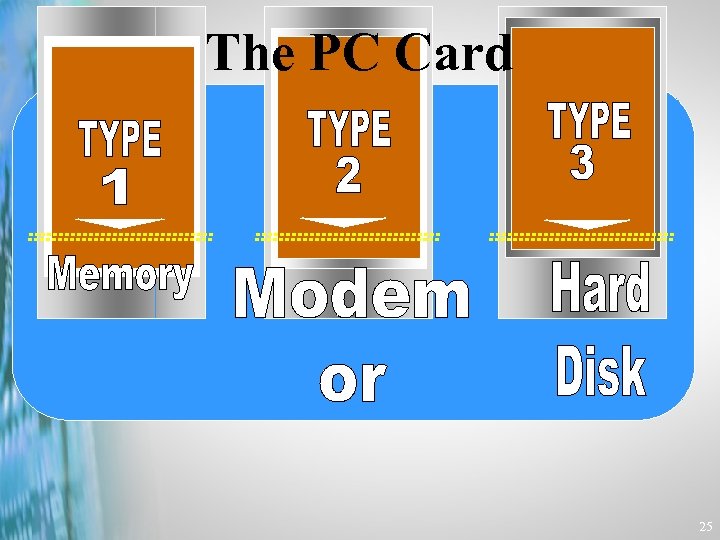
The PC Card 25
PC Card • Personal Computer Memory Card International Association (PCMCIA) • Originally designed for adding memory to portable computers • A universal bus that can accommodate any type of device • Can be used with desktop PCs with the proper adapter • “Hot Swapping” capability 26

What is the Universal Serial Bus? 27
Feature. . . • It’s an external expansion bus using cables (outside the PC). • Can daisy chain 127 peripherals to a port 28
Feature. . . • Plug-and-Play, hot-pluggable, automatic configuration • USB 1 provides 12 megabits/second data transfer rate • USB 2 provides 480 Mbps • USB peripherals can be powered by the USB bus (+5 volts DC). 29
Feature. . . • Standardized connectors • Five meter-long peripheral connections 30
Ordinary USB Peripherals • • Cartridge, Tape, and Floppy Drives Modems Printers, Scanners ISDN, T 1 Interfaces (Network Applications) • Input devices such as Mice, Joysticks, Keyboards , Graphics Tablets • Multimedia Game Equipment 31
Not So Ordinary USB Peripherals • Digital Cameras • Digital Speakers • Video Monitors • Biometric Security Devices • Multi-User Games • Digital Audio Devices 32
More Not So Ordinary USB Peripherals • Hubs • CTI Devices • Telephony (PBX, Digital Telephones) 33
Video Systems and Monitors Copyright © 2005 Heathkit Company, Inc. All rights reserved.
35

36

37

38

39
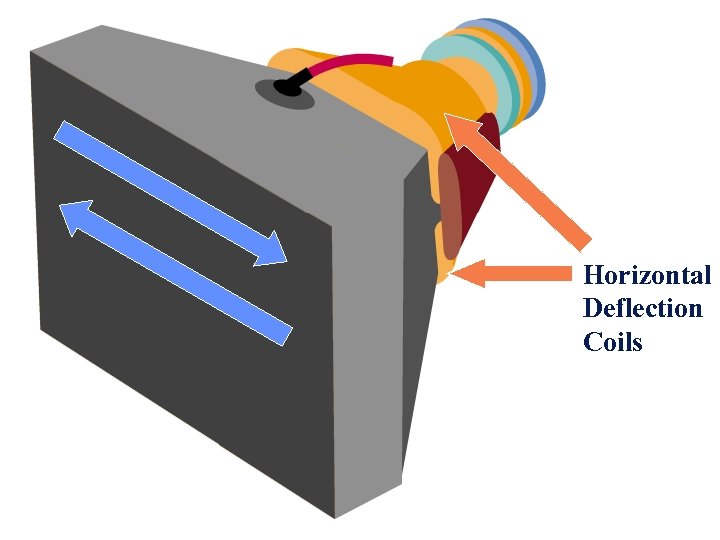
Horizontal Deflection Coils 40

41
42
43
44
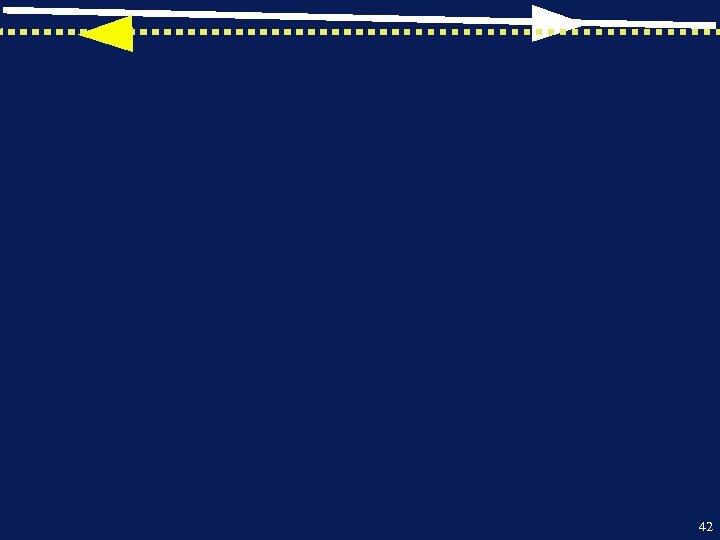
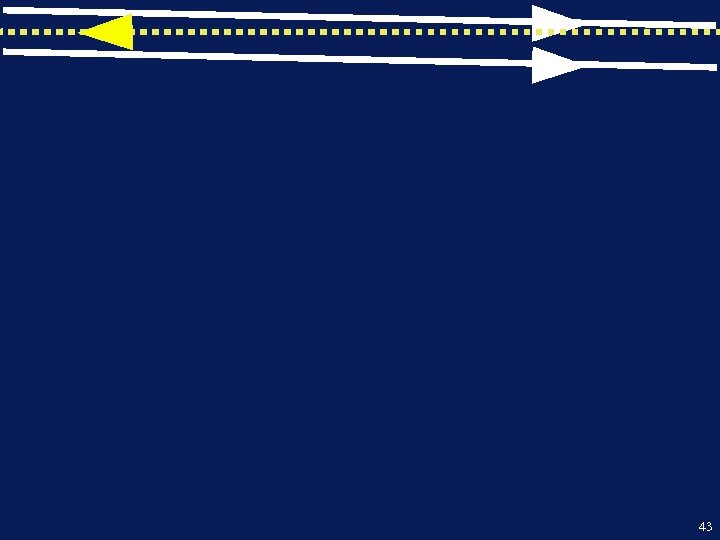
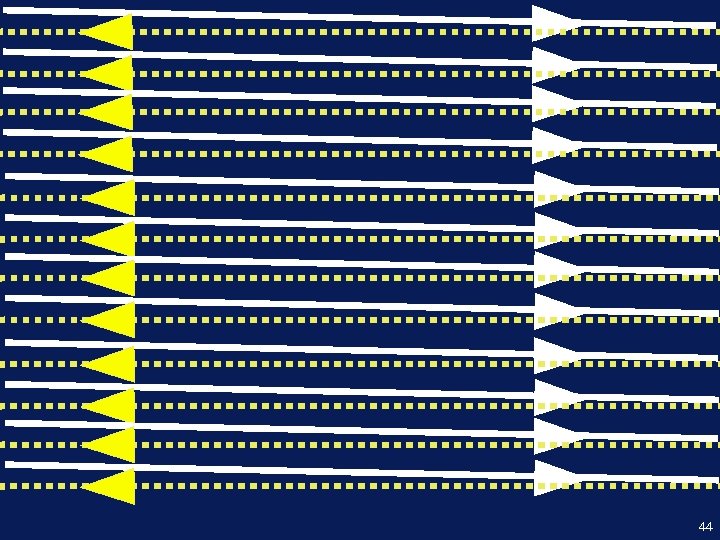
Horizontal Scanning Frequency • The number of lines per second scanned by the monitor. • Varies from about 15 KHz to over 50 KHz. • A popular scan rate is 31. 5 KHz. • At this rate, one horizontal line is scanned in 26. 66 microseconds. 45
The Horizontal Scanning Frequency is determined by the Horizontal Sync Signal. 46
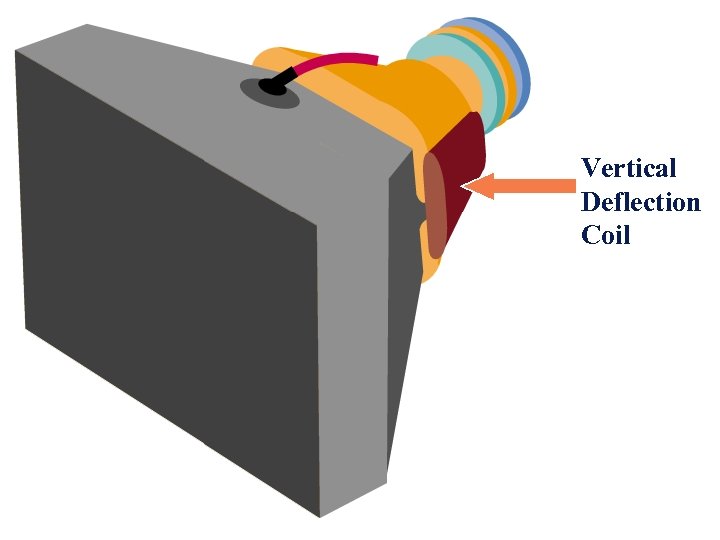
Vertical Deflection Coil 47
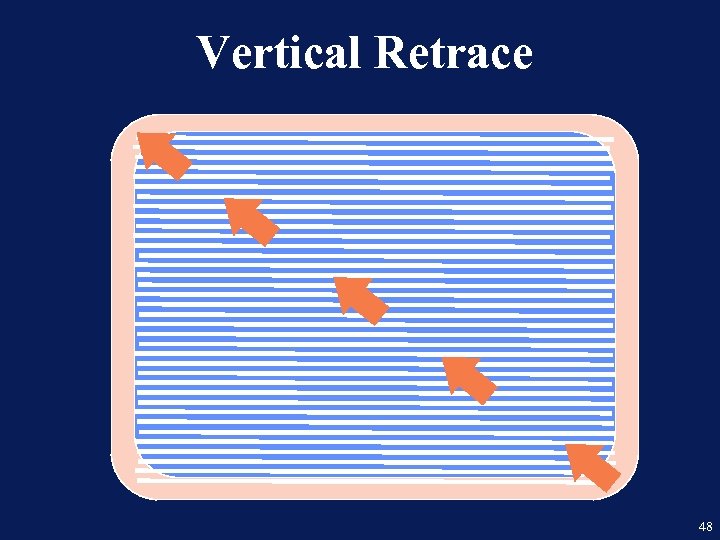
Vertical Retrace 48
Vertical Scanning Frequency (Refresh Rate) • The number of times per second that the whole screen is scanned. • Varies from about 50 Hz to over 100 Hz. • Popular vertical scan rates are 60 Hz and 70 Hz. • At 70 Hz, the entire screen is painted in about 14. 28 milliseconds. 49
The Vertical Scanning Frequency is determined by the Vertical Sync Signal. 50
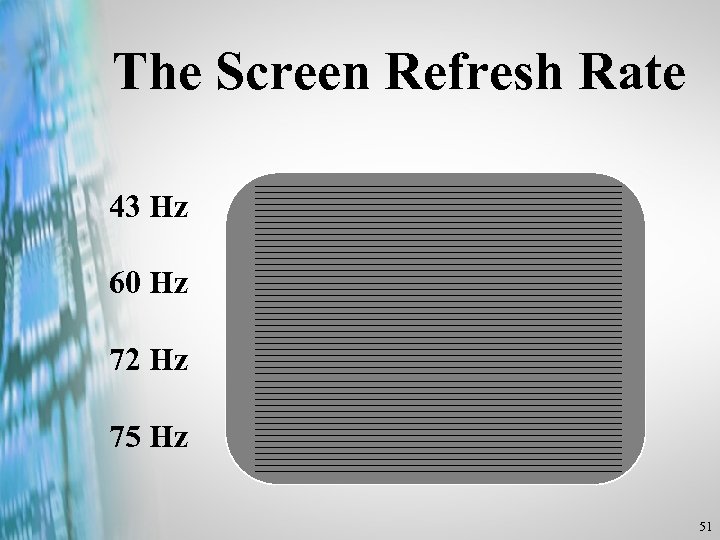
The Screen Refresh Rate 43 Hz 60 Hz 72 Hz 75 Hz 51
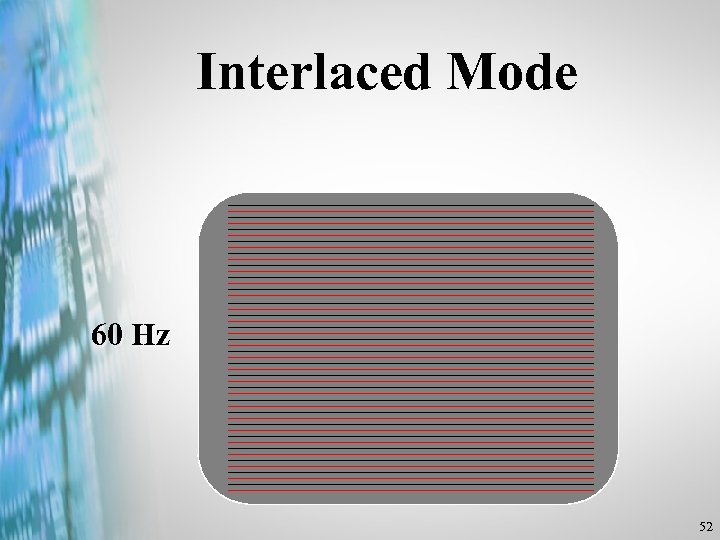
Interlaced Mode 60 Hz 52
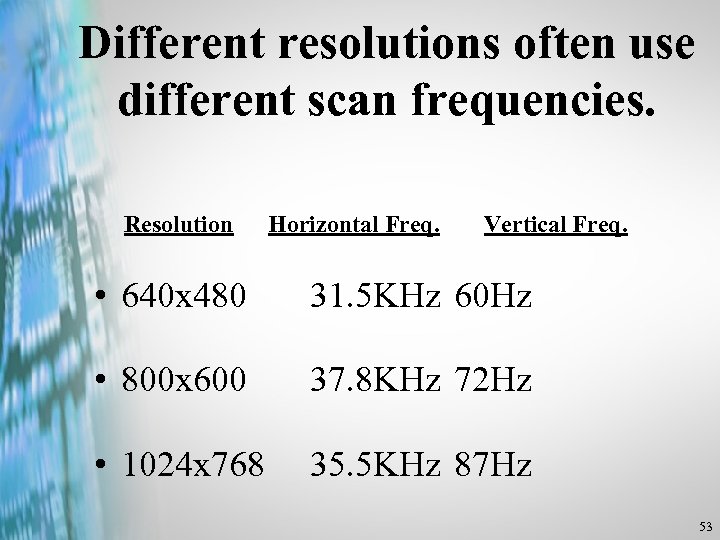
Different resolutions often use different scan frequencies. Resolution Horizontal Freq. Vertical Freq. • 640 x 480 31. 5 KHz 60 Hz • 800 x 600 37. 8 KHz 72 Hz • 1024 x 768 35. 5 KHz 87 Hz 53
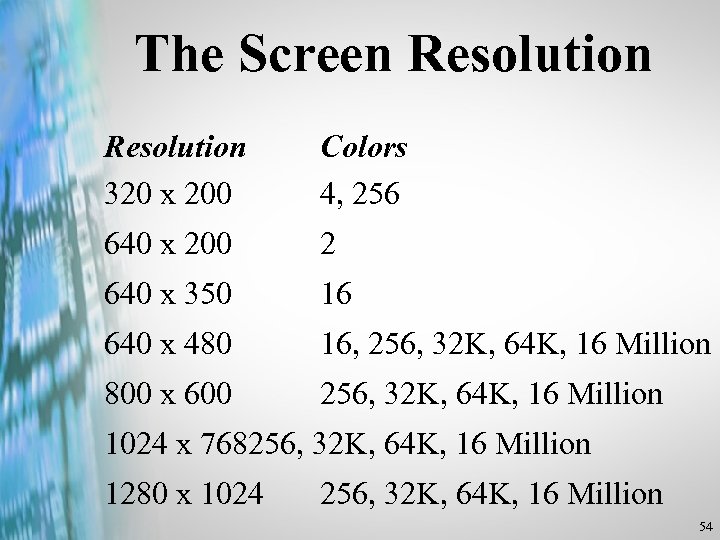
The Screen Resolution 320 x 200 Colors 4, 256 640 x 200 2 640 x 350 16 640 x 480 16, 256, 32 K, 64 K, 16 Million 800 x 600 256, 32 K, 64 K, 16 Million 1024 x 768256, 32 K, 64 K, 16 Million 1280 x 1024 256, 32 K, 64 K, 16 Million 54
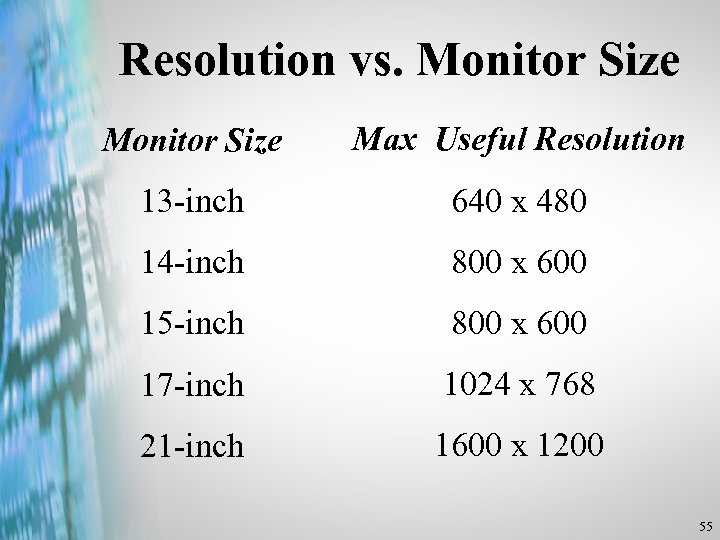
Resolution vs. Monitor Size Max Useful Resolution 13 -inch 640 x 480 14 -inch 800 x 600 15 -inch 800 x 600 17 -inch 1024 x 768 21 -inch 1600 x 1200 55
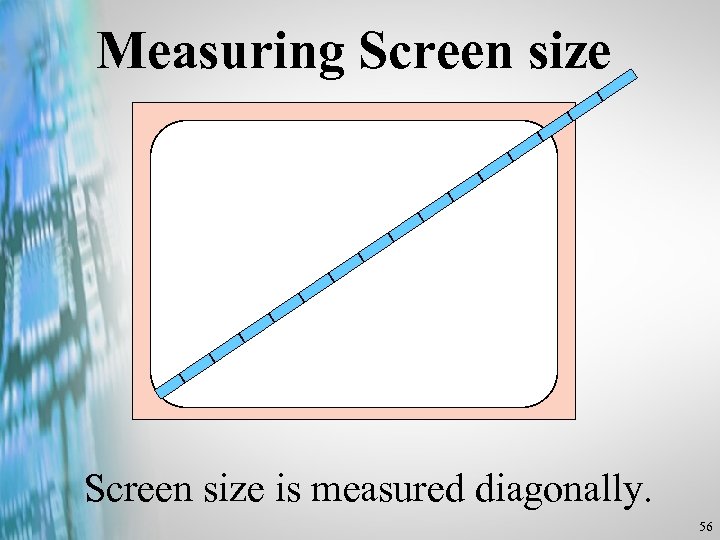
Measuring Screen size is measured diagonally. 56
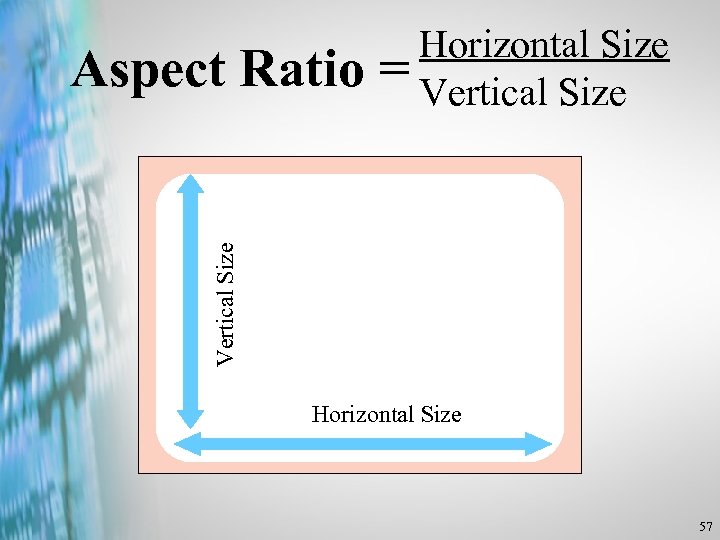
Vertical Size Aspect Ratio Horizontal Size = Vertical Size Horizontal Size 57
The LCD Display • The LCD is the second most common type of display technology. • LCDs offer several advantages: – Flat display area – Low power – Larger viewable area 58
Advantages • Generally more expensive than comparable CRT display. • Resolutions can be less than a comparable CRT. • LCD displays do not: – Emit electromagnetic radiation – Have high voltages present in the chassis. 59
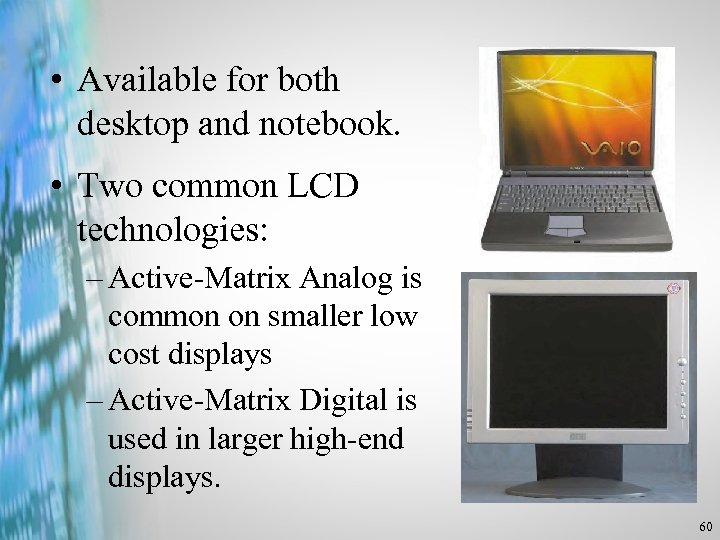
• Available for both desktop and notebook. • Two common LCD technologies: – Active-Matrix Analog is common on smaller low cost displays – Active-Matrix Digital is used in larger high-end displays. 60
• LCDs use a unique material called liquid crystal. • Liquid Crystal has properties similar to water and crystal. • By applying a voltage, the amount of light can be controlled. • Color LCDs use color filters to create the color display. 61
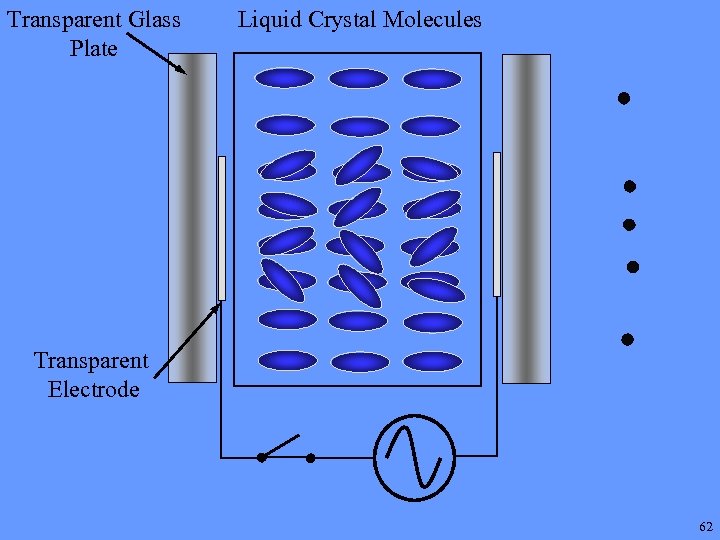
Transparent Glass Plate Liquid Crystal Molecules Transparent Electrode 62
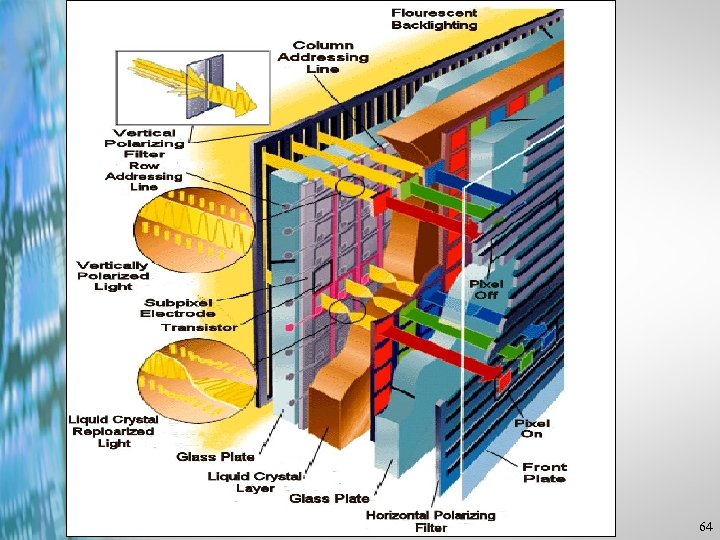
• Components of the modern color LCD display include: – A liquid crystal panel – A backlight as a light source – A thin film transistor (TFT) array – Polarizing filers on both sides of the display. 63
64
Consider before selecting an LCD • More difficult to switch resolutions. • Analog LCD panels can use existing video card and connector. • LCD may not have sufficient color depth. • Many don’t react as quickly as CRTs. 65
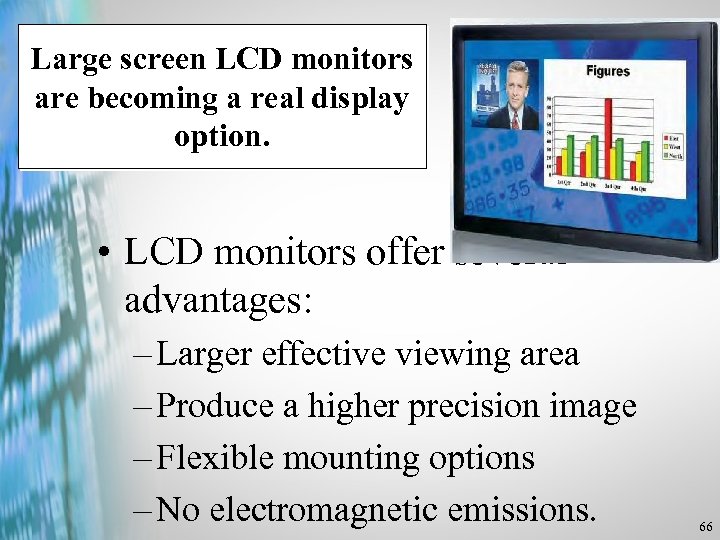
Large screen LCD monitors are becoming a real display option. • LCD monitors offer several advantages: – Larger effective viewing area – Produce a higher precision image – Flexible mounting options – No electromagnetic emissions. 66
Is an LCD suitable? • Evaluate panel at native and other required resolutions. – Does existing video card support required features? – Support for analog and DVI inputs? – Contrast ratio high enough? 67
Working with Monitors Copyright © 2005 Heathkit Company, Inc. All rights reserved.
Picture Adjustments • Reset Button • Degauss 69
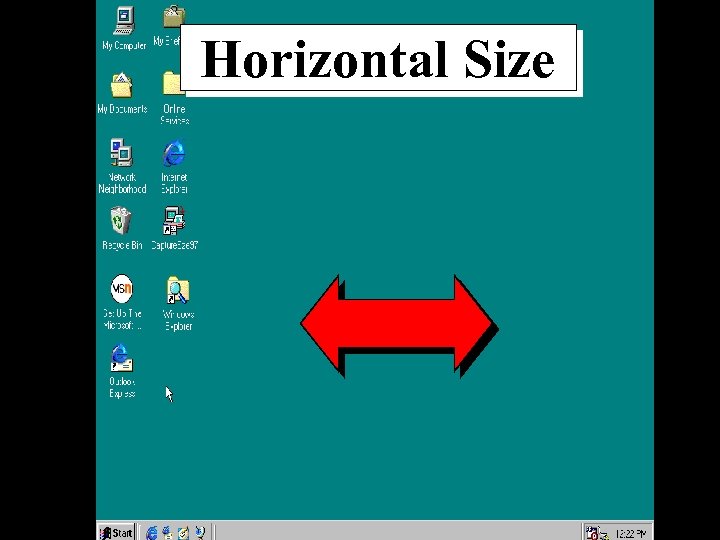
Horizontal Size 70
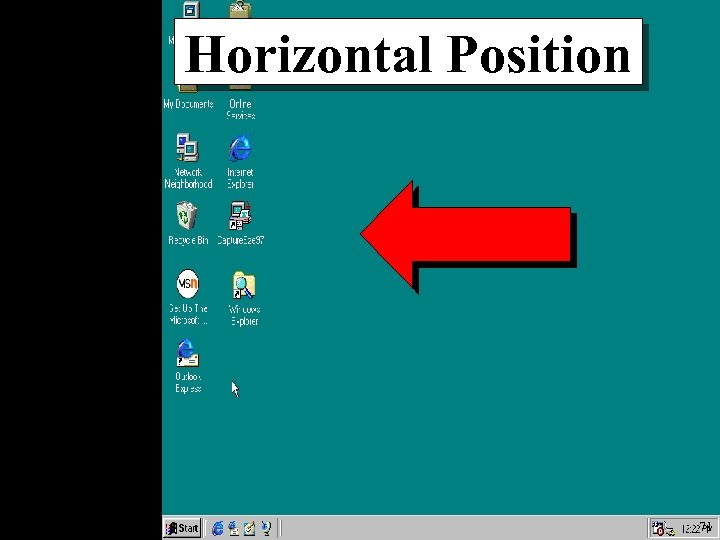
Horizontal Position 71
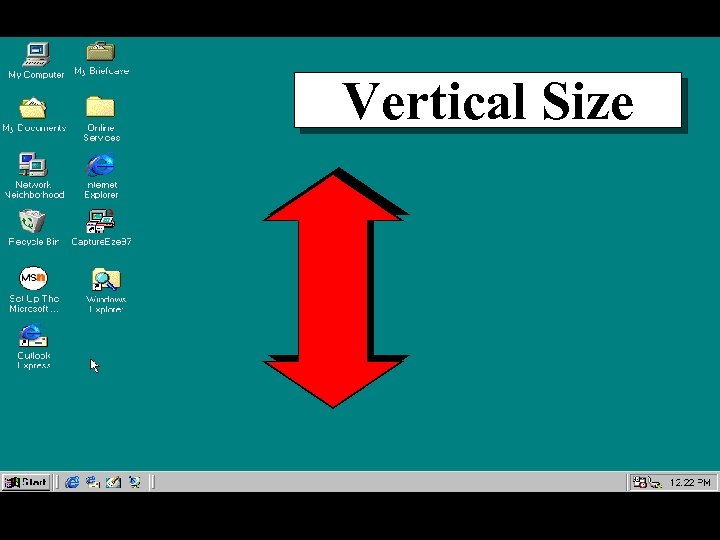
Vertical Size 72
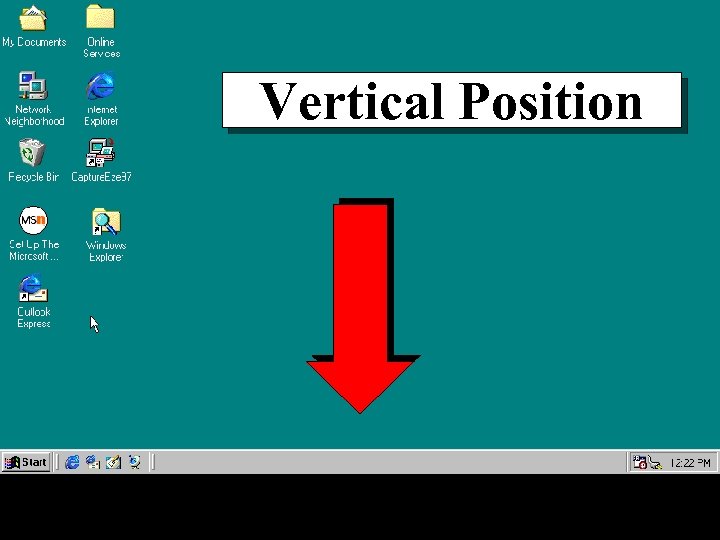
Vertical Position 73
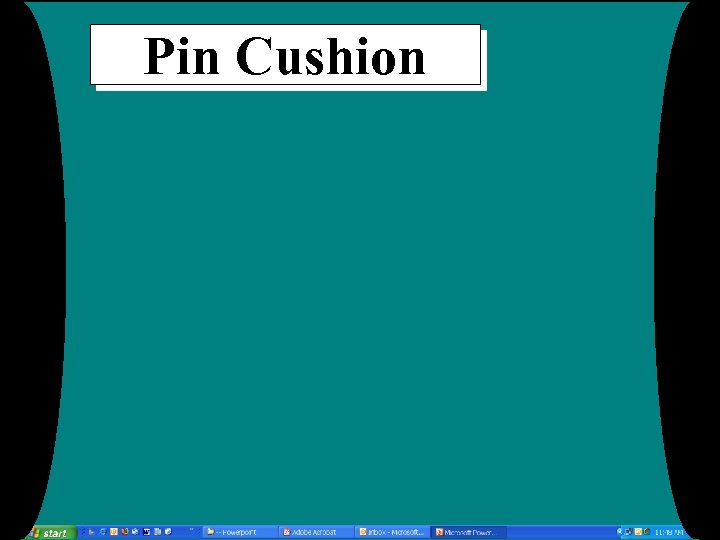
Pin Cushion 74
Bow 75
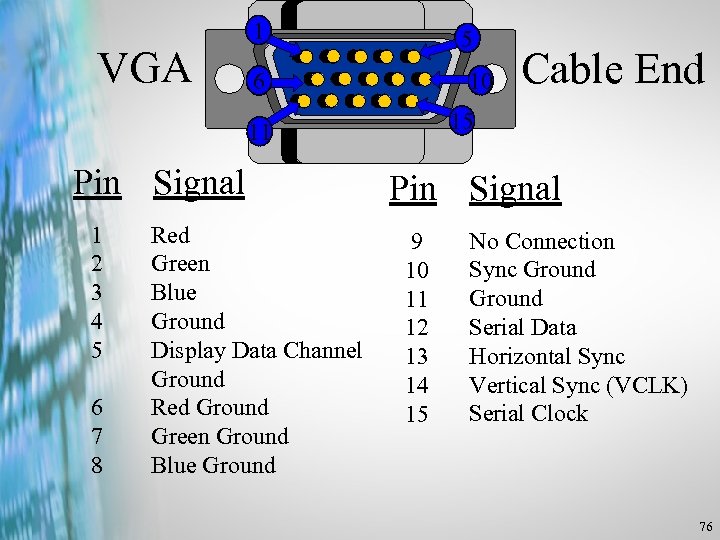
VGA 1 5 10 6 15 11 Pin Signal 1 2 3 4 5 6 7 8 Red Green Blue Ground Display Data Channel Ground Red Ground Green Ground Blue Ground Cable End Pin Signal 9 10 11 12 13 14 15 No Connection Sync Ground Serial Data Horizontal Sync Vertical Sync (VCLK) Serial Clock 76
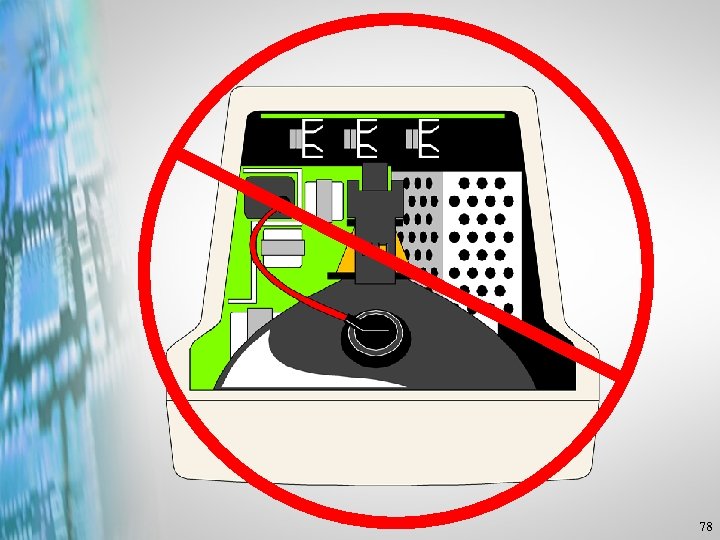
Opening a Monitor to Repair It 77
78
Basic Video Troubleshooting 101 • Is the monitor turned on? • Is the monitor’s AC cord plugged in? • Turn up brightness/contrast controls. • Check the video cable. 79
Basic Video Troubleshooting 101 • Check Power On Self-Test (POST) beeps. • Re-seat video card. • Check any configuration switch settings. • Swap video card, monitor, video cable. 80
Basic Video Troubleshooting 101 Enter Safe Mode or re-load video driver. 81
Video Display Adapters Copyright © 2005 Heathkit Company, Inc. All rights reserved.
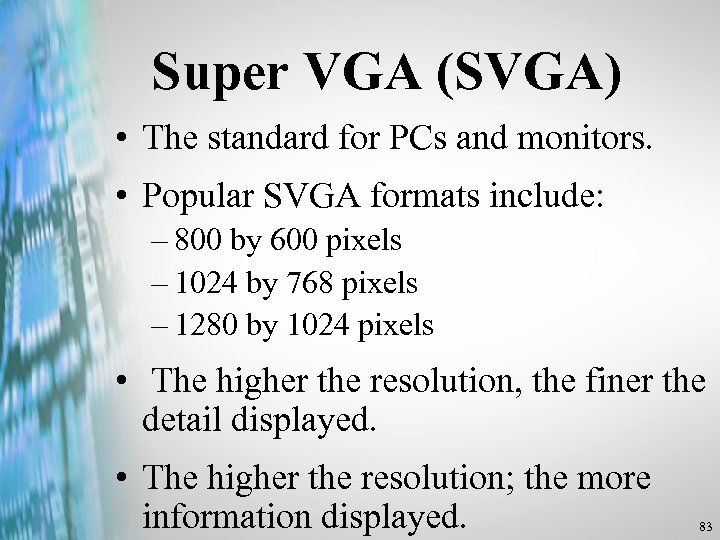
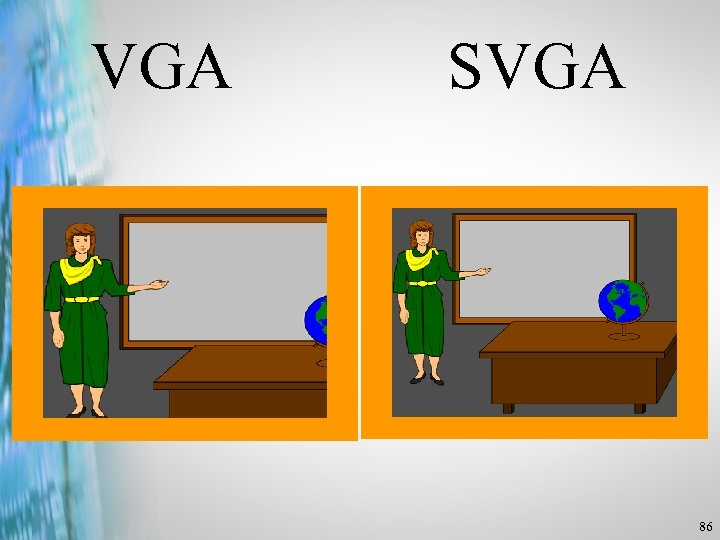
Super VGA (SVGA) • The standard for PCs and monitors. • Popular SVGA formats include: – 800 by 600 pixels – 1024 by 768 pixels – 1280 by 1024 pixels • The higher the resolution, the finer the detail displayed. • The higher the resolution; the more information displayed. 83
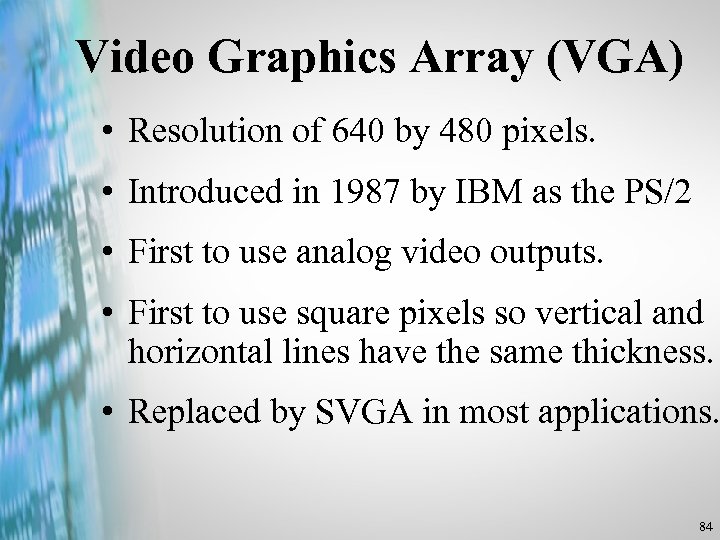
Video Graphics Array (VGA) • Resolution of 640 by 480 pixels. • Introduced in 1987 by IBM as the PS/2 • First to use analog video outputs. • First to use square pixels so vertical and horizontal lines have the same thickness. • Replaced by SVGA in most applications. 84
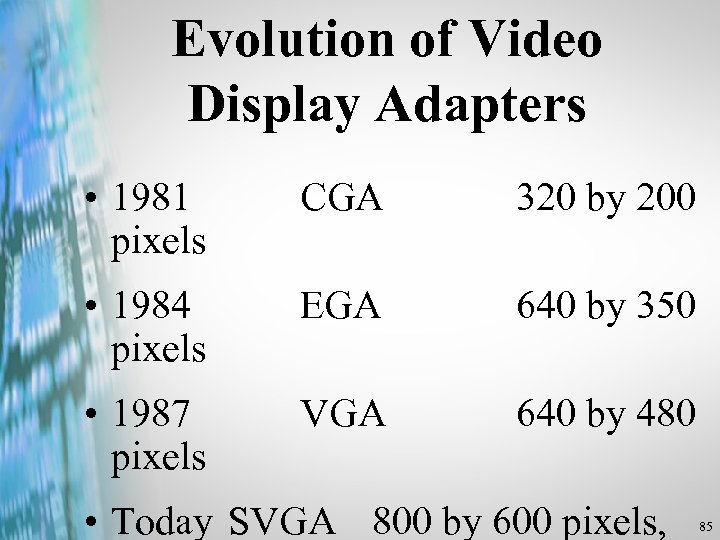
Evolution of Video Display Adapters • 1981 pixels CGA 320 by 200 • 1984 pixels EGA 640 by 350 • 1987 pixels VGA 640 by 480 • Today SVGA 800 by 600 pixels, 85
VGA SVGA 86
The activities of the monitor are determined entirely by the PC. 87
The PC determines: • the color • the brightness • and the position of every pixel in the monitor’s display. 88
The PC sends five control signals to the monitor: • The Red Video Signal. • The Green Video Signal. • The Blue Video Signal. • The Horizontal Sync Pulse. • The Vertical Sync Pulse. 89
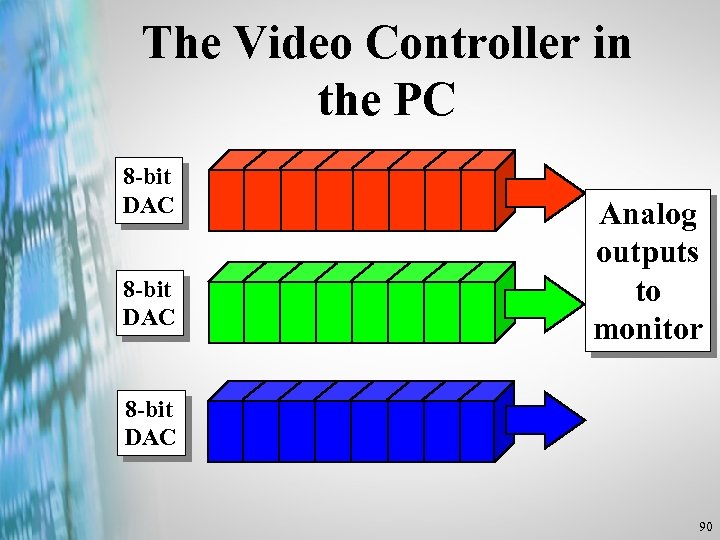
The Video Controller in the PC 8 -bit DAC Analog outputs to monitor 8 -bit DAC 90
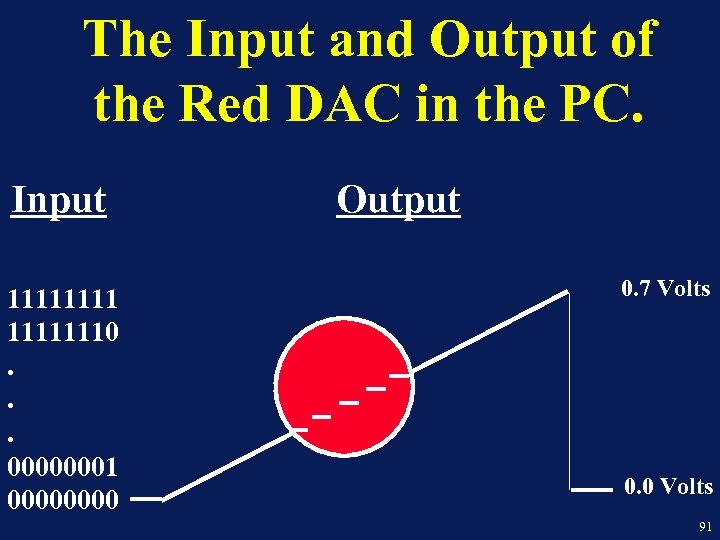
The Input and Output of the Red DAC in the PC. Input 11111110. . . 00000001 0000 Output 0. 7 Volts 0. 0 Volts 91
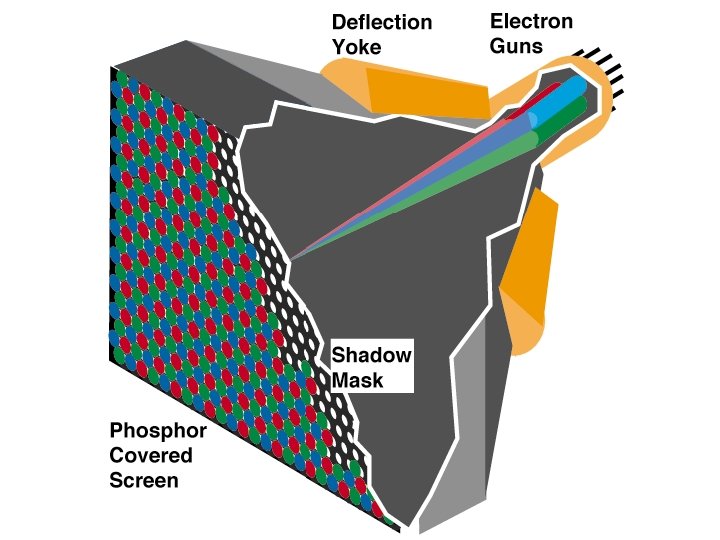
92
Upgrading a Computer Copyright © 2005 Heathkit Company, Inc. All rights reserved.
Memory • Few computers have enough • What fits in this computer? • SIMM or DIMM? • SDRAM or DDR 2? • Speed? 94
Pentium I • Add SIMMs in pairs • Check the manual for specs 95
Pentium II/III/4 • Generally fewer free slots • Add one DIMM at a time • Bigger DIMMs are available • PC-66, PC-100, PC-133 96
CPU Upgrades • Cost vs. Benefit • Role of the computer • Can the motherboard support the upgrade? • Do you need to update the BIOS? 97
Expansion Cards • Before you buy the card: – What slot type – Are slots available? – Are the proper drivers available? • Win 98, Win 2000, etc. 98
Drives • Can the BIOS support a large drive? • Can the BIOS be upgraded? • Do you have enough power connectors? • Do you have the software tools? – Bootable disk with FDISK, Format, etc. 99
Motherboards • What type of case? – AT, ATX, Proprietary • What type of motherboard? • Do the back-panel connections match up? • Can you connect front-panel cables? 100
Motherboards • Can you use the old video adapter and memory? • Do you want to use the old video board and memory? • Do you need to buy a CPU, too? • Is this project worth the cost? 101
Modems Copyright © 2005 Heathkit Company, Inc. All rights reserved.
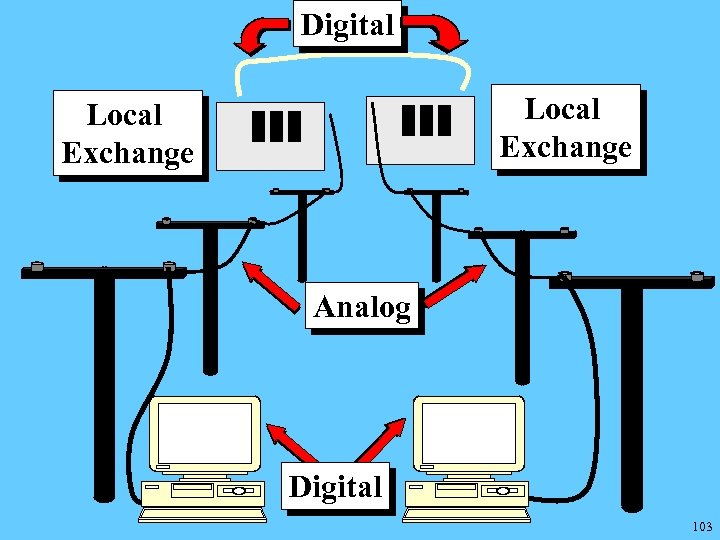
Digital Local Exchange Analog Digital 103
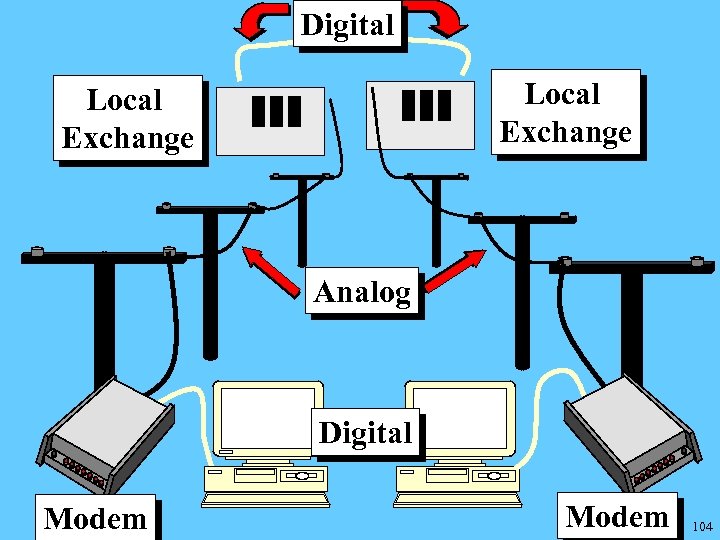
Digital Local Exchange Analog Digital Modem 104
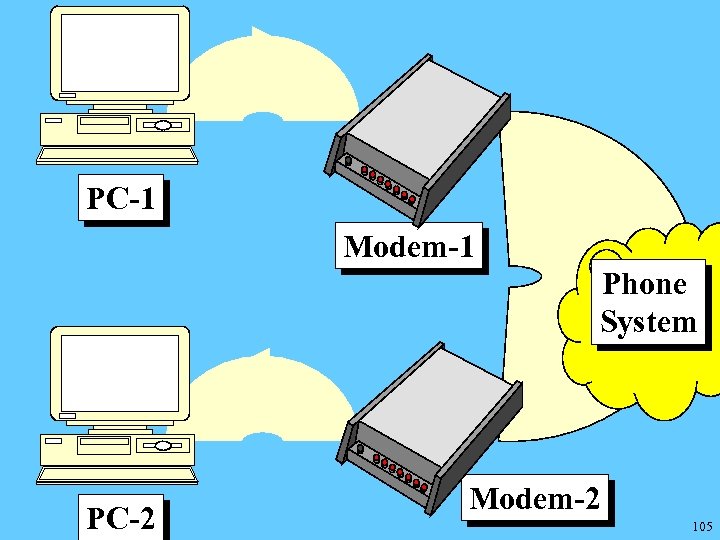
PC-1 Modem-1 Phone System PC-2 Modem-2 105
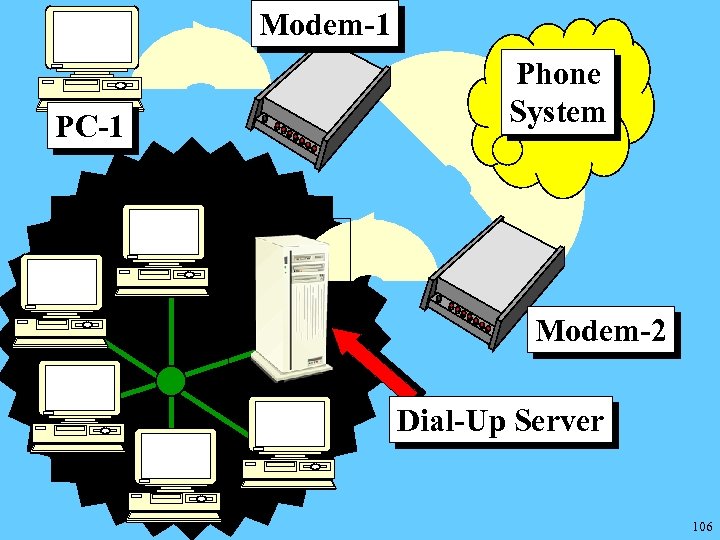
Modem-1 PC-1 Phone System Modem-2 Dial-Up Server 106
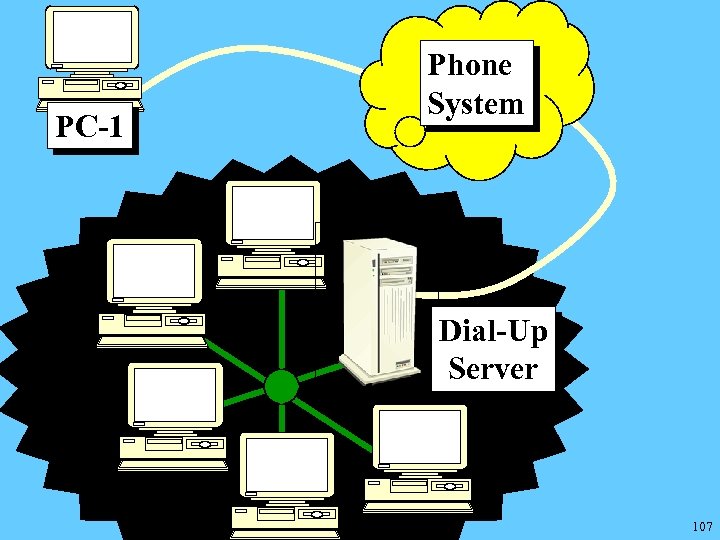
PC-1 Phone System Dial-Up Server 107
Two Sets of Issues • Computer-to-Computer Issues • Client-to-Network Issues 108
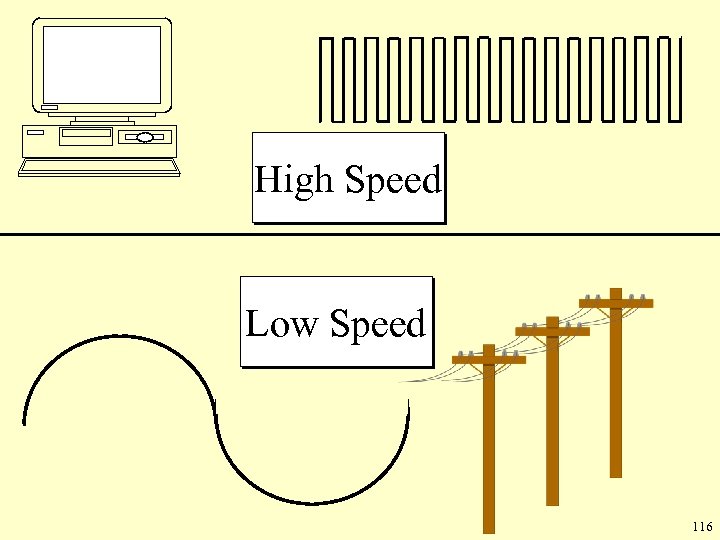
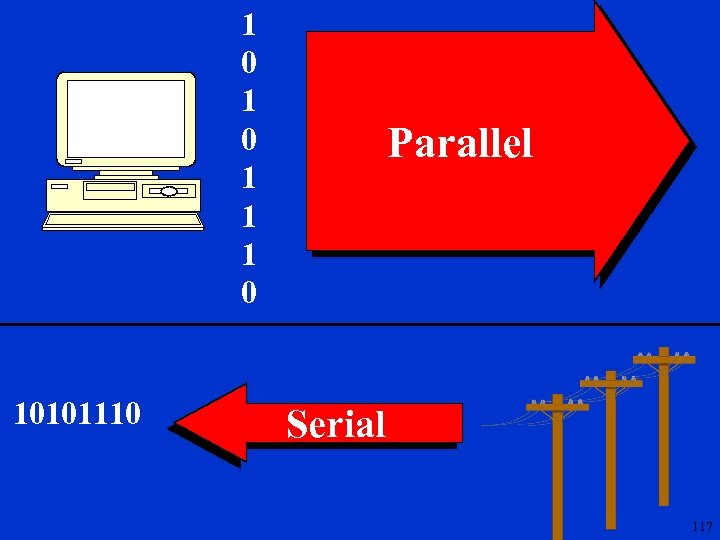
CPU vs. Phone Line • Digital Signal • Analog Signal • High Speed • Low Speed • Parallel Data • Serial Data 109
Digital Analog 110
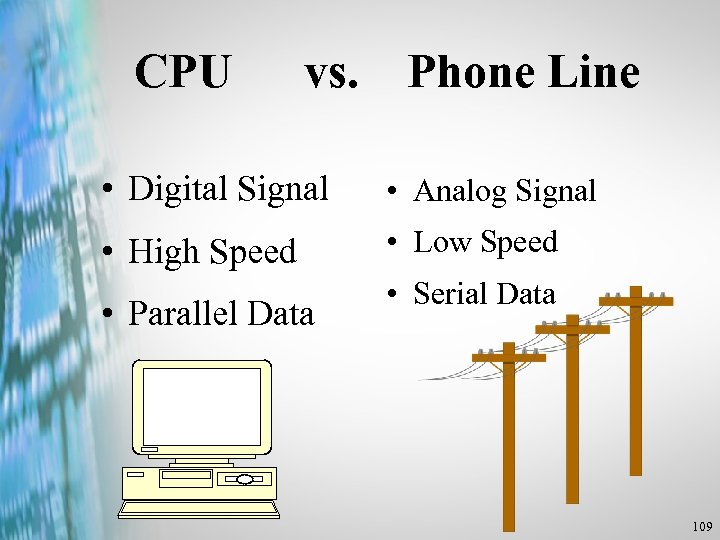
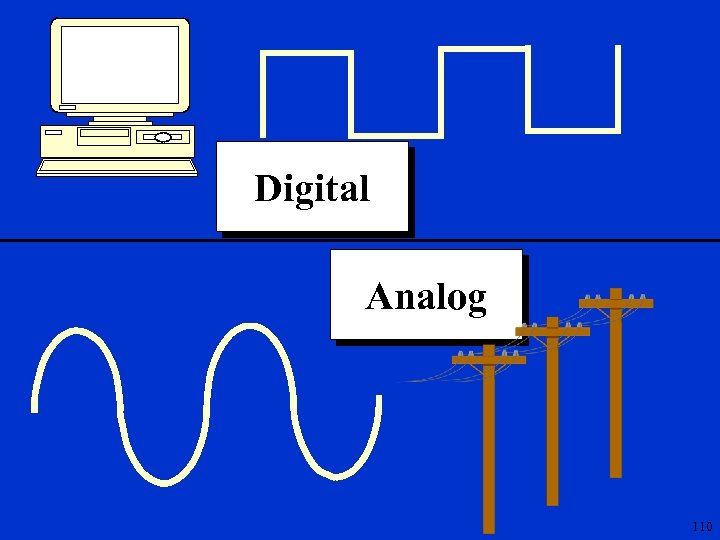
The Modem • Modulator / Demodulator • Converts the digital signals from the computer into the analog signals required by the telephone line. • Converts the analog signals from the telephone line into the digital signals required by the computer. 111
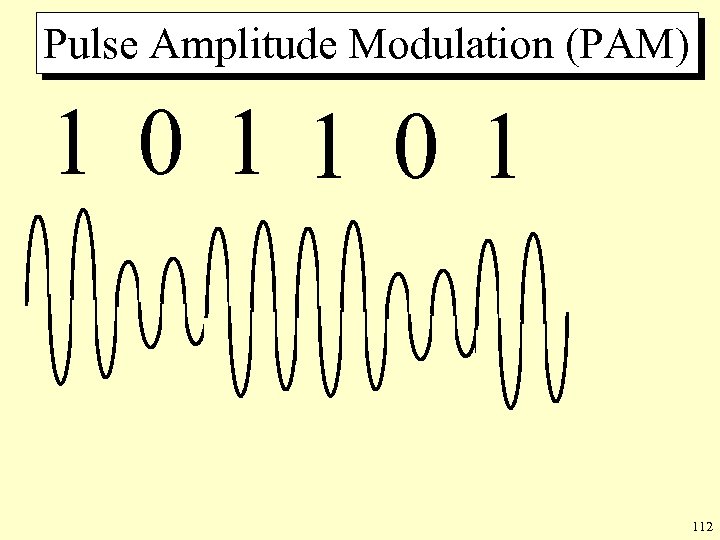
Pulse Amplitude Modulation (PAM) 1 0 1 112
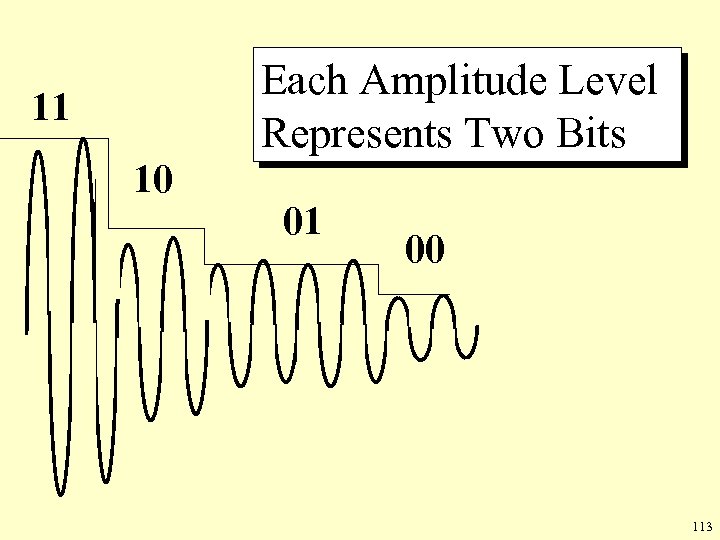
Each Amplitude Level Represents Two Bits 11 10 01 00 113
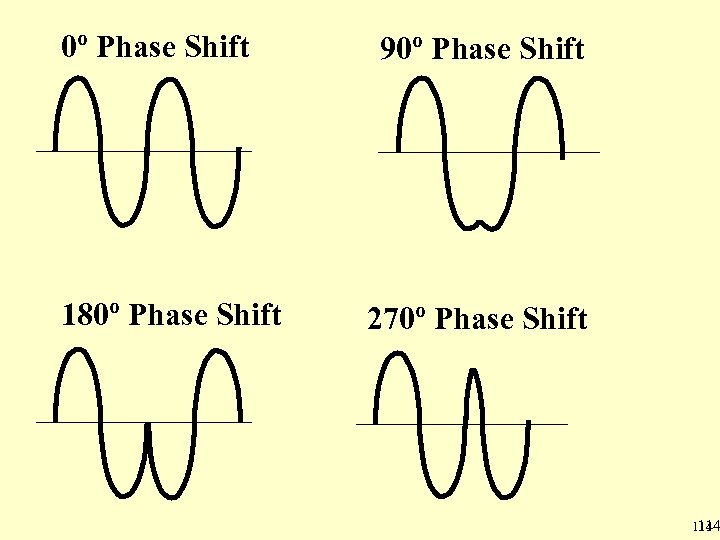
0º Phase Shift 180º Phase Shift 90º Phase Shift 270º Phase Shift 114
Baud • Baud - A single state change of the analog signal. • Baud Rate - The number of times per second that the analog signal changes state. • In early modems, one baud usually represented one bit. • In today’s modems, one baud represents more than one bit. 115
High Speed Low Speed 116
1 0 1 1 1 0 10101110 Parallel Serial 117
The UART • Universal Asynchronous Receiver/Transmitter • The heart of the Serial (COM) port. • Converts parallel data required by CPU into serial data required by serial port. • Converts serial data received at serial port into parallel data required by CPU. 118
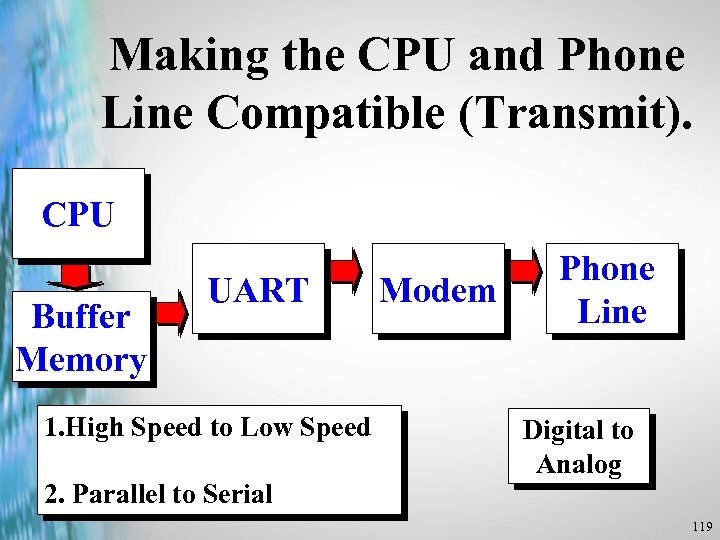
Making the CPU and Phone Line Compatible (Transmit). CPU Buffer Memory UART 1. High Speed to Low Speed 2. Parallel to Serial Modem Phone Line Digital to Analog 119
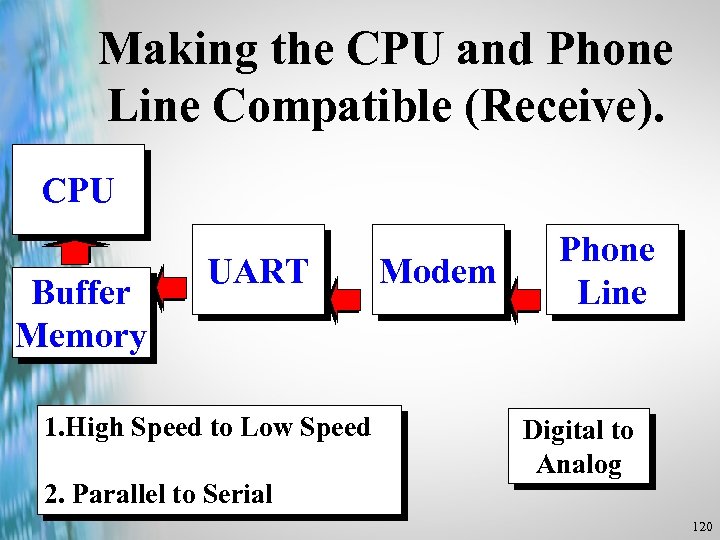
Making the CPU and Phone Line Compatible (Receive). CPU Buffer Memory UART 1. High Speed to Low Speed 2. Parallel to Serial Modem Phone Line Digital to Analog 120
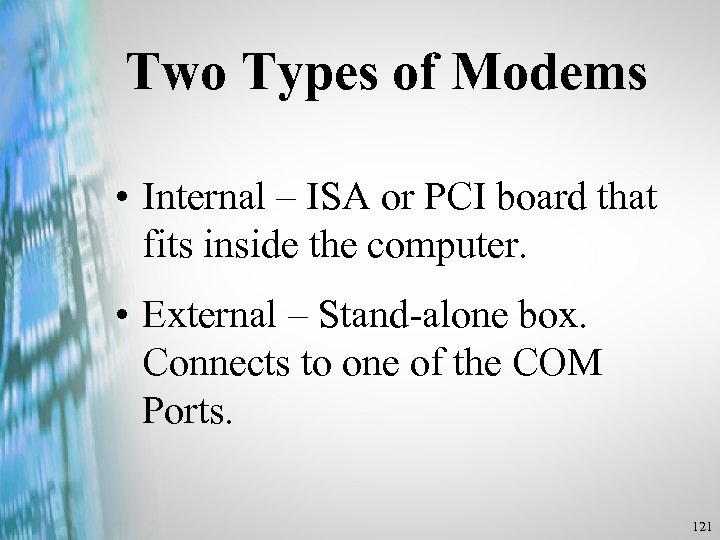
Two Types of Modems • Internal – ISA or PCI board that fits inside the computer. • External – Stand-alone box. Connects to one of the COM Ports. 121
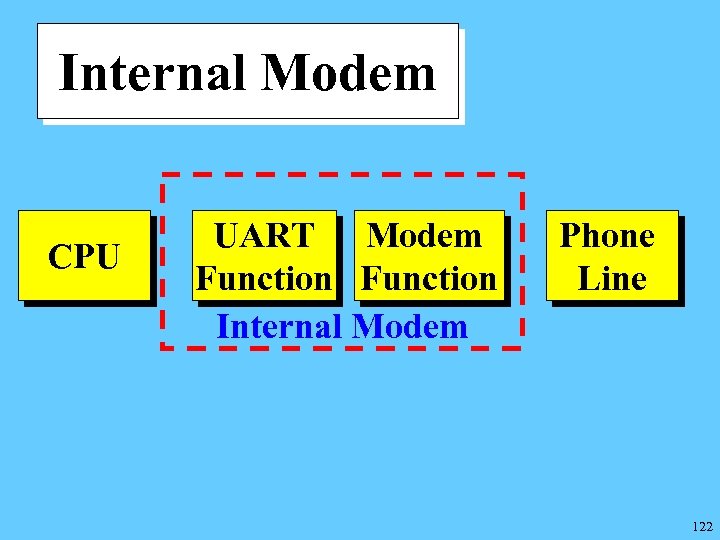
Internal Modem CPU UART Modem Function Internal Modem Phone Line 122
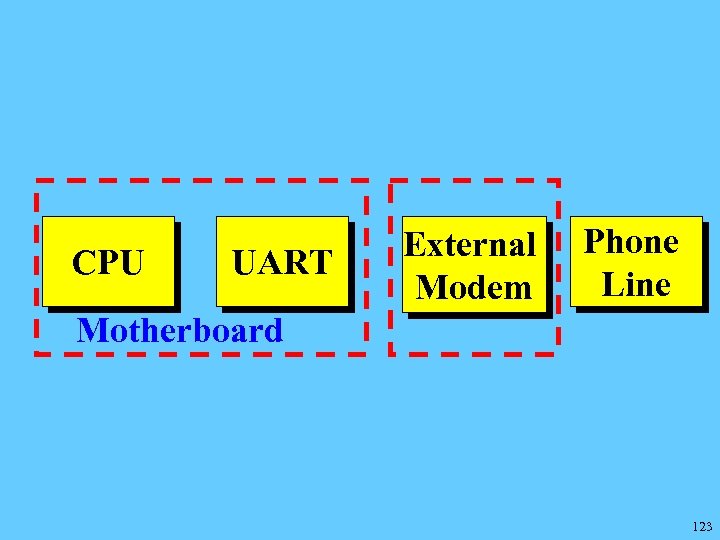
CPU UART External Modem Phone Line Motherboard 123
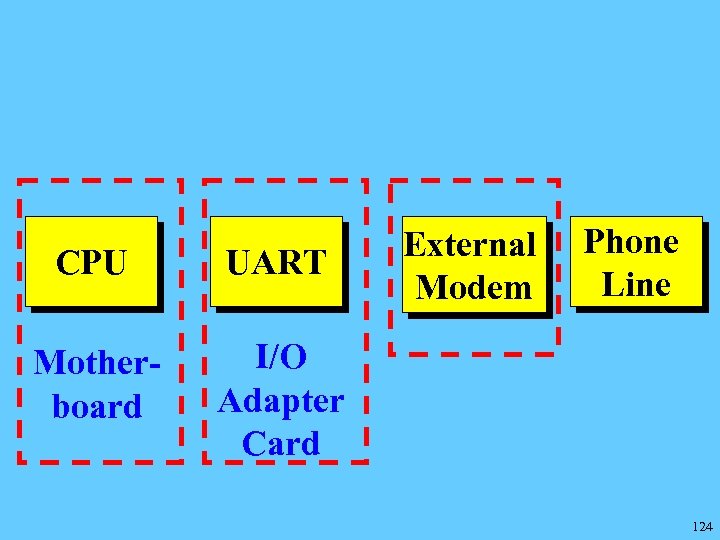
CPU UART Motherboard External Modem Phone Line I/O Adapter Card 124
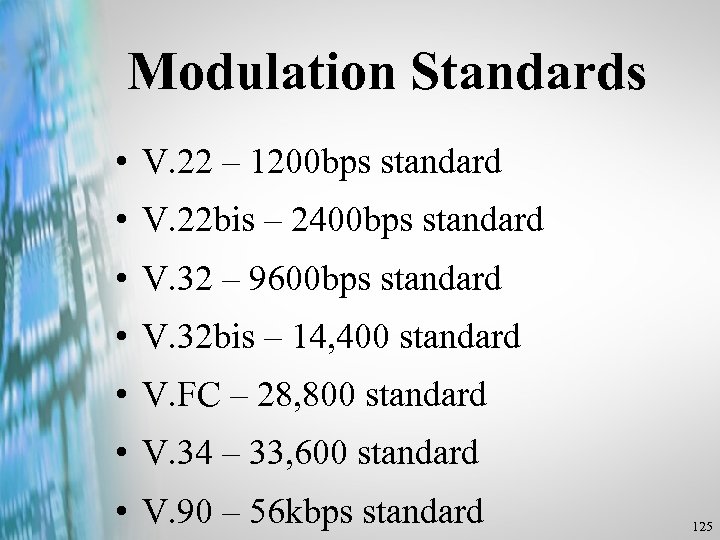
Modulation Standards • V. 22 – 1200 bps standard • V. 22 bis – 2400 bps standard • V. 32 – 9600 bps standard • V. 32 bis – 14, 400 standard • V. FC – 28, 800 standard • V. 34 – 33, 600 standard • V. 90 – 56 kbps standard 125
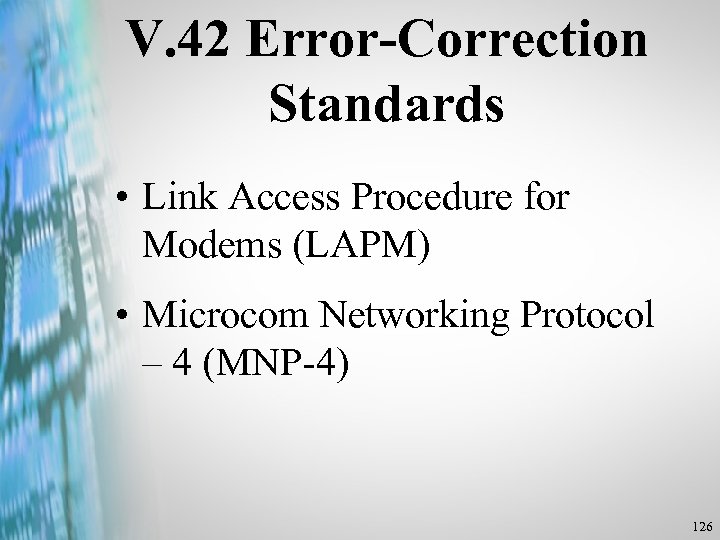
V. 42 Error-Correction Standards • Link Access Procedure for Modems (LAPM) • Microcom Networking Protocol – 4 (MNP-4) 126
V. 42 bis Compression Standard. • Uses a compression technique to reduce the size of out going data. • Can compress data up to ~ 4 to 1. • For example, a 33, 600 -bps Modem could transfer data at a rates up to about 134, 400 bps. 127
The COM Port • Also called Serial Port or RS-232 Port • The link between PC and Modem. • The external Modem connects to COM port on back of PC via serial cable. • The internal Modem has built-in COM port that duplicates function of external COM port. 128
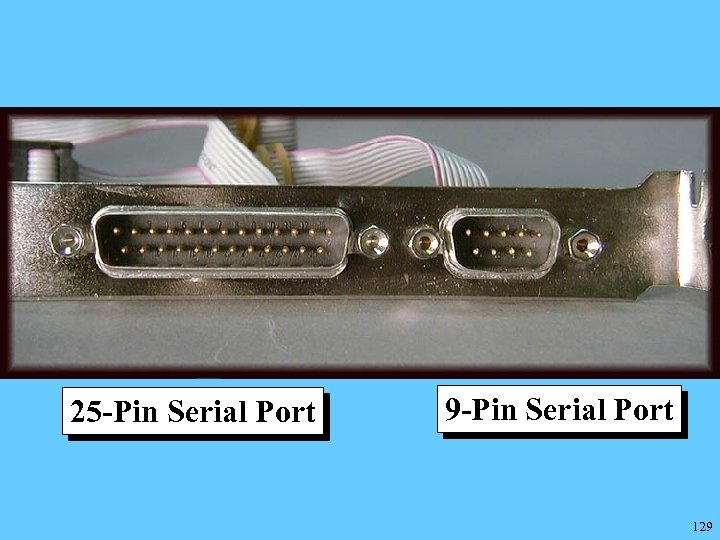
25 -Pin Serial Port 9 -Pin Serial Port 129
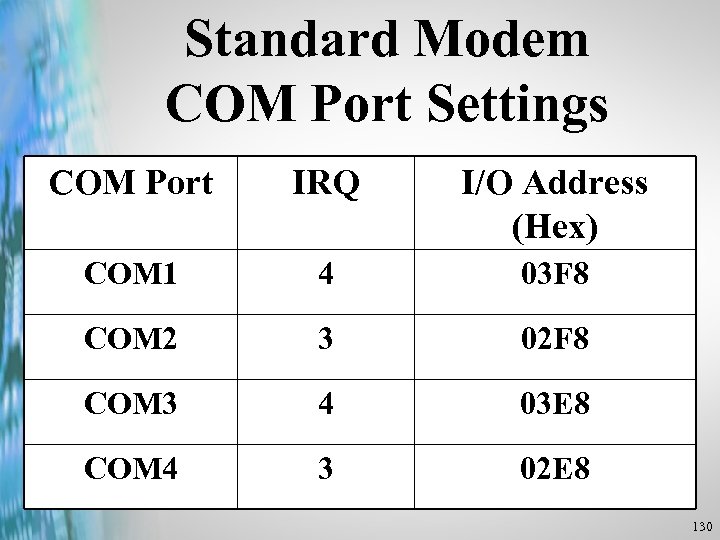
Standard Modem COM Port Settings COM Port IRQ I/O Address (Hex) COM 1 4 03 F 8 COM 2 3 02 F 8 COM 3 4 03 E 8 COM 4 3 02 E 8 130
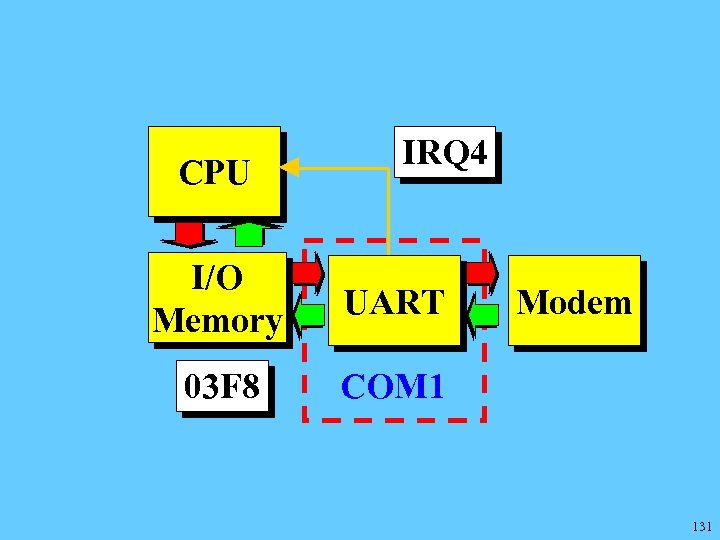
CPU IRQ 4 I/O Memory UART 03 F 8 COM 1 Modem 131
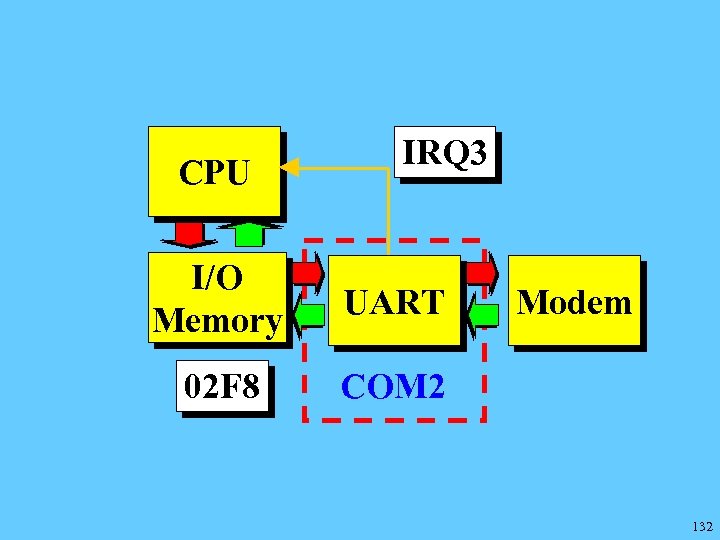
CPU IRQ 3 I/O Memory UART 02 F 8 COM 2 Modem 132
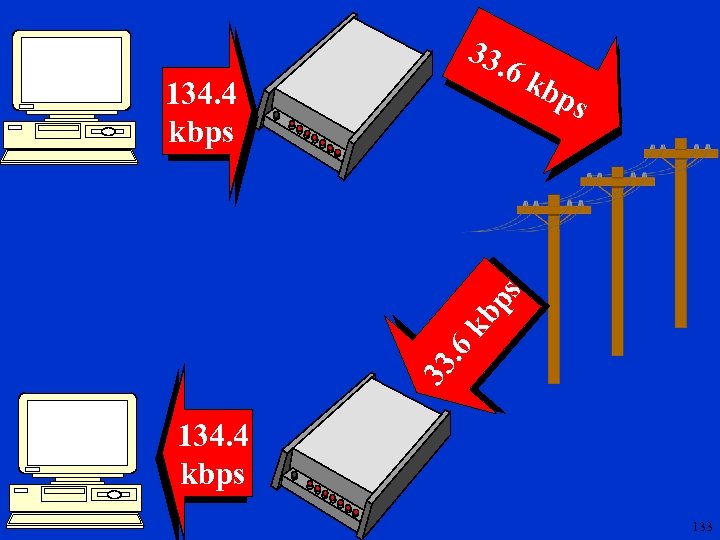
6 k bp s 33. 6 kb ps 134. 4 kbps 33. 134. 4 kbps 133
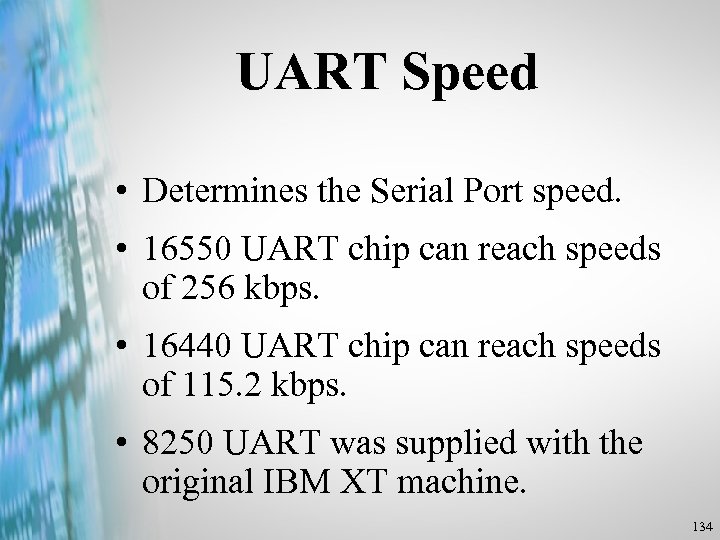
UART Speed • Determines the Serial Port speed. • 16550 UART chip can reach speeds of 256 kbps. • 16440 UART chip can reach speeds of 115. 2 kbps. • 8250 UART was supplied with the original IBM XT machine. 134
Digital Subscriber Line (DSL) - A technique used for transmitting high-bandwidth data over twisted-pair telephone lines. 135
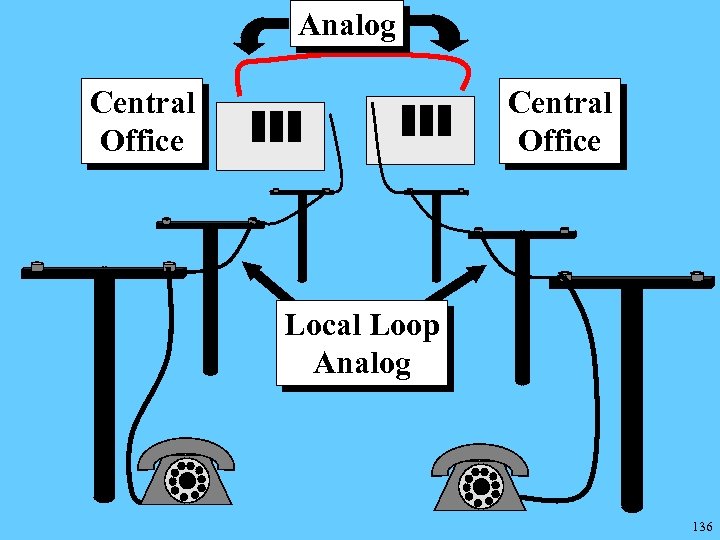
Analog Central Office Local Loop Analog 136
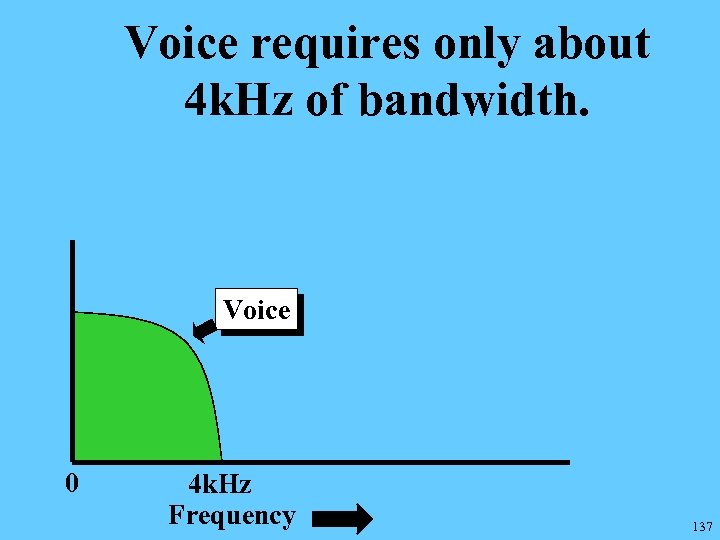
Voice requires only about 4 k. Hz of bandwidth. Voice 0 4 k. Hz Frequency 137
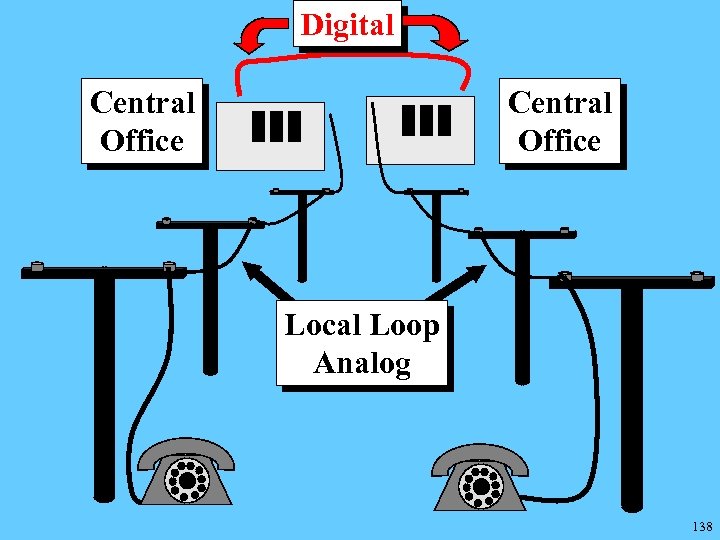
Digital Central Office Local Loop Analog 138
For short distances, twisted-pair can handle frequencies much higher than 4 k. Hz. 139
Connecting to the Internet • Modem (POTS) • ISDN • T 1 line • Digital Subscriber Line (DSL) 140
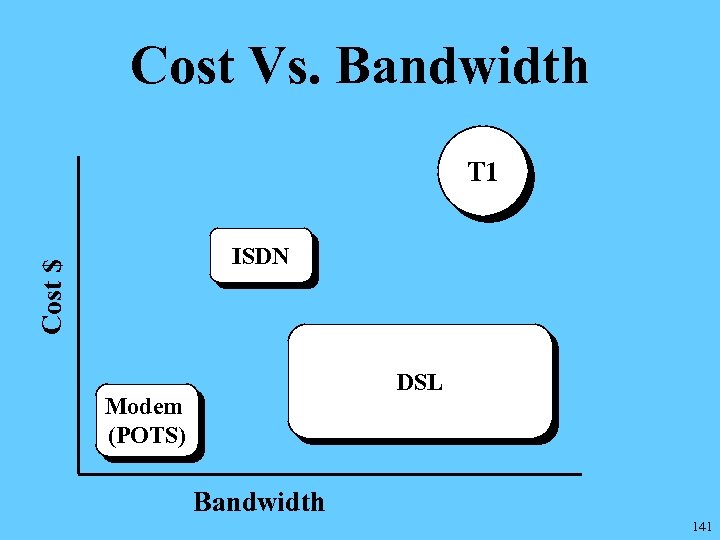
Cost Vs. Bandwidth T 1 Cost $ ISDN DSL Modem (POTS) Bandwidth 141
Advantages of DSL • Always-on connectivity • High speed • Flat-rate service • Reliability 142
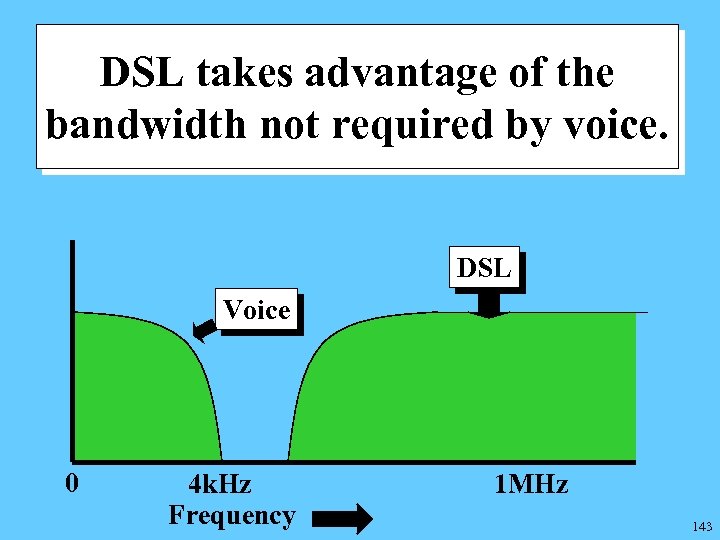
DSL takes advantage of the bandwidth not required by voice. DSL Voice 0 4 k. Hz Frequency 1 MHz 143
x. DSL: • Asymmetric Digital Subscriber Line (ADSL) • Very High Data Rate Digital Subscriber Line (VDSL) 144
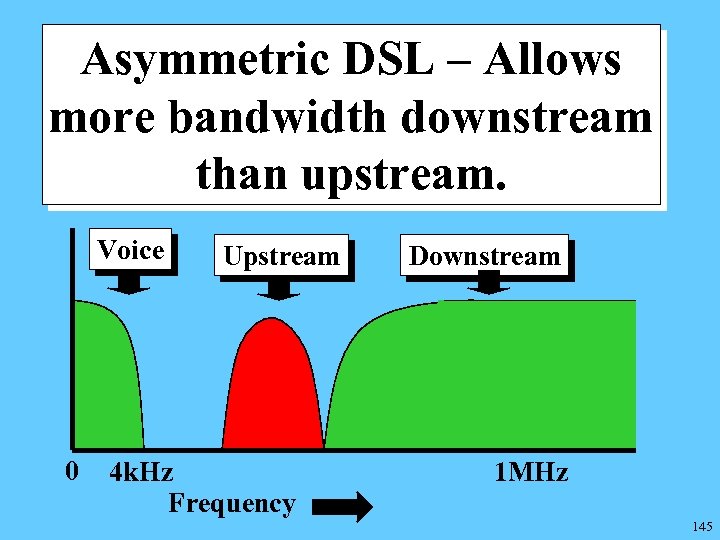
Asymmetric DSL – Allows more bandwidth downstream than upstream. Voice 0 Upstream 4 k. Hz Frequency Downstream 1 MHz 145
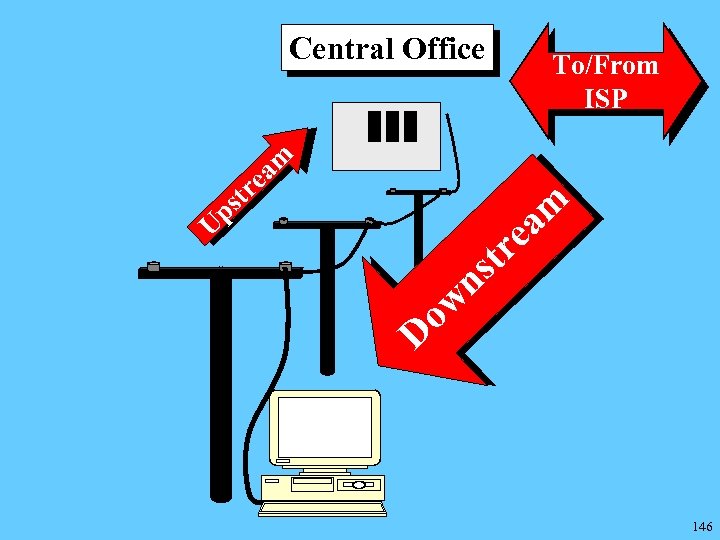
Central Office To/From ISP am e tr s m a U p re st n ow D 146
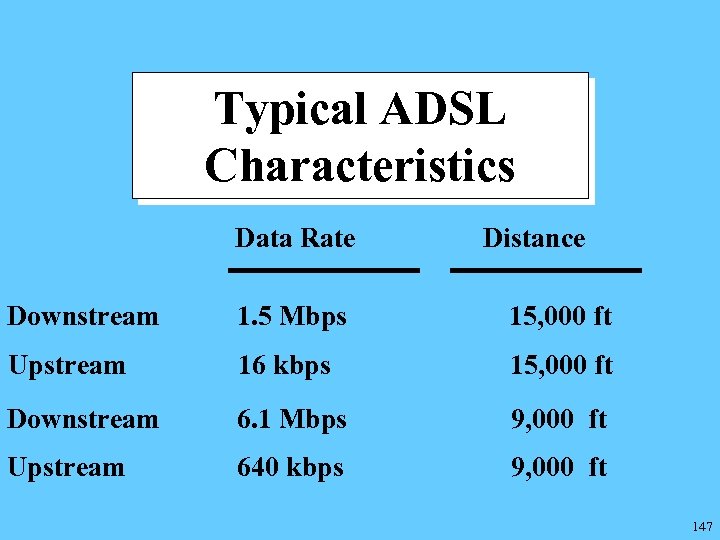
Typical ADSL Characteristics Data Rate Distance Downstream 1. 5 Mbps 15, 000 ft Upstream 16 kbps 15, 000 ft Downstream 6. 1 Mbps 9, 000 ft Upstream 640 kbps 9, 000 ft 147
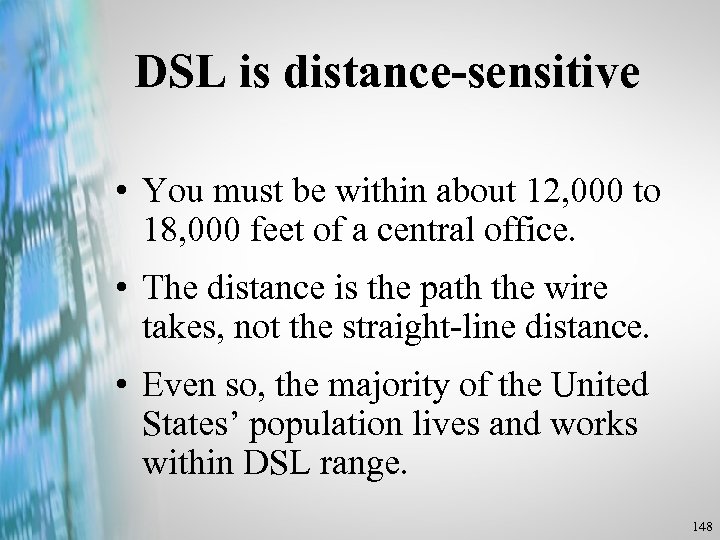
DSL is distance-sensitive • You must be within about 12, 000 to 18, 000 feet of a central office. • The distance is the path the wire takes, not the straight-line distance. • Even so, the majority of the United States’ population lives and works within DSL range. 148
The DSL Provider • The company that delivers DSL service to your home or business. • Generally a phone company. • Many DSL providers act as their own Internet Service Provider (ISP). • Some areas have more than one DSL provider. 149
Customer Premises Equipment (CPE) • Telco lingo for phone or DSL equipment in the home or office. • Splitter/Filter • DSL Modem or DSL Router 150
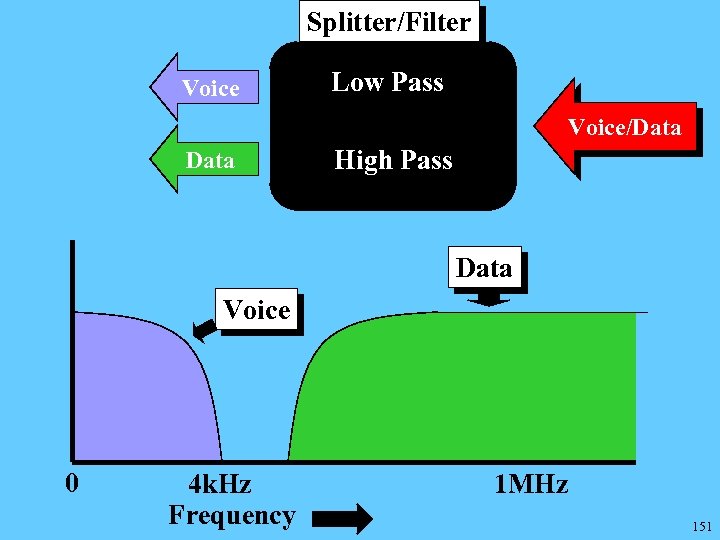
Splitter/Filter Voice Low Pass Voice/Data High Pass Data Voice 0 4 k. Hz Frequency 1 MHz 151
The DSL Modem • Low cost. • Requires no customer configuration. • Acts as a bridge to your DSL provider’s TCP/IP network. 152
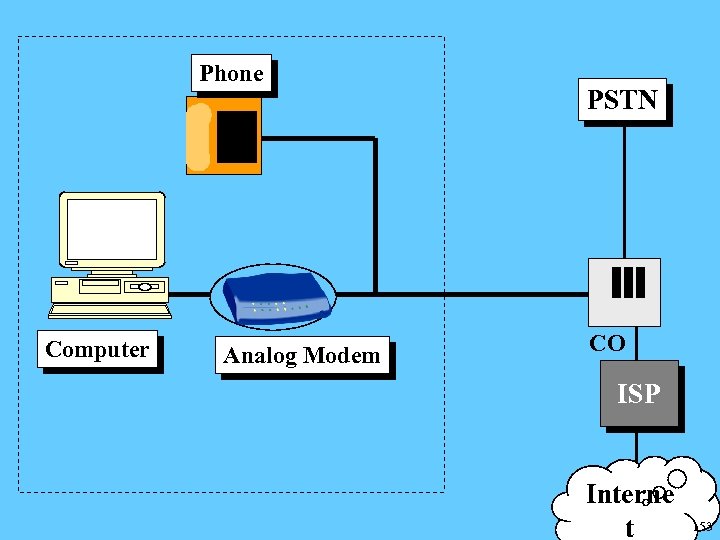
Phone Computer Analog Modem PSTN CO ISP Interne t 153
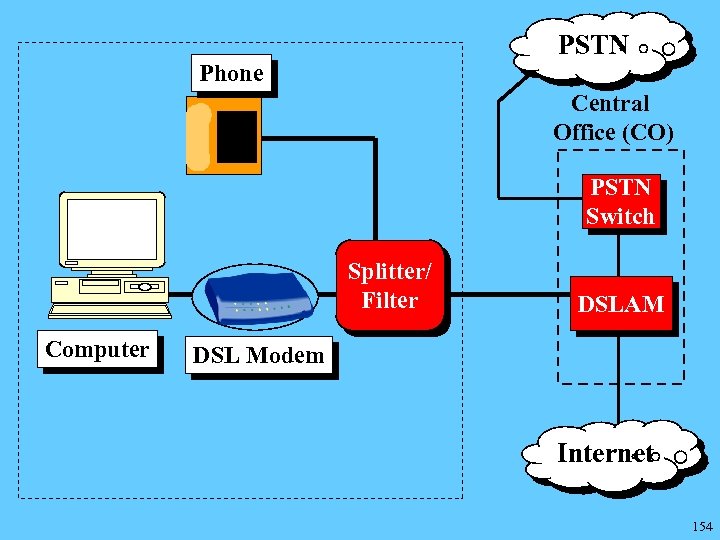
PSTN Phone Central Office (CO) PSTN Switch Splitter/ Filter Computer DSLAM DSL Modem Internet 154
Problems with the DSL Modem Approach • Single IP address • The Internet Connection is not easily shared. • Security concerns. 155
The DSL Router • Higher cost • Turns your local network into a separate TCP/IP LAN. • May provide several services such as: – DHCP – NAT – Firewall – VPN 156
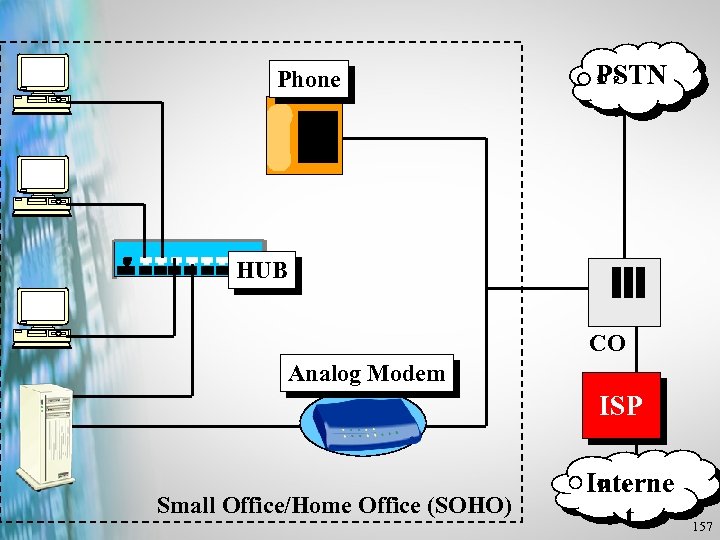
Phone PSTN HUB CO Analog Modem ISP Small Office/Home Office (SOHO) Interne t 157
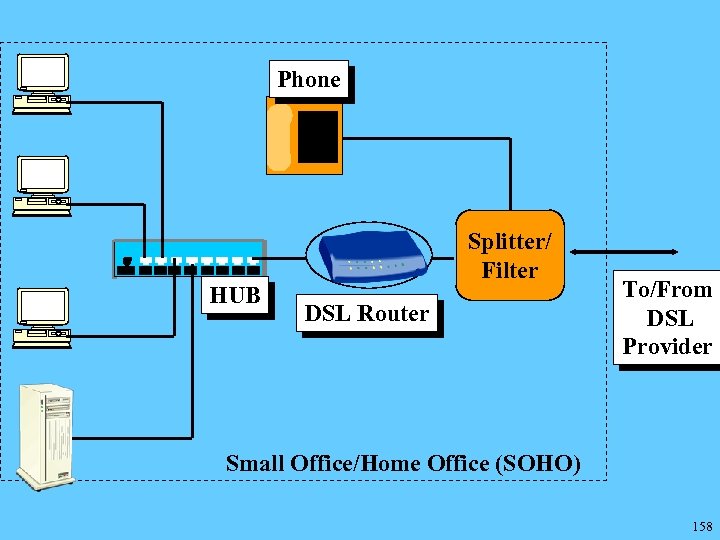
Phone HUB Splitter/ Filter DSL Router To/From DSL Provider Small Office/Home Office (SOHO) 158
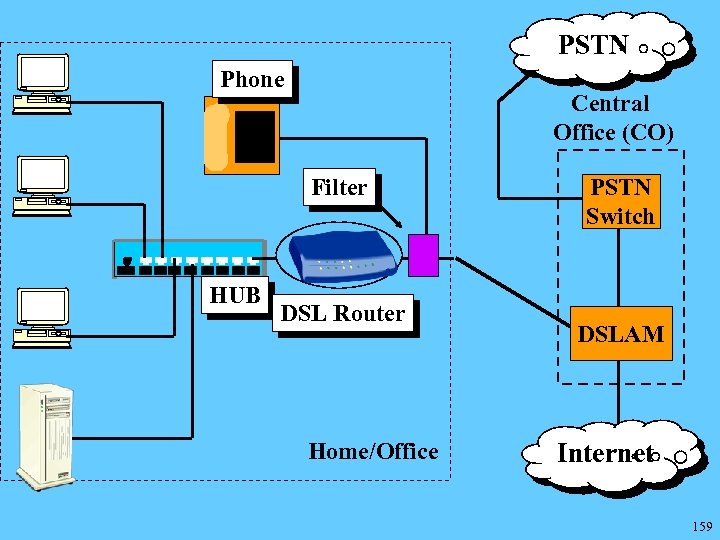
PSTN Phone Central Office (CO) Filter HUB DSL Router Home/Office PSTN Switch DSLAM Internet 159
Digital Subscriber Line Access Multiplexer (DSLAM) • Normally located at the Telco Central Office • Concentrates data from numerous DSL connections into a high capacity backbone. • Separates voice from data and sends each to its appropriate location. 160
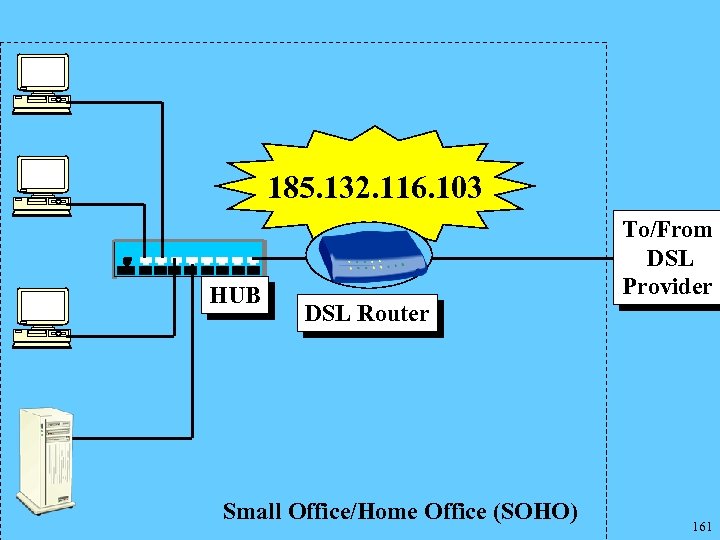
185. 132. 116. 103 HUB DSL Router Small Office/Home Office (SOHO) To/From DSL Provider 161
Very High Data Rate Digital Subscriber Line (VDSL) • An emerging technology • Promises to deliver – Downstream speeds of 15 to 52 Mbps. – Upstream speeds of 1. 5 to 2. 3 Mbps. • Over short distances (1000 to 4500 ft) of existing twisted pair phone lines. 162
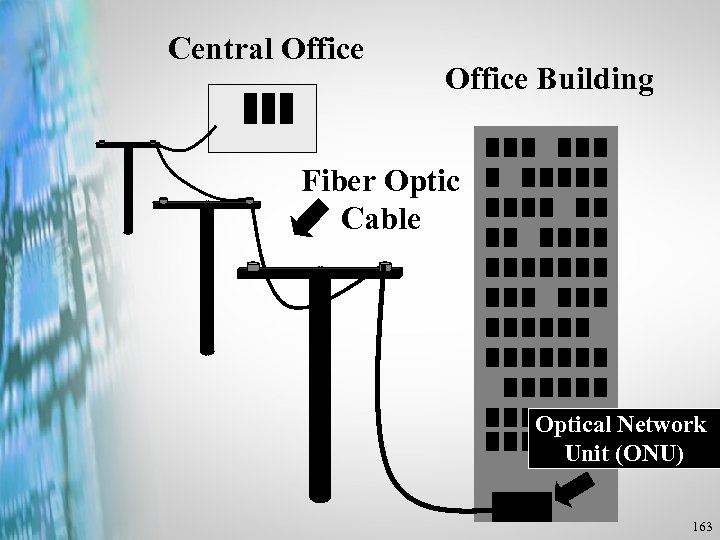
Central Office Building Fiber Optic Cable Optical Network Unit (ONU) 163
Скачать презентацию Unit 9 Buses Video and Upgrades Copyright
8de440a7c2f6561431b6d477c25dbd42.ppt