


 Скачать презентацию Unit 7 Chapter 9 Convergence Technology in Networking
ce9c3fae12979cff106f53c1d30792b6.ppt
- Количество слайдов: 105
 Unit 7 Chapter 9 Convergence Technology in Networking
 Chapter Outline n n Introduction Designing the Campus Network n n IP Assignment and DHCP Network Services n n n DNS Network Management n n Selecting the media Redundancy Configuring SNMP Switch / VLAN Configuration Analyzing Campus Network Data Traffic n n Outage Monitoring Collecting Utilization and Error Statistics
 Objectives n n n Understand the purpose of the three layers of a campus network design Understand the auxiliary services needed to operate a network, such as DHCP and DNS Understand the process of requesting an IP address using DHCP Understand how to use SNMP tools for network management Investigate how to use network data packet statistics to monitor network performance
 Chapter Objectives The objective of this chapter is to examine the computer networking issues for planning a campus network. The term campus network applies to any network that has multiple LANs interconnected. The LANs are typically in multiple buildings that are close to each other and are interconnected with switches and routers. This chapter will look at the planning and design of a simple campus network. The issues include network design, IP assignment and DHCP, Domain Name Service (DNS), network management, and analyzing a campus network’s data traffic.
 Chapter Objectives n n n The basics of configuring the three layers of a campus LAN (the core, distribution, and access) are first examined in section 9. 2. This section also addresses the important issues of data flow and selecting the network media. IP allocation, and configuring DHCP service are examined in section 9. 3. This includes as step-by-step description over the process of how a computer obtains an IP address manually or via DHCP in a network. Section 9. 4 examines the issues of configuring DNS service for a campus network. The concepts of the root servers, the top level domains, and the sub-domains are examined.
 Chapter Objectives n n n The next section (9. 5) addresses network management. An overview of configuring a Cisco router for SNMP operation is first presented. This section includes an example of using an SNMP management software to collect router information and data statistics. Section 9. 6 examines the basics of VLANs and the steps for configuring a VLAN in a campus network. The chapter concludes with an example of using data collected with an SNMP management program to monitor network data traffic in section 9. 7.
 Designing the Campus Network
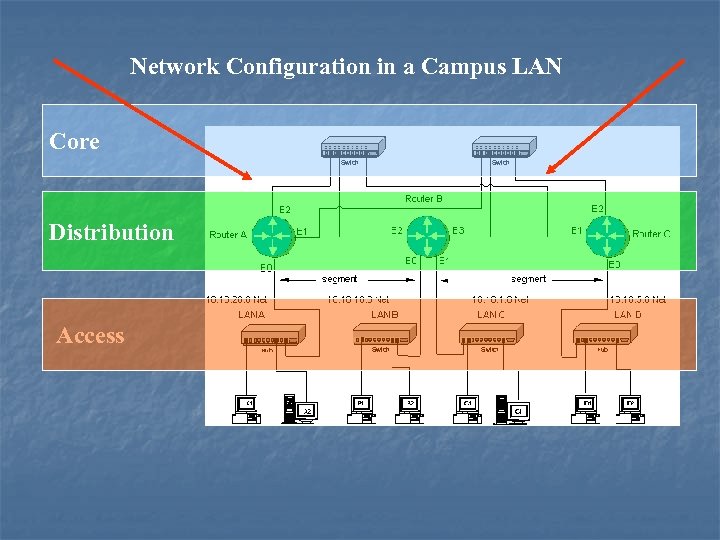
 Core Distribution, and Access n n Most campus networks follow a design that has a core, distribution, and access layer. These layers can be spread out into more layers or compacted into fewer depending on the size of these networks. These layers are shown in the next slide. This 3 layer network structure is incorporated in campus networks to improve data handling and routing within the network.
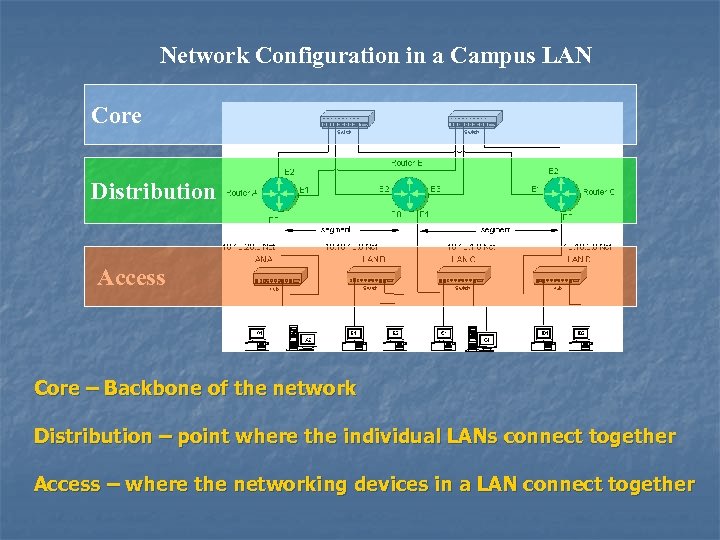 Network Configuration in a Campus LAN Core Distribution Access Core – Backbone of the network Distribution – point where the individual LANs connect together Access – where the networking devices in a LAN connect together
 Core Layer n n n The network core usually contains high-end layers 3 switches or routers. The core is the heart or the backbone of the network. The major portion of a network’s data traffic passes through the core. The core must be able to quickly forward data to other parts of the network. Data congestion should be avoided at the core if possible. This means that unnecessary route policies should be avoided. An example of a route policy is traffic filtering. Traffic filtering limits what traffic can pass from one part of a network to another.
 Core Layer – Design Issues n n An important design issue in a campus network and the core is redundancy. Redundancy provides for a backup route or network connection in case of a link failure. The core hardware is typically interconnected to all distribution network hardware. The objective is to ensure that data traffic continues for all of the network even if a core networking device or link fails.
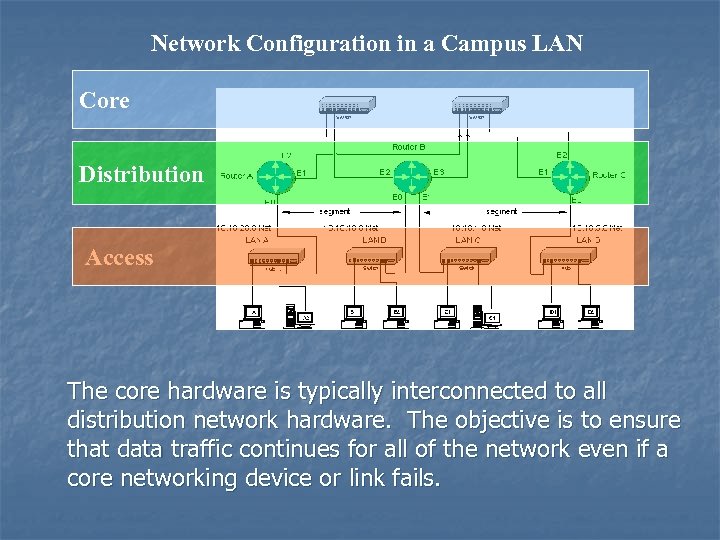 Network Configuration in a Campus LAN Core Distribution Access The core hardware is typically interconnected to all distribution network hardware. The objective is to ensure that data traffic continues for all of the network even if a core networking device or link fails.
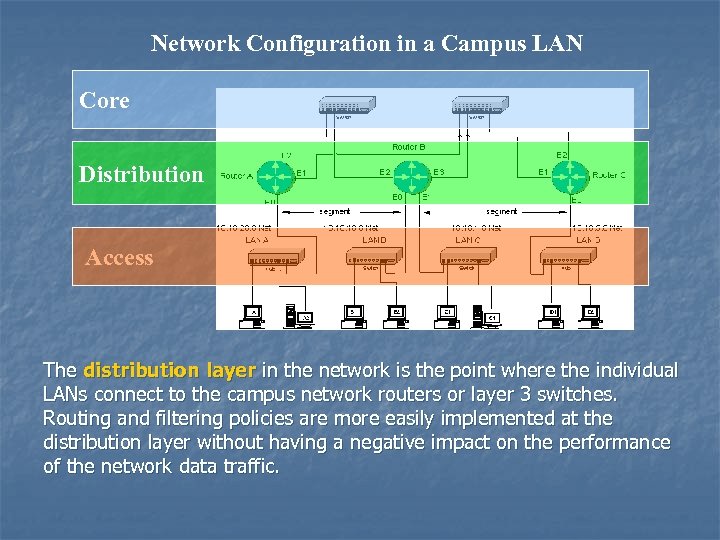 Network Configuration in a Campus LAN Core Distribution Access The distribution layer in the network is the point where the individual LANs connect to the campus network routers or layer 3 switches. Routing and filtering policies are more easily implemented at the distribution layer without having a negative impact on the performance of the network data traffic.
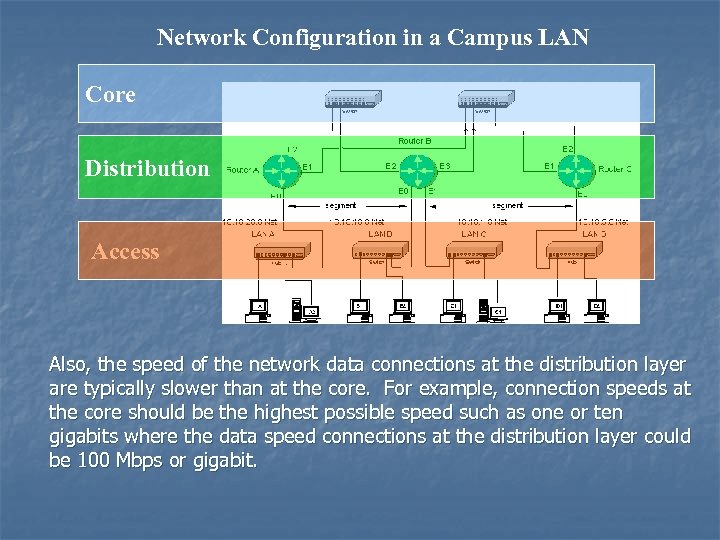 Network Configuration in a Campus LAN Core Distribution Access Also, the speed of the network data connections at the distribution layer are typically slower than at the core. For example, connection speeds at the core should be the highest possible speed such as one or ten gigabits where the data speed connections at the distribution layer could be 100 Mbps or gigabit.
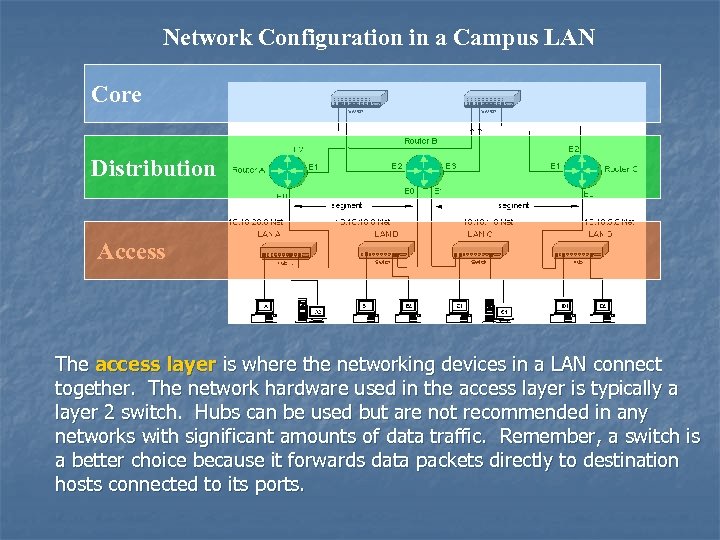 Network Configuration in a Campus LAN Core Distribution Access The access layer is where the networking devices in a LAN connect together. The network hardware used in the access layer is typically a layer 2 switch. Hubs can be used but are not recommended in any networks with significant amounts of data traffic. Remember, a switch is a better choice because it forwards data packets directly to destination hosts connected to its ports.
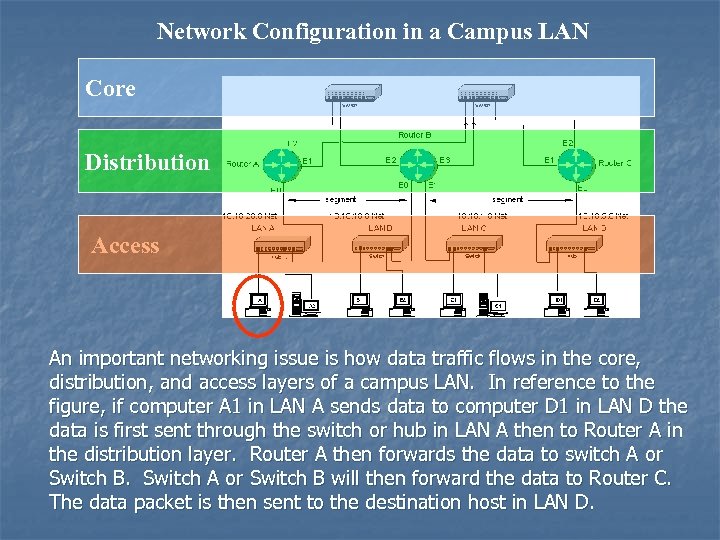
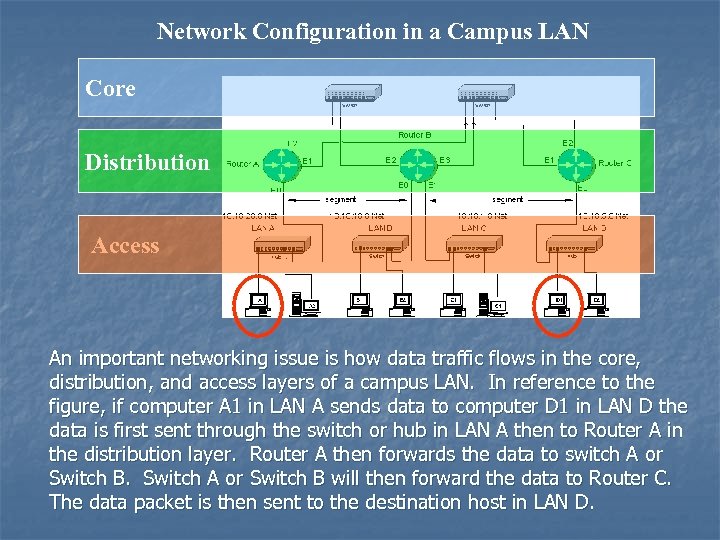
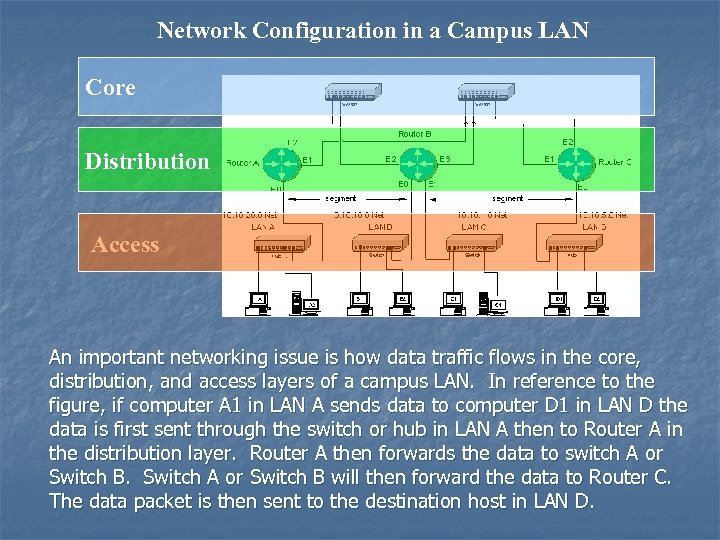 Network Configuration in a Campus LAN Core Distribution Access An important networking issue is how data traffic flows in the core, distribution, and access layers of a campus LAN. In reference to the figure, if computer A 1 in LAN A sends data to computer D 1 in LAN D the data is first sent through the switch or hub in LAN A then to Router A in the distribution layer. Router A then forwards the data to switch A or Switch B. Switch A or Switch B will then forward the data to Router C. The data packet is then sent to the destination host in LAN D.
 Network Configuration in a Campus LAN Core Distribution Access An important networking issue is how data traffic flows in the core, distribution, and access layers of a campus LAN. In reference to the figure, if computer A 1 in LAN A sends data to computer D 1 in LAN D the data is first sent through the switch or hub in LAN A then to Router A in the distribution layer. Router A then forwards the data to switch A or Switch B. Switch A or Switch B will then forward the data to Router C. The data packet is then sent to the destination host in LAN D.
 Network Configuration in a Campus LAN Core Distribution Access An important networking issue is how data traffic flows in the core, distribution, and access layers of a campus LAN. In reference to the figure, if computer A 1 in LAN A sends data to computer D 1 in LAN D the data is first sent through the switch or hub in LAN A then to Router A in the distribution layer. Router A then forwards the data to switch A or Switch B. Switch A or Switch B will then forward the data to Router C. The data packet is then sent to the destination host in LAN D.
 NETWORK SERVERS (E-Mail, Web, DHCP, DNS) location in a campus network n n In what layer are the campus network servers (web, email, DHCP, DNS, etc. ) located? This varies for all campus networks and there is not a definitive answer. However, most campus network servers are located in the access layer.
 Router connections in the distribution layer n n Why not connect the routers directly in the distribution layer? There are network stability issues when routing large amounts of network data traffic if the networks are fully or even partially meshed together. This means that connecting routers together in the distribution layer should be avoided. If they are used they should have a high cost.
 Campus Backbone n n Where is the campus backbone located in the layers of a campus network? The backbone of a campus network carries the bulk of the routed data traffic. Based on this, the backbone of the campus network connects the distribution and the core layer networking devices.
 Network Configuration in a Campus LAN Core Distribution Access
 Selecting the Media The choices for the media used to interconnect networks in a campus network are based on several criteria: Desired data speed n Distance for connections n Budget n
 Selecting the Media n n n The distance consideration limits the choices of media. CAT 6/5 e has a distance limitation of 100 meters. Fiber optic cable can be run for many kilometers, depending on the electronics and optical devices used. Wireless LAN connections can also be used to interconnect network a few kilometers apart.
 Selecting the media n n n The available budget is always the final decision factor when planning the design for a campus LAN. If the budget allows then fiber optic cable is probably the best overall choice especially in the high speed backbone of the campus network. The cost of fiber is continually dropping making it more competitive with lower cost network media such as twisted pair cable. Also, fiber cable will always be able to carry a greater amount of data traffic and can easily grow with the bandwidth requirements of a network.
 Selecting the media n n Twisted pair cable is a popular choice for connecting computers in a wired LAN. The twisted pair technologies support bandwidths suitable for most LANs and performance capabilities of the twisted pair cable are always improving.
 Selecting the media n Wireless LANs are being used to connect networking devices together in LANs where a wired connection is not feasible. For example, a wireless LAN could be used to connect two LANs in a building together. This is a cost effective choice if there is not a cable duct to run the cable to interconnect the LANs or the cost of running the cable is too high.
 Selecting the media n n Also, wireless connections are playing an important role with mobile users within a LAN. The mobile user can make a network connection without having to use a physical connection or jack. For example, a wireless LAN could be used to enable network users to connect their mobile computers to the campus network. The connection does not require a physical jack for the user to connect to.
 IP Assignment and DHCP
 IP Assignment n The IP address assignment is typically kept track by the Network Operations Center (NOC). n The IP addresses are kept in a central log file so that NOC can troubleshoot network problems. For example, a machine could be causing network problems possibly due to a hacked or corrupted computer. NOC needs to be able to track down the network problem(s). The NOC database will have the MAC address, the IP address, and the name of the person who uses the computer.
 IP Assignment n n n IP addresses are assigned by NOC based on where the subnet for the computer is located. The subnet could be in a building, a floor of the building, a department, etc. The subnets are created by the network administrators based upon the expected number of users (hosts) in a subnet.
 IP Assignment n n n IP assignment is done either manually or dynamically. The manual process for IP assignment within a campus network is where IP addresses are entered manually for each computer in the network. This is a tedious process that requires that a file be edited with all of the necessary information about the computer, including the MAC address, the IP address, and the user (or owner) of the computer. The owner is typically the department or organizational unit within the campus LAN. The manual entries typically use a manual IP assignment on each client.
 IP Assignment - BOOTP n n This process of IP assignment can be automated to some extent using a program called BOOTP for IP assignment. BOOTP stands for Bootstrap Protocol and it enables computers to discover their own IP addresses. When a client requests an IP address, it is assigned to the Ethernet address (MAC address) based on the BOOTP record. In this case, the IP and MAC addresses have a one-to-one relationship.
 IP Assignment - DHCP n n n DHCP simplifies the steps for IP assignment. The DHCP (Dynamic Host Configuration Protocol) function is to assign IP addresses from a pool of IP addresses to requesting clients. DHCP is a superset of BOOTP, it runs on the same port number as BOOTP. DHCP requests an IP address from the DHCP server. The DHCP server retrieves an available IP address from a pool of addresses that are dedicated to the subnet of the requesting client. The IP address is passed to the client and the server specifies a length of time that the client can hold the IP address. This is called the lease time. This feature keeps an unused computer from unnecessarily tying up an IP address.
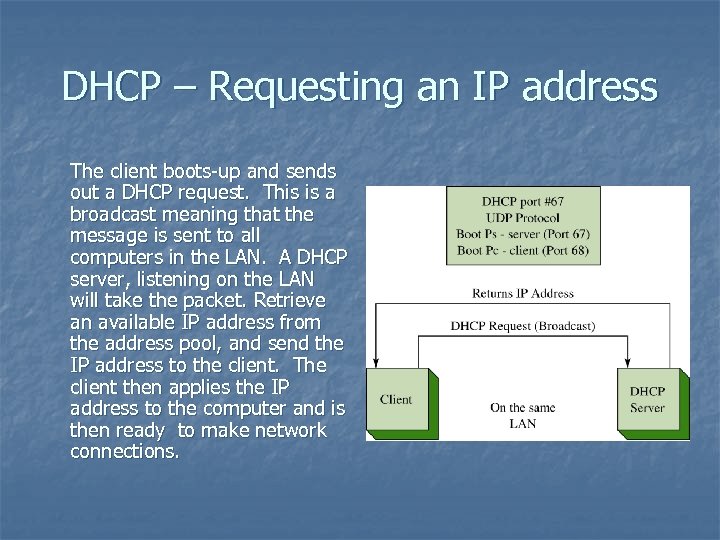 DHCP – Requesting an IP address The client boots-up and sends out a DHCP request. This is a broadcast meaning that the message is sent to all computers in the LAN. A DHCP server, listening on the LAN will take the packet. Retrieve an available IP address from the address pool, and send the IP address to the client. The client then applies the IP address to the computer and is then ready to make network connections.
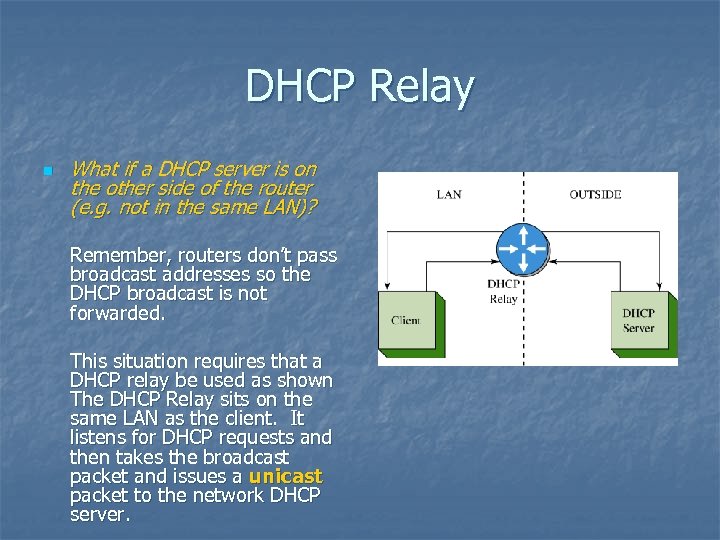 DHCP Relay n What if a DHCP server is on the other side of the router (e. g. not in the same LAN)? Remember, routers don’t pass broadcast addresses so the DHCP broadcast is not forwarded. This situation requires that a DHCP relay be used as shown The DHCP Relay sits on the same LAN as the client. It listens for DHCP requests and then takes the broadcast packet and issues a unicast packet to the network DHCP server.
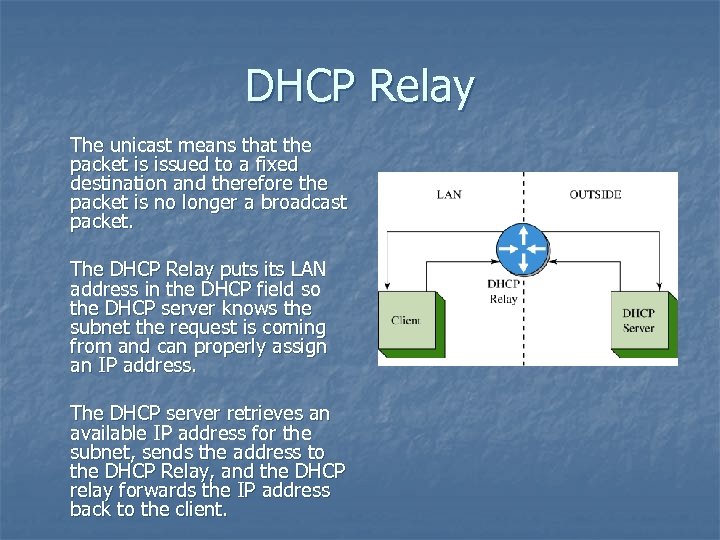 DHCP Relay The unicast means that the packet is issued to a fixed destination and therefore the packet is no longer a broadcast packet. The DHCP Relay puts its LAN address in the DHCP field so the DHCP server knows the subnet the request is coming from and can properly assign an IP address. The DHCP server retrieves an available IP address for the subnet, sends the address to the DHCP Relay, and the DHCP relay forwards the IP address back to the client.
 DHCP Relay Configuration The router command to enable the DHCP relay on a Cisco router is: Router(config-if)# ip helper [ip address of the DHCP server] This command is issued from the interface that connects to the LAN. In fact, the IP address for the interface is typically the gateway address for the LAN.
 DHCP n DHCP is a UDP protocol and uses port number 68 for the BOOTP-client and port 67 for the BOOTP-server. n BOOTP and DHCP use the same port numbers. n The BOOTP-client is the user requesting the DHCP service. n The BOOTP-server is the DHCP server.
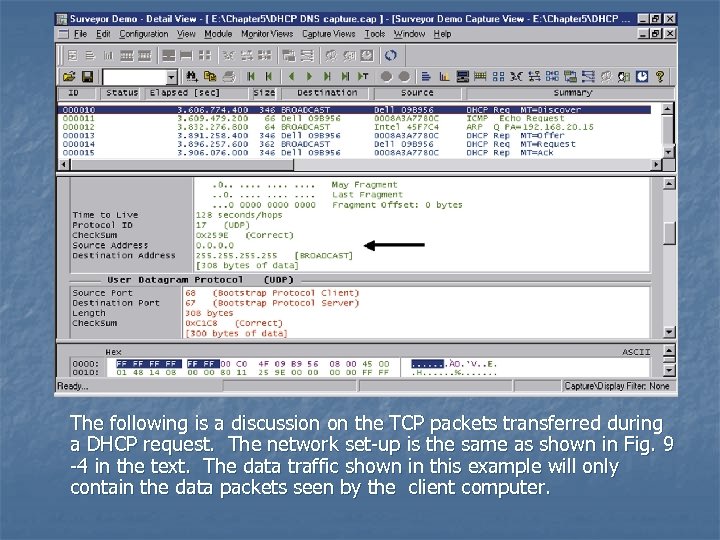 The following is a discussion on the TCP packets transferred during a DHCP request. The network set-up is the same as shown in Fig. 9 -4 in the text. The data traffic shown in this example will only contain the data packets seen by the client computer.
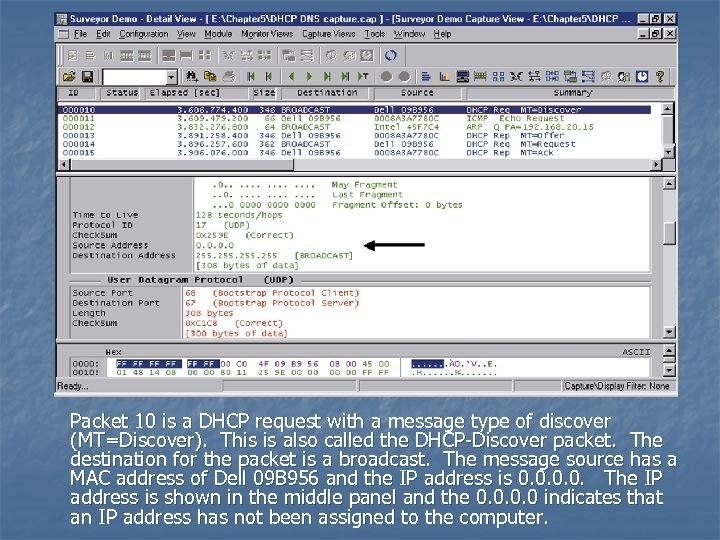 Packet 10 is a DHCP request with a message type of discover (MT=Discover). This is also called the DHCP-Discover packet. The destination for the packet is a broadcast. The message source has a MAC address of Dell 09 B 956 and the IP address is 0. 0. The IP address is shown in the middle panel and the 0. 0 indicates that an IP address has not been assigned to the computer.
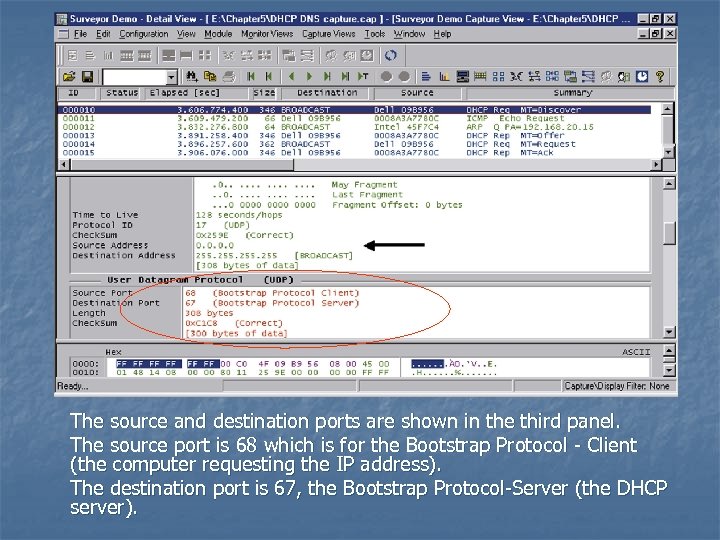 The source and destination ports are shown in the third panel. The source port is 68 which is for the Bootstrap Protocol - Client (the computer requesting the IP address). The destination port is 67, the Bootstrap Protocol-Server (the DHCP server).
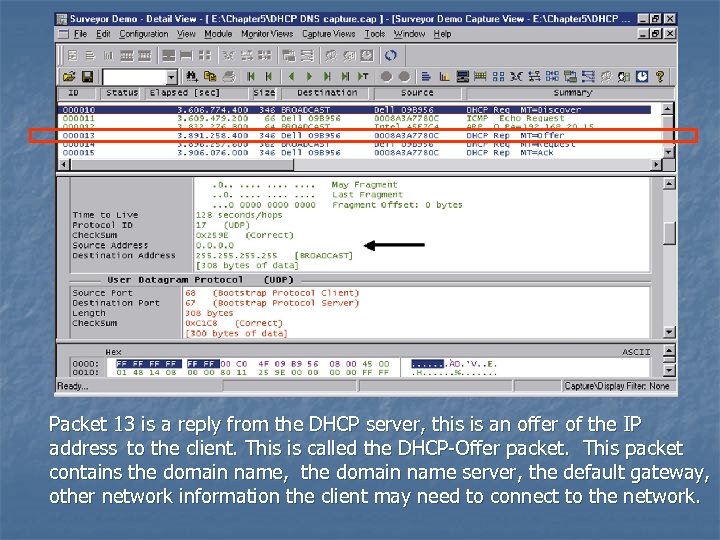 Packet 13 is a reply from the DHCP server, this is an offer of the IP address to the client. This is called the DHCP-Offer packet. This packet contains the domain name, the domain name server, the default gateway, other network information the client may need to connect to the network.
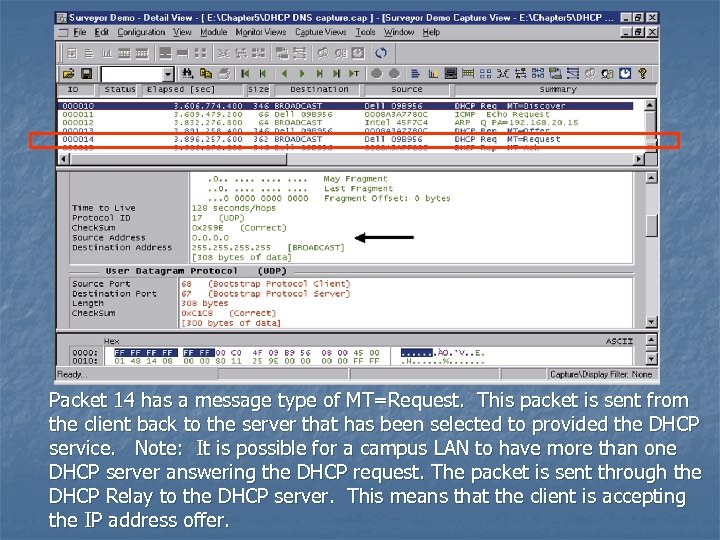 Packet 14 has a message type of MT=Request. This packet is sent from the client back to the server that has been selected to provided the DHCP service. Note: It is possible for a campus LAN to have more than one DHCP server answering the DHCP request. The packet is sent through the DHCP Relay to the DHCP server. This means that the client is accepting the IP address offer.
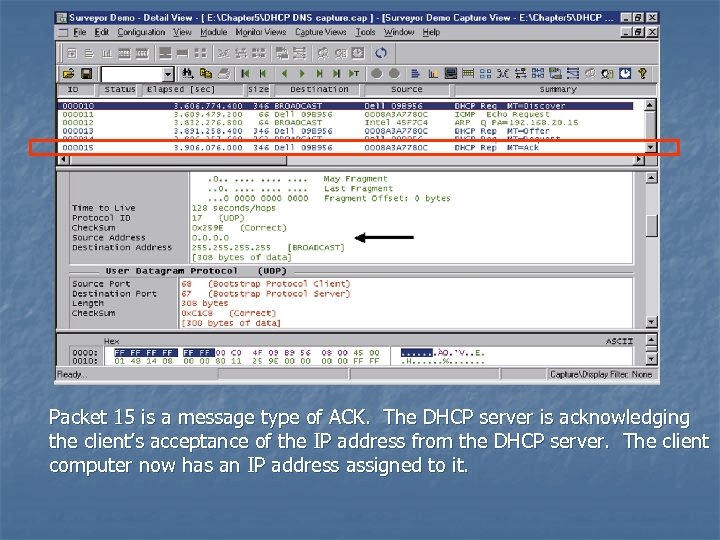 Packet 15 is a message type of ACK. The DHCP server is acknowledging the client’s acceptance of the IP address from the DHCP server. The client computer now has an IP address assigned to it.
 Network Services - DNS
 DNS n This section examines the DNS services that are typically available in a campus network. DNS is the Domain Name Service. DNS translates a human readable name to an IP address or an IP address to a domain name. The translation of a name to an IP address is called forward domain name service and translation of an IP address to a domain name is called reverse domain name service.
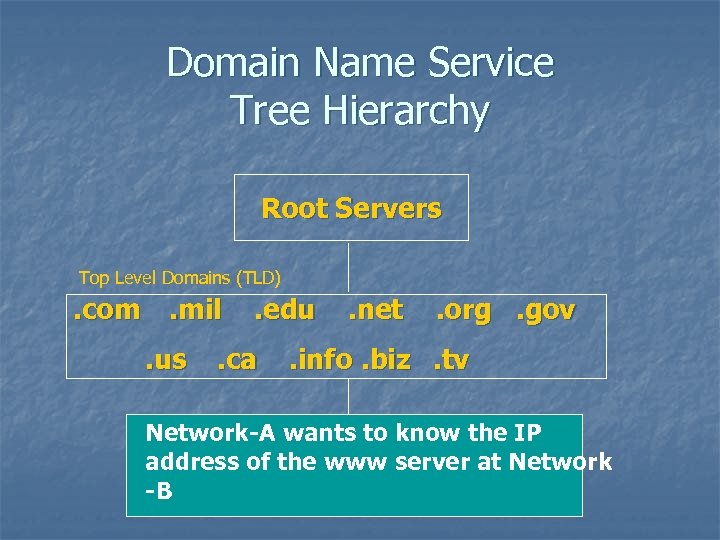
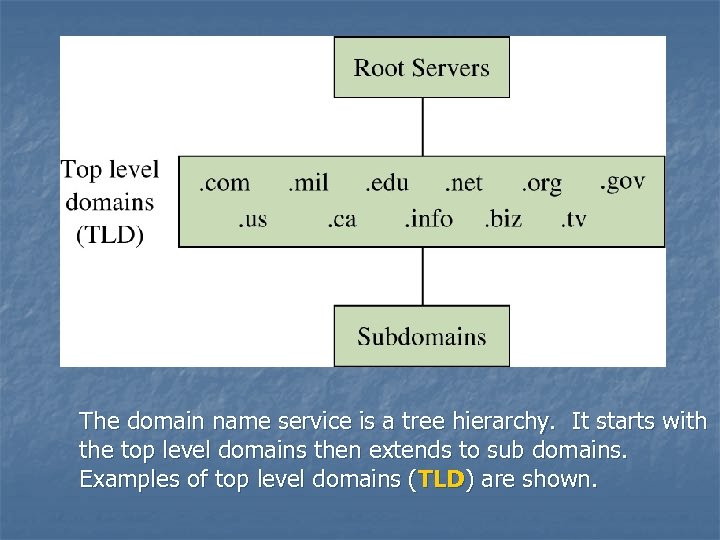 The domain name service is a tree hierarchy. It starts with the top level domains then extends to sub domains. Examples of top level domains (TLD) are shown.
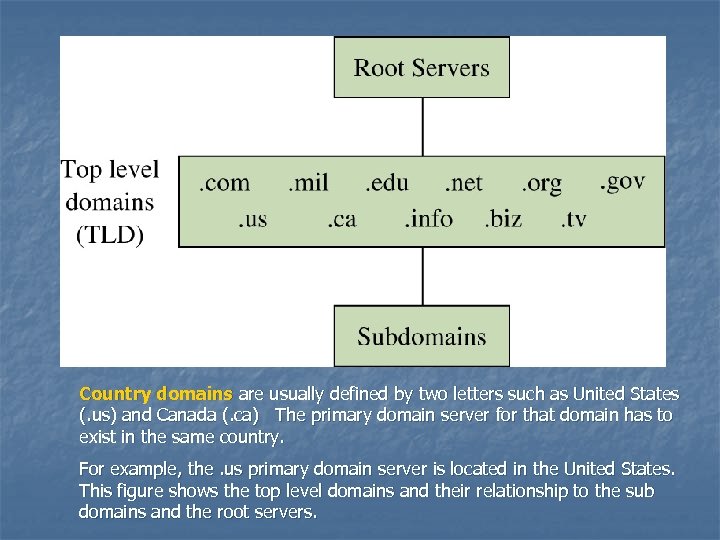 Country domains are usually defined by two letters such as United States (. us) and Canada (. ca) The primary domain server for that domain has to exist in the same country. For example, the. us primary domain server is located in the United States. This figure shows the top level domains and their relationship to the sub domains and the root servers.
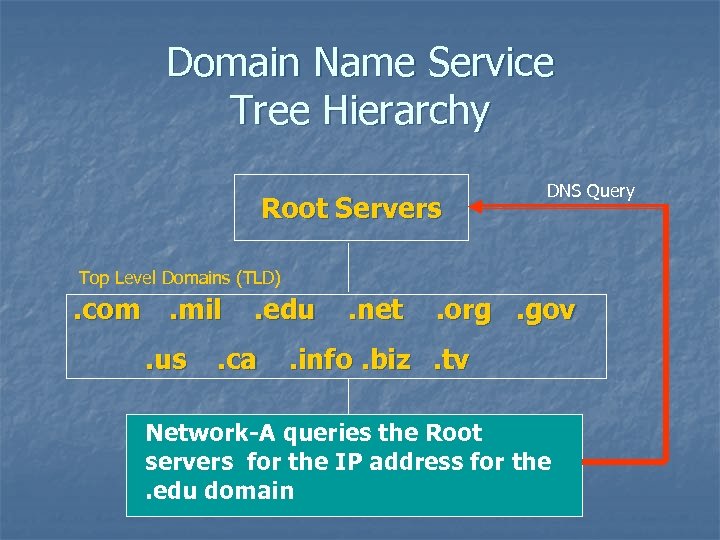
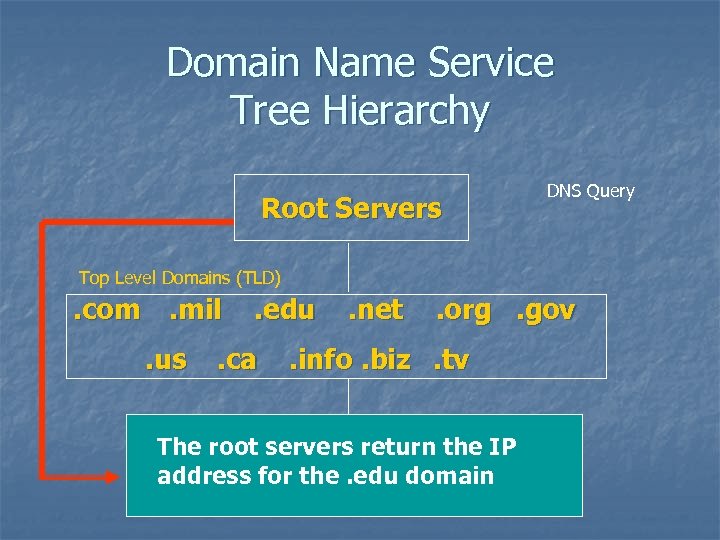
 Root Servers n n n group of servers that exist using well know IP address that have been programmed into DNS servers. When the DNS service is installed on a server, the root server’s IP addresses are automatically configured in the DNS. The campus DNS will query the root servers to try to find name servers of known domains.
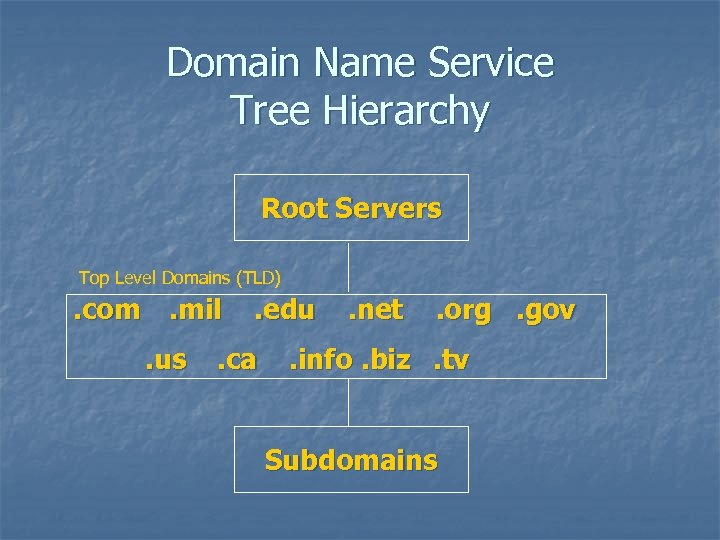 Domain Name Service Tree Hierarchy Root Servers Top Level Domains (TLD) . com. mil. us . edu . ca . net . org. gov . info. biz. tv Subdomains
 Domain Name Service Tree Hierarchy Root Servers Top Level Domains (TLD) . com. mil. us . edu . ca . net . org. gov . info. biz. tv Network-A wants to know the IP Subdomains address of the www server at Network -B
 Domain Name Service Tree Hierarchy Root Servers DNS Query Top Level Domains (TLD) . com. mil. us . edu . ca . net . org. gov . info. biz. tv Network-A queries the Root Subdomains servers for the IP address for the. edu domain
 Domain Name Service Tree Hierarchy Root Servers DNS Query Top Level Domains (TLD) . com. mil. us . edu . ca . net . org. gov . info. biz. tv The root servers return the IP Subdomains address for the. edu domain
 Domain Name Service Tree Hierarchy Root Servers Top Level Domains (TLD) . com. mil. us . edu . ca . net . org. gov . info. biz. tv Network-A DNS queries the. edu domain Subdomains For the IP address of the Network-B DNS
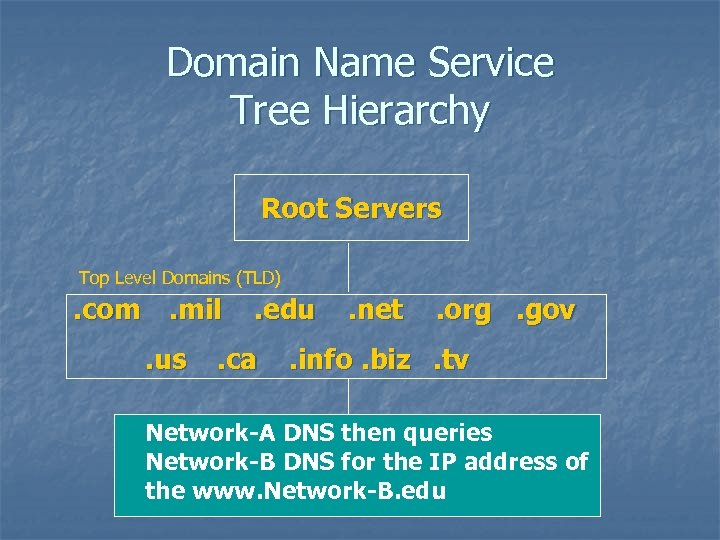 Domain Name Service Tree Hierarchy Root Servers Top Level Domains (TLD) . com. mil. us . edu . ca . net . org. gov . info. biz. tv Network-A DNS then queries Subdomains Network-B DNS for the IP address of the www. Network-B. edu
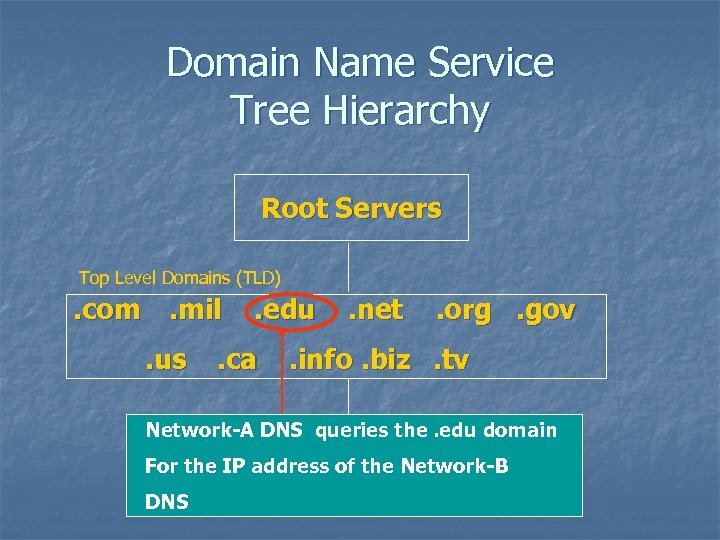
 Root Servers n n The root servers only have information about the next level in the tree. Root servers only know about the top level domains (e. g. . com, . gov, . mil, etc. ). n They will not know anything about www. network-A. edu. n They only know the. edu domain server’s IP address.
 Campus DNS n n n The first step for providing DNS service for a campus network is to obtain a domain name. This requires that the user seeking the domain name go to www. internic. net. Internic has a list of name registrars where a domain can be purchased. Select a company that registers domain names. When you get on the registrars web site you will be able to input a domain name. The registrar will check to see if the domain name is available. If the domain name is available, you will be prompted to complete the application for the domain name and put in the DNS servers that are to be used to host the domain. The DNS servers will be assigned an IP address and names. When the network’s DNS servers are placed on-line, the root servers will point to the network’s DNS servers.
 Administering the Campus DNS n n The primary records are the “A” records of a campus network. These contain the host name and an IP addresses for the computers. For example network-B. edu has an assigned IP address of 172. 16. 12. 1. When a host pings www. network-B. edu , the host computer first checks its DNS cache, assuming the DNS cache is empty, the host then sends a DNS request to the campus DNS server. Typically the host will know the IP addresses of the primary and secondary DNS server either through static input or dynamic assignment. The request is sent to the primary DNS server requesting the IP address for www. network-B. edu. The primary DNS server is the authority for network-B. edu and knows the IP address of the hosts in the network. The primary DNS server returns the IP address of www. network-B. edu and then the ICMP process associated with a ping is started.
 The “A” Record n n n How does a PC in the campus network become part of the campus domain? Specifically, how is an “A” record entered into the campus domain. Recall that the “A” record provides a host to IP address translation. Adding the PC to the campus domain is done in a couple of ways: Manually and Dynamically
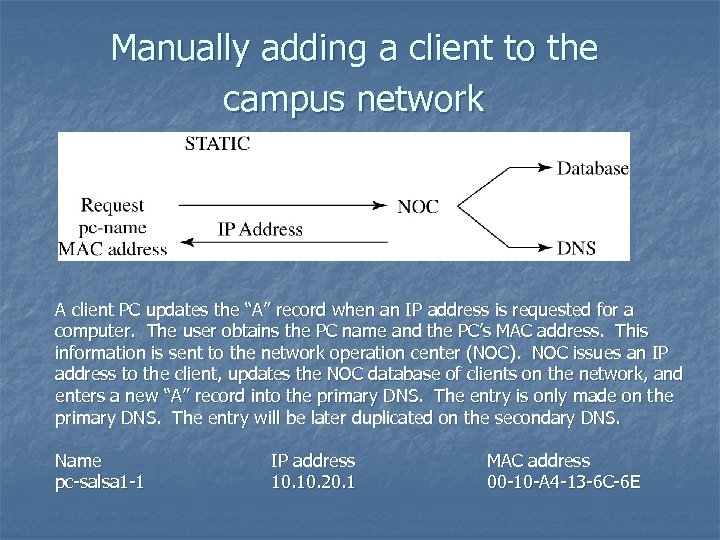 Manually adding a client to the campus network A client PC updates the “A” record when an IP address is requested for a computer. The user obtains the PC name and the PC’s MAC address. This information is sent to the network operation center (NOC). NOC issues an IP address to the client, updates the NOC database of clients on the network, and enters a new “A” record into the primary DNS. The entry is only made on the primary DNS. The entry will be later duplicated on the secondary DNS. Name pc-salsa 1 -1 IP address 10. 20. 1 MAC address 00 -10 -A 4 -13 -6 C-6 E
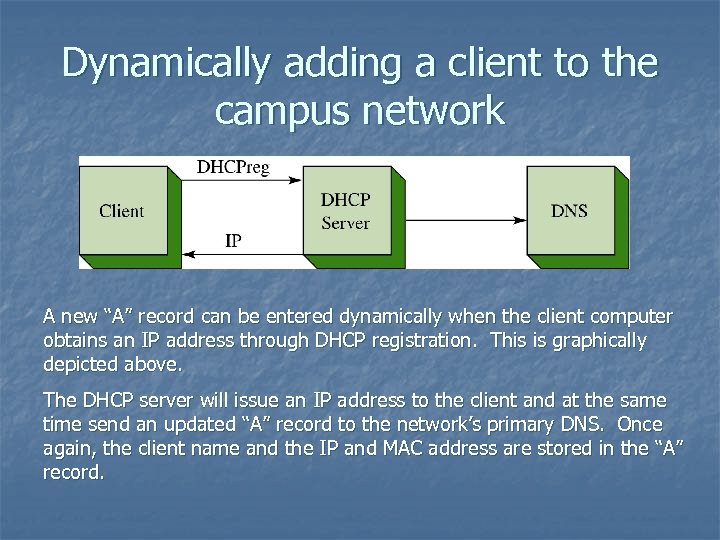 Dynamically adding a client to the campus network A new “A” record can be entered dynamically when the client computer obtains an IP address through DHCP registration. This is graphically depicted above. The DHCP server will issue an IP address to the client and at the same time send an updated “A” record to the network’s primary DNS. Once again, the client name and the IP and MAC address are stored in the “A” record.
 DNS and MAC Addresses n n Why obtain the MAC address when entering the information into DNS? This record is used to keep track of all the machines operating on the network. The MAC address is a unique identifier for each machine. The MAC address is also used by BOOTP which is a predecessor to DHCP. This is where a MAC address is specifically assigned to one IP address in the network.
 Reverse DNS n Reverse DNS returns a host name for an IP address. This is used in security purposes to verify that your domain is allowed to connect to a service. For example, pc-salsa 1 -1 (10. 20. 1) connects to an FTP server that only allows machines in the salsa domain to make the connection. When the connection is made, the ftp server only knows the IP address of the machine making the connection (10. 20. 1). The ftp server will use the IP address to request the name assigned to that IP. A connection is made to the salsa domain server, the salsa DNS server returns pc-salsa 1 -1 as the machine assigned to 10. 20. 1. The ftp server recognizes this is a salsa domain machine and authorizes the connection.
 Network Management
 SNMP n n A fundamental network management tool is SNMP, the Simple Network Management Protocol. SNMP, developed in 1988, is widely supported in most modern network hardware. SNMP is a connectionless protocol using the UDP (User Datagram Protocol) for the transmission of data to and from UDP port 161.
 MIB n n SNMP uses a Management Information Base (MIB) which is a collection of standard objects that are used to obtain configuration parameters and performance data on a networking device such as a router. For example, the MIB (if. Descr) returns a description of the router’s interfaces.
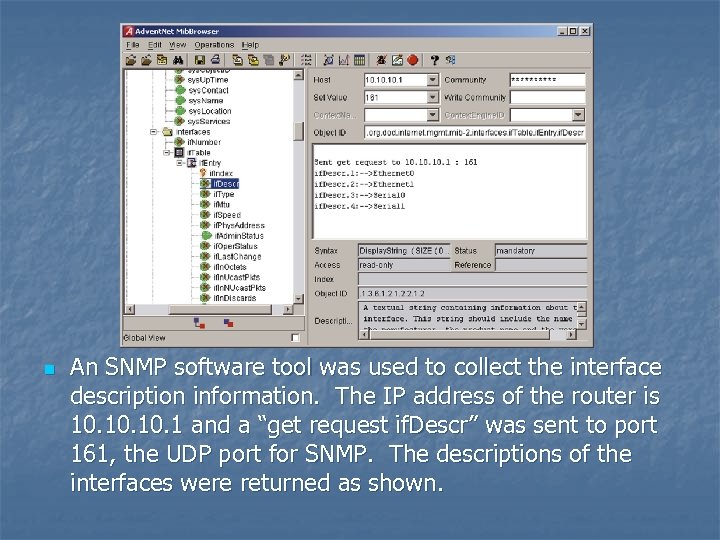 n An SNMP software tool was used to collect the interface description information. The IP address of the router is 10. 10. 1 and a “get request if. Descr” was sent to port 161, the UDP port for SNMP. The descriptions of the interfaces were returned as shown.
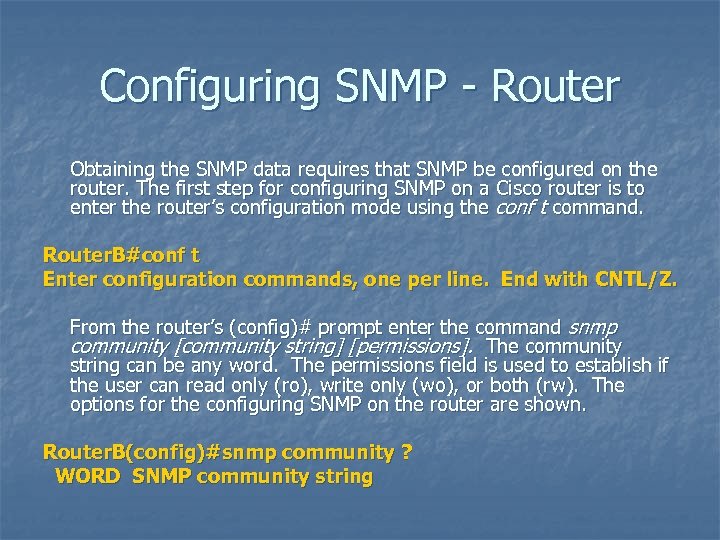 Configuring SNMP - Router Obtaining the SNMP data requires that SNMP be configured on the router. The first step for configuring SNMP on a Cisco router is to enter the router’s configuration mode using the conf t command. Router. B#conf t Enter configuration commands, one per line. End with CNTL/Z. From the router’s (config)# prompt enter the command snmp community [community string] [permissions]. The community string can be any word. The permissions field is used to establish if the user can read only (ro), write only (wo), or both (rw). The options for the configuring SNMP on the router are shown. Router. B(config)#snmp community ? WORD SNMP community string
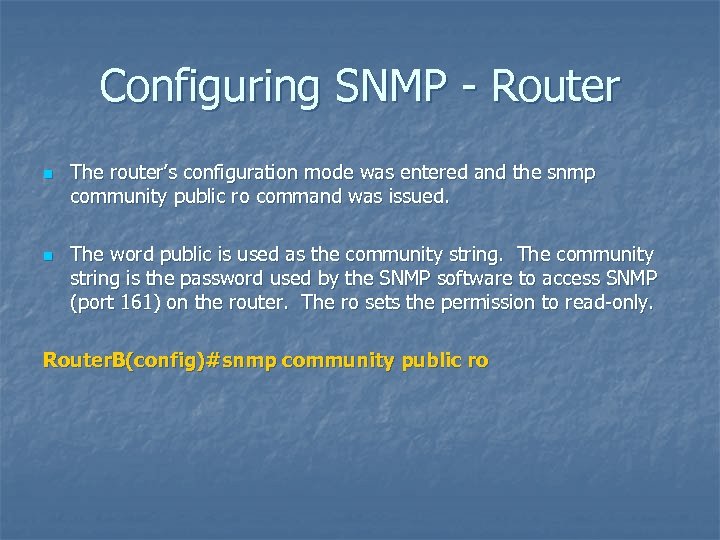 Configuring SNMP - Router n n The router’s configuration mode was entered and the snmp community public ro command was issued. The word public is used as the community string. The community string is the password used by the SNMP software to access SNMP (port 161) on the router. The ro sets the permission to read-only. Router. B(config)#snmp community public ro
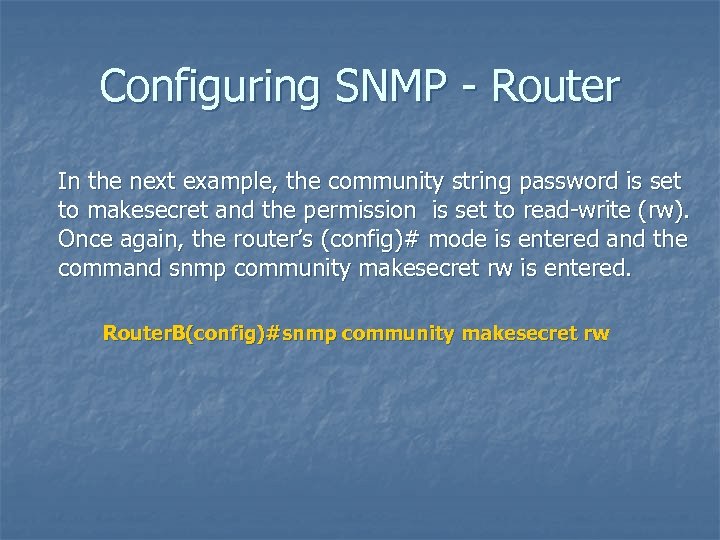 Configuring SNMP - Router In the next example, the community string password is set to makesecret and the permission is set to read-write (rw). Once again, the router’s (config)# mode is entered and the command snmp community makesecret rw is entered. Router. B(config)#snmp community makesecret rw
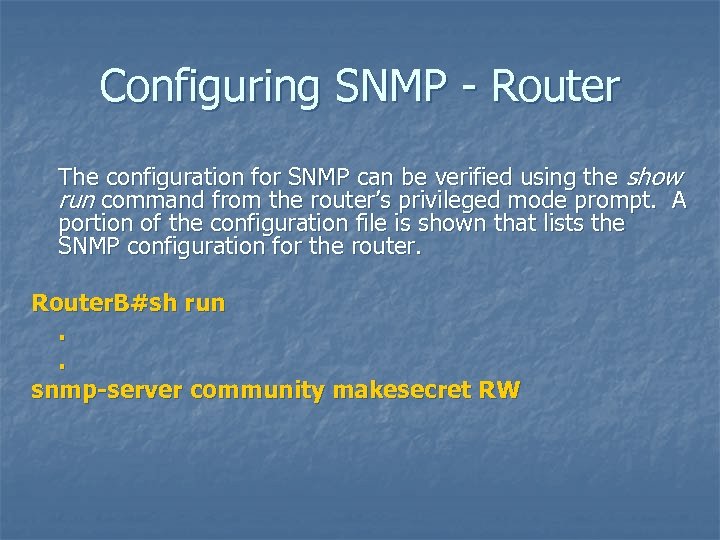 Configuring SNMP - Router The configuration for SNMP can be verified using the show run command from the router’s privileged mode prompt. A portion of the configuration file is shown that lists the SNMP configuration for the router. Router. B#sh run. . snmp-server community makesecret RW
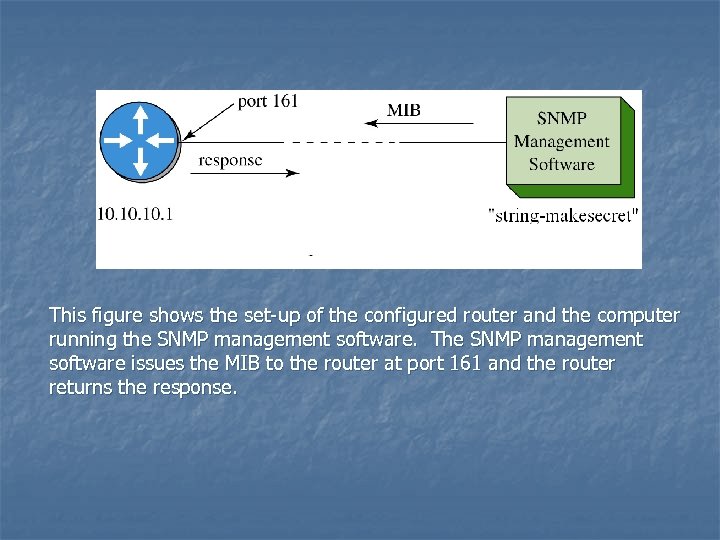 This figure shows the set-up of the configured router and the computer running the SNMP management software. The SNMP management software issues the MIB to the router at port 161 and the router returns the response.
 Switch / VLAN Configuration
 Switch / VLAN Configuration n This section examines the function of using a switch in a VLAN within the campus network. The terminology and steps for implementing VLANs will be first presented. The second part examines basic Cisco switch configuration and provides an introduction to the commands needed for configuring the VLAN. The third part of section 9 -6 demonstrates the commands needed to set-up a static VLAN. The section concludes with a discussion on the Spanning-Tree Protocol (STP).
 VLANs n A switch can be configured as a VLAN (Virtual LAN) where a group of host computers and servers are configured as if they are in the same LAN even if they reside across routers in separate LANs.
 VLANs n n The advantage of using VLANs is the network administrator can group computers and servers in the same VLAN based on the organizational group (e. g. Sales, Engineering) even if they are not on the same physical segment or even the same building. There are three types of VLANs; port-based, tag-based, and protocol-based.
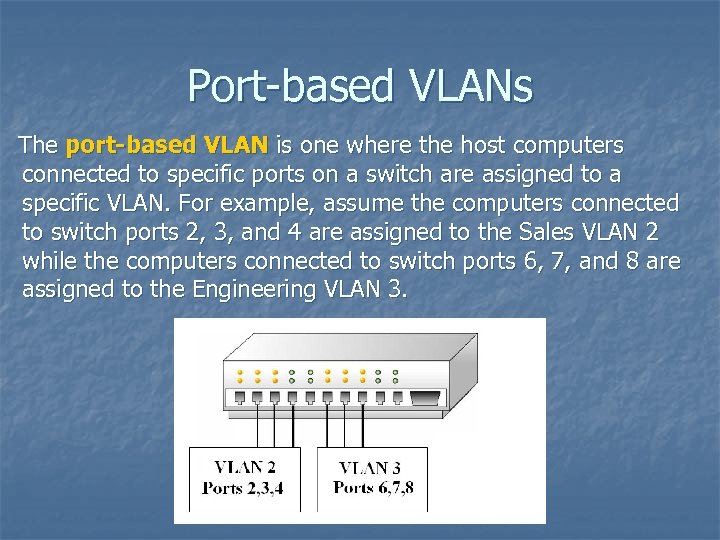 Port-based VLANs The port-based VLAN is one where the host computers connected to specific ports on a switch are assigned to a specific VLAN. For example, assume the computers connected to switch ports 2, 3, and 4 are assigned to the Sales VLAN 2 while the computers connected to switch ports 6, 7, and 8 are assigned to the Engineering VLAN 3.
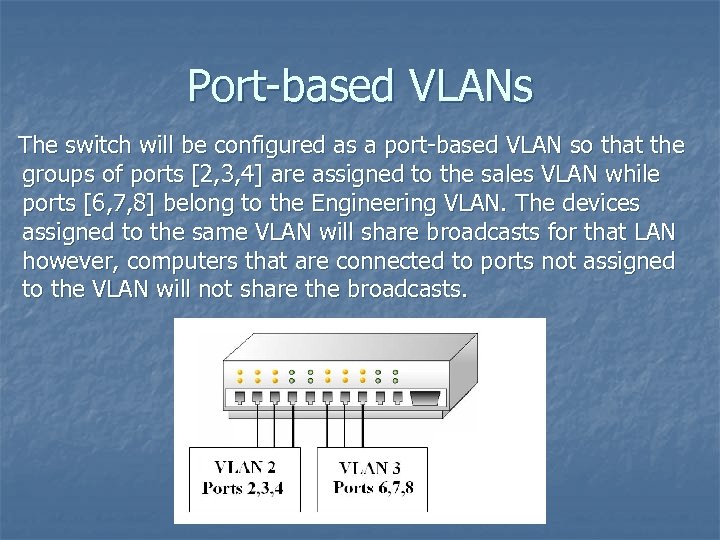 Port-based VLANs The switch will be configured as a port-based VLAN so that the groups of ports [2, 3, 4] are assigned to the sales VLAN while ports [6, 7, 8] belong to the Engineering VLAN. The devices assigned to the same VLAN will share broadcasts for that LAN however, computers that are connected to ports not assigned to the VLAN will not share the broadcasts.
 Tag-based VLANs n n n In tag-based VLANs, a tag is added to the Ethernet frames. This tag contains the VLAN ID that is used to identify that a frame belongs to a specific VLAN. The addition of the VLAN ID is based on the 802. 1 Q specification. An advantage of an 802. 1 Q VLAN is it helps to contain broadcast and multicast data traffic that helps to minimize data congestion and improve throughput. This specification also provides guidelines for a switch port to belong to more than one VLAN. Additionally, the tag-based VLANs can help provide better security by logically isolating and grouping users
 Protocol-Based VLANs n n n In a protocol based VLAN, the data traffic is connected to specific ports based on the type of protocol being used. The packet is dropped when it enters the switch if the protocol doesn’t match any of the VLANs. For example, an IP network could be set up for the Engineering VLAN on ports 6, 7, 8 and an IPX network for the Sales VLAN on ports 2, 3, and 4. The advantage of this is the data traffic for the two networks is separated.
 VLAN membership n n n There are two approaches for assigning VLAN membership: A static VLAN is basically a port-based VLAN. The assignments are created when ports are assigned to a specific VLAN. In a dynamic VLAN, ports are assigned to a VLAN based on either the computer’s MAC address or the username of the client logged onto the computer. This means that the system has been previously configured with the VLAN assignments for the computer or the username. n The advantage of this is the username and/or the computer can move to a different location but VLAN membership will be retained.
 Switch Configuration n n Configuring a switch requires that the privileged mode be entered on the switch. The privileged EXEC mode (also called the enable mode) allows full access for configuring the switch ports and establishing a VLAN.
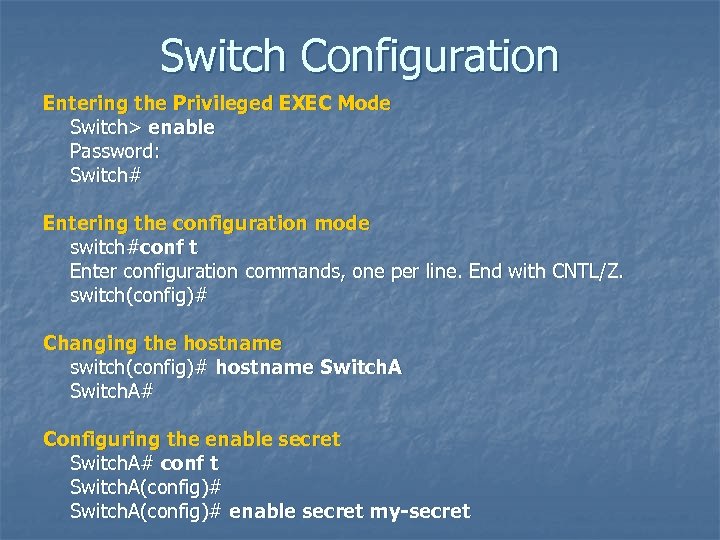 Switch Configuration Entering the Privileged EXEC Mode Switch> enable Password: Switch# Entering the configuration mode switch#conf t Enter configuration commands, one per line. End with CNTL/Z. switch(config)# Changing the hostname switch(config)# hostname Switch. A# Configuring the enable secret Switch. A# conf t Switch. A(config)# enable secret my-secret
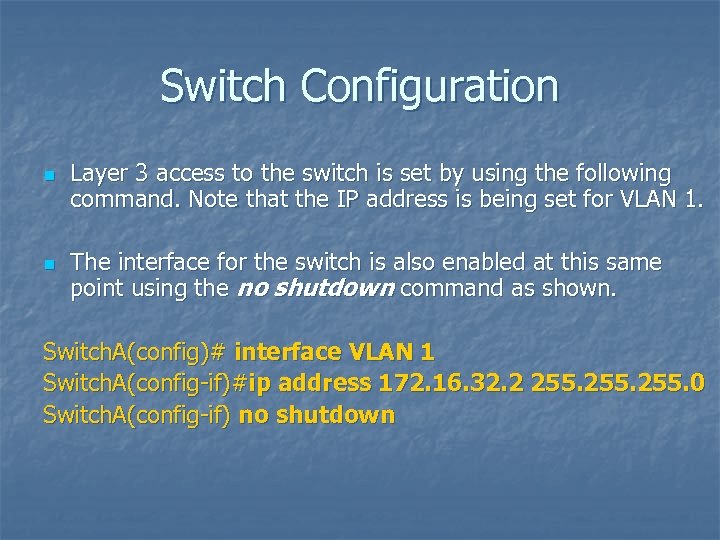 Switch Configuration n n Layer 3 access to the switch is set by using the following command. Note that the IP address is being set for VLAN 1. The interface for the switch is also enabled at this same point using the no shutdown command as shown. Switch. A(config)# interface VLAN 1 Switch. A(config-if)#ip address 172. 16. 32. 2 255. 0 Switch. A(config-if) no shutdown
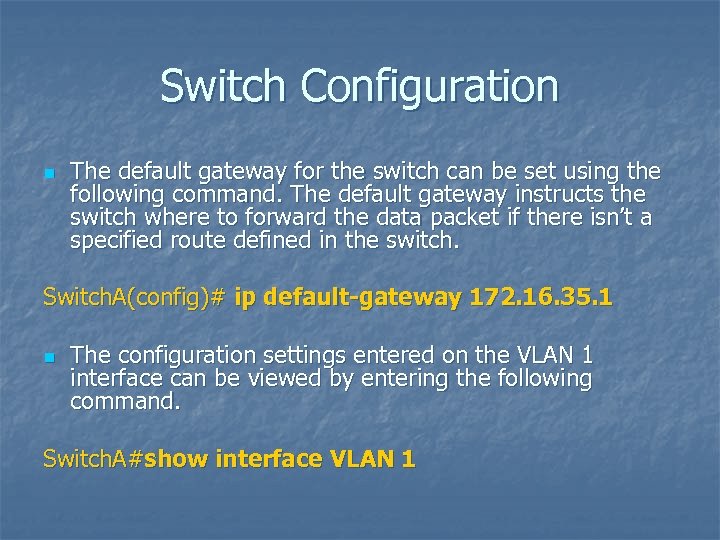 Switch Configuration n The default gateway for the switch can be set using the following command. The default gateway instructs the switch where to forward the data packet if there isn’t a specified route defined in the switch. Switch. A(config)# ip default-gateway 172. 16. 35. 1 n The configuration settings entered on the VLAN 1 interface can be viewed by entering the following command. Switch. A#show interface VLAN 1
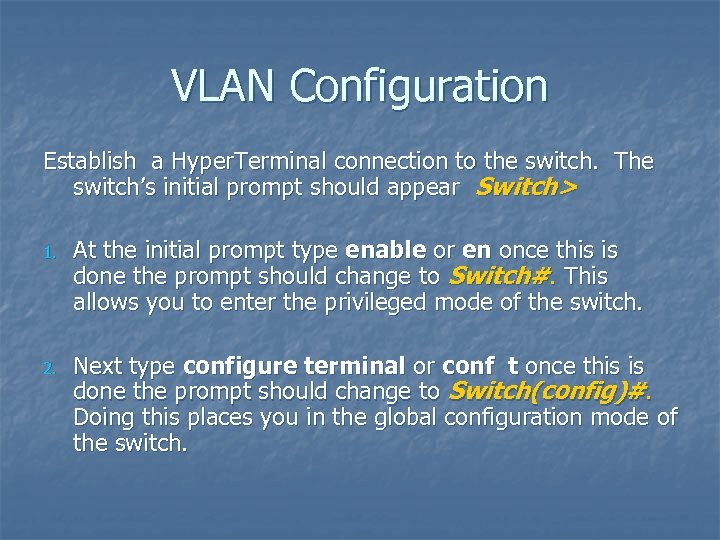 VLAN Configuration Establish a Hyper. Terminal connection to the switch. The switch’s initial prompt should appear Switch> 1. At the initial prompt type enable or en once this is done the prompt should change to Switch#. This allows you to enter the privileged mode of the switch. 2. Next type configure terminal or conf t once this is done the prompt should change to Switch(config)#. Doing this places you in the global configuration mode of the switch.
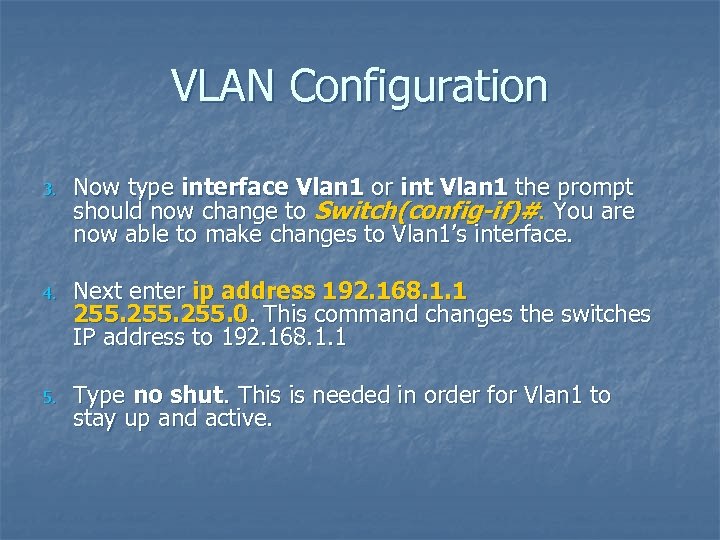 VLAN Configuration 3. Now type interface Vlan 1 or int Vlan 1 the prompt should now change to Switch(config-if)#. You are now able to make changes to Vlan 1’s interface. 4. Next enter ip address 192. 168. 1. 1 255. 0. This command changes the switches IP address to 192. 168. 1. 1 5. Type no shut. This is needed in order for Vlan 1 to stay up and active.
 VLAN Configuration n You have now set the IP address of the switch to 192. 168. 1. 1. The subnet mask is set to 255. 0 which places the switch in the 192. 168. 1. 0 network. n The IP address is set for Vlan 1 because this is the default administrative VLAN for the switch and it can never be removed. n The workstation should be connected to port 1 on the switch. and the computers IP addresses should be configured for 192. 168. 1. 2. n This places the computer in the same network as that defined for the VLAN 1 interface. n At this point, use the ping command to verify network connectivity from the computer to the switch.
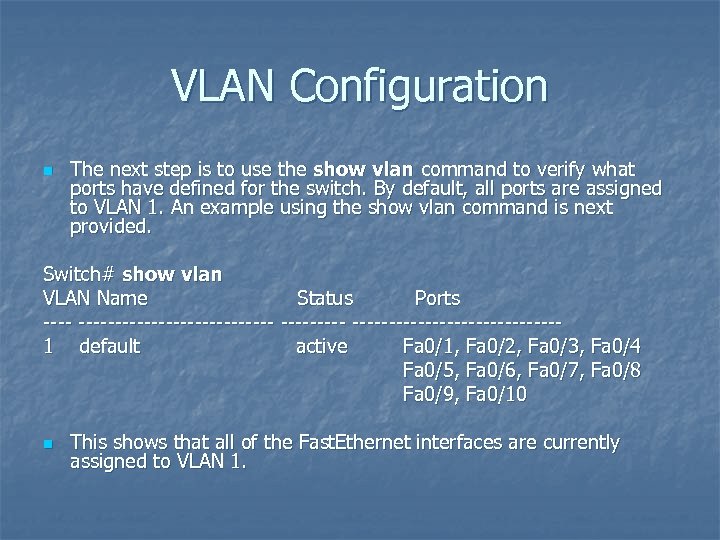 VLAN Configuration n The next step is to use the show vlan command to verify what ports have defined for the switch. By default, all ports are assigned to VLAN 1. An example using the show vlan command is next provided. Switch# show vlan VLAN Name Status Ports ------------------1 default active Fa 0/1, Fa 0/2, Fa 0/3, Fa 0/4 Fa 0/5, Fa 0/6, Fa 0/7, Fa 0/8 Fa 0/9, Fa 0/10 n This shows that all of the Fast. Ethernet interfaces are currently assigned to VLAN 1.
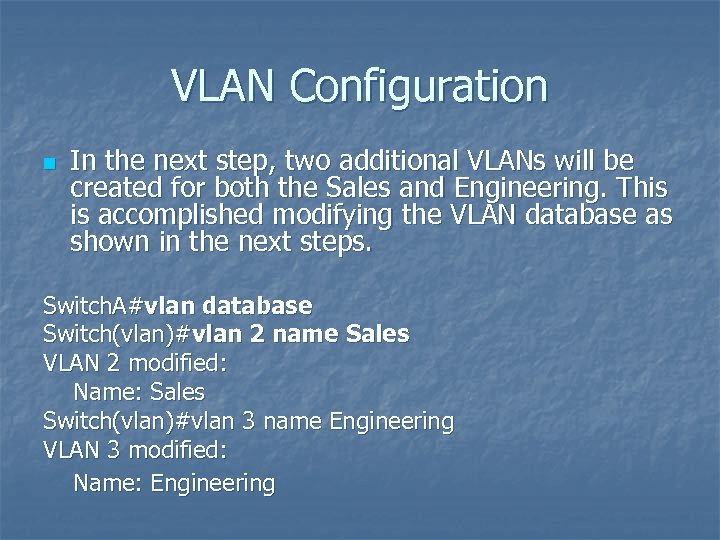 VLAN Configuration n In the next step, two additional VLANs will be created for both the Sales and Engineering. This is accomplished modifying the VLAN database as shown in the next steps. Switch. A#vlan database Switch(vlan)#vlan 2 name Sales VLAN 2 modified: Name: Sales Switch(vlan)#vlan 3 name Engineering VLAN 3 modified: Name: Engineering
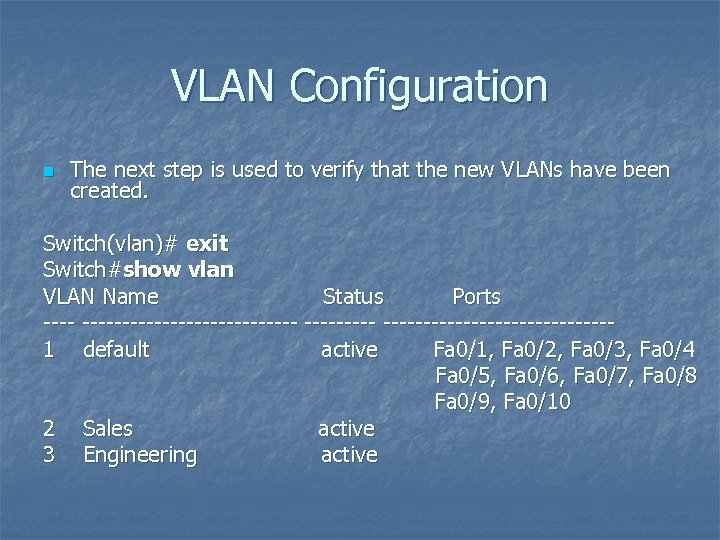 VLAN Configuration n The next step is used to verify that the new VLANs have been created. Switch(vlan)# exit Switch#show vlan VLAN Name Status Ports ------------------1 default active Fa 0/1, Fa 0/2, Fa 0/3, Fa 0/4 Fa 0/5, Fa 0/6, Fa 0/7, Fa 0/8 Fa 0/9, Fa 0/10 2 Sales active 3 Engineering active
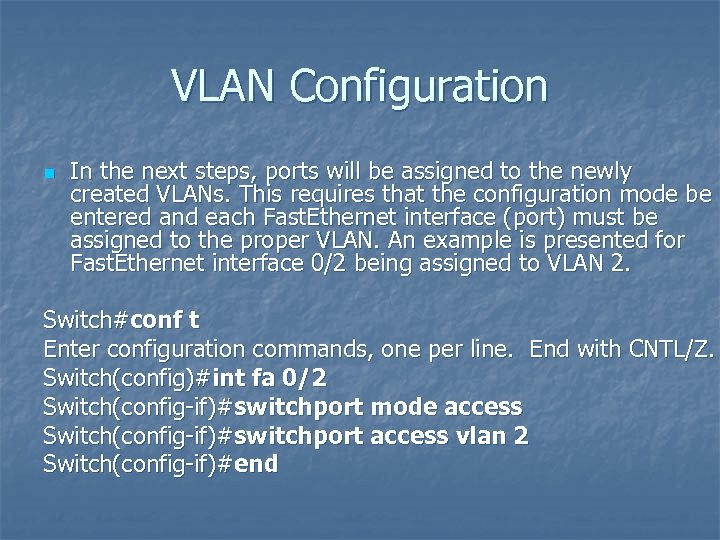 VLAN Configuration n In the next steps, ports will be assigned to the newly created VLANs. This requires that the configuration mode be entered and each Fast. Ethernet interface (port) must be assigned to the proper VLAN. An example is presented for Fast. Ethernet interface 0/2 being assigned to VLAN 2. Switch#conf t Enter configuration commands, one per line. End with CNTL/Z. Switch(config)#int fa 0/2 Switch(config-if)#switchport mode access Switch(config-if)#switchport access vlan 2 Switch(config-if)#end
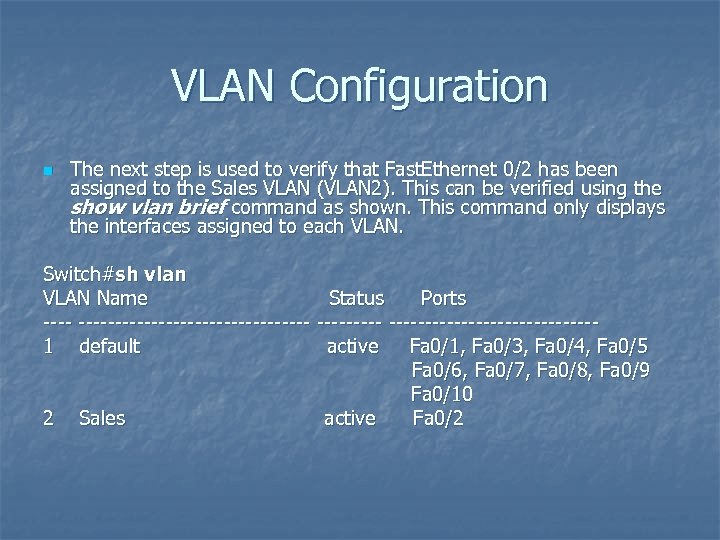 VLAN Configuration n The next step is used to verify that Fast. Ethernet 0/2 has been assigned to the Sales VLAN (VLAN 2). This can be verified using the show vlan brief command as shown. This command only displays the interfaces assigned to each VLAN. Switch#sh vlan VLAN Name Status Ports -------------------1 default active Fa 0/1, Fa 0/3, Fa 0/4, Fa 0/5 Fa 0/6, Fa 0/7, Fa 0/8, Fa 0/9 Fa 0/10 2 Sales active Fa 0/2
 Spanning Tree Protocol (STP) n A link management protocol that prevents looping and also controls data flow over possible redundant data paths
 Bridge Protocol Data Units n n Switches that are participating in the Spanning-Tree Protocol exchange information with other switches in the form of bridge protocol data units (BPDUs). Switches use the BPDUs for the following: • Election of a root switch for the spanning-tree network topology. • Removing redundant data paths.
 Bridge Protocol Data Units n n Switches that are participating in the Spanning-Tree Protocol exchange information with other switches in the form of bridge protocol data units (BPDUs). Switches use the BPDUs for the following: • The shortest distance to a root switch is calculated. • A port from each switch is selected as the best path to the root switch. • Ports that are part of the Spanning-Tree Protocol are selected.
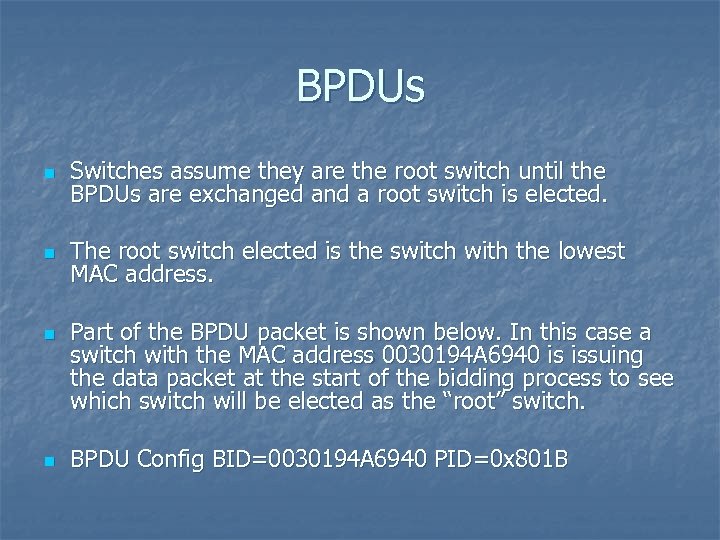 BPDUs n Switches assume they are the root switch until the BPDUs are exchanged and a root switch is elected. n The root switch elected is the switch with the lowest MAC address. n n Part of the BPDU packet is shown below. In this case a switch with the MAC address 0030194 A 6940 is issuing the data packet at the start of the bidding process to see which switch will be elected as the “root” switch. BPDU Config BID=0030194 A 6940 PID=0 x 801 B
 BPDUs n n The “Config” indicates this is a Configuration BPDU and is used by the switches to elect the “root” switch. There are two other types of packets that can come from the switch. These are: Topology Change Notification (TCN), which is used to indicate that a there has been a change in the switch network topology. Topology Change Notification Acknowledgement (TCA). This is an acknowledgement from another switch that the TCN has been received.
 STP States n There are five Spanning-Tree Protocol states: • Blocking State: In this state, the switch is not sending data out of the ports. However, the switch is receiving and monitoring the BPDUs. This state is used to prevent any possible switching loops. • Listening State: BPDUs are being processed.
 STP States • Learning State: The switch is learning source MAC addresses from the received data packets and will add the addresses to the MAC address table. • Forwarding State: The switch is now sending and receiving data packets. The BPDUs are still to be monitored for any possible change in the switch network. • Disabled: This is a setting available for the network administrator to manually disable the port. This is not part of the Spanning-Tree Protocol but rather a function available on the switch.
 Analyzing Campus Network Data Traffic
 Collecting Data n n n A key issue in network management is network monitoring and the collection of utilization and error statistics. SNMP was introduced for use in network management. An example was presented that shows how to obtain the number of octets leaving a router. This type of information can be used in a campus network to monitor the flow of data for many points in the network. Statistics can be obtained for hourly, daily, weekly, and monthly data traffic. This section discusses plots of network router’s utilization obtained via the router’s SNMP port.
 Summary n n The fundamentals of configuring and managing a campus network have been presented in this chapter. This has been a brief overview of campus network and the student should understand that each of the topics presented in this chapter could easily be expanded to fill an entire textbook(s). What the student should understand from this reading is configuring and managing a campus network is a major task. It is critical for the networking group to have people who truly understand the many aspects of configuring and managing the campus network. Configuring and managing a campus DNS and DHCP service is a challenging task. Planning the integration of the equipment in the layers for the campus network is also a challenging task. Monitoring the network activity requires additional networking staff resources.
 Summary The student should appreciate the fact that configuring and managing a campus type network requires the expertise of many people with many different networking capabilities. The chapter has introduced these topics. The student should understand: n n n The importance and function of the three layers of a campus network. How DHCP and DNS services work. The importance of incorporating network services such as DHCP and DNS into a campus network. How SNMP management tools can be used to monitor the data traffic and performance within a campus network. Power over Ethernet Switch / VLAN configuration