


 Скачать презентацию Tutorial 13 Windows Registry Role of the
cc218116d089a425bcd7fcacc9800932.ppt
- Количество слайдов: 9
 Tutorial 13 Windows Registry
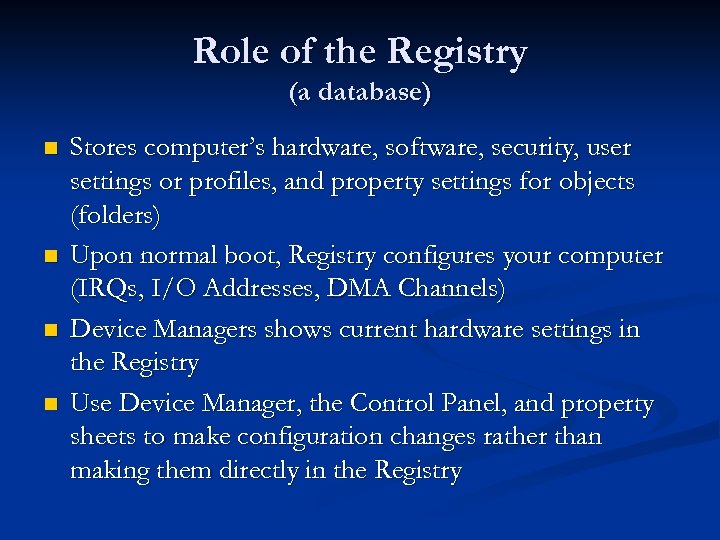 Role of the Registry (a database) n n Stores computer’s hardware, software, security, user settings or profiles, and property settings for objects (folders) Upon normal boot, Registry configures your computer (IRQs, I/O Addresses, DMA Channels) Device Managers shows current hardware settings in the Registry Use Device Manager, the Control Panel, and property sheets to make configuration changes rather than making them directly in the Registry
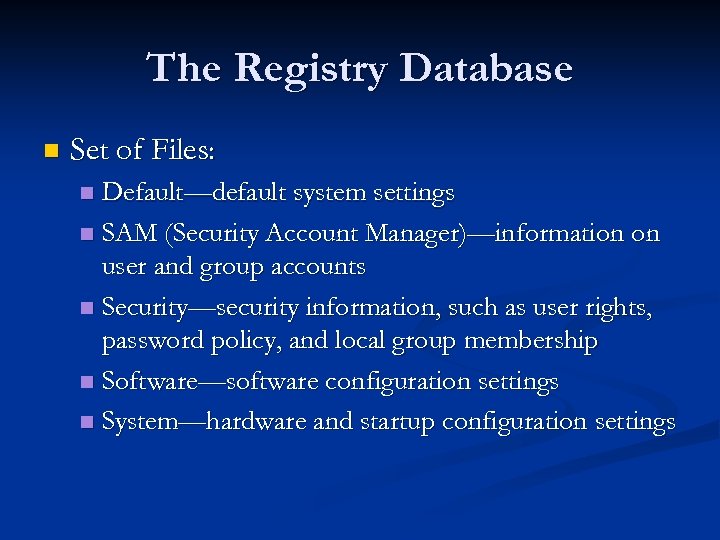 The Registry Database n Set of Files: Default—default system settings n SAM (Security Account Manager)—information on user and group accounts n Security—security information, such as user rights, password policy, and local group membership n Software—software configuration settings n System—hardware and startup configuration settings n
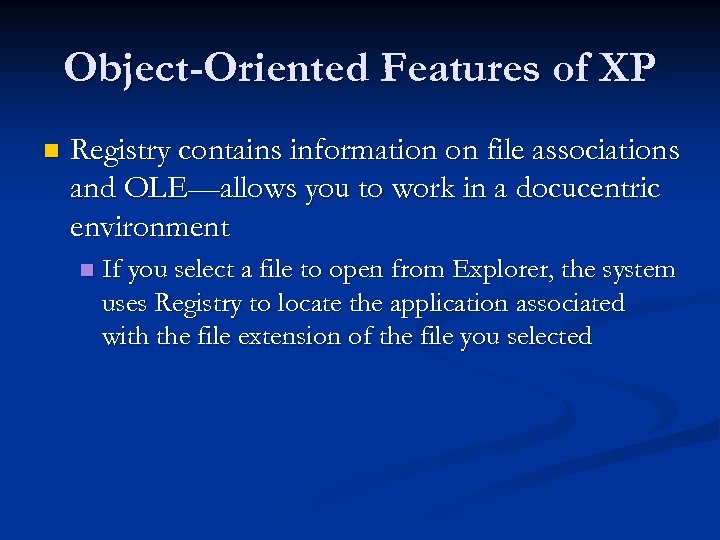 Object-Oriented Features of XP n Registry contains information on file associations and OLE—allows you to work in a docucentric environment n If you select a file to open from Explorer, the system uses Registry to locate the application associated with the file extension of the file you selected
 Update to Registry n XP updates the Registry when you change settings on your computer Customize your desktop with the Display Properties dialog box n When you install Pn. P hardware with the Add Hardware Wizard n When you remove software with the Remove Programs Wizard n
 Backing Up the Registry Always backup before making any changes in the Registry n Backup strategies should always consider the Registry, since it is critical to booting and the functioning of your computer n
 Ways to Backup the Registry n Back up the System State n n Using Windows Backup utility (Tut 6)—Backs up the Registry, the COM Class Registration database, and the system boot files Use System Restore n Use the XP System Restore feature (Tut 8) to create a restore point for a fixed point in time; then you can roll back the computer in case a problem arises later
 n Automated System Recovery n n Use the Automated System Recovery Wizard in XP Professional to back up system settings to a floppy disk and system files to backup media such as tape. Should a problem arise later, you can use these with your Windows CD and regular backup to restore Export the Registry n Open the Registry Editor, a utility for viewing the contents of and making changes to the Registry, and then export (or transfer) a copy to a registration file (. reg extension) on disk. You can then import this file into the Registry should you need to restore it
 Since XP settings change over time, make sure you make regular backups of Windows Registry