 Скачать презентацию TR 1033 Mobile Printer Service 2010 Required course
aca7721709cbc2fef1f47af206c82209.ppt
- Количество слайдов: 105



TR 1033 Mobile Printer Service 2010 Required course for Mobile ZASP Certification Please make sure all mobiles are switched off Feel free to ask any questions during the training course Zebra Confidential The right asset. In the right place. At the right time. 1

Mobile ZASP Certification Practical Workshop Completion § RW Series Repair Workshops § QL Series Repair Workshops § Unit Test QL 420+ & RW 420 Series Completion § MZ Series Repair Workshops § Configuration Lab with Label Vista 3. 5 Instructor sign off (Pass / Fail) Zebra Confidential 2
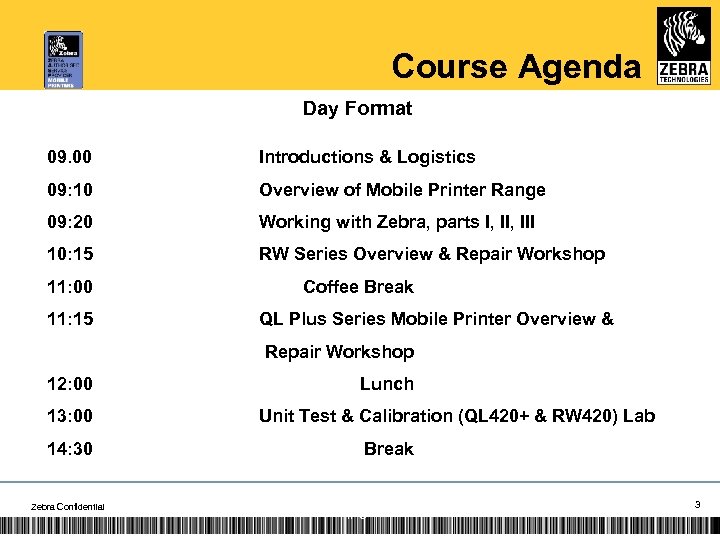
Course Agenda Day Format 09. 00 Introductions & Logistics 09: 10 Overview of Mobile Printer Range 09: 20 Working with Zebra, parts I, III 10: 15 RW Series Overview & Repair Workshop 11: 00 11: 15 Coffee Break QL Plus Series Mobile Printer Overview & Repair Workshop 12: 00 13: 00 14: 30 Zebra Confidential Lunch Unit Test & Calibration (QL 420+ & RW 420) Lab Break 1/ 3 3

Course Agenda Day Format (continued) 14: 45 Label Vista Install and Configuration Lab 15: 30 Zebra Net Bridge Install and Configuration Lab 16: 15 Course Review – Final Q & A 16: 30 Open Lab 17: 30 Course End Zebra Confidential 1/ 4 4
Introduction &Logistics Your trainer Delegates What skills you have? What skills you wish to develop? Zebra Confidential 5
MOBILE ZASP CERTIFICATION TRAINING Mobile Printer Overview Zebra Confidential 6
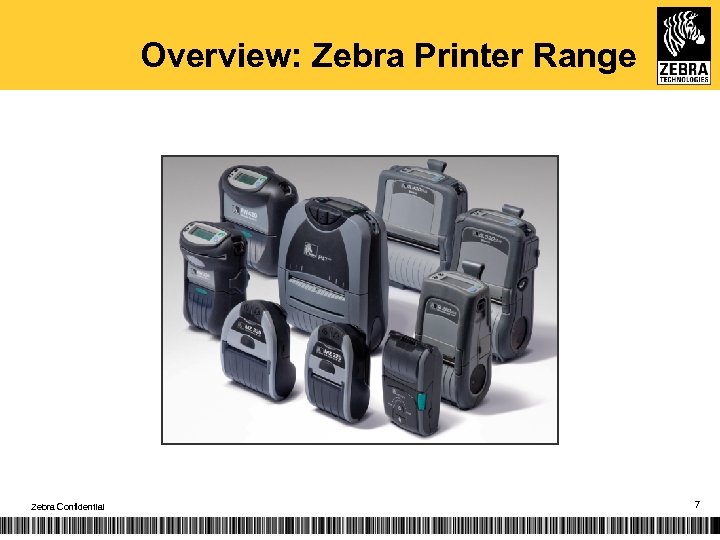
Overview: Zebra Printer Range Zebra Confidential 7
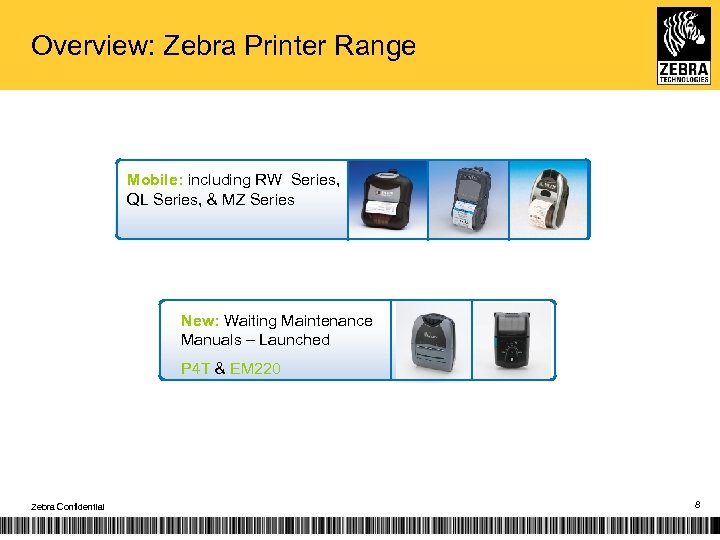
Overview: Zebra Printer Range Mobile: including RW Series, QL Series, & MZ Series New: Waiting Maintenance Manuals – Launched P 4 T & EM 220 Zebra Confidential 8
Working with Zebra Part 1: Ordering Spare Parts Zebra Confidential The right asset. In the right place. At the right time. 9
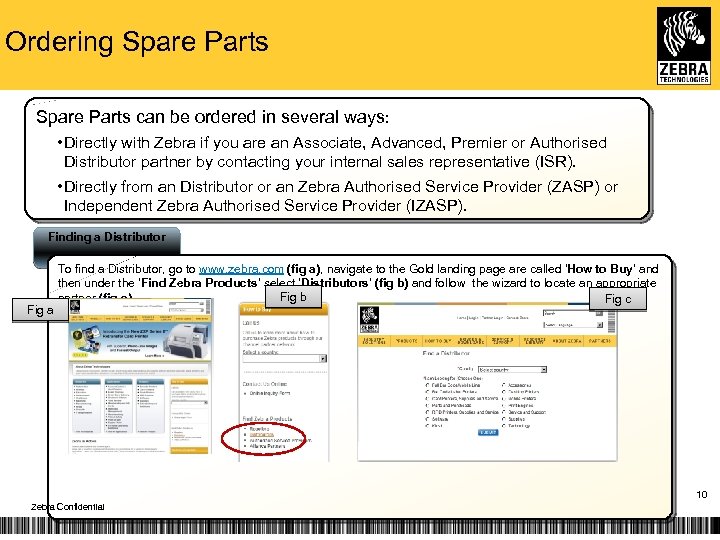
Ordering Spare Parts can be ordered in several ways: • Directly with Zebra if you are an Associate, Advanced, Premier or Authorised Distributor partner by contacting your internal sales representative (ISR). • Directly from an Distributor or an Zebra Authorised Service Provider (ZASP) or Independent Zebra Authorised Service Provider (IZASP). Finding a Distributor Fig a To find a Distributor, go to www. zebra. com (fig a), navigate to the Gold landing page are called ‘How to Buy’ and then under the ‘Find Zebra Products’ select ‘Distributors’ (fig b) and follow the wizard to locate an appropriate Fig b partner (fig c). Fig c 10 Zebra Confidential
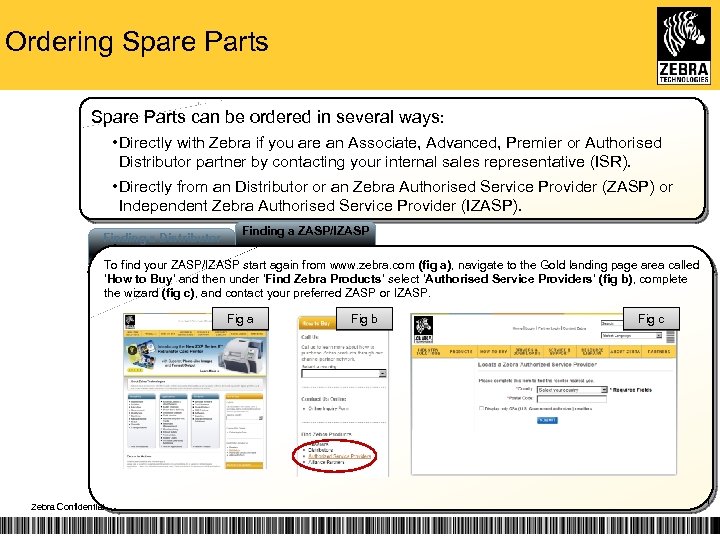
Ordering Spare Parts can be ordered in several ways: • Directly with Zebra if you are an Associate, Advanced, Premier or Authorised Distributor partner by contacting your internal sales representative (ISR). • Directly from an Distributor or an Zebra Authorised Service Provider (ZASP) or Independent Zebra Authorised Service Provider (IZASP). Finding a Distributor Finding a ZASP/IZASP To find your ZASP/IZASP start again from www. zebra. com (fig a), navigate to the Gold landing page area called ‘How to Buy’ and then under ‘Find Zebra Products’ select ‘Authorised Service Providers’ (fig b), complete the wizard (fig c), and contact your preferred ZASP or IZASP. Fig a Zebra Confidential Fig b Fig c 11
Working with Zebra Part 2: Warranty & RMA Processes Zebra Confidential The right asset. In the right place. At the right time. 12
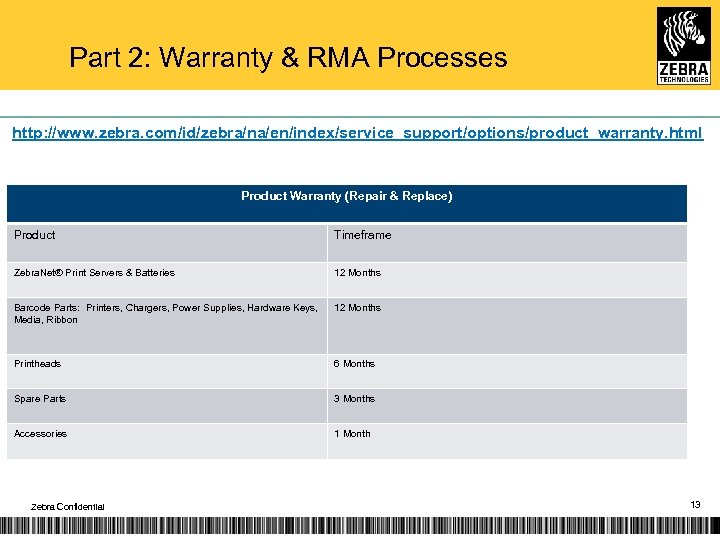
Part 2: Warranty & RMA Processes http: //www. zebra. com/id/zebra/na/en/index/service_support/options/product_warranty. html Product Warranty (Repair & Replace) Product Timeframe Zebra. Net® Print Servers & Batteries 12 Months Barcode Parts: Printers, Chargers, Power Supplies, Hardware Keys, Media, Ribbon 12 Months Printheads 6 Months Spare Parts 3 Months Accessories 1 Month Zebra Confidential 13
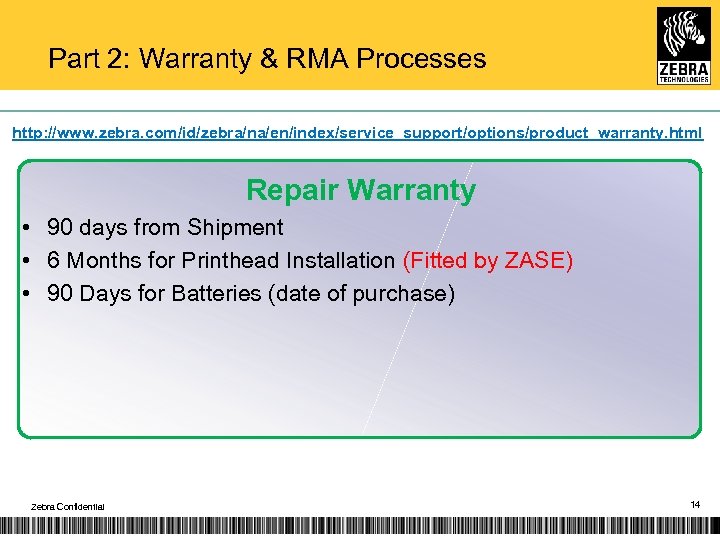
Part 2: Warranty & RMA Processes http: //www. zebra. com/id/zebra/na/en/index/service_support/options/product_warranty. html Repair Warranty • 90 days from Shipment • 6 Months for Printhead Installation (Fitted by ZASE) • 90 Days for Batteries (date of purchase) Zebra Confidential 14
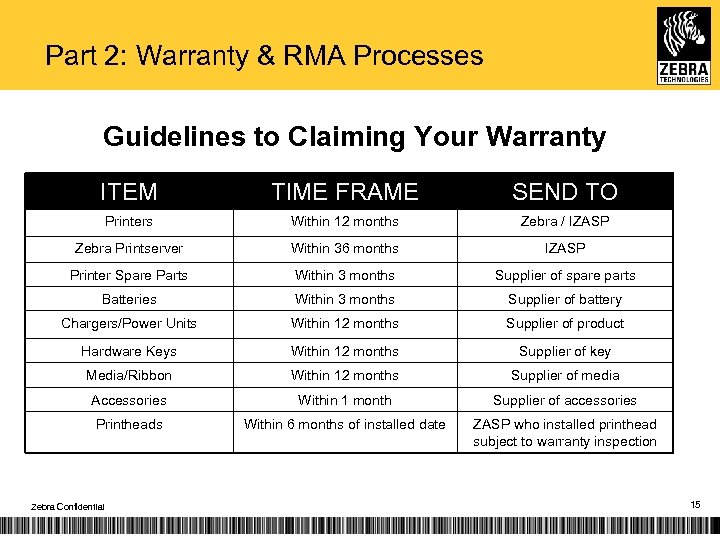
Part 2: Warranty & RMA Processes Guidelines to Claiming Your Warranty ITEM TIME FRAME SEND TO Printers Within 12 months Zebra / IZASP Zebra Printserver Within 36 months IZASP Printer Spare Parts Within 3 months Supplier of spare parts Batteries Within 3 months Supplier of battery Chargers/Power Units Within 12 months Supplier of product Hardware Keys Within 12 months Supplier of key Media/Ribbon Within 12 months Supplier of media Accessories Within 1 month Supplier of accessories Printheads Within 6 months of installed date ZASP who installed printhead subject to warranty inspection Zebra Confidential 15
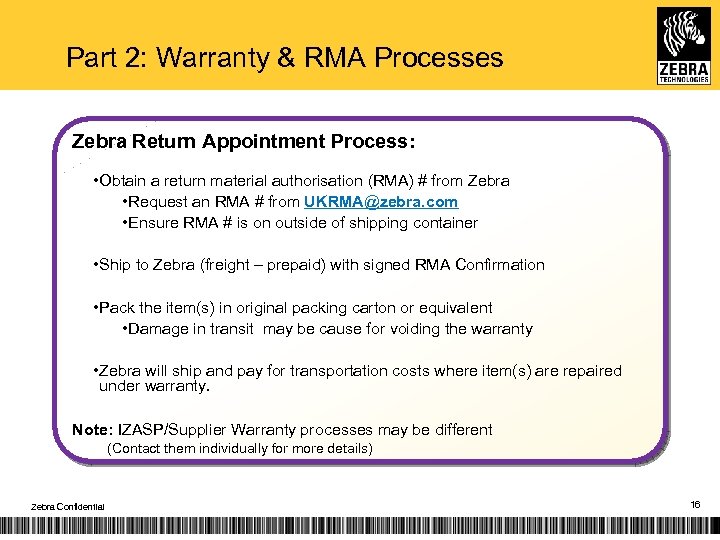
Part 2: Warranty & RMA Processes Zebra Return Appointment Process: • Obtain a return material authorisation (RMA) # from Zebra • Request an RMA # from UKRMA@zebra. com • Ensure RMA # is on outside of shipping container • Ship to Zebra (freight – prepaid) with signed RMA Confirmation • Pack the item(s) in original packing carton or equivalent • Damage in transit may be cause for voiding the warranty • Zebra will ship and pay for transportation costs where item(s) are repaired under warranty. Note: IZASP/Supplier Warranty processes may be different (Contact them individually for more details) Zebra Confidential 16
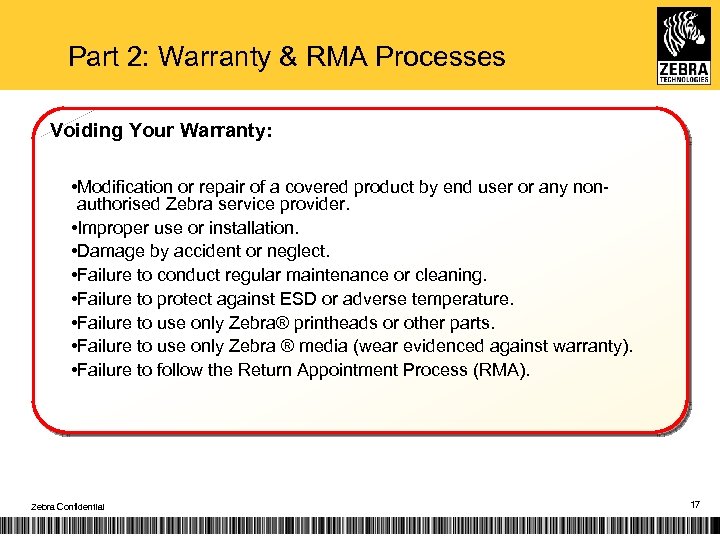
Part 2: Warranty & RMA Processes Voiding Your Warranty: • Modification or repair of a covered product by end user or any nonauthorised Zebra service provider. • Improper use or installation. • Damage by accident or neglect. • Failure to conduct regular maintenance or cleaning. • Failure to protect against ESD or adverse temperature. • Failure to use only Zebra® printheads or other parts. • Failure to use only Zebra ® media (wear evidenced against warranty). • Failure to follow the Return Appointment Process (RMA). Zebra Confidential 17
Working with Zebra Part 3: Gaining Technical Support Zebra Confidential The right asset. In the right place. At the right time. 18
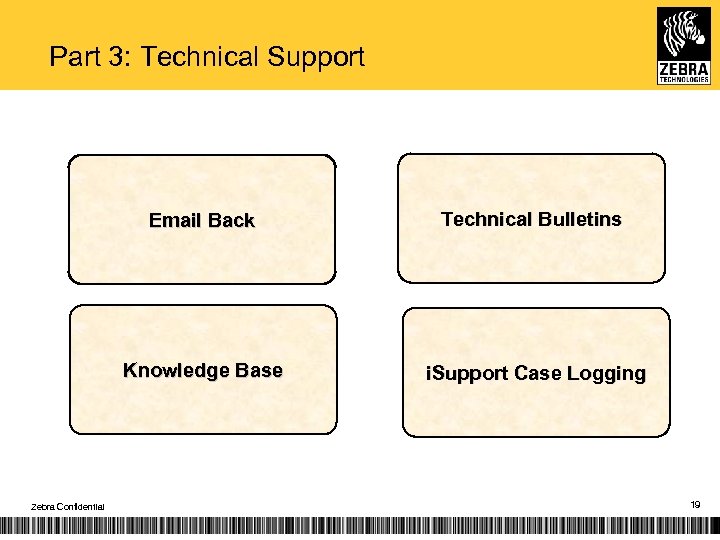
Part 3: Technical Support Email Back Knowledge Base Zebra Confidential Technical Bulletins i. Support Case Logging 19
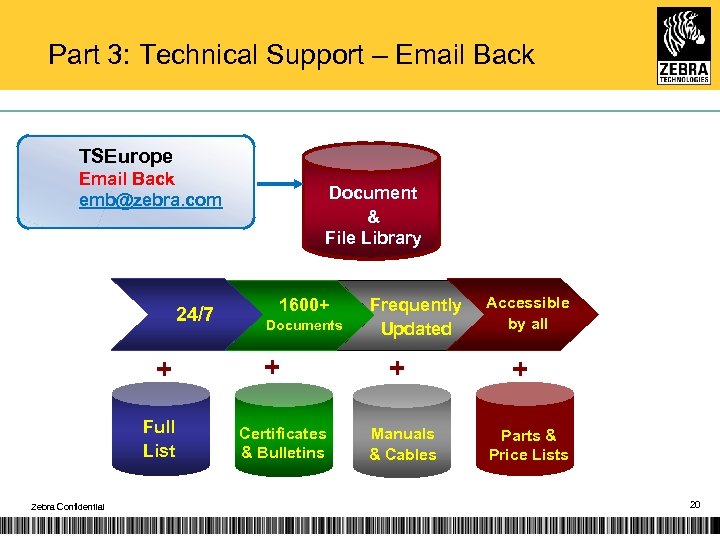
Part 3: Technical Support – Email Back TSEurope Email Back emb@zebra. com 24/7 + Full List Zebra Confidential Document & File Library 1600+ Documents + Certificates & Bulletins Frequently Updated + Manuals & Cables Accessible by all + Parts & Price Lists 20
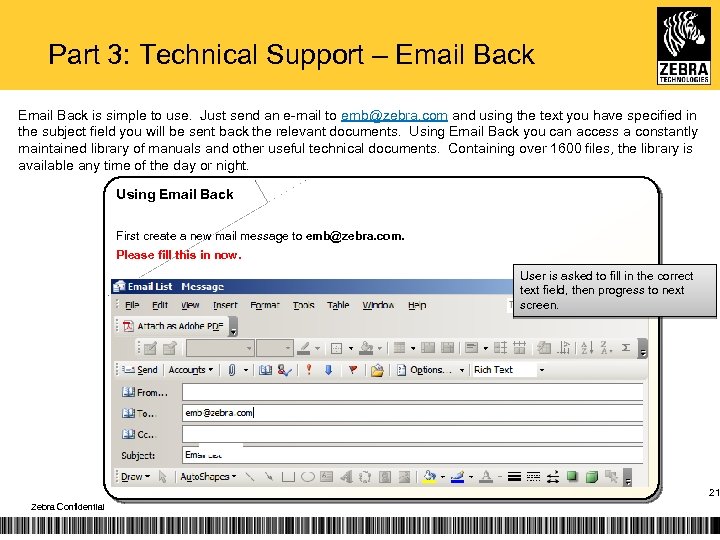
Part 3: Technical Support – Email Back is simple to use. Just send an e-mail to emb@zebra. com and using the text you have specified in the subject field you will be sent back the relevant documents. Using Email Back you can access a constantly maintained library of manuals and other useful technical documents. Containing over 1600 files, the library is available any time of the day or night. Using Email Back First create a new mail message to emb@zebra. com. Please fill this in now. User is asked to fill in the correct text field, then progress to next screen. 21 Zebra Confidential
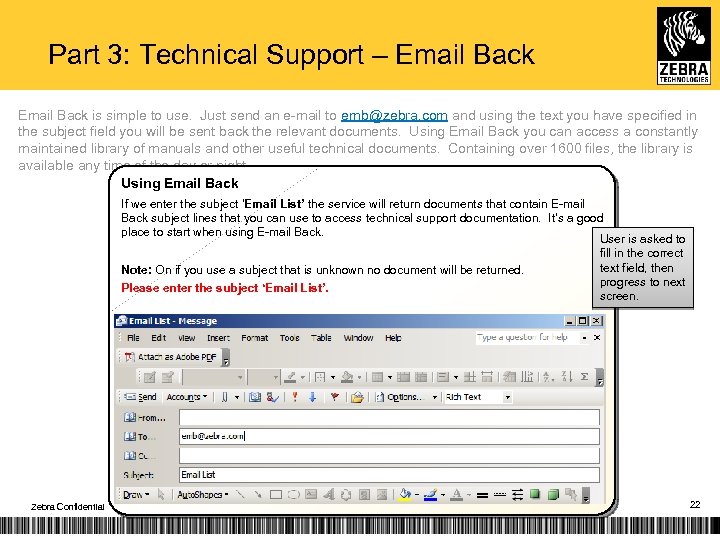
Part 3: Technical Support – Email Back is simple to use. Just send an e-mail to emb@zebra. com and using the text you have specified in the subject field you will be sent back the relevant documents. Using Email Back you can access a constantly maintained library of manuals and other useful technical documents. Containing over 1600 files, the library is available any time of the day or night. Using Email Back If we enter the subject ‘Email List’ the service will return documents that contain E-mail Back subject lines that you can use to access technical support documentation. It’s a good place to start when using E-mail Back. User is asked to fill in the correct text field, then Note: On if you use a subject that is unknown no document will be returned. progress to next Please enter the subject ‘Email List’. screen. Zebra Confidential 22
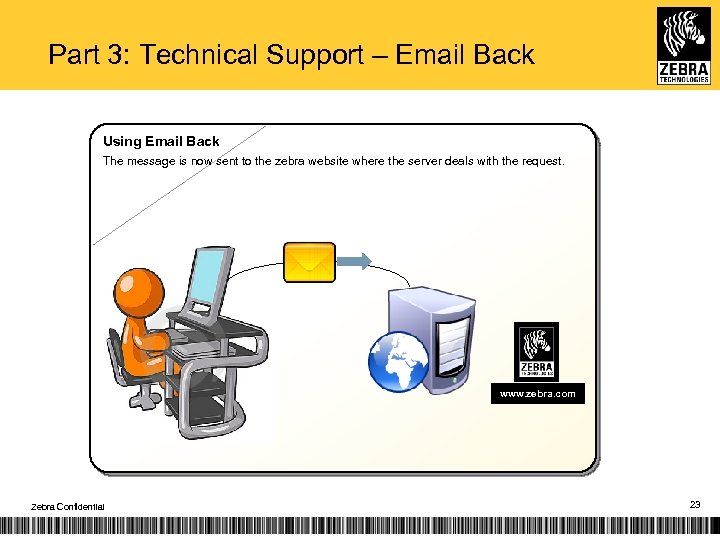
Part 3: Technical Support – Email Back Using Email Back The message is now sent to the zebra website where the server deals with the request. www. zebra. com Zebra Confidential 23
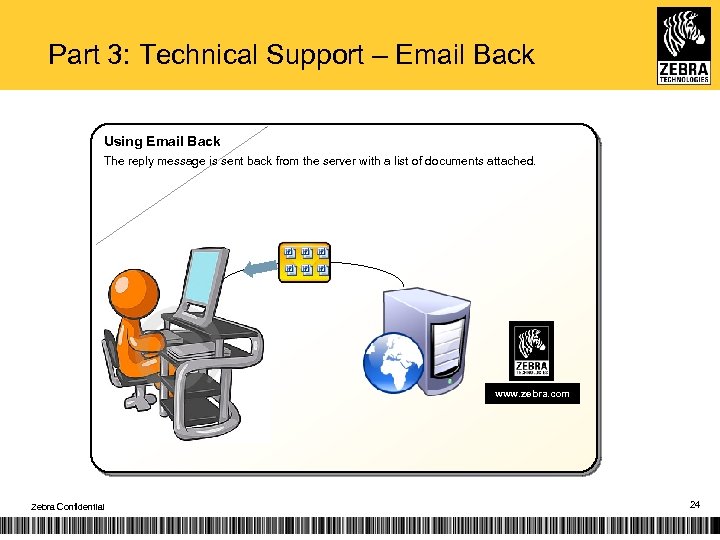
Part 3: Technical Support – Email Back Using Email Back The reply message is sent back from the server with a list of documents attached. www. zebra. com Zebra Confidential 24
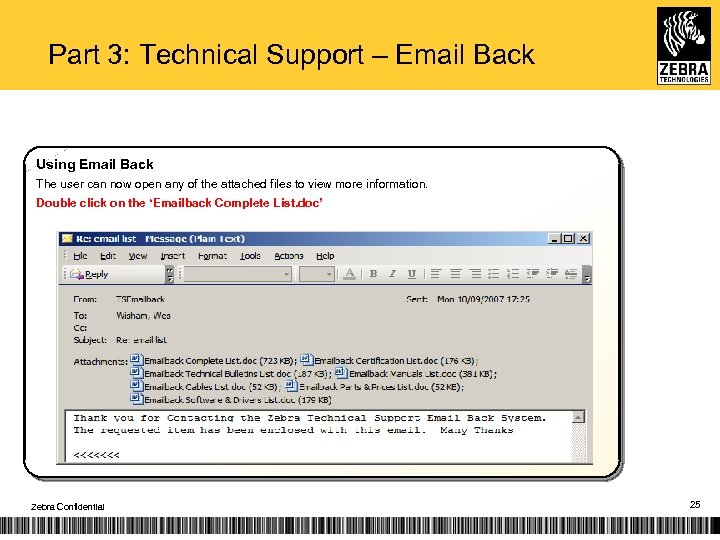
Part 3: Technical Support – Email Back Using Email Back The user can now open any of the attached files to view more information. Double click on the ‘Emailback Complete List. doc’ Zebra Confidential 25
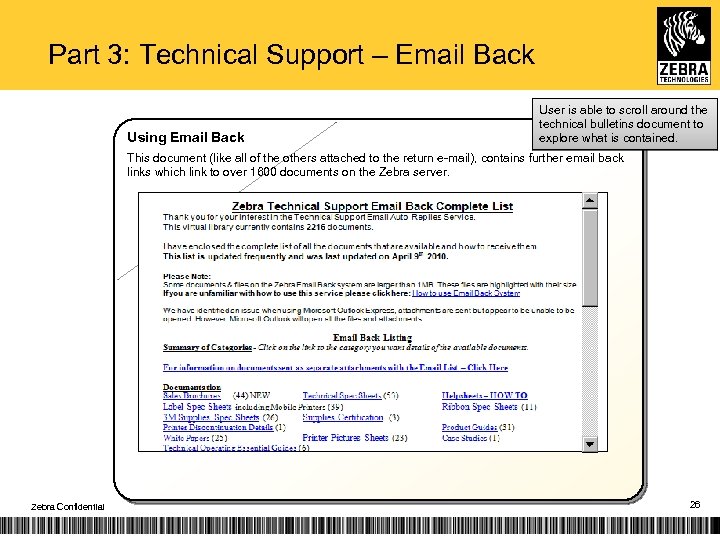
Part 3: Technical Support – Email Back Using Email Back User is able to scroll around the technical bulletins document to explore what is contained. This document (like all of the others attached to the return e-mail), contains further email back links which link to over 1600 documents on the Zebra server. Zebra Confidential 26
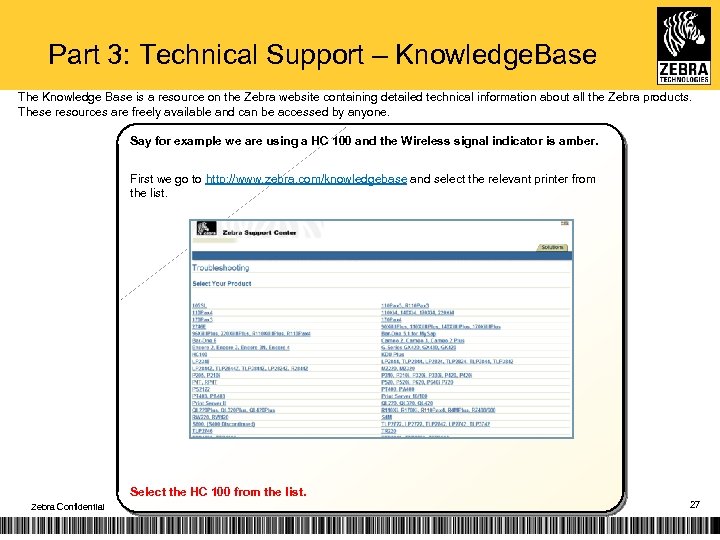
Part 3: Technical Support – Knowledge. Base The Knowledge Base is a resource on the Zebra website containing detailed technical information about all the Zebra products. These resources are freely available and can be accessed by anyone. Say for example we are using a HC 100 and the Wireless signal indicator is amber. First we go to http: //www. zebra. com/knowledgebase and select the relevant printer from the list. Select the HC 100 from the list. Zebra Confidential 27
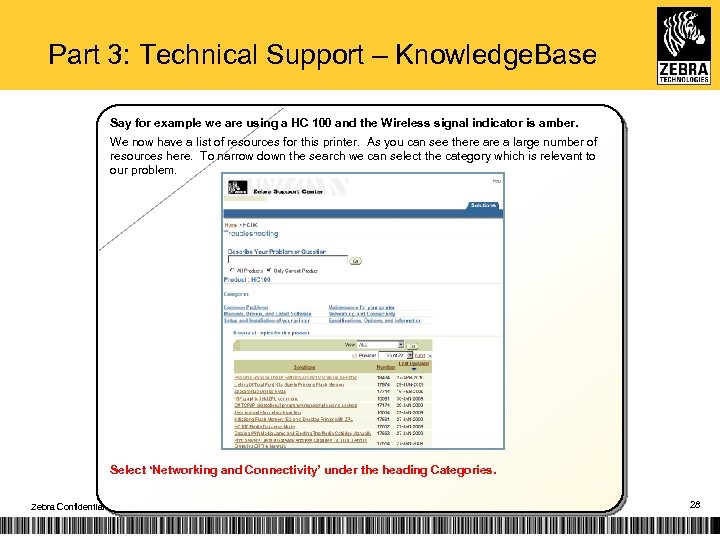
Part 3: Technical Support – Knowledge. Base Say for example we are using a HC 100 and the Wireless signal indicator is amber. We now have a list of resources for this printer. As you can see there a large number of resources here. To narrow down the search we can select the category which is relevant to our problem. Select ‘Networking and Connectivity’ under the heading Categories. Zebra Confidential 28
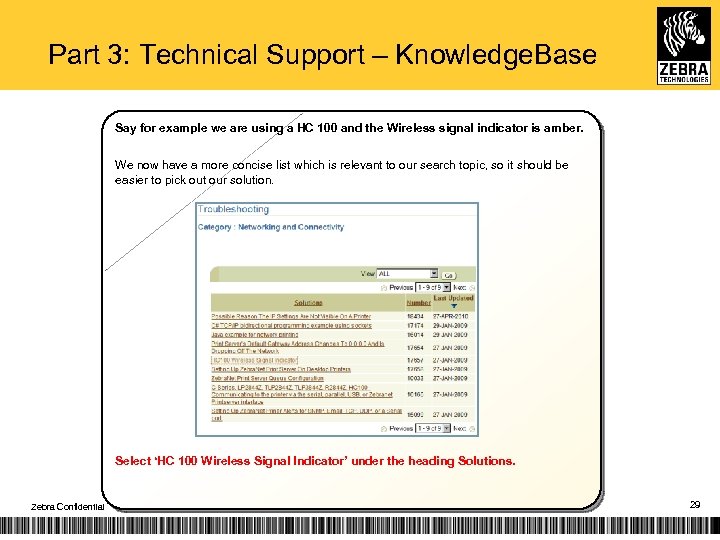
Part 3: Technical Support – Knowledge. Base Say for example we are using a HC 100 and the Wireless signal indicator is amber. We now have a more concise list which is relevant to our search topic, so it should be easier to pick out our solution. Select ‘HC 100 Wireless Signal Indicator’ under the heading Solutions. Zebra Confidential 29
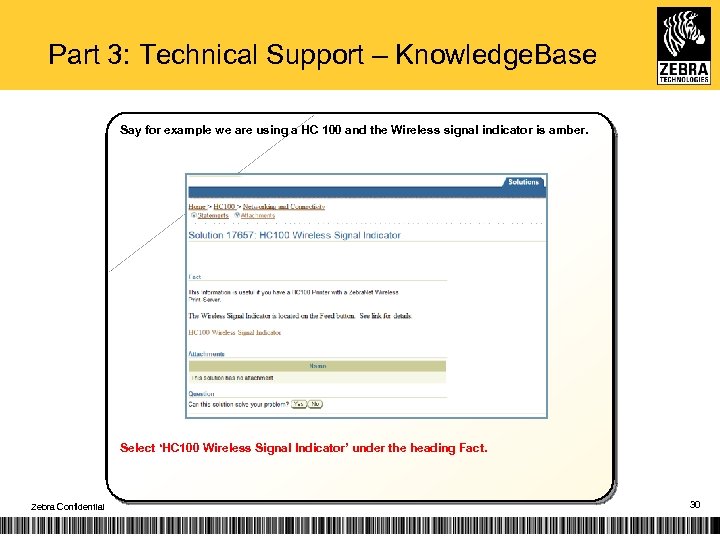
Part 3: Technical Support – Knowledge. Base Say for example we are using a HC 100 and the Wireless signal indicator is amber. Select ‘HC 100 Wireless Signal Indicator’ under the heading Fact. Zebra Confidential 30
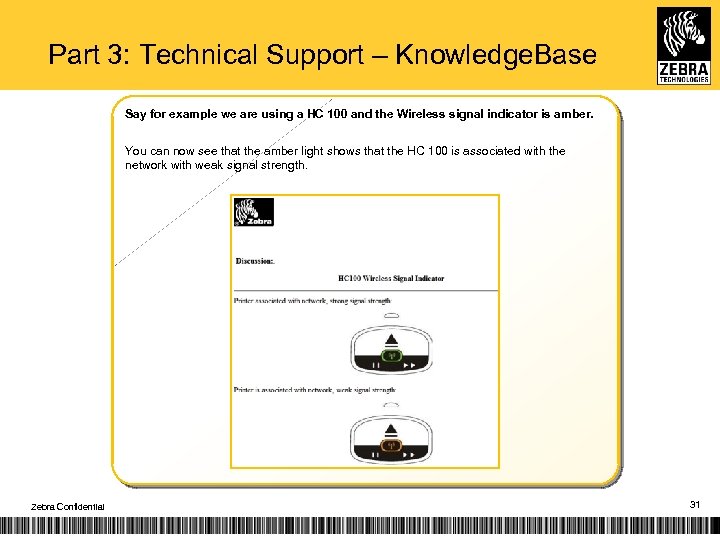
Part 3: Technical Support – Knowledge. Base Say for example we are using a HC 100 and the Wireless signal indicator is amber. You can now see that the amber light shows that the HC 100 is associated with the network with weak signal strength. Zebra Confidential 31
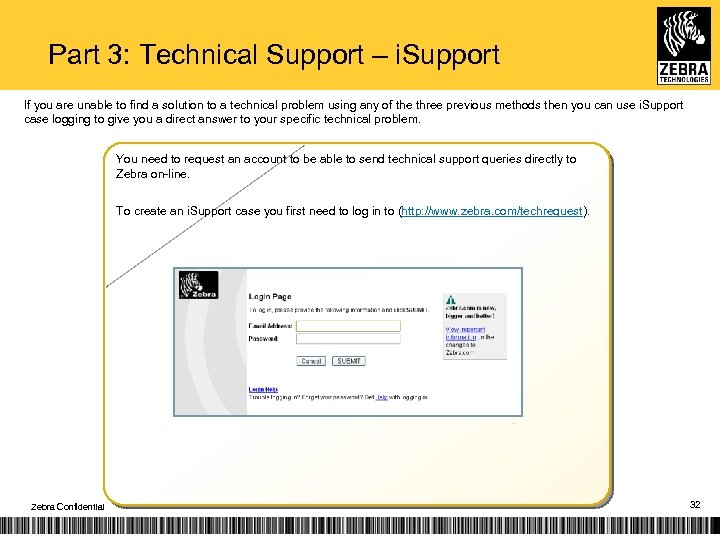
Part 3: Technical Support – i. Support If you are unable to find a solution to a technical problem using any of the three previous methods then you can use i. Support case logging to give you a direct answer to your specific technical problem. You need to request an account to be able to send technical support queries directly to Zebra on-line. To create an i. Support case you first need to log in to (http: //www. zebra. com/techrequest). Zebra Confidential 32
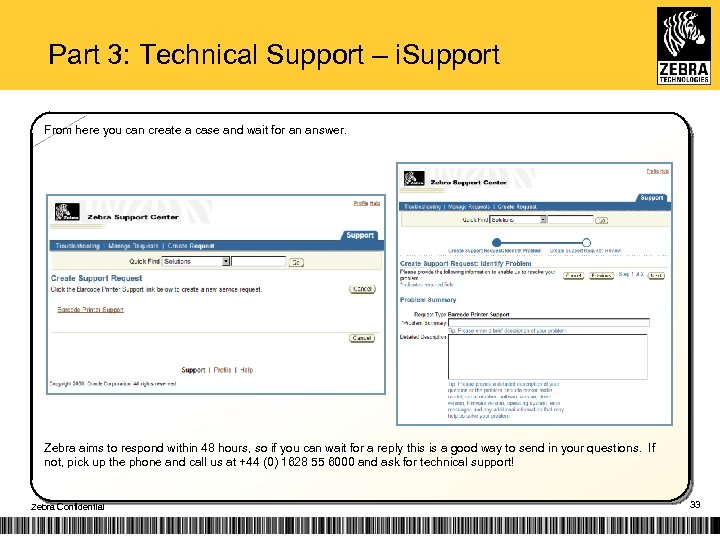
Part 3: Technical Support – i. Support From here you can create a case and wait for an answer. Zebra aims to respond within 48 hours, so if you can wait for a reply this is a good way to send in your questions. If not, pick up the phone and call us at +44 (0) 1628 55 6000 and ask for technical support! Zebra Confidential 33
Mobile ZASP Certification Training RW Series Mobiles Zebra Confidential The right asset. In the right place. At the right time. 34
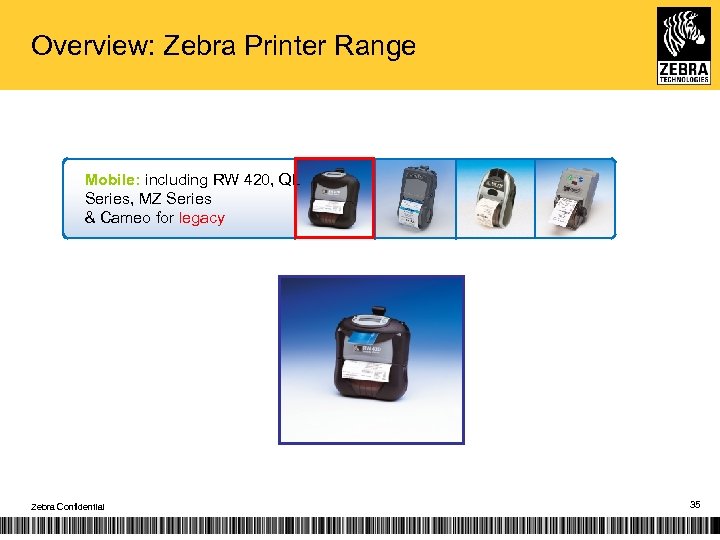
Overview: Zebra Printer Range Mobile: including RW 420, QL Series, MZ Series & Cameo for legacy Zebra Confidential 35
RW SERIES Repair Workshop Zebra Confidential The right asset. In the right place. At the right time. 36
Mobile ZASP Certification Training QL Plus Series Mobiles Zebra Confidential The right asset. In the right place. At the right time. 37
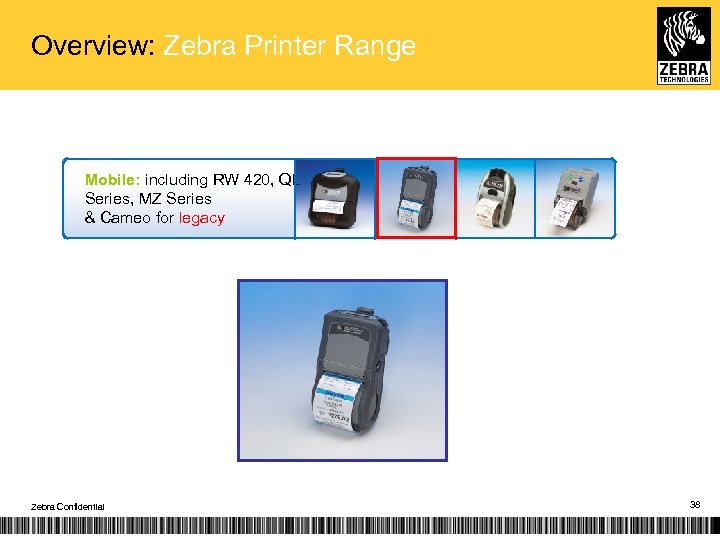
Overview: Zebra Printer Range Mobile: including RW 420, QL Series, MZ Series & Cameo for legacy Zebra Confidential 38
QL Plus SERIES Repair Workshop Zebra Confidential The right asset. In the right place. At the right time. 39
Mobile ZASP Training & Certification Unit Test Software Zebra Confidential The right asset. In the right place. At the right time. 40
Unit Test § Unit test is software which is used with the QL and RW range of mobile printers and is used to do the following: § Test and calibrate all the sensors of the printer. This includes the bar sensor, gap sensor, peel sensor, media width sensor and head open sensor. § Test the communication ports of the printer. This includes the serial port and the USB port. § Test the LCD and keypad. § Test the print quality of the printer and the printhead. § Unit test also sets and verifies the serial number of the printer and sets all the other parameters of the printer. § Unit test is an essential piece of software when replacing the MLB of a printer. Zebra Confidential 41
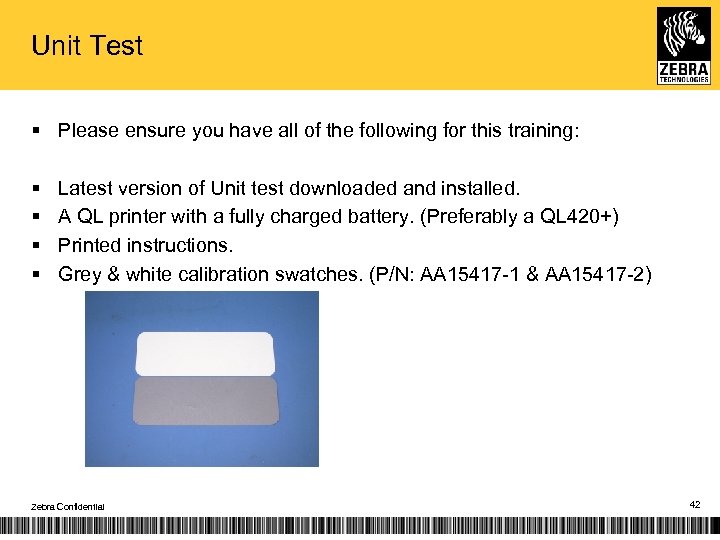
Unit Test § Please ensure you have all of the following for this training: § § Latest version of Unit test downloaded and installed. A QL printer with a fully charged battery. (Preferably a QL 420+) Printed instructions. Grey & white calibration swatches. (P/N: AA 15417 -1 & AA 15417 -2) Zebra Confidential 42
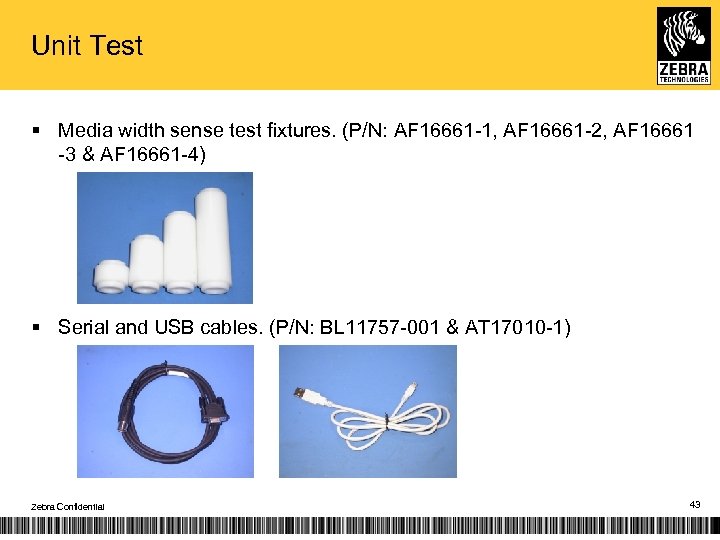
Unit Test § Media width sense test fixtures. (P/N: AF 16661 -1, AF 16661 -2, AF 16661 -3 & AF 16661 -4) § Serial and USB cables. (P/N: BL 11757 -001 & AT 17010 -1) Zebra Confidential 43
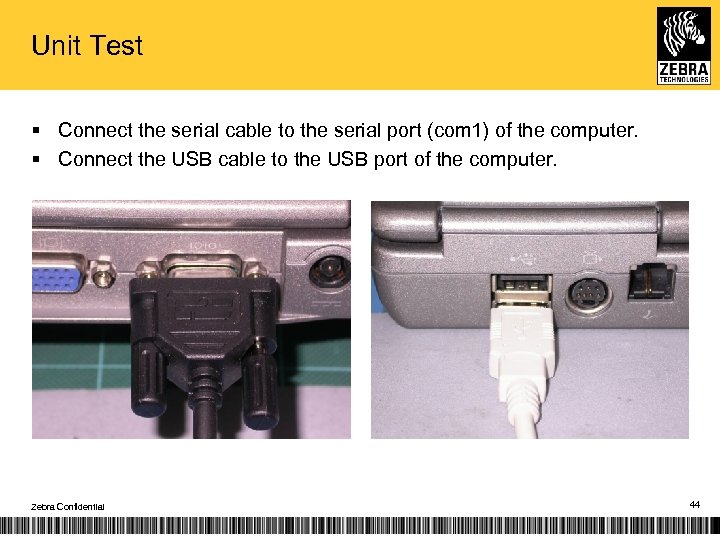
Unit Test § Connect the serial cable to the serial port (com 1) of the computer. § Connect the USB cable to the USB port of the computer. Zebra Confidential 44
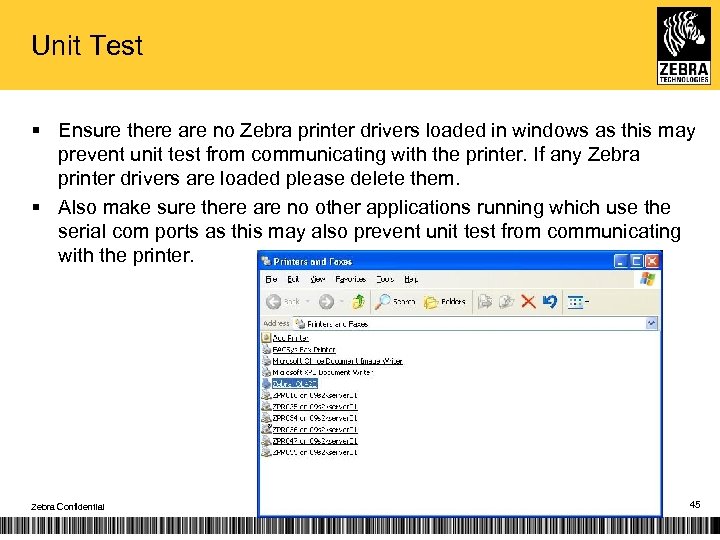
Unit Test § Ensure there are no Zebra printer drivers loaded in windows as this may prevent unit test from communicating with the printer. If any Zebra printer drivers are loaded please delete them. § Also make sure there are no other applications running which use the serial com ports as this may also prevent unit test from communicating with the printer. Zebra Confidential 45
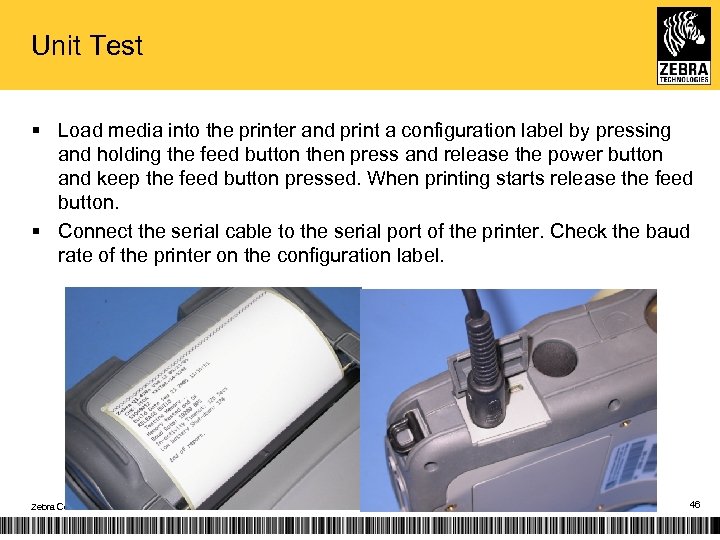
Unit Test § Load media into the printer and print a configuration label by pressing and holding the feed button then press and release the power button and keep the feed button pressed. When printing starts release the feed button. § Connect the serial cable to the serial port of the printer. Check the baud rate of the printer on the configuration label. Zebra Confidential 46
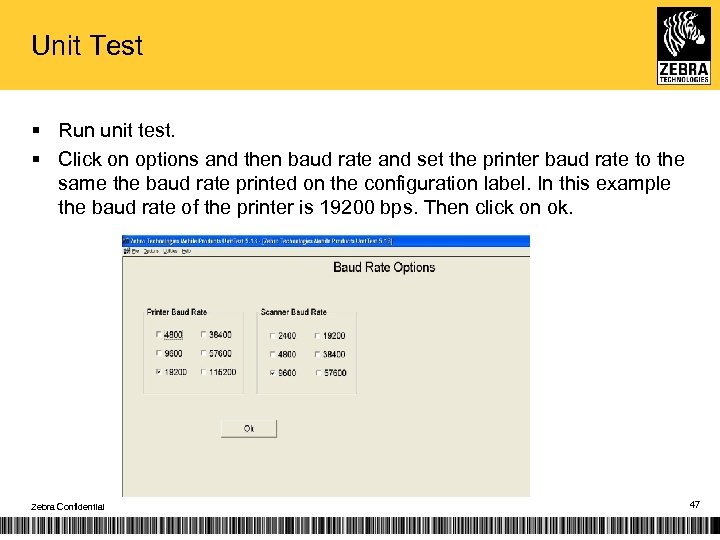
Unit Test § Run unit test. § Click on options and then baud rate and set the printer baud rate to the same the baud rate printed on the configuration label. In this example the baud rate of the printer is 19200 bps. Then click on ok. Zebra Confidential 47
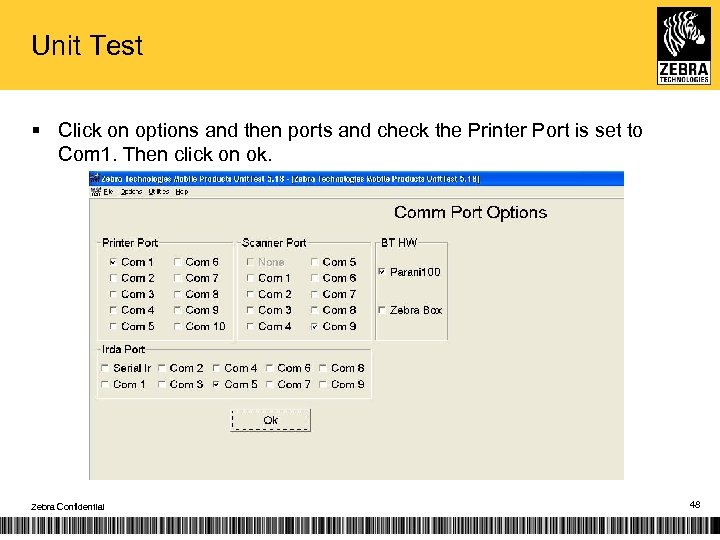
Unit Test § Click on options and then ports and check the Printer Port is set to Com 1. Then click on ok. Zebra Confidential 48
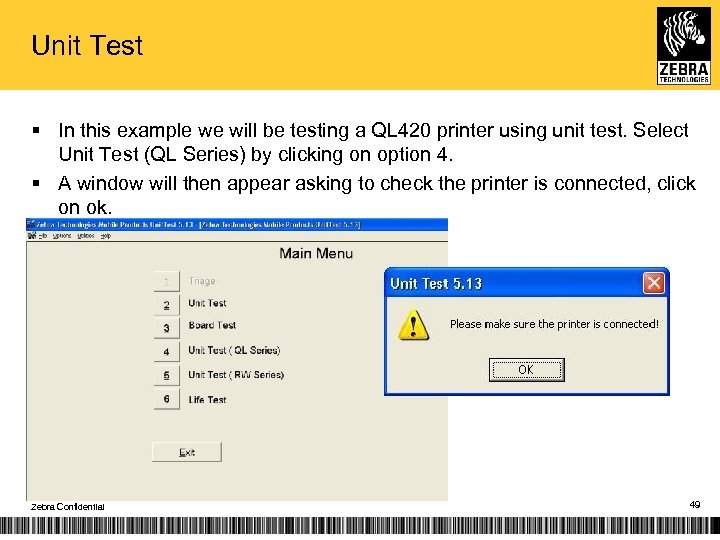
Unit Test § In this example we will be testing a QL 420 printer using unit test. Select Unit Test (QL Series) by clicking on option 4. § A window will then appear asking to check the printer is connected, click on ok. Zebra Confidential 49
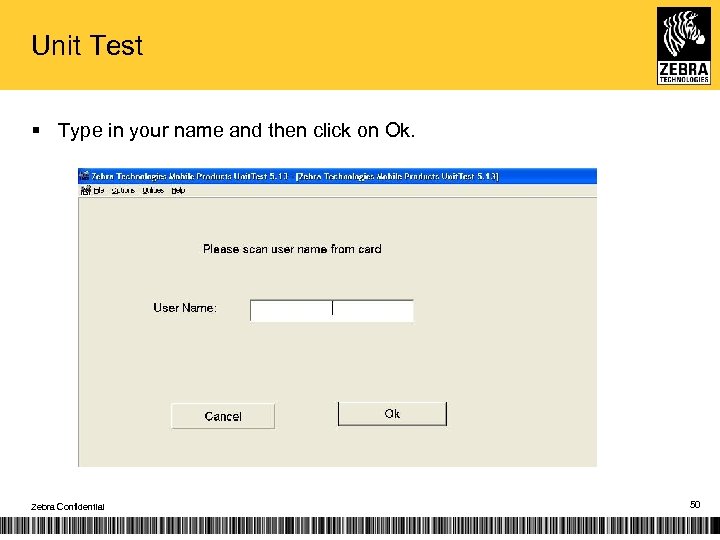
Unit Test § Type in your name and then click on Ok. Zebra Confidential 50
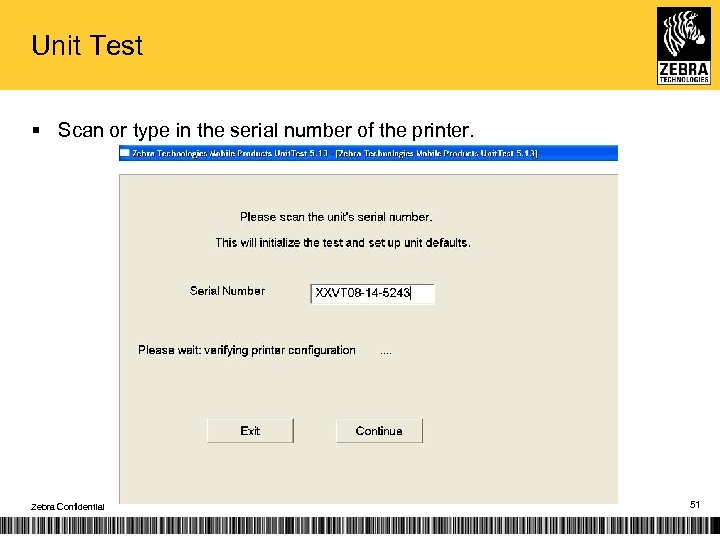
Unit Test § Scan or type in the serial number of the printer. Zebra Confidential 51
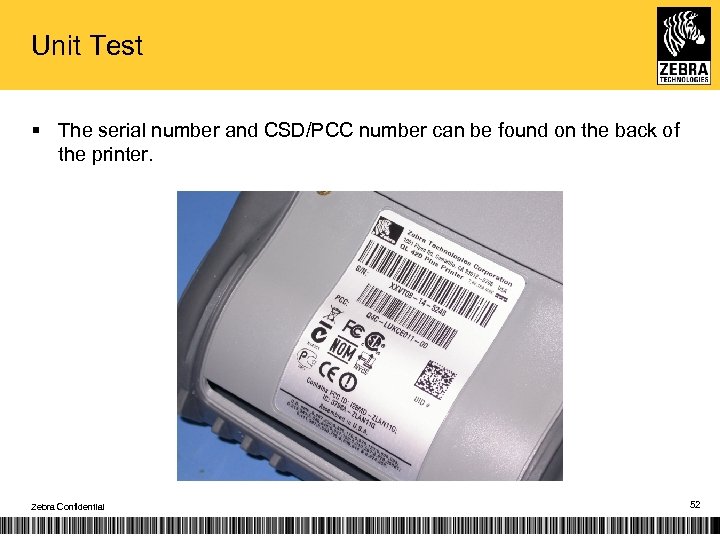
Unit Test § The serial number and CSD/PCC number can be found on the back of the printer. Zebra Confidential 52
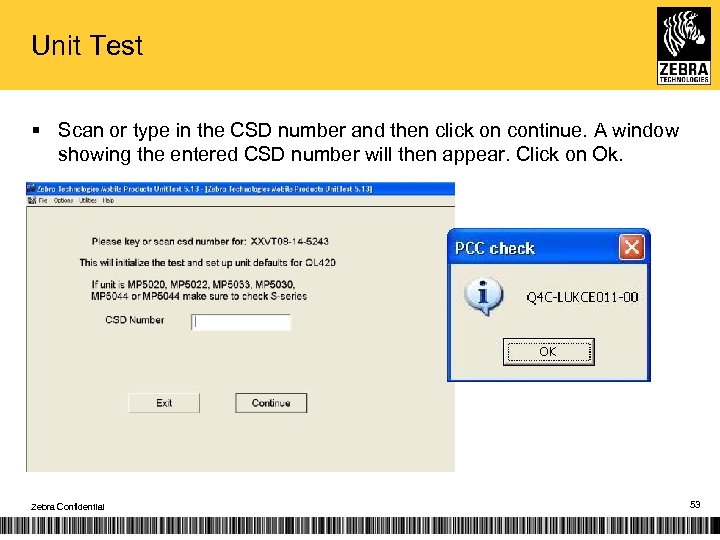
Unit Test § Scan or type in the CSD number and then click on continue. A window showing the entered CSD number will then appear. Click on Ok. Zebra Confidential 53
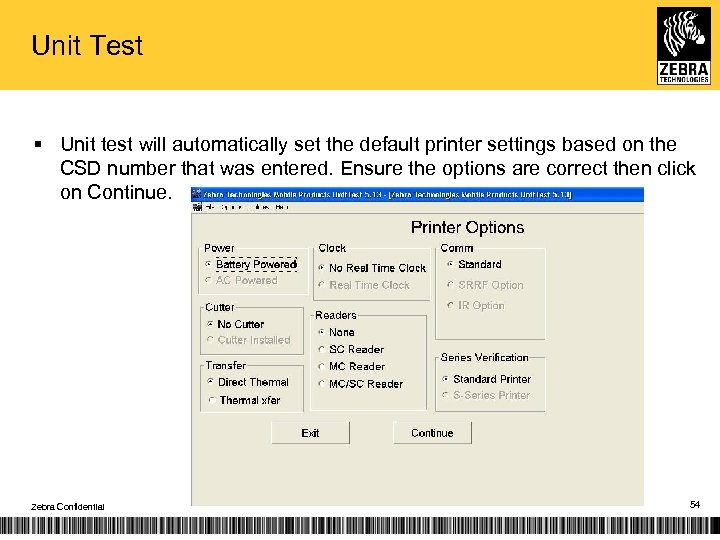
Unit Test § Unit test will automatically set the default printer settings based on the CSD number that was entered. Ensure the options are correct then click on Continue. Zebra Confidential 54
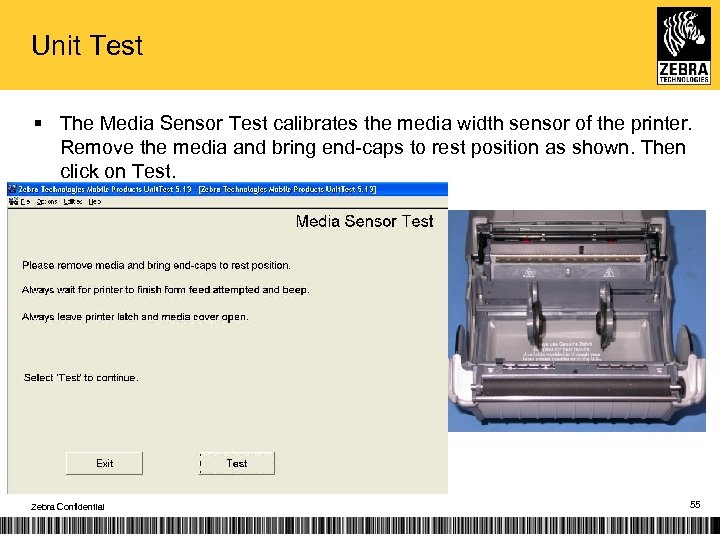
Unit Test § The Media Sensor Test calibrates the media width sensor of the printer. Remove the media and bring end-caps to rest position as shown. Then click on Test. Zebra Confidential 55
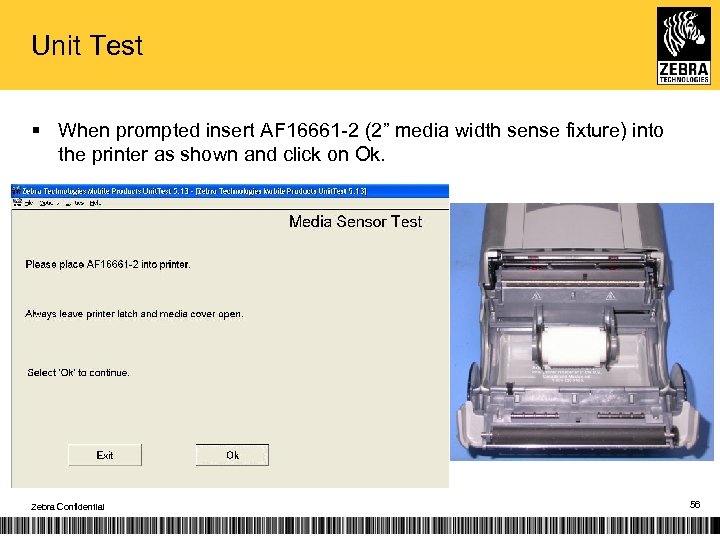
Unit Test § When prompted insert AF 16661 -2 (2” media width sense fixture) into the printer as shown and click on Ok. Zebra Confidential 56
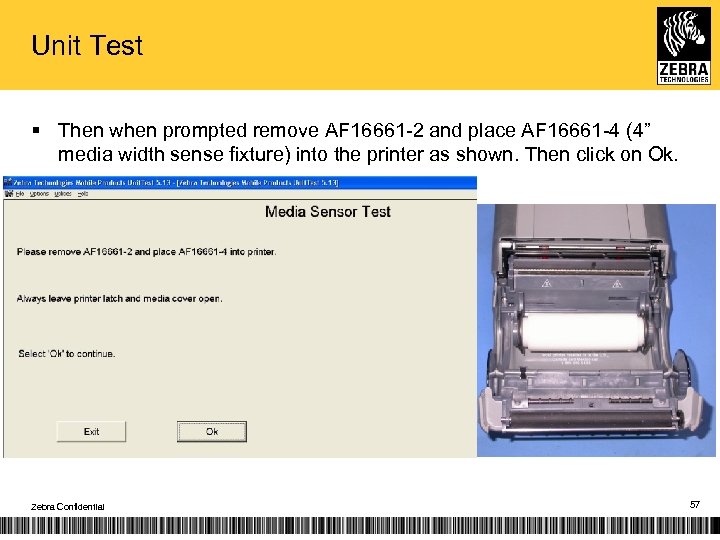
Unit Test § Then when prompted remove AF 16661 -2 and place AF 16661 -4 (4” media width sense fixture) into the printer as shown. Then click on Ok. Zebra Confidential 57
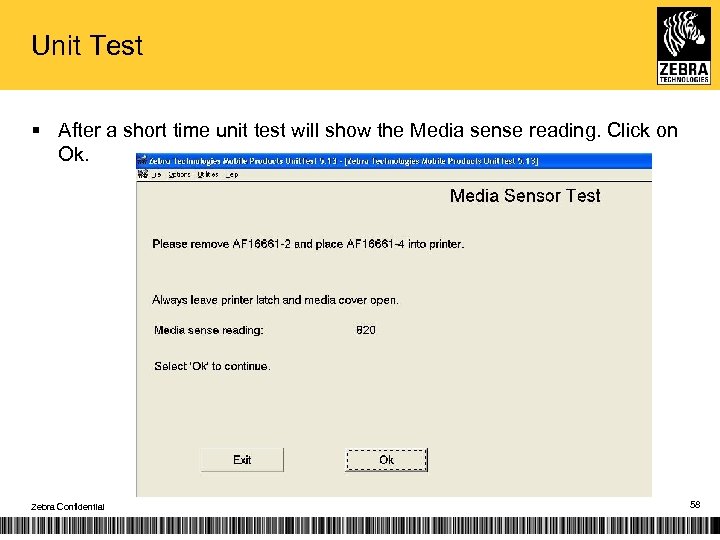
Unit Test § After a short time unit test will show the Media sense reading. Click on Ok. Zebra Confidential 58
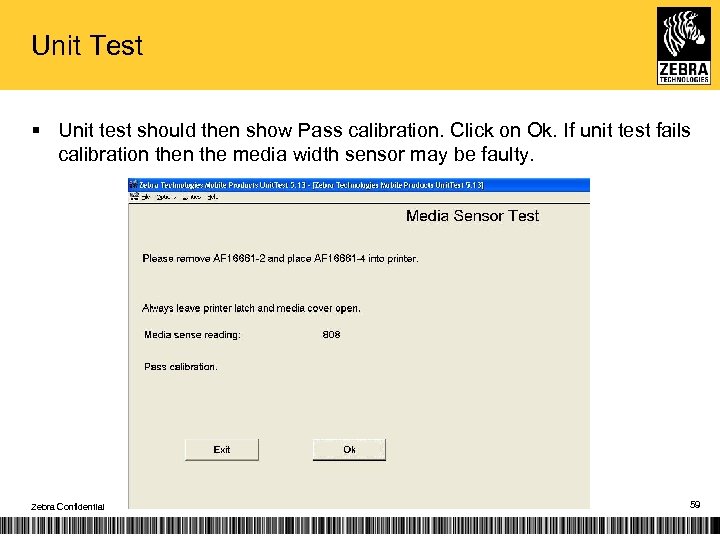
Unit Test § Unit test should then show Pass calibration. Click on Ok. If unit test fails calibration the media width sensor may be faulty. Zebra Confidential 59
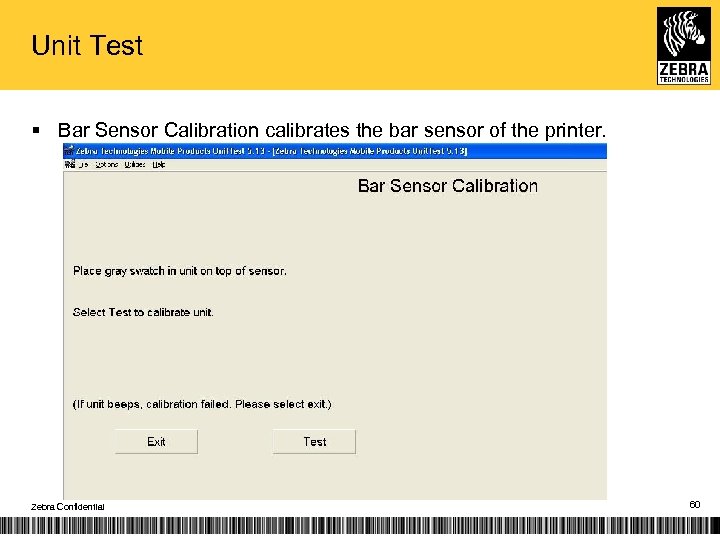
Unit Test § Bar Sensor Calibration calibrates the bar sensor of the printer. Zebra Confidential 60
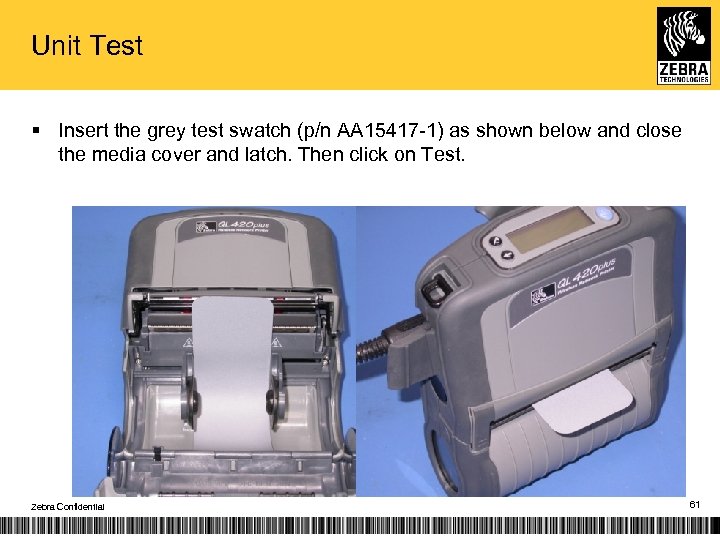
Unit Test § Insert the grey test swatch (p/n AA 15417 -1) as shown below and close the media cover and latch. Then click on Test. Zebra Confidential 61
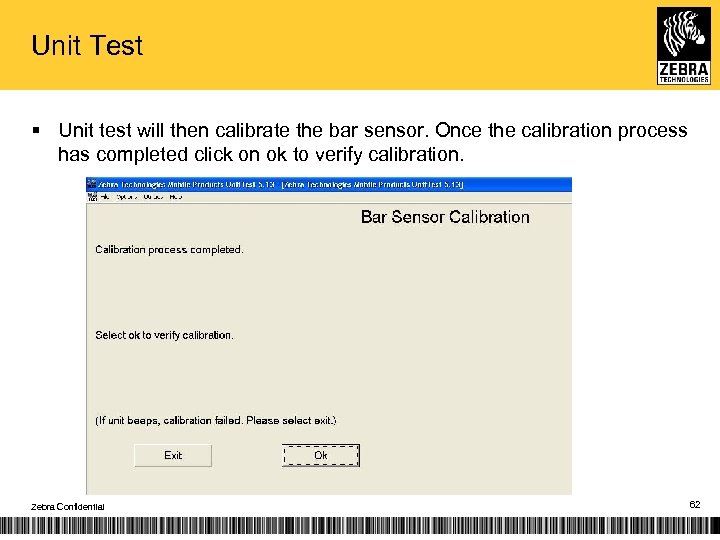
Unit Test § Unit test will then calibrate the bar sensor. Once the calibration process has completed click on ok to verify calibration. Zebra Confidential 62
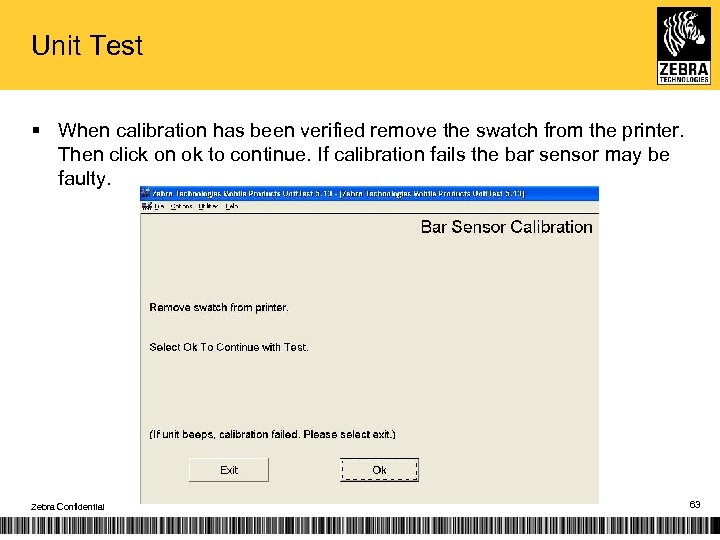
Unit Test § When calibration has been verified remove the swatch from the printer. Then click on ok to continue. If calibration fails the bar sensor may be faulty. Zebra Confidential 63
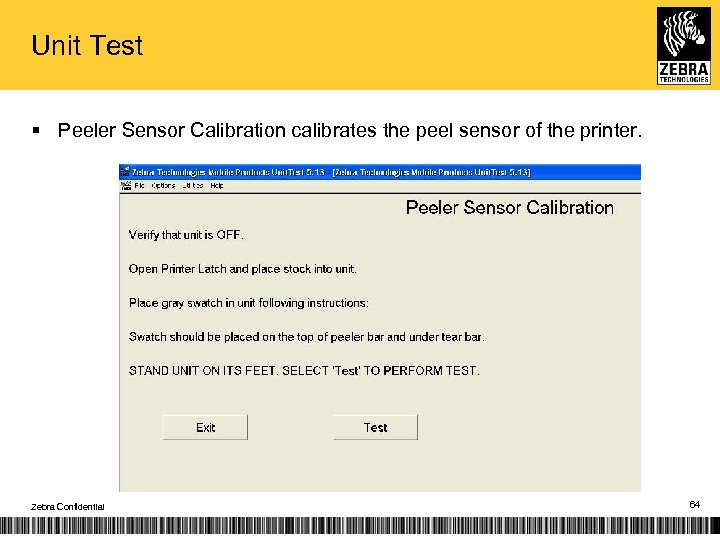
Unit Test § Peeler Sensor Calibration calibrates the peel sensor of the printer. Zebra Confidential 64
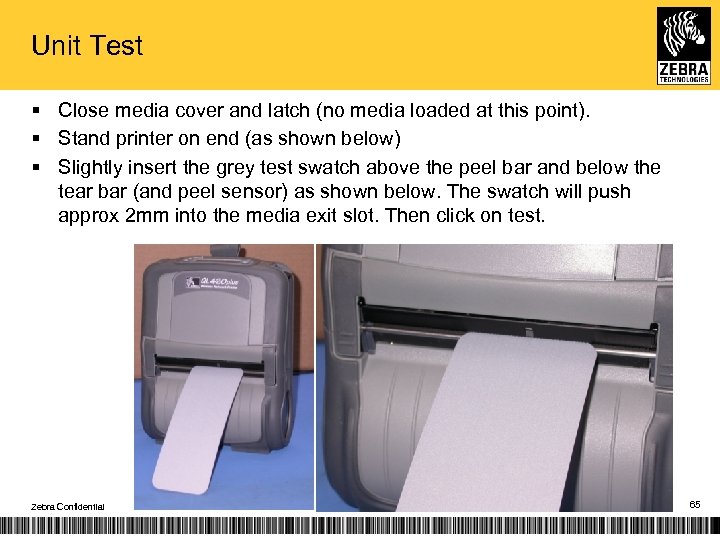
Unit Test § Close media cover and latch (no media loaded at this point). § Stand printer on end (as shown below) § Slightly insert the grey test swatch above the peel bar and below the tear bar (and peel sensor) as shown below. The swatch will push approx 2 mm into the media exit slot. Then click on test. Zebra Confidential 65
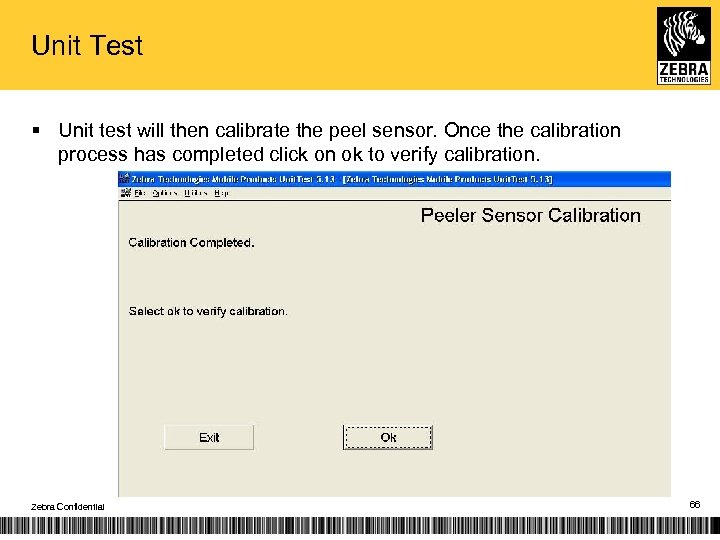
Unit Test § Unit test will then calibrate the peel sensor. Once the calibration process has completed click on ok to verify calibration. Zebra Confidential 66
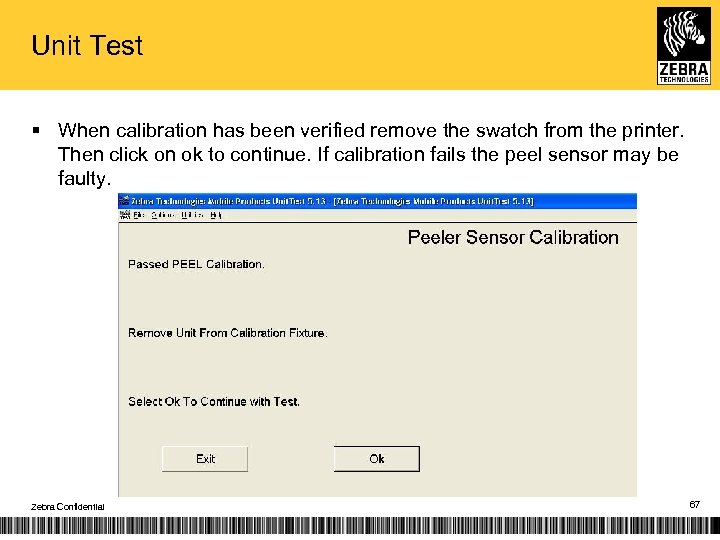
Unit Test § When calibration has been verified remove the swatch from the printer. Then click on ok to continue. If calibration fails the peel sensor may be faulty. Zebra Confidential 67
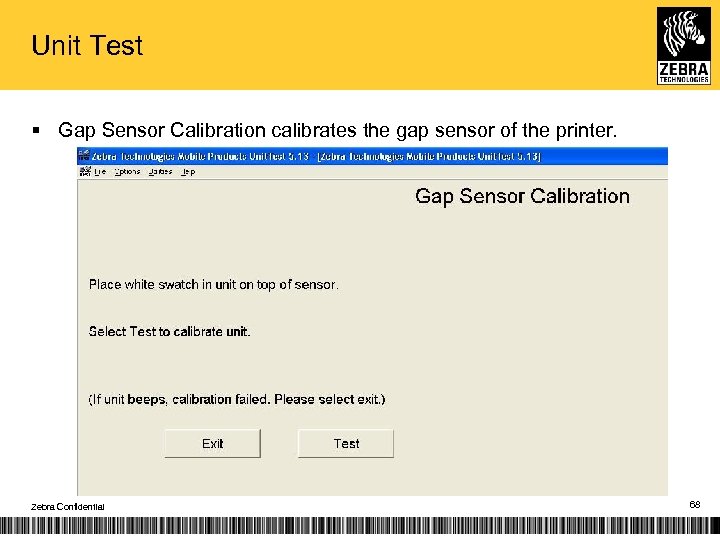
Unit Test § Gap Sensor Calibration calibrates the gap sensor of the printer. Zebra Confidential 68
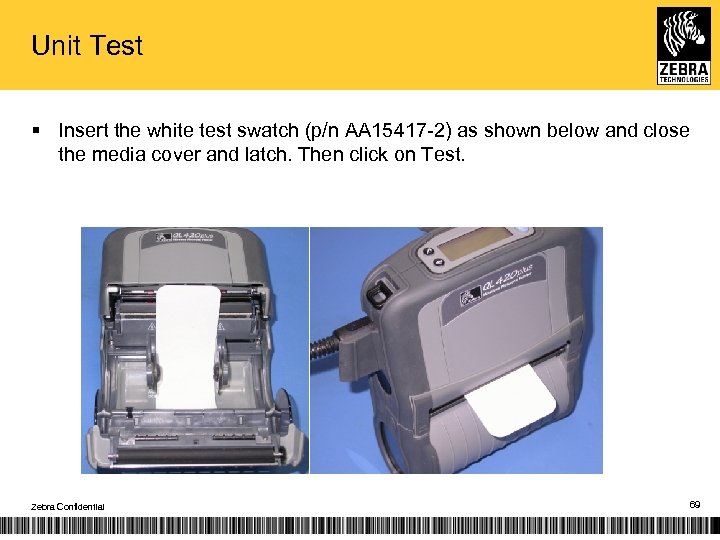
Unit Test § Insert the white test swatch (p/n AA 15417 -2) as shown below and close the media cover and latch. Then click on Test. Zebra Confidential 69
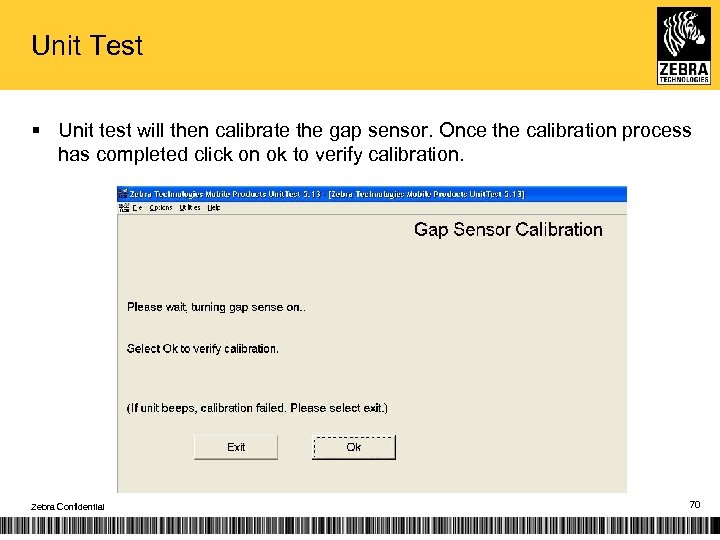
Unit Test § Unit test will then calibrate the gap sensor. Once the calibration process has completed click on ok to verify calibration. Zebra Confidential 70
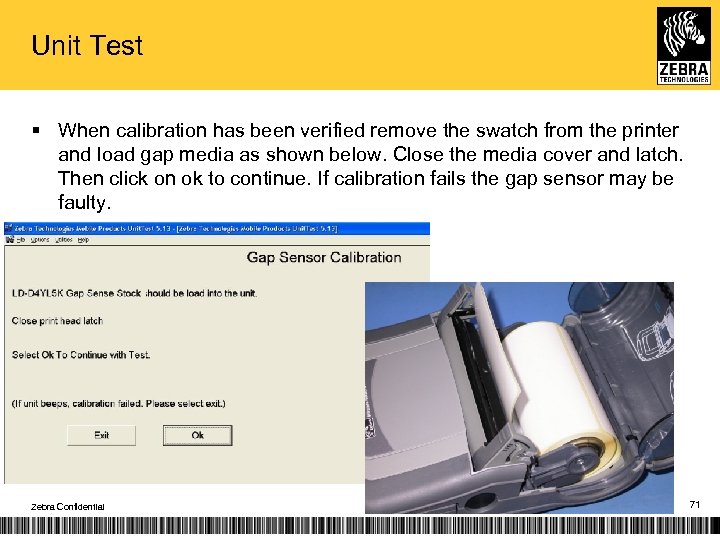
Unit Test § When calibration has been verified remove the swatch from the printer and load gap media as shown below. Close the media cover and latch. Then click on ok to continue. If calibration fails the gap sensor may be faulty. Zebra Confidential 71
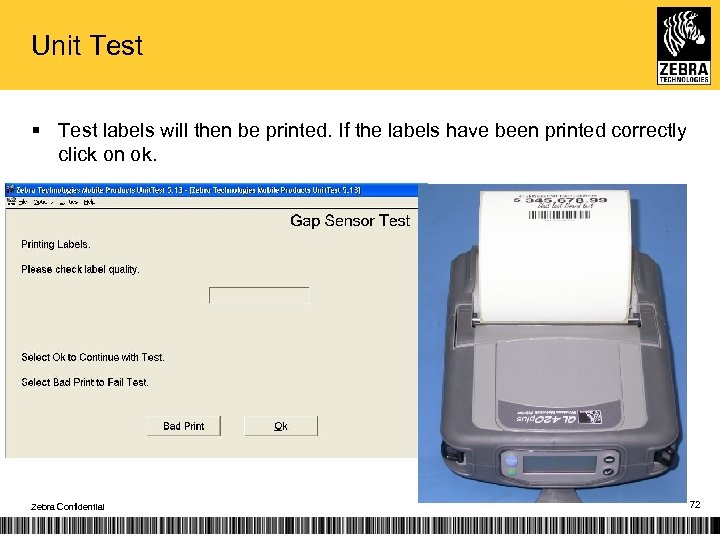
Unit Test § Test labels will then be printed. If the labels have been printed correctly click on ok. Zebra Confidential 72
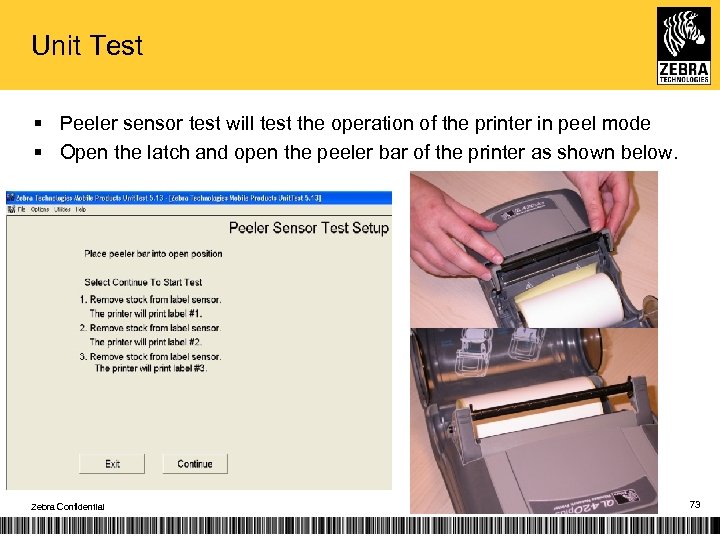
Unit Test § Peeler sensor test will test the operation of the printer in peel mode § Open the latch and open the peeler bar of the printer as shown below. Zebra Confidential 73
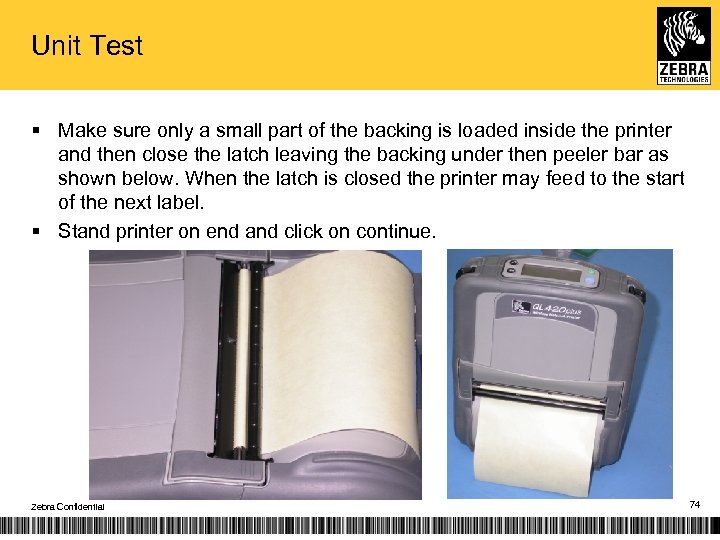
Unit Test § Make sure only a small part of the backing is loaded inside the printer and then close the latch leaving the backing under then peeler bar as shown below. When the latch is closed the printer may feed to the start of the next label. § Stand printer on end and click on continue. Zebra Confidential 74
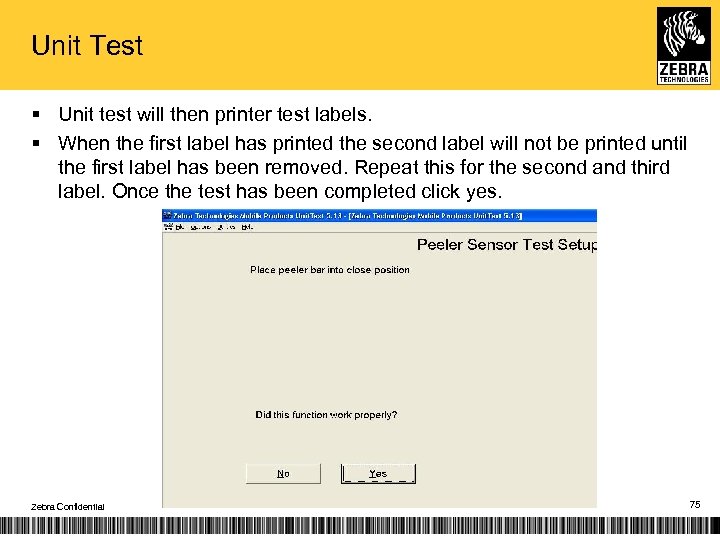
Unit Test § Unit test will then printer test labels. § When the first label has printed the second label will not be printed until the first label has been removed. Repeat this for the second and third label. Once the test has been completed click yes. Zebra Confidential 75
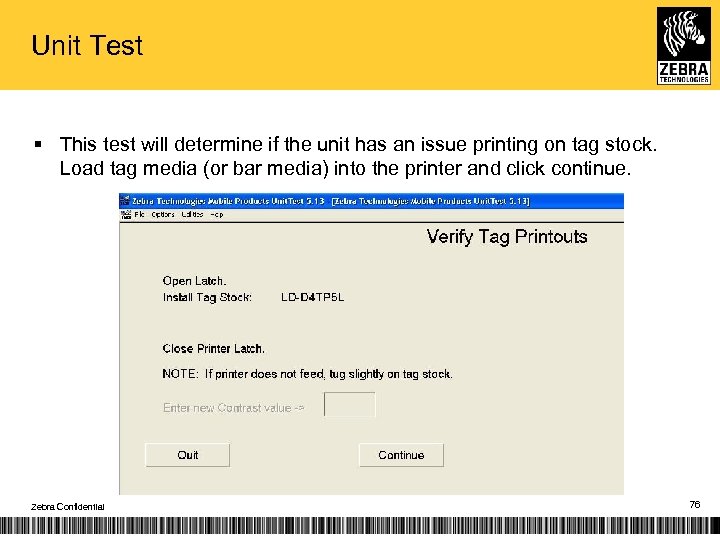
Unit Test § This test will determine if the unit has an issue printing on tag stock. Load tag media (or bar media) into the printer and click continue. Zebra Confidential 76
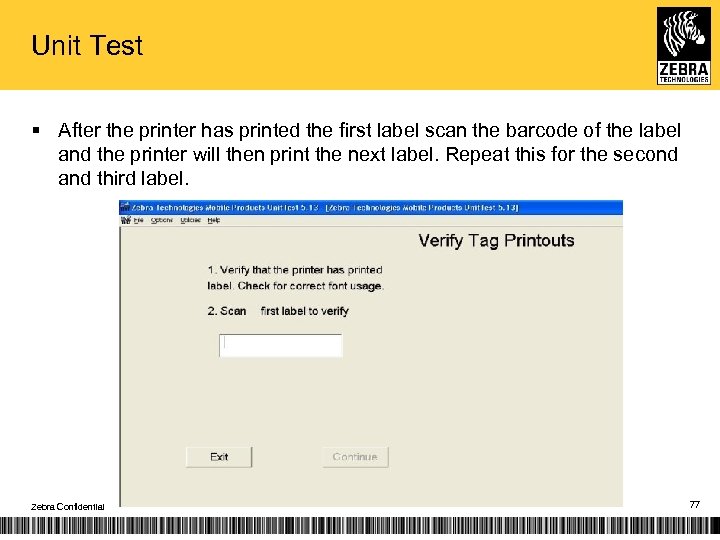
Unit Test § After the printer has printed the first label scan the barcode of the label and the printer will then print the next label. Repeat this for the second and third label. Zebra Confidential 77
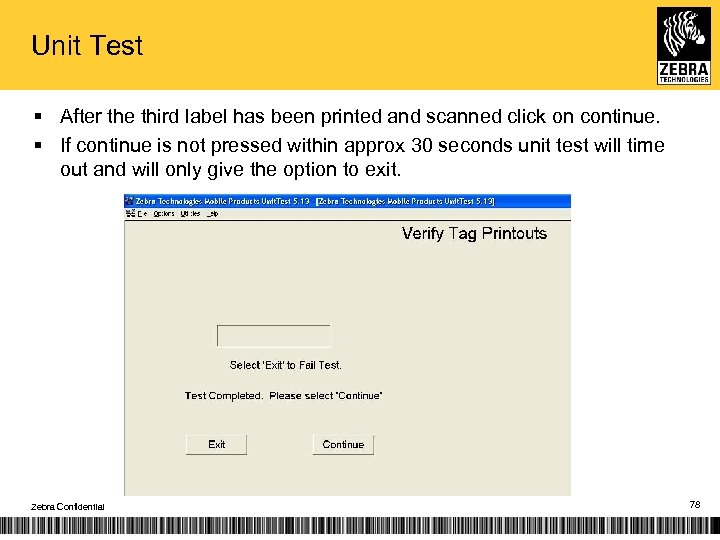
Unit Test § After the third label has been printed and scanned click on continue. § If continue is not pressed within approx 30 seconds unit test will time out and will only give the option to exit. Zebra Confidential 78
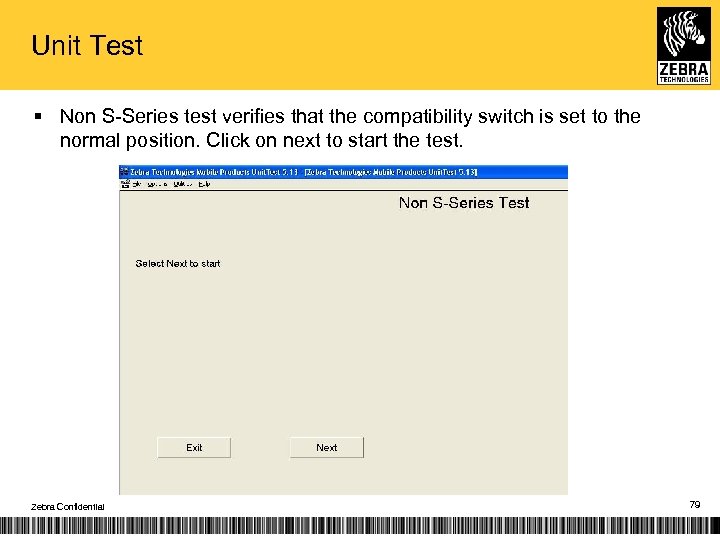
Unit Test § Non S-Series test verifies that the compatibility switch is set to the normal position. Click on next to start the test. Zebra Confidential 79
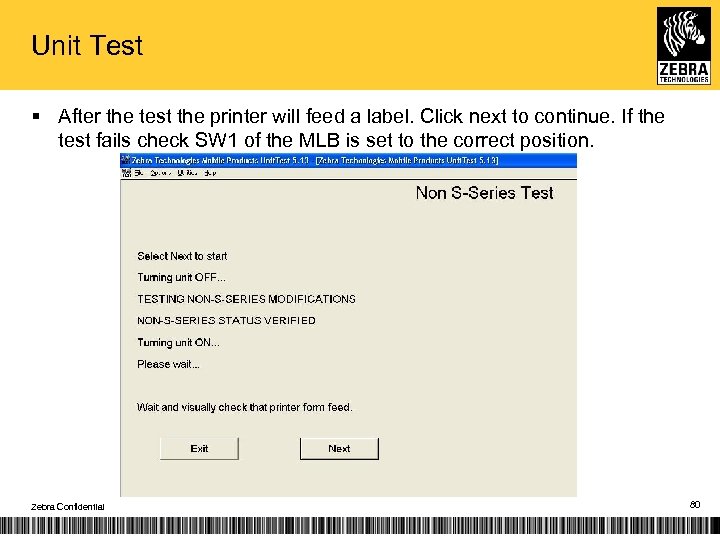
Unit Test § After the test the printer will feed a label. Click next to continue. If the test fails check SW 1 of the MLB is set to the correct position. Zebra Confidential 80
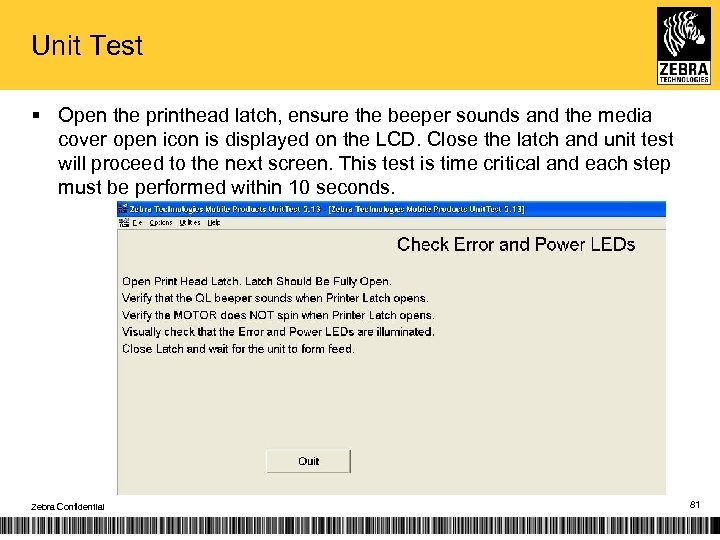
Unit Test § Open the printhead latch, ensure the beeper sounds and the media cover open icon is displayed on the LCD. Close the latch and unit test will proceed to the next screen. This test is time critical and each step must be performed within 10 seconds. Zebra Confidential 81
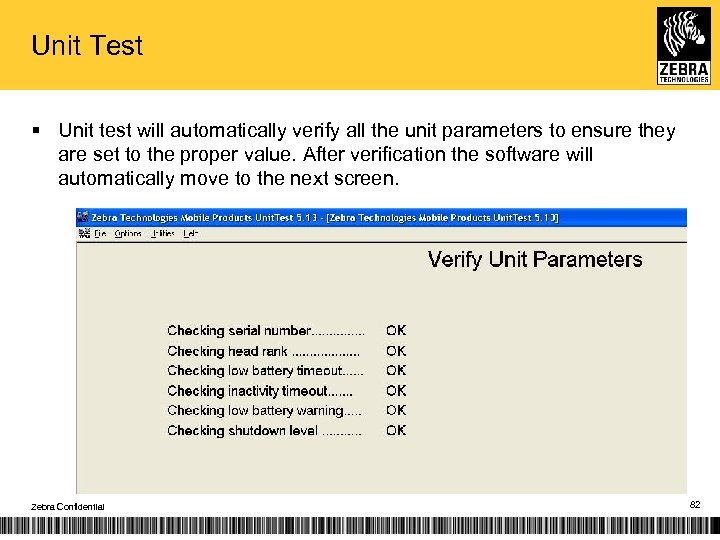
Unit Test § Unit test will automatically verify all the unit parameters to ensure they are set to the proper value. After verification the software will automatically move to the next screen. Zebra Confidential 82
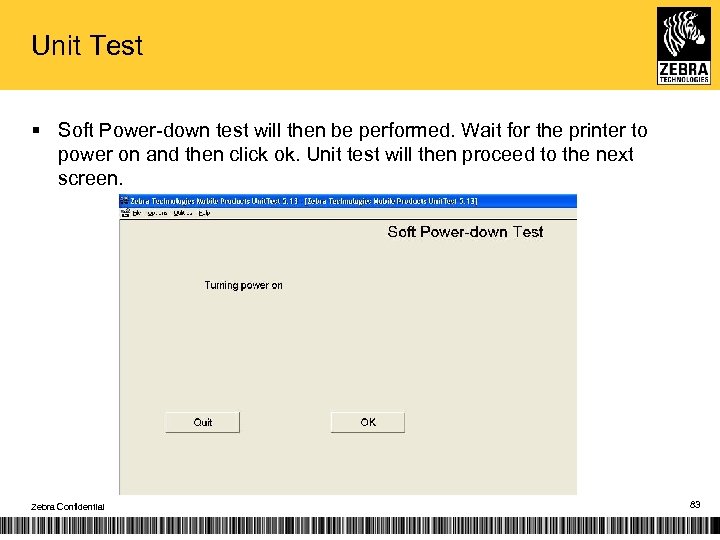
Unit Test § Soft Power-down test will then be performed. Wait for the printer to power on and then click ok. Unit test will then proceed to the next screen. Zebra Confidential 83
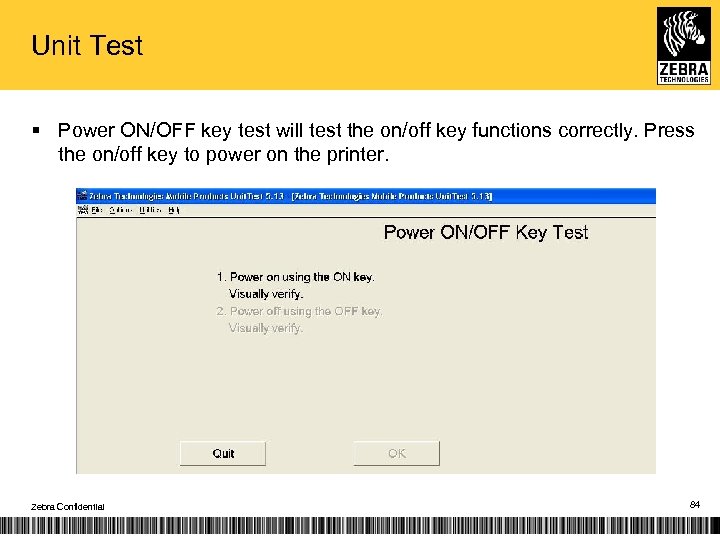
Unit Test § Power ON/OFF key test will test the on/off key functions correctly. Press the on/off key to power on the printer. Zebra Confidential 84
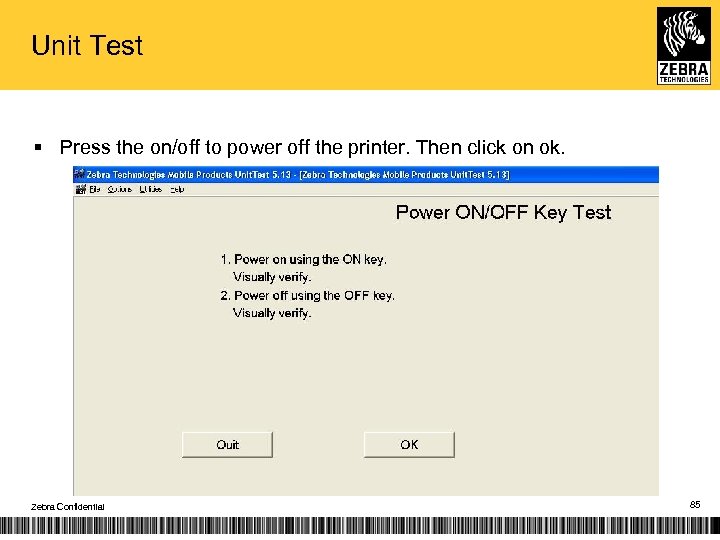
Unit Test § Press the on/off to power off the printer. Then click on ok. Zebra Confidential 85
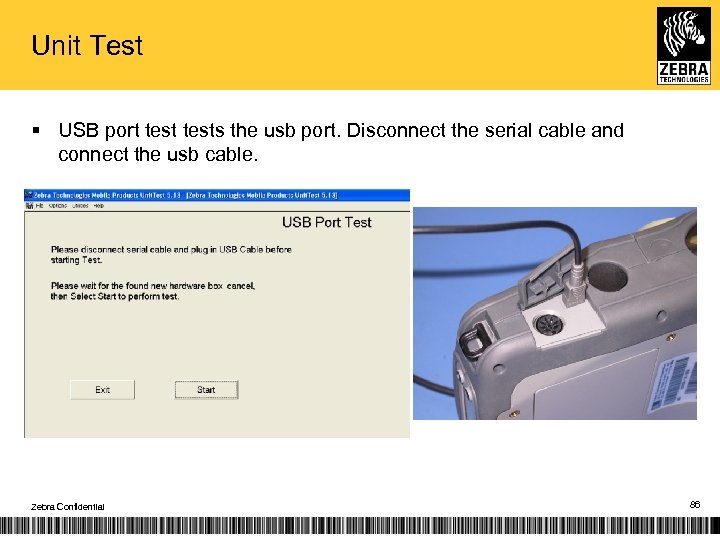
Unit Test § USB port tests the usb port. Disconnect the serial cable and connect the usb cable. Zebra Confidential 86
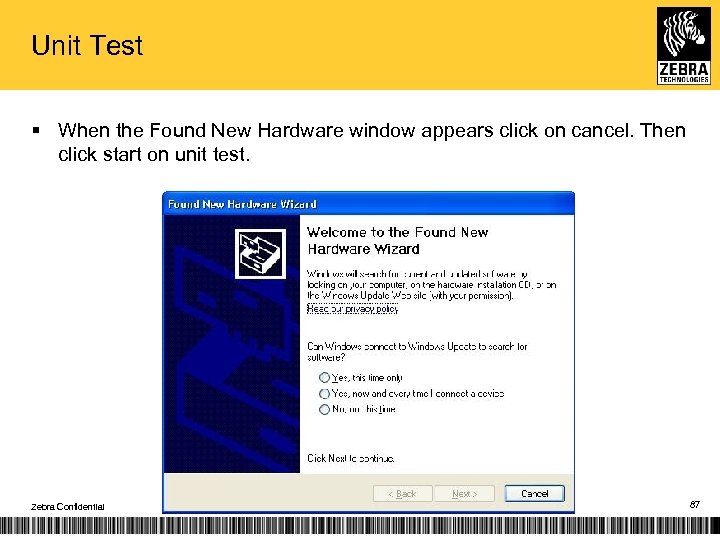
Unit Test § When the Found New Hardware window appears click on cancel. Then click start on unit test. Zebra Confidential 87
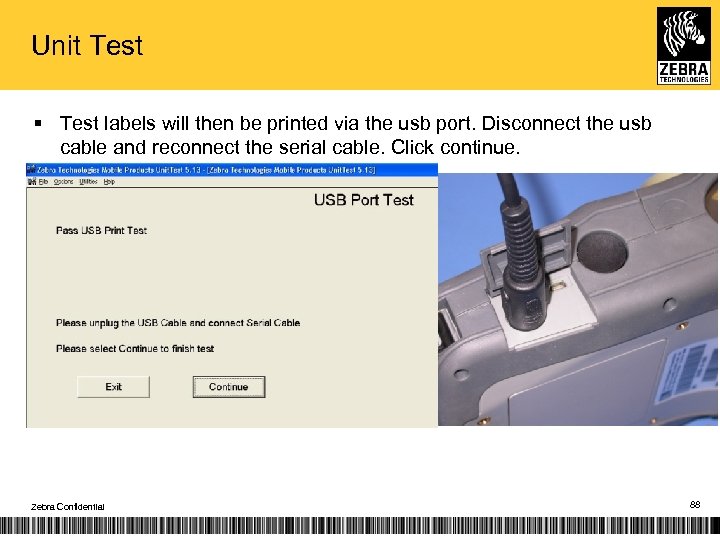
Unit Test § Test labels will then be printed via the usb port. Disconnect the usb cable and reconnect the serial cable. Click continue. Zebra Confidential 88
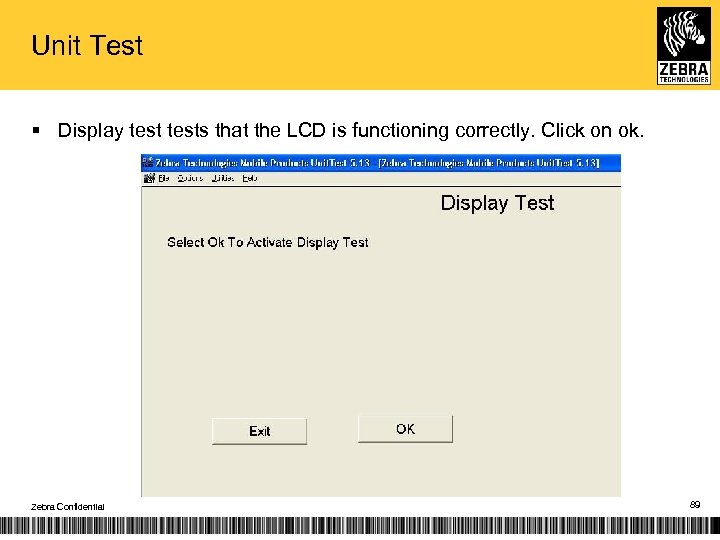
Unit Test § Display tests that the LCD is functioning correctly. Click on ok. Zebra Confidential 89
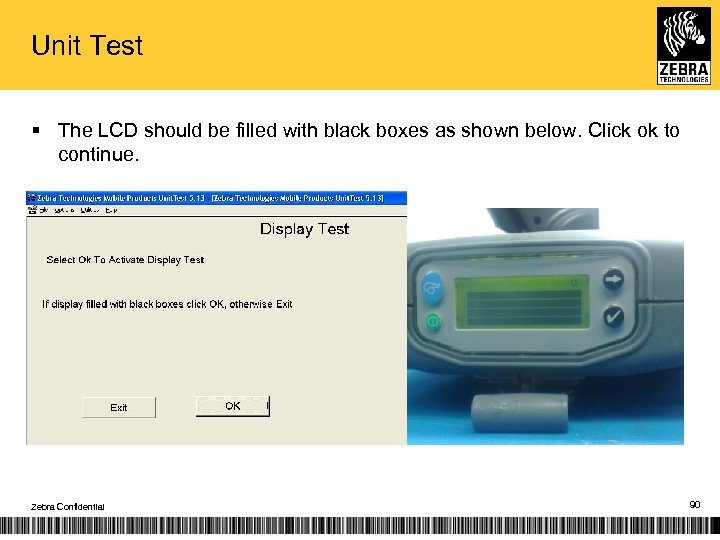
Unit Test § The LCD should be filled with black boxes as shown below. Click ok to continue. Zebra Confidential 90
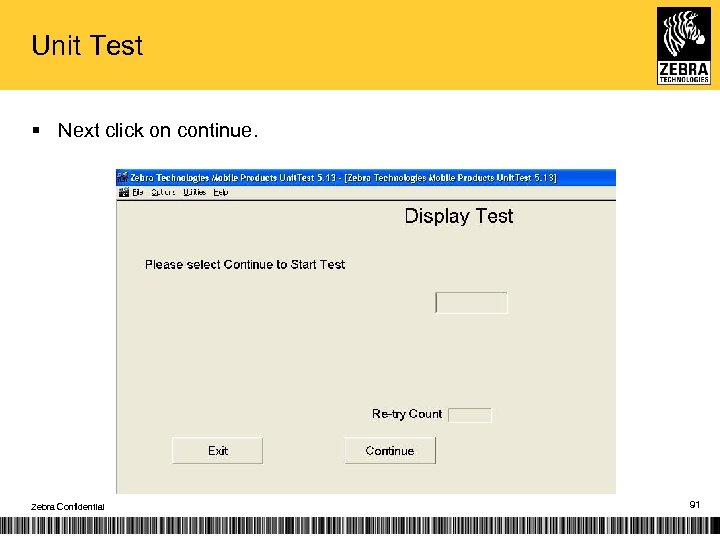
Unit Test § Next click on continue. Zebra Confidential 91
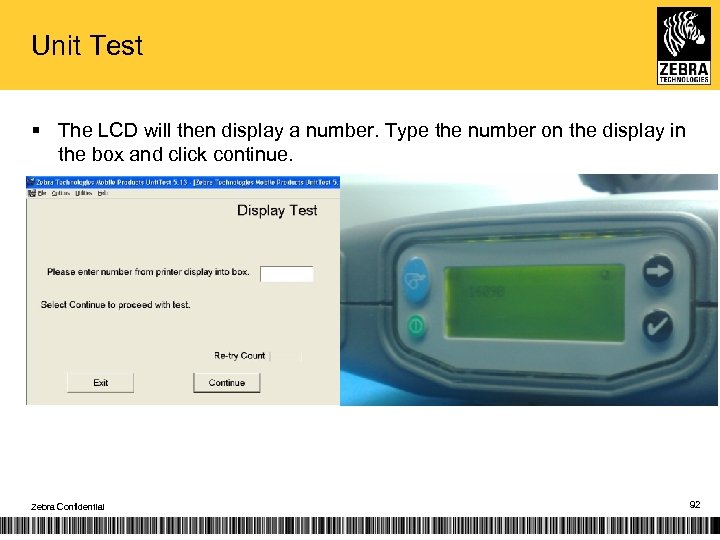
Unit Test § The LCD will then display a number. Type the number on the display in the box and click continue. Zebra Confidential 92
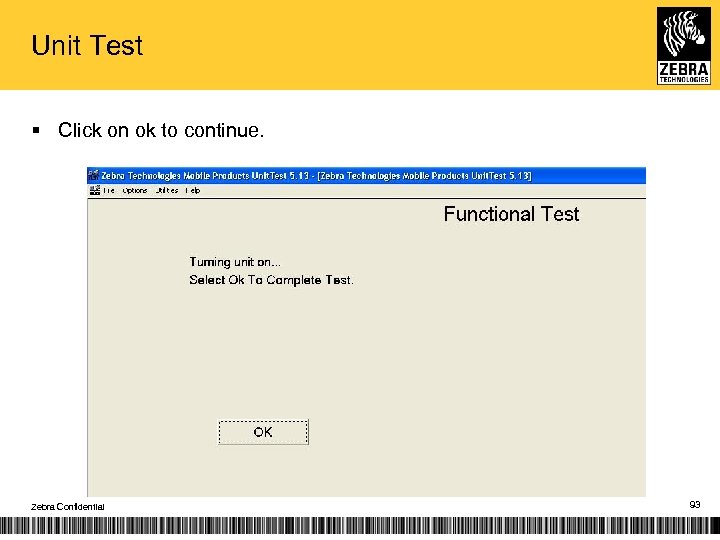
Unit Test § Click on ok to continue. Zebra Confidential 93
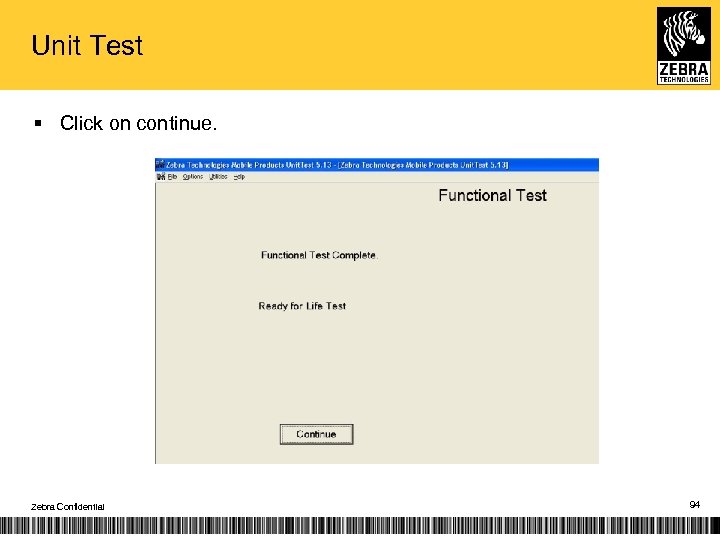
Unit Test § Click on continue. Zebra Confidential 94
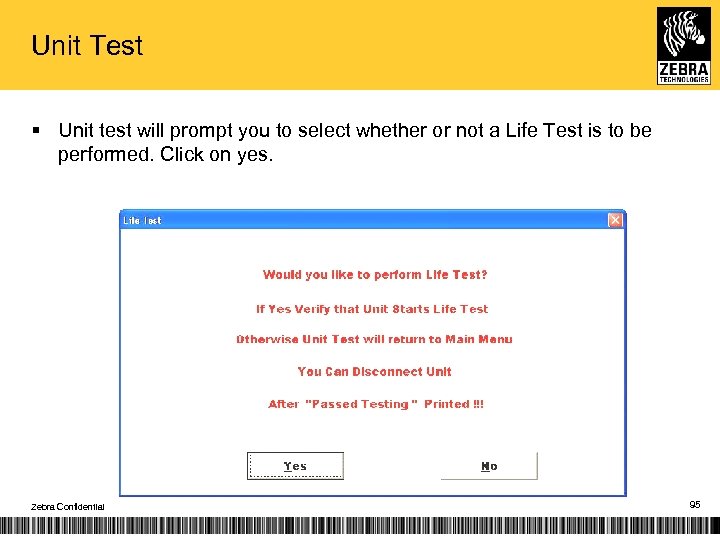
Unit Test § Unit test will prompt you to select whether or not a Life Test is to be performed. Click on yes. Zebra Confidential 95
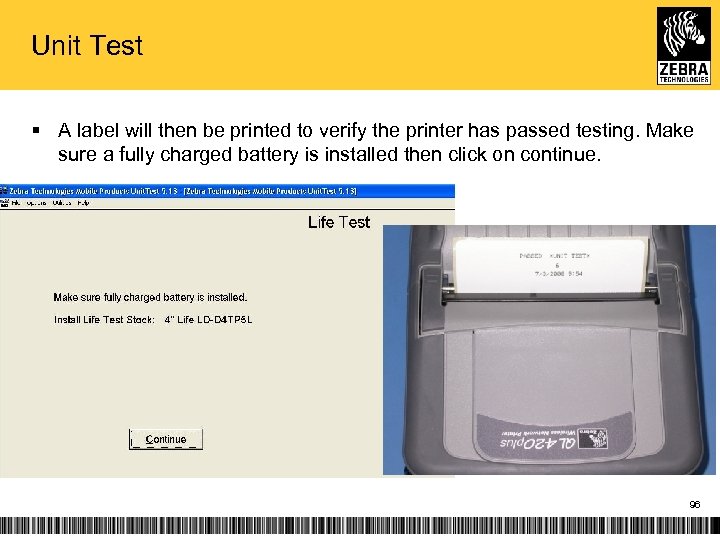
Unit Test § A label will then be printed to verify the printer has passed testing. Make sure a fully charged battery is installed then click on continue. 96
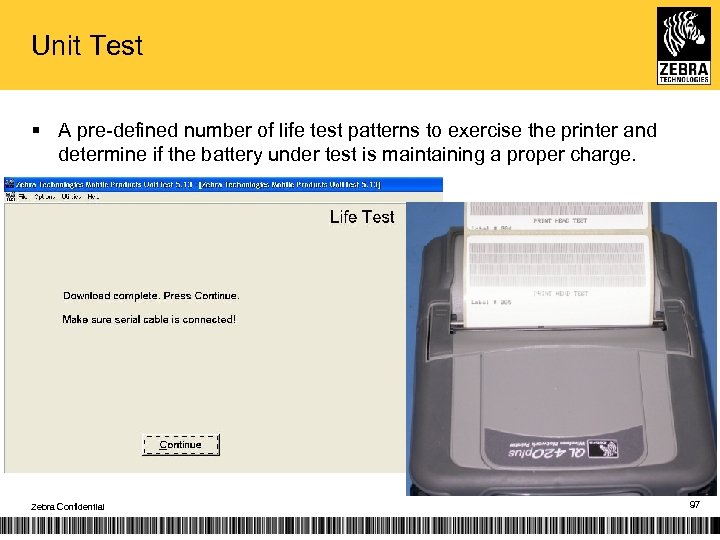
Unit Test § A pre-defined number of life test patterns to exercise the printer and determine if the battery under test is maintaining a proper charge. Zebra Confidential 97
Unit Testing of the printer is now complete Zebra Confidential 98
Questions? Zebra Confidential The right asset. In the right place. At the right time. 99
Mobile ZASP Certification Training MZ Series Mobiles Zebra Confidential The right asset. In the right place. At the right time. 100
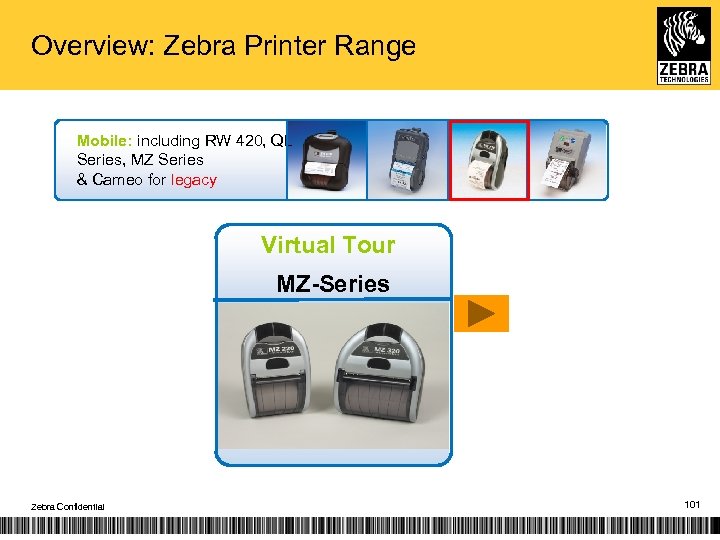
Overview: Zebra Printer Range Mobile: including RW 420, QL Series, MZ Series & Cameo for legacy Virtual Tour MZ-Series Zebra Confidential 101
MZ Series Repair Workshop Zebra Confidential The right asset. In the right place. At the right time. 102
Label Vista 3. 50 Installation Workshop Zebra Confidential The right asset. In the right place. At the right time. 103
Zebra. Designer. Pro Installation Workshop Zebra Confidential The right asset. In the right place. At the right time. 104

Course Review / Q &A The right asset. In the right place. At the right time. 4/ 105
Скачать презентацию TR 1033 Mobile Printer Service 2010 Required course
aca7721709cbc2fef1f47af206c82209.ppt