


 Скачать презентацию Toolkit Details Input Output Communications Prof James A
1af9ff88c0059b663a2425d30a983dc4.ppt
- Количество слайдов: 67
 Toolkit Details: Input/Output & Communications Prof. James A. Landay University of Washington Autumn 2004 November 30, 2004
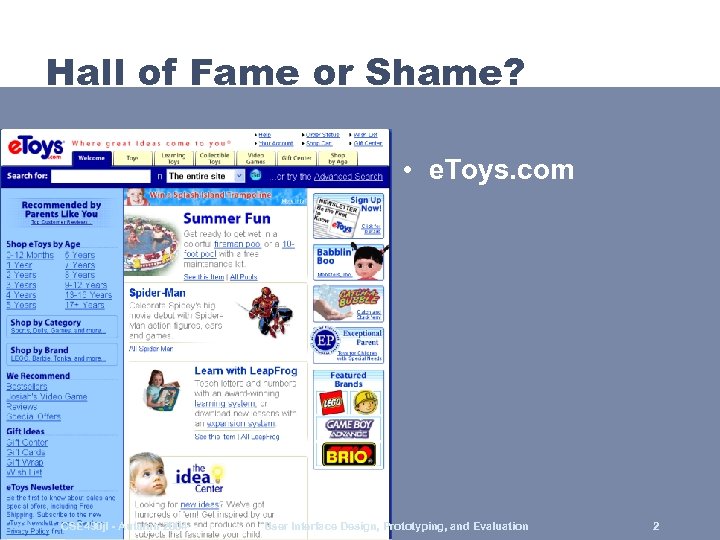 Hall of Fame or Shame? • e. Toys. com CSE 490 jl - Autumn 2004 User Interface Design, Prototyping, and Evaluation 2
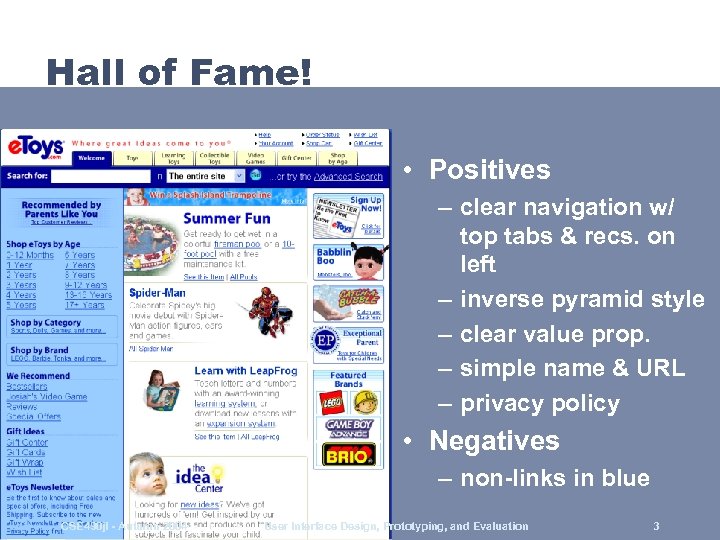 Hall of Fame! • Positives – clear navigation w/ top tabs & recs. on left – inverse pyramid style – clear value prop. – simple name & URL – privacy policy • Negatives – non-links in blue CSE 490 jl - Autumn 2004 User Interface Design, Prototyping, and Evaluation 3
 Toolkit Details: Input/Output & Communications Prof. James A. Landay University of Washington Autumn 2004 November 30, 2004
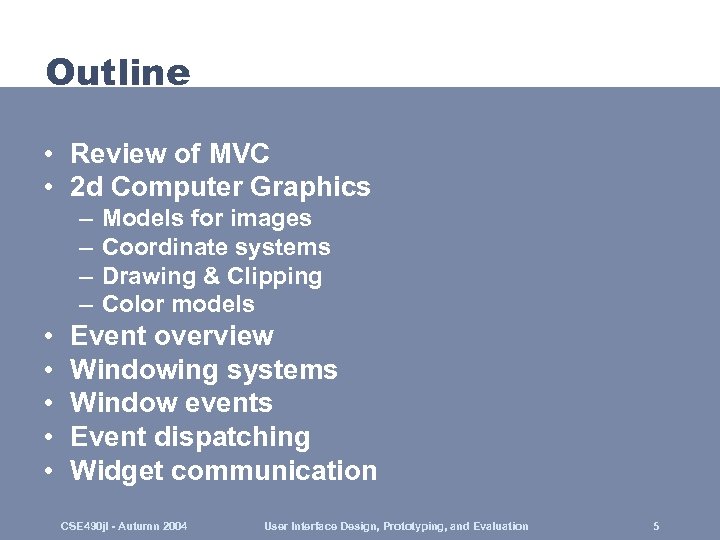 Outline • Review of MVC • 2 d Computer Graphics – – • • • Models for images Coordinate systems Drawing & Clipping Color models Event overview Windowing systems Window events Event dispatching Widget communication CSE 490 jl - Autumn 2004 User Interface Design, Prototyping, and Evaluation 5
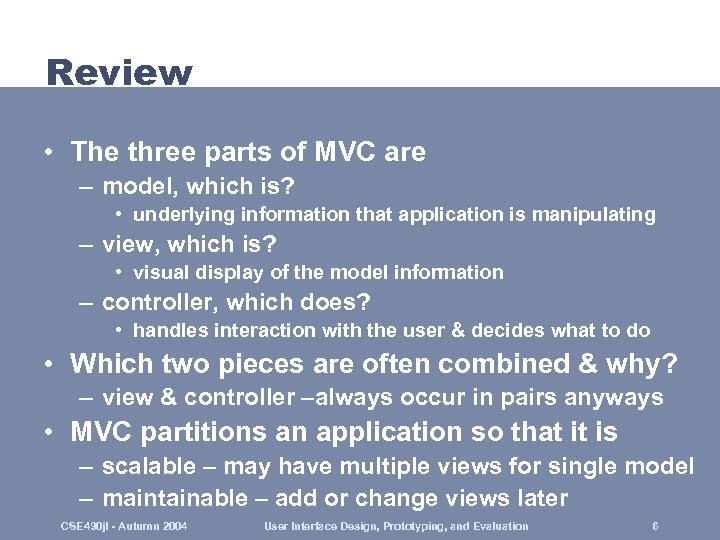 Review • The three parts of MVC are – model, which is? • underlying information that application is manipulating – view, which is? • visual display of the model information – controller, which does? • handles interaction with the user & decides what to do • Which two pieces are often combined & why? – view & controller –always occur in pairs anyways • MVC partitions an application so that it is – scalable – may have multiple views for single model – maintainable – add or change views later CSE 490 jl - Autumn 2004 User Interface Design, Prototyping, and Evaluation 6
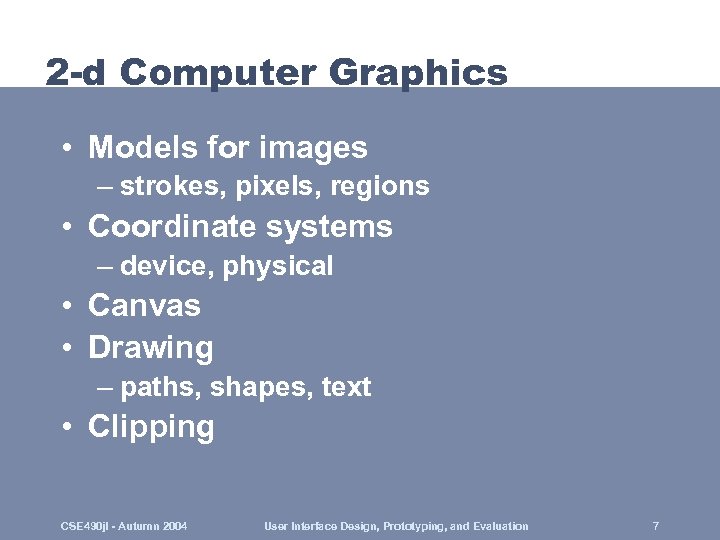 2 -d Computer Graphics • Models for images – strokes, pixels, regions • Coordinate systems – device, physical • Canvas • Drawing – paths, shapes, text • Clipping CSE 490 jl - Autumn 2004 User Interface Design, Prototyping, and Evaluation 7
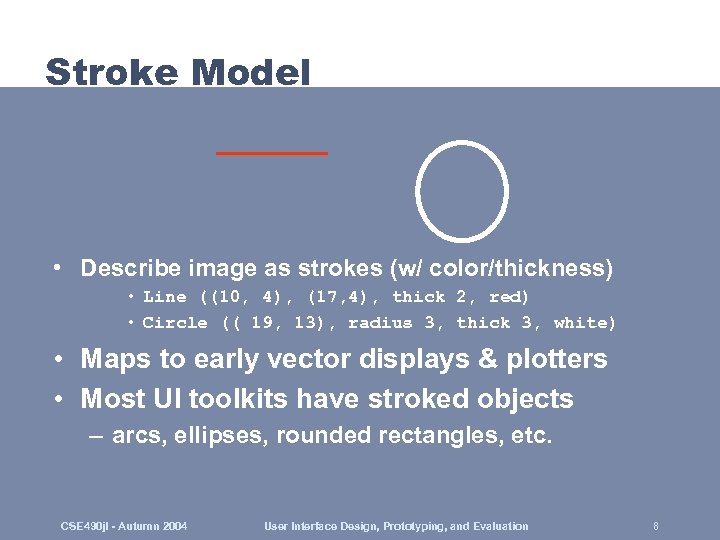 Stroke Model • Describe image as strokes (w/ color/thickness) • Line ((10, 4), (17, 4), thick 2, red) • Circle (( 19, 13), radius 3, thick 3, white) • Maps to early vector displays & plotters • Most UI toolkits have stroked objects – arcs, ellipses, rounded rectangles, etc. CSE 490 jl - Autumn 2004 User Interface Design, Prototyping, and Evaluation 8
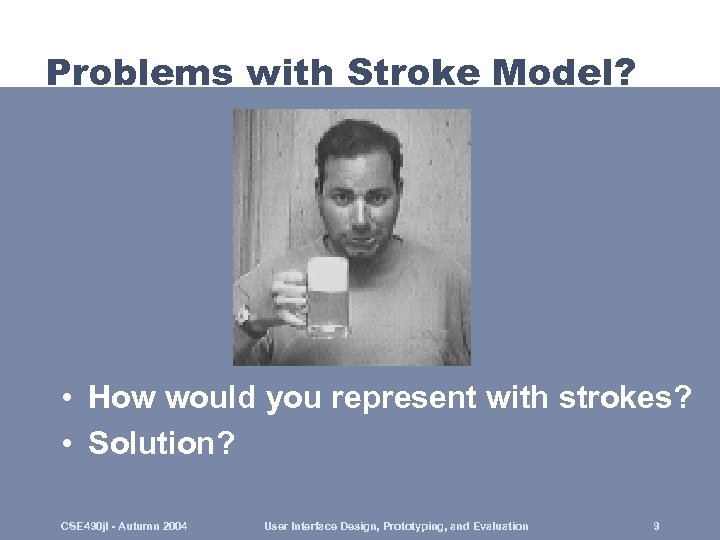 Problems with Stroke Model? • How would you represent with strokes? • Solution? CSE 490 jl - Autumn 2004 User Interface Design, Prototyping, and Evaluation 9
 Pixel Model • Break-up complex images into discrete “pixels” & store color for each • Resolution – spatial: number of rows by columns • e. g. , 1600 x 1200 is a good monitor display • quality laser printer: 6000 x 4800 – image depth (i. e. , number of bits per pixel) • several styles. . . what are they? ? CSE 490 jl - Autumn 2004 User Interface Design, Prototyping, and Evaluation 10
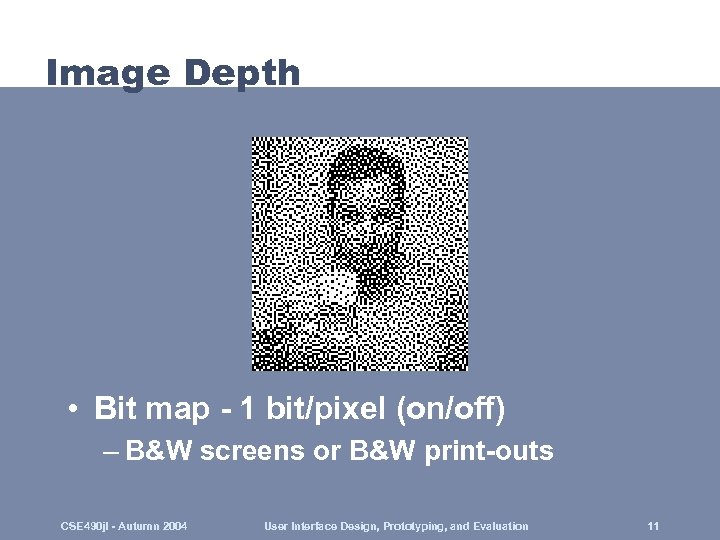 Image Depth • Bit map - 1 bit/pixel (on/off) – B&W screens or B&W print-outs CSE 490 jl - Autumn 2004 User Interface Design, Prototyping, and Evaluation 11
 Image Depth (cont. ) • Gray scale - 2 -8 bits/pixel – group pixels (some on, some off) • Full color - 24 bits/pixel – 8 bits per primary color (Red, Green, Blue) – potential problem? • space becomes a problem for high-res. images • Color mapped - 8 bits/pixel – store index @ pixel - map into table w/ 24 bits – cuts space & computation – problem? ? • only 256 colors on screen at a time – don’t see this much anymore – memory/disk cheap! CSE 490 jl - Autumn 2004 User Interface Design, Prototyping, and Evaluation 12
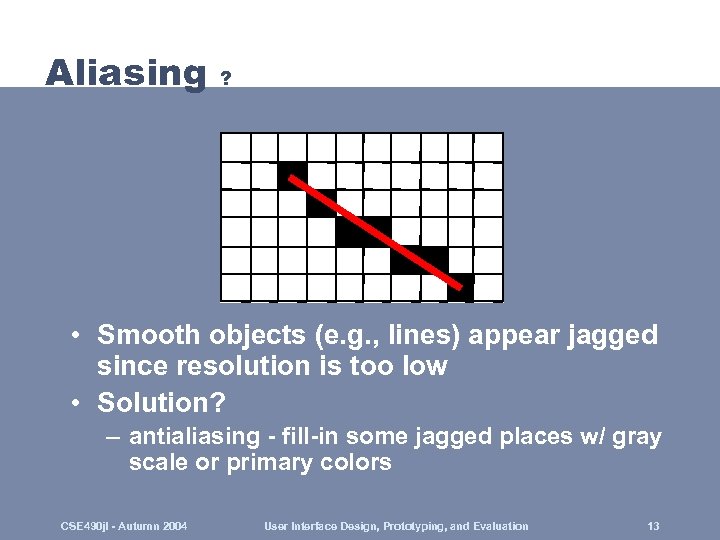 Aliasing ? • Smooth objects (e. g. , lines) appear jagged since resolution is too low • Solution? – antialiasing - fill-in some jagged places w/ gray scale or primary colors CSE 490 jl - Autumn 2004 User Interface Design, Prototyping, and Evaluation 13
 Region Model • Use the stroke model to outline region • Fill the region with – colors & blendings (i. e. , patterns) • Advantages? ? – allows representation of filled shapes w/ • little memory • independence from display resolution • Text represented this way & converted to bitmaps inside of the printer CSE 490 jl - Autumn 2004 User Interface Design, Prototyping, and Evaluation 14
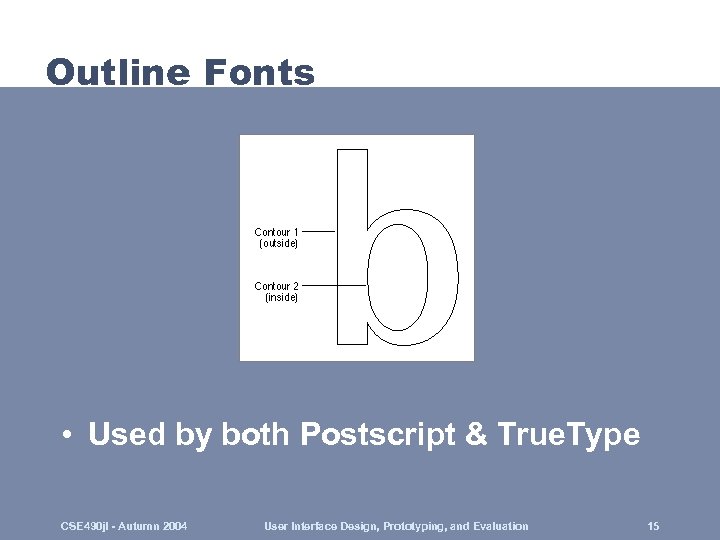 Outline Fonts • Used by both Postscript & True. Type CSE 490 jl - Autumn 2004 User Interface Design, Prototyping, and Evaluation 15
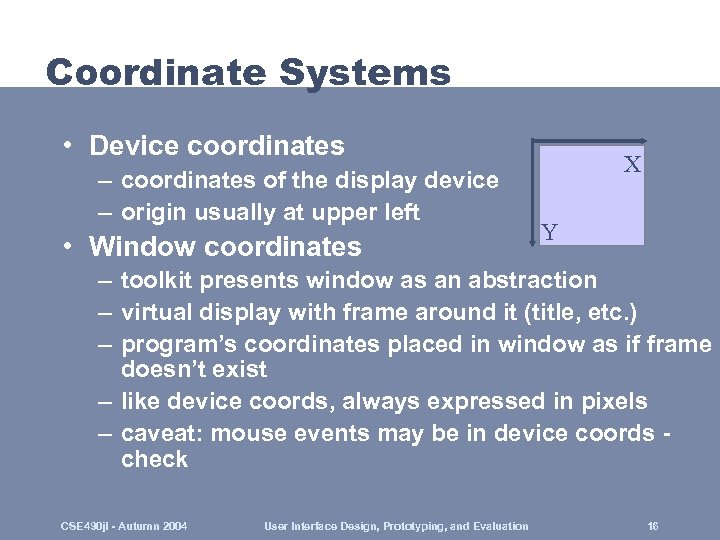 Coordinate Systems • Device coordinates – coordinates of the display device – origin usually at upper left • Window coordinates X Y – toolkit presents window as an abstraction – virtual display with frame around it (title, etc. ) – program’s coordinates placed in window as if frame doesn’t exist – like device coords, always expressed in pixels – caveat: mouse events may be in device coords check CSE 490 jl - Autumn 2004 User Interface Design, Prototyping, and Evaluation 16
 Coordinate Systems (cont. ) • Physical coordinates – pixel-based coords don’t deal well w/ devices of different resolutions (e. g. , monitor vs. printer) – specify coordinates in physical units (e. g. , inches, centimeters, or printer points) • Model coordinates – coordinate system relative to drawn objects – often need to convert from model to physical/window coordinates & back CSE 490 jl - Autumn 2004 User Interface Design, Prototyping, and Evaluation 17
 Canvas • Abstraction for the drawing surface – most toolkits support one • Defines methods used for drawing • Each instance has a height, width, & defines its physical units • Advantage: use the same API for – windows – image in memory – printed output • Called Graphical Device Interface (GDI) by MS CSE 490 jl - Autumn 2004 User Interface Design, Prototyping, and Evaluation 18
 Drawing • Could specify with: – void Canvas: : Rectangle (x 1, y 1, x 2, y 2, line. Width, line. Color, fill. Color) • Problem? – lots of parameters! • Solution – shapes have properties in common • geometry, line/border width, line/fill color, pattern • Use current settings of canvas – void Canvas: : Rectangle (x 1, y 1, x 2, y 2) – void Canvas: : Set. Line. Width (lw) – void Canvas: : Get. Line. Width () … CSE 490 jl - Autumn 2004 User Interface Design, Prototyping, and Evaluation 19
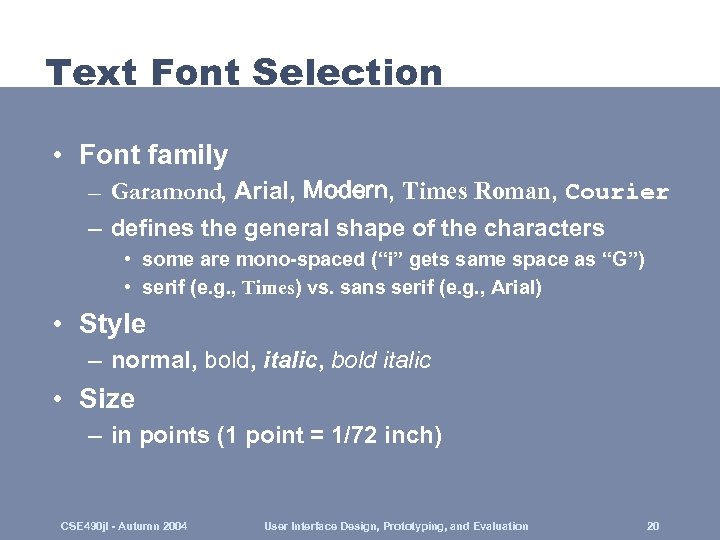 Text Font Selection • Font family – Garamond, Arial, Modern, Times Roman, Courier – defines the general shape of the characters • some are mono-spaced (“i” gets same space as “G”) • serif (e. g. , Times) vs. sans serif (e. g. , Arial) • Style – normal, bold, italic, bold italic • Size – in points (1 point = 1/72 inch) CSE 490 jl - Autumn 2004 User Interface Design, Prototyping, and Evaluation 20
 Text (cont. ) • Usually simple to draw • Canvas Cnv; • Cnv. Set. Font (“Times”, Bold, 10); • Cnv. Text (10, 20, “This is the text”); • Outline vs. Bitmapped fonts – need pixels to draw on screen so may store as BM • problems: takes lots of space if font is in several sizes – instead store as a closed shape (e. g. , outline only) – easy to scale to any size & convert to bitmap CSE 490 jl - Autumn 2004 User Interface Design, Prototyping, and Evaluation 21
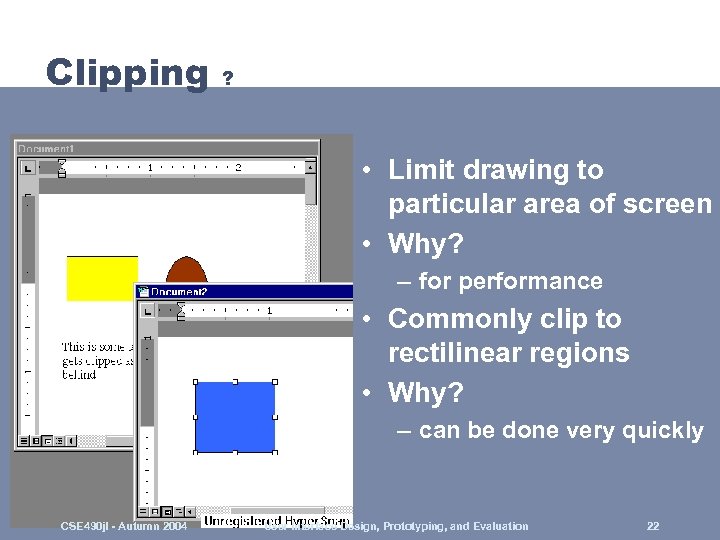 Clipping ? • Limit drawing to particular area of screen • Why? – for performance • Commonly clip to rectilinear regions • Why? – can be done very quickly CSE 490 jl - Autumn 2004 User Interface Design, Prototyping, and Evaluation 22
 Color Models • 256 levels for each primary adequate -> 24 bits / pixel • RGB model – specify color by red, green, & blue components • HSV model – hue, saturation, & value – hue is primary wavelength (i. e. , basic color) – saturation is a measure of how pure light is • high is pure, low means it is mixed w/ white/gray – value is intensity (dark vs. light) CSE 490 jl - Autumn 2004 User Interface Design, Prototyping, and Evaluation 23
 Color Models (cont. ) • HSV is easier for people to use. Why? – uses people’s intuition of what color is – there is a direct conversion to RGB • CMY model – in terms of mixtures of pigments – pigment gets color from light it absorbs & doesn’t reflect – mix Cyan, Magenta, Yellow • subtractive primaries – used by printers & artists CSE 490 jl - Autumn 2004 User Interface Design, Prototyping, and Evaluation 24
 Sequential Programs • Program takes control, prompts for input • Examples include – command-line prompts (DOS, UNIX) – LISP interpreter • The user waits on the program – program tells user it’s ready for more input – user enters more input CSE 490 jl - Autumn 2004 User Interface Design, Prototyping, and Evaluation 25
 Sequential Programs (cont. ) • Architecture Program reads in a line of text Program parses the text Program evaluates the result Maybe some output Loop back to beginning • But how do you model the many actions a user can take? – for example, a word processor? – need to do printing, editing, inserting, whenever user wants to CSE 490 jl - Autumn 2004 User Interface Design, Prototyping, and Evaluation 26
 Sequential Programs (cont. ) • Usually end up with lots of modes – lots of state variables • Other examples of modes – paint programs (line, bucket-fill, rectangle, etc) – universal remotes with TV / VCR mode – vi edit mode & command mode • Problems with modes? CSE 490 jl - Autumn 2004 User Interface Design, Prototyping, and Evaluation 27
 Sequential Programs (cont. ) • Problems with modes? – gets confusing if too many modes – can be easy to make errors – how to switch between modes? • Need feedback as to what mode you are in • We’ll need a more advanced model to simplify windows programming CSE 490 jl - Autumn 2004 User Interface Design, Prototyping, and Evaluation 28
 Event-Driven Programming • Instead of the user waiting on program, have the program wait on the user • All communication from user to computer is done via “events” • An event is something “interesting” that happens in the system – mouse button goes down – item is being dragged – keyboard button was hit CSE 490 jl - Autumn 2004 User Interface Design, Prototyping, and Evaluation 29
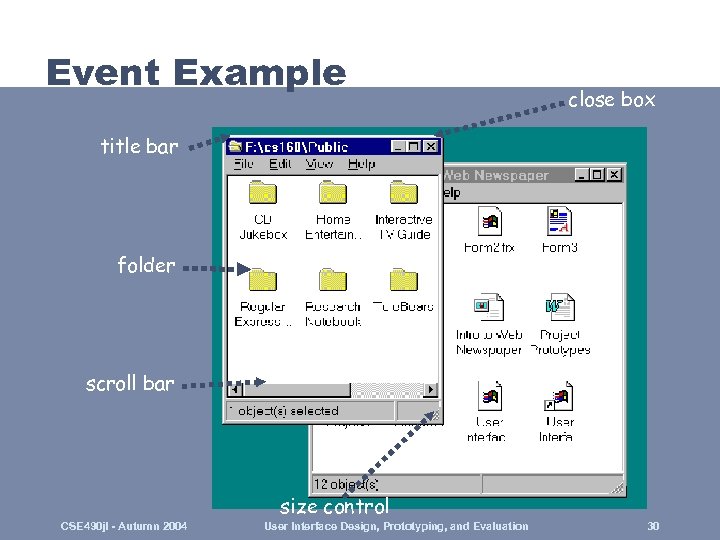 Event Example close box title bar folder scroll bar size control CSE 490 jl - Autumn 2004 User Interface Design, Prototyping, and Evaluation 30
 Major Issues • How to decompose the UI into interactive objects? • How to distribute input to the interactive objects • How to partition between application & system software? • Models for programming interactive objects • Models for communications between objects CSE 490 jl - Autumn 2004 User Interface Design, Prototyping, and Evaluation 31
 Windowing Systems • Partitioning to prevent chaos • Infrastructure to support common services • Two major aspects – software services to applications • create & organize windows • implement interaction in those windows – window manager • UI allowing user to control size & placement of windows CSE 490 jl - Autumn 2004 User Interface Design, Prototyping, and Evaluation 32
 Interactor Tree • Decompose interactive objects into a tree – interactive objects also known as “widgets” – based on screen geometry of objects – nested rectangles • Used for dispatching events – events are dispatched (sent) to code in widget – the code then handles the event • Variety of methods for dispatching events – return to this later CSE 490 jl - Autumn 2004 User Interface Design, Prototyping, and Evaluation 33
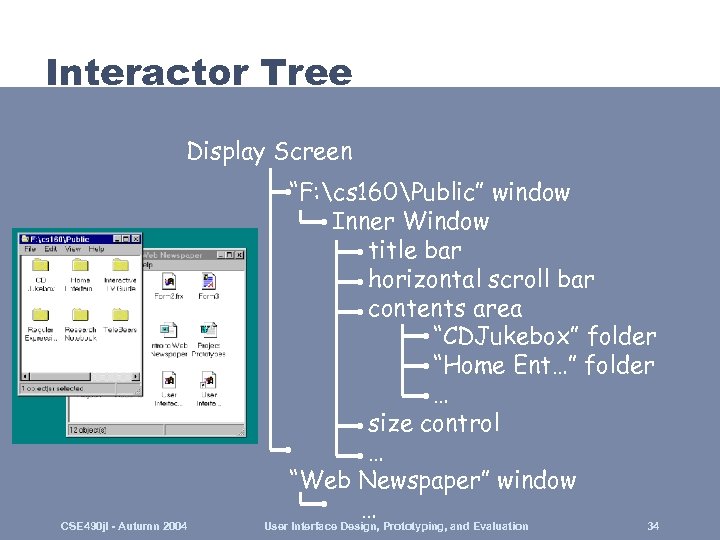 Interactor Tree Display Screen CSE 490 jl - Autumn 2004 “F: cs 160Public” window Inner Window title bar horizontal scroll bar contents area “CDJukebox” folder “Home Ent…” folder … size control … “Web Newspaper” window … User Interface Design, Prototyping, and Evaluation 34
![Interactor Tree 7 4 1 0 Display Screen 93. 54 Outer Win [white] ?](https://present5.com/presentation/1af9ff88c0059b663a2425d30a983dc4/image-35.jpg "Interactor Tree 7 4 1 0 Display Screen 93. 54 Outer Win [white] ?") Interactor Tree 7 4 1 0 Display Screen 93. 54 Outer Win [white] ? ? ? 8 9 5 2 + = 6 3 ENT CSE 490 jl - Autumn 2004 User Interface Design, Prototyping, and Evaluation 35
Interactor Tree 7 4 1 0 Display Screen 93. 54 Outer Win [white] ? ? ? 8 9 5 2 + = 6 3 ENT CSE 490 jl - Autumn 2004 User Interface Design, Prototyping, and Evaluation 35
![Interactor Tree 7 4 1 0 Display Screen 93. 54 Outer Win [white] Inner](https://present5.com/presentation/1af9ff88c0059b663a2425d30a983dc4/image-36.jpg "Interactor Tree 7 4 1 0 Display Screen 93. 54 Outer Win [white] Inner") Interactor Tree 7 4 1 0 Display Screen 93. 54 Outer Win [white] Inner Win [green] 8 9 Result Win [tan] 5 6 Result String 2 3 Keypad [Teal] + = button = ENT - button + button 0 button CSE 490 jl - Autumn 2004 User Interface Design, Prototyping, and Evaluation 36
Interactor Tree 7 4 1 0 Display Screen 93. 54 Outer Win [white] Inner Win [green] 8 9 Result Win [tan] 5 6 Result String 2 3 Keypad [Teal] + = button = ENT - button + button 0 button CSE 490 jl - Autumn 2004 User Interface Design, Prototyping, and Evaluation 36
![Interactor Tree (Java) 7 4 1 0 Display Screen 93. 54 Frame [white] Panel](https://present5.com/presentation/1af9ff88c0059b663a2425d30a983dc4/image-37.jpg "Interactor Tree (Java) 7 4 1 0 Display Screen 93. 54 Frame [white] Panel") Interactor Tree (Java) 7 4 1 0 Display Screen 93. 54 Frame [white] Panel [green] 8 9 Text Entry [tan] 5 6 Result String 2 3 Keypad Panel [Teal] + Button(“=”) = ENT Button(“-”) Button(“+”) Button(“ 0”) CSE 490 jl - Autumn 2004 User Interface Design, Prototyping, and Evaluation 37
Interactor Tree (Java) 7 4 1 0 Display Screen 93. 54 Frame [white] Panel [green] 8 9 Text Entry [tan] 5 6 Result String 2 3 Keypad Panel [Teal] + Button(“=”) = ENT Button(“-”) Button(“+”) Button(“ 0”) CSE 490 jl - Autumn 2004 User Interface Design, Prototyping, and Evaluation 37
 Windows • Top level windows known as root windows – provide UI abstraction for multiple apps – windowing system arbitrates interactive resources • Each root window belongs to an application – all descendant windows belong to same app. – violated by Active. X • Windows vs. widgets/controls – X, Ne. XTStep (OSX), MS Windows • everything is window CSE 490 jl - Autumn 2004 User Interface Design, Prototyping, and Evaluation 38
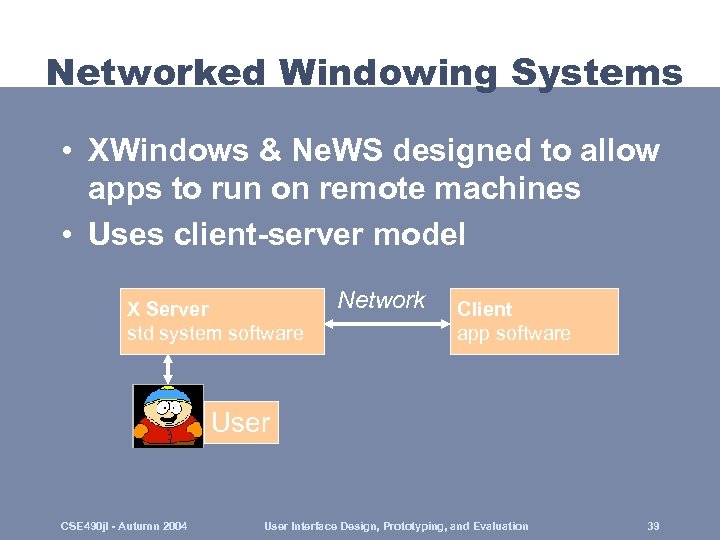 Networked Windowing Systems • XWindows & Ne. WS designed to allow apps to run on remote machines • Uses client-server model X Server std system software Network Client app software User CSE 490 jl - Autumn 2004 User Interface Design, Prototyping, and Evaluation 39
 XWindows • Note backwards terminology – user is on “server” not “client” • X Server – interprets X commands & can send events – determines which window receives events & forwards over network to proper client • X Client – software interface to X (Xlib) – assembles the output from Xlib routines into packets for transmission to server CSE 490 jl - Autumn 2004 User Interface Design, Prototyping, and Evaluation 40
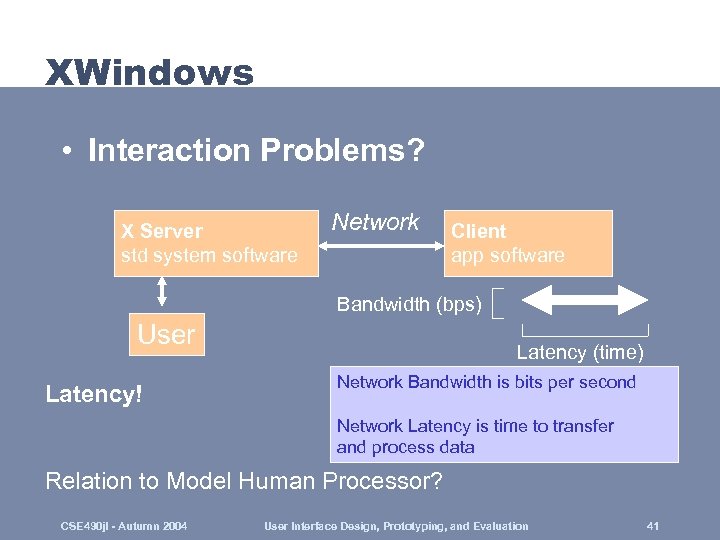 XWindows • Interaction Problems? X Server std system software Network Client app software Bandwidth (bps) User Latency! Latency (time) Network Bandwidth is bits per second Network Latency is time to transfer and process data Relation to Model Human Processor? CSE 490 jl - Autumn 2004 User Interface Design, Prototyping, and Evaluation 41
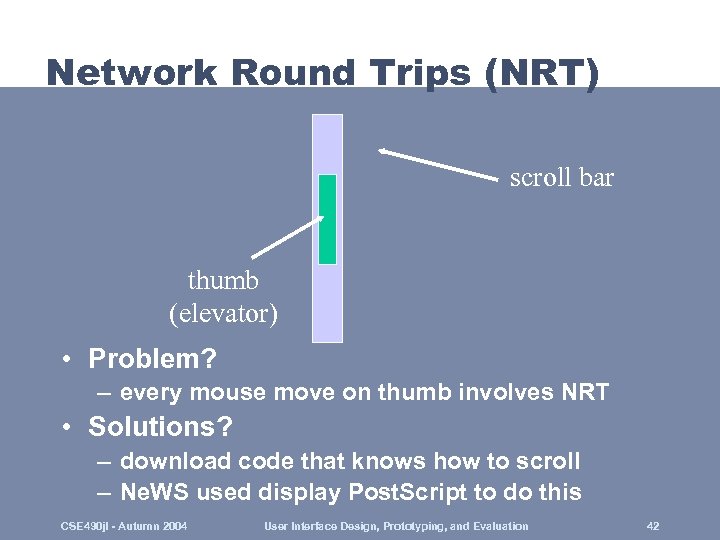 Network Round Trips (NRT) scroll bar thumb (elevator) • Problem? – every mouse move on thumb involves NRT • Solutions? – download code that knows how to scroll – Ne. WS used display Post. Script to do this CSE 490 jl - Autumn 2004 User Interface Design, Prototyping, and Evaluation 42
 Window Events • User interacts with input device – action translated into software events – must distribute events to appropriate window – doesn’t need IPC, use method/procedure call • Events have – type – mouse position or character key – the window the event is directed to CSE 490 jl - Autumn 2004 User Interface Design, Prototyping, and Evaluation 43
 Input Events • Mouse button events – mouse up & down – modifier (shift keys, etc. ) – double click (X doesn’t have this -> fakes it) • Mouse movement events – implement painting with mouse – mouse drag • Mouse enter and exit events – e. g. , if you entered / exited a button region CSE 490 jl - Autumn 2004 User Interface Design, Prototyping, and Evaluation 44
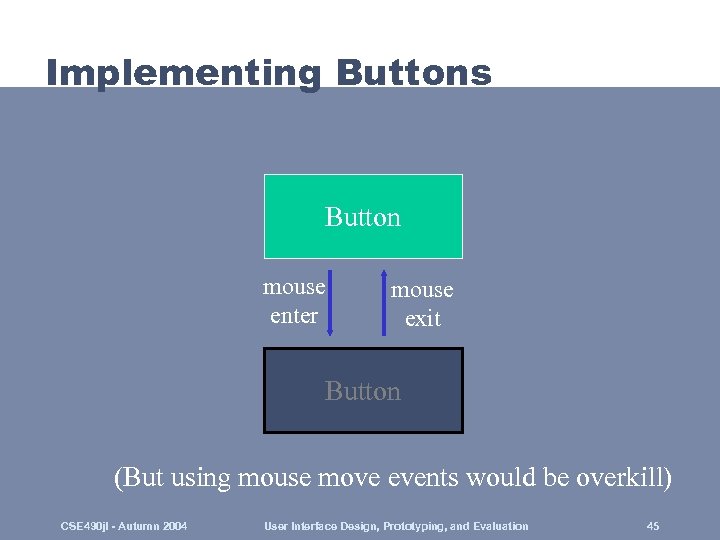 Implementing Buttons Button mouse enter mouse exit Button (But using mouse move events would be overkill) CSE 490 jl - Autumn 2004 User Interface Design, Prototyping, and Evaluation 45
 Events (cont. ) • Keyboard events – must translate raw “scan codes” into ASCII • Windowing events on window – – – creation / destruction opening / closing iconifying / deiconifying selection / deselection resize redraw • redraw newly exposed portions of the window (rect. ) CSE 490 jl - Autumn 2004 User Interface Design, Prototyping, and Evaluation 46
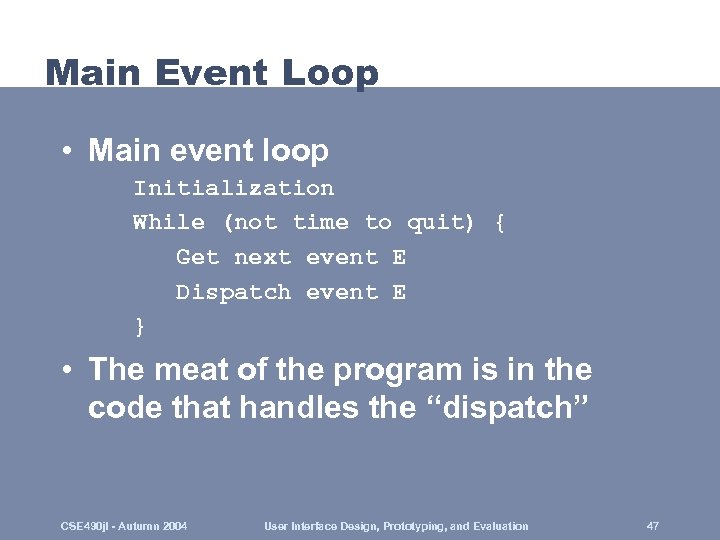 Main Event Loop • Main event loop Initialization While (not time to quit) { Get next event E Dispatch event E } • The meat of the program is in the code that handles the “dispatch” CSE 490 jl - Autumn 2004 User Interface Design, Prototyping, and Evaluation 47
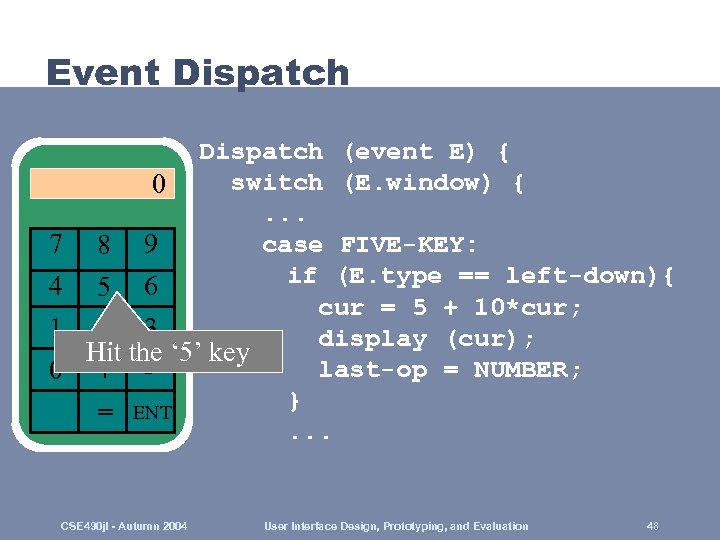 Event Dispatch 7 4 1 0 Dispatch (event E) { switch (E. window) { 0. . . case FIVE-KEY: 8 9 if (E. type == left-down){ 5 6 cur = 5 + 10*cur; 2 3 display (cur); Hit the ‘ 5’ key last-op = NUMBER; + } = ENT. . . CSE 490 jl - Autumn 2004 User Interface Design, Prototyping, and Evaluation 48
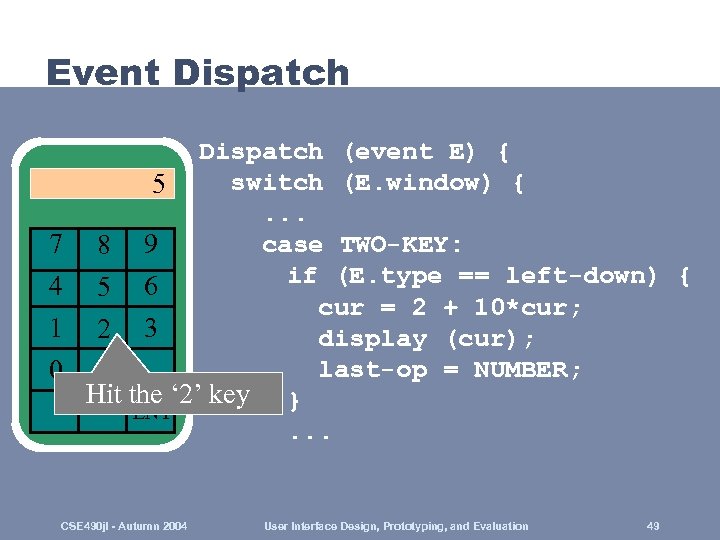 Event Dispatch 7 4 1 0 Dispatch (event E) { switch (E. window) { 5. . . case TWO-KEY: 8 9 if (E. type == left-down) { 5 6 cur = 2 + 10*cur; 2 3 display (cur); last-op = NUMBER; + Hit the ‘ 2’ key } = ENT. . . CSE 490 jl - Autumn 2004 User Interface Design, Prototyping, and Evaluation 49
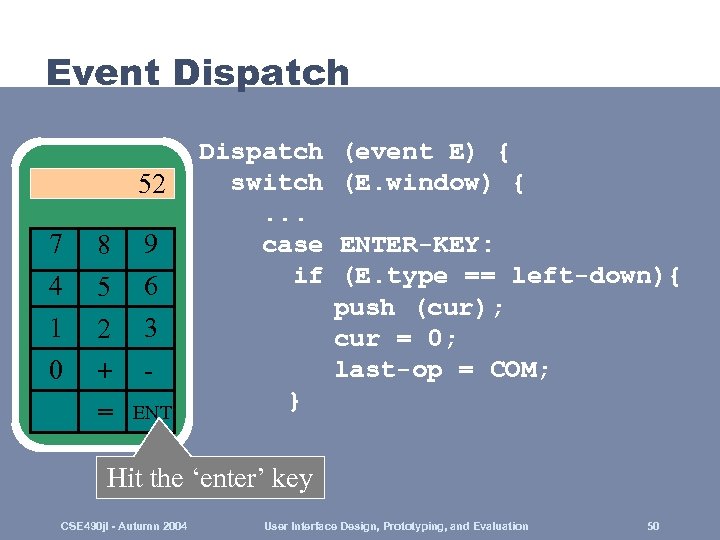 Event Dispatch 52 7 4 1 0 8 5 2 + = 9 6 3 Dispatch switch. . . case if ENT (event E) { (E. window) { ENTER-KEY: (E. type == left-down){ push (cur); cur = 0; last-op = COM; }. . . Hit the ‘enter’ key CSE 490 jl - Autumn 2004 User Interface Design, Prototyping, and Evaluation 50
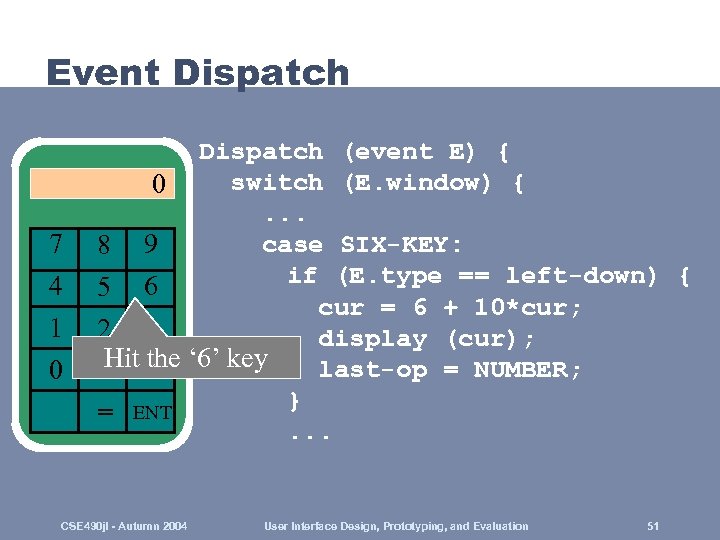 Event Dispatch 7 4 1 0 Dispatch (event E) { switch (E. window) { 0. . . case SIX-KEY: 8 9 if (E. type == left-down) { 5 6 cur = 6 + 10*cur; 2 3 display (cur); Hit the last-op = NUMBER; + - ‘ 6’ key } = ENT. . . CSE 490 jl - Autumn 2004 User Interface Design, Prototyping, and Evaluation 51
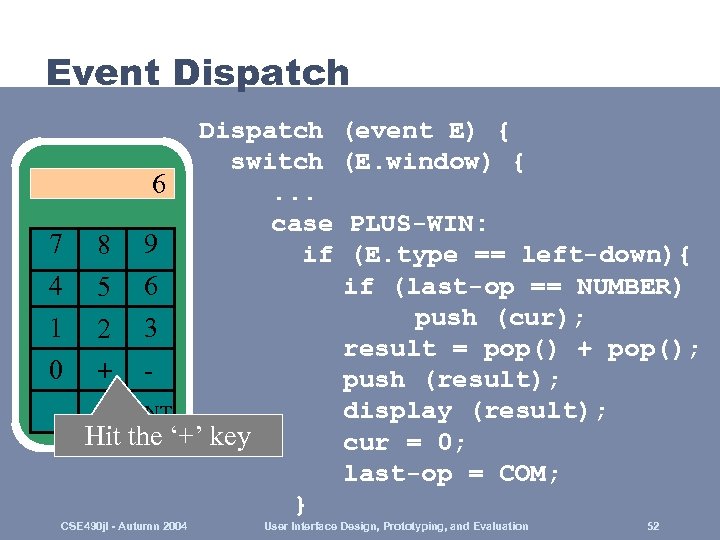 Event Dispatch 7 4 1 0 Dispatch (event E) { switch (E. window) { 6. . . case PLUS-WIN: 8 9 if (E. type == left-down){ if (last-op == NUMBER) 5 6 push (cur); 2 3 result = pop() + pop(); + push (result); display (result); = ENT Hit the ‘+’ key cur = 0; last-op = COM; } CSE 490 jl - Autumn 2004 User Interface Design, Prototyping, and Evaluation 52
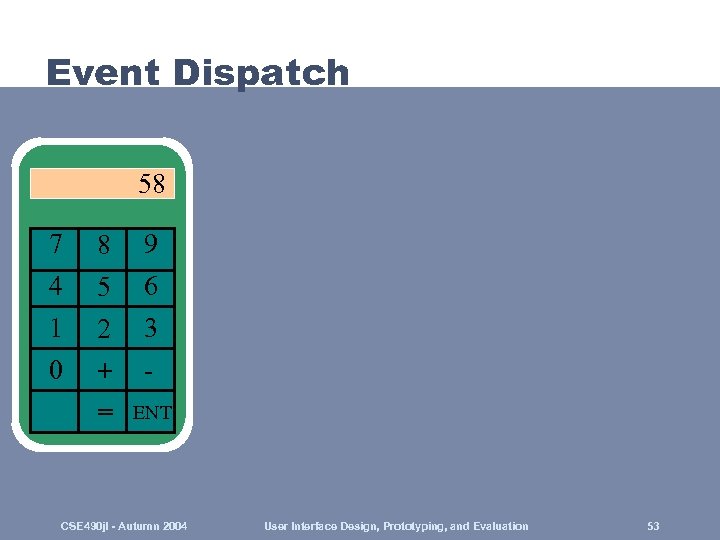 Event Dispatch 58 7 4 1 0 8 5 2 + = 9 6 3 ENT CSE 490 jl - Autumn 2004 User Interface Design, Prototyping, and Evaluation 53
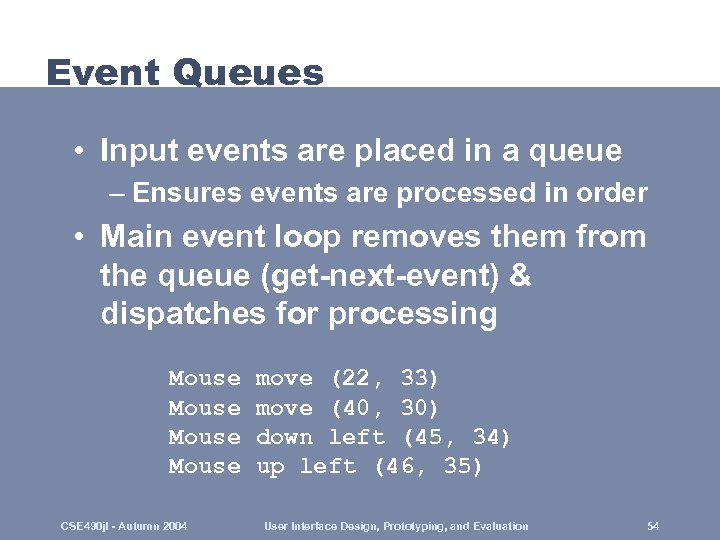 Event Queues • Input events are placed in a queue – Ensures events are processed in order • Main event loop removes them from the queue (get-next-event) & dispatches for processing Mouse CSE 490 jl - Autumn 2004 move (22, 33) move (40, 30) down left (45, 34) up left (46, 35) User Interface Design, Prototyping, and Evaluation 54
 Event Queues (cont. ) • Can use event masks to filter unwanted events – e. g. , filter mouse moves in a forms-based program • just get enter/exit events CSE 490 jl - Autumn 2004 User Interface Design, Prototyping, and Evaluation 55
 Object-Oriented Event Handling • Older methods prone to programmer error • OO languages more naturally handle passing messages between independent objects CSE 490 jl - Autumn 2004 User Interface Design, Prototyping, and Evaluation 56
 Object-Oriented Event Loop • Toolkit defines an application class – provides a run method which contains event loop – technique used by Visual C++ and Mac. Application my. App; Intialize windows & application data structures Set any special event masks by sending messages to my. App. Run(); CSE 490 jl - Autumn 2004 User Interface Design, Prototyping, and Evaluation 57
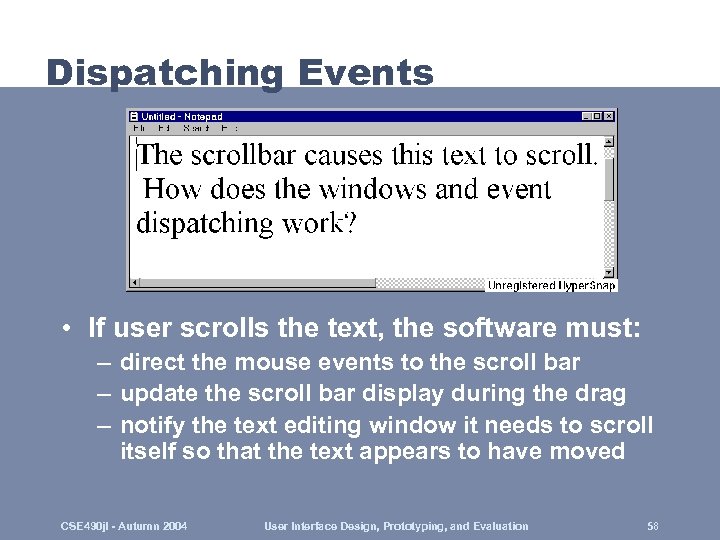 Dispatching Events • If user scrolls the text, the software must: – direct the mouse events to the scroll bar – update the scroll bar display during the drag – notify the text editing window it needs to scroll itself so that the text appears to have moved CSE 490 jl - Autumn 2004 User Interface Design, Prototyping, and Evaluation 58
 Dispatching Events (cont. ) • Algorithm selects the bottom-most, front-most region in the interactor tree – – – scroll bar or contents over outerwin (bottom-most) scroll bar over contents (front-most) each window need only consider its own events difficult to impose a high level of control known as bottom-first event dispatch • Top-down event dispatch – events passed to top-most, front-most window – it dispatches to one or more of its children. . . CSE 490 jl - Autumn 2004 User Interface Design, Prototyping, and Evaluation 59
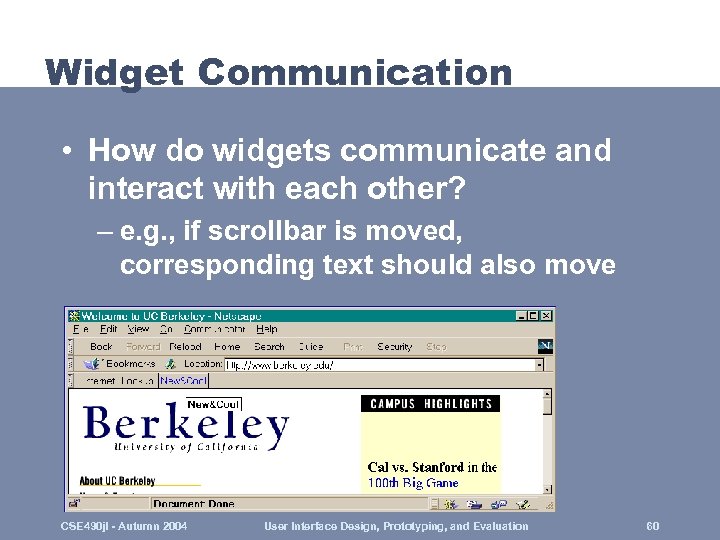 Widget Communication • How do widgets communicate and interact with each other? – e. g. , if scrollbar is moved, corresponding text should also move CSE 490 jl - Autumn 2004 User Interface Design, Prototyping, and Evaluation 60
 Widget Communication (cont. ) • Pseudo-events – create new events for inter-widget communication – send pseudo-event to the right widget – pseudo because it does not represent real input CSE 490 jl - Autumn 2004 User Interface Design, Prototyping, and Evaluation 61
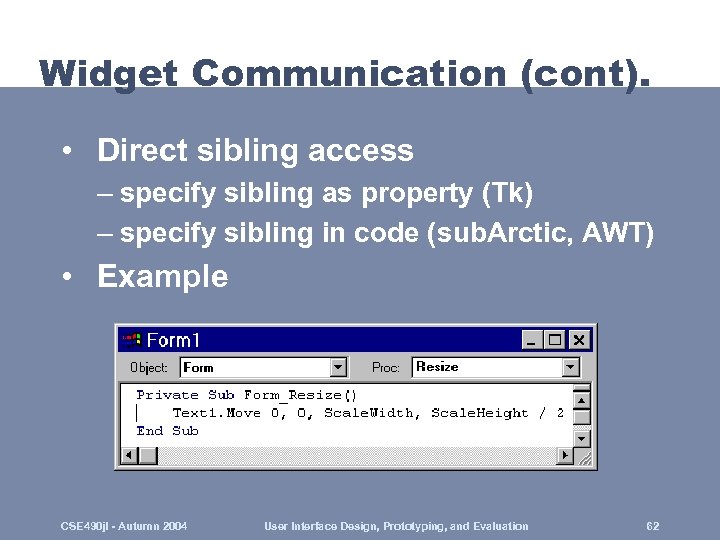 Widget Communication (cont). • Direct sibling access – specify sibling as property (Tk) – specify sibling in code (sub. Arctic, AWT) • Example CSE 490 jl - Autumn 2004 User Interface Design, Prototyping, and Evaluation 62
 Widget Communication (cont. ) • Parent notification – each widget has a unique identifier – widgets notify parent widget of any changes that have occurred – parent does the “right thing” CSE 490 jl - Autumn 2004 User Interface Design, Prototyping, and Evaluation 63
 Event Focus • Where should keyboard events go? – mouse-based • attach mouse position to all key events and dispatch events in the same way as mouse events – click-to-type (Mac) • send all key events to last window where mouse down occurred • key focus – windows take & give away keyboard focus • Mouse focus – long narrow scrollbar. . . problem? CSE 490 jl - Autumn 2004 User Interface Design, Prototyping, and Evaluation 64
 Callback Example • How do we notify text window to scroll when the scroll bar is moved? – create a vertical scroll bar widget – write a callback procedure which has code to notify text windows of their new position – register callback with scroll bar as callback to invoke when the scroll bar is moved – also register a pointer to the text window as the callback data -> knows which window to scroll CSE 490 jl - Autumn 2004 User Interface Design, Prototyping, and Evaluation 65
 Summary • Models for images ? – strokes, pixels, regions – what is good about the stroke model? • saves space & computation, but can’t represent images well – what is aliasing & how do we fix it? • jaggies due to low resolution -> antialias (partially fill in adjacent pixels) • Clipping ? – drawing only regions that are visible to the user • Windowing systems – special problem with networked WS? • latency • Input events, such as – keyboard, mouse, window, etc. • Main event loop – used to dispatch events • Interactor trees used for – figuring out where to dispatch events • Dispatching events – two main ways… • Event focus determines – what widget current events go to CSE 490 jl - Autumn 2004 User Interface Design, Prototyping, and Evaluation 66
 Next Time • Advanced User Testing – Appendix A from The Design of Sites – Gomoll paper – Statistica Ch 1, and parts of Ch 3 – Lewis & Rieman Ch. 5 • Project Demos in HCI Lab CSE 490 jl - Autumn 2004 User Interface Design, Prototyping, and Evaluation 67