


 Скачать презентацию Tomorrow s Technology and You 8 th Edition
525d5ddf006bbbf86e201c5d0ca91b58.ppt
- Количество слайдов: 42
 Tomorrow’s Technology and You 8 th Edition © 2008 Prentice-Hall, Inc. Slide 1
 Chapter 3 Hardware Basics: Peripherals © 2008 Prentice-Hall, Inc. Slide 2
 Chapter 3 Objectives ü List several examples of input devices and explain how they can make it easier to get different types of information into the computer. ü List several examples of output devices and the explain how they make computers more useful. ü Explain why a typical computer has different types of storage devices. ü Diagram how the components of a computer system fit together. © 2008 Prentice-Hall, Inc. Slide 3
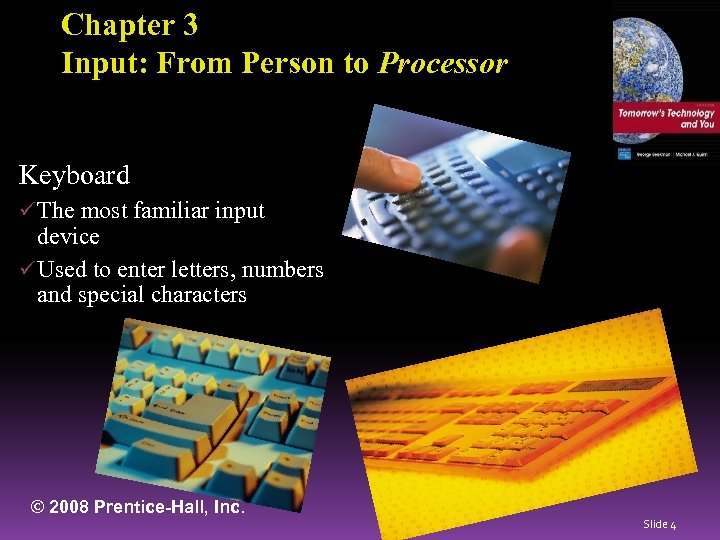 Chapter 3 Input: From Person to Processor Keyboard ü The most familiar input device ü Used to enter letters, numbers and special characters © 2008 Prentice-Hall, Inc. Slide 4
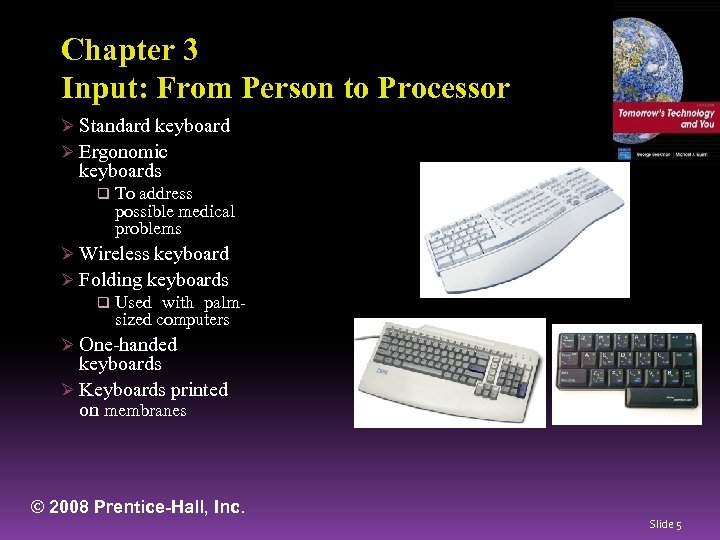 Chapter 3 Input: From Person to Processor Ø Standard keyboard Ø Ergonomic keyboards q To address possible medical problems Ø Wireless keyboard Ø Folding keyboards q Used with palmsized computers Ø One-handed keyboards Ø Keyboards printed on membranes © 2008 Prentice-Hall, Inc. Slide 5
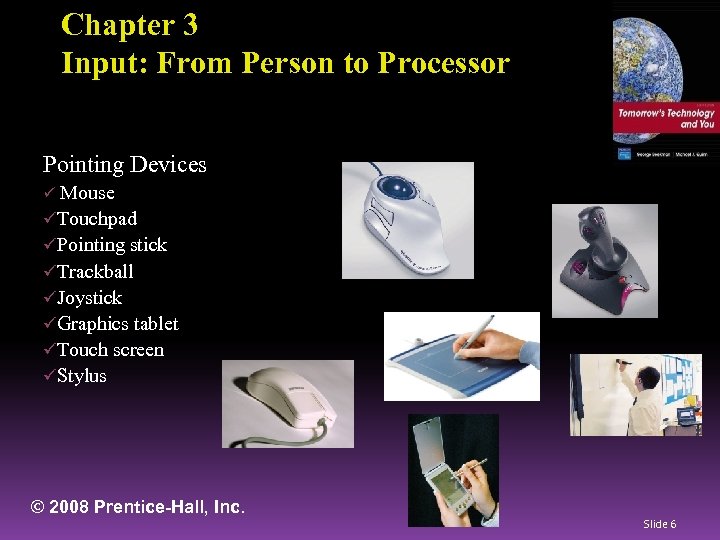 Chapter 3 Input: From Person to Processor Pointing Devices ü Mouse üTouchpad üPointing stick üTrackball üJoystick üGraphics tablet üTouch screen üStylus © 2008 Prentice-Hall, Inc. Slide 6
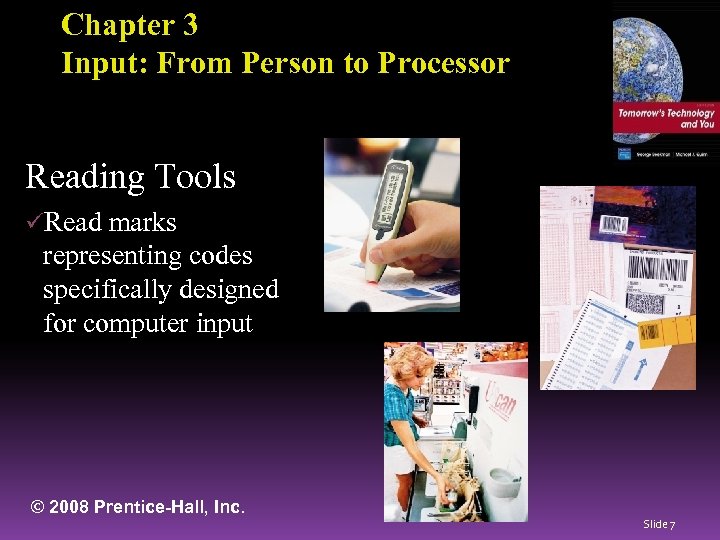 Chapter 3 Input: From Person to Processor Reading Tools üRead marks representing codes specifically designed for computer input © 2008 Prentice-Hall, Inc. Slide 7
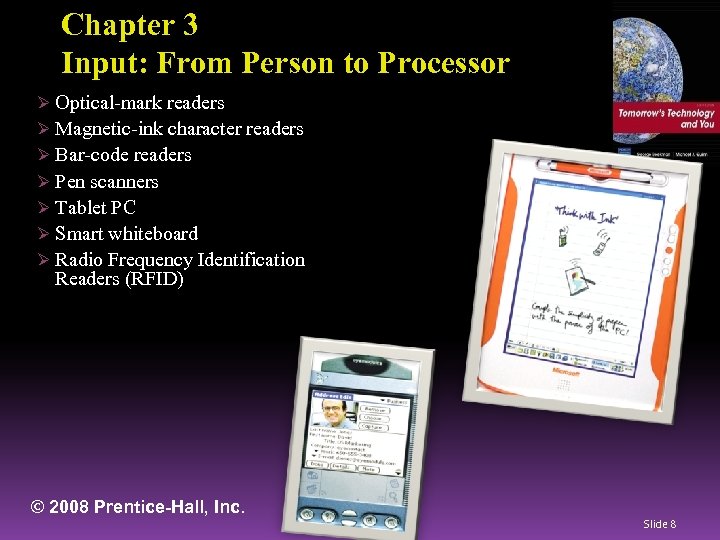 Chapter 3 Input: From Person to Processor Ø Optical-mark readers Ø Magnetic-ink character readers Ø Bar-code readers Ø Pen scanners Ø Tablet PC Ø Smart whiteboard Ø Radio Frequency Identification Readers (RFID) © 2008 Prentice-Hall, Inc. Slide 8
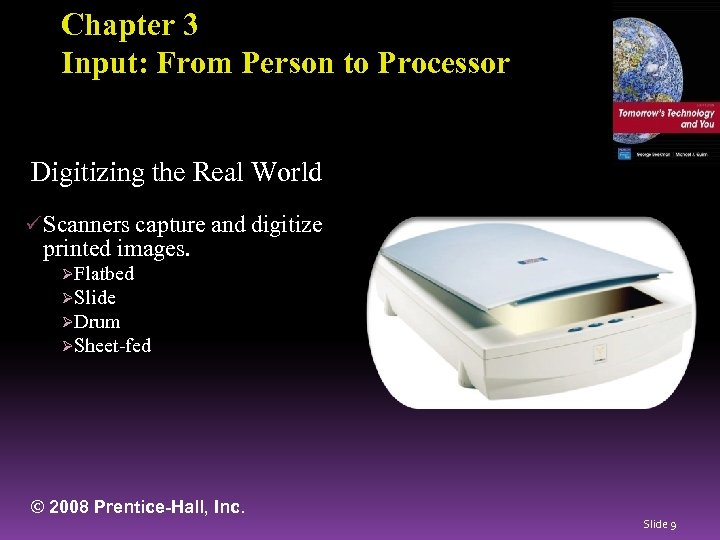 Chapter 3 Input: From Person to Processor Digitizing the Real World ü Scanners capture and digitize printed images. ØFlatbed ØSlide ØDrum ØSheet-fed © 2008 Prentice-Hall, Inc. Slide 9
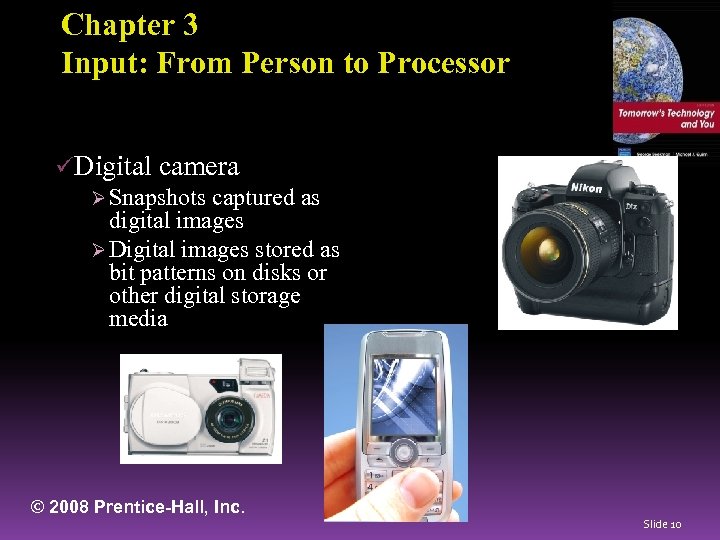 Chapter 3 Input: From Person to Processor üDigital camera Ø Snapshots captured as digital images Ø Digital images stored as bit patterns on disks or other digital storage media © 2008 Prentice-Hall, Inc. Slide 10
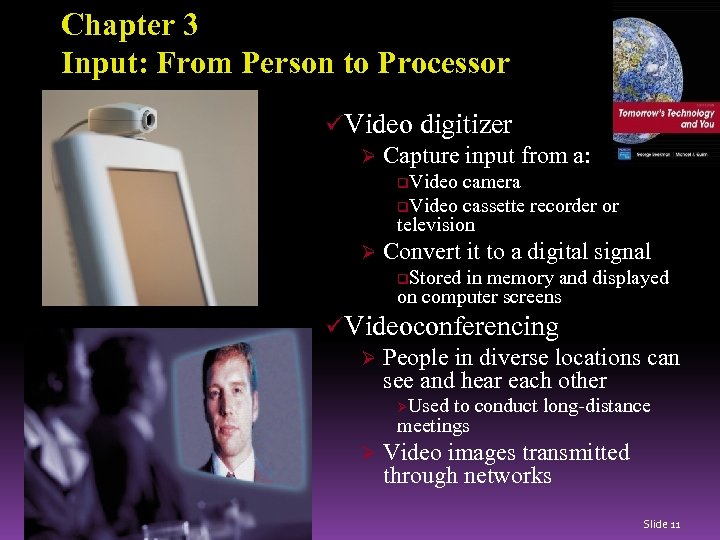 Chapter 3 Input: From Person to Processor üVideo digitizer Ø Capture input from a: q. Video camera q. Video cassette recorder or television Ø Convert it to a digital signal q. Stored in memory and displayed on computer screens üVideoconferencing Ø People in diverse locations can see and hear each other ØUsed to conduct long-distance meetings Ø © 2008 Prentice-Hall, Inc. Video images transmitted through networks Slide 11
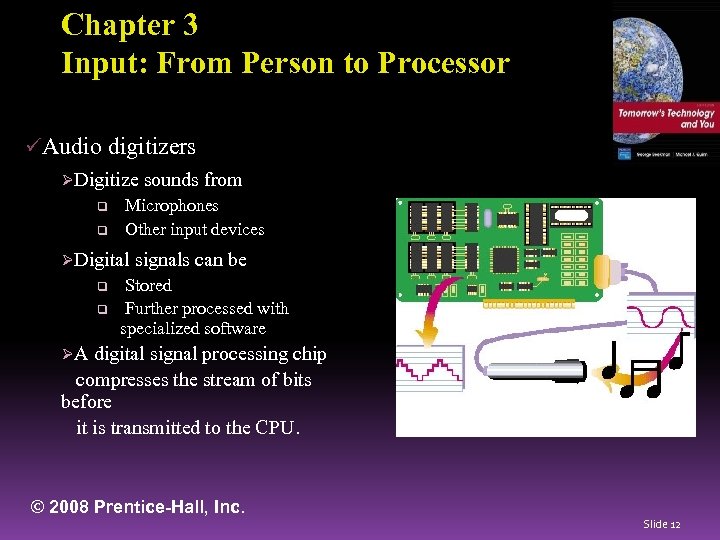 Chapter 3 Input: From Person to Processor üAudio digitizers ØDigitize q q Microphones Other input devices ØDigital q q sounds from signals can be Stored Further processed with specialized software ØA digital signal processing chip compresses the stream of bits before it is transmitted to the CPU. © 2008 Prentice-Hall, Inc. Slide 12
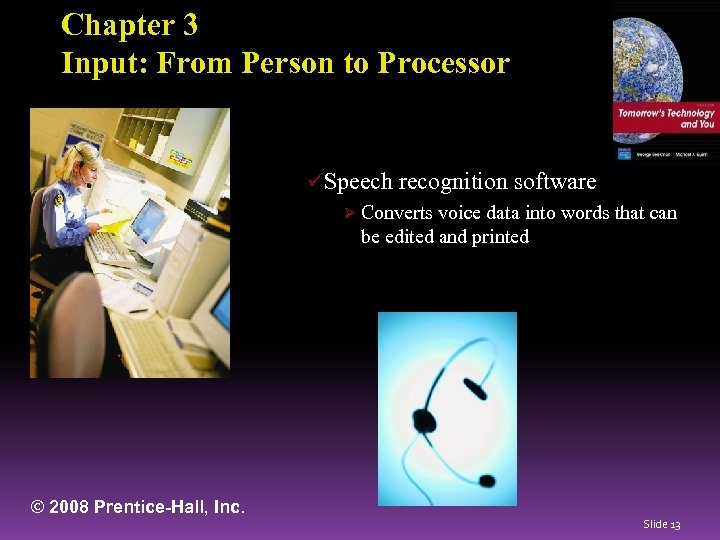 Chapter 3 Input: From Person to Processor üSpeech recognition software Ø Converts voice data into words that can be edited and printed © 2008 Prentice-Hall, Inc. Slide 13
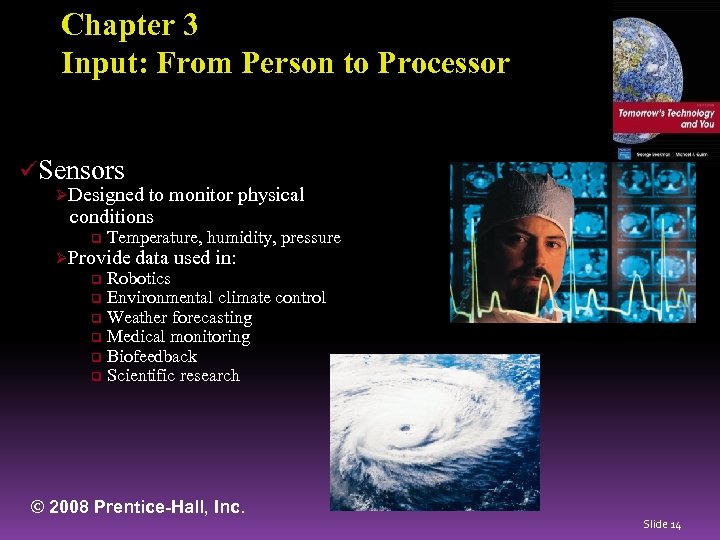 Chapter 3 Input: From Person to Processor üSensors ØDesigned to monitor physical conditions q Temperature, humidity, pressure ØProvide data used in: Robotics q Environmental climate control q Weather forecasting q Medical monitoring q Biofeedback q Scientific research q © 2008 Prentice-Hall, Inc. Slide 14
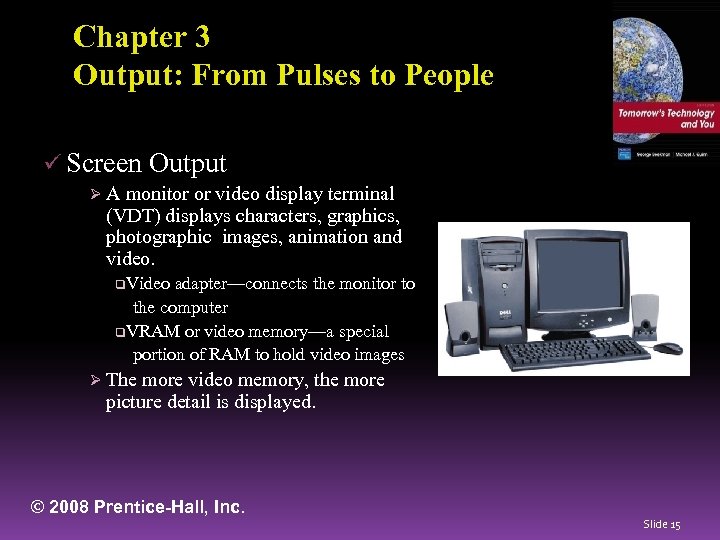 Chapter 3 Output: From Pulses to People ü Screen Output ØA monitor or video display terminal (VDT) displays characters, graphics, photographic images, animation and video. q. Video adapter—connects the monitor to the computer q. VRAM or video memory—a special portion of RAM to hold video images Ø The more video memory, the more picture detail is displayed. © 2008 Prentice-Hall, Inc. Slide 15
 Chapter 3 Output: From Pulses to People Ø Monitor size: Measured as a diagonal line across the screen Ø Resolution: The number of pixels displayed on the screen q. Pixels (or picture elements): tiny dots that compose a picture q. The higher the resolution, the closer together the dots. Ø Image quality is affected by resolution and color depth (or bit depth). q. Color depth refers to the number of different colors a monitor displays at one time. © 2008 Prentice-Hall, Inc. Slide 16
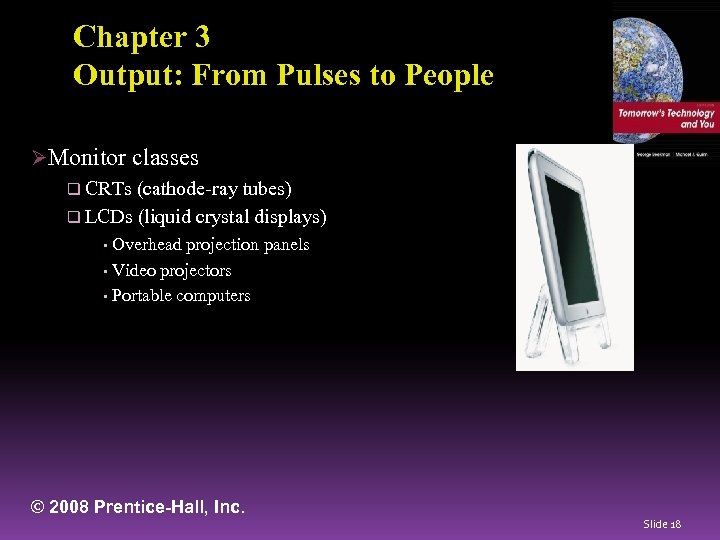 Chapter 3 Output: From Pulses to People ØMonitor classes q CRTs (cathode-ray tubes) q LCDs (liquid crystal displays) Overhead projection panels • Video projectors • Portable computers • © 2008 Prentice-Hall, Inc. Slide 18
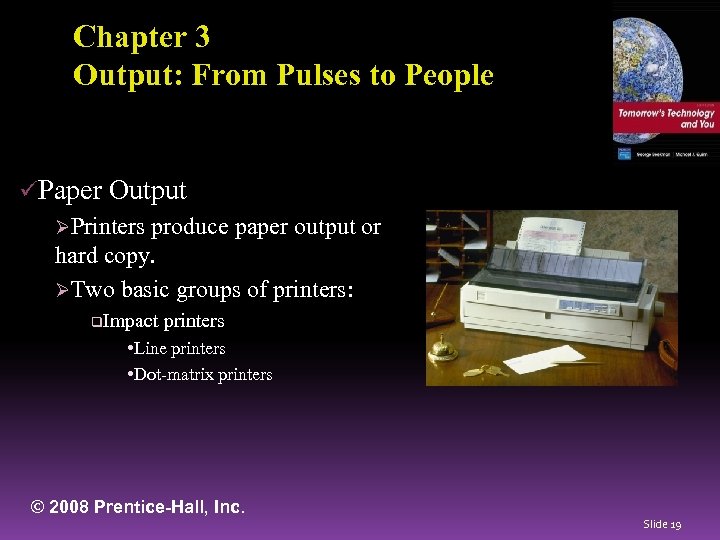 Chapter 3 Output: From Pulses to People üPaper Output ØPrinters produce paper output or hard copy. ØTwo basic groups of printers: q. Impact printers • Line printers • Dot-matrix printers © 2008 Prentice-Hall, Inc. Slide 19
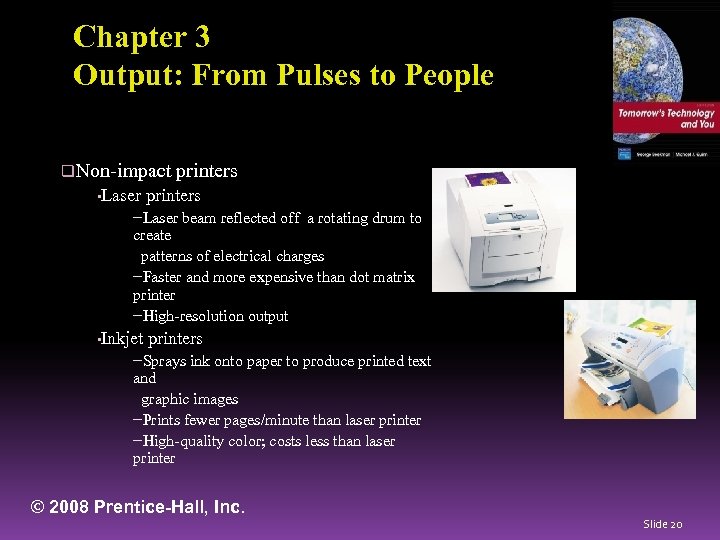 Chapter 3 Output: From Pulses to People q. Non-impact • Laser printers −Laser beam reflected off a rotating drum to create patterns of electrical charges −Faster and more expensive than dot matrix printer −High-resolution output • Inkjet printers −Sprays ink onto paper to produce printed text and graphic images −Prints fewer pages/minute than laser printer −High-quality color; costs less than laser printer © 2008 Prentice-Hall, Inc. Slide 20
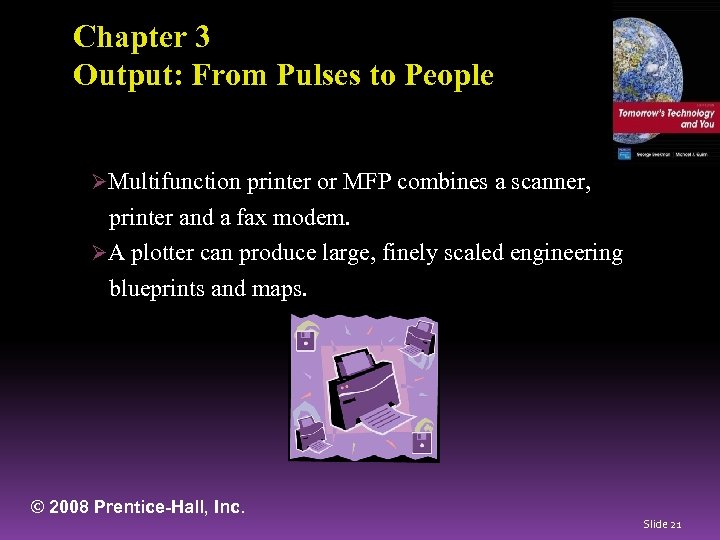 Chapter 3 Output: From Pulses to People ØMultifunction printer or MFP combines a scanner, printer and a fax modem. ØA plotter can produce large, finely scaled engineering blueprints and maps. © 2008 Prentice-Hall, Inc. Slide 21
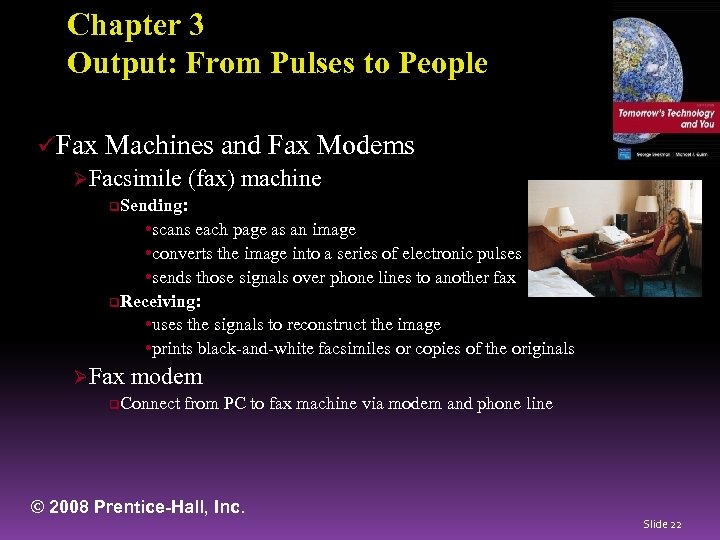 Chapter 3 Output: From Pulses to People üFax Machines and Fax Modems ØFacsimile (fax) machine q. Sending: • scans each page as an image • converts the image into a series of electronic pulses • sends those signals over phone lines to another fax q. Receiving: • uses the signals to reconstruct the image • prints black-and-white facsimiles or copies of the originals ØFax modem q. Connect from PC to fax machine via modem and phone line © 2008 Prentice-Hall, Inc. Slide 22
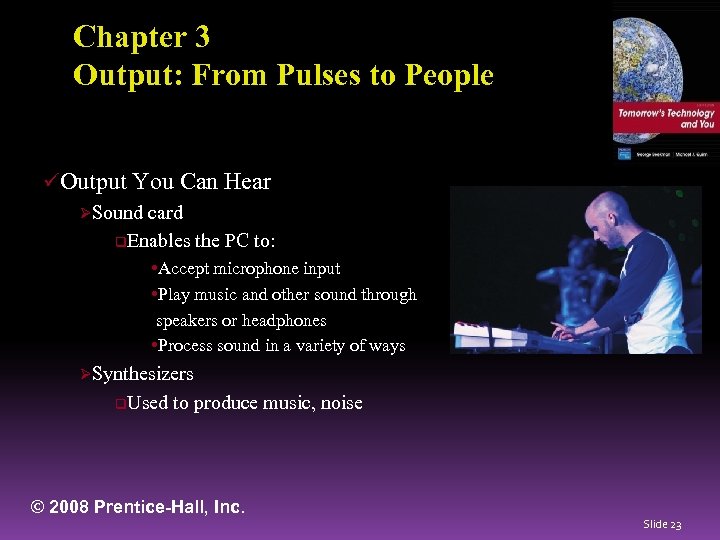 Chapter 3 Output: From Pulses to People üOutput You Can Hear ØSound card q. Enables the PC to: • Accept microphone input • Play music and other sound through speakers or headphones • Process sound in a variety of ways ØSynthesizers q. Used to produce music, noise © 2008 Prentice-Hall, Inc. Slide 23
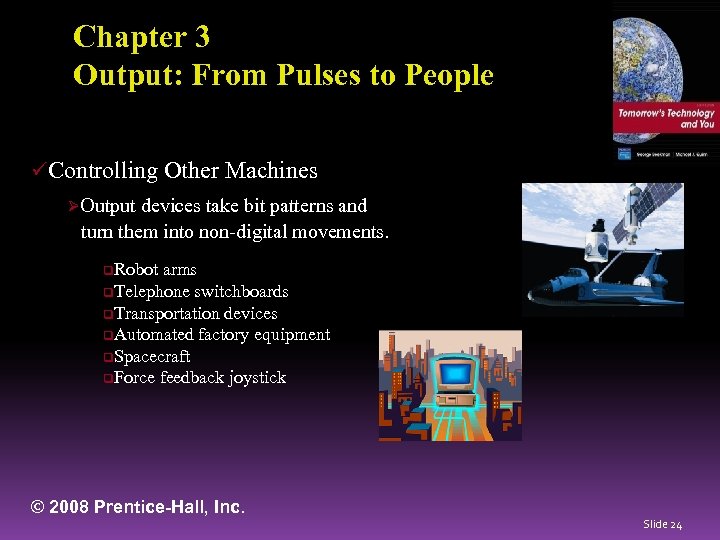 Chapter 3 Output: From Pulses to People üControlling Other Machines ØOutput devices take bit patterns and turn them into non-digital movements. q. Robot arms q. Telephone switchboards q. Transportation devices q. Automated factory equipment q. Spacecraft q. Force feedback joystick © 2008 Prentice-Hall, Inc. Slide 24
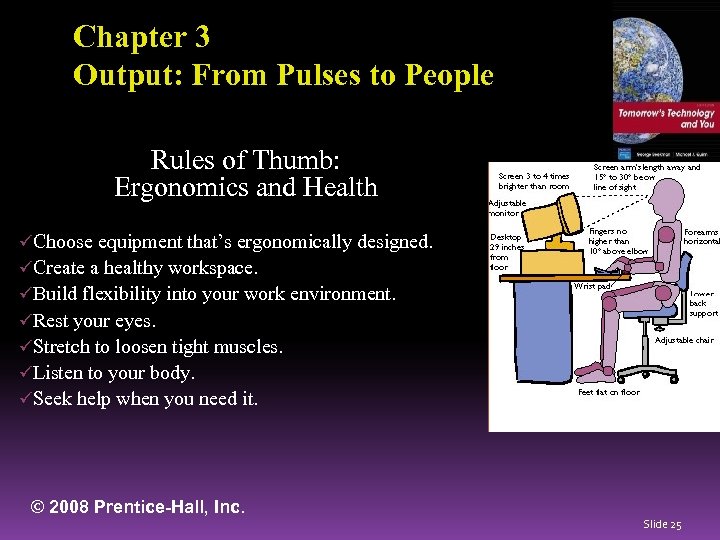 Chapter 3 Output: From Pulses to People Rules of Thumb: Ergonomics and Health üChoose equipment that’s ergonomically designed. üCreate a healthy workspace. üBuild flexibility into your work environment. üRest your eyes. üStretch to loosen tight muscles. üListen to your body. üSeek help when you need it. © 2008 Prentice-Hall, Inc. Slide 25
 Chapter 3 Storage Devices: Input Meets Output üMagnetic Tape ØCan store large amounts of information in a small space at a relatively low cost ØLimitation: sequential data access ØUsed mainly for backup purposes © 2008 Prentice-Hall, Inc. Slide 26
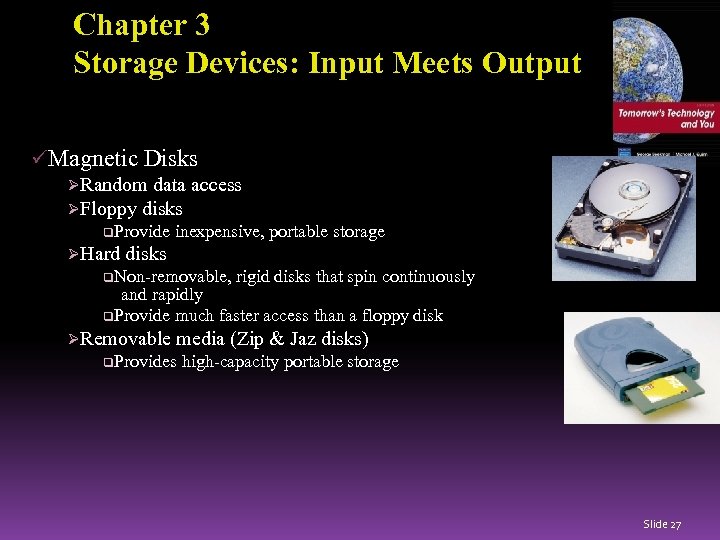 Chapter 3 Storage Devices: Input Meets Output üMagnetic Disks ØRandom data access ØFloppy disks q. Provide ØHard inexpensive, portable storage disks q. Non-removable, rigid disks that spin continuously and rapidly q. Provide much faster access than a floppy disk ØRemovable media (Zip & Jaz disks) q. Provides high-capacity portable storage Slide 27
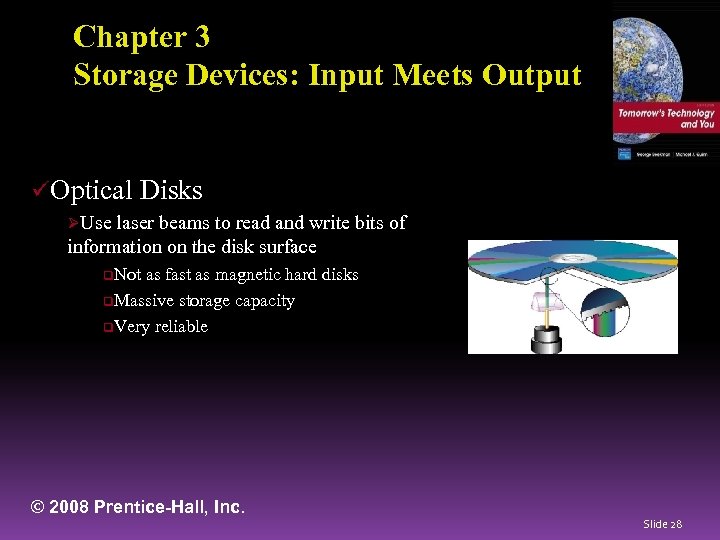 Chapter 3 Storage Devices: Input Meets Output üOptical Disks ØUse laser beams to read and write bits of information on the disk surface q. Not as fast as magnetic hard disks q. Massive storage capacity q. Very reliable © 2008 Prentice-Hall, Inc. Slide 28
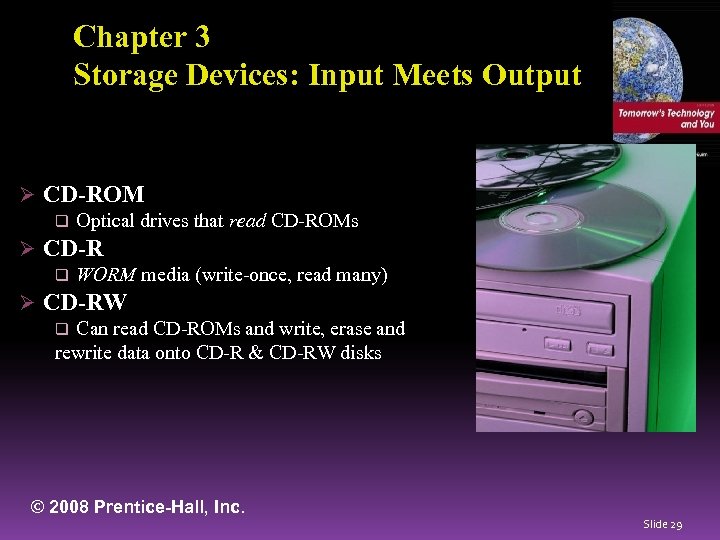 Chapter 3 Storage Devices: Input Meets Output Ø CD-ROM q Optical drives that read CD-ROMs Ø CD-R q WORM media (write-once, read many) Ø CD-RW q Can read CD-ROMs and write, erase and rewrite data onto CD-R & CD-RW disks © 2008 Prentice-Hall, Inc. Slide 29
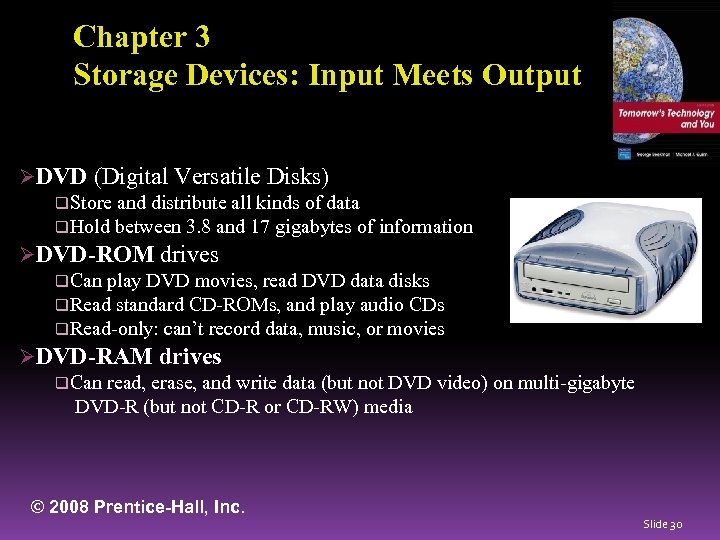 Chapter 3 Storage Devices: Input Meets Output ØDVD (Digital Versatile Disks) q. Store and distribute all kinds of data q. Hold between 3. 8 and 17 gigabytes of information ØDVD-ROM drives q. Can play DVD movies, read DVD data disks q. Read standard CD-ROMs, and play audio CDs q. Read-only: can’t record data, music, or movies ØDVD-RAM drives q. Can read, erase, and write data (but not DVD video) on multi-gigabyte DVD-R (but not CD-R or CD-RW) media © 2008 Prentice-Hall, Inc. Slide 30
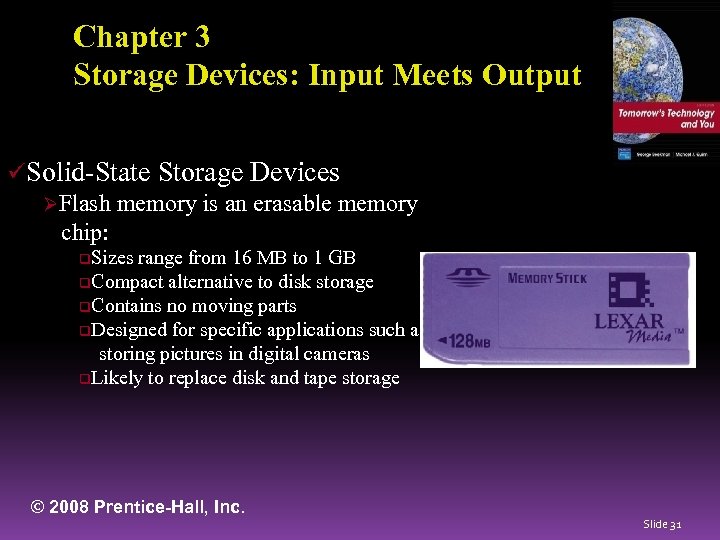 Chapter 3 Storage Devices: Input Meets Output üSolid-State Storage Devices ØFlash memory is an erasable memory chip: q. Sizes range from 16 MB to 1 GB q. Compact alternative to disk storage q. Contains no moving parts q. Designed for specific applications such as storing pictures in digital cameras q. Likely to replace disk and tape storage © 2008 Prentice-Hall, Inc. Slide 31
 Chapter 3 Computer Systems: The Sum of Its Parts Personal Computer Design Classes üTower systems ØTall, narrow boxes, generally have more expansion slots and bays than other designs üFlat desktop systems ØDesigned to sit under the monitor like a platform üAll-in-one systems (like the i. Mac) ØCombine monitor and system unit into a single housing © 2008 Prentice-Hall, Inc. Slide 32
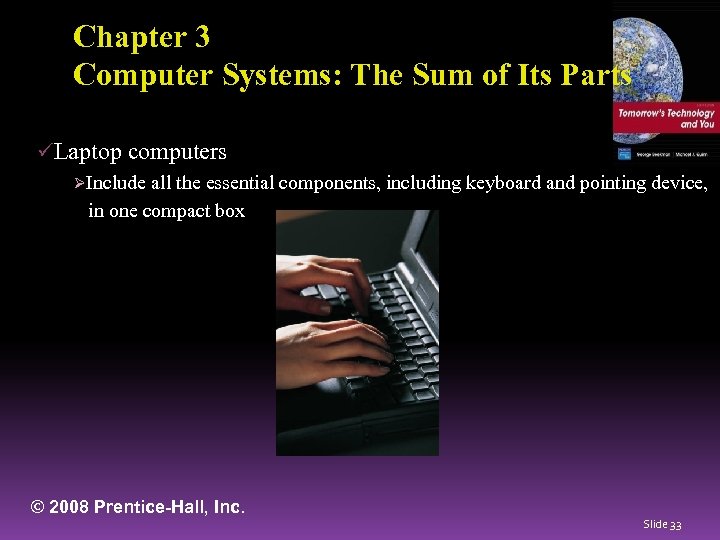 Chapter 3 Computer Systems: The Sum of Its Parts üLaptop computers ØInclude all the essential components, including keyboard and pointing device, in one compact box © 2008 Prentice-Hall, Inc. Slide 33
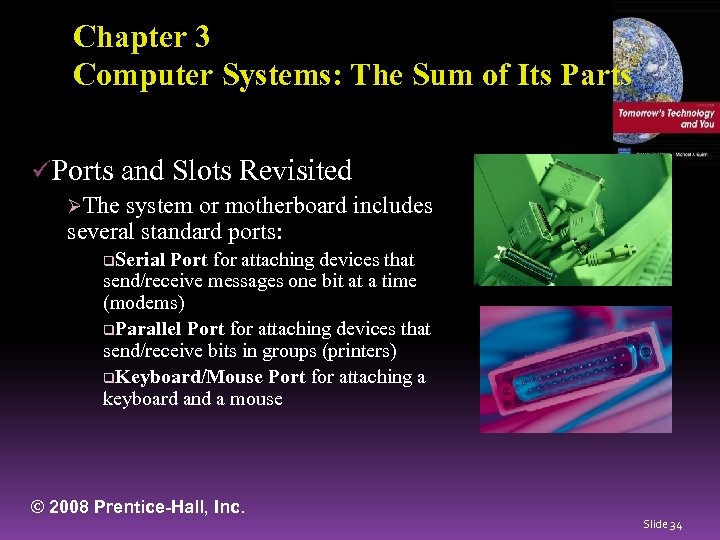 Chapter 3 Computer Systems: The Sum of Its Parts üPorts and Slots Revisited ØThe system or motherboard includes several standard ports: q. Serial Port for attaching devices that send/receive messages one bit at a time (modems) q. Parallel Port for attaching devices that send/receive bits in groups (printers) q. Keyboard/Mouse Port for attaching a keyboard and a mouse © 2008 Prentice-Hall, Inc. Slide 34
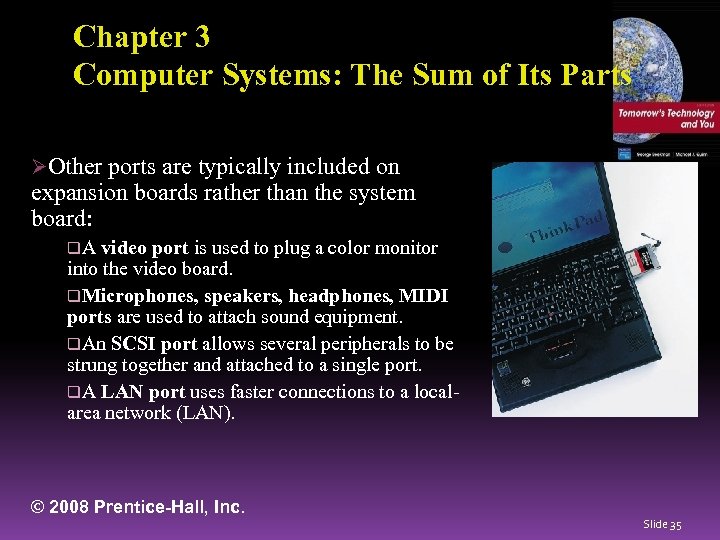 Chapter 3 Computer Systems: The Sum of Its Parts ØOther ports are typically included on expansion boards rather than the system board: q. A video port is used to plug a color monitor into the video board. q. Microphones, speakers, headphones, MIDI ports are used to attach sound equipment. q. An SCSI port allows several peripherals to be strung together and attached to a single port. q. A LAN port uses faster connections to a localarea network (LAN). © 2008 Prentice-Hall, Inc. Slide 35
 Chapter 3 Computer Systems: The Sum of Its Parts üExpansion Made Easy ØWith the PC open architecture and the introduction of new interfaces, you can hot swap devices. q. USB port (Universal Serial Bus) transmits a hundred times faster than a PC serial q. Firewire (IEEE 1394) can move data between devices at 400 or more megabits per second. The high speed makes it ideal for data-intensive work, like digital video. ØFire. Wire 800, which offers 800 Mbps transfer speeds, was recently introduced on high-end Macintosh systems. © 2008 Prentice-Hall, Inc. Slide 36
 Chapter 3 Computer Systems: The Sum of Its Parts üPutting It All Together ØA typical computer system might have several different input, output, and storage peripherals—the key is compatibility. ØNetworks blur the boundaries between computers. ØNetworked computers may have access to all the peripherals on a system. ØThe computer is, in effect, just a tiny part of a global system of interconnected networks. © 2008 Prentice-Hall, Inc. Slide 37
 Chapter 3 Inventing the Future: Tomorrow’s Peripherals üTomorrow’s Storage ØSmaller disks that hold more q. A single electron memory chip the size of a thumbnail that can store all of the sounds and images of a full-length feature film üTomorrow’s Output ØFlat-panel ØRetinal screens replacing desktop CRTs displays that work without a screen © 2008 Prentice-Hall, Inc. Slide 38
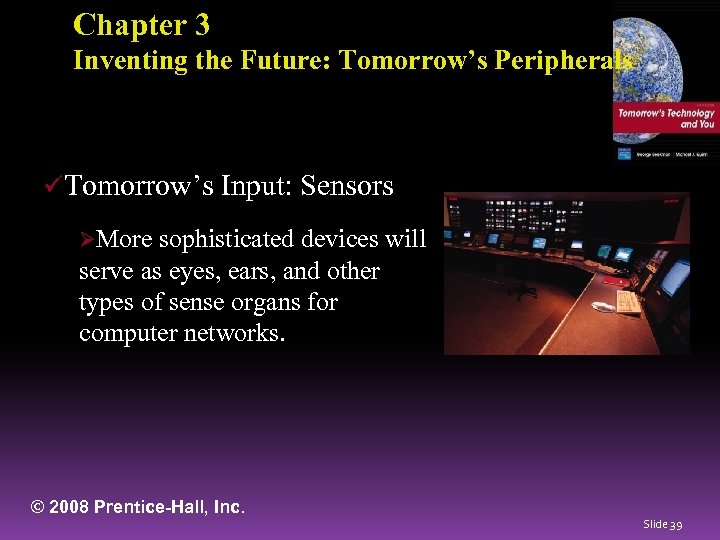 Chapter 3 Inventing the Future: Tomorrow’s Peripherals üTomorrow’s Input: Sensors ØMore sophisticated devices will serve as eyes, ears, and other types of sense organs for computer networks. © 2008 Prentice-Hall, Inc. Slide 39
 Chapter 3 Lesson Summary ü ü ü Peripherals allow computer to communicate with the outside world and store information for later use information. The most common input devices today are the keyboard and the mouse. A variety of other input devices can be connected to the computer. Output devices perform the opposite function: They accept strings of bits from the computer and transform them into a form that is useful or meaningful outside the computer. © 2008 Prentice-Hall, Inc. Slide 40
 Chapter 3 Lesson Summary (continued) ü ü Storage devices are capable of two-way communication with the computer. Because of their high-speed random access capability, magnetic disks are the most common forms of storage on modern computers. Network connections make it possible for computers to communicate with one another directly. © 2008 Prentice-Hall, Inc. Slide 41
 Slide 42
 Slide 43