


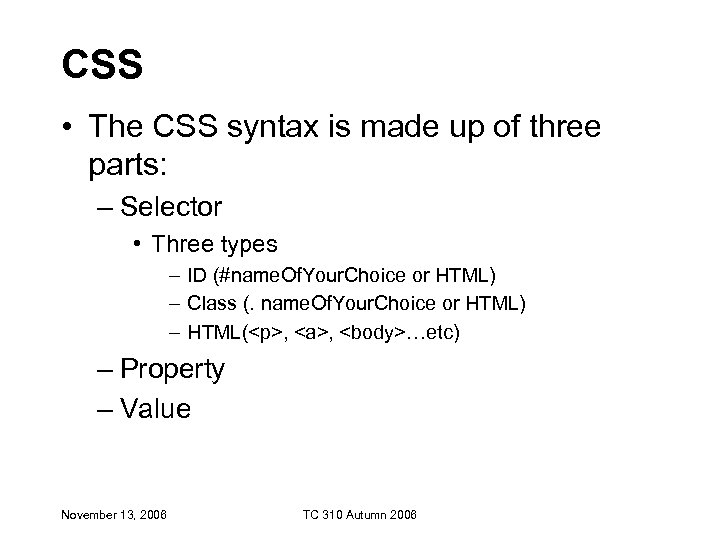
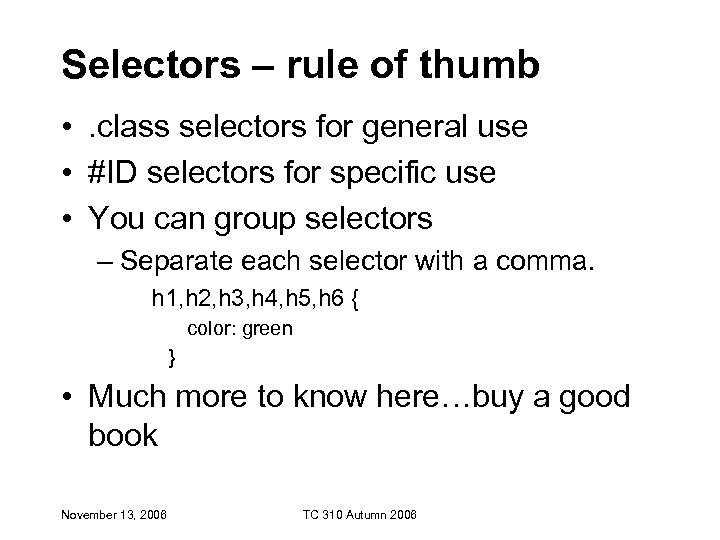
 Selectors – rule of thumb • . class selectors for general use • #ID selectors for specific use • You can group selectors – Separate each selector with a comma. h 1, h 2, h 3, h 4, h 5, h 6 { color: green } • Much more to know here…buy a good book November 13, 2006 TC 310 Autumn 2006
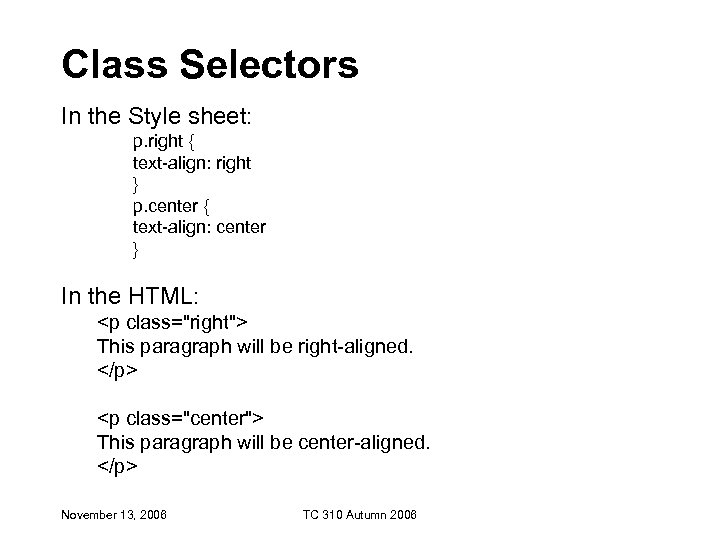 Class Selectors In the Style sheet: p. right { text-align: right } p. center { text-align: center } In the HTML:
This paragraph will be right-aligned.
This paragraph will be center-aligned.
November 13, 2006 TC 310 Autumn 2006 Selectors • Do NOT start a class or ID name with a number! • It will not work in Mozilla/Firefox. November 13, 2006 TC 310 Autumn 2006
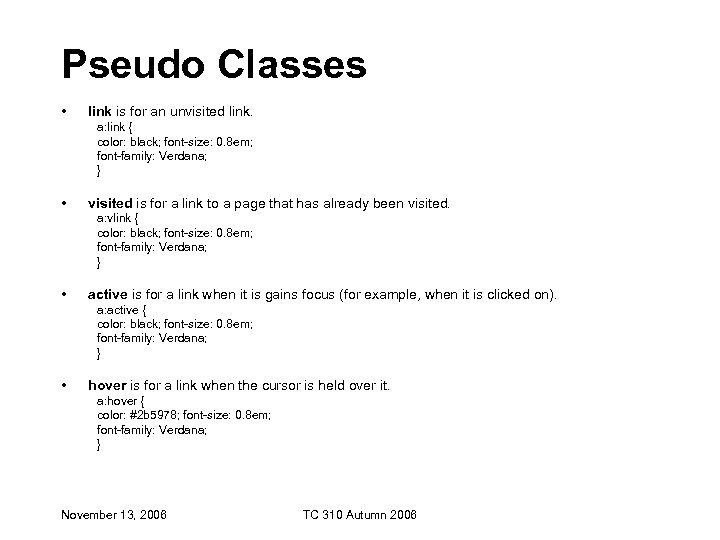 Pseudo Classes • link is for an unvisited link. a: link { color: black; font-size: 0. 8 em; font-family: Verdana; } • visited is for a link to a page that has already been visited. a: vlink { color: black; font-size: 0. 8 em; font-family: Verdana; } • active is for a link when it is gains focus (for example, when it is clicked on). a: active { color: black; font-size: 0. 8 em; font-family: Verdana; } • hover is for a link when the cursor is held over it. a: hover { color: #2 b 5978; font-size: 0. 8 em; font-family: Verdana; } November 13, 2006 TC 310 Autumn 2006
 Adding Comments /* This is a comment */ p{ text-align: center; /* This is another comment */ color: black; font-family: arial } November 13, 2006 TC 310 Autumn 2006
 Fonts and CSS November 13, 2006 TC 310 Autumn 2006
 Font-family • The font you specify must be on the user's computer – little point in using obscure fonts. • ‘Safe' fonts are few – Common: arial, verdana and times new roman - but you can specify more than one font, separated by commas. – If the user does not have the first font you specify, the browser will go through the list until it finds one it does have. – This is useful because different computers sometimes have different fonts installed. • font-family: arial, helvetica, for example, is used so that similar fonts are used on PC (which traditionally has arial, but not helvetica) and Apple Mac (which, traditionally, does not have arial and so helvetica, which it does normally have, will be used). • Note: if the name of a font is more than one word, it should be put in quotation marks – font-family: "Times New Roman". November 13, 2006 TC 310 Autumn 2006
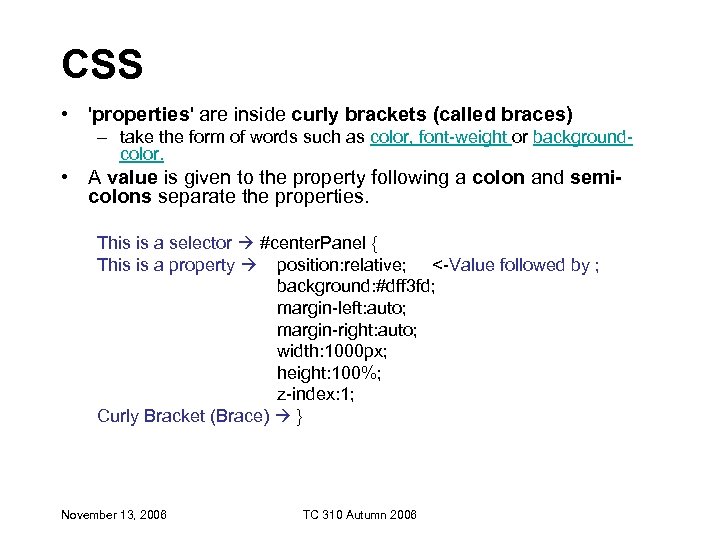
 Font Family #center. Panel { position: relative; font-family: Arial, Helvetica, sans-serif; background: #dff 3 fd; margin-left: auto; margin-right: auto; width: 1000 px; height: 100%; } November 13, 2006 TC 310 Autumn 2006
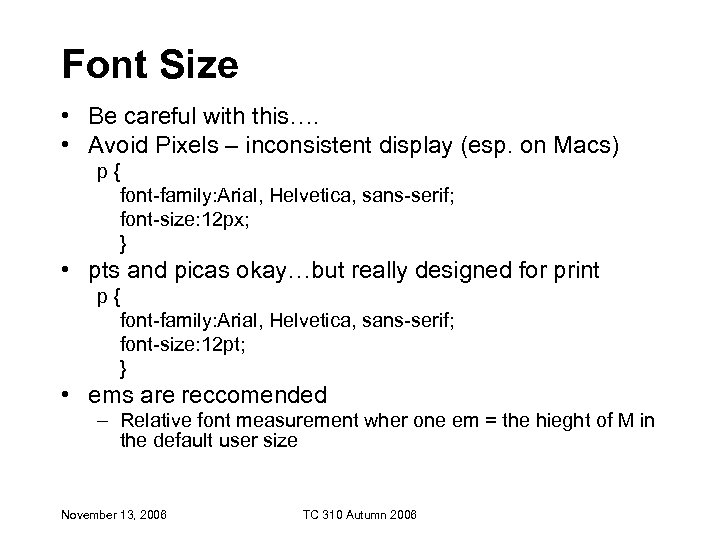 Font Size • Be careful with this…. • Avoid Pixels – inconsistent display (esp. on Macs) p { font-family: Arial, Helvetica, sans-serif; font-size: 12 px; } • pts and picas okay…but really designed for print p { font-family: Arial, Helvetica, sans-serif; font-size: 12 pt; } • ems are reccomended – Relative font measurement wher one em = the hieght of M in the default user size November 13, 2006 TC 310 Autumn 2006
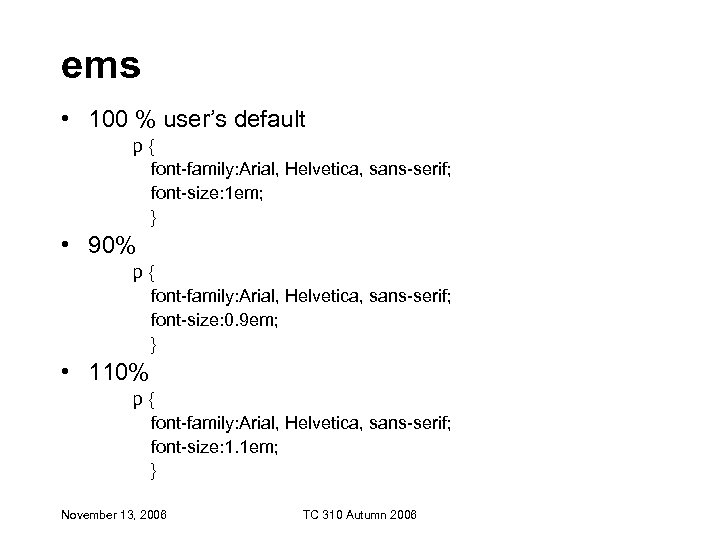 ems • 100 % user’s default p { font-family: Arial, Helvetica, sans-serif; font-size: 1 em; } • 90% p { font-family: Arial, Helvetica, sans-serif; font-size: 0. 9 em; } • 110% p { font-family: Arial, Helvetica, sans-serif; font-size: 1. 1 em; } November 13, 2006 TC 310 Autumn 2006
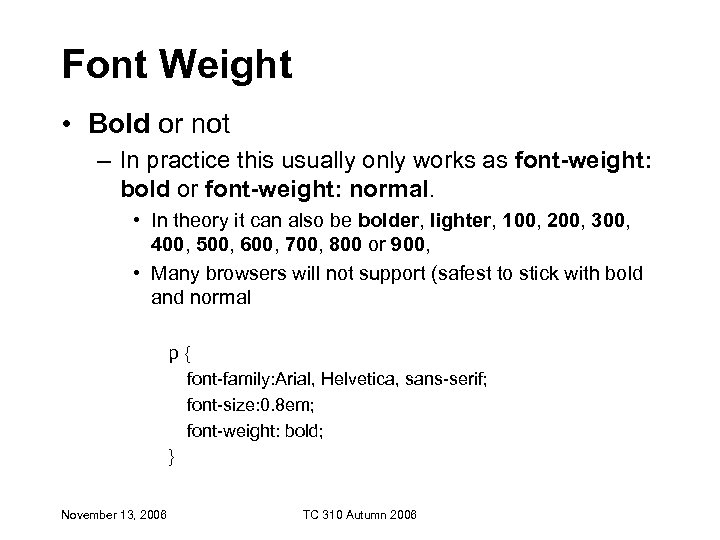 Font Weight • Bold or not – In practice this usually only works as font-weight: bold or font-weight: normal. • In theory it can also be bolder, lighter, 100, 200, 300, 400, 500, 600, 700, 800 or 900, • Many browsers will not support (safest to stick with bold and normal p { font-family: Arial, Helvetica, sans-serif; font-size: 0. 8 em; font-weight: bold; } November 13, 2006 TC 310 Autumn 2006
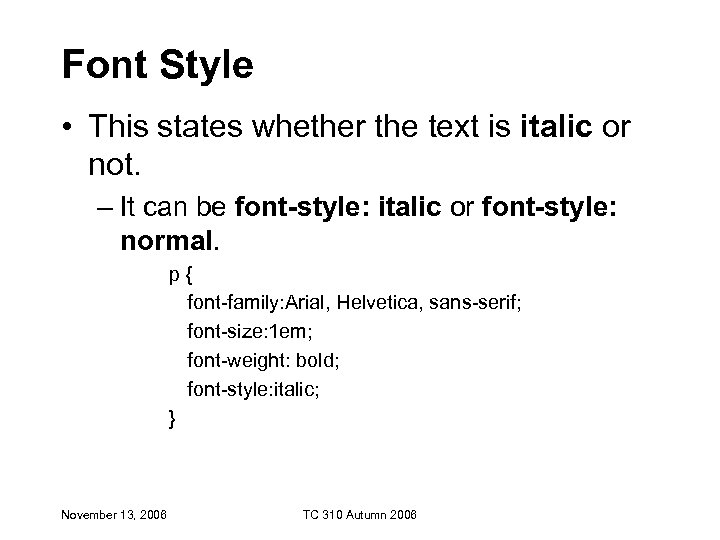 Font Style • This states whether the text is italic or not. – It can be font-style: italic or font-style: normal. p { font-family: Arial, Helvetica, sans-serif; font-size: 1 em; font-weight: bold; font-style: italic; } November 13, 2006 TC 310 Autumn 2006
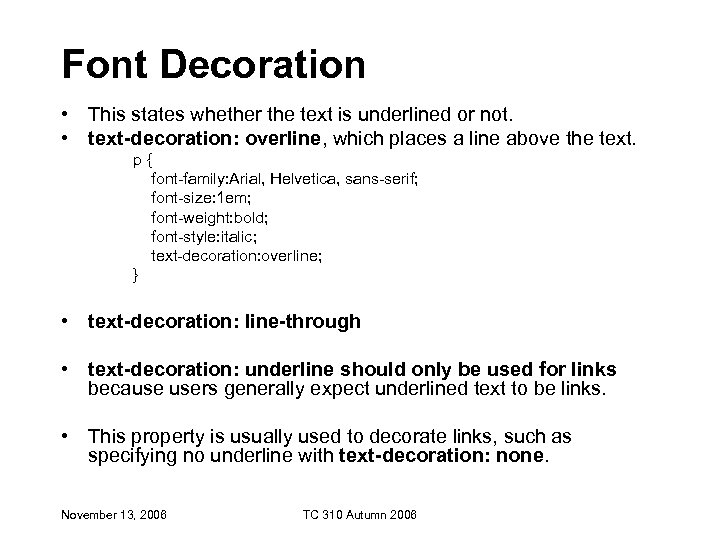 Font Decoration • This states whether the text is underlined or not. • text-decoration: overline, which places a line above the text. p { font-family: Arial, Helvetica, sans-serif; font-size: 1 em; font-weight: bold; font-style: italic; text-decoration: overline; } • text-decoration: line-through • text-decoration: underline should only be used for links because users generally expect underlined text to be links. • This property is usually used to decorate links, such as specifying no underline with text-decoration: none. November 13, 2006 TC 310 Autumn 2006
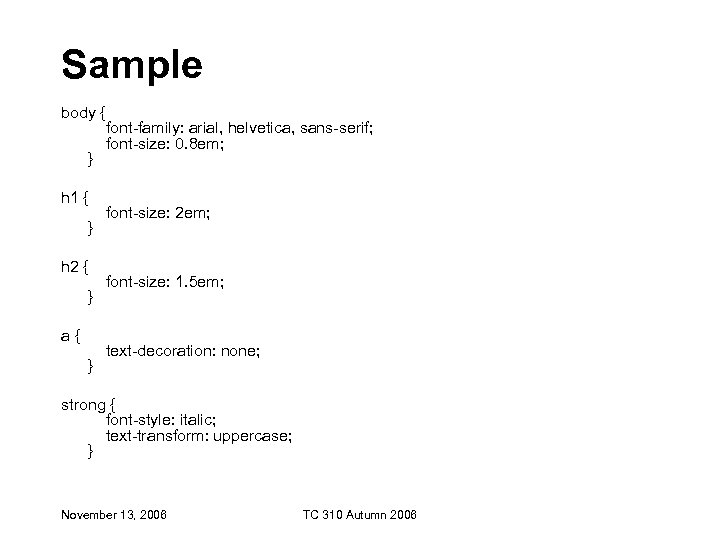 Sample body { font-family: arial, helvetica, sans-serif; font-size: 0. 8 em; } h 1 { font-size: 2 em; } h 2 { font-size: 1. 5 em; } a { text-decoration: none; } strong { font-style: italic; text-transform: uppercase; } November 13, 2006 TC 310 Autumn 2006
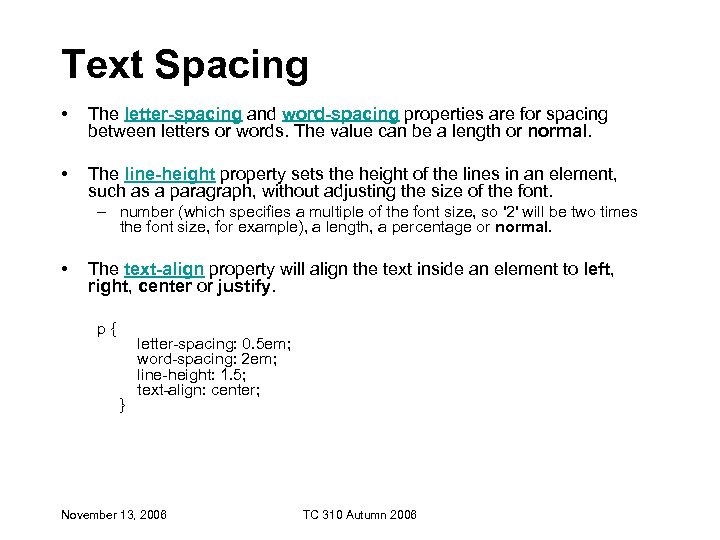 Text Spacing • The letter-spacing and word-spacing properties are for spacing between letters or words. The value can be a length or normal. • The line-height property sets the height of the lines in an element, such as a paragraph, without adjusting the size of the font. – number (which specifies a multiple of the font size, so '2' will be two times the font size, for example), a length, a percentage or normal. • The text-align property will align the text inside an element to left, right, center or justify. p { letter-spacing: 0. 5 em; word-spacing: 2 em; line-height: 1. 5; text-align: center; } November 13, 2006 TC 310 Autumn 2006
 Spans and Divs (Tying this all together) November 13, 2006 TC 310 Autumn 2006
These stuffed peppers are lovely. November 13, 2006 TC 310 Autumn 2006  and • "dummy" tags that don't do anything in themselves. – Excellent for carrying CSS style November 13, 2006 TC 310 Autumn 2006
 • is an "inline-tag" in HTML, meaning that no line breaks are inserted before or after the use of it. • Use sparingly • Style. hilite{ background-color: #FFFFCC; } • HTML
  • Dreamweaver calls them layers – z-index: 1 – Think of them as a container – Your page will now be composed of divs which will be described by styles – Often called a “box model” November 13, 2006 TC 310 Autumn 2006
 Key Properties to know November 13, 2006 TC 310 Autumn 2006
  Positioning • Describe the placement of the divs – static – absolute – relative – fixed – inherit November 13, 2006 TC 310 Autumn 2006
  Absolute Positioning • Removed from the document flow • Dreamweaver default • Calculated from the upper left corner of the page – Unless the div is defined inside another div, in which case it will be calculated from the upper left corner of the parent layer. • Assumes a fixed design – Not accessible • Good Servant…. bad master November 13, 2006 TC 310 Autumn 2006
  Relative • The position will be calculated relative to the element that comes before it – Defaults to under the element before – Use a “float” property to place side by side • Remains in the flow of the document • Good for accessibility • Good master…fine servant November 13, 2006 TC 310 Autumn 2006
  Margin and Padding • A margin is the space outside of the element • Padding is the space inside the element. November 13, 2006 TC 310 Autumn 2006
  Property Examples – All from http: //www. w 3 schools. com/ November 13, 2006 TC 310 Autumn 2006
  Backgrounds • • • Set the background color This example demonstrates how to set the background color for an element. Set an image as the background This example demonstrates how to set an image as the background. How to repeat a background image only vertically This example demonstrates how to repeat a background image only vertically. How to repeat a background image only horizontally This example demonstrates how to repeat a background image only horizontally. How to place the background image This example demonstrates how to place the image on the page. How to set a fixed background image This example demonstrates how to set a fixed background image. – All from http: //www. w 3 schools. com/ November 13, 2006 TC 310 Autumn 2006
  Borders • • • Set the style of the four borders This example demonstrates how to set the style of the four borders. Set different borders on each side This example demonstrates how to set different borders on each side of the element. Set the color of the four borders This example demonstrates how to set the color of the four borders. It can have from one to four colors. Set the width of the bottom border This example demonstrates how to set the width of the bottom border. All the bottom border properties in one declaration This example demonstrates a shorthand property for setting all of the properties for the bottom border in one declaration. All the left border properties in one declaration This example demonstrates a shorthand property for setting all of the properties for the left border in one declaration. All the right border properties in one declaration This example demonstrates a shorthand property for setting all of the properties for the right border in one declaration. All the width of the border properties in one declaration This example demonstrates a shorthand property for setting the width of the four borders in one declaration, can have from one to four values. All the border properties in one declaration This example demonstrates a shorthand property for setting all of the properties for the four borders in one declaration, can have from one to three values. – All from http: //www. w 3 schools. com/ November 13, 2006 TC 310 Autumn 2006
  Lists • The different list-item markers in unordered lists This example demonstrates the different list-item markers in CSS. • The different list-item markers in ordered lists This example demonstrates the different list-item markers in CSS. • Set an image as the list-item marker This example demonstrates how to set an image as the list-item marker. • Place the list-item marker This example demonstrates where to place the list-item marker. • All list properties in one declaration This example demonstrates a shorthand property for setting all of the properties for a list in one declaration. – All from http: //www. w 3 schools. com/ November 13, 2006 TC 310 Autumn 2006
  Text Margins • Set the left margin of a text This example demonstrates how to set the left margin of a text. • Set the right margin of a text This example demonstrates how to set the right margin of a text. • Set the top margin of a text This example demonstrates how to set the top margin of a text. • Set the bottom margin of a text This example demonstrates how to set the bottom margin of a text. • All the margin properties in one declaration This example demonstrates how to set a shorthand property for setting all of the margin properties in one declaration. – All from http: //www. w 3 schools. com/ November 13, 2006 TC 310 Autumn 2006