 Скачать презентацию Tips Tricks Functional Presented by Antonio Trepesowsky
18b4a6afc908d61ce81abb4038e64c37.ppt
- Количество слайдов: 15



Tips & Tricks: Functional Presented by Antonio Trepesowsky Banner Student Functional Consultant Antonio. trepesowsky@sungardhe. com
Agenda • Naming Conventions • Main Menu • Data Extract • Shortcuts • Options Menu • Queries • Extended Queries • Job Sub • Tips & Tricks
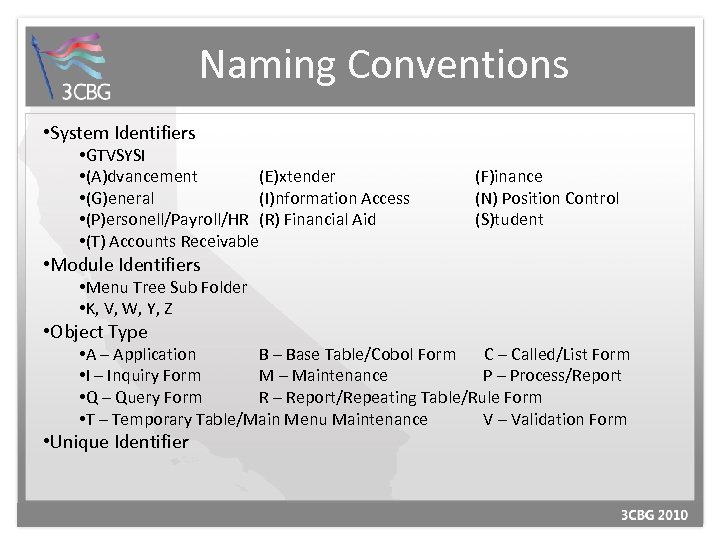
Naming Conventions • System Identifiers • GTVSYSI • (A)dvancement (E)xtender • (G)eneral (I)nformation Access • (P)ersonell/Payroll/HR (R) Financial Aid • (T) Accounts Receivable (F)inance (N) Position Control (S)tudent • Module Identifiers • Menu Tree Sub Folder • K, V, W, Y, Z • Object Type • A – Application B – Base Table/Cobol Form C – Called/List Form • I – Inquiry Form M – Maintenance P – Process/Report • Q – Query Form R – Report/Repeating Table/Rule Form • T – Temporary Table/Main Menu Maintenance V – Validation Form • Unique Identifier
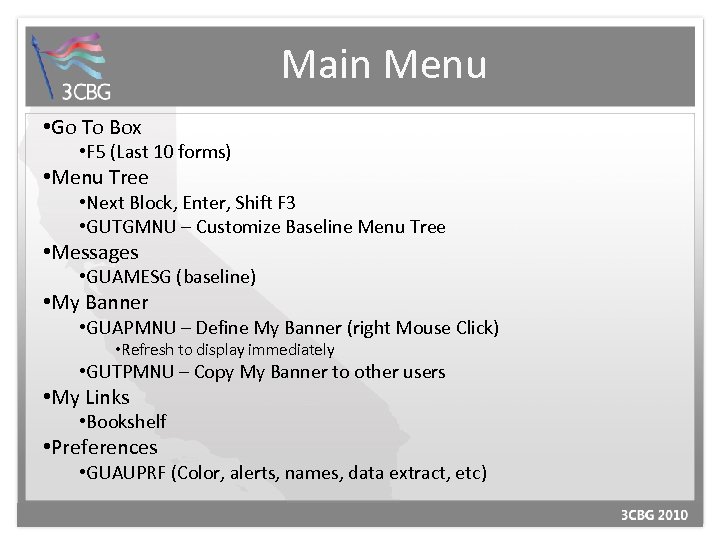
Main Menu • Go To Box • F 5 (Last 10 forms) • Menu Tree • Next Block, Enter, Shift F 3 • GUTGMNU – Customize Baseline Menu Tree • Messages • GUAMESG (baseline) • My Banner • GUAPMNU – Define My Banner (right Mouse Click) • Refresh to display immediately • GUTPMNU – Copy My Banner to other users • My Links • Bookshelf • Preferences • GUAUPRF (Color, alerts, names, data extract, etc)
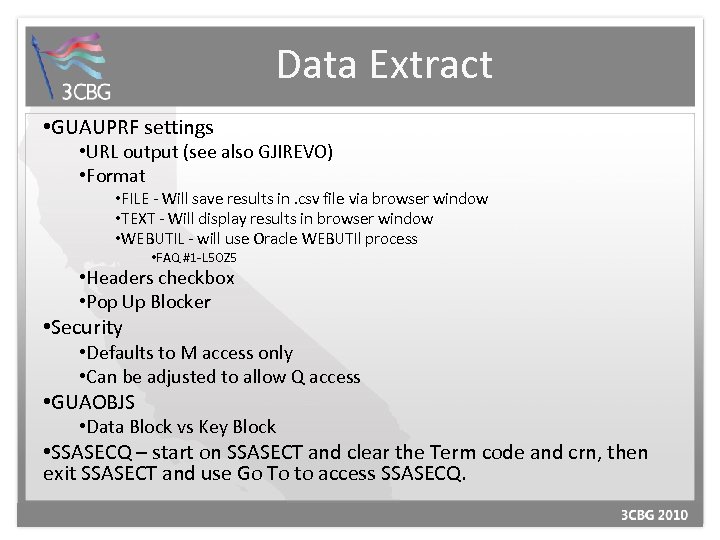
Data Extract • GUAUPRF settings • URL output (see also GJIREVO) • Format • FILE - Will save results in. csv file via browser window • TEXT - Will display results in browser window • WEBUTIL - will use Oracle WEBUTIl process • FAQ #1 -L 5 OZ 5 • Headers checkbox • Pop Up Blocker • Security • Defaults to M access only • Can be adjusted to allow Q access • GUAOBJS • Data Block vs Key Block • SSASECQ – start on SSASECT and clear the Term code and crn, then exit SSASECT and use Go To to access SSASECQ.
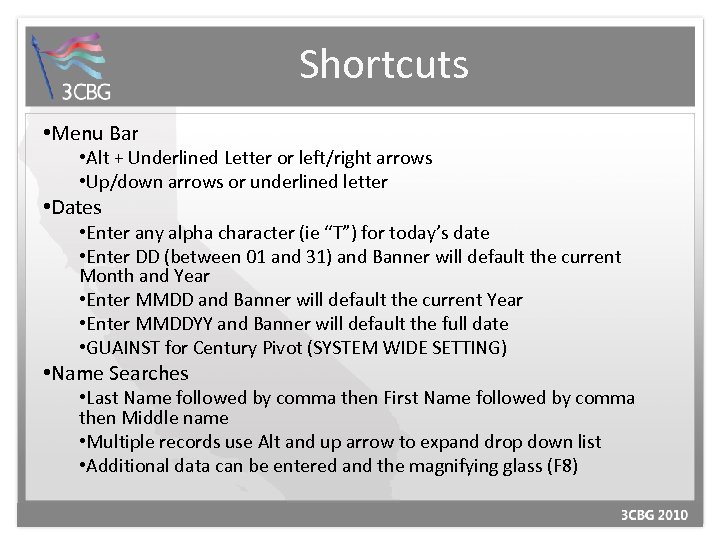
Shortcuts • Menu Bar • Alt + Underlined Letter or left/right arrows • Up/down arrows or underlined letter • Dates • Enter any alpha character (ie “T”) for today’s date • Enter DD (between 01 and 31) and Banner will default the current Month and Year • Enter MMDD and Banner will default the current Year • Enter MMDDYY and Banner will default the full date • GUAINST for Century Pivot (SYSTEM WIDE SETTING) • Name Searches • Last Name followed by comma then First Name followed by comma then Middle name • Multiple records use Alt and up arrow to expand drop down list • Additional data can be entered and the magnifying glass (F 8)
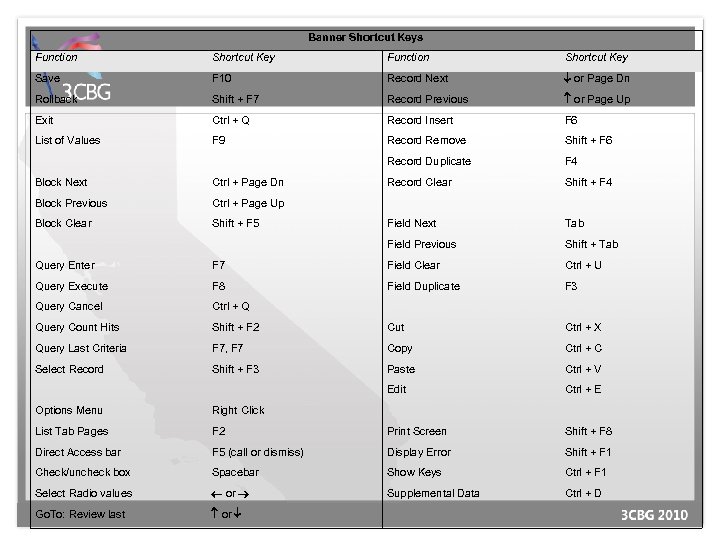
Banner Shortcut Keys Function Shortcut Key Save F 10 Record Next or Page Dn Rollback Shift + F 7 Record Previous or Page Up Exit Ctrl + Q Record Insert F 6 List of Values F 9 Record Remove Shift + F 6 Record Duplicate F 4 Record Clear Shift + F 4 Field Next Tab Field Previous Shift + Tab Block Next Ctrl + Page Dn Block Previous Ctrl + Page Up Block Clear Shift + F 5 Query Enter F 7 Field Clear Ctrl + U Query Execute F 8 Field Duplicate F 3 Query Cancel Ctrl + Q Query Count Hits Shift + F 2 Cut Ctrl + X Query Last Criteria F 7, F 7 Copy Ctrl + C Select Record Shift + F 3 Paste Ctrl + V Edit Ctrl + E Options Menu Right Click List Tab Pages F 2 Print Screen Shift + F 8 Direct Access bar F 5 (call or dismiss) Display Error Shift + F 1 Check/uncheck box Spacebar Show Keys Ctrl + F 1 Select Radio values or Supplemental Data Ctrl + D Go. To: Review last or
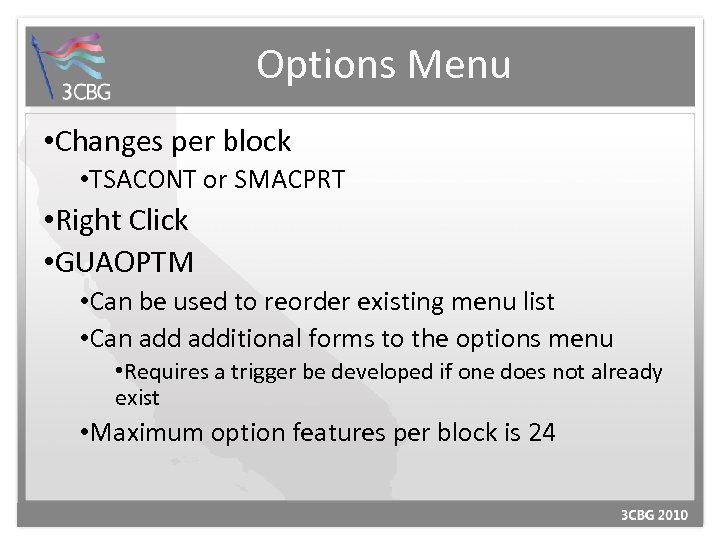
Options Menu • Changes per block • TSACONT or SMACPRT • Right Click • GUAOPTM • Can be used to reorder existing menu list • Can additional forms to the options menu • Requires a trigger be developed if one does not already exist • Maximum option features per block is 24
Queries • Enter query mode F 7 • Execute query F 8 • % and _ are wild cards • Last Criteria F 7/F 7 • Count Hits Shift F 2 • Exit query Ctrl Q • Inquiry forms typically start in query mode • Query forms can not be accessed directly from the Go To box but can only be called from within specific forms
Q vs I forms • Frequently start in query mode and require exit twice to leave • Can be accessed from the Go To box • Are very good for data extract. • Q forms • Utilize prior form record data to pre-populate keyblock • Can NOT be accessed from Go To box • Do not typically work well with data extract • Examples: SHQTERM, SIQSECM, SFQSECT, etc
Extended Query • Security Class EXTENDED_QUERY added in 6. 1. 1 • Enter query mode (F 7), enter a colon in a field, execute query (F 8) and a special extended query SQL window will popup allowing you to enter SQL phrased queries • “ORDER BY field_name” • TRUNC for dates • TRUNC(: A) = '05 -MAY-2004‘ • Checkbox query • Field name <> ‘Y’ or field name IS NULL • Between Dates: • : A>'12 -APR-2010' AND : A<'20 -APR-2010'
Job Submission • GJAPDEF • Edit/Create Parameter Hint Line • Edit/Create List of Value option • Edit/Provide system default value (TGRAPPL) • GJAPVAL • Provide/alter existing parameter defined values • GJAJOBS • Default printer for the job • Default format rule • GJAPDFT • User stored parameter sets • Use to adjust the saved parameters (like SYSDATE) • Copy saved parameters to other users
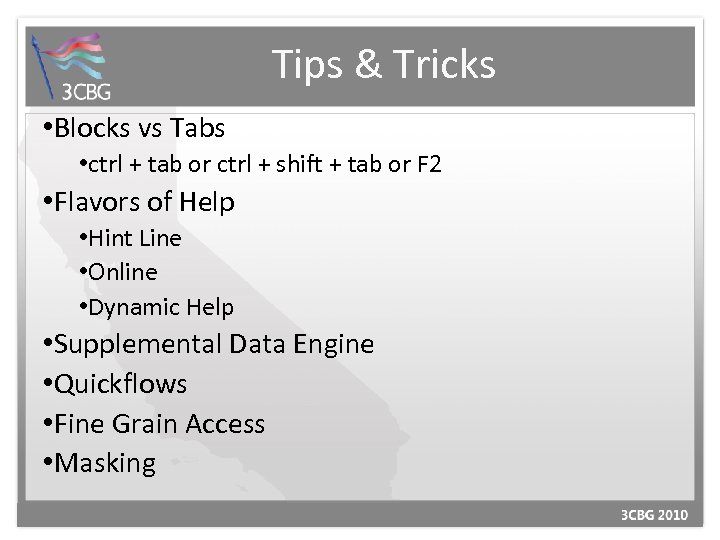
Tips & Tricks • Blocks vs Tabs • ctrl + tab or ctrl + shift + tab or F 2 • Flavors of Help • Hint Line • Online • Dynamic Help • Supplemental Data Engine • Quickflows • Fine Grain Access • Masking
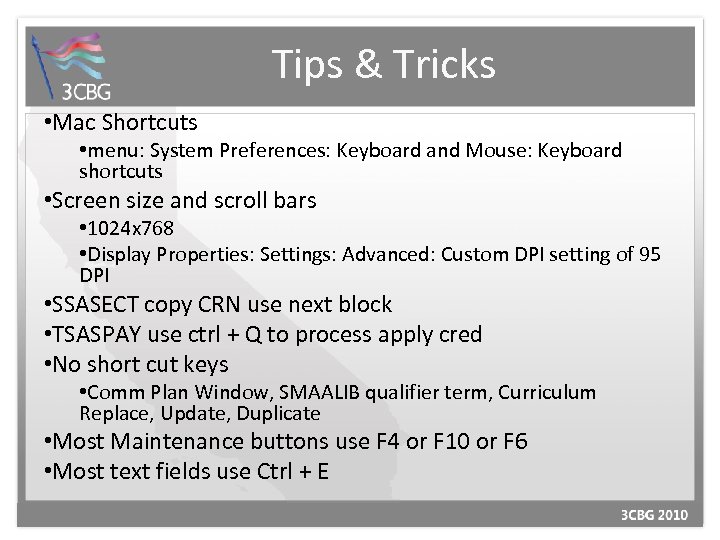
Tips & Tricks • Mac Shortcuts • menu: System Preferences: Keyboard and Mouse: Keyboard shortcuts • Screen size and scroll bars • 1024 x 768 • Display Properties: Settings: Advanced: Custom DPI setting of 95 DPI • SSASECT copy CRN use next block • TSASPAY use ctrl + Q to process apply cred • No short cut keys • Comm Plan Window, SMAALIB qualifier term, Curriculum Replace, Update, Duplicate • Most Maintenance buttons use F 4 or F 10 or F 6 • Most text fields use Ctrl + E
Tips & Tricks • Questions? Presented by Antonio Trepesowsky Banner Student Functional Consultant Antonio. trepesowsky@sungardhe. com
Скачать презентацию Tips Tricks Functional Presented by Antonio Trepesowsky
18b4a6afc908d61ce81abb4038e64c37.ppt