


 Скачать презентацию TI Pharma intranet How to access and use
158aa4b58cc92da4f116944c870faf76.ppt
- Количество слайдов: 15
 TI Pharma intranet How to access and use the intranet
 There are two ways to access our TI Pharma Intranet: 1. www. tipharma. com by clicking on login button 2. https: //portal. tipharma. com (without www) To log in, you must enter your username and password (sent to you by e-mail. If not, please contact us at office@tipharma. com) Please note: our intranet is best viewed with Internet Explorer
 1. TI Pharma portal (accessible to members of all projects)
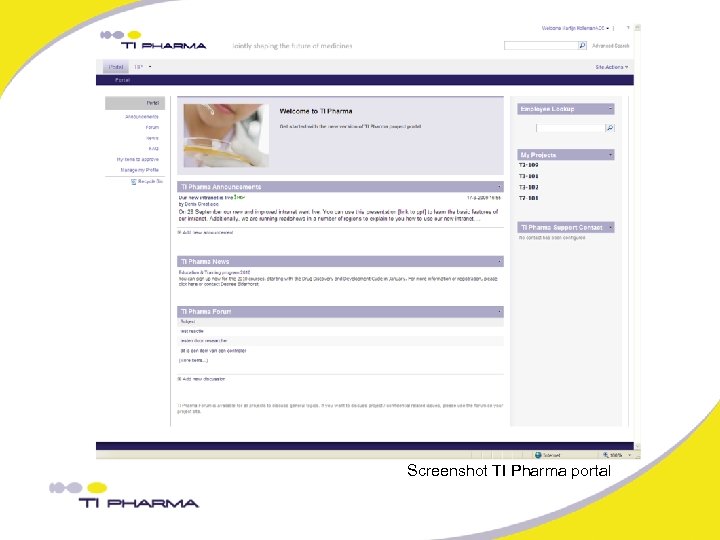 Screenshot TI Pharma portal
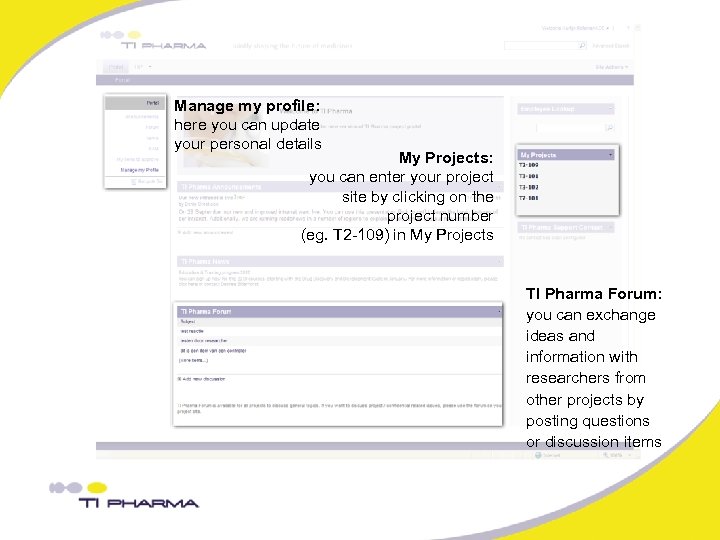 Manage my profile: here you can update your personal details My Projects: you can enter your project site by clicking on the project number (eg. T 2 -109) in My Projects TI Pharma Forum: you can exchange ideas and information with researchers from other projects by posting questions or discussion items
 2. Project site (accessible to members of the project only)
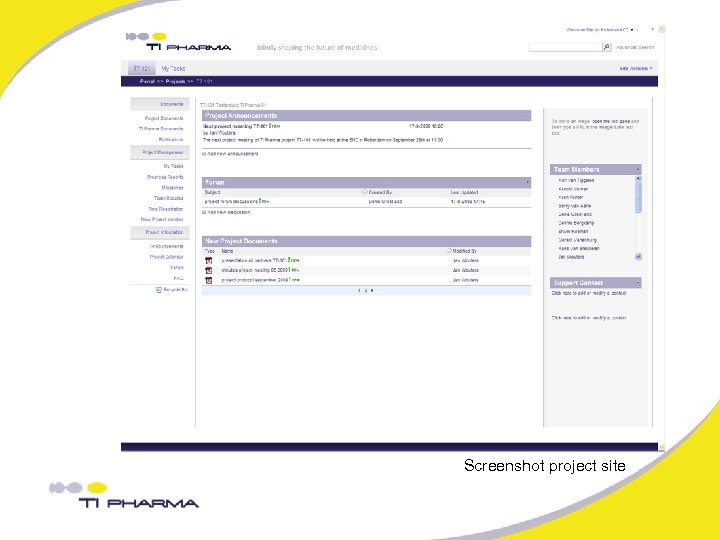 Screenshot project site
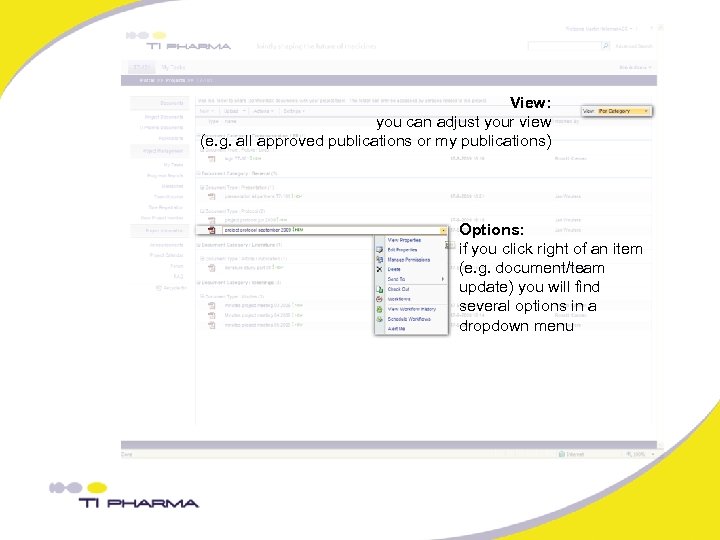 View: you can adjust your view (e. g. all approved publications or my publications) Options: if you click right of an item (e. g. document/team update) you will find several options in a dropdown menu
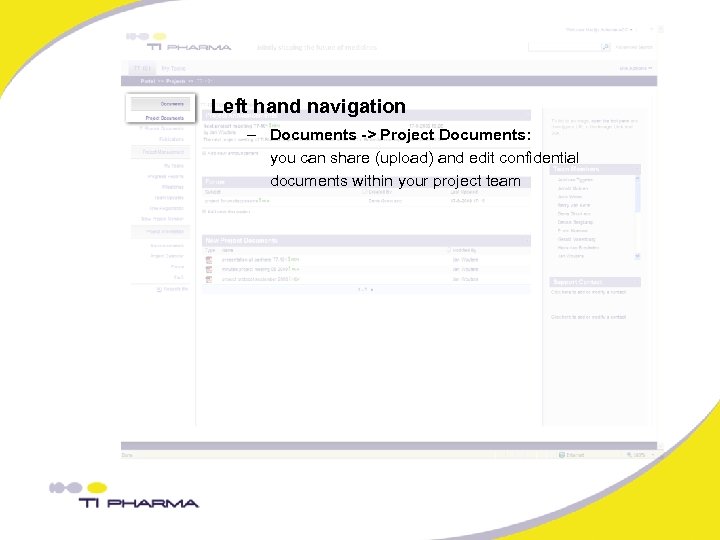 Left hand navigation – Documents -> Project Documents: you can share (upload) and edit confidential documents within your project team
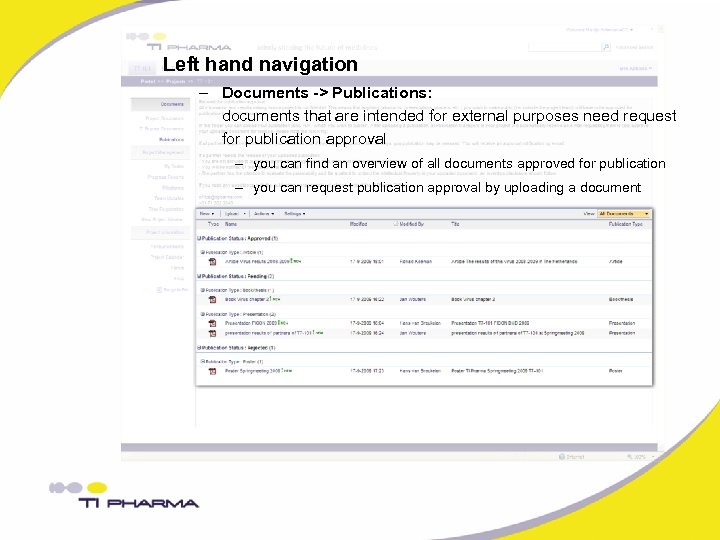 Left hand navigation – Documents -> Publications: documents that are intended for external purposes need request for publication approval – you can find an overview of all documents approved for publication – you can request publication approval by uploading a document
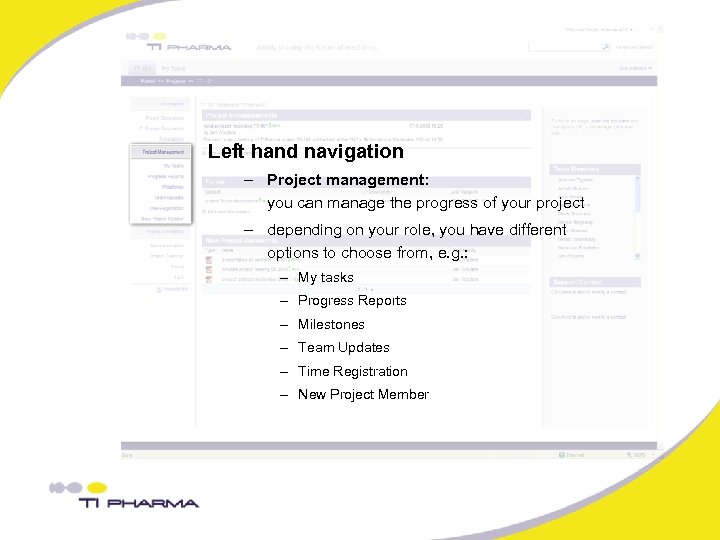 Left hand navigation – Project management: you can manage the progress of your project – depending on your role, you have different options to choose from, e. g. : – My tasks – Progress Reports – Milestones – Team Updates – Time Registration – New Project Member
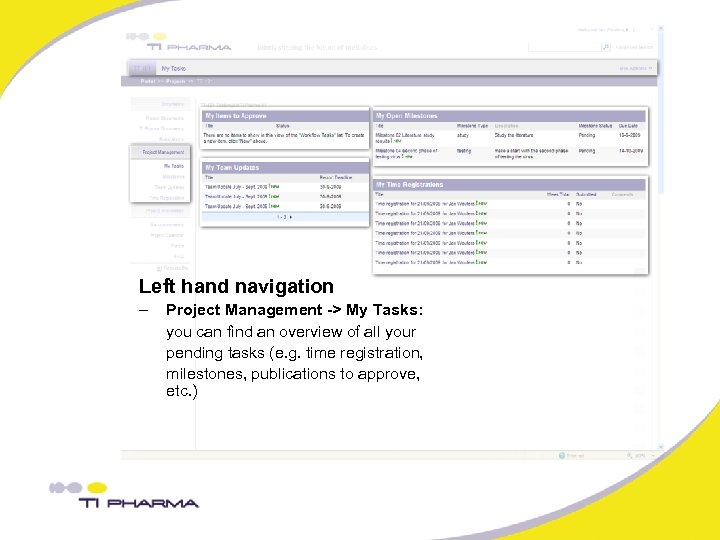 Left hand navigation – Project Management -> My Tasks: you can find an overview of all your pending tasks (e. g. time registration, milestones, publications to approve, etc. )
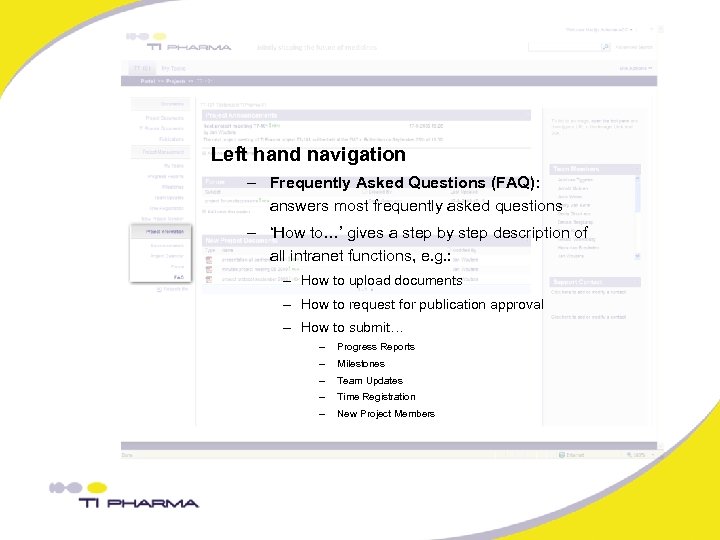 Left hand navigation – Frequently Asked Questions (FAQ): answers most frequently asked questions – ‘How to…’ gives a step by step description of all intranet functions, e. g. : – How to upload documents – How to request for publication approval – How to submit… – Progress Reports – Milestones – Team Updates – Time Registration – New Project Members
 3. Alert me (you can set alerts that update you when new information is uploaded or edited)
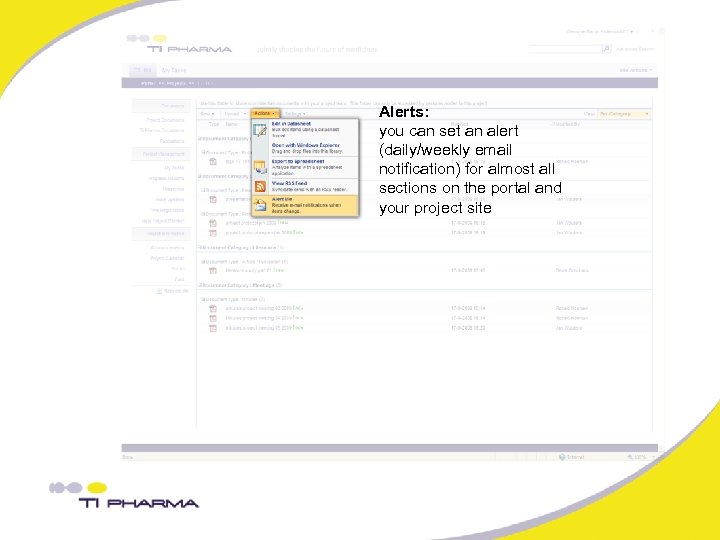 Alerts: you can set an alert (daily/weekly email notification) for almost all sections on the portal and your project site