


 Скачать презентацию This guide will cover the process of
a05b827fb883da347931650309a45cbb.ppt
- Количество слайдов: 12
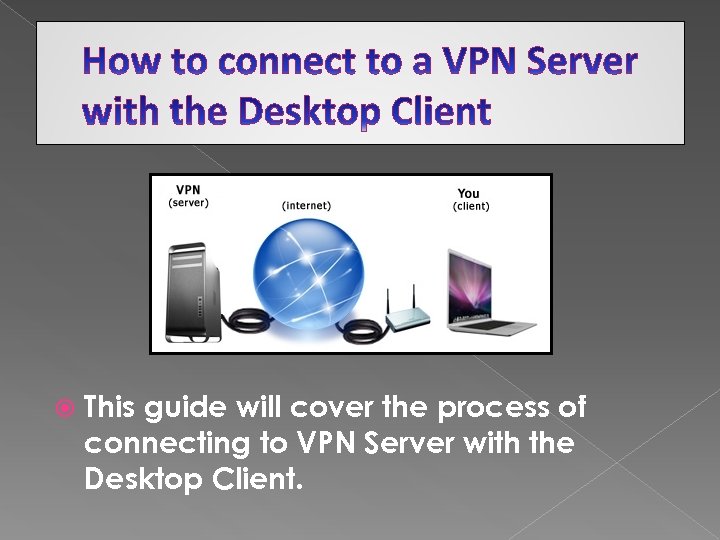 This guide will cover the process of connecting to VPN Server with the Desktop Client.
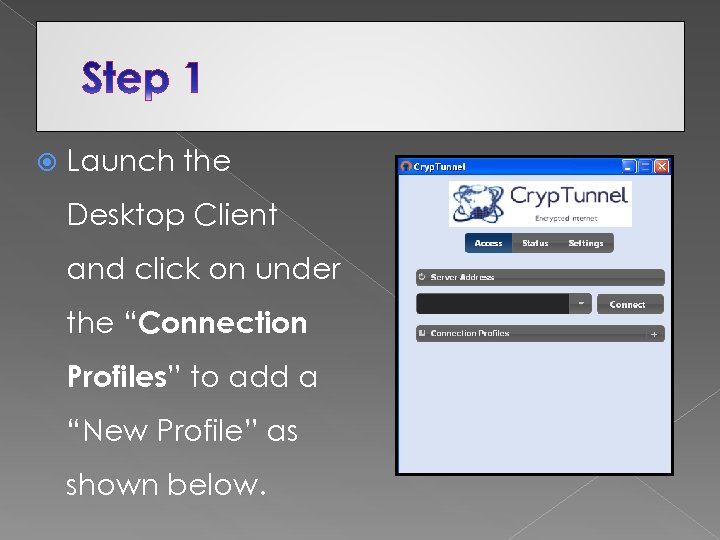 Launch the Desktop Client and click on under the “Connection Profiles” to add a “New Profile” as shown below.
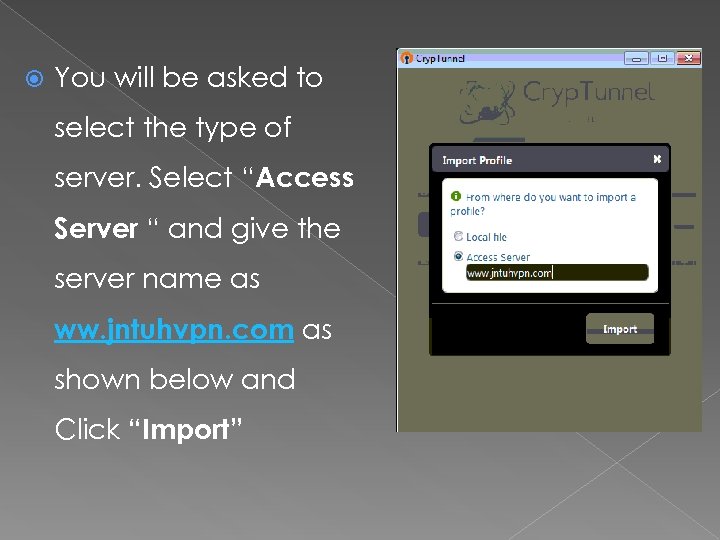 You will be asked to select the type of server. Select “Access Server “ and give the server name as ww. jntuhvpn. com as shown below and Click “Import”
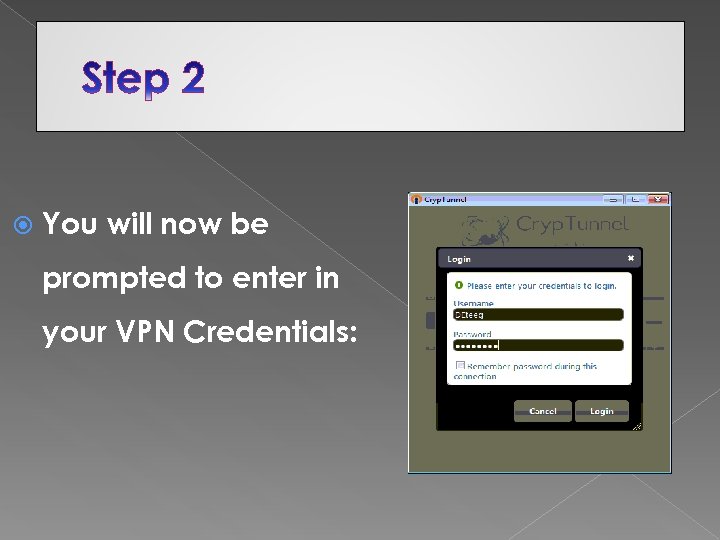 You will now be prompted to enter in your VPN Credentials:
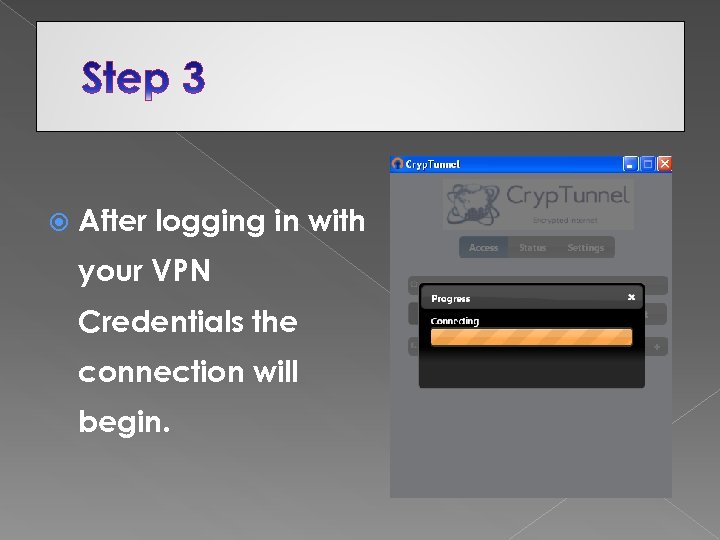 After logging in with your VPN Credentials the connection will begin.
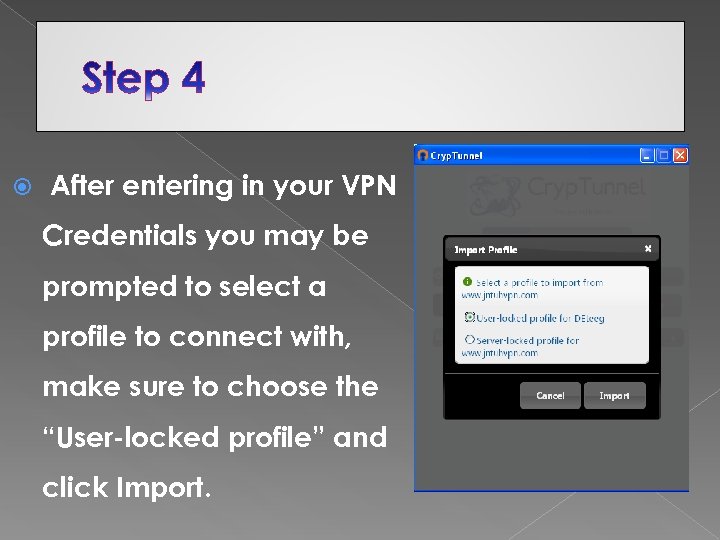 After entering in your VPN Credentials you may be prompted to select a profile to connect with, make sure to choose the “User-locked profile” and click Import.
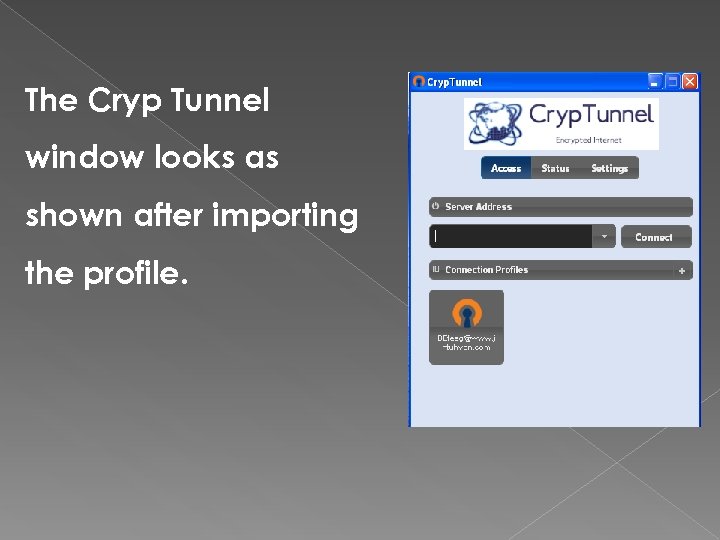 The Cryp Tunnel window looks as shown after importing the profile.
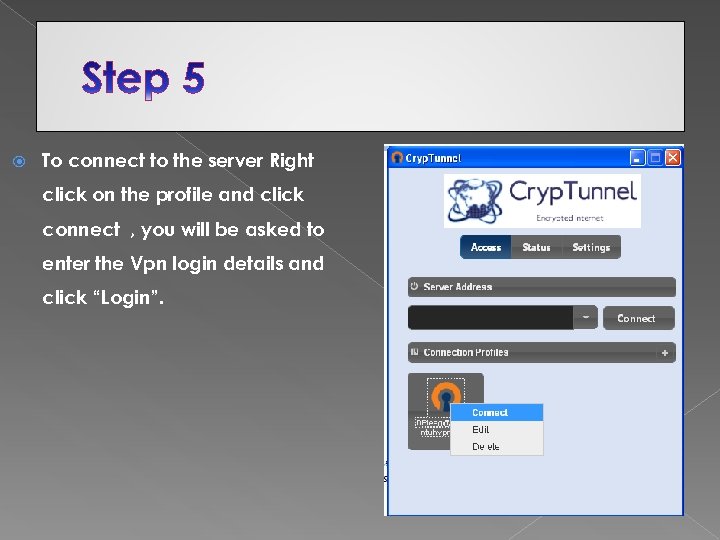 To connect to the server Right click on the profile and click connect , you will be asked to enter the Vpn login details and click “Login”.
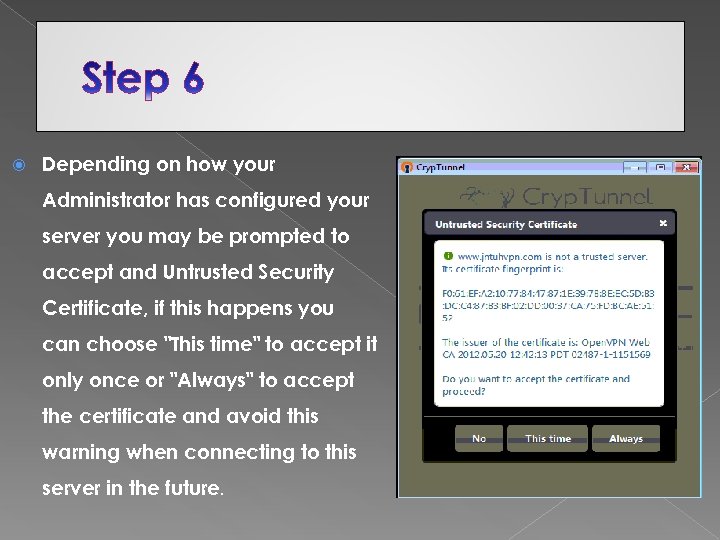 Depending on how your Administrator has configured your server you may be prompted to accept and Untrusted Security Certificate, if this happens you can choose "This time" to accept it only once or "Always" to accept the certificate and avoid this warning when connecting to this server in the future.
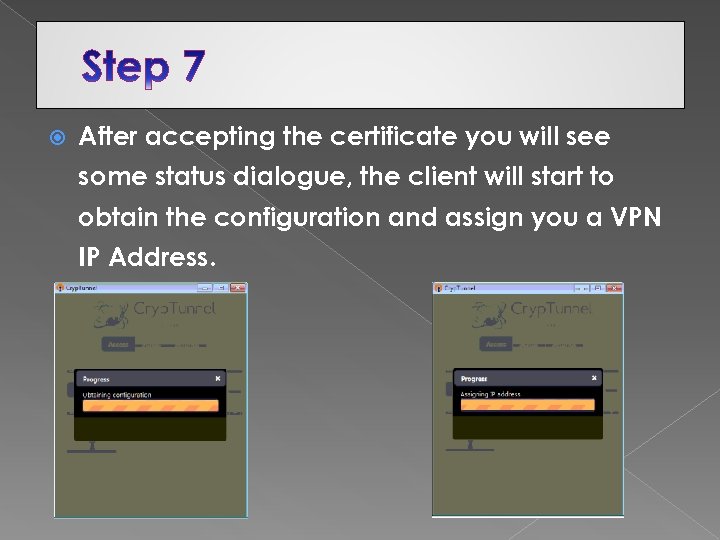 After accepting the certificate you will see some status dialogue, the client will start to obtain the configuration and assign you a VPN IP Address.
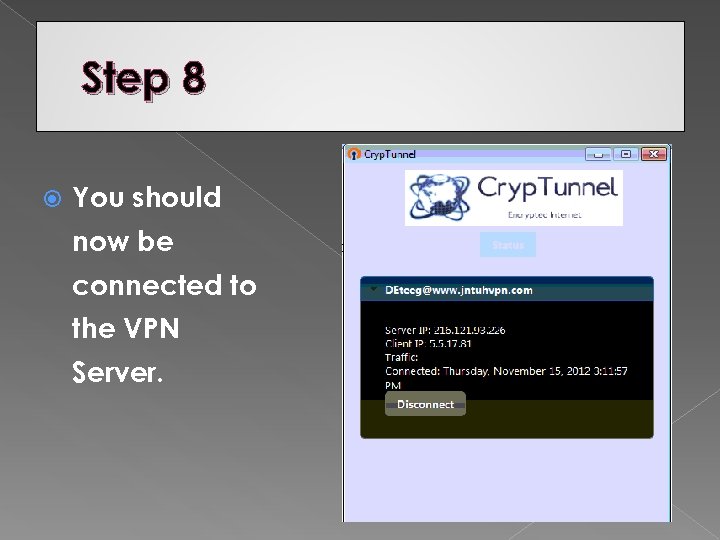 Step 8 You should now be connected to the VPN Server.
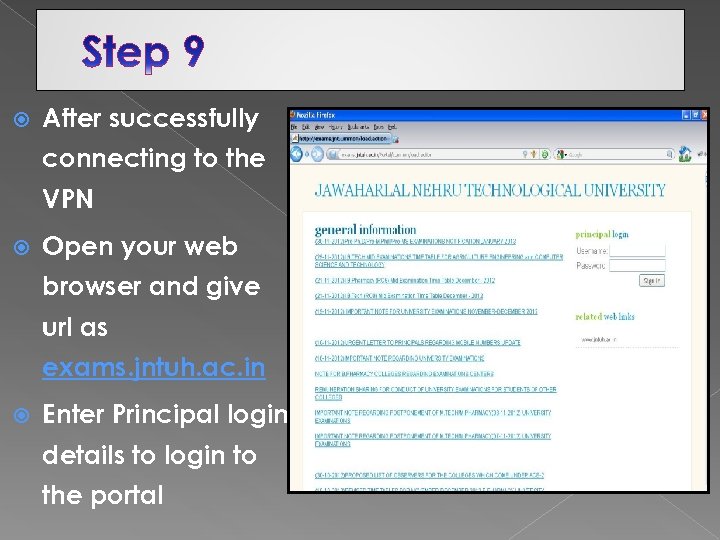 After successfully connecting to the VPN Open your web browser and give url as exams. jntuh. ac. in Enter Principal login details to login to the portal