


 Скачать презентацию The Universe Google s Online Tools for improved Productivity
5b41608c1cc93f14a326e5cb70eb8b29.ppt
- Количество слайдов: 96
 The Universe Google’s Online Tools for improved Productivity and Communication Marketing, productivity and communications through cloud computing G. William James Handheld Computer Solutions
 Handouts and Downloads www. pdapowerplus. com Contact Me william@pdapowerplus. com
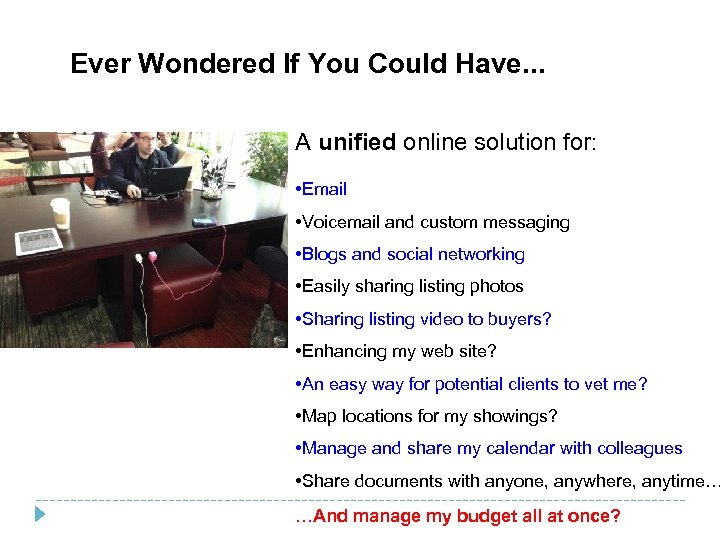 Ever Wondered If You Could Have. . . A unified online solution for: • Email • Voicemail and custom messaging • Blogs and social networking • Easily sharing listing photos • Sharing listing video to buyers? • Enhancing my web site? • An easy way for potential clients to vet me? • Map locations for my showings? • Manage and share my calendar with colleagues • Share documents with anyone, anywhere, anytime… …And manage my budget all at once?
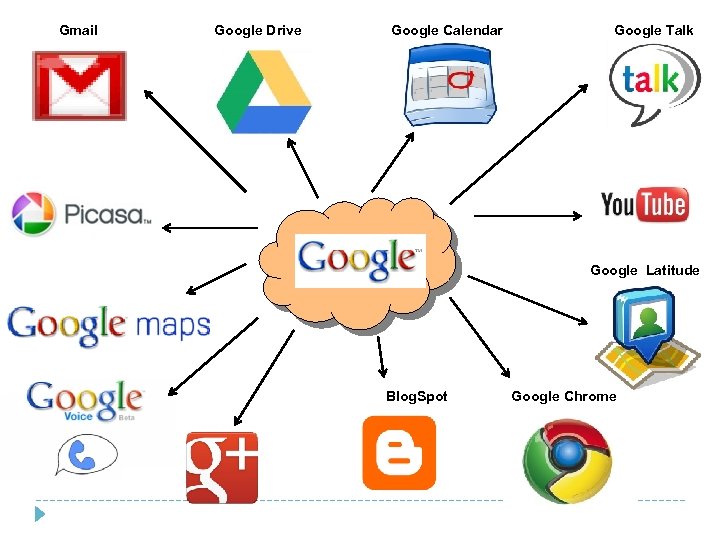 Gmail Google Drive Google Calendar Google Talk Google Latitude Blog. Spot Google Chrome
 What is Cloud Computing? Information resources and services §Software Applications §Data §Processing of information All done on the Internet from a “cloud” of resources over the network. • No software installation • Intra-nets: Private cloud applications for organizations
 What is Cloud Computing? • An internet-based model for groups to become more efficient through sharing. • Does not bog down your server, no software installation is required. • Businesses may choose to create a private cloud within their own firewalls • Cloud computing groups may be scalable or virtualized. • Some businesses offer services whereby one may purchase only the services used. - Business insider. com
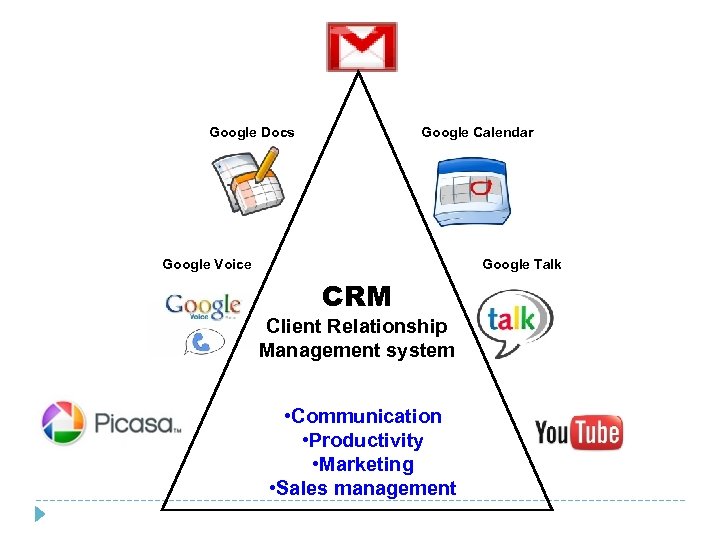 Google Docs Google Calendar Google Voice Google Talk CRM Client Relationship Management system • Communication • Productivity • Marketing • Sales management
 • The Three Steps To Building Your CRM Step One: Start with what you already have • Go through each of your contacts, looking for empty spaces • Fill those gaps as much as possible, with a focus on future marketing • Step Two: Customize, categorize and downsize • Create custom categories, and identify who goes where • Place contacts in multiple categories if possible • Delete or archive contact information you no longer need or use Step Three: Back up your data and share it on the cloud • Export your entire database and save it on an external disk • Export and copy your data into Gmail or another online PIM system • Store a copy in an online file storage server- it can easily be shared from here • Set a weekly date for backing up and renewing stored data
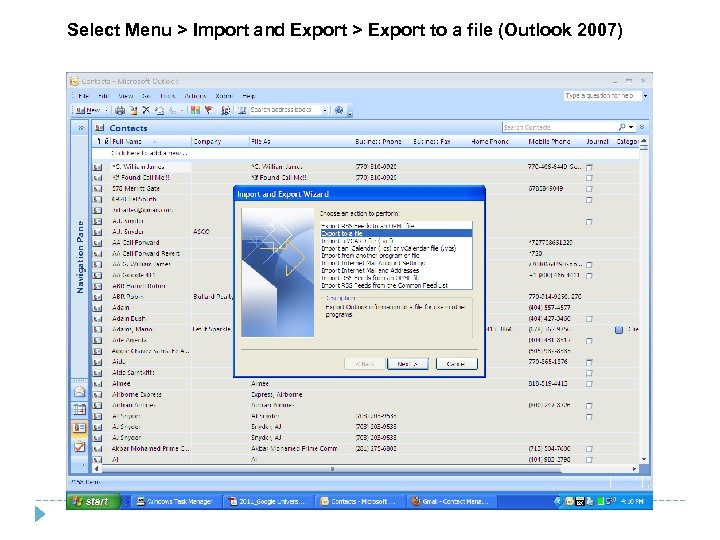 Select Menu > Import and Export > Export to a file (Outlook 2007)
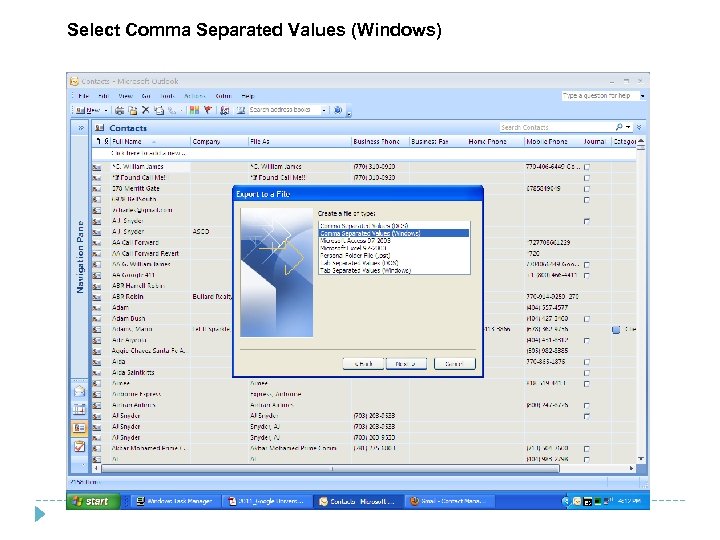 Select Comma Separated Values (Windows)
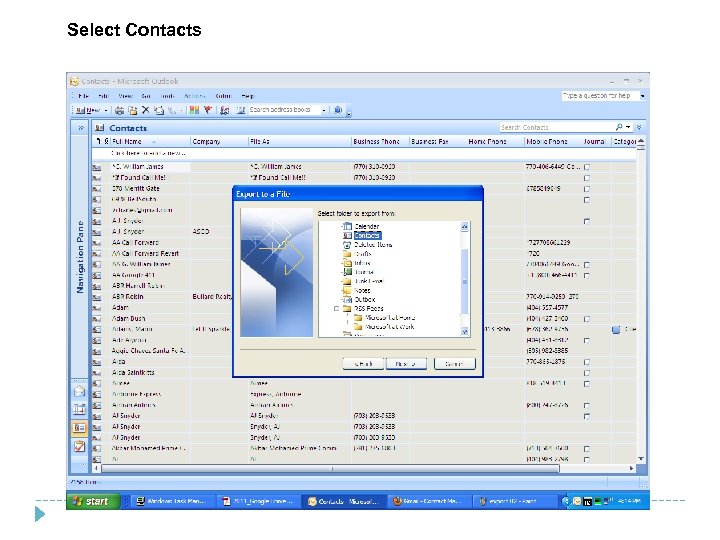 Select Contacts
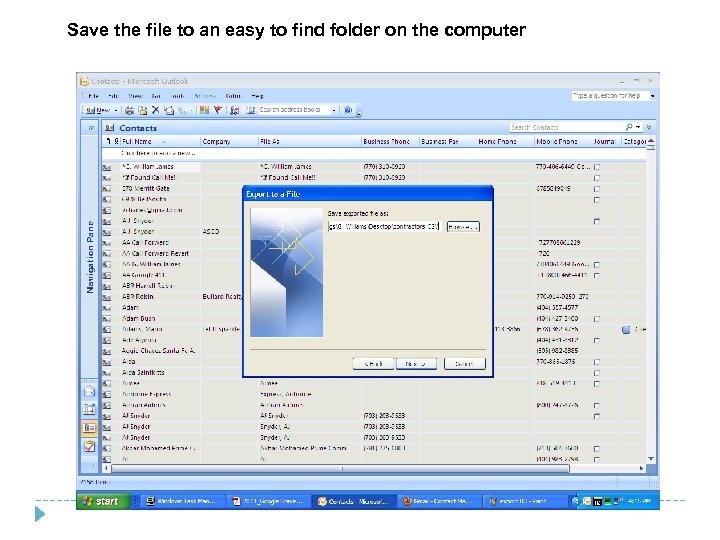 Save the file to an easy to find folder on the computer
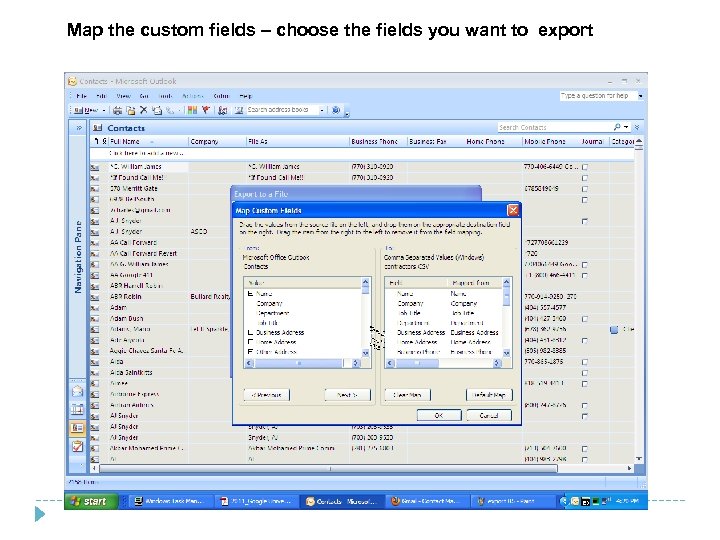 Map the custom fields – choose the fields you want to export
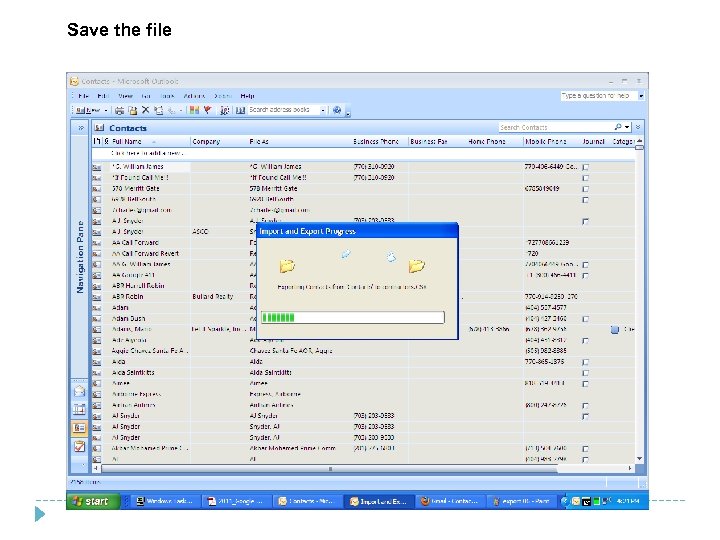 Save the file
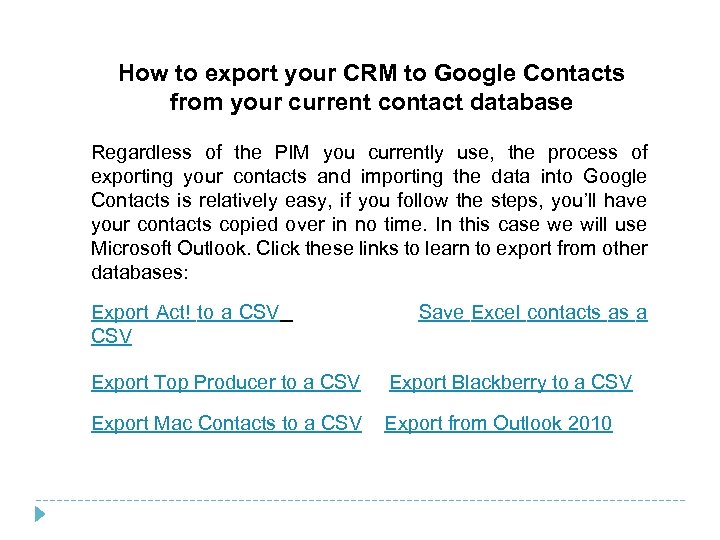 How to export your CRM to Google Contacts from your current contact database Regardless of the PIM you currently use, the process of exporting your contacts and importing the data into Google Contacts is relatively easy, if you follow the steps, you’ll have your contacts copied over in no time. In this case we will use Microsoft Outlook. Click these links to learn to export from other databases: Export Act! to a CSV Save Excel contacts as a Export Top Producer to a CSV Export Blackberry to a CSV Export Mac Contacts to a CSV Export from Outlook 2010
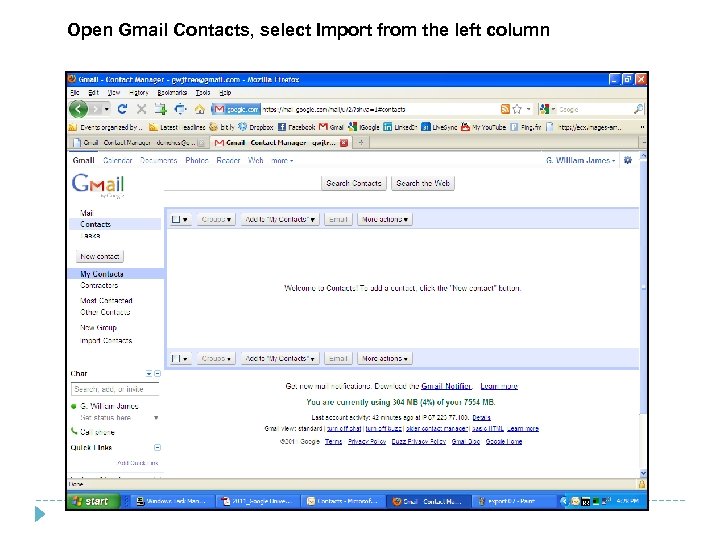 Open Gmail Contacts, select Import from the left column
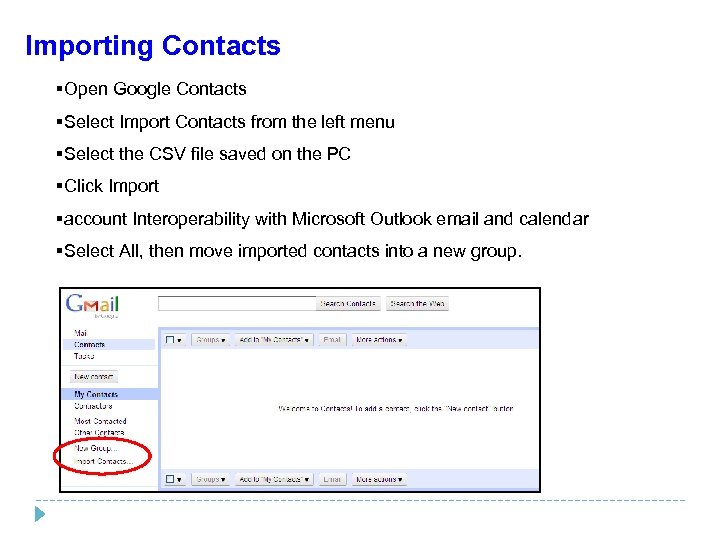 Importing Contacts §Open Google Contacts §Select Import Contacts from the left menu §Select the CSV file saved on the PC §Click Import §account Interoperability with Microsoft Outlook email and calendar §Select All, then move imported contacts into a new group.
 Google Gmail Features and Benefits §Generous (15 GB) mailbox §Simple to organize §Flexible and transparent §Easy to set up on mobile devices §account Interoperability with Microsoft Outlook email and calendar §Mobile email, calendar and IM access §Gmail contacts compatible with many applications §An IMAP server for mobile use §Converge all your email accounts to one Gmail account §Telephone and videoconferencing functions
 Google Gmail How To Set Up And Use Gmail §Start by creating a Google account §Select Gmail from apps list, log in using Google account §Set up Gmail send and receive options §Set up user interface options Customizable options for Gmail offline lets you work with your email from the browser without an internet connection With new options for Gmail offline, you can: • Configure how much of your old email is available when offline. • Enable Offline Gmail from the Labs, and customize which labels are synchronized, • Configure how far back messages are included for offline use • Determine which attachments you can access offline
 Google Gmail How To Set Up And Use Gmail Start by creating a Google account 1. Set up User interface §Plug-ins – Adds functionality to your Gmail both for PC and mobile device §General tab – sets the screen settings, signature and vacation responder §Labs – Your source for many enhanced plug-ins and other features §Labels – Categorize incoming mail, make sorting much easier §Filters – Organize labeled messages, and choose features §Stars – Click on star to highlight a message, as a reminder
 Google Gmail How To Set Up And Use Gmail Customize Settings 1. Personalize your display §General settings – Settings for message display, font, signature, etc. §Labels – Categorize incoming mail, make sorting much easier §Accounts – Forward all your email accounts to Gmail, and control them! §Filters – Customize how mail is delivered and organized §Forwarding & POP/IMAP – Settings to bring other email accounts to Gmail §Chat – Set up features for IM, telephone and video Hangouts in Gmail §Labs – Add some useful features to improve and personalize Gmail §Offline – Turn offline access on and read delivered email without internet
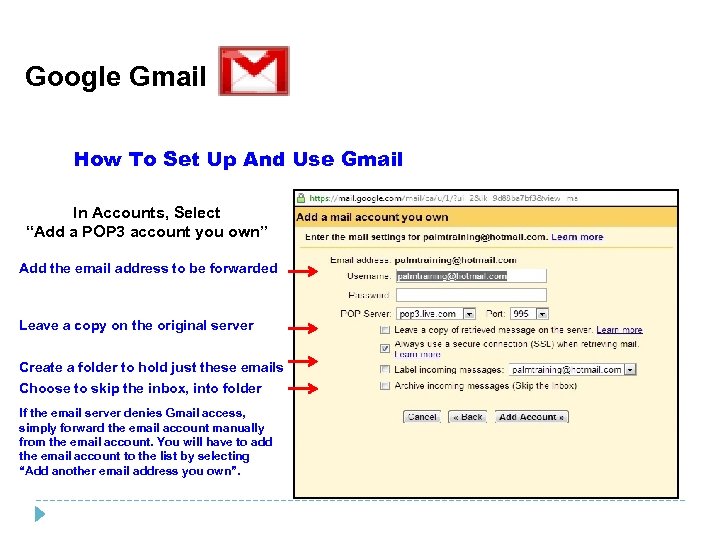 Google Gmail How To Set Up And Use Gmail In Accounts, Select “Add a POP 3 account you own” Add the email address to be forwarded Leave a copy on the original server Create a folder to hold just these emails Choose to skip the inbox, into folder If the email server denies Gmail access, simply forward the email account manually from the email account. You will have to add the email account to the list by selecting “Add another email address you own”.
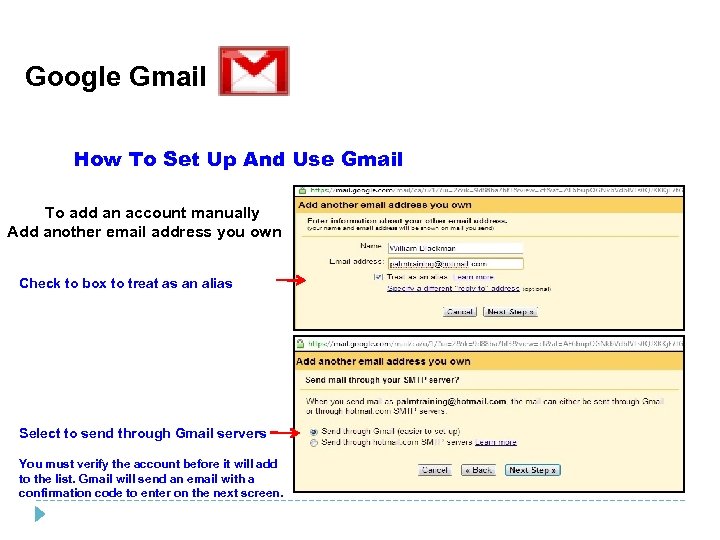 Google Gmail How To Set Up And Use Gmail To add an account manually Add another email address you own Check to box to treat as an alias Select to send through Gmail servers You must verify the account before it will add to the list. Gmail will send an email with a confirmation code to enter on the next screen.
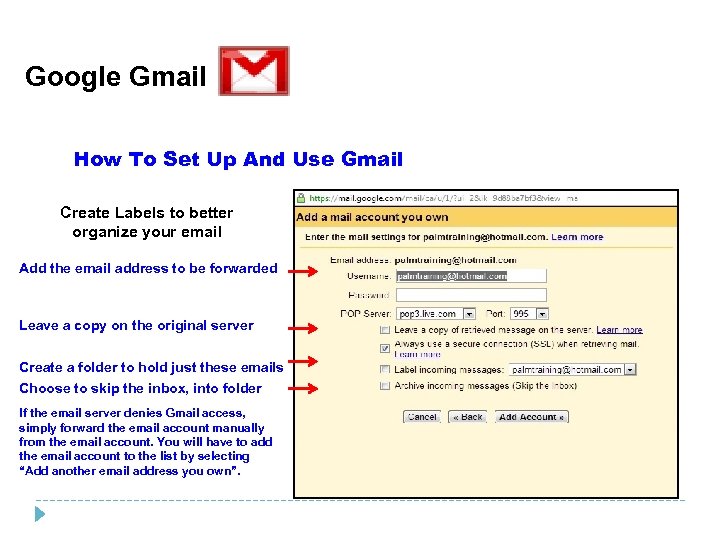 Google Gmail How To Set Up And Use Gmail Create Labels to better organize your email Add the email address to be forwarded Leave a copy on the original server Create a folder to hold just these emails Choose to skip the inbox, into folder If the email server denies Gmail access, simply forward the email account manually from the email account. You will have to add the email account to the list by selecting “Add another email address you own”.
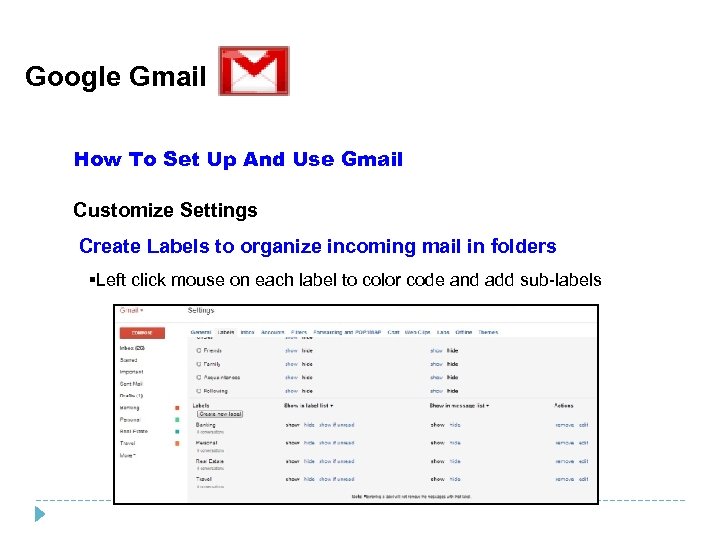 Google Gmail How To Set Up And Use Gmail Customize Settings Create Labels to organize incoming mail in folders §Left click mouse on each label to color code and add sub-labels
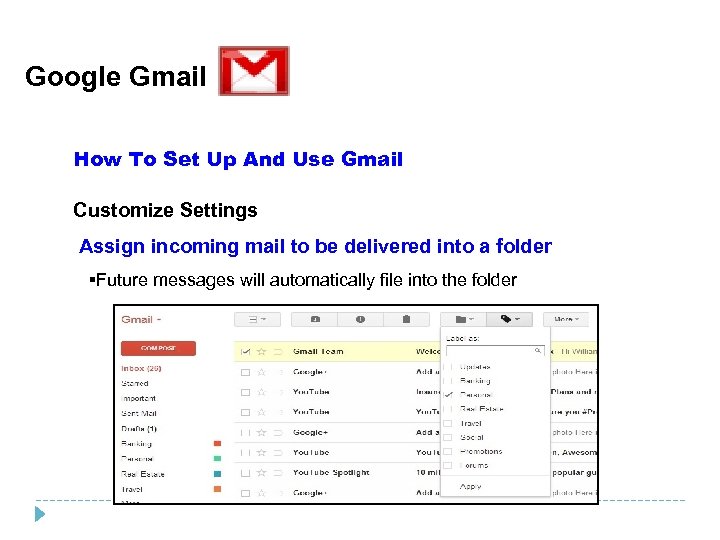 Google Gmail How To Set Up And Use Gmail Customize Settings Assign incoming mail to be delivered into a folder §Future messages will automatically file into the folder
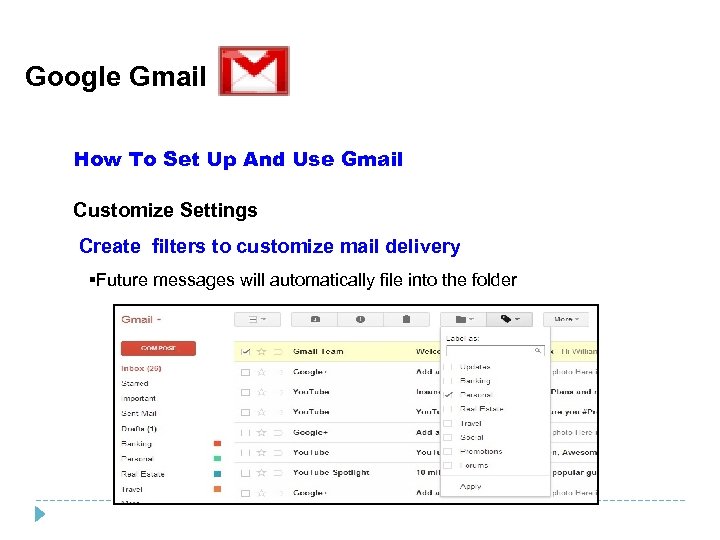 Google Gmail How To Set Up And Use Gmail Customize Settings Create filters to customize mail delivery §Future messages will automatically file into the folder
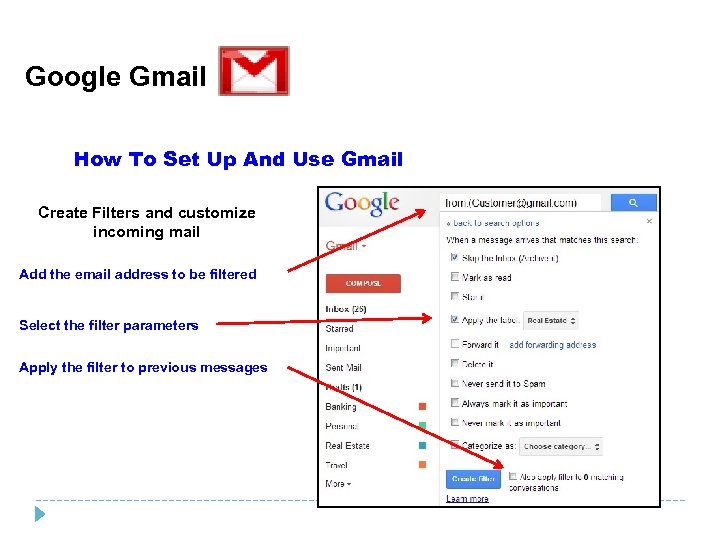 Google Gmail How To Set Up And Use Gmail Create Filters and customize incoming mail Add the email address to be filtered Select the filter parameters Apply the filter to previous messages
 Google Gmail How To Set Up And Use Gmail Customize Settings Create Labels to organize incoming mail in folders §Left click mouse on each label to color code and add sub-labels
 Google Gmail How To Set Up And Use Gmail Customize Settings 3. Set up phone and video chat features §Turn on Chat – Located in Settings §Download the plugin –The http: //www. google. com/hangouts/ §For Mobile Devices– Add the Hangout or the Google+ app onto devices. §Free Video and phone – connect with contacts on mobile or desktops
 Google Voice Features and Benefits §One number rings all your phones §Customize your business phone number §Works with both land lines and mobile phones §Incoming Call Control– Direct certain callers multiple phones, or voicemail §Easy to set up and customize §Create custom greetings to give a personal and professional reception §Transcribed and forwarded voicemail messages §Record calls, block callers, conferencing features §Keep detailed records of calls and text messages
 Google Voice How To Set Up And Use Google Voice Customize Settings Start with your Gmail Contacts §Organize Groups – Decide what users will receive which greeting Customize Google Voice Settings §Labels – Categorize incoming mail, make sorting much easier §Calls & Chat – Create the settings for free calls, SMS, chat or AIM §Web Clips – Choose or create screen access to your favorite RSS feeds §Offline – Turn offline access on and read delivered email without internet
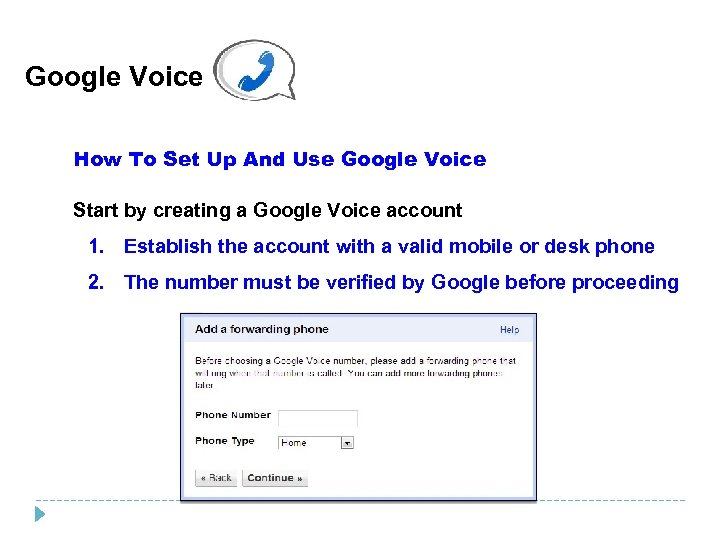 Google Voice How To Set Up And Use Google Voice Start by creating a Google Voice account 1. Establish the account with a valid mobile or desk phone 2. The number must be verified by Google before proceeding
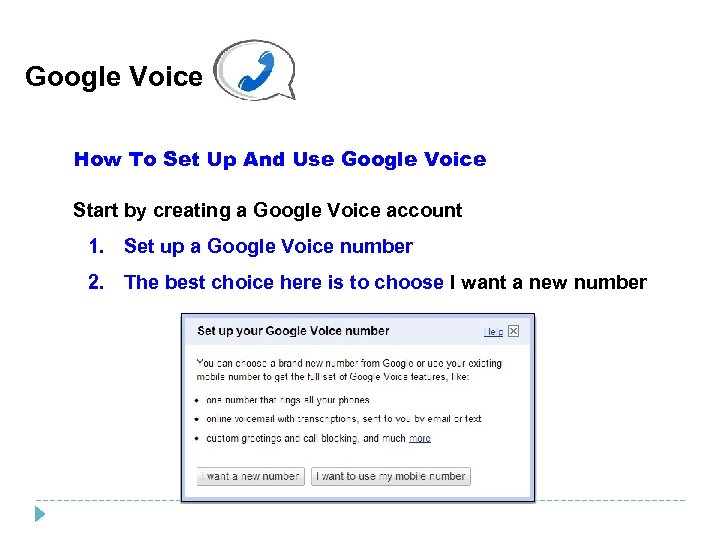 Google Voice How To Set Up And Use Google Voice Start by creating a Google Voice account 1. Set up a Google Voice number 2. The best choice here is to choose I want a new number
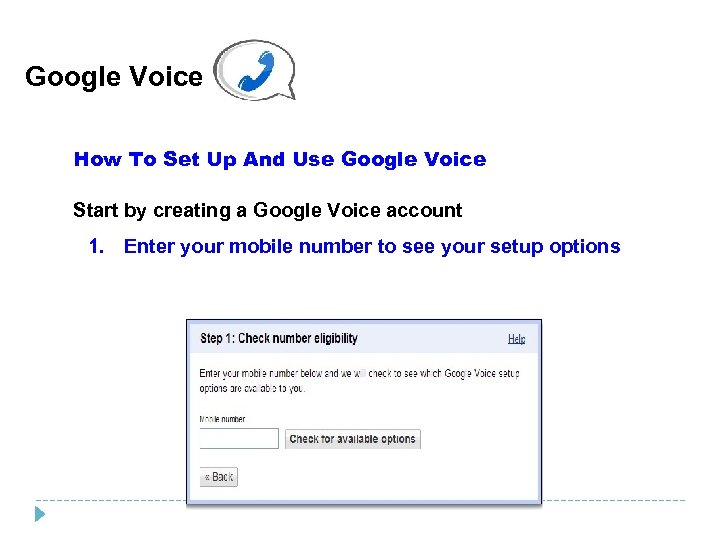 Google Voice How To Set Up And Use Google Voice Start by creating a Google Voice account 1. Enter your mobile number to see your setup options
 Google Voice
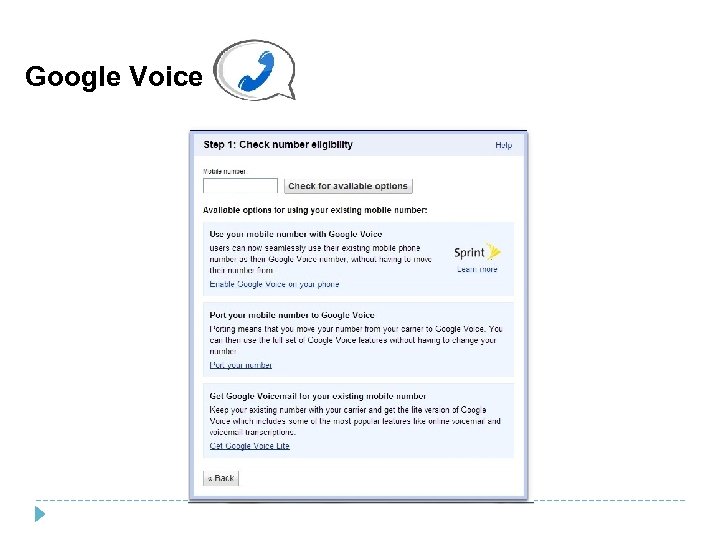
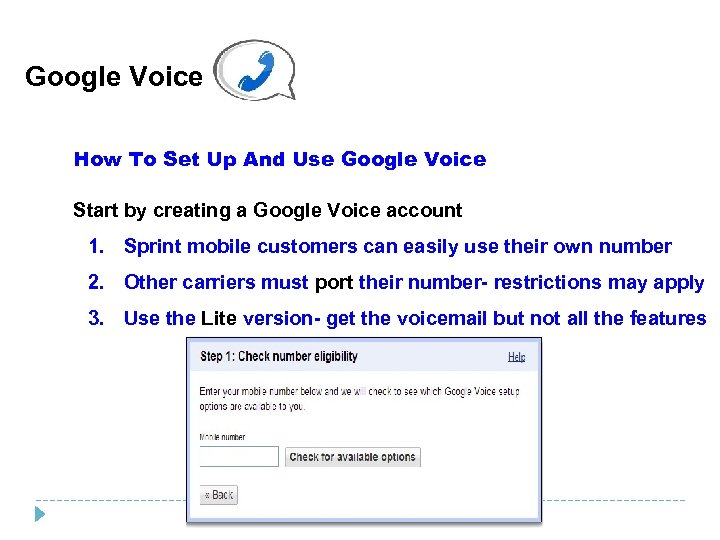 Google Voice How To Set Up And Use Google Voice Start by creating a Google Voice account 1. Sprint mobile customers can easily use their own number 2. Other carriers must port their number- restrictions may apply 3. Use the Lite version- get the voicemail but not all the features
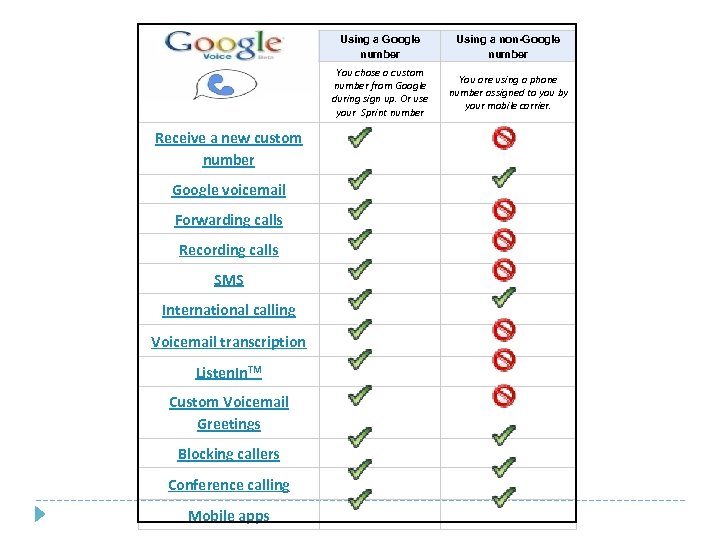 Using a Google number Using a non-Google number You chose a custom number from Google during sign up. Or use your Sprint number You are using a phone number assigned to you by your mobile carrier. Receive a new custom number Google voicemail Forwarding calls Recording calls SMS International calling Voicemail transcription Listen. In. TM Custom Voicemail Greetings Blocking callers Conference calling Mobile apps
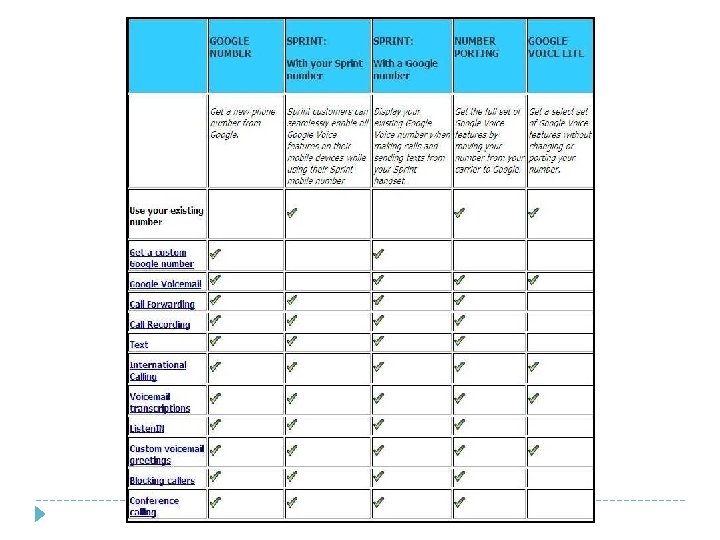
 Google Voice How To Make International Calls From your mobile phone: §GV Mobile App – Call through the app on i. Phone, Windows and Blackberry §Android users make calls normally, after installing the GV app. §You will be charged the low international rate to your Google Wallet account §Calling from outside the US, use Wi. Fi to dial the call through your Google Voice number, prompt #2 to dial out. Calls back to the US are $. 01/minute Calling from your tablet: § Install the free Talkatone app, make all US calls free via Wi. Fi §Use Talkatone while abroad to call at Google rates over Wi. Fi
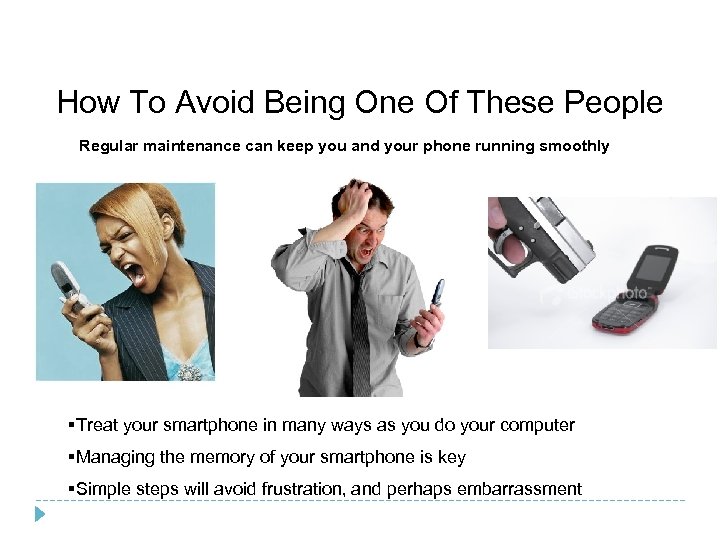 How To Avoid Being One Of These People Regular maintenance can keep you and your phone running smoothly §Treat your smartphone in many ways as you do your computer §Managing the memory of your smartphone is key §Simple steps will avoid frustration, and perhaps embarrassment
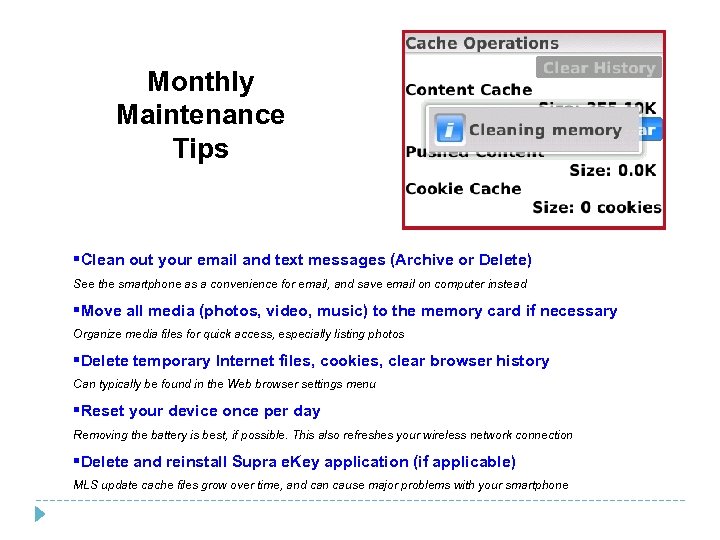 Monthly Maintenance Tips §Clean out your email and text messages (Archive or Delete) See the smartphone as a convenience for email, and save email on computer instead §Move all media (photos, video, music) to the memory card if necessary Organize media files for quick access, especially listing photos §Delete temporary Internet files, cookies, clear browser history Can typically be found in the Web browser settings menu §Reset your device once per day Removing the battery is best, if possible. This also refreshes your wireless network connection §Delete and reinstall Supra e. Key application (if applicable) MLS update cache files grow over time, and can cause major problems with your smartphone
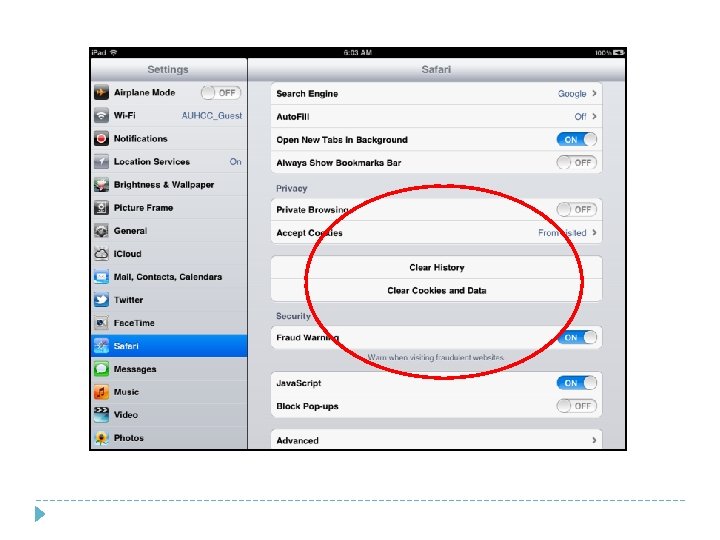
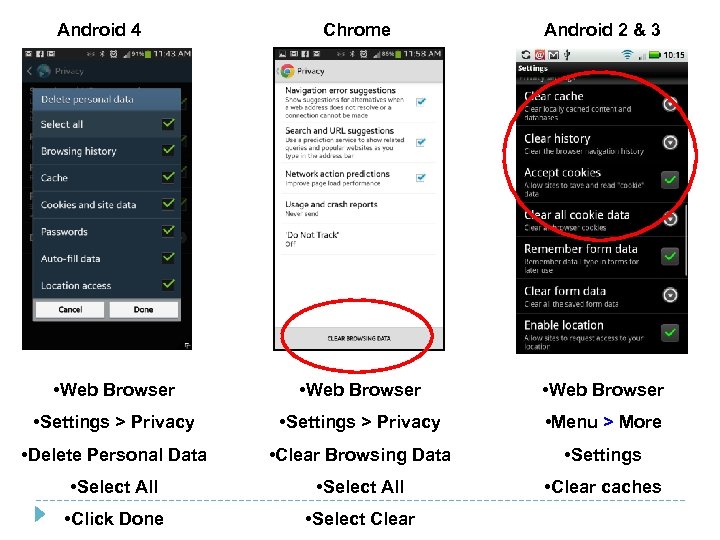 Android 4 Chrome Android 2 & 3 • Web Browser • Settings > Privacy • Menu > More • Delete Personal Data • Clear Browsing Data • Settings • Select All • Clear caches • Click Done • Select Clear
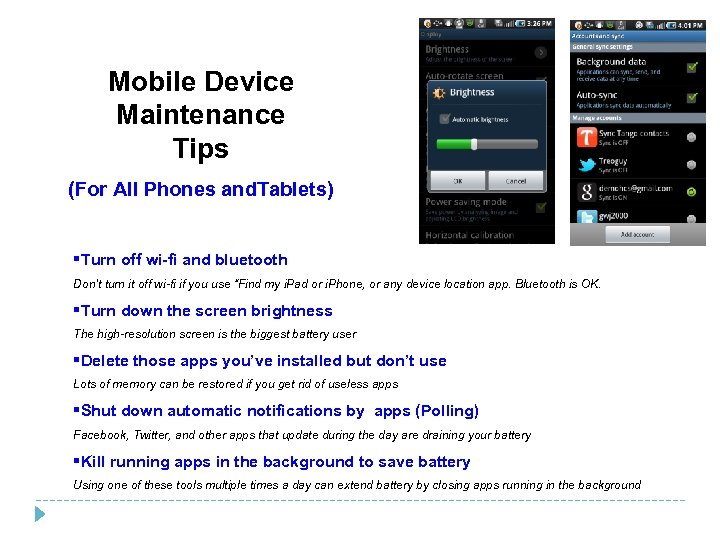 Mobile Device Maintenance Tips (For All Phones and. Tablets) §Turn off wi-fi and bluetooth Don’t turn it off wi-fi if you use “Find my i. Pad or i. Phone, or any device location app. Bluetooth is OK. §Turn down the screen brightness The high-resolution screen is the biggest battery user §Delete those apps you’ve installed but don’t use Lots of memory can be restored if you get rid of useless apps §Shut down automatic notifications by apps (Polling) Facebook, Twitter, and other apps that update during the day are draining your battery §Kill running apps in the background to save battery Using one of these tools multiple times a day can extend battery by closing apps running in the background
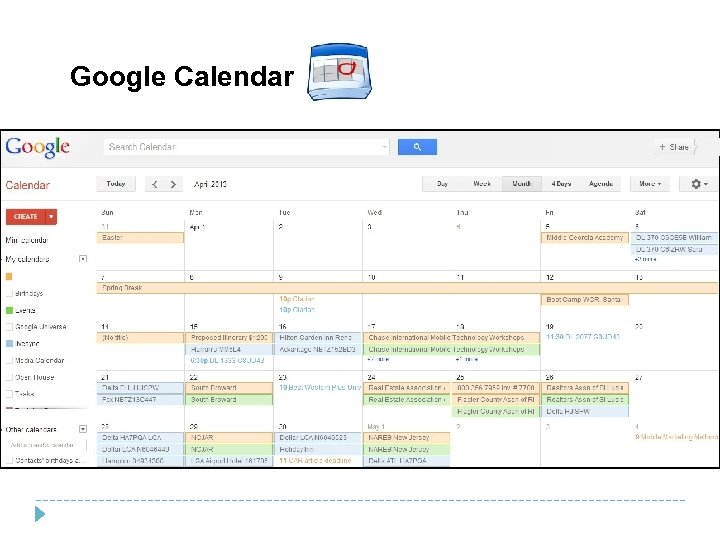
 Google Calendar Cloud- Based Time Management and Productivity §Create, edit, and share multiple calendar categories §Customize alerts and reminders §Create your own custom login page §Two-way sync to your PC or Mac over the Internet §Share one or multiple calendars with anyone online §Attach items to calendar events §Collaborate in real-time with others §Upload any type of file for storage up to 1 GB §Tons of useful new features
 Google Calendar Features and Benefits §Create, edit, and share multiple calendar categories §Customize alerts and reminders §Create your own custom login page §Two-way sync to your PC or Mac over the Internet §Share one or multiple calendars with anyone online §Attach items to calendar events §Collaborate in real-time with others §Tons of useful new features
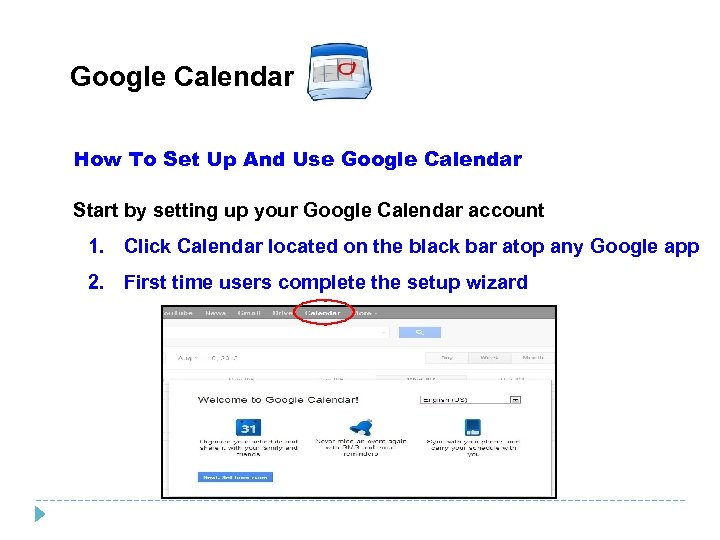 Google Calendar How To Set Up And Use Google Calendar Start by setting up your Google Calendar account 1. Click Calendar located on the black bar atop any Google app 2. First time users complete the setup wizard
 Google Calendar How To Set Up And Use Google Calendar Start by setting up your Google Calendar account 1. Set up User interface §General – User options for time zone, screen layout, etc. §Calendars – Add up to 25 calendars to use and share §Mobile Setup – Have Calendar alert you on your mobile phone & tablet §Labs – Optional, very useful features and add-ons for your convenience
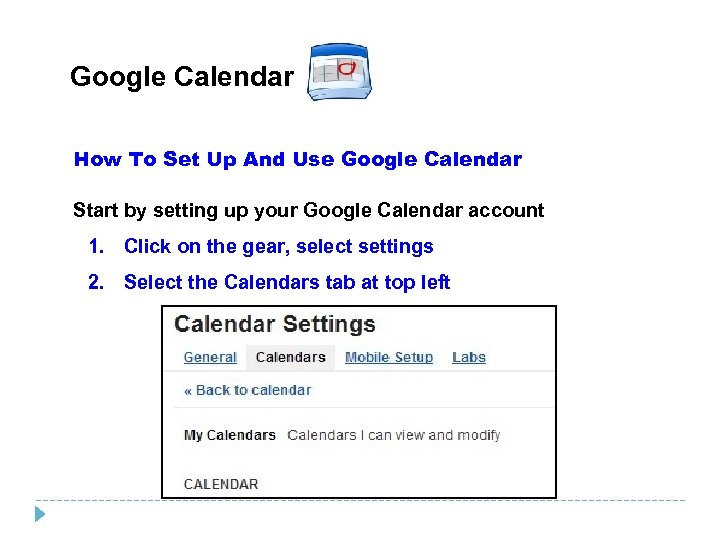 Google Calendar How To Set Up And Use Google Calendar Start by setting up your Google Calendar account 1. Click on the gear, select settings 2. Select the Calendars tab at top left
 Google Calendar How To Set Up And Use Google Calendar Start by setting up your Google Calendar account 1. Select Calendars, add a new calendar 2. If desired, invite a user to share the calendar 3. Choose access permissions for each sharer 4. This shared calendar is a mirror image to all sharers 5. Calendars may also be made public and searchable 6. Import i. Cal or Outlook CSV calendar files into a Calendar
 Google Calendar
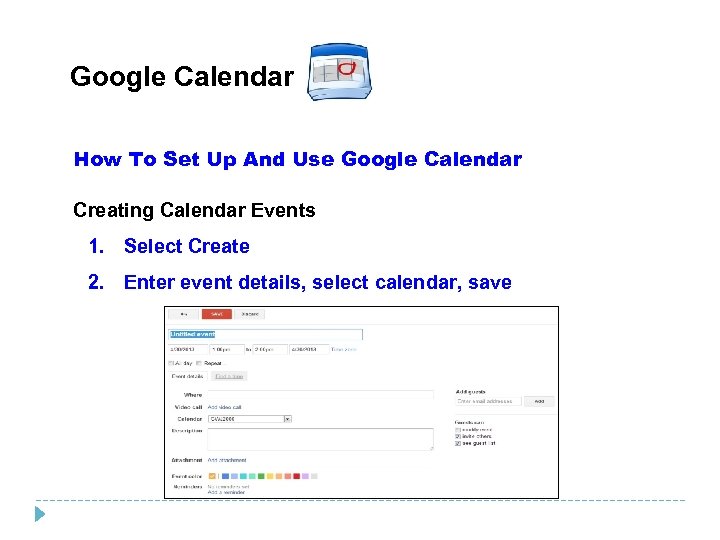 Google Calendar How To Set Up And Use Google Calendar Creating Calendar Events 1. Select Create 2. Enter event details, select calendar, save
 Google Calendar How To Set Up And Use Google Calendar Add Custom Calendars, add a Birthday and anniversary calendar 1. Left click mouse on the arrow for Other Calendars 2. Select Browse Interesting Calendars 3. Select More, add Contacts’ Birthdays and Events
 Google Calendar Make The Calendars On All Your Devices Say The Same Create a Gmail account to sync your email, calendar and notes to your laptop, smartphone, i. Pad and other tablets all at the same time. Then add a Card. DAV account to be able to sync contacts effectively. For Apple i. Phone, and i. Pad • Open Settings on your Apple device. • Select Mail, Contacts, Calendars from the menu • Select Add Account. From the list select Gmail. • Fill in the page with your Gmail account and password, username is the same as your email address • Turn on the settings for each function. If you have the prompt to archive messages, turn the choice to ON. • Select Add Account once again, this time select Other from the list. . • Select Add Card. DAV Account • Enter the server address www. google. com, then your Gmail address and password. Enter the description as you like. • Tap Save. The process will configure to now sync your Google Contacts, located in Gmail. Any contacts currently on your i. Phone and i. Pad will now sync with Google Contacts in Gmail/ • Finally, open Safari, and enter the URL www. google. com/calendars/syncselect. Sign in and choose which of your 25 Google calendars you want to show on your i. Phone or i. Pad calendar. Your Apple device calendar will have Google calendar events now.
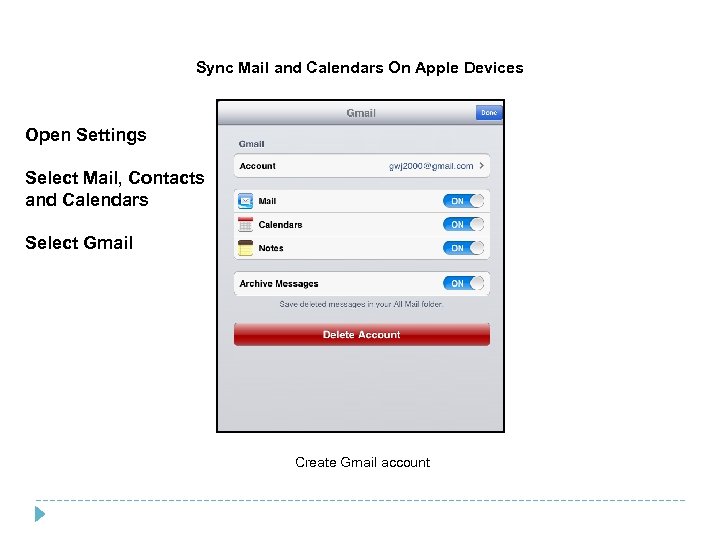 Sync Mail and Calendars On Apple Devices Open Settings Select Mail, Contacts and Calendars Select Gmail Create Gmail account
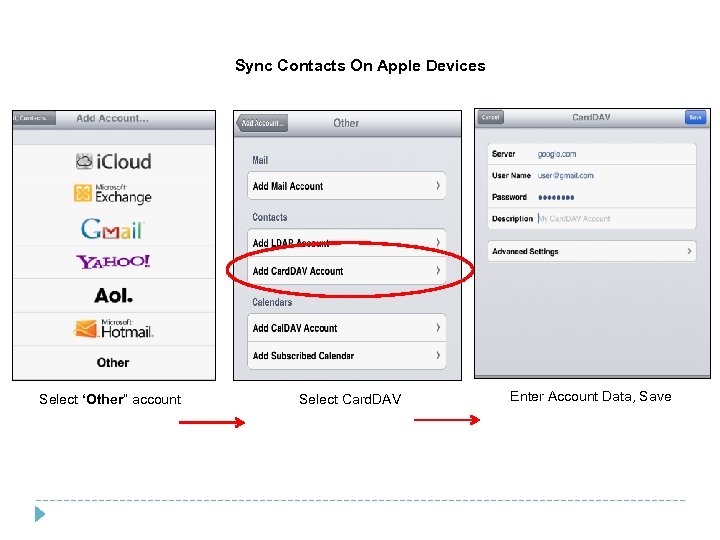 Sync Contacts On Apple Devices Select ‘Other” account Select Card. DAV Enter Account Data, Save
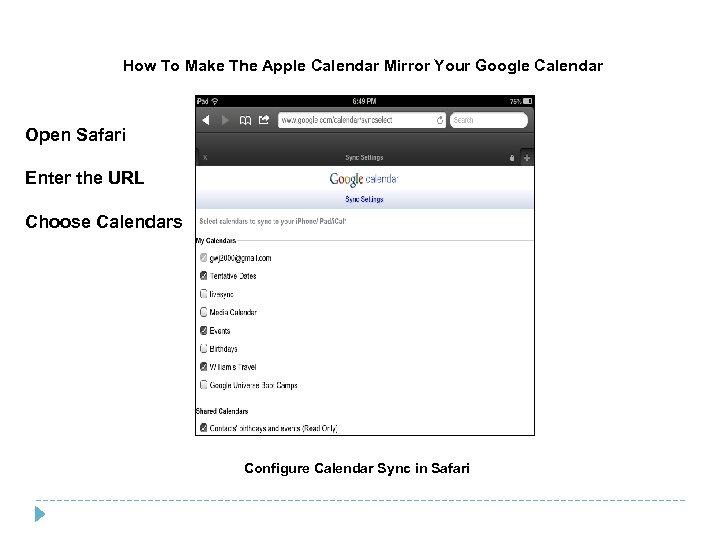 How To Make The Apple Calendar Mirror Your Google Calendar Open Safari Enter the URL Choose Calendars Configure Calendar Sync in Safari
 Google Drive Cloud-Based Document Management and Storage §Create, edit, and share documents, spreadsheets and presentations §Upload your current docs from your PC or Drop. Box §Easy to convert documents to other formats (Doc. X, PDF, etc. ) §Share documents with anyone online, publicly or secured §Create folders and store documents online as a backup §Collaborate in real-time with others §Upload any type of file for storage up to 1 GB §Tons of useful new features
 Google Drive Cloud-Based Document Management and Storage §Create, edit, and share documents, spreadsheets and presentations §Upload your current docs from your PC or Drop. Box §Easy to convert documents to other formats (Doc. X, PDF, etc. ) §Share documents with anyone online, publicly or secured §Create folders and store documents online as a backup §Collaborate in real-time with others §Upload any type of file for storage up to 1 GB §Tons of useful new features
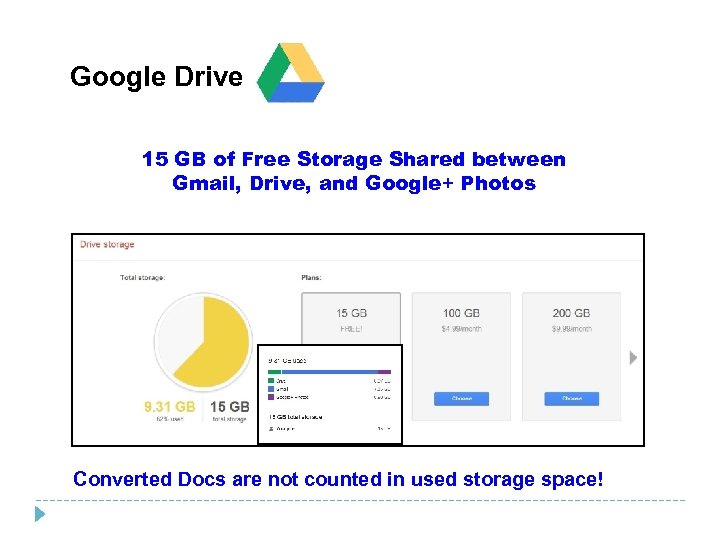 Google Drive 15 GB of Free Storage Shared between Gmail, Drive, and Google+ Photos Converted Docs are not counted in used storage space!
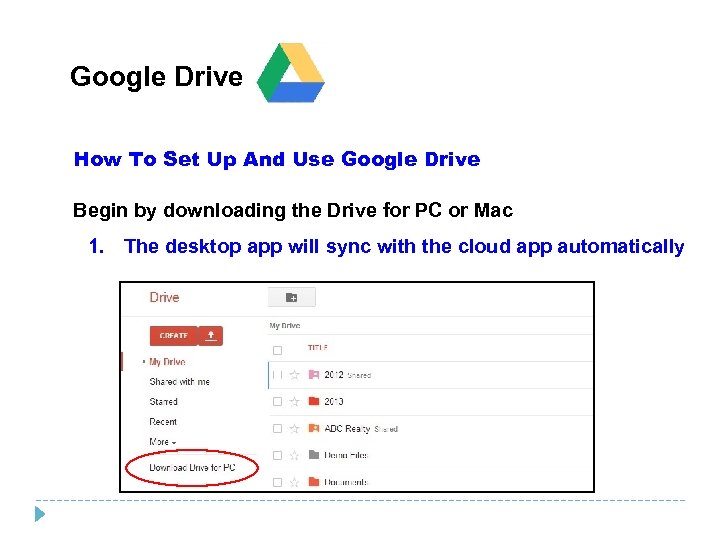 Google Drive How To Set Up And Use Google Drive Begin by downloading the Drive for PC or Mac 1. The desktop app will sync with the cloud app automatically
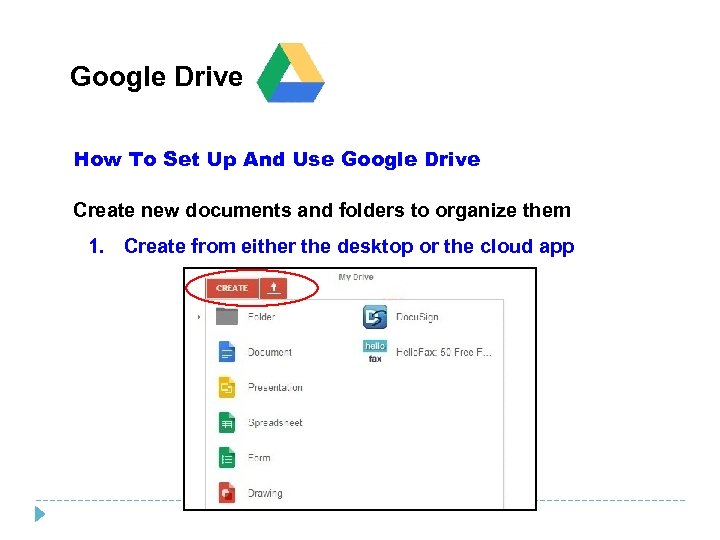 Google Drive How To Set Up And Use Google Drive Create new documents and folders to organize them 1. Create from either the desktop or the cloud app
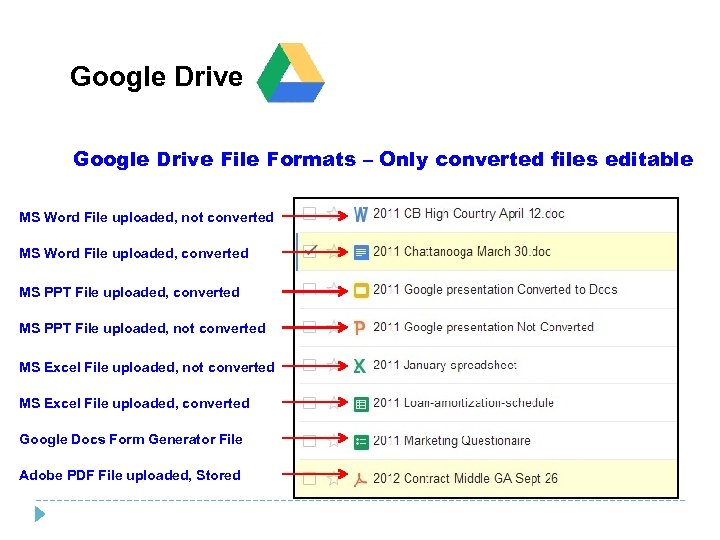 Google Drive File Formats – Only converted files editable MS Word File uploaded, not converted MS Word File uploaded, converted MS PPT File uploaded, not converted MS Excel File uploaded, converted Google Docs Form Generator File Adobe PDF File uploaded, Stored
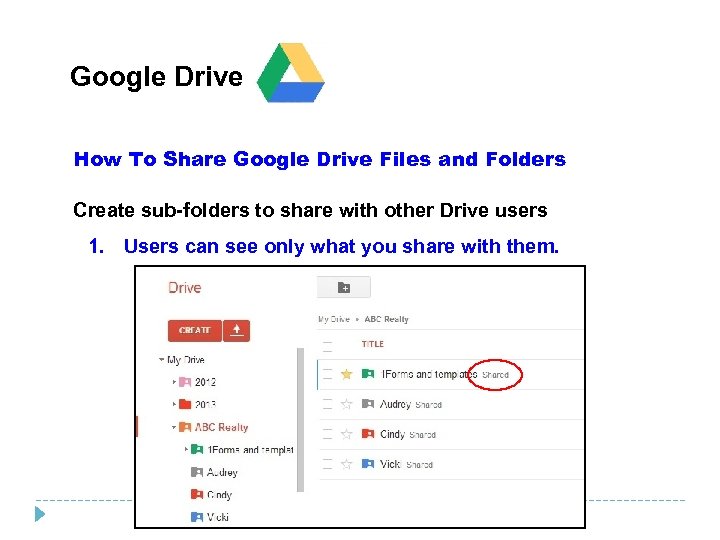 Google Drive How To Share Google Drive Files and Folders Create sub-folders to share with other Drive users 1. Users can see only what you share with them.
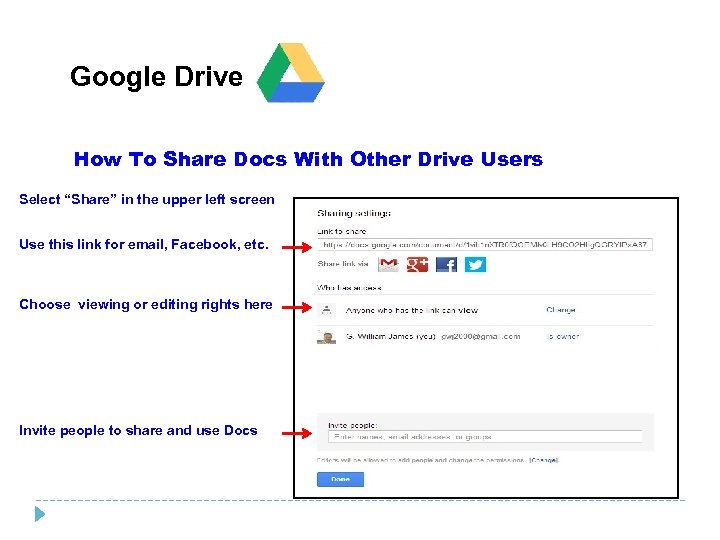 Google Drive How To Share Docs With Other Drive Users Select “Share” in the upper left screen Use this link for email, Facebook, etc. Choose viewing or editing rights here Invite people to share and use Docs
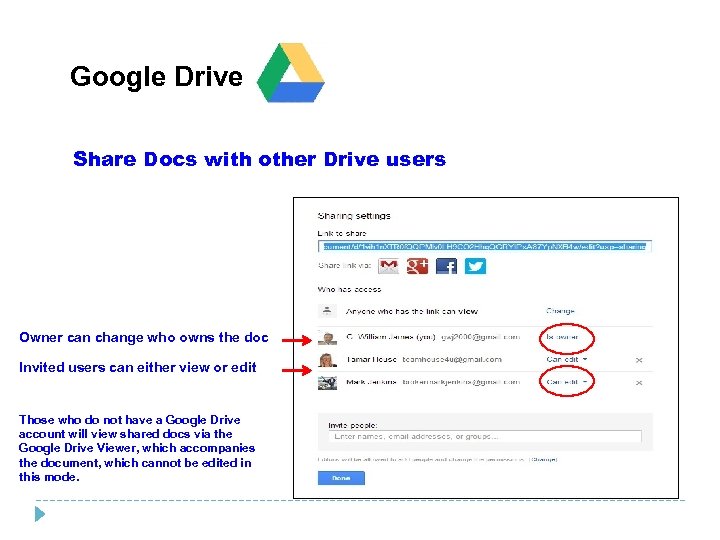 Google Drive Share Docs with other Drive users Owner can change who owns the doc Invited users can either view or edit Those who do not have a Google Drive account will view shared docs via the Google Drive Viewer, which accompanies the document, which cannot be edited in this mode.
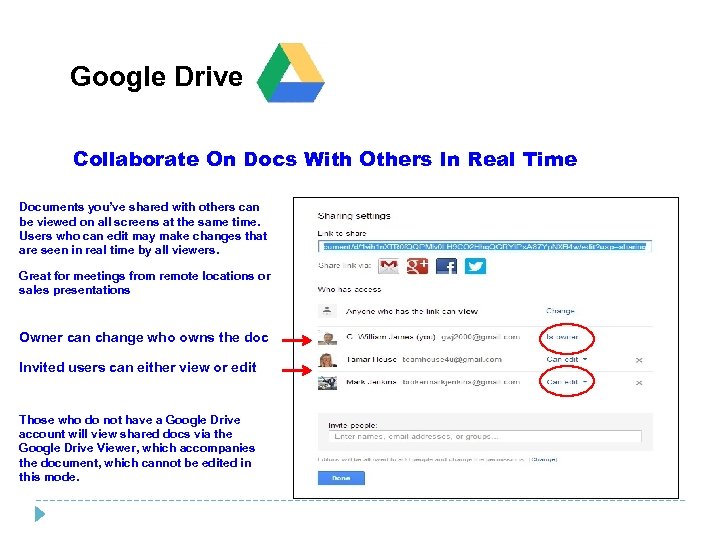 Google Drive Collaborate On Docs With Others In Real Time Documents you’ve shared with others can be viewed on all screens at the same time. Users who can edit may make changes that are seen in real time by all viewers. Great for meetings from remote locations or sales presentations Owner can change who owns the doc Invited users can either view or edit Those who do not have a Google Drive account will view shared docs via the Google Drive Viewer, which accompanies the document, which cannot be edited in this mode.
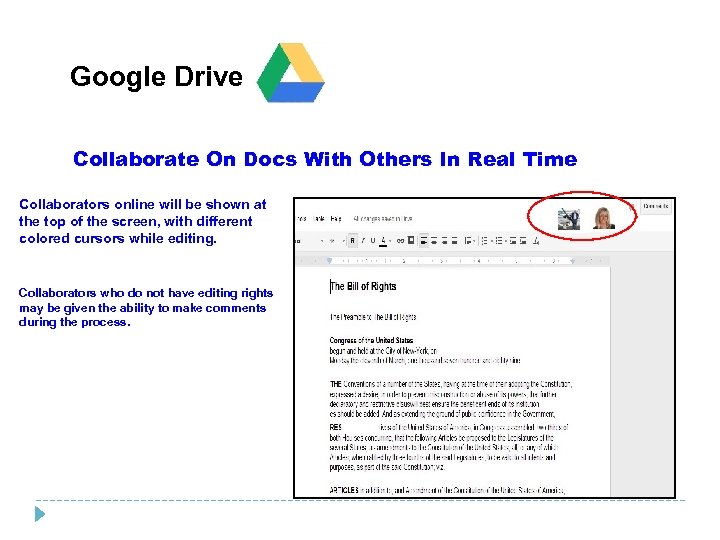 Google Drive Collaborate On Docs With Others In Real Time Collaborators online will be shown at the top of the screen, with different colored cursors while editing. Collaborators who do not have editing rights may be given the ability to make comments during the process.

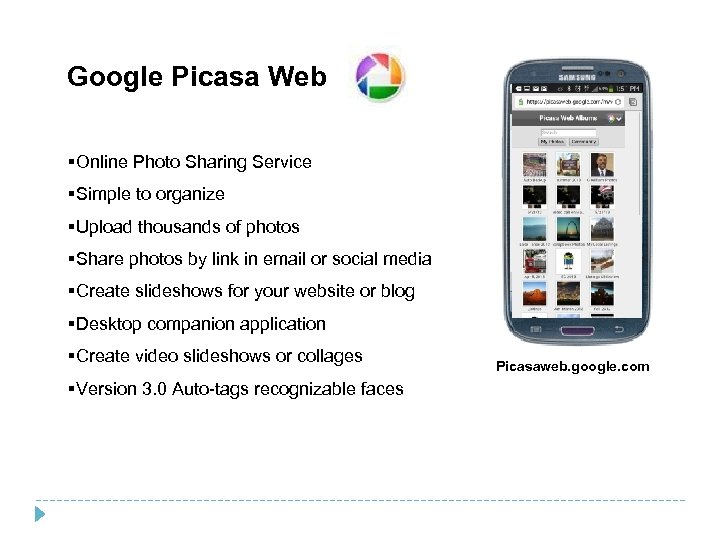 Google Picasa Web §Online Photo Sharing Service §Simple to organize §Upload thousands of photos §Share photos by link in email or social media §Create slideshows for your website or blog §Desktop companion application §Create video slideshows or collages §Version 3. 0 Auto-tags recognizable faces Picasaweb. google. com
 Google Picasa Web • Ten times more albums. Those of you who have close to 1000 web albums on Picasa Web Albums will be happy to learn that you can now store up to 10 thousand web albums on the site. Since each web album can hold 1000 photos, this means you can potentially post 10 million photos on Picasa Web Albums! • Edit photos with Picnik. Apply Picnik magic to your photo by selecting Edit in Picnik or from the new Picnik icon above your photo. Picnik allows you to edit photos easily, share them and save them back to Picasa Web Albums, right in your browser. • Share your Unlisted Gallery. Forget sharing unlisted albums one by one! Use the unlisted gallery URLto share with family and friends. You can always reset the authorization key in the Settings page if you'd like to change who can view your unlisted albums. • Post to Buzz, Blogger and Twitter. Share your Picasa Web Albums photos with friends in more places! Just click the Buzz, Blogger, and Twitter icons to the right of your photo to post links in those networks.
 Google Picasa Web • Upload to Collaborative albums. Every album in Picasa Web Albums is now potentially collaborative. Make an album collaborative by adding contributors in Picasa (version 3. 6 and beyond) or Picasa Web Albums. Your friends and family can then add their photos directly to your album. • Picasa Web Albums metrics: View counts & 'Like'. We're excited to introduce two ways to gauge the reach and quality of your photos. 'Views' allow you to see how many people have seen your photo. 'Like' lets you give other people feedback on their photos when you can't think of anything clever to leave as a comment. Both are available below each individual photo and are visible to anyone that can see the photo. Learn more about Views and I like this • Upload larger videos to Picasa Web Albums and play them back at higher quality. We raised the video upload limit from Picasa to Picasa Web Albums to one GB for both PC and Mac users. Plus, videos larger than 320 pixels will now play back in higher-quality MPEG 4 format.
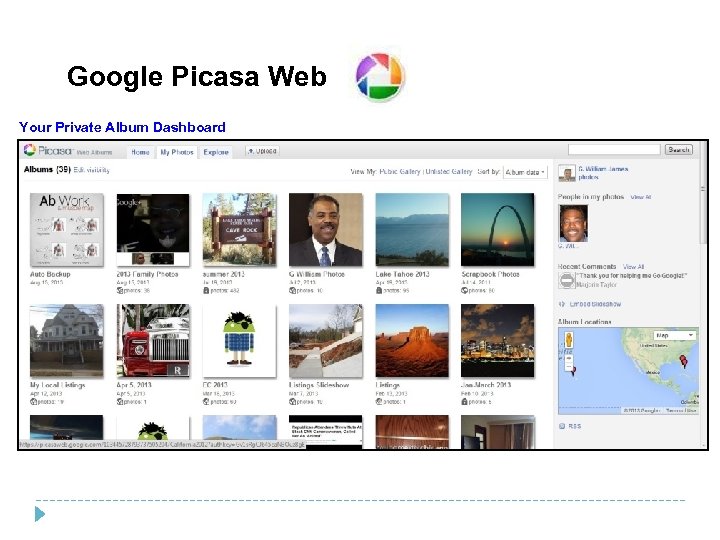 Google Picasa Web Your Private Album Dashboard
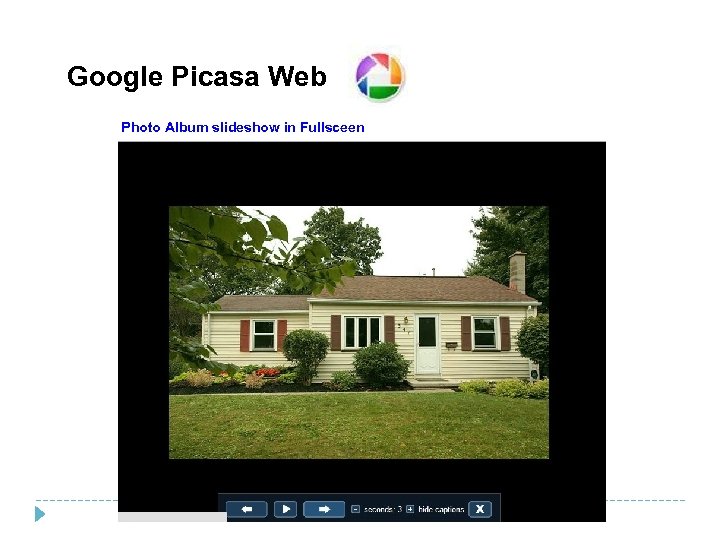 Google Picasa Web Photo Album slideshow in Fullsceen
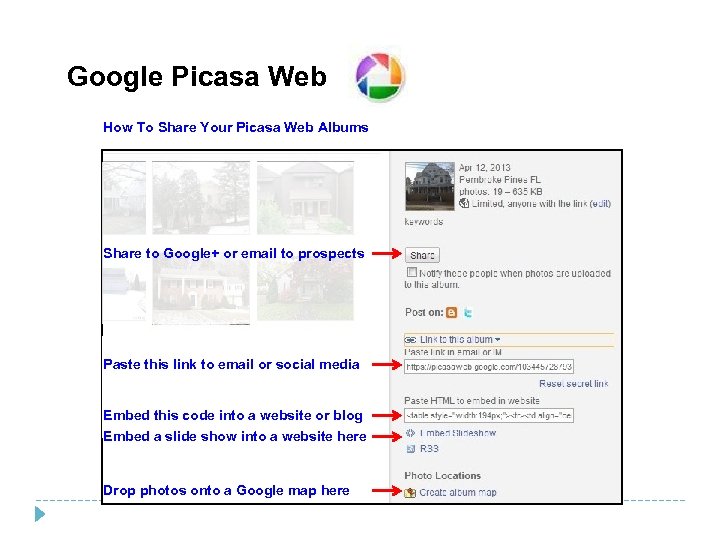 Google Picasa Web How To Share Your Picasa Web Albums Share to Google+ or email to prospects Paste this link to email or social media Embed this code into a website or blog Embed a slide show into a website here Drop photos onto a Google map here
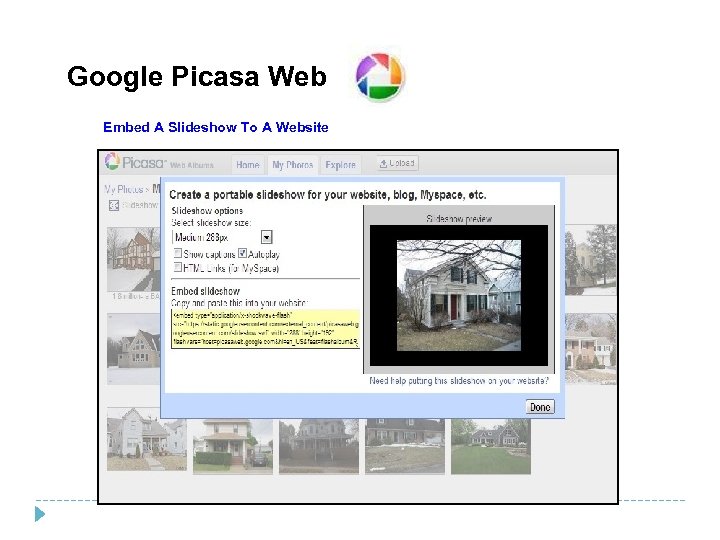 Google Picasa Web Embed A Slideshow To A Website
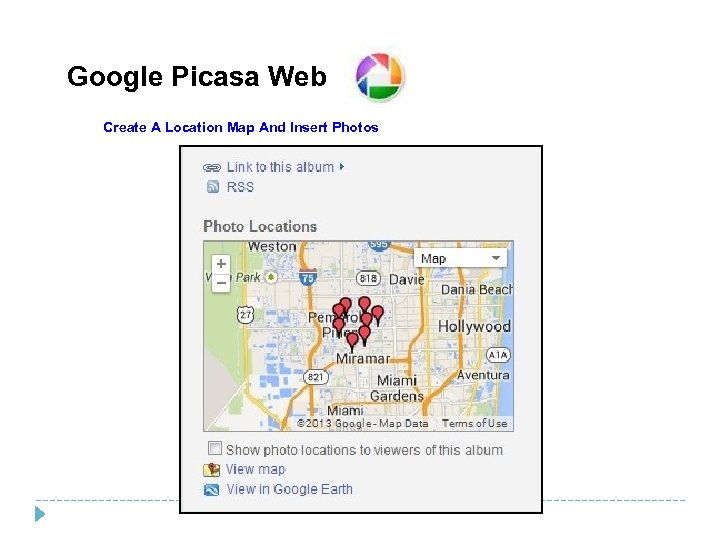 Google Picasa Web Create A Location Map And Insert Photos
 Google You. Tube Cloud-Based Video Service §Upload, edit, and share video captures §Upload your current videos from smartphone, tablet or camcorder §Edit and enhance video files with easy to use editing tools §Share video files Publicly on You. Tube, by email or your websites §Create a You. Tube Channel and broadcast your favorite videos §Invite subscribers to follow your You. Tube Channel
 Google You. Tube Cloud-Based Video Service §Upload, edit, and share video captures §Upload your current videos from smartphone, tablet or camcorder §Edit and enhance video files with easy to use editing tools §Share video files Publicly on You. Tube, by email or your websites §Create a You. Tube Channel and broadcast your favorite videos §Invite subscribers to follow your You. Tube Channel
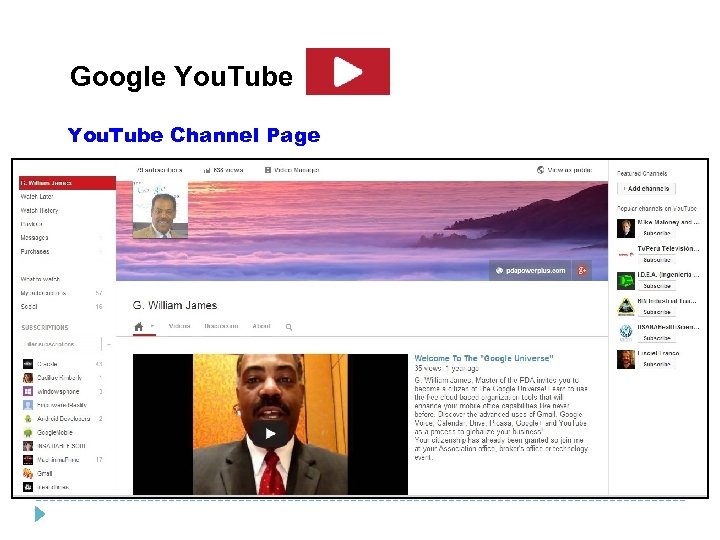 Google You. Tube Channel Page
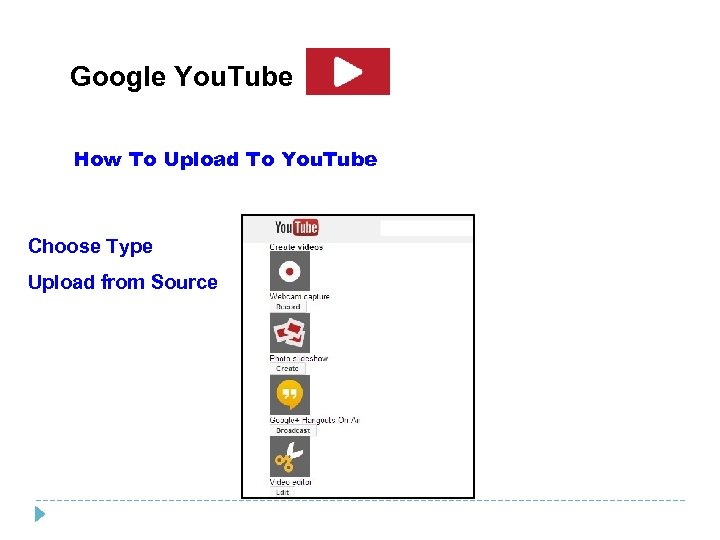 Google You. Tube How To Upload To You. Tube Choose Type Upload from Source
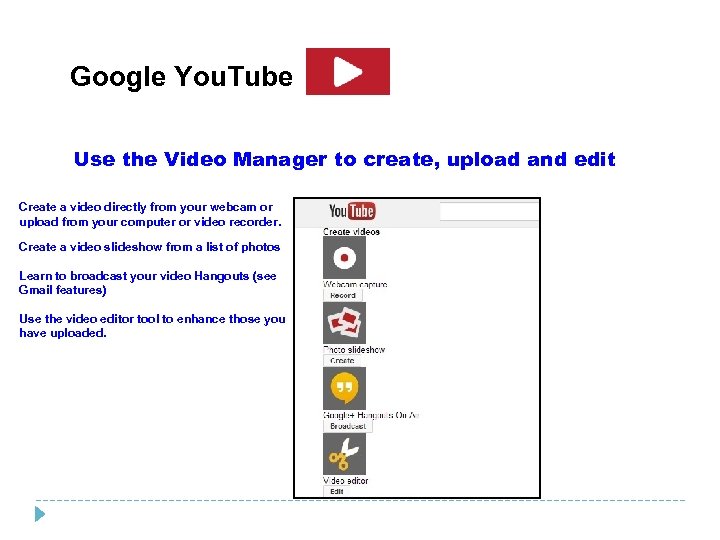 Google You. Tube Use the Video Manager to create, upload and edit Create a video directly from your webcam or upload from your computer or video recorder. Create a video slideshow from a list of photos Learn to broadcast your video Hangouts (see Gmail features) Use the video editor tool to enhance those you have uploaded.
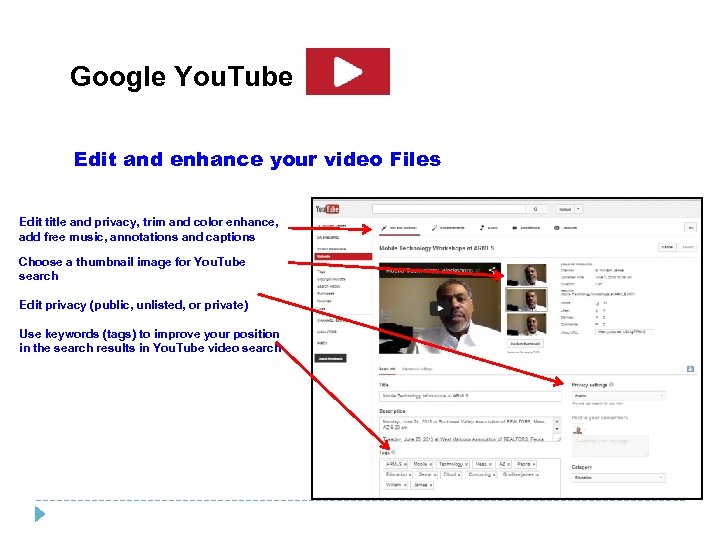 Google You. Tube Edit and enhance your video Files Edit title and privacy, trim and color enhance, add free music, annotations and captions Choose a thumbnail image for You. Tube search Edit privacy (public, unlisted, or private) Use keywords (tags) to improve your position in the search results in You. Tube video search
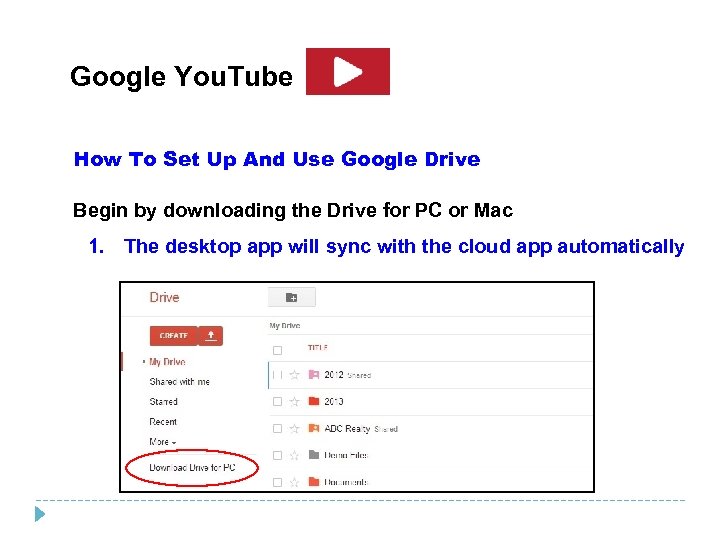 Google You. Tube How To Set Up And Use Google Drive Begin by downloading the Drive for PC or Mac 1. The desktop app will sync with the cloud app automatically



 “Tough times never last but tough agents do. The very best compliment I could ever receive is a referral from you. My commitment is to not only meet but exceed your expectations. ” - B. J. Martin, Distinguished REALTOR ®, Harry Norman Realtors Atlanta A referral to your Association’s Executives would be of tremendous value to me. Send me an email with their names, and please tell them about me next time you contact the office G. William James, william@pdapowerplus. com
 Handouts and Downloads www. pdapowerplus. com Contact Me william@pdapowerplus. com
 G. William James Master Of The PDA Handheld Computer Solutions Thank You!
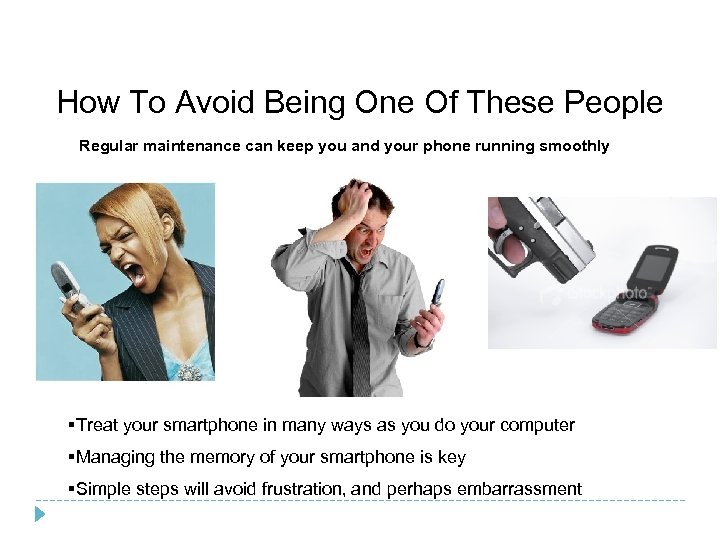 How To Avoid Being One Of These People Regular maintenance can keep you and your phone running smoothly §Treat your smartphone in many ways as you do your computer §Managing the memory of your smartphone is key §Simple steps will avoid frustration, and perhaps embarrassment
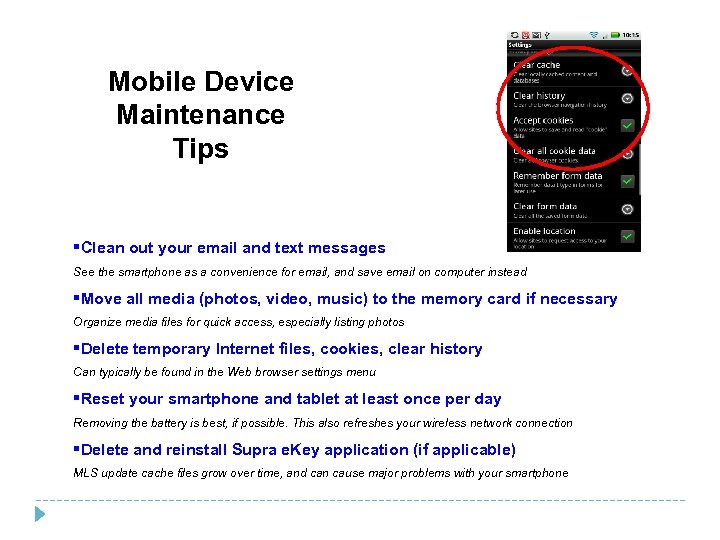 Mobile Device Maintenance Tips §Clean out your email and text messages See the smartphone as a convenience for email, and save email on computer instead §Move all media (photos, video, music) to the memory card if necessary Organize media files for quick access, especially listing photos §Delete temporary Internet files, cookies, clear history Can typically be found in the Web browser settings menu §Reset your smartphone and tablet at least once per day Removing the battery is best, if possible. This also refreshes your wireless network connection §Delete and reinstall Supra e. Key application (if applicable) MLS update cache files grow over time, and can cause major problems with your smartphone
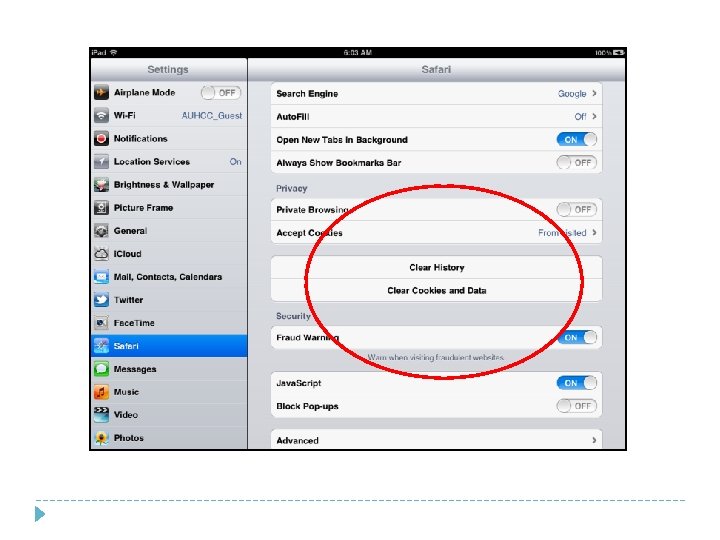
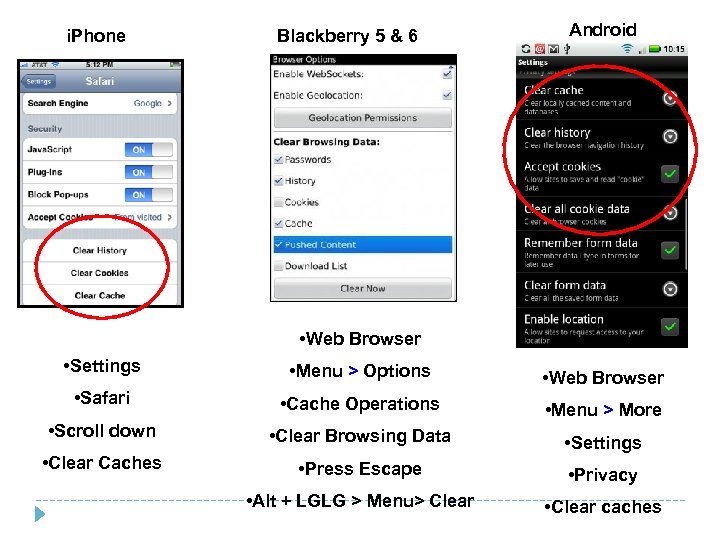 i. Phone Blackberry 5 & 6 Android • Web Browser • Settings • Menu > Options • Safari • Web Browser • Cache Operations • Scroll down • Menu > More • Clear Browsing Data • Clear Caches • Settings • Press Escape • Privacy • Alt + LGLG > Menu> Clear • Clear caches
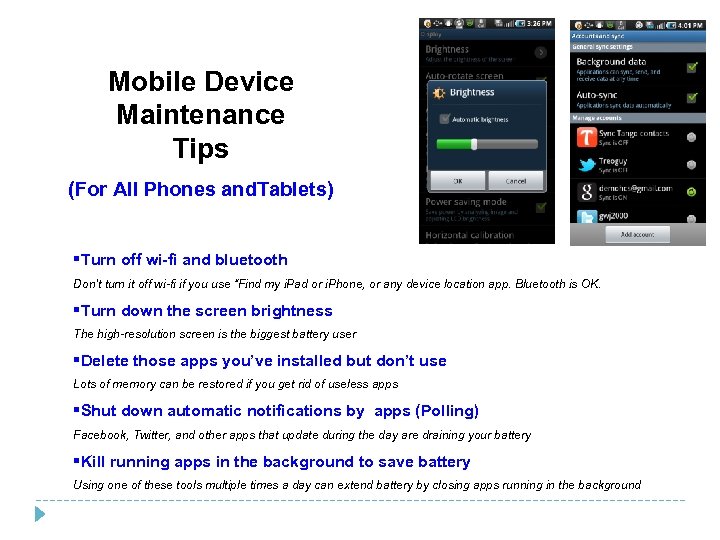 Mobile Device Maintenance Tips (For All Phones and. Tablets) §Turn off wi-fi and bluetooth Don’t turn it off wi-fi if you use “Find my i. Pad or i. Phone, or any device location app. Bluetooth is OK. §Turn down the screen brightness The high-resolution screen is the biggest battery user §Delete those apps you’ve installed but don’t use Lots of memory can be restored if you get rid of useless apps §Shut down automatic notifications by apps (Polling) Facebook, Twitter, and other apps that update during the day are draining your battery §Kill running apps in the background to save battery Using one of these tools multiple times a day can extend battery by closing apps running in the background