 Скачать презентацию The RECEIVABLES Module Basics Slideshow 2 A
3ccb64c7b93ec35bb1cc5e291fad98ba.ppt
- Количество слайдов: 33



The RECEIVABLES Module Basics Slideshow 2 A
Contents • Transactions that Affect Accounts Receivables - 3 • GAAPs Related to Accounts Receivables - 5 • Daily Business Manager – 9 • The RECEIVABLES Module Window – 11 • How the RECEIVABLES Module Work – 13 • • • The SALES Journal - 15 The Receipts Journal – 16 Entering Sales Transactions in the RECEIVABLES Module – 18 • • Invoice Styles - 18 Customizing the Sales Journal - 19 Payment Method Options - 20 One-Time vs. Regular Customers - 21 Recording a Sales Quote/Sales Order – 22 Creating a Sales Quote for Inventory Items – 23 Converting a Sales Quote/Sales Order to an Invoice - 25 • Journalizing Sales Returns – 27 • Correcting Errors After Posting - 28 • Customer Accounts Reports – 31 Slideshow 2 A
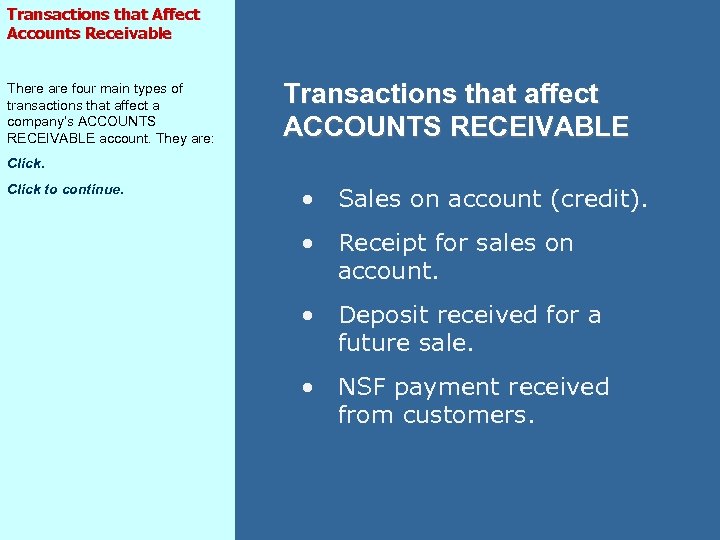
Transactions that Affect Accounts Receivable There are four main types of transactions that affect a company’s ACCOUNTS RECEIVABLE account. They are: Transactions that affect ACCOUNTS RECEIVABLE Click to continue. • Sales on account (credit). • Receipt for sales on account. • Deposit received for a future sale. • NSF payment received from customers.
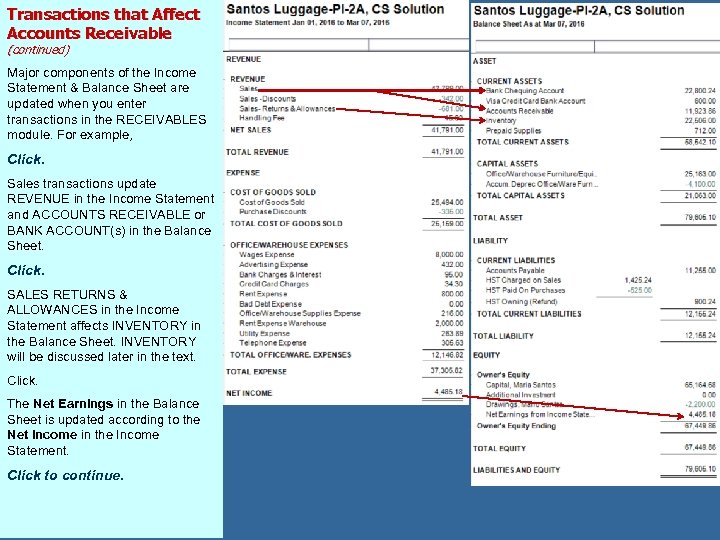
Transactions that Affect Accounts Receivable (continued) Major components of the Income Statement & Balance Sheet are updated when you enter transactions in the RECEIVABLES module. For example, Click. Sales transactions update REVENUE in the Income Statement and ACCOUNTS RECEIVABLE or BANK ACCOUNT(s) in the Balance Sheet. Click. SALES RETURNS & ALLOWANCES in the Income Statement affects INVENTORY in the Balance Sheet. INVENTORY will be discussed later in the text. Click. The Net Earnings in the Balance Sheet is updated according to the Net Income in the Income Statement. Click to continue.
GAAPs Related to Accounts Receivable (Review): Realization of Revenue Principle There are four main principles you need to remember when recording transactions related to Accounts Receivable. You may have learned them in previous lessons, but it is best to review them at this point. Click and review the principle and example. Click to continue. Revenue Recognition Principle Revenue from business transactions is recorded at the time goods or services are sold for cash or on credit. Example Some businesses sell goods or services for cash only; other businesses sell goods or services on one date and receive payment from customers on a later date. If a customer buys merchandise on June 1 and pays on July 15, the vendor records the sale on June 1, not on July 15 when payment is received.
GAAP Related to Accounts Receivable (Review): Matching Principle Click and study the principle and example below it. Click to continue. Matching Principle Expenses are matched with revenues in the period when efforts are made to generate the revenue. Example An accounting consultant, Faye Anderson, bought $600. 00 worth of paper and printing supplies in December. She collected $2, 800. 00 consulting fees from her clients that month. Faye entered $600. 00 for paper and printing supplies as prepaid asset. At the end of the month, she calculated that she used up $285. 00 worth of the supplies she purchased earlier. When Faye prepares her monthly financial statement for December, she should report the $2, 800. 00 revenue and her expenses to earn the revenue, including $285. 00 (not $600. 00) for supplies.
GAAP Related to Accounts Receivable (Review): Representational Faithfulness Principle Next is Representational Faithfulness. Click and review the principle and example. Click to continue. Representational Faithfulness Principle Representational Faithfulness refers to unbiased measurements or valuations (“arm’s length transactions”) that could be independently verified. Example The amounts recorded in an arm’s length transaction is an objective measure of the exchange value, supported by a variety of documents at the time of that transaction. The amounts recorded must be accurate and true. Examples of these documents include the following: • Sales invoices for goods/services sold. • Cheques for payments received. • Deposit slips for funds deposited in the bank. • Memos and other supporting forms.
GAAP Related to Accounts Receivable (Review): Unit of Measurement Concept Next is the concept of The Monetary Unit Assumption Click and study the concept and example. Click to continue. The Monetary Unit Assumption All business transactions are recorded in a common unit of measurement; e. g. , the dollar. In order to be clear, business transactions in Canada must be recorded in a consistent manner using Canadian dollar values. Example Land is purchased for $30, 000 and is sold five years later for $40, 000. Without adjustment for inflation, the sale would be recorded with a capital gain of $10, 000.
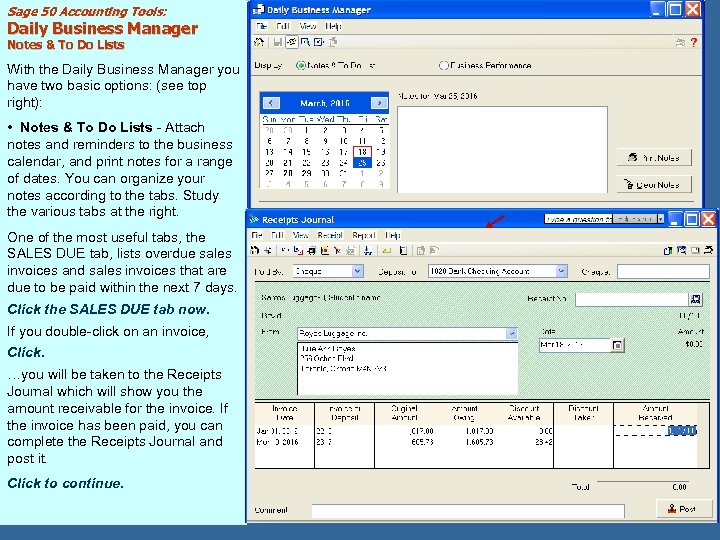
Sage 50 Accounting Tools: Daily Business Manager Notes & To Do Lists With the Daily Business Manager you have two basic options: (see top right): • Notes & To Do Lists - Attach notes and reminders to the business calendar, and print notes for a range of dates. You can organize your notes according to the tabs. Study the various tabs at the right. One of the most useful tabs, the SALES DUE tab, lists overdue sales invoices and sales invoices that are due to be paid within the next 7 days. Click the SALES DUE tab now. If you double-click on an invoice, Click. …you will be taken to the Receipts Journal which will show you the amount receivable for the invoice. If the invoice has been paid, you can complete the Receipts Journal and post it. Click to continue.

Sage 50 Accounting Tools: Daily Business Manager Business Performance How is your company doing? Does it have enough money to cover upcoming expenses? Are your customers paying their bills on time? To better understand your company's current financial position, Sage 50 Accounting provides Business Performance Measurements in the Daily Business Manager. Click the BUSINESS PERFORMANCE radio button at top right. • Business Performance Measurement – Study the description for Cash Balance Today (see arrow). Click the remaining 2 Business Performance Measurements: Current (Today) Quick (Today). Click to continue.
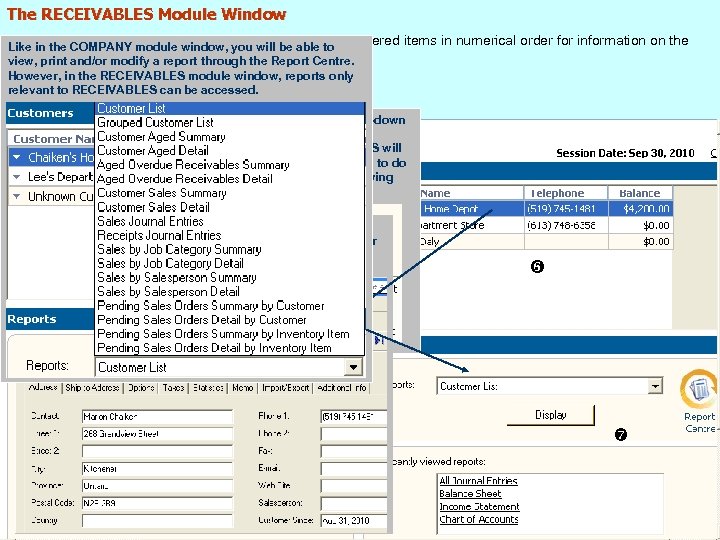
The RECEIVABLES Module Window Below is a sample RECEIVABLES window. Click the numbered items in numerical order for information on the Like in the COMPANY module window, you will be able to basic parts. view, print and/or modify a report through the Report Centre. However, in the Clicking the RECEIVABLES module window, reports only relevant to RECEIVABLES can be accessed. drop-down arrow for The drop-down SALES QUOTES arrow for will enable you RECEIPTS will to do the When you click allow you to do following tasks: the drop-down the following Clicking the arrow for Clicking the tasks: drop-down CUSTOMERS, drop-down arrow for you will be able arrow for ASALEScustomers on record will appear on this pane. If you list of to do the SALES will INVOICES the customers listed, the corresponding customer click any of following tasks: ORDERS will enable you to information (Receivables Ledger) will appear. enable you to do the following do the tasks: following tasks:
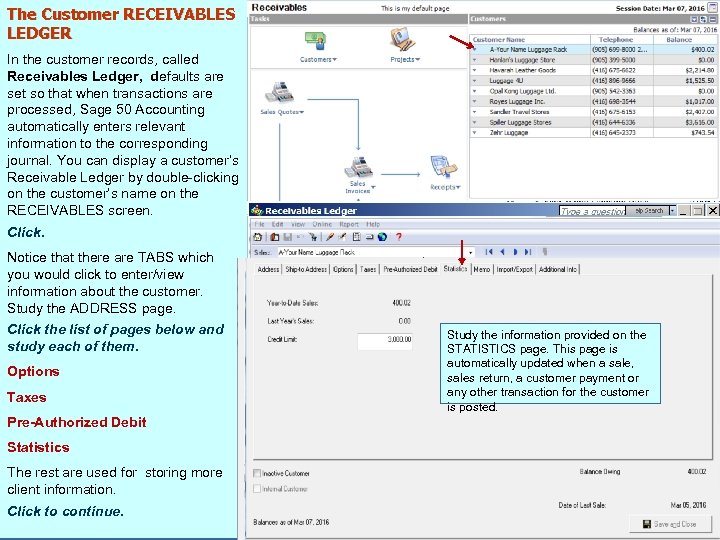
The Customer RECEIVABLES LEDGER In the customer records, called Receivables Ledger, defaults are set so that when transactions are processed, Sage 50 Accounting automatically enters relevant information to the corresponding journal. You can display a customer’s Receivable Ledger by double-clicking on the customer’s name on the RECEIVABLES screen. Click. Notice that there are TABS which you would click to enter/view information about the customer. Study the ADDRESS page. Click the list of pages below and study each of them. Options Taxes Pre-Authorized Debit Statistics The rest are used for storing more client information. Click to continue. The pre-authorized debit feature allows you to accept customer pre-authorized Tabs payments and deposit them directly into your bank account. A customer's authorization is obtained when they sign Study the information provided on the a pre-authorized debit agreement with This revenue account is used as default when a sale to the customer STATISTICS page. This page is This section lists all the taxes your company. is invoiced. defined in the Settings, and you automatically updated when a sale, The Sage 50 Accounting pre-authorized would specify whether or not the sales return, a customer payment or customer is exempt from any one of debit feature uses the Electronic Funds any other transaction for the customer These sales terms are used as default for the customer’s them. is posted. Transfer (EFT) system in Canada and invoice. the Automated Clearing House (ACH) This tax code is used as default in system in the US. invoices for this customer. If A check in this box includes the customers in the list for printing. statements of different for a specific sale, you may Sage 50 Accounting also allows you to account. change the tax code. pay bills electronically from your bank Notice that the account. Balance Owing is shown on every page.
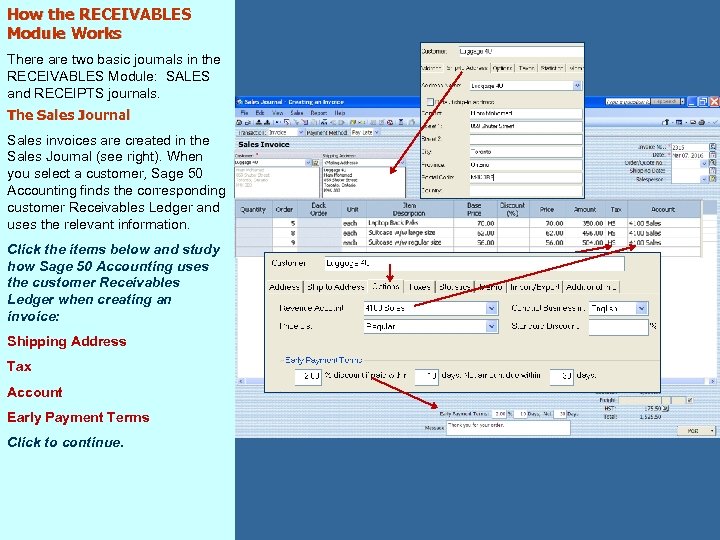
How the RECEIVABLES Module Works There are two basic journals in the RECEIVABLES Module: SALES and RECEIPTS journals. The Sales Journal Sales invoices are created in the Sales Journal (see right). When you select a customer, Sage 50 Accounting finds the corresponding customer Receivables Ledger and uses the relevant information. Click the items below and study how Sage 50 Accounting uses the customer Receivables Ledger when creating an invoice: Shipping Address Tax Account Early Payment Terms Click to continue.
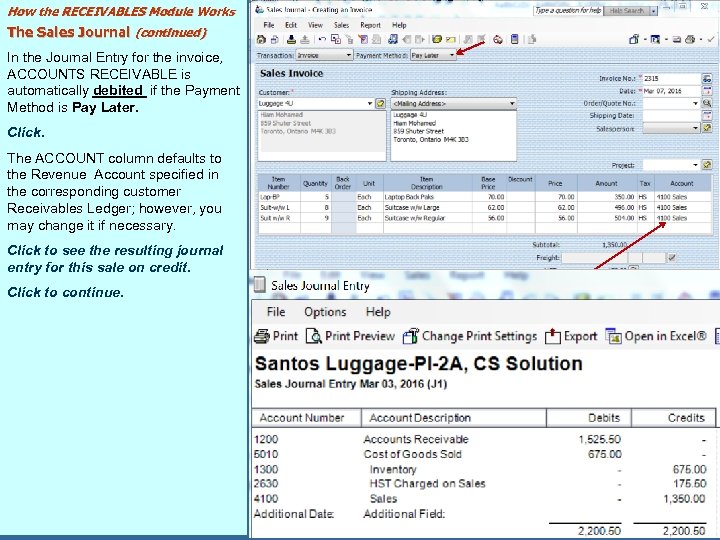
How the RECEIVABLES Module Works The Sales Journal (continued) In the Journal Entry for the invoice, ACCOUNTS RECEIVABLE is automatically debited if the Payment Method is Pay Later. Click. The ACCOUNT column defaults to the Revenue Account specified in the corresponding customer Receivables Ledger; however, you may change it if necessary. Click to see the resulting journal entry for this sale on credit. Click to continue.
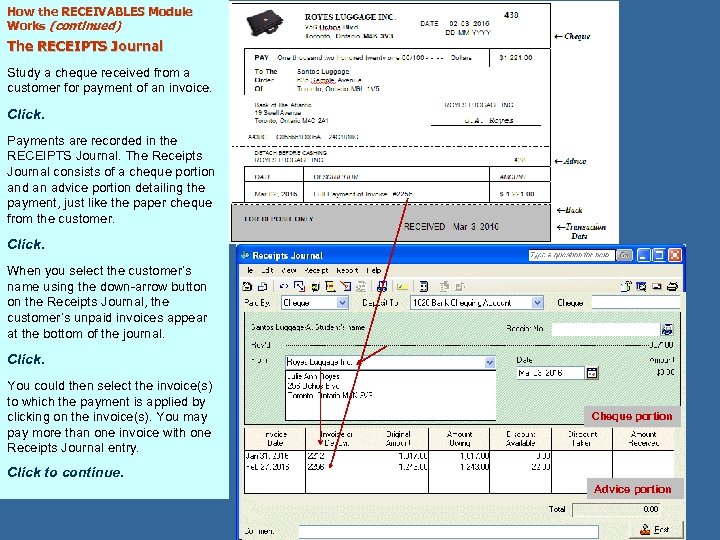
How the RECEIVABLES Module Works (continued) The RECEIPTS Journal Study a cheque received from a customer for payment of an invoice. Click. Payments are recorded in the RECEIPTS Journal. The Receipts Journal consists of a cheque portion and an advice portion detailing the payment, just like the paper cheque from the customer. Click. When you select the customer’s name using the down-arrow button on the Receipts Journal, the customer’s unpaid invoices appear at the bottom of the journal. Click. You could then select the invoice(s) to which the payment is applied by clicking on the invoice(s). You may pay more than one invoice with one Receipts Journal entry. Cheque portion Click to continue. Advice portion
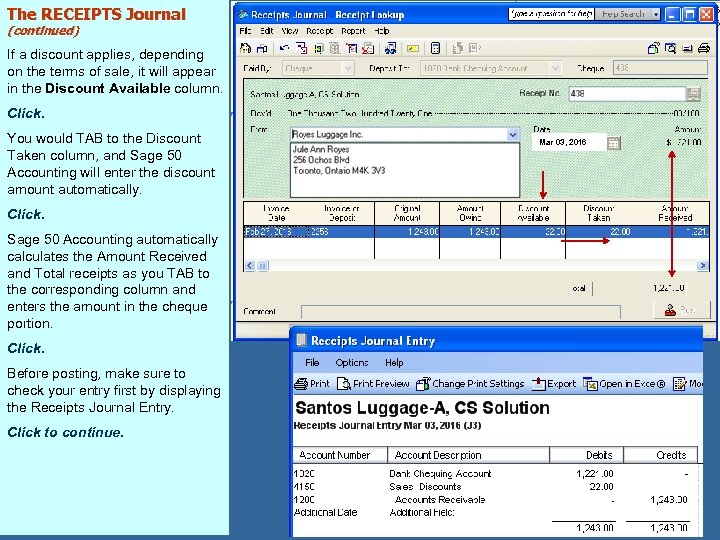
The RECEIPTS Journal (continued) If a discount applies, depending on the terms of sale, it will appear in the Discount Available column. Click. You would TAB to the Discount Taken column, and Sage 50 Accounting will enter the discount amount automatically. Click. Sage 50 Accounting automatically calculates the Amount Received and Total receipts as you TAB to the corresponding column and enters the amount in the cheque portion. Click. Before posting, make sure to check your entry first by displaying the Receipts Journal Entry. Click to continue. Mar 03, 2016
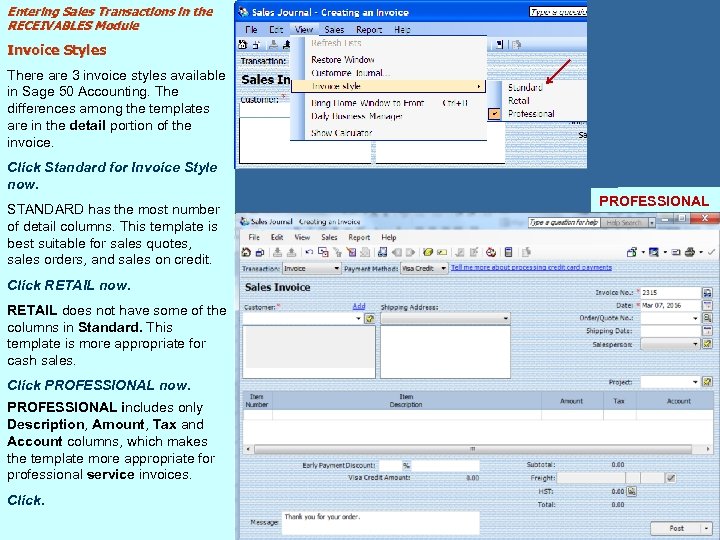
Entering Sales Transactions in the RECEIVABLES Module Invoice Styles There are 3 invoice styles available in Sage 50 Accounting. The differences among the templates are in the detail portion of the invoice. Click Standard for Invoice Style now. STANDARD has the most number of detail columns. This template is best suitable for sales quotes, sales orders, and sales on credit. Click RETAIL now. RETAIL does not have some of the columns in Standard. This template is more appropriate for cash sales. Click PROFESSIONAL now. PROFESSIONAL includes only Description, Amount, Tax and Account columns, which makes the template more appropriate for professional service invoices. Click. STANDARD PROFESSIONAL RETAIL
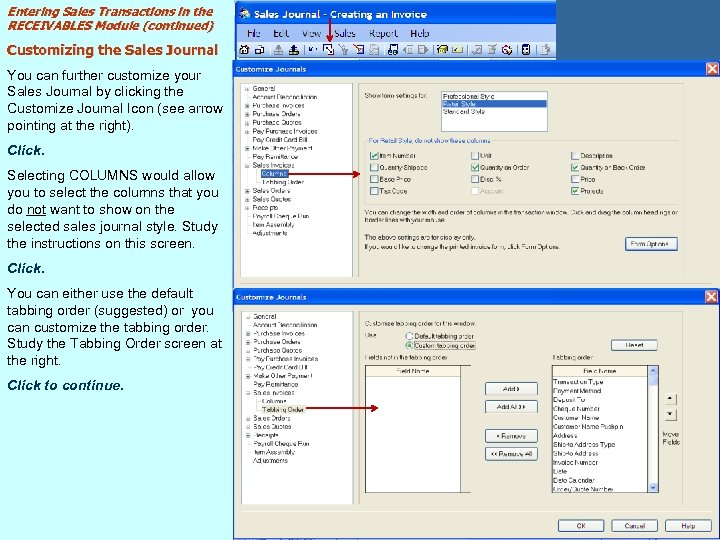
Entering Sales Transactions in the RECEIVABLES Module (continued) Customizing the Sales Journal You can further customize your Sales Journal by clicking the Customize Journal Icon (see arrow pointing at the right). Click. Selecting COLUMNS would allow you to select the columns that you do not want to show on the selected sales journal style. Study the instructions on this screen. Click. You can either use the default tabbing order (suggested) or you can customize the tabbing order. Study the Tabbing Order screen at the right. Click to continue.
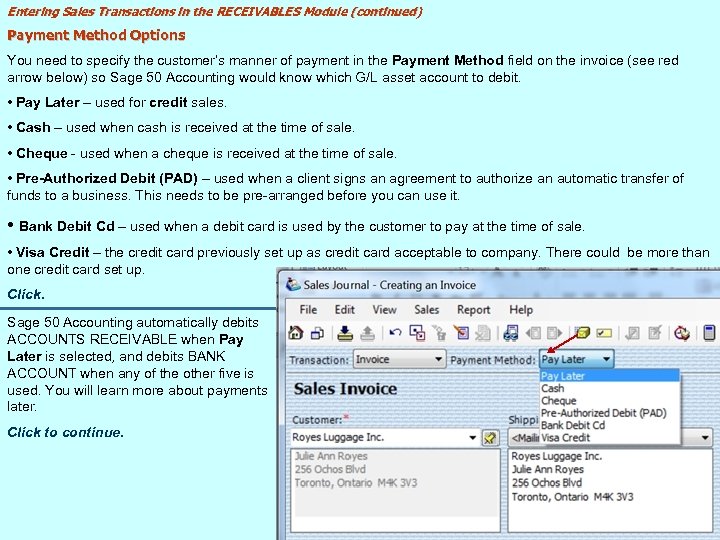
Entering Sales Transactions in the RECEIVABLES Module (continued) Payment Method Options You need to specify the customer’s manner of payment in the Payment Method field on the invoice (see red arrow below) so Sage 50 Accounting would know which G/L asset account to debit. • Pay Later – used for credit sales. • Cash – used when cash is received at the time of sale. • Cheque - used when a cheque is received at the time of sale. • Pre-Authorized Debit (PAD) – used when a client signs an agreement to authorize an automatic transfer of funds to a business. This needs to be pre-arranged before you can use it. • Bank Debit Cd – used when a debit card is used by the customer to pay at the time of sale. • Visa Credit – the credit card previously set up as credit card acceptable to company. There could be more than one credit card set up. Click. Sage 50 Accounting automatically debits ACCOUNTS RECEIVABLE when Pay Later is selected, and debits BANK ACCOUNT when any of the other five is used. You will learn more about payments later. Click to continue.
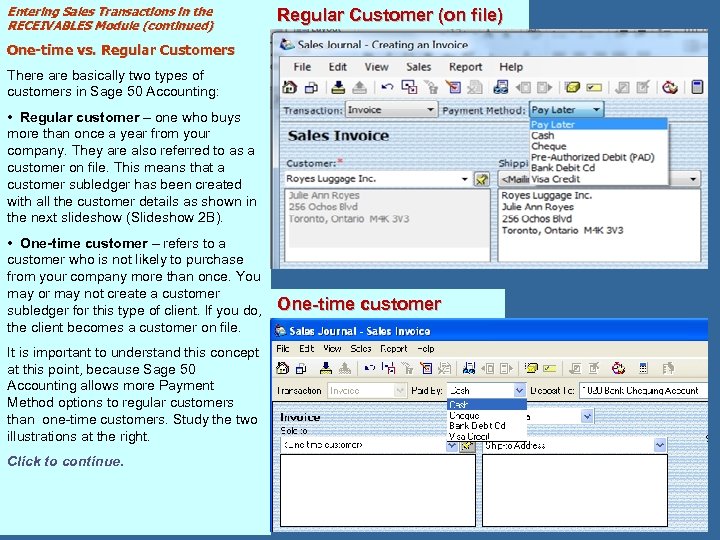
Entering Sales Transactions in the RECEIVABLES Module (continued) Regular Customer (on file) One-time vs. Regular Customers There are basically two types of customers in Sage 50 Accounting: • Regular customer – one who buys more than once a year from your company. They are also referred to as a customer on file. This means that a customer subledger has been created with all the customer details as shown in the next slideshow (Slideshow 2 B). • One-time customer – refers to a customer who is not likely to purchase from your company more than once. You may or may not create a customer subledger for this type of client. If you do, the client becomes a customer on file. It is important to understand this concept at this point, because Sage 50 Accounting allows more Payment Method options to regular customers than one-time customers. Study the two illustrations at the right. Click to continue. One-time customer
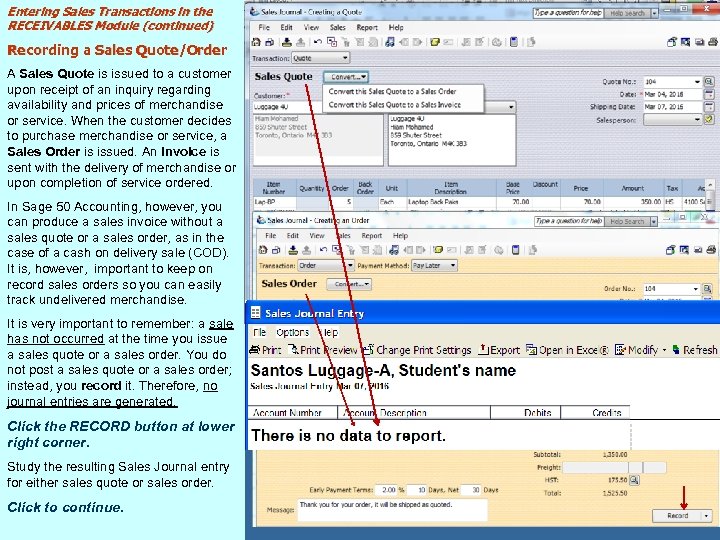
Entering Sales Transactions in the RECEIVABLES Module (continued) Recording a Sales Quote/Order A Sales Quote is issued to a customer upon receipt of an inquiry regarding availability and prices of merchandise or service. When the customer decides to purchase merchandise or service, a Sales Order is issued. An Invoice is sent with the delivery of merchandise or upon completion of service ordered. In Sage 50 Accounting, however, you can produce a sales invoice without a sales quote or a sales order, as in the case of a cash on delivery sale (COD). It is, however, important to keep on record sales orders so you can easily track undelivered merchandise. It is very important to remember: a sale has not occurred at the time you issue a sales quote or a sales order. You do not post a sales quote or a sales order; instead, you record it. Therefore, no journal entries are generated. Click the RECORD button at lower right corner. Study the resulting Sales Journal entry for either sales quote or sales order. Click to continue.
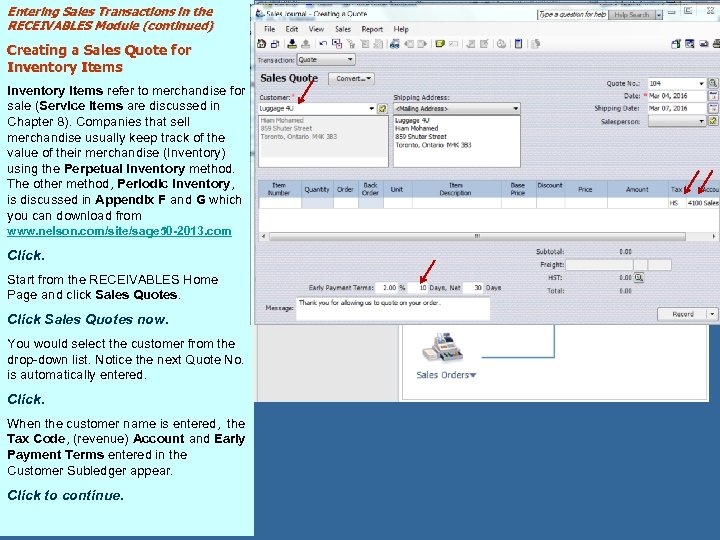
Entering Sales Transactions in the RECEIVABLES Module (continued) Creating a Sales Quote for Inventory Items refer to merchandise for sale (Service items are discussed in Chapter 8). Companies that sell merchandise usually keep track of the value of their merchandise (Inventory) using the Perpetual Inventory method. The other method, Periodic Inventory, is discussed in Appendix F and G which you can download from www. nelson. com/site/sage 50 -2013. com Click. Start from the RECEIVABLES Home Page and click Sales Quotes. Click Sales Quotes now. You would select the customer from the drop-down list. Notice the next Quote No. is automatically entered. Click. When the customer name is entered, the Tax Code, (revenue) Account and Early Payment Terms entered in the Customer Subledger appear. Click to continue.
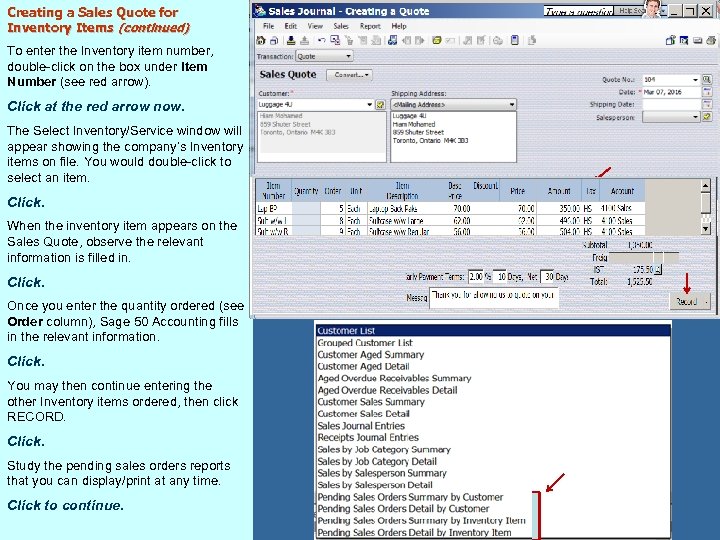
Creating a Sales Quote for Inventory Items (continued) To enter the Inventory item number, double-click on the box under Item Number (see red arrow). Click at the red arrow now. The Select Inventory/Service window will appear showing the company’s Inventory items on file. You would double-click to select an item. Click. When the inventory item appears on the Sales Quote, observe the relevant information is filled in. Click. Once you enter the quantity ordered (see Order column), Sage 50 Accounting fills in the relevant information. Click. You may then continue entering the other Inventory items ordered, then click RECORD. Click. Study the pending sales orders reports that you can display/print at any time. Click to continue.
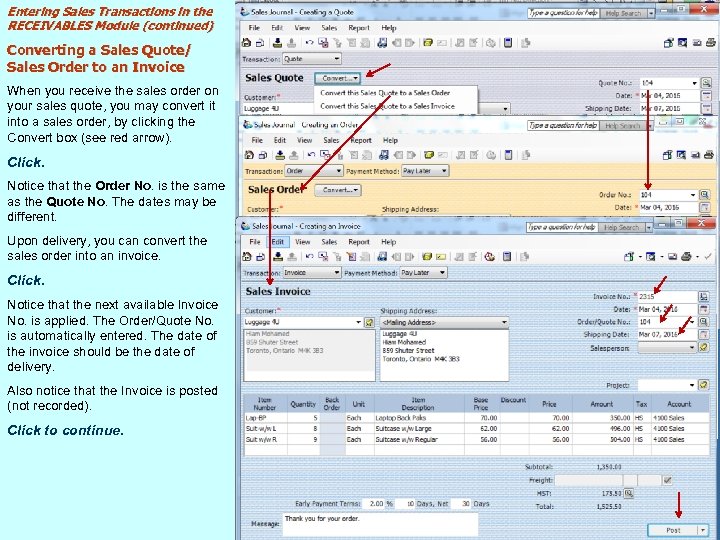
Entering Sales Transactions in the RECEIVABLES Module (continued) Converting a Sales Quote/ Sales Order to an Invoice When you receive the sales order on your sales quote, you may convert it into a sales order, by clicking the Convert box (see red arrow). Click. Notice that the Order No. is the same as the Quote No. The dates may be different. Upon delivery, you can convert the sales order into an invoice. Click. Notice that the next available Invoice No. is applied. The Order/Quote No. is automatically entered. The date of the invoice should be the date of delivery. Also notice that the Invoice is posted (not recorded). Click to continue.
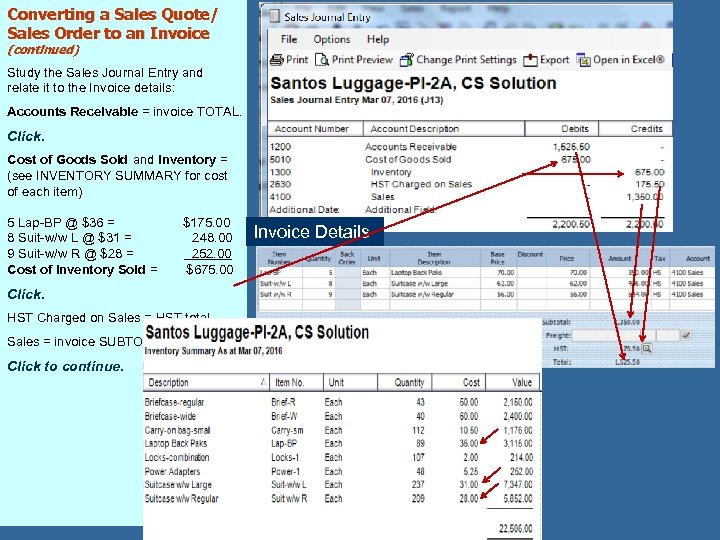
Converting a Sales Quote/ Sales Order to an Invoice (continued) Study the Sales Journal Entry and relate it to the Invoice details: Accounts Receivable = invoice TOTAL. Click. Cost of Goods Sold and Inventory = (see INVENTORY SUMMARY for cost of each item) 5 Lap-BP @ $36 = $175. 00 8 Suit-w/w L @ $31 = 248. 00 9 Suit-w/w R @ $28 = 252. 00 Cost of Inventory Sold = $675. 00 Click. HST Charged on Sales = HST total Sales = invoice SUBTOTAL Click to continue. Invoice Details
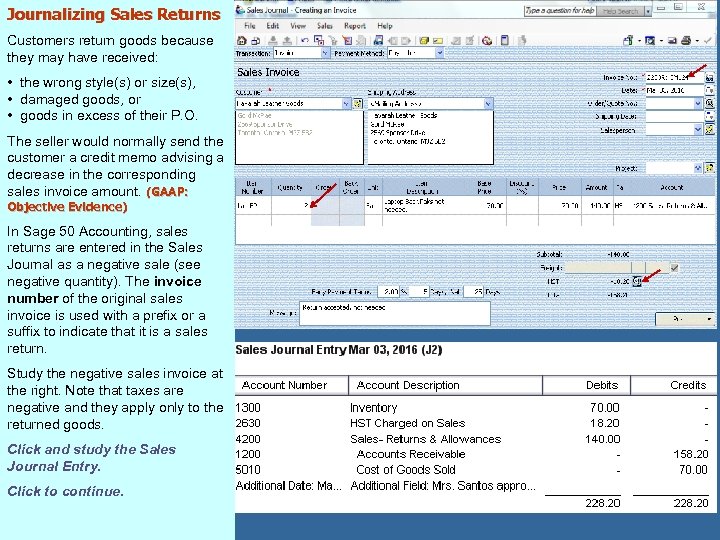
Journalizing Sales Returns Customers return goods because they may have received: • the wrong style(s) or size(s), • damaged goods, or • goods in excess of their P. O. The seller would normally send the customer a credit memo advising a decrease in the corresponding sales invoice amount. (GAAP: Objective Evidence) In Sage 50 Accounting, sales returns are entered in the Sales Journal as a negative sale (see negative quantity). The invoice number of the original sales invoice is used with a prefix or a suffix to indicate that it is a sales return. Study the negative sales invoice at the right. Note that taxes are negative and they apply only to the returned goods. Click and study the Sales Journal Entry. Click to continue.
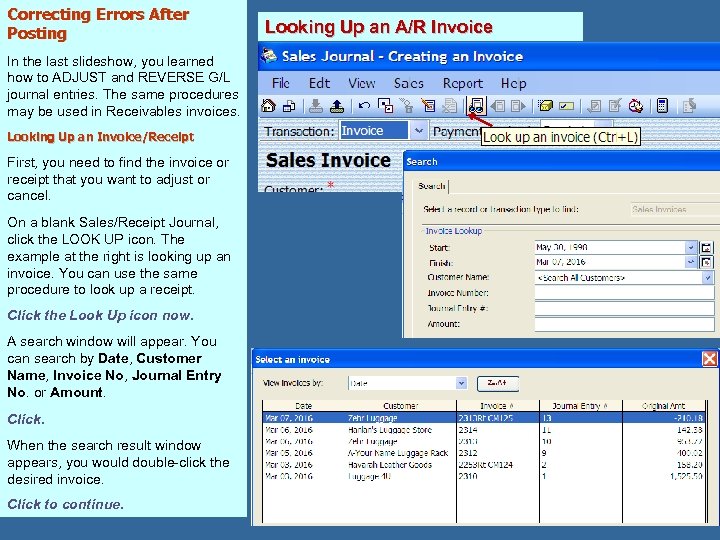
Correcting Errors After Posting In the last slideshow, you learned how to ADJUST and REVERSE G/L journal entries. The same procedures may be used in Receivables invoices. Looking Up an Invoice/Receipt First, you need to find the invoice or receipt that you want to adjust or cancel. On a blank Sales/Receipt Journal, click the LOOK UP icon. The example at the right is looking up an invoice. You can use the same procedure to look up a receipt. Click the Look Up icon now. A search window will appear. You can search by Date, Customer Name, Invoice No, Journal Entry No. or Amount. Click. When the search result window appears, you would double-click the desired invoice. Click to continue. Looking Up an A/R Invoice
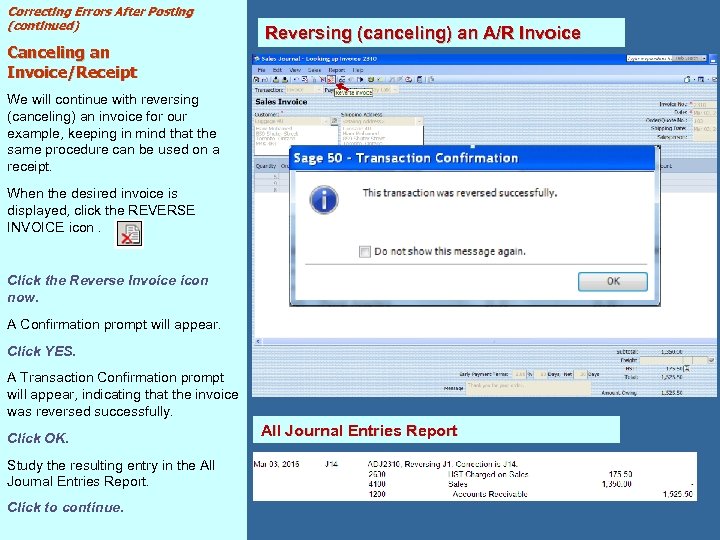
Correcting Errors After Posting (continued) Canceling an Invoice/Receipt Reversing (canceling) an A/R Invoice We will continue with reversing (canceling) an invoice for our example, keeping in mind that the same procedure can be used on a receipt. When the desired invoice is displayed, click the REVERSE INVOICE icon. Click the Reverse Invoice icon now. A Confirmation prompt will appear. Click YES. A Transaction Confirmation prompt will appear, indicating that the invoice was reversed successfully. Click OK. Study the resulting entry in the All Journal Entries Report. Click to continue. All Journal Entries Report
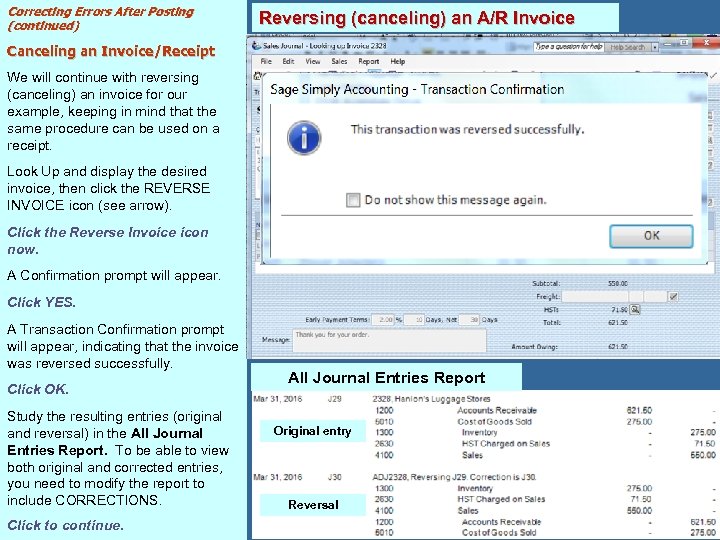
Correcting Errors After Posting (continued) Reversing (canceling) an A/R Invoice Canceling an Invoice/Receipt We will continue with reversing (canceling) an invoice for our example, keeping in mind that the same procedure can be used on a receipt. Look Up and display the desired invoice, then click the REVERSE INVOICE icon (see arrow). Click the Reverse Invoice icon now. A Confirmation prompt will appear. Click YES. A Transaction Confirmation prompt will appear, indicating that the invoice was reversed successfully. Click OK. Study the resulting entries (original and reversal) in the All Journal Entries Report. To be able to view both original and corrected entries, you need to modify the report to include CORRECTIONS. Click to continue. All Journal Entries Report Original entry Reversal
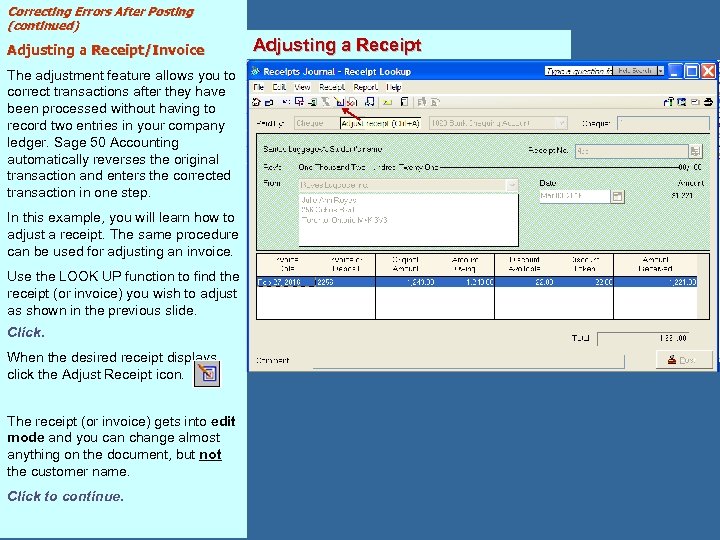
Correcting Errors After Posting (continued) Adjusting a Receipt/Invoice The adjustment feature allows you to correct transactions after they have been processed without having to record two entries in your company ledger. Sage 50 Accounting automatically reverses the original transaction and enters the corrected transaction in one step. In this example, you will learn how to adjust a receipt. The same procedure can be used for adjusting an invoice. Use the LOOK UP function to find the receipt (or invoice) you wish to adjust as shown in the previous slide. Click. When the desired receipt displays, click the Adjust Receipt icon. The receipt (or invoice) gets into edit mode and you can change almost anything on the document, but not the customer name. Click to continue. Adjusting a Receipt
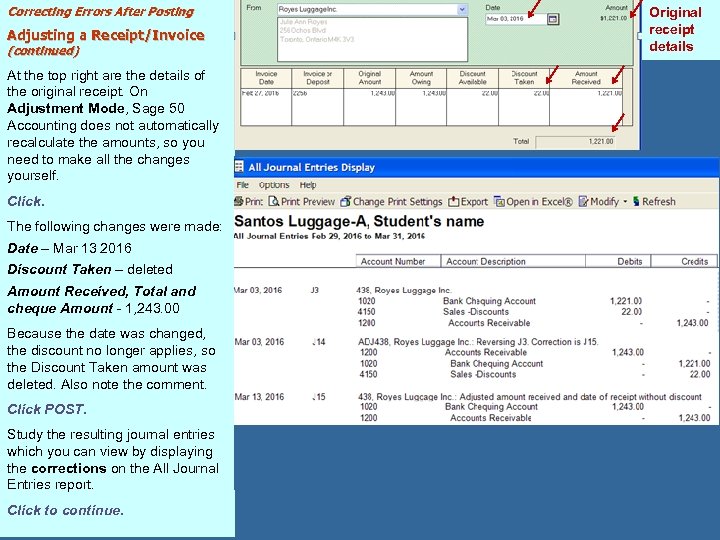
Correcting Errors After Posting Adjusting a Receipt/Invoice (continued) At the top right are the details of the original receipt. On Adjustment Mode, Sage 50 Accounting does not automatically recalculate the amounts, so you need to make all the changes yourself. Click. The following changes were made: Date – Mar 13 2016 Discount Taken – deleted Amount Received, Total and cheque Amount - 1, 243. 00 Because the date was changed, the discount no longer applies, so the Discount Taken amount was deleted. Also note the comment. Click POST. Study the resulting journal entries which you can view by displaying the corrections on the All Journal Entries report. Click to continue. Original receipt details
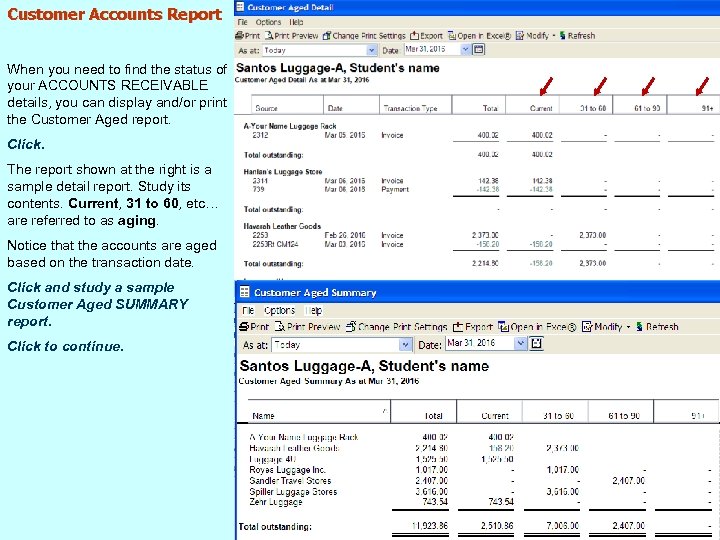
Customer Accounts Report When you need to find the status of your ACCOUNTS RECEIVABLE details, you can display and/or print the Customer Aged report. Click. The report shown at the right is a sample detail report. Study its contents. Current, 31 to 60, etc… are referred to as aging. Notice that the accounts are aged based on the transaction date. Click and study a sample Customer Aged SUMMARY report. Click to continue.
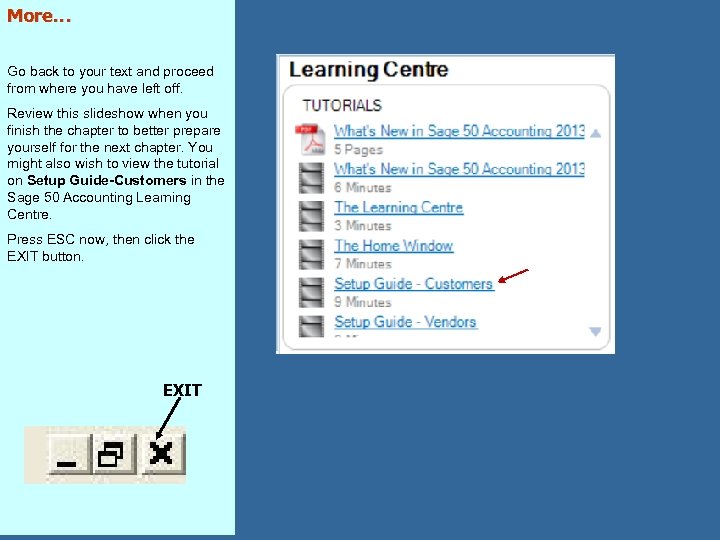
More… Go back to your text and proceed from where you have left off. Review this slideshow when you finish the chapter to better prepare yourself for the next chapter. You might also wish to view the tutorial on Setup Guide-Customers in the Sage 50 Accounting Learning Centre. Press ESC now, then click the EXIT button. EXIT
Скачать презентацию The RECEIVABLES Module Basics Slideshow 2 A
3ccb64c7b93ec35bb1cc5e291fad98ba.ppt