


 Скачать презентацию The g Lite Data Management System Giuseppe LA
dba3cefe6e8aaf0cfee8593517ab6bf3.ppt
- Количество слайдов: 49
 The g. Lite Data Management System Giuseppe LA ROCCA INFN Catania giuseppe. larocca@ct. infn. it ACGRID-II School 2 -14 November 2009 Kuala Lumpur - Malaysia
 Outline • Storage & Protocols – Types of Storage • The Storage Resource Manager (SRM) • Grid file referencing schemes • LFC File Catalogue – Architecture – LFC commands • File & Replica Management Client Tools • File Transfer Service (FTS) • References • Hands on
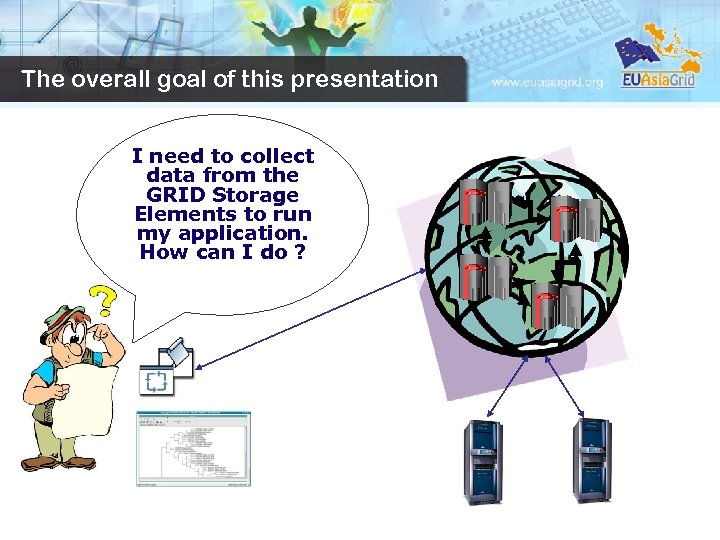 The overall goal of this presentation I need to collect data from the GRID Storage Elements to run my application. How can I do ?
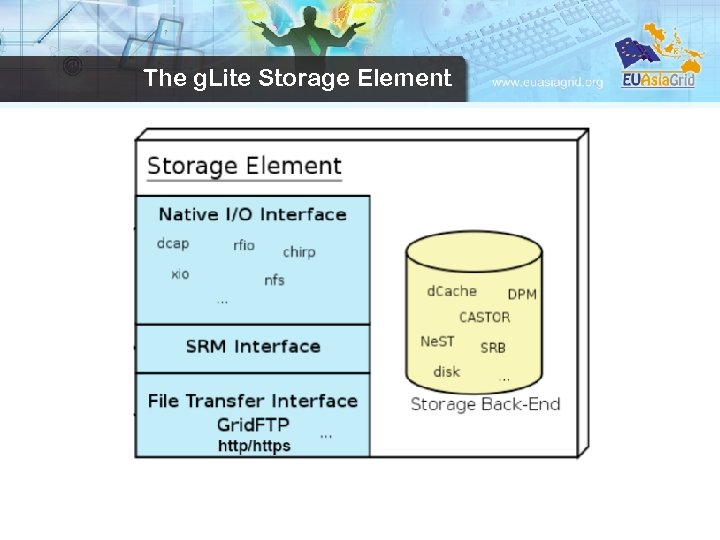
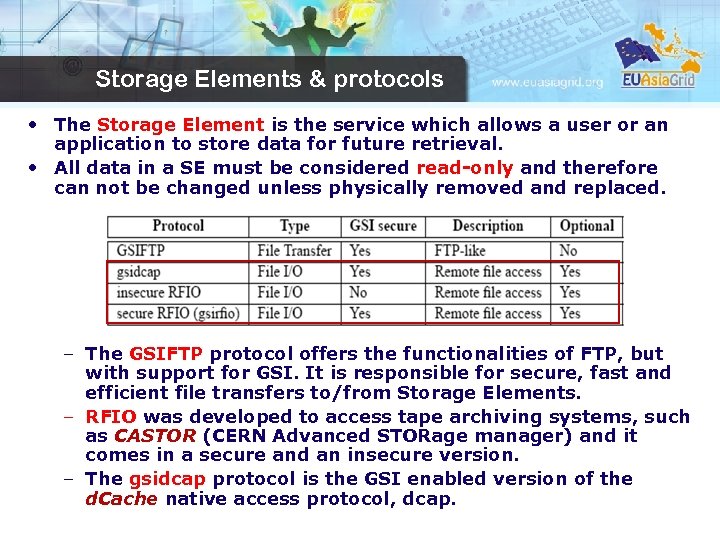 Storage Elements & protocols • The Storage Element is the service which allows a user or an application to store data for future retrieval. • All data in a SE must be considered read-only and therefore can not be changed unless physically removed and replaced. – The GSIFTP protocol offers the functionalities of FTP, but with support for GSI. It is responsible for secure, fast and efficient file transfers to/from Storage Elements. – RFIO was developed to access tape archiving systems, such as CASTOR (CERN Advanced STORage manager) and it comes in a secure and an insecure version. – The gsidcap protocol is the GSI enabled version of the d. Cache native access protocol, dcap.
 Types of Storage Elements /1 • In WLCG/EGEE, different types of Storage Elements are available: • CASTOR. It consists in a disk buffer frontend to a tape mass storage system. A virtual file system (namespace) shields the user from the complexities of the disk and tape underlying setup. File migration between disk and tape is managed by a process called “stager”. The native storage protocol, the insecure RFIO, allows access of files in the SE. Since the protocol is not GSIenabled, only RFIO access from a location in the same LAN of the SE is allowed. With the proper modifications, the CASTOR disk buffer can be used also as disk-only storage system.
 Types of Storage Elements /2 • Sto. RM. It has been designed to support space reservation and direct access (native POSIX I/O call), as well as other standard libraries (like RFIO). • Sto. RM takes advantage from high performance parallel file systems like GPFS (from IBM). – In addition, standard POSIX file systems are supported (XFS from SGI and ext 3). • Sto. RM takes advantage of ACL support provided by the underlying file systems to implement the security models
 Types of Storage Elements /3 • d. Cache. It consists of a server and one or more pool nodes. The server represents the single point of access to the SE and presents files in the pool disks under a single virtual file system tree. Nodes can be dynamically added to the pool. The native gsidcap protocol allows POSIX-like data access. d. Cache is widely employed as disk buffer frontend to many mass storage systems, like HPSS and Enstore, as well as a disk-only storage system. • LCG Disk pool manager. It’s a lightweight disk pool manager, suitable for relatively small sites (max 10 TB of total space). Disks can be added dynamically to the pool at any time. Like in d. Cache and CASTOR, a virtual file system hides the complexity of the disk pool architecture. The secure RFIO protocol allows file access from the WAN.
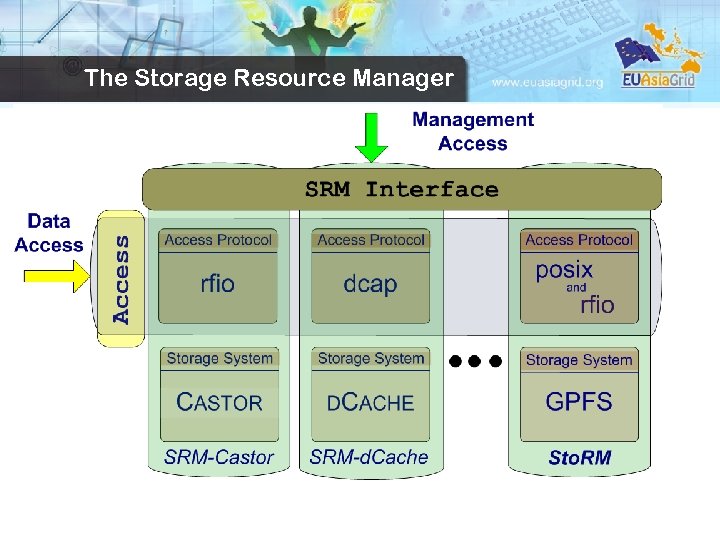 SRM The Storage Resource Manager
 The Storage Resource Manager (SRM) has been designed to be the single interface for the management of disk and tape storage resources. Any type of Storage Element in WLCG/EGEE offers an SRM interface except for the Classic SE, which is being phased out. SRM hides the complexity of the resources setup behind it and allows the user to request files, keep them on a disk buffer for a specified lifetime, reserve space for new entries, and so on. – In g. Lite, interactions with the SRM is hidden by high level services (DM tools and APIs)
 The g. Lite Storage Element
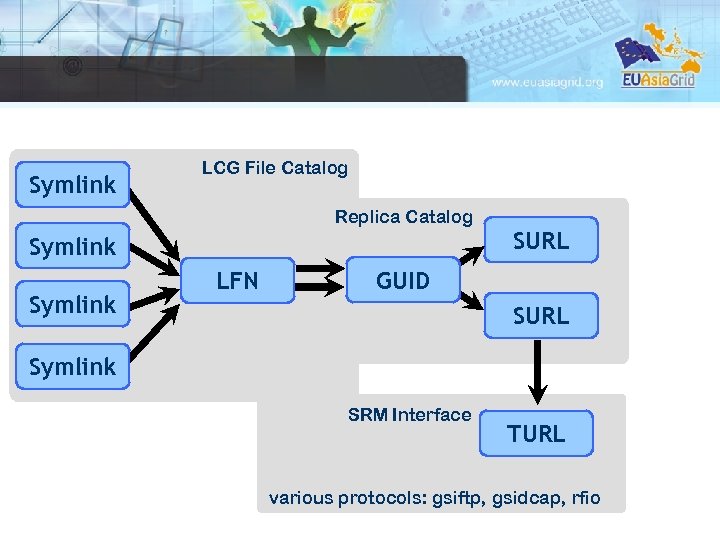
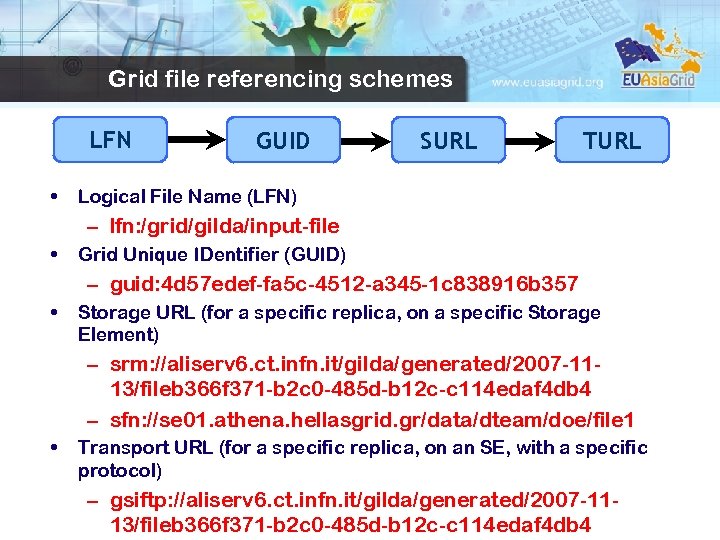 Grid file referencing schemes LFN • GUID SURL TURL Logical File Name (LFN) – lfn: /grid/gilda/input-file • Grid Unique IDentifier (GUID) – guid: 4 d 57 edef-fa 5 c-4512 -a 345 -1 c 838916 b 357 • Storage URL (for a specific replica, on a specific Storage Element) – srm: //aliserv 6. ct. infn. it/gilda/generated/2007 -1113/fileb 366 f 371 -b 2 c 0 -485 d-b 12 c-c 114 edaf 4 db 4 – sfn: //se 01. athena. hellasgrid. gr/data/dteam/doe/file 1 • Transport URL (for a specific replica, on an SE, with a specific protocol) – gsiftp: //aliserv 6. ct. infn. it/gilda/generated/2007 -1113/fileb 366 f 371 -b 2 c 0 -485 d-b 12 c-c 114 edaf 4 db 4
 Symlink LCG File Catalog Replica Catalog Symlink LFN SURL GUID SURL Symlink SRM Interface TURL various protocols: gsiftp, gsidcap, rfio
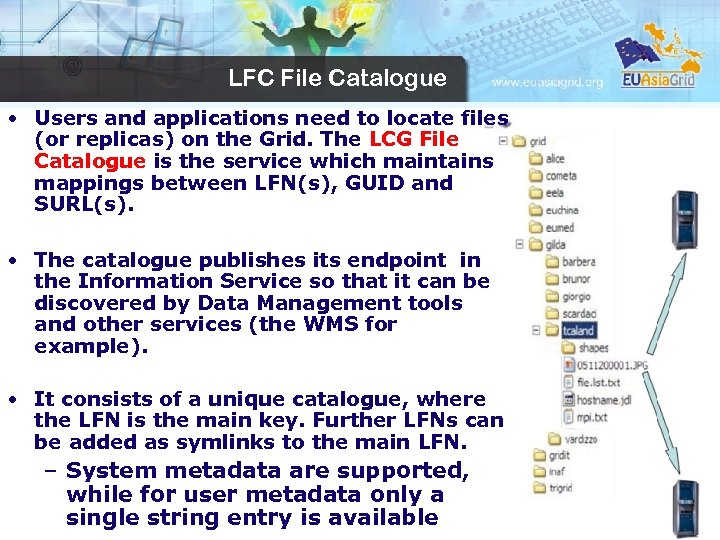 LFC File Catalogue • Users and applications need to locate files (or replicas) on the Grid. The LCG File Catalogue is the service which maintains mappings between LFN(s), GUID and SURL(s). • The catalogue publishes its endpoint in the Information Service so that it can be discovered by Data Management tools and other services (the WMS for example). • It consists of a unique catalogue, where the LFN is the main key. Further LFNs can be added as symlinks to the main LFN. – System metadata are supported, while for user metadata only a single string entry is available
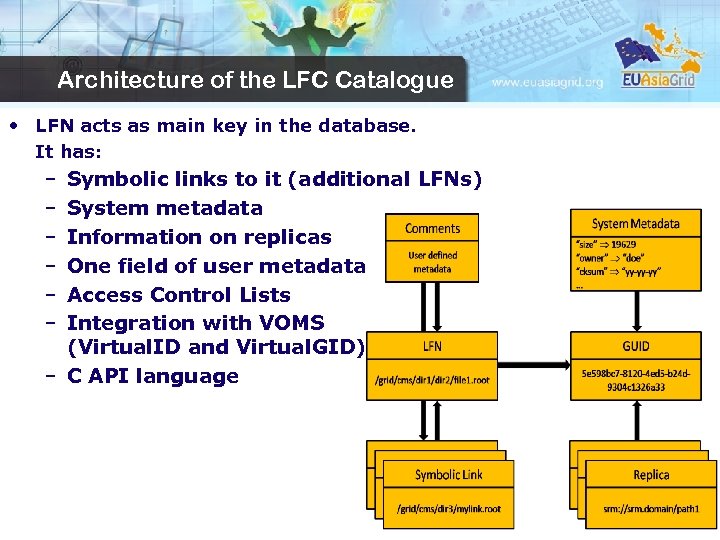 Architecture of the LFC Catalogue • LFN acts as main key in the database. It has: – – – Symbolic links to it (additional LFNs) System metadata Information on replicas One field of user metadata Access Control Lists Integration with VOMS (Virtual. ID and Virtual. GID) – C API language
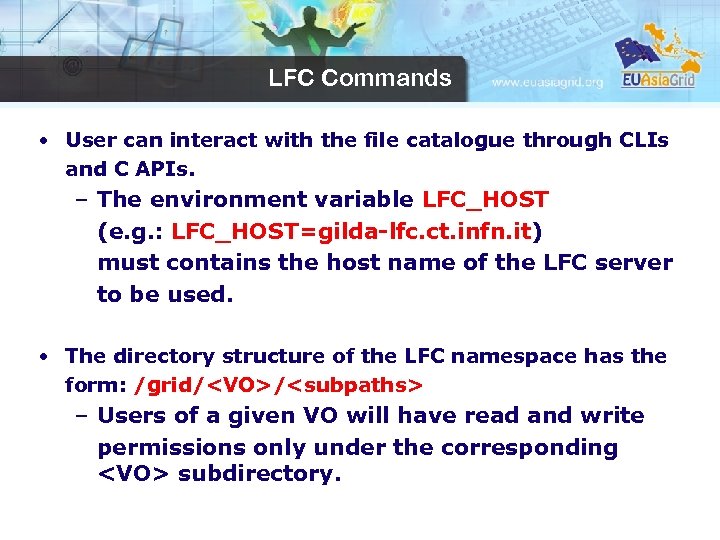 LFC Commands • User can interact with the file catalogue through CLIs and C APIs. – The environment variable LFC_HOST (e. g. : LFC_HOST=gilda-lfc. ct. infn. it) must contains the host name of the LFC server to be used. • The directory structure of the LFC namespace has the form: /grid/
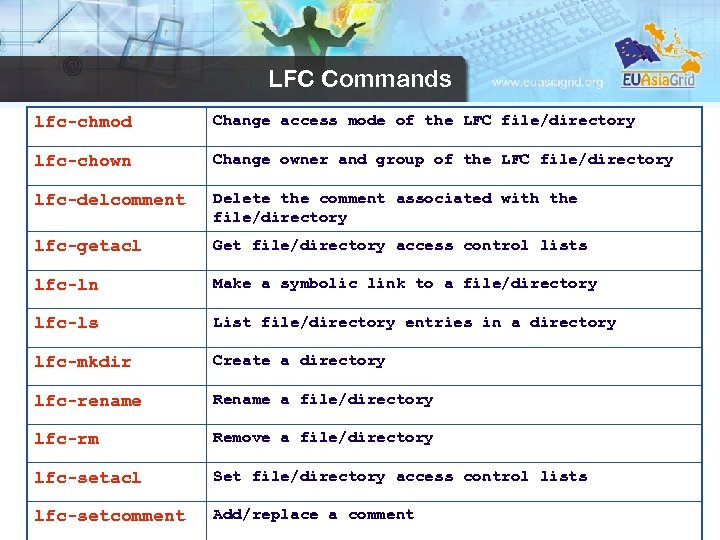 LFC Commands lfc-chmod Change access mode of the LFC file/directory lfc-chown Change owner and group of the LFC file/directory lfc-delcomment Delete the comment associated with the file/directory lfc-getacl Get file/directory access control lists lfc-ln Make a symbolic link to a file/directory lfc-ls List file/directory entries in a directory lfc-mkdir Create a directory lfc-rename Rename a file/directory lfc-rm Remove a file/directory lfc-setacl Set file/directory access control lists lfc-setcomment Add/replace a comment
![lfc-ls • Listing the entries of a LFC directory – lfc-ls [-cdi. Ll. RTu]](https://present5.com/presentation/dba3cefe6e8aaf0cfee8593517ab6bf3/image-17.jpg "lfc-ls • Listing the entries of a LFC directory – lfc-ls [-cdi. Ll. RTu]") lfc-ls • Listing the entries of a LFC directory – lfc-ls [-cdi. Ll. RTu] [--class] [--comment] [--deleted] [--display_side] [-ds] path… – where path specifies the LFN pathname (mandatory) – Remember that LFC has a directory tree structure – /grid/
lfc-ls • Listing the entries of a LFC directory – lfc-ls [-cdi. Ll. RTu] [--class] [--comment] [--deleted] [--display_side] [-ds] path… – where path specifies the LFN pathname (mandatory) – Remember that LFC has a directory tree structure – /grid/
![lfc-mkdir • Creating directories in the LFC – lfc-mkdir [-m mode] [-p] path. .](https://present5.com/presentation/dba3cefe6e8aaf0cfee8593517ab6bf3/image-18.jpg "lfc-mkdir • Creating directories in the LFC – lfc-mkdir [-m mode] [-p] path. .") lfc-mkdir • Creating directories in the LFC – lfc-mkdir [-m mode] [-p] path. . . • Where path specifies the LFC pathname • Remember that while registering a new file (using lcgcr, for example) the corresponding destination directory must be created in the catalog beforehand. • Examples: lfc-mkdir /grid/gilda/
lfc-mkdir • Creating directories in the LFC – lfc-mkdir [-m mode] [-p] path. . . • Where path specifies the LFC pathname • Remember that while registering a new file (using lcgcr, for example) the corresponding destination directory must be created in the catalog beforehand. • Examples: lfc-mkdir /grid/gilda/
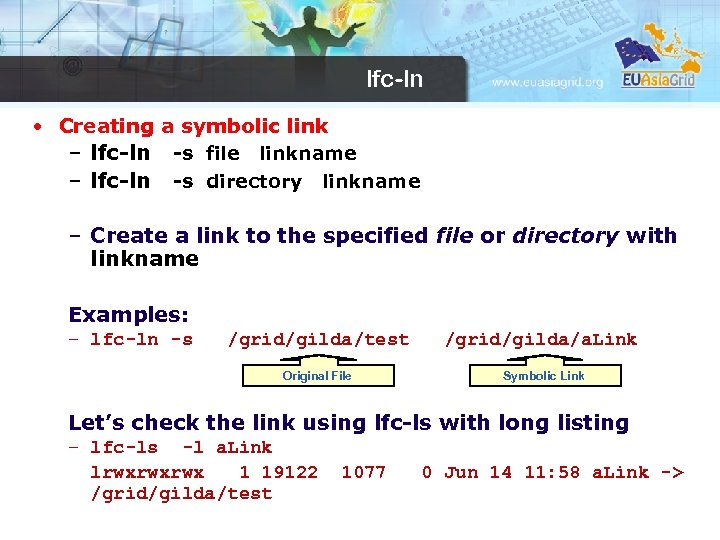 lfc-ln • Creating a symbolic link – lfc-ln -s file linkname – lfc-ln -s directory linkname – Create a link to the specified file or directory with linkname Examples: – lfc-ln -s /grid/gilda/test /grid/gilda/a. Link Original File Symbolic Link Let’s check the link using lfc-ls with long listing – lfc-ls -l a. Link lrwxrwxrwx 1 19122 /grid/gilda/test 1077 0 Jun 14 11: 58 a. Link ->
 Access Control List (ACL) • LFC allows to attach to a file or directory an access control list (ACL), a list of permissions which specify who is allowed to access or modify it. The permissions are very much like those of a UNIX file system: read (r), write (w) and execute (x). • In LFC, users and groups are internally identified as numerical virtual uids and virtual gids, which are virtual in the sense that they exist only in the LFC namespace. – A user can be specified as a name, as a virtual uid or as a DN. – A group can be specified as name, as a virtual gid or as a VOMS FQAN. • A directory in LFC has also a default ACL (which is the ACL associated to any file or directory being created under that directory). After creation, the ACLs can be freely changed. – When creating a sub-directory, its default ACL is inherited from the parent directory
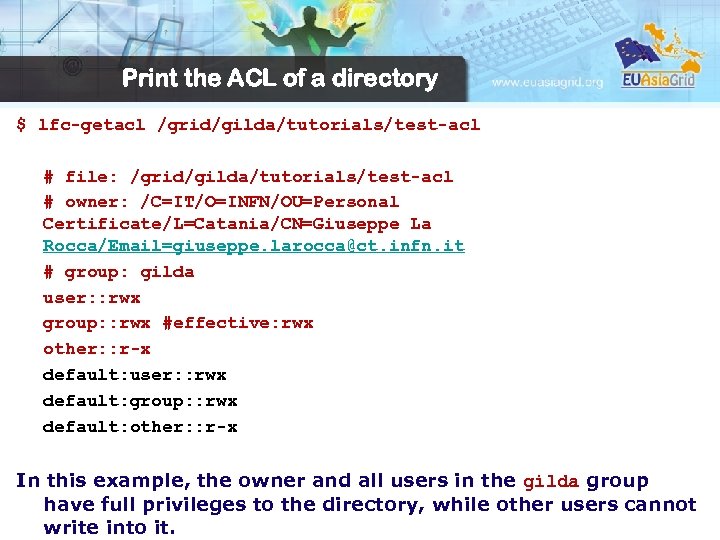 Print the ACL of a directory $ lfc-getacl /grid/gilda/tutorials/test-acl # file: /grid/gilda/tutorials/test-acl # owner: /C=IT/O=INFN/OU=Personal Certificate/L=Catania/CN=Giuseppe La Rocca/Email=giuseppe. larocca@ct. infn. it # group: gilda user: : rwx group: : rwx #effective: rwx other: : r-x default: user: : rwx default: group: : rwx default: other: : r-x In this example, the owner and all users in the gilda group have full privileges to the directory, while other users cannot write into it.
![Modify the ACL lfc-setacl [-d] [-m] [-s] acl_entries path The -m option means that](https://present5.com/presentation/dba3cefe6e8aaf0cfee8593517ab6bf3/image-22.jpg "Modify the ACL lfc-setacl [-d] [-m] [-s] acl_entries path The -m option means that") Modify the ACL lfc-setacl [-d] [-m] [-s] acl_entries path The -m option means that we are modifying the existing ACL. Other options of lfc-setacl are -d to remove ACL entries, and -s to replace the complete set of ACL entries. acl_entries is a coma separated list of entries. Each entry has colon separated fields: ACL type, id (uid or gid), permission. Only directories can have default ACL entries! The entries look like: user: : perm user: uid: perm group: gid: perm mask: perm other: perm defaul: : user: uid: perm defaul: : group: gid: perm default: : mask: perm deafult: : other: perm
Modify the ACL lfc-setacl [-d] [-m] [-s] acl_entries path The -m option means that we are modifying the existing ACL. Other options of lfc-setacl are -d to remove ACL entries, and -s to replace the complete set of ACL entries. acl_entries is a coma separated list of entries. Each entry has colon separated fields: ACL type, id (uid or gid), permission. Only directories can have default ACL entries! The entries look like: user: : perm user: uid: perm group: gid: perm mask: perm other: perm defaul: : user: uid: perm defaul: : group: gid: perm default: : mask: perm deafult: : other: perm
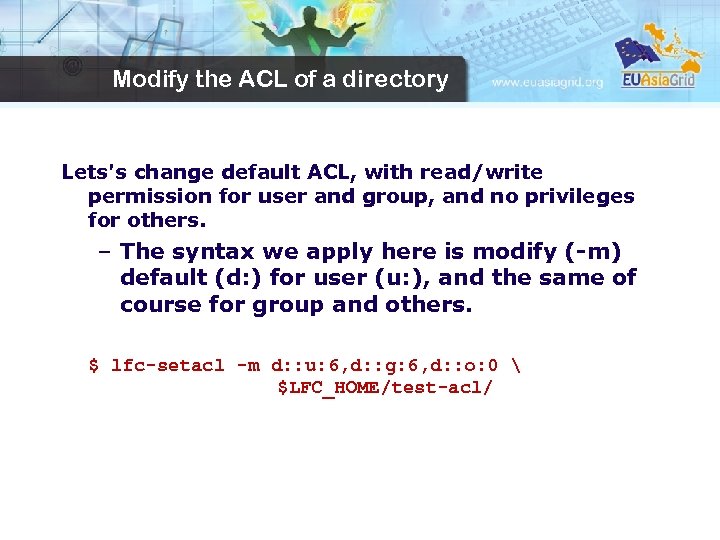 Modify the ACL of a directory Lets's change default ACL, with read/write permission for user and group, and no privileges for others. – The syntax we apply here is modify (-m) default (d: ) for user (u: ), and the same of course for group and others. $ lfc-setacl -m d: : u: 6, d: : g: 6, d: : o: 0 $LFC_HOME/test-acl/
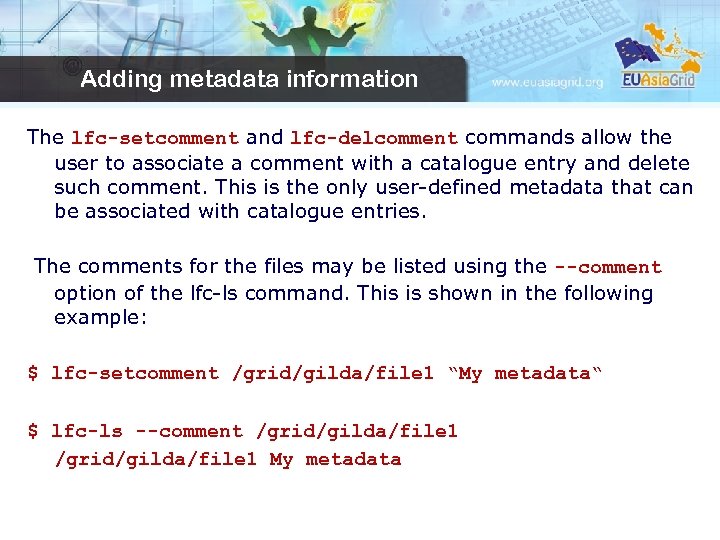 Adding metadata information The lfc-setcomment and lfc-delcomment commands allow the user to associate a comment with a catalogue entry and delete such comment. This is the only user-defined metadata that can be associated with catalogue entries. The comments for the files may be listed using the --comment option of the lfc-ls command. This is shown in the following example: $ lfc-setcomment /grid/gilda/file 1 “My metadata“ $ lfc-ls --comment /grid/gilda/file 1 My metadata
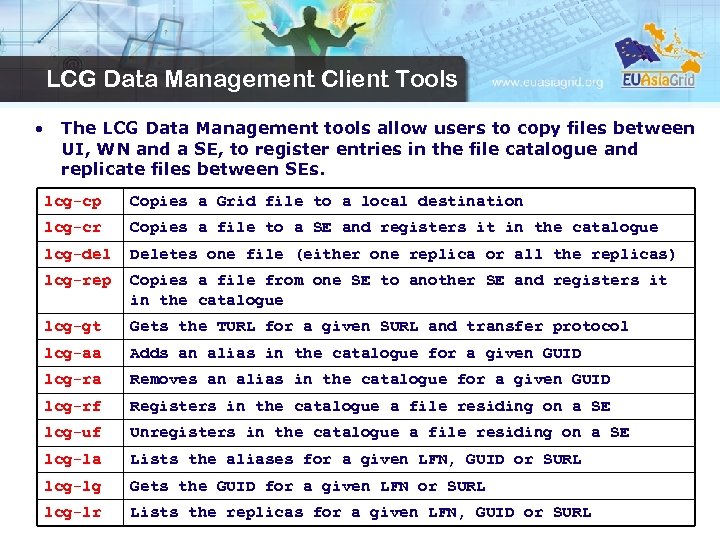 LCG Data Management Client Tools • The LCG Data Management tools allow users to copy files between UI, WN and a SE, to register entries in the file catalogue and replicate files between SEs. lcg-cp Copies a Grid file to a local destination lcg-cr Copies a file to a SE and registers it in the catalogue lcg-del Deletes one file (either one replica or all the replicas) lcg-rep Copies a file from one SE to another SE and registers it in the catalogue lcg-gt Gets the TURL for a given SURL and transfer protocol lcg-aa Adds an alias in the catalogue for a given GUID lcg-ra Removes an alias in the catalogue for a given GUID lcg-rf Registers in the catalogue a file residing on a SE lcg-uf Unregisters in the catalogue a file residing on a SE lcg-la Lists the aliases for a given LFN, GUID or SURL lcg-lg Gets the GUID for a given LFN or SURL lcg-lr Lists the replicas for a given LFN, GUID or SURL
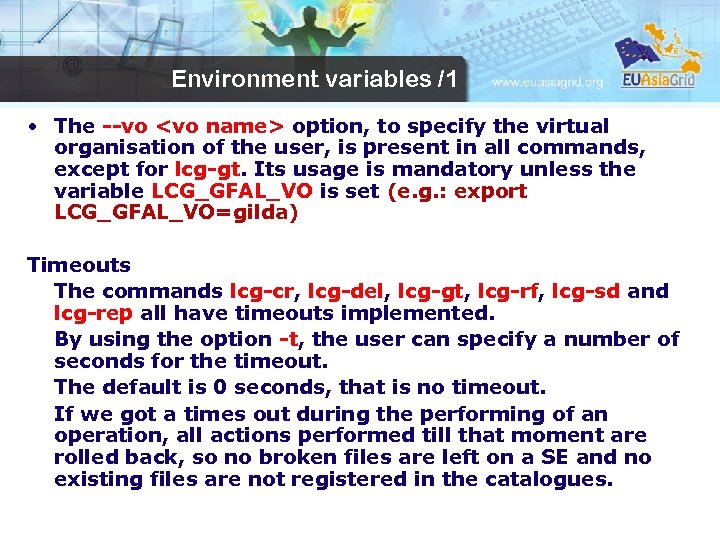 Environment variables /1 • The --vo
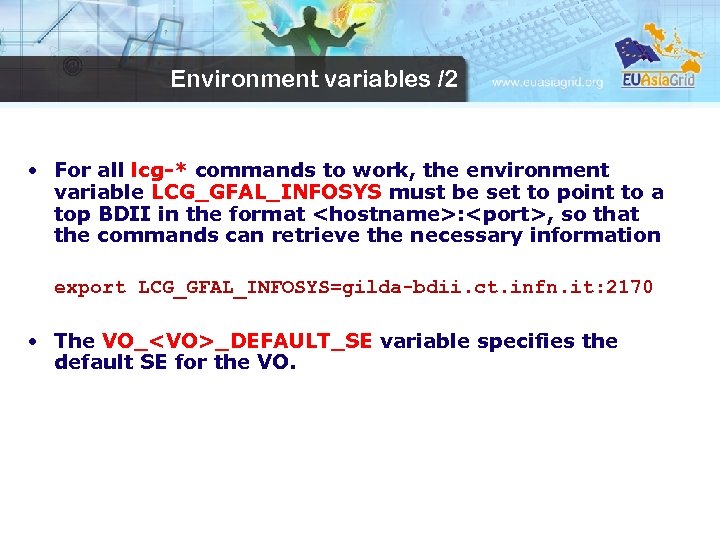 Environment variables /2 • For all lcg-* commands to work, the environment variable LCG_GFAL_INFOSYS must be set to point to a top BDII in the format
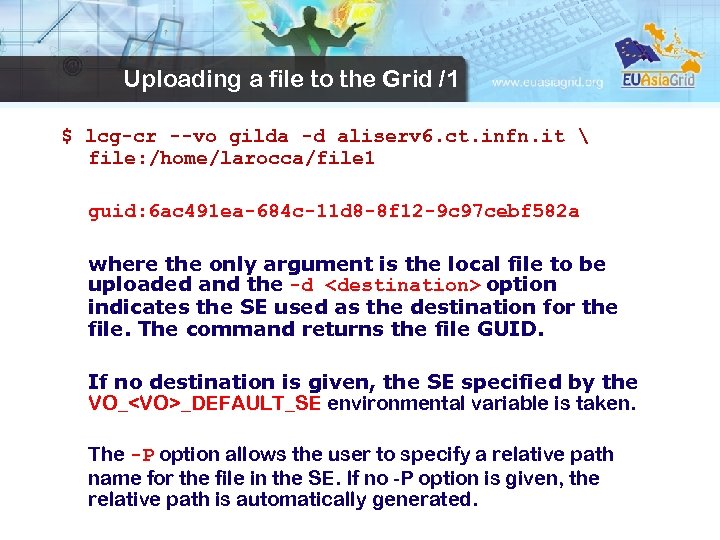 Uploading a file to the Grid /1 $ lcg-cr --vo gilda -d aliserv 6. ct. infn. it file: /home/larocca/file 1 guid: 6 ac 491 ea-684 c-11 d 8 -8 f 12 -9 c 97 cebf 582 a where the only argument is the local file to be uploaded and the -d
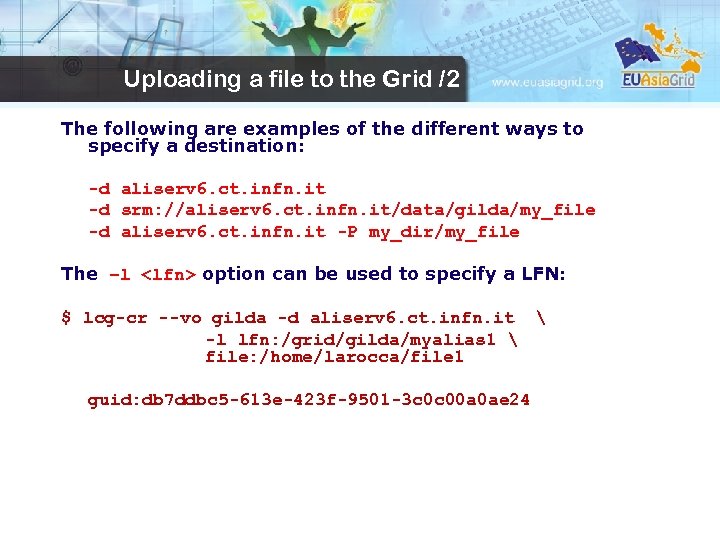 Uploading a file to the Grid /2 The following are examples of the different ways to specify a destination: -d aliserv 6. ct. infn. it -d srm: //aliserv 6. ct. infn. it/data/gilda/my_file -d aliserv 6. ct. infn. it -P my_dir/my_file The –l
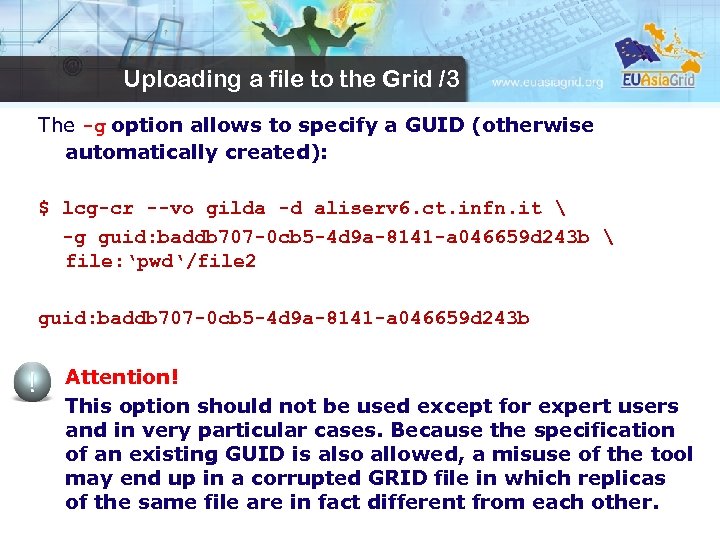 Uploading a file to the Grid /3 The -g option allows to specify a GUID (otherwise automatically created): $ lcg-cr --vo gilda -d aliserv 6. ct. infn. it -g guid: baddb 707 -0 cb 5 -4 d 9 a-8141 -a 046659 d 243 b file: ‘pwd‘/file 2 guid: baddb 707 -0 cb 5 -4 d 9 a-8141 -a 046659 d 243 b Attention! This option should not be used except for expert users and in very particular cases. Because the specification of an existing GUID is also allowed, a misuse of the tool may end up in a corrupted GRID file in which replicas of the same file are in fact different from each other.
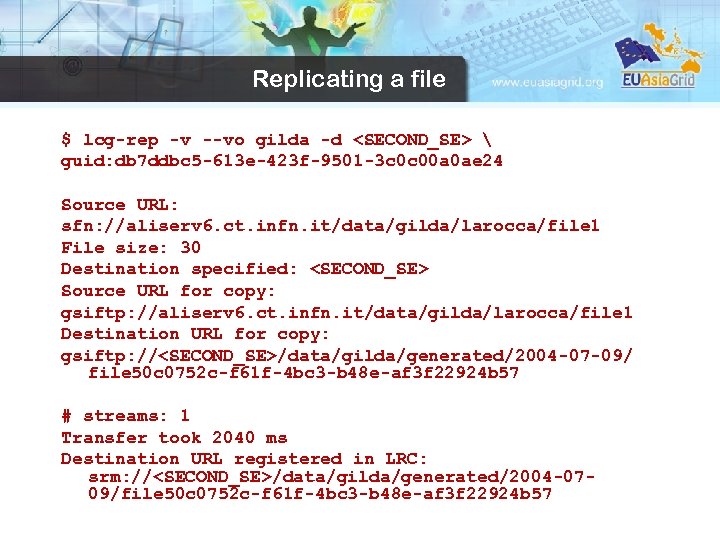 Replicating a file $ lcg-rep -v --vo gilda -d
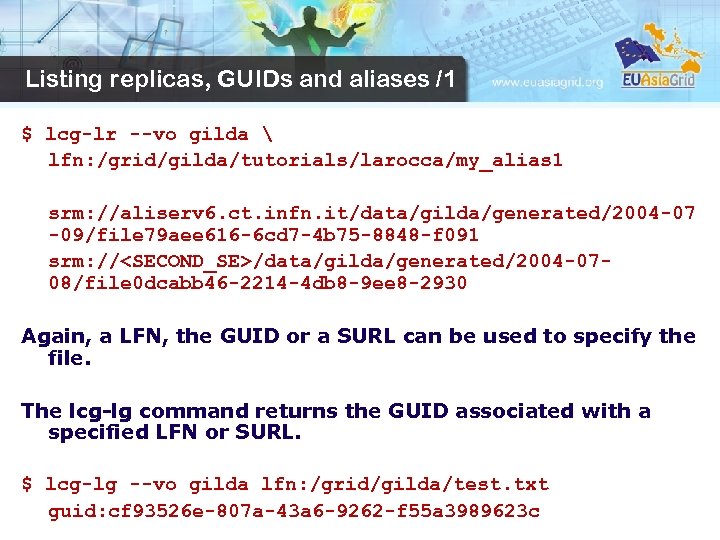 Listing replicas, GUIDs and aliases /1 $ lcg-lr --vo gilda lfn: /grid/gilda/tutorials/larocca/my_alias 1 srm: //aliserv 6. ct. infn. it/data/gilda/generated/2004 -07 -09/file 79 aee 616 -6 cd 7 -4 b 75 -8848 -f 091 srm: //
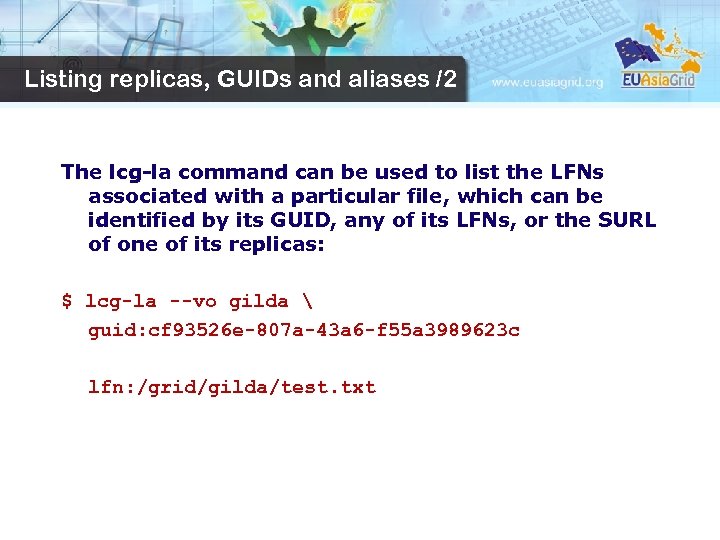 Listing replicas, GUIDs and aliases /2 The lcg-la command can be used to list the LFNs associated with a particular file, which can be identified by its GUID, any of its LFNs, or the SURL of one of its replicas: $ lcg-la --vo gilda guid: cf 93526 e-807 a-43 a 6 -f 55 a 3989623 c lfn: /grid/gilda/test. txt
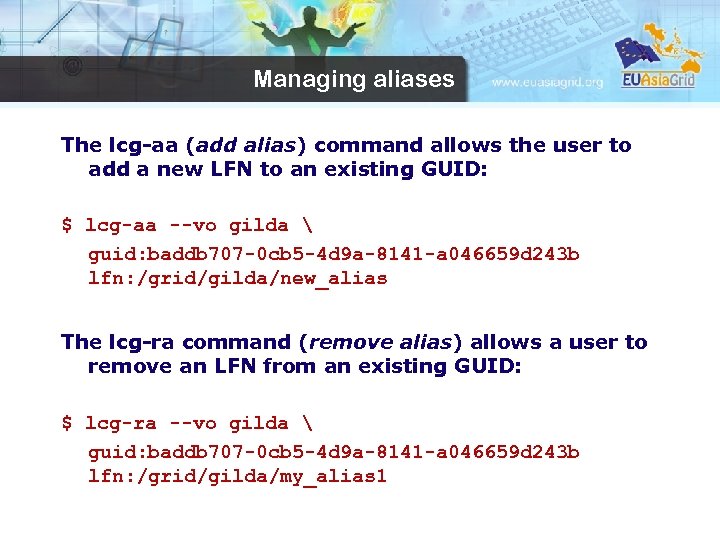 Managing aliases The lcg-aa (add alias) command allows the user to add a new LFN to an existing GUID: $ lcg-aa --vo gilda guid: baddb 707 -0 cb 5 -4 d 9 a-8141 -a 046659 d 243 b lfn: /grid/gilda/new_alias The lcg-ra command (remove alias) allows a user to remove an LFN from an existing GUID: $ lcg-ra --vo gilda guid: baddb 707 -0 cb 5 -4 d 9 a-8141 -a 046659 d 243 b lfn: /grid/gilda/my_alias 1
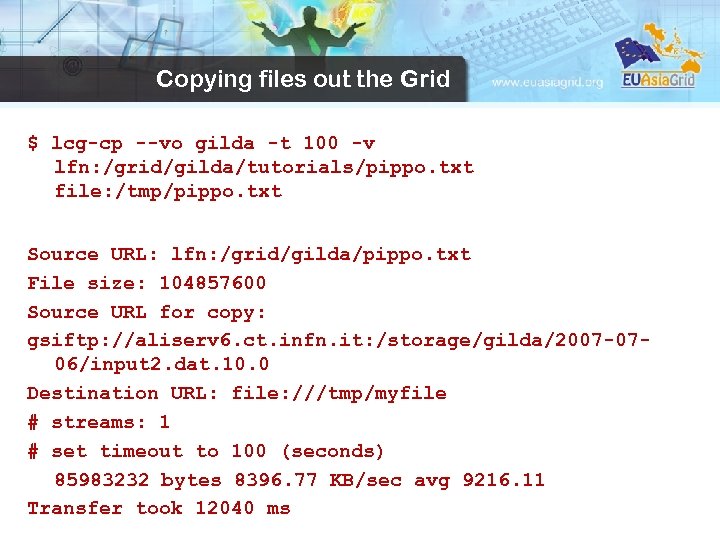 Copying files out the Grid $ lcg-cp --vo gilda -t 100 -v lfn: /grid/gilda/tutorials/pippo. txt file: /tmp/pippo. txt Source URL: lfn: /grid/gilda/pippo. txt File size: 104857600 Source URL for copy: gsiftp: //aliserv 6. ct. infn. it: /storage/gilda/2007 -0706/input 2. dat. 10. 0 Destination URL: file: ///tmp/myfile # streams: 1 # set timeout to 100 (seconds) 85983232 bytes 8396. 77 KB/sec avg 9216. 11 Transfer took 12040 ms
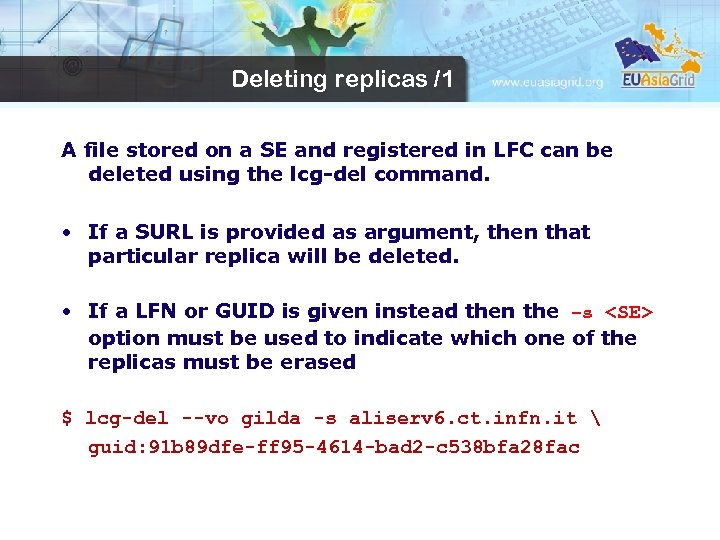 Deleting replicas /1 A file stored on a SE and registered in LFC can be deleted using the lcg-del command. • If a SURL is provided as argument, then that particular replica will be deleted. • If a LFN or GUID is given instead then the –s
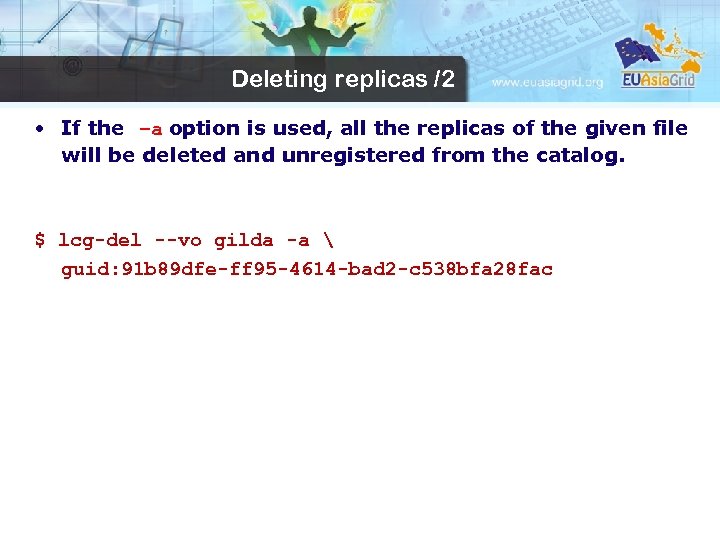 Deleting replicas /2 • If the –a option is used, all the replicas of the given file will be deleted and unregistered from the catalog. $ lcg-del --vo gilda -a guid: 91 b 89 dfe-ff 95 -4614 -bad 2 -c 538 bfa 28 fac
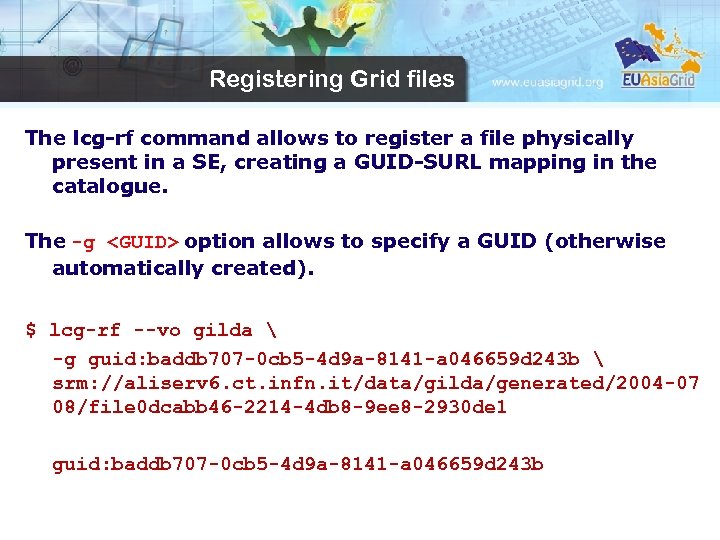 Registering Grid files The lcg-rf command allows to register a file physically present in a SE, creating a GUID-SURL mapping in the catalogue. The -g
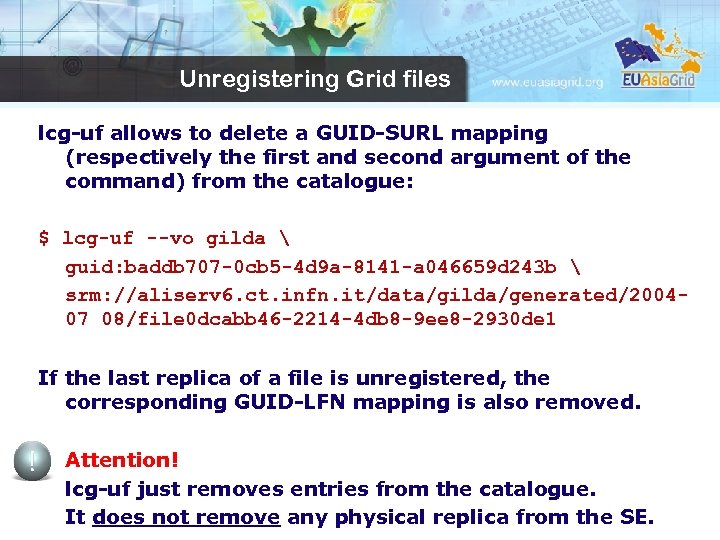 Unregistering Grid files lcg-uf allows to delete a GUID-SURL mapping (respectively the first and second argument of the command) from the catalogue: $ lcg-uf --vo gilda guid: baddb 707 -0 cb 5 -4 d 9 a-8141 -a 046659 d 243 b srm: //aliserv 6. ct. infn. it/data/gilda/generated/200407 08/file 0 dcabb 46 -2214 -4 db 8 -9 ee 8 -2930 de 1 If the last replica of a file is unregistered, the corresponding GUID-LFN mapping is also removed. Attention! lcg-uf just removes entries from the catalogue. It does not remove any physical replica from the SE.
 File Transfer Service • The File Transfer Service (FTS) is the lowest-level data movement service defined in g. Lite. – It is responsible for moving sets of files from one site to another. – It is designed for point to point movement of physical files (no file routing via intermediate storage). – The FTS has dedicated interfaces for managing the network resource and to display statistics of ongoing transfers. – The FTS handles internally the SRM negotiation between the source and destination SEs and the management of the underlying Grid. FTP transfers.
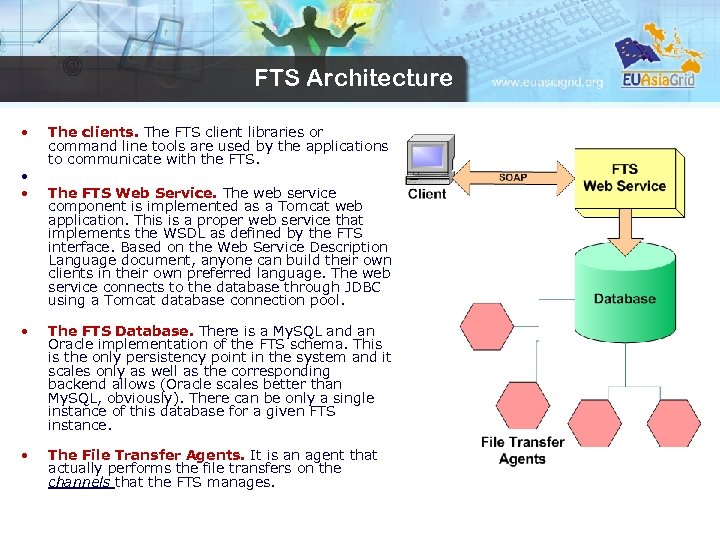 FTS Architecture • • • The clients. The FTS client libraries or command line tools are used by the applications to communicate with the FTS. The FTS Web Service. The web service component is implemented as a Tomcat web application. This is a proper web service that implements the WSDL as defined by the FTS interface. Based on the Web Service Description Language document, anyone can build their own clients in their own preferred language. The web service connects to the database through JDBC using a Tomcat database connection pool. The FTS Database. There is a My. SQL and an Oracle implementation of the FTS schema. This is the only persistency point in the system and it scales only as well as the corresponding backend allows (Oracle scales better than My. SQL, obviously). There can be only a single instance of this database for a given FTS instance. The File Transfer Agents. It is an agent that actually performs the file transfers on the channels that the FTS manages.
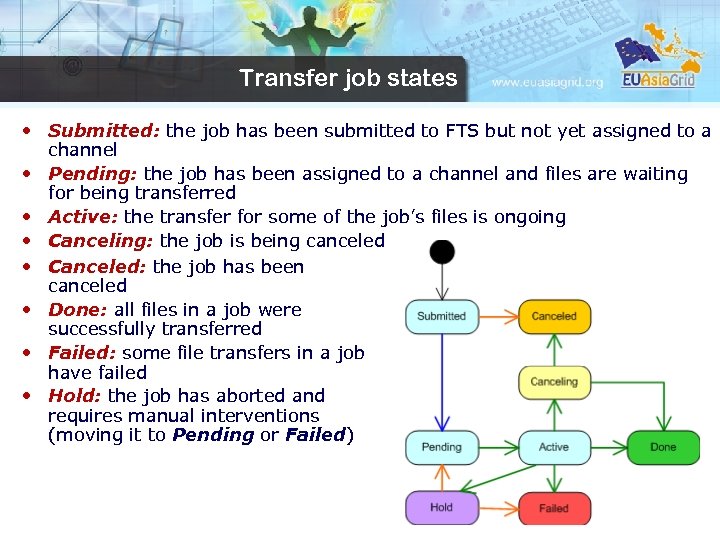 Transfer job states • Submitted: the job has been submitted to FTS but not yet assigned to a channel • Pending: the job has been assigned to a channel and files are waiting for being transferred • Active: the transfer for some of the job’s files is ongoing • Canceling: the job is being canceled • Canceled: the job has been canceled • Done: all files in a job were successfully transferred • Failed: some file transfers in a job have failed • Hold: the job has aborted and requires manual interventions (moving it to Pending or Failed)
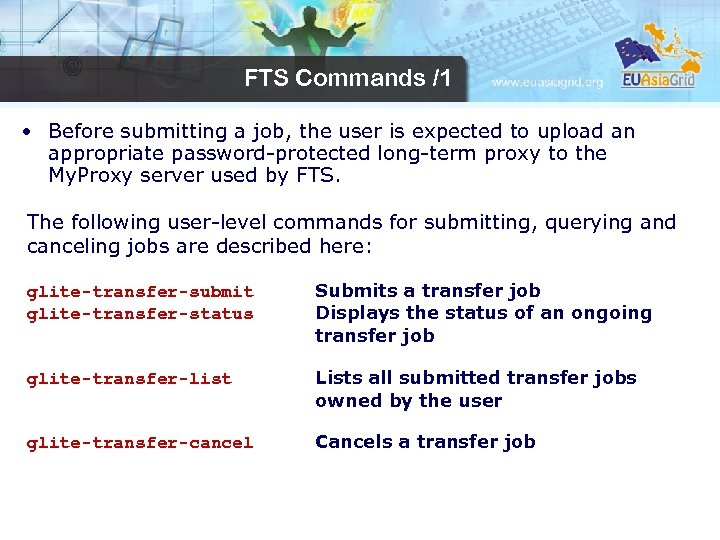 FTS Commands /1 • Before submitting a job, the user is expected to upload an appropriate password-protected long-term proxy to the My. Proxy server used by FTS. The following user-level commands for submitting, querying and canceling jobs are described here: glite-transfer-submit glite-transfer-status Submits a transfer job Displays the status of an ongoing transfer job glite-transfer-list Lists all submitted transfer jobs owned by the user glite-transfer-cancel Cancels a transfer job
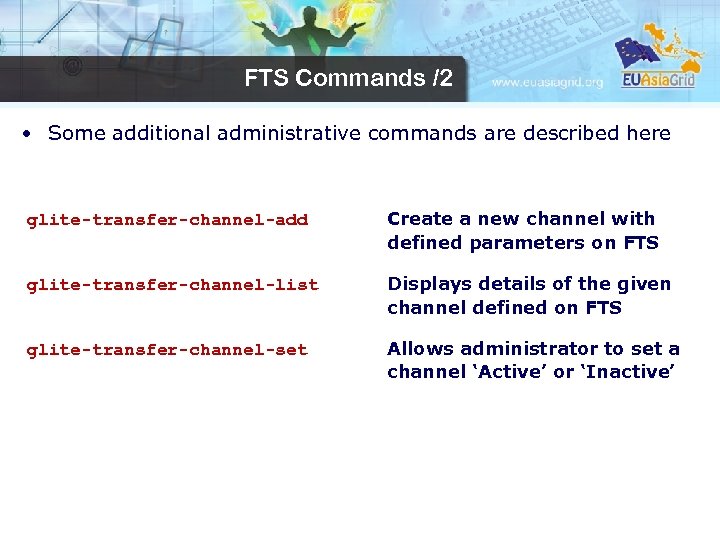 FTS Commands /2 • Some additional administrative commands are described here glite-transfer-channel-add Create a new channel with defined parameters on FTS glite-transfer-channel-list Displays details of the given channel defined on FTS glite-transfer-channel-set Allows administrator to set a channel ‘Active’ or ‘Inactive’
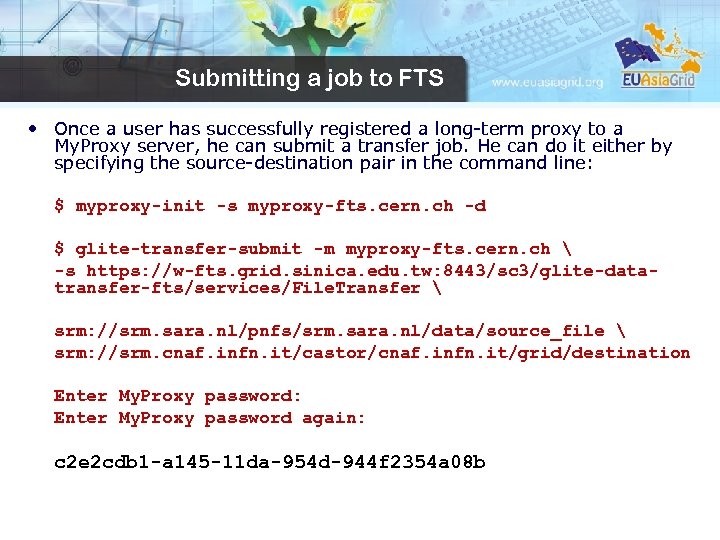 Submitting a job to FTS • Once a user has successfully registered a long-term proxy to a My. Proxy server, he can submit a transfer job. He can do it either by specifying the source-destination pair in the command line: $ myproxy-init -s myproxy-fts. cern. ch -d $ glite-transfer-submit -m myproxy-fts. cern. ch -s https: //w-fts. grid. sinica. edu. tw: 8443/sc 3/glite-datatransfer-fts/services/File. Transfer srm: //srm. sara. nl/pnfs/srm. sara. nl/data/source_file srm: //srm. cnaf. infn. it/castor/cnaf. infn. it/grid/destination Enter My. Proxy password: Enter My. Proxy password again: c 2 e 2 cdb 1 -a 145 -11 da-954 d-944 f 2354 a 08 b
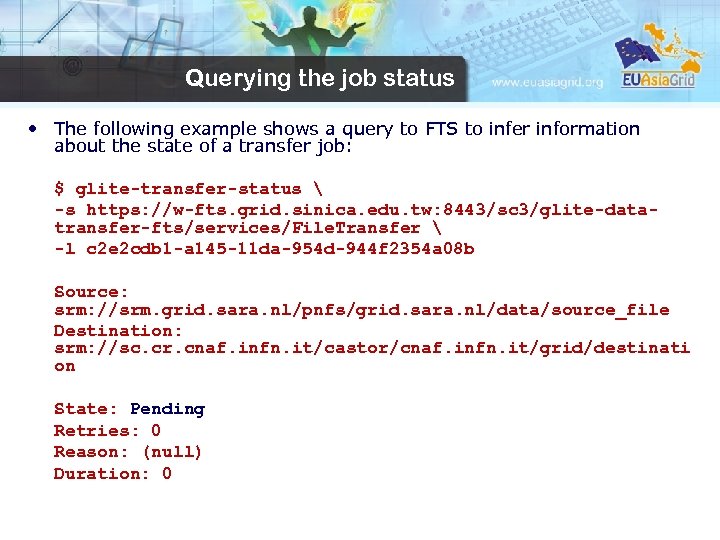 Querying the job status • The following example shows a query to FTS to infer information about the state of a transfer job: $ glite-transfer-status -s https: //w-fts. grid. sinica. edu. tw: 8443/sc 3/glite-datatransfer-fts/services/File. Transfer -l c 2 e 2 cdb 1 -a 145 -11 da-954 d-944 f 2354 a 08 b Source: srm: //srm. grid. sara. nl/pnfs/grid. sara. nl/data/source_file Destination: srm: //sc. cr. cnaf. infn. it/castor/cnaf. infn. it/grid/destinati on State: Pending Retries: 0 Reason: (null) Duration: 0
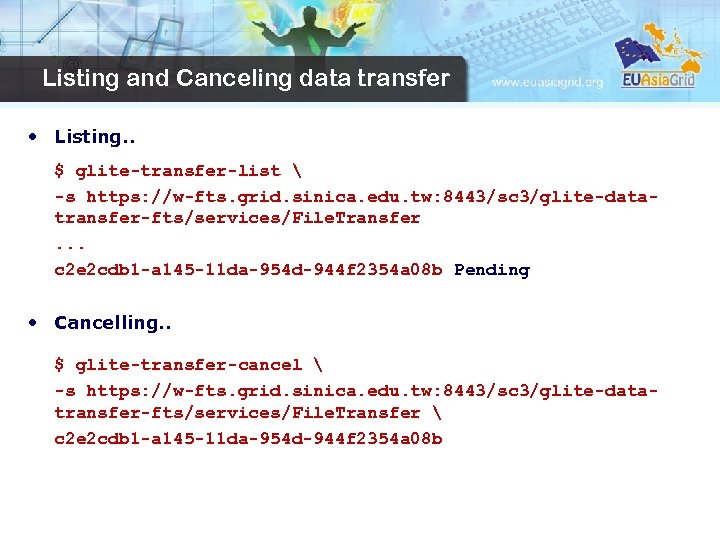 Listing and Canceling data transfer • Listing. . $ glite-transfer-list -s https: //w-fts. grid. sinica. edu. tw: 8443/sc 3/glite-datatransfer-fts/services/File. Transfer. . . c 2 e 2 cdb 1 -a 145 -11 da-954 d-944 f 2354 a 08 b Pending • Cancelling. . $ glite-transfer-cancel -s https: //w-fts. grid. sinica. edu. tw: 8443/sc 3/glite-datatransfer-fts/services/File. Transfer c 2 e 2 cdb 1 -a 145 -11 da-954 d-944 f 2354 a 08 b
 References • g. Lite 3 User Guide – Manual Series https: //edms. cern. ch/file/722398/1. 2/g. Lite-3 User. Guide. pdf • g. Lite Documentation homepage – http: //glite. web. cern. ch/glite/documentation/default. asp • DM subsystem documentation – http: //egee-jra 1 -dm. web. cern. ch/egee-jra 1 dm/doc. htm • File Transfer Services – http: //cern. ch/egee-jra 1 -dm/FTS/default. htm • LFC and DPM documentation – https: //uimon. cern. ch/twiki/bin/view/LCG/Data. Mana gement. Documentation
 Hands-on • Connect to the training infrastructure using the information reported in the tutorial sheet • Run the hands-on available in this web link: • http: //www. euasiagrid. org/wiki/index. php/Data_Manage ment • Enjoy!