


 Скачать презентацию The Future of Energy Conservation Utility Sentry
7b13b8bd86bc577816bd832f9e2edd97.ppt
- Количество слайдов: 15
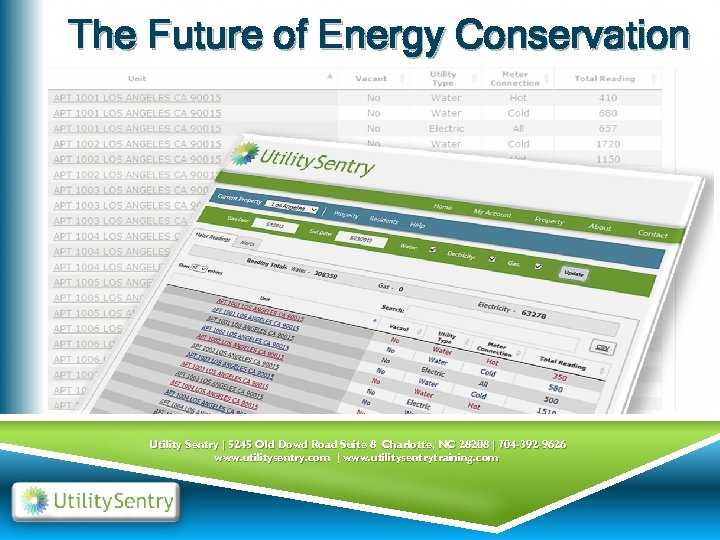 The Future of Energy Conservation Utility Sentry | 5245 Old Dowd Road Suite 8 Charlotte, NC 28208 | 704 -392 -9626 www. utilitysentry. com | www. utilitysentrytraining. com
 What is Utility Sentry? An easy to use web-based service that monitors and displays the daily usage of water, gas and electric sub-metered utilities. Provides a previously non-existent advantage in understanding and controlling utility costs as well as controlling unknown losses. Allows you to monitor and effectively make changes to reduce overall daily consumption. Ability to stop unintentional usage before it has a chance to accumulate. Reduce overall utility expenses for the entire property. Conserve our valuable resources.
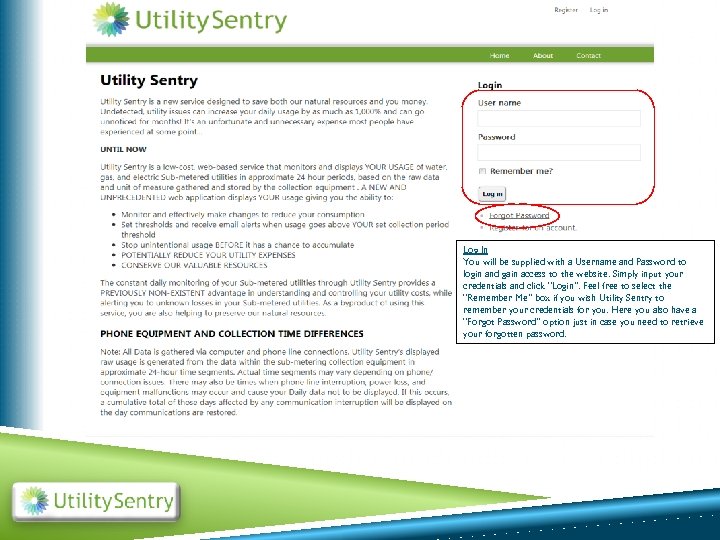 Log In You will be supplied with a Username and Password to login and gain access to the website. Simply input your credentials and click “Login”. Feel free to select the “Remember Me” box if you wish Utility Sentry to remember your credentials for you. Here you also have a “Forgot Password” option just in case you need to retrieve your forgotten password.
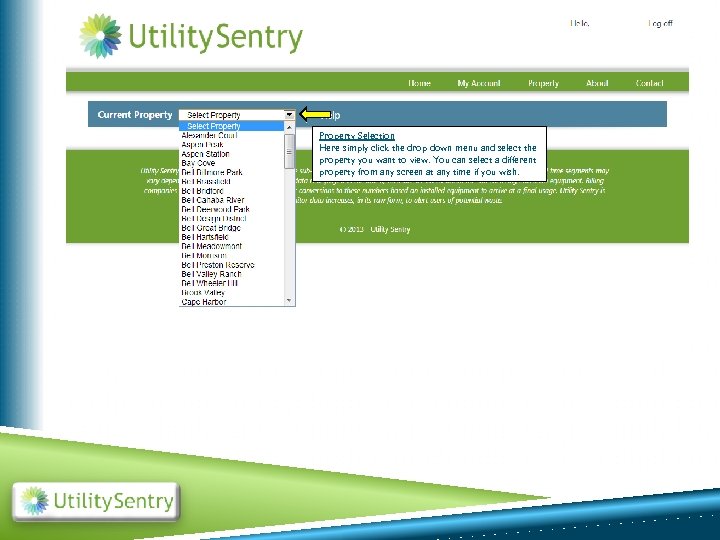 Property Selection Here simply click the drop down menu and select the property you want to view. You can select a different property from any screen at any time if you wish.
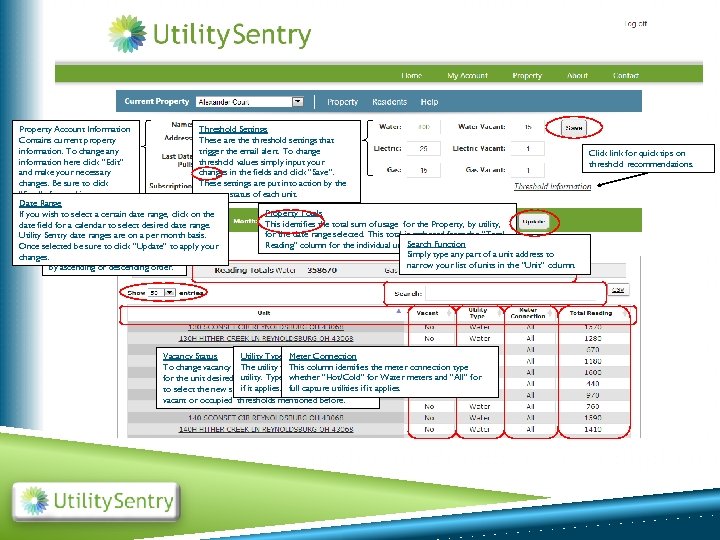 Threshold Settings Property Account Information These are threshold settings that Contains current property trigger the email alert. To change information. To change any threshold values simply input your information here click “Edit” changes in the fields and click “Save”. and make your necessary These settings are put into action by the changes. Be sure to click vacancy status of each unit. “Save” after making your Date Range changes. Property Totals If you wish to select a certain date range, click on the This identifies the total sum of usage for the Property, by utility, date field for a calendar to select desired date range. for the date range selected. This total is gathered from the “Total Unit date ranges Utility Sentry. Selection are on a per month basis. Search Function Reading” column for the individual units for that same date range. Select be number of units to view. Once selected the sure to click “Update” to apply your Simply type any part of a unit address to All columns are able to be sorted changes. narrow your list of units in the “Unit” column. by ascending or descending order. Utility Type Meter Connection Vacancy Status The double click identified by the meter connection type This column identifies To change vacancy status utility type isthe current statusfirst letter of the utility. Type also differentiatesyou whether up for multiple meters in a unit for the unit desired. A Yes/No box will pop“Hot/Cold” for Water meters and “All” for if it applies. full what applies the to select the new status. This status iscapture utilities if it applies. vacant or occupied thresholds mentioned before. Click link for quick tips on threshold recommendations.
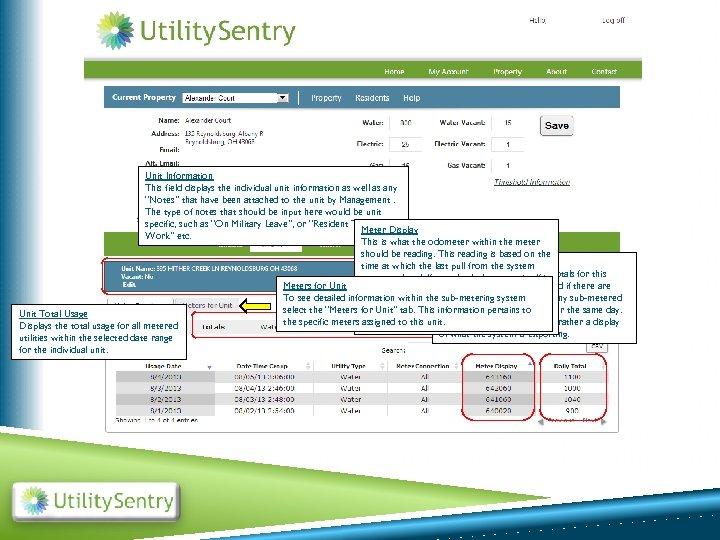 Unit Information This field displays the individual unit information as well as any “Notes” that have been attached to the unit by Management. The type of notes that should be input here would be unit specific, such as “On Military Leave”, or “Resident Travels for Meter Display Work” etc. This is what the odometer within the meter should be reading. This reading is based on the Daily Unit Totals time at which the last pull from the system Displays the meter itself it was completed. If you checkthe individual daily totals for this Meters for Unit should always read specific unit. HIGHER than equal to or Don’t be alarmed if there are To see detailed information within it reads higher it is due to any. Many sub-metered themultiple same system sub-metering day listings. this number. If select the “Meters for Unit” tab. This information pertains to time for the same day. systems give multiple reads usage between the Utility Sentry data pull Unit Total Usage the specific meters and the time of reading the actual duplicates but rather a display assigned to this unit. These are not meter. Displays the total usage for all metered of what the system is exporting. utilities within the selected date range for the individual unit.
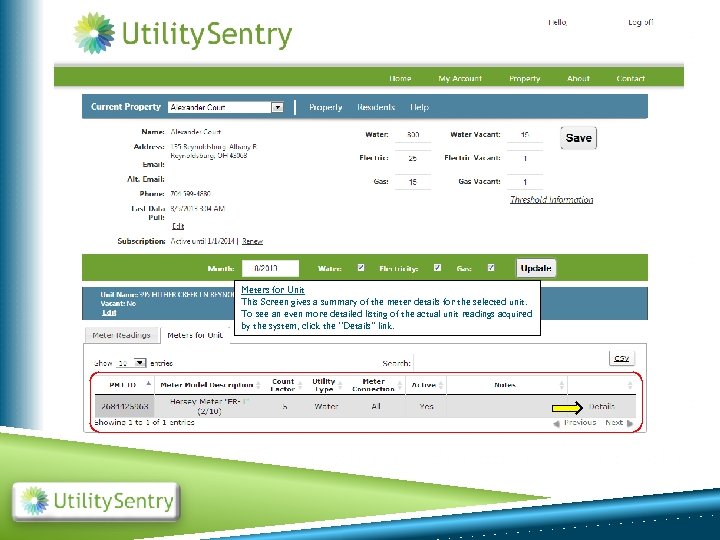 Meters for Unit This Screen gives a summary of the meter details for the selected unit. To see an even more detailed listing of the actual unit readings acquired by the system, click the “Details” link.
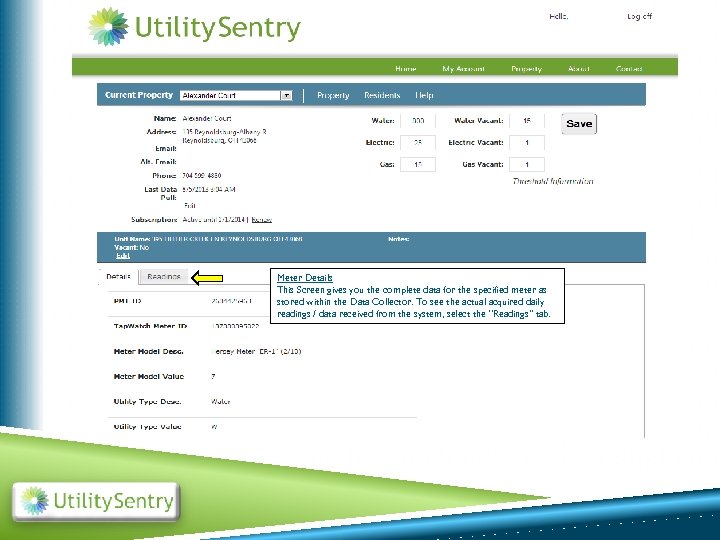 Meter Details This Screen gives you the complete data for the specified meter as stored within the Data Collector. To see the actual acquired daily readings / data received from the system, select the “Readings” tab.
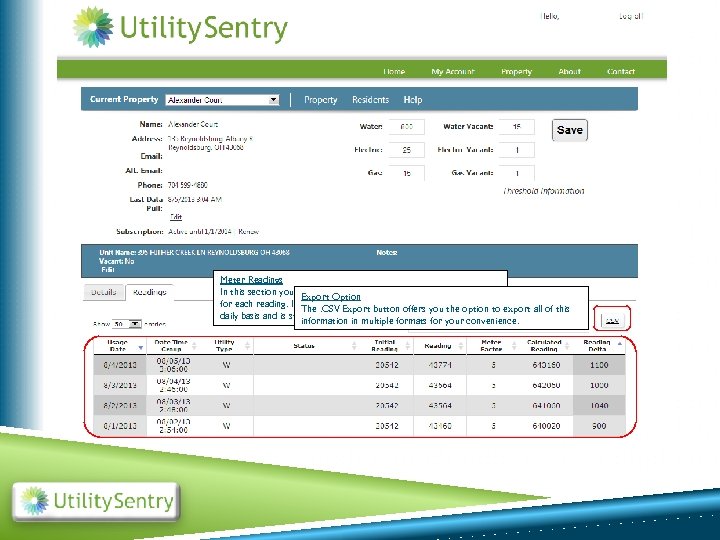 Meter Readings In this section you see the data acquired from the system collector Export Option for each reading. Information in this section is broken downoption to export all of this The. CSV Export button offers you the on a daily basis and is stored historicallymultiple formats for your convenience. information in according to this specific unit.
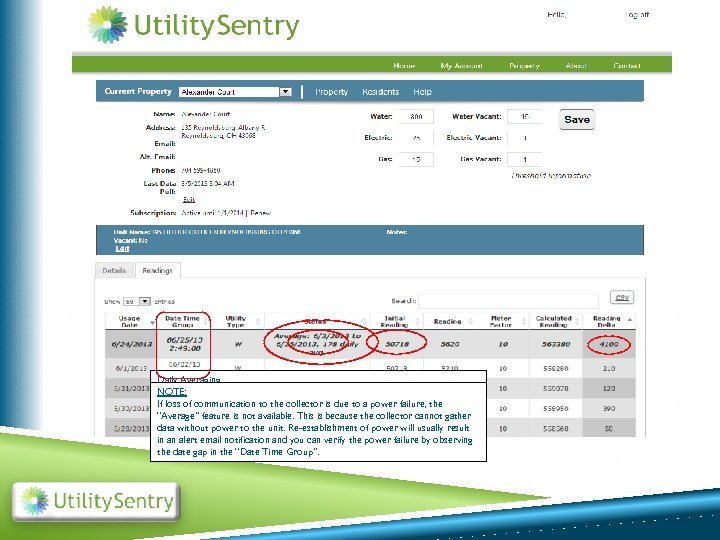 Daily Averaging NOTE: If communication with the data collector is unavailable for a period of time, Serviced Unit If loss In the event that TOTALcollectorfordue to a power“Initial Reading” of communication to the USAGE is that period is failure, in once re-established thethe unit had service performed the displayedthe “Average” feature is not The “Status” is because the collectorwith an the “Reading Delta” column. available. Thiscolumn is then updated this casegather and/or “Reading” is usually updated by the technician. In cannot data without power to will be same period. “Average” daily usage for that displayed in the status power will usually result word “Serviced” the unit. Re-establishment of column. in an alert email notification and you can verify the power failure by observing the date gap in the “Date Time Group”.
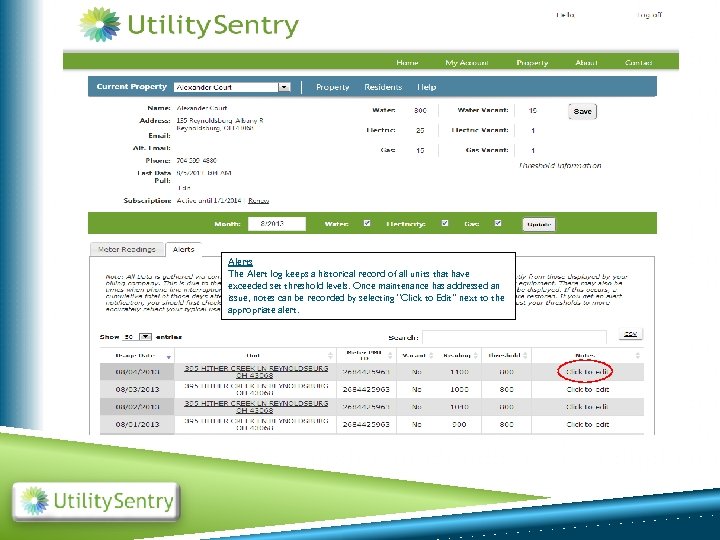 Alerts The Alert log keeps a historical record of all units that have exceeded set threshold levels. Once maintenance has addressed an issue, notes can be recorded by selecting “Click to Edit” next to the appropriate alert.
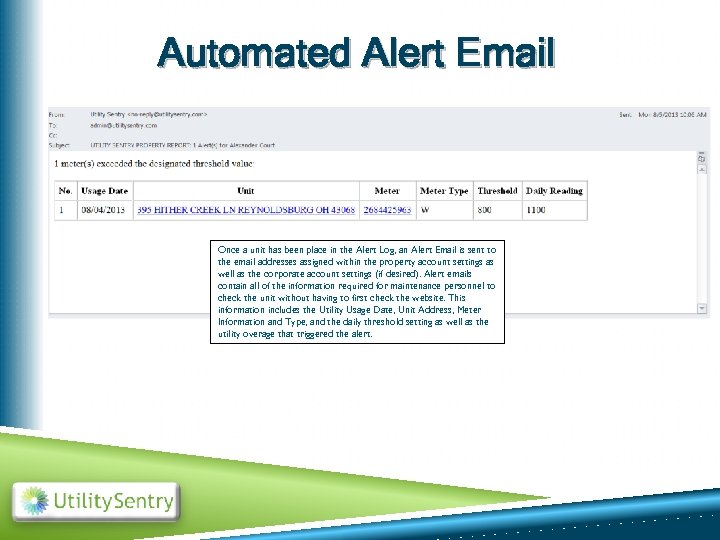 Automated Alert Email Once a unit has been place in the Alert Log, an Alert Email is sent to the email addresses assigned within the property account settings as well as the corporate account settings (if desired). Alert emails contain all of the information required for maintenance personnel to check the unit without having to first check the website. This information includes the Utility Usage Date, Unit Address, Meter Information and Type, and the daily threshold setting as well as the utility overage that triggered the alert.
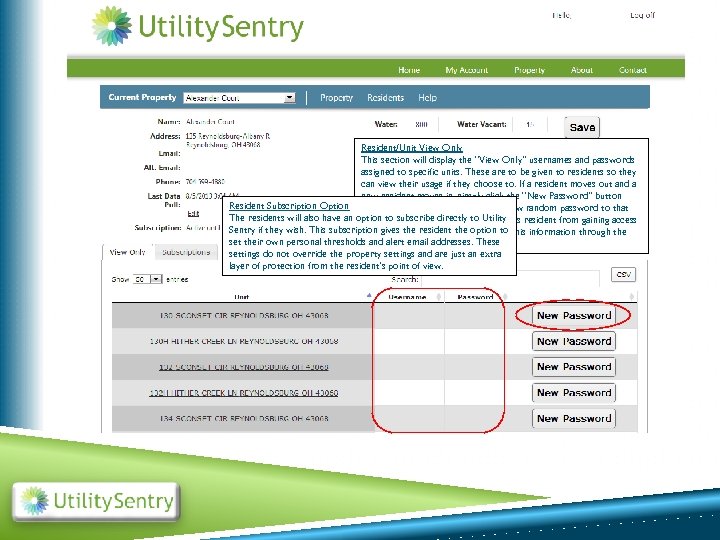 Resident/Unit View Only This section will display the “View Only” usernames and passwords assigned to specific units. These are to be given to residents so they can view their usage if they choose to. If a resident moves out and a new resident moves in, simply click the “New Password” button Resident Subscription Option next to that unit and it will assign a new random password to that The residents will also have an option to subscribeto avoid any. Utility username. This is directly to previous resident from gaining access Sentry if they wish. This subscription gives. Sentry. Resident are to get this information through the to Utility the resident the option to set their own personal thresholds and alert email addresses. These PROPERTY STAFF ONLY. settings do not override the property settings and are just an extra layer of protection from the resident’s point of view.
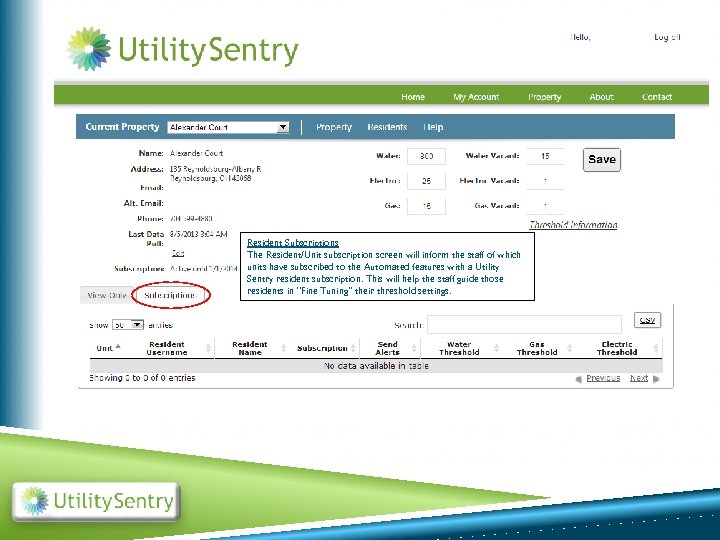 Resident Subscriptions The Resident/Unit subscription screen will inform the staff of which units have subscribed to the Automated features with a Utility Sentry resident subscription. This will help the staff guide those residents in “Fine Tuning” their threshold settings.
 This concludes the Introduction to Utility Sentry. For more information please contact: Josh Mc. Murphy Account Manager josh@utilitysentry. com Thank You from all of Us at Utility Sentry