 Скачать презентацию The CART Software Developed by Ciber Terrasoft Pty
ed858feaf231ffdae9beea3fe5fcd7f1.ppt
- Количество слайдов: 49



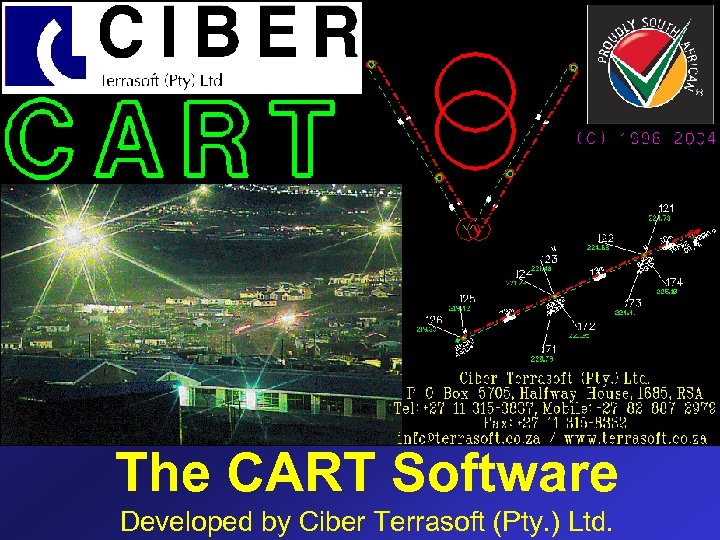
The CART Software Developed by Ciber Terrasoft (Pty. ) Ltd.
Overview • • • Introduction to product Introduction to company Evaluation of product Walk through of a simple example Outputs/Retports/etc Data Capturing
What is CART? • CART is a CAD-based integrated design tool to support the detailed design of MV and LV distribution networks. • Using CART: – – Design distribution networks, Analyse network performance, Produce final construction drawings, Generate Bill of Materials and Reports.
What is CART? (cont…. ) • CART is a productivity tool to support the detailed design of LV distribution networks • CART was developed at Wits University in close collaboration with Eskom over the past 12 years • When using CART the designer focuses on engineering- the computer does all of the tedious and repetitive tasks
What is CART? (cont…) • CART supports all aspects of the distribution design workflow • CART is used by Eskom and by consulting engineers in South Africa and in other countries

What is Ciber Terrasoft? • Ciber Terrasoft (Pty) Ltd (“Terrasoft”) was set up in 1998 to support CART • Terrasoft has developed over 12 years of experience and expertise in the specialised field of software tools to support electrical distribution engineering

What is Ciber Terrasoft? (cont…. ) • Terrasoft supports CART, offers training and specialised software customisation and development • Terrasoft works in alliance with other software development companies • Offers various services around the area of network data capturing
Evaluation of CART • From 2000 to 2001 Eskom DT and Terrasoft undertook a detailed evaluation of the CART software • CART was found to do the following: – increase engineering productivity by three times, – eliminate errors and – improve the overall quality of designs.
Evaluation of CART • 2002 winner of a prestigious Award in South Africa for CART’s energy saving capability. – (The Award is sponsored by Eskom & endorsed by the Department of Minerals & Energy) • In South Africa, CART could save: § consulting engineers R 2 million/annum in improved productivity; § Eskom R 180 million/annum in reduced construction costs; § 17 GWh per annum in reduced network losses.
A Walk through example • CART works within a 3 rd party CAD program (front-end) called Micro. Station developed by Bentley USA. • Currently uses Microsoft Access™ database for storing network info. • Uses Microsoft Excel™ for costing the project, BOM, etc.
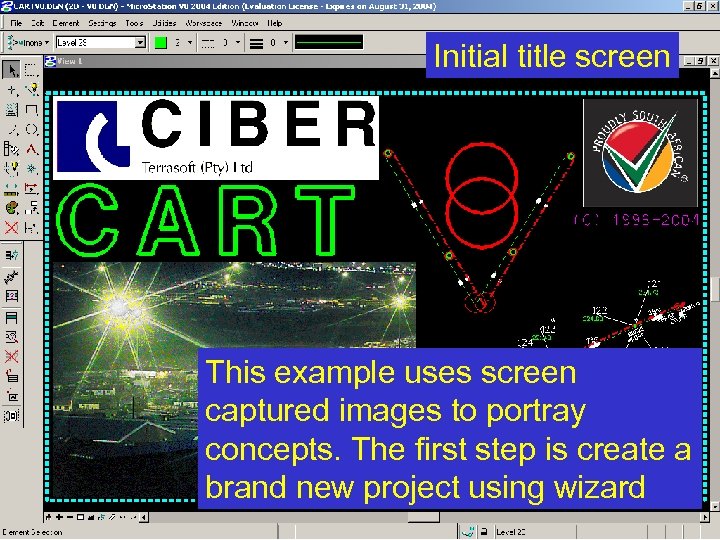
Initial title screen This example uses screen captured images to portray concepts. The first step is create a brand new project using wizard
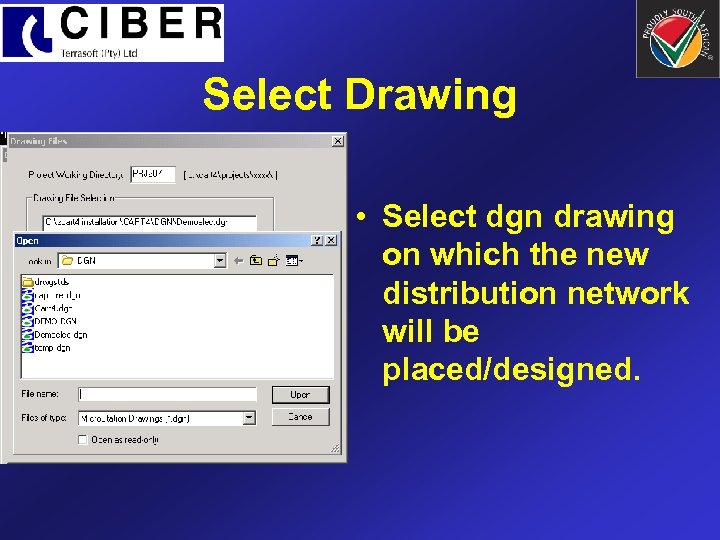
Select Drawing • Select dgn drawing on which the new distribution network will be placed/designed.
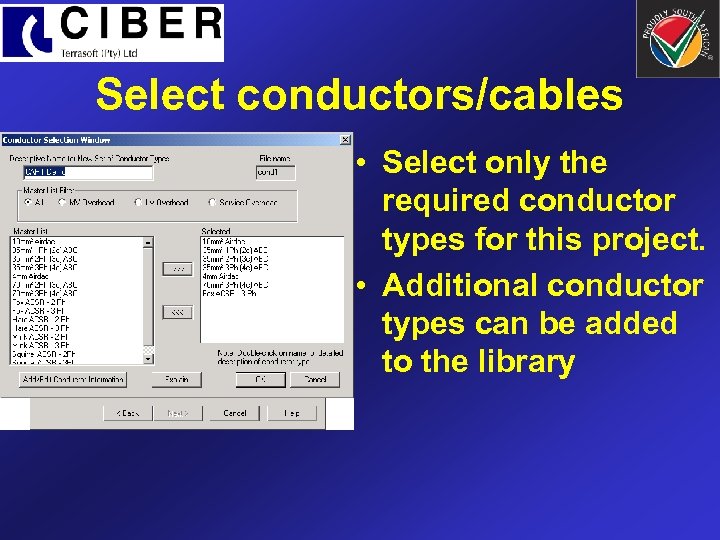
Select conductors/cables • Select only the required conductor types for this project. • Additional conductor types can be added to the library
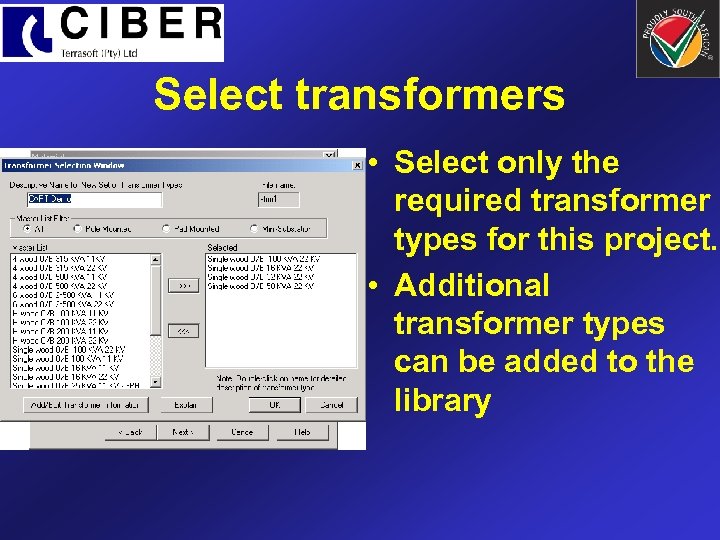
Select transformers • Select only the required transformer types for this project. • Additional transformer types can be added to the library
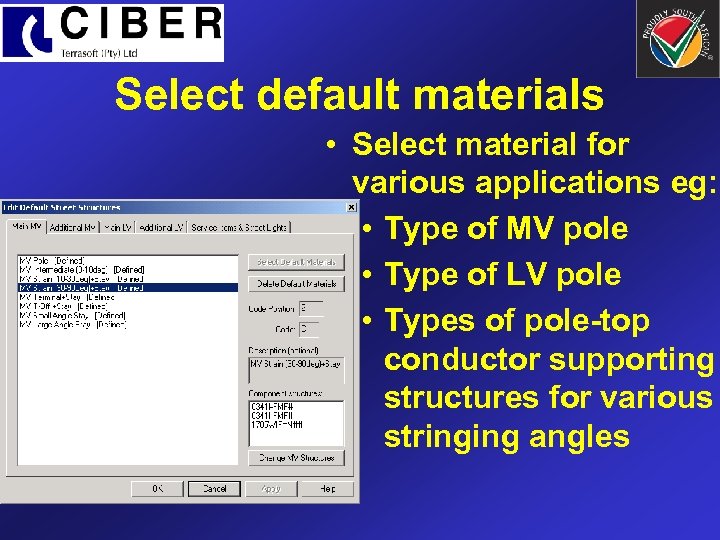
Select default materials • Select material for various applications eg: • Type of MV pole • Type of LV pole • Types of pole-top conductor supporting structures for various stringing angles
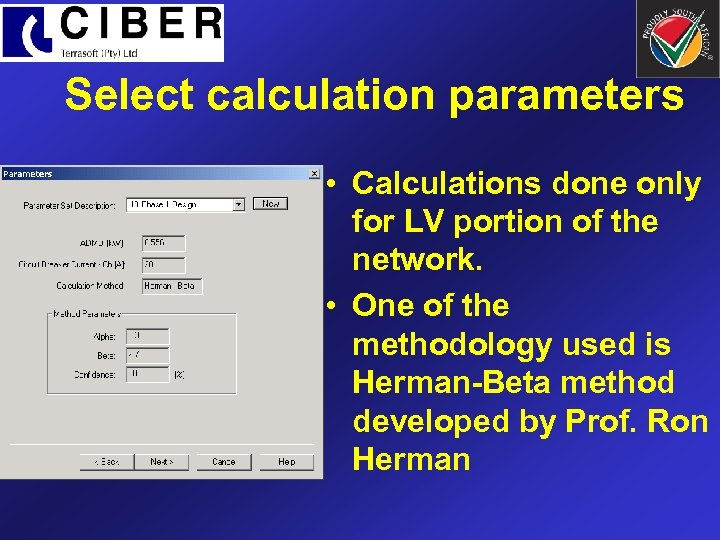
Select calculation parameters • Calculations done only for LV portion of the network. • One of the methodology used is Herman-Beta method developed by Prof. Ron Herman
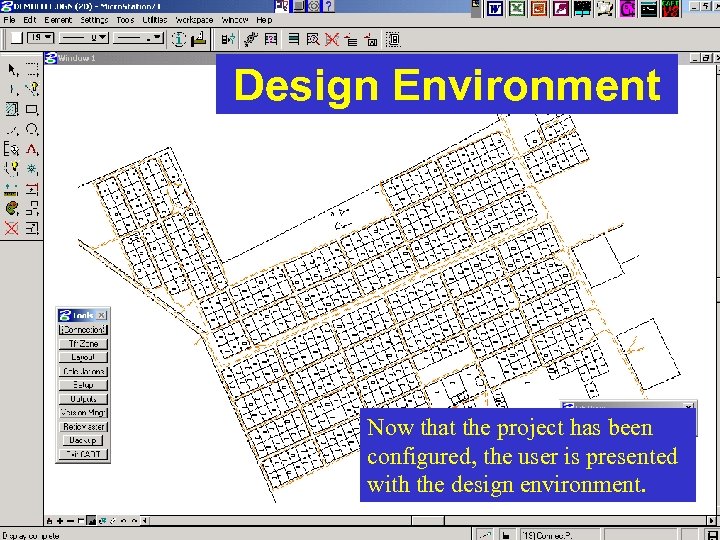
Design Environment Now that the project has been configured, the user is presented with the design environment.
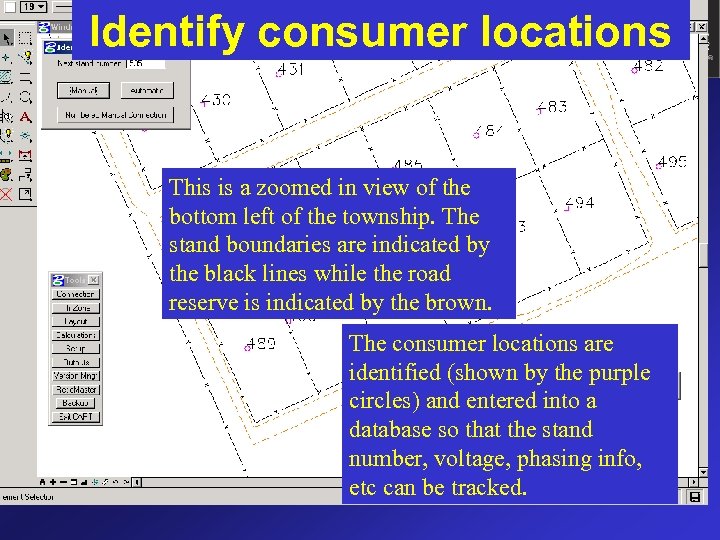
Identify consumer locations This is a zoomed in view of the bottom left of the township. The stand boundaries are indicated by the black lines while the road reserve is indicated by the brown. The consumer locations are identified (shown by the purple circles) and entered into a database so that the stand number, voltage, phasing info, etc can be tracked.
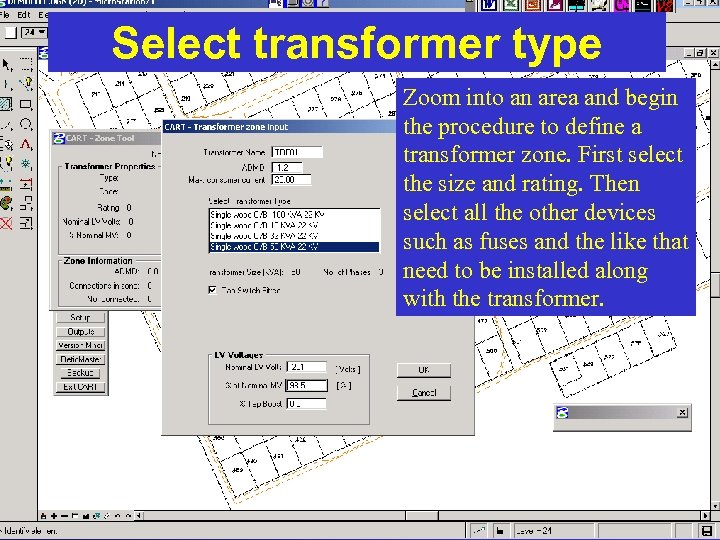
Select transformer type Zoom into an area and begin the procedure to define a transformer zone. First select the size and rating. Then select all the other devices such as fuses and the like that need to be installed along with the transformer.
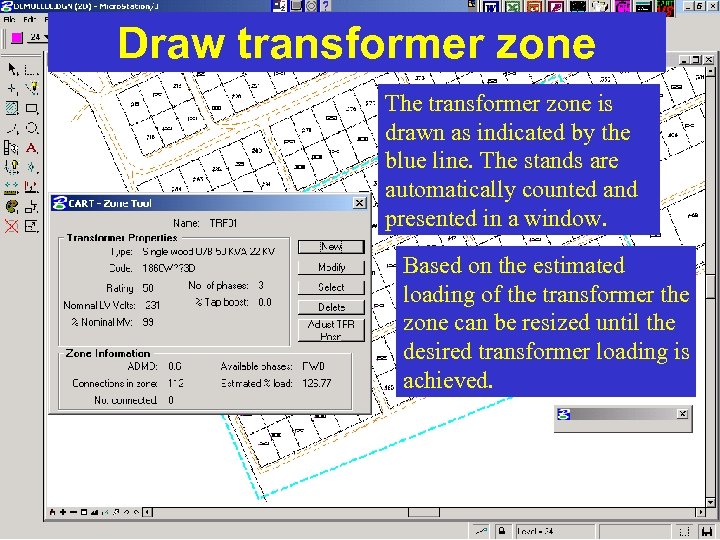
Draw transformer zone The transformer zone is drawn as indicated by the blue line. The stands are automatically counted and presented in a window. Based on the estimated loading of the transformer the zone can be resized until the desired transformer loading is achieved.
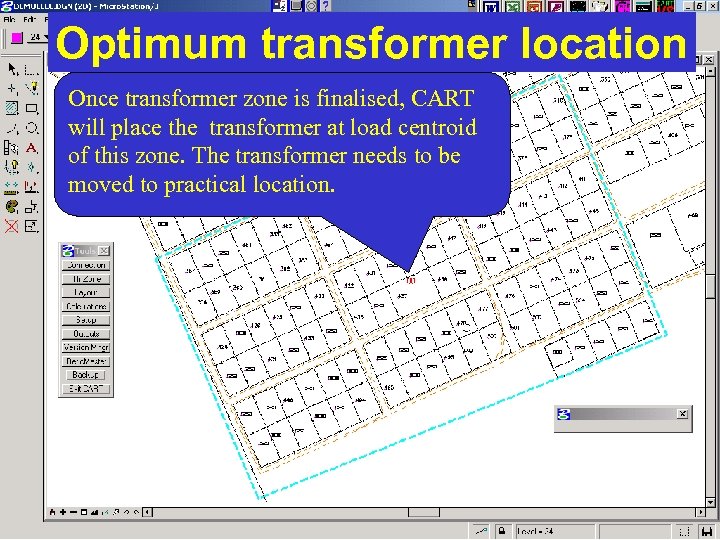
Optimum transformer location Once transformer zone is finalised, CART will place the transformer at load centroid of this zone. The transformer needs to be moved to practical location.
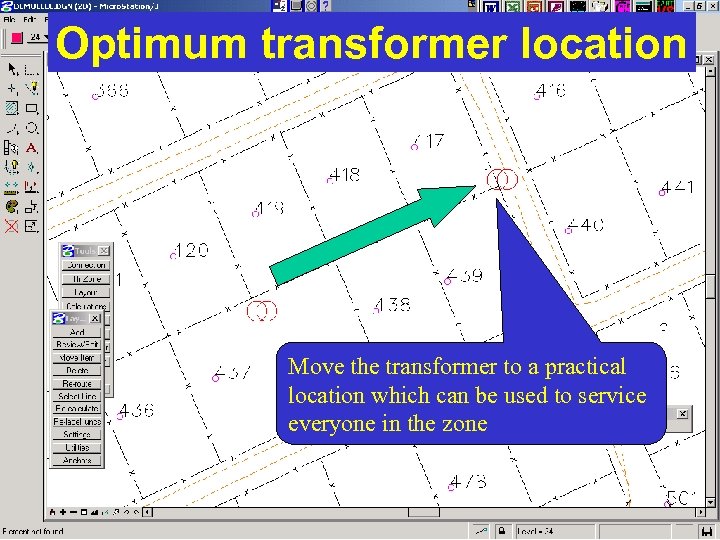
Optimum transformer location Move the transformer to a practical location which can be used to service everyone in the zone
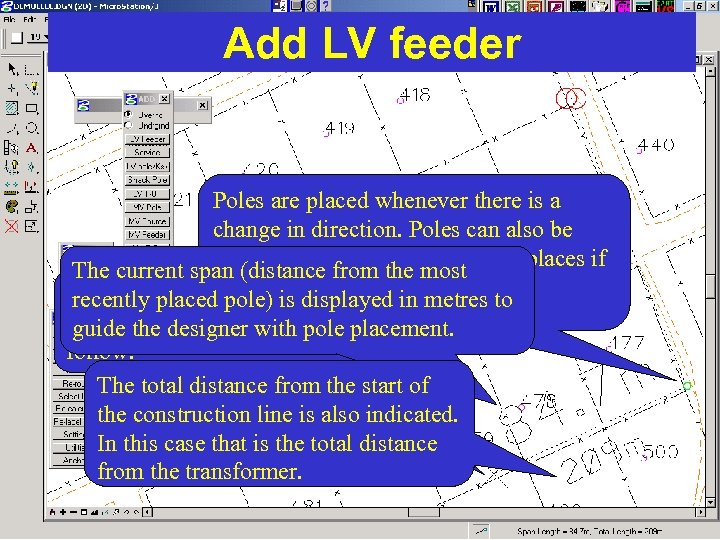
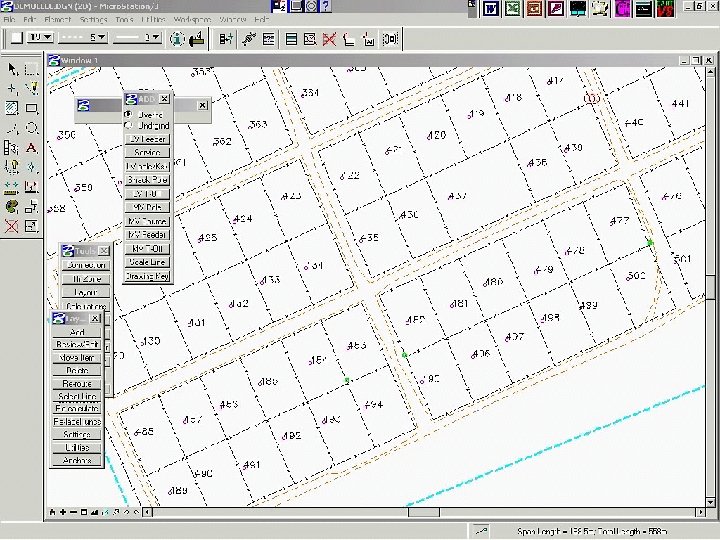
Add LV feeder Poles are placed whenever there is a change in direction. Poles can also be placed along the route at certain places if The current span (distance from the most CART has a feature for A construction required. displayed in metres to recently placedline is used to indicate pole) is determining is to the route that the conductor optimum spans. guide the designer with pole placement. follow. The total distance from the start of the construction line is also indicated. In this case that is the total distance from the transformer.
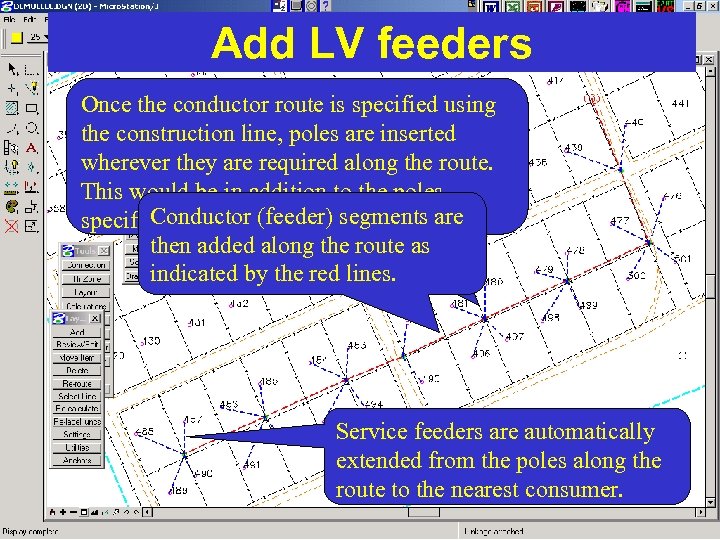
Add LV feeders Once the conductor route is specified using the construction line, poles are inserted wherever they are required along the route. This would be in addition to the poles Conductor (feeder) specified by the designer. segments are then added along the route as indicated by the red lines. Service feeders are automatically extended from the poles along the route to the nearest consumer.
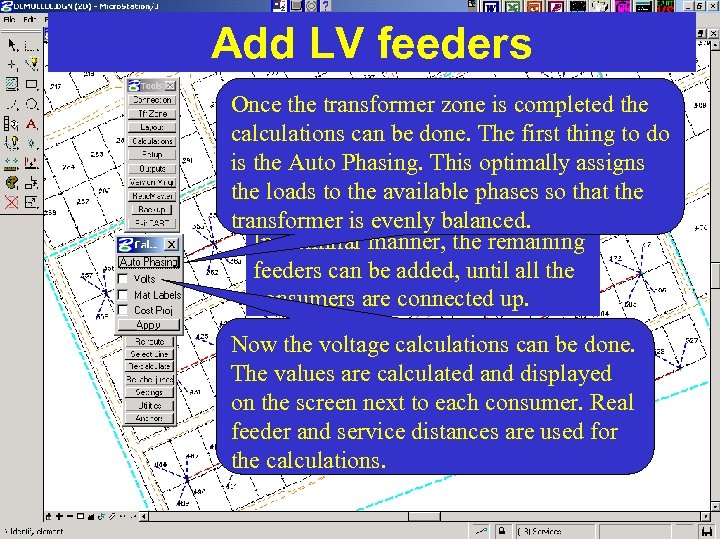
Add LV feeders Once the transformer zone is completed the calculations can be done. The first thing to do is the Auto Phasing. This optimally assigns the loads to the available phases so that the transformer is evenly balanced. In a similar manner, the remaining feeders can be added, until all the consumers are connected up. Now the voltage calculations can be done. The values are calculated and displayed on the screen next to each consumer. Real feeder and service distances are used for the calculations.
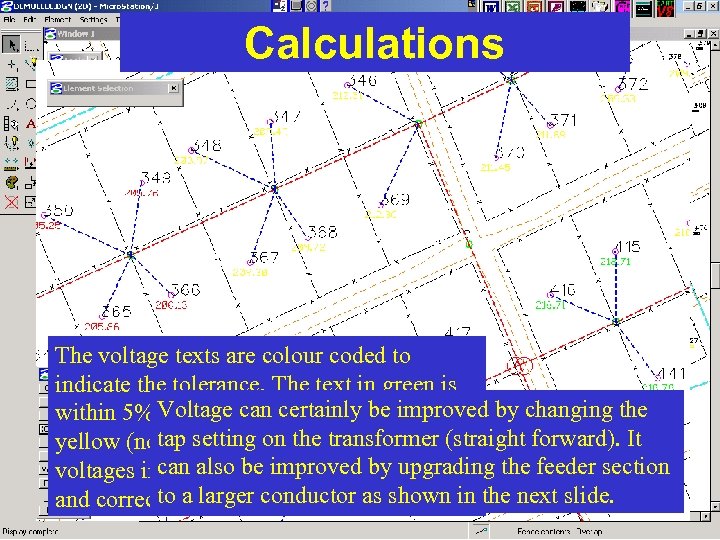
Calculations The voltage texts are colour coded to indicate the tolerance. The text in green is within 5% Voltage can while the be improved by changing the of nominal, certainly text in tap setting within 10%. The yellow (not legible) ison the transformer (straight forward). It voltages incan also be improved by upgrading the feeder section red have exceeded the tolerance to a larger is required. and corrective action conductor as shown in the next slide.
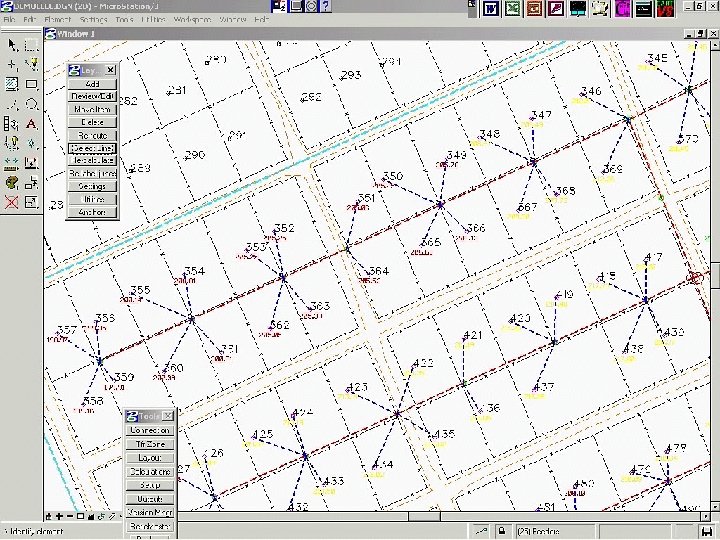
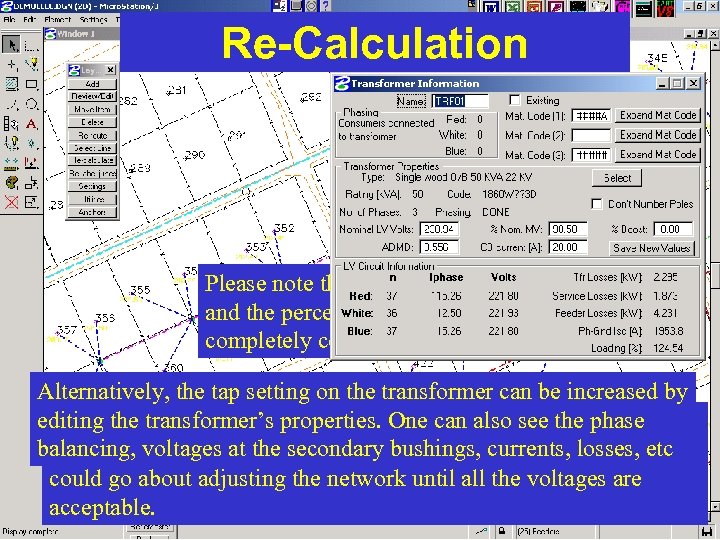
Re-Calculation Please note that the voltage text colours and the percentage tolerances are completely configurable to suit your needs. Alternatively, the tap setting on the transformer can be increased by editing the transformer’s properties. One can also see the phasethat Though the voltages are not legible in the image, one can see balancing, yellow in coloursecondaryacceptable. currents, losses, one they are voltages at the which is bushings, In this manner etc could go about adjusting the network until all the voltages are acceptable.
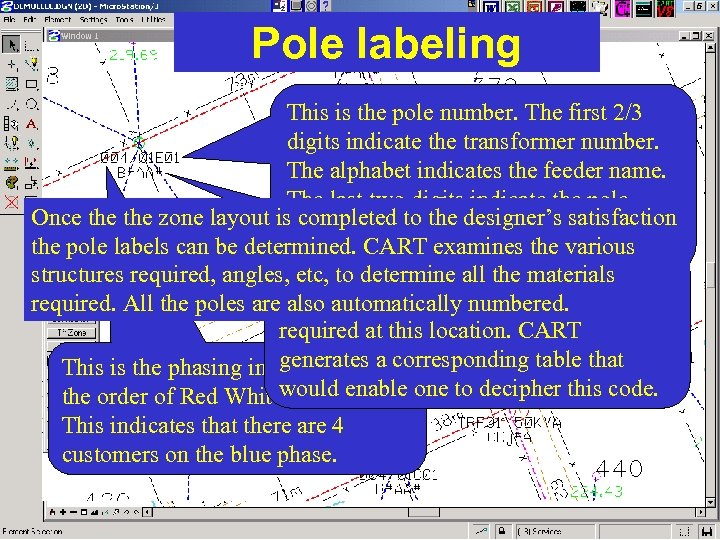
Pole labeling This is the pole number. The first 2/3 digits indicate the transformer number. The alphabet indicates the feeder name. The last two digits indicate the pole Once the zone layout is completed to that designer’s this case, number along the feeder. In satisfaction the pole labels can be determined. CART pole alongthe various this is the first examines the E feeder. This to determine all pole code that structures required, angles, etc, is the 5 -characterthe materials required. All the poles areindicates exactly allnumbered. that are also automatically the materials required at this location. CART generates a This is the phasing information in corresponding table that the order of Red Whitewould enable one to decipher this code. and Blue. This indicates that there are 4 customers on the blue phase.
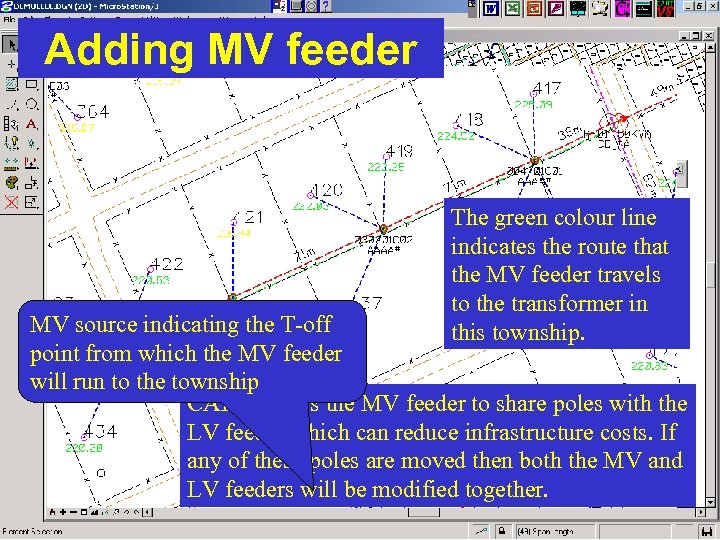
Adding MV feeder The green colour line indicates the route that the MV feeder travels to the transformer in this township. MV source indicating the T-off point from which the MV feeder will run to the township CART allows the MV feeder to share poles with the LV feeder which can reduce infrastructure costs. If any of these poles are moved then both the MV and LV feeders will be modified together.
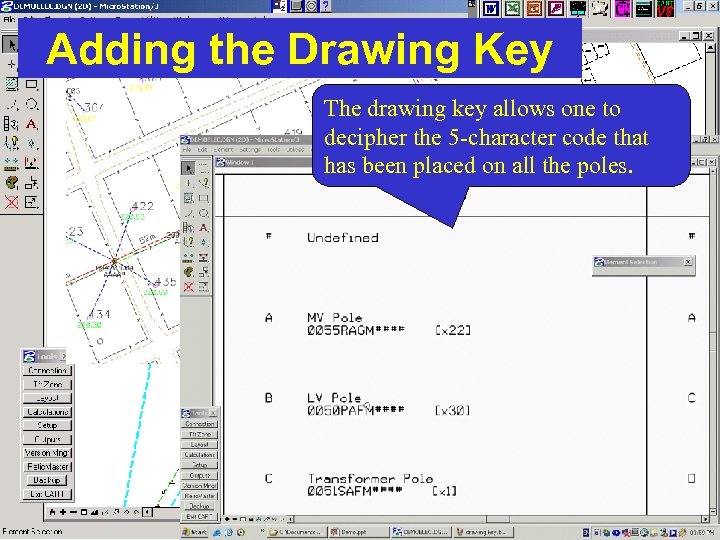
Adding the Drawing Key The drawing key allows one to decipher the 5 -character code that has been placed on all the poles.
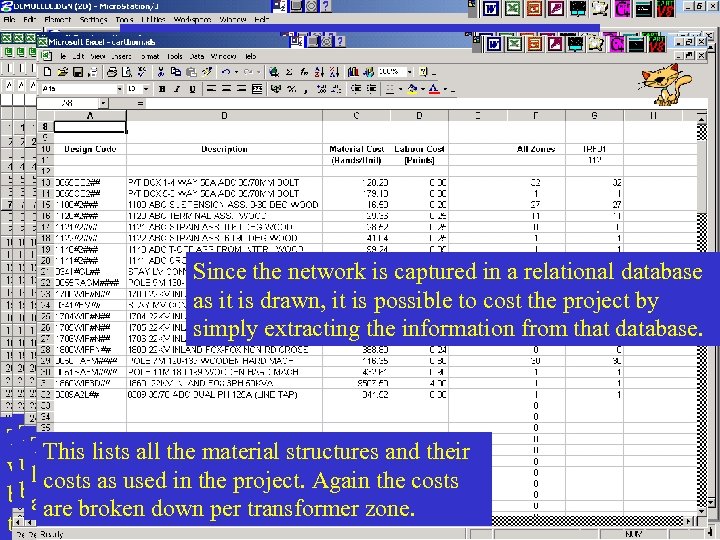
Costing the project Since the network is captured in a relational database as it is drawn, it is possible to cost the project by simply extracting the information from that database. This a summary service conductors and theiras and their This islists all the conductorsall the costs associated This lists all the sheet for structureslengths This listsproject. Note that the costs are their all used in project. the material costs are and costs the used in the project. Again the always with the as always lengthsas used Note that the Again the costsdown per transformer zone. in the project. broken down per transformer The detailed are broken per transformer zone. are broken down per transformer zone. tabs of the spreadsheet will follow.
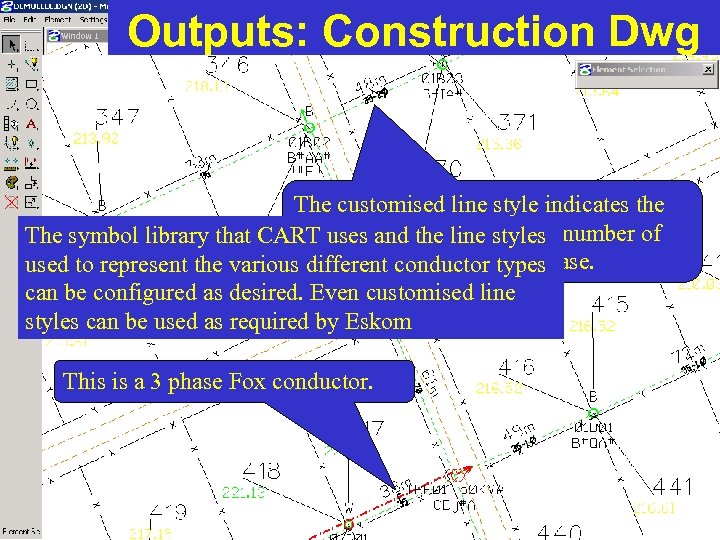
Outputs: Construction Dwg The customised line style indicates the conductor diameter styles The symbol library that CART uses and the lineand the number of phases. Eg 35 mm 2 and 2 phase. used to represent the various different conductor types can be configured as desired. Even customised line styles can be used as required by Eskom This is a 3 phase Fox conductor.
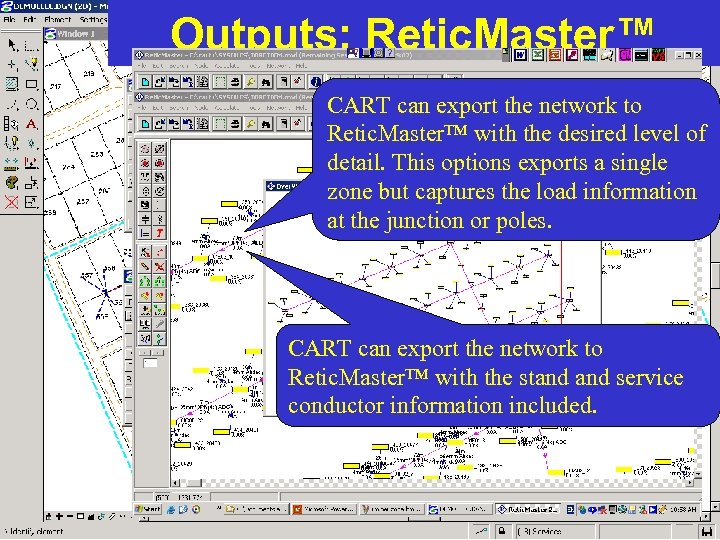
Outputs: Retic. Master™ CART can export the network to Retic. Master™ with the desired level of detail. This options exports a single zone but captures the load information at the junction or poles. CART can export the network to Retic. Master™ with the stand service conductor information included.
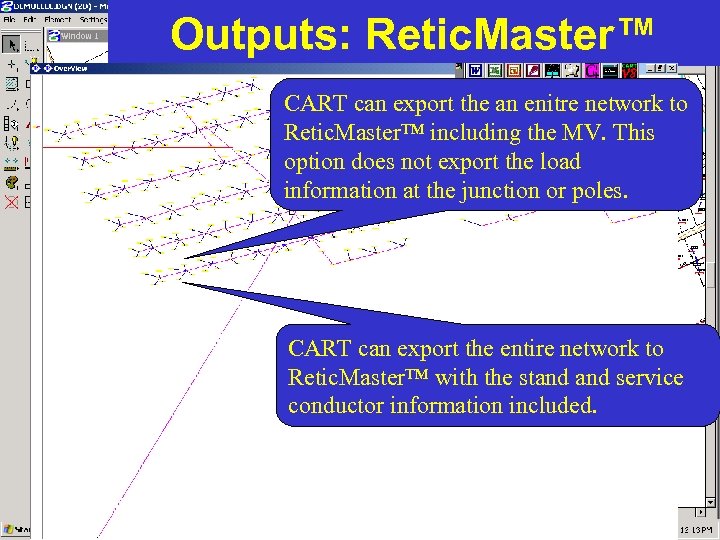
Outputs: Retic. Master™ CART can export the an enitre network to Retic. Master™ including the MV. This option does not export the load information at the junction or poles. CART can export the entire network to Retic. Master™ with the stand service conductor information included.
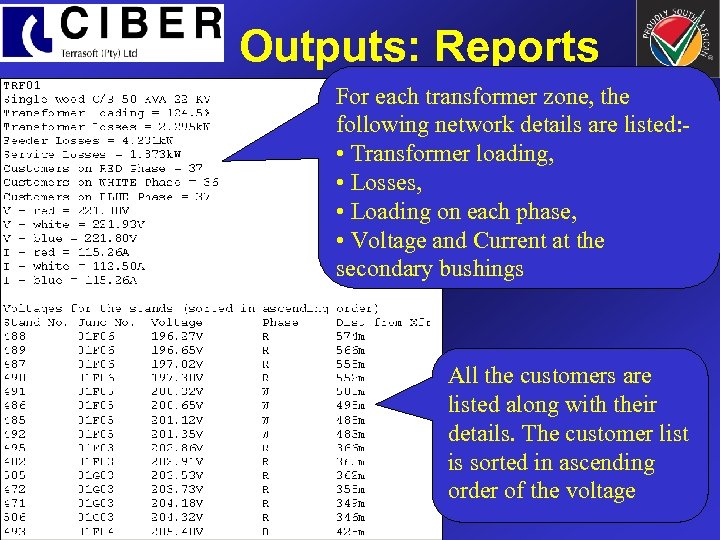
Outputs: Reports For each transformer zone, the following network details are listed: • Transformer loading, • Losses, • Loading on each phase, • Voltage and Current at the secondary bushings All the customers are listed along with their details. The customer list is sorted in ascending order of the voltage
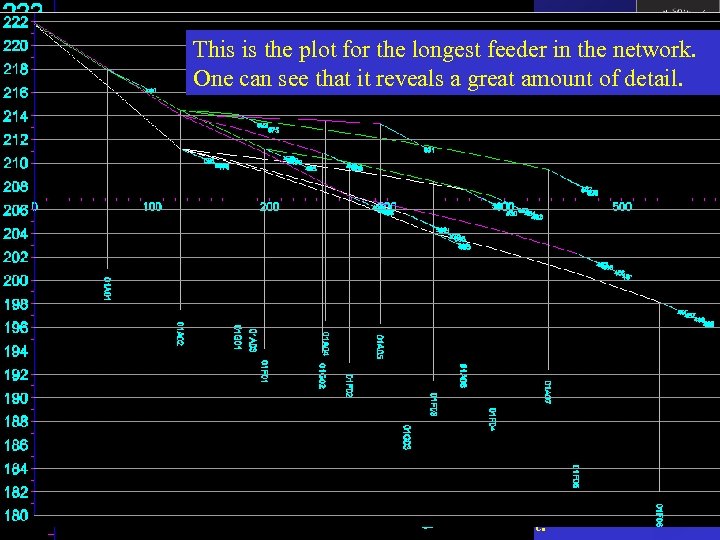
Outputs: Volt Plots The plot is plotthe shortest feeder on thethe network. This is the for the longest feeder in network One can see that it reveals a greatplot for all the This shown on the Y-axis. The detail. is a summary amount of X Voltage is feeders at the 207 V point as axis intersectsfrom the transformer. voltages below this are unacceptable. A single plot is generated for each main feeder from the transformer Each stand number at the end of the service The X axis shows the distance feeder is displayed. This allows one to from the The line indicates the position transformer in meters. identify consumers who have low voltages. of the pole along the plot and The plot indicates the voltages for each phase displays the pole number. using a different colour. The blue lines at the end indicate the voltage drops of the service feeders. This is just a summary plot.
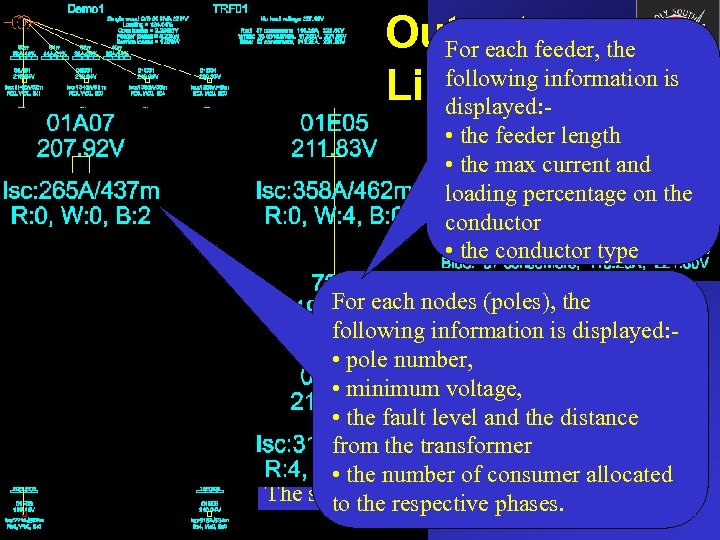
Outputs: the For each feeder, following information Line Diagramis displayed: the feeder length Details of the zone are shown at the top of • the diagram. • the max current and loading percentage on the conductor • the conductor type For each nodes (poles), the following information is displayed: • pole number, • minimum voltage, • the fault level and the distance from the transformer • the number of consumer allocated The single line diagram phases. entire zone. to the respective is for the
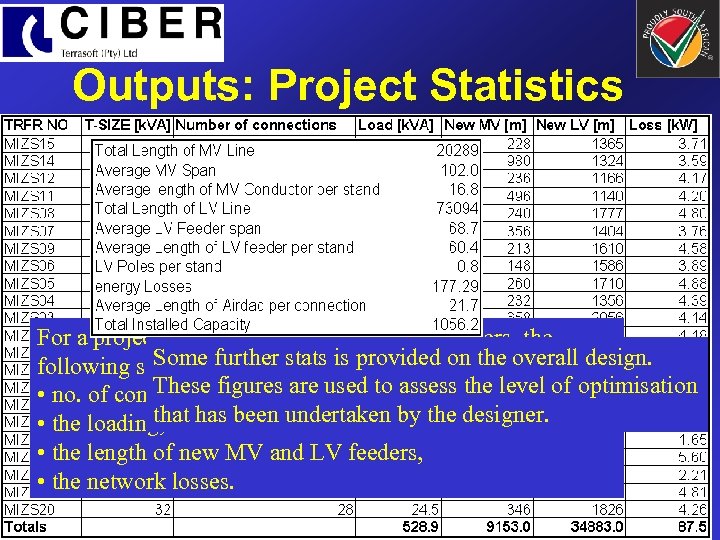
Outputs: Project Statistics For a project with a large number of transformers, the Some further stats is displayed for each zone: following statistics informationis provided on the overall design. These figures are used to assess the level of optimisation • no. of connections, that • the loading, has been undertaken by the designer. • the length of new MV and LV feeders, • the network losses.
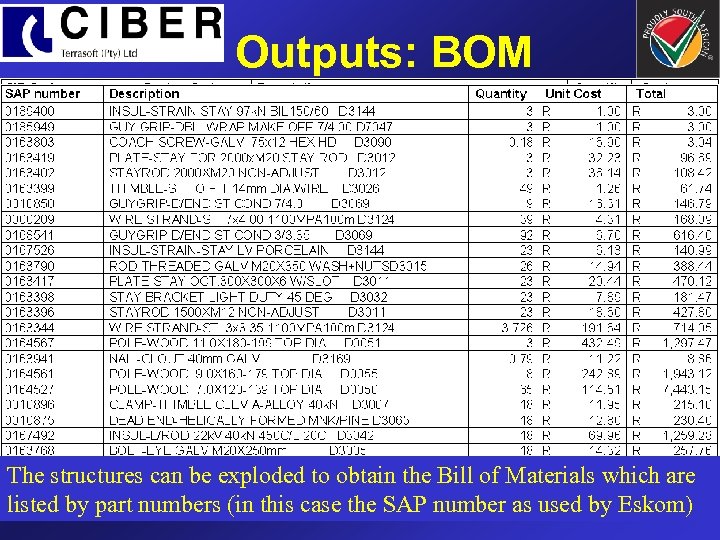
Outputs: BOM The structures costing CART works at the structure level. Upon During normalcan be exploded to obtain the Bill of Materials which are listed by part numbers (in can be exploded number the Bill of Eskom) completion, the structures this case the SAPto obtain as used by Materials
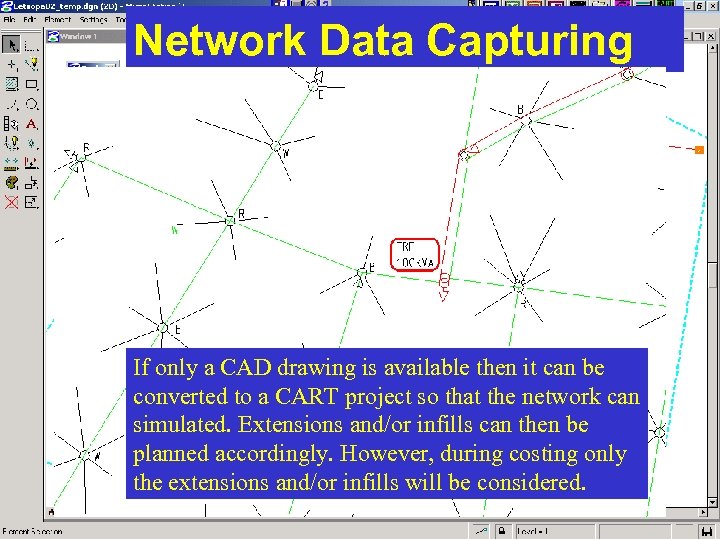
Network Data Capturing If only a CAD drawing is available then it can be converted to a CART project so that the network can simulated. Extensions and/or infills can then be planned accordingly. However, during costing only the extensions and/or infills will be considered.
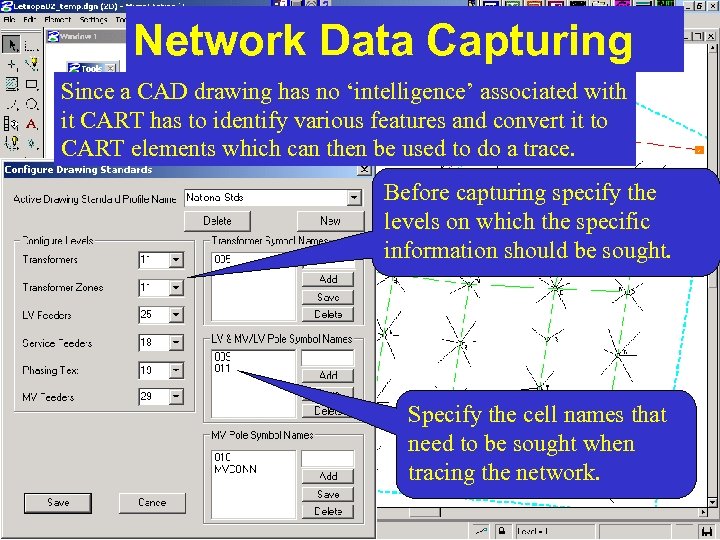
Network Data Capturing Since a CAD drawing has no ‘intelligence’ associated with it CART has to identify various features and convert it to CART elements which can then be used to do a trace. Before capturing specify the levels on which the specific information should be sought. Specify the cell names that need to be sought when tracing the network.
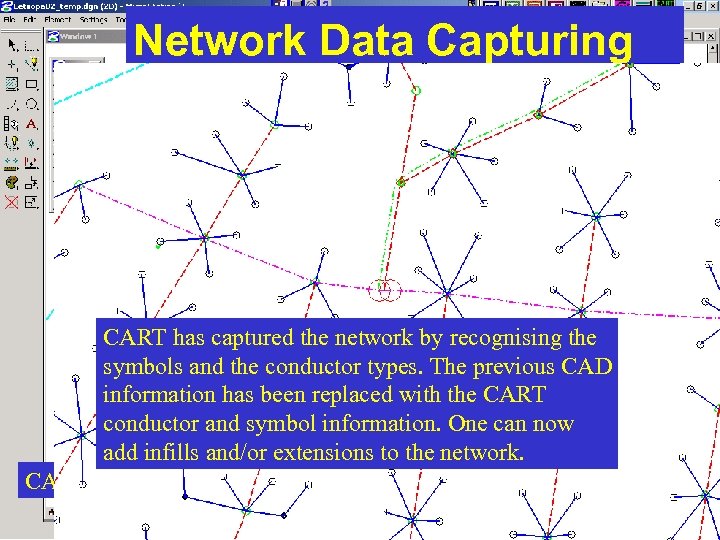
Network Data Capturing CART has captured the network by recognising the symbols and the conductor types. The previous CAD information has been replaced with the CART conductor and symbol information. One can now add infills and/or extensions to the network. CAD drawing has been captured into CART.
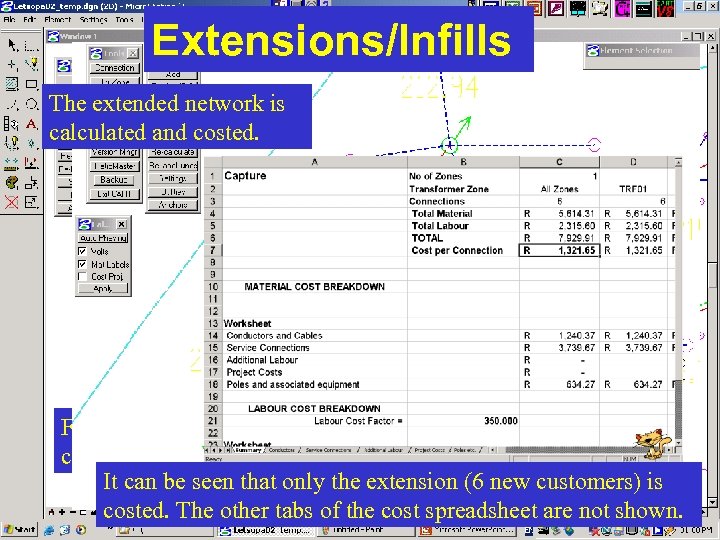
Extensions/Infills The extended network is calculated and costed. For the purpose of this demonstration, assume that the new connections as shown in the circle above have been identified. It can be seen that only the extension (6 new customers) is costed. The other tabs of the cost spreadsheet are not shown.
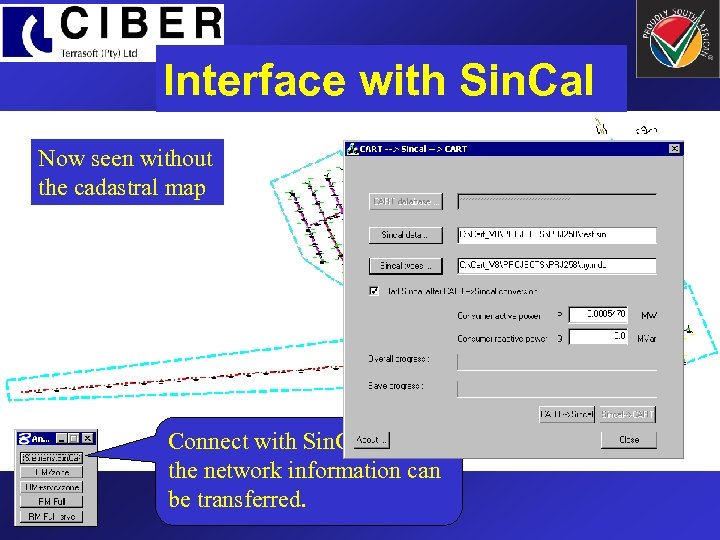
Interface with Sin. Cal Now seen without Consider an MV/LV the cadastral map layout as show here Connect with Sin. Cal so that the network information can be transferred.
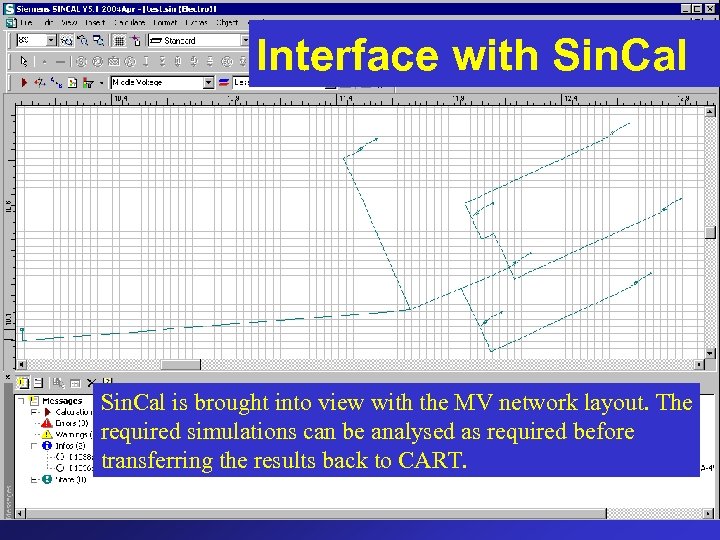
Interface with Sin. Cal is brought into view with the MV network layout. The required simulations can be analysed as required before transferring the results back to CART.
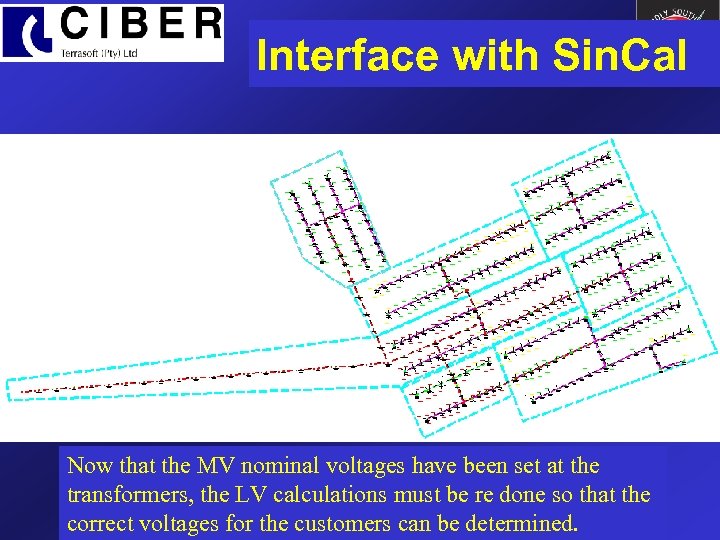
Interface with Sin. Cal Now that the MV nominal voltages have been set at the transformers, the LV calculations must be re done so that the correct voltages for the customers can be determined.

Thank you Should you require more information about the product or services, please do not hesitate to get in touch with us. Ciber Terrasoft (Pty. ) Ltd. Email: url: Tel: Fax: info@terrasoft. co. za www. terrasoft. co. za +27 (0)11 315 3837 +27 (0)11 315 8332 Block B 7, Green. Oaks Office Park, Cnr of Gregory Ave & Bekker Street, Vorna Valley – Midrand P O Box 5705, Halfway House, 1685, South Africa.
Скачать презентацию The CART Software Developed by Ciber Terrasoft Pty
ed858feaf231ffdae9beea3fe5fcd7f1.ppt