


 Скачать презентацию The ADO Data Control Universal Data Access
c941cc99c14e50ae5f4073bfae09ce4f.ppt
- Количество слайдов: 11
 The ADO Data Control
 Universal Data Access • Open Database Connectivity (ODBC) – standard for accessing data in databases • OLE-DB – allows access to data in many formats – faster and easier to use than ODBC
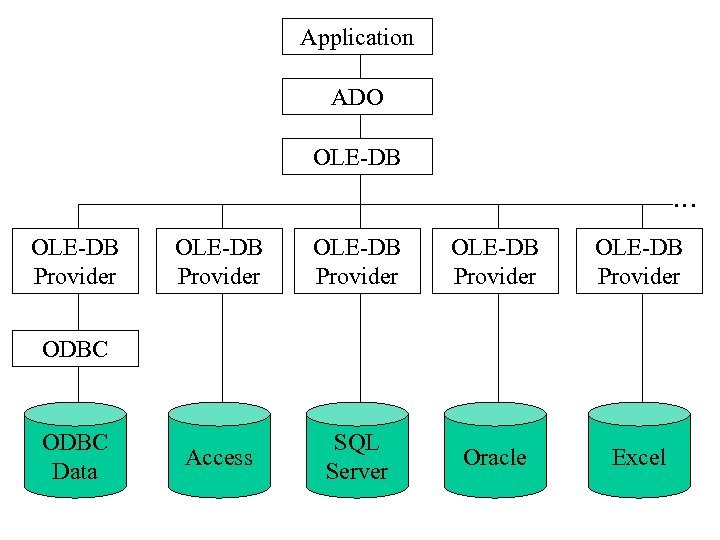 Application ADO OLE-DB … OLE-DB Provider OLE-DB Provider Access SQL Server Oracle Excel ODBC Data
 ADO, DAO and RDO in Visual Basic • In Visual Basic, three data access interfaces are available to you: – Active. X Data Objects (ADO) – Remote Data Objects (RDO) – Data Access Objects (DAO) • Data access technology is constantly evolving, and each of the three interfaces represents a different stage of development for data access technology. • The latest is ADO. It features a simpler — yet more flexible — object model than either RDO or DAO. For new projects, you should use ADO as your data access interface.
 The ADO Object Model • Four main objects: * Connection – the link between the program and the data store * Command – allows you to run commands against the data store * Recordset – contains all the data returned from a specific action on the data store * Stream – allows the manipulation of data held in web resources, such as HTML files
 Using the ADO Data Control • Add the Microsoft ADO Data Control 6. 0 (OLEDB) component to your project. • Create an instance of the ADO Data Control on your form. • Connect to a database with the ADO Data Control by building a connection string. • Set the Record. Source property of the ADO Data Control • Create bound controls on your form.
 Building a Connection String • In the properties window of the ADO Data control’s choose the Connection. String property. • 3 Methods • From the property pages, choose Use Connection String and choose Build • From the Provider tab in the Data Link Properties dialog box, specify which data provider to use. – use Microsoft Jet 4. 0 OLE DB Provider for Access databases – choose Next >> to bring up the Connection tab of the Data Link Properties dialog box
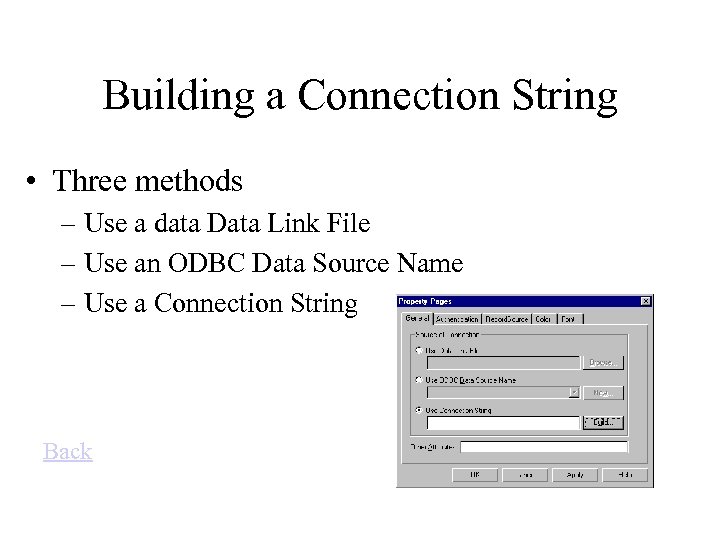 Building a Connection String • Three methods – Use a data Data Link File – Use an ODBC Data Source Name – Use a Connection String Back
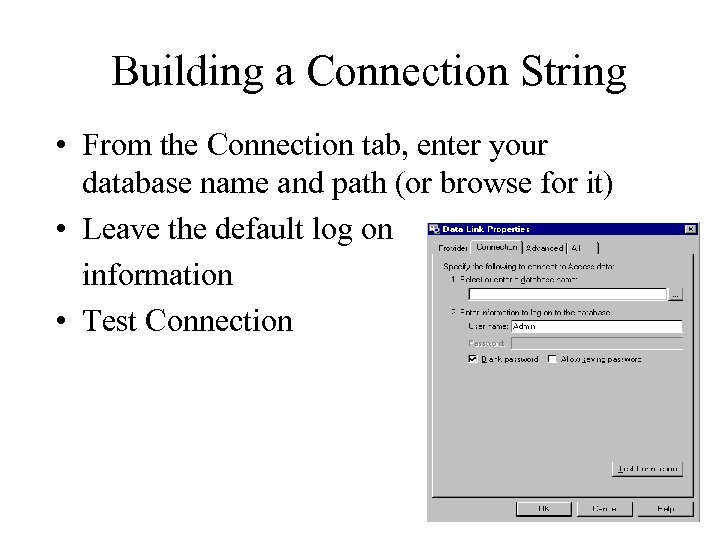 Building a Connection String • From the Connection tab, enter your database name and path (or browse for it) • Leave the default log on information • Test Connection
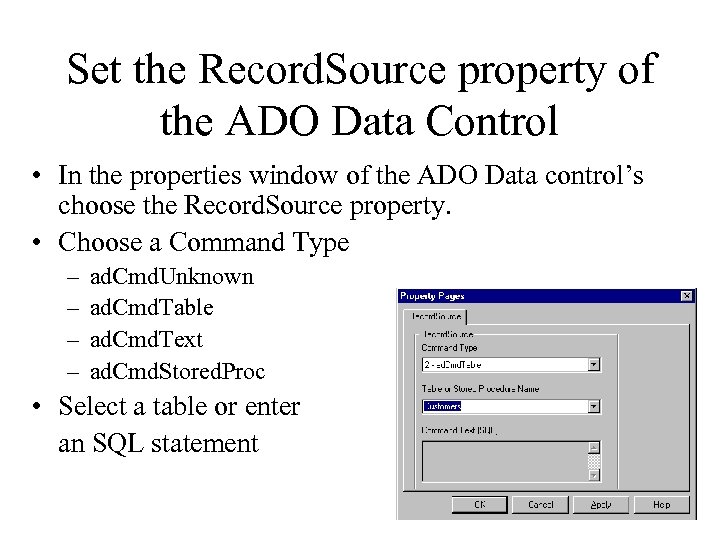 Set the Record. Source property of the ADO Data Control • In the properties window of the ADO Data control’s choose the Record. Source property. • Choose a Command Type – – ad. Cmd. Unknown ad. Cmd. Table ad. Cmd. Text ad. Cmd. Stored. Proc • Select a table or enter an SQL statement
 Creating Bound Controls • Many different controls that can hold text and graphics can be bound to a field in an ADO Data control. • Set the Data. Source property of the bound control to the ADO Data Control. • Set the Data. Field property of the bound control to the field you want to display