


 Скачать презентацию Test Automation Using Selenium Softsmith Infotech 1
75700ffeb2e770d86efb6d1c69f2fb29.ppt
- Количество слайдов: 83
 Test Automation Using Selenium Softsmith Infotech 1
 Test Automation • Test automation is the use of software ØTo set test preconditions. ØTo control the execution of tests. Ø To compare the actual outcomes to predicted outcomes. ØTo report the Execution Status. • Commonly, test automation involves automating a manual process already in place that uses a formalized testing process. Softsmith Infotech 2
 Why and When To Automate? • • • Frequent regression testing Repeated test case Execution is required User Acceptance Tests Faster Feedback to the developers Reduce the Human Effort Test same application on multiple environments Softsmith Infotech 3
 Test Automation Tools Ø Ø Ø Ø Quick Test Professional By HP Rational Functional Tester By Rational (IBM Company) Silk Test By Borland Test Complete By Automated QA QA Run (Compuware ) Watir ( Open Source) Selenium ( Open Source) Sahi (Open Source) Softsmith Infotech 4
 Selenium • Selenium is a robust set of tools that supports rapid development of test automation for webbased applications. • Selenium provides a rich set of testing functions specifically geared to the needs of testing of a web application. • Selenium operations are highly flexible, allowing many options for locating UI elements and comparing expected test results against actual application behavior. Softsmith Infotech 5
 Selenium Features • Supports Cross Browser Testing. The Selenium tests can be run on multiple browsers. • Allows scripting in several languages like Java, C#, PHP and Python. • Assertion statements provide an efficient way of comparing expected and actual results. • Inbuilt reporting mechanism. Softsmith Infotech 6
 Selenium Components • Selenium IDE • Selenium Remote Control • Selenium Grid Softsmith Infotech 7
 Selenium IDE • Selenium IDE is an integrated development environment for Selenium tests. • It is implemented as a Firefox extension, and allows you to record, edit, and replay the test in firefox • Selenium IDE allows you to save tests as HTML, Java, Ruby scripts, or any other format • It allows you to automatically add assertions to all the pages. • Allows you to add selenese commands as and when required Softsmith Infotech 8
 Selenium IDE Installation Ø Using Firefox, first, download the IDE from the Selenium. HQ downloads page When downloading from Firefox, you’ll be presented with the Window A. (See Next Slide) Ø Select Install Now. The Firefox Add-ons window pops up, first showing a progress bar, and when the download is complete, displays the Window B. (See Next Slide) Ø Restart Firefox. After Firefox reboots you will find the Selenium-IDE listed under the Firefox Tools menu. Softsmith Infotech 9
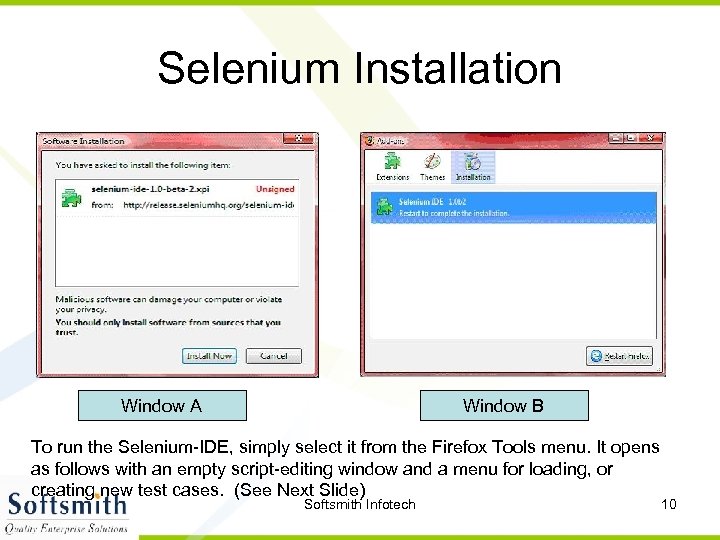 Selenium Installation Window A Window B To run the Selenium-IDE, simply select it from the Firefox Tools menu. It opens as follows with an empty script-editing window and a menu for loading, or creating new test cases. (See Next Slide) Softsmith Infotech 10
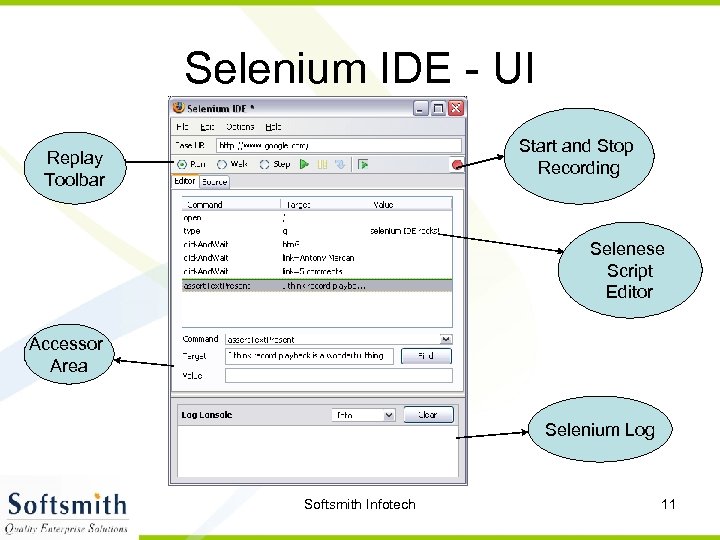 Selenium IDE - UI Start and Stop Recording Replay Toolbar Selenese Script Editor Accessor Area Selenium Log Softsmith Infotech 11
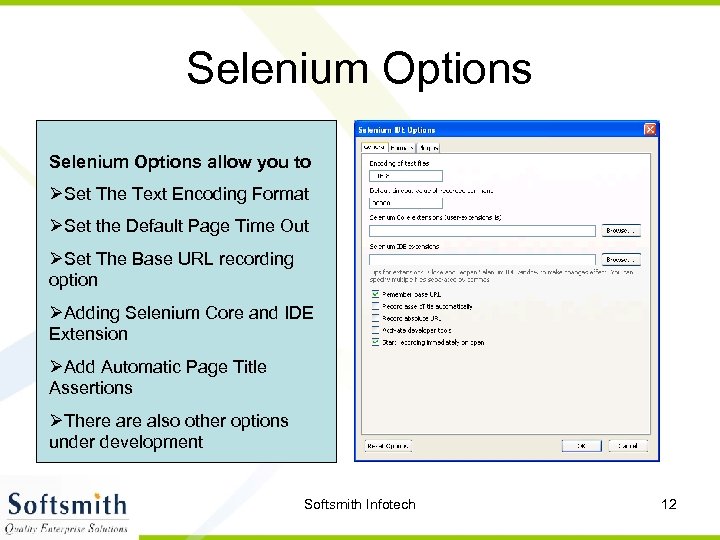 Selenium Options allow you to ØSet The Text Encoding Format ØSet the Default Page Time Out ØSet The Base URL recording option ØAdding Selenium Core and IDE Extension ØAdd Automatic Page Title Assertions ØThere also other options under development Softsmith Infotech 12
 Recoding a Selenium Test Case • • Open Firefox that has the IDE installed Open the base URL of the application to record. Keep the application in a common base state. Go To Tools Selenium IDE and the IDE will be opened • Now perform the operations on the application as you are testing the application. • Once you are done with the recording click on the stop recording button and save the test case through the file menu. By default it will be saved as a selenese script (HTML format) Softsmith Infotech 13
 General Selenese Commands Ø clicking a link - click or click. And. Wait commands Ø entering values - type command Ø selecting options from a drop-down listbox - select command Ø clicking checkboxes or radio buttons - click command Softsmith Infotech 14
 Running Your First Selenium Script • Make sure the application is in the common base state. • Click on the run button. Here you can also control the speed of the execution using the toolbar • Once the test is run you can view the test log in the bottom of the IDE window Softsmith Infotech 15
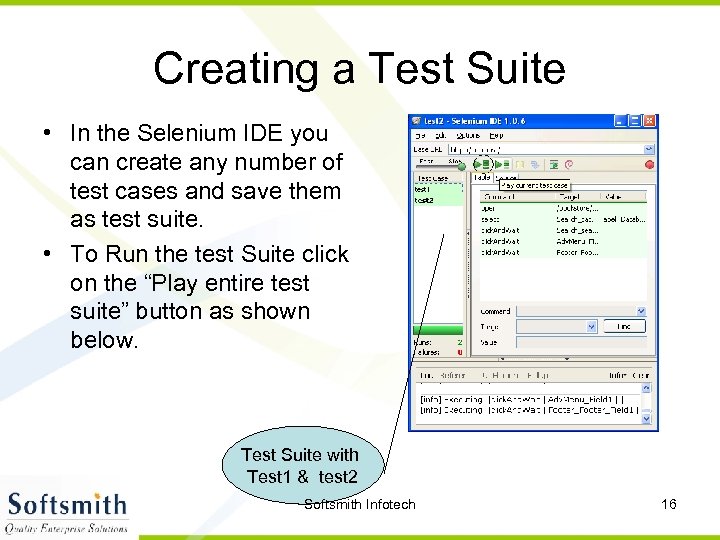 Creating a Test Suite • In the Selenium IDE you can create any number of test cases and save them as test suite. • To Run the test Suite click on the “Play entire test suite” button as shown below. Test Suite with Test 1 & test 2 Softsmith Infotech 16
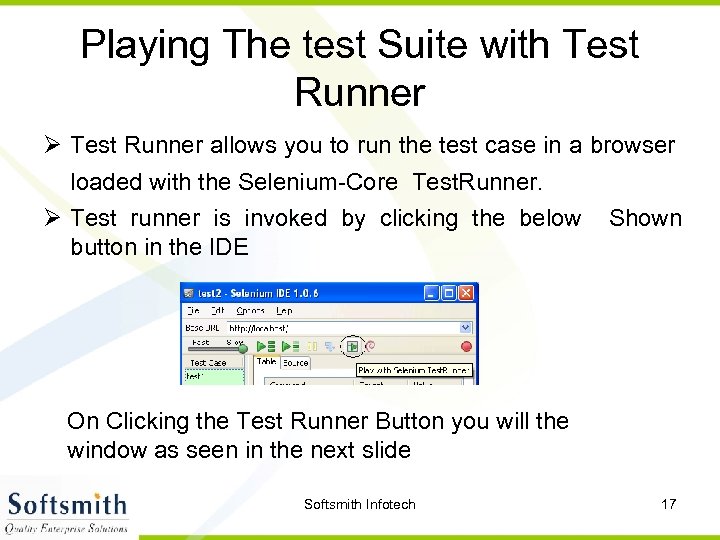 Playing The test Suite with Test Runner Ø Test Runner allows you to run the test case in a browser loaded with the Selenium-Core Test. Runner. Ø Test runner is invoked by clicking the below Shown button in the IDE On Clicking the Test Runner Button you will the window as seen in the next slide Softsmith Infotech 17
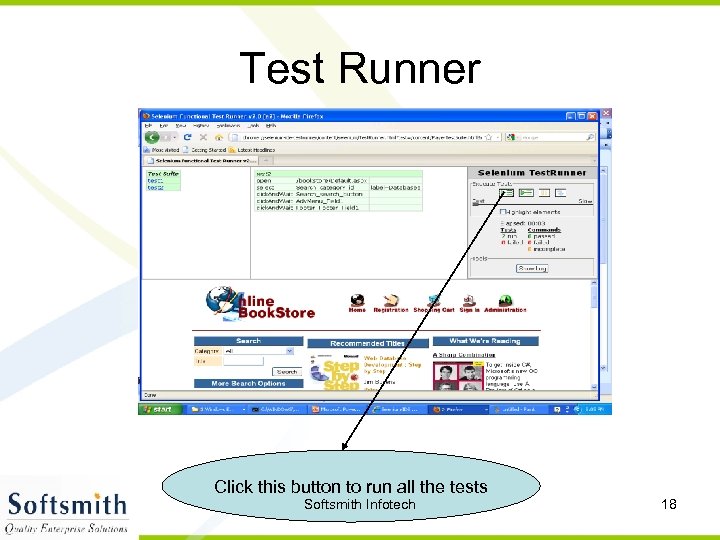 Test Runner Click this button to run all the tests Softsmith Infotech 18
 Running Options Run a Test Case Click the Run button to run the currently displayed test case. Run a Test Suite Click the Run All button to run all the test cases in the currently loaded test suite. Stop and Start The Pause button can be used to stop the test case while it is running. The icon of this button then changes to indicate the Resume button. To continue click Resume. Stop in the Middle You can set a breakpoint in the test case to cause it to stop on a particular command. This is useful for debugging your test case. To set a breakpoint, select a command, right-click, and from the context menu select Toggle Breakpoint. Softsmith Infotech 19
 Running Options Start from the Middle You can tell the IDE to begin running from a specific command in the middle of the test case. This also is used for debugging. To set a start point, select a command, right-click, and from the context menu select Set/Clear Start Point. Run Any Single Command Double-click any single command to run it by itself. This is useful when writing a single command. It lets you immediately test a command you are constructing, when you are not sure if it is correct. You can double-click it to see if it runs correctly. This is also available from the context menu. Softsmith Infotech 20
 Adding Assertions to the Script • Selenese allows multiple ways of checking for UI elements. • Verifications and assertions are used to check if Ø an element is present somewhere on the page? Ø specific text is at a specific location on the page? • Verifications and assertions are not one and the same. • If an assertion fails, the script will be aborted but if a verification fails the script will continue. Softsmith Infotech 21
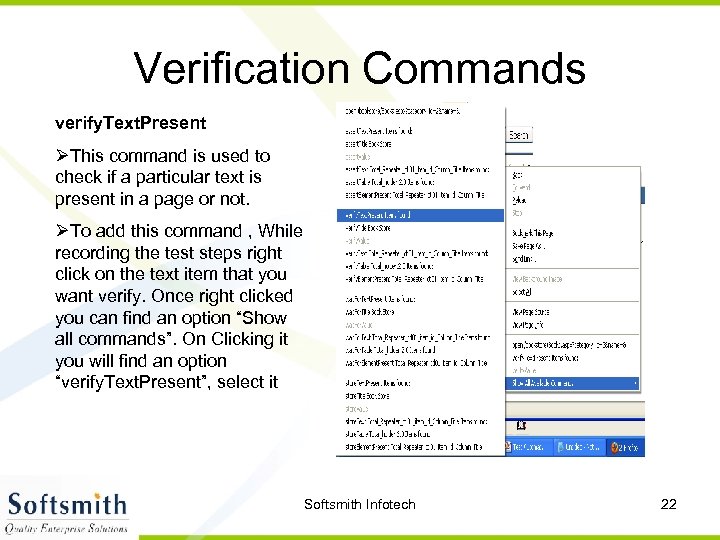 Verification Commands verify. Text. Present ØThis command is used to check if a particular text is present in a page or not. ØTo add this command , While recording the test steps right click on the text item that you want verify. Once right clicked you can find an option “Show all commands”. On Clicking it you will find an option “verify. Text. Present”, select it Softsmith Infotech 22
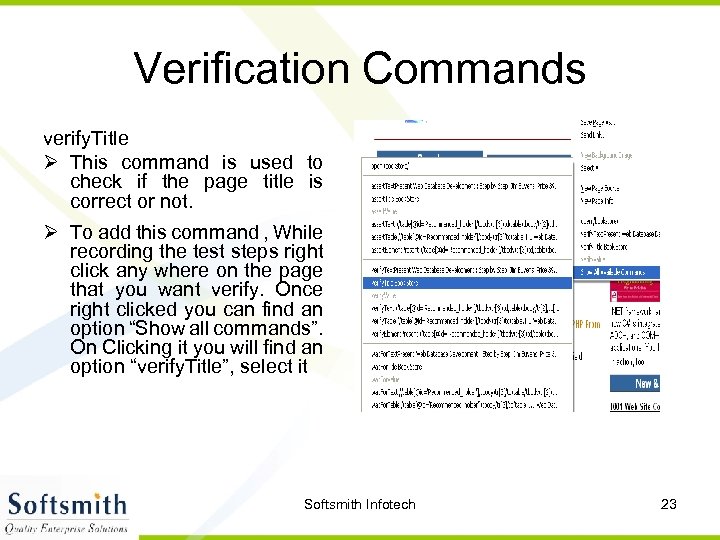 Verification Commands verify. Title Ø This command is used to check if the page title is correct or not. Ø To add this command , While recording the test steps right click any where on the page that you want verify. Once right clicked you can find an option “Show all commands”. On Clicking it you will find an option “verify. Title”, select it Softsmith Infotech 23
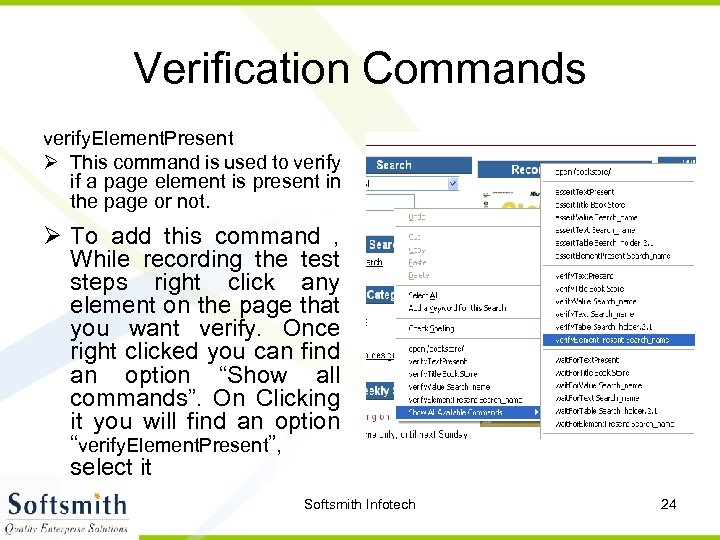 Verification Commands verify. Element. Present Ø This command is used to verify if a page element is present in the page or not. Ø To add this command , While recording the test steps right click any element on the page that you want verify. Once right clicked you can find an option “Show all commands”. On Clicking it you will find an option “verify. Element. Present”, select it Softsmith Infotech 24
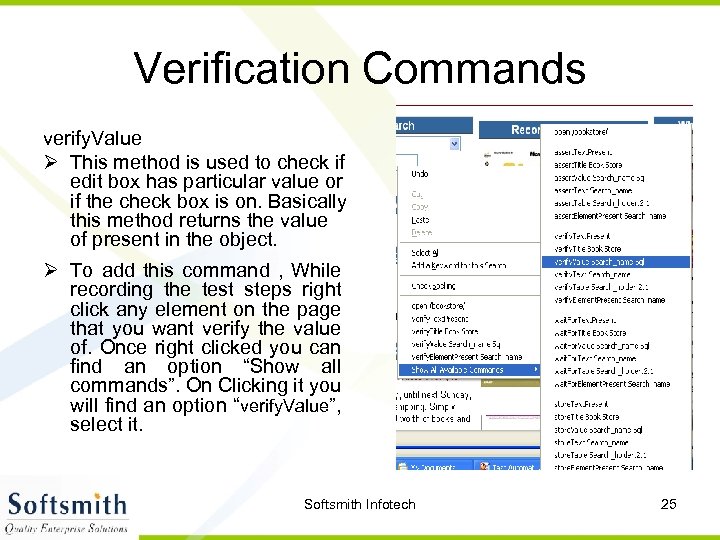 Verification Commands verify. Value Ø This method is used to check if edit box has particular value or if the check box is on. Basically this method returns the value of present in the object. Ø To add this command , While recording the test steps right click any element on the page that you want verify the value of. Once right clicked you can find an option “Show all commands”. On Clicking it you will find an option “verify. Value”, select it. Softsmith Infotech 25
 Assertions • Assertions are same as Verifications. The only difference is, if the assertions fail the script will abort. But the script will continue run in case a verification point fails. • The steps for inserting the assertions is same as that of verification point. • While recording Right Click Show all commands select an assertion. Softsmith Infotech 26
 Assertion Statements Ø assert. Text. Present This will assert if the text is present in the page. Ø assert. Text This will assert if a particular element is having the particular text. Ø assert. Title This will assert if the page is having a proper title. Ø assert. Value This will assert if a Text box or check box has a particular value Ø assert. Element. Present This will assert if a particular UI Element is present in the page. Softsmith Infotech 27
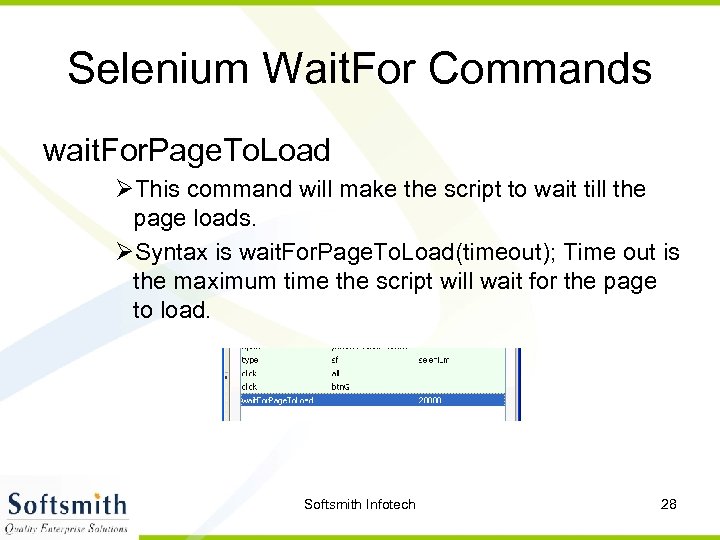 Selenium Wait. For Commands wait. For. Page. To. Load ØThis command will make the script to wait till the page loads. ØSyntax is wait. For. Page. To. Load(timeout); Time out is the maximum time the script will wait for the page to load. Softsmith Infotech 28
 Other wait. For Commands wait. For. Alert This command will wait for the alert message to appear wait. For. Table This command will wait for the Web table to completely load in the page wait. For. Title This command will for the page Title to appear on the browser. Other wait. For commands Selenium has several other wait command like wait. For. Text, wait. For. Popup and so on. These commands are generically called Synchronization commands Softsmith Infotech 29
 Store Commands • Store command are used to fetch the values from the application and store it in a variable. These variables can be used latter for validation purpose. • The Store command can be used to retrieve the page title, text from the page and other attributes from the application. Softsmith Infotech 30
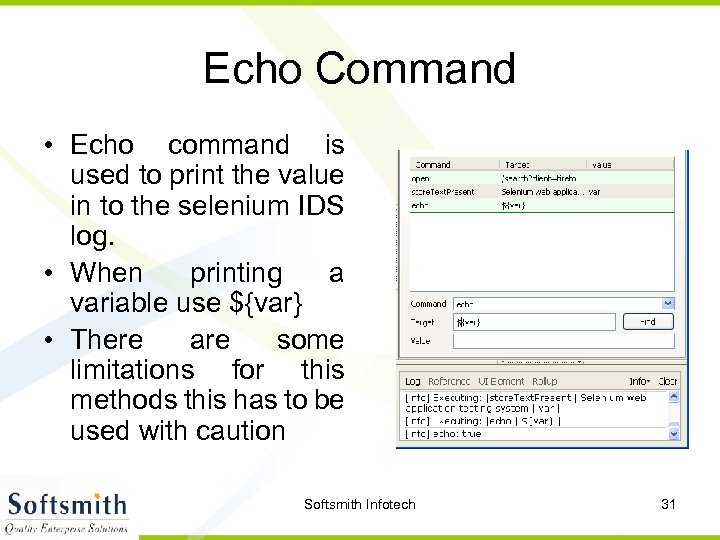 Echo Command • Echo command is used to print the value in to the selenium IDS log. • When printing a variable use ${var} • There are some limitations for this methods this has to be used with caution Softsmith Infotech 31
 Limitations of Selenium IDE Ø Can run the test only on Firefox Ø No Programming login (like loops, conditional statements) can be applied Ø Selenium IDE can execute scripts created in Selenese only. Ø It is difficult to use Selenium IDE for checking complex test cases involving dynamic contents Softsmith Infotech 32
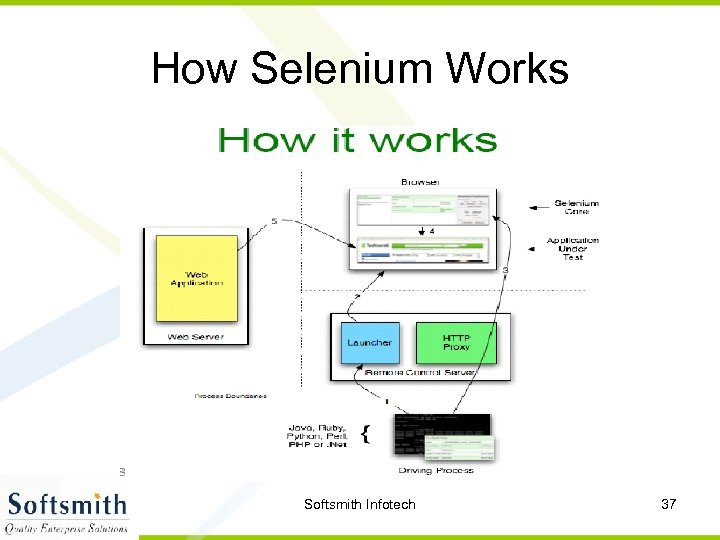
 Selenium RC Ø A solution to cross browser testing. Ø A server, written in Java and so available on all the platforms. Ø Acts as a proxy for web requests from them. Ø Client libraries for many popular languages. Ø Bundles Selenium Core and automatically loads into the browser Softsmith Infotech 33
 Installing Selenium RC Software Required Ø JDK 1. 6 , selenium-remote-control-1. 0. 3 (this can be downloaded from http: //seleniumhq. org/download/) Installation Procedure Ø Selenium RC is simply a jar file and to run it we need java installed. (JDK 1. 6 is preferred) Ø Once the Java is installed just unzip the selenium-remote -control-1. 0. 3. zip which was downloaded from the selenium site to a directory. Softsmith Infotech 34
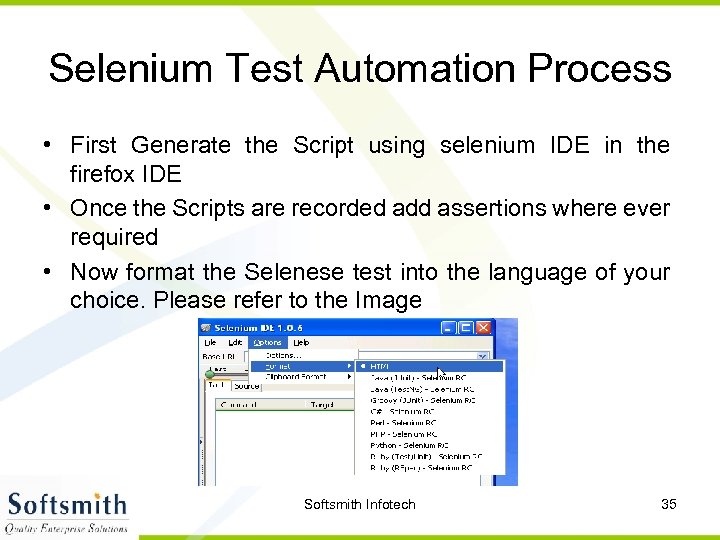 Selenium Test Automation Process • First Generate the Script using selenium IDE in the firefox IDE • Once the Scripts are recorded add assertions where ever required • Now format the Selenese test into the language of your choice. Please refer to the Image Softsmith Infotech 35
 Selenium Test Automation Process • Once the Selenese script is converted into your preferred language you can run them using Selenium Server. • For running the script you also need the client driver for that particular language. • To enhance the script we will require IDE like netbeans or Eclipse IDE • To Integrate the script and run them as a suite we will require build integration tools like Maven or Ant. Softsmith Infotech 36
 How Selenium Works Softsmith Infotech 37
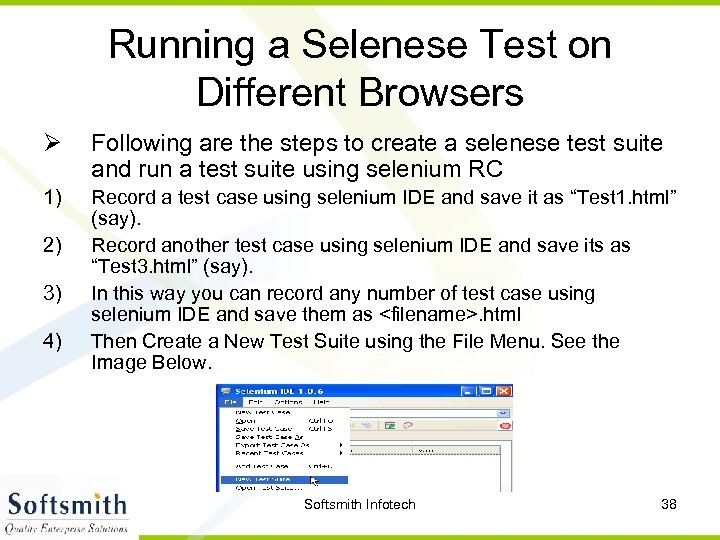 Running a Selenese Test on Different Browsers Ø Following are the steps to create a selenese test suite and run a test suite using selenium RC 1) Record a test case using selenium IDE and save it as “Test 1. html” (say). Record another test case using selenium IDE and save its as “Test 3. html” (say). In this way you can record any number of test case using selenium IDE and save them as
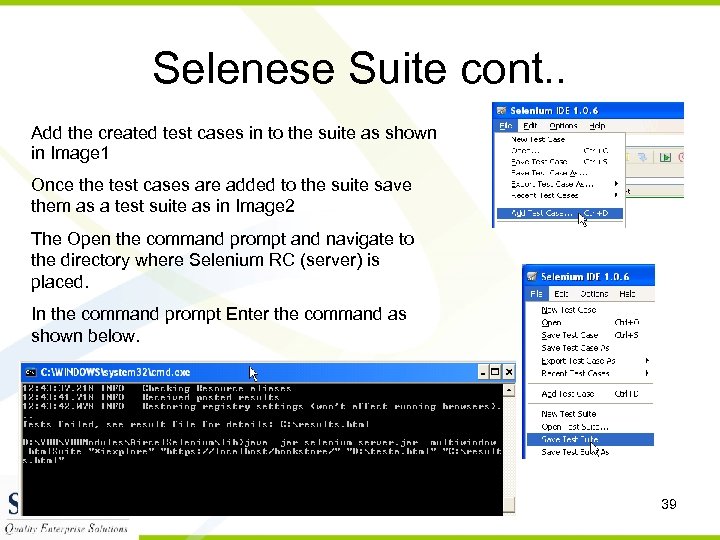 Selenese Suite cont. . Add the created test cases in to the suite as shown in Image 1 Once the test cases are added to the suite save them as a test suite as in Image 2 The Open the command prompt and navigate to the directory where Selenium RC (server) is placed. In the command prompt Enter the command as shown below. Softsmith Infotech 39
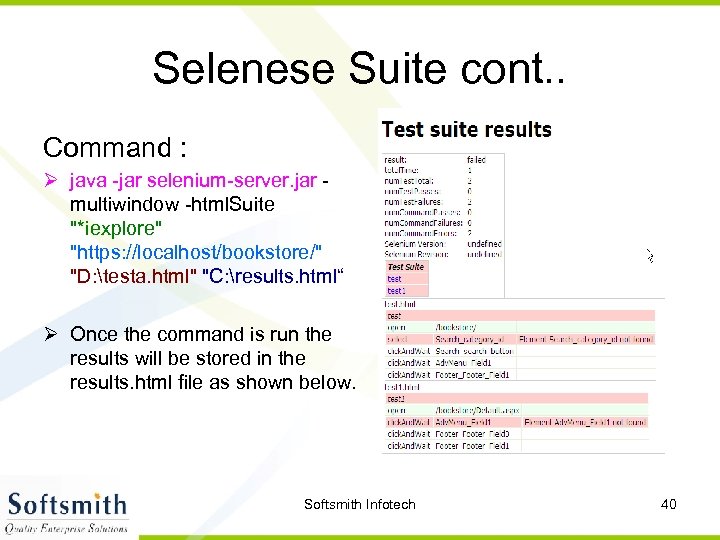 Selenese Suite cont. . Command : Ø java -jar selenium-server. jar multiwindow -html. Suite "*iexplore" "https: //localhost/bookstore/" "D: testa. html" "C: results. html“ Ø Once the command is run the results will be stored in the results. html file as shown below. Softsmith Infotech 40
 Selenium Test Case Development Using Java Required Software Ø Selenium RC Server jar , Selenium Java Client Driver jar , JDK 1. 6 +, Eclipse (or any other IDE), Junit jar and testng jar Ø For building the frame work we require continuous build integration tools like Ant, Maven or cruise control. Softsmith Infotech 41
 Client Drivers Enables communication with Selenium Remote Control Server. Ø Functionality of Selenium is exposed via these drivers. Ø Available in Ruby, Python, Java, C-Sharp …and so on. Ø Give access to the rich features and libraries of the language, including their unit testing framework. Ø Makes it possible to develop automated scripts in the same language as product. Ø Which one you should use? v Whatever make sense in your context. Most Popular is java and for the training we will use java Softsmith Infotech 42
 Process of Developing Selenium Java Scripts. Following are the steps for generating the test scripts in java 1) Record the Script in Selenium IDE and format them into Java 2) Create a Selenium Java project in Eclipse and load all the necessary jar files 3) Copy the formatted Java code into the Eclipse and run the test. Softsmith Infotech 43
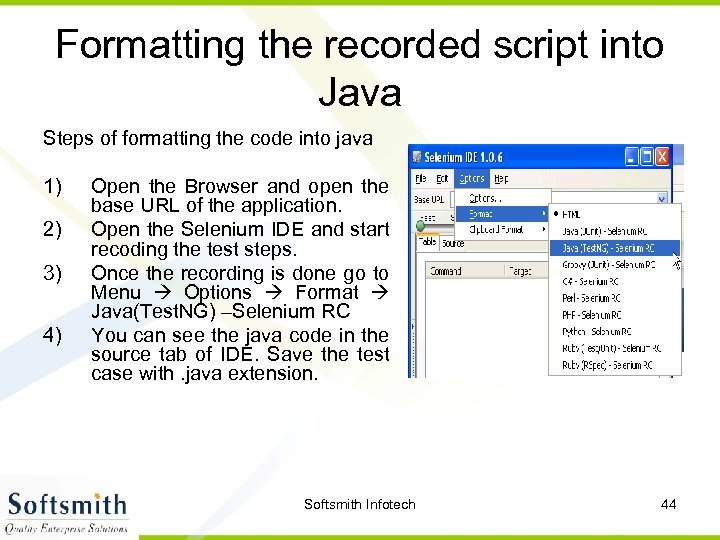 Formatting the recorded script into Java Steps of formatting the code into java 1) 2) 3) 4) Open the Browser and open the base URL of the application. Open the Selenium IDE and start recoding the test steps. Once the recording is done go to Menu Options Format Java(Test. NG) –Selenium RC You can see the java code in the source tab of IDE. Save the test case with. java extension. Softsmith Infotech 44
 Setting Up an Eclipse Project for Selenium Automation • Eclipse is an open source community whose projects are focused on building an extensible development platform for building Java applications and frameworks. Eclipse is one of the best Java IDE and as a matter of face Eclipse is much more than a Java IDE. • We can configure a selenium project in eclipse and even run the scripts from eclipse. • Using eclipse its easy to enhance the recorded script. We can add power to the recorded script by parameterizing the test inputs and even validate the back values. • Eclipse also allows us to write reusable code for efficient test automation. Softsmith Infotech 45
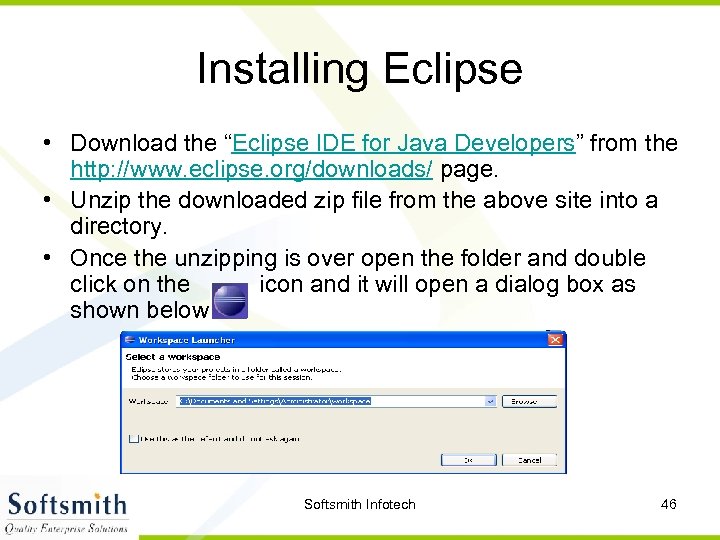 Installing Eclipse • Download the “Eclipse IDE for Java Developers” from the http: //www. eclipse. org/downloads/ page. • Unzip the downloaded zip file from the above site into a directory. • Once the unzipping is over open the folder and double click on the icon and it will open a dialog box as shown below. Softsmith Infotech 46
 Setting up the workspace • Create a folder say (selenium) in any one of the directory and change the workspace location to the directory created by you. Then click ok button. • On doing so you will see the eclipse welcome screen if you are doing it for the first time. On the welcome screen click on the workbench icon to open the project explorer. • When you to try to open the eclipse from next time it will directly show the project explorer as shown in the next slide. Softsmith Infotech 47
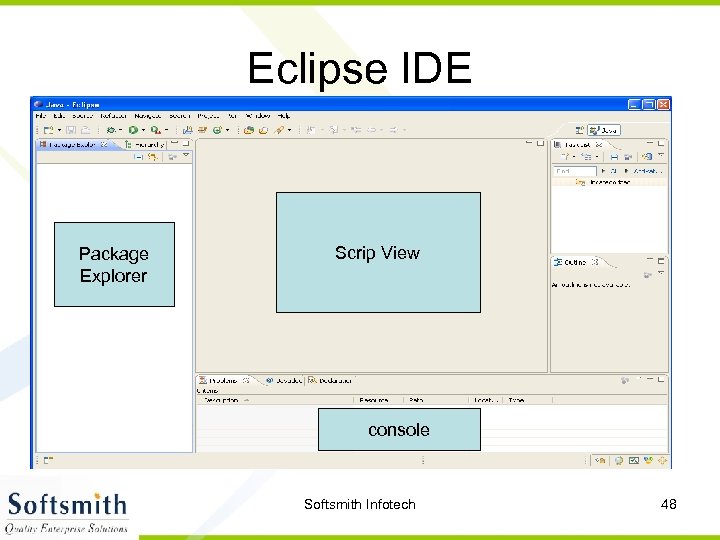 Eclipse IDE Package Explorer Scrip View console Softsmith Infotech 48
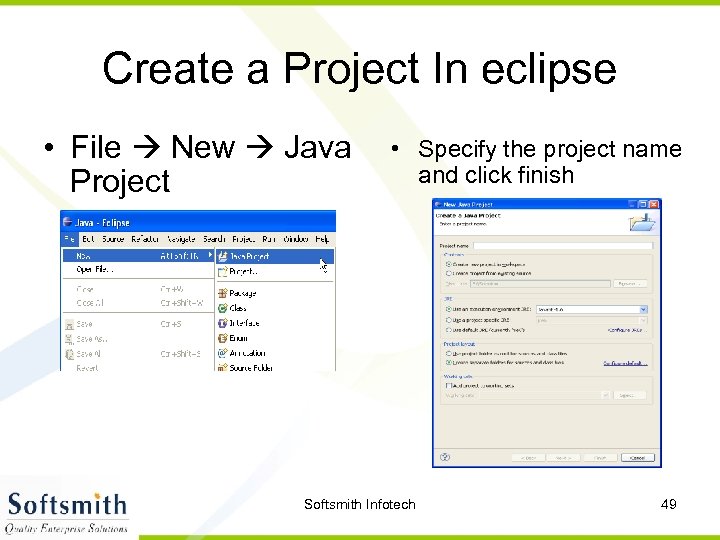 Create a Project In eclipse • File New Java Project • Specify the project name and click finish Softsmith Infotech 49
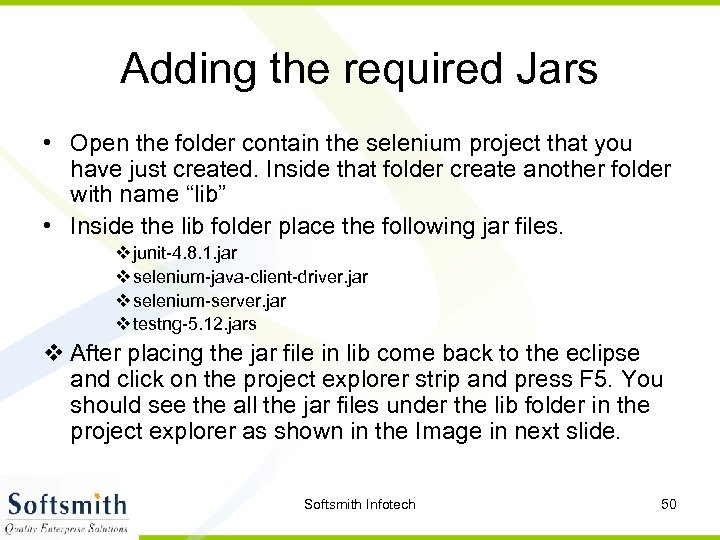 Adding the required Jars • Open the folder contain the selenium project that you have just created. Inside that folder create another folder with name “lib” • Inside the lib folder place the following jar files. v junit-4. 8. 1. jar v selenium-java-client-driver. jar v selenium-server. jar v testng-5. 12. jars v After placing the jar file in lib come back to the eclipse and click on the project explorer strip and press F 5. You should see the all the jar files under the lib folder in the project explorer as shown in the Image in next slide. Softsmith Infotech 50
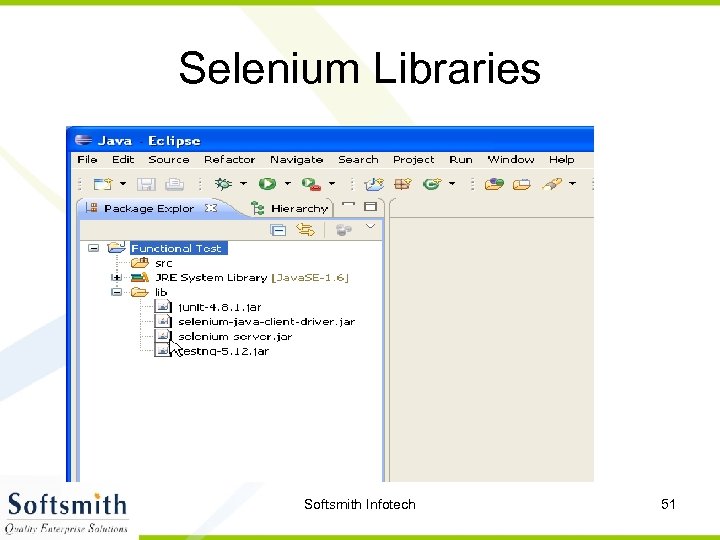 Selenium Libraries Softsmith Infotech 51
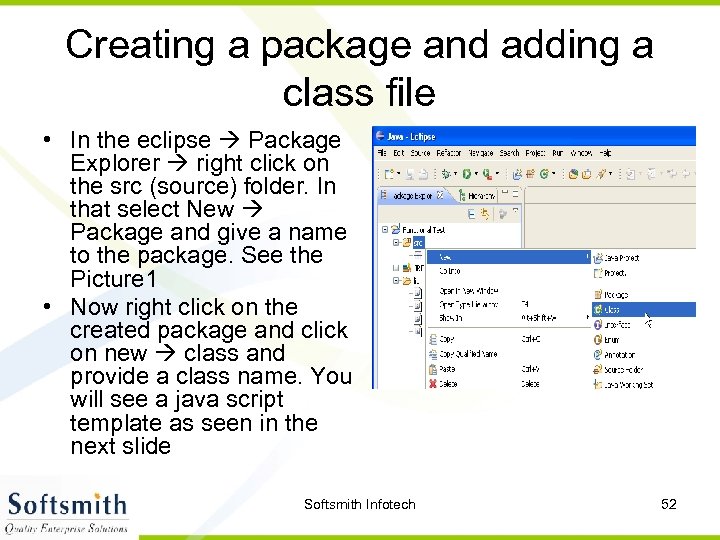 Creating a package and adding a class file • In the eclipse Package Explorer right click on the src (source) folder. In that select New Package and give a name to the package. See the Picture 1 • Now right click on the created package and click on new class and provide a class name. You will see a java script template as seen in the next slide Softsmith Infotech 52
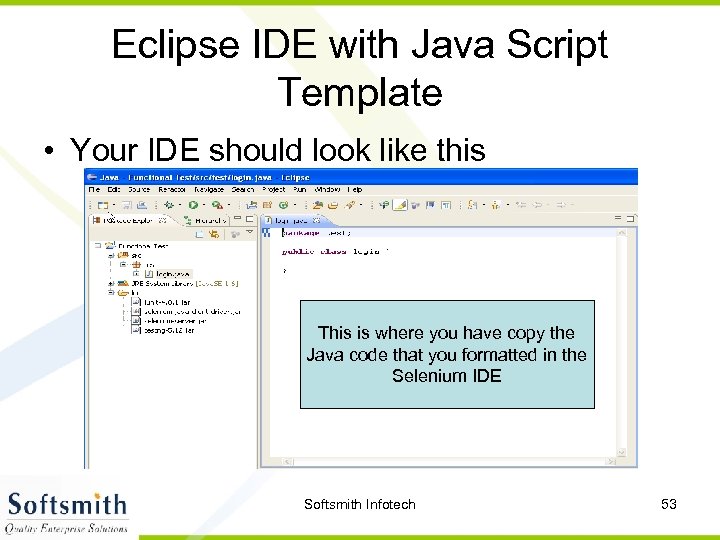 Eclipse IDE with Java Script Template • Your IDE should look like this This is where you have copy the Java code that you formatted in the Selenium IDE Softsmith Infotech 53
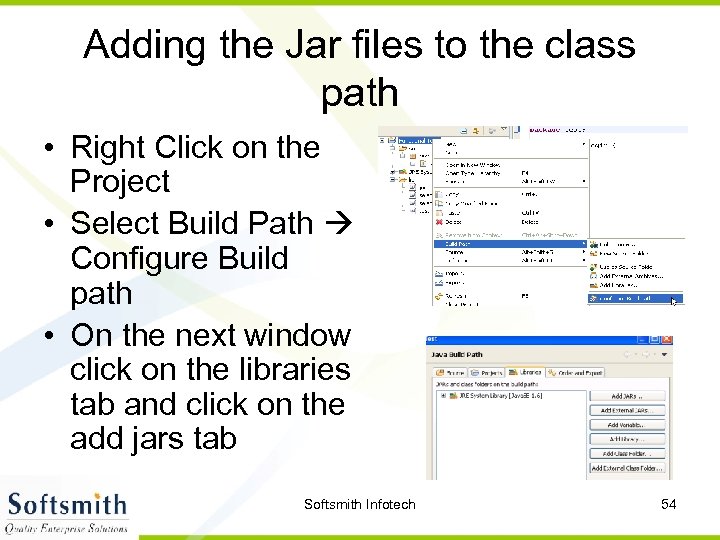 Adding the Jar files to the class path • Right Click on the Project • Select Build Path Configure Build path • On the next window click on the libraries tab and click on the add jars tab Softsmith Infotech 54
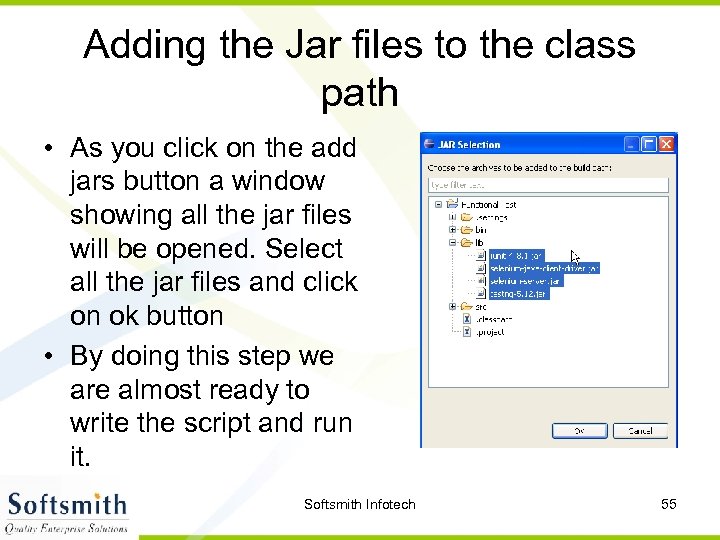 Adding the Jar files to the class path • As you click on the add jars button a window showing all the jar files will be opened. Select all the jar files and click on ok button • By doing this step we are almost ready to write the script and run it. Softsmith Infotech 55
 Creating the test script inside the class file • Copy the code that was formatted in the selenium IDE and paste it in the Eclipse IDE script template. • Make sure the class name that you created and the class name in the script are same • Make sure that you have add the methods set. Up and tear. Down Softsmith Infotech 56
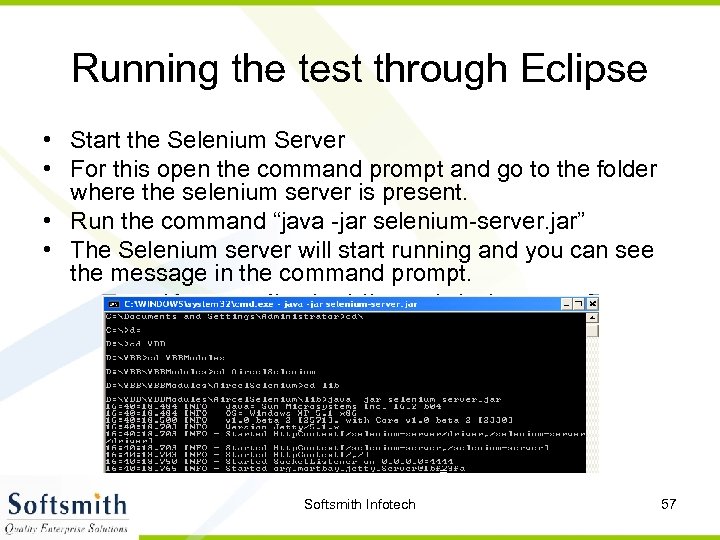 Running the test through Eclipse • Start the Selenium Server • For this open the command prompt and go to the folder where the selenium server is present. • Run the command “java -jar selenium-server. jar” • The Selenium server will start running and you can see the message in the command prompt. Softsmith Infotech 57
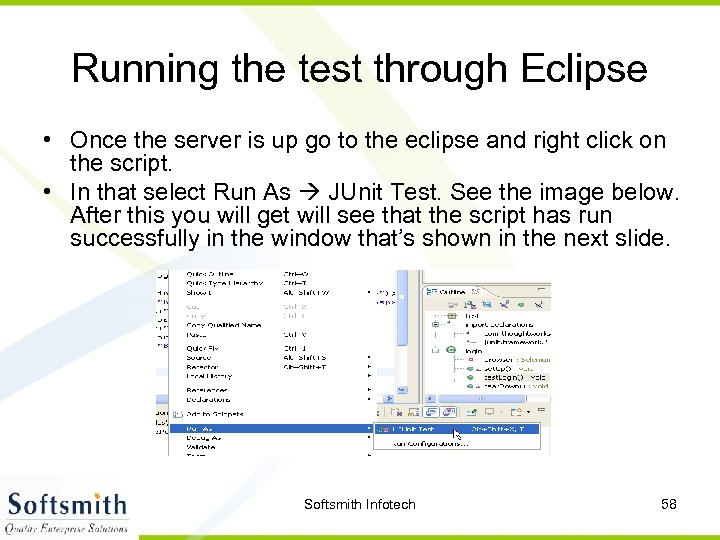 Running the test through Eclipse • Once the server is up go to the eclipse and right click on the script. • In that select Run As JUnit Test. See the image below. After this you will get will see that the script has run successfully in the window that’s shown in the next slide. Softsmith Infotech 58
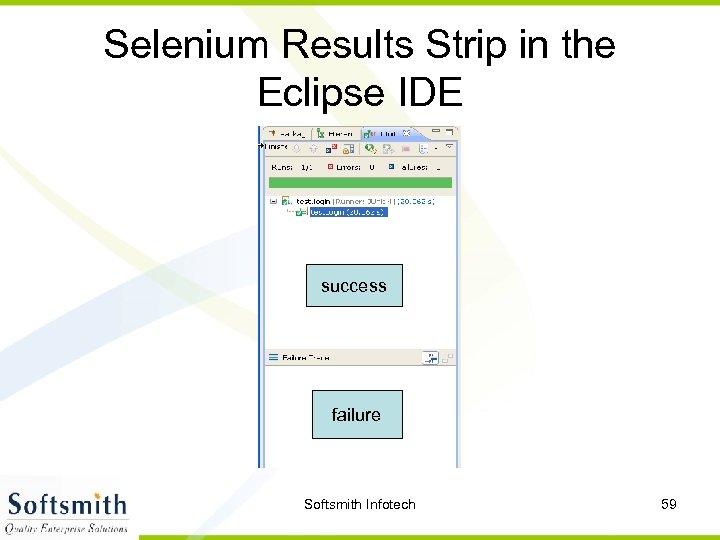 Selenium Results Strip in the Eclipse IDE success failure Softsmith Infotech 59
 Components of the Selenium test Script set. Up method This method prepares the selenium server to run the test. This method basically hooks to the selenium server and opens up the base URL of the application test*** method The methods with the name test will actually run the tests on the application. There can be any number of test methods in the app tear. Down method This method will run after the end of the test. This test will disconnect with the server and makes room for the next tests to run the tests. Softsmith Infotech 60
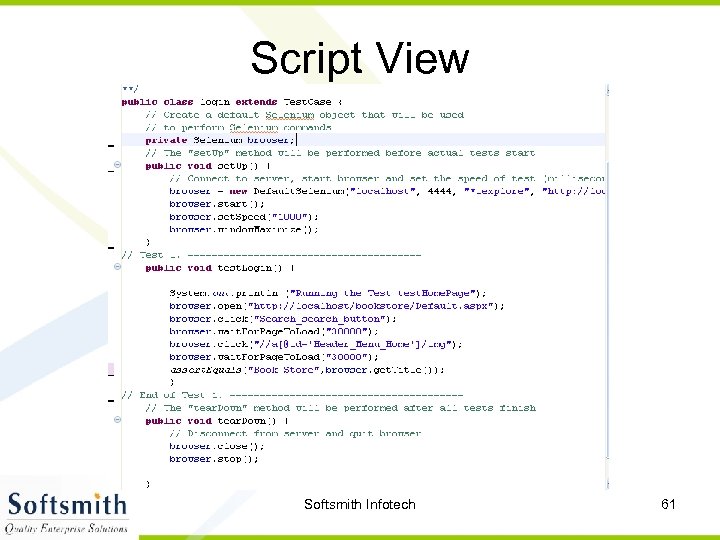 Script View Softsmith Infotech 61
 Enhancing the Selenium commands The generated selenium command can be enhanced by writing java commands. Using java methods we can do parameterization and data base validation. More over java methods can be used for to perform some complex validations and testing activities. The best way to use java methods is used to is have a Java IDE like eclipse. Softsmith Infotech 62
 Some Java Basics Java Data Types Int, float, String, char, Boolean and double Declarations String s = “Selenium”; Int i = 20; float cur = 3. 35; Operators * , / , % , +, - are the mathematical operators * , /, %, have a higher precedence than + or - Softsmith Infotech 63
 Relational Operators == != >= <= > < Equal (careful) Not equal Greater than or equal Less than or equal Greater than Less than Softsmith Infotech 64
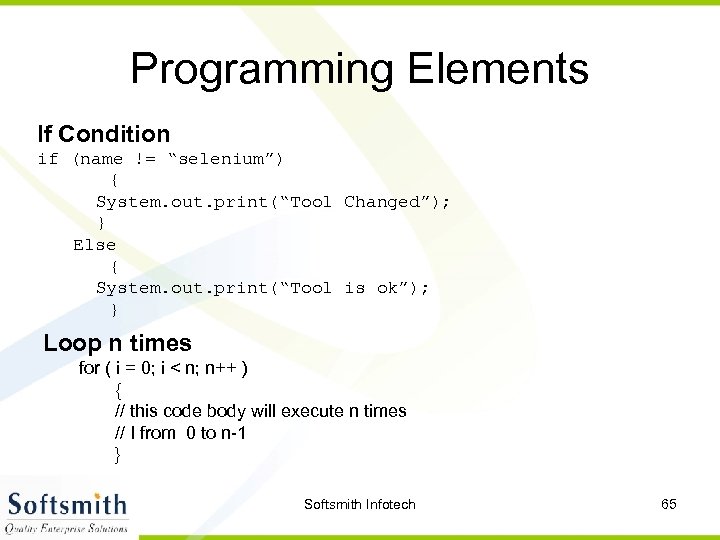 Programming Elements If Condition if (name != “selenium”) { System. out. print(“Tool Changed”); } Else { System. out. print(“Tool is ok”); } Loop n times for ( i = 0; i < n; n++ ) { // this code body will execute n times // I from 0 to n-1 } Softsmith Infotech 65
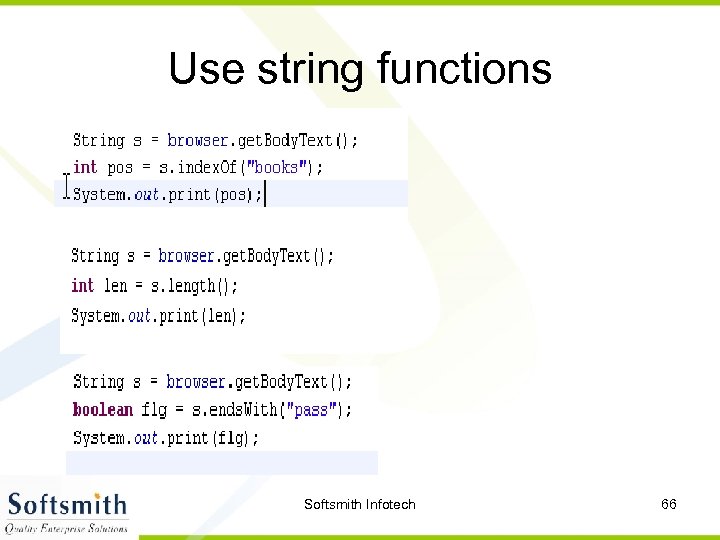 Use string functions Softsmith Infotech 66
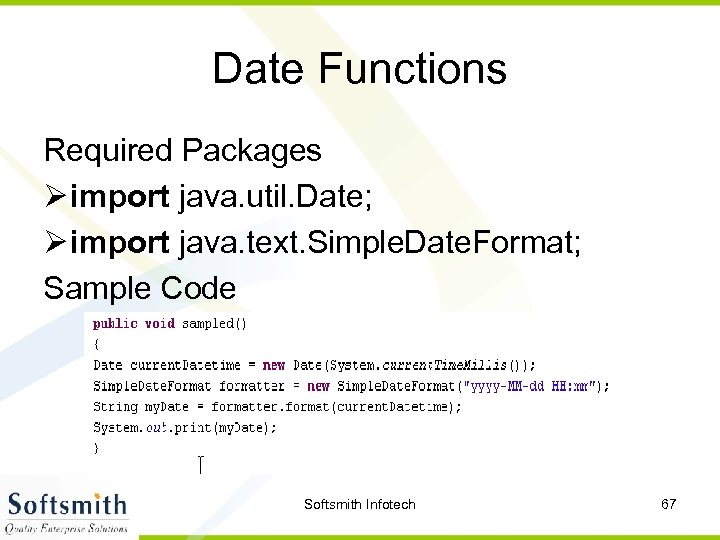 Date Functions Required Packages Ø import java. util. Date; Ø import java. text. Simple. Date. Format; Sample Code Softsmith Infotech 67
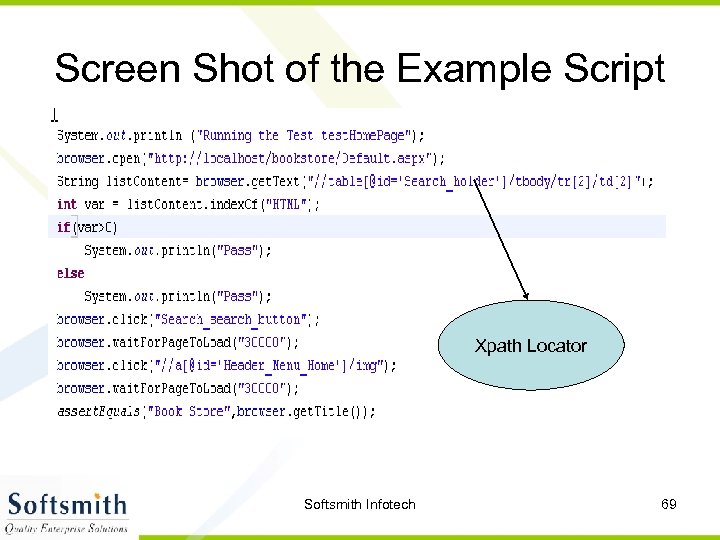
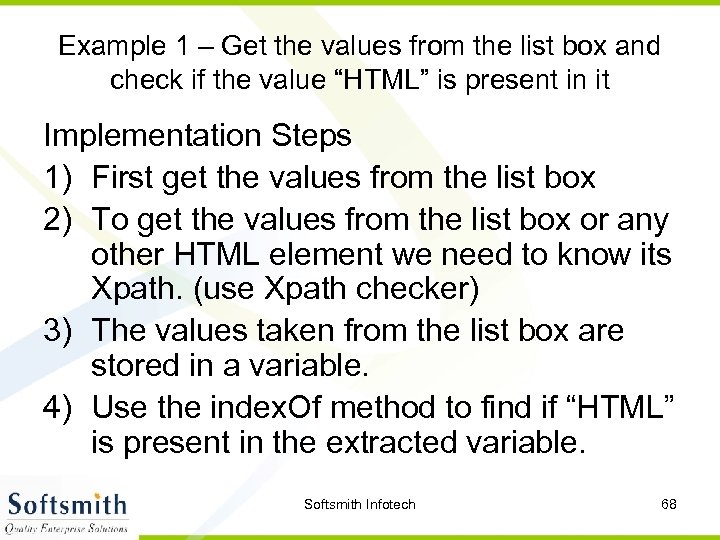 Example 1 – Get the values from the list box and check if the value “HTML” is present in it Implementation Steps 1) First get the values from the list box 2) To get the values from the list box or any other HTML element we need to know its Xpath. (use Xpath checker) 3) The values taken from the list box are stored in a variable. 4) Use the index. Of method to find if “HTML” is present in the extracted variable. Softsmith Infotech 68
 Screen Shot of the Example Script Xpath Locator Softsmith Infotech 69
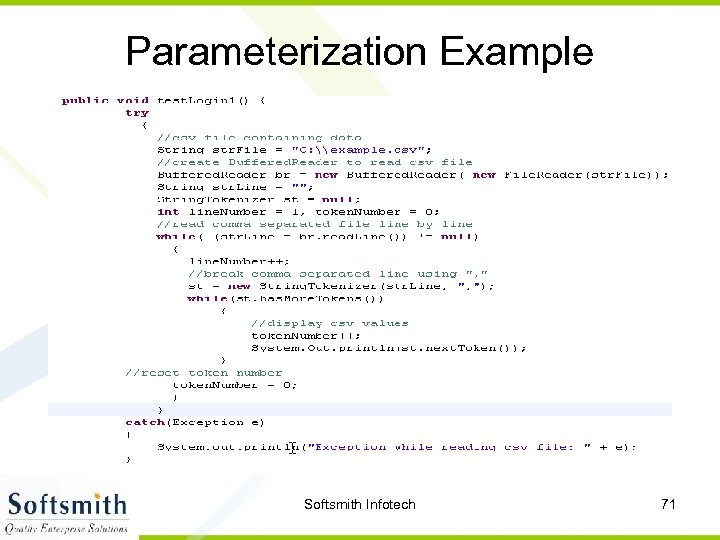
 Parameterization • Parameterization is to same run the script with multiple set of data. • The data will be stored in a CSV file. • We will have write a program to read the values from the excel line by line and replace the values. • For reading the values from a CSV file we will require the following packages Ø import java. io. File; Ø import java. io. Buffered. Reader; Ø import java. io. File. Reader; Ø import java. util. String. Tokenizer; Softsmith Infotech 70
 Parameterization Example Softsmith Infotech 71
 Ant Integration Ø Ant is a free tool from the Apache Jakarta Group Ø Originally written by James Duncan Davidson Ø on an airplane from Europe to the US. . . Ø Like ‘make’ for Java – only better Ø Uses an XML file to drive its action Ø Extremely powerful and modular Ø Easily extensible Ø Written in Java so it is cross platform Softsmith Infotech 72
 To Integrate with ANT Ø Download ANT and copy it into any of the directory Ø Create a JAVA_HOME environment Variable Ø Create a ANT_HOME environment variables Ø Add the ANT bin path to windows path environment variable Ø Create a build file to load all the jar files and create targets to run the selenium tests using the build file Softsmith Infotech 73
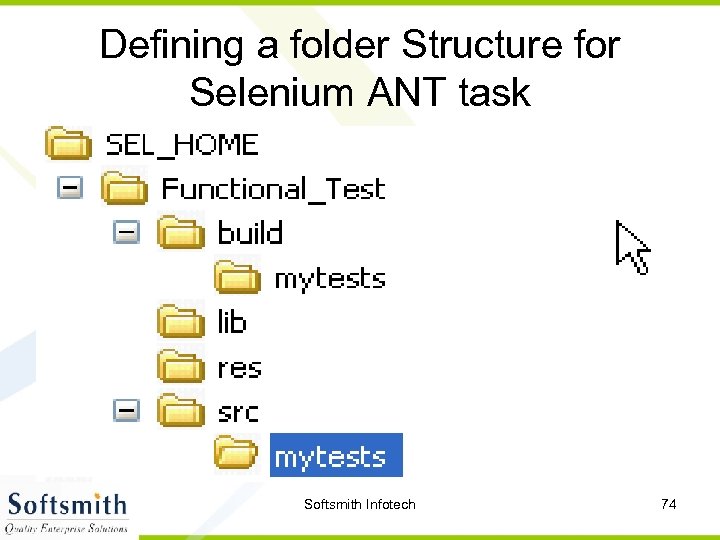 Defining a folder Structure for Selenium ANT task Softsmith Infotech 74
 Running the ANT selenium task • Start the selenium server through the command prompt • Then go the folder where the selenium tests are stored • Make sure that the build. xml file is present in that location • Now run the command “ant” from the command prompt • You can see the test running and the results will be saved in the results. txt file. Softsmith Infotech 75
 Selenium-Grid allows the Selenium-RC solution to scale for test suites to be run in multiple environments. • With Selenium-Grid multiple instances of Selenium-RC are running on various operating system and browser configurations, each of these when launching register with a hub. When tests are sent to the hub they are then redirected to an available Selenium. RC, which will launch the browser and run the test. • This allows for running tests in parallel, with the entire test suite theoretically taking only as long to run as the longest individual test. Softsmith Infotech 76
 How to Grid • Download Selenium Grid latest binary distribution and unpack it on your computer. • Go at the root of selenium grid directory and validate your installation: Ø cd selenium-grid-1. 0 Ø ant sanity-check Ø Go to the selenium distribution directory and launch in a new terminal: Ø ant launch-hub Ø Check out that the Hub is running by looking at its console in a browser: Ø http: //localhost: 4444/console (See the Browser in the next slide) Softsmith Infotech 77
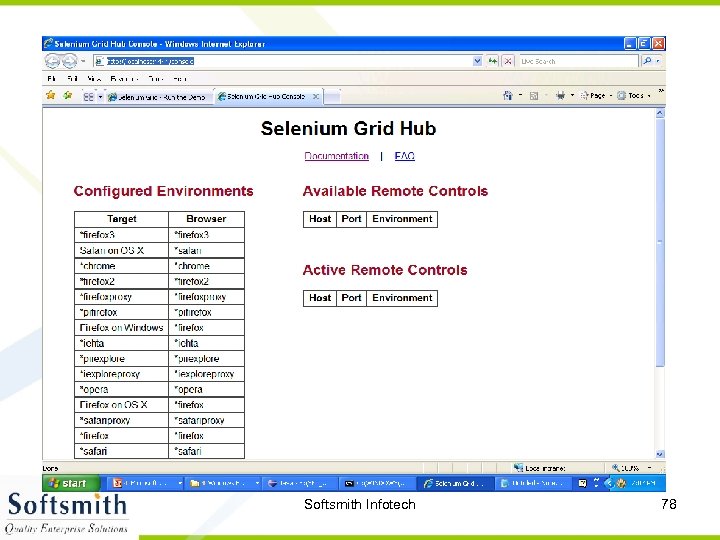 Softsmith Infotech 78
 How to Run Ø In a new terminal enter the following command • ant launch-remote-control Ø Based on your target file you can run either in sequence or in parallel Softsmith Infotech 79
 What's good? • Relatively easy to automate web UI tests • Record/Replay for regression tests • RC allows integration with CI and JUnit/Fit. Nesse tests
 What's bad? • Speed: RC->Browser communication is a speed bottleneck (run in grid, overnight) • UI is brittle, tests depending on the UI break a lot (DSTL might fix this, page abstractions as well) • Data-backed tests are not easily repeatable (integrate with DB test engines)
 Best practices • Use Selenium to verify workflow and session • Don't put Selenium tests in your main development build – run them overnight • Have dedicated machines that run tests • DON'T THINK OF THIS AS A REPLACEMENT FOR EXPLORATORY TESTING!!!
 Links • http: //gojko. net • http: //www. openqa. org • http: //www. solutionsiq. com/agile 2008/agile-2008 domain. php • http: //storytestiq. solutionsiq. com • http: //www. cubictest. com • http: //fitnesse. info/webtest