 Скачать презентацию Technology Tips and Resources for the Mobile Teacher
bf355d88ce39a05ec8d7dcdf0ab6f3d4.ppt
- Количество слайдов: 19



Technology Tips and Resources for the Mobile Teacher Resource contact: Traci Bell – tbell@rps. k 12. ar. us Techniques for creating presentations to take with you & Ways to use the mobile labs with students through school fusion! Access to this, and other information that you will see today can be found at: o. Rogers Public School’s home page o“Support Services” o“Technology” o“Click here for 2012 RPS Technology Conference o“Elementary” o“Session 2 (9: 45 -11: 15)” o. Technology Tips and Resources for the Mobile Teacher
Almost painless use of mobile laptops (or any other computers available to you). One of the most underused resources for the mobile teacher are the carts of small laptop computers that most libraries have available to check out. So… let’s try to make it easy for you to use them! Ordinarily, it would be necessary for you to come in 20 -30 minutes early to turn on, log on and type in the URL for the site for each and every individual computer yuck. Through your school fusion pages, you can let (even the little bitty kids) go to your presentation, worksheet, game, activity, etc… fairly easily. Don’t underestimate what the kids are capable of doing with technology! Follow me…. .
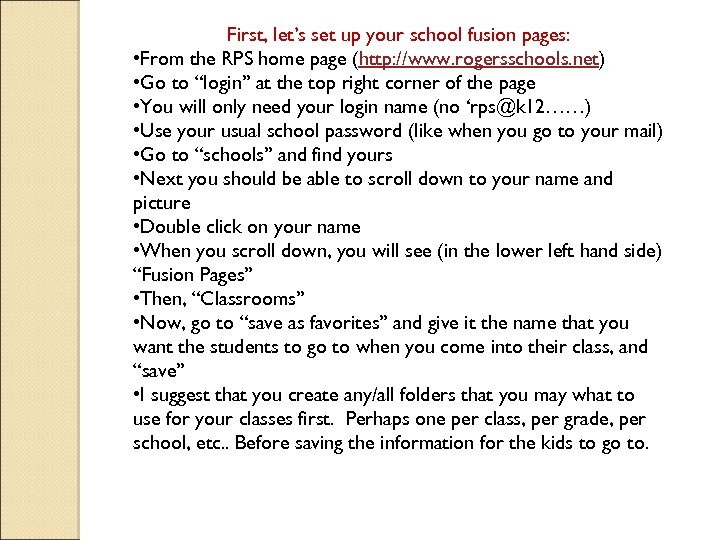
First, let’s set up your school fusion pages: • From the RPS home page (http: //www. rogersschools. net) • Go to “login” at the top right corner of the page • You will only need your login name (no ‘rps@k 12……) • Use your usual school password (like when you go to your mail) • Go to “schools” and find yours • Next you should be able to scroll down to your name and picture • Double click on your name • When you scroll down, you will see (in the lower left hand side) “Fusion Pages” • Then, “Classrooms” • Now, go to “save as favorites” and give it the name that you want the students to go to when you come into their class, and “save” • I suggest that you create any/all folders that you may what to use for your classes first. Perhaps one per class, per grade, per school, etc. . Before saving the information for the kids to go to.
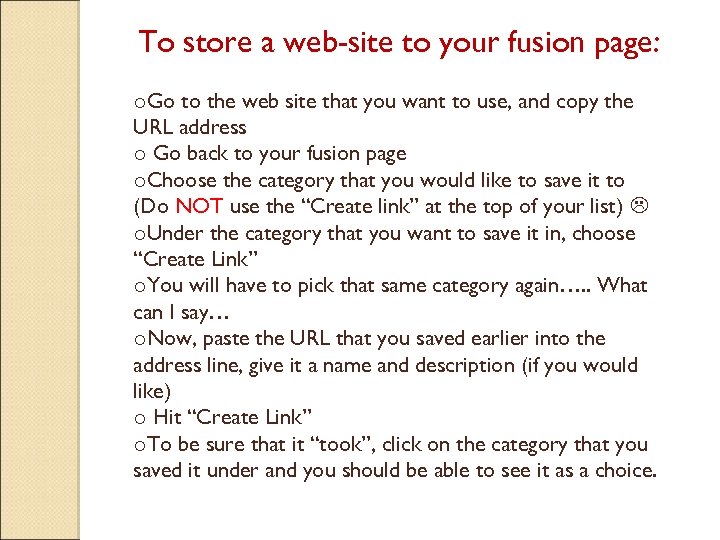
To store a web-site to your fusion page: o. Go to the web site that you want to use, and copy the URL address o Go back to your fusion page o. Choose the category that you would like to save it to (Do NOT use the “Create link” at the top of your list) o. Under the category that you want to save it in, choose “Create Link” o. You will have to pick that same category again…. . What can I say… o. Now, paste the URL that you saved earlier into the address line, give it a name and description (if you would like) o Hit “Create Link” o. To be sure that it “took”, click on the category that you saved it under and you should be able to see it as a choice.
To send them to a word document, presentation, pictures or any other items stored on your computer: o. On the same fusion page that you created web-sites, look for the box that is titled “Files”. o. Click on “add Files” (you can also add whole folders, if you choose) o. Browse for your word document and double click on it to place it in the form o. Add a description then press “attach file” o. The information should show up under “files” This will work for ANYTHING that has been saved in your H drive. Including Smart notebook lessons, Powerpoints, Photo. Story 3, Prezi, Voice Thread, Digital stories, etc….
Working with the kids o. As soon as you get all the computers passed out, ask them to open the top and press the power button… wait o. Now the kids have to log in (this is the painful part, but once they have done it a couple of times, it will be second nature for them) o. For K-2, I recommend that they log in as “’school initals” lib”… for example…. Northside Elementary students will log in as “nslib” or Tillery Elementary will log in as “ftlib” with the universal password “aaa-111” o. For 3 rd – 12 th grades, have them log in as themselves. Their login will be the same as the one that they use with success maker, library check out, and AR testing. It is usually the first letter of their first name, the first few letters of their last name (some have a number thrown in there too). They do not have to add all the k 12, ar, us…stuff. Their password will be e=six digit lunch number. o. For example: User Name: t 5 jones Password: e=321957
Working with the kids o. OK, now they need to click on the blue “e” at the bottom of the page to get to the internet…. . Wait o. They will go up to “favorites” and they should be able to find your link. o. When they click on it, they will see your fusion page o. Guide them to the file, presentation, document or web-site that you want them to use…. And you’re off o. A few other tips…… o. If you will be using the same lesson several times during the day/week, etc. . You can let students leave the computer on the activity and just close the lid. The computer will bring that same item up when it is opened again. That will save having to go through all the steps. It will, however, also have the work of the last student on it too. Students may need to start (just the page) over again. Go ahead and try it yourself……
o. A few other tips…… o. Any one that can get to the internet can get to your sites. That means that they can be used as homework practice, to share with peers, to appeal to parents, to submit to administrators, etc… o. You can also use this technique to call up the presentations or documents to any classroom’s smart board. Go ahead and try it yourself……
Awesome resources for presentations, cont. Voice Thread Available both on the computer and as a free app, Voice. Thread is a collaborative, multimedia slide show that holds images, documents, and videos. It allows people to navigate slides and leave comments in 5 ways - using voice, text, audio file, doodling (drawing) or video (via a webcam which many of our netbooks have). Voice Thread Handout Voice Thread Student Example (The first few comments set up the purpose of this Voice. Thread. Click on the four image icon in the bottom right next to the arrow to see all the pages at once. This gives you an idea of how much this program is capable of!) Student Example - (Ant Farm Analogy) Wordle is a toy for generating “word clouds” from text that you provide. The clouds give greater prominence to words that appear more frequently in the source text. You can tweak your clouds with different fonts, layouts, and color schemes. The images you create with Wordle are yours to use however you like. You can print them out, or save them to the Wordle gallery to share with your friends. Wordle--Saving your Wordle as an Image
Awesome resources for presentations o. From RPS homepage o“Support services” o“Technology” o“Multimedia Resources and student products” Building Transforming Lessons Through Technology Students can create a product as a result of "Applying their Knowledge" through thinking skills or practice. These student products can range from graphic organizers or models to multimedia productions. Explore an expansive student product idea list. Other student product resources have been listed below. Animoto for Education Website Enhance your digital classroom with Animoto, the perfect tool for creating videos and presentations. Create an account using your school email address and apply for an educator account to get more privileges. Animoto Handout Animoto- RPS Student Example "The Dust Bowl"
Awesome resources for presentations, cont. Audacity Handout It's one thing to listen to music, and it's another to create it, edit it, or mix it. If you're interested in creating, editing, and mixing you'll want Audacity. This powerful, free, Open Source tool can record sound and music as well as edit it. This program is installed on all RPS systems (Make sure the Lame file is installed and connected in order to export to an. mp 3. ) Example Capzles helps anyone create beautiful, interactive, rich-media timelines online using videos, photos, text, music, audio and most documents such as Microsoft Word. Student Example Class Tools Create free educational games, quizzes, activities and diagrams in seconds! Host them on your own blog, website or intranet! "Fakebook" page example on Class Tools
Awesome resources for presentations, cont. Comic Creator The Comic Creator invites children and teens to design their own comic strips. Their creations can be just for fun or as part of more structural learning activities: planning writing activities, before- and after-reading activities, and responding to books. This is a VERY basic comic creator, and comes out in black and white. It is easy to use. Digital Storytelling This site explores the educational uses of digital storytelling. It provides examples and recommendations for programs to use in the classroom. Digital Storytelling is the practice of using computer-based tools to tell stories. As with traditional storytelling, most digital stories focus on a specific topic and contain a particular point of view. However, as the name implies, digital stories usually contain some mixture of computer-based images, text, recorded audio narration, video clips and/or music. A great way to begin learning about Digital Storytelling is by watching the following video introduction to Digital Storytelling.
Awesome resources for presentations, cont. Glogster EDU (***Note: It is better for teachers to create an account and request a code. That way students can create their accounts using that code. Elementary teachers can assign students to the class in order to create more private accounts. ***) Glogster provides an environment to design interactive posters. The user inserts text, images, photos, audio, videos, special effects, and other elements into their glogs to generate a multimedia online creation. Posters can be shared with other users on the site, embedded in external wikis or blogs and can be exported and saved to computer-compatible formats. Glogster Tutorial Student Example Multi-Media RPS Wiki
Awesome resources for presentations, cont. Multi-Media RPS Wiki Photo. Story 3 Bring photos to life with Photo Story 3 for Windows. Create a photo slideshow of a collection of pictures, and turn them into a digital story by adding audio recordings, special effects, soundtracks, titles, and captions. Photo. Story 3 is a program that is already downloaded and on school computers. Read more: Photo Story 3 for Windows - CNET Download. com http: //download. cnet. com/Photo-Story-3 -for-Windows/3000 -12511_410339154. html#ixzz 1 vu. Q 5 Fym. I Photo. Story 3 -SMART Notebook file Photo Story 3 Tutorial
Awesome resources for presentations, cont. Kerpoof Website Kerpoof is a captivating free site with a variety of different tools that can be used in the classroom. One of the great parts about Kerpoof is how it has different activities that cater to different age ranges so there are tools for the youngest of students as well as older students. Different tools include Spell a Picture, Make a Movie, Make a Card, Make a Drawing, Make a Picture, and Tell a Story. As students work and complete different tasks, they earn coins which they can use in the Kerpoof store to buy new items like paintbrushes for Make a Picture, backgrounds and animations for Make a Movie, or clothing for their avatar. Kerpoof Handout Kerpoof for Teachers Kerpoof Teachers Guide Kerpoof with Technology Standards
Awesome resources for presentations, cont. Pic. Lits: Learn It Podcasts & RSS Feeds Popplet is a web-based mind mapping application that lets you visually collaborate with other Popplet users. It can collect documents, pictures, videos, and text, all in a nice an organized way. Popplet Tutorial Prezi is a online presentation tool for exploring and sharing ideas on a virtual “canvas” using text, images, videos, and other media. The program enables users to zoom in and out of their Prezi, and is a tool for both free-form brainstorming and structured presentation. Prezi Tutorial Student Example- Getting and Using Energy in Biologoical Systems
Awesome resources for presentations, cont. Product List Tagxedo turns words -- famous speeches, news articles, slogans and themes -into a visually stunning word cloud, words individually sized appropriately to highlight the frequencies of occurrence within the body of text. The word clouds can be formed into shapes. Keep in mind that you will need lots and lots of words to make one of these!! Toon Doo Toondoo is an application with wonderful potential for teachers and learners. Toondoo offers a convenient platform for creating and sharing cartoons. To get started, you simply choose a single, double, or triple panel. You can import images, but Toondoo offers a wide range of characters, text bubbles, backgrounds, etc. These couldn’t be easier to select and apply. The site also provides an opportunity for the customization of avatars for the comics. Regardless of artistic ability, toondoo provides an outlet for great, colorful comic creation. You want to have students create accounts in advance, and not in the classroom, because the creation of multiple accounts can really slow the system down. Toon Doo Tutorial
Even more great resources for the Mobile teacher. . Mobile Learning Free Ebooks Effective Mobile Learning: 50+ Quick Tips & Resources by Shelly Sanchez Terrell Mobile Learning Reflections by Jackie Gerstein Hot Apps for HOTS by Tony Vincent Mobile Learning Guide Pt 1: Designing it Right by Kineo Beginner’s Guide to the i. Phone, i. Pod, and i. Pad in Education by Slide 2 Learn New technologies, new pedagogies: Mobile learning in higher education The Universal Design of Apple Mobile Devices Kathy Schrock’s Guide to i. Pads in the Classroom Mobile Learning: A Quick Start Guide by Upside Learning (You have to register but it’s free!)
Even more great resources for the Mobile teacher. . Mobile Learning Posts/Presentations 20+ Fun Free Apps that Promote Student Centered Learning & Literacy Magical Moments in Mobile Learning: 20+ Tips & Resources Why Mobile Learning in Schools Makes Cents Sharing Stories: Motivating Language Learners with Mobile Devices 10+ Ideas for Using Cell Phones with Young Learners Texting and Teachers Experimenting with Technology: 10 Resources Mobile Motivation: 17 Digital Storytelling & Literacy Apps/Resources for Kids 8 Apps to Prepare You for Your Next Presentation/ Webmeeting 14 Apps That Should Accompany You to the Next Conference 30+ Holiday Apps for Creativity & Learning 18 Educational Apps for Halloween
Скачать презентацию Technology Tips and Resources for the Mobile Teacher
bf355d88ce39a05ec8d7dcdf0ab6f3d4.ppt