 Скачать презентацию Technology Brief Auto Healing NSBU Zy XEL Communications
66af6863acd16fee76c2813ca1b366a8.ppt
- Количество слайдов: 16



Technology Brief Auto Healing NSBU Zy. XEL Communications Corp. November, 2013
Contents § Introduction § How It Works § Benefits for Users and SIs § Technical Details § Deployment Notes Copyright © 2013 Zy. XEL Communications Corporation. All rights reserved.
Introduction What’s Auto Healing? A high-availability WLAN feature that: § Automatically detects AP failures § Compensates by increasing the wireless coverage of nearby APs This technology helps: § Minimize outage impact § Maximize WLAN availability Copyright © 2013 Zy. XEL Communications Corporation. All rights reserved.
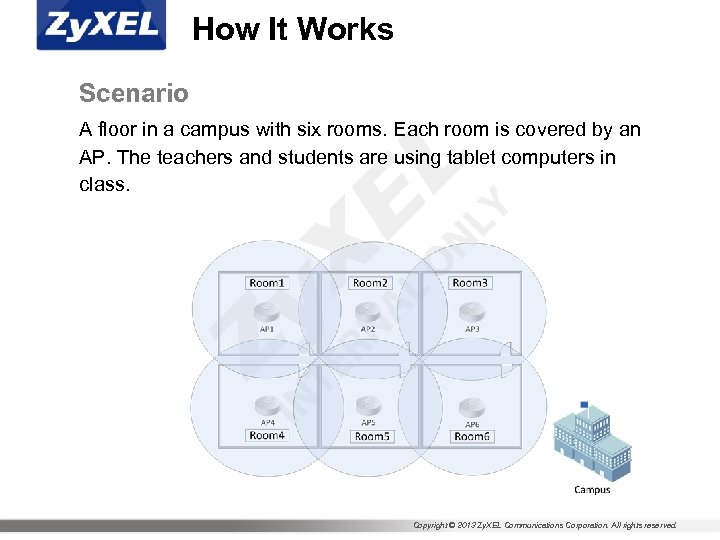
How It Works Scenario A floor in a campus with six rooms. Each room is covered by an AP. The teachers and students are using tablet computers in class. Copyright © 2013 Zy. XEL Communications Corporation. All rights reserved.
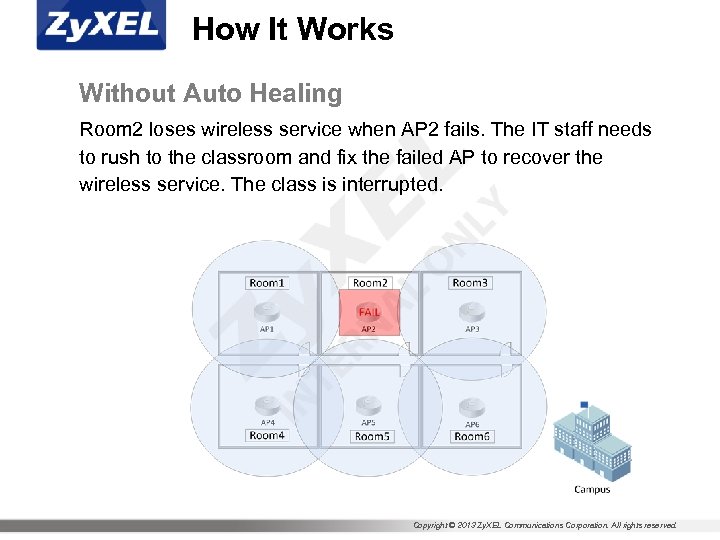
How It Works Without Auto Healing Room 2 loses wireless service when AP 2 fails. The IT staff needs to rush to the classroom and fix the failed AP to recover the wireless service. The class is interrupted. Copyright © 2013 Zy. XEL Communications Corporation. All rights reserved.
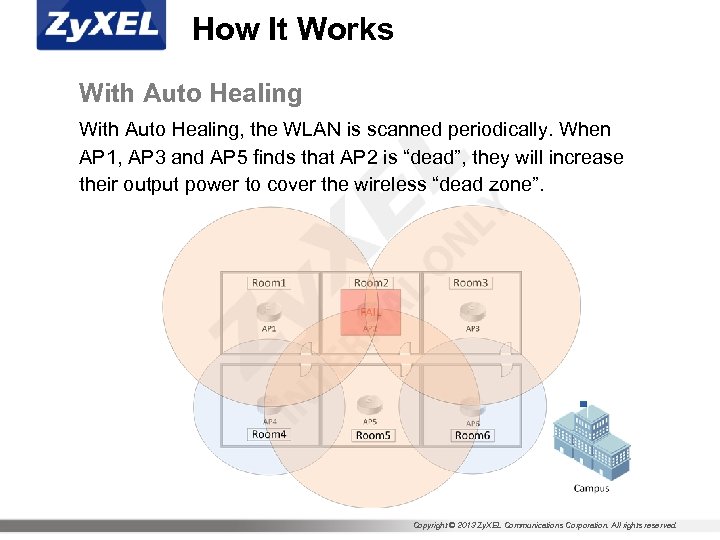
How It Works With Auto Healing, the WLAN is scanned periodically. When AP 1, AP 3 and AP 5 finds that AP 2 is “dead”, they will increase their output power to cover the wireless “dead zone”. Copyright © 2013 Zy. XEL Communications Corporation. All rights reserved.
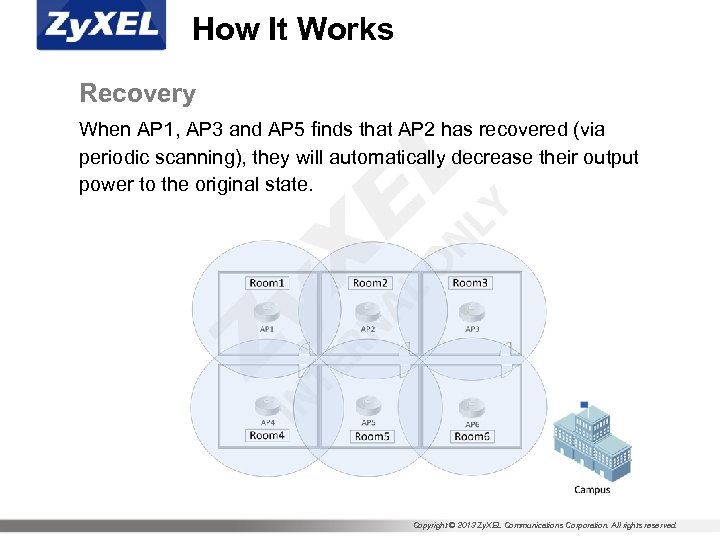
How It Works Recovery When AP 1, AP 3 and AP 5 finds that AP 2 has recovered (via periodic scanning), they will automatically decrease their output power to the original state. Copyright © 2013 Zy. XEL Communications Corporation. All rights reserved.
Benefits for Users and SIs Minimize outage impact IT staff can continue to provide wireless services to the users in Room 2 and replace the failed AP when the class has ended, or when the new AP has been delivered by the SI. Maximize WLAN availability SIs do not need to be on site right away to replace the AP and restore the wireless service. Copyright © 2013 Zy. XEL Communications Corporation. All rights reserved.
Technical Details How does the scanning work? Scheduled scan § By default, an AP scans the availability of its neighbor APs (in its neighbor list) with an interval of 5 minutes* § Each scan takes 1 minute to complete § When an AP failure is detected, 2 more confirm scans will be conducted before increasing output power § Neighbor APs will increase output power within 3 minutes of detecting an AP failure (1 scheduled scan + 2 confirm scans) § When an AP recovery is detected, neighbor APs will decrease output power immediately after the scan (within 1 minute) *The scan interval can be configured between 5 to 30 minutes Copyright © 2013 Zy. XEL Communications Corporation. All rights reserved.
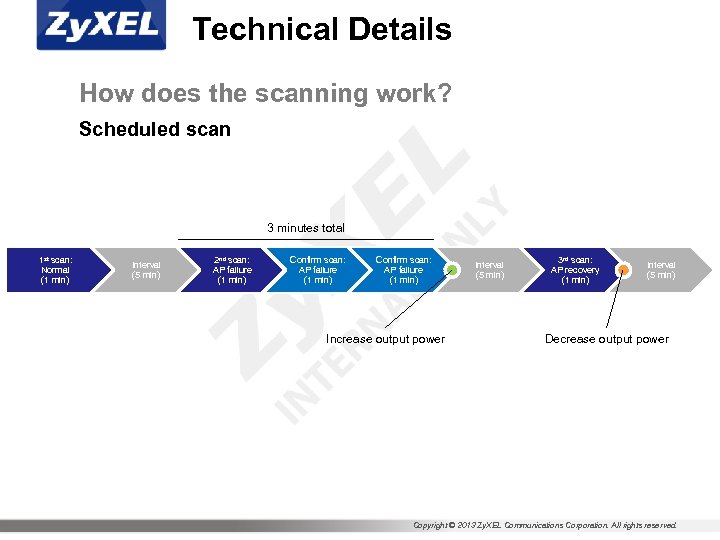
Technical Details How does the scanning work? Scheduled scan 3 minutes total 1 st scan: Normal (1 min) Interval (5 min) 2 nd scan: AP failure (1 min) Confirm scan: AP failure (1 min) Increase output power Interval (5 min) 3 rd scan: AP recovery (1 min) Interval (5 min) Decrease output power Copyright © 2013 Zy. XEL Communications Corporation. All rights reserved.
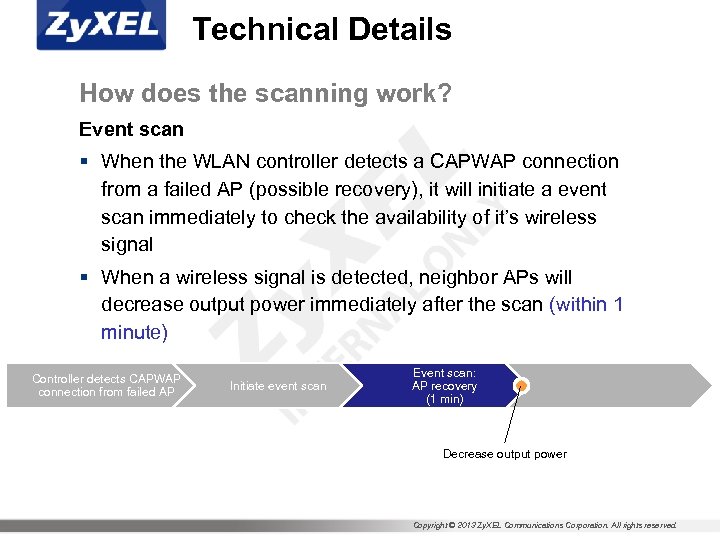
Technical Details How does the scanning work? Event scan § When the WLAN controller detects a CAPWAP connection from a failed AP (possible recovery), it will initiate a event scan immediately to check the availability of it’s wireless signal § When a wireless signal is detected, neighbor APs will decrease output power immediately after the scan (within 1 minute) Controller detects CAPWAP connection from failed AP Initiate event scan Event scan: AP recovery (1 min) Decrease output power Copyright © 2013 Zy. XEL Communications Corporation. All rights reserved.
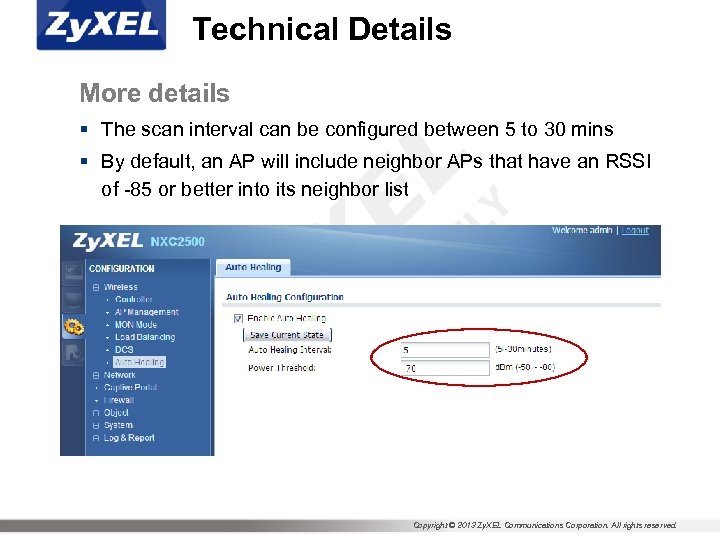
Technical Details More details § The scan interval can be configured between 5 to 30 mins § By default, an AP will include neighbor APs that have an RSSI of -85 or better into its neighbor list Copyright © 2013 Zy. XEL Communications Corporation. All rights reserved.
Deployment Notes Output power adjustment § To enable Auto Healing, each AP needs to reserve some output power to cover neighbor APs in cases of AP failures § Before deploying Auto Healing, please ensure the AP’s output power is adjusted to less than 100% (for example 60%) l l It is not possible for an AP to transmit more than its max. output power (100%), so reducing the AP’s output power is necessary for Auto Healing to work By default, an APs output power is set to maximum level (100%) § The reserved output power will be used to maximize WLAN availability when a neighbor AP fails Copyright © 2013 Zy. XEL Communications Corporation. All rights reserved.
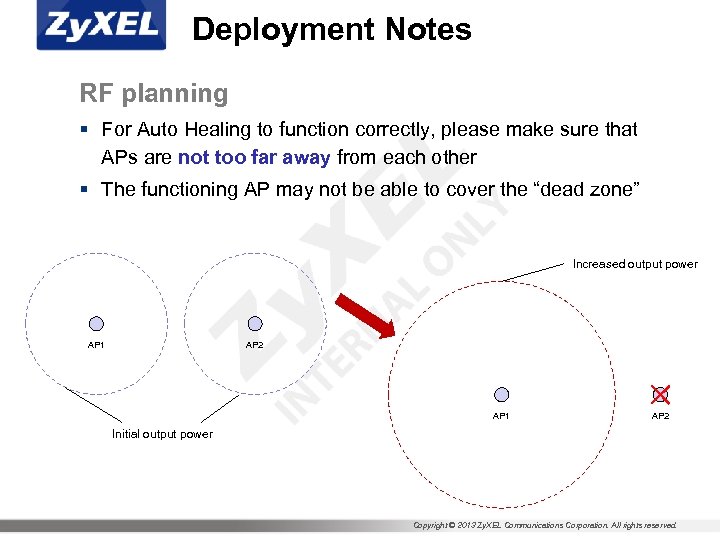
Deployment Notes RF planning § For Auto Healing to function correctly, please make sure that APs are not too far away from each other § The functioning AP may not be able to cover the “dead zone” Increased output power AP 1 AP 2 Initial output power Copyright © 2013 Zy. XEL Communications Corporation. All rights reserved.
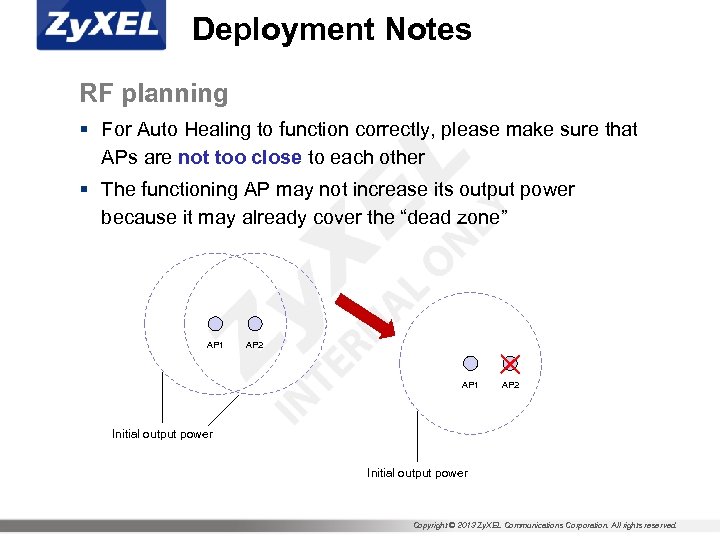
Deployment Notes RF planning § For Auto Healing to function correctly, please make sure that APs are not too close to each other § The functioning AP may not increase its output power because it may already cover the “dead zone” AP 1 AP 2 Initial output power Copyright © 2013 Zy. XEL Communications Corporation. All rights reserved.

Make the World Connect www. zyxel. com
Скачать презентацию Technology Brief Auto Healing NSBU Zy XEL Communications
66af6863acd16fee76c2813ca1b366a8.ppt