


 Скачать презентацию Tax Clearance Form IR 21 Access to my
99d81c9511095bbde7a601a1f5ad5656.ppt
- Количество слайдов: 24
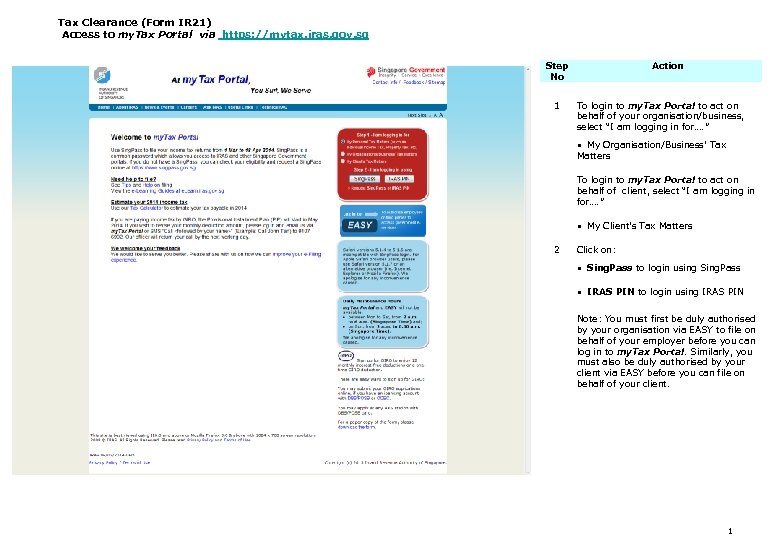 Tax Clearance (Form IR 21) Access to my. Tax Portal via https: //mytax. iras. gov. sg Step No 1 Action To login to my. Tax Portal to act on behalf of your organisation/business, select “I am logging in for…. ” My Organisation/Business’ Tax Matters To login to my. Tax Portal to act on behalf of client, select “I am logging in for…. ” My Client’s Tax Matters 2 Click on: Sing. Pass to login using Sing. Pass IRAS PIN to login using IRAS PIN Note: You must first be duly authorised by your organisation via EASY to file on behalf of your employer before you can log in to my. Tax Portal. Similarly, you must also be duly authorised by your client via EASY before you can file on behalf of your client. 1
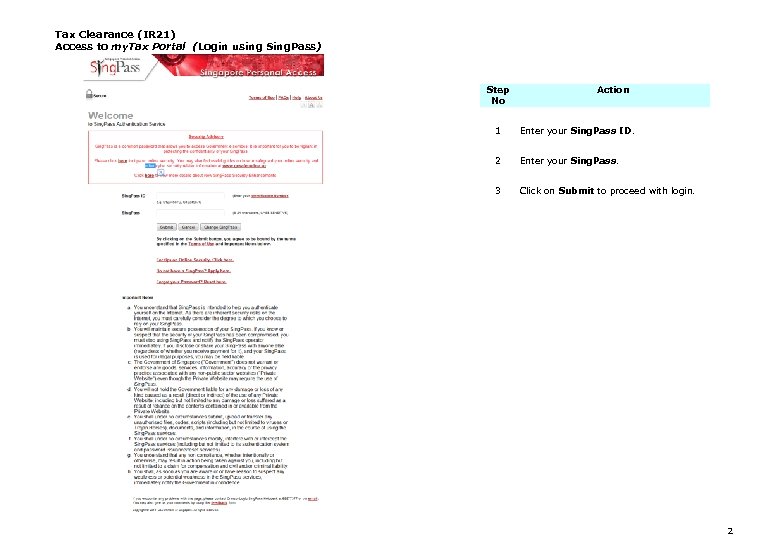 Tax Clearance (IR 21) Access to my. Tax Portal (Login using Sing. Pass) https: //mytax. iras. gov. sg Step No Action 1 Enter your Sing. Pass ID. 2 Enter your Sing. Pass. 3 Click on Submit to proceed with login. 2
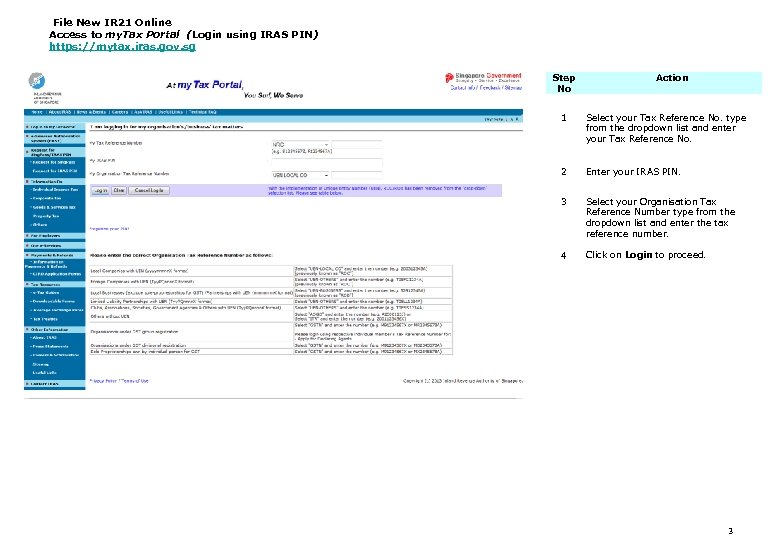 File New IR 21 Online Access to my. Tax Portal (Login using IRAS PIN) https: //mytax. iras. gov. sg Step No Action 1 Select your Tax Reference No. type from the dropdown list and enter your Tax Reference No. 2 Enter your IRAS PIN. 3 Select your Organisation Tax Reference Number type from the dropdown list and enter the tax reference number. 4 Click on Login to proceed. 3
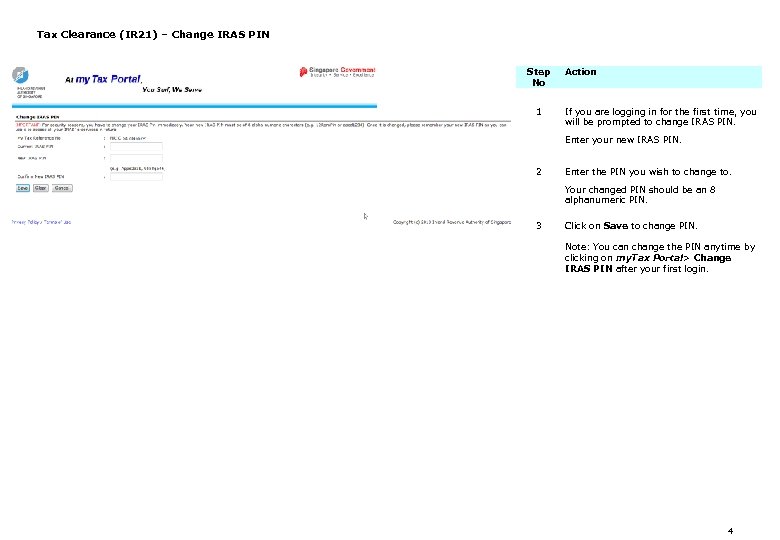 Tax Clearance (IR 21) – Change IRAS PIN Step No 1 Action If you are logging in for the first time, you will be prompted to change IRAS PIN. Enter your new IRAS PIN. 2 Enter the PIN you wish to change to. Your changed PIN should be an 8 alphanumeric PIN. 3 Click on Save to change PIN. Note: You can change the PIN anytime by clicking on my. Tax Portal> Change IRAS PIN after your first login. 4
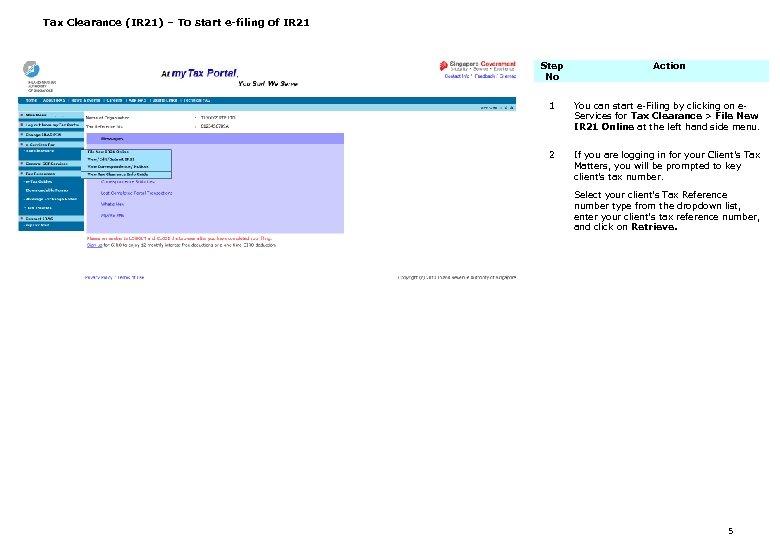 Tax Clearance (IR 21) – To start e-filing of IR 21 Step No Action 1 You can start e-Filing by clicking on e. Services for Tax Clearance > File New IR 21 Online at the left hand side menu. 2 If you are logging in for your Client’s Tax Matters, you will be prompted to key client’s tax number. Select your client’s Tax Reference number type from the dropdown list, enter your client’s tax reference number, and click on Retrieve. 5
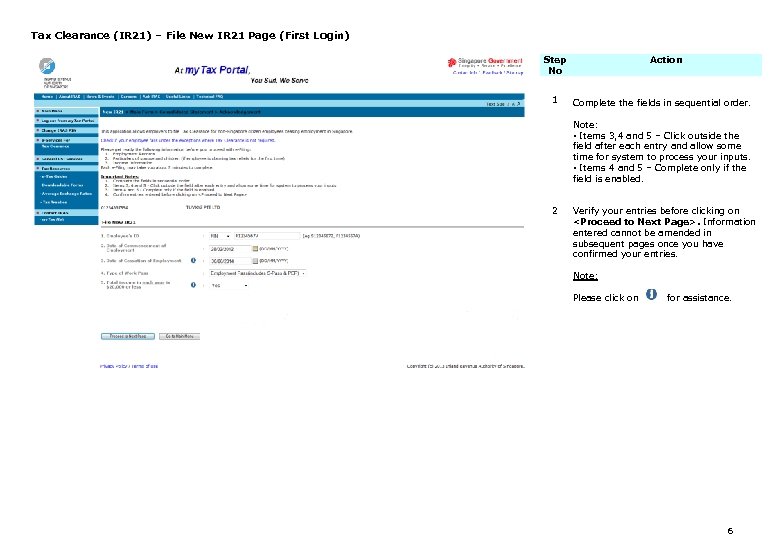 Tax Clearance (IR 21) – File New IR 21 Page (First Login) Step No 1 Action Complete the fields in sequential order. Note: • Items 3, 4 and 5 – Click outside the field after each entry and allow some time for system to process your inputs. • Items 4 and 5 – Complete only if the field is enabled. 2 Verify your entries before clicking on
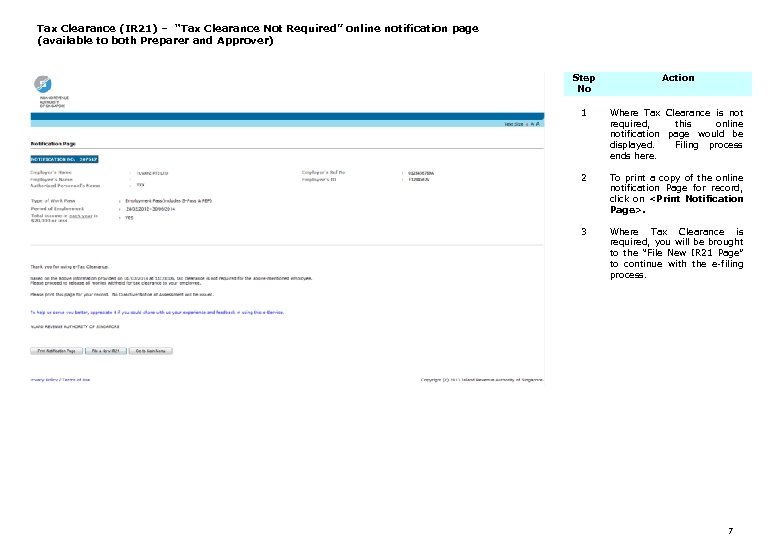 Tax Clearance (IR 21) – “Tax Clearance Not Required” online notification page (available to both Preparer and Approver) Step No Action 1 Where Tax Clearance is not required, this online notification page would be displayed. Filing process ends here. 2 To print a copy of the online notification Page for record, click on
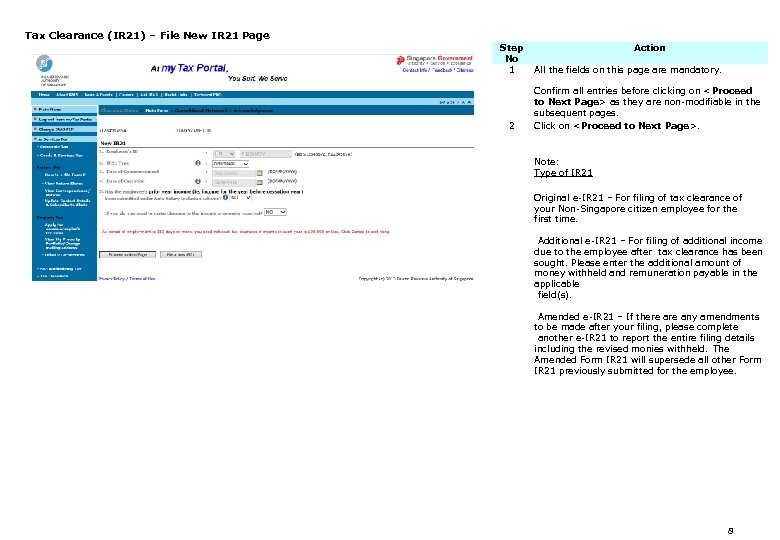 Tax Clearance (IR 21) – File New IR 21 Page Step No 1 2 Action All the fields on this page are mandatory. Confirm all entries before clicking on
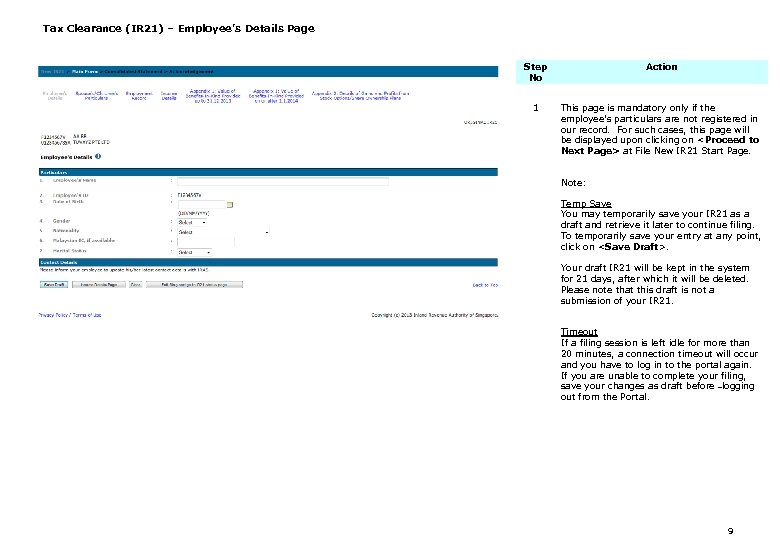 Tax Clearance (IR 21) – Employee’s Details Page Step No Action 1 This page is mandatory only if the employee’s particulars are not registered in our record. For such cases, this page will be displayed upon clicking on
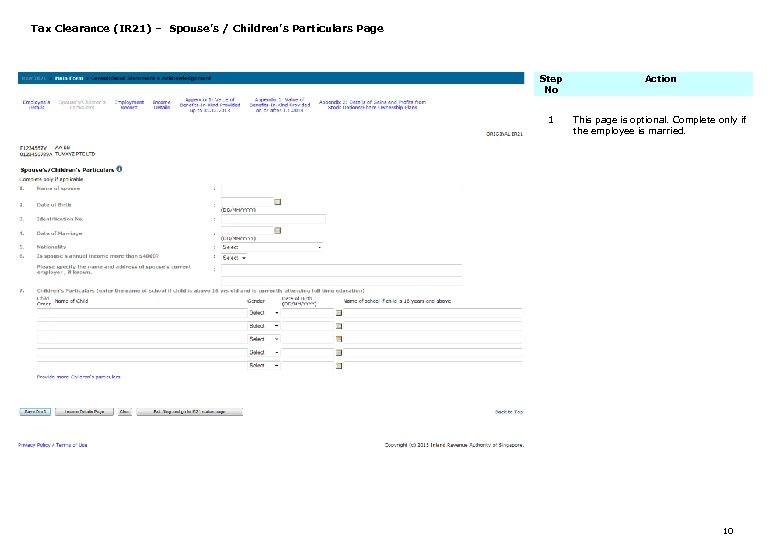 Tax Clearance (IR 21) – Spouse’s / Children’s Particulars Page Step No Action 1 This page is optional. Complete only if the employee is married. 10
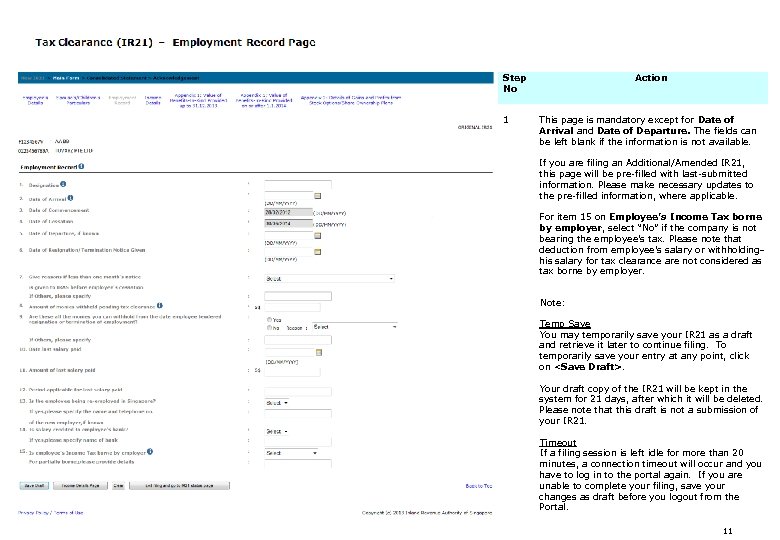 Step No 1 Action This page is mandatory except for Date of Arrival and Date of Departure. The fields can be left blank if the information is not available. If you are filing an Additional/Amended IR 21, this page will be pre-filled with last-submitted information. Please make necessary updates to the pre-filled information, where applicable. For item 15 on Employee’s Income Tax borne by employer, select “No” if the company is not bearing the employee’s tax. Please note that deduction from employee’s salary or withholding his salary for tax clearance are not considered as tax borne by employer. Note: Temp Save You may temporarily save your IR 21 as a draft and retrieve it later to continue filing. To temporarily save your entry at any point, click on
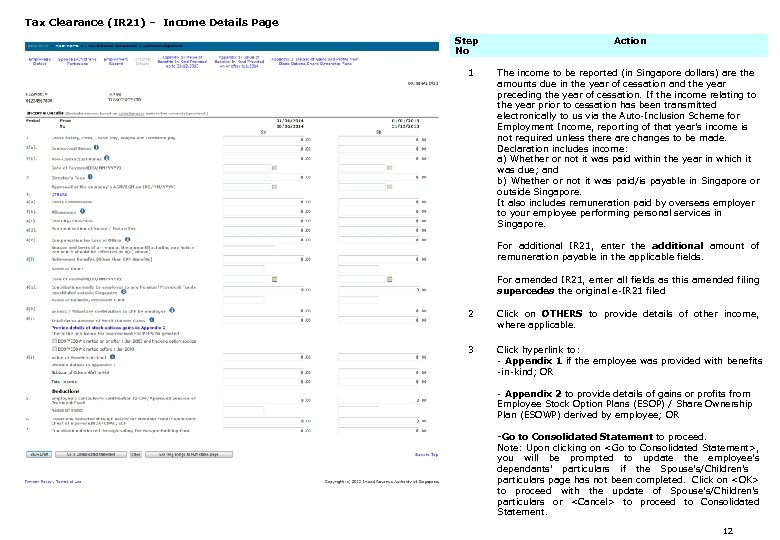 Tax Clearance (IR 21) – Income Details Page Step No 1 Action The income to be reported (in Singapore dollars) are the amounts due in the year of cessation and the year preceding the year of cessation. If the income relating to the year prior to cessation has been transmitted electronically to us via the Auto-Inclusion Scheme for Employment Income, reporting of that year’s income is not required unless there are changes to be made. Declaration includes income: a) Whether or not it was paid within the year in which it was due; and b) Whether or not it was paid/is payable in Singapore or outside Singapore. It also includes remuneration paid by overseas employer to your employee performing personal services in Singapore. For additional IR 21, enter the additional amount of remuneration payable in the applicable fields. For amended IR 21, enter all fields as this amended filing supercedes the original e-IR 21 filed 2 Click on OTHERS to provide details of other income, where applicable. 3 Click hyperlink to: - Appendix 1 if the employee was provided with benefits -in-kind; OR - Appendix 2 to provide details of gains or profits from Employee Stock Option Plans (ESOP) / Share Ownership Plan (ESOWP) derived by employee; OR -Go to Consolidated Statement to proceed. Note: Upon clicking on
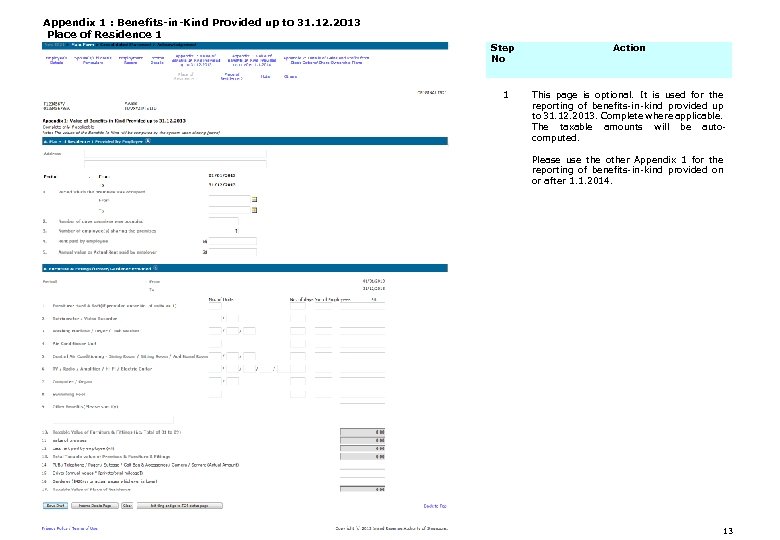 Appendix 1 : Benefits-in-Kind Provided up to 31. 12. 2013 Place of Residence 1 Step No 1 Action This page is optional. It is used for the reporting of benefits-in-kind provided up to 31. 12. 2013. Complete where applicable. The taxable amounts will be autocomputed. Please use the other Appendix 1 for the reporting of benefits-in-kind provided on or after 1. 1. 2014. 13
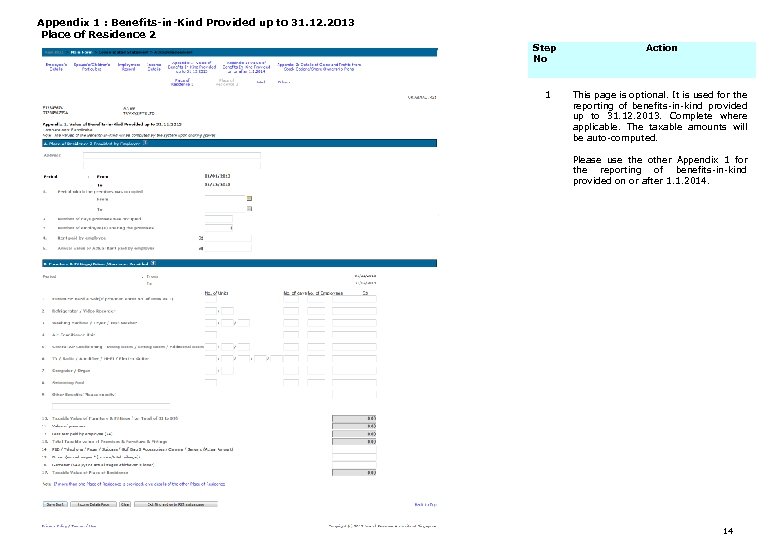 Appendix 1 : Benefits-in-Kind Provided up to 31. 12. 2013 Place of Residence 2 Step No 1 Action This page is optional. It is used for the reporting of benefits-in-kind provided up to 31. 12. 2013. Complete where applicable. The taxable amounts will be auto-computed. Please use the other Appendix 1 for the reporting of benefits-in-kind provided on or after 1. 1. 2014. 14
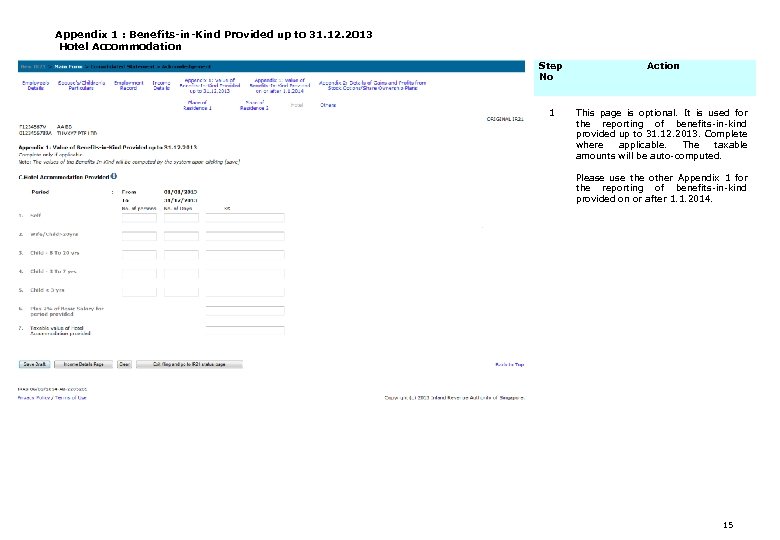 Appendix 1 : Benefits-in-Kind Provided up to 31. 12. 2013 Hotel Accommodation Step No Action 1 This page is optional. It is used for the reporting of benefits-in-kind provided up to 31. 12. 2013. Complete where applicable. The taxable amounts will be auto-computed. Please use the other Appendix 1 for the reporting of benefits-in-kind provided on or after 1. 1. 2014. 15
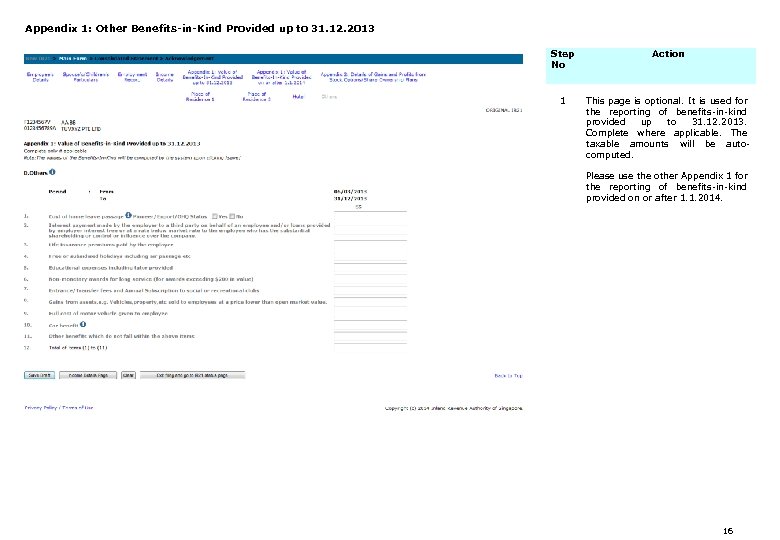 Appendix 1: Other Benefits-in-Kind Provided up to 31. 12. 2013 Step No Action 1 This page is optional. It is used for the reporting of benefits-in-kind provided up to 31. 12. 2013. Complete where applicable. The taxable amounts will be autocomputed. Please use the other Appendix 1 for the reporting of benefits-in-kind provided on or after 1. 1. 2014. 16
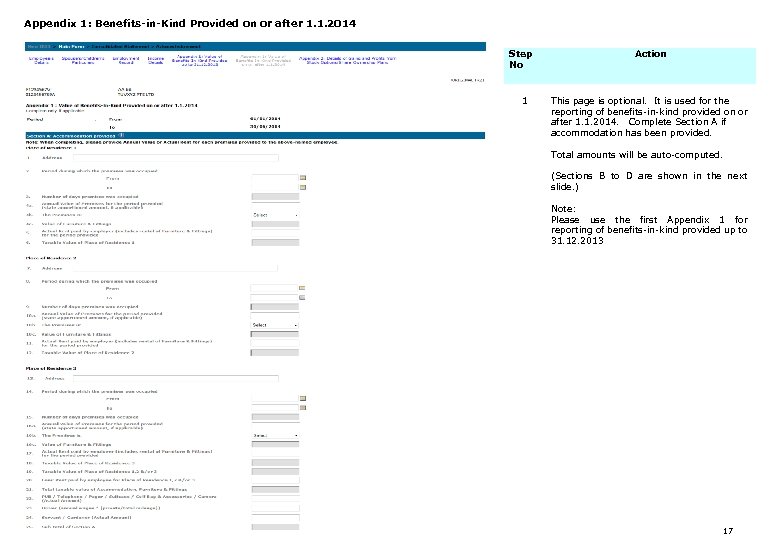 Appendix 1: Benefits-in-Kind Provided on or after 1. 1. 2014 Step No 1 Action This page is optional. It is used for the reporting of benefits-in-kind provided on or after 1. 1. 2014. Complete Section A if accommodation has been provided. Total amounts will be auto-computed. (Sections B to D are shown in the next slide. ) Note: Please use the first Appendix 1 for reporting of benefits-in-kind provided up to 31. 12. 2013 17
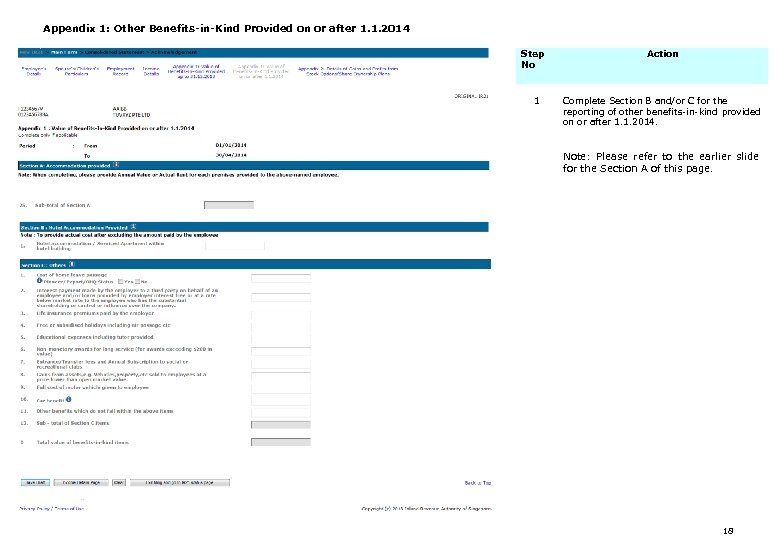 Appendix 1: Other Benefits-in-Kind Provided on or after 1. 1. 2014 Step No 1 Action Complete Section B and/or C for the reporting of other benefits-in-kind provided on or after 1. 1. 2014. Note: Please refer to the earlier slide for the Section A of this page. 18
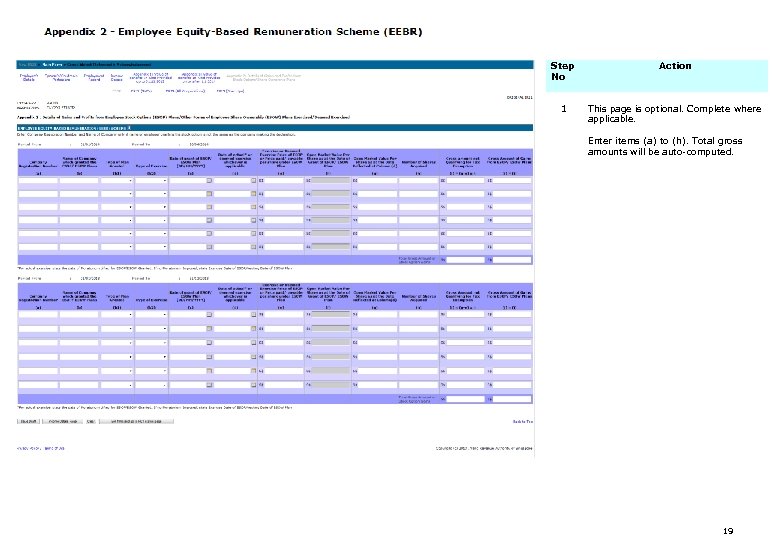 Step No Action 1 This page is optional. Complete where applicable. Enter items (a) to (h). Total gross amounts will be auto-computed. 19
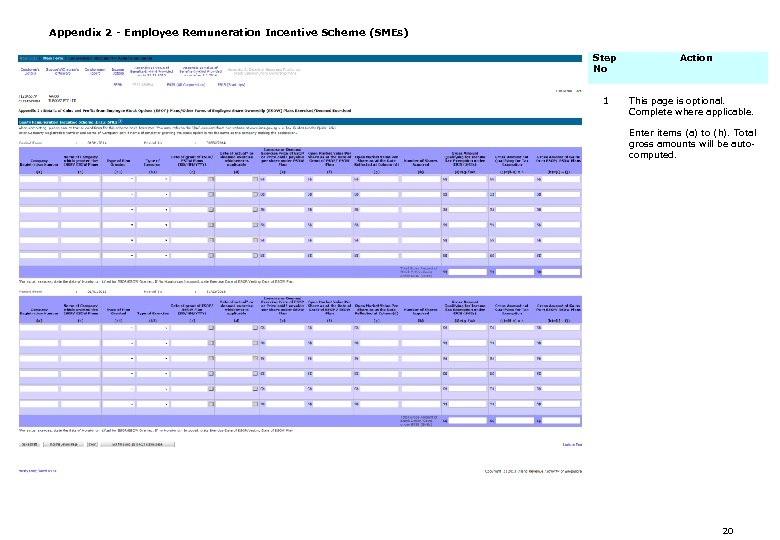 Appendix 2 - Employee Remuneration Incentive Scheme (SMEs) Step No Action 1 This page is optional. Complete where applicable. Enter items (a) to (h). Total gross amounts will be autocomputed. 20
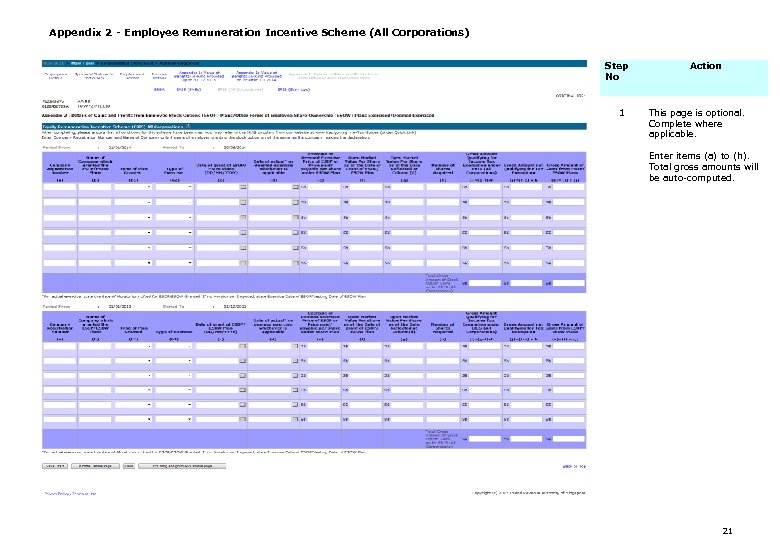 Appendix 2 - Employee Remuneration Incentive Scheme (All Corporations) Step No 1 Action This page is optional. Complete where applicable. Enter items (a) to (h). Total gross amounts will be auto-computed. 21
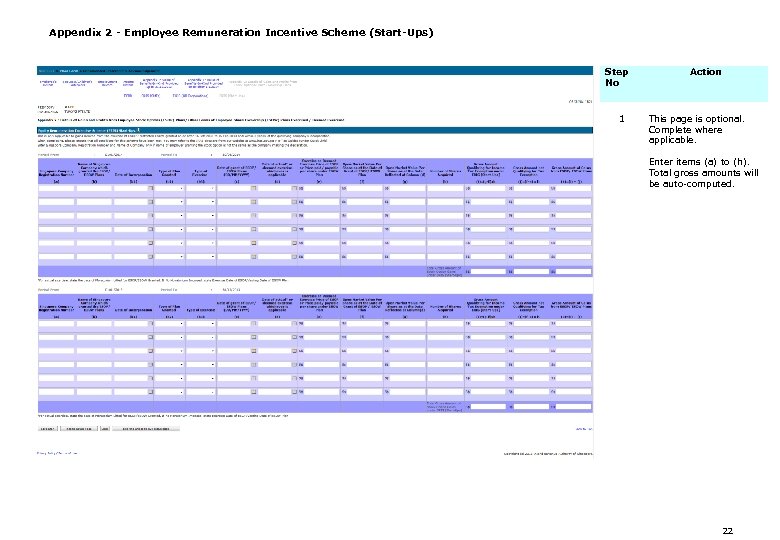 Appendix 2 - Employee Remuneration Incentive Scheme (Start-Ups) Step No 1 Action This page is optional. Complete where applicable. Enter items (a) to (h). Total gross amounts will be auto-computed. 22
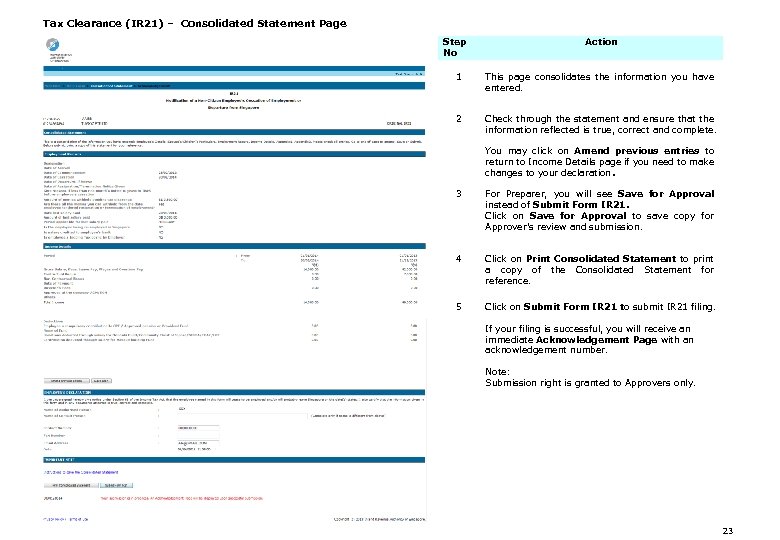 Tax Clearance (IR 21) – Consolidated Statement Page Step No Action 1 This page consolidates the information you have entered. 2 Check through the statement and ensure that the information reflected is true, correct and complete. You may click on Amend previous entries to return to Income Details page if you need to make changes to your declaration. 3 For Preparer, you will see Save for Approval instead of Submit Form IR 21. Click on Save for Approval to save copy for Approver’s review and submission. 4 Click on Print Consolidated Statement to print a copy of the Consolidated Statement for reference. 5 Click on Submit Form IR 21 to submit IR 21 filing. If your filing is successful, you will receive an immediate Acknowledgement Page with an acknowledgement number. Note: Submission right is granted to Approvers only. 23
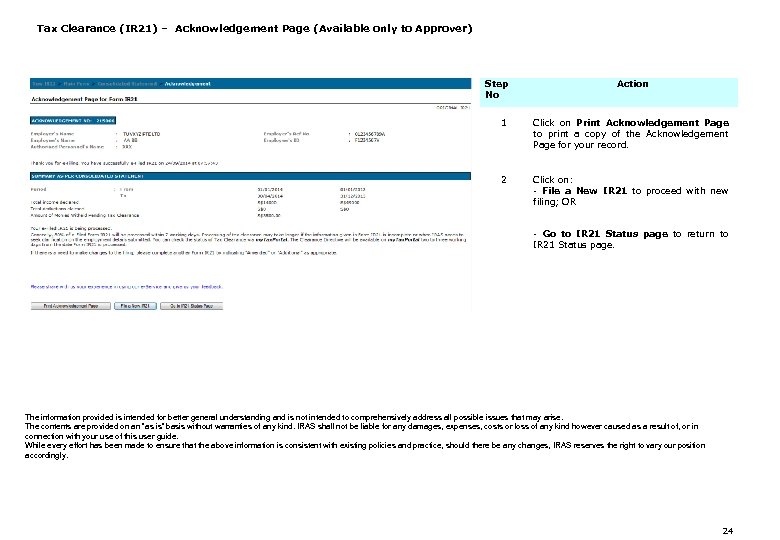 Tax Clearance (IR 21) – Acknowledgement Page (Available only to Approver) Step No Action 1 Click on Print Acknowledgement Page to print a copy of the Acknowledgement Page for your record. 2 Click on: - File a New IR 21 to proceed with new filing; OR - Go to IR 21 Status page to return to IR 21 Status page. The information provided is intended for better general understanding and is not intended to comprehensively address all possible issues that may arise. The contents are provided on an “as is” basis without warranties of any kind. IRAS shall not be liable for any damages, expenses, costs or loss of any kind however caused as a result of, or in connection with your use of this user guide. While every effort has been made to ensure that the above information is consistent with existing policies and practice, should there be any changes, IRAS reserves the right to vary our position accordingly. 24