


 Скачать презентацию System Software Slid e 1 What You
Тема2.1 software OS.ppt
- Количество слайдов: 48
 System Software Slid e 1
 What You Will Learn. . . The two major components of operating system software Why a computer isn’t useful without an operating system The five basic functions of an operating system What happens when you turn on a computer The three major types of user interfaces Software Slid e 2
 What You Will Learn. . . The strengths and weaknesses of the most popular operating systems The seven essential system utilities Data backup procedures Troubleshooting techniques Software Slid e 3
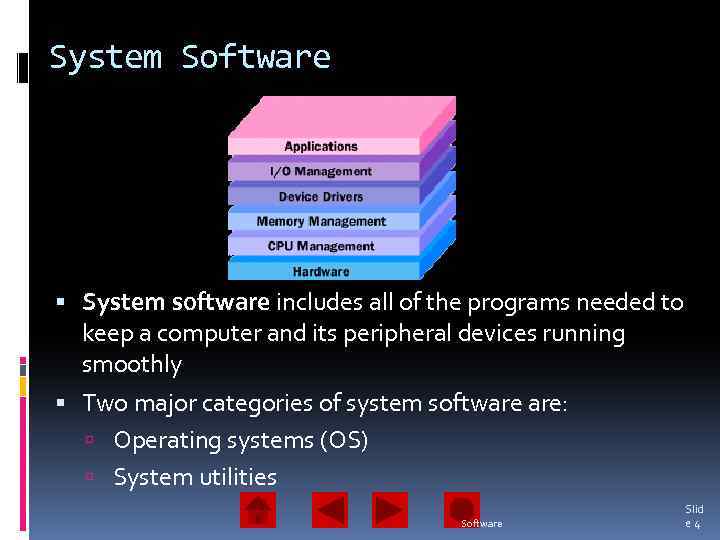 System Software System software includes all of the programs needed to keep a computer and its peripheral devices running smoothly Two major categories of system software are: Operating systems (OS) System utilities Software Slid e 4
 The Operating System (OS): The Computer’s Traffic Cop The operating system is a set of programs that perform certain basic functions with a specific type of hardware The functions of the operating system are: Starting the computer Managing programs Managing memory Handling messages from input and output devices Enabling user interaction with the computer Software Slid e 5
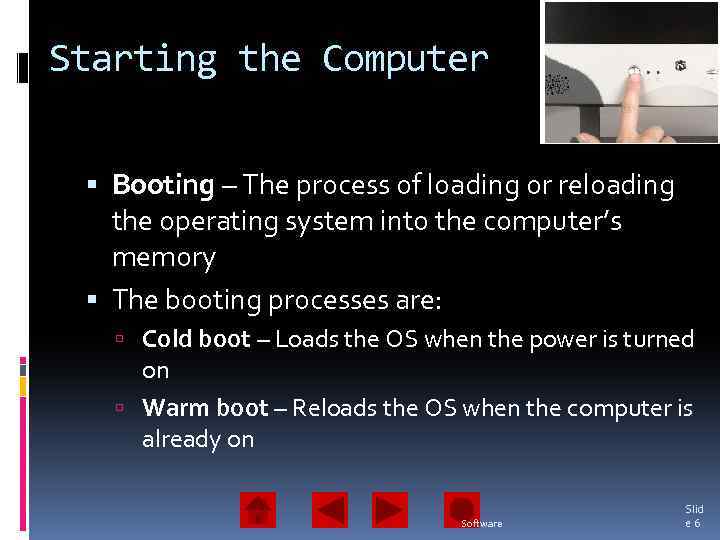 Starting the Computer Booting – The process of loading or reloading the operating system into the computer’s memory The booting processes are: Cold boot – Loads the OS when the power is turned on Warm boot – Reloads the OS when the computer is already on Software Slid e 6
 Starting the Computer The computer copies the kernel from the hard drive into the computer’s memory The kernel: Is the central part of the operating system Starts all applications Manages devices and memory Resides in memory at all times Performs other essential functions Software Slid e 7
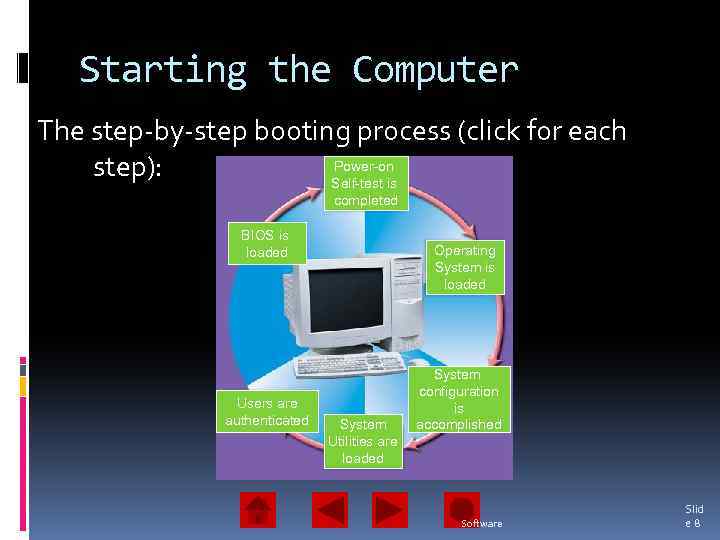 Starting the Computer The step-by-step booting process (click for each Power-on step): Self-test is completed BIOS is loaded Users are authenticated Operating System is loaded System Utilities are loaded System configuration is accomplished Software Slid e 8
 Step 1: The BIOS and Setup Program ROM (read only memory) – Permanent and unchanging memory BIOS (basic input/output system) – The part of the system software that includes the instructions that the computer uses to accept input and output Load – To transfer from a storage device to memory ROM loads BIOS into the computer’s memory Setup program – A special program containing settings that control the computer’s hardware The program can be accessed while the BIOS information is visible Software Slid e 9
 Step 2: The Power-On-Self-Test (POST) POST (power-on-self-test) – A series of tests conducted on the computer’s main memory (random access memory or RAM), input/output devices, disk drives, and the hard disk BIOS conducts a Power-On-Self-Test (POST) to check the input/output system for operability The computer will produce a beeping sound an error message will appear on the monitor if any problems are encountered Software Slid e 10
 Step 3: The Operating System (OS) Loads BIOS searches for the OS Settings in the CMOS―complementary metaloxide semiconductor―determine where to look for the OS The operating system’s kernel is loaded into the computer’s memory The OS takes control of the computer and begins loading system configuration information Software Slid e 11
 Step 4: System Configuration Registry – A database that stores information about peripherals and software Peripheral – Device connected to a computer Driver – A utility program that makes peripheral devices function properly The system is configured from the operating system’s registry Drivers are loaded into memory Software Slid e 12
 Step 5: System Utilities Loads System utilities are loaded into memory Volume control Antivirus software PC card unplugging utility Software Slid e 13
 Step 6: Users Authentication or user login occurs User name Password The user interface starts, enabling user interaction with computer programs Software Slid e 14
 Managing Applications Single-tasking operating systems run one application program at a time Multitasking operating systems have the ability to run more than one application program at a time Multitasking is accomplished by: A foreground application – The active program or program in use One or more background applications – Inactive program(s) or program(s) not in use Software Slid e 15
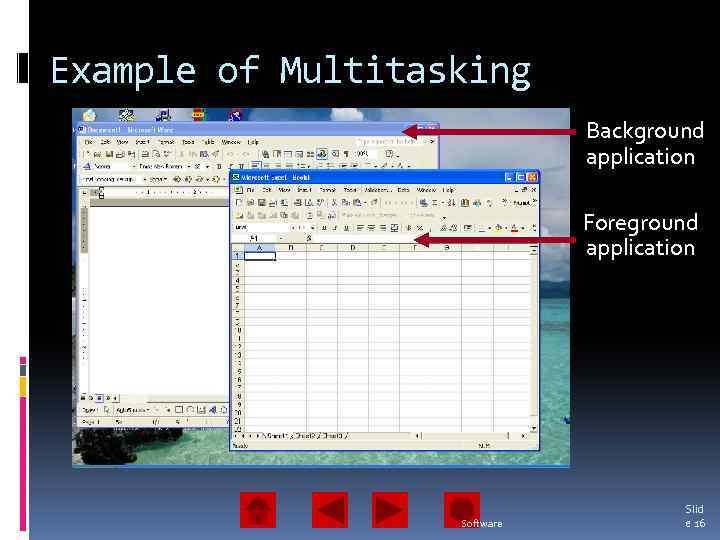 Example of Multitasking Background application Foreground application Software Slid e 16
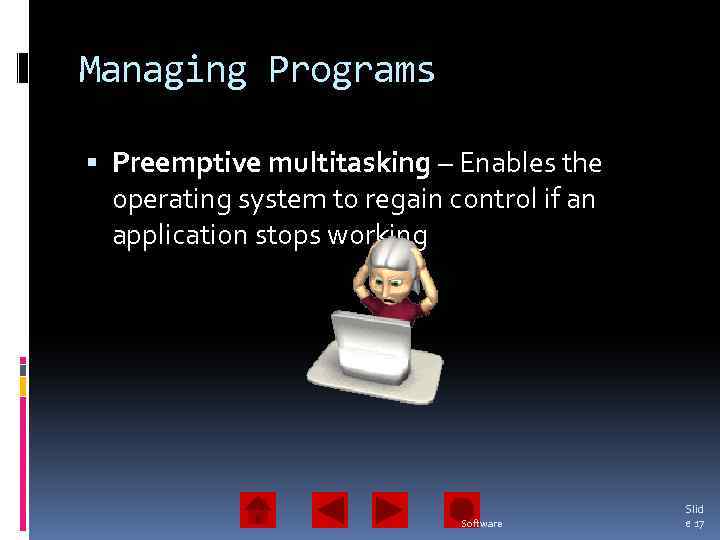 Managing Programs Preemptive multitasking – Enables the operating system to regain control if an application stops working Software Slid e 17
 Managing Memory Computers use memory to make processing more fluid The operating system allocates memory areas for each running program; it keeps programs from interfering with each other The operating system uses virtual memory as an extension of random access memory (RAM) Software Slid e 18
 Managing Virtual Memory hard disk page swapped in most recently transferred data or program instructions memory Virtual memory management swap file page swapped out least recently used data or program instructions Software Slid e 19
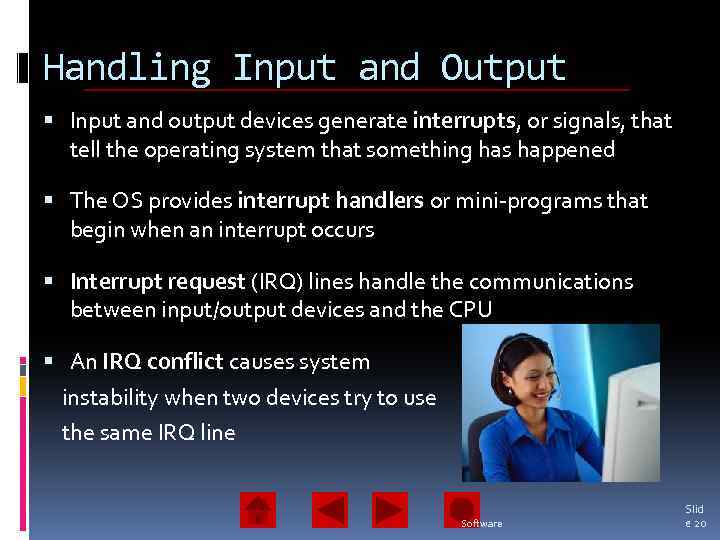 Handling Input and Output Input and output devices generate interrupts, or signals, that tell the operating system that something has happened The OS provides interrupt handlers or mini-programs that begin when an interrupt occurs Interrupt request (IRQ) lines handle the communications between input/output devices and the CPU An IRQ conflict causes system instability when two devices try to use the same IRQ line Software Slid e 20
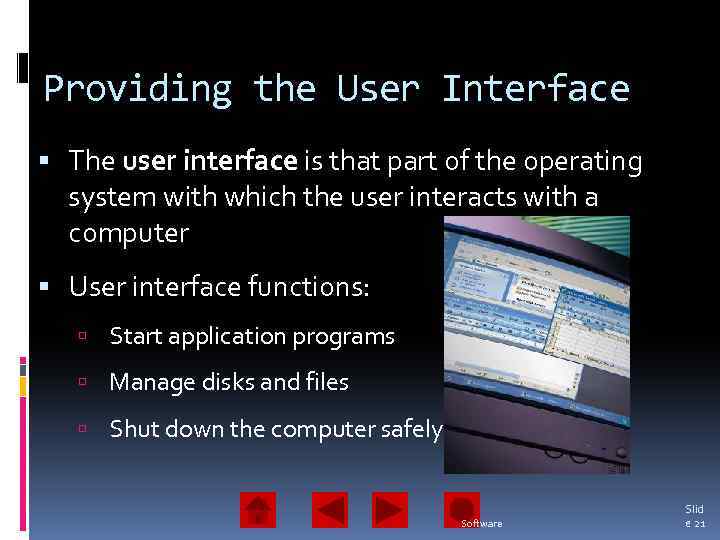 Providing the User Interface The user interface is that part of the operating system with which the user interacts with a computer User interface functions: Start application programs Manage disks and files Shut down the computer safely Software Slid e 21
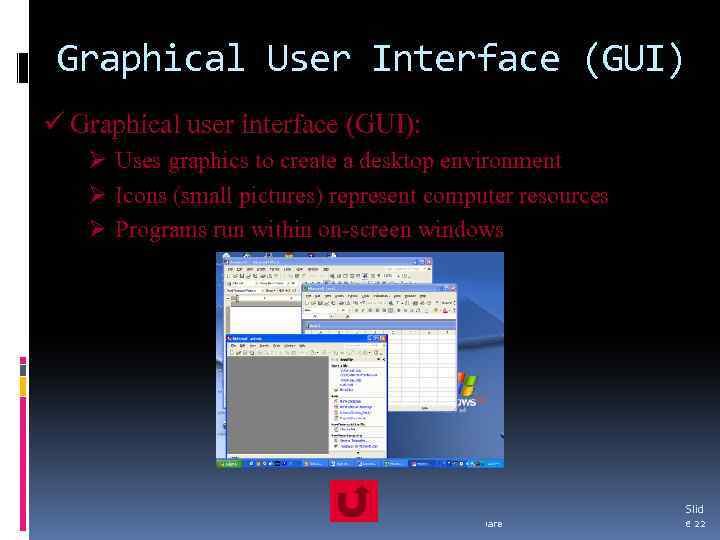 Graphical User Interface (GUI) ü Graphical user interface (GUI): Ø Uses graphics to create a desktop environment Ø Icons (small pictures) represent computer resources Ø Programs run within on-screen windows Software Slid e 22
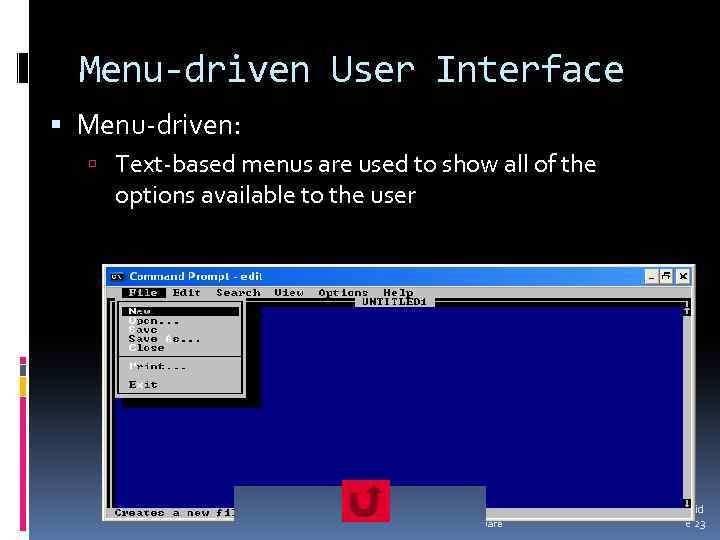 Menu-driven User Interface Menu-driven: Text-based menus are used to show all of the options available to the user Software Slid e 23
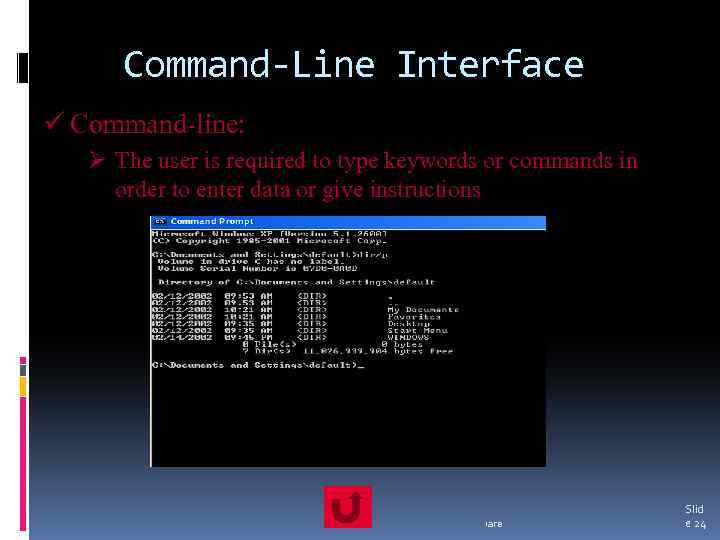 Command-Line Interface ü Command-line: Ø The user is required to type keywords or commands in order to enter data or give instructions Software Slid e 24
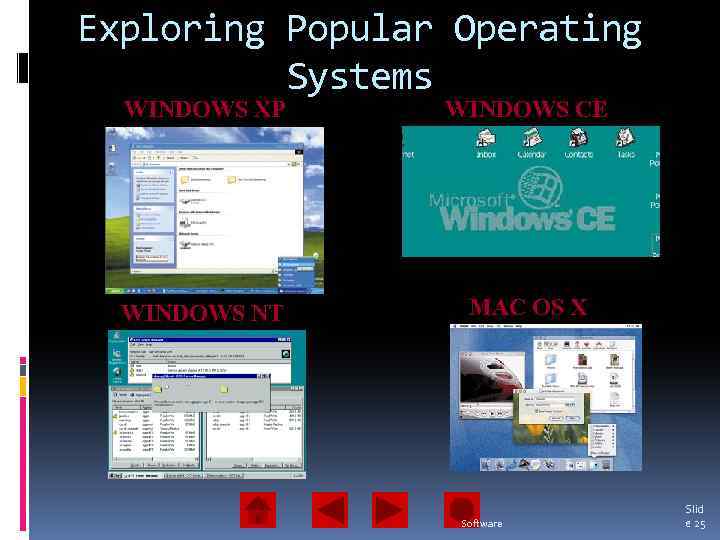 Exploring Popular Operating Systems WINDOWS XP WINDOWS CE WINDOWS NT MAC OS X Software Slid e 25
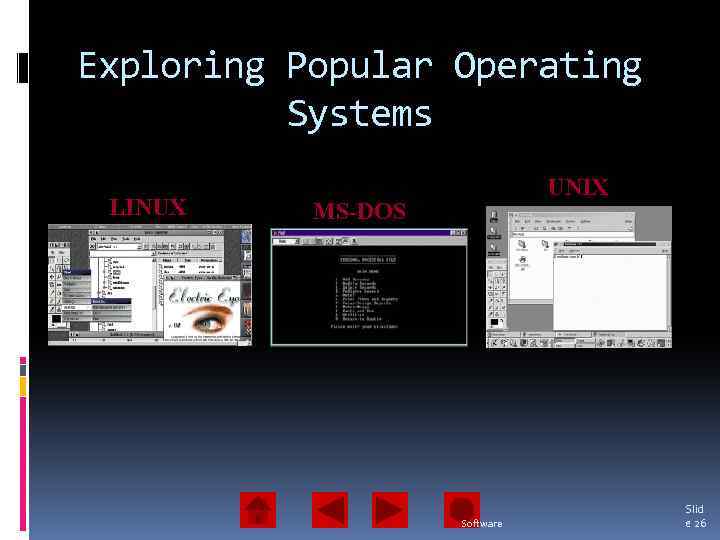 Exploring Popular Operating Systems LINUX UNIX MS-DOS Software Slid e 26
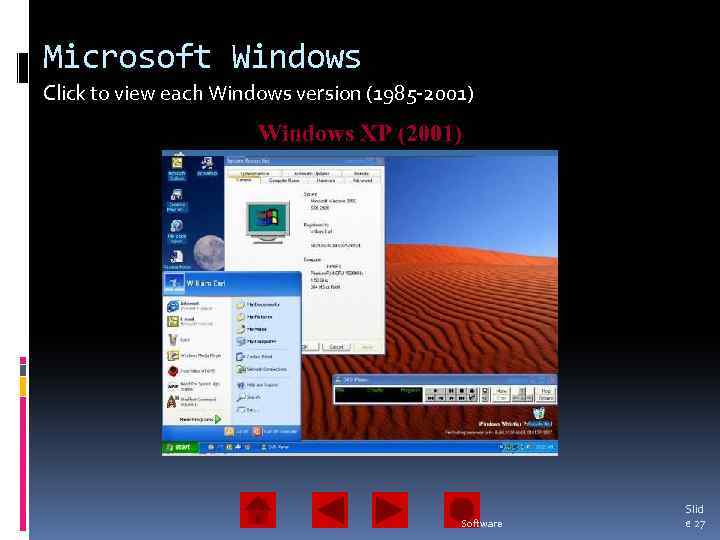 Microsoft Windows Click to view each Windows version (1985 -2001) Windows 3. x. NT (1995) Windows 2000(2001) Windows ME(1998) Windows XP (1993) Windows 2. 0 (1987) Windows 95 (2000) 98 (1985) (1990 -1992) 1. 0 (2000) Software Slid e 27
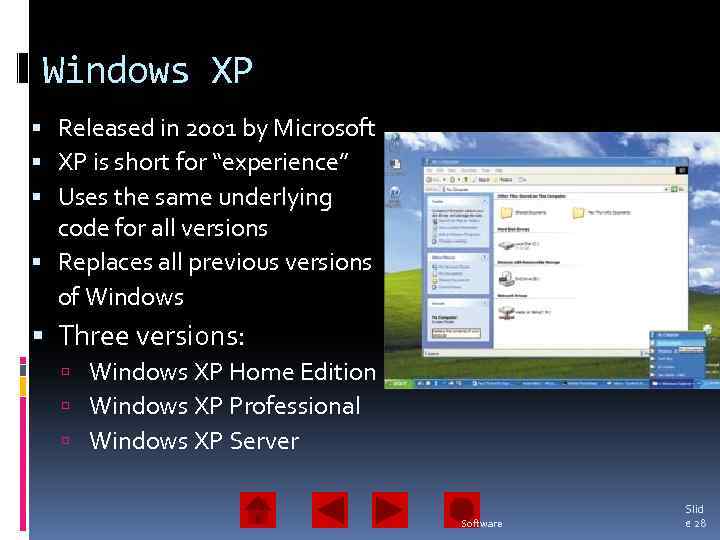 Windows XP Released in 2001 by Microsoft XP is short for “experience” Uses the same underlying code for all versions Replaces all previous versions of Windows Three versions: Windows XP Home Edition Windows XP Professional Windows XP Server Software Slid e 28
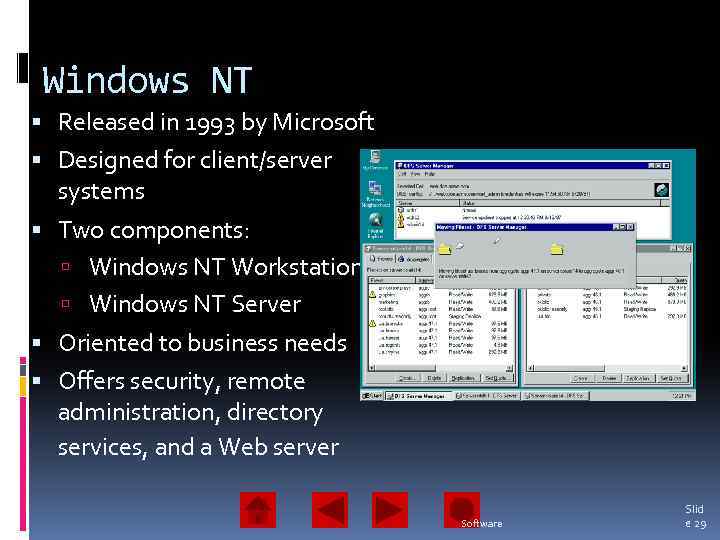 Windows NT Released in 1993 by Microsoft Designed for client/server systems Two components: Windows NT Workstation Windows NT Server Oriented to business needs Offers security, remote administration, directory services, and a Web server Software Slid e 29
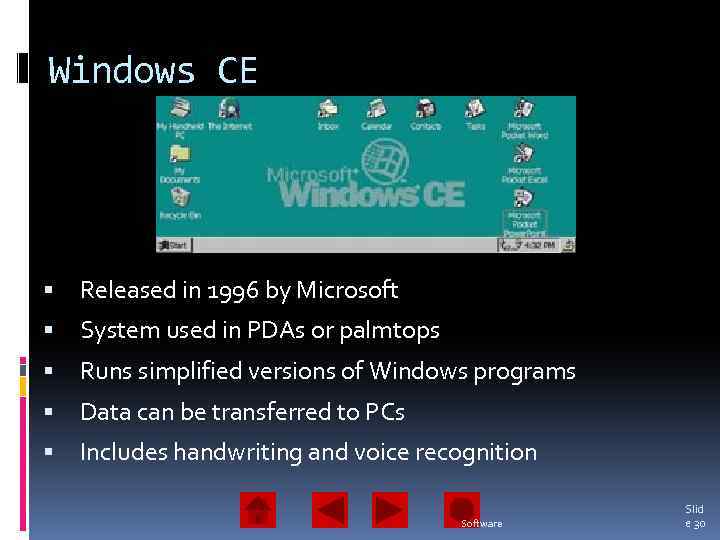 Windows CE Released in 1996 by Microsoft System used in PDAs or palmtops Runs simplified versions of Windows programs Data can be transferred to PCs Includes handwriting and voice recognition Software Slid e 30
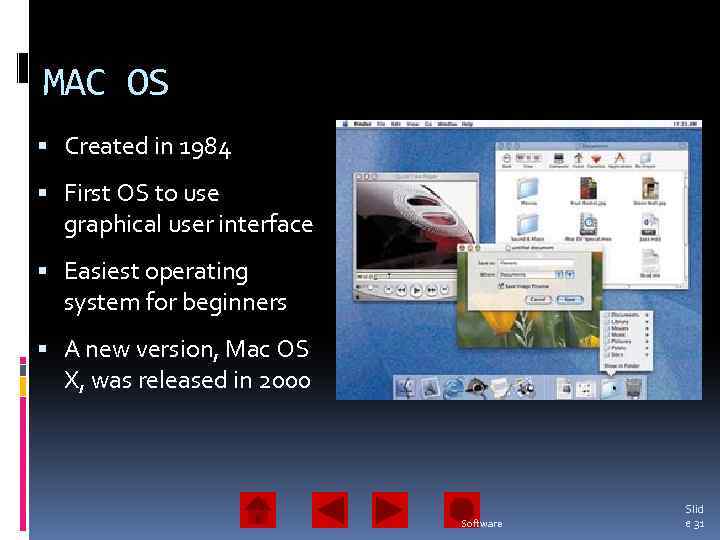 MAC OS Created in 1984 First OS to use graphical user interface Easiest operating system for beginners A new version, Mac OS X, was released in 2000 Software Slid e 31
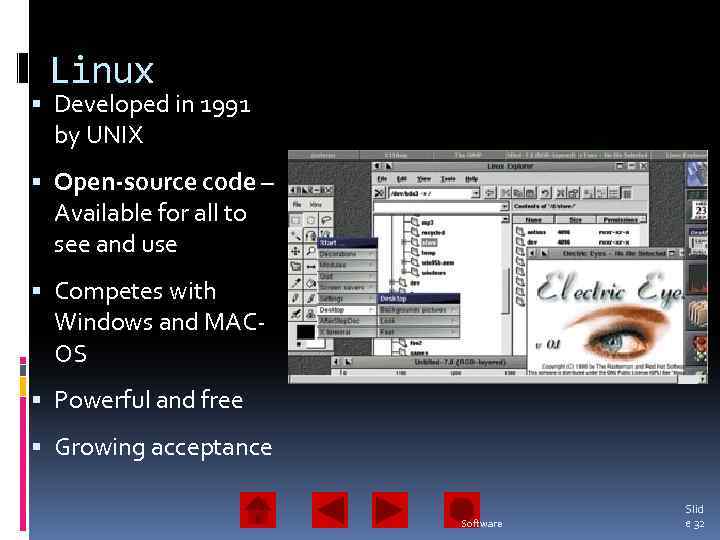 Linux Developed in 1991 by UNIX Open-source code – Available for all to see and use Competes with Windows and MACOS Powerful and free Growing acceptance Software Slid e 32
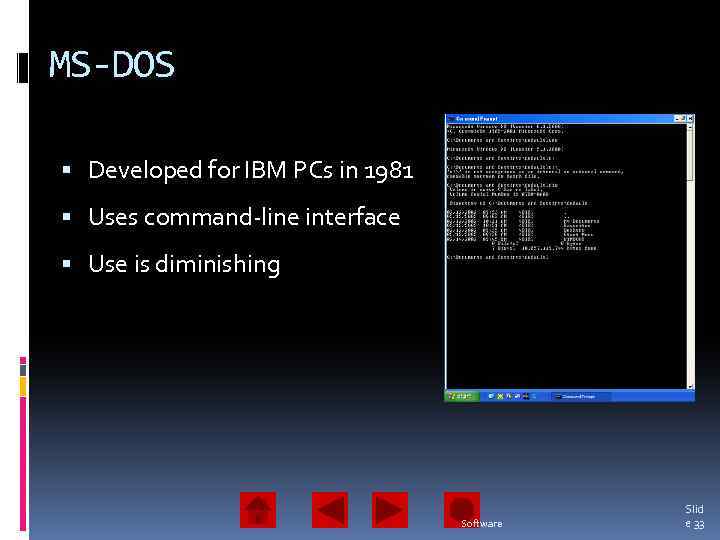 MS-DOS Developed for IBM PCs in 1981 Uses command-line interface Use is diminishing Software Slid e 33
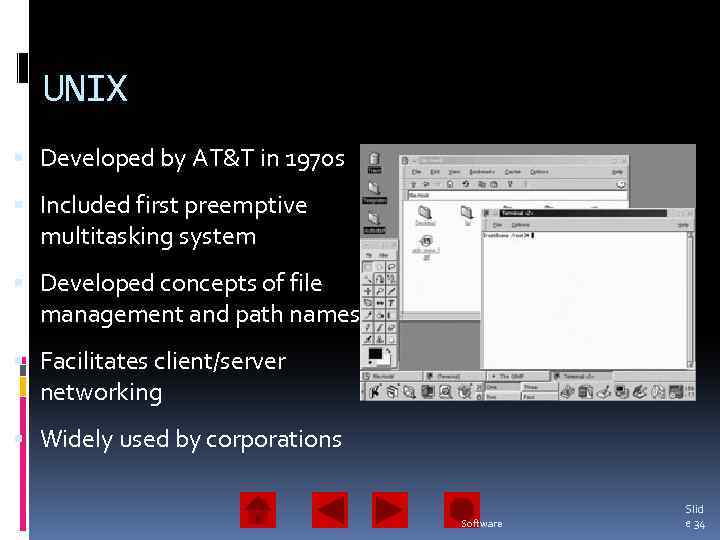 UNIX Developed by AT&T in 1970 s Included first preemptive multitasking system Developed concepts of file management and path names Facilitates client/server networking Widely used by corporations Software Slid e 34
 System Utilities: Tools for Housekeeping System utilities are programs that help the operating system manage the computer system’s resources Types of utilities: Backup software Antivirus software Disk scanning Disk defragmentation File management File-searching software File compression Software Slid e 35
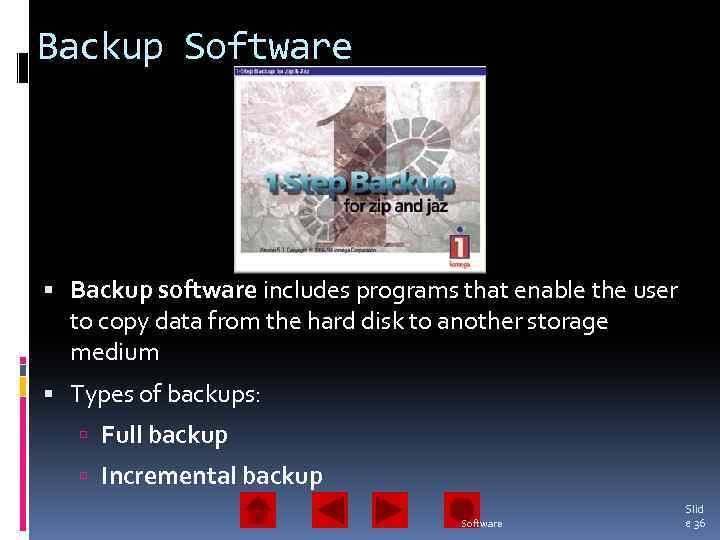 Backup Software Backup software includes programs that enable the user to copy data from the hard disk to another storage medium Types of backups: Full backup Incremental backup Software Slid e 36
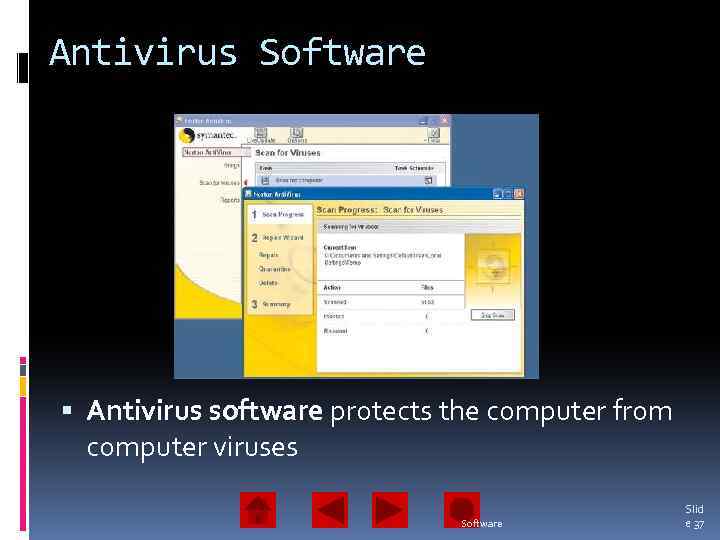 Antivirus Software Antivirus software protects the computer from computer viruses Software Slid e 37
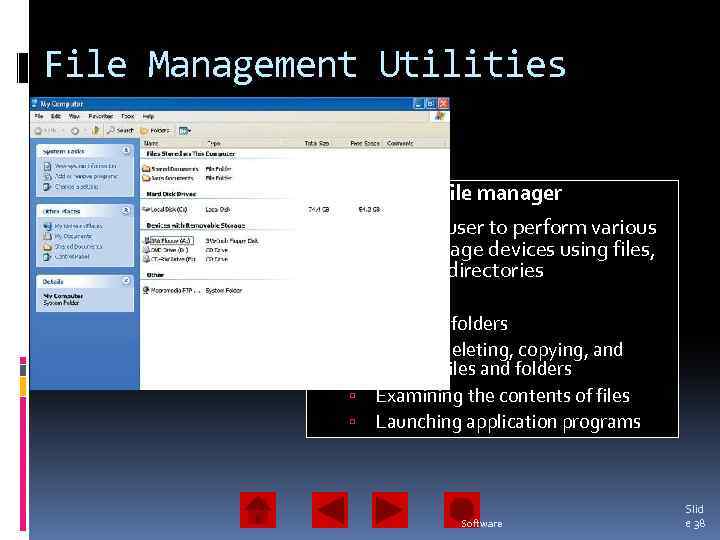 File Management Utilities Known as a file manager Enables the user to perform various tasks on storage devices using files, folders, and directories Tasks include: Creating folders Saving, deleting, copying, and moving files and folders Examining the contents of files Launching application programs Software Slid e 38
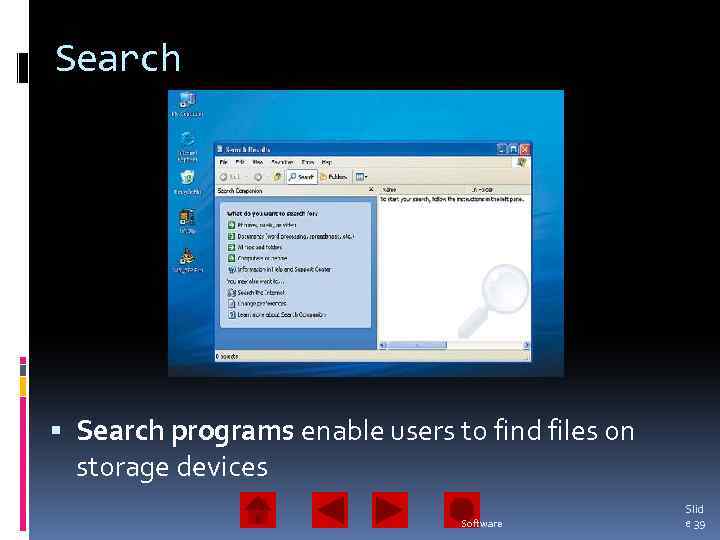 Search programs enable users to find files on storage devices Software Slid e 39
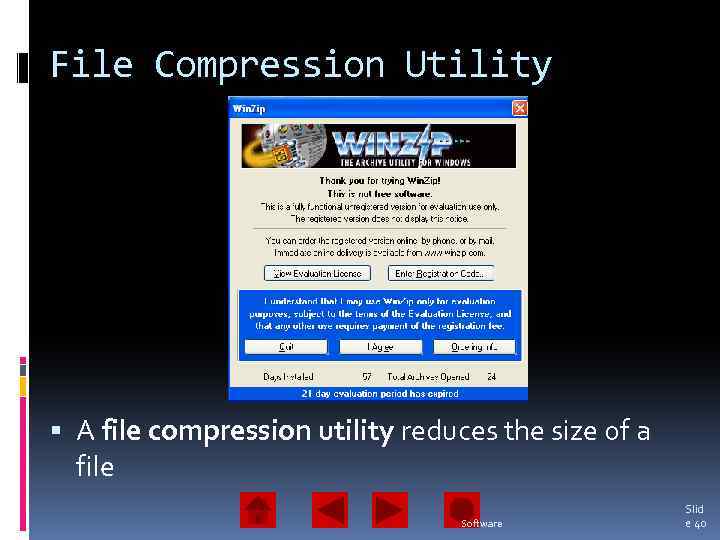 File Compression Utility A file compression utility reduces the size of a file Software Slid e 40
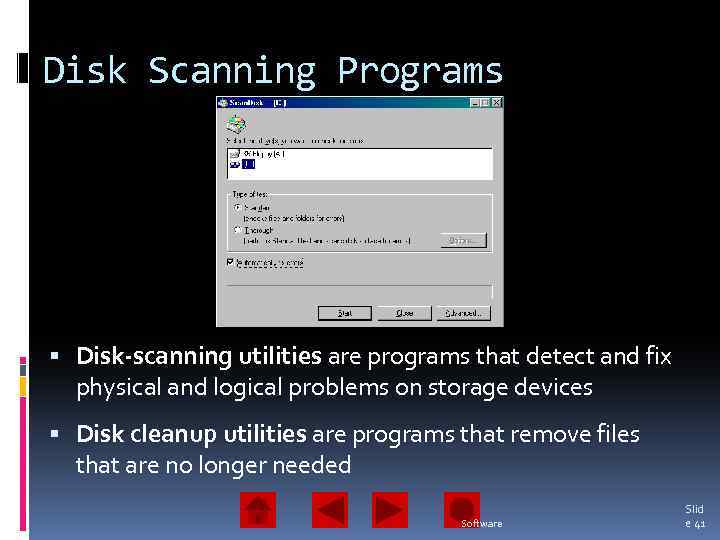 Disk Scanning Programs Disk-scanning utilities are programs that detect and fix physical and logical problems on storage devices Disk cleanup utilities are programs that remove files that are no longer needed Software Slid e 41
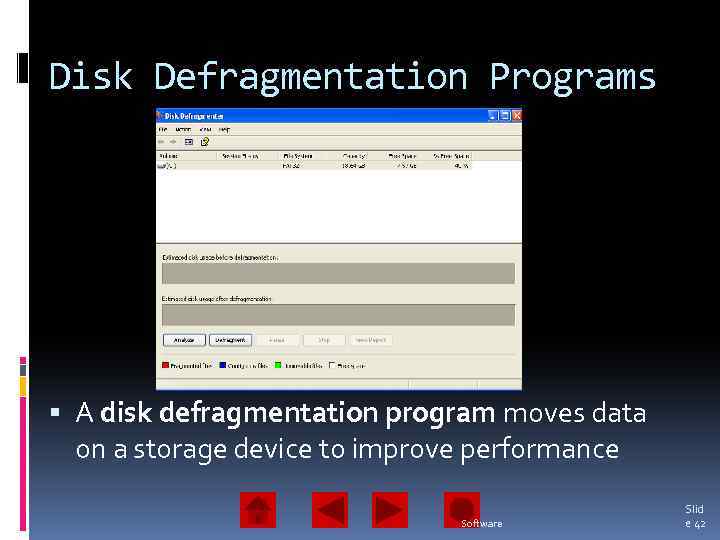 Disk Defragmentation Programs A disk defragmentation program moves data on a storage device to improve performance Software Slid e 42
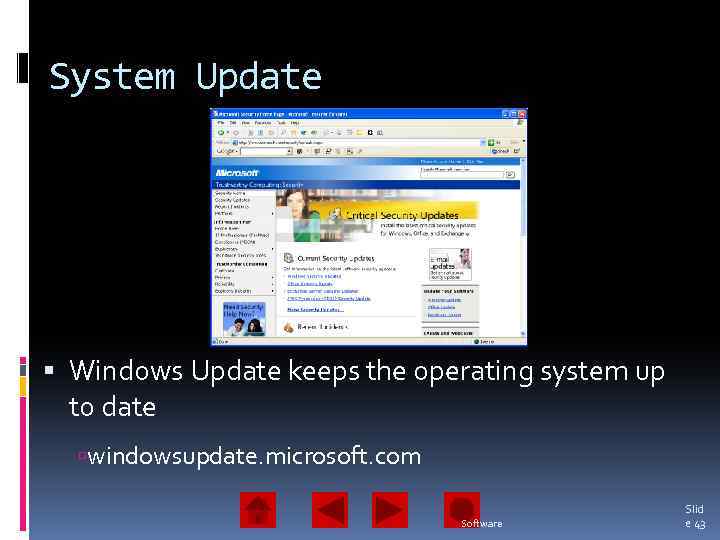 System Update Windows Update keeps the operating system up to date windowsupdate. microsoft. com Software Slid e 43
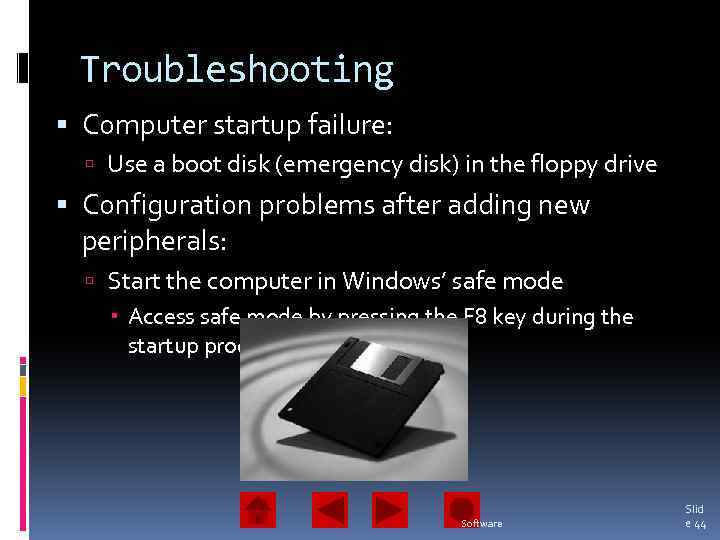 Troubleshooting Computer startup failure: Use a boot disk (emergency disk) in the floppy drive Configuration problems after adding new peripherals: Start the computer in Windows’ safe mode Access safe mode by pressing the F 8 key during the startup process Software Slid e 44
 Troubleshooting System slowdown: Scan for viruses Check the CPU fan Check BIOS options Defragment the hard disk Software Slid e 45
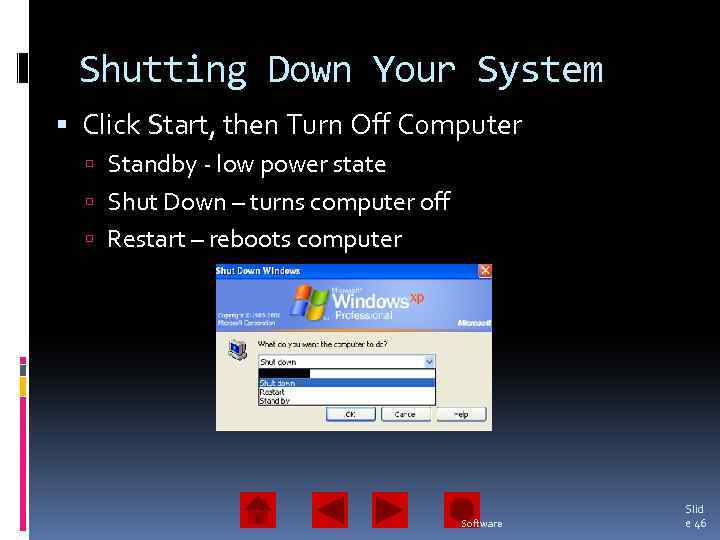 Shutting Down Your System Click Start, then Turn Off Computer Standby - low power state Shut Down – turns computer off Restart – reboots computer Software Slid e 46
 Chapter 4 Summary • Two of the system software components are the operating system and system utilities • The operating system coordinates the functions of a computer’s hardware and provides support for application programs • An operating system manages programs, memory, and input/output devices, and it also provides a means of communicating with the user • The six steps to start a computer are loading the BIOS, power-on self-test, load operating system, configure system, load utilities, authenticate users Software Slid e 47
 Chapter 4 Summary (continued) • Two major operating systems for the personal computer are Microsoft Windows and the Mac OS X • The basic types of user interface are command-line, menu-driven, and graphical • System utilities keep the computer running efficiently • Backup procedures keep data safe • Troubleshooting is helpful for discovering errors Software Slid e 48